On Office 2007, Math Editing And
Producer Display
By Vinayak Nandikal
Planning for
Microsoft Office 2007..??
Why Do We Need a Plan?
It’s coming, we want to be ready
Licensing changes
Substantial changes to the interface
Potential support issues
Proactive planning ensures your feedback
is considered
When Is Office 2007 Coming
Coincides with MS Vista release
November 30 corporate release
January 30 release to general public
On campus license changes will vary
Not tied to Vista – will run on XP SP2
U of G Office 2007 Licensing
MS Campus Agreement
Will remain as Office 2003 for now
Can choose when to move to 2007
MS Student Select
Currently on hold until corporate release
new license and old media with downgrade
rights
Academic Select – other MS apps
Minor price reductions
Licenses discontinued (XP, Server 2003)
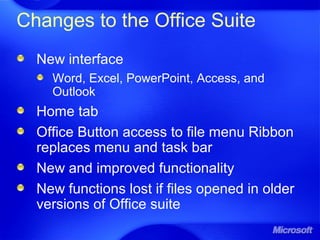
Changes to the Office Suite
New interface
Word, Excel, PowerPoint, Access, and
Outlook
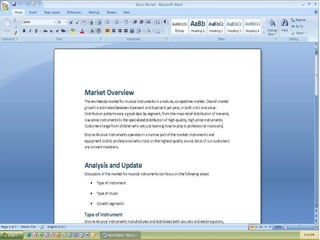
Home tab
Office Button access to file menu Ribbon
replaces menu and task bar
New and improved functionality
New functions lost if files opened in older
versions of Office suite
Changes to the Office Suite
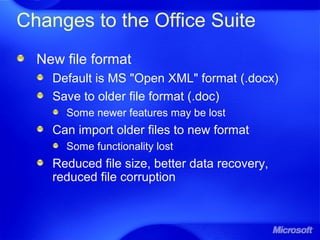
New file format
Default is MS "Open XML" format (.docx)
Save to older file format (.doc)
Some newer features may be lost
Can import older files to new format
Some functionality lost
Reduced file size, better data recovery,
reduced file corruption
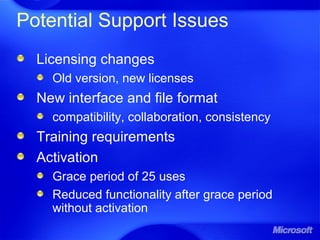
Potential Support Issues
Licensing changes
Old version, new licenses
New interface and file format
compatibility, collaboration, consistency
Training requirements
Activation
Grace period of 25 uses
Reduced functionality after grace period
without activation
Your Input Matters
Become an early adopter
We can provide licenses
Provide input on your experience
Compatibility issues
Potential support issues
Your feedback will help direct
recommendations to the community
Next Steps – Dates TBD
CCS/IT Admins as early adopters
Train CCS Help Services staff
Gather feedback on issues, etc.
Recommend a date for campus migration
- Spring 2007 or later?
Lab upgrade decisions
Change MS Campus Agreement license
to 2007
Microsoft Office
Visio Professional 2007 for IT
How to Use Visio for
Project Management
Project Management Summary
Use Visio 2007 with Project 2007
Diagram All Project Phases
Planning
Design
Engineering
Implementation
Diagram Types
Gantt Chart
Project timeline
Project status
Processes
Work Breakdown
Responsibility Matrix
Visio 2007 and Project 2007
Create plan in Project
Import plan into Visio diagram
Timeline
Gantt Chart
Include with other project diagrams
Report project status as Visio
PivotDiagram
Perform ‘what-if’ modifications and export
back into Project
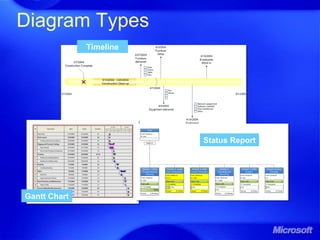
Diagram Types
Timeline
Gantt Chart
Status Report
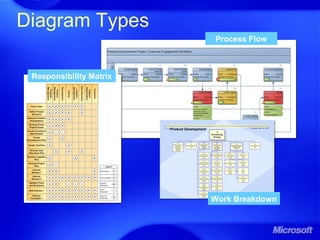
Diagram Types
Work Breakdown
Process Flow
Responsibility Matrix
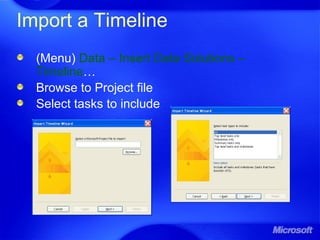
Import a Timeline
(Menu) Data – Insert Data Solutions –
Timeline…
Browse to Project file
Select tasks to include
Import a Timeline
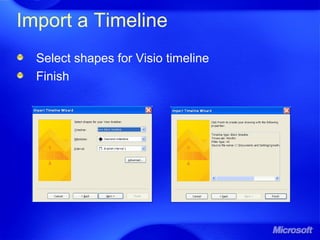
Select shapes for Visio timeline
Finish
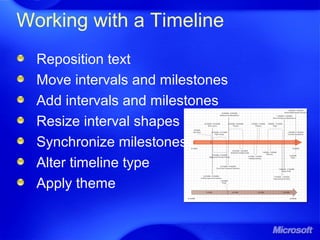
Working with a Timeline
Reposition text
Move intervals and milestones
Add intervals and milestones
Resize interval shapes
Synchronize milestones
Alter timeline type
Apply theme
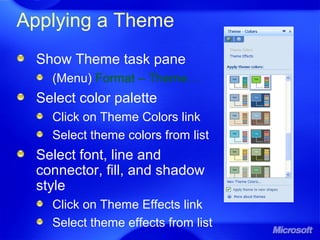
Applying a Theme
Show Theme task pane
(Menu) Format – Theme…
Select color palette
Click on Theme Colors link
Select theme colors from list
Select font, line and
connector, fill, and shadow
style
Click on Theme Effects link
Select theme effects from list
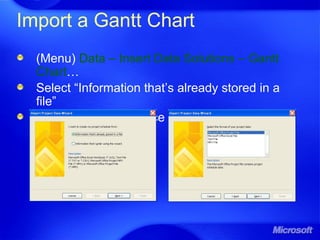
Import a Gantt Chart
(Menu) Data – Insert Data Solutions – Gantt
Chart…
Select “Information that’s already stored in a
file”
Select “Microsoft Office Project File”
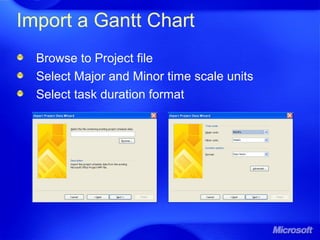
Import a Gantt Chart
Browse to Project file
Select Major and Minor time scale units
Select task duration format
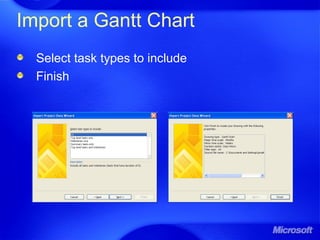
Import a Gantt Chart
Select task types to include
Finish
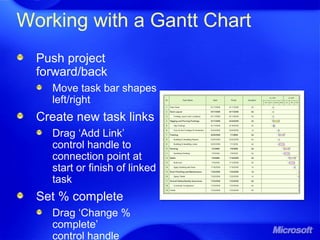
Working with a Gantt Chart
Push project
forward/back
Move task bar shapes
left/right
Create new task links
Drag ‘Add Link’
control handle to
connection point at
start or finish of linked
task
Set % complete
Drag ‘Change %
complete’
control handle
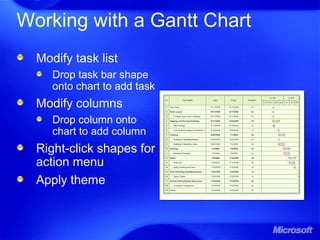
Working with a Gantt Chart
Modify task list
Drop task bar shape
onto chart to add task
Modify columns
Drop column onto
chart to add column
Right-click shapes for
action menu
Apply theme
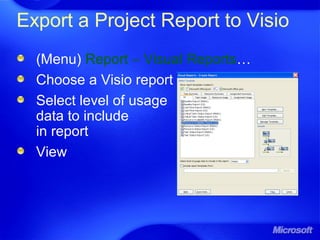
Export a Project Report to Visio
(Menu) Report – Visual Reports…
Choose a Visio report
Select level of usage
data to include
in report
View
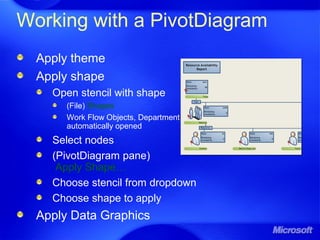
Working with a PivotDiagram
Apply theme
Apply shape
Open stencil with shape
(File) Shapes
Work Flow Objects, Department
automatically opened
Select nodes
(PivotDiagram pane)
Apply Shape…
Choose stencil from dropdown
Choose shape to apply
Apply Data Graphics
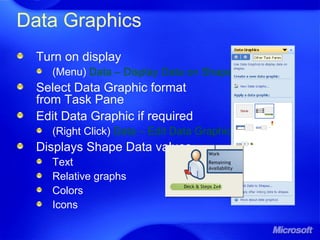
Data Graphics
Turn on display
(Menu) Data – Display Data on Shapes
Select Data Graphic format
from Task Pane
Edit Data Graphic if required
(Right Click) Data – Edit Data Graphic
Displays Shape Data values
Text
Relative graphs
Colors
Icons
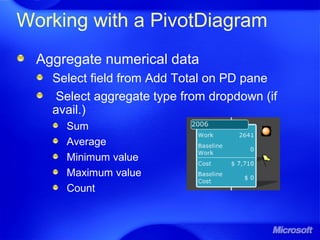
Working with a PivotDiagram
Aggregate numerical data
Select field from Add Total on PD pane
Select aggregate type from dropdown (if
avail.)
Sum
Average
Minimum value
Maximum value
Count
Working with a PivotDiagram
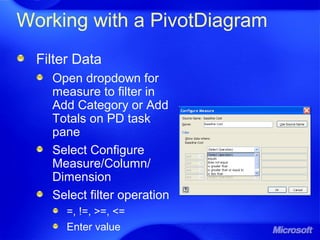
Filter Data
Open dropdown for
measure to filter in
Add Category or Add
Totals on PD task
pane
Select Configure
Measure/Column/
Dimension
Select filter operation
=, !=, >=, <=
Enter value
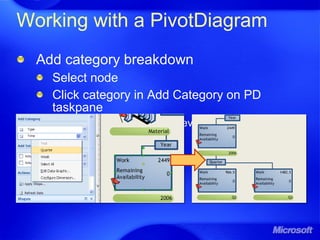
Add category breakdown
Select node
Click category in Add Category on PD
taskpane
Open dropdown, select level for multi-level
category
Working with a PivotDiagram
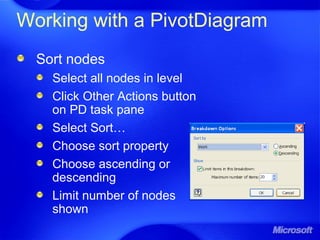
Sort nodes
Select all nodes in level
Click Other Actions button
on PD task pane
Select Sort…
Choose sort property
Choose ascending or
descending
Limit number of nodes
shown
Working with a PivotDiagram
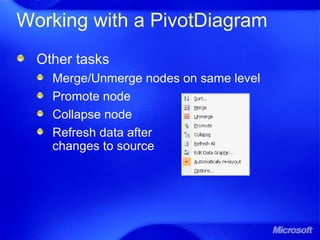
Other tasks
Merge/Unmerge nodes on same level
Promote node
Collapse node
Refresh data after
changes to source
Other Diagram Types
Create a flowchart
Basic Flowchart
Open Visio template
(Menu) File – New – Flowchart – Basic Flowchart
Cross-Functional Flowchart
Open Sample
(Menu) File – New – Getting Started…
Samples – Process Improvement – Open Diagram
Open Template
(Menu) File – New – Flowchart – Cross-Functional
Flowchart
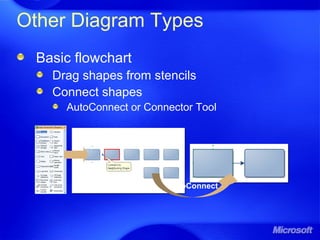
Basic flowchart
Drag shapes from stencils
Connect shapes
AutoConnect or Connector Tool
Other Diagram Types
AutoConnect
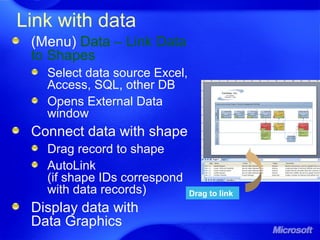
Link with data
(Menu) Data – Link Data
to Shapes
Select data source Excel,
Access, SQL, other DB
Opens External Data
window
Connect data with shape
Drag record to shape
AutoLink
(if shape IDs correspond
with data records)
Display data with
Data Graphics
Drag to link
Other Diagram Types
WBS Modeler Add-In
http://www.wbsmodeler.com/
Responsibility Matrix
Custom Visio template
Use Hyperlinks
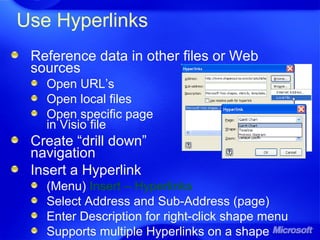
Reference data in other files or Web
sources
Open URL’s
Open local files
Open specific page
in Visio file
Create “drill down”
navigation
Insert a Hyperlink
(Menu) Insert – Hyperlinks
Select Address and Sub-Address (page)
Enter Description for right-click shape menu
Supports multiple Hyperlinks on a shape
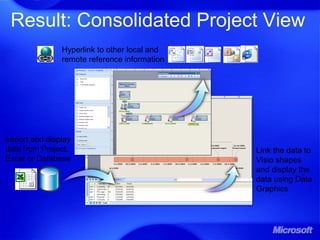
Result: Consolidated Project View
Import and display
data from Project,
Excel or Database
Link the data to
Visio shapes
and display the
data using Data
Graphics
Hyperlink to other local and
remote reference information
Overview on Math Editing
8 math infrastructures inside and outside
of Microsoft enable better math
display/editing
New math edit/display environment
Interoperate with popular mathematics
programs such as Mathematica, MathCad
and Matlab
Incorporate into Office apps, Encarta
calculator, eventually IE
Complex Project
Intricacies of math typesetting
Creating/using myriad glyph variants
Vagaries of math notation
Embedding math zones into international
text environments
Interaction with complex scripts
Math in other objects like links, ruby
Input with nonASCII keyboards
Eight Math Infrastructures
[La]TeX: Current tech-doc standards
Unicode: Includes ~2000 math symbols
MathML 2.0: Math K – 12 and beyond
OpenType font technology: Special
math tables
New math font (Cambria Math)
Math layout handler
Shared math input components
MS Office environment, autocorrect
Math Spacing
Operators have math spacing given by
extended TeX spacing rules
Function object gives correct spacing for
math functions
n-aryand object gives correct spacing for
n-ary expressions
Automate much TeX “tweaking”
Handle context-dependent spacing of
operators like + - . , :
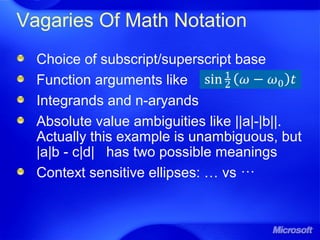
Vagaries Of Math Notation
Choice of subscript/superscript base
Function arguments like
Integrands and n-aryands
Absolute value ambiguities like ||a|-|b||.
Actually this example is unambiguous, but
|a|b - c|d| has two possible meanings
Context sensitive ellipses: … vs ⋯
Math Input Methods
Linear format input and manual buildup
Formula autobuildup (FAB)
Math ribbons
Recognition of handwritten formulae
Hex code input
WYSIWYG editing
Hybrid editing (combination of WYSIWYG
and FAB)
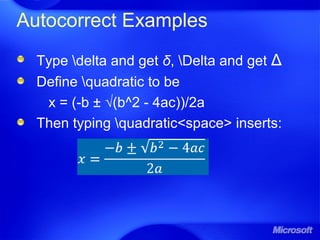
Autocorrect Examples
Type delta and get δ, Delta and get Δ
Define quadratic to be
x = (-b ± √(b^2 - 4ac))/2a
Then typing quadratic<space> inserts:
Formula Autobuildup
User types formulas in linear format in
a math zone
Expressions are built up as soon as
they’re syntactically unambiguous
Expressions can be edited in built-up
form or in linear form
Roles Of Space
Spaces are rarely needed inside math
formulae, since spacing is automatic
Use to terminate autocorrect entries and
expressions
Use as command to build up math objects
A space builds up one subexpression;
other operators build up as many as
they can
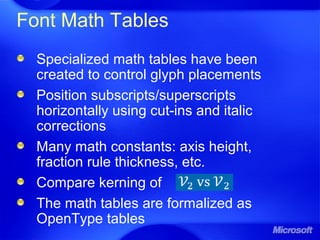
Font Math Tables
Specialized math tables have been
created to control glyph placements
Position subscripts/superscripts
horizontally using cut-ins and italic
corrections
Many math constants: axis height,
fraction rule thickness, etc.
Compare kerning of
The math tables are formalized as
OpenType tables
Conclusions for Math editing
Eight infrastructures allow better math
display and editing than ever before
High quality math handler and font
enable typography competitive with or
better than TeX
Methods such as Formula Autobuildup
Incorporated into Word 2007, Math
graphing calculator
Plan to add to PPT, Excel. Hope to add
to IE, …, and maybe future compilers
Microsoft Producer: Become a
Digital Video Maestro
Our Agenda
Overview of Producer
Import media content
New Presentation Wizard
Synchronize slides with video
Publish your presentation
Play your presentation
Online evaluation
What is Producer?
“Create dynamic, media-rich
presentations to be shown in a Web
browser”
Free add-on to PowerPoint
Download from www.microsoft.com and
install
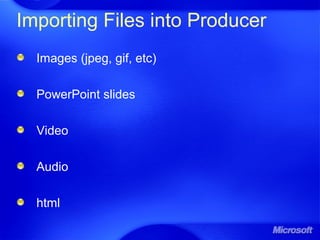
Importing Files into Producer
Images (jpeg, gif, etc)
PowerPoint slides
Video
Audio
html
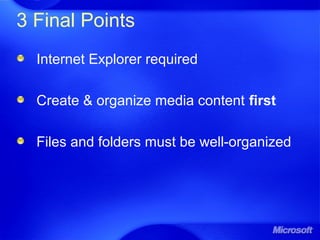
3 Final Points
Internet Explorer required
Create & organize media content first
Files and folders must be well-organized
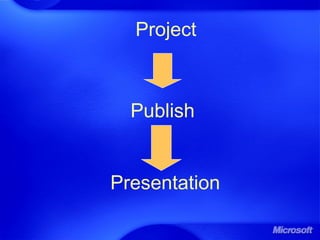
Project
Publish
Presentation
New Presentation Wizard
Synchronizing Slides
Fine -Tuning
Publishing & Playing Your
Presentation
Thank You

Microsoft (Office 2007 And Math Edit)

  • 2.
    On Office 2007,Math Editing And Producer Display By Vinayak Nandikal
  • 3.
  • 4.
    Why Do WeNeed a Plan? It’s coming, we want to be ready Licensing changes Substantial changes to the interface Potential support issues Proactive planning ensures your feedback is considered
  • 5.
    When Is Office2007 Coming Coincides with MS Vista release November 30 corporate release January 30 release to general public On campus license changes will vary Not tied to Vista – will run on XP SP2
  • 6.
    U of GOffice 2007 Licensing MS Campus Agreement Will remain as Office 2003 for now Can choose when to move to 2007 MS Student Select Currently on hold until corporate release new license and old media with downgrade rights Academic Select – other MS apps Minor price reductions Licenses discontinued (XP, Server 2003)
  • 7.
    Changes to theOffice Suite New interface Word, Excel, PowerPoint, Access, and Outlook Home tab Office Button access to file menu Ribbon replaces menu and task bar New and improved functionality New functions lost if files opened in older versions of Office suite
  • 9.
    Changes to theOffice Suite New file format Default is MS "Open XML" format (.docx) Save to older file format (.doc) Some newer features may be lost Can import older files to new format Some functionality lost Reduced file size, better data recovery, reduced file corruption
  • 10.
    Potential Support Issues Licensingchanges Old version, new licenses New interface and file format compatibility, collaboration, consistency Training requirements Activation Grace period of 25 uses Reduced functionality after grace period without activation
  • 11.
    Your Input Matters Becomean early adopter We can provide licenses Provide input on your experience Compatibility issues Potential support issues Your feedback will help direct recommendations to the community
  • 12.
    Next Steps –Dates TBD CCS/IT Admins as early adopters Train CCS Help Services staff Gather feedback on issues, etc. Recommend a date for campus migration - Spring 2007 or later? Lab upgrade decisions Change MS Campus Agreement license to 2007
  • 13.
    Microsoft Office Visio Professional2007 for IT How to Use Visio for Project Management
  • 14.
    Project Management Summary UseVisio 2007 with Project 2007 Diagram All Project Phases Planning Design Engineering Implementation Diagram Types Gantt Chart Project timeline Project status Processes Work Breakdown Responsibility Matrix
  • 15.
    Visio 2007 andProject 2007 Create plan in Project Import plan into Visio diagram Timeline Gantt Chart Include with other project diagrams Report project status as Visio PivotDiagram Perform ‘what-if’ modifications and export back into Project
  • 16.
  • 17.
    Diagram Types Work Breakdown ProcessFlow Responsibility Matrix
  • 18.
    Import a Timeline (Menu)Data – Insert Data Solutions – Timeline… Browse to Project file Select tasks to include
  • 19.
    Import a Timeline Selectshapes for Visio timeline Finish
  • 20.
    Working with aTimeline Reposition text Move intervals and milestones Add intervals and milestones Resize interval shapes Synchronize milestones Alter timeline type Apply theme
  • 21.
    Applying a Theme ShowTheme task pane (Menu) Format – Theme… Select color palette Click on Theme Colors link Select theme colors from list Select font, line and connector, fill, and shadow style Click on Theme Effects link Select theme effects from list
  • 22.
    Import a GanttChart (Menu) Data – Insert Data Solutions – Gantt Chart… Select “Information that’s already stored in a file” Select “Microsoft Office Project File”
  • 23.
    Import a GanttChart Browse to Project file Select Major and Minor time scale units Select task duration format
  • 24.
    Import a GanttChart Select task types to include Finish
  • 25.
    Working with aGantt Chart Push project forward/back Move task bar shapes left/right Create new task links Drag ‘Add Link’ control handle to connection point at start or finish of linked task Set % complete Drag ‘Change % complete’ control handle
  • 26.
    Working with aGantt Chart Modify task list Drop task bar shape onto chart to add task Modify columns Drop column onto chart to add column Right-click shapes for action menu Apply theme
  • 27.
    Export a ProjectReport to Visio (Menu) Report – Visual Reports… Choose a Visio report Select level of usage data to include in report View
  • 28.
    Working with aPivotDiagram Apply theme Apply shape Open stencil with shape (File) Shapes Work Flow Objects, Department automatically opened Select nodes (PivotDiagram pane) Apply Shape… Choose stencil from dropdown Choose shape to apply Apply Data Graphics
  • 29.
    Data Graphics Turn ondisplay (Menu) Data – Display Data on Shapes Select Data Graphic format from Task Pane Edit Data Graphic if required (Right Click) Data – Edit Data Graphic Displays Shape Data values Text Relative graphs Colors Icons
  • 30.
    Working with aPivotDiagram Aggregate numerical data Select field from Add Total on PD pane Select aggregate type from dropdown (if avail.) Sum Average Minimum value Maximum value Count
  • 31.
    Working with aPivotDiagram Filter Data Open dropdown for measure to filter in Add Category or Add Totals on PD task pane Select Configure Measure/Column/ Dimension Select filter operation =, !=, >=, <= Enter value
  • 32.
    Add category breakdown Selectnode Click category in Add Category on PD taskpane Open dropdown, select level for multi-level category Working with a PivotDiagram
  • 33.
    Working with aPivotDiagram Sort nodes Select all nodes in level Click Other Actions button on PD task pane Select Sort… Choose sort property Choose ascending or descending Limit number of nodes shown
  • 34.
    Working with aPivotDiagram Other tasks Merge/Unmerge nodes on same level Promote node Collapse node Refresh data after changes to source
  • 35.
    Other Diagram Types Createa flowchart Basic Flowchart Open Visio template (Menu) File – New – Flowchart – Basic Flowchart Cross-Functional Flowchart Open Sample (Menu) File – New – Getting Started… Samples – Process Improvement – Open Diagram Open Template (Menu) File – New – Flowchart – Cross-Functional Flowchart
  • 36.
    Basic flowchart Drag shapesfrom stencils Connect shapes AutoConnect or Connector Tool Other Diagram Types AutoConnect
  • 37.
    Link with data (Menu)Data – Link Data to Shapes Select data source Excel, Access, SQL, other DB Opens External Data window Connect data with shape Drag record to shape AutoLink (if shape IDs correspond with data records) Display data with Data Graphics Drag to link
  • 38.
    Other Diagram Types WBSModeler Add-In http://www.wbsmodeler.com/ Responsibility Matrix Custom Visio template
  • 39.
    Use Hyperlinks Reference datain other files or Web sources Open URL’s Open local files Open specific page in Visio file Create “drill down” navigation Insert a Hyperlink (Menu) Insert – Hyperlinks Select Address and Sub-Address (page) Enter Description for right-click shape menu Supports multiple Hyperlinks on a shape
  • 40.
    Result: Consolidated ProjectView Import and display data from Project, Excel or Database Link the data to Visio shapes and display the data using Data Graphics Hyperlink to other local and remote reference information
  • 41.
    Overview on MathEditing 8 math infrastructures inside and outside of Microsoft enable better math display/editing New math edit/display environment Interoperate with popular mathematics programs such as Mathematica, MathCad and Matlab Incorporate into Office apps, Encarta calculator, eventually IE
  • 42.
    Complex Project Intricacies ofmath typesetting Creating/using myriad glyph variants Vagaries of math notation Embedding math zones into international text environments Interaction with complex scripts Math in other objects like links, ruby Input with nonASCII keyboards
  • 43.
    Eight Math Infrastructures [La]TeX:Current tech-doc standards Unicode: Includes ~2000 math symbols MathML 2.0: Math K – 12 and beyond OpenType font technology: Special math tables New math font (Cambria Math) Math layout handler Shared math input components MS Office environment, autocorrect
  • 44.
    Math Spacing Operators havemath spacing given by extended TeX spacing rules Function object gives correct spacing for math functions n-aryand object gives correct spacing for n-ary expressions Automate much TeX “tweaking” Handle context-dependent spacing of operators like + - . , :
  • 45.
    Vagaries Of MathNotation Choice of subscript/superscript base Function arguments like Integrands and n-aryands Absolute value ambiguities like ||a|-|b||. Actually this example is unambiguous, but |a|b - c|d| has two possible meanings Context sensitive ellipses: … vs ⋯
  • 46.
    Math Input Methods Linearformat input and manual buildup Formula autobuildup (FAB) Math ribbons Recognition of handwritten formulae Hex code input WYSIWYG editing Hybrid editing (combination of WYSIWYG and FAB)
  • 47.
    Autocorrect Examples Type deltaand get δ, Delta and get Δ Define quadratic to be x = (-b ± √(b^2 - 4ac))/2a Then typing quadratic<space> inserts:
  • 48.
    Formula Autobuildup User typesformulas in linear format in a math zone Expressions are built up as soon as they’re syntactically unambiguous Expressions can be edited in built-up form or in linear form
  • 49.
    Roles Of Space Spacesare rarely needed inside math formulae, since spacing is automatic Use to terminate autocorrect entries and expressions Use as command to build up math objects A space builds up one subexpression; other operators build up as many as they can
  • 50.
    Font Math Tables Specializedmath tables have been created to control glyph placements Position subscripts/superscripts horizontally using cut-ins and italic corrections Many math constants: axis height, fraction rule thickness, etc. Compare kerning of The math tables are formalized as OpenType tables
  • 51.
    Conclusions for Mathediting Eight infrastructures allow better math display and editing than ever before High quality math handler and font enable typography competitive with or better than TeX Methods such as Formula Autobuildup Incorporated into Word 2007, Math graphing calculator Plan to add to PPT, Excel. Hope to add to IE, …, and maybe future compilers
  • 52.
    Microsoft Producer: Becomea Digital Video Maestro
  • 53.
    Our Agenda Overview ofProducer Import media content New Presentation Wizard Synchronize slides with video Publish your presentation Play your presentation Online evaluation
  • 54.
    What is Producer? “Createdynamic, media-rich presentations to be shown in a Web browser” Free add-on to PowerPoint Download from www.microsoft.com and install
  • 55.
    Importing Files intoProducer Images (jpeg, gif, etc) PowerPoint slides Video Audio html
  • 56.
    3 Final Points InternetExplorer required Create & organize media content first Files and folders must be well-organized
  • 57.
  • 58.
  • 59.
  • 60.
  • 61.
    Publishing & PlayingYour Presentation
  • 62.