Enhancing User Interaction Through ProgrammingSucceeding in Business with Microsoft Office Access 2007: A Problem-Solving Approach 1Chapter 7“I like thinking big. If you’re going to be thinking anything, youmight as well think big.”—Donald Trump
Chapter IntroductionVisual basic for applications (VBA)Fully customize and automate a databasePerform more complex validityUse functions and actions not available with macrosSucceeding in Business with Microsoft Office Access 2007: A Problem-Solving Approach 2
Tools Covered in This ChapterAssignment statement BreakpointsCode window DateDiff function DateSerial functionDebugDoCmd statementSucceeding in Business with Microsoft Office Access 2007: A Problem-Solving Approach 3
Tools Covered in This Chapter (continued)If statementImmediate windowNorthwind sample databaseVariablesVisual Basic editorWatches windowSucceeding in Business with Microsoft Office Access 2007: A Problem-Solving Approach 4
Level 1 Objectives:Writing Visual Basic for Applications CodeDesign create and test a subroutine in a standard moduleDesign create, and test an event procedureAnalyze decisions using proceduresDesign create, and test a function in a standard moduleSucceeding in Business with Microsoft Office Access 2007: A Problem-Solving Approach 5
Understanding Visual Basic for ApplicationsProgramming language for Microsoft Office programs Including AccessCommon syntax and set of common features for all Microsoft Office programsFeatures unique for each Microsoft Office programUse programming languageWrite set of instructions to direct computer to perform specific operations in specific orderSucceeding in Business with Microsoft Office Access 2007: A Problem-Solving Approach 6
Understanding Visual Basic for Applications (continued)CodingStatementEvent-driven languageObject-oriented languageSucceeding in Business with Microsoft Office Access 2007: A Problem-Solving Approach 7
Event-Driven ProgrammingEvent State condition or occurrence that Access recognizesHas associated event propertyAppear in property sheet for forms reports, and controlsCreate group of statements using VBA code Set event property value to name of that group of statementsEvent procedureSucceeding in Business with Microsoft Office Access 2007: A Problem-Solving Approach 8
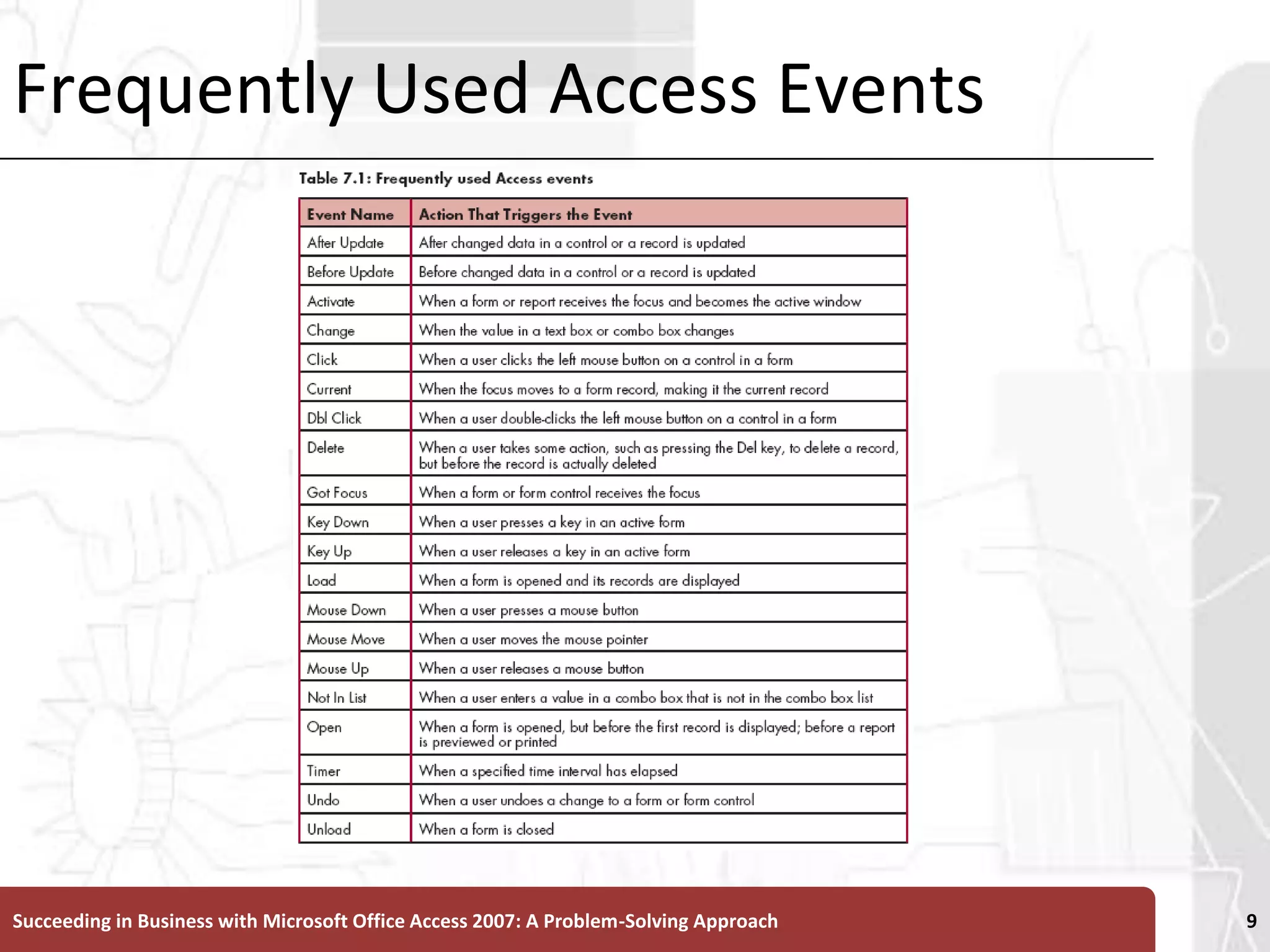
Frequently Used Access EventsSucceeding in Business with Microsoft Office Access 2007: A Problem-Solving Approach 9
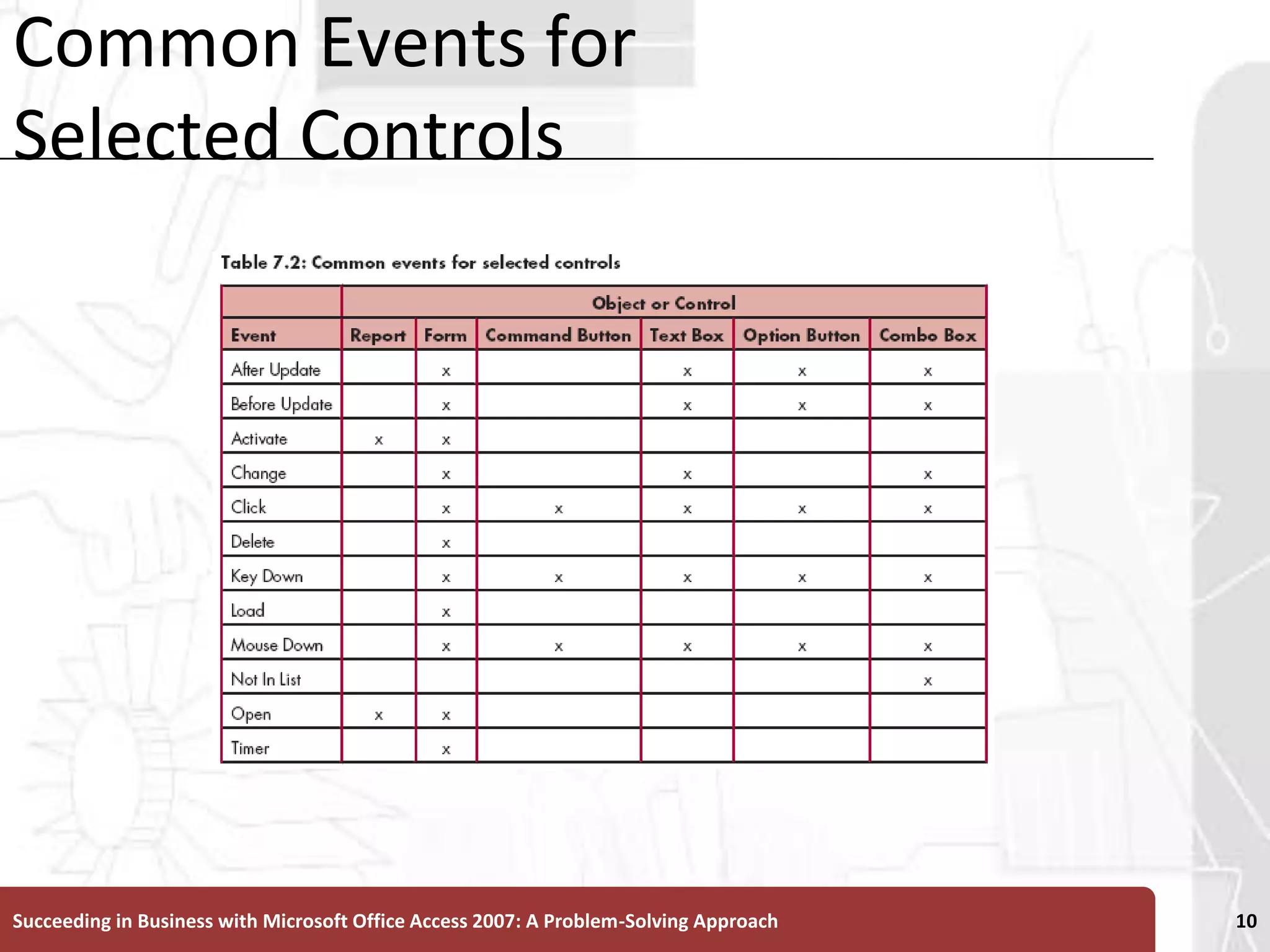
Common Events for Selected ControlsSucceeding in Business with Microsoft Office Access 2007: A Problem-Solving Approach 10
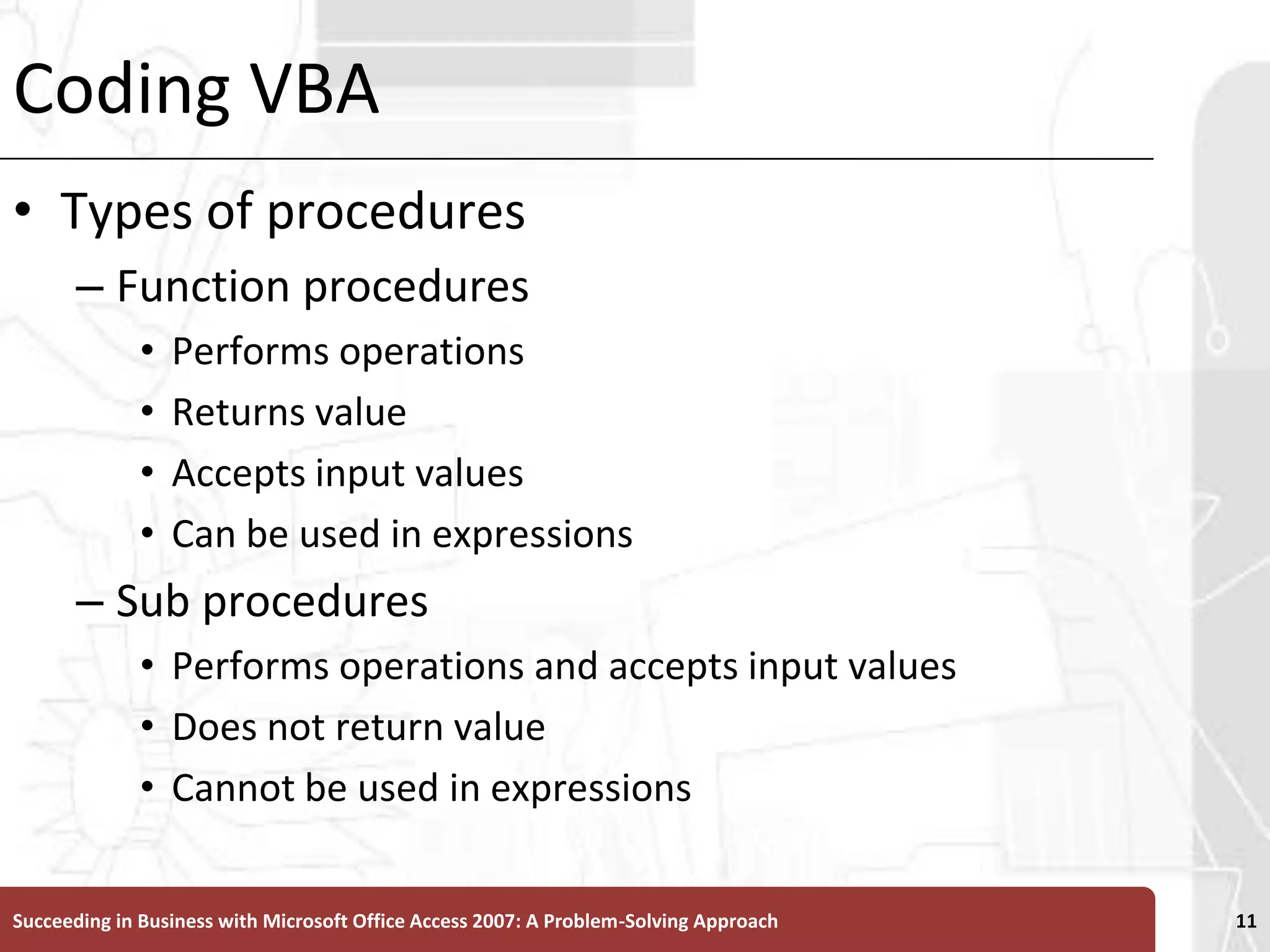
Coding VBATypes of procedures Function proceduresPerforms operations Returns value Accepts input values Can be used in expressionsSub proceduresPerforms operations and accepts input values Does not return value Cannot be used in expressionsSucceeding in Business with Microsoft Office Access 2007: A Problem-Solving Approach 11
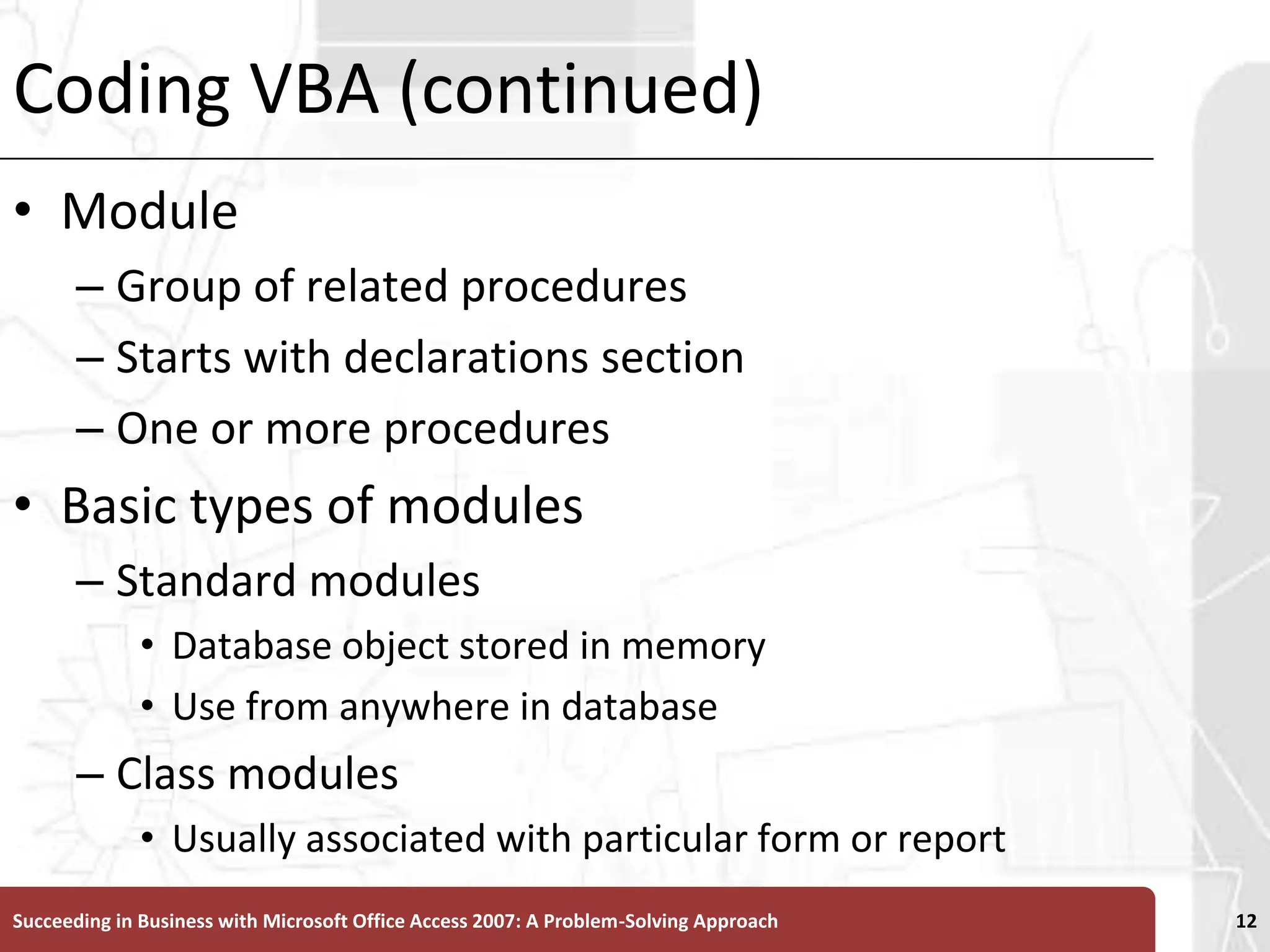
Coding VBA (continued)ModuleGroup of related proceduresStarts with declarations sectionOne or more proceduresBasic types of modules Standard modulesDatabase object stored in memoryUse from anywhere in databaseClass modulesUsually associated with particular form or reportSucceeding in Business with Microsoft Office Access 2007: A Problem-Solving Approach 12
Coding VBA (continued)Public procedureMore than one object can useLocal procedure or a private procedure Only the form or report for which class module created can use event procedureSucceeding in Business with Microsoft Office Access 2007: A Problem-Solving Approach 13
Creating a Subroutine in a Standard ModuleReplace macros with VBA proceduresSome tasks cannot be performed with VBAAutoKeysAutoExecSucceeding in Business with Microsoft Office Access 2007: A Problem-Solving Approach 14
Creating a New Standard ModuleClick Create tabClick Macro button arrow, and then click ModuleBegin new procedure in moduleClick Insert menuClick procedureType nameSelect optionsSucceeding in Business with Microsoft Office Access 2007: A Problem-Solving Approach 15
Creating a New Standard Module (continued)Visual Basic EditorCreate and modify VBA codeVisual Basic window Program window that opens within VBECode window Window to create modify and display specific VBA proceduresCan have as many code windows open as modules in databaseSucceeding in Business with Microsoft Office Access 2007: A Problem-Solving Approach 16
Creating a New Standard Module (continued)Sub statement Ends with end sub statementIncludes Scope of procedureName of procedure Opening and closing parenthesisOption compare statement Designates technique access uses to compare and sort text dataSucceeding in Business with Microsoft Office Access 2007: A Problem-Solving Approach 17
Creating a SubroutineType statements in procedure between Sub and End Sub statementsDoCmd statementExecutes action in procedureAccess objectMethod Action that operates on specific objects or controlsSucceeding in Business with Microsoft Office Access 2007: A Problem-Solving Approach 18
Creating a Subroutine (continued)Comment Include anywhere in VBA procedure Describe what procedure or statement doesMake it easier for programmers to identify purpose of statementsBegin comment with Word Rem (for “remark”) Or single quotation mark (')Appear green in code windowSucceeding in Business with Microsoft Office Access 2007: A Problem-Solving Approach 19
Creating a Subroutine (continued)Line labelStatement that serves as starting point for block of statements in procedureBegins at start of line and ends with colonUnderscore character at end of lineStatement continues to next lineRun procedureClick Run Sub/UserForm buttonSaves moduleClick Save buttonSucceeding in Business with Microsoft Office Access 2007: A Problem-Solving Approach 20
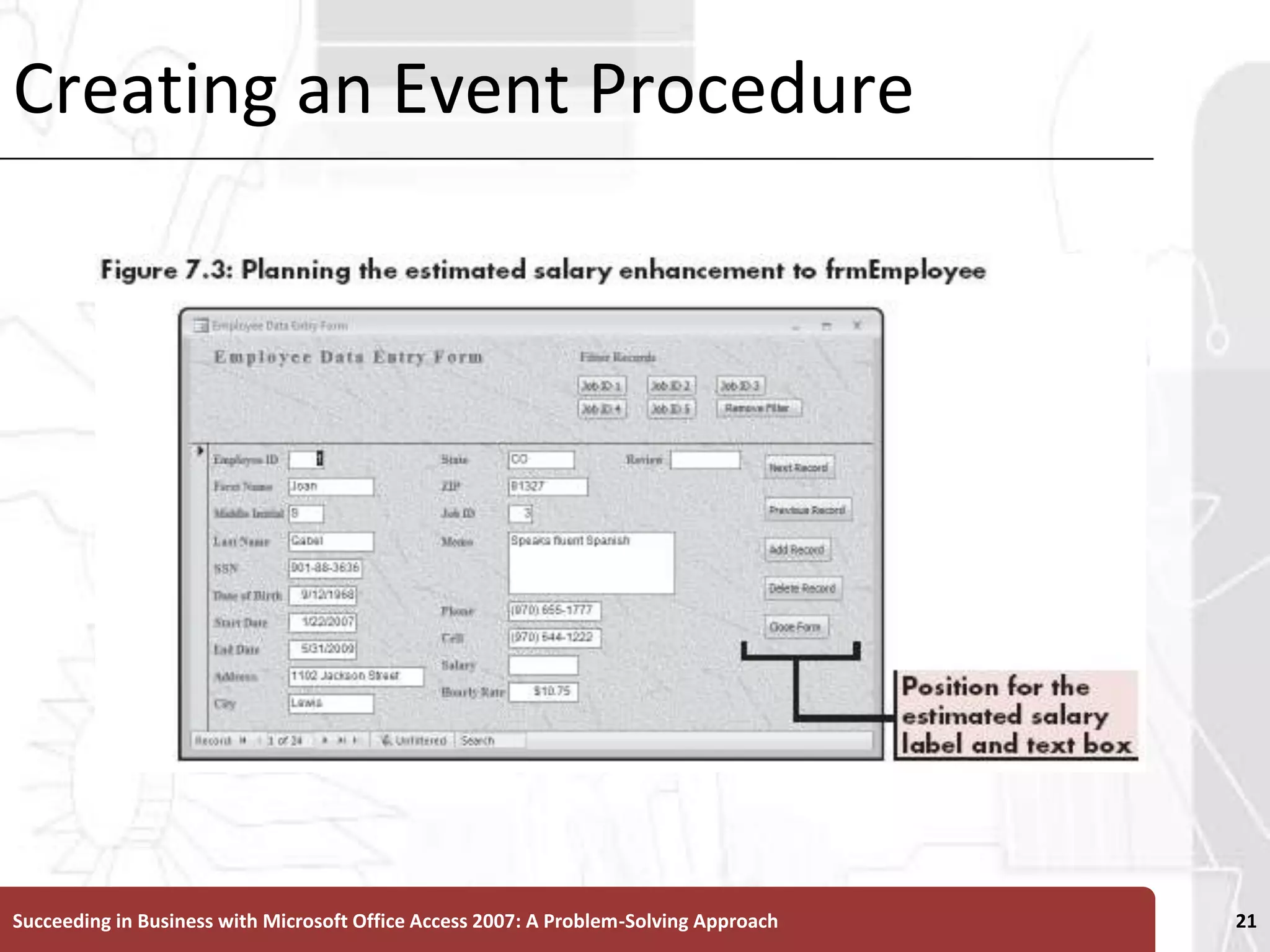
Creating an Event ProcedureSucceeding in Business with Microsoft Office Access 2007: A Problem-Solving Approach 21
Designing an Event ProcedureAssociate procedure with form’s On Current event propertyTriggered when form’s Current event occursOccurs when focus moves to record Add event procedureOpen property sheet for formClick On Current text boxClick list arrowClick [event procedure]Click Build button to right of On Current text boxSucceeding in Business with Microsoft Office Access 2007: A Problem-Solving Approach 22
Making Decisions Using the If StatementDecision-making statement Executes group of statements based on outcome of conditionSucceeding in Business with Microsoft Office Access 2007: A Problem-Solving Approach 23
Making Decisions Using the If Statement (continued)If statementTests condition follows one of two paths depending on outcome of conditionGeneral formIf condition ThenTrue-statement group[ElseFalse-statement group]End IfSucceeding in Business with Microsoft Office Access 2007: A Problem-Solving Approach 24
Making Decisions Using the If Statement (continued)Assignment statement Assigns value of expression to control or propertyExampleEstSalary.ForeColor = vbGreenForeColor propertyColor constantsPredefined VBA names Have values that represent system color valueIsNull functions returnsTrue value when field or control nullFalse when notSucceeding in Business with Microsoft Office Access 2007: A Problem-Solving Approach 25
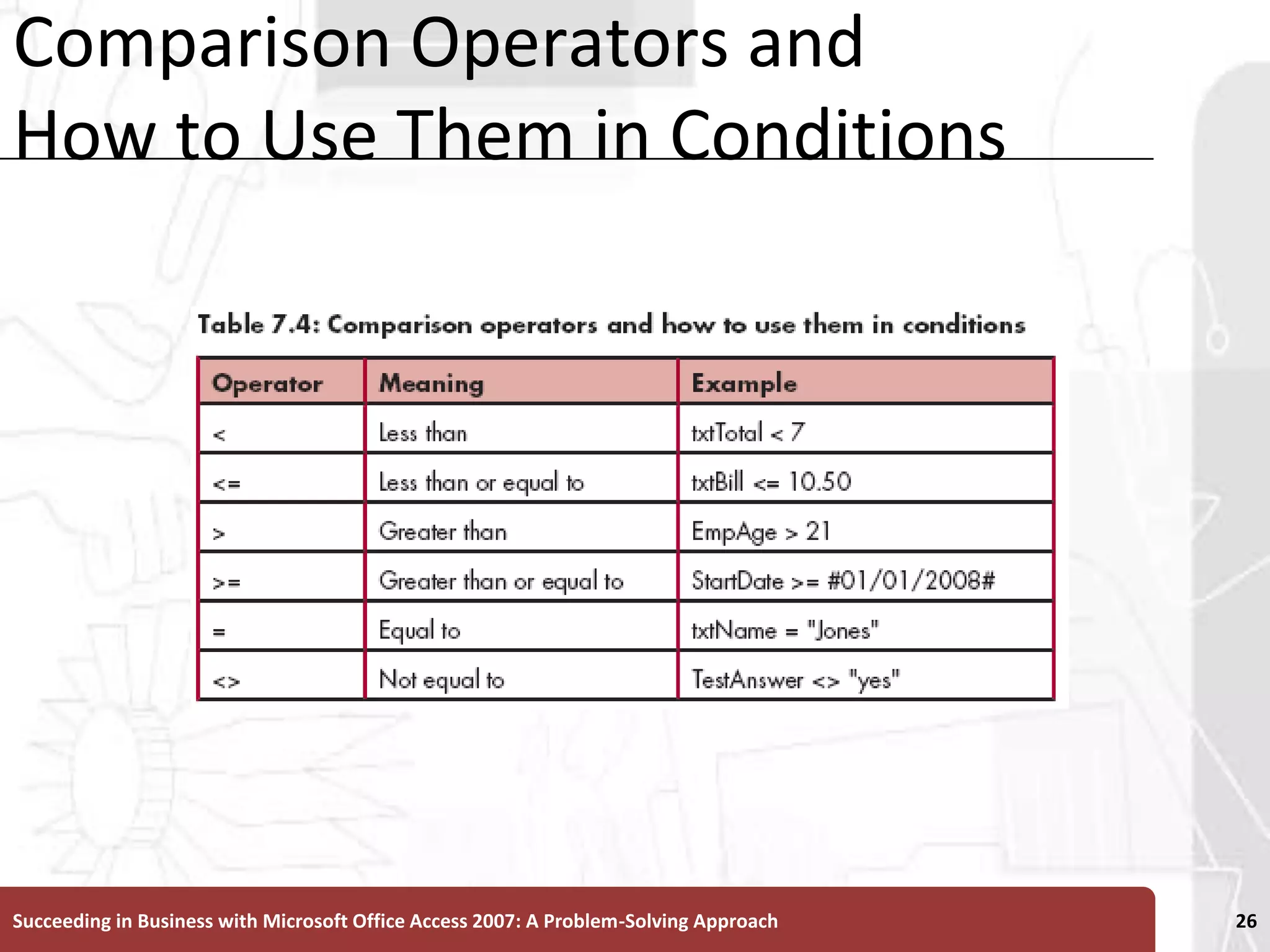
Comparison Operators and How to Use Them in ConditionsSucceeding in Business with Microsoft Office Access 2007: A Problem-Solving Approach 26
Testing an Event ProcedureSwitch to form viewNavigate through records Make sure results correct in different situationsSucceeding in Business with Microsoft Office Access 2007: A Problem-Solving Approach 27
Creating a FunctionSimilar calculation requestsCreate function to perform calculation Function Begins with Function statement Ends with End Function statementSucceeding in Business with Microsoft Office Access 2007: A Problem-Solving Approach 28
VariablesNamed location in computer memory Can contain valueUse to store and retrieve dataReference using variable name assigned to locationHolds only one value at a timeSucceeding in Business with Microsoft Office Access 2007: A Problem-Solving Approach 29
Variables (continued)Naming rulesMust begin with letterCannot exceed 255 charactersInclude letters numbers and underscore character Cannot use space, punctuation, or special charactersCannot be same as keywords or reserved wordsEach variable has data typeSucceeding in Business with Microsoft Office Access 2007: A Problem-Solving Approach 30
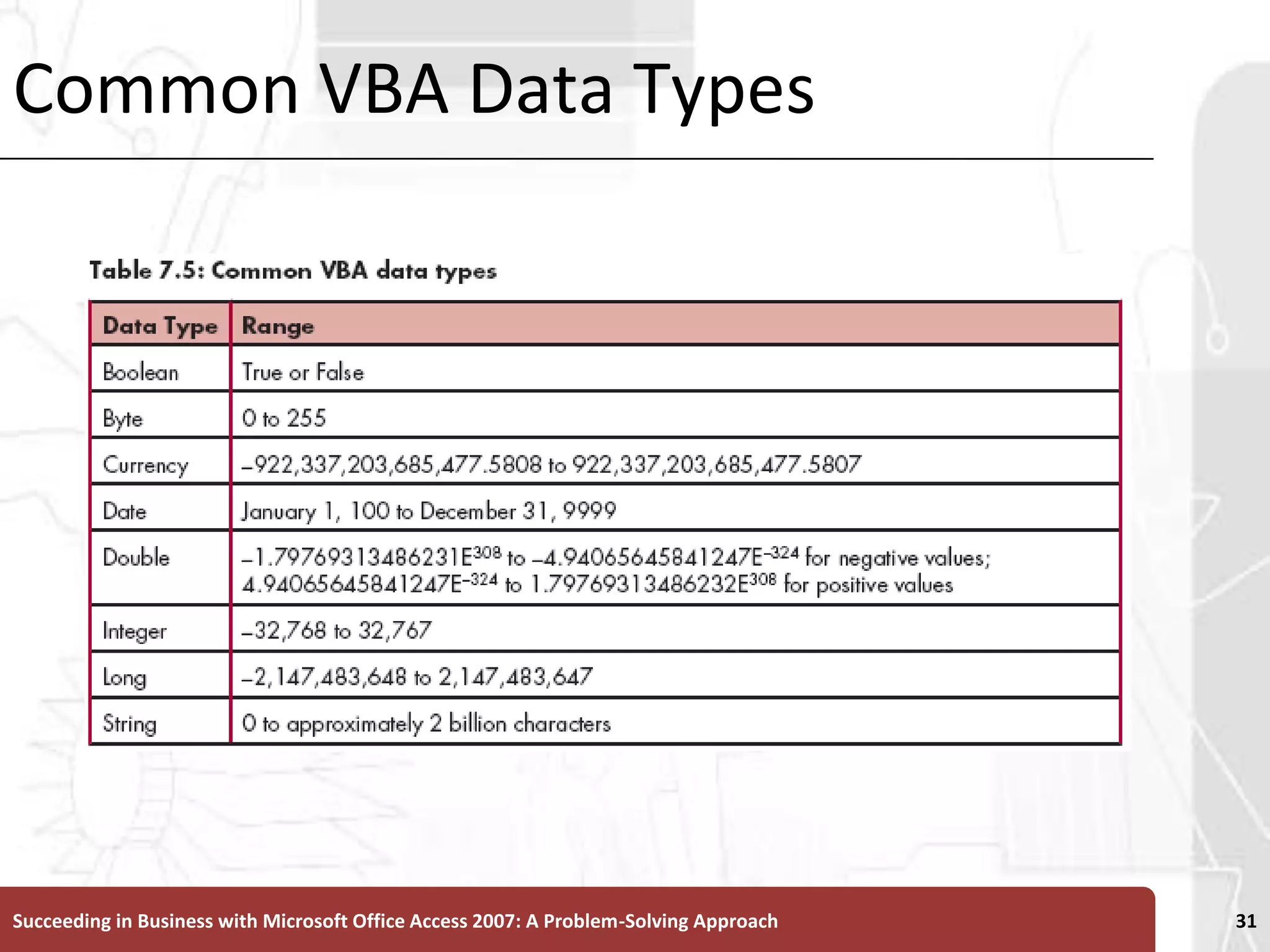
Common VBA Data TypesSucceeding in Business with Microsoft Office Access 2007: A Problem-Solving Approach 31
Using FunctionsSimilar to way built-in functions usedCall a functionFunction name followed by argument(s)Commas separate multiple argumentsDateDiff functionCalculates number of time intervals between two datesSucceeding in Business with Microsoft Office Access 2007: A Problem-Solving Approach 32
Testing a Function in the Immediate WindowWhen statement enteredEditor checks statement to make sure syntax correctLogic error Occurs when procedure produces incorrect resultsImmediate windowTest VBA procedures without changing data in databaseEnter different values to test procedureSucceeding in Business with Microsoft Office Access 2007: A Problem-Solving Approach 33
Testing a Function in the Immediate Window (continued)Immediate windowType keyword “print” or question mark (?) Followed by procedure name and argument values to test in parentheses and separated by commasDateSerial function Returns date value for specified year, month, and daySucceeding in Business with Microsoft Office Access 2007: A Problem-Solving Approach 34
Level 1 SummaryVBAProgramming language for Microsoft Office programsCreate procedures in moduleEvent-driven programmingProgram statement execution triggered by eventsIf statementUsed to make decisionsFunctionReturns a valueSucceeding in Business with Microsoft Office Access 2007: A Problem-Solving Approach 35
Level 2 Objectives:Using Custom Functions and Verifying DataDesign create and test a custom function in an event procedureUse ElseIf and If statementsVerify data using event proceduresUse the Case control structureSucceeding in Business with Microsoft Office Access 2007: A Problem-Solving Approach 36
Enhancing an Event Procedure to Use a Custom FunctionAdd and change statements in a procedureOpen object that contains event procedure in Design viewClick View Code button on Design RibbonAdd new procedure module or class moduleClick Insert on menu bar Click Procedure, Module, or Class ModuleEdit existing statementsScroll code window to desired statement Make necessary changesPress Save button on Visual Basic toolbarSucceeding in Business with Microsoft Office Access 2007: A Problem-Solving Approach 37
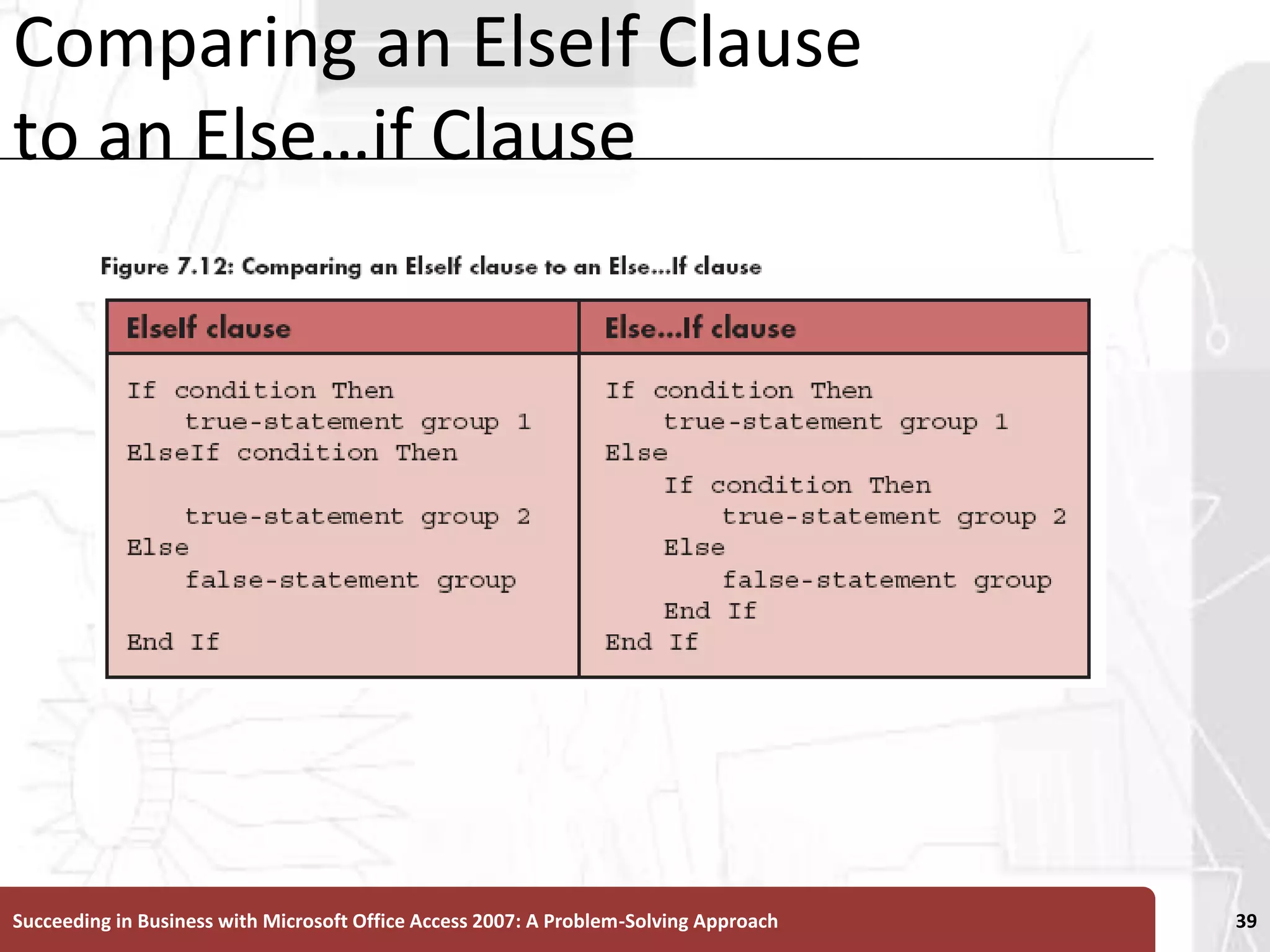
Using an ElseIf Statement in an If StatementDate functionReturns current computer system dateElseIf statement Equivalent to Else clause followed by If statementChoice of which If statement version used Matter of personal preferenceArranging order of condition testingOrder of condition testing criticalPlace conditions in order from least inclusive to most inclusiveSucceeding in Business with Microsoft Office Access 2007: A Problem-Solving Approach 38
Comparing an ElseIf Clause to an Else…if ClauseSucceeding in Business with Microsoft Office Access 2007: A Problem-Solving Approach 39
Using an ElseIf Statement in an if Statement (continued)Dim statementDeclare variables and associated data types in procedureSucceeding in Business with Microsoft Office Access 2007: A Problem-Solving Approach 40
Verifying Data with VBABefore Update event Occurs before changed data in control or record updated in databaseUse to verify entered dataSucceeding in Business with Microsoft Office Access 2007: A Problem-Solving Approach 41
Designing the Field Validation Procedure to Verify Zip CodesCancel As Integer Defines Cancel as parameter with Integer data typeFor some events access executes attached event procedure before performing default behaviorCan cancel default behavior in event procedure or macroUsing Cancel parameterLeft function Returns string containing specified number of characters from left side of specified stringSucceeding in Business with Microsoft Office Access 2007: A Problem-Solving Approach 42
Designing the Field Validation Procedure to Verify Zip Codes (continued)Val function Returns numbers contained in specified string as numeric valueSucceeding in Business with Microsoft Office Access 2007: A Problem-Solving Approach 43
Using the Case Control StructureControl structure Set of VBA statements work together as a unitCase control structureEvaluates expressionPerforms one of several alternative sets of statements Based on resulting value (or condition) of evaluated expressionUse Case Else statement as last Case statementInclude false-statement groupSucceeding in Business with Microsoft Office Access 2007: A Problem-Solving Approach 44
Using the Case Control Structure (continued)CancelEvent action Cancels event that caused procedure or macro containing action to executeMe keyword Refers to current objectUndo Method that clears all changes made to current recordSetFocus Moves focus to specified object or controlSucceeding in Business with Microsoft Office Access 2007: A Problem-Solving Approach 45
Testing the Field Validation Procedure to Verify Zip CodesSwitch to form view to test validation procedureUsing event procedure for control or formBefore Update event for each control on formNeed two or more fields as part of validation processUse form’s Before Update eventDisadvantageAll changes made to record undoneSucceeding in Business with Microsoft Office Access 2007: A Problem-Solving Approach 46
Designing the Field Validation Procedure to Verify Phone Area CodesMessage can suggest potential errorMust accept any phone area code entrySucceeding in Business with Microsoft Office Access 2007: A Problem-Solving Approach 47
Level 2 SummaryElseIf statement Verify data using VBASucceeding in Business with Microsoft Office Access 2007: A Problem-Solving Approach 48
Level 3 Objectives: Testing and Exploring VBATroubleshoot problems in VBA proceduresCompile modulesDevelop sources for learning VBAExplore completed modules in the Northwind sample databaseSucceeding in Business with Microsoft Office Access 2007: A Problem-Solving Approach 49
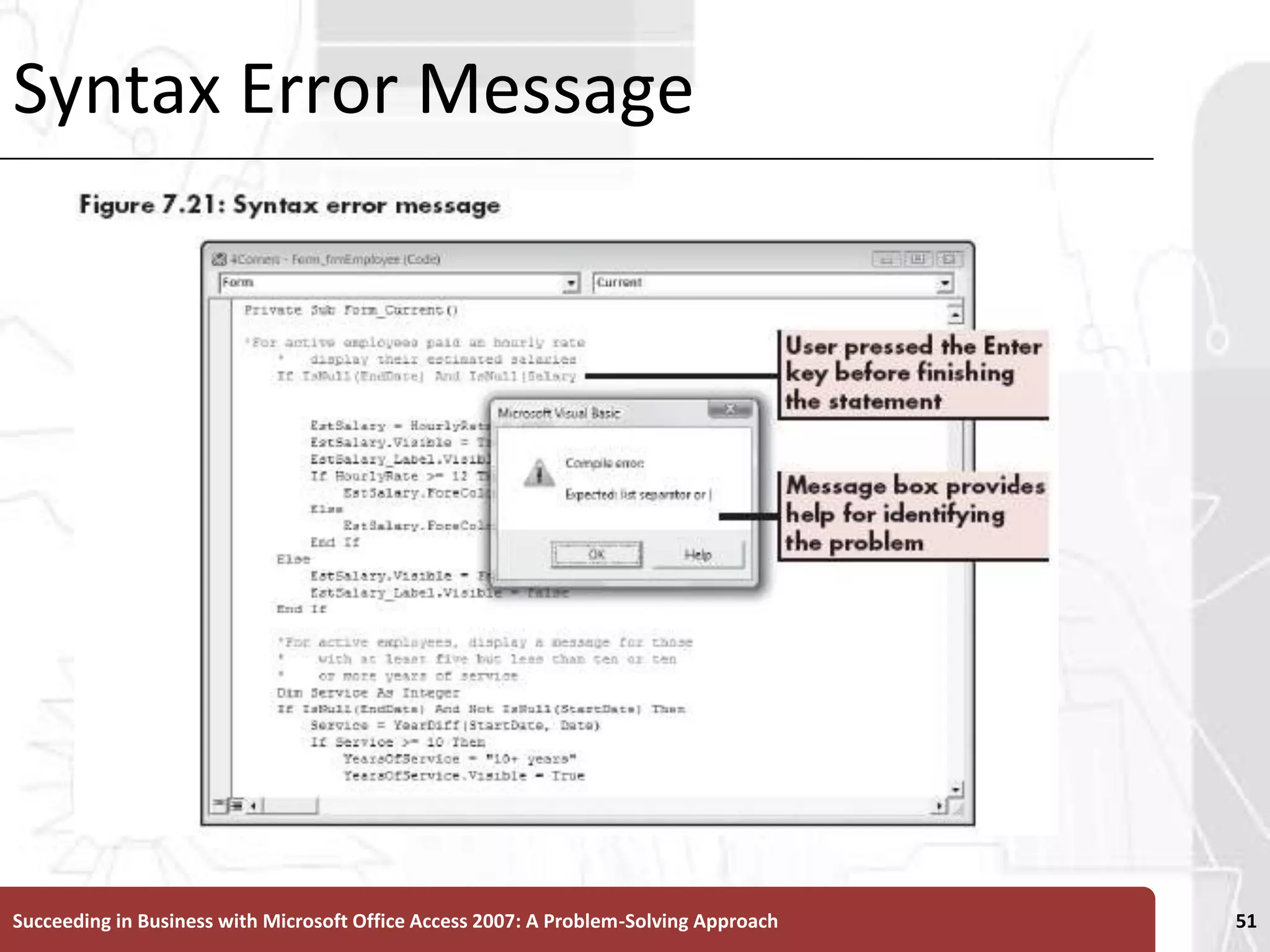
Troubleshooting VBA ProceduresSyntax error Occurs when VBA statement violates language rules for statement such as Misspelling Incorrect sequence of keywordsMissing parenthesisDetected immediately when statement completedError message opens and explains errorSucceeding in Business with Microsoft Office Access 2007: A Problem-Solving Approach 50
Syntax Error MessageSucceeding in Business with Microsoft Office Access 2007: A Problem-Solving Approach 51
Troubleshooting VBA Procedures (continued)Compilation error Occurs when procedures translated into form computer can understandCompilationProcess of translating modules from VBA to form computer understandsSucceeding in Business with Microsoft Office Access 2007: A Problem-Solving Approach 52
Troubleshooting VBA Procedures (continued)Prevent compilation errors at run timeUse Compile command on Debug menu Compile as last step before saving moduleExecution error or run-time error Occurs when procedure executes and stops because it tries to perform operation that is impossible to performSucceeding in Business with Microsoft Office Access 2007: A Problem-Solving Approach 53
Using the Debugger to Correct ErrorsBreakpoint Run subroutine or function up until line on which breakpoint set Procedure halts execution at point and displays module screenGood way to isolate place at which procedure stops producing anticipated resultSucceeding in Business with Microsoft Office Access 2007: A Problem-Solving Approach 54
Using the Debugger to Correct Errors (continued)Use mouse pointer to get more information about procedurePointing to variable name displays ScreenTip with value contained in variable at point that procedure haltedExecute procedure one statement at a timeTry and identify cause of error Click Debug on menu barClick Step IntoSucceeding in Business with Microsoft Office Access 2007: A Problem-Solving Approach 55
Using the Debugger to Correct Errors (continued)Step IntoProcedure executes next statement and stopsStep OutExecutes current subroutine or function and then haltsReset buttonStops debugger so you can fix problemSucceeding in Business with Microsoft Office Access 2007: A Problem-Solving Approach 56
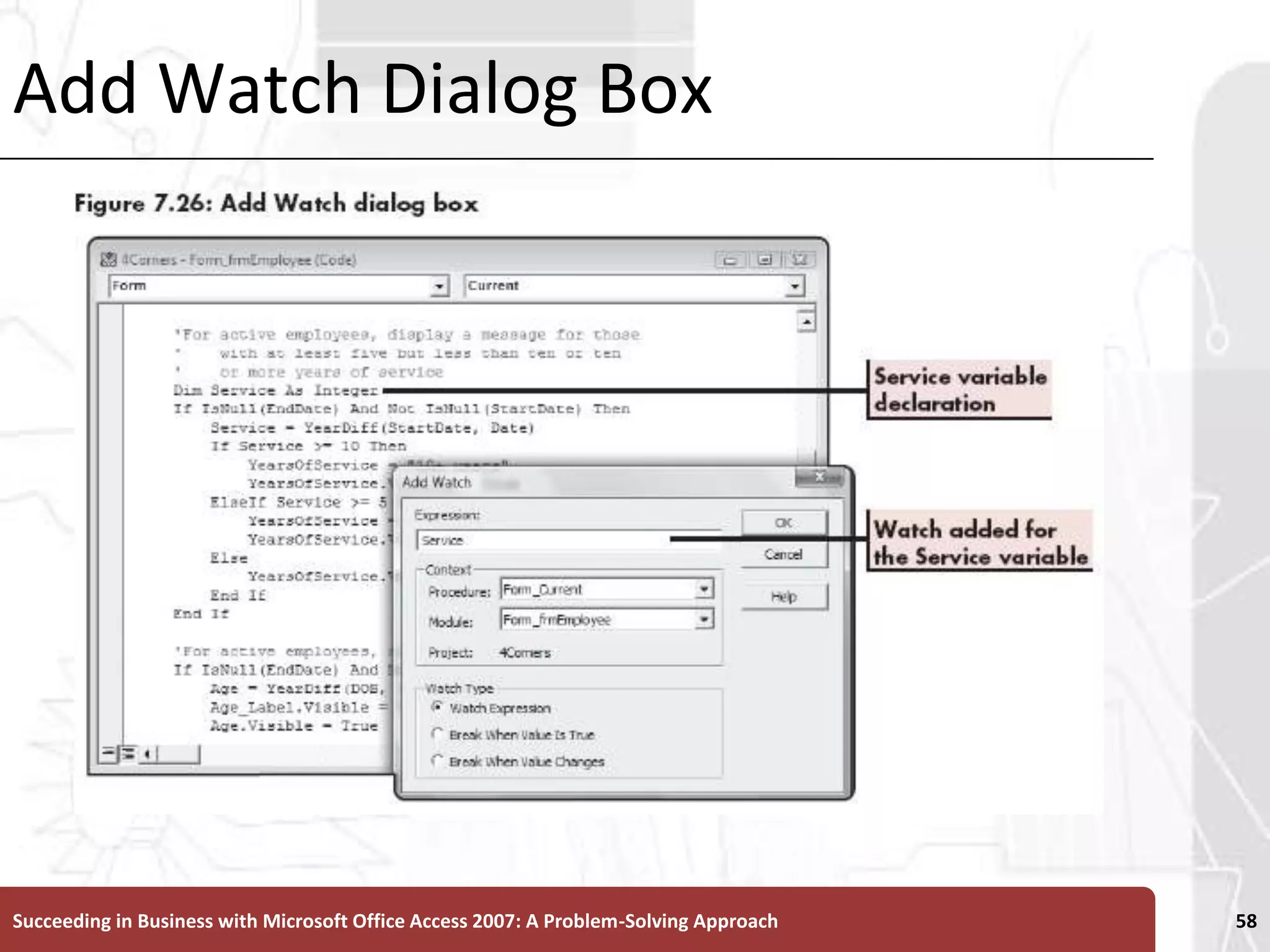
Identifying Errors Using the Watches WindowWatches window Shows current value of specified variableAdd Watch dialog boxEnter variable name to watch“<Out of context>” in value column Appears for watch expression When access not executing procedure that contains watch expressionSucceeding in Business with Microsoft Office Access 2007: A Problem-Solving Approach 57
Add Watch Dialog BoxSucceeding in Business with Microsoft Office Access 2007: A Problem-Solving Approach 58
Building Procedures Slowly to Isolate ProblemsPrevent problems in procedures Build them slowly using small groups of statementsProve them to be correct as you goSucceeding in Business with Microsoft Office Access 2007: A Problem-Solving Approach 59
Using Help to Learn More About Programming and VBAAccess Help contains valuable information about VBAReading individual topics gives excellent backgroundSearch results listSample code for situationsSucceeding in Business with Microsoft Office Access 2007: A Problem-Solving Approach 60
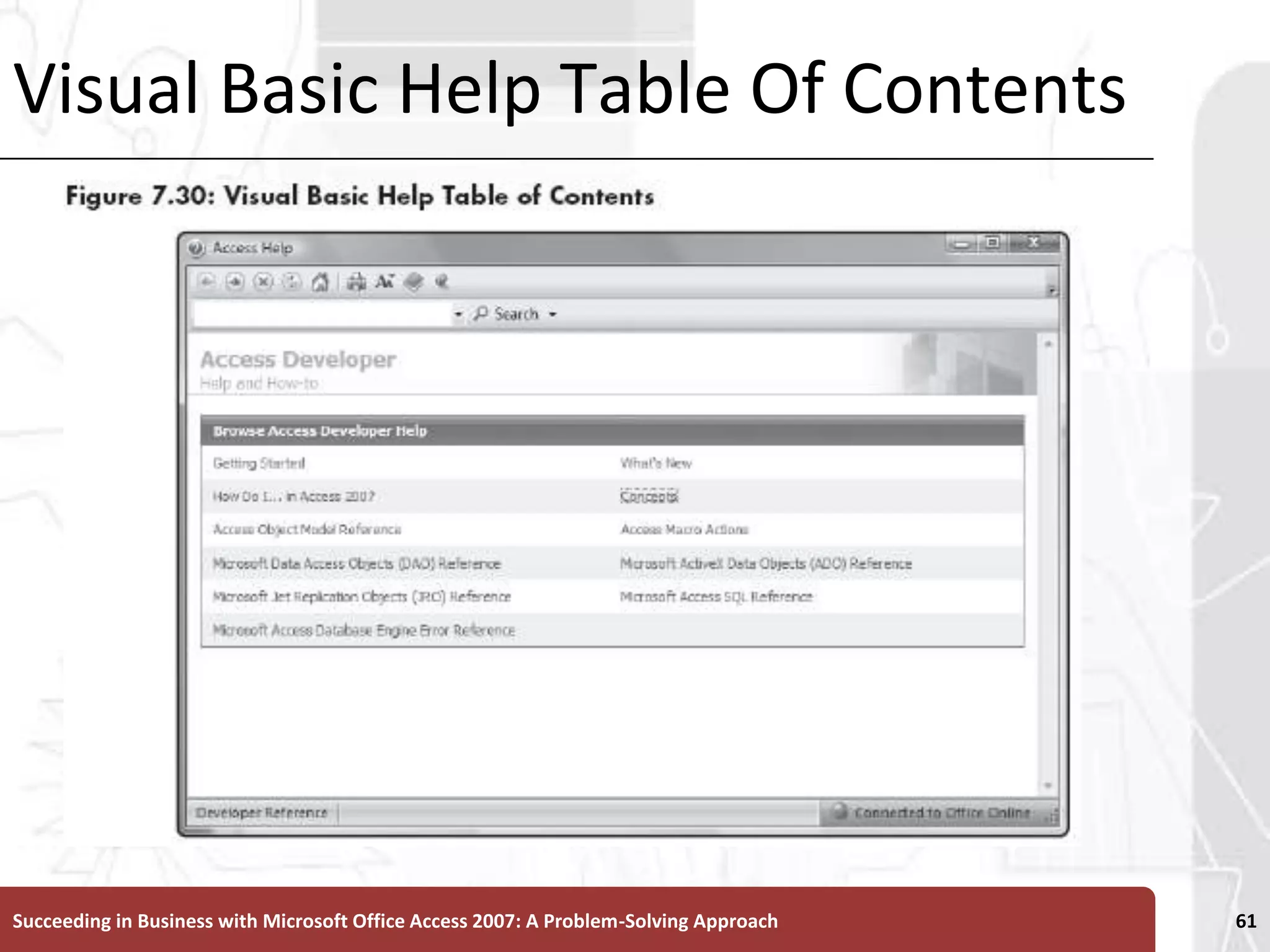
Visual Basic Help Table Of ContentsSucceeding in Business with Microsoft Office Access 2007: A Problem-Solving Approach 61
Level 3 SummaryErrorsSyntax CompilationExecution or run-timeDebuggerUse to find and correct errorsHelpLearn more about VBASucceeding in Business with Microsoft Office Access 2007: A Problem-Solving Approach 62
Chapter SummaryVBAProgramming language for Microsoft Office applicationsDecision structuresIfElseIfCaseDevelop subroutinesUse debugger to find errorsSucceeding in Business with Microsoft Office Access 2007: A Problem-Solving Approach 63

Ch07 Access

  • 1.
    Enhancing User InteractionThrough ProgrammingSucceeding in Business with Microsoft Office Access 2007: A Problem-Solving Approach 1Chapter 7“I like thinking big. If you’re going to be thinking anything, youmight as well think big.”—Donald Trump
  • 2.
    Chapter IntroductionVisual basicfor applications (VBA)Fully customize and automate a databasePerform more complex validityUse functions and actions not available with macrosSucceeding in Business with Microsoft Office Access 2007: A Problem-Solving Approach 2
  • 3.
    Tools Covered inThis ChapterAssignment statement BreakpointsCode window DateDiff function DateSerial functionDebugDoCmd statementSucceeding in Business with Microsoft Office Access 2007: A Problem-Solving Approach 3
  • 4.
    Tools Covered inThis Chapter (continued)If statementImmediate windowNorthwind sample databaseVariablesVisual Basic editorWatches windowSucceeding in Business with Microsoft Office Access 2007: A Problem-Solving Approach 4
  • 5.
    Level 1 Objectives:WritingVisual Basic for Applications CodeDesign create and test a subroutine in a standard moduleDesign create, and test an event procedureAnalyze decisions using proceduresDesign create, and test a function in a standard moduleSucceeding in Business with Microsoft Office Access 2007: A Problem-Solving Approach 5
  • 6.
    Understanding Visual Basicfor ApplicationsProgramming language for Microsoft Office programs Including AccessCommon syntax and set of common features for all Microsoft Office programsFeatures unique for each Microsoft Office programUse programming languageWrite set of instructions to direct computer to perform specific operations in specific orderSucceeding in Business with Microsoft Office Access 2007: A Problem-Solving Approach 6
  • 7.
    Understanding Visual Basicfor Applications (continued)CodingStatementEvent-driven languageObject-oriented languageSucceeding in Business with Microsoft Office Access 2007: A Problem-Solving Approach 7
  • 8.
    Event-Driven ProgrammingEvent Statecondition or occurrence that Access recognizesHas associated event propertyAppear in property sheet for forms reports, and controlsCreate group of statements using VBA code Set event property value to name of that group of statementsEvent procedureSucceeding in Business with Microsoft Office Access 2007: A Problem-Solving Approach 8
  • 9.
    Frequently Used AccessEventsSucceeding in Business with Microsoft Office Access 2007: A Problem-Solving Approach 9
  • 10.
    Common Events forSelected ControlsSucceeding in Business with Microsoft Office Access 2007: A Problem-Solving Approach 10
  • 11.
    Coding VBATypes ofprocedures Function proceduresPerforms operations Returns value Accepts input values Can be used in expressionsSub proceduresPerforms operations and accepts input values Does not return value Cannot be used in expressionsSucceeding in Business with Microsoft Office Access 2007: A Problem-Solving Approach 11
  • 12.
    Coding VBA (continued)ModuleGroupof related proceduresStarts with declarations sectionOne or more proceduresBasic types of modules Standard modulesDatabase object stored in memoryUse from anywhere in databaseClass modulesUsually associated with particular form or reportSucceeding in Business with Microsoft Office Access 2007: A Problem-Solving Approach 12
  • 13.
    Coding VBA (continued)PublicprocedureMore than one object can useLocal procedure or a private procedure Only the form or report for which class module created can use event procedureSucceeding in Business with Microsoft Office Access 2007: A Problem-Solving Approach 13
  • 14.
    Creating a Subroutinein a Standard ModuleReplace macros with VBA proceduresSome tasks cannot be performed with VBAAutoKeysAutoExecSucceeding in Business with Microsoft Office Access 2007: A Problem-Solving Approach 14
  • 15.
    Creating a NewStandard ModuleClick Create tabClick Macro button arrow, and then click ModuleBegin new procedure in moduleClick Insert menuClick procedureType nameSelect optionsSucceeding in Business with Microsoft Office Access 2007: A Problem-Solving Approach 15
  • 16.
    Creating a NewStandard Module (continued)Visual Basic EditorCreate and modify VBA codeVisual Basic window Program window that opens within VBECode window Window to create modify and display specific VBA proceduresCan have as many code windows open as modules in databaseSucceeding in Business with Microsoft Office Access 2007: A Problem-Solving Approach 16
  • 17.
    Creating a NewStandard Module (continued)Sub statement Ends with end sub statementIncludes Scope of procedureName of procedure Opening and closing parenthesisOption compare statement Designates technique access uses to compare and sort text dataSucceeding in Business with Microsoft Office Access 2007: A Problem-Solving Approach 17
  • 18.
    Creating a SubroutineTypestatements in procedure between Sub and End Sub statementsDoCmd statementExecutes action in procedureAccess objectMethod Action that operates on specific objects or controlsSucceeding in Business with Microsoft Office Access 2007: A Problem-Solving Approach 18
  • 19.
    Creating a Subroutine(continued)Comment Include anywhere in VBA procedure Describe what procedure or statement doesMake it easier for programmers to identify purpose of statementsBegin comment with Word Rem (for “remark”) Or single quotation mark (')Appear green in code windowSucceeding in Business with Microsoft Office Access 2007: A Problem-Solving Approach 19
  • 20.
    Creating a Subroutine(continued)Line labelStatement that serves as starting point for block of statements in procedureBegins at start of line and ends with colonUnderscore character at end of lineStatement continues to next lineRun procedureClick Run Sub/UserForm buttonSaves moduleClick Save buttonSucceeding in Business with Microsoft Office Access 2007: A Problem-Solving Approach 20
  • 21.
    Creating an EventProcedureSucceeding in Business with Microsoft Office Access 2007: A Problem-Solving Approach 21
  • 22.
    Designing an EventProcedureAssociate procedure with form’s On Current event propertyTriggered when form’s Current event occursOccurs when focus moves to record Add event procedureOpen property sheet for formClick On Current text boxClick list arrowClick [event procedure]Click Build button to right of On Current text boxSucceeding in Business with Microsoft Office Access 2007: A Problem-Solving Approach 22
  • 23.
    Making Decisions Usingthe If StatementDecision-making statement Executes group of statements based on outcome of conditionSucceeding in Business with Microsoft Office Access 2007: A Problem-Solving Approach 23
  • 24.
    Making Decisions Usingthe If Statement (continued)If statementTests condition follows one of two paths depending on outcome of conditionGeneral formIf condition ThenTrue-statement group[ElseFalse-statement group]End IfSucceeding in Business with Microsoft Office Access 2007: A Problem-Solving Approach 24
  • 25.
    Making Decisions Usingthe If Statement (continued)Assignment statement Assigns value of expression to control or propertyExampleEstSalary.ForeColor = vbGreenForeColor propertyColor constantsPredefined VBA names Have values that represent system color valueIsNull functions returnsTrue value when field or control nullFalse when notSucceeding in Business with Microsoft Office Access 2007: A Problem-Solving Approach 25
  • 26.
    Comparison Operators andHow to Use Them in ConditionsSucceeding in Business with Microsoft Office Access 2007: A Problem-Solving Approach 26
  • 27.
    Testing an EventProcedureSwitch to form viewNavigate through records Make sure results correct in different situationsSucceeding in Business with Microsoft Office Access 2007: A Problem-Solving Approach 27
  • 28.
    Creating a FunctionSimilarcalculation requestsCreate function to perform calculation Function Begins with Function statement Ends with End Function statementSucceeding in Business with Microsoft Office Access 2007: A Problem-Solving Approach 28
  • 29.
    VariablesNamed location incomputer memory Can contain valueUse to store and retrieve dataReference using variable name assigned to locationHolds only one value at a timeSucceeding in Business with Microsoft Office Access 2007: A Problem-Solving Approach 29
  • 30.
    Variables (continued)Naming rulesMustbegin with letterCannot exceed 255 charactersInclude letters numbers and underscore character Cannot use space, punctuation, or special charactersCannot be same as keywords or reserved wordsEach variable has data typeSucceeding in Business with Microsoft Office Access 2007: A Problem-Solving Approach 30
  • 31.
    Common VBA DataTypesSucceeding in Business with Microsoft Office Access 2007: A Problem-Solving Approach 31
  • 32.
    Using FunctionsSimilar toway built-in functions usedCall a functionFunction name followed by argument(s)Commas separate multiple argumentsDateDiff functionCalculates number of time intervals between two datesSucceeding in Business with Microsoft Office Access 2007: A Problem-Solving Approach 32
  • 33.
    Testing a Functionin the Immediate WindowWhen statement enteredEditor checks statement to make sure syntax correctLogic error Occurs when procedure produces incorrect resultsImmediate windowTest VBA procedures without changing data in databaseEnter different values to test procedureSucceeding in Business with Microsoft Office Access 2007: A Problem-Solving Approach 33
  • 34.
    Testing a Functionin the Immediate Window (continued)Immediate windowType keyword “print” or question mark (?) Followed by procedure name and argument values to test in parentheses and separated by commasDateSerial function Returns date value for specified year, month, and daySucceeding in Business with Microsoft Office Access 2007: A Problem-Solving Approach 34
  • 35.
    Level 1 SummaryVBAProgramminglanguage for Microsoft Office programsCreate procedures in moduleEvent-driven programmingProgram statement execution triggered by eventsIf statementUsed to make decisionsFunctionReturns a valueSucceeding in Business with Microsoft Office Access 2007: A Problem-Solving Approach 35
  • 36.
    Level 2 Objectives:UsingCustom Functions and Verifying DataDesign create and test a custom function in an event procedureUse ElseIf and If statementsVerify data using event proceduresUse the Case control structureSucceeding in Business with Microsoft Office Access 2007: A Problem-Solving Approach 36
  • 37.
    Enhancing an EventProcedure to Use a Custom FunctionAdd and change statements in a procedureOpen object that contains event procedure in Design viewClick View Code button on Design RibbonAdd new procedure module or class moduleClick Insert on menu bar Click Procedure, Module, or Class ModuleEdit existing statementsScroll code window to desired statement Make necessary changesPress Save button on Visual Basic toolbarSucceeding in Business with Microsoft Office Access 2007: A Problem-Solving Approach 37
  • 38.
    Using an ElseIfStatement in an If StatementDate functionReturns current computer system dateElseIf statement Equivalent to Else clause followed by If statementChoice of which If statement version used Matter of personal preferenceArranging order of condition testingOrder of condition testing criticalPlace conditions in order from least inclusive to most inclusiveSucceeding in Business with Microsoft Office Access 2007: A Problem-Solving Approach 38
  • 39.
    Comparing an ElseIfClause to an Else…if ClauseSucceeding in Business with Microsoft Office Access 2007: A Problem-Solving Approach 39
  • 40.
    Using an ElseIfStatement in an if Statement (continued)Dim statementDeclare variables and associated data types in procedureSucceeding in Business with Microsoft Office Access 2007: A Problem-Solving Approach 40
  • 41.
    Verifying Data withVBABefore Update event Occurs before changed data in control or record updated in databaseUse to verify entered dataSucceeding in Business with Microsoft Office Access 2007: A Problem-Solving Approach 41
  • 42.
    Designing the FieldValidation Procedure to Verify Zip CodesCancel As Integer Defines Cancel as parameter with Integer data typeFor some events access executes attached event procedure before performing default behaviorCan cancel default behavior in event procedure or macroUsing Cancel parameterLeft function Returns string containing specified number of characters from left side of specified stringSucceeding in Business with Microsoft Office Access 2007: A Problem-Solving Approach 42
  • 43.
    Designing the FieldValidation Procedure to Verify Zip Codes (continued)Val function Returns numbers contained in specified string as numeric valueSucceeding in Business with Microsoft Office Access 2007: A Problem-Solving Approach 43
  • 44.
    Using the CaseControl StructureControl structure Set of VBA statements work together as a unitCase control structureEvaluates expressionPerforms one of several alternative sets of statements Based on resulting value (or condition) of evaluated expressionUse Case Else statement as last Case statementInclude false-statement groupSucceeding in Business with Microsoft Office Access 2007: A Problem-Solving Approach 44
  • 45.
    Using the CaseControl Structure (continued)CancelEvent action Cancels event that caused procedure or macro containing action to executeMe keyword Refers to current objectUndo Method that clears all changes made to current recordSetFocus Moves focus to specified object or controlSucceeding in Business with Microsoft Office Access 2007: A Problem-Solving Approach 45
  • 46.
    Testing the FieldValidation Procedure to Verify Zip CodesSwitch to form view to test validation procedureUsing event procedure for control or formBefore Update event for each control on formNeed two or more fields as part of validation processUse form’s Before Update eventDisadvantageAll changes made to record undoneSucceeding in Business with Microsoft Office Access 2007: A Problem-Solving Approach 46
  • 47.
    Designing the FieldValidation Procedure to Verify Phone Area CodesMessage can suggest potential errorMust accept any phone area code entrySucceeding in Business with Microsoft Office Access 2007: A Problem-Solving Approach 47
  • 48.
    Level 2 SummaryElseIfstatement Verify data using VBASucceeding in Business with Microsoft Office Access 2007: A Problem-Solving Approach 48
  • 49.
    Level 3 Objectives:Testing and Exploring VBATroubleshoot problems in VBA proceduresCompile modulesDevelop sources for learning VBAExplore completed modules in the Northwind sample databaseSucceeding in Business with Microsoft Office Access 2007: A Problem-Solving Approach 49
  • 50.
    Troubleshooting VBA ProceduresSyntaxerror Occurs when VBA statement violates language rules for statement such as Misspelling Incorrect sequence of keywordsMissing parenthesisDetected immediately when statement completedError message opens and explains errorSucceeding in Business with Microsoft Office Access 2007: A Problem-Solving Approach 50
  • 51.
    Syntax Error MessageSucceedingin Business with Microsoft Office Access 2007: A Problem-Solving Approach 51
  • 52.
    Troubleshooting VBA Procedures(continued)Compilation error Occurs when procedures translated into form computer can understandCompilationProcess of translating modules from VBA to form computer understandsSucceeding in Business with Microsoft Office Access 2007: A Problem-Solving Approach 52
  • 53.
    Troubleshooting VBA Procedures(continued)Prevent compilation errors at run timeUse Compile command on Debug menu Compile as last step before saving moduleExecution error or run-time error Occurs when procedure executes and stops because it tries to perform operation that is impossible to performSucceeding in Business with Microsoft Office Access 2007: A Problem-Solving Approach 53
  • 54.
    Using the Debuggerto Correct ErrorsBreakpoint Run subroutine or function up until line on which breakpoint set Procedure halts execution at point and displays module screenGood way to isolate place at which procedure stops producing anticipated resultSucceeding in Business with Microsoft Office Access 2007: A Problem-Solving Approach 54
  • 55.
    Using the Debuggerto Correct Errors (continued)Use mouse pointer to get more information about procedurePointing to variable name displays ScreenTip with value contained in variable at point that procedure haltedExecute procedure one statement at a timeTry and identify cause of error Click Debug on menu barClick Step IntoSucceeding in Business with Microsoft Office Access 2007: A Problem-Solving Approach 55
  • 56.
    Using the Debuggerto Correct Errors (continued)Step IntoProcedure executes next statement and stopsStep OutExecutes current subroutine or function and then haltsReset buttonStops debugger so you can fix problemSucceeding in Business with Microsoft Office Access 2007: A Problem-Solving Approach 56
  • 57.
    Identifying Errors Usingthe Watches WindowWatches window Shows current value of specified variableAdd Watch dialog boxEnter variable name to watch“<Out of context>” in value column Appears for watch expression When access not executing procedure that contains watch expressionSucceeding in Business with Microsoft Office Access 2007: A Problem-Solving Approach 57
  • 58.
    Add Watch DialogBoxSucceeding in Business with Microsoft Office Access 2007: A Problem-Solving Approach 58
  • 59.
    Building Procedures Slowlyto Isolate ProblemsPrevent problems in procedures Build them slowly using small groups of statementsProve them to be correct as you goSucceeding in Business with Microsoft Office Access 2007: A Problem-Solving Approach 59
  • 60.
    Using Help toLearn More About Programming and VBAAccess Help contains valuable information about VBAReading individual topics gives excellent backgroundSearch results listSample code for situationsSucceeding in Business with Microsoft Office Access 2007: A Problem-Solving Approach 60
  • 61.
    Visual Basic HelpTable Of ContentsSucceeding in Business with Microsoft Office Access 2007: A Problem-Solving Approach 61
  • 62.
    Level 3 SummaryErrorsSyntaxCompilationExecution or run-timeDebuggerUse to find and correct errorsHelpLearn more about VBASucceeding in Business with Microsoft Office Access 2007: A Problem-Solving Approach 62
  • 63.
    Chapter SummaryVBAProgramming languagefor Microsoft Office applicationsDecision structuresIfElseIfCaseDevelop subroutinesUse debugger to find errorsSucceeding in Business with Microsoft Office Access 2007: A Problem-Solving Approach 63