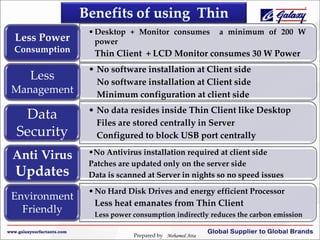
Less Power
Consumption

Less
Management

Data
Security
Anti Virus

Updates
Environment
Friendly

• Desktop + Monitor consumes
power

a minimum of 200 W

Thin Client + LCD Monitor consumes 30 W Power

• No software installation at Client side
No software installation at Client side
Minimum configuration at client side
• No data resides inside Thin Client like Desktop
Files are stored centrally in Server
Configured to block USB port centrally
•No Antivirus installation required at client side
Patches are updated only on the server side
Data is scanned at Server in nights so no speed issues
• No Hard Disk Drives and energy efficient Processor

Less heat emanates from Thin Client
Less power consumption indirectly reduces the carbon emission
Prepared by Mohamed Atta
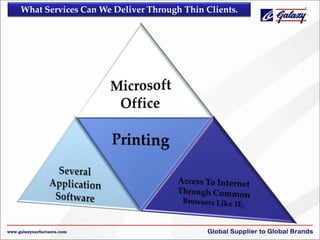
What Services Can We Deliver Through Thin Clients.
Services Are Not Suitable For Thin Client

Streaming
Video

Video
Games

DVD
Movies
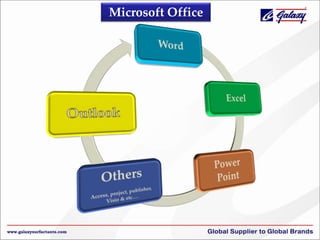
Microsoft Office
‹#›
‹#›


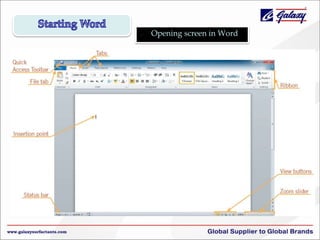
Opening screen in Word


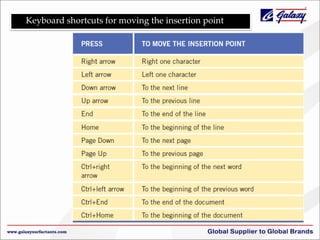
Keyboard shortcuts for moving the insertion point
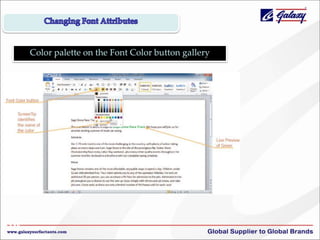
Color palette on the Font Color button gallery

10
10
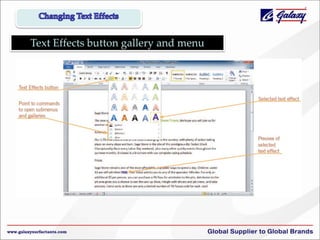
Text Effects button gallery and menu
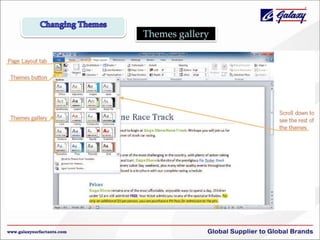
Themes gallery
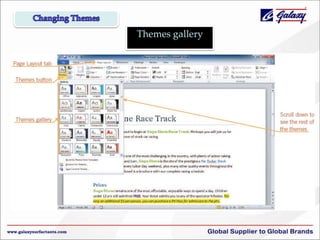
Themes gallery
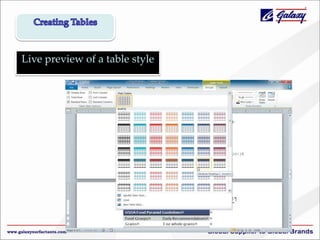
Live preview of a table style
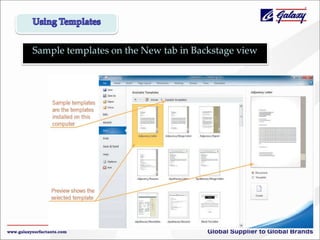
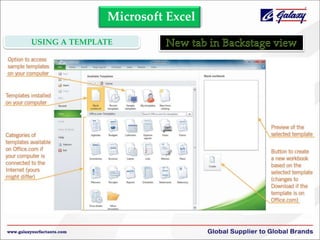
Sample templates on the New tab in Backstage view
‹#›
Microsoft Excel
USING A TEMPLATE
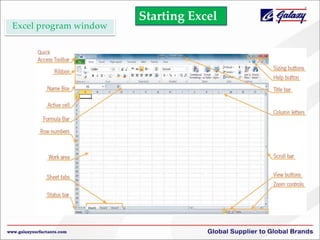
Excel program window

Starting Excel
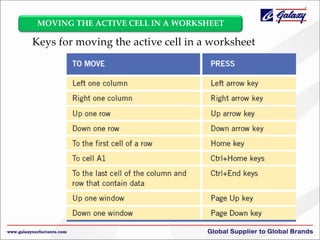
MOVING THE ACTIVE CELL IN A WORKSHEET

Keys for moving the active cell in a worksheet
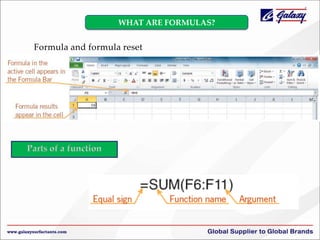
WHAT ARE FORMULAS?

Formula and formula reset
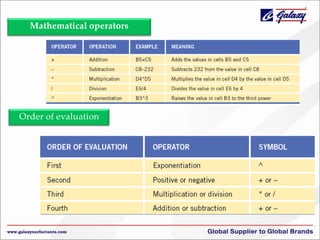
Mathematical operators

Order of evaluation
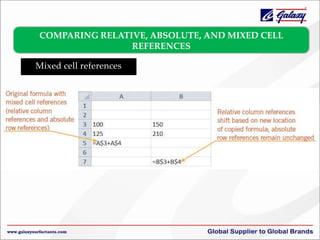
COMPARING RELATIVE, ABSOLUTE, AND MIXED CELL
REFERENCES
Mixed cell references
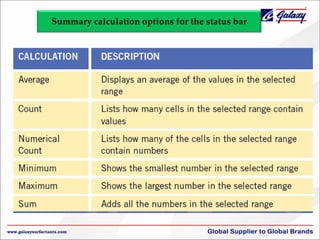
Summary calculation options for the status bar
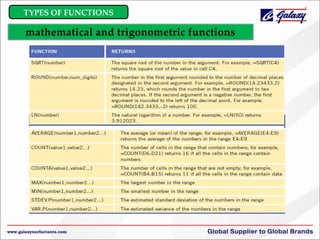
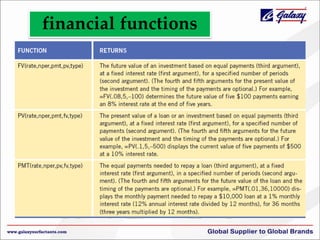
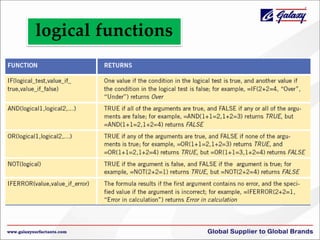
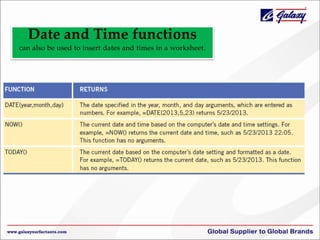
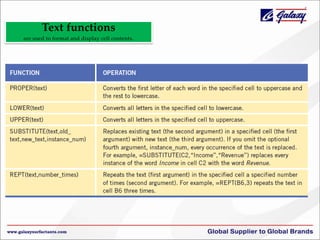
TYPES OF FUNCTIONS

mathematical and trigonometric functions
financial functions
logical functions
Date and Time functions
can also be used to insert dates and times in a worksheet.
Text functions
are used to format and display cell contents.
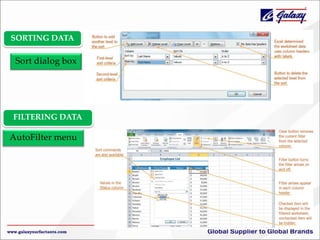
SORTING DATA

Sort dialog box

FILTERING DATA

AutoFilter menu
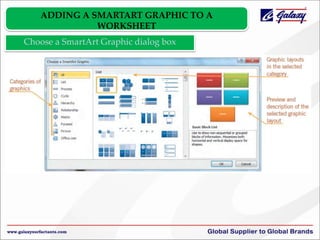
ADDING A SMARTART GRAPHIC TO A
WORKSHEET
Choose a SmartArt Graphic dialog box
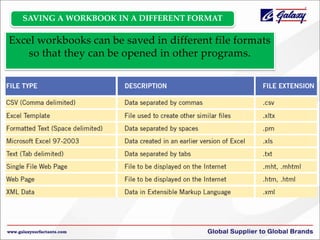
SAVING A WORKBOOK IN A DIFFERENT FORMAT

Excel workbooks can be saved in different file formats
so that they can be opened in other programs.
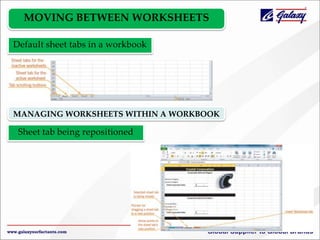
MOVING BETWEEN WORKSHEETS
Default sheet tabs in a workbook

MANAGING WORKSHEETS WITHIN A WORKBOOK

Sheet tab being repositioned
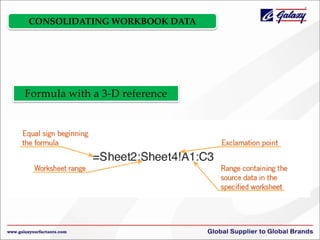
CONSOLIDATING WORKBOOK DATA

Formula with a 3-D reference
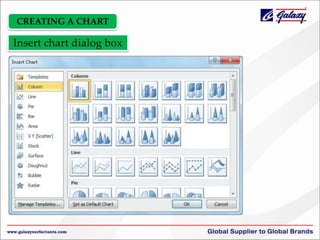
CREATING A CHART

Insert chart dialog box
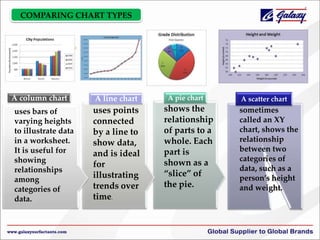
COMPARING CHART TYPES

A column chart
uses bars of
varying heights
to illustrate data
in a worksheet.
It is useful for
showing
relationships
among
categories of
data.

A line chart

uses points
connected
by a line to
show data,
and is ideal
for
illustrating
trends over
time.

A pie chart

shows the
relationship
of parts to a
whole. Each
part is
shown as a
“slice” of
the pie.

A scatter chart

sometimes
called an XY
chart, shows the
relationship
between two
categories of
data, such as a
person’s height
and weight.
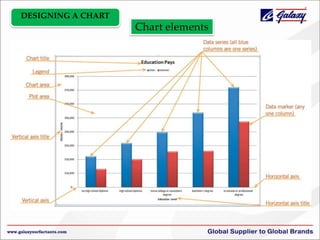
DESIGNING A CHART

Chart elements
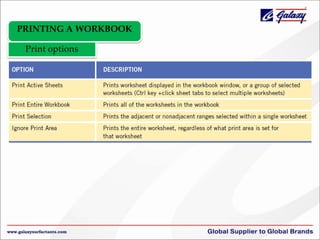
PRINTING A WORKBOOK
Print options
Microsoft Power
Point


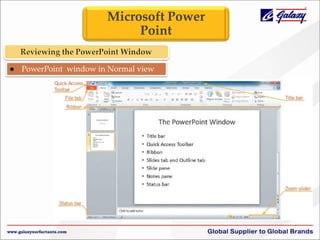
PowerPoint window in Normal view
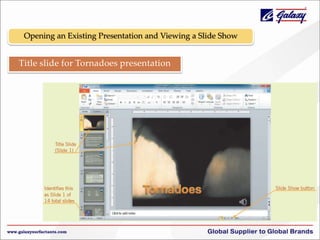
Opening an Existing Presentation and Viewing a Slide Show

Title slide for Tornadoes presentation
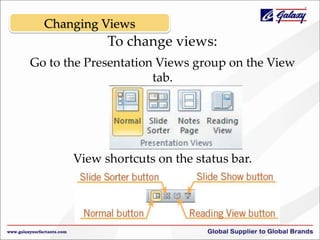
Changing Views

To change views:
Go to the Presentation Views group on the View
tab.

View shortcuts on the status bar.
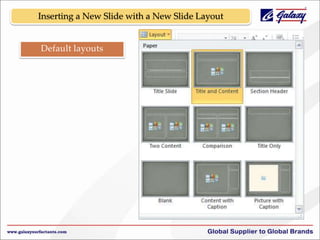
Inserting a New Slide with a New Slide Layout

Default layouts
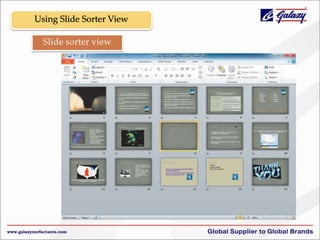
Using Slide Sorter View
Slide sorter view
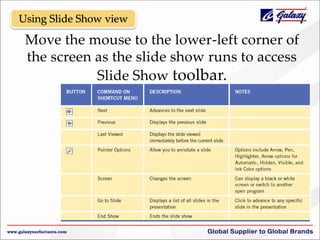
Using Slide Show view

Move the mouse to the lower-left corner of
the screen as the slide show runs to access
Slide Show toolbar.
Using Reading View

In Reading view, the slide does not quite
fill the screen and displays navigation
buttons.
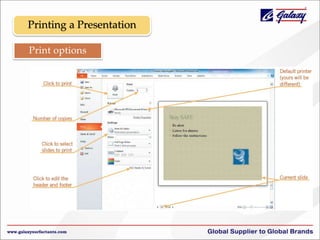
Printing a Presentation
Print options
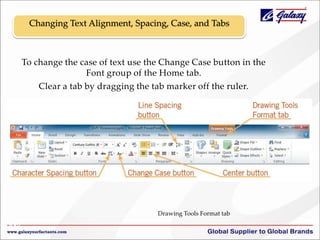
Changing Text Alignment, Spacing, Case, and Tabs

To change the case of text use the Change Case button in the
Font group of the Home tab.
Clear a tab by dragging the tab marker off the ruler.

Drawing Tools Format tab
46
46
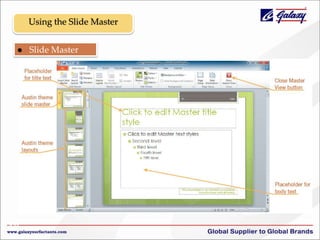
Using the Slide Master


47
47

Slide Master
view
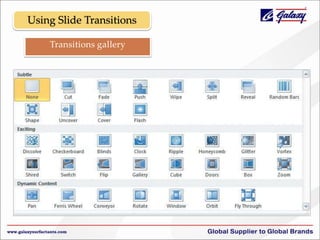
Using Slide Transitions
Transitions gallery
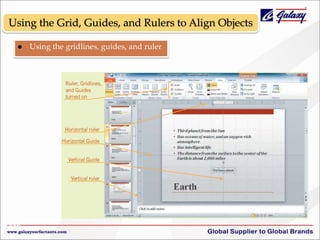
Using the Grid, Guides, and Rulers to Align Objects


49
49

Using the gridlines, guides, and ruler
Delivering a Presentation


50
50

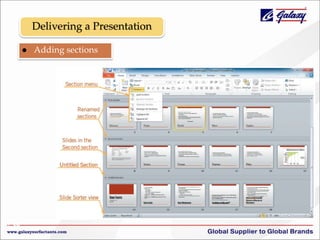
Adding sections
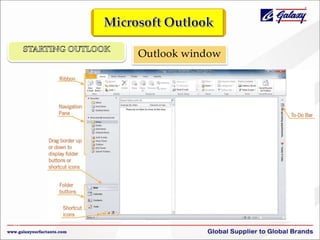
Outlook window

51
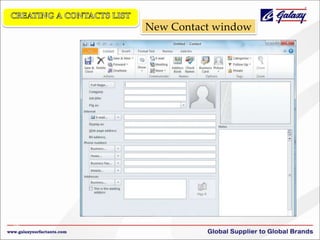
New Contact window

52
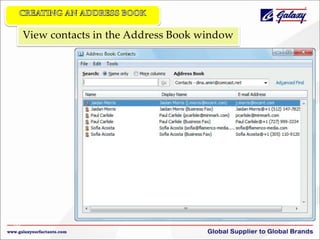
View contacts in the Address Book window

53
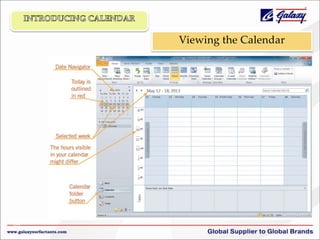
Viewing the Calendar

54
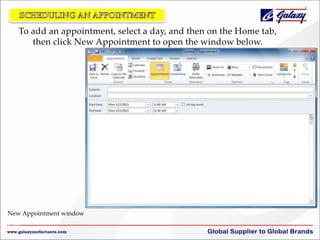
To add an appointment, select a day, and then on the Home tab,
then click New Appointment to open the window below.

New Appointment window
55
55
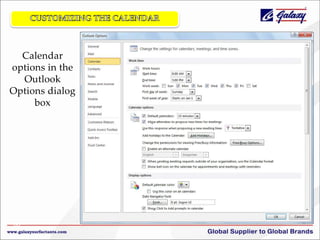
Calendar
options in the
Outlook
Options dialog
box

56
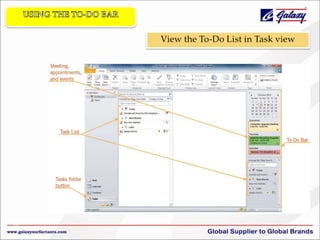
View the To-Do List in Task view

57
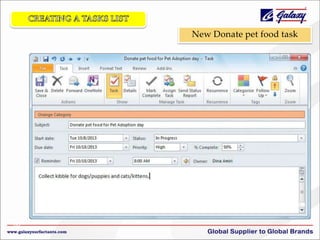
New Donate pet food task

58
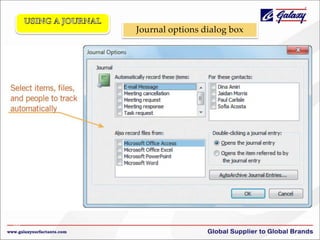
Journal options dialog box

59
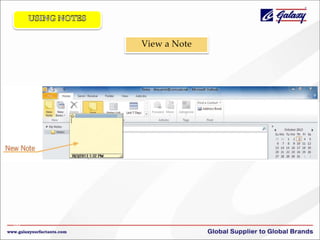
View a Note

60

Thin clients & office tips