Microsoft Office Management
A suite of Microsoft productivity
software that supports common
business tasks, including word
processing, email, presentations,
and data management and
analysis. It was released in 1990.
MS
WORD
Microsoft Word is used for creating,
editing, and formatting documents like
letters, reports, and resumes. It helps
with text formatting, images, and
collaboration.
Quick Access Tool Bar Title Bar
Status Bar
Document Area
Vertical
ruler
horizontal
scrool
bar
Zoom controler
View Button
Horizontal ruler
RIBBON
RIBBON
File
Home
Insert
Design
Layout Reference Review
View
Malling
Draw
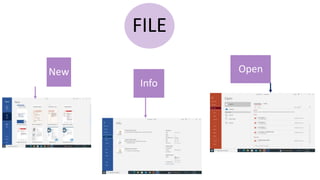
FILE
New
Info
Open
Share Export
Save as
print
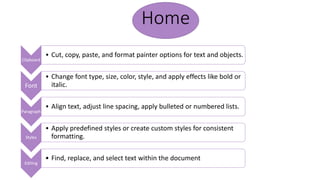
Home
Clipboard
• Cut, copy, paste, and format painter options for text and objects.
Font
• Change font type, size, color, style, and apply effects like bold or
italic.
Paragraph
• Align text, adjust line spacing, apply bulleted or numbered lists.
Styles
• Apply predefined styles or create custom styles for consistent
formatting.
Editing
• Find, replace, and select text within the document
Insert
Pages: Insert
cover page,
blank page, or
page break to
control layout.
Tables: Create
tables to
organize data
or information
in rows and
columns.
Illustrations:
Insert pictures,
shapes, smart
art, and charts.
Links
Add
hyperlinks to
web pages or
bookmarks
within the
document.
Header:
Insert headers
and footers
for page
numbering,
titles, and
more.
Text:
Include text
boxes, drop
caps, and
special
symbols.
Date &
Time:
Add the
current date
and time to
the
document.
Object:
Embed
objects like
Excel
worksheets or
PowerPoint
slides.
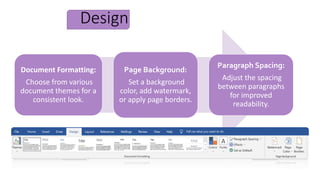
Design
Document Formatting:
Choose from various
document themes for a
consistent look.
Page Background:
Set a background
color, add watermark,
or apply page borders.
Paragraph Spacing:
Adjust the spacing
between paragraphs
for improved
readability.
Layout
Margins: Modify page margins for adjusting white space around the content.
Orientation: Switch between portrait and landscape page orientation.
Size: Change the paper size for custom or standard formats.
Columns: Create multiple columns for better content layout.
Breaks: Insert page, section, or column breaks to control layout.
Malling
Create: Start mail merge and create personalized documents.
Start Mail Merge: Choose the document type for the mail merge.
Write & Insert Fields: Add recipient information from a data source.
Preview Results: Review the merged documents before printing or
sending.
Reference
Table of Contents: Add, customize,
and update a table of contents.
Footnote: Insert footnotes or endnotes
for citation and additional information.
Citations & Bibliography: Manage
sources and add citations in different
formats.
Captions: Add captions to tables,
figures, and other objects.
Index: Create an index for easy
reference to specific terms or
topics
i. Proofing: Check spelling and grammar, and access language settings.
ii. Word Count: Count the number of words, characters, and paragraphs.
iii. Comments: Add, view, and manage comments for collaborative reviewing.
iv. Track Changes: Keep track of edits made to the document.
v. Compare: Compare documents and view the differences.
view Document Views:
Switch between various
document viewing options
(Print Layout, Read Mode,
Web Layout, etc.).
Show/Hide:
Display or hide
nonprinting
elements like
formatting
marks.
Zoom:
Adjust the zoom
level for
comfortable
reading or
editing.
Window:
Manage multiple
document
windows and
arrange them as
needed.
Power
point
PowerPoint allows users to
create visually appealing
presentations with a wide variety
of design templates, themes, and
multimedia elements.
Ribbon
Quick
access
toolbar
Slide
Zoom
control
Slide
tab
Title Bar
Stat
us
File
Home
Insert
DRAW
Design
Transition
Animation
View
Review
Slide show
Help
Record
File
New
Info
INFO
Open print
Share
Export
Save as
Home
Clipboard
• Cut, copy, paste, and format
painter options for text and
objects.
Font
• Change font type, size, color, style,
and apply effects like bold or italic.
Paragraph
• Align text, adjust line spacing,
apply bulleted or numbered lists.
HOME
drawings
• Add , arrange and colour the shapes
Editing
• Find, replace, and select text within
the document
Slide
• Insert layout , reset position ,size of
slide and organize slide into section
and add a slide to presentation
• Insert a slide to presentation
Slides
• Table provide information within your document
Tables
• Insert pictures,take screenshot,and add a photo from photo
collection
Images
• Add shapes,icons,3D Models ,smart art ,chart
Illustration
Add hyperlinks to web pages or bookmarks within document
Add-ins
• hyper link , action
Links
• Add a note about this part of document
Comments
• Add a text box ,header &footer,date &time ,slide
number,object and wordArt
Text
• Add audio,video background music and add video clip to
make your presentation engaging
Media
Insert
Draw
Tools
• Add eraser to erase
parts of drawing
• Add “Lasso Select”
to select and move
multiple drawings
Pens
• Add different pens
and colors to draw
shapes and
sketches
Stencils
• Draw lines and
align objects
against a
straightedge
convert
• Add “INK to Shape”
to refine hand –
drawn shapes
• Add “ Ink to Math”
to convert
handwritten math
equation into typed
numbers and
symbols
Design
Themes
Variants
Customize
Add different themes
Customize the design
Add slide size and
different background
Transition
Add sound
, add
duration to
specify the
length of
the
transition ,
move the
slide after
select time
Timing
Pick a
special
effect for
transition
between
previous
slide and
this one
Transition
to this Slide
Play the
transition
to this
slide
Preview
Animation
Preview
Animation
Advanced
animation
Timming
Play the animation on this slide
Apply animation to object
motion graphics created with animations
Add start to when
animation play ,duration ,
add delay to start
animation after a certain
time , move animation
earlier and later
slide
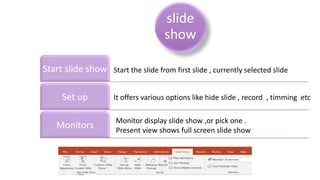
show
Start slide show
Set up
Monitors
Start the slide from first slide , currently selected slide
It offers various options like hide slide , record , timming etc
Monitor display slide show ,or pick one .
Present view shows full screen slide show
Record
The “Record”
tab is used for
recording
narration and
timings for your
presentation .
You can add
audio
narrations to
your slides , set
slides timings ,
and rehearse
timings for your
presentation .
Review
• The review tab includes tools for collaboration and proofreading .
• You can add comments , track changes , compare different versions of
your presentation and use the spell – checker
View
Switch beyween
views like normal ,
slide sorter , and
presenter view
Show or hide
gridlines ,
rulers , and
guides
Zoon in and
out of slides
for better
editing
Excel is a spreadsheet program from
Microsoft and a component of its
Office product group for business
applications. Microsoft Excel enables
users to format, organize and
calculate data in a spreadsheet.
Excel is a computer program used to create electronic spreadsheet .
Within excel user can organize data in tabular form , create chart and
perform calculations.
Excel is a convenient program because it allow user to create large
spreadsheets, reference information, and it allows for better storage of
information
Excels operates like other Microsoft Office Program and has many of the
same functions and shortcuts of other MS program.
Introduction to Excel
Excel application designed by Microsoft .
 It launched in 1985.
You can save the file with . xls extension .
Excel provide the worksheet to create a new document in it .
Introduction to Ribbon
It located below the Quick Access Toolbar and the Title Bar.
It consist of 9 tabs ;
 File
 Home
 Insert
 Page layout
 Formulas
 Data
 Reviews
 View
 Tell me what you want
Quick access
tool Bar
Formula bar
Title Bar
Ribbon
Column heading
Name
box
Active CELL
Sheet details
Row
Heading
Horizontal scrool Bar
Verticall
scrool
bar
Work Book window
View of Excel
Each worksheet contains columns and rows.
Where columns and a rows intersect is called a cell .
The tabs at the bottom of the screen represent
different worksheets within a workbook . You can use
the scrolling buttons on the left to bring other
worksheet into view.
 commands is a button , A MENU OR a BOX where
you enter information.
Conditional Formatting
To apply conditional Formatting :
Select the cell you would like to format,
Select the Home tab.
Locate the styles group.
Click the Conditional Formatting command. A menu will appear
with your formatting options .
To Remove Conditional Formatting :
click the conditional formatting command .
Select the clear Rules.
Choose to clear rules from the entire worksheet
Conditional Formatting
TO APPLY NEW FORMATTING :
Click the Conditional Formatting
Command. Select New Rules from
The menu. There are different rules,
You can apply these rules to
Differentiate particular cell.
TO MANAGE CONDITIONAL FORMATTING :
Click the Conditional Formatting command .select
Manage Rules from the menu. The Conditional
Formatting Rules Manager dialog box will appear .from
here you can edit a rule , delete a rule , or change the
orders of rules .
TO Insert & Delete Rows And Columns
To insert Rows &Columns
Select the rows below & columns to the right of
where you want the new row &columns to appear.
Click the insert command in the cells group on the
home tab . The row & columns will appear.
To delete Columns & Rows
Select the columns to the right & rows
below of where you want the columns to delete.
Click the insert command in the cell group on the
home tab . The columns &rows will delete
INSERT MENU
The insert menu allows you to :
Add new worksheets , rows and columns to an existing .
You can also charts , pictures and objects onto your worksheet.
View Menu
 The view menu allows you different options of viewing your work .
 You can enable a full screen view that changes the view include just
the worksheet and menu bar .
 You can zoom in your worksheet to focus on a smaller portion.

MS_WORD_ppt.pptx

  • 3.
    Microsoft Office Management Asuite of Microsoft productivity software that supports common business tasks, including word processing, email, presentations, and data management and analysis. It was released in 1990.
  • 4.
    MS WORD Microsoft Word isused for creating, editing, and formatting documents like letters, reports, and resumes. It helps with text formatting, images, and collaboration.
  • 5.
    Quick Access ToolBar Title Bar Status Bar Document Area Vertical ruler horizontal scrool bar Zoom controler View Button Horizontal ruler RIBBON
  • 6.
  • 7.
  • 8.
  • 9.
    Home Clipboard • Cut, copy,paste, and format painter options for text and objects. Font • Change font type, size, color, style, and apply effects like bold or italic. Paragraph • Align text, adjust line spacing, apply bulleted or numbered lists. Styles • Apply predefined styles or create custom styles for consistent formatting. Editing • Find, replace, and select text within the document
  • 10.
    Insert Pages: Insert cover page, blankpage, or page break to control layout. Tables: Create tables to organize data or information in rows and columns. Illustrations: Insert pictures, shapes, smart art, and charts. Links Add hyperlinks to web pages or bookmarks within the document. Header: Insert headers and footers for page numbering, titles, and more. Text: Include text boxes, drop caps, and special symbols. Date & Time: Add the current date and time to the document. Object: Embed objects like Excel worksheets or PowerPoint slides.
  • 11.
    Design Document Formatting: Choose fromvarious document themes for a consistent look. Page Background: Set a background color, add watermark, or apply page borders. Paragraph Spacing: Adjust the spacing between paragraphs for improved readability.
  • 12.
    Layout Margins: Modify pagemargins for adjusting white space around the content. Orientation: Switch between portrait and landscape page orientation. Size: Change the paper size for custom or standard formats. Columns: Create multiple columns for better content layout. Breaks: Insert page, section, or column breaks to control layout.
  • 13.
    Malling Create: Start mailmerge and create personalized documents. Start Mail Merge: Choose the document type for the mail merge. Write & Insert Fields: Add recipient information from a data source. Preview Results: Review the merged documents before printing or sending.
  • 14.
    Reference Table of Contents:Add, customize, and update a table of contents. Footnote: Insert footnotes or endnotes for citation and additional information. Citations & Bibliography: Manage sources and add citations in different formats. Captions: Add captions to tables, figures, and other objects. Index: Create an index for easy reference to specific terms or topics
  • 15.
    i. Proofing: Checkspelling and grammar, and access language settings. ii. Word Count: Count the number of words, characters, and paragraphs. iii. Comments: Add, view, and manage comments for collaborative reviewing. iv. Track Changes: Keep track of edits made to the document. v. Compare: Compare documents and view the differences.
  • 16.
    view Document Views: Switchbetween various document viewing options (Print Layout, Read Mode, Web Layout, etc.). Show/Hide: Display or hide nonprinting elements like formatting marks. Zoom: Adjust the zoom level for comfortable reading or editing. Window: Manage multiple document windows and arrange them as needed.
  • 17.
    Power point PowerPoint allows usersto create visually appealing presentations with a wide variety of design templates, themes, and multimedia elements.
  • 18.
  • 19.
  • 20.
  • 21.
  • 22.
    Home Clipboard • Cut, copy,paste, and format painter options for text and objects. Font • Change font type, size, color, style, and apply effects like bold or italic. Paragraph • Align text, adjust line spacing, apply bulleted or numbered lists.
  • 23.
    HOME drawings • Add ,arrange and colour the shapes Editing • Find, replace, and select text within the document Slide • Insert layout , reset position ,size of slide and organize slide into section and add a slide to presentation
  • 24.
    • Insert aslide to presentation Slides • Table provide information within your document Tables • Insert pictures,take screenshot,and add a photo from photo collection Images • Add shapes,icons,3D Models ,smart art ,chart Illustration Add hyperlinks to web pages or bookmarks within document Add-ins • hyper link , action Links • Add a note about this part of document Comments • Add a text box ,header &footer,date &time ,slide number,object and wordArt Text • Add audio,video background music and add video clip to make your presentation engaging Media Insert
  • 25.
    Draw Tools • Add eraserto erase parts of drawing • Add “Lasso Select” to select and move multiple drawings Pens • Add different pens and colors to draw shapes and sketches Stencils • Draw lines and align objects against a straightedge convert • Add “INK to Shape” to refine hand – drawn shapes • Add “ Ink to Math” to convert handwritten math equation into typed numbers and symbols
  • 26.
    Design Themes Variants Customize Add different themes Customizethe design Add slide size and different background
  • 27.
    Transition Add sound , add durationto specify the length of the transition , move the slide after select time Timing Pick a special effect for transition between previous slide and this one Transition to this Slide Play the transition to this slide Preview
  • 28.
    Animation Preview Animation Advanced animation Timming Play the animationon this slide Apply animation to object motion graphics created with animations Add start to when animation play ,duration , add delay to start animation after a certain time , move animation earlier and later
  • 29.
    slide show Start slide show Setup Monitors Start the slide from first slide , currently selected slide It offers various options like hide slide , record , timming etc Monitor display slide show ,or pick one . Present view shows full screen slide show
  • 30.
    Record The “Record” tab isused for recording narration and timings for your presentation . You can add audio narrations to your slides , set slides timings , and rehearse timings for your presentation .
  • 31.
    Review • The reviewtab includes tools for collaboration and proofreading . • You can add comments , track changes , compare different versions of your presentation and use the spell – checker
  • 32.
    View Switch beyween views likenormal , slide sorter , and presenter view Show or hide gridlines , rulers , and guides Zoon in and out of slides for better editing
  • 33.
    Excel is aspreadsheet program from Microsoft and a component of its Office product group for business applications. Microsoft Excel enables users to format, organize and calculate data in a spreadsheet.
  • 34.
    Excel is acomputer program used to create electronic spreadsheet . Within excel user can organize data in tabular form , create chart and perform calculations. Excel is a convenient program because it allow user to create large spreadsheets, reference information, and it allows for better storage of information Excels operates like other Microsoft Office Program and has many of the same functions and shortcuts of other MS program.
  • 35.
    Introduction to Excel Excelapplication designed by Microsoft .  It launched in 1985. You can save the file with . xls extension . Excel provide the worksheet to create a new document in it .
  • 36.
    Introduction to Ribbon Itlocated below the Quick Access Toolbar and the Title Bar. It consist of 9 tabs ;  File  Home  Insert  Page layout  Formulas  Data  Reviews  View  Tell me what you want
  • 37.
    Quick access tool Bar Formulabar Title Bar Ribbon Column heading Name box Active CELL Sheet details Row Heading Horizontal scrool Bar Verticall scrool bar Work Book window
  • 38.
    View of Excel Eachworksheet contains columns and rows. Where columns and a rows intersect is called a cell . The tabs at the bottom of the screen represent different worksheets within a workbook . You can use the scrolling buttons on the left to bring other worksheet into view.  commands is a button , A MENU OR a BOX where you enter information.
  • 39.
    Conditional Formatting To applyconditional Formatting : Select the cell you would like to format, Select the Home tab. Locate the styles group. Click the Conditional Formatting command. A menu will appear with your formatting options . To Remove Conditional Formatting : click the conditional formatting command . Select the clear Rules. Choose to clear rules from the entire worksheet
  • 40.
    Conditional Formatting TO APPLYNEW FORMATTING : Click the Conditional Formatting Command. Select New Rules from The menu. There are different rules, You can apply these rules to Differentiate particular cell. TO MANAGE CONDITIONAL FORMATTING : Click the Conditional Formatting command .select Manage Rules from the menu. The Conditional Formatting Rules Manager dialog box will appear .from here you can edit a rule , delete a rule , or change the orders of rules .
  • 41.
    TO Insert &Delete Rows And Columns To insert Rows &Columns Select the rows below & columns to the right of where you want the new row &columns to appear. Click the insert command in the cells group on the home tab . The row & columns will appear. To delete Columns & Rows Select the columns to the right & rows below of where you want the columns to delete. Click the insert command in the cell group on the home tab . The columns &rows will delete
  • 42.
    INSERT MENU The insertmenu allows you to : Add new worksheets , rows and columns to an existing . You can also charts , pictures and objects onto your worksheet.
  • 43.
    View Menu  Theview menu allows you different options of viewing your work .  You can enable a full screen view that changes the view include just the worksheet and menu bar .  You can zoom in your worksheet to focus on a smaller portion.