Middle School Technology  Vocabulary Review
Clip Art  This picture is called a .GIF.   This picture is called a .JPG.
JCPS Acceptable Use Policy Students will use the network for conducting research and assignments Students will use appropriate language, avoid swearing, vulgarities, and abusive language Students will not use unauthorized multi-user games. Students will not forward chain letters. Students will not create or share computer viruses. Students will not damage/attempt to damage, move or  remove software, hardware or files.
E-Mail Kids’ Rules for Safety Do’s and Don’ts for Any Message Chat Do’s and Don’ts One-to-One Instant Messaging Do’s and Don’ts Message Board Do’s and Don’ts
Beware of Flame Wars!  Flaming – using  e-mail to send mean angry messages meant to upset someone.  Many times uses *$#@ characters.
Copyright The exclusive rights to reproduce, publish, and sell the matter and form (as of writing, music, or art). With music you can use 10% or 30 seconds (whichever is less) without getting permission. DON’T PLAGERIZE!  ALWAYS  GIVE THE WRITER, SINGER,  OR ARTIST CREDIT!
SHAREWARE Software that can be freely copied for a limited period of time: however, if you decide to keep it, you must pay a fee to the author.
Thesaurus Tools Language Used to find a synonym – word that means the same thing.
Specific Alignment Found on your formatting toolbar Left Align Center Right Align Justify
Headers/Footers Adds text that will either print at the top or the bottom of every page of your document.
Window Menu If you have multiple documents open at the same time, you can switch back and forth between documents by using the drop-down menu called WINDOW
Rich Text Format We use RTF format when we want to save word processing documents and use/ open them on other computers and applications. For example, if you have an Apple computer at home and want to forward your portfolio piece from home to a computer at school, you can save it as an RTF.
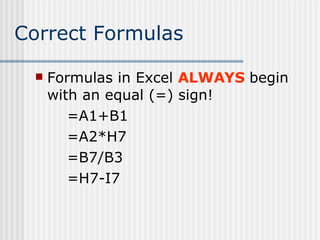
Correct Formulas Formulas in Excel  ALWAYS  begin with an equal (=) sign! =A1+B1 =A2*H7 =B7/B3 =H7-I7
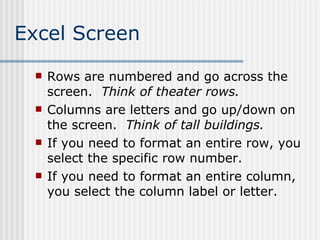
Excel Screen Rows are numbered and go across the screen.  Think of theater rows. Columns are letters and go up/down on the screen.  Think of tall buildings. If you need to format an entire row, you select the specific row number.  If you need to format an entire column, you select the column label or letter.
Functions Excel has several built-in functions that save you time in calculating data. Select your function from the list.
Sorting Data Remember to select all of the information in a row so you keep the information that belongs together, TOGETHER! Use the DATA drop-down menu, then SORT. Header Row
Fill Feature In Excel you can copy the contents of one cell to one or more cells.  You can do this by using the Fill Handle in the active cell. Make the white plus sign ( + ) go to black when you move the mouse to the bottom right-hand corner. Drag over the range (group of cells) you want to fill.
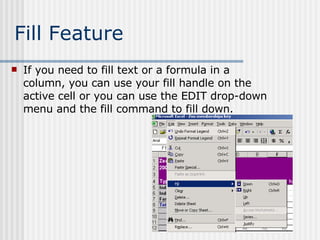
Fill Feature If you need to fill text or a formula in a column, you can use your fill handle on the active cell or you can use the EDIT drop-down menu and the fill command to fill down.
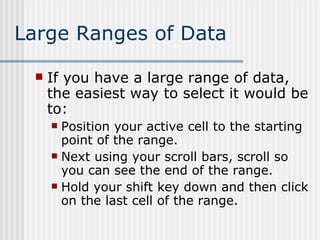
Large Ranges of Data If you have a large range of data, the easiest way to select it would be to: Position your active cell to the starting point of the range. Next using your scroll bars, scroll so you can see the end of the range. Hold your shift key down and then click on the last cell of the range.
Charts Bar Charts Column Charts Pie Charts Line Charts
Chart Options A legend is a part of a chart or graph that identifies the patterns or colors that are assigned to the data series or categories in a chart.
Chart Options Once a graph or chart is created and you need to go back to edit or add features, you can go to the CHART menu drop-down and make changes. Change location of the chart Change the type of chart Add the X-axis or Y-Axis data
Database A database is a collection of related information organized for rapid search and retrieval. The Microsoft software for databases is called:  ACCESS
What is a Hacker? A person who gains access to another person’s computer or a computer system WITHOUT permission. Usually a hacker intents to destroy or delete data/files or modify computer codes.
Internet Explorer The Internet Explorer is a browser that allows you to search for information on the internet. Other browsers are Navigator and Netscape.
Keywords When searching for information on-line, you can narrow your search by putting a KEYWORD or KEYWORDS in the search line. REMEMBER BOOLEAN OPERATORS: AND, OR, NOT
Citing Electronic Pieces Must have: Author or originator.  Title of item.  [Online] Date of document or download or accessed (day, month, year).  URL <http://address/filename>.
Trouble Shooting If your computer does not turn on: Make sure that the tower and monitor are turned on. Check the power cords to the way and to the tower. Remember to check the print queue for documents that do not print.
WAN/LAN A WAN is a wide area network that links computers and networks in different geographic areas. A LAN is a local area network that links computers or networks in a smaller geographic area such as a room or building.
Presentations Presentations can contain: Multiple slides Information about any topic Pictures or graphics Music and/or sound
Insert Pictures in Presentations When inserting a picture found on the internet, you must cite the picture on the page in which it occurs.
Master Slides The slide master controls certain text characteristics — such as font type, size, and color — called &quot;master text,&quot; as well as background color and certain special effects, such as shadowing and bullet style. The slide master contains text placeholders and placeholders for footers, such as the date, time, and slide number.  When you want to make a global change to the look of your slides, you don't have to change each slide individually.
Inserting Date/Time You can insert several date formats into a WORD document by choosing the INSERT drop-down menu and selecting DATE AND TIME. Updates Automatically
Page Setup In order to change the page orientation and margins, you can go to the FILE drop-down menu and select PAGE SETUP. Page Orientation
Columns To put a document into columns, use: Icon on the Standard Toolbar FORMAT drop-down menu Columns
Create a Header/Footer Select VIEW from the drop-down menu Headers are at the top of the document Footers are at the bottom of the document Switch between header and footer
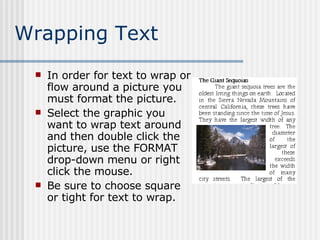
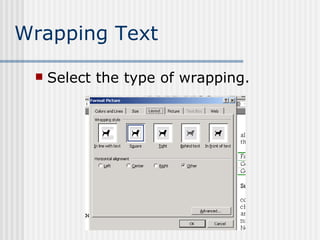
Wrapping Text In order for text to wrap or flow around a picture you must format the picture.  Select the graphic you want to wrap text around and then double click the picture, use the FORMAT drop-down menu or right click the mouse. Be sure to choose square or tight for text to wrap.
Wrapping Text Select the type of wrapping.
To Bold Column Headings You can select the range and then press the “ B”  on the formatting toolbar. You can select the row number or the column label if you need to bold all items in either the row or column.
Format Column Width To format column width, you can position your pointer between the column labels until you get arrows pointing in two directions and then drag bigger or smaller. You can also use the FORMAT drop down menu and selection COLUMN and then WIDTH.
FILE EXTENSIONS WORD:  .doc PowerPoint:  .ppt Claris Works:  .cwk Rich Text Format:  .rtf Pictures:  .jpg, .gif, .mpg Music:  .wav
WINDOWS THE OPERATING SYSTEM IT TELLS THE COMPUTER WHAT TO DO

Vocabulary

  • 1.
    Middle School Technology Vocabulary Review
  • 2.
    Clip Art This picture is called a .GIF. This picture is called a .JPG.
  • 3.
    JCPS Acceptable UsePolicy Students will use the network for conducting research and assignments Students will use appropriate language, avoid swearing, vulgarities, and abusive language Students will not use unauthorized multi-user games. Students will not forward chain letters. Students will not create or share computer viruses. Students will not damage/attempt to damage, move or remove software, hardware or files.
  • 4.
    E-Mail Kids’ Rulesfor Safety Do’s and Don’ts for Any Message Chat Do’s and Don’ts One-to-One Instant Messaging Do’s and Don’ts Message Board Do’s and Don’ts
  • 5.
    Beware of FlameWars! Flaming – using e-mail to send mean angry messages meant to upset someone. Many times uses *$#@ characters.
  • 6.
    Copyright The exclusiverights to reproduce, publish, and sell the matter and form (as of writing, music, or art). With music you can use 10% or 30 seconds (whichever is less) without getting permission. DON’T PLAGERIZE! ALWAYS GIVE THE WRITER, SINGER, OR ARTIST CREDIT!
  • 7.
    SHAREWARE Software thatcan be freely copied for a limited period of time: however, if you decide to keep it, you must pay a fee to the author.
  • 8.
    Thesaurus Tools LanguageUsed to find a synonym – word that means the same thing.
  • 9.
    Specific Alignment Foundon your formatting toolbar Left Align Center Right Align Justify
  • 10.
    Headers/Footers Adds textthat will either print at the top or the bottom of every page of your document.
  • 11.
    Window Menu Ifyou have multiple documents open at the same time, you can switch back and forth between documents by using the drop-down menu called WINDOW
  • 12.
    Rich Text FormatWe use RTF format when we want to save word processing documents and use/ open them on other computers and applications. For example, if you have an Apple computer at home and want to forward your portfolio piece from home to a computer at school, you can save it as an RTF.
  • 13.
    Correct Formulas Formulasin Excel ALWAYS begin with an equal (=) sign! =A1+B1 =A2*H7 =B7/B3 =H7-I7
  • 14.
    Excel Screen Rowsare numbered and go across the screen. Think of theater rows. Columns are letters and go up/down on the screen. Think of tall buildings. If you need to format an entire row, you select the specific row number. If you need to format an entire column, you select the column label or letter.
  • 15.
    Functions Excel hasseveral built-in functions that save you time in calculating data. Select your function from the list.
  • 16.
    Sorting Data Rememberto select all of the information in a row so you keep the information that belongs together, TOGETHER! Use the DATA drop-down menu, then SORT. Header Row
  • 17.
    Fill Feature InExcel you can copy the contents of one cell to one or more cells. You can do this by using the Fill Handle in the active cell. Make the white plus sign ( + ) go to black when you move the mouse to the bottom right-hand corner. Drag over the range (group of cells) you want to fill.
  • 18.
    Fill Feature Ifyou need to fill text or a formula in a column, you can use your fill handle on the active cell or you can use the EDIT drop-down menu and the fill command to fill down.
  • 19.
    Large Ranges ofData If you have a large range of data, the easiest way to select it would be to: Position your active cell to the starting point of the range. Next using your scroll bars, scroll so you can see the end of the range. Hold your shift key down and then click on the last cell of the range.
  • 20.
    Charts Bar ChartsColumn Charts Pie Charts Line Charts
  • 21.
    Chart Options Alegend is a part of a chart or graph that identifies the patterns or colors that are assigned to the data series or categories in a chart.
  • 22.
    Chart Options Oncea graph or chart is created and you need to go back to edit or add features, you can go to the CHART menu drop-down and make changes. Change location of the chart Change the type of chart Add the X-axis or Y-Axis data
  • 23.
    Database A databaseis a collection of related information organized for rapid search and retrieval. The Microsoft software for databases is called: ACCESS
  • 24.
    What is aHacker? A person who gains access to another person’s computer or a computer system WITHOUT permission. Usually a hacker intents to destroy or delete data/files or modify computer codes.
  • 25.
    Internet Explorer TheInternet Explorer is a browser that allows you to search for information on the internet. Other browsers are Navigator and Netscape.
  • 26.
    Keywords When searchingfor information on-line, you can narrow your search by putting a KEYWORD or KEYWORDS in the search line. REMEMBER BOOLEAN OPERATORS: AND, OR, NOT
  • 27.
    Citing Electronic PiecesMust have: Author or originator. Title of item. [Online] Date of document or download or accessed (day, month, year). URL <http://address/filename>.
  • 28.
    Trouble Shooting Ifyour computer does not turn on: Make sure that the tower and monitor are turned on. Check the power cords to the way and to the tower. Remember to check the print queue for documents that do not print.
  • 29.
    WAN/LAN A WANis a wide area network that links computers and networks in different geographic areas. A LAN is a local area network that links computers or networks in a smaller geographic area such as a room or building.
  • 30.
    Presentations Presentations cancontain: Multiple slides Information about any topic Pictures or graphics Music and/or sound
  • 31.
    Insert Pictures inPresentations When inserting a picture found on the internet, you must cite the picture on the page in which it occurs.
  • 32.
    Master Slides Theslide master controls certain text characteristics — such as font type, size, and color — called &quot;master text,&quot; as well as background color and certain special effects, such as shadowing and bullet style. The slide master contains text placeholders and placeholders for footers, such as the date, time, and slide number. When you want to make a global change to the look of your slides, you don't have to change each slide individually.
  • 33.
    Inserting Date/Time Youcan insert several date formats into a WORD document by choosing the INSERT drop-down menu and selecting DATE AND TIME. Updates Automatically
  • 34.
    Page Setup Inorder to change the page orientation and margins, you can go to the FILE drop-down menu and select PAGE SETUP. Page Orientation
  • 35.
    Columns To puta document into columns, use: Icon on the Standard Toolbar FORMAT drop-down menu Columns
  • 36.
    Create a Header/FooterSelect VIEW from the drop-down menu Headers are at the top of the document Footers are at the bottom of the document Switch between header and footer
  • 37.
    Wrapping Text Inorder for text to wrap or flow around a picture you must format the picture. Select the graphic you want to wrap text around and then double click the picture, use the FORMAT drop-down menu or right click the mouse. Be sure to choose square or tight for text to wrap.
  • 38.
    Wrapping Text Selectthe type of wrapping.
  • 39.
    To Bold ColumnHeadings You can select the range and then press the “ B” on the formatting toolbar. You can select the row number or the column label if you need to bold all items in either the row or column.
  • 40.
    Format Column WidthTo format column width, you can position your pointer between the column labels until you get arrows pointing in two directions and then drag bigger or smaller. You can also use the FORMAT drop down menu and selection COLUMN and then WIDTH.
  • 41.
    FILE EXTENSIONS WORD: .doc PowerPoint: .ppt Claris Works: .cwk Rich Text Format: .rtf Pictures: .jpg, .gif, .mpg Music: .wav
  • 42.
    WINDOWS THE OPERATINGSYSTEM IT TELLS THE COMPUTER WHAT TO DO