3ds Max 2015 Essentials
Chapter 1: The 3ds Max Interface
3ds Max 2015 topics covered in
this chapter include the following:
• The Workspace
• Transforming Objects Using Gizmos
• Graphite Modeling Tool
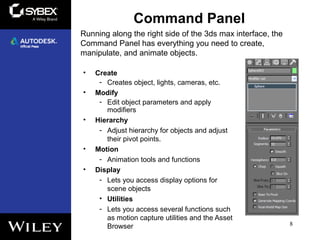
• Command Panel
• Time Slider and Track Bar
• File Management
2
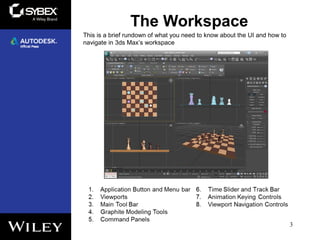
The Workspace
3
This is a brief rundown of what you need to know about the UI and how to
navigate in 3ds Max’s workspace
Viewports
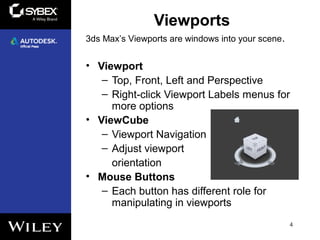
• Viewport
– Top, Front, Left and Perspective
– Right-click Viewport Labels menus for
more options
• ViewCube
– Viewport Navigation
– Adjust viewport
orientation
• Mouse Buttons
– Each button has different role for
manipulating in viewports
4
3ds Max’s Viewports are windows into your scene.
Viewports (cont.)
• Quad Menus
– Right-click in viewport to display up to
four quadrant areas with various
commands.
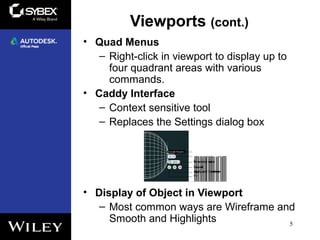
• Caddy Interface
– Context sensitive tool
– Replaces the Settings dialog box
• Display of Object in Viewport
– Most common ways are Wireframe and
Smooth and Highlights 5
Transforming Objects using
Gizmos
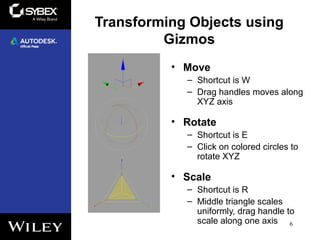
• Move
– Shortcut is W
– Drag handles moves along
XYZ axis
• Rotate
– Shortcut is E
– Click on colored circles to
rotate XYZ
• Scale
– Shortcut is R
– Middle triangle scales
uniformly, drag handle to
scale along one axis 6
Graphite Modeling Tool Tab
• Polygon Modeling Panel
• Modify Selection Panel
• Edit Panel
• Geometry Panel
• [Subobject] Panel
• Loops Panel
• Additional Panels
7
The Graphite Modeling tool ribbon provides you with a wide range of
tools to make building and editing modeling fast and easy.
Command Panel
• Create
- Creates object, lights, cameras, etc.
• Modify
- Edit object parameters and apply
modifiers
• Hierarchy
- Adjust hierarchy for objects and adjust
their pivot points.
• Motion
- Animation tools and functions
• Display
- Lets you access display options for
scene objects
• Utilities
- Lets you access several functions such
as motion capture utilities and the Asset
Browser 8
Running along the right side of the 3ds max interface, the
Command Panel has everything you need to create,
manipulate, and animate objects.
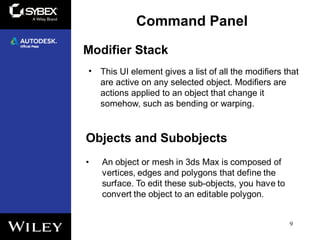
Modifier Stack
• This UI element gives a list of all the modifiers that
are active on any selected object. Modifiers are
actions applied to an object that change it
somehow, such as bending or warping.
9
Command Panel
Objects and Subobjects
Time Slider and Track Bar
• The time slider allows you to move
through any frame in your scene by
scrubbing (moving the slider back and
forth).
• You can move through your animation one
frame at a time by clicking on the arrows
on either side of the time slider or by
pressing the < and > keys.
10
Setting a Project
• 3ds Max provides several subfolders
automatically grouped into projects for you.
• Once you copy the appropriate projects to your
hard drive, you can tell 3ds Max which project to
work on by choosing Application Manage Set➢ ➢
Project Folder.
11
File Management
Version Up!
• Save your file using the same name, but you
increase the version number by 1.
• Select Application Save As and manually➢
changing the version number or click the
Increment button (the + icon) to the right of the
filename which will a add 01, then 02, then 03,
and so on.

Max2015 ch01

  • 1.
    3ds Max 2015Essentials Chapter 1: The 3ds Max Interface
  • 2.
    3ds Max 2015topics covered in this chapter include the following: • The Workspace • Transforming Objects Using Gizmos • Graphite Modeling Tool • Command Panel • Time Slider and Track Bar • File Management 2
  • 3.
    The Workspace 3 This isa brief rundown of what you need to know about the UI and how to navigate in 3ds Max’s workspace
  • 4.
    Viewports • Viewport – Top,Front, Left and Perspective – Right-click Viewport Labels menus for more options • ViewCube – Viewport Navigation – Adjust viewport orientation • Mouse Buttons – Each button has different role for manipulating in viewports 4 3ds Max’s Viewports are windows into your scene.
  • 5.
    Viewports (cont.) • QuadMenus – Right-click in viewport to display up to four quadrant areas with various commands. • Caddy Interface – Context sensitive tool – Replaces the Settings dialog box • Display of Object in Viewport – Most common ways are Wireframe and Smooth and Highlights 5
  • 6.
    Transforming Objects using Gizmos •Move – Shortcut is W – Drag handles moves along XYZ axis • Rotate – Shortcut is E – Click on colored circles to rotate XYZ • Scale – Shortcut is R – Middle triangle scales uniformly, drag handle to scale along one axis 6
  • 7.
    Graphite Modeling ToolTab • Polygon Modeling Panel • Modify Selection Panel • Edit Panel • Geometry Panel • [Subobject] Panel • Loops Panel • Additional Panels 7 The Graphite Modeling tool ribbon provides you with a wide range of tools to make building and editing modeling fast and easy.
  • 8.
    Command Panel • Create -Creates object, lights, cameras, etc. • Modify - Edit object parameters and apply modifiers • Hierarchy - Adjust hierarchy for objects and adjust their pivot points. • Motion - Animation tools and functions • Display - Lets you access display options for scene objects • Utilities - Lets you access several functions such as motion capture utilities and the Asset Browser 8 Running along the right side of the 3ds max interface, the Command Panel has everything you need to create, manipulate, and animate objects.
  • 9.
    Modifier Stack • ThisUI element gives a list of all the modifiers that are active on any selected object. Modifiers are actions applied to an object that change it somehow, such as bending or warping. 9 Command Panel Objects and Subobjects
  • 10.
    Time Slider andTrack Bar • The time slider allows you to move through any frame in your scene by scrubbing (moving the slider back and forth). • You can move through your animation one frame at a time by clicking on the arrows on either side of the time slider or by pressing the < and > keys. 10
  • 11.
    Setting a Project •3ds Max provides several subfolders automatically grouped into projects for you. • Once you copy the appropriate projects to your hard drive, you can tell 3ds Max which project to work on by choosing Application Manage Set➢ ➢ Project Folder. 11 File Management Version Up! • Save your file using the same name, but you increase the version number by 1. • Select Application Save As and manually➢ changing the version number or click the Increment button (the + icon) to the right of the filename which will a add 01, then 02, then 03, and so on.