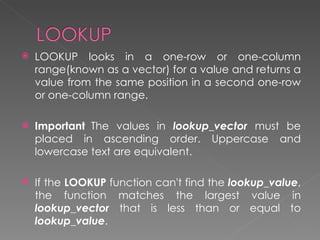
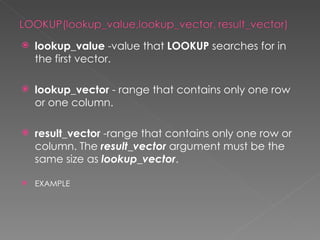
   LOOKUP looks in a one-row or one-column
    range(known as a vector) for a value and returns a
    value from the same position in a second one-row
    or one-column range.

   Important  The values in lookup_vector must be
    placed in ascending order. Uppercase and
    lowercase text are equivalent.

   If the LOOKUP function can't find the lookup_value,
    the function matches the largest value in
    lookup_vector that is less than or equal to
    lookup_value.
   lookup_value -value that LOOKUP searches for in
    the first vector.

   lookup_vector - range that contains only one row
    or one column.

   result_vector -range that contains only one row or
    column. The result_vector argument must be the
    same size as lookup_vector.

   EXAMPLE
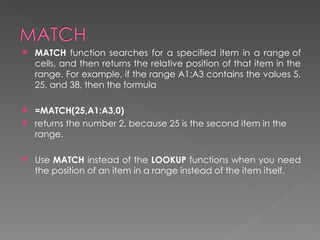
   MATCH function searches for a specified item in a range of
    cells, and then returns the relative position of that item in the
    range. For example, if the range A1:A3 contains the values 5,
    25, and 38, then the formula

 =MATCH(25,A1:A3,0)
 returns the number 2, because 25 is the second item in the
  range.

   Use MATCH instead of the LOOKUP functions when you need
    the position of an item in a range instead of the item itself.
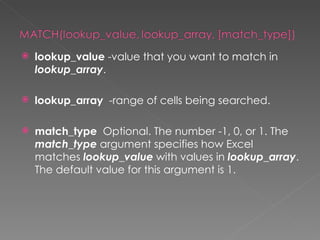
   lookup_value -value that you want to match in
    lookup_array.

   lookup_array  -range of cells being searched.

   match_type  Optional. The number -1, 0, or 1. The
    match_type argument specifies how Excel
    matches lookup_value with values in lookup_array.
    The default value for this argument is 1.
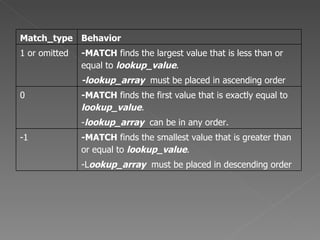
Match_type Behavior
1 or omitted   -MATCH finds the largest value that is less than or
               equal to lookup_value.
               -lookup_array must be placed in ascending order
0              -MATCH finds the first value that is exactly equal to
               lookup_value.
               -lookup_array can be in any order.
-1             -MATCH finds the smallest value that is greater than
               or equal to lookup_value.
               -Lookup_array must be placed in descending order
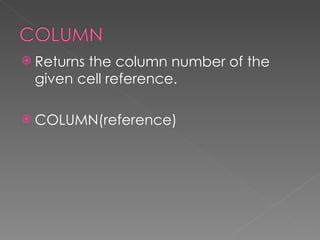
 Returns
        the column number of the
 given cell reference.

 COLUMN(reference)
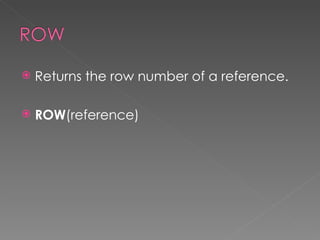
   Returns the row number of a reference.

   ROW(reference)
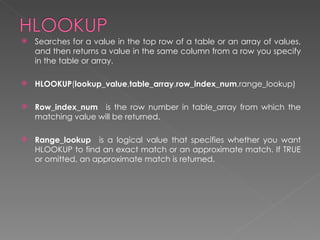
   Searches for a value in the top row of a table or an array of values,
    and then returns a value in the same column from a row you specify
    in the table or array.

   HLOOKUP(lookup_value,table_array,row_index_num,range_lookup)

   Row_index_num   is the row number in table_array from which the
    matching value will be returned.

   Range_lookup   is a logical value that specifies whether you want
    HLOOKUP to find an exact match or an approximate match. If TRUE
    or omitted, an approximate match is returned.
   Looks in the first column of an array and moves
    across the row to return the value of a cell

   VLOOKUP(lookup_value, table_array,
    col_index_num, [range_lookup])
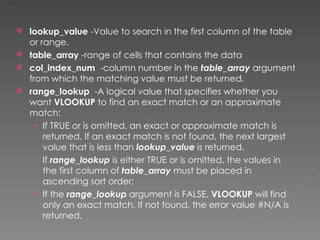
 lookup_value -Value to search in the first column of the table
  or range.
 table_array -range of cells that contains the data
 col_index_num  -column number in the table_array argument
  from which the matching value must be returned.
 range_lookup  -A logical value that specifies whether you
  want VLOOKUP to find an exact match or an approximate
  match:
   › If TRUE or is omitted, an exact or approximate match is
      returned. If an exact match is not found, the next largest
      value that is less than lookup_value is returned.
   › If range_lookup is either TRUE or is omitted, the values in
      the first column of table_array must be placed in
      ascending sort order;
   › If the range_lookup argument is FALSE, VLOOKUP will find
      only an exact match. If not found, the error value #N/A is
      returned.
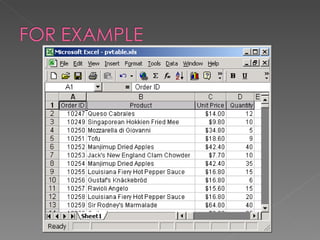
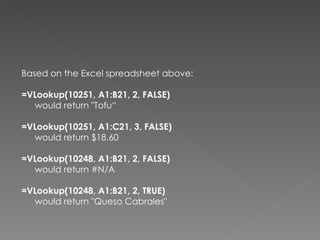
Based on the Excel spreadsheet above:

=VLookup(10251, A1:B21, 2, FALSE)
  would return "Tofu“

=VLookup(10251, A1:C21, 3, FALSE)
  would return $18.60

=VLookup(10248, A1:B21, 2, FALSE)
  would return #N/A

=VLookup(10248, A1:B21, 2, TRUE)
  would return "Queso Cabrales"

Look up functions

  • 2.
    LOOKUP looks in a one-row or one-column range(known as a vector) for a value and returns a value from the same position in a second one-row or one-column range.  Important  The values in lookup_vector must be placed in ascending order. Uppercase and lowercase text are equivalent.  If the LOOKUP function can't find the lookup_value, the function matches the largest value in lookup_vector that is less than or equal to lookup_value.
  • 3.
    lookup_value -value that LOOKUP searches for in the first vector.  lookup_vector - range that contains only one row or one column.  result_vector -range that contains only one row or column. The result_vector argument must be the same size as lookup_vector.  EXAMPLE
  • 4.
    MATCH function searches for a specified item in a range of cells, and then returns the relative position of that item in the range. For example, if the range A1:A3 contains the values 5, 25, and 38, then the formula  =MATCH(25,A1:A3,0)  returns the number 2, because 25 is the second item in the range.  Use MATCH instead of the LOOKUP functions when you need the position of an item in a range instead of the item itself.
  • 5.
    lookup_value -value that you want to match in lookup_array.  lookup_array  -range of cells being searched.  match_type  Optional. The number -1, 0, or 1. The match_type argument specifies how Excel matches lookup_value with values in lookup_array. The default value for this argument is 1.
  • 6.
    Match_type Behavior 1 oromitted -MATCH finds the largest value that is less than or equal to lookup_value. -lookup_array must be placed in ascending order 0 -MATCH finds the first value that is exactly equal to lookup_value. -lookup_array can be in any order. -1 -MATCH finds the smallest value that is greater than or equal to lookup_value. -Lookup_array must be placed in descending order
  • 7.
     Returns the column number of the given cell reference.  COLUMN(reference)
  • 8.
    Returns the row number of a reference.  ROW(reference)
  • 9.
    Searches for a value in the top row of a table or an array of values, and then returns a value in the same column from a row you specify in the table or array.  HLOOKUP(lookup_value,table_array,row_index_num,range_lookup)  Row_index_num   is the row number in table_array from which the matching value will be returned.  Range_lookup   is a logical value that specifies whether you want HLOOKUP to find an exact match or an approximate match. If TRUE or omitted, an approximate match is returned.
  • 10.
    Looks in the first column of an array and moves across the row to return the value of a cell  VLOOKUP(lookup_value, table_array, col_index_num, [range_lookup])
  • 11.
     lookup_value -Value tosearch in the first column of the table or range.  table_array -range of cells that contains the data  col_index_num  -column number in the table_array argument from which the matching value must be returned.  range_lookup  -A logical value that specifies whether you want VLOOKUP to find an exact match or an approximate match: › If TRUE or is omitted, an exact or approximate match is returned. If an exact match is not found, the next largest value that is less than lookup_value is returned. › If range_lookup is either TRUE or is omitted, the values in the first column of table_array must be placed in ascending sort order; › If the range_lookup argument is FALSE, VLOOKUP will find only an exact match. If not found, the error value #N/A is returned.
  • 13.
    Based on theExcel spreadsheet above: =VLookup(10251, A1:B21, 2, FALSE) would return "Tofu“ =VLookup(10251, A1:C21, 3, FALSE) would return $18.60 =VLookup(10248, A1:B21, 2, FALSE) would return #N/A =VLookup(10248, A1:B21, 2, TRUE) would return "Queso Cabrales"

Editor's Notes

  • #10 In other words, if an exact match is not found, the next largest value that is less than lookup_value is returned. If FALSE, HLOOKUP will find an exact match. If one is not found, the error value #N/A is returned.