Excel Tips and Tricks
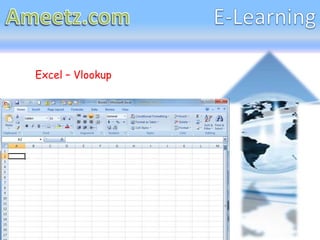
Excel – Vlookup
Searches for a value in the first column of a
table array and returns a value in the same
row from another column in the table array.

The V in VLOOKUP stands for vertical. Use
VLOOKUP instead of HLOOKUP when your
comparison values are located in a column to
the left of the data that you want to find.

Syntax

 VLOOKUP (lookup_value, table_array,col_index_num, range_lookup)
• Lookup_value The value to search in the first
  column of the table array. Lookup_value can be a
  value or a reference. If lookup_value is smaller
  than the smallest value in the first column of
  table_array, VLOOKUP returns the #N/A error
  value.
• Table_array Two or more columns of data. Use
  a reference to a range or a range name. The
  values in the first column of table_array are the
  values searched by lookup_value. These values
  can be text, numbers, or logical values.
  Uppercase and lowercase text are equivalent.
• Col_index_num           The column number in
  table_array from which the matching value must
  be returned. A col_index_num of 1 returns the
  value in the first column in table_array; a
  col_index_num of 2 returns the value in the
  second column in table_array, and so on.
If col_index_num is:
• Less than 1, VLOOKUP returns the #VALUE!
    error value.
• Greater than the number of columns in
    table_array, VLOOKUP returns the #REF!
    error value.
Range_lookup        A logical value that specifies
    whether you want VLOOKUP to find an exact
    match or an approximate match:
• If TRUE or omitted, an exact or approximate
    match is returned. If an exact match is not
    found, the next largest value that is less than
    lookup_value is returned.
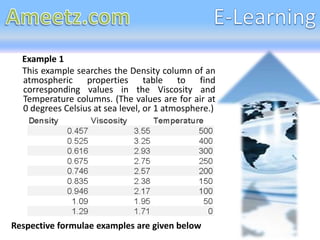
Example 1
  This example searches the Density column of an
  atmospheric properties table to find
  corresponding values in the Viscosity and
  Temperature columns. (The values are for air at
  0 degrees Celsius at sea level, or 1 atmosphere.)


Respective formulae examples are given below
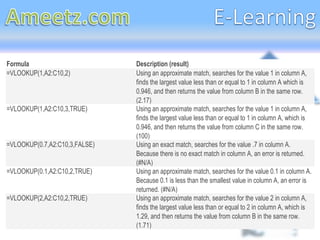
Formula                        Description (result)
=VLOOKUP(1,A2:C10,2)           Using an approximate match, searches for the value 1 in column A,
                               finds the largest value less than or equal to 1 in column A which is
                               0.946, and then returns the value from column B in the same row.
                               (2.17)
=VLOOKUP(1,A2:C10,3,TRUE)      Using an approximate match, searches for the value 1 in column A,
                               finds the largest value less than or equal to 1 in column A, which is
                               0.946, and then returns the value from column C in the same row.
                               (100)
=VLOOKUP(0.7,A2:C10,3,FALSE)   Using an exact match, searches for the value .7 in column A.
                               Because there is no exact match in column A, an error is returned.
                               (#N/A)
=VLOOKUP(0.1,A2:C10,2,TRUE)    Using an approximate match, searches for the value 0.1 in column A.
                               Because 0.1 is less than the smallest value in column A, an error is
                               returned. (#N/A)
=VLOOKUP(2,A2:C10,2,TRUE)      Using an approximate match, searches for the value 2 in column A,
                               finds the largest value less than or equal to 2 in column A, which is
                               1.29, and then returns the value from column B in the same row.
                               (1.71)
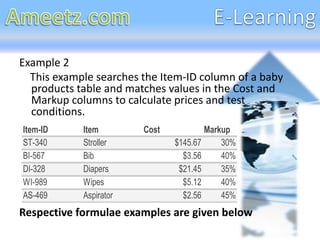
Example 2
  This example searches the Item-ID column of a baby
  products table and matches values in the Cost and
  Markup columns to calculate prices and test
  conditions.
Item-ID     Item        Cost           Markup
ST-340      Stroller           $145.67     30%
BI-567      Bib                  $3.56     40%
DI-328      Diapers             $21.45     35%
WI-989      Wipes                $5.12     40%
AS-469      Aspirator            $2.56     45%
Respective formulae examples are given below
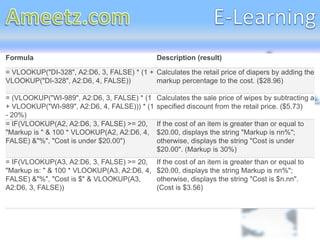
Formula                                        Description (result)

= VLOOKUP("DI-328", A2:D6, 3, FALSE) * (1 + Calculates the retail price of diapers by adding the
VLOOKUP("DI-328", A2:D6, 4, FALSE))         markup percentage to the cost. ($28.96)

= (VLOOKUP("WI-989", A2:D6, 3, FALSE) * (1     Calculates the sale price of wipes by subtracting a
+ VLOOKUP("WI-989", A2:D6, 4, FALSE))) * (1    specified discount from the retail price. ($5.73)
- 20%)
= IF(VLOOKUP(A2, A2:D6, 3, FALSE) >= 20,       If the cost of an item is greater than or equal to
"Markup is " & 100 * VLOOKUP(A2, A2:D6, 4,     $20.00, displays the string "Markup is nn%";
FALSE) &"%", "Cost is under $20.00")           otherwise, displays the string "Cost is under
                                               $20.00". (Markup is 30%)
= IF(VLOOKUP(A3, A2:D6, 3, FALSE) >= 20,       If the cost of an item is greater than or equal to
"Markup is: " & 100 * VLOOKUP(A3, A2:D6, 4,    $20.00, displays the string Markup is nn%";
FALSE) &"%", "Cost is $" & VLOOKUP(A3,         otherwise, displays the string "Cost is $n.nn".
A2:D6, 3, FALSE))                              (Cost is $3.56)
Vlookup Description

Vlookup Description

  • 1.
  • 2.
  • 3.
    Searches for avalue in the first column of a table array and returns a value in the same row from another column in the table array. The V in VLOOKUP stands for vertical. Use VLOOKUP instead of HLOOKUP when your comparison values are located in a column to the left of the data that you want to find. Syntax VLOOKUP (lookup_value, table_array,col_index_num, range_lookup)
  • 4.
    • Lookup_value Thevalue to search in the first column of the table array. Lookup_value can be a value or a reference. If lookup_value is smaller than the smallest value in the first column of table_array, VLOOKUP returns the #N/A error value. • Table_array Two or more columns of data. Use a reference to a range or a range name. The values in the first column of table_array are the values searched by lookup_value. These values can be text, numbers, or logical values. Uppercase and lowercase text are equivalent. • Col_index_num The column number in table_array from which the matching value must be returned. A col_index_num of 1 returns the value in the first column in table_array; a col_index_num of 2 returns the value in the second column in table_array, and so on.
  • 5.
    If col_index_num is: •Less than 1, VLOOKUP returns the #VALUE! error value. • Greater than the number of columns in table_array, VLOOKUP returns the #REF! error value. Range_lookup A logical value that specifies whether you want VLOOKUP to find an exact match or an approximate match: • If TRUE or omitted, an exact or approximate match is returned. If an exact match is not found, the next largest value that is less than lookup_value is returned.
  • 6.
    Example 1 This example searches the Density column of an atmospheric properties table to find corresponding values in the Viscosity and Temperature columns. (The values are for air at 0 degrees Celsius at sea level, or 1 atmosphere.) Respective formulae examples are given below
  • 7.
    Formula Description (result) =VLOOKUP(1,A2:C10,2) Using an approximate match, searches for the value 1 in column A, finds the largest value less than or equal to 1 in column A which is 0.946, and then returns the value from column B in the same row. (2.17) =VLOOKUP(1,A2:C10,3,TRUE) Using an approximate match, searches for the value 1 in column A, finds the largest value less than or equal to 1 in column A, which is 0.946, and then returns the value from column C in the same row. (100) =VLOOKUP(0.7,A2:C10,3,FALSE) Using an exact match, searches for the value .7 in column A. Because there is no exact match in column A, an error is returned. (#N/A) =VLOOKUP(0.1,A2:C10,2,TRUE) Using an approximate match, searches for the value 0.1 in column A. Because 0.1 is less than the smallest value in column A, an error is returned. (#N/A) =VLOOKUP(2,A2:C10,2,TRUE) Using an approximate match, searches for the value 2 in column A, finds the largest value less than or equal to 2 in column A, which is 1.29, and then returns the value from column B in the same row. (1.71)
  • 8.
    Example 2 This example searches the Item-ID column of a baby products table and matches values in the Cost and Markup columns to calculate prices and test conditions. Item-ID Item Cost Markup ST-340 Stroller $145.67 30% BI-567 Bib $3.56 40% DI-328 Diapers $21.45 35% WI-989 Wipes $5.12 40% AS-469 Aspirator $2.56 45% Respective formulae examples are given below
  • 9.
    Formula Description (result) = VLOOKUP("DI-328", A2:D6, 3, FALSE) * (1 + Calculates the retail price of diapers by adding the VLOOKUP("DI-328", A2:D6, 4, FALSE)) markup percentage to the cost. ($28.96) = (VLOOKUP("WI-989", A2:D6, 3, FALSE) * (1 Calculates the sale price of wipes by subtracting a + VLOOKUP("WI-989", A2:D6, 4, FALSE))) * (1 specified discount from the retail price. ($5.73) - 20%) = IF(VLOOKUP(A2, A2:D6, 3, FALSE) >= 20, If the cost of an item is greater than or equal to "Markup is " & 100 * VLOOKUP(A2, A2:D6, 4, $20.00, displays the string "Markup is nn%"; FALSE) &"%", "Cost is under $20.00") otherwise, displays the string "Cost is under $20.00". (Markup is 30%) = IF(VLOOKUP(A3, A2:D6, 3, FALSE) >= 20, If the cost of an item is greater than or equal to "Markup is: " & 100 * VLOOKUP(A3, A2:D6, 4, $20.00, displays the string Markup is nn%"; FALSE) &"%", "Cost is $" & VLOOKUP(A3, otherwise, displays the string "Cost is $n.nn". A2:D6, 3, FALSE)) (Cost is $3.56)