Lesson 9: Looking at the Windows Desktop
  • how to start and exit Windows
  • what the Windows desktop is
  • how to use the Start button
  • how to use the Taskbar
  • how to manipulate windows


© CCI Learning Solutions Inc.                1
What is the Windows Desktop?

                                1


                                                                                   2


                                                                                   3


         4               5                                                                   6


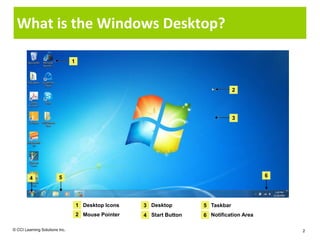
                                    1 Desktop Icons   3 Desktop        5 Taskbar
                                    2 Mouse Pointer   4 Start Button   6 Notification Area

© CCI Learning Solutions Inc.                                                                    2
What is the Windows Desktop?
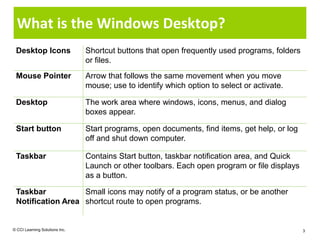
 Desktop Icons                  Shortcut buttons that open frequently used programs, folders
                                or files.
 Mouse Pointer                  Arrow that follows the same movement when you move
                                mouse; use to identify which option to select or activate.

 Desktop                        The work area where windows, icons, menus, and dialog
                                boxes appear.

 Start button                   Start programs, open documents, find items, get help, or log
                                off and shut down computer.

 Taskbar                        Contains Start button, taskbar notification area, and Quick
                                Launch or other toolbars. Each open program or file displays
                                as a button.

 Taskbar           Small icons may notify of a program status, or be another
 Notification Area shortcut route to open programs.


© CCI Learning Solutions Inc.                                                                  3
Using the Start Button

                                    1


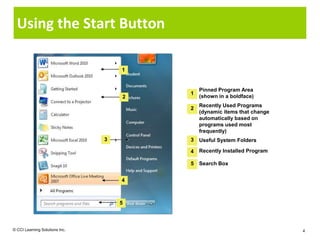
                                            Pinned Program Area
                                        1
                                    2       (shown in a boldface)
                                            Recently Used Programs
                                        2
                                            (dynamic items that change
                                            automatically based on
                                            programs used most
                                            frequently)
                                3       3   Useful System Folders

                                        4   Recently Installed Program

                                        5   Search Box


                                    4


                                    5


© CCI Learning Solutions Inc.                                            4
Using the Start Button
  • Primary means of starting programs, finding files,
    accessing online help, logging off the network, switching
    between users, or shutting down computer
  • To activate Start button:
         – Click Start
         – Press
         – Press                +
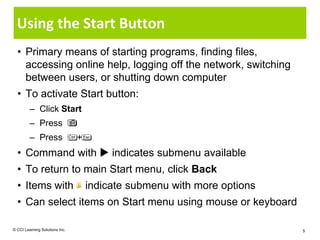
  • Command with  indicates submenu available
  • To return to main Start menu, click Back
  • Items with                      indicate submenu with more options
  • Can select items on Start menu using mouse or keyboard

© CCI Learning Solutions Inc.                                            5
Exiting the Computer Properly
  • Extremely important to save files, close programs, and log
    off computer
         – Prevents unauthorized access to files or to company’s network
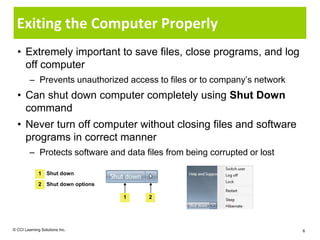
  • Can shut down computer completely using Shut Down
    command
  • Never turn off computer without closing files and software
    programs in correct manner
         – Protects software and data files from being corrupted or lost

              1 Shut down

              2 Shut down options

                                    1   2


© CCI Learning Solutions Inc.                                              6
Exiting the Computer Properly
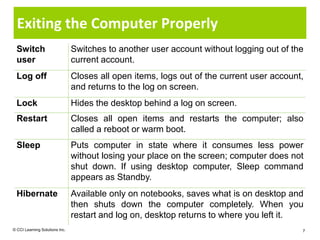
  Switch                        Switches to another user account without logging out of the
  user                          current account.
  Log off                       Closes all open items, logs out of the current user account,
                                and returns to the log on screen.
  Lock                          Hides the desktop behind a log on screen.
  Restart                       Closes all open items and restarts the computer; also
                                called a reboot or warm boot.
  Sleep                         Puts computer in state where it consumes less power
                                without losing your place on the screen; computer does not
                                shut down. If using desktop computer, Sleep command
                                appears as Standby.
  Hibernate                     Available only on notebooks, saves what is on desktop and
                                then shuts down the computer completely. When you
                                restart and log on, desktop returns to where you left it.
© CCI Learning Solutions Inc.                                                              7
Exiting the Computer Properly
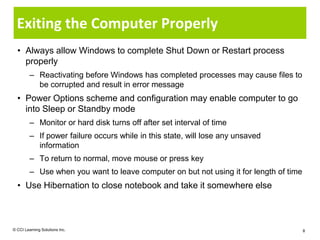
  • Always allow Windows to complete Shut Down or Restart process
    properly
         – Reactivating before Windows has completed processes may cause files to
           be corrupted and result in error message
  • Power Options scheme and configuration may enable computer to go
    into Sleep or Standby mode
         – Monitor or hard disk turns off after set interval of time
         – If power failure occurs while in this state, will lose any unsaved
           information
         – To return to normal, move mouse or press key
         – Use when you want to leave computer on but not using it for length of time
  • Use Hibernation to close notebook and take it somewhere else


© CCI Learning Solutions Inc.                                                           8
Restarting the Computer
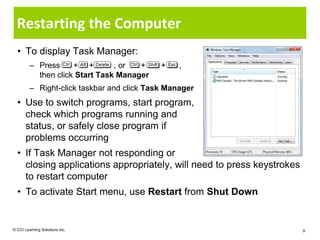
  • To display Task Manager:
         – Press     + +        , or  +     +    ,
           then click Start Task Manager
         – Right-click taskbar and click Task Manager
  • Use to switch programs, start program,
    check which programs running and
    status, or safely close program if
    problems occurring
  • If Task Manager not responding or
    closing applications appropriately, will need to press keystrokes
    to restart computer
  • To activate Start menu, use Restart from Shut Down


© CCI Learning Solutions Inc.                                           9
Using the Taskbar

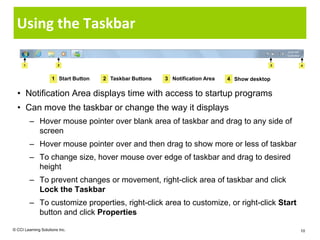
      1                 2                                                                    3   4


                     1 Start Button   2 Taskbar Buttons   3 Notification Area   4 Show desktop

  • Notification Area displays time with access to startup programs
  • Can move the taskbar or change the way it displays
          – Hover mouse pointer over blank area of taskbar and drag to any side of
            screen
          – Hover mouse pointer over and then drag to show more or less of taskbar
          – To change size, hover mouse over edge of taskbar and drag to desired
            height
          – To prevent changes or movement, right-click area of taskbar and click
            Lock the Taskbar
          – To customize properties, right-click area to customize, or right-click Start
            button and click Properties

© CCI Learning Solutions Inc.                                                                    10
Looking at a Typical Window
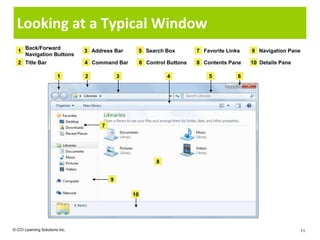
      Back/Forward
  1                             3 Address Bar         5 Search Box        7 Favorite Links   9 Navigation Pane
      Navigation Buttons
  2 Title Bar                   4 Command Bar         6 Control Buttons   8 Contents Pane    10 Details Pane

                        1       2            3                  4             5          6


                                     7


                                                            8


                                         9

                                                 10


© CCI Learning Solutions Inc.                                                                                  11
Looking at a Typical Window
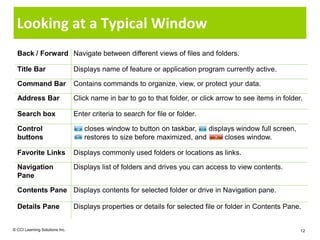
  Back / Forward Navigate between different views of files and folders.

  Title Bar                     Displays name of feature or application program currently active.

  Command Bar                   Contains commands to organize, view, or protect your data.

  Address Bar                   Click name in bar to go to that folder, or click arrow to see items in folder.

  Search box                    Enter criteria to search for file or folder.

  Control                          closes window to button on taskbar,    displays window full screen,
  buttons                          restores to size before maximized, and      closes window.

  Favorite Links                Displays commonly used folders or locations as links.

  Navigation                    Displays list of folders and drives you can access to view contents.
  Pane

  Contents Pane Displays contents for selected folder or drive in Navigation pane.

  Details Pane                  Displays properties or details for selected file or folder in Contents Pane.


© CCI Learning Solutions Inc.                                                                                12
Moving a Window
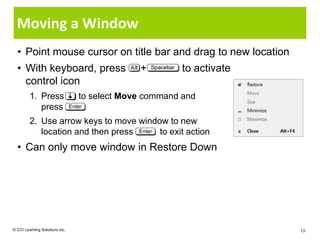
  • Point mouse cursor on title bar and drag to new location
  • With keyboard, press                     +        to activate
    control icon
         1. Press               to select Move command and
            press
         2. Use arrow keys to move window to new
            location and then press     to exit action
  • Can only move window in Restore Down


© CCI Learning Solutions Inc.                                       13
Sizing a Window
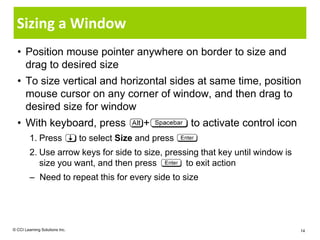
  • Position mouse pointer anywhere on border to size and
    drag to desired size
  • To size vertical and horizontal sides at same time, position
    mouse cursor on any corner of window, and then drag to
    desired size for window
  • With keyboard, press                        +          to activate control icon
         1. Press               to select Size and press
         2. Use arrow keys for side to size, pressing that key until window is
            size you want, and then press         to exit action
         – Need to repeat this for every side to size


© CCI Learning Solutions Inc.                                                         14
Using Scroll Bars
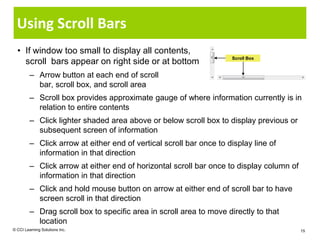
  • If window too small to display all contents,
                                                                     Scroll Box
    scroll bars appear on right side or at bottom
         – Arrow button at each end of scroll
           bar, scroll box, and scroll area
         – Scroll box provides approximate gauge of where information currently is in
           relation to entire contents
         – Click lighter shaded area above or below scroll box to display previous or
           subsequent screen of information
         – Click arrow at either end of vertical scroll bar once to display line of
           information in that direction
         – Click arrow at either end of horizontal scroll bar once to display column of
           information in that direction
         – Click and hold mouse button on arrow at either end of scroll bar to have
           screen scroll in that direction
         – Drag scroll box to specific area in scroll area to move directly to that
           location
© CCI Learning Solutions Inc.                                                             15

L09 slides

  • 1.
    Lesson 9: Lookingat the Windows Desktop • how to start and exit Windows • what the Windows desktop is • how to use the Start button • how to use the Taskbar • how to manipulate windows © CCI Learning Solutions Inc. 1
  • 2.
    What is theWindows Desktop? 1 2 3 4 5 6 1 Desktop Icons 3 Desktop 5 Taskbar 2 Mouse Pointer 4 Start Button 6 Notification Area © CCI Learning Solutions Inc. 2
  • 3.
    What is theWindows Desktop? Desktop Icons Shortcut buttons that open frequently used programs, folders or files. Mouse Pointer Arrow that follows the same movement when you move mouse; use to identify which option to select or activate. Desktop The work area where windows, icons, menus, and dialog boxes appear. Start button Start programs, open documents, find items, get help, or log off and shut down computer. Taskbar Contains Start button, taskbar notification area, and Quick Launch or other toolbars. Each open program or file displays as a button. Taskbar Small icons may notify of a program status, or be another Notification Area shortcut route to open programs. © CCI Learning Solutions Inc. 3
  • 4.
    Using the StartButton 1 Pinned Program Area 1 2 (shown in a boldface) Recently Used Programs 2 (dynamic items that change automatically based on programs used most frequently) 3 3 Useful System Folders 4 Recently Installed Program 5 Search Box 4 5 © CCI Learning Solutions Inc. 4
  • 5.
    Using the StartButton • Primary means of starting programs, finding files, accessing online help, logging off the network, switching between users, or shutting down computer • To activate Start button: – Click Start – Press – Press + • Command with  indicates submenu available • To return to main Start menu, click Back • Items with indicate submenu with more options • Can select items on Start menu using mouse or keyboard © CCI Learning Solutions Inc. 5
  • 6.
    Exiting the ComputerProperly • Extremely important to save files, close programs, and log off computer – Prevents unauthorized access to files or to company’s network • Can shut down computer completely using Shut Down command • Never turn off computer without closing files and software programs in correct manner – Protects software and data files from being corrupted or lost 1 Shut down 2 Shut down options 1 2 © CCI Learning Solutions Inc. 6
  • 7.
    Exiting the ComputerProperly Switch Switches to another user account without logging out of the user current account. Log off Closes all open items, logs out of the current user account, and returns to the log on screen. Lock Hides the desktop behind a log on screen. Restart Closes all open items and restarts the computer; also called a reboot or warm boot. Sleep Puts computer in state where it consumes less power without losing your place on the screen; computer does not shut down. If using desktop computer, Sleep command appears as Standby. Hibernate Available only on notebooks, saves what is on desktop and then shuts down the computer completely. When you restart and log on, desktop returns to where you left it. © CCI Learning Solutions Inc. 7
  • 8.
    Exiting the ComputerProperly • Always allow Windows to complete Shut Down or Restart process properly – Reactivating before Windows has completed processes may cause files to be corrupted and result in error message • Power Options scheme and configuration may enable computer to go into Sleep or Standby mode – Monitor or hard disk turns off after set interval of time – If power failure occurs while in this state, will lose any unsaved information – To return to normal, move mouse or press key – Use when you want to leave computer on but not using it for length of time • Use Hibernation to close notebook and take it somewhere else © CCI Learning Solutions Inc. 8
  • 9.
    Restarting the Computer • To display Task Manager: – Press + + , or + + , then click Start Task Manager – Right-click taskbar and click Task Manager • Use to switch programs, start program, check which programs running and status, or safely close program if problems occurring • If Task Manager not responding or closing applications appropriately, will need to press keystrokes to restart computer • To activate Start menu, use Restart from Shut Down © CCI Learning Solutions Inc. 9
  • 10.
    Using the Taskbar 1 2 3 4 1 Start Button 2 Taskbar Buttons 3 Notification Area 4 Show desktop • Notification Area displays time with access to startup programs • Can move the taskbar or change the way it displays – Hover mouse pointer over blank area of taskbar and drag to any side of screen – Hover mouse pointer over and then drag to show more or less of taskbar – To change size, hover mouse over edge of taskbar and drag to desired height – To prevent changes or movement, right-click area of taskbar and click Lock the Taskbar – To customize properties, right-click area to customize, or right-click Start button and click Properties © CCI Learning Solutions Inc. 10
  • 11.
    Looking at aTypical Window Back/Forward 1 3 Address Bar 5 Search Box 7 Favorite Links 9 Navigation Pane Navigation Buttons 2 Title Bar 4 Command Bar 6 Control Buttons 8 Contents Pane 10 Details Pane 1 2 3 4 5 6 7 8 9 10 © CCI Learning Solutions Inc. 11
  • 12.
    Looking at aTypical Window Back / Forward Navigate between different views of files and folders. Title Bar Displays name of feature or application program currently active. Command Bar Contains commands to organize, view, or protect your data. Address Bar Click name in bar to go to that folder, or click arrow to see items in folder. Search box Enter criteria to search for file or folder. Control closes window to button on taskbar, displays window full screen, buttons restores to size before maximized, and closes window. Favorite Links Displays commonly used folders or locations as links. Navigation Displays list of folders and drives you can access to view contents. Pane Contents Pane Displays contents for selected folder or drive in Navigation pane. Details Pane Displays properties or details for selected file or folder in Contents Pane. © CCI Learning Solutions Inc. 12
  • 13.
    Moving a Window • Point mouse cursor on title bar and drag to new location • With keyboard, press + to activate control icon 1. Press to select Move command and press 2. Use arrow keys to move window to new location and then press to exit action • Can only move window in Restore Down © CCI Learning Solutions Inc. 13
  • 14.
    Sizing a Window • Position mouse pointer anywhere on border to size and drag to desired size • To size vertical and horizontal sides at same time, position mouse cursor on any corner of window, and then drag to desired size for window • With keyboard, press + to activate control icon 1. Press to select Size and press 2. Use arrow keys for side to size, pressing that key until window is size you want, and then press to exit action – Need to repeat this for every side to size © CCI Learning Solutions Inc. 14
  • 15.
    Using Scroll Bars • If window too small to display all contents, Scroll Box scroll bars appear on right side or at bottom – Arrow button at each end of scroll bar, scroll box, and scroll area – Scroll box provides approximate gauge of where information currently is in relation to entire contents – Click lighter shaded area above or below scroll box to display previous or subsequent screen of information – Click arrow at either end of vertical scroll bar once to display line of information in that direction – Click arrow at either end of horizontal scroll bar once to display column of information in that direction – Click and hold mouse button on arrow at either end of scroll bar to have screen scroll in that direction – Drag scroll box to specific area in scroll area to move directly to that location © CCI Learning Solutions Inc. 15

Editor's Notes

  • #9 Pg 59Objective 1-3.2.1, 1-3.2.2, 1-3.2.3, 1-3.2.4It cannot be emphasized enough how important it is to shut down the computer completely and not to touch it without letting several seconds go by after the shut down has happened. Many people get impatient and once the “click” happens to signal the computer’s power is off, they will turn it back on immediately. Recommend and encourage students to wait at least five seconds to give the computer a chance to totally shut down everything safely.Be prepared to fully discuss what the differences are between Sleep, Standby and Hibernate. If you have a spare notebook or unused desktop, you may want to demonstrate this to the class.You may also want to mention that in some cases, when you select Shut Down, the computer informs you there are updates pending and it will shut down on completion of the updates. This is due to having the updates set to Manual. You can choose to elaborate on this depending on the class’ interests.
  • #10 Pg 59-60Objective 1-3.2.1, 1-3.2.2, 1-3.2.3, 1-3.2.4Emphasize how important it is not to end or change anything in the other Task Manager tabs unless you are experienced with computers, or have someone who is telling you to do this step. At this stage, they are likely only to need the Applications tab to manage the programs and then only when there is a problem, such as no response from an application.