System Area Manager
Power Management
Power Management
•

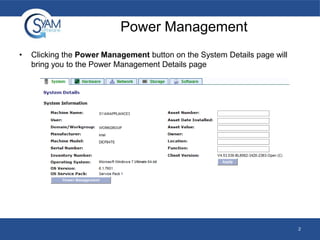
Clicking the Power Management button on the System Details page will
bring you to the Power Management Details page

2
Timeout Settings
•

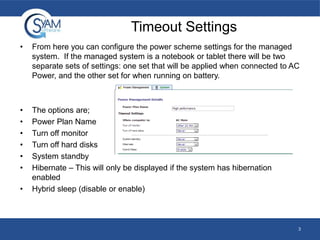
From here you can configure the power scheme settings for the managed
system. If the managed system is a notebook or tablet there will be two
separate sets of settings: one set that will be applied when connected to AC
Power, and the other set for when running on battery.

•
•
•
•
•
•

The options are;
Power Plan Name
Turn off monitor
Turn off hard disks
System standby
Hibernate – This will only be displayed if the system has hibernation
enabled
Hybrid sleep (disable or enable)

•

3
Scheduler Settings
•
•

•
•

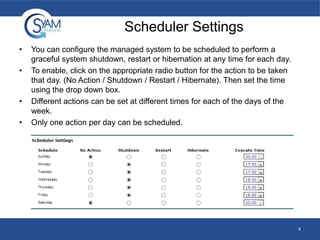
You can configure the managed system to be scheduled to perform a
graceful system shutdown, restart or hibernation at any time for each day.
To enable, click on the appropriate radio button for the action to be taken
that day. (No Action / Shutdown / Restart / Hibernate). Then set the time
using the drop down box.
Different actions can be set at different times for each of the days of the
week.
Only one action per day can be scheduled.

4
Defining Applications to Prevent
Shutdown
•

•

•

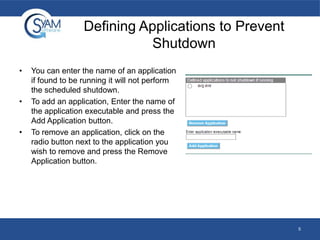
You can enter the name of an application
if found to be running it will not perform
the scheduled shutdown.
To add an application, Enter the name of
the application executable and press the
Add Application button.
To remove an application, click on the
radio button next to the application you
wish to remove and press the Remove
Application button.

5
Other Power Options
•

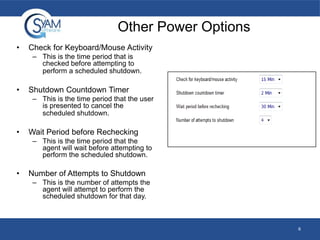
Check for Keyboard/Mouse Activity
– This is the time period that is
checked before attempting to
perform a scheduled shutdown.

•

Shutdown Countdown Timer
– This is the time period that the user
is presented to cancel the
scheduled shutdown.

•

Wait Period before Rechecking
– This is the time period that the
agent will wait before attempting to
perform the scheduled shutdown.

•

Number of Attempts to Shutdown
– This is the number of attempts the
agent will attempt to perform the
scheduled shutdown for that day.

6
System Security
•

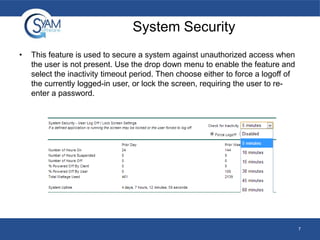
This feature is used to secure a system against unauthorized access when
the user is not present. Use the drop down menu to enable the feature and
select the inactivity timeout period. Then choose either to force a logoff of
the currently logged-in user, or lock the screen, requiring the user to reenter a password.

7
Power State Information
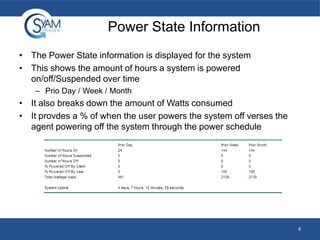
• The Power State information is displayed for the system
• This shows the amount of hours a system is powered
on/off/Suspended over time
– Prio Day / Week / Month

• It also breaks down the amount of Watts consumed
• It provdes a % of when the user powers the system off verses the
agent powering off the system through the power schedule

8
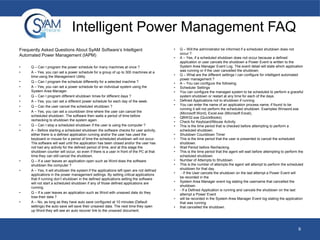
Intelligent Power Management FAQ
Frequently Asked Questions About SyAM Software’s Intelligent
Automated Power Management (IAPM)
•
•

•
•
•
•
•
•

•
•

•
•

•
•

Q – Can I program the power schedule for many machines at once ?
A – Yes, you can set a power schedule for a group of up to 300 machines at a
time using the Management Utility.
Q – Can I program the schedule differently for a selected machine ?
A – Yes, you can set a power schedule for an individual system using the
System Area Manager.
Q – Can I program different shutdown times for different days ?
A – Yes, you can set a different power schedule for each day of the week.
Q – Can the user cancel the scheduled shutdown ?
A – Yes, you can set a countdown time where the user can cancel the
scheduled shutdown. The software then waits a period of time before
rechecking to shutdown the system again.
Q – Can I stop a scheduled shutdown if the user is using the computer ?
A – Before starting a scheduled shutdown the software checks for user activity,
either there is a defined application running and/or the user has used the
keyboard or mouse for a period of time the scheduled shutdown will not occur.
The software will wait until the application has been closed and/or the user has
not had any activity for the defined period of time, and at this stage the
shutdown counter will occur, so even if there is a user in front of the PC at that
time they can still cancel the shutdown.
Q – If a user leaves an application open such as Word does the software
shutdown the computer ?
A – Yes, it will shutdown the system if the applications left open are not defined
applications in the power management settings. By setting critical applications
that if running don’t shutdown in the defined applications setting the software
will not start a scheduled shutdown if any of those defined applications are
running.
Q – If a user leaves an application such as Word with unsaved data do they
lose their data ?
A – No, as long as they have auto save configured at 10 minutes (Default
settings) the auto save will save their unsaved data. The next time they open
up Word they will see an auto recover link to the unsaved document.

•
•

•
•
•
•
•
•
•
•
•

•
•
•
•
•
•
•
•

•
•
•

Q – Will the administrator be informed if a scheduled shutdown does not
occur ?
A – Yes, if a scheduled shutdown does not occur because a defined
application or user cancels the shutdown a Power Event is written to the
System Area Manager Event Log. The event detail will state which application
was running or if the user cancelled the shutdown.
Q – What are the different settings I can configure for intelligent automated
power management ?
A – You can configure the following;
Scheduler Settings
You can configure the managed system to be scheduled to perform a graceful
system shutdown or restart at any time for each of the days.
Defined Applications not to shutdown if running
You can enter the name of an application process name, if found to be
running it will not perform the scheduled shutdown. Examples Winword.exe
(Microsoft Word), Excel.exe (Microsoft Excel),
QBW32.exe (QuickBooks)
Check for Keyboard/Mouse Activity
This is the time period that is checked before attempting to perform a
scheduled shutdown.
Shutdown Countdown Timer
This is the time period that the user is presented to cancel the scheduled
shutdown.
Wait Period before Rechecking
This is the time period that the agent will wait before attempting to perform the
scheduled shutdown.
Number of Attempts to Shutdown
This is the number of attempts the agent will attempt to perform the scheduled
shutdown for that day.
- If the User cancels the shutdown on the last attempt a Power Event will
be recorded in the
System Area Manager event log stating the username that cancelled the
shutdown.
- If a Defined Application is running and cancels the shutdown on the last
attempt a Power Event
will be recorded in the System Area Manager Event log stating the application
that was running
that cancelled the shutdown.

9

Power Management

  • 1.
  • 2.
    Power Management • Clicking thePower Management button on the System Details page will bring you to the Power Management Details page 2
  • 3.
    Timeout Settings • From hereyou can configure the power scheme settings for the managed system. If the managed system is a notebook or tablet there will be two separate sets of settings: one set that will be applied when connected to AC Power, and the other set for when running on battery. • • • • • • The options are; Power Plan Name Turn off monitor Turn off hard disks System standby Hibernate – This will only be displayed if the system has hibernation enabled Hybrid sleep (disable or enable) • 3
  • 4.
    Scheduler Settings • • • • You canconfigure the managed system to be scheduled to perform a graceful system shutdown, restart or hibernation at any time for each day. To enable, click on the appropriate radio button for the action to be taken that day. (No Action / Shutdown / Restart / Hibernate). Then set the time using the drop down box. Different actions can be set at different times for each of the days of the week. Only one action per day can be scheduled. 4
  • 5.
    Defining Applications toPrevent Shutdown • • • You can enter the name of an application if found to be running it will not perform the scheduled shutdown. To add an application, Enter the name of the application executable and press the Add Application button. To remove an application, click on the radio button next to the application you wish to remove and press the Remove Application button. 5
  • 6.
    Other Power Options • Checkfor Keyboard/Mouse Activity – This is the time period that is checked before attempting to perform a scheduled shutdown. • Shutdown Countdown Timer – This is the time period that the user is presented to cancel the scheduled shutdown. • Wait Period before Rechecking – This is the time period that the agent will wait before attempting to perform the scheduled shutdown. • Number of Attempts to Shutdown – This is the number of attempts the agent will attempt to perform the scheduled shutdown for that day. 6
  • 7.
    System Security • This featureis used to secure a system against unauthorized access when the user is not present. Use the drop down menu to enable the feature and select the inactivity timeout period. Then choose either to force a logoff of the currently logged-in user, or lock the screen, requiring the user to reenter a password. 7
  • 8.
    Power State Information •The Power State information is displayed for the system • This shows the amount of hours a system is powered on/off/Suspended over time – Prio Day / Week / Month • It also breaks down the amount of Watts consumed • It provdes a % of when the user powers the system off verses the agent powering off the system through the power schedule 8
  • 9.
    Intelligent Power ManagementFAQ Frequently Asked Questions About SyAM Software’s Intelligent Automated Power Management (IAPM) • • • • • • • • • • • • • • Q – Can I program the power schedule for many machines at once ? A – Yes, you can set a power schedule for a group of up to 300 machines at a time using the Management Utility. Q – Can I program the schedule differently for a selected machine ? A – Yes, you can set a power schedule for an individual system using the System Area Manager. Q – Can I program different shutdown times for different days ? A – Yes, you can set a different power schedule for each day of the week. Q – Can the user cancel the scheduled shutdown ? A – Yes, you can set a countdown time where the user can cancel the scheduled shutdown. The software then waits a period of time before rechecking to shutdown the system again. Q – Can I stop a scheduled shutdown if the user is using the computer ? A – Before starting a scheduled shutdown the software checks for user activity, either there is a defined application running and/or the user has used the keyboard or mouse for a period of time the scheduled shutdown will not occur. The software will wait until the application has been closed and/or the user has not had any activity for the defined period of time, and at this stage the shutdown counter will occur, so even if there is a user in front of the PC at that time they can still cancel the shutdown. Q – If a user leaves an application open such as Word does the software shutdown the computer ? A – Yes, it will shutdown the system if the applications left open are not defined applications in the power management settings. By setting critical applications that if running don’t shutdown in the defined applications setting the software will not start a scheduled shutdown if any of those defined applications are running. Q – If a user leaves an application such as Word with unsaved data do they lose their data ? A – No, as long as they have auto save configured at 10 minutes (Default settings) the auto save will save their unsaved data. The next time they open up Word they will see an auto recover link to the unsaved document. • • • • • • • • • • • • • • • • • • • • • • Q – Will the administrator be informed if a scheduled shutdown does not occur ? A – Yes, if a scheduled shutdown does not occur because a defined application or user cancels the shutdown a Power Event is written to the System Area Manager Event Log. The event detail will state which application was running or if the user cancelled the shutdown. Q – What are the different settings I can configure for intelligent automated power management ? A – You can configure the following; Scheduler Settings You can configure the managed system to be scheduled to perform a graceful system shutdown or restart at any time for each of the days. Defined Applications not to shutdown if running You can enter the name of an application process name, if found to be running it will not perform the scheduled shutdown. Examples Winword.exe (Microsoft Word), Excel.exe (Microsoft Excel), QBW32.exe (QuickBooks) Check for Keyboard/Mouse Activity This is the time period that is checked before attempting to perform a scheduled shutdown. Shutdown Countdown Timer This is the time period that the user is presented to cancel the scheduled shutdown. Wait Period before Rechecking This is the time period that the agent will wait before attempting to perform the scheduled shutdown. Number of Attempts to Shutdown This is the number of attempts the agent will attempt to perform the scheduled shutdown for that day. - If the User cancels the shutdown on the last attempt a Power Event will be recorded in the System Area Manager event log stating the username that cancelled the shutdown. - If a Defined Application is running and cancels the shutdown on the last attempt a Power Event will be recorded in the System Area Manager Event log stating the application that was running that cancelled the shutdown. 9