 PREPARED BY: TEACHER ROSELYN D.C. VILLANUEVA
1. Turn on your computer’s monitor.
2. Turn on your computer.
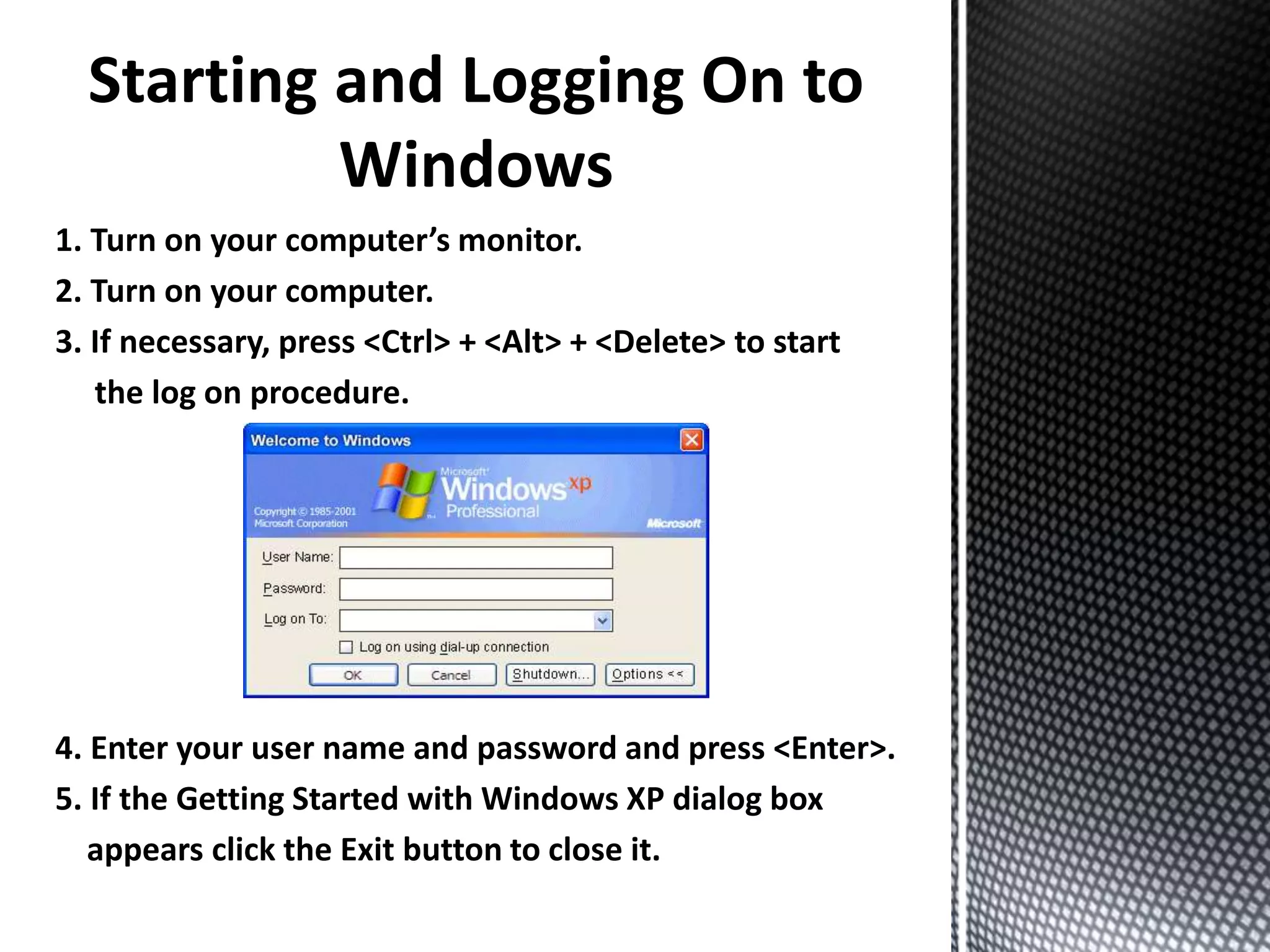
3. If necessary, press <Ctrl> + <Alt> + <Delete> to start
the log on procedure.
4. Enter your user name and password and press <Enter>.
5. If the Getting Started with Windows XP dialog box
appears click the Exit button to close it.
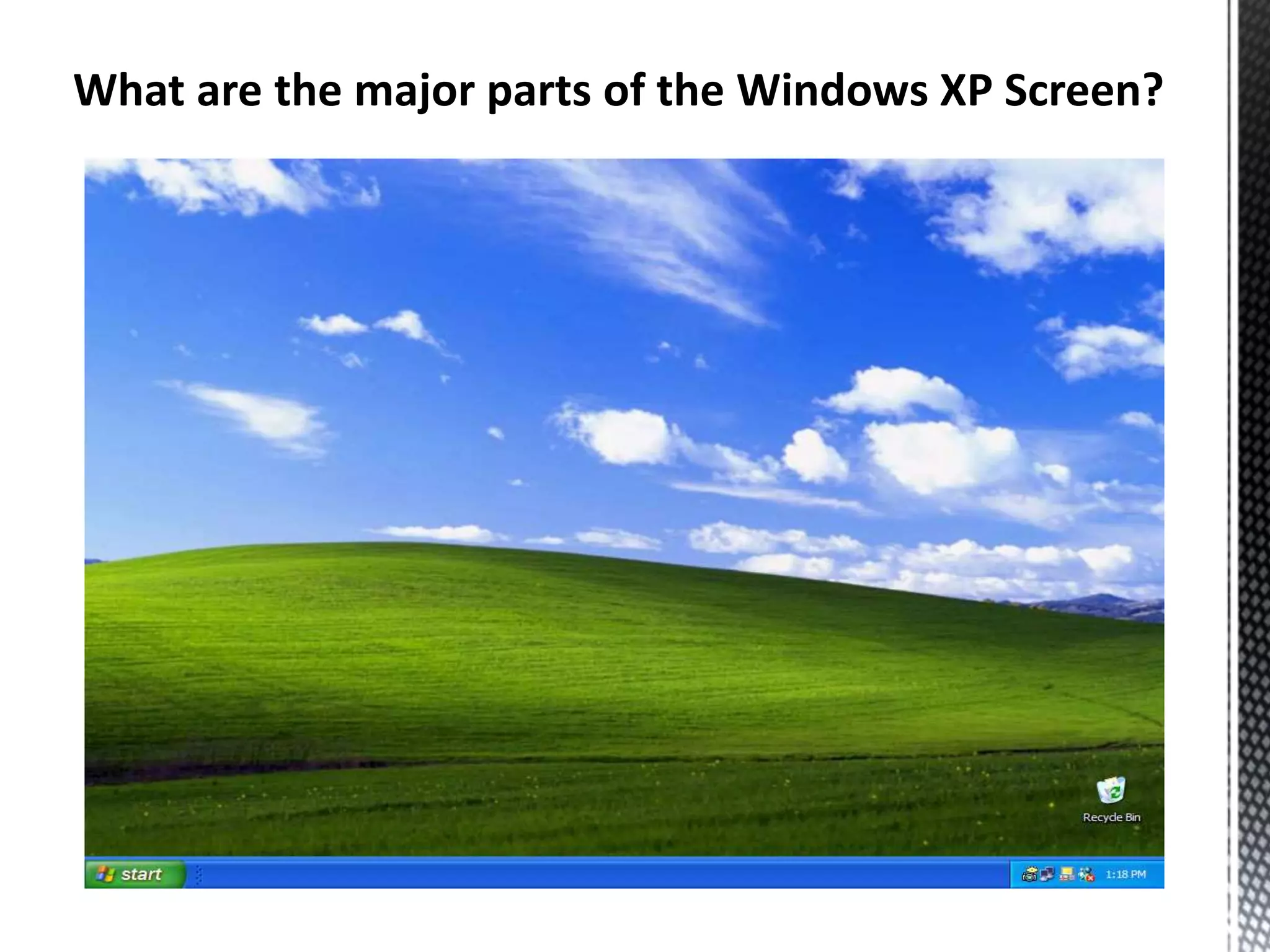
What are the major parts of the Windows XP Screen?
• Desktop
• My Documents
• My Computer
• My Network Places
• Recycle Bin
• Taskbar
• Start Button
• Quick Launch Toolbar
Understanding the Windows XP
Screen
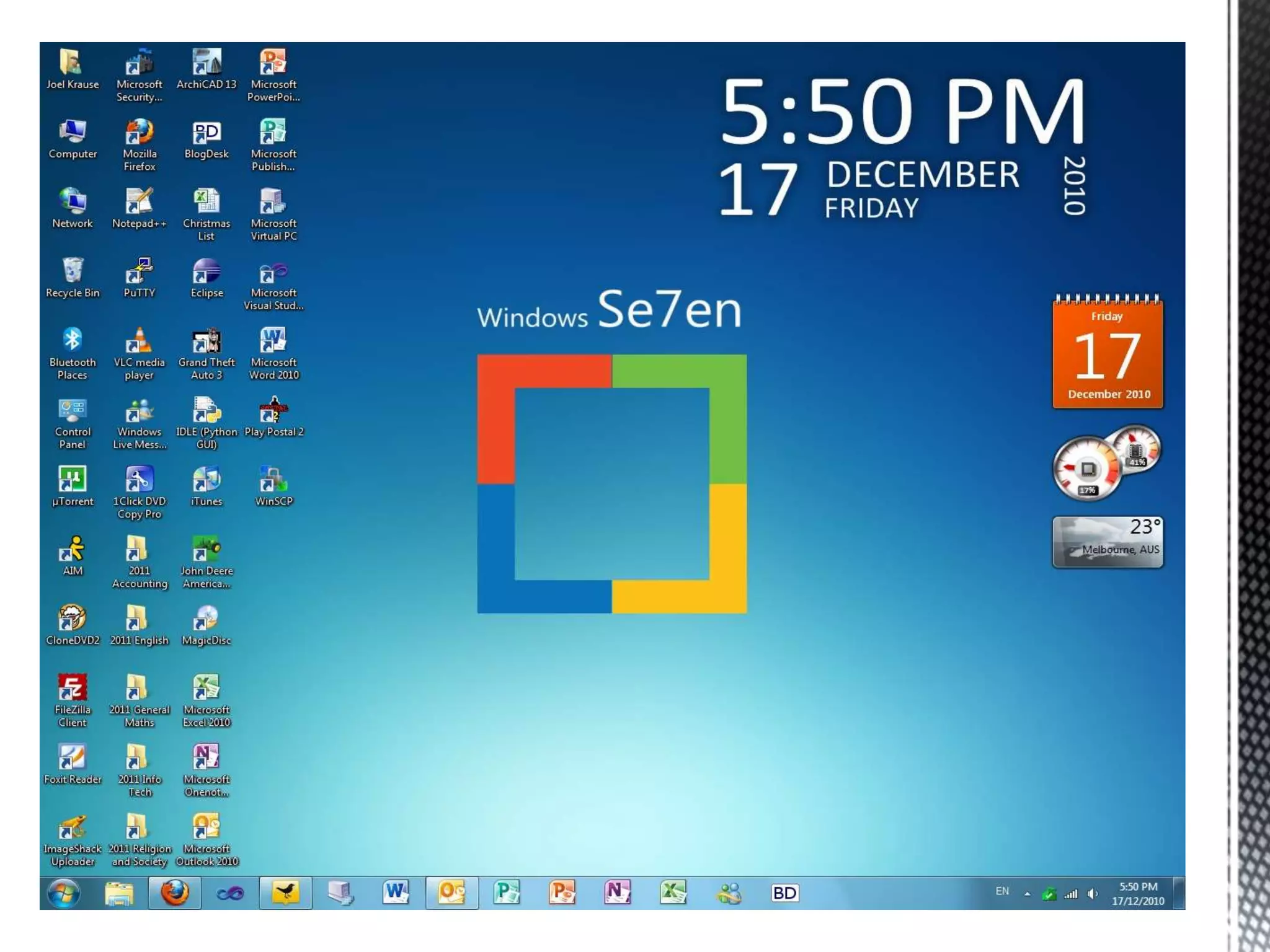
• Desktop
- This is the large, background area of
the Windows screen.
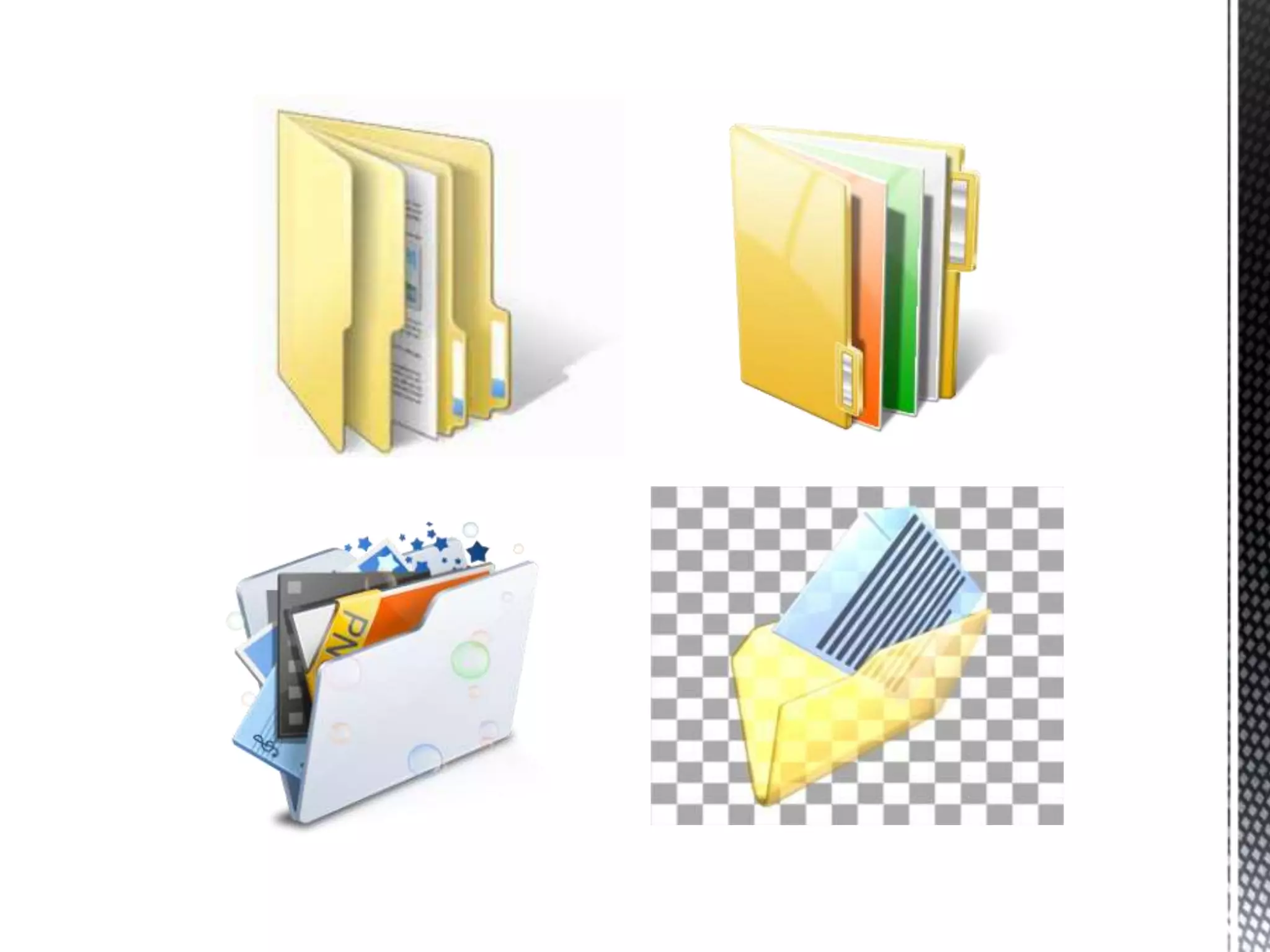
• My Documents
- My Documents is a special folder that
provides a convenient place to store files
and documents you create on your
computer.
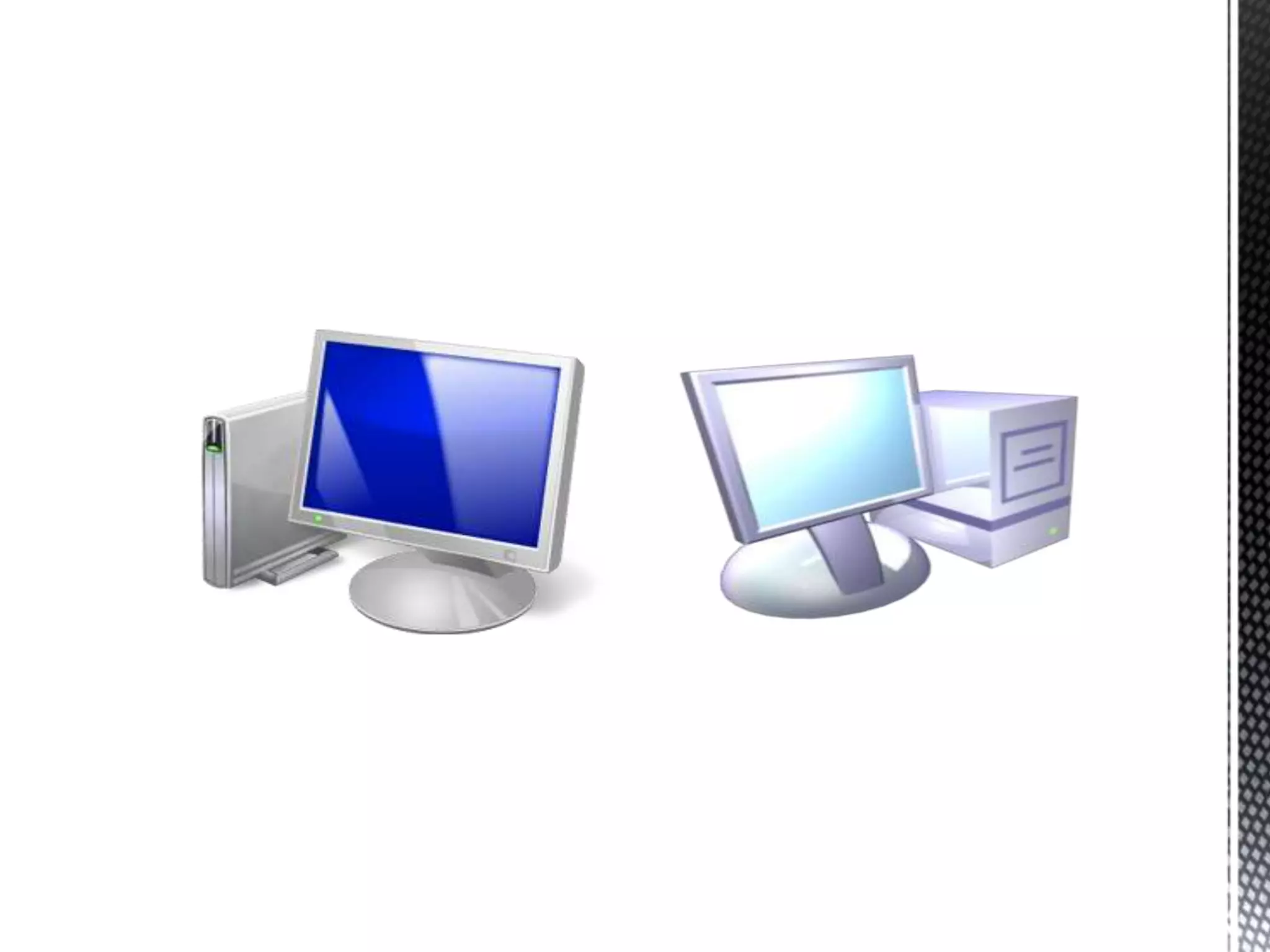
• My Computer
- My Computer lets you see everything on
your computer.
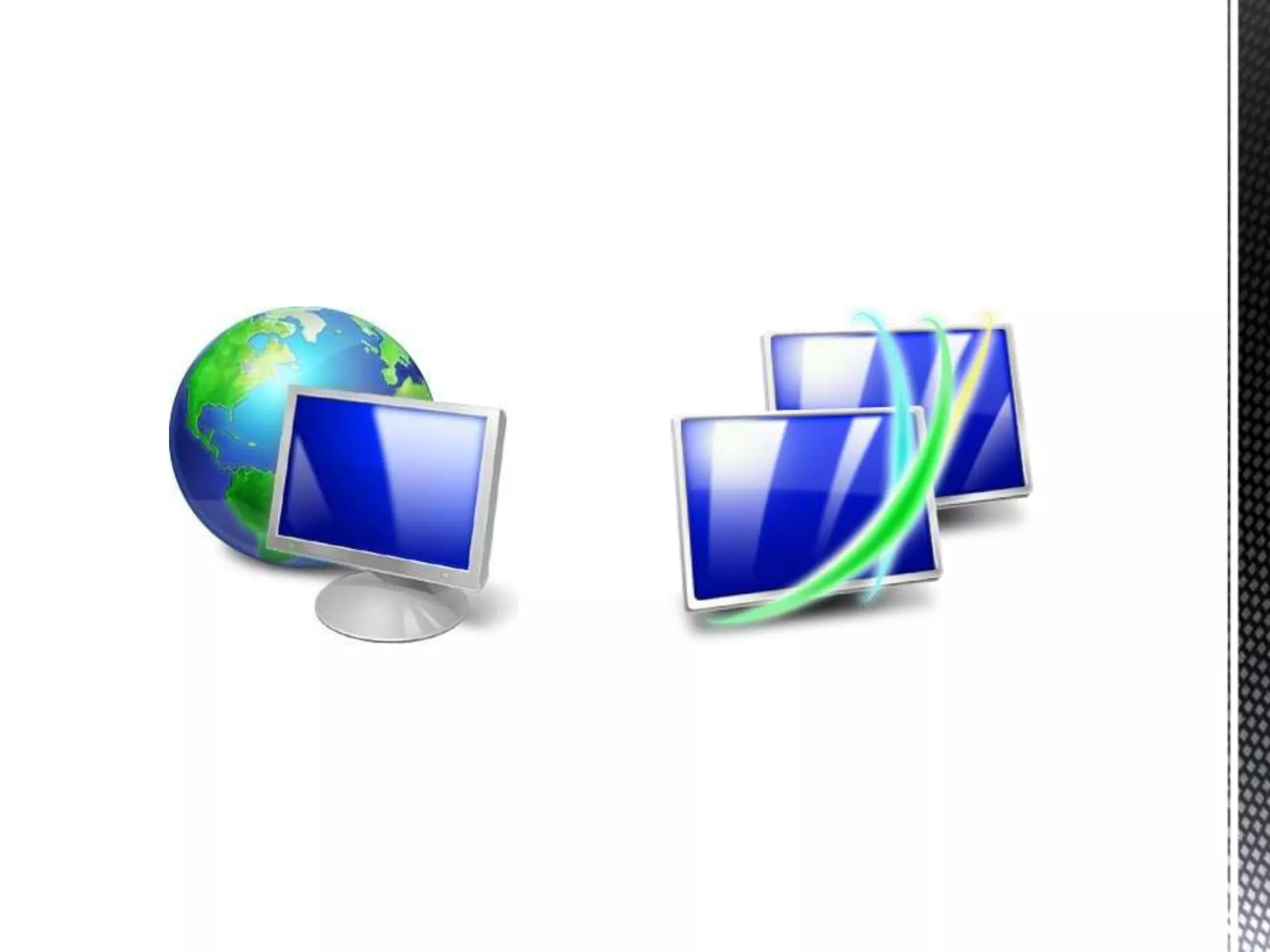
• My Network Places
- If you’re on a network, the My Network
Places icon will appear on your desktop.
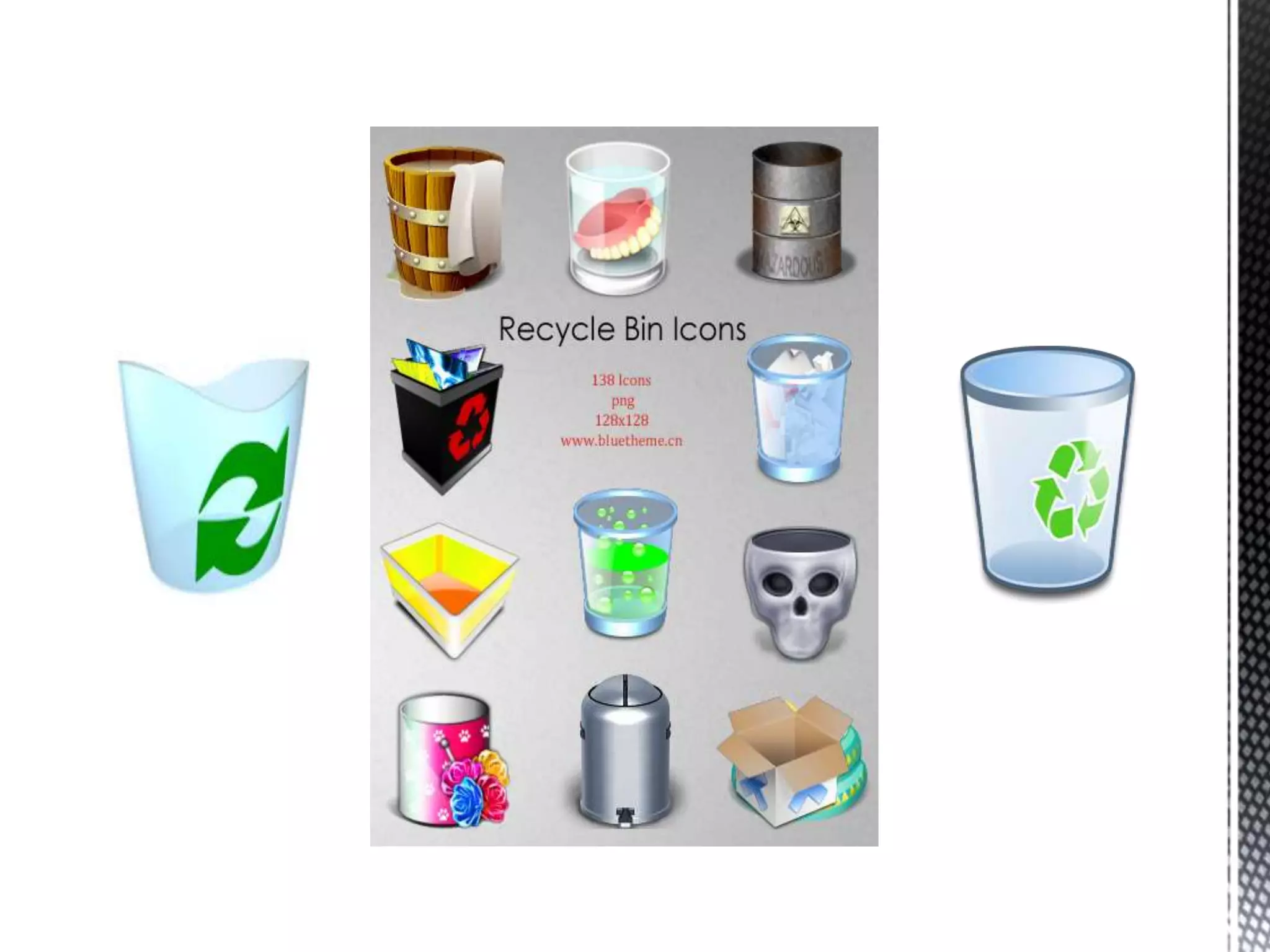
• Recycle Bin
- The Recycle Bin stores all the files you
delete from your computer.
• Taskbar
- The Taskbar usually appears at the
bottom of your screen, and contains the
famous Start button, which you use to
start your programs.
• Start Button
- The Start button lets you quickly open
your programs and documents.
• Quick Launch Toolbar
- The Quick Launch Toolbar gives you
quick access to your most frequently
used applications.
Introduction to Windows XP

Introduction to Windows XP

  • 1.
     PREPARED BY:TEACHER ROSELYN D.C. VILLANUEVA
  • 2.
    1. Turn onyour computer’s monitor. 2. Turn on your computer. 3. If necessary, press <Ctrl> + <Alt> + <Delete> to start the log on procedure. 4. Enter your user name and password and press <Enter>. 5. If the Getting Started with Windows XP dialog box appears click the Exit button to close it.
  • 3.
    What are themajor parts of the Windows XP Screen?
  • 4.
    • Desktop • MyDocuments • My Computer • My Network Places • Recycle Bin • Taskbar • Start Button • Quick Launch Toolbar
  • 5.
    Understanding the WindowsXP Screen • Desktop - This is the large, background area of the Windows screen. • My Documents - My Documents is a special folder that provides a convenient place to store files and documents you create on your computer.
  • 6.
    • My Computer -My Computer lets you see everything on your computer. • My Network Places - If you’re on a network, the My Network Places icon will appear on your desktop. • Recycle Bin - The Recycle Bin stores all the files you delete from your computer.
  • 7.
    • Taskbar - TheTaskbar usually appears at the bottom of your screen, and contains the famous Start button, which you use to start your programs. • Start Button - The Start button lets you quickly open your programs and documents.
  • 8.
    • Quick LaunchToolbar - The Quick Launch Toolbar gives you quick access to your most frequently used applications.