Microsoft ®
Chapter Objectives Use Desktop icons and the Taskbar to launch programs and open files or folders Organize and manage data, including copying, moving, creating, and deleting files and folders Customize the Desktop by changing the theme, background, colors, and settings,  and adding a screen saver Use the Help and Support Center features Customize monitor settings
Starting Windows XP Start Windows XP by powering on the computer and its peripheral devices (monitor, printer, etc.) Click your user account icon to log on without a password,  OR , as needed, type your user name, then type in the password, and press Enter to log on Your desktop will appear
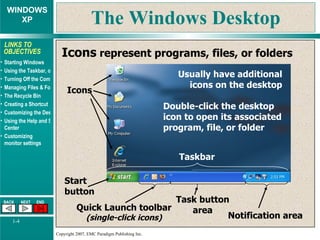
The Windows Desktop Icons  represent programs, files, or folders Start button Task button area Notification area Icons Usually have additional icons on the desktop Double-click the desktop icon to open its associated program, file, or folder Taskbar Quick Launch toolbar  (single-click icons)
Using the Taskbar: the Start Menu Use the Start menu to  launch programs Click a pinned or recently-used application program Click All Programs to navigate to programs not shown Use the choices in the right column for folders or other features Click Search at the bottom right to look for a program, folder, or file
Opening a Program Click the Start button,    then drag up to All Programs,    drag over and up to Microsoft Office,    then drag over and down,  and click Microsoft Word Word’s task appears in the Taskbar
Opening Another Application Click the Start button,    then drag up to All Programs,    drag over and up to Microsoft Office,    then drag over and down,  and click Microsoft Excel Excel’s task also appears  in the Taskbar
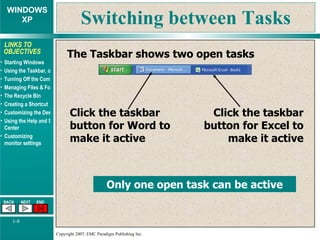
Switching between Tasks The Taskbar shows two open tasks Click the taskbar button for Word to make it active Click the taskbar button for Excel to make it active Only one open task can be active
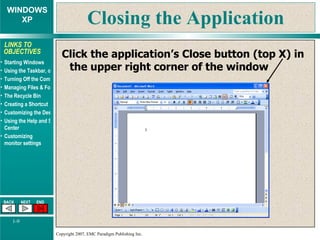
Closing the Application Click the application’s Close button (top X) in the upper right corner of the window
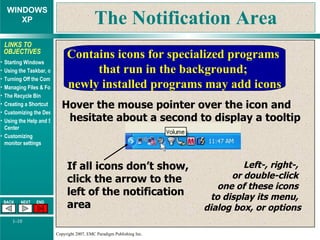
The Notification Area Contains icons for specialized programs  that run in the background;  newly installed programs may add icons Hover the mouse pointer over the icon and hesitate about a second to display a tooltip Left-, right-,  or double-click  one of these icons  to display its menu,  dialog box, or options If all icons don’t show, click the arrow to the left of the notification area
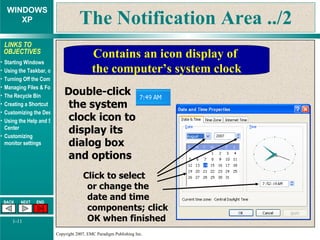
The Notification Area ../2 Contains an icon display of  the computer’s system clock Double-click the system clock icon to display its dialog box and options Click to select or change the date and time components; click OK when finished
Setting Taskbar Properties Right-click an empty area of the Taskbar; then left-click Properties
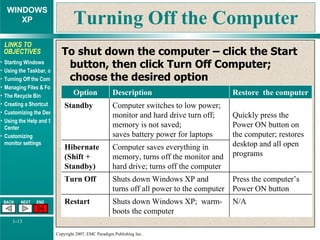
Turning Off the Computer To shut down the computer – click the Start button, then click Turn Off Computer; choose the desired option Option Description Restore  the computer Standby Computer switches to low power; monitor and hard drive turn off; memory is not saved; saves battery power for laptops Quickly press the Power ON button on the computer; restores desktop and all open programs Hibernate (Shift + Standby) Computer saves everything in memory, turns off the monitor and hard drive; turns off the computer Turn Off Shuts down Windows XP and turns off all power to the computer Press the computer’s Power ON button Restart Shuts down Windows XP;  warm- boots the computer N/A
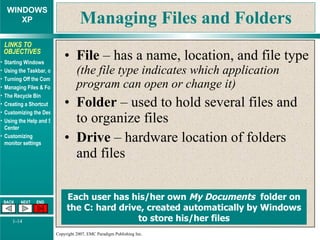
Managing Files and Folders File  – has a name, location, and file type  (the file type indicates which application program can open or change it) Folder  – used to hold several files and to organize files Drive  – hardware location of folders and files Each user has his/her own  My Documents   folder on the C: hard drive, created automatically by Windows to store his/her files
Copying a File or Folder Open  My Computer   (click Start, My Computer) Navigate to and click on (select) the file or folder to be copied Under  File and Folder Tasks ,  click  Copy this file  or Copy this folder In the  Copy Items   dialog box, navigate  to the drive/folder to  contain the copied item Click the  Copy  button
Deleting a File/Folder Open  My Computer   (click Start, My Computer) Navigate to and click on (select) the file or folder to be deleted Under  File and Folder Tasks ,  click  Delete this file or  Delete this folder At the confirming delete message, reply Yes The file is removed from its location and stored in the Recycle Bin
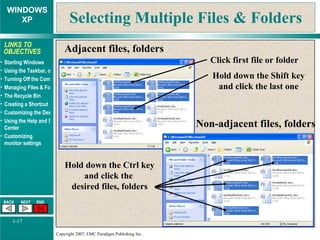
Selecting Multiple Files & Folders Click first file or folder Hold down the Shift key and click the last one Adjacent files, folders Non-adjacent files, folders Hold down the Ctrl key and click the  desired files, folders
Creating a Folder Open  My Computer   (click Start, My Computer) Navigate to the location for the new folder In the  File and Folder Tasks , click Make a new folder When the new folder  appears with its name  highlighted, type a name for the folder and press the Enter key
Using the Recycle Bin Recover a deletion :  double-click the Recycle Bin, right-click the desired item, click Restore Empty the Recycle Bin :  right-click the Recycle Bin desktop icon, click  Empty Recycle Bin Files/folders deleted from the hard drive  are automatically sent to the Recycle Bin  Files/folders deleted from removable storage are deleted permanently
Creating a Shortcut Create a shortcut on the desktop for a file or folder… 1. Open  My Computer 2. Navigate to the desired file or folder 3. Right-click the desired file or folder 4. Click  Send to  and choose  Desktop Delete a shortcut from the desktop… Click and drag the shortcut to the Recycle Bin
Customizing the Desktop What can you change? The theme  – a set of fonts, sounds, icons, colors, mouse pointers, background, and a screensaver The Desktop background color or image The Screen Saver, its speed, and its timing The Desktop scheme  – a predefined set of colors used in windows, menus, title bars, and systems fonts Display settings  – color quality and screen resolution, based on the computer’s hardware
Customizing the Desktop ../2 To display Desktop properties … Right-click an empty spot in the Desktop Click Properties in the shortcut menu
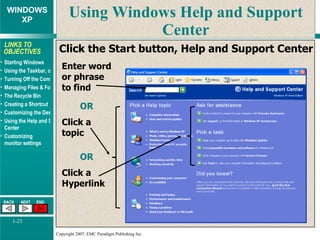
Using Windows Help and Support Center Click the Start button, Help and Support Center Enter word or phrase to find Click a topic OR Click a Hyperlink OR
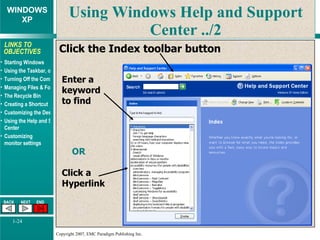
Using Windows Help and Support Center ../2 Click the Index toolbar button Enter a keyword to find OR Click a Hyperlink
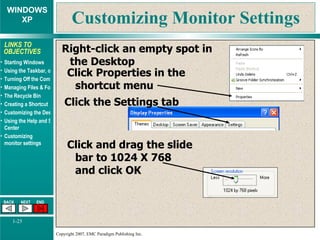
Customizing Monitor Settings Right-click an empty spot in the Desktop Click Properties in the shortcut menu Click the Settings tab Click and drag the slide bar to 1024 X 768  and click OK
Features Summary How do you start a program using an icon on the Desktop? Double-click the program’s icon
Features Summary How do you start a program using an icon in the Quick Launch toolbar? Click the program’s icon in the Quick Launch Toolbar
Features Summary How do you start a program using the Start button? Click the Start button,   click All Programs,   click and drag to the desired   program
Features Summary How can you change the system date? Double-click the Time icon in the Notification area
Features Summary How do you display the Desktop Properties dialog box? Right-click an empty spot in the Desktop and click Properties
Features Summary How do you close an application window? Click the Close button (X) in the upper right corner of the application window
Features Summary How can you create a new folder? Navigate to the drive and folder for the new folder In the Files and Folders Task Pane click  Make a new folder Type the name for the folder
Features Summary How can you copy several files at once into the My Documents folder? Navigate to and select the files Click  Copy the selected items  in the Files and Folders Task pane In the Copy Items dialog box, navigate to the My Documents folder Click Copy
Features Summary Is a file permanently gone from your hard drive when you delete it? No, it has been automatically placed in the hard drive’s Recycle Bin
Features Summary How do you recover a deleted file? Double-click the Recycle Bin to open it Locate and click on the deleted file Click File, Restore
Features Summary How do you create a shortcut on the Desktop for a commonly-used file? Locate the file, right-click it, and click Send To, then click on Desktop

Windows xp

  • 1.
  • 2.
    Chapter Objectives UseDesktop icons and the Taskbar to launch programs and open files or folders Organize and manage data, including copying, moving, creating, and deleting files and folders Customize the Desktop by changing the theme, background, colors, and settings, and adding a screen saver Use the Help and Support Center features Customize monitor settings
  • 3.
    Starting Windows XPStart Windows XP by powering on the computer and its peripheral devices (monitor, printer, etc.) Click your user account icon to log on without a password, OR , as needed, type your user name, then type in the password, and press Enter to log on Your desktop will appear
  • 4.
    The Windows DesktopIcons represent programs, files, or folders Start button Task button area Notification area Icons Usually have additional icons on the desktop Double-click the desktop icon to open its associated program, file, or folder Taskbar Quick Launch toolbar (single-click icons)
  • 5.
    Using the Taskbar:the Start Menu Use the Start menu to launch programs Click a pinned or recently-used application program Click All Programs to navigate to programs not shown Use the choices in the right column for folders or other features Click Search at the bottom right to look for a program, folder, or file
  • 6.
    Opening a ProgramClick the Start button, then drag up to All Programs, drag over and up to Microsoft Office, then drag over and down, and click Microsoft Word Word’s task appears in the Taskbar
  • 7.
    Opening Another ApplicationClick the Start button, then drag up to All Programs, drag over and up to Microsoft Office, then drag over and down, and click Microsoft Excel Excel’s task also appears in the Taskbar
  • 8.
    Switching between TasksThe Taskbar shows two open tasks Click the taskbar button for Word to make it active Click the taskbar button for Excel to make it active Only one open task can be active
  • 9.
    Closing the ApplicationClick the application’s Close button (top X) in the upper right corner of the window
  • 10.
    The Notification AreaContains icons for specialized programs that run in the background; newly installed programs may add icons Hover the mouse pointer over the icon and hesitate about a second to display a tooltip Left-, right-, or double-click one of these icons to display its menu, dialog box, or options If all icons don’t show, click the arrow to the left of the notification area
  • 11.
    The Notification Area../2 Contains an icon display of the computer’s system clock Double-click the system clock icon to display its dialog box and options Click to select or change the date and time components; click OK when finished
  • 12.
    Setting Taskbar PropertiesRight-click an empty area of the Taskbar; then left-click Properties
  • 13.
    Turning Off theComputer To shut down the computer – click the Start button, then click Turn Off Computer; choose the desired option Option Description Restore the computer Standby Computer switches to low power; monitor and hard drive turn off; memory is not saved; saves battery power for laptops Quickly press the Power ON button on the computer; restores desktop and all open programs Hibernate (Shift + Standby) Computer saves everything in memory, turns off the monitor and hard drive; turns off the computer Turn Off Shuts down Windows XP and turns off all power to the computer Press the computer’s Power ON button Restart Shuts down Windows XP; warm- boots the computer N/A
  • 14.
    Managing Files andFolders File – has a name, location, and file type (the file type indicates which application program can open or change it) Folder – used to hold several files and to organize files Drive – hardware location of folders and files Each user has his/her own My Documents folder on the C: hard drive, created automatically by Windows to store his/her files
  • 15.
    Copying a Fileor Folder Open My Computer (click Start, My Computer) Navigate to and click on (select) the file or folder to be copied Under File and Folder Tasks , click Copy this file or Copy this folder In the Copy Items dialog box, navigate to the drive/folder to contain the copied item Click the Copy button
  • 16.
    Deleting a File/FolderOpen My Computer (click Start, My Computer) Navigate to and click on (select) the file or folder to be deleted Under File and Folder Tasks , click Delete this file or Delete this folder At the confirming delete message, reply Yes The file is removed from its location and stored in the Recycle Bin
  • 17.
    Selecting Multiple Files& Folders Click first file or folder Hold down the Shift key and click the last one Adjacent files, folders Non-adjacent files, folders Hold down the Ctrl key and click the desired files, folders
  • 18.
    Creating a FolderOpen My Computer (click Start, My Computer) Navigate to the location for the new folder In the File and Folder Tasks , click Make a new folder When the new folder appears with its name highlighted, type a name for the folder and press the Enter key
  • 19.
    Using the RecycleBin Recover a deletion : double-click the Recycle Bin, right-click the desired item, click Restore Empty the Recycle Bin : right-click the Recycle Bin desktop icon, click Empty Recycle Bin Files/folders deleted from the hard drive are automatically sent to the Recycle Bin Files/folders deleted from removable storage are deleted permanently
  • 20.
    Creating a ShortcutCreate a shortcut on the desktop for a file or folder… 1. Open My Computer 2. Navigate to the desired file or folder 3. Right-click the desired file or folder 4. Click Send to and choose Desktop Delete a shortcut from the desktop… Click and drag the shortcut to the Recycle Bin
  • 21.
    Customizing the DesktopWhat can you change? The theme – a set of fonts, sounds, icons, colors, mouse pointers, background, and a screensaver The Desktop background color or image The Screen Saver, its speed, and its timing The Desktop scheme – a predefined set of colors used in windows, menus, title bars, and systems fonts Display settings – color quality and screen resolution, based on the computer’s hardware
  • 22.
    Customizing the Desktop../2 To display Desktop properties … Right-click an empty spot in the Desktop Click Properties in the shortcut menu
  • 23.
    Using Windows Helpand Support Center Click the Start button, Help and Support Center Enter word or phrase to find Click a topic OR Click a Hyperlink OR
  • 24.
    Using Windows Helpand Support Center ../2 Click the Index toolbar button Enter a keyword to find OR Click a Hyperlink
  • 25.
    Customizing Monitor SettingsRight-click an empty spot in the Desktop Click Properties in the shortcut menu Click the Settings tab Click and drag the slide bar to 1024 X 768 and click OK
  • 26.
    Features Summary Howdo you start a program using an icon on the Desktop? Double-click the program’s icon
  • 27.
    Features Summary Howdo you start a program using an icon in the Quick Launch toolbar? Click the program’s icon in the Quick Launch Toolbar
  • 28.
    Features Summary Howdo you start a program using the Start button? Click the Start button, click All Programs, click and drag to the desired program
  • 29.
    Features Summary Howcan you change the system date? Double-click the Time icon in the Notification area
  • 30.
    Features Summary Howdo you display the Desktop Properties dialog box? Right-click an empty spot in the Desktop and click Properties
  • 31.
    Features Summary Howdo you close an application window? Click the Close button (X) in the upper right corner of the application window
  • 32.
    Features Summary Howcan you create a new folder? Navigate to the drive and folder for the new folder In the Files and Folders Task Pane click Make a new folder Type the name for the folder
  • 33.
    Features Summary Howcan you copy several files at once into the My Documents folder? Navigate to and select the files Click Copy the selected items in the Files and Folders Task pane In the Copy Items dialog box, navigate to the My Documents folder Click Copy
  • 34.
    Features Summary Isa file permanently gone from your hard drive when you delete it? No, it has been automatically placed in the hard drive’s Recycle Bin
  • 35.
    Features Summary Howdo you recover a deleted file? Double-click the Recycle Bin to open it Locate and click on the deleted file Click File, Restore
  • 36.
    Features Summary Howdo you create a shortcut on the Desktop for a commonly-used file? Locate the file, right-click it, and click Send To, then click on Desktop