Tutorial on ms excel
BY –Jayansh Uttreja
The MS Excel
It is the world’s most widely-used
spreadsheet program, and is part
of the Microsoft Office suite.
Excel’s forte, of course, is perform
in numerical calculations, but
Excel is also very useful for non-
numerical applications
By-JAYANSH Uttreja
Uses of Excel:
 Number crunching: Create budgets, analyze survey results, and
perform just about any type of financial analysis you can think of.
 Creating charts: Create a wide variety of highly customizable
charts.
 Organizing lists: Use the row-and-column layout to store lists
efficiently.
 Accessing other data: Import data from a wide variety of sources.
 Creating graphics and diagrams: Use Shapes and the new
SmartArt to create professional-looking diagrams.
 Automating complex tasks: Perform a tedious task with a single
mouse click with Excel’s macro capabilities.
By-JAYANSH Uttreja
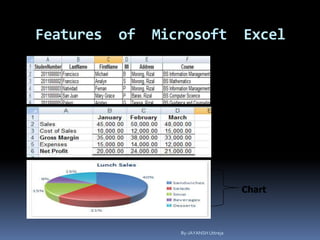
Features of Microsoft Excel
Database
(list)
Worksheet
Chart
By-JAYANSH Uttreja
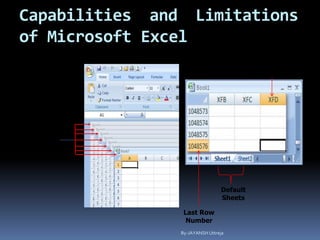
Capabilities and Limitations
of Microsoft Excel
Open
Workbooks
Last
Column
Name
Last Row
Number
Default
Sheets
(16,384 cols.)
By-JAYANSH Uttreja
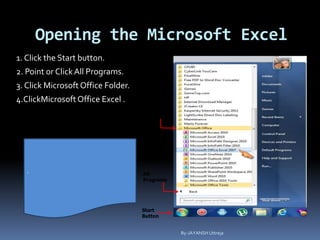
Opening the Microsoft Excel
1. Click the Start button.
2. Point or ClickAll Programs.
3. Click Microsoft Office Folder.
4.ClickMicrosoft Office Excel .
Microsoft
Office
Folder
All
Programs
Start
Button
Microsoft
Office
Excel
2007
.
By-JAYANSH Uttreja
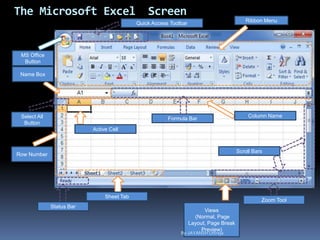
The Microsoft Excel Screen
Views
(Normal, Page
Layout, Page Break
Preview)
Quick Access Toolbar
MS Office
Button
Ribbon Menu
Name Box
Column Name
Row Number
Sheet Tab
Zoom Tool
Status Bar
Scroll Bars
Formula BarSelect All
Button
Active Cell
By-JAYANSH Uttreja
The MS Excel
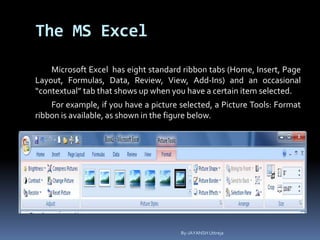
Microsoft Excel has eight standard ribbon tabs (Home, Insert, Page
Layout, Formulas, Data, Review, View, Add-Ins) and an occasional
“contextual” tab that shows up when you have a certain item selected.
For example, if you have a picture selected, a Picture Tools: Format
ribbon is available, as shown in the figure below.
By-JAYANSH Uttreja
The MS Excel
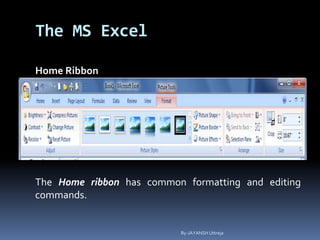
Home Ribbon
The Home ribbon has common formatting and editing
commands.
By-JAYANSH Uttreja
The MS Excel
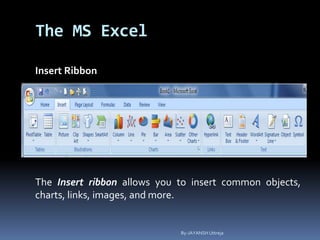
Insert Ribbon
The Insert ribbon allows you to insert common objects,
charts, links, images, and more.
By-JAYANSH Uttreja
The MS Excel
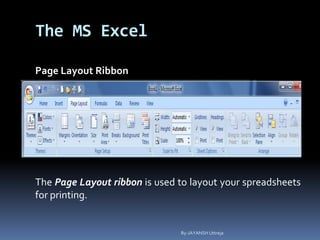
Page Layout Ribbon
The Page Layout ribbon is used to layout your spreadsheets
for printing.
By-JAYANSH Uttreja
The MS Excel
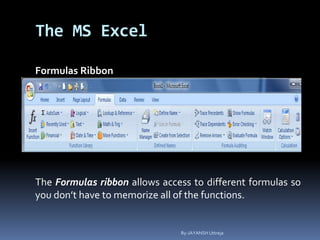
Formulas Ribbon
The Formulas ribbon allows access to different formulas so
you don’t have to memorize all of the functions.
By-JAYANSH Uttreja
The MS Excel
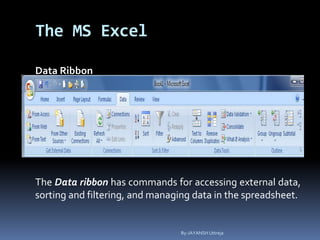
Data Ribbon
The Data ribbon has commands for accessing external data,
sorting and filtering, and managing data in the spreadsheet.
By-JAYANSH Uttreja
The MS Excel
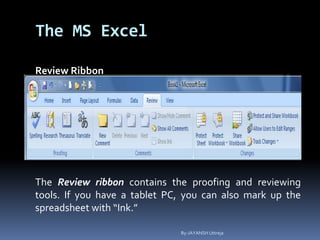
Review Ribbon
The Review ribbon contains the proofing and reviewing
tools. If you have a tablet PC, you can also mark up the
spreadsheet with “Ink.”
By-JAYANSH Uttreja
The MS Excel
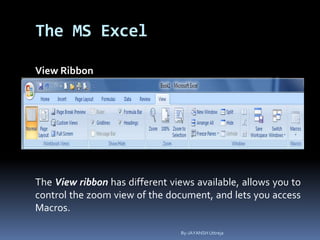
View Ribbon
The View ribbon has different views available, allows you to
control the zoom view of the document, and lets you access
Macros.
By-JAYANSH Uttreja
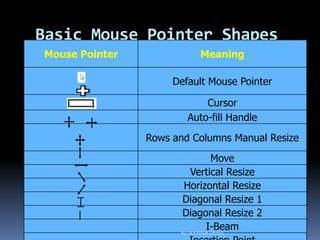
Basic Mouse Pointer Shapes
Mouse Pointer Meaning
Default Mouse Pointer
Cursor
Auto-fill Handle
Rows and Columns Manual Resize
Move
Vertical Resize
Horizontal Resize
Diagonal Resize 1
Diagonal Resize 2
I-BeamBy-JAYANSH Uttreja
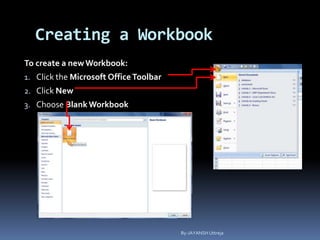
Creating a Workbook
To create a newWorkbook:
1. Click the Microsoft OfficeToolbar
2. Click New
3. Choose BlankWorkbook
By-JAYANSH Uttreja
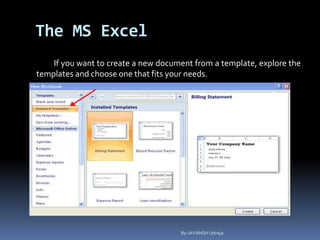
The MS Excel
If you want to create a new document from a template, explore the
templates and choose one that fits your needs.
By-JAYANSH Uttreja
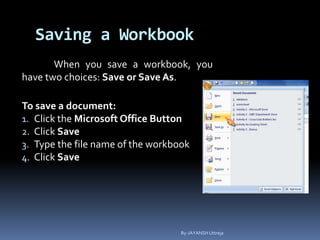
Saving a Workbook
When you save a workbook, you
have two choices: Save or Save As.
To save a document:
1. Click the Microsoft Office Button
2. Click Save
3. Type the file name of the workbook
4. Click Save
By-JAYANSH Uttreja
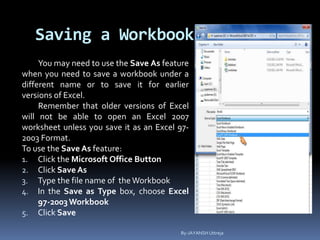
Saving a Workbook
You may need to use the Save As feature
when you need to save a workbook under a
different name or to save it for earlier
versions of Excel.
Remember that older versions of Excel
will not be able to open an Excel 2007
worksheet unless you save it as an Excel 97-
2003 Format.
To use the Save As feature:
1. Click the Microsoft Office Button
2. Click Save As
3. Type the file name of theWorkbook
4. In the Save as Type box, choose Excel
97-2003Workbook
5. Click Save
By-JAYANSH Uttreja
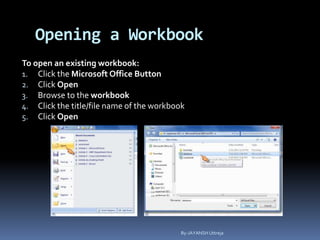
Opening a Workbook
To open an existing workbook:
1. Click the Microsoft Office Button
2. Click Open
3. Browse to the workbook
4. Click the title/file name of the workbook
5. Click Open
By-JAYANSH Uttreja
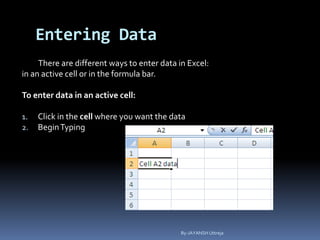
Entering Data
There are different ways to enter data in Excel:
in an active cell or in the formula bar.
To enter data in an active cell:
1. Click in the cell where you want the data
2. BeginTyping
By-JAYANSH Uttreja
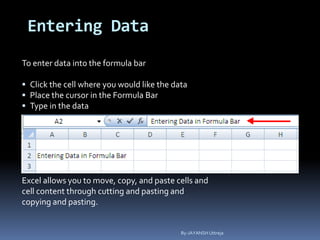
Entering Data
To enter data into the formula bar
 Click the cell where you would like the data
 Place the cursor in the Formula Bar
 Type in the data
Excel allows you to move, copy, and paste cells and
cell content through cutting and pasting and
copying and pasting.
By-JAYANSH Uttreja
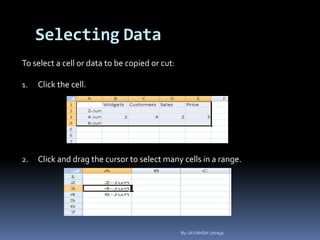
Selecting Data
To select a cell or data to be copied or cut:
1. Click the cell.
2. Click and drag the cursor to select many cells in a range.
By-JAYANSH Uttreja
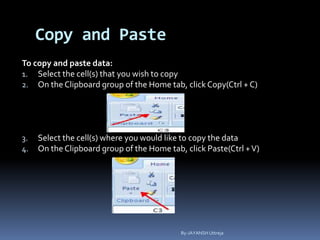
Copy and Paste
To copy and paste data:
1. Select the cell(s) that you wish to copy
2. On the Clipboard group of the Home tab, click Copy(Ctrl + C)
3. Select the cell(s) where you would like to copy the data
4. On the Clipboard group of the Home tab, click Paste(Ctrl +V)
By-JAYANSH Uttreja
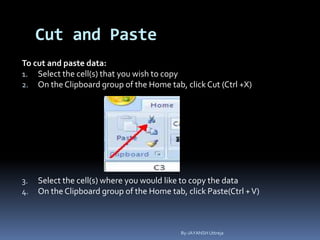
Cut and Paste
To cut and paste data:
1. Select the cell(s) that you wish to copy
2. On the Clipboard group of the Home tab, click Cut (Ctrl +X)
3. Select the cell(s) where you would like to copy the data
4. On the Clipboard group of the Home tab, click Paste(Ctrl +V)
By-JAYANSH Uttreja
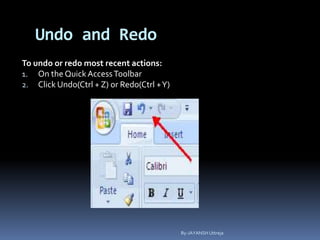
Undo and Redo
To undo or redo most recent actions:
1. On the Quick AccessToolbar
2. Click Undo(Ctrl + Z) or Redo(Ctrl +Y)
By-JAYANSH Uttreja
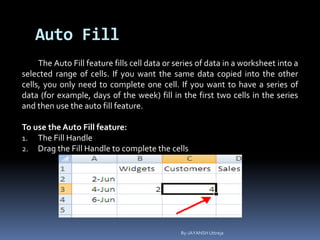
Auto Fill
The Auto Fill feature fills cell data or series of data in a worksheet into a
selected range of cells. If you want the same data copied into the other
cells, you only need to complete one cell. If you want to have a series of
data (for example, days of the week) fill in the first two cells in the series
and then use the auto fill feature.
To use the Auto Fill feature:
1. The Fill Handle
2. Drag the Fill Handle to complete the cells
By-JAYANSH Uttreja
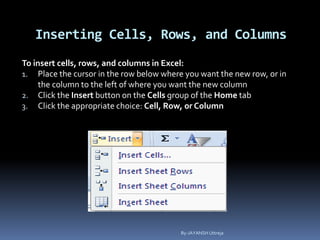
Inserting Cells, Rows, and Columns
To insert cells, rows, and columns in Excel:
1. Place the cursor in the row below where you want the new row, or in
the column to the left of where you want the new column
2. Click the Insert button on the Cells group of the Home tab
3. Click the appropriate choice: Cell, Row, or Column
By-JAYANSH Uttreja
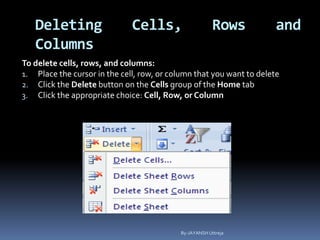
Deleting Cells, Rows and
Columns
To delete cells, rows, and columns:
1. Place the cursor in the cell, row, or column that you want to delete
2. Click the Delete button on the Cells group of the Home tab
3. Click the appropriate choice: Cell, Row, or Column
By-JAYANSH Uttreja
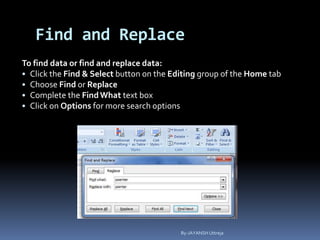
Find and Replace
To find data or find and replace data:
• Click the Find & Select button on the Editing group of the Home tab
• Choose Find or Replace
• Complete the FindWhat text box
• Click on Options for more search options
By-JAYANSH Uttreja
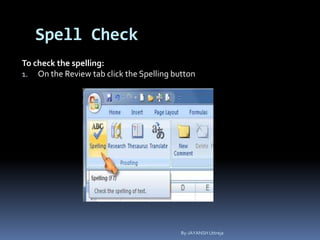
Spell Check
To check the spelling:
1. On the Review tab click the Spelling button
By-JAYANSH Uttreja
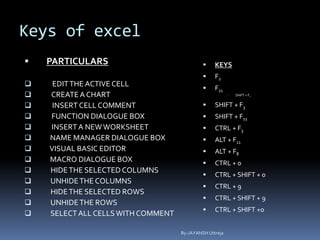
Keys of excel
 PARTICULARS
 EDITTHE ACTIVE CELL
 CREATEA CHART
 INSERT CELL COMMENT
 FUNCTION DIALOGUE BOX
 INSERTA NEWWORKSHEET
 NAME MANAGER DIALOGUE BOX
 VISUAL BASIC EDITOR
 MACRO DIALOGUE BOX
 HIDETHE SELECTED COLUMNS
 UNHIDETHE COLUMNS
 HIDETHE SELECTED ROWS
 UNHIDETHE ROWS
 SELECT ALL CELLSWITH COMMENT
 KEYS
 F2
 F11
 SHIFT + F2
 SHIFT + F3
 SHIFT + F11
 CTRL + F3
 ALT + F11
 ALT + F8
 CTRL + 0
 CTRL + SHIFT + 0
 CTRL + 9
 CTRL + SHIFT + 9
 CTRL + SHIFT +o
By-JAYANSH Uttreja
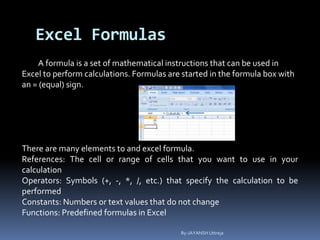
Excel Formulas
A formula is a set of mathematical instructions that can be used in
Excel to perform calculations. Formulas are started in the formula box with
an = (equal) sign.
There are many elements to and excel formula.
References: The cell or range of cells that you want to use in your
calculation
Operators: Symbols (+, -, *, /, etc.) that specify the calculation to be
performed
Constants: Numbers or text values that do not change
Functions: Predefined formulas in Excel
By-JAYANSH Uttreja
Excel Formulas
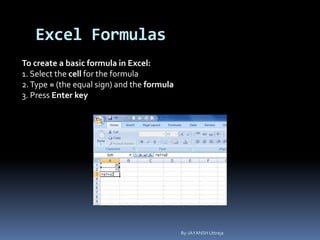
To create a basic formula in Excel:
1. Select the cell for the formula
2.Type = (the equal sign) and the formula
3. Press Enter key
By-JAYANSH Uttreja
Excel Formulas
A Function is a built in formula in Excel. A function has a
name and arguments (the mathematical function) in
parentheses. Common functions in Excel:
 Sum: Adds all cells in the argument
 Average: Calculates the average of the cells in the argument
 Min: Finds the minimum value
 Max: Finds the maximum value
 Count: Finds the number of cells that contain a numerical
value within a range of the argument
By-JAYANSH Uttreja
Excel Formulas
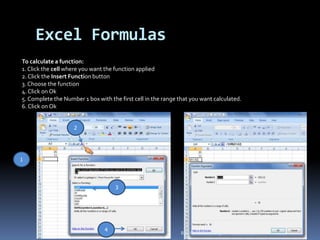
To calculate a function:
1. Click the cell where you want the function applied
2. Click the Insert Function button
3. Choose the function
4. Click on Ok
5. Complete the Number 1 box with the first cell in the range that you want calculated.
6. Click on Ok
1
2
3
4
By-JAYANSH Uttreja
Function Library
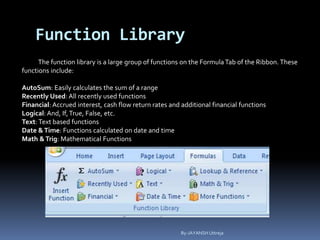
The function library is a large group of functions on the FormulaTab of the Ribbon. These
functions include:
AutoSum: Easily calculates the sum of a range
Recently Used: All recently used functions
Financial: Accrued interest, cash flow return rates and additional financial functions
Logical: And, If,True, False, etc.
Text: Text based functions
Date &Time: Functions calculated on date and time
Math &Trig: Mathematical Functions
By-JAYANSH Uttreja
Relative, Absolute and Mixed References
+Calling cells by just their column and row labels (such as "A1") is called
relative referencing. When a formula contains relative referencing and it is
copied from one cell to another, Excel does not create an exact copy of the
formula. It will change cell addresses relative to the row and column they are
moved to. For example, if a simple addition formula in cell C1"=(A1+B1)" is
copied to cell C2, the formula would change to"=(A2+B2)" to reflect the new
row. To prevent this change, cells must be called by absolute referencing and
this is accomplished by placing dollar signs "$" within the cell addresses in the
formula. Continuing the previous example, the formula in cell C1 would read
"=($A$1+$B$1)" if the value of cell C2 should be the sum of cells A1 and B1. Both
the column and row of both cells are absolute and will not change when copied.
Mixed referencing can also be used where only the row or column fixed. For
example, in the formula"=(A$1$B2)", the row of cell A1 is fixed and the column
of cell B2 is fixed.
By-JAYANSH Uttreja
Linking Worksheets
You may want to use the value from a cell in
another worksheet within the same workbook in a
formula. For example, the value of cell A1 in the
current worksheet and cell A2 in the second
worksheet can be added using the format
"sheetname!cell address". The formula for this
example would be"=A1+Sheet2!A2" where the value
of cell A1 in the current worksheet is added to the
value of cell A2 in the worksheet named "Sheet2".
By-JAYANSH Uttreja
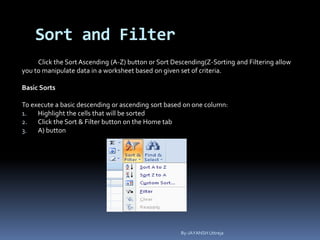
Sort and Filter
Click the Sort Ascending (A-Z) button or Sort Descending(Z-Sorting and Filtering allow
you to manipulate data in a worksheet based on given set of criteria.
Basic Sorts
To execute a basic descending or ascending sort based on one column:
1. Highlight the cells that will be sorted
2. Click the Sort & Filter button on the Home tab
3. A) button
By-JAYANSH Uttreja
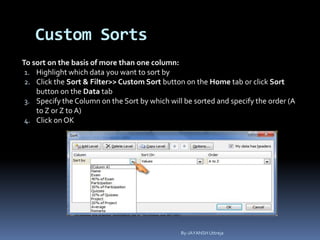
Custom Sorts
To sort on the basis of more than one column:
1. Highlight which data you want to sort by
2. Click the Sort & Filter>> Custom Sort button on the Home tab or click Sort
button on the Data tab
3. Specify the Column on the Sort by which will be sorted and specify the order (A
to Z or Z to A)
4. Click on OK
By-JAYANSH Uttreja
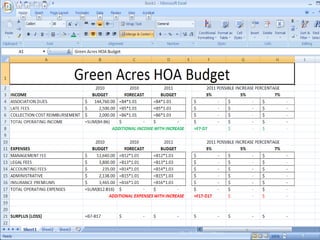
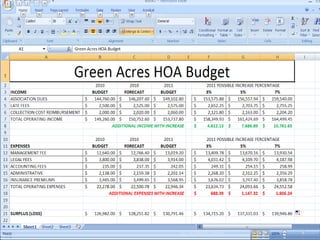
Let’s create community.
Copy the following information and
try to get formatting to match.
eate a fake budget for a fake
By-JAYANSH Uttreja
By-JAYANSH Uttreja
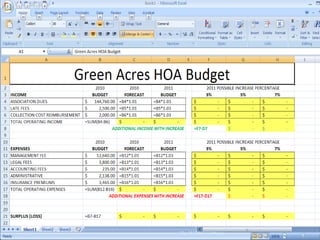
Now try to
create the
formulas needed
to finish the
spreadsheet.
By-JAYANSH Uttreja
By-JAYANSH Uttreja
All highlighted cells need to be
solved with basic formulas.
By-JAYANSH Uttreja
BY
Jayansh
uttreja
From =
sirsa
By-JAYANSH Uttreja

Jayansh computer

  • 1.
    Tutorial on msexcel BY –Jayansh Uttreja
  • 2.
    The MS Excel Itis the world’s most widely-used spreadsheet program, and is part of the Microsoft Office suite. Excel’s forte, of course, is perform in numerical calculations, but Excel is also very useful for non- numerical applications By-JAYANSH Uttreja
  • 3.
    Uses of Excel: Number crunching: Create budgets, analyze survey results, and perform just about any type of financial analysis you can think of.  Creating charts: Create a wide variety of highly customizable charts.  Organizing lists: Use the row-and-column layout to store lists efficiently.  Accessing other data: Import data from a wide variety of sources.  Creating graphics and diagrams: Use Shapes and the new SmartArt to create professional-looking diagrams.  Automating complex tasks: Perform a tedious task with a single mouse click with Excel’s macro capabilities. By-JAYANSH Uttreja
  • 4.
    Features of MicrosoftExcel Database (list) Worksheet Chart By-JAYANSH Uttreja
  • 5.
    Capabilities and Limitations ofMicrosoft Excel Open Workbooks Last Column Name Last Row Number Default Sheets (16,384 cols.) By-JAYANSH Uttreja
  • 6.
    Opening the MicrosoftExcel 1. Click the Start button. 2. Point or ClickAll Programs. 3. Click Microsoft Office Folder. 4.ClickMicrosoft Office Excel . Microsoft Office Folder All Programs Start Button Microsoft Office Excel 2007 . By-JAYANSH Uttreja
  • 7.
    The Microsoft ExcelScreen Views (Normal, Page Layout, Page Break Preview) Quick Access Toolbar MS Office Button Ribbon Menu Name Box Column Name Row Number Sheet Tab Zoom Tool Status Bar Scroll Bars Formula BarSelect All Button Active Cell By-JAYANSH Uttreja
  • 8.
    The MS Excel MicrosoftExcel has eight standard ribbon tabs (Home, Insert, Page Layout, Formulas, Data, Review, View, Add-Ins) and an occasional “contextual” tab that shows up when you have a certain item selected. For example, if you have a picture selected, a Picture Tools: Format ribbon is available, as shown in the figure below. By-JAYANSH Uttreja
  • 9.
    The MS Excel HomeRibbon The Home ribbon has common formatting and editing commands. By-JAYANSH Uttreja
  • 10.
    The MS Excel InsertRibbon The Insert ribbon allows you to insert common objects, charts, links, images, and more. By-JAYANSH Uttreja
  • 11.
    The MS Excel PageLayout Ribbon The Page Layout ribbon is used to layout your spreadsheets for printing. By-JAYANSH Uttreja
  • 12.
    The MS Excel FormulasRibbon The Formulas ribbon allows access to different formulas so you don’t have to memorize all of the functions. By-JAYANSH Uttreja
  • 13.
    The MS Excel DataRibbon The Data ribbon has commands for accessing external data, sorting and filtering, and managing data in the spreadsheet. By-JAYANSH Uttreja
  • 14.
    The MS Excel ReviewRibbon The Review ribbon contains the proofing and reviewing tools. If you have a tablet PC, you can also mark up the spreadsheet with “Ink.” By-JAYANSH Uttreja
  • 15.
    The MS Excel ViewRibbon The View ribbon has different views available, allows you to control the zoom view of the document, and lets you access Macros. By-JAYANSH Uttreja
  • 16.
    Basic Mouse PointerShapes Mouse Pointer Meaning Default Mouse Pointer Cursor Auto-fill Handle Rows and Columns Manual Resize Move Vertical Resize Horizontal Resize Diagonal Resize 1 Diagonal Resize 2 I-BeamBy-JAYANSH Uttreja
  • 17.
    Creating a Workbook Tocreate a newWorkbook: 1. Click the Microsoft OfficeToolbar 2. Click New 3. Choose BlankWorkbook By-JAYANSH Uttreja
  • 18.
    The MS Excel Ifyou want to create a new document from a template, explore the templates and choose one that fits your needs. By-JAYANSH Uttreja
  • 19.
    Saving a Workbook Whenyou save a workbook, you have two choices: Save or Save As. To save a document: 1. Click the Microsoft Office Button 2. Click Save 3. Type the file name of the workbook 4. Click Save By-JAYANSH Uttreja
  • 20.
    Saving a Workbook Youmay need to use the Save As feature when you need to save a workbook under a different name or to save it for earlier versions of Excel. Remember that older versions of Excel will not be able to open an Excel 2007 worksheet unless you save it as an Excel 97- 2003 Format. To use the Save As feature: 1. Click the Microsoft Office Button 2. Click Save As 3. Type the file name of theWorkbook 4. In the Save as Type box, choose Excel 97-2003Workbook 5. Click Save By-JAYANSH Uttreja
  • 21.
    Opening a Workbook Toopen an existing workbook: 1. Click the Microsoft Office Button 2. Click Open 3. Browse to the workbook 4. Click the title/file name of the workbook 5. Click Open By-JAYANSH Uttreja
  • 22.
    Entering Data There aredifferent ways to enter data in Excel: in an active cell or in the formula bar. To enter data in an active cell: 1. Click in the cell where you want the data 2. BeginTyping By-JAYANSH Uttreja
  • 23.
    Entering Data To enterdata into the formula bar  Click the cell where you would like the data  Place the cursor in the Formula Bar  Type in the data Excel allows you to move, copy, and paste cells and cell content through cutting and pasting and copying and pasting. By-JAYANSH Uttreja
  • 24.
    Selecting Data To selecta cell or data to be copied or cut: 1. Click the cell. 2. Click and drag the cursor to select many cells in a range. By-JAYANSH Uttreja
  • 25.
    Copy and Paste Tocopy and paste data: 1. Select the cell(s) that you wish to copy 2. On the Clipboard group of the Home tab, click Copy(Ctrl + C) 3. Select the cell(s) where you would like to copy the data 4. On the Clipboard group of the Home tab, click Paste(Ctrl +V) By-JAYANSH Uttreja
  • 26.
    Cut and Paste Tocut and paste data: 1. Select the cell(s) that you wish to copy 2. On the Clipboard group of the Home tab, click Cut (Ctrl +X) 3. Select the cell(s) where you would like to copy the data 4. On the Clipboard group of the Home tab, click Paste(Ctrl +V) By-JAYANSH Uttreja
  • 27.
    Undo and Redo Toundo or redo most recent actions: 1. On the Quick AccessToolbar 2. Click Undo(Ctrl + Z) or Redo(Ctrl +Y) By-JAYANSH Uttreja
  • 28.
    Auto Fill The AutoFill feature fills cell data or series of data in a worksheet into a selected range of cells. If you want the same data copied into the other cells, you only need to complete one cell. If you want to have a series of data (for example, days of the week) fill in the first two cells in the series and then use the auto fill feature. To use the Auto Fill feature: 1. The Fill Handle 2. Drag the Fill Handle to complete the cells By-JAYANSH Uttreja
  • 29.
    Inserting Cells, Rows,and Columns To insert cells, rows, and columns in Excel: 1. Place the cursor in the row below where you want the new row, or in the column to the left of where you want the new column 2. Click the Insert button on the Cells group of the Home tab 3. Click the appropriate choice: Cell, Row, or Column By-JAYANSH Uttreja
  • 30.
    Deleting Cells, Rowsand Columns To delete cells, rows, and columns: 1. Place the cursor in the cell, row, or column that you want to delete 2. Click the Delete button on the Cells group of the Home tab 3. Click the appropriate choice: Cell, Row, or Column By-JAYANSH Uttreja
  • 31.
    Find and Replace Tofind data or find and replace data: • Click the Find & Select button on the Editing group of the Home tab • Choose Find or Replace • Complete the FindWhat text box • Click on Options for more search options By-JAYANSH Uttreja
  • 32.
    Spell Check To checkthe spelling: 1. On the Review tab click the Spelling button By-JAYANSH Uttreja
  • 33.
    Keys of excel PARTICULARS  EDITTHE ACTIVE CELL  CREATEA CHART  INSERT CELL COMMENT  FUNCTION DIALOGUE BOX  INSERTA NEWWORKSHEET  NAME MANAGER DIALOGUE BOX  VISUAL BASIC EDITOR  MACRO DIALOGUE BOX  HIDETHE SELECTED COLUMNS  UNHIDETHE COLUMNS  HIDETHE SELECTED ROWS  UNHIDETHE ROWS  SELECT ALL CELLSWITH COMMENT  KEYS  F2  F11  SHIFT + F2  SHIFT + F3  SHIFT + F11  CTRL + F3  ALT + F11  ALT + F8  CTRL + 0  CTRL + SHIFT + 0  CTRL + 9  CTRL + SHIFT + 9  CTRL + SHIFT +o By-JAYANSH Uttreja
  • 34.
    Excel Formulas A formulais a set of mathematical instructions that can be used in Excel to perform calculations. Formulas are started in the formula box with an = (equal) sign. There are many elements to and excel formula. References: The cell or range of cells that you want to use in your calculation Operators: Symbols (+, -, *, /, etc.) that specify the calculation to be performed Constants: Numbers or text values that do not change Functions: Predefined formulas in Excel By-JAYANSH Uttreja
  • 35.
    Excel Formulas To createa basic formula in Excel: 1. Select the cell for the formula 2.Type = (the equal sign) and the formula 3. Press Enter key By-JAYANSH Uttreja
  • 36.
    Excel Formulas A Functionis a built in formula in Excel. A function has a name and arguments (the mathematical function) in parentheses. Common functions in Excel:  Sum: Adds all cells in the argument  Average: Calculates the average of the cells in the argument  Min: Finds the minimum value  Max: Finds the maximum value  Count: Finds the number of cells that contain a numerical value within a range of the argument By-JAYANSH Uttreja
  • 37.
    Excel Formulas To calculatea function: 1. Click the cell where you want the function applied 2. Click the Insert Function button 3. Choose the function 4. Click on Ok 5. Complete the Number 1 box with the first cell in the range that you want calculated. 6. Click on Ok 1 2 3 4 By-JAYANSH Uttreja
  • 38.
    Function Library The functionlibrary is a large group of functions on the FormulaTab of the Ribbon. These functions include: AutoSum: Easily calculates the sum of a range Recently Used: All recently used functions Financial: Accrued interest, cash flow return rates and additional financial functions Logical: And, If,True, False, etc. Text: Text based functions Date &Time: Functions calculated on date and time Math &Trig: Mathematical Functions By-JAYANSH Uttreja
  • 39.
    Relative, Absolute andMixed References +Calling cells by just their column and row labels (such as "A1") is called relative referencing. When a formula contains relative referencing and it is copied from one cell to another, Excel does not create an exact copy of the formula. It will change cell addresses relative to the row and column they are moved to. For example, if a simple addition formula in cell C1"=(A1+B1)" is copied to cell C2, the formula would change to"=(A2+B2)" to reflect the new row. To prevent this change, cells must be called by absolute referencing and this is accomplished by placing dollar signs "$" within the cell addresses in the formula. Continuing the previous example, the formula in cell C1 would read "=($A$1+$B$1)" if the value of cell C2 should be the sum of cells A1 and B1. Both the column and row of both cells are absolute and will not change when copied. Mixed referencing can also be used where only the row or column fixed. For example, in the formula"=(A$1$B2)", the row of cell A1 is fixed and the column of cell B2 is fixed. By-JAYANSH Uttreja
  • 40.
    Linking Worksheets You maywant to use the value from a cell in another worksheet within the same workbook in a formula. For example, the value of cell A1 in the current worksheet and cell A2 in the second worksheet can be added using the format "sheetname!cell address". The formula for this example would be"=A1+Sheet2!A2" where the value of cell A1 in the current worksheet is added to the value of cell A2 in the worksheet named "Sheet2". By-JAYANSH Uttreja
  • 41.
    Sort and Filter Clickthe Sort Ascending (A-Z) button or Sort Descending(Z-Sorting and Filtering allow you to manipulate data in a worksheet based on given set of criteria. Basic Sorts To execute a basic descending or ascending sort based on one column: 1. Highlight the cells that will be sorted 2. Click the Sort & Filter button on the Home tab 3. A) button By-JAYANSH Uttreja
  • 42.
    Custom Sorts To sorton the basis of more than one column: 1. Highlight which data you want to sort by 2. Click the Sort & Filter>> Custom Sort button on the Home tab or click Sort button on the Data tab 3. Specify the Column on the Sort by which will be sorted and specify the order (A to Z or Z to A) 4. Click on OK By-JAYANSH Uttreja
  • 43.
    Let’s create community. Copythe following information and try to get formatting to match. eate a fake budget for a fake By-JAYANSH Uttreja
  • 44.
  • 45.
    Now try to createthe formulas needed to finish the spreadsheet. By-JAYANSH Uttreja
  • 46.
  • 47.
    All highlighted cellsneed to be solved with basic formulas. By-JAYANSH Uttreja
  • 48.