Microsoft Excel 2007 – Level 1 PREPARING AN EXCEL WORKBOOK Chapter 1
Performance Objectives Identify the various elements of an Excel workbook Create, save, and print a workbook Enter data in a workbook Edit data in a workbook Insert a formula using the Sum button Apply predesigned formatting to cells in a workbook Use the Help feature
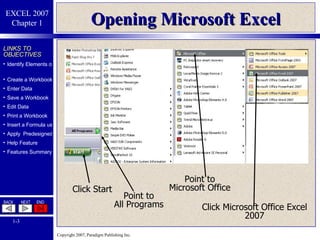
Opening Microsoft Excel Point to All Programs Point to Microsoft Office Click Microsoft Office Excel 2007 Click Start
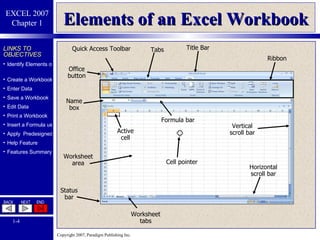
Elements of an Excel Workbook Quick Access Toolbar Tabs Title Bar Office button Ribbon Name box Worksheet area Status bar Active cell Formula bar Cell pointer Vertical scroll bar Horizontal scroll bar Worksheet tabs
Elements of a Worksheet  Area Name box Formula bar Cell pointer Active cell Select all button Row header Column header Fill handle (+) Gridlines
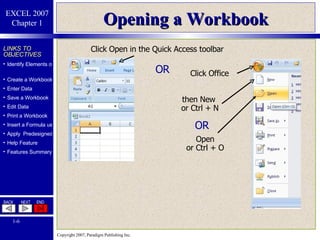
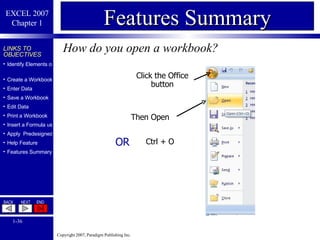
Opening a Workbook then New  or Ctrl + N Click Open in the Quick Access toolbar Click Office OR   Open  or Ctrl + O OR
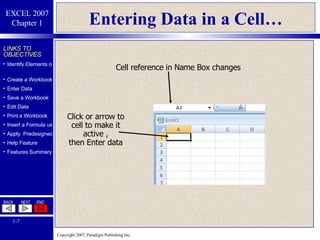
Entering Data in a Cell… Click or arrow to cell to make it active , then Enter data Cell reference in Name Box changes
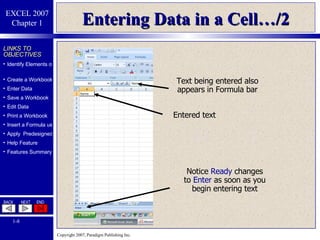
Entering Data in a Cell…/2 Entered text Notice  Ready  changes to  Enter   as soon as you begin entering text Text being entered also appears in Formula bar
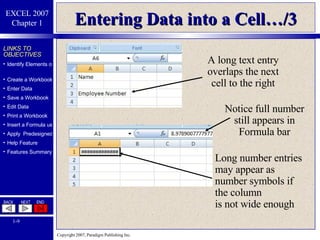
Entering Data into a Cell…/3 A long text entry overlaps the next cell to the right Long number entries may appear as number symbols if the column is not wide enough Notice full number still appears in Formula bar
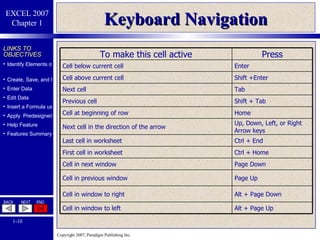
Keyboard Navigation To make this cell active Press Cell below current cell Enter Cell above current cell Shift +Enter Next cell Tab Previous cell Shift + Tab Cell at beginning of row Home Next cell in the direction of the arrow Up, Down, Left, or Right Arrow keys Last cell in worksheet Ctrl + End First cell in worksheet Ctrl + Home Cell in next window  Page Down Cell in previous window  Page Up Cell in window to right  Alt + Page Down Cell in window to left  Alt + Page Up
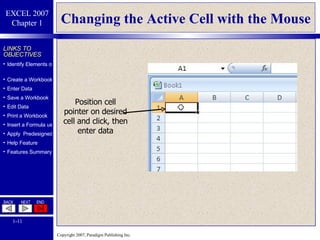
Changing the Active Cell with the Mouse Position cell pointer on desired cell and click, then enter data
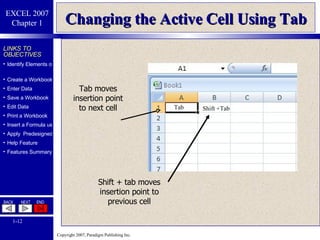
Changing the Active Cell Using Tab Tab moves insertion point to next cell Shift + tab moves insertion point to previous cell Shift +Tab Tab
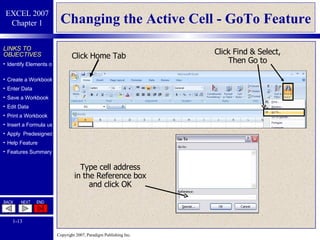
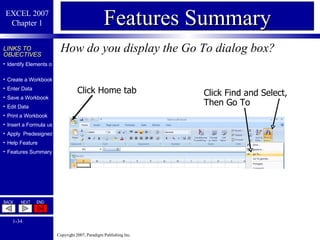
Changing the Active Cell - GoTo Feature Click Home Tab Click Find & Select, Then Go to Type cell address in the Reference box and click OK
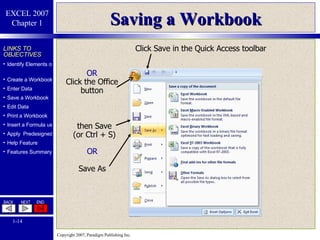
Saving a Workbook OR Click the Office button then Save (or Ctrl + S) Click Save in the Quick Access toolbar OR Save As
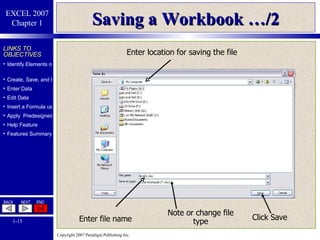
Saving a Workbook …/2 Enter location for saving the file Enter file name Click Save Note or change file type
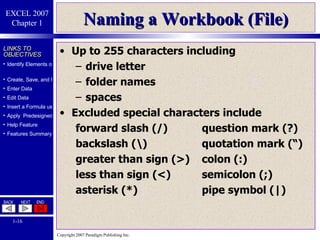
Naming a Workbook (File) Up to 255 characters including drive letter folder names spaces Excluded special characters include forward slash (/) question mark (?) backslash (\) quotation mark (“) greater than sign (>) colon (:) less than sign (<) semicolon (;) asterisk (*) pipe symbol (|)
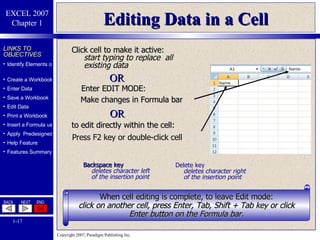
Editing Data in a Cell Click  cell  to make it active: start   typing to replace  all existing data Backspace key  deletes character left of the insertion point Delete key deletes character right of the insertion point When  cell editing is complete, to leave Edit mode: click on another cell, press Enter, Tab, Shift + Tab key or click Enter button on the Formula bar. OR to edit directly within the cell: Make changes in Formula bar Enter EDIT MODE: Press F2 key or double-click cell OR
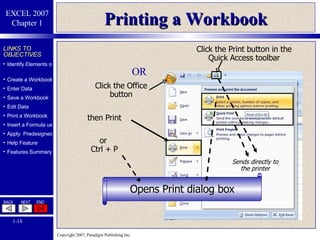
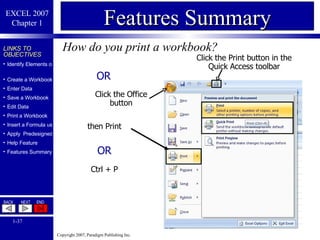
Printing a Workbook Click the Print button in the Quick Access toolbar Opens Print dialog box OR Click the Office button then Print Sends directly to the printer or  Ctrl + P
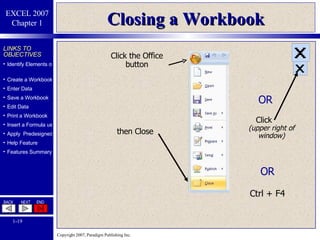
Closing a Workbook Click the Office button then Close OR Click OR Ctrl + F4 (upper right of window)
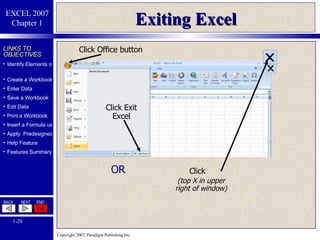
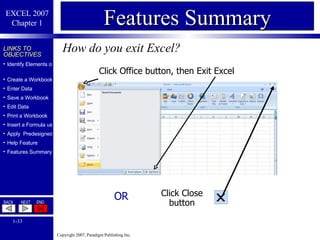
Exiting Excel Click Office button Click Exit Excel OR Click (top X in upper right of window)
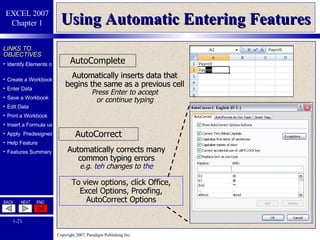
Using Automatic Entering Features AutoComplete Automatically inserts data that begins the same as a previous cell Press Enter to accept or continue typing AutoCorrect Automatically corrects many common typing errors e.g.  teh  changes to  the To view options, click Office, Excel Options, Proofing, AutoCorrect Options
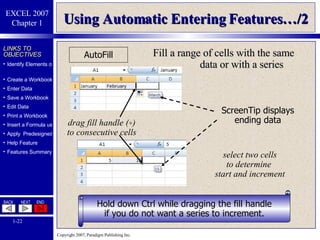
Using Automatic Entering Features…/2 AutoFill drag fill handle ( + ) to consecutive cells select two cells to determine  start and increment Hold down Ctrl while dragging the fill handle if you do not want a series to increment. ScreenTip displays ending data Fill a range of cells with the same data or with a series
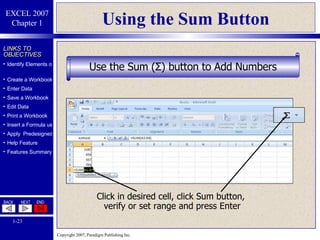
Using the Sum Button Click in desired cell, click Sum button,  verify or set range and press Enter Use the Sum ( Σ )  button to Add Numbers
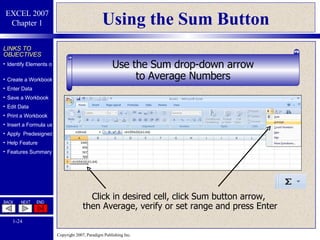
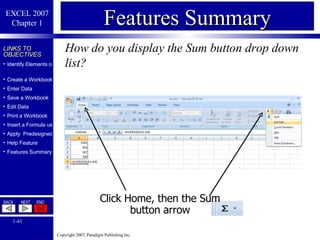
Using the Sum Button Click in desired cell, click Sum button arrow,  then Average, verify or set range and press Enter Use the Sum drop-down arrow to Average Numbers
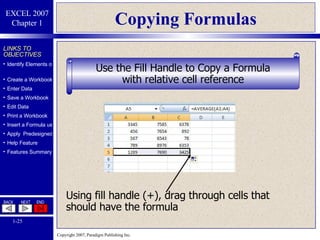
Copying Formulas Using fill handle (+), drag through cells that should have the formula Use the Fill Handle to Copy a Formula with relative cell reference
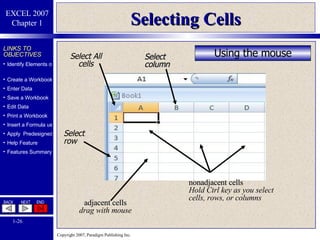
Selecting Cells Using the mouse Select column Select row Select All cells adjacent cells drag with mouse nonadjacent cells Hold Ctrl key as you select cells, rows, or columns
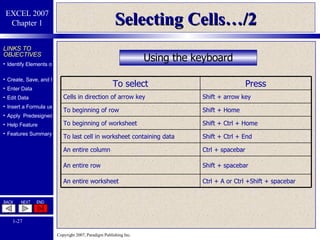
Selecting Cells…/2 Using the keyboard To select Press Cells in direction of arrow key Shift + arrow key To beginning of row Shift + Home To beginning of worksheet Shift + Ctrl + Home To last cell in worksheet containing data Shift + Ctrl + End An entire column Ctrl + spacebar An entire row Shift + spacebar An entire worksheet Ctrl + A or Ctrl +Shift + spacebar
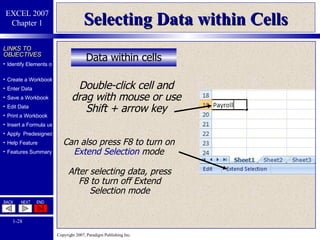
Selecting Data within Cells Data within cells Double-click cell and drag with mouse or use Shift + arrow key Can also press F8 to turn on  Extend   Selection  mode After selecting data, press F8 to turn off Extend Selection mode
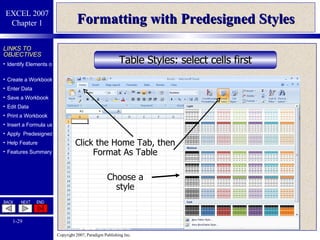
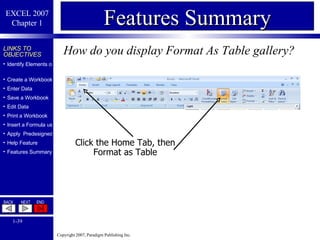
Formatting with Predesigned Styles Table Styles: select cells first Click the Home Tab, then Format As Table Choose a style
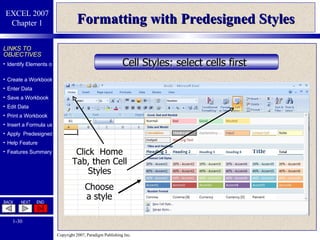
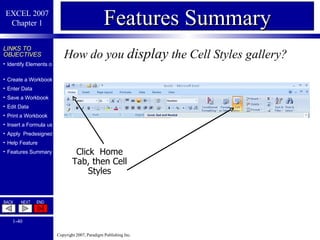
Formatting with Predesigned Styles Cell Styles: select cells first   Click  Home Tab, then Cell Styles Choose a style
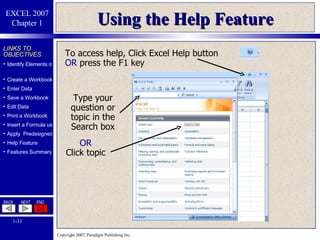
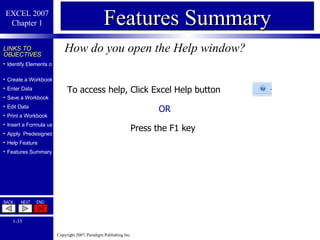
Using the Help Feature OR Click topic To access help, Click Excel Help button  OR  press the F1 key Type your question or topic in the Search box
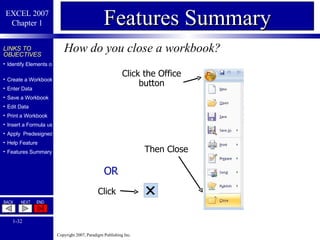
How do you close a workbook? Features Summary Click the Office button Then Close OR Click
How do you exit Excel? Features Summary Click Office button, then Exit Excel OR Click Close button
How do you display the Go To dialog box? Features Summary Click Home tab Click Find and Select, Then Go To
How do you open the Help window? Features Summary To access help, Click Excel Help button OR   Press the F1 key
How do you open a workbook? Features Summary Click the Office button Ctrl + O OR Then Open
How do you print a workbook? Features Summary Click the Print button in the Quick Access toolbar OR Click the Office button then Print OR Ctrl + P
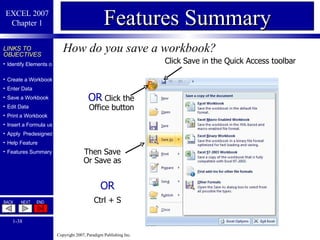
How do you save a workbook? Features Summary OR  Click the Office button Then Save Or Save as Click Save in the Quick Access toolbar OR Ctrl + S
How do you display Format As Table gallery? Features Summary Click the Home Tab, then Format as Table
How do you  display  the Cell Styles gallery? Features Summary Click  Home Tab, then Cell Styles
How do you display the Sum button drop down list? Features Summary Click Home, then the Sum button arrow
Coming Next INSERTING FORMULAS IN A WORKSHEET Chapter 2

Excel Chapter 1 - Preparing an Excel Workbook

  • 1.
    Microsoft Excel 2007– Level 1 PREPARING AN EXCEL WORKBOOK Chapter 1
  • 2.
    Performance Objectives Identifythe various elements of an Excel workbook Create, save, and print a workbook Enter data in a workbook Edit data in a workbook Insert a formula using the Sum button Apply predesigned formatting to cells in a workbook Use the Help feature
  • 3.
    Opening Microsoft ExcelPoint to All Programs Point to Microsoft Office Click Microsoft Office Excel 2007 Click Start
  • 4.
    Elements of anExcel Workbook Quick Access Toolbar Tabs Title Bar Office button Ribbon Name box Worksheet area Status bar Active cell Formula bar Cell pointer Vertical scroll bar Horizontal scroll bar Worksheet tabs
  • 5.
    Elements of aWorksheet Area Name box Formula bar Cell pointer Active cell Select all button Row header Column header Fill handle (+) Gridlines
  • 6.
    Opening a Workbookthen New or Ctrl + N Click Open in the Quick Access toolbar Click Office OR Open or Ctrl + O OR
  • 7.
    Entering Data ina Cell… Click or arrow to cell to make it active , then Enter data Cell reference in Name Box changes
  • 8.
    Entering Data ina Cell…/2 Entered text Notice Ready changes to Enter as soon as you begin entering text Text being entered also appears in Formula bar
  • 9.
    Entering Data intoa Cell…/3 A long text entry overlaps the next cell to the right Long number entries may appear as number symbols if the column is not wide enough Notice full number still appears in Formula bar
  • 10.
    Keyboard Navigation Tomake this cell active Press Cell below current cell Enter Cell above current cell Shift +Enter Next cell Tab Previous cell Shift + Tab Cell at beginning of row Home Next cell in the direction of the arrow Up, Down, Left, or Right Arrow keys Last cell in worksheet Ctrl + End First cell in worksheet Ctrl + Home Cell in next window Page Down Cell in previous window Page Up Cell in window to right Alt + Page Down Cell in window to left Alt + Page Up
  • 11.
    Changing the ActiveCell with the Mouse Position cell pointer on desired cell and click, then enter data
  • 12.
    Changing the ActiveCell Using Tab Tab moves insertion point to next cell Shift + tab moves insertion point to previous cell Shift +Tab Tab
  • 13.
    Changing the ActiveCell - GoTo Feature Click Home Tab Click Find & Select, Then Go to Type cell address in the Reference box and click OK
  • 14.
    Saving a WorkbookOR Click the Office button then Save (or Ctrl + S) Click Save in the Quick Access toolbar OR Save As
  • 15.
    Saving a Workbook…/2 Enter location for saving the file Enter file name Click Save Note or change file type
  • 16.
    Naming a Workbook(File) Up to 255 characters including drive letter folder names spaces Excluded special characters include forward slash (/) question mark (?) backslash (\) quotation mark (“) greater than sign (>) colon (:) less than sign (<) semicolon (;) asterisk (*) pipe symbol (|)
  • 17.
    Editing Data ina Cell Click cell to make it active: start typing to replace all existing data Backspace key deletes character left of the insertion point Delete key deletes character right of the insertion point When cell editing is complete, to leave Edit mode: click on another cell, press Enter, Tab, Shift + Tab key or click Enter button on the Formula bar. OR to edit directly within the cell: Make changes in Formula bar Enter EDIT MODE: Press F2 key or double-click cell OR
  • 18.
    Printing a WorkbookClick the Print button in the Quick Access toolbar Opens Print dialog box OR Click the Office button then Print Sends directly to the printer or Ctrl + P
  • 19.
    Closing a WorkbookClick the Office button then Close OR Click OR Ctrl + F4 (upper right of window)
  • 20.
    Exiting Excel ClickOffice button Click Exit Excel OR Click (top X in upper right of window)
  • 21.
    Using Automatic EnteringFeatures AutoComplete Automatically inserts data that begins the same as a previous cell Press Enter to accept or continue typing AutoCorrect Automatically corrects many common typing errors e.g. teh changes to the To view options, click Office, Excel Options, Proofing, AutoCorrect Options
  • 22.
    Using Automatic EnteringFeatures…/2 AutoFill drag fill handle ( + ) to consecutive cells select two cells to determine start and increment Hold down Ctrl while dragging the fill handle if you do not want a series to increment. ScreenTip displays ending data Fill a range of cells with the same data or with a series
  • 23.
    Using the SumButton Click in desired cell, click Sum button, verify or set range and press Enter Use the Sum ( Σ ) button to Add Numbers
  • 24.
    Using the SumButton Click in desired cell, click Sum button arrow, then Average, verify or set range and press Enter Use the Sum drop-down arrow to Average Numbers
  • 25.
    Copying Formulas Usingfill handle (+), drag through cells that should have the formula Use the Fill Handle to Copy a Formula with relative cell reference
  • 26.
    Selecting Cells Usingthe mouse Select column Select row Select All cells adjacent cells drag with mouse nonadjacent cells Hold Ctrl key as you select cells, rows, or columns
  • 27.
    Selecting Cells…/2 Usingthe keyboard To select Press Cells in direction of arrow key Shift + arrow key To beginning of row Shift + Home To beginning of worksheet Shift + Ctrl + Home To last cell in worksheet containing data Shift + Ctrl + End An entire column Ctrl + spacebar An entire row Shift + spacebar An entire worksheet Ctrl + A or Ctrl +Shift + spacebar
  • 28.
    Selecting Data withinCells Data within cells Double-click cell and drag with mouse or use Shift + arrow key Can also press F8 to turn on Extend Selection mode After selecting data, press F8 to turn off Extend Selection mode
  • 29.
    Formatting with PredesignedStyles Table Styles: select cells first Click the Home Tab, then Format As Table Choose a style
  • 30.
    Formatting with PredesignedStyles Cell Styles: select cells first Click Home Tab, then Cell Styles Choose a style
  • 31.
    Using the HelpFeature OR Click topic To access help, Click Excel Help button OR press the F1 key Type your question or topic in the Search box
  • 32.
    How do youclose a workbook? Features Summary Click the Office button Then Close OR Click
  • 33.
    How do youexit Excel? Features Summary Click Office button, then Exit Excel OR Click Close button
  • 34.
    How do youdisplay the Go To dialog box? Features Summary Click Home tab Click Find and Select, Then Go To
  • 35.
    How do youopen the Help window? Features Summary To access help, Click Excel Help button OR Press the F1 key
  • 36.
    How do youopen a workbook? Features Summary Click the Office button Ctrl + O OR Then Open
  • 37.
    How do youprint a workbook? Features Summary Click the Print button in the Quick Access toolbar OR Click the Office button then Print OR Ctrl + P
  • 38.
    How do yousave a workbook? Features Summary OR Click the Office button Then Save Or Save as Click Save in the Quick Access toolbar OR Ctrl + S
  • 39.
    How do youdisplay Format As Table gallery? Features Summary Click the Home Tab, then Format as Table
  • 40.
    How do you display the Cell Styles gallery? Features Summary Click Home Tab, then Cell Styles
  • 41.
    How do youdisplay the Sum button drop down list? Features Summary Click Home, then the Sum button arrow
  • 42.
    Coming Next INSERTINGFORMULAS IN A WORKSHEET Chapter 2