Introduction to Power
Pivot in Excel
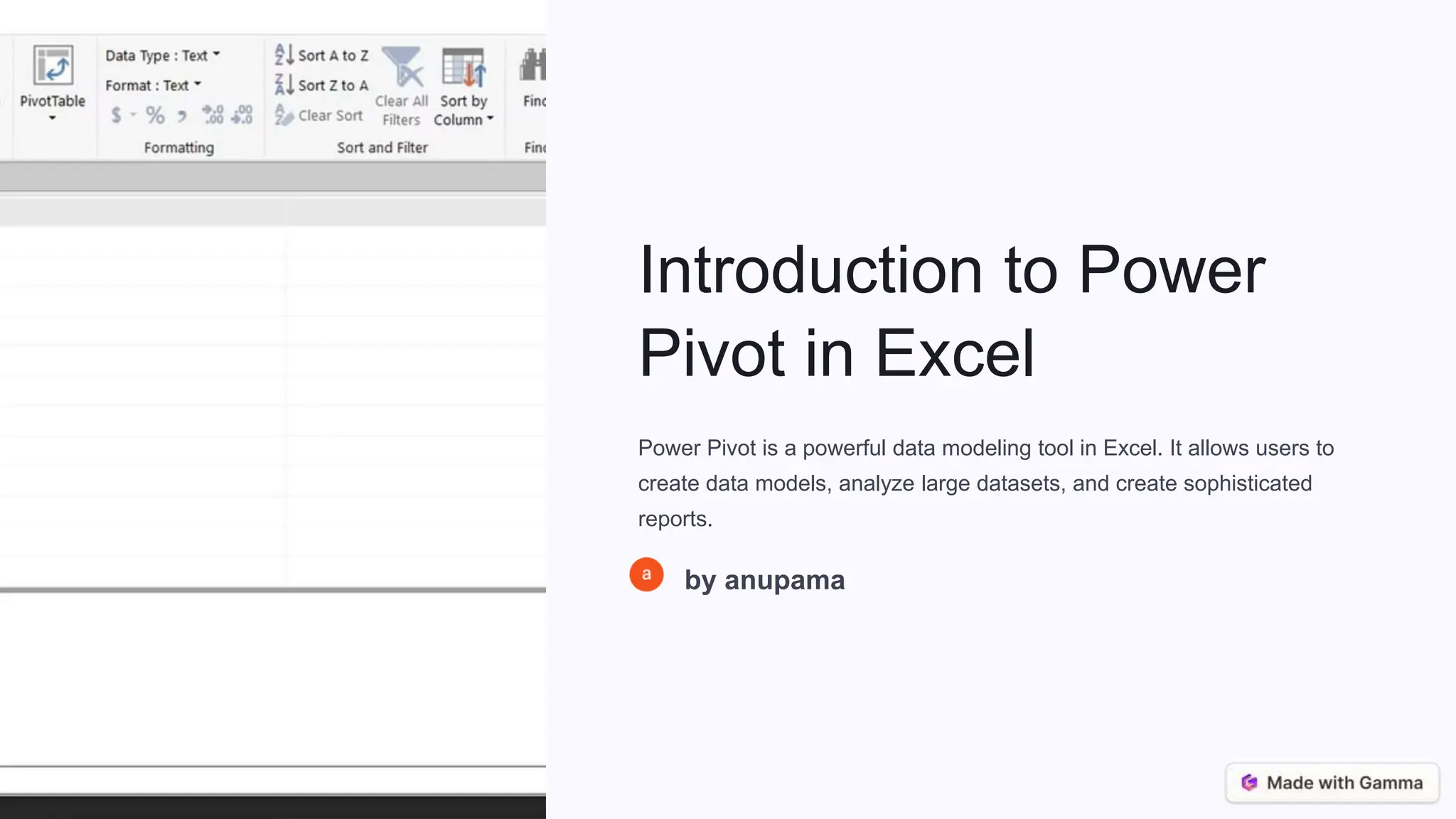
Power Pivot is a powerful data modeling tool in Excel. It allows users to
create data models, analyze large datasets, and create sophisticated
reports.
by anupama
What is Power Pivot?
Data Modeling
Power Pivot enables users to
create data models for in-depth
analysis.
Excel Integration
It's an Excel add-in, seamlessly
integrating with familiar Excel
tools.
Big Data Analysis
Capable of handling and
analyzing large datasets
efficiently.
Benefits of using Power Pivot
1 Data Integration
Consolidates data from multiple sources
for comprehensive analysis.
2 Speed
Allows for fast reporting and analysis of
large datasets.
3 Advanced Calculations
Enables complex calculations and
statistical analysis with ease.
4 Visualization
Creates interactive and visually compelling
reports and dashboards.
Example of Power Pivot in action
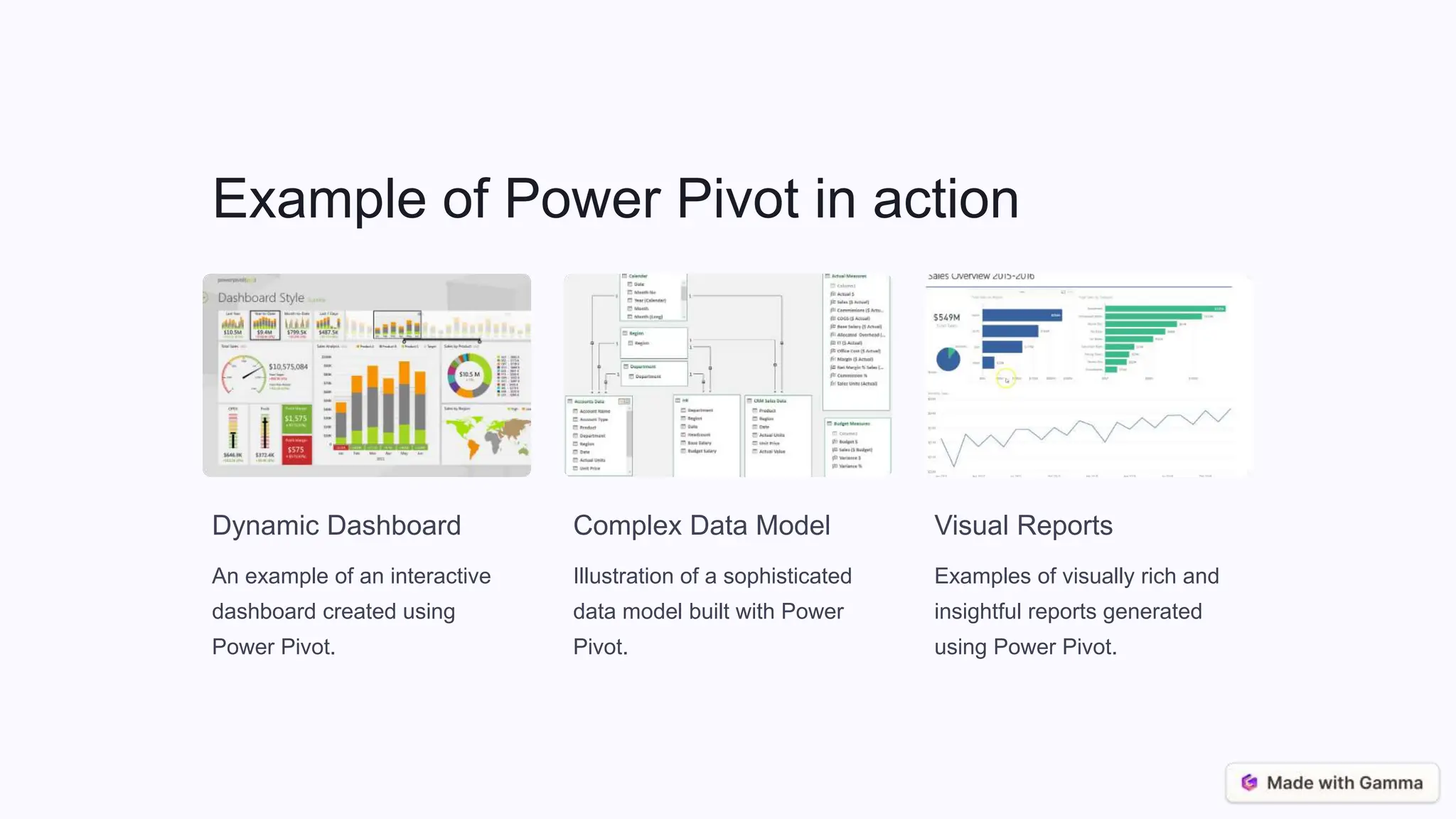
Dynamic Dashboard
An example of an interactive
dashboard created using
Power Pivot.
Complex Data Model
Illustration of a sophisticated
data model built with Power
Pivot.
Visual Reports
Examples of visually rich and
insightful reports generated
using Power Pivot.
Step-by-step guide to creating a Power
Pivot table
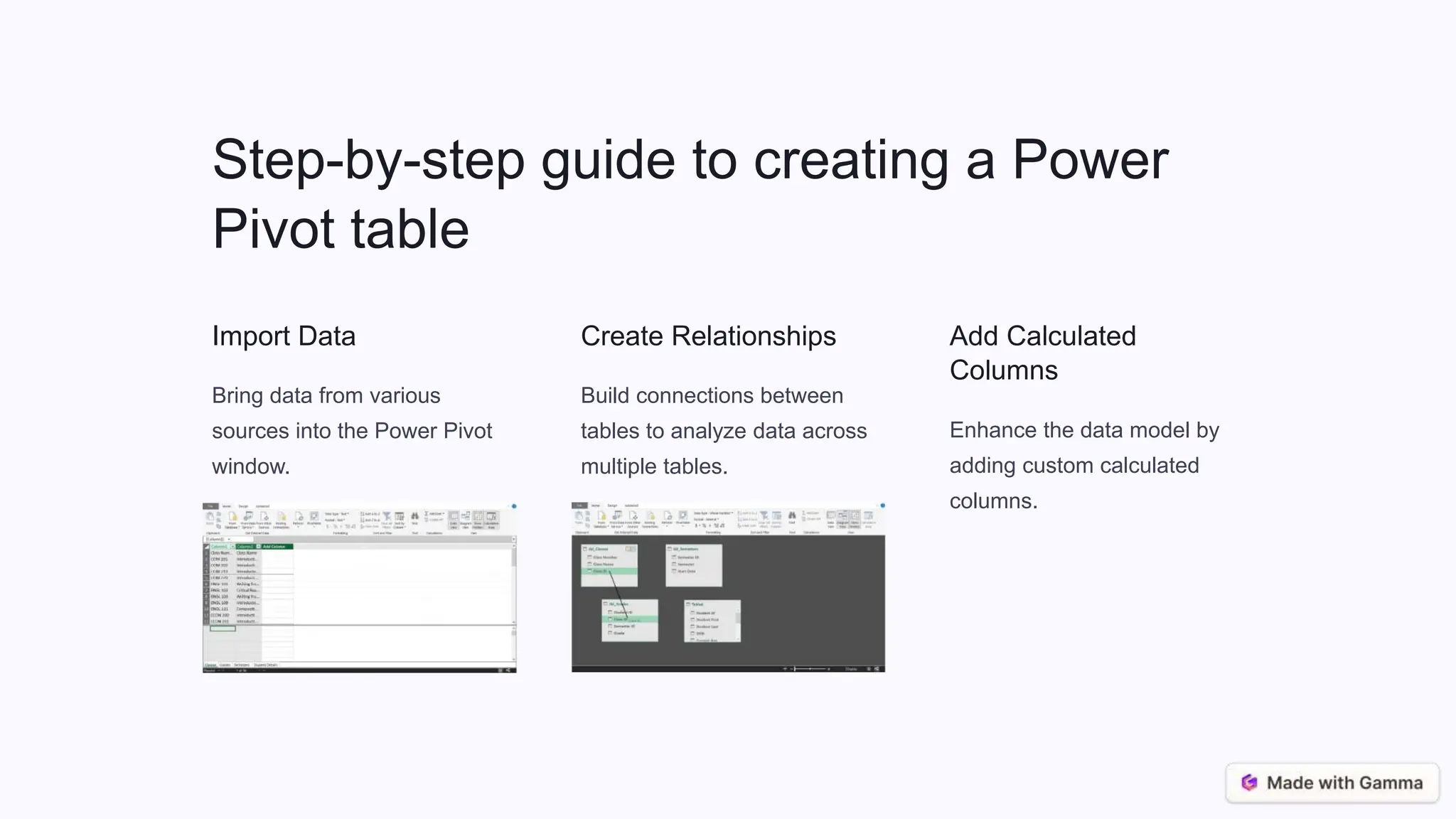
Import Data
Bring data from various
sources into the Power Pivot
window.
Create Relationships
Build connections between
tables to analyze data across
multiple tables.
Add Calculated
Columns
Enhance the data model by
adding custom calculated
columns.
Advanced features and functions of
Power Pivot
Data Analysis
Expressions (DAX)
Utilize DAX to create
sophisticated calculations
and custom measures.
Data Model
Optimization
Learn methods to enhance
and optimize the
performance of data
models.
Integration with
Power BI
Explore seamless
integration with Power BI
for enhanced data
visualization.
Tips and tricks for optimizing Power
Pivot performance
1 Data Modeling Best
Practices
Implement efficient data modeling
techniques for improved
performance.
2 Use of Relationships
Optimize relationships between
tables for faster data analysis.
3 Cleanup and Compression
Perform data cleanup and compression to enhance memory utilization.
Conclusion and key takeaways
1 Data Analysis Mastery
Master the art of data analysis with Power Pivot's advanced capabilities.
2 Visual Storytelling
Create compelling visual narratives using the power of data visualization.
3 Empower Decision Making
Equip decision-makers with clear insights and actionable information.

Introduction-to-Power-Pivot-in-Excel.pptx

  • 1.
    Introduction to Power Pivotin Excel Power Pivot is a powerful data modeling tool in Excel. It allows users to create data models, analyze large datasets, and create sophisticated reports. by anupama
  • 2.
    What is PowerPivot? Data Modeling Power Pivot enables users to create data models for in-depth analysis. Excel Integration It's an Excel add-in, seamlessly integrating with familiar Excel tools. Big Data Analysis Capable of handling and analyzing large datasets efficiently.
  • 3.
    Benefits of usingPower Pivot 1 Data Integration Consolidates data from multiple sources for comprehensive analysis. 2 Speed Allows for fast reporting and analysis of large datasets. 3 Advanced Calculations Enables complex calculations and statistical analysis with ease. 4 Visualization Creates interactive and visually compelling reports and dashboards.
  • 4.
    Example of PowerPivot in action Dynamic Dashboard An example of an interactive dashboard created using Power Pivot. Complex Data Model Illustration of a sophisticated data model built with Power Pivot. Visual Reports Examples of visually rich and insightful reports generated using Power Pivot.
  • 5.
    Step-by-step guide tocreating a Power Pivot table Import Data Bring data from various sources into the Power Pivot window. Create Relationships Build connections between tables to analyze data across multiple tables. Add Calculated Columns Enhance the data model by adding custom calculated columns.
  • 6.
    Advanced features andfunctions of Power Pivot Data Analysis Expressions (DAX) Utilize DAX to create sophisticated calculations and custom measures. Data Model Optimization Learn methods to enhance and optimize the performance of data models. Integration with Power BI Explore seamless integration with Power BI for enhanced data visualization.
  • 7.
    Tips and tricksfor optimizing Power Pivot performance 1 Data Modeling Best Practices Implement efficient data modeling techniques for improved performance. 2 Use of Relationships Optimize relationships between tables for faster data analysis. 3 Cleanup and Compression Perform data cleanup and compression to enhance memory utilization.
  • 8.
    Conclusion and keytakeaways 1 Data Analysis Mastery Master the art of data analysis with Power Pivot's advanced capabilities. 2 Visual Storytelling Create compelling visual narratives using the power of data visualization. 3 Empower Decision Making Equip decision-makers with clear insights and actionable information.