Excel
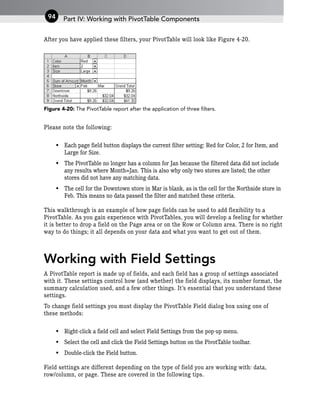
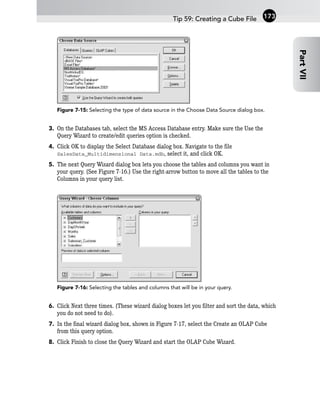
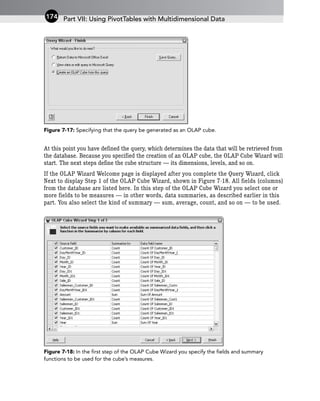
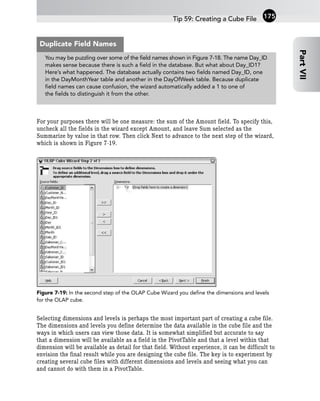
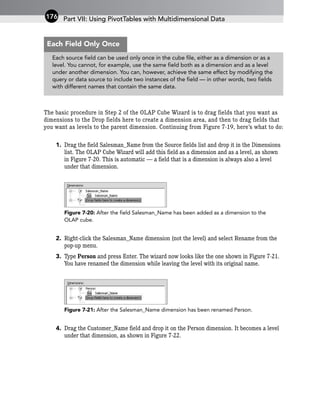
®
PivotTables
and Charts
Peter G. Aitken
Excel
®
PivotTables
and Charts
Peter G. Aitken
Excel®
PivotTables and Charts
Published by
Wiley Publishing, Inc.
10475 Crosspoint Boulevard
Indianapolis, IN 46256
www.wiley.com
Copyright © 2006 by Wiley Publishing, Inc., Indianapolis, Indiana
Published simultaneously in Canada
ISBN-13: 978-0-471-77240-8
ISBN-10: 0-471-77240-2
Manufactured in the United States of America
10 9 8 7 6 5 4 3 2 1
1MA/RZ/RS/QV/IN
No part of this publication may be reproduced, stored in a retrieval system or transmitted in any form or by any means,
electronic, mechanical, photocopying, recording, scanning or otherwise, except as permitted under Sections 107 or 108 of the
1976 United States Copyright Act, without either the prior written permission of the Publisher, or authorization through payment
of the appropriate per-copy fee to the Copyright Clearance Center, 222 Rosewood Drive, Danvers, MA 01923, (978) 750-8400,
fax (978) 646-8600. Requests to the Publisher for permission should be addressed to the Legal Department, Wiley Publishing,
Inc., 10475 Crosspoint Blvd., Indianapolis, IN 46256, (317) 572-3447, fax (317) 572-4355, or online at http://www.
wiley.com/go/permissions.
LIMIT OF LIABILITY/DISCLAIMER OF WARRANTY: THE PUBLISHER AND THE AUTHOR MAKE NO
REPRESENTATIONS OR WARRANTIES WITH RESPECT TO THE ACCURACY OR COMPLETENESS OF THE
CONTENTS OF THIS WORK AND SPECIFICALLY DISCLAIM ALL WARRANTIES, INCLUDING WITHOUT
LIMITATION WARRANTIES OF FITNESS FOR A PARTICULAR PURPOSE. NO WARRANTY MAY BE CREATED OR
EXTENDED BY SALES OR PROMOTIONAL MATERIALS. THE ADVICE AND STRATEGIES CONTAINED HEREIN
MAY NOT BE SUITABLE FOR EVERY SITUATION. THIS WORK IS SOLD WITH THE UNDERSTANDING THAT THE
PUBLISHER IS NOT ENGAGED IN RENDERING LEGAL, ACCOUNTING, OR OTHER PROFESSIONAL SERVICES. IF
PROFESSIONAL ASSISTANCE IS REQUIRED, THE SERVICES OF A COMPETENT PROFESSIONAL PERSON
SHOULD BE SOUGHT. NEITHER THE PUBLISHER NOR THE AUTHOR SHALL BE LIABLE FOR DAMAGES
ARISING HEREFROM. THE FACT THAT AN ORGANIZATION OR WEBSITE IS REFERRED TO IN THIS WORK AS A
CITATION AND/OR A POTENTIAL SOURCE OF FURTHER INFORMATION DOES NOT MEAN THAT THE AUTHOR
OR THE PUBLISHER ENDORSES THE INFORMATION THE ORGANIZATION OR WEBSITE MAY PROVIDE OR
RECOMMENDATIONS IT MAY MAKE. FURTHER, READERS SHOULD BE AWARE THAT INTERNET WEBSITES
LISTED IN THIS WORK MAY HAVE CHANGED OR DISAPPEARED BETWEEN WHEN THIS WORK WAS WRITTEN
AND WHEN IT IS READ.
For general information on our other products and services or to obtain technical support, please contact our Customer Care
Department within the U.S. at (800) 762-2974, outside the U.S. at (317) 572-3993 or fax (317) 572-4002.
Library of Congress Cataloging-in-Publication Data
Aitken, Peter.
Excel Pivot tables and charts / Peter Aitken.
p. cm.
Includes index.
ISBN-13: 978-0-471-77240-8 (paper/website)
ISBN-10: 0-471-77240-2 (paper/website)
1. Microsoft Excel (Computer file) 2. Business—Computer programs. I. Title.
HF5548.4.M523A455 2005
005.54—dc22
2005029714
Trademarks: Wiley and the Wiley logo are trademarks or registered trademarks of John Wiley & Sons, Inc. and/or its affiliates,
in the United States and other countries, and may not be used without written permission. Excel is a registered trademark of
Microsoft Corporation in the United States and/or other countries. All other trademarks are the property of their respective
owners. Wiley Publishing, Inc., is not associated with any product or vendor mentioned in this book.
About the Author
Peter Aitken has been writing about computers and software for 20 years and has some
45 books as well as hundreds of magazine and web articles to his credit. He specializes in
Excel, Visual Basic programming, and XML, but he has also ventured into such varied top-
ics as personal finance, digital imaging, and camera phones. Peter also does technical
writing in the medical and pharmaceutical fields and is a part-time faculty member at
Duke University Medical Center.
Acquisitions Editor: Katie Mohr
Development Editor: Sydney Jones
Technical Editor: Mike Talley
Production Editor: Kenyon Brown
Copy Editor: S. B. Kleinman
Editorial Manager: Mary Beth Wakefield
Production Manager: Tim Tate
Vice President and Executive Group
Publisher: Richard Swadley
Vice President and Executive Publisher:
Joseph B. Wikert
Project Coordinator: Ryan Steffen
Graphics and Production Specialists:
Sean Decker, Denny Hager,
Jennifer Heleine, Heather Pope,
Melanee Prendergast, Barbara Moore
Quality Control Technician: David Faust,
Joseph Niesen
Proofreading: Susan Sims
Indexing: TECHBOOKS Production Services
Credits
Acknowledgments
An author does not create a book all alone—along the way are many helping hands that
are essential to the process. My thanks to all of these talented people: Katie Mohr, my
acquisitions editor; Mike Talley, who reviewed the book for technical accuracy; and Sydney
Jones, my developmental editor.
Contents at a Glance
Part I: Understanding PivotTables and Charts 1
Part II: Understanding Data Sources for PivotTables 15
Part III: Using PivotTable Tools and Formatting 59
Part: IV: Working with PivotTable Components 77
Part V: More About PivotTable Components 111
Part VI: Understanding and Using PivotCharts 137
Part VII: Using PivotTables with Multidimensional Data 159
Part VIII: Getting Hard Data from a PivotTable 183
Part IX: PivotTable Alternatives 197
Part X: Programming PivotTables with VBA 211
Appendix A: Troubleshooting PivotTables and PivotCharts 237
Appendix B: Excel Version Differences for PivotTables 241
Appendix C: An Excel Chart Primer 245
Index 263
Contents
Part I: Understanding PivotTables and Charts 1
Tips and Where to Find Them 2
Understanding How PivotTables Work 3
Working with PivotTables 4
Creating a PivotTable Report 5
Creating a PivotTable Report with Multiple Columns 9
Creating a PivotChart 12
Part II: Understanding Data Sources for PivotTables 15
Tips and Where to Find Them 16
Using Excel Data from the Same Workbook 17
Using Excel Data from Another Workbook 20
Using Data from Other Sources 23
Using Data from Databases 25
Existing Data Source 25
XXXX Database 27
<New Data Source> 28
Queries 30
OLAP Cubes 30
Creating a PivotTable Report from Data in an Access Database 31
Using Other External Data Sources 39
Using Multiple Consolidation Ranges 39
Letting Excel Create a Single Page Field 42
Creating Your Own Page Fields 44
Creating a Single-Page Field PivotTable Report from Multiple Consolidation Ranges 47
Creating a Multiple-Page Field PivotTable Report from Multiple Consolidation Ranges 50
Basing a PivotTable on Another PivotTable Report 54
Creating a PivotTable with Inner and Outer Row Fields 54
Part III: Using PivotTable Tools and Formatting 59
Tips and Where to Find Them 60
Using the Layout Dialog Box in the PivotTable and PivotChart Wizard 61
Understanding the PivotTable Toolbar 63
Customizing the PivotTable Toolbar 63
Using the PivotTable Menu 64
Setting PivotTable Options 65
Format Options 66
Data Options 68
Formatting PivotTables 69
Autoformatting a PivotTable 70
Changing the Number Format 72
Changing Other Formats 73
Applying Formatting to a PivotTable Report 74
Part IV: Working with PivotTable Components 77
Tips and Where to Find Them 78
Using Drop Areas 79
The Field List 79
Dragging a Field Off a PivotTable 80
Using the Row Drop Area 80
Using Multiple Row Fields 82
Using the Column Drop Area 84
Creating a PivotTable with Two Column Fields and Two Row Fields 85
Using the Data Drop Area 87
Using Multiple Data Fields 88
Using the Page Drop Area 90
Creating a PivotTable with Three Page Fields 91
Working with Field Settings 94
Using Settings for Data Fields 95
Using Different Summary Functions 96
Working with Settings for Row and Column Fields 99
Advanced Row and Column Field Settings 100
Field Layout Settings 100
Working with Settings for Page Fields 102
Understanding Advanced Field Settings 103
Page Field Options 103
Sort Options 104
Using the Sort and AutoShow Options 105
Setting Advanced Data Field Options 107
Part V: More About PivotTable Components 111
Tips and Where to Find Them 112
Working with Calculated Fields and Items 113
Calculated Fields 113
Creating and Using a Calculated Field 114
Contents
vi
Working with Calculated Items 119
Creating and Using a Calculated Item 120
Showing and Hiding Detail 124
Viewing Detail for Data Items 124
Viewing Details for Field Items 124
Viewing Detail in OLAP Reports 126
Grouping PivotTable Items 128
Grouping Numeric Items 128
Grouping Dates 130
Grouping Other Items 132
Grouping Category Data 132
Part VI: Understanding and Using PivotCharts 137
Tips and Where to Find Them 138
Understanding PivotCharts 139
Creating a PivotChart 139
Create a PivotChart from an Existing PivotTable 139
Create a PivotChart from Scratch 139
Creating a PivotChart from Scratch 141
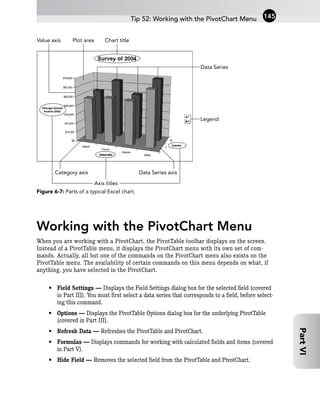
Understanding the Parts of a Chart 144
Working with the PivotChart Menu 145
Understanding and Changing PivotChart Types 146
Understanding a PivotChart’s Structure 148
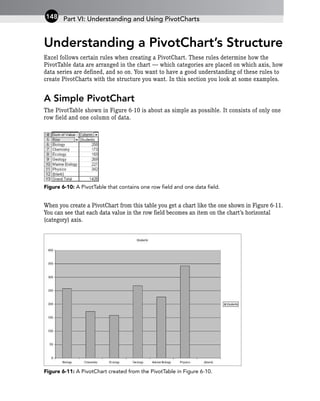
A Simple PivotChart 148
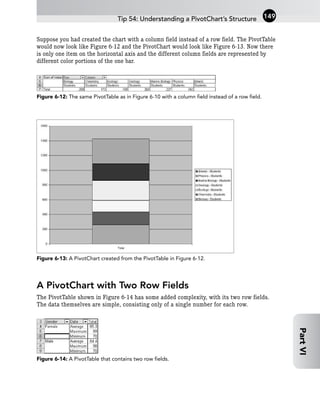
A PivotChart with Two Row Fields 149
A PivotChart with Two Column Fields 152
Creating a 3-D PivotChart 153
Part VII: Using PivotTables with Multidimensional Data 159
Tips and Where to Find Them 160
Using Multidimensional Data 161
Understanding Multidimensional Data 162
Flat Data 162
Relational Data 162
Multidimensional Data 164
Where Are Multidimensional Data Stored? 170
Multidimensional Data Terminology 171
Creating a Cube File 172
Creating a PivotTable from a Cube File 179
Working with OLAP PivotTables 182
Contents vii
Part VIII: Getting Hard Data from a PivotTable 183
Tips and Where to Find Them 184
Understanding the GETPIVOTDATA Function 185
GETPIVOTDATA Function Basics 185
A GetPivotData Shortcut 187
Referencing PivotTable Cells by Address 187
Page Fields and the GETPIVOTDATA Function 188
GETPIVOTDATA and OLAP Data 189
GETPIVOTDATA and Show/Hide Detail 190
Using GETPIVOTDATA to Analyze PivotTable Data 191
Copying and Pasting PivotTables 194
Part IX: PivotTable Alternatives 197
Tips and Where to Find Them 198
Working with Subtotals 199
Nesting Subtotals 202
Hiding and Showing Subtotal Detail 205
Working With Database Functions 206
Defining Criteria 207
Working with Crosstabs 209
Working with Filters 209
Part X: Programming PivotTables with VBA 211
Tips and Where to Find Them 212
Understanding the PivotTable Object Model 213
Referencing and Creating PivotTables 215
Referencing an Existing PivotTable 215
Creating a New PivotTable in Code 216
Using the PivotTableWizard Method 217
Creating a New PivotTable Without the PivotTableWizard Method 219
Working with the PivotTable Object 221
Adding and Removing Row, Column, and Page Fields 223
Adding and Removing Data Fields 224
Creating a PivotTable Using VBA Code 225
Working with PivotTable Fields 227
Creating and Changing Filters 228
Changing a Field’s Position 229
Creating Calculated Fields and Items 229
Hide and Show Field Items 230
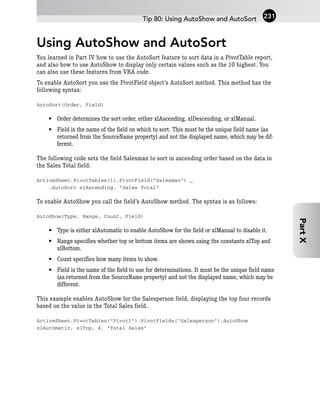
Using AutoShow and AutoSort 231
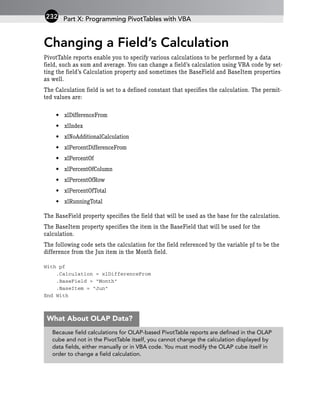
Changing a Field’s Calculation 232
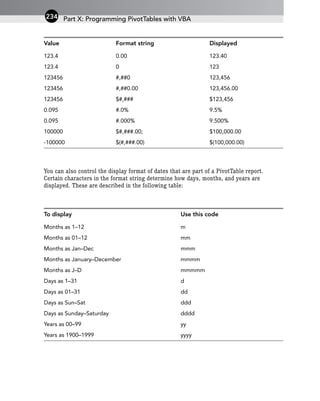
Changing the Display Format of a Field 233
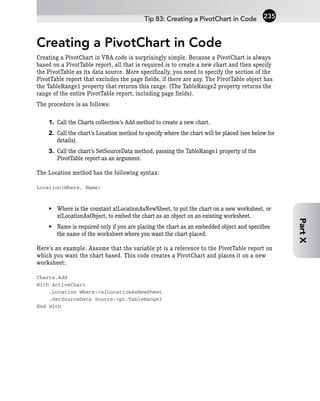
Creating a PivotChart in Code 235
Contents
viii
Appendix A: Troubleshooting PivotTables and PivotCharts 237
Appendix B: Excel Version Differences for PivotTables 241
Appendix C: An Excel Chart Primer 245
Index 263
Contents ix
1
Understanding
PivotTables and
Charts
In this part you learn about PivotTables and PivotCharts, which are
powerful data-analysis tools in Excel. They are invaluable for
pulling meaning from huge masses of seemingly meaningless data.
Given their power, PivotTables and PivotCharts are surprisingly easy
to use, but using them still involves many unavoidable complexities.
This book teaches you how to use PivotTables and PivotCharts
efficiently and effectively. As the first step, you need to understand
what these tools are and when you might want to use them.
I
Part
Tips and Where to Find Them
Tip 1 Understanding How
PivotTables Work 3
Tip 2 Working with PivotTables 4
Tip 3 Creating a PivotTable Report 5
Tip 4 Creating a PivotTable Report
with Multiple Columns 9
Tip 5 Creating a PivotChart 12
2
Understanding How PivotTables Work
PivotTables enable you to extract meaning from large amounts of data. This description is
deceptively simple because in fact PivotTables are powerful and sophisticated tools that
enable you to do things that would be impossible or difficult to do any other way. A
PivotTable enables you to take what seems to be an indecipherable mass of facts and
extract any trends and patterns buried in the data. You can organize and summarize your
data, perform comparisons, and extract meaningful information that can be invaluable to
you and your organization.
Why the term pivot? It comes from an analogy between the way PivotTables work and the
way you investigate a physical object. Imagine that you have been handed a complex device
and asked to figure out what it does. You don’t just look at it from one angle; rather you
turn it in your hands, examining it from all possible perspectives to be sure you do not
miss any important clues. PivotTables work the same way, enabling you to turn or pivot the
raw data and examine it from various perspectives to extract the information you need.
Then you also have the option of creating a PivotChart, a graphical representation of the
information in a PivotTable.
Suppose you work for a chain of sporting-goods stores. Every day you receive a report from
each store that includes complete details on that day’s activities, such as number of cus-
tomers each hour, sales in each of 30 categories, items returned for refund or exchange,
and number of employees on duty at different times of the day. It won’t be long before your
Excel workbook is chock-full of this raw data, but what good does it do you? You could
stare at this information for hours without gaining any useful insights from it. But with a
PivotTable you can quickly and easily answer the following types of questions:
• Which days of the week show the highest sales?
• Which categories of merchandise sell best at different times of the year?
• Are more employees scheduled to work when there is the highest customer load?
• Do certain categories of merchandise suffer from unusually high rates of
return/exchange?
These are the kinds of questions that a business needs to answer in order to operate effi-
ciently. These are also the kinds of questions that PivotTables are designed to answer.
The same kinds of analysis are appropriate for almost any kind of data you can imagine,
from political surveys to weather patterns, from quality control in a manufacturing plant
to test scores in a high school. That’s the beauty of PivotTables — they are powerful and
flexible.
Tip 1: Understanding How PivotTables Work
Part
I
3
Working with PivotTables
I could talk about PivotTables until I am blue in the face, but it’s much better to actually
show an example. By looking at the kind of data that PivotTables are used for, and seeing
the resulting PivotTable in action, you will get a good understanding of the what and why
of this powerful tool.
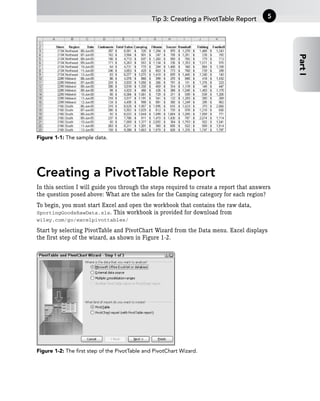
Figure 1.1 shows some data that are typical of the kind you would analyze using a
PivotTable. These data are based on the sporting-goods store example I mentioned earlier.
As with other examples in this book I have intentionally simplified the data to illustrate
the points I am trying to make without confusing you with unnecessary details. You should
not think that PivotTables are limited to relatively simple data such as these!
What questions might you want to ask about these data? Here are a few that come to mind:
• What are the sales for the Camping category for each region?
• In each store, which days of the week see the most customers?
• In each store, which category has the highest sales?
• Which day of the week has the lowest total sales?
In the following demonstration you explore the first question. You create a PivotTable
report that shows the total sales of goods in the Camping category subtotaled by region.
Part I: Understanding PivotTables and Charts
4
If you have used older versions of Excel, you may be wondering how PivotTables relate
to another Excel data analysis technique, the crosstab table. The fact is that PivotTables
are a replacement for crosstabs, which are not even supported in newer versions of
Excel. PivotTables are significantly more powerful than crosstabs and are easier to use.
If you find yourself working with an old workbook that contains a crosstab table, your
best bet is to convert it to a PivotTable report. Then you’ll have the power of the
PivotTable at your fingertips if you need to change the way the data is analyzed. To
convert a crosstab to a PivotTable, follow these steps:
1. Open the workbook that contains the crosstab table.
2. Click any cell in the crosstab table.
3. Select Pivot Table and Pivot Chart Report from the Data menu.
4. Click Finish and then click OK in response to any prompts.
5. Save the workbook in the current Excel version.
Of course you should not do this if you or someone else will later need to open the
workbook in the older version of Excel.
What About Crosstab Tables?
Figure 1-1: The sample data.

Creating a PivotTable Report
In this section I will guide you through the steps required to create a report that answers
the question posed above: What are the sales for the Camping category for each region?
To begin, you must start Excel and open the workbook that contains the raw data,
SportingGoodsRawData.xls. This workbook is provided for download from
wiley.com/go/excelpivottables/
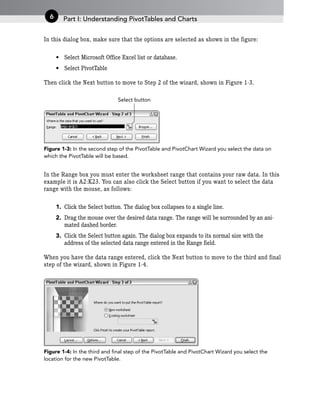
Start by selecting PivotTable and PivotChart Wizard from the Data menu. Excel displays
the first step of the wizard, as shown in Figure 1-2.
Figure 1-2: The first step of the PivotTable and PivotChart Wizard.
Tip 3: Creating a PivotTable Report
Part
I
5
In this dialog box, make sure that the options are selected as shown in the figure:
• Select Microsoft Office Excel list or database.
• Select PivotTable
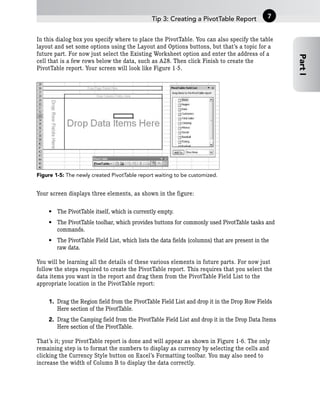
Then click the Next button to move to Step 2 of the wizard, shown in Figure 1-3.
Figure 1-3: In the second step of the PivotTable and PivotChart Wizard you select the data on
which the PivotTable will be based.
In the Range box you must enter the worksheet range that contains your raw data. In this
example it is A2:K23. You can also click the Select button if you want to select the data
range with the mouse, as follows:
1. Click the Select button. The dialog box collapses to a single line.
2. Drag the mouse over the desired data range. The range will be surrounded by an ani-
mated dashed border.
3. Click the Select button again. The dialog box expands to its normal size with the
address of the selected data range entered in the Range field.
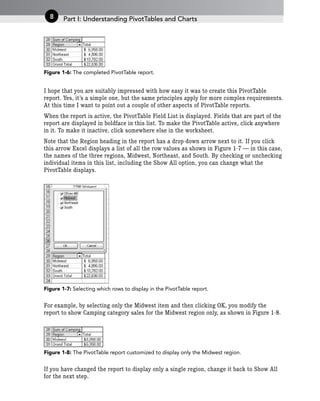
When you have the data range entered, click the Next button to move to the third and final
step of the wizard, shown in Figure 1-4.
Figure 1-4: In the third and final step of the PivotTable and PivotChart Wizard you select the
location for the new PivotTable.
Select button
Part I: Understanding PivotTables and Charts
6
In this dialog box you specify where to place the PivotTable. You can also specify the table
layout and set some options using the Layout and Options buttons, but that’s a topic for a
future part. For now just select the Existing Worksheet option and enter the address of a
cell that is a few rows below the data, such as A28. Then click Finish to create the
PivotTable report. Your screen will look like Figure 1-5.
Figure 1-5: The newly created PivotTable report waiting to be customized.
Your screen displays three elements, as shown in the figure:
• The PivotTable itself, which is currently empty.
• The PivotTable toolbar, which provides buttons for commonly used PivotTable tasks and
commands.
• The PivotTable Field List, which lists the data fields (columns) that are present in the
raw data.
You will be learning all the details of these various elements in future parts. For now just
follow the steps required to create the PivotTable report. This requires that you select the
data items you want in the report and drag them from the PivotTable Field List to the
appropriate location in the PivotTable report:
1. Drag the Region field from the PivotTable Field List and drop it in the Drop Row Fields
Here section of the PivotTable.
2. Drag the Camping field from the PivotTable Field List and drop it in the Drop Data Items
Here section of the PivotTable.
That’s it; your PivotTable report is done and will appear as shown in Figure 1-6. The only
remaining step is to format the numbers to display as currency by selecting the cells and
clicking the Currency Style button on Excel’s Formatting toolbar. You may also need to
increase the width of Column B to display the data correctly.
Tip 3: Creating a PivotTable Report
Part
I
7
Figure 1-6: The completed PivotTable report.
I hope that you are suitably impressed with how easy it was to create this PivotTable
report. Yes, it’s a simple one, but the same principles apply for more complex requirements.
At this time I want to point out a couple of other aspects of PivotTable reports.
When the report is active, the PivotTable Field List is displayed. Fields that are part of the
report are displayed in boldface in this list. To make the PivotTable active, click anywhere
in it. To make it inactive, click somewhere else in the worksheet.
Note that the Region heading in the report has a drop-down arrow next to it. If you click
this arrow Excel displays a list of all the row values as shown in Figure 1-7 — in this case,
the names of the three regions, Midwest, Northeast, and South. By checking or unchecking
individual items in this list, including the Show All option, you can change what the
PivotTable displays.
Figure 1-7: Selecting which rows to display in the PivotTable report.
For example, by selecting only the Midwest item and then clicking OK, you modify the
report to show Camping category sales for the Midwest region only, as shown in Figure 1-8.
Figure 1-8: The PivotTable report customized to display only the Midwest region.
If you have changed the report to display only a single region, change it back to Show All
for the next step.
Part I: Understanding PivotTables and Charts
8
Creating a PivotTable Report
with Multiple Columns
The example PivotTable presented in the previous section was about the simplest
PivotTable you can create. It will be useful to go through the process of creating a some-
what more sophisticated PivotTable report, one that has multiple columns as well as rows.
The data you will use is shown in Figure 1-10. It is inventory data for a chain of video-
rental stores.
Figure 1-9: The video-rental store inventory data.
These raw data are organized differently from the data in the previous example. Each row
in this table represents a specific category of video for a specific store. The number is the
count of titles in stock for that category. The goal is to create a PivotTable report that pre-
sents this information in an easy-to-read form and to display summary information.
To begin, open the workbook VideoStoreRawData.xls. Use your mouse to select the data
(but not the heading) — cells A4:C28. Then select PivotTable and PivotChart Wizard from
the Data menu to start the wizard. (You saw this first wizard dialog box earlier in Figure
1-2.) Make sure the following options are selected:
• Microsoft Office list or database
• PivotTable
Tip 4: Creating a PivotTable Report with Multiple Columns
Part
I
9
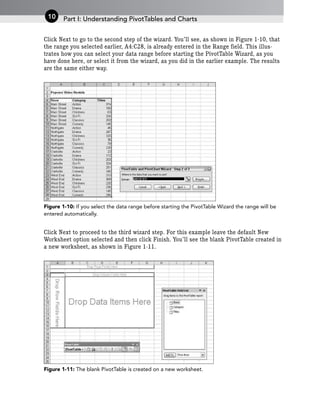
Click Next to go to the second step of the wizard. You’ll see, as shown in Figure 1-10, that
the range you selected earlier, A4:C28, is already entered in the Range field. This illus-
trates how you can select your data range before starting the PivotTable Wizard, as you
have done here, or select it from the wizard, as you did in the earlier example. The results
are the same either way.
Figure 1-10: If you select the data range before starting the PivotTable Wizard the range will be
entered automatically.
Click Next to proceed to the third wizard step. For this example leave the default New
Worksheet option selected and then click Finish. You’ll see the blank PivotTable created in
a new worksheet, as shown in Figure 1-11.
Figure 1-11: The blank PivotTable is created on a new worksheet.
Part I: Understanding PivotTables and Charts
10
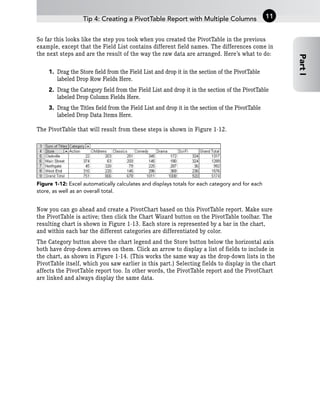
So far this looks like the step you took when you created the PivotTable in the previous
example, except that the Field List contains different field names. The differences come in
the next steps and are the result of the way the raw data are arranged. Here’s what to do:
1. Drag the Store field from the Field List and drop it in the section of the PivotTable
labeled Drop Row Fields Here.
2. Drag the Category field from the Field List and drop it in the section of the PivotTable
labeled Drop Column Fields Here.
3. Drag the Titles field from the Field List and drop it in the section of the PivotTable
labeled Drop Data Items Here.
The PivotTable that will result from these steps is shown in Figure 1-12.
Figure 1-12: Excel automatically calculates and displays totals for each category and for each
store, as well as an overall total.
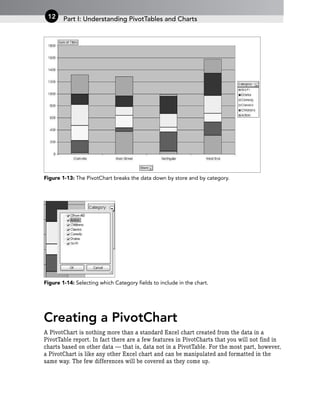
Now you can go ahead and create a PivotChart based on this PivotTable report. Make sure
the PivotTable is active; then click the Chart Wizard button on the PivotTable toolbar. The
resulting chart is shown in Figure 1-13. Each store is represented by a bar in the chart,
and within each bar the different categories are differentiated by color.
The Category button above the chart legend and the Store button below the horizontal axis
both have drop-down arrows on them. Click an arrow to display a list of fields to include in
the chart, as shown in Figure 1-14. (This works the same way as the drop-down lists in the
PivotTable itself, which you saw earlier in this part.) Selecting fields to display in the chart
affects the PivotTable report too. In other words, the PivotTable report and the PivotChart
are linked and always display the same data.
Tip 4: Creating a PivotTable Report with Multiple Columns
Part
I
11
Figure 1-13: The PivotChart breaks the data down by store and by category.
Figure 1-14: Selecting which Category fields to include in the chart.
Creating a PivotChart
A PivotChart is nothing more than a standard Excel chart created from the data in a
PivotTable report. In fact there are a few features in PivotCharts that you will not find in
charts based on other data — that is, data not in a PivotTable. For the most part, however,
a PivotChart is like any other Excel chart and can be manipulated and formatted in the
same way. The few differences will be covered as they come up.
Part I: Understanding PivotTables and Charts
12
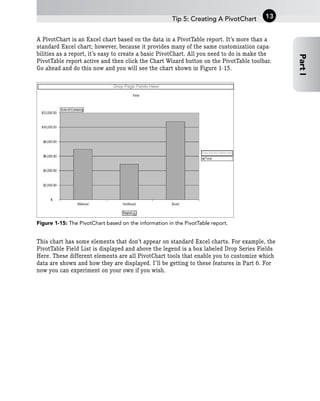
A PivotChart is an Excel chart based on the data in a PivotTable report. It’s more than a
standard Excel chart; however, because it provides many of the same customization capa-
bilities as a report, it’s easy to create a basic PivotChart. All you need to do is make the
PivotTable report active and then click the Chart Wizard button on the PivotTable toolbar.
Go ahead and do this now and you will see the chart shown in Figure 1-15.
Figure 1-15: The PivotChart based on the information in the PivotTable report.
This chart has some elements that don’t appear on standard Excel charts. For example, the
PivotTable Field List is displayed and above the legend is a box labeled Drop Series Fields
Here. These different elements are all PivotChart tools that enable you to customize which
data are shown and how they are displayed. I’ll be getting to these features in Part 6. For
now you can experiment on your own if you wish.
Tip 5: Creating A PivotChart
Part
I
13
15
Understanding
Data Sources
for PivotTables
The first step in analyzing data with a PivotTable is, of course, the
data themselves. Excel provides you with a great deal of flexibility
in this regard. You are not limited to analyzing data that have been
entered into the workbook, although that is, in fact, a common
scenario. The ability to use external data greatly enhances the power
of PivotTable reports. This part explores the various data sources you
can use with PivotTables.
II
Part
Tips and Where to Find Them
Tip 6 Using Excel Data from the
Same Workbook 17
Tip 7 Using Excel Data from
Another Workbook 20
Tip 8 Using Data from Other Sources 23
Tip 9 Using Data from Databases 25
Tip 10 Creating a PivotTable Report
from Data in an Access
Database 31
Tip 11 Using Other External Data
Sources 25
Tip 12 Using Multiple Consolidation
Ranges 25
Tip 13 Letting Excel Create a Single
Page Field 42
Tip 14 Creating Your Own Page Fields 44
Tip 15 Creating a Single-Page Field
PivotTable Report from Multiple
Consolidation Ranges 47
Tip 16 Creating a Multiple-Page Field
PivotTable Report from Multiple
Consolidation Ranges 50
Tip 17 Basing a PivotTable on Another
PivotTable Report 54
Tip 18 Creating a PivotTable with Inner
and Outer Row Fields 54
16
Using Excel Data from the Same
Workbook
Perhaps the most common way to create a PivotTable is by basing it on data that already
exist in an Excel workbook. The data can be in the same workbook as the PivotTable; this
technique was used in Part 1. The data can also be in a separate workbook.
Things are at their simplest when you are creating a PivotTable in the workbook in which
the data are located. The data should be organized as a standard Excel list as follows:
• The first row contains the field or column names.
• The second and subsequent rows contain the data.
• There are no blank rows, although individual blank cells may be present.
To tell the PivotTable Wizard where the data are located, you can do one of three things:
• Select the data before you start the wizard. The address of the data will be entered auto-
matically in the appropriate place in the wizard.
• Enter the address of the data in the second wizard step. (See Figure 2-1.)
• Use the Select button in the second wizard step to select the data range.
Figure 2-1: Specifying the data range in step 2 of the PivotTable Wizard.
Tip 6: Using Excel Data from the Same Workbook 17
Part
II
Actually, there is a fourth and preferred way to tell the PivotTable Wizard where the data
are — create a named range for the data. Using named ranges is more convenient than typ-
ing the address or selecting the data each time you want to refer to them. Named ranges
also provide an advantage in that if you expand the range, perhaps to include additional
data, the PivotTable report will automatically include the new data when it is refreshed.
Here’s how to create a named range:
1. Select the data range.
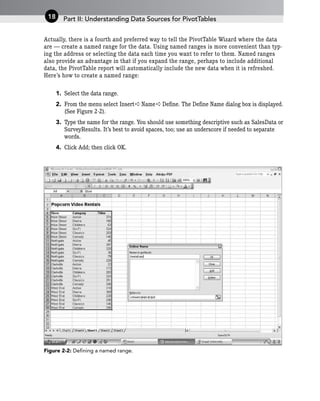
2. From the menu select Insert ➪ Name ➪ Define. The Define Name dialog box is displayed.
(See Figure 2-2).
3. Type the name for the range. You should use something descriptive such as SalesData or
SurveyResults. It’s best to avoid spaces, too; use an underscore if needed to separate
words.
4. Click Add; then click OK.
Figure 2-2: Defining a named range.
Part II: Understanding Data Sources for PivotTables
18
Then, when you are in Step 2 of the PivotTable Wizard, simply enter the range name in the
Range field, as shown in Figure 2-3.
Figure 2-3: Specifying the data range by entering a range name in Step 2 of the PivotTable
Wizard.
Of course if you enter a name that does not exist it will not work. Excel will display an error
message when you try to exit Step 2 of the wizard so you can correct the entered name.
Tip 6: Using Excel Data from the Same Workbook 19
Part
II
If you have applied any autofilters and/or subtotals to your data, they are ignored
when you create a PivotTable from the data. If you want to create a PivotTable based
on the filtered data, you must copy the data to a new list and use that as the basis for
the PivotTable report.
What About Filters and Subtotals?
Using Excel Data from Another
Workbook
If the data you want to use in your PivotTable are in another workbook, the process is
slightly different. You will have to tell the PivotTable and PivotChart Wizard not only the
range in which the data are located but also the name of the workbook they are in.
The easiest way to do this is to have both workbooks open; the one into which you want to
place the PivotTable should be the active one. Then follow these steps:
1. Start the PivotTable and PivotChart Wizard and in Step 1 select the Microsoft Excel List or
Database option.
2. Click Next.
3. In Step 2, click the Select button at the right end of the Range box.
4. Press Alt+Tab or click the Windows taskbar to activate the workbook that contains the
data. (The PivotTable and PivotChart Wizard dialog box will remain visible.)
5. Select the data range for the PivotTable.
6. Click the Select button in the PivotTable and PivotChart Wizard to accept the selection
and return to the wizard.
7. Complete the wizard as usual.
There’s another way to create a PivotTable report based on data in another workbook; this one
does not require that you have the data workbook open. You do, however, have to know the
name of the workbook and the location of the data, either as a named range or a range address.
It is much better to use a range name in this situation, and here are the steps required:
1. Activate the workbook where you want to place the PivotTable report.
2. Start the PivotTable and PivotChart Wizard and in Step 1 select the Microsoft Excel List
or Database option.
Part II: Understanding Data Sources for PivotTables
20
You might be wondering why anyone would put a PivotTable in a different workbook
from the data on which it is based. It is actually very useful in some situations to do so.
Perhaps you have a huge amount of data and the workbook they are in is slow and
cumbersome. By putting the PivotTable in a separate workbook you’ll be able to view
and manipulate the PivotTable summary without the extra overhead of all those data.
Or perhaps you want to summarize data that are located in several different
workbooks. You can create a summary workbook that contains several PivotTable
reports, each linked to its own external data workbook.
Why a Different Workbook?
3. Click Next.
4. In Step 2, click the Browse button. Excel will display the Browse dialog box, as shown
in Figure 2-4.
Figure 2-4: Browsing for the workbook containing the external data.
5. Use the Browse dialog box to locate and select the Excel workbook that contains the
data, then click OK to return to the wizard.
6. You’ll see that a reference to the workbook you selected, followed by an exclamation
point, has been entered in the Range field. Type the name of the range that contains the
data. (See Figure 2-5.)
7. Click Next and complete the wizard as usual.
Tip 7: Using Excel Data from Another Workbook 21
Part
II
Figure 2-5: Entering the range name in the PivotTable Wizard.
When a PivotTable is linked to external data, you can only update it if the linked data
worksheet is available. If this file has been moved, renamed, or deleted, you will not be
able to update the PivotTable. Excel will display an error message when you attempt to do
so. The original PivotTable data will remain in place, however.
Part II: Understanding Data Sources for PivotTables
22
It is important to be aware that PivotTables do not refresh automatically. This is true
regardless of whether the data are in the same workbook as the PivotTable or in an
external workbook. Changes to the data will not be reflected in the PivotTable unless
you refresh the data. You do this in one of two ways:
• Right-click the PivotTable and select Refresh Data from the pop-up menu.
• Open the PivotTable menu from the PivotTable toolbar and select Refresh data.
Recalculating the workbook does not refresh PivotTable data.
PivotTables and Refreshing Data
Using Data from Other Sources
Excel enables you to use data from a variety of other sources for your PivotTable reports.
There are two general ways to do this:
• Link to the external data without importing them into Excel.
• Import the external data into Excel and then treat them as an Excel list.
This section covers the procedures for linking to external data. Importing data is discussed
in the part tip, “Using Other External Data Sources.”
1. To create a PivotTable that is linked to external data, start the PivotTable and
PivotChart Wizard and in Step 1 select the External Data Source option.
2. Click Next; the dialog box shown in Figure 2-6 will display. (Note that the caption next
to the Get Data button says “No data fields have been retrieved.” This indicates that the
external source has not yet been selected.) Click the Get Data button to proceed.
Figure 2-6: This is the first step in selecting an external data source for your PivotTable report.
Tip 8: Using Data from Other Sources 23
Part
II
The Choose Data Source dialog box will display, as shown in Figure 2-7. There are three
tabs in this dialog box, representing the three main options you have for external data. I
will deal with these in turn.
NOTE
Connecting to external data is a potentially complex process, if only because you have
so many options. That’s one of the things that make PivotTable reports in Excel so pow-
erful: you can base them on data from a wide variety of sources. Before trying to create
a PivotTable based on external data, it is a good idea to have at least some idea of
where the data are located and of the type of connection you will use. If you are not
familiar with these topics, you may want to ask your network administrator or IT person
to lend a hand.
Figure 2-7: The Choose Data Source dialog box has three tabs.
Part II: Understanding Data Sources for PivotTables
24
Using Data from Databases
If you want to base your PivotTable report on data from a database, use the Databases tab
in the Choose Data Source dialog box, shown in Figure 2-7. (The items that are displayed
on this tab will depend on your system; don’t expect to have the same items as those
shown in the figure.) There is usually more than one way to connect to an external data-
base, and in some cases the results are exactly the same. The items listed on this tab fall
into three categories:
• Existing data source — Connect to an existing data source.
• XXXX database — Connect to a specific type of database file.
• <New data source> — Define a new data source.
Regardless of which type of connection you use, you need to define a query that determines
what data will be returned by the connection. You won’t often want to base a PivotTable
report on all the data in a database, so this is an important step. Excel’s default is to use
the Query Wizard to define queries and this is what I recommend unless you have a specific
reason not to. If you do not want to use the Query Wizard, uncheck the Use the Query
Wizard to Create/Edit Queries option in the Choose Data Source dialog box. I will use the
Query Wizard in the examples; if you turn off this option the precise steps you will take
will depend on the type of connection you are using.
Existing Data Source
This is not the place for a complete explanation of the Query Wizard, but these are the
basic steps to follow in order to use data from an existing data source:
1. Click the data source’s name in the list and then click OK. The Query Wizard will open
and display information about the data source, specifically what tables are in the source
and what columns (fields) are in each table. An example is shown in Figure 2-8.
2. Open a table to display a list of its fields.
3. Select which fields to include in the query.
4. For each field, define criteria to determine which records are included in the returned
data. (This step is optional and can be omitted if you want to include all the data.)
5. Determine the sort order for the returned data (although this is usually irrelevant for
PivotTable reports).
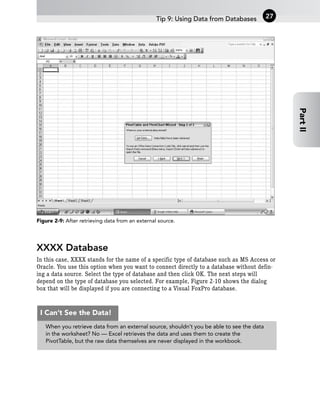
6. In the last Query Wizard step, select the option Return Data to Microsoft Excel and then
click Finish. The Query Wizard will close and you will return to Step 2 of Excel’s
PivotTable Wizard, shown in Figure 2-9.
Tip 9: Using Data from Databases 25
Part
II
Figure 2-8: Using the Query Wizard to define a query.
Note that the caption next to the Get Data button now says “Data fields have been retrieved.”
At this point you can click Next and complete the PivotTable Wizard as usual. The result will
be the same as if you were using Excel data: You’ll have the blank PivotTable and a list of
fields to drag and drop. You can go ahead and define the PivotTable as usual. The fact that
the data are coming from an external source does not make any difference now.
You may have noticed the Options and Browse buttons on the Databases tab. They have the
following functions:
• Browse — If you believe the desired data source is defined but not kept in one of the
standard locations, click this button to browse for it.
• Options — Use this button to specify the folders where Excel looks for defined data
sources. By default, Excel looks in the standard Windows locations, but if you have data
sources saved in another location, you can add it here so the sources will automatically
appear in the list.
Part II: Understanding Data Sources for PivotTables
26
Figure 2-9: After retrieving data from an external source.
XXXX Database
In this case, XXXX stands for the name of a specific type of database such as MS Access or
Oracle. You use this option when you want to connect directly to a database without defin-
ing a data source. Select the type of database and then click OK. The next steps will
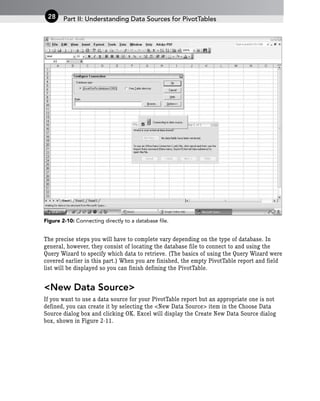
depend on the type of database you selected. For example, Figure 2-10 shows the dialog
box that will be displayed if you are connecting to a Visual FoxPro database.
Tip 9: Using Data from Databases 27
Part
II
When you retrieve data from an external source, shouldn’t you be able to see the data
in the worksheet? No — Excel retrieves the data and uses them to create the
PivotTable, but the raw data themselves are never displayed in the workbook.
I Can’t See the Data!
Figure 2-10: Connecting directly to a database file.
The precise steps you will have to complete vary depending on the type of database. In
general, however, they consist of locating the database file to connect to and using the
Query Wizard to specify which data to retrieve. (The basics of using the Query Wizard were
covered earlier in this part.) When you are finished, the empty PivotTable report and field
list will be displayed so you can finish defining the PivotTable.
<New Data Source>
If you want to use a data source for your PivotTable report but an appropriate one is not
defined, you can create it by selecting the <New Data Source> item in the Choose Data
Source dialog box and clicking OK. Excel will display the Create New Data Source dialog
box, shown in Figure 2-11.
Part II: Understanding Data Sources for PivotTables
28
Figure 2-11: The first step in defining a new data source.
In broad outline the procedure is as follows:
1. Enter a name for the data source.
2. Select the driver to use, according to the type of database to which you will be
connecting.
3. Click the Connect button to create the connection. (The details of this step will depend
on the type of database and the driver.)
4. When the data source definition is complete, click the OK button in the Create New Data
Source dialog box.
At this point you return to the Choose Data Source dialog box. The data source that you
just defined will be listed on the Databases tab. You can select it and proceed as described
earlier in this part in the section “Existing Data Source.”
Tip 9: Using Data from Databases 29
Part
II
Queries
The Queries tab in the Choose Data Source dialog box lets you base your PivotTable report
on an existing query. A query is similar to a data source as described earlier in this part. It
goes a bit further, however. While data sources and queries are both defined and saved con-
nections to a database, a query adds data-selection definitions. In other words, a query
combines a database connection with criteria as to which specific data to retrieve.
When you display the Queries tab in the Choose Data Source dialog box, it will list any
queries that are defined and available. Select the desired query and click OK and then pro-
ceed to complete the PivotTable as usual.
The Options and Browse buttons on the Queries tab are used as follows:
• Browse — If you believe the desired query is defined but not kept in one of the standard
locations, click this button to browse for it.
• Options — Use this button to specify the folders in which Excel looks for defined
queries. By default, Excel looks in the standard Windows locations, but if you have
queries saved in another location, you can add that location here so they will automati-
cally appear in the list.
The term query has a more general meaning as well. You can use a query as the basis of a
PivotTable report even if it is not an officially defined query that shows up on the Query
tab. For example, a Microsoft Access database can contain queries. If you connect to the
database for your PivotTable, as described earlier in this part, these queries will be avail-
able for you to use.
OLAP Cubes
OLAP stands for On-line Analytical Processing, and an OLAP cube simply refers to a
defined OLAP data source. An OLAP cube is like a data source or a query, just a different
way of defining a connection to the data. If there are any cubes defined and available on
your system, they will be listed on the OLAP Cube tab of the Choose Data Source dialog
box. Select the one you want to use and proceed as usual. Using OLAP data, which are
sometimes called multidimensional data, is covered in detail in Part 7.
Part II: Understanding Data Sources for PivotTables
30
The term data source has a specific meaning in Windows. It is a connection to a
database that has been defined and assigned a name. The database may be local or
located on the network or Internet. You can connect to the database simply by using
the name, which is more convenient than defining a new connection from scratch each
time. The term data source also has the more general meaning of any source of data,
so you must be alert to which meaning is intended in a specific context.
Data Sources
Creating a PivotTable Report from
Data in an Access Database
One of the beauties of Excel’s PivotTable reports is that they are not limited to using data
located in a workbook. In fact, it is fairly common to have your data in a database instead.
Depending on the configuration of your system and the database drivers installed, you can
access data in a wide variety of database formats. In this tip I will show you how to create
a PivotTable report based on data in a Microsoft Access database. While some of the
details will be different for other database formats, the general principles will be the same.
For this tip I will use the Northwind database. This is a sample database that is installed
as part of most Microsoft Office installations. Its file name is Northwind.mdb and it is typi-
cally located in the Samples folder under the Microsoft Office installation in Program
Files. If you are not able to find it, you can use the Windows search feature to determine
its location. (If you cannot find the file, it may not have been installed. You can get it from
your Office installation CD and copy it to your hard disk.)
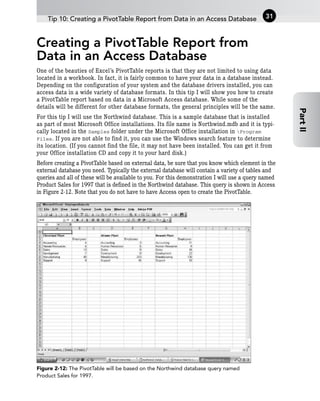
Before creating a PivotTable based on external data, be sure that you know which element in the
external database you need. Typically the external database will contain a variety of tables and
queries and all of these will be available to you. For this demonstration I will use a query named
Product Sales for 1997 that is defined in the Northwind database. This query is shown in Access
in Figure 2-12. Note that you do not have to have Access open to create the PivotTable.
Figure 2-12: The PivotTable will be based on the Northwind database query named
Product Sales for 1997.
Tip 10: Creating a PivotTable Report from Data in an Access Database 31
Part
II
After you have Excel open with a blank worksheet displayed, here are the steps to follow:
1. Select Data ➪ PivotTable and PivotChart Report
2. Select External Data Source.
3. Click Next.
4. In the next dialog box click the Get Data button to display the Choose Data Source dia-
log box.
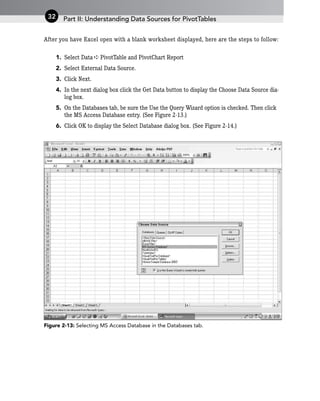
5. On the Databases tab, be sure the Use the Query Wizard option is checked. Then click
the MS Access Database entry. (See Figure 2-13.)
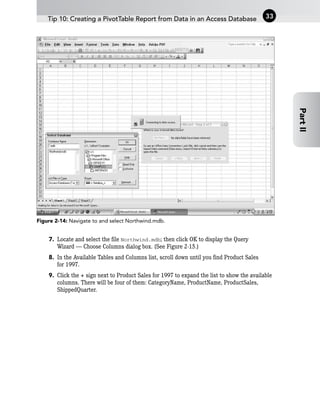
6. Click OK to display the Select Database dialog box. (See Figure 2-14.)
Figure 2-13: Selecting MS Access Database in the Databases tab.
Part II: Understanding Data Sources for PivotTables
32
Figure 2-14: Navigate to and select Northwind.mdb.
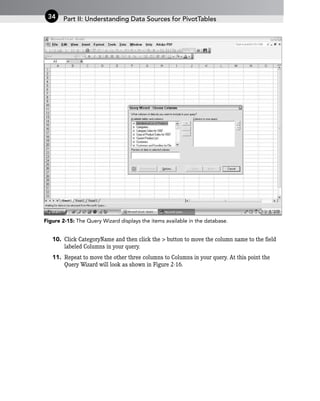
7. Locate and select the file Northwind.mdb; then click OK to display the Query
Wizard — Choose Columns dialog box. (See Figure 2-15.)
8. In the Available Tables and Columns list, scroll down until you find Product Sales
for 1997.
9. Click the + sign next to Product Sales for 1997 to expand the list to show the available
columns. There will be four of them: CategoryName, ProductName, ProductSales,
ShippedQuarter.
Tip 10: Creating a PivotTable Report from Data in an Access Database 33
Part
II
Figure 2-15: The Query Wizard displays the items available in the database.
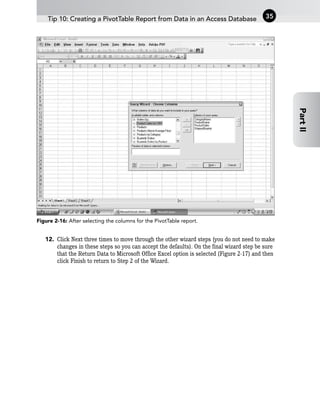
10. Click CategoryName and then click the > button to move the column name to the field
labeled Columns in your query.
11. Repeat to move the other three columns to Columns in your query. At this point the
Query Wizard will look as shown in Figure 2-16.
Part II: Understanding Data Sources for PivotTables
34
Figure 2-16: After selecting the columns for the PivotTable report.
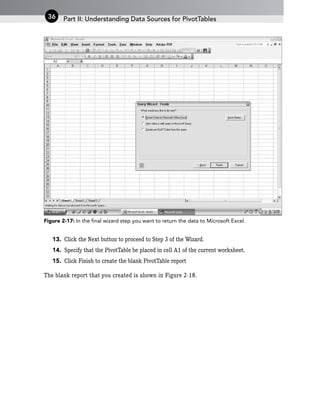
12. Click Next three times to move through the other wizard steps (you do not need to make
changes in these steps so you can accept the defaults). On the final wizard step be sure
that the Return Data to Microsoft Office Excel option is selected (Figure 2-17) and then
click Finish to return to Step 2 of the Wizard.
Tip 10: Creating a PivotTable Report from Data in an Access Database 35
Part
II
Figure 2-17: In the final wizard step you want to return the data to Microsoft Excel.
13. Click the Next button to proceed to Step 3 of the Wizard.
14. Specify that the PivotTable be placed in cell A1 of the current worksheet.
15. Click Finish to create the blank PivotTable report
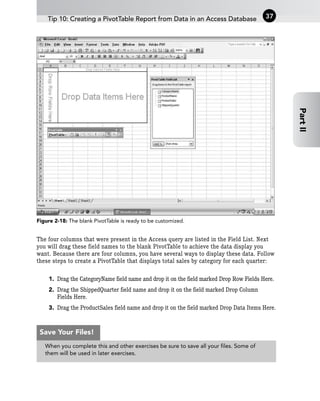
The blank report that you created is shown in Figure 2-18.
Part II: Understanding Data Sources for PivotTables
36
Figure 2-18: The blank PivotTable is ready to be customized.
The four columns that were present in the Access query are listed in the Field List. Next
you will drag these field names to the blank PivotTable to achieve the data display you
want. Because there are four columns, you have several ways to display these data. Follow
these steps to create a PivotTable that displays total sales by category for each quarter:
1. Drag the CategoryName field name and drop it on the field marked Drop Row Fields Here.
2. Drag the ShippedQuarter field name and drop it on the field marked Drop Column
Fields Here.
3. Drag the ProductSales field name and drop it on the field marked Drop Data Items Here.
Tip 10: Creating a PivotTable Report from Data in an Access Database 37
Part
II
When you complete this and other exercises be sure to save all your files. Some of
them will be used in later exercises.
Save Your Files!
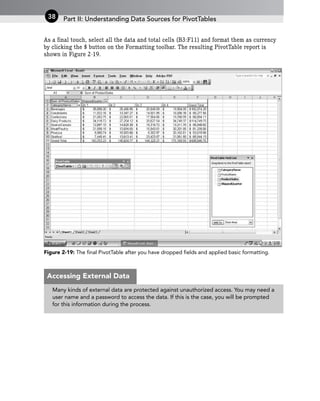
As a final touch, select all the data and total cells (B3:F11) and format them as currency
by clicking the $ button on the Formatting toolbar. The resulting PivotTable report is
shown in Figure 2-19.
Figure 2-19: The final PivotTable after you have dropped fields and applied basic formatting.
Part II: Understanding Data Sources for PivotTables
38
Many kinds of external data are protected against unauthorized access. You may need a
user name and a password to access the data. If this is the case, you will be prompted
for this information during the process.
Accessing External Data
Using Other External Data Sources
Excel provides you with tremendous power when it comes to accessing data. In some situa-
tions the data you want to use in your PivotTable report are located outside Excel but must
be imported before you can use them. A detailed explanation of all the ways Excel can
import data is beyond the scope of this book. Briefly, some of the options are:
• Define a Web Query that imports data from a Web page (Select Data ➪ Import External
Data ➪ New Web Query).
• Define a query that imports data from a database (Select Data ➪ Import External
Data ➪ New Web Query).
• Office Data Connection and Query files (Select Data ➪ Import External Data ➪ Import
Data).
• Open an XML data file.
While the details of these various data-importing methods vary, the end result is the same:
the data will be present in your workbook as a list. For the purposes of creating a
PivotTable report you can treat the data like any other Excel list, as was covered earlier.
The fact that the data were imported is not relevant at this point.
Using Multiple Consolidation Ranges
The third option in Step 1 of the PivotTable Wizard for the location of the data is Multiple
Consolidation Ranges. This is a fancy-sounding name for a simple idea — that your data
are located in two or more separate lists in Excel. The lists can be in the same workbook
or different workbooks. Each list must have the same format, meaning that the column
labels in the first row and the row labels in the first column must be the same in all lists. If
the individual lists contain total rows and/or columns, these must not be included when
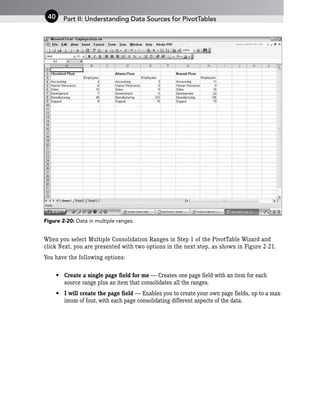
you build the PivotTable report. Figure 2-20 shows an example of data in multiple ranges
that can be consolidated into a PivotTable report.
Tip 12: Using Multiple Consolidation Ranges 39
Part
II
Figure 2-20: Data in multiple ranges.
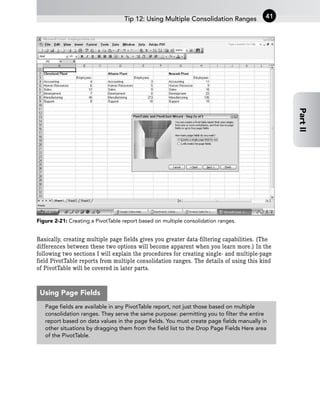
When you select Multiple Consolidation Ranges in Step 1 of the PivotTable Wizard and
click Next, you are presented with two options in the next step, as shown in Figure 2-21.
You have the following options:
• Create a single page field for me — Creates one page field with an item for each
source range plus an item that consolidates all the ranges.
• I will create the page field — Enables you to create your own page fields, up to a max-
imum of four, with each page consolidating different aspects of the data.
Part II: Understanding Data Sources for PivotTables
40
Figure 2-21: Creating a PivotTable report based on multiple consolidation ranges.
Basically, creating multiple page fields gives you greater data-filtering capabilities. (The
differences between these two options will become apparent when you learn more.) In the
following two sections I will explain the procedures for creating single- and multiple-page
field PivotTable reports from multiple consolidation ranges. The details of using this kind
of PivotTable will be covered in later parts.
Tip 12: Using Multiple Consolidation Ranges 41
Part
II
Page fields are available in any PivotTable report, not just those based on multiple
consolidation ranges. They serve the same purpose: permitting you to filter the entire
report based on data values in the page fields. You must create page fields manually in
other situations by dragging them from the field list to the Drop Page Fields Here area
of the PivotTable.
Using Page Fields
Letting Excel Create a
Single Page Field
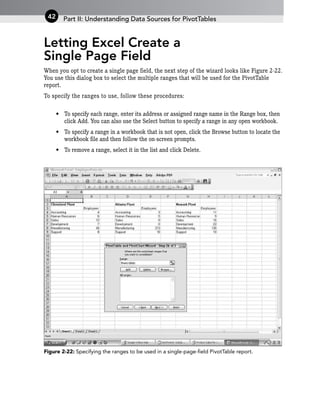
When you opt to create a single page field, the next step of the wizard looks like Figure 2-22.
You use this dialog box to select the multiple ranges that will be used for the PivotTable
report.
To specify the ranges to use, follow these procedures:
• To specify each range, enter its address or assigned range name in the Range box, then
click Add. You can also use the Select button to specify a range in any open workbook.
• To specify a range in a workbook that is not open, click the Browse button to locate the
workbook file and then follow the on-screen prompts.
• To remove a range, select it in the list and click Delete.
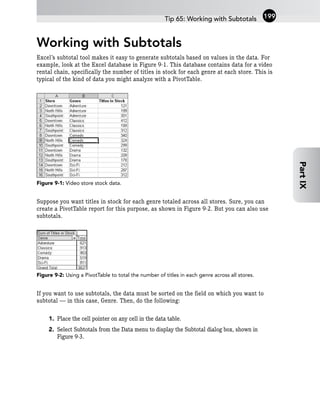
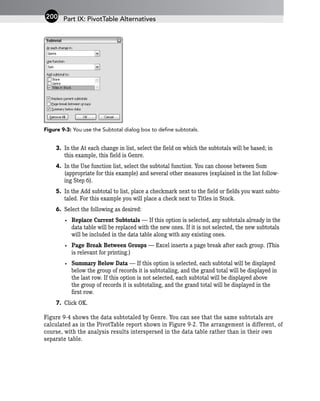
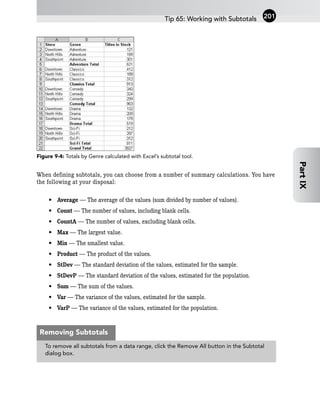
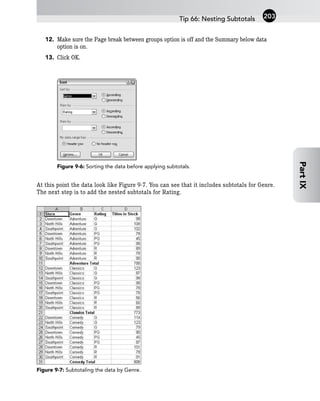
Figure 2-22: Specifying the ranges to be used in a single-page-field PivotTable report.
Part II: Understanding Data Sources for PivotTables
42
When you have specified all the ranges, click the Next button to go to the final wizard step,
in which you specify where to place the PivotTable report. When you finish the wizard, the
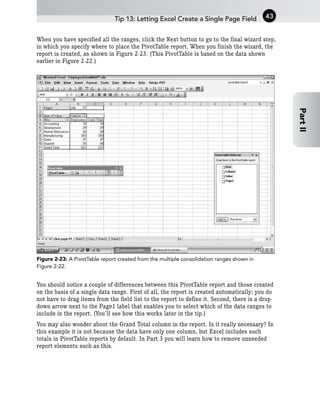
report is created, as shown in Figure 2-23. (This PivotTable is based on the data shown
earlier in Figure 2-22.)
Figure 2-23: A PivotTable report created from the multiple consolidation ranges shown in
Figure 2-22.
You should notice a couple of differences between this PivotTable report and those created
on the basis of a single data range. First of all, the report is created automatically; you do
not have to drag items from the field list to the report to define it. Second, there is a drop-
down arrow next to the Page1 label that enables you to select which of the data ranges to
include in the report. (You’ll see how this works later in the tip.)
You may also wonder about the Grand Total column in the report. Is it really necessary? In
this example it is not because the data have only one column, but Excel includes such
totals in PivotTable reports by default. In Part 3 you will learn how to remove unneeded
report elements such as this.
Tip 13: Letting Excel Create a Single Page Field 43
Part
II
Creating Your Own Page Fields
Creating a PivotTable report with multiple pages is a source of confusion for some Excel
users. To be honest, it is a bit confusing! This is partly because of what I consider a bad
choice of terminology by Microsoft. When people hear the word page they naturally think
that a PivotTable report with more than one page field will display multiple pages, but
that’s not how it works. A page field is a way to filter the PivotTable — in other words, to
specify which of the consolidation ranges are summarized in the report. In the process of
defining a PivotTable with multiple page fields, you will specify the following:
• How many page fields there will be (zero to four).
• Which data range(s) are associated with each page field.
• Descriptive names for the fields.
If you select zero page fields, the resulting PivotTable report will lack any page-field filtering
abilities. This type of report is actually simpler than the standard single-page field report
that you learned how to create in the previous section. It’s appropriate, however, when you
do not need or want an extra level of filtering capability in the PivotTable.
If you select one page field, the resulting PivotTable will be almost identical to the stan-
dard single-page field report. You will have a few more customization options, such as the
option to assign names to fields, but the filtering capabilities of the final PivotTable will be
essentially the same.
It’s when you create two or more page fields that things get interesting. This will become
clearer as you gain experience and after you go through the tip later in this part. The fol-
lowing steps are involved:
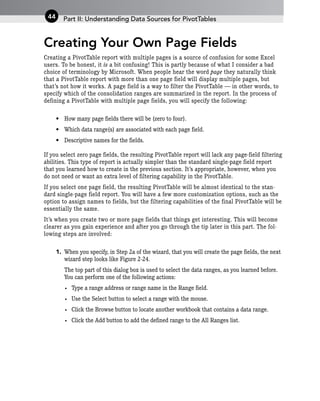
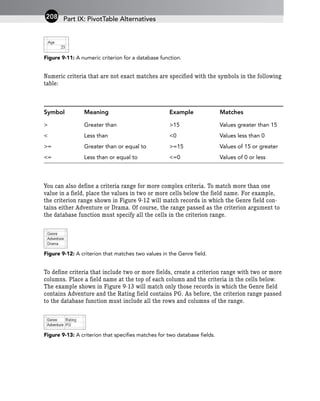
1. When you specify, in Step 2a of the wizard, that you will create the page fields, the next
wizard step looks like Figure 2-24.
The top part of this dialog box is used to select the data ranges, as you learned before.
You can perform one of the following actions:
• Type a range address or range name in the Range field.
• Use the Select button to select a range with the mouse.
• Click the Browse button to locate another workbook that contains a data range.
• Click the Add button to add the defined range to the All Ranges list.
Part II: Understanding Data Sources for PivotTables
44
Figure 2-24: Creating a PivotTable and creating your own page fields.
2. So far this is pretty much the same process as defining the ranges when you are letting
Excel create a single-page field, as described in the previous section. It’s in the lower
part of the dialog box that things get more interesting. First of all, you must select how
many page fields you want. If you select 0, there is nothing more to do and you can click
Next to proceed to the next step of the wizard.
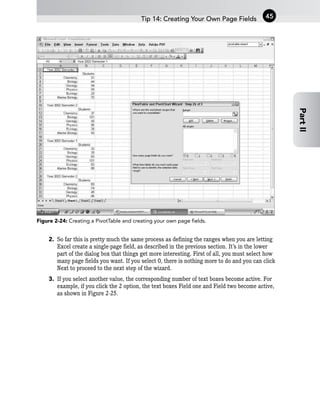
3. If you select another value, the corresponding number of text boxes become active. For
example, if you click the 2 option, the text boxes Field one and Field two become active,
as shown in Figure 2-25.
Tip 14: Creating Your Own Page Fields 45
Part
II
Figure 2-25: One Field box will become available for each page field you are creating.
4. Your next steps will depend on the kind of filtering you want to make available in the
PivotTable. Your objective is to associate specific data ranges with specific fields and
assign descriptive names to them. Here’s how:
a. In the All Fields list, select a range to be included in a filter.
b. In the Field one box, type a descriptive name for this filter. If a name has already
been assigned to a range and you want to assign it to this range as well, you can
select it from the drop-down list.
c. If you are using more than one field, enter a name for this filter in the Field two,
Field three, and Field four boxes.
d. Return to Step 1 to add another range.
e. Repeat until all desired filters have been defined.
f. Click Next to go to the final step of the wizard.
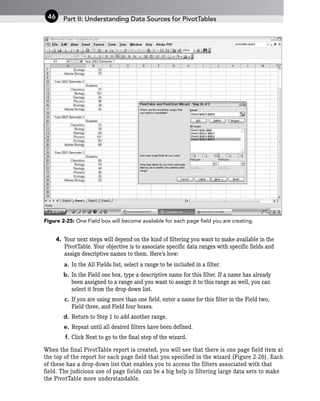
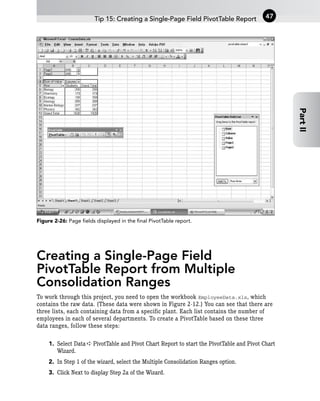
When the final PivotTable report is created, you will see that there is one page field item at
the top of the report for each page field that you specified in the wizard (Figure 2-26). Each
of these has a drop-down list that enables you to access the filters associated with that
field. The judicious use of page fields can be a big help in filtering large data sets to make
the PivotTable more understandable.
Part II: Understanding Data Sources for PivotTables
46
Figure 2-26: Page fields displayed in the final PivotTable report.
Creating a Single-Page Field
PivotTable Report from Multiple
Consolidation Ranges
To work through this project, you need to open the workbook EmployeeData.xls, which
contains the raw data. (These data were shown in Figure 2-12.) You can see that there are
three lists, each containing data from a specific plant. Each list contains the number of
employees in each of several departments. To create a PivotTable based on these three
data ranges, follow these steps:
1. Select Data ➪ PivotTable and Pivot Chart Report to start the PivotTable and Pivot Chart
Wizard.
2. In Step 1 of the wizard, select the Multiple Consolidation Ranges option.
3. Click Next to display Step 2a of the Wizard.
Tip 15: Creating a Single-Page Field PivotTable Report 47
Part
II
4. In this dialog box, make sure the Create a Single-Page Field option is selected.
5. Click Next to display Step 2b of the wizard.
6. Click the Select button at the right end of the Range field.
7. Drag over cells A3:B9 in the worksheet.
8. Click the Select button again.
9. Click the Add button to add the range to the All ranges list.
10. Repeat Steps 5 though 8 to select and add the ranges D3:D9 and G3:G9 to the All
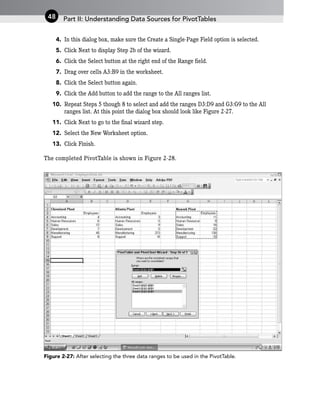
ranges list. At this point the dialog box should look like Figure 2-27.
11. Click Next to go to the final wizard step.
12. Select the New Worksheet option.
13. Click Finish.
The completed PivotTable is shown in Figure 2-28.
Figure 2-27: After selecting the three data ranges to be used in the PivotTable.
Part II: Understanding Data Sources for PivotTables
48
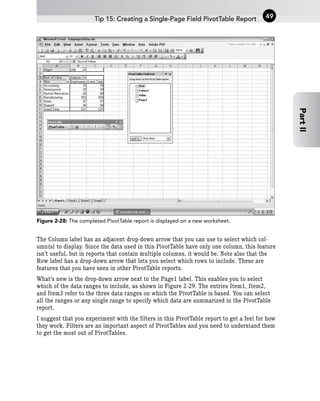
Figure 2-28: The completed PivotTable report is displayed on a new worksheet.
The Column label has an adjacent drop-down arrow that you can use to select which col-
umn(s) to display. Since the data used in this PivotTable have only one column, this feature
isn’t useful, but in reports that contain multiple columns, it would be. Note also that the
Row label has a drop-down arrow that lets you select which rows to include. These are
features that you have seen in other PivotTable reports.
What’s new is the drop-down arrow next to the Page1 label. This enables you to select
which of the data ranges to include, as shown in Figure 2-29. The entries Item1, Item2,
and Item3 refer to the three data ranges on which the PivotTable is based. You can select
all the ranges or any single range to specify which data are summarized in the PivotTable
report.
I suggest that you experiment with the filters in this PivotTable report to get a feel for how
they work. Filters are an important aspect of PivotTables and you need to understand them
to get the most out of PivotTables.
Tip 15: Creating a Single-Page Field PivotTable Report 49
Part
II
Figure 2-29: Selecting which data ranges to include in the PivotTable report.
Creating a Multiple-Page Field
PivotTable Report from Multiple
Consolidation Ranges
This tip demonstrates the steps involved in creating a PivotTable from multiple consolida-
tion ranges using multiple page fields. As I discussed earlier in this part, the concept of
page fields is difficult for most Excel users to grasp. Seeing them in action is the best way
to get a handle on them.
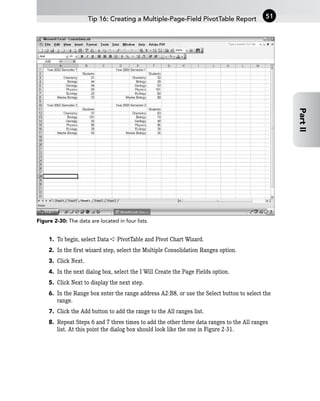
The data for this tip are shown in Figure 2-30. There are four lists, each showing the num-
ber of students enrolled in a particular course for a specific year and semester. You’ll find
this data in CourseData.xls, which you will need to open to follow along.
Part II: Understanding Data Sources for PivotTables
50
Figure 2-30: The data are located in four lists.
1. To begin, select Data ➪ PivotTable and Pivot Chart Wizard.
2. In the first wizard step, select the Multiple Consolidation Ranges option.
3. Click Next.
4. In the next dialog box, select the I Will Create the Page Fields option.
5. Click Next to display the next step.
6. In the Range box enter the range address A2:B8, or use the Select button to select the
range.
7. Click the Add button to add the range to the All ranges list.
8. Repeat Steps 6 and 7 three times to add the other three data ranges to the All ranges
list. At this point the dialog box should look like the one in Figure 2-31.
Tip 16: Creating a Multiple-Page-Field PivotTable Report 51
Part
II
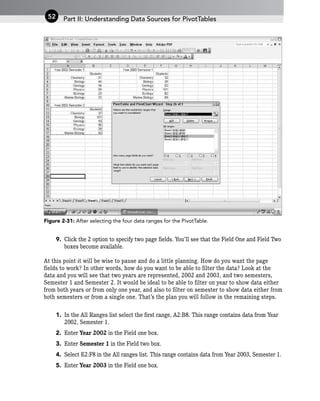
Figure 2-31: After selecting the four data ranges for the PivotTable.
9. Click the 2 option to specify two page fields. You’ll see that the Field One and Field Two
boxes become available.
At this point it will be wise to pause and do a little planning. How do you want the page
fields to work? In other words, how do you want to be able to filter the data? Look at the
data and you will see that two years are represented, 2002 and 2003, and two semesters,
Semester 1 and Semester 2. It would be ideal to be able to filter on year to show data either
from both years or from only one year, and also to filter on semester to show data either from
both semesters or from a single one. That’s the plan you will follow in the remaining steps.
1. In the All Ranges list select the first range, A2:B8. This range contains data from Year
2002, Semester 1.
2. Enter Year 2002 in the Field one box.
3. Enter Semester 1 in the Field two box.
4. Select E2:F8 in the All ranges list. This range contains data from Year 2003, Semester 1.
5. Enter Year 2003 in the Field one box.
Part II: Understanding Data Sources for PivotTables
52
6. Because you already used it, you can simply select Semester 1 from the drop-down list
under Field two.
7. Select the range A11:B17. This contains data for Year 2002 and Semester 2.
8. Select Year 2002 from the drop-down list under Field one.
9. Enter Semester 2 in the Field two box.
10. Select E11:F17 as the final range.
11. Select Year 2003 in the Field one box.
12. Select Semester 2 in the Field two box.
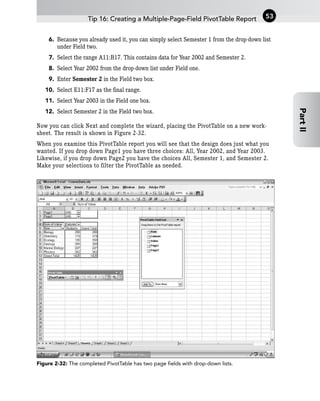
Now you can click Next and complete the wizard, placing the PivotTable on a new work-
sheet. The result is shown in Figure 2-32.
When you examine this PivotTable report you will see that the design does just what you
wanted. If you drop down Page1 you have three choices: All, Year 2002, and Year 2003.
Likewise, if you drop down Page2 you have the choices All, Semester 1, and Semester 2.
Make your selections to filter the PivotTable as needed.
Figure 2-32: The completed PivotTable has two page fields with drop-down lists.
Tip 16: Creating a Multiple-Page-Field PivotTable Report 53
Part
II
As a final task, get rid of the Grand Total column, which is really not needed. All you need
to do is right-click the column heading and select Hide from the pop-up menu. The column
vanishes and your PivotTable report is complete.
Basing a PivotTable on Another
PivotTable Report
A final option for creating a PivotTable report is to base it on an existing PivotTable or
PivotChart. In other words, the summary data in the existing PivotTable report become the
raw data for the second report.
To create a PivotTable based on another PivotTable, select the Another PivotTable or
PivotChart Report option in Step 1 of the PivotTable and PivotChart Wizard. (This option
will be available only if the workbook contains another PivotTable.) When you click Next,
the second wizard step displays a list of all available PivotTables and PivotCharts. Simply
select the desired source and proceed as usual.
Why base one PivotTable on another? In many cases the second PivotTable will, at least
initially, look exactly like the source PivotTable. But by customizing the second PivotTable
you can create two different views of the same data, which is useful in some situations. For
example, the first PivotTable may summarize the original data but still be a rather complex
table. By creating a second PivotTable that uses the first one for its data you could create
a more condensed summary that is easier to read.
Creating a PivotTable with Inner
and Outer Row Fields
A PivotTable is not limited to having only a single row field. You can have two or more row
fields, permitting the report to display details on different levels of data in the various
fields. When you have more than one row field, the one at the top level is called the outer
field and is displayed at the far left of the PivotTable. Other fields at lower levels are called
inner fields and are displayed to the right. This tip shows you how to create a PivotTable
report with two row fields.
Part II: Understanding Data Sources for PivotTables
54
You can have inner and outer column fields as well. They work in essentially the same
way as the inner and outer row fields described in this section. You cannot have inner
and outer page fields.
Multiple Column Fields?
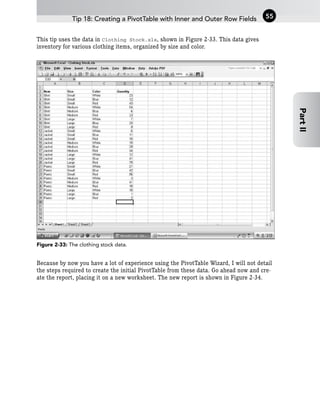
This tip uses the data in Clothing Stock.xls, shown in Figure 2-33. This data gives
inventory for various clothing items, organized by size and color.
Figure 2-33: The clothing stock data.
Because by now you have a lot of experience using the PivotTable Wizard, I will not detail
the steps required to create the initial PivotTable from these data. Go ahead now and cre-
ate the report, placing it on a new worksheet. The new report is shown in Figure 2-34.
Tip 18: Creating a PivotTable with Inner and Outer Row Fields 55
Part
II
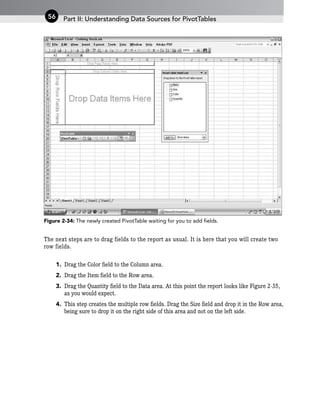
Figure 2-34: The newly created PivotTable waiting for you to add fields.
The next steps are to drag fields to the report as usual. It is here that you will create two
row fields.
1. Drag the Color field to the Column area.
2. Drag the Item field to the Row area.
3. Drag the Quantity field to the Data area. At this point the report looks like Figure 2-35,
as you would expect.
4. This step creates the multiple row fields. Drag the Size field and drop it in the Row area,
being sure to drop it on the right side of this area and not on the left side.
Part II: Understanding Data Sources for PivotTables
56
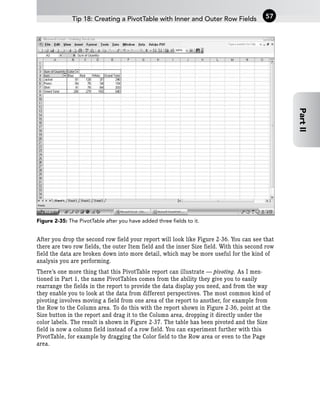
Figure 2-35: The PivotTable after you have added three fields to it.
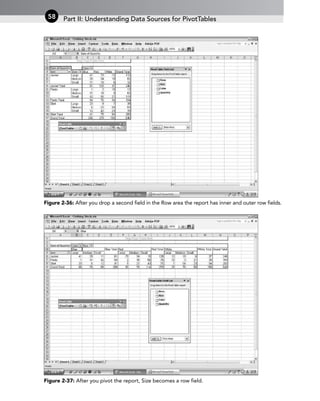
After you drop the second row field your report will look like Figure 2-36. You can see that
there are two row fields, the outer Item field and the inner Size field. With this second row
field the data are broken down into more detail, which may be more useful for the kind of
analysis you are performing.
There’s one more thing that this PivotTable report can illustrate — pivoting. As I men-
tioned in Part 1, the name PivotTables comes from the ability they give you to easily
rearrange the fields in the report to provide the data display you need, and from the way
they enable you to look at the data from different perspectives. The most common kind of
pivoting involves moving a field from one area of the report to another, for example from
the Row to the Column area. To do this with the report shown in Figure 2-36, point at the
Size button in the report and drag it to the Column area, dropping it directly under the
color labels. The result is shown in Figure 2-37. The table has been pivoted and the Size
field is now a column field instead of a row field. You can experiment further with this
PivotTable, for example by dragging the Color field to the Row area or even to the Page
area.
Tip 18: Creating a PivotTable with Inner and Outer Row Fields 57
Part
II
Figure 2-36: After you drop a second field in the Row area the report has inner and outer row fields.
Figure 2-37: After you pivot the report, Size becomes a row field.
Part II: Understanding Data Sources for PivotTables
58
59
Using PivotTable
Tools and
Formatting
Excel has some tools — the PivotTable toolbar and the PivotTable
menu — that are designed specifically for working with
PivotTable reports. You need to understand how to use these tools if
you want to use PivotTables efficiently. This chapter also explains
some of the options that you can set for PivotTables and the various
techniques you can use to format PivotTable reports.
III
Part
Tips and Where to Find Them
Tip 19 Using the Layout Dialog Box in
the PivotTable and PivotChart
Wizard 61
Tip 20 Understanding the PivotTable
Toolbar 63
Tip 21 Customizing the PivotTable
Toolbar 63
Tip 22 Using the PivotTable Menu 64
Tip 23 Setting PivotTable Options 65
Tip 24 Formatting PivotTables 69
Tip 25 Applying Formatting to a
PivotTable Report 74
60
Using the Layout Dialog Box in the
PivotTable and PivotChart Wizard
The PivotTable Wizard (officially called the PivotTable and PivotChart Wizard) is used for
the creation of all PivotTables. (You learned how to use it in previous parts, and I will not be
repeating that basic information here.) However, this wizard has some more advanced fea-
tures that I have not touched on. You can always create a PivotTable without using these
features, but as you gain more experience, you may want to use them to give you additional
control over the layout and appearance of the report. You can get to these features in Step 3
of the wizard by clicking the Layout or Options button, as shown in Figure 3-1.
Figure 3-1: The third step of the PivotTable Wizard lets you access Layout and Option settings.
When you click the Layout button in Step 3 of the wizard, the Layout dialog box will be dis-
played. (See Figure 3-2.) You have already selected your data range at this point, so the
contents of this dialog box will reflect the structure and headings of your data.
Figure 3-2: You use the Layout dialog box to define the structure of your PivotTable report.
Layout and Option buttons
Tip 19: Using the Layout Dialog Box in the PivotTable and PivotChart Wizard 61
Part
III
The example shown in the figure is based on the sporting-goods store data you used in
Part I. A diagram of the blank PivotTable is shown on the left and the data-column head-
ings are shown on the right. You have probably noticed that this layout is similar to what
you see when you create a PivotTable without using the Layout dialog box; you drag field
names to the blank PivotTable in the worksheet from the Field List to define the PivotTable.
The Layout dialog box is just another means of defining the structure of the PivotTable.
To define the PivotTable layout in the Layout dialog box, complete these steps:
1. To define one or more row fields, drag the field name(s) and drop them on the Row area.
2. To define one or more column fields, drag the field name(s) and drop them on the
Column area.
3. To specify the data that will be summarized, drop the corresponding field in the
Data area.
4. To define one or more page fields for filtering the report, drop the field name(s) on the
Page box.
If you make an error, remove a field from the PivotTable by dragging it off the PivotTable
diagram.
When you finish the PivotTable layout, click the OK button to return to Step 3 of the wiz-
ard. Complete the PivotTable by specifying where it should be placed, then click Finish.
In some situations, using the Layout dialog box is equivalent to laying out the PivotTable
report in the worksheet after you finish the wizard. If your PivotTable is based on a large
amount of external data, however, using the Layout dialog box is preferable, as on-sheet
layout can be slow and time-consuming.
Part III: Using PivotTable Tools and Formatting
62
When you click the Options button in Step 3 of the PivotTable Wizard, Excel displays the
PivotTable Options dialog box. You can also display this dialog box after the PivotTable
has been created by selecting Table Options from the PivotTable menu. Some of the
option settings do not make sense if the PivotTable has not been created. You can set
some options at this point, while using the wizard to create the PivotTable, but you’ll
often set or change them later, after the PivotTable exists. I cover PivotTable options
later in this part.
Note, however, that at the top of the Options dialog box is a box in which you can
enter a name for the PivotTable. Excel suggests a default name such as PivotTable1,
but it’s always a good idea to assign a more meaningful name. (This is particularly true
when your workbook contains more than one PivotTable.) As you’ll learn in Part X,
you use this name to refer to the PivotTable in VBA code.
PivotTable Options
Understanding the PivotTable Toolbar
The PivotTable toolbar, shown in Figure 3-3, provides you with quick access to the most
important PivotTable-related commands. It is displayed automatically when you create a
PivotTable, and by default floats in the worksheet. It works like any other Excel toolbar,
so you can:
• Move it to any desired location by dragging the title bar.
• Dock it at the top of the Excel screen with the other toolbars by dragging it there.
• Grab its border with the mouse and drag it into a different shape.
• Hover the mouse over a button to see a ToolTip describing the button’s function.
• Hide it or display it by selecting View ➪ Toolbars and clicking the toolbar name.
Figure 3-3: The PivotTable toolbar provides easy access to frequently used commands.
I will not describe the function of each toolbar button here; you’ll learn about them
throughout the book. Most of the commands on the toolbar are also available on the
PivotTable menu or on the context menus. Some buttons on this toolbar are disabled at
times, depending on the state of the PivotTable and what you are doing.
Customizing the PivotTable Toolbar
You can also customize the PivotTable toolbar by specifying which buttons to display. You
can display only those buttons you use frequently to keep the toolbar size small. Or you
can display all the buttons so they are available whenever you need them. To customize the
PivotTable toolbar, do the following:
1. Click the down arrow near the right end of the toolbar’s title bar.
2. Click Add or Remove Buttons.
3. Click PivotTable. Excel will display a list of the available buttons, as shown in Figure 3-4.
4. Check or uncheck individual buttons by clicking their names.
5. When finished, click anywhere outside the button list.
To return the toolbar to its initial default assortment of buttons, click the Reset Toolbar
item.
Tip 21: Customizing the PivotTable Toolbar 63
Part
III
Figure 3-4: You can customize the PivotTable toolbar by adding and removing buttons.
Using the PivotTable Menu
An important element on the PivotTable toolbar is the PivotTable menu. You display this
menu by clicking the toolbar button labeled PivotTable, as shown in Figure 3-5.
Figure 3-5: Accessing the PivotTable menu from the PivotTable toolbar.
Selected buttons are checked
Part III: Using PivotTable Tools and Formatting
64
Some commands on this menu may be grayed out at certain times. Excel does a good job of
enabling only those commands that make sense at the moment. You’ll learn about these
commands as you explore PivotTables and PivotCharts in more detail. Some of the com-
mands duplicate buttons on the toolbar.
Setting PivotTable Options
The PivotTable Options dialog box (shown in Figure 3-6) gives you control over various
aspects of a PivotTable.
Figure 3-6: The PivotTable Options dialog box.
You can display this dialog box in two ways:
• Before the PivotTable is created, by clicking the Options button in Step 3 of the
PivotTable Wizard.
• After the PivotTable is created, by selecting Table Options from the PivotTable menu.
Tip 23: Setting PivotTable Options 65
Part
III
In PivotTable reports — and PivotCharts as well — many elements in Excel display context
(also known as pop-up) menus when right-clicked. The context menu provides quick
access to some frequently used commands. These commands duplicate some of those
found on the PivotTable toolbar and the PivotTable menu. The context menu is just
another way to get at them that some people prefer.
Use the Context Menus
NOTE
The dialog box is divided into two sections, Format Options and Data Options. Some of
the options may not make sense right now because I have not yet covered the aspect of
PivotTables to which they apply. Don’t worry. I will mention option settings again as
needed in later chapters.
In the next sections you look at the two parts of the dialog box in turn.
Format Options
The Format Options section is located in the top part of the dialog box. The settings avail-
able here enable you to control certain aspects of the PivotTable formatting and layout.
GRAND TOTALS
These two options control whether a total is displayed at the right of each row and at the
bottom of each column. Excel’s default is to include both, but for some kinds of data, totals
are not appropriate in either or both of these locations.
AUTOFORMAT TABLE
If you have applied an autoformat to the PivotTable (covered elsewhere in this part), dese-
lecting this option removes the autoformat from the table and returns the table to its origi-
nal default formatting. You can also return a PivotTable to its default formatting by clicking
the Format Report button on the PivotTable toolbar and then selecting PivotTable Classic.
SUBTOTAL HIDDEN PAGE ITEMS
Depending on your source data and the PivotTable layout, you may have the option to tem-
porarily hide certain items in the report. When you have hidden one or more page fields,
this option determines whether the data for the hidden fields are included in the calcula-
tion of subtotals. You’ll learn more about hiding PivotTable elements in Part V.
MERGE LABELS
In some PivotTables, the same label, such as Quarter or Month, is repeated in the outer
row or column cells. If you select this option, the repeated labels will be merged into a sin-
gle label that spans the columns or months. In my experience this option does not work as
it should. It is probably an Excel bug and if you cannot get it to work, you should not spend
a lot of time trying.
Part III: Using PivotTable Tools and Formatting
66
You can remove all formatting from a PivotTable report by clicking the Format Report
button on the PivotTable toolbar and then selecting None.
Removing All Formatting from a PivotTable Report
PRESERVE FORMATTING
If this option is selected, the PivotTable formatting will be preserved if the table is
refreshed or its layout is modified. This applies to cell formatting such as font and color;
formats that are part of an autoformat are controlled by the AutoFormat Table option.
REPEAT ITEM LABELS ON EACH PRINTED PAGE
If a PivotTable has more than one row field, selecting this option tells Excel to repeat the
outer row labels on the second and subsequent pages when the report is printed. This is
not the same as printing regular row and column labels on each page, which you can do
with the Set Print Titles option (explained later in this part).
MARK TOTALS WITH *
This option does not do what you expect, mark totals in the PivotTable with an asterisk.
Rather it tells Excel that subtotals and grand totals should include hidden items as well
as visible items.
PAGE LAYOUT
For reports more than one page wide and more than one page tall, this option controls how
the individual pages are printed. Your options are:
• Down then over — Pages in column 1 are printed top to bottom, then pages in column 2,
and so on.
• Over then down — Pages in row 1 are printed left to right, then pages in row 2, and so on.
These two options are illustrated in Figure 3-7.
FIELDS PER COLUMN
When a PivotTable report has multiple page fields, this option determines how many fields
are shown in each column of the report.
FOR ERROR VALUES SHOW
If you want PivotTable cells that contain errors to display something other than Excel’s
usual error messages, select this option and enter the desired display text in the adjacent
box. To have error cells display blank, select this option and leave the adjacent box empty.
Tip 23: Setting PivotTable Options 67
Part
III
You can apply cell borders and conditional formatting to a PivotTable report, but they
will not be preserved when the table is refreshed or the layout is changed, regardless
of the setting of the Preserve Formatting Option.
Cell Borders and Conditional Formatting
Figure 3-7: The difference between the Over then down and Down then over options for
page layout.
FOR EMPTY CELLS SHOW
If you want empty cells to display specific text rather than simply displaying as empty,
select this option and enter the text in the adjacent box.
SET PRINT TITLES
When this option is selected, row and column labels are repeated on each page of a multi-
page printed report.
Data Options
The data options are grouped in the lower section of the PivotTable Options dialog box.
The External Data options and the Refresh Every option will not be available unless the
PivotTable is linked to an external data source.
Page A Page B
Report on-screen
Printed output
Down then over
Over then down
A
Page C Page D
B
C
D
A
C
B
D
Part III: Using PivotTable Tools and Formatting
68
SAVE DATA WITH TABLE LAYOUT
If this option is selected, Excel will save a PivotTable’s data (not the source data) as part
of the table. Otherwise, the data are not saved and the table will have to be regenerated
the next time the file is opened.
ENABLE DRILL TO DETAILS
Drilling for details is a PivotTable feature that lets you double-click a data cell to display
the details that underlie that number in a new worksheet. The Enable Drill to Details
option (covered in greater depth in Part IV) enables you to turn this feature on or off for a
PivotTable report.
REFRESH ON OPEN
If this option is selected, the PivotTable refreshes automatically when the workbook is
opened.
REFRESH EVERY ... MINUTES
You can set this option to automatically refresh external data periodically whenever the
workbook is open.
SAVE PASSWORD
If the external data source requires a password, select this option to save the password
with the workbook so you do not have to enter it repeatedly.
BACKGROUND QUERY
When this option is selected, the process of refreshing the PivotTable from external data is
done in the background so you can continue working in Excel while the query is in
progress.
OPTIMIZE MEMORY
Selecting this option causes Excel to make the best use of available memory when retriev-
ing external data. It reduces speed somewhat but is a possible fix if you are working with
large amounts of external data and are receiving “Out of Memory” error messages.
Formatting PivotTables
In most ways, a PivotTable is like any other data in Excel and you can use the same for-
matting techniques to get your report looking the way you want it. Formatting PivotTables
does involve some special considerations, however.
Tip 24: Formatting PivotTables 69
Part
III
Autoformatting a PivotTable
Excel has a terrific autoformat command for applying predefined formats to tables. Because
a PivotTable report is in fact a table, you can use this feature to format your reports. It’s a
simple matter of clicking the Format Report button on the PivotTable toolbar or selecting
Format Report from the PivotTable menu. Excel displays the AutoFormat dialog box,
shown in Figure 3-8. Scroll through the list of sample formats and click the desired one,
then click OK.
Figure 3-8: Applying an AutoFormat to a PivotTable report.
When using autoformats it’s important to understand the difference between an indented
format and a non-indented format. In the AutoFormat dialog box the sample formats
labeled Report 1 through Report 10 are indented, while those labeled Table 1 through
Table 10, as well as PivotTable Classic, are not indented.
The indented formats change the layout of the report so that column fields are moved to
the row area. In contrast, the non-indented formats retain the original layout style, in
which columns remain as separate columns. Of course, each individual autoformat style
applies its own fonts, colors, and backgrounds as well.
The following figures illustrate the difference between indented and non-indented formats.
Figure 3-9 shows a PivotTable report with the default PivotTable Classic formatting, a non-
indented style.
Figure 3-9: A PivotTable report with the default formatting.
Part III: Using PivotTable Tools and Formatting
70
Figure 3-10 shows the same PivotTable with Table 1 style applied. This is another non-
indented style.
Figure 3-10: A PivotTable report with a non-indented style applied.
Finally, Figure 3-11 shows the report with the indented style Report 1 applied.
Figure 3-11: A PivotTable report with an indented style applied.
Both indented and non-indented styles display the same information. Which one is better
for your report depends on the data and your preferences. The indented style can be useful
for a report that is too wide for the page when formatted with a non-indented style.
Tip 24: Formatting PivotTables 71
Part
III
You can apply a different autostyle to a PivotTable as many times as you like. Note that if you
have applied an indented style and then apply the PivotTable Classic style, the report will
remain indented, although other aspects of formatting, such as lines between the cells, will
change to the Classic style. To remove all formatting, select the None autoformat option.
Remember that the AutoFormat Table option in the PivotTable Options dialog box affects auto-
formatting as well (select Table Options from the PivotTable menu to display this dialog box).
If this option is selected, the table will retain any applied autoformatting when it is refreshed
or its layout is changed. If this option is not selected, the autoformatting will be lost. When
you apply an autoformat to a PivotTable report, this option is automatically turned on.
Changing the Number Format
Excel offers a wide variety of number formats suitable for any imaginable data, such as
currency formats, percent formats, time-and-date formats, and so on. The normal proce-
dure for assigning these formats is to select the cell(s) you want to format, display the
Format Cells dialog box, and then select the desired format on the Number tab.
Though you can use this method with PivotTable reports, it is not advisable. For some
reports it is likely to be very inconvenient. In more complex reports, the data area will con-
tain different kinds of data — for example, money amounts and percentages. An example
of such a report, with appropriate number formats already applied, is shown in Figure 3-12.
You would not be able to select the entire data area of the PivotTable report and apply a
single number format.
Figure 3-12: A PivotTable report can contain different kinds of data in the data area.
Dollar amounts
Percentage values
Part III: Using PivotTable Tools and Formatting
72
We have not yet covered how to create PivotTable reports that contain multiple data
items, as shown in Figure 3-12. You get to that in Part IV. For the present, it is enough
for you to know that they are possible and how to format them.
Tables with Multiple Data Items
Fortunately, Excel has a better way. In the data area of a PivotTable, each cell is linked to
a field. This will, of course, be one of the fields that you dragged to the data area when you
were laying out the PivotTable. When you apply a number format to one cell in the
PivotTable data area, that format will automatically be applied to all cells linked to the
same field. In effect you are formatting the field, not the cell. Here’s how:
1. Click any cell that is linked to the field you want to format.
2. Select Field Settings from the PivotTable menu. Excel will display the Field Settings
dialog box.
3. Click the Number button. Excel will display the Format Cells dialog box.
4. Select the desired format. If necessary, specify the number of decimal places and any
other format options.
5. Click OK twice.
Changing Other Formats
The other formatting elements you can change in a PivotTable include font, background
color, cell borders — in essence anything you can change for other parts of a worksheet.
There are a few things you should keep in mind when formatting a PivotTable.
First of all, you want to make sure that the formatting you apply is preserved when the
PivotTable is refreshed or its layout changes. This requires selecting the Preserve
Formatting option in the PivotTable Options dialog box. To display this dialog box, select
Table Options from the PivotTable menu.
A second concern is ensuring that the formatting is applied to parts of the PivotTable that
are not visible. For example, you may have used a page field to filter the PivotTable to dis-
play a subset of the data. Before applying the formatting changes, select (All) in the page-
field drop-down list to display all the data.
Finally, you need to use the correct technique to select the part of the PivotTable you want
to format. As I have mentioned before, cells in the PivotTable that are linked to the same
field are connected, and you can select linked cells simultaneously. To do this, ensure that
the mouse cursor changes to a right- or down-pointing arrow before clicking to select a
table element.
Once you have selected the desired element(s), use the usual formatting commands on the
Formatting toolbar or the Format menu to apply the desired formatting.
Tip 24: Formatting PivotTables 73
Part
III
You can see that the Field Settings dialog box has a lot more to it than just options for
changing the number format. I will cover these other field settings as needed in this
and other parts.
Other Field Settings
Applying Formatting to a
PivotTable Report
This tip takes you through the process of formatting a PivotTable report with an autofor-
mat and with cell formats. I will use a PivotTable that you created in Part II from data in
an Access database. This PivotTable is shown in Figure 3-13 with the default formatting.
You need to open the workbook containing this PivotTable before proceeding.
Figure 3-13: The PivotTable report with its default formatting.
The first step is to ensure that the PivotTable options are set so that the formatting you
will apply is preserved. While these options are on by default, is it always a good idea to
make sure.
1. Click any cell in the PivotTable to make it active.
2. Open the PivotTable menu and select Table Options to display the PivotTable Options
dialog box.
3. Make sure that the AutoFormat Table and Preserve Formatting options are checked.
4. Click OK.
The next step is to apply the autoformatting to the PivotTable:
1. With the PivotTable still active, click the Format Table button on the PivotTable toolbar.
Excel will display the AutoFormat dialog box.
2. Scroll down and select the Table 1 format.
3. Click OK.
4. Click anywhere outside the PivotTable to deselect it.
Your PivotTable will now look like Figure 3-14.
Part III: Using PivotTable Tools and Formatting
74
Figure 3-14: The PivotTable after you have applied the autoformat.
So far so good, but suppose you want to emphasize certain parts of the report. For exam-
ple, you might want to emphasize the Dairy Products row because it has shown a lot of
improvement, and you might also want to emphasize the Qtr 4 column because the total
sales figure was so good. Here’s how:
1. Point the mouse at the left end of the Dairy Products row, right about where the D in
Dairy is. The mouse cursor will change to a right-pointing arrow (Figure 3-15).
Figure 3-15: When enabling you to select an entire PivotTable element, the cursor
changes to an arrow.
2. Click once. The entire row will be selected.
3. Click the Bold button on the Formatting Toolbar. The entire selected row becomes
boldfaced.
4. Point the mouse at the top of the Qtr 4 column, just above the label. The cursor will
change to a downward-pointing arrow.
5. Click to select the entire column.
6. Click the Italics button on the Formatting Toolbar. The entire selected column will
become italicized.
7. Click anywhere outside the PivotTable to deselect it.
Selection arrow
Tip 25: Applying Formatting to a PivotTable Report 75
Part
III
At this point your PivotTable will look like Figure 3-16. The combination of the autoformat-
ting and the custom cell formatting results in an attractive, easy-to-read table with the
important information emphasized.
Figure 3-16: The final PivotTable after all formatting has been applied.
Part III: Using PivotTable Tools and Formatting
76
77
Working with
PivotTable
Components
PivotTables have a lot of power hidden within them. The PivotTable
components discussed in this part may not be visible on the
surface in all cases, but they are waiting for you to use them to
organize and display your PivotTable data in the precise way you
need. This is the first of two parts that delve into the use of these
tools. With these techniques under your belt, you will be able to go
beyond the simple creation of a PivotTable and learn how to
customize it to suit your data and your needs.
IV
Part
Tips and Where to Find Them
Tip 26 Using Drop Areas 79
Tip 27 Using the Row Drop Area 80
Tip 28 Using Multiple Row Fields 82
Tip 29 Using the Column Drop Area 84
Tip 30 Creating a PivotTable with
Two Column Fields and
Two Row Fields 85
Tip 31 Using the Data Drop Area 87
Tip 32 Using Multiple Data Fields 88
Tip 33 Using the Page Drop Area 90
Tip 34 Creating a PivotTable with
Three Page Fields 91
Tip 35 Working with Field Settings 94
Tip 36 Using Settings for Data Fields 95
Tip 37 Using Different Summary
Functions 96
Tip 38 Working with Settings for
Row and Column Fields 99
Tip 39 Working with Settings for
Page Fields 102
Tip 40 Using the Sort and
AutoShow Options 105
Tip 41 Setting Advanced Data
Field Options 107
78
Using Drop Areas
Every PivotTable report starts out as a group of empty drop areas, and you create the
report by dropping fields onto these areas (either in the Layout dialog box or in the work-
sheet after completing the PivotTable Wizard). Perhaps the most important part of design-
ing the PivotTable to display the data you want in the way you want is the way you use
these drop areas. In previous chapters you saw only relatively simple uses of the drop
areas with at most one field being dropped per area. This is perfectly legitimate for some
needs, but PivotTables have much more power when you drop two or more fields in one
area. To do this correctly, you need an understanding of how the Field List and the various
drop areas work.
The Field List
The Field List contains the names of all the fields in your source data. Figure 4-1 shows an
example (you’ll see the raw data on which it is based in the next section). If a field has
already been added to the PivotTable, its name is displayed in boldface in the Field List.
Figure 4-1: The Field List displays the names of all the data fields.
Tip 26: Using Drop Areas 79
Part
IV
The Field List will be visible only when the PivotTable is active. To make a PivotTable
active click any cell in it. If the Field List is still not visible, click the Show Field List
button on the PivotTable toolbar. If the toolbar is not visible, right-click any cell in the
PivotTable and select Show PivotTable Toolbar from the pop-up menu.
Can’t See the Field List?
The most common way to add fields to a PivotTable is to drag them from the Field List and
drop them on the appropriate area — Row, Column, Data, or Page — of the PivotTable. You
can also add them as follows:
1. In the Field List, click the field name.
2. Select the desired destination area from the list at the bottom of the Field List: Row,
Column, Data, or Page.
3. Click the Add To button.
Each field name in the Field list displays an icon. This icon indicates where you can place
the field in the PivotTable, as described in the following table.
Icon The field can be placed
Only in Row, Column, or Page areas.
Only in the Data area.
Anywhere (Row, Column, Data, or Page area).
The second and third icons will be displayed only if you are using an OLAP data source.
Because of the way OLAP data sources work, there are some restrictions on where fields
can be dropped. You will learn the details of using OLAP data sources in Part VII.
Dragging a Field Off a PivotTable
If you make a mistake when dropping a field on a PivotTable, you can correct it by dragging
it off. Just point at the field name label and drag; the mouse pointer will display as a four-
headed arrow when you are pointed at a field name. You can drag it to another drop area if
desired, or you can drop it outside the PivotTable to remove it completely. You can always
drag and drop it onto the report again from the Field List.
Using the Row Drop Area
You drop a field on the Row drop area when you want the PivotTable to display data orga-
nized based on the values in that field. This is illustrated by the test score data in Figure 4-2.
This figure shows only the first few rows of the data.
Part IV: Working with PivotTable Components
80
Figure 4-2: The sample test score data.
Suppose you created a PivotTable based on these data and dragged the Gender field and
dropped it in the Row area (before dropping any other fields). Your still-incomplete
PivotTable would look like Figure 4-3.
Figure 4-3: After you drop the Gender field on the Row area, the table has two rows.
The PivotTable now has two rows (not counting the default Grand Total row): Male and
Female. This is because the Gender field contains either the value “Male” or the value
“Female” for every subject. There are two possible values for Gender, hence there are two
rows in the PivotTable. A label at the top displays the name of the field. The drop-down
button next to the field name is used to filter the PivotTable, but that’s a topic for another
section.
Two rows
Tip 27: Using the Row Drop Area 81
Part
IV
Suppose that instead of dragging the Gender field to the Row area you instead dragged the
Age Group field. What do you think would happen? Looking at the raw data you can see
that the Age Group column contains these five possible values:
• 20–29
• 30–39
• 40–49
• 50–59
• 60–69
You would therefore expect the resulting PivotTable to have five rows, one for each of
these data values, and that’s exactly what you get, as shown in Figure 4-4.
Figure 4-4: After you drop the Age Group field on the Row area the table has five rows.
Using Multiple Row Fields
So far you have looked at PivotTables in which only one field has been dropped on the Row
area. PivotTables can accommodate more complex scenarios in which you have multiple
row fields. If you drop two fields on a Row area, one will become the inner row field and
the other will become the outer row field. Data are organized first according to the values
in the outer row field; then within each group of outer row fields, they are organized by the
values in the inner row field.
To create inner and outer row fields, drop one of the fields in the Row area; it does not
matter which field you drop first. When you drop the second one, where you drop it deter-
mines which field becomes inner and which becomes outer:
• If you drop the second field at the left side of the Row area, it will become the outer field
and the first field that was dropped will become the inner field.
• If you drop the second field at the right side of the Row area, it will become the inner
field and the first field that was dropped will become the outer field.
Five rows
Part IV: Working with PivotTable Components
82
As you drag the field over the Row area, the position it will occupy is indicated by a vertical
marker that shows at the right or left border of the Row area. Don’t worry about making a
mistake; you can always drag the field to a different location.
Suppose you are creating a PivotTable from the score data shown in Figure 4-2. If you drop
Age Group as the inner field in the Row area and Gender field as the outer field, the result-
ing PivotTable will look like Figure 4-5.
Figure 4-5: In this PivotTable, Age Group is the inner row field and Gender is the outer row field.
If you reverse the field positions, however, you will get Gender as the inner row field and
Age Group as the outer row field, as shown in Figure 4-6.
Figure 4-6: Age Group as the outer row field and Gender as the inner row field.
Why would you select one field for the inner and another for the outer? The answer lies in
the subtotals. Excel automatically creates subtotals for each outer row field. For example,
in Figure 4-5 there is a row labeled Male Total and another labeled Female Total. Likewise,
Inner
row
Outer
row
Tip 28: Using Multiple Row Fields 83
Part
IV
Figure 4-6 shows a total row for each age group. Therefore, you choose your inner and
outer row fields based on which you need subtotals for.
Using the Column Drop Area
The Column drop area works the same way as the Row drop area except that you get a sep-
arate column, rather than a row, for each data value.
A PivotTable can use multiple column fields as well. They work much like multiple row fields.
Even though you might think that column fields would be called upper and lower they are still
referred to as inner and outer, just like multiple row fields. In summary, it works like this:
1. After dropping the first column field, drop the second one at the upper edge of the
Column area to make it the outer field, and drop it at the lower edge of the Column area
to make it the inner field.
2. Excel creates a subtotal column for each outer field group.
Figure 4-7 shows a portion of a PivotTable in which the Gender and Age Group fields have
been placed in the Column area.
Figure 4-7: You can define inner and outer column fields as well.
You can have multiple column fields and multiple row fields in the same PivotTable. The
resulting table is likely to be rather complex, but this may be necessary for certain kinds
of data presentation.
Outer column
Inner column
Part IV: Working with PivotTable Components
84
There’s nothing preventing you from creating a PivotTable with more than two fields in
the Column or Row area. The only problem is that the resulting PivotTable is usually
too complex to understand easily. It is usually better to use filtering or multiple
PivotTables in situations where you might consider three or more row/column fields.
More Than Two Row/Column Fields?
Creating a PivotTable with Two
Column Fields and Two Row Fields
By actually creating a PivotTable with multiple column and row fields you will gain a
better understanding of how this works. For this walkthrough you need the data in the
workbook TestScores.xls. (You saw these data earlier in Figure 4-2.) After opening
the workbook the first steps are to create a blank PivotTable:
1. Select the data range A2:F122.
2. Select Data ➪ PivotTable ➪ and PivotChart Report.
3. In the first wizard step, leave the default options selected and click Next.
4. In the second wizard step, the range you selected will already be specified. Click Next.
5. In the third wizard step, select the New Workbook option and click Finish.
The resulting blank PivotTable is shown in Figure 4-8.
Figure 4-8: The blank PivotTable before any fields are dropped on it.
Before continuing, it is a good idea to do some planning. You want your PivotTable to be
set up as follows:
• Gender is the outer row field because you want subtotals for this variable.
• Age Group is the inner row field.
• Political Affiliation will be the outer column field. You do not actually want subtotals for
this variable. Although Excel will automatically create them, you can get rid of them
after the PivotTable is created.
Tip 30: Creating a PivotTable with Two Column Fields and Two Row Fields 85
Part
IV
• Region is the inner column field.
• Score is the data field.
With your plan in place, you can create the PivotTable:
1. Drag the Age Group field to the Row area.
2. Drag the Gender field to the left side of the Row area.
3. Drag the Political Affiliation field to the Column area.
4. Drag the Region field to the bottom section of the Column area.
5. Drag the Score field to the Data area.
At this point your PivotTable will look like the one in Figure 4-9. (The figure shows only
part of the PivotTable.) Note that I adjusted the column widths to show more columns. If
you want column widths to be preserved through refreshes and layout changes, you must
turn on the Preserve Formatting option and turn off the Autoformat Table option in the
PivotTable Options dialog box. As you learned in Part III, you access this dialog box by
selecting Table Options from the PivotTable menu.
Figure 4-9: The completed PivotTable.
The final step in this walkthrough is to remove the column subtotals. Although subtotals
are useful for some kinds of data, they are not in this situation. The simplest way to get rid
of these columns is to hide them:
1. Right-click any one of the subtotal column headings (Dem Total, Rep Total, or Ind Total).
2. Select Hide from the pop-up menu.
Before you leave this PivotTable, note the following: First, some of the cells in the Data
area are blank. This is not an error but the result of the data. For example, cell D6 is blank
because there were no test scores from females in the 20–29 age group who were in the
NorthEast region and reported a Dem political affiliation.
Part IV: Working with PivotTable Components
86
Second, you can see that each row and column field features a label and drop-down list. You
use these, as you saw in earlier parts, to filter the data in the PivotTable based on values in
that field. For example, Figure 4-10 shows the filter-selection list for the Region field.
Figure 4-10: Filtering the PivotTable based on the Region field.
When a Row or Column area has more than one field, you can change their order, for example
by moving the outer field to the inner position. One way to do this is by dragging — pointing
at the Field button and dragging it to the new position within the Row or Column area. You
can also use the Field button’s pop-up menu. Right-click the Field button, select Order, then
select one of the following commands:
• Move to Beginning — Makes the field the outer field.
• Move Left — Moves the field one position outward.
• Move Right — Moves the field one position inward.
• Move to End — Makes the field the inner field.
Some of these commands will not be available, depending on the current position of the
field. For instance, if the field is already the outer field, the Move to Beginning and
Move Left commands will not be available.
Using the Data Drop Area
The Data drop area is where you drop the field that contains the data to be summarized by
the PivotTable. Each cell in the Data area summarizes a subset of the data based on the row
and column the cell is in. For an example, look at the data and PivotTable in Figure 4-11. In
this PivotTable the data field is Sold.
Tip 31: Using the Data Drop Area 87
Part
IV
Figure 4-11: A simple PivotTable report.
Look at the value 109 in the cell. Where did this number come from? You can see that this
cell is in the Large column and the Chocolate row. This tells you that the value 109 is the
sum of the Sold field values for all data records where Flavor=Chocolate and Size=Large.
In other words, it is the sum of the Sold values. The other cells in the PivotTable work the
same way.
What if you do not want to sum the data but rather display some other calculation such as
the average or count? You can do this using the field settings, which are covered later in
this part in Tip 35, “Working with Field Settings.”
Using Multiple Data Fields
There’s no reason that the Data area of the PivotTable has to be limited to a single data
field, although this is often all you need. Sometimes you want to summarize two or more
data items in the table. Look, for instance, at the data in Figure 4-12, which show the total
sales for both 2003 and 2004 for several salespeople over four quarters. Can you include
both the 2003 and 2004 sales amounts in your PivotTable? You bet.
Figure 4-12: This raw data contains two data items, 2003 Sales and 2004 Sales, both of which can
be included in the same PivotTable report.
Part IV: Working with PivotTable Components
88
To create a PivotTable with more than one data field, you drag each data field to the Data
area. The resulting PivotTable created from the data in Figure 4-12 (after the application of
numeric formatting) is shown in Figure 4-13. You can see that for each salesperson there is
a row for each of the data fields, 2003 Sales and 2004 Sales.
Figure 4-13: A PivotTable created with two data fields.
When you place more than one data field in a PivotTable report, the report includes a Data
button. In Figure 4-13, this button is in cell B4 of the PivotTable report. You can use the
drop-down arrow on this button to filter the report, display all the data fields, or display
only selected ones.
You may be thinking that the labels in column B of this PivotTable report aren’t right; after
all, the values in the cells are not actually sums but single values brought over from the
raw data. Can you change this? Yes, it’s another action you can take with field settings,
covered later in this chapter in Tip 35, “Working with Field Settings.”
Tip 32: Using Multiple Data Fields 89
Part
IV
You can drop the same field twice or more on the Data area. What’s the point of this?
Initially both instances of the data field display the sum of the data, which is not at all
useful. You can, however, change the way one of the fields summarizes the data. For
example, you can set it to display the average or count of the data rather than the sum.
For an Amount field you can display the sum, the average, and the maximum — three
different summaries based on the same raw data. You’ll learn how to do this later in this
part in Tip 35.
Drop a Data Field Twice?
Using the Page Drop Area
Though some PivotTable reports do not use them, page fields are powerful tools, essential
for advanced tasks. A page field enables you to filter the entire report based on the data in
the field. This is similar in concept to the kind of filtering you can do with row and column
fields, but the results are somewhat different. A given field cannot be both a page field and
a row or column field at the same time. If you add to the Page area a field that is already a
row or column field, it is removed from its original location.
For each page field that you add, the PivotTable displays a page button with the name of
the field. To the right of this button a cell displays the current filter setting. By default this
is (All), indicating that data from all page field values are included in the PivotTable. See
Figure 4-14 for an example of a page field named Quarter.
Figure 4-14: A page field displays as a button with the field name, and an adjacent cell indicates
the current filter setting.
If you click the down arrow next to the field button, Excel displays a list of the data values
for the field. In Figure 4-15, the Quarter field has four possible values: Qtr 1, Qtr 2, Qtr 3,
and Qtr 4. You can select one or more values to filter, or select (All) to display all data.
As soon as you click OK to close the filter selection box, the PivotTable updates to reflect
the new filter.
Current
filter
Page field
button
Part IV: Working with PivotTable Components
90
Figure 4-15: You can select which page field value or values to include in the PivotTable.
Creating a PivotTable with
Three Page Fields
This tip takes you through the steps involved in creating a PivotTable with three page
fields. The data, part of which is shown in Figure 4-16, are sales of items with five
variables: Store, Month, Item, Color, and Size. The goal is to create a PivotTable that
shows total sales for each store for each month, and that gives you the ability to filter
on the Item, Color, and Size variables. To start you should open the workbook
ThreePageFields.xls.
1. Select the range that contains the data (A2:F162).
2. Select PivotTable and PivotChart Report from the Data menu.
3. In the first wizard step, be sure that the PivotTable option and either the Microsoft
Office Excel List option or the Database option are selected; then click Next.
4. In the second wizard step, the data range that you selected is already entered, so just
click Next.
5. In the third wizard step select the New Worksheet option; then click Finish. The blank
PivotTable will look like Figure 4-17.
Tip 34: Creating a PivotTable with Three Page Fields 91
Part
IV
Figure 4-16: The sample sales data.
Figure 4-17: The blank PivotTable before any fields have been added.
6. Drag the Store field to the Row drop area.
7. Drag the Month field to the Column drop area.
8. Drag the Amount field to the Data drop area.
9. Drag the Item, Color, and Size fields to the Page drop area.
Part IV: Working with PivotTable Components
92
10. Right-click any of the number cells in the PivotTable and select Field Settings from the
pop-up menu to display the Field Settings dialog box.
11. Click the Number button to display the Format Cells dialog box.
12. In the Category list, click Currency.
13. Click OK twice.
At this point, your PivotTable should look like Figure 4-18. You can see that there is a but-
ton for each of the three page fields. The drop-down arrow next to each button enables you
to select how the data in the table are filtered. By default, the setting is (All) for each page
field, meaning that all data for the field are displayed.
Figure 4-18: The complete PivotTable report displays three page buttons.
Try some filtering. Click the arrow next to the Size field to see the list shown in Figure 4-19.
You can select any one of the three Size values — Large, Medium, and Small — and the
PivotTable report will change to include only data that pass the filter. You can also select
(All) to remove any filtering based on this field.
Figure 4-19: The Size filter options.
Follow these steps to experiment with filtering:
1. Pull down the Color filter list and select Red, then click OK.
2. Pull down the Item filter list and select 2, then click OK.
3. Pull down the Size filter list and select Large, then click OK.
Tip 34: Creating a PivotTable with Three Page Fields 93
Part
IV
After you have applied these filters, your PivotTable will look like Figure 4-20.
Figure 4-20: The PivotTable report after the application of three filters.
Please note the following:
• Each page field button displays the current filter setting: Red for Color, 2 for Item, and
Large for Size.
• The PivotTable no longer has a column for Jan because the filtered data did not include
any results where Month=Jan. This is also why only two stores are listed; the other
stores did not have any matching data.
• The cell for the Downtown store in Mar is blank, as is the cell for the Northside store in
Feb. This means no data passed the filter and matched these criteria.
This walkthrough is an example of how page fields can be used to add flexibility to a
PivotTable. As you gain experience with PivotTables, you will develop a feeling for whether
it is better to drop a field on the Page area or on the Row or Column area. There is no right
way to do things; it all depends on your data and what you want to get out of them.
Working with Field Settings
A PivotTable report is made up of fields, and each field has a group of settings associated
with it. These settings control how (and whether) the field displays, its number format, the
summary calculation used, and a few other things. It’s essential that you understand these
settings.
To change field settings you must display the PivotTable Field dialog box using one of
these methods:
• Right-click a field cell and select Field Settings from the pop-up menu.
• Select the cell and click the Field Settings button on the PivotTable toolbar.
• Double-click the Field button.
Field settings are different depending on the type of field you are working with: data,
row/column, or page. These are covered in the following tips.
Part IV: Working with PivotTable Components
94
Using Settings for Data Fields
The PivotTable Field dialog box for a data field is shown in Figure 4-21.
Figure 4-21: The PivotTable Field dialog box for a data field.
In this dialog box are the following elements:
• Source field — Lists the name of the data field on which this PivotTable field is based.
• Name — The name of the PivotTable field. Edit this name to change the way it is dis-
played in the PivotTable report.
• Hide — Hides the field. This command is poorly named because it does not simply hide
the field; rather, it removes the field from the PivotTable report. To display the field
again you must drag it from the Field List to the Data area of the PivotTable.
• Number — Displays the Format Cells dialog box, in which you can select a number for-
mat for the field. (This was covered in detail in Part III.)
• Options — enables you to set advanced data field options. These options are covered
later in this part in Tip 41, “Setting Advanced Data Field Options.”
• Summarize by — Enables you to select how the field summarizes the data.
The Summarize by setting gives you great flexibility in the way the PivotTable presents the
data. By default, a data field is set to sum: The numbers displayed in the PivotTable will be
the sums of the corresponding data items. The other summary options available are:
• Count — The number of data items.
• Average — The average of the data values.
• Max — The largest data value.
• Min — The smallest data value.
• Product — The result of multiplying all the data values together.
• Count nums — The number of data items that are numeric.
Tip 36: Using Settings for Data Fields 95
Part
IV
Using Different Summary Functions
This tip shows you how to use field settings to summarize data in different ways. It uses
the test score data shown in Figure 4-22. These data are located in TestScores2.xls.
After you open that file you can proceed.
Figure 4-22: The sample test score data.
The first steps are to create the basic PivotTable report:
1. Select the cells that contain the data (A2:C45).
2. Select PivotTable and PivotChart Report from the Data menu.
3. Accept the default options in all three steps of the wizard.
Part IV: Working with PivotTable Components
96
What is the difference between the Count summary option and the Count Nums
option? Count counts all data items regardless of whether they are a number, text, or a
blank. In contrast, Count Nums counts only those items that are numbers.
Count Versus Count Nums
4. When the blank PivotTable is displayed in the worksheet, drag the Gender field to the
Row drop area.
5. Drag the Score field to the Data drop area.
6. Repeat Step 5 two more times, dragging the Score field to the Data drop area a second
and third time.
At this point the PivotTable will look like the one shown in Figure 4-23. It has three Score
fields, Sum of Score, Sum of Score2, and Sum of Score3. Each displays the same result, but
this is not what you want. In fact you don’t want a sum at all; rather, you want the aver-
age, the maximum, and the minimum for each group.
Figure 4-23: The PivotTable report with three copies of the Score field.
To continue follow these steps:
1. Click one of the Sum of Score field cells — one of the cells that contain the field name
Sum of Score or one of the adjacent cells that contain the sum itself.
2. Click the Field Settings button on the PivotTable toolbar to display the Field Settings
dialog box (shown in Figure 4-24).
3. Select Average in the Summarize by list. The Name box changes to Average of Score.
4. Edit the Name box so it says Average.
5. Click OK.
Figure 4-24: Changing the field settings for the Sum of Score field.
Tip 37: Using Different Summary Functions 97
Part
IV
At this point the PivotTable looks like the one in Figure 4-25. You successfully changed
one data field to display the average, but you really do not need so many decimal places.
Figure 4-25: The PivotTable after the Sum of Score field has been changed to summarize by
average.
Changing the number of decimal places displayed requires another visit to the Field
Settings dialog box:
1. Click the Field Settings button on the PivotTable toolbar to display the Field Settings
dialog box again.
2. Click the Number button to display the Format Cells dialog box.
3. Select Number in the Category list and enter 1 in the Decimal Places box.
4. Click OK twice.
The remaining steps in this tip change the summary for the other two fields:
1. Click one of the Sum of Score2 field cells.
2. Click the Field Settings button on the PivotTable toolbar to display the Field Settings
dialog box.
3. Select Max in the Summarize by list and change the name to Maximum.
4. Click OK.
5. Click one of the Sum of Score3 field cells.
6. Click the Field Settings button on the PivotTable toolbar to display the Field Settings
dialog box.
7. Select Min in the Summarize by list and change the Name to Minimum.
8. Click OK.
There’s one more thing to do. The three total rows at the bottom of the table are not
needed. Here’s how to get rid of them:
Part IV: Working with PivotTable Components
98
1. Select PivotTable Options from the PivotTable menu to display the PivotTable Options
dialog box.
2. Turn off the Grand Totals for Columns option.
3. Click OK.
Now the PivotTable report look like Figure 4-26. It’s just what you wanted, providing three
different summaries for the Score field.
Figure 4-26: The PivotTable after the three data fields have been changed to summarize by
average, maximum, and minimum.
Working with Settings for Row
and Column Fields
Field settings for row and column fields are somewhat different from those for data fields.
The PivotTable Field dialog box for a row or column field is shown in Figure 4-27.
Figure 4-27: The PivotTable Field dialog box for row and column fields.
This dialog box offers the following fields:
• Name — The display name for the row or column.
• Hide — Removes the field from the PivotTable. To add it back you must drag it from the
Field List again.
• Advanced — Sets advanced row or column field options.
Tip 38: Working with Settings for Row and Column Fields 99
Part
IV
• Layout — This button is available only if the PivotTable has two or more row fields. See
below for more details.
• Subtotals — Determines how the row/column field is summarized.
• Show items with no data — Determines whether row/column entries without data are
displayed. (The default is for such items not to be displayed.)
By default, rows and columns are subtotaled automatically as a sum of data items. This is
what you get if the Automatic option is selected under Subtotals. You can also select None
to have no subtotals or Custom to use the subtotal calculation selected in the list. (Of
course, most of these subtotal options don’t really provide totals, but that’s the term Excel
uses for all of them.) You can click more than one custom subtotal and the PivotTable will
display a separate row/column for each one. Click again to deselect. The following custom
subtotal options are available:
• Sum — The sum of the data items.
• Count — The number of data items.
• Average — The average of the data items.
• Max — The largest data item.
• Min — The smallest data item.
• Product — The result of multiplying the data items together.
• Count Nums — The number of data items with a numeric value.
• StdDev — The sample standard deviation.
• StdDevp — The population standard deviation.
• Var — The sample variance.
• Varp — The population variance.
Advanced Row and Column Field Settings
When the PivotTable Field dialog box is open for a row or column field, you can click the
Advanced button to set advanced options for the field. Because these settings are the same
as for page fields, they are covered later in the section “Understanding Advanced Field
Settings.”
Field Layout Settings
Certain layout options for row fields are relevant only for the outer field in the Row area.
These settings do not apply to column fields under any circumstances. The button to
access these options, located in the PivotTable Field dialog box, is available only if the
PivotTable has more than one row field and the selected field is the outer row field.
Clicking this button opens the PivotTable Field Layout dialog box, shown in Figure 4-28.
Part IV: Working with PivotTable Components
100
Figure 4-28: The PivotTable Field Layout dialog box enables you to set certain layout options for
outer row fields.
The first option in this dialog box gives you a choice between tabular and outline form.
Tabular form, which is the default, displays the row fields in a row-and-column format, as
shown on the left in Figure 4-29. Outline form dispenses with some cell borders and orga-
nizes field entries more like a typical outline, as shown on the right in Figure 4-29. Both
forms display the same data; it’s just the appearance that changes.
Figure 4-29: Tabular form (left) and outline form (right) are two layout options.
If you select the outline form, you can also select the option Display subtotals at top of
group, which moves the subtotal from the bottom to the top of each outer field group. You
can see the difference in Figure 4-30.
Figure 4-30: A PivotTable in outline form with subtotals displayed at the bottom (left) and top
(right) of each outer field item.
Tip 38: Working with Settings for Row and Column Fields 101
Part
IV
The final two options in this dialog box are:
• Insert blank line after each item — Inserts a blank line between outer field items.
• Insert page break after each item — When printing the PivotTable report, starts each
outer field item on a new page.
Working with Settings for Page Fields
When you open the PivotTable Field dialog box for a page field (see Figure 4-31), it looks
like the PivotTable Field dialog box for a row or column field. Most of the dialog box ele-
ments are in fact the same as for row and column fields:
• The Name box enables you to specify the display name of the page field.
• The Subtotals section enables you to specify how page field subtotals are calculated.
• The option labeled Show items with no data determines whether fields that don’t
contain data are displayed.
• The Hide button removes the page field from the report.
Figure 4-31: The PivotTable Field dialog box for a page field contains a Hide Items list.
The Hide Items list
Part IV: Working with PivotTable Components
102
When you change the Subtotals option for a page field you may wonder why the
PivotTable report does not change. This setting takes effect only for row and column
fields. If you pivot the table by dragging the page field to the Row or Column area,
you’ll see the effect of the Subtotals option you selected.
Subtotals Option Has No Effect?
The one new item in this dialog box is the Hide items list. This list contains the values for
the field; in the figure, for example, they are Semester 1 and Semester 2. You can click one
or more items in this list to hide them. This means that their data will not be displayed in
the PivotTable report and they will not be available in the drop-down list for the page field.
However, they are really just hidden, not removed. You can always display the PivotTable
Field dialog box for the page field again and unselect the items in the Hide Items list and
they will again be part of the PivotTable report.
Understanding Advanced Field Settings
If you click the Advanced button in the Field Settings dialog box for a row, column, or
page field, Excel will display the PivotTable Field Advanced Options dialog box, shown in
Figure 4-32. These options work the same for all three kinds of fields but are not relevant
for data fields.
Figure 4-32: You use the PivotTable Field Advanced Options dialog box to set advanced
row/column/page field options.
Page Field Options
The options in the top section of this dialog box will be available for page fields only if the
PivotTable is based on external data that are not another Excel workbook, such as an
Access database. These options have to do with how the external data is retrieved and are
usually relevant only when there is a large amount of data.
• Retrieve external data for all page field items — This default tells Excel to retrieve
all page field data at the same time, even for pages that are not currently displayed, for
example when you refresh the report. It results in a faster response when you are work-
ing with the PivotTable, but when there are a lot of data, it can place severe demands on
memory resources.
Tip 39: Working with Settings for Page Fields 103
Part
IV
• Query external data source as you select each page field item — Tells Excel to
retrieve data for a page field item only when that item is actually selected. Response is
slower because you have to wait for data to be retrieved each time the page field selec-
tion is changed, but this option places fewer demands on system memory. Note that the
(All) selection won’t be available in the page field drop-down list when this option is
selected; you are limited to viewing data a page at a time.
• Disable pivoting of this field — Prevents the field from being dragged to another sec-
tion of the PivotTable (for example, from the Row area to the Column area), which
would cause all the data to be retrieved.
My advice is to leave these options at their default settings unless you are using external
data and start to get Out of Memory or similar error messages when working with the
PivotTable.
Sort Options
The remaining options in this dialog box have to do with the way data are sorted in the
PivotTable and are applicable to page, row, and column fields. Under AutoSort you have
these options:
• Manual — You can change the order of items by dragging them.
• Ascending — Items are sorted in ascending alphabetical order (A–Z).
• Descending — Items are sorted in descending alphabetical order (Z–A).
• Data source order — When you are using an external data source and the source per-
mits it, this option lets the external source perform the sorting based on the field
selected in the Using field drop-down list.
Top 10 AutoShow is an option for displaying the top or bottom ten items for the field (or
another number). For example, suppose your PivotTable report is displaying a list of your
35 sales reps and their total sales for last year. Using this option you can filter the report
to display only the ten sales reps with the highest sales totals. To use this option:
1. Click the On option.
2. Select Top or Bottom from the Show drop-down menu.
Part IV: Working with PivotTable Components
104
The Query external data source as you select each page field item option is not
available if your PivotTable is based on an OLAP data source because, by default,
OLAP retrieves data as needed. This option also may not be available for certain
third-party ODBC drivers that do not support parameter queries.
When Using an OLAP Data Source
3. In the adjacent menu, specify the number of items to show.
4. In the Using field drop-down list, select the PivotTable field that will be used to rank the
items.
When a field has the AutoShow option turned on, its button appears in blue boldfaced text
to indicate this. To show all field items, simply display the Advanced Field Settings dialog
box and click Off.
Using the Sort and AutoShow Options
This tip shows you how to use the Sort and AutoShow options to change the way a PivotTable
report is displayed. It uses the raw data shown in Figure 4-33. The data are a list of individual
sales, with each record giving the sales rep’s name, the item sold, the cost per item, the
quantity, and the total cost. These data are in the workbook SalesBySalesRep.xls.
Figure 4-33: The raw sales data.
Tip 40: Using the Sort and AutoShow Options 105
Part
IV
First, create the basic PivotTable:
1. Select the range A2:F120.
2. Select PivotTable and PivotChart Report from the Data menu to start the PivotTable
Wizard.
3. Complete the wizard steps, accepting the default settings at each stage.
4. When the blank PivotTable is created, drop the Sales Rep field in the Row area.
5. Drop the Sale Total field in the Data area.
6. Double-click the Sum of Sale Total button to open the Field Settings dialog box.
7. Click the Number button to display the Format Cells dialog box.
8. Select the Currency format.
9. Click OK twice to return to the worksheet.
At this point your PivotTable will display the data — the names of the sales reps — in a
seemingly random order. To sort them in ascending order:
1. Double-click the Sales Rep button to open the Field Settings dialog box.
2. Click the Advanced button to open the PivotTable Field Advanced Options dialog box.
3. Under Sort, click the Ascending option.
4. Click OK twice to return to the worksheet.
Now the PivotTable report looks like the one in Figure 4-34. You can see that the data are
sorted alphabetically by name.
Figure 4-34: After the Sales Rep field has been sorted in ascending alphabetical order.
Now try the AutoShow option. In a small PivotTable report such as this one, it’s easy to
pick out the top (or bottom) few items, but if there are dozens or even hundreds of rows,
you will be glad to have this tool.
Part IV: Working with PivotTable Components
106
1. Double-click the Sales Rep button to open the Field Settings dialog box.
2. Click the Advanced button to open the PivotTable Field Advanced Options dialog box.
3. Under AutoSort select the On option.
4. Select Top in the Show drop-down menu.
5. Select 3 from the adjacent menu.
6. Click OK twice to return to the worksheet.
Now the PivotTable report looks like the one in Figure 4-35. Only three sales reps are
displayed — the three with the highest sales totals. Note also that the text on the Sales
Rep button appears in blue boldfaced text to indicate that the field has an AutoShow option
applied.
Figure 4-35: Using AutoShow to display only the top three sales reps.
Setting Advanced Data Field Options
When you display the PivotTable Field dialog box for a data field, an Options button is
available. Clicking this button toggles the display of an extra section of the dialog box,
shown in Figure 4-36. The options that you can set here control some of the most
sophisticated capabilities of PivotTable reports.
The default setting in this part of the dialog box is Normal in the Show data as drop-down
list. With this option, which you’ll probably use most of the time, the field is summarized
by means of the calculation you selected in the Summarize by list — for example, a
straightforward sum, count, or average. If you pull down the Show data as list, however,
you’ll see several different ways in which the field data can be summarized. Just to give
one example, a data item could be displayed as the percentage of the total of all data items
in that row.
Tip 41: Setting Advanced Data Field Options 107
Part
IV
Double-clicking a field button brings up the PivotTable Field dialog box for that field,
but double-clicking a data cell activates drill-down, which displays the underlying data
for the cell in a new worksheet. If you do this by mistake you’ll have to delete the drill-
down worksheet and return to the sheet where the PivotTable is located.
Watch Where You Click
Figure 4-36: The Options button toggles the display of part of the dialog box when you are
changing field settings for a data field.
The following table shows some raw data that give the number of each of three items that
were sold, plus the overall total.
Widgets Doohickeys Dinguses Total
Number sold 55 24 66 145
Suppose you are not interested in the actual number but in percentages. For example, you
want to know what percentage of items sold were widgets, what percentage were doohick-
eys, and so on. You can do this in a PivotTable report. The result is that, instead of display-
ing the value 55 in the Widgets column, Excel divides that number by 145 (the value in the
Total column) and then multiplies by 100 to get the percentage value. The resulting
PivotTable will look like this:
Widgets Doohickeys Dinguses Total
Number sold 38% 17% 46% 100%
When you set up a field to show data as something other than the default Normal, the first
choice you must make is from the Show data as list. Then, for some of these selections, you
Advanced options
Part IV: Working with PivotTable Components
108
must also make a selection in the Base field and/or Base item lists. It’s essential that you
understand what these choices mean because it’s not that uncommon for Excel users to set
up a summary that displays something different from what they intended!
The simplest options in the Show data as list — simple because they do not require Base
field or Base item selections — are as follows:
• % of Row — The data value as a percentage of the total for that row.
• % of Column — The data value as a percentage of the total for that column.
• % of Total — The data value as a percentage of the total for the entire report.
When you select Running Total in the Show data as list you must also select a base field.
The resulting display will be a running total of the base field — in other words, the display
for the current item will be the actual data value for the current item added to the total
values for all preceding data items.
For an example, look at these raw data:
Month Totals
Jan 123
Feb 95
Mar 141
Apr 77
May 90
Jun 122
If these data were displayed as a running total you would see the following:
Month Running Totals
Jan 123
Feb 218
Mar 359
Apr 436
May 526
Jun 648
Tip 41: Setting Advanced Data Field Options 109
Part
IV
The value displayed for Jan is the same as the raw data because there is no previous item. The
value displayed for Feb is Feb’s value plus Jan’s value: (123+95)=218. The value displayed for
Mar is Mar’s raw value plus the value displayed for Feb: (141+218)=359. And so on.
The remaining Show data as options require you to specify a base field and a base item:
• The base field is one of the fields in the PivotTable. This includes fields that have been
dragged to the PivotTable as well as those that have not (that is, those that are in the
Field List but not the PivotTable itself).
• The base item is a value for the column field. It can also be either of the special values
(previous) or (next), which use the previous or next item, respectively, for the calculation.
The calculations are:
• Difference From — Displays the difference between the raw value and the value of the
base field/base item data.
• % Of — Displays the raw value as a percentage of the value of the base field/base item
data.
• % Difference From — Displays, as a percentage, the difference between the raw value
and the value of the base field/base item data.
The final option available in the Show data as list is Index. It calculates the display value
as follows:
((value in cell) x (Grand Table Total)) / ((Grand Row Total) x (Grand Column
Total))
Part IV: Working with PivotTable Components
110
111
More About
PivotTable
Components
You saw in the previous chapter how PivotTable components
provide you with a lot of flexibility and power in designing your
PivotTable reports. This chapter continues the exploration of
PivotTable components, showing you how to create calculated items
and fields, show and hide detail, and group data.
V
Part
Tips and Where to Find Them
Tip 42 Working with Calculated Fields
and Items 113
Tip 43 Creating and Using a
Calculated Field 114
Tip 44 Working with Calculated
Items 119
Tip 45 Creating and Using a
Calculated Item 120
Tip 46 Showing and Hiding Detail 124
Tip 47 Grouping PivotTable Items 128
Tip 48 Grouping Category Data 132
112
Working with Calculated Fields
and Items
Calculated fields and calculated items are often confused with each other, and for good rea-
son. Not only are the names similar, they are similar in concept. You need to understand
the differences to use them effectively.
Calculated Fields
A calculated field acts like any other field in your PivotTable. Its name appears in the Field
List and you can drag it to the PivotTable just as you would any other field. It exists only
in the PivotTable, however, and only for the duration of the PivotTable.
Suppose your data source contains the total annual sales for each of your company’s sales
reps. The annual bonus for each rep is calculated as 2% of his or her total annual sales,
but the data source doesn’t contain the bonus amount. You can create a calculated field in
your PivotTable to do this. It calculates total annual sales times 2% for each rep and lets
you use this field in your PivotTable.
To create a calculated field, follow these steps:
1. Click anywhere in the PivotTable report to make sure it is active.
2. Select Formulas from the PivotTable menu; then select Calculated Field. Excel will dis-
play the Insert Calculated Field dialog box, as shown in Figure 5-1.
3. Enter the name for the calculated field in the Name box.
4. Enter the formula for the calculation in the Formula box:
• The formula must start with an equal sign.
• It can contain numbers, parentheses in pairs, and the operators + (addition), -
(subtraction), * (multiplication), / (division), and ^ (exponentiation).
• To add an existing field to the formula, click the field name in the Fields list and then
click Add.
5. When the formula is complete, click the Add button to add the field to the Fields list.
6. Click OK to close the dialog box. The field will now be included in the Field List and also
automatically added to the PivotTable’s Data area.
Tip 42: Working with Calculated Fields and Items 113
Part
V
If your PivotTable is based on an external Online Analytical Processing (OLAP) data
source, you will not be able to create calculated fields or items.
OLAP? Sorry, No Formulas for You
Figure 5-1: You use the Insert Calculated Field dialog box to define a calculated field.
A calculated field can be based on any fields in the data source as well as on other calculated
fields that have already been defined. For example, look at this formula for a calculated field:
=(ProductTotal+ServiceTotal)*.1
The formula adds the values in the ProductTotal and ServiceTotal fields and multiplies the
sum by 0.1. ProductTotal and ServiceTotal can each be a field in the data source or another
calculated field.
You also use the Insert Calculated Field dialog box to add and delete calculated fields.
Display the dialog box as described previously; then select an existing calculated field in
the Name box. Then perform one of these actions:
• To delete the calculated field, click the Delete button.
• To modify the calculated field, edit the formula and then click the Add button.
Creating and Using a Calculated Field
For this tip you will use the data shown in Figure 5-2. These data contain the measure-
ments of the maximum and minimum heights of a river over a week, as measured at two
locations. These data are in the workbook RiverHeights.xls. The first step in creating a
calculated field is to create a basic PivotTable report.
Part V: More About PivotTable Components
114
Figure 5-2: The sample river height data.
1. Select the range A2:D16.
2. Select Data ➪ PivotTable and PivotChart Report to start the wizard.
3. Complete the wizard, accepting the defaults at each step.
4. When the blank PivotTable is displayed, drag the Date field from the Field List to the
Row area.
5. Drag the Location field to the Column area.
6. Drag both the Max Height and Min Height fields to the Data area.
At this point the PivotTable report will look like the one shown in Figure 5-3. You can
probably see that some changes are needed, but you should create and add the calculated
fields first.
Figure 5-3: The initial PivotTable report.
Tip 43: Creating and Using a Calculated Field 115
Part
V
Now you discover that the client wants the heights expressed in meters, and the data you
have are in feet. This is a perfect place to use calculated fields. Here are the steps to follow:
1. Make sure the PivotTable is active by clicking anywhere in it.
2. Select Formulas from the PivotTable menu; then select Calculated Field. Excel will
display the Insert Calculated Field dialog box, as shown in Figure 5-4.
3. Type Max Height (M) in the Name box.
Figure 5-4: The Insert Calculated Field dialog box lists the PivotTable’s fields.
4. Click in the Formula box and press Backspace to delete the 0, being sure to leave the
equals sign.
5. Enter 0.3048*.
6. Click the Max Height field in the Fields list.
7. Click the Insert Field button. The Max Height field name will be entered, enclosed in
single quotes, in the formula. At this point the Insert Calculated Field dialog box will
look like the one shown in Figure 5-5.
8. Click OK to close the dialog box and add the newly defined field to the Data area.
9. Repeat Steps 2–8 to create a calculated field for minimum height in meters. The name
will be Min Height (M) and you will use the same formula to create it, using the Min
Height field in place of the Max Height field.
Part V: More About PivotTable Components
116
Figure 5-5: The Insert Calculated Field dialog box after a calculated field has been defined for
maximum height in meters.
At this point your PivotTable will look like Figure 5-6. The Data area includes the two cal-
culated fields you just created as well as the two original data fields. You can treat these
calculated fields like any others. In fact, next you do just that, changing the number
display to show only a single decimal place and also changing the field display name:
Figure 5-6: The PivotTable after the two calculated fields have been defined.
Regular Fields
Calculated Fields
Tip 43: Creating and Using a Calculated Field 117
Part
V
1. Click one of the label cells that says Sum of Max Height (M).
2. Select Field Settings from the PivotTable menu to display the Field Settings dialog box.
3. Change the field name to Maximum Height (M).
4. Click the Number button to display the Format Cells dialog box.
5. Select the Number format with one decimal place.
6. Click OK twice to return to the worksheet.
7. Repeat these steps with the Sum of Min Height (M) field, changing the field name to
Minimum Height (M) and assigning the same number format.
The final steps involve hiding unneeded parts of the table. You no longer need the original
data (in feet). Also, there is no need for the Grand Total calculations in column E or for the
various total rows at the bottom of the PivotTable. Here are the required steps:
1. Select PivotTable Options from the PivotTable menu.
2. Turn off the Grand Totals for Rows and Grand Totals for Columns options.
3. Click OK.
4. Click any cell for the Sum of Max Height field.
5. Select Field Settings from the PivotTable menu.
6. Click the Hide button.
7. Repeat steps 4–6 for the Sum of Min Height field.
Your final PivotTable report is shown in Figure 5-7. It displays only the two calculated
fields, which is just what you want. The original fields still exist, of course, but they are
not displayed. If the raw data are changed, the calculated fields will update to reflect this.
Figure 5-7: The final PivotTable displays only the two calculated fields.
Part V: More About PivotTable Components
118
Working with Calculated Items
As you have seen, a calculated field performs a calculation on the data in an existing field.
A calculated item, on the other hand, performs a calculation on one or more items within a
field. So what’s the difference? An item is an individual data value in a field. In your data
source, you might have a field named Department and within that field you might have the
items Accounting, Design, Maintenance, and so on.
To create a calculated item, make sure the PivotTable is active. Click a cell that belongs to
the field that the calculated item will be based on. The calculated item will be inserted in
the row below where you click. Then open the PivotTable menu and select Formulas ➪
Calculated Item. Excel will display the Insert Calculated Item dialog box, shown in
Figure 5-8. Note that the title of the dialog box indicates the field you are using, Month
in this case.
Figure 5-8: You use the Insert Calculated Item dialog box to define a calculated item.
Tip 44: Working with Calculated Items 119
Part
V
If the items in a field are grouped (grouping is covered later in this part), you should
ungroup them before creating a calculated item:
1. Right-click the group.
2. Select Group and Outline from the pop-up menu.
3. Click Ungroup.
You can regroup the items after the calculated item has been created, if you wish.
Ungroup First
The Fields list in the lower part of the dialog box lists the PivotTable’s fields. When you
select a field in this list, the Items list displays the names of the items for that field. This
can be confusing because the dialog box lets you insert (or try to insert) things in the for-
mula that cannot be used. For example, you will never use the Insert Field button because
calculated items are not based on fields but on items. Likewise, you cannot insert items
from fields other than the selected one (the one you clicked in the PivotTable before dis-
playing this dialog box). Fortunately Excel prevents you from entering incorrect items in
the formula by displaying an error message, either when you try to add the item or when
you try to close the dialog box.
To complete the calculated item, follow these steps. They are similar in many ways to the
procedure for creating a calculated field.
1. In the Name box, enter the name for the calculated item. This is the name that will be
displayed in the PivotTable.
2. Enter the formula for the item in the Formula box:
• The formula must start with an equals sign.
• It can contain numbers, parentheses in pairs, and the operators + (addition), -
(subtraction), * (multiplication), / (division), and ^ (exponentiation).
• To add an item to the formula, click the item name in the Items list and then click
Insert Item.
3. When the formula is complete, click the Add button and then the OK button to add the
calculated item to the PivotTable.
Creating and Using a Calculated Item
This tip uses the data shown in Figure 5-9. These data, found in the workbook
SalesProjections.xls, contain sales totals for different categories over five months.
The first step is to create the basic PivotTable report.
1. Open the workbook.
2. Select the range A2:C27.
3. Select PivotTable and PivotChart Report from the Data menu to start the PivotTable
Wizard.
4. Complete the wizard, accepting the default settings at each step.
5. When the PivotTable is displayed, drop the Month field on the Row area.
6. Drop the Sales field on the Data area.
Part V: More About PivotTable Components
120
Figure 5-9: The sample sales data.
7. Double-click the Sum of Sales button to open the Field Settings dialog box for that field.
8. Click the Number button to display the Format Cells dialog box.
9. Select the Currency format and specify no decimal places.
10. Click OK twice.
At this point the PivotTable will look like the one shown in Figure 5-10.
Figure 5-10: The basic PivotTable report displays the sum of sales for each month.
Tip 45: Creating and Using a Calculated Item 121
Part
V
The next step is to define a calculated item to display projected sales for June. In past years
you have found that sales in June tend to be 120% of the average sales for the previous two
months, April and May. Here’s how to define that calculated item:
1. Click the May cell in the PivotTable. Excel will insert the calculated item below this row.
2. Select Formulas ➪ Calculate Item from the PivotTable menu to display the Insert
Calculated Item dialog box.
3. Enter June (projected) in the Name box.
4. Click in the Formula field and erase the 0 (leaving the equals sign in place).
5. Enter .5*( after the equals sign.
6. Click Month in the Fields list.
7. Click May in the Items list.
8. Click Insert Item to insert “May” into the formula.
9. Enter a plus sign.
10. Click Apr in the Items list.
11. Click Insert Item to insert “Apr” in the formula.
12. Enter )*1.2. The dialog box should now appear as shown in Figure 5-11.
Figure 5-11: The Insert Calculated Item dialog box after you define a calculated item for
projected June sales.
13. Click Add, then click OK.
Excel adds the calculated item to the PivotTable report, as shown in Figure 5-12.
Part V: More About PivotTable Components
122
Figure 5-12: The calculated item displayed in the PivotTable report.
Before you finish with this tip, look at some additional features of calculated items. In
the PivotTable report used in the previous example, the Category field was not used and the
PivotTable simply summed all values across categories for each month. What happens when
you add the Category field to the PivotTable? Go ahead. All you need to do is drag the
Category field from the Field List and drop it in the Row area. Now the PivotTable looks like
what you see in Figure 5-13. The calculated item is automatically extended across all rows.
Figure 5-13: When you add the Category field to the Row area, the calculated item is
automatically entered in each column.
In a situation like this, where a calculated item is displayed in more than one cell, you can
modify the calculated item for individual cells. Move the Excel pointer onto calculated item
cells in the PivotTable, cells B10 to F10. The Formula bar shows that each cell contains
the formula you specified for the calculated item:
=.5*(May+Apr)*1.2
Suppose you know that while this projection formula is accurate overall, you would get a
more accurate projection for the Pants category if you were to use a factor of 1.4 instead
of 1.2. All you need to do is move the pointer to cell D10, where the calculated projection
for Pants is located, press F2 to edit the formula, and make the desired change.
Calculated item
Calculated item
Tip 45: Creating and Using a Calculated Item 123
Part
V
Showing and Hiding Detail
PivotTable reports give you the ability to view a greater or lesser amount of detail depend-
ing on your current needs.
Viewing Detail for Data Items
Viewing detail for data items is sometimes referred to as drilling down. When you drill down,
Excel displays the raw data records that underlie the selected data item. To use this feature,
you must ensure that the Enable Drill to Details option is turned on in the PivotTable Options
dialog box (select Table Options from the PivotTable menu to display this dialog box).
To drill down, simply double-click the data cell of interest. Excel places the underlying raw
data in a new worksheet and displays them. Figure 5-14 shows an example from the
PivotTable you created earlier in this part from the data in SalesBySalesRep.xls.
Double-clicking the data cell for Baker, J.T. creates the detail worksheet shown on the
right. You can see that this contains all the raw data for Baker, J.T.
Figure 5-14: Double-clicking a data cell (left) drills down to the underlying raw data (right).
To remove detail data, simply delete the worksheet they are on (Select Delete Sheet from
the Edit menu).
Viewing Details for Field Items
To control details for a field, right-click the field button, select the Group and Show Detail
command from the pop-up menu, and then select either Hide Detail or Show Detail. You can
also use the Show Detail and Hide Detail buttons on the PivotTable toolbar.
Showing and hiding detail for a field item has different effects depending on the field posi-
tion in the PivotTable. If the PivotTable has two or more row fields and the field of interest
is not the inner field, hiding detail for a field works by collapsing any fields that are more
“inner.” I am speaking here of row fields but it works the same way for column fields.
…to view details
Double-click…
Part V: More About PivotTable Components
124
An example will help clarify this. The top part of Figure 5-15 shows the PivotTable you cre-
ated earlier from the data in TestScores.xls. If you hide the details for the Gender field,
the result is that the inner field, Age Group, is collapsed and the PivotTable looks like the
lower part of Figure 5-15. Showing the detail for the Gender field returns the PivotTable to
its original display.
Figure 5-15: The PivotTable report before (top) and after (bottom) the detail for the Gender field
is hidden.
In Figure 5-15 the details for Age Group are hidden, but the Field button is still displayed.
You can still pull down this list and filter the PivotTable based on Age Group.
In other situations the Hide Details command has the following effects:
• If the field is the inner field, hiding its details has the same effect as hiding the details
of its parent field (as in the previous example). To show the details again you must exe-
cute the Show Details command on the parent field.
• If the field is the only row field, the Hide Details command has no effect.
When you select Show Details for an inner or only field, Excel displays a list of available
fields, including those that are already part of the PivotTable and any that have not been
added to the PivotTable. It does not, however, list fields that are already added to the
region (row or column) where the field of interest is located. This is shown for the
TestScores PivotTable in Figure 5-16.
Tip 46: Showing and Hiding Detail 125
Part
V
Figure 5-16: Showing detail for an inner or only field means adding a field to the Row or
Column area.
When you select a field from this list and click OK, Excel adds the field as an inner field to
the Row area:
• If the field was already part of the PivotTable, the effect is the same as that of pivoting
the table; the field is moved from its current location (for example, the Column area) to
the new location as the inner field in the Row area.
• If the field was not already part of the PivotTable it is simply added as the inner field.
This is shown in Figure 5-17. At the top is the original PivotTable. At the bottom is the
PivotTable after you have shown detail for the Age Group field and selected the column
Subject #.
Viewing Detail in OLAP Reports
Things work slightly differently for PivotTables based on OLAP data sources. To display or
hide lower-level detail, click the field and then click the Show Detail or Hide Detail button
on the PivotTable toolbar.
To hide upper-level detail, right-click the field button for the lowest level you want to hide
and then select Hide Levels from the pop-up menu. The level you selected and all higher
levels in the dimension are hidden. To redisplay upper levels, right-click any field in the
dimension and select Show Levels from the pop-up menu.
Part V: More About PivotTable Components
126
Figure 5-17: A PivotTable report before (top) and after (bottom) you have shown detail for the
Age Group field and selected the column Subject #.
PivotTables based on OLAP data sources also enable you to hide property fields:
1. Click the field for which you want to hide or display property fields.
2. Select Property Fields from the PivotTable menu to display the Property Fields dialog
box.
3. In the Choose properties from level list, click each level for which you want to display
property fields.
4. Double-click the name of each property field you want displayed.
5. In the Properties to display box, click a property name and use the up and down buttons
to arrange the property fields in the order in which you want to display them.
6. Ensure that the Show Fields for this Dimension in Outline Form option is turned on.
7. Click OK.
Tip 46: Showing and Hiding Detail 127
Part
V
Grouping PivotTable Items
Excel gives you the ability to group items in a PivotTable report, providing another level of
analysis that can be very useful in some situations. Suppose, for instance, that your raw
data are about individual people and one of the data items is Age. This value will range
from, say, 18 to 65. Using the Group command you can define three groups:
Group 1: 18 to 35
Group 2: 36 to 49
Group 3: 50 to 65
The resulting PivotTable summarizes data according to the groups you define. You can also
group non-numeric data. Suppose your sales data include the city of the branch that is
reporting, and you want to analyze by region. You can define groups that contain specified
cities, such as:
Northeast: Boston, Hartford, New York
South: Atlanta, Miami, Charleston
Midwest: Chicago, Toledo, Omaha
The details for grouping depend on the kind of data being grouped, as explained in the fol-
lowing sections. For any field, you group items by right-clicking the field button, selecting
Group and Show Detail from the pop-up menu, and then selecting Group from the next
menu. Excel will display the Grouping dialog box. To ungroup a field, follow the preceding
steps, but select Ungroup from the final menu.
Grouping Numeric Items
When a field contains numeric data you can group the items by numeric value. The
Grouping dialog box for a field that contains numeric data is shown in Figure 5-18. It has
Starting at and Ending at options that determine the value at which the grouping starts
and ends. By default these options are on and filled in with the lowest and highest values
from the actual data. (Normally you will leave these at the default settings.) The By box
determines the size of each group.
Part V: More About PivotTable Components
128
If the property fields you select for display are not visible, it is probably because the
level(s) to which they belong are hidden. Click the field and then click the Show Detail
button on the PivotTable toolbar.
Can’t See Your Property Fields?
Figure 5-18: The Grouping dialog box for a field that contains numeric data.
An example of this kind of data is shown in Figure 5-19, which lists survey results by the
age of the respondent. To make the data easier to read you can create age groups.
Figure 5-19: Survey data that list respondent ages in the Row area.
If you display the Grouping dialog box for the Age field and accept the defaults — starting
at 18, ending at 65, and by 10 — the result is shown in Figure 5-20.
Figure 5-20: The PivotTable after the Age field is grouped by 10.
Tip 47: Grouping PivotTable Items 129
Part
V
Suppose, however, you want the groups to be by decade — 20–29, 30–39, and so on. Then
you set the Starting at and Ending at options manually:
1. Turn both options off.
2. Enter 20 in the Starting at box.
3. Enter 59 in the Ending at box.
The dialog box will look like Figure 5-21.
Figure 5-21: Setting numeric field group options manually.
When you click OK the PivotTable changes, as shown in Figure 5-22. The PivotTable now
displays six groups:
• One group labeled <20 for all data below the Starting at value.
• Four groups for the age groups 20–29, 30–39, and so on.
• One group labeled >60 for all data above the Ending at value.
Figure 5-22: The PivotTable after the group options have been set manually.
Grouping Dates
When a field contains dates, you can define groups based on essentially any measurement
ranging from seconds up to years. Remember, in Excel the term date refers to data that can
specify a date, a time, or both. You can create a single grouping, such as by grouping dates
by weeks, or you can create more than one level of grouping, such as by grouping dates by
years and then within years by quarters.
Part V: More About PivotTable Components
130
When a field contains date data, the Grouping dialog box looks as it does in Figure 5-23.
Figure 5-23: Setting grouping options for a field that contains date data.
At the top of this dialog box are Starting at and Ending at options. These options are turned
on by default, and the starting and ending dates (or times) are determined automatically by
Excel. In most instances you will leave these unchanged.
The By list contains all the intervals by which you can group: seconds through years. Click
an interval to select it; click again to deselect. You can select one or more intervals.
Depending on the interval or intervals selected, the Number of option may be available.
When it is, you enter a value to determine the size of the grouping. For example, if you
select Days as the interval you can enter 5 to create groups of five days.
For an illustration, look at the PivotTable report in Figure 5-24. It shows survey data orga-
nized by date in the Row area. The dates fall into two groups: several in early September
and several in late September.
Figure 5-24: Survey data organized by date.
To create groups for these data, display the Grouping dialog box for the Date of Survey
field, select Days as the interval, and enter 3 in the Number of box. The resulting grouped
PivotTable is shown in Figure 5-25.
Tip 47: Grouping PivotTable Items 131
Part
V
Figure 5-25: The Date of Survey field after being grouped.
You can use the Starting at and Ending at options to change the way groups are formed. They
work like these same options for numeric data, as described in the previous section. The
defaults give the results, as shown previously. But suppose you turn off the Ending at option
and enter 9/4/2005 in the adjacent box? Then the PivotTable will look like Figure 5-26. You
can see that all data after 9/4/2005 are lumped into a single group called >9/4/2005.
Figure 5-26: Using a manually set Ending at option.
Grouping Other Items
The category “other items” refers to any data that are not numbers or dates. States,
department names, product descriptions, colors, and flavors are just a few examples of this
kind of data (sometimes called category data). To group this kind of data, click each individ-
ual item while holding down Ctrl. When all the items to be grouped have been selected,
right-click one of the selected items, select Group ➪ Show Details from the pop-up menu,
and then select Group. Repeat for additional groups. You’ll see how in the next tip — you
will also see how to create subtotals for the groups you define.
Grouping Category Data
This tip shows you how to group category data as well as how to create subtotals for a
group, something that Excel does not do automatically. You’ll use the data shown in
Figure 5-27, which is located in the workbook SurveyResults2.xls.
Part V: More About PivotTable Components
132
Figure 5-27: The survey data that will be used for the PivotTable report.
The first task is to create the basic PivotTable:
1. Select the data range A2:H300.
2. Select PivotTable and PivotChart Report from the Data menu to start the PivotTable
Wizard.
3. Click Finish to accept all the default settings. Excel creates the blank PivotTable.
4. Drag the Race field to the Row area.
5. Drag the Question 1 field to the Column area.
6. Drag the Question 1 field again, this time to the Data area.
At this point your PivotTable will look like the one in Figure 5-28. Note how putting the
Question 1 field in both the Column and Data areas has given you the desired result — a
count of the number of people in each category giving answers of Yes, No, and Unsure.
Figure 5-28: The basic PivotTable report displays count totals.
Tip 48: Grouping Category Data 133
Part
V
But now you want to look at the data in a new way; you want to compare the results for the
White group to the total results for all other groups. This is an ideal situation for grouping:
you create a group that contains the Asian, Black, Hispanic, and Other categories. Here’s how:
1. Click the Asian field (the cell with the text “Asian”).
2. Hold down the Ctrl key and click the Black, Hispanic, and Other fields.
3. Release the Ctrl key.
4. Right-click any of the selected fields and select Group ➪ Show Detail from the pop-up
menu; then select Group.
Now the PivotTable looks like Figure 5-29. You can see that a group named Group1 has
been created, containing the four categories you selected. Note also that another field,
called Race2, has in effect been created. This field contains two items: Group1 and White.
You can use the Race2 field button to filter the report on these values.
Figure 5-29: The PivotTable report after four of the categories have been grouped.
This is okay as far as it goes, but you also want to display subtotals for Race2. To do so,
right-click the field and select Field Settings, and then select Automatic under Subtotals.
Now the PivotTable looks like Figure 5-30, with subtotals for each category in the Race2
field.
Figure 5-30: The PivotTable report with subtotals for the groups.
Subtotals
Part V: More About PivotTable Components
134
There’s one more thing to do. For this kind of data it is usually better to display percent-
ages. Because the different groups contain different numbers of people, the raw numbers
do not tell you much. Each value should show the percentage of people in that category
with a particular answer. Here’s how to set this up:
1. Right-click a data cell and select Field Settings from the pop-up menu to display the
Field Settings dialog box.
2. Click the Options button to expand the dialog box.
3. Pull down the Show data as list and select % of Row.
4. Click OK.
The final PivotTable report is shown in Figure 5-31.
Figure 5-31: The PivotTable report with data displayed as the percentage of the row total.
Tip 48: Grouping Category Data 135
Part
V
137
Understanding
and Using
PivotCharts
One of Excel’s strong points is its charting capabilities. If you can
chart regular data in Excel, why not the data in a PivotTable?
Indeed you can, and the result is called, appropriately enough, a
PivotChart. In many respects a PivotChart is like any other Excel
chart. In some ways, however, it is special, reflecting its link to
PivotTable data. In this chapter you learn to create and use
PivotCharts.
VI
Part
Tips and Where to Find Them
Tip 49 Understanding PivotCharts 139
Tip 50 Creating a PivotChart 139
Tip 51 Understanding the Parts of a
Chart 144
Tip 52 Working with the PivotChart
Menu 145
Tip 53 Understanding and Changing
PivotChart Types 146
Tip 54 Understanding a PivotChart’s
Structure 148
Tip 55 Creating a 3-D PivotChart 153
138
Understanding PivotCharts
A PivotChart is a graphical representation of the data in a PivotTable report. Excel has
long been known for its excellent charting capabilities. The value of charts is that they let
you see trends and relationships that may not be obvious when looking at the data in a tab-
ular form. PivotTables are no different and the data they contain can also benefit from
graphical display.
A PivotChart is always based on a PivotTable report. Although you can create a PivotTable
without a PivotChart, you cannot do the reverse. They are linked so that changes in the
report are always reflected in the chart. In fact, the way to make many changes to a
PivotChart is to change the underlying PivotTable report.
Remember that a PivotChart is for the most part just a regular Excel chart that happens to
be linked to a PivotTable report. Essentially, anything you can do with a regular chart you
can also do with a PivotTable chart, including formatting. This part does not describe all of
Excel’s charting features, just the ones that apply to PivotCharts.
Creating a PivotChart
There are two ways to create a PivotChart:
• From an existing PivotTable
• From scratch
The results are the same and you can use whichever method suits your situation.
Create a PivotChart from an Existing PivotTable
If you have already created your PivotTable report, creating a PivotChart is a simple
matter. All you need to do is make sure the PivotTable is active, then click the PivotChart
button on the PivotTable toolbar. (You can also select the PivotChart command from the
PivotTable menu.) The PivotChart will be created in a new worksheet.
Create a PivotChart from Scratch
If you have not created the PivotTable yet, you can create the PivotChart from scratch. You
use the PivotTable and PivotChart Report Wizard, and the procedure is similar to the one
you would use to create a PivotTable report. In fact, the only difference is that in Step 1 of
the wizard you select the PivotChart report (with PivotTable report) option, as shown in
Figure 6-1. The remaining steps are the same as when you are creating just a PivotTable.
Tip 50: Creating a PivotChart 139
Part
VI
Figure 6-1: Selecting the wizard option to create a PivotChart report.
When the initial blank PivotChart is created it looks like Figure 6-2. Note the following:
• The Field List is displayed.
• The PivotChart toolbar is similar to the PivotTable toolbar. The main difference is that
there is a PivotChart menu on the toolbar with commands relevant to PivotCharts (more
on these commands later).
• The blank chart has places for you to drop page fields and data items, just like a
PivotTable.
• The chart also has places to drop category fields and series fields. These correspond to
rows and columns in a PivotTable report.
The remaining steps for completing the PivotChart are just like those for creating a
PivotTable report — you drag fields from the Field List and drop them in the appropriate
area of the chart.
As you create your chart, something else is going on. Excel is working behind the scenes
to create a PivotTable report. Remember, a PivotChart is always based on a PivotTable
report, so this is necessary — no PivotTable, no PivotChart! When you are finished, your
workbook will contain the new PivotChart and the PivotTable on which it is based.
This parallel creation of the PivotChart and PivotTable offers you another option. After the
blank PivotChart and PivotTable have been created, you can work in either, dragging fields
to place them in the PivotTable or the PivotChart. Whatever you do with one will be
reflected in the other.
Part VI: Understanding and Using PivotCharts
140
Figure 6-2: A newly created PivotChart waiting for fields to be added.
Creating a PivotChart from Scratch
This section takes you through the steps of creating a PivotChart from scratch, without an
existing PivotTable. You use the data in SportingGoodsRawData.xls. You used these data
in Part V; they are shown again in Figure 6-3.
Tip 50: Creating a PivotChart 141
Part
VI
A PivotChart is always placed on a new worksheet with the name Chart 1, Chart 2, and
so on. The underlying PivotTable can be placed on the new worksheet or on an
existing worksheet, as specified in Step 3 of the wizard.
Where Is the PivotChart Placed?
Figure 6-3: The raw data on sporting goods sales.
1. Select the data range A2:K23.
2. Select PivotTable and PivotChart Report from the Data menu to start the wizard.
3. In the first step, select the PivotChart report (with PivotTable report) option.
4. Click Finish to complete the wizard with the default settings. Excel creates the blank
PivotChart shown in Figure 6-4.
Figure 6-4: The blank PivotChart before any fields are added.
Part VI: Understanding and Using PivotCharts
142
5. Drag the Region field and drop it on Drop Series Fields Here.
6. Drag the Date field and drop it on Drop Category Fields Here.
7. Drag the Camping field and drop it on Drop Data Items Here.
At this point the PivotChart will look like Figure 6-5. I have hidden the Field List to make the
entire chart visible. (You can click the Hide/Show Field List button on the PivotChart toolbar.)
The PivotChart displays field buttons, just like a PivotTable (see Figure 6-5). You can click the
down arrow on these buttons to display a list of values for filtering the chart. The PivotChart
in Figure 6-5 has field buttons for the category field (Date) and the series field (Region). If you
had added any page fields to the chart it would have a field button for these as well.
Figure 6-5: After series, category, and data fields have been dropped on the PivotChart.
You should also take a look at the underlying PivotTable that was created. This will be on
another worksheet, probably the one named Sheet 4. It is shown in Figure 6-6.
Figure 6-6: The PivotTable report that was created when you designed the PivotChart.
Tip 50: Creating a PivotChart 143
Part
VI
After you create a PivotChart, you must always remember that it is linked to the PivotTable
report. Changes that you make in one will be reflected in the other. For example, if you
change the number display format of a data field in the report, that format change will carry
over to the category or series labels in the PivotChart. Likewise, if you use the field buttons
in the PivotChart to filter the data, that filtering will be applied to the PivotTable. Not all
changes are linked, of course. For example, if you change the PivotChart chart type (say
from bar to line), this has no effect on the PivotTable. The PivotChart and the linked
PivotTable report have the same name. Select Options from the PivotTable or PivotChart
menu and the name is displayed in the Name box.
Understanding the Parts of a Chart
Before I go into more detail about creating and using PivotCharts, you should be sure you
understand Excel’s chart terminology. Let’s look at some frequently used terms with refer-
ence to the chart in Figure 6-7.
• Plot area — Where the actual data are displayed.
• Data series — The chart elements corresponding to one related group of numbers. In a
PivotChart, this refers to a column of numbers, although in regular (non-pivot) charts it
can also refer to a row.
• Category axis — Lists the values of the data categories.
• Data series axis — Identifies the individual data series. Relevant only for 3-D charts.
• Value axis — Displays a scale of values for the data points.
• Chart title — The title of the chart.
• Axis labels — Titles for the individual axes.
• Legend — Identifies the data series by color and/or pattern.
Some of these chart elements are options: the chart and axis titles and the legend.
Part VI: Understanding and Using PivotCharts
144
To change a PivotChart to a static chart, one that is no longer linked to the data
source, delete the underlying PivotTable report. You can delete the entire worksheet
that the report is on, or you can delete just the PivotTable, as follows:
1. Click anywhere in the PivotTable.
2. From the PivotTable menu choose Select, then choose Entire Table.
3. Press Delete.
Changing a PivotChart to a Static Chart
Figure 6-7: Parts of a typical Excel chart.
Working with the PivotChart Menu
When you are working with a PivotChart, the PivotTable toolbar displays on the screen.
Instead of a PivotTable menu, it displays the PivotChart menu with its own set of com-
mands. Actually, all but one of the commands on the PivotChart menu also exists on the
PivotTable menu. The availability of certain commands on this menu depends on what, if
anything, you have selected in the PivotChart.
• Field Settings — Displays the Field Settings dialog box for the selected field (covered
in Part III). You must first select a data series that corresponds to a field, before select-
ing this command.
• Options — Displays the PivotTable Options dialog box for the underlying PivotTable
(covered in Part III).
• Refresh Data — Refreshes the PivotTable and PivotChart.
• Formulas — Displays commands for working with calculated fields and items (covered
in Part V).
• Hide Field — Removes the selected field from the PivotTable and PivotChart.
Data Series
Legend
Value axis Chart title
Plot area
Axis titles
Data Series axis
Category axis
Tip 52: Working with the PivotChart Menu 145
Part
VI
One PivotChart menu command is unique to this menu: Hide PivotChart Field Buttons. It
hides all the field buttons in the PivotChart so you can display and print the chart without
these elements. Select the command again to redisplay the buttons.
Understanding and Changing
PivotChart Types
Unless you changed the default settings, Excel’s default is to create a new PivotChart as a
stacked column chart. After the chart has been created, you can change its type to almost
any one of Excel’s chart types, and you can also use Excel’s capability to define your own
custom types. (One restriction is that the XY (Scatter), Bubble, and Stock types cannot be
used for PivotCharts.) It’s easy to try out the different chart types and see which one best
suits your data.
To change the chart type of a PivotChart:
1. Right-click the chart and select Chart Type from the pop-up menu. Excel displays the
Chart Type dialog box. (See Figure 6-8.)
Figure 6-8: Using the Chart Type dialog box to change the type of a PivotChart.
2. Click the desired type in the Chart type list.
3. Click the desired subtype in the Chart subtype list. (Some custom charts do not offer
subtypes.)
Part VI: Understanding and Using PivotCharts
146
4. Click the Press and Hold to View Sample button to preview the selected type as applied
to your data.
5. Click OK to accept the selected type and apply it to the PivotChart.
For example, Figure 6-9 shows the same PivotChart in Figure 6-5 after its type has been
changed to clustered 3-D column. You can change a chart’s type as many times as you want
without affecting its data or other formatting.
Figure 6-9: The PivotChart from Figure 6-5 changed to a clustered 3-D column chart.
Tip 53: Understanding and Changing PivotChart Types 147
Part
VI
Certain aspects of a chart’s formatting, such as colors and patterns, can be changed
independently of the chart type. Such format changes are normally retained when you
change the chart type. If you want to discard any custom formatting and return the
chart to the default formatting, select the Default Formatting option in the Chart Type
dialog box.
Returning to Default Formatting
You can change Excel’s default chart type from stacked column to another type by
displaying the Chart Type dialog box, selecting the chart type and subtype, and
clicking the Set as default chart button.
Changing the Default Chart Type
Understanding a PivotChart’s Structure
Excel follows certain rules when creating a PivotChart. These rules determine how the
PivotTable data are arranged in the chart — which categories are placed on which axis, how
data series are defined, and so on. You want to have a good understanding of these rules to
create PivotCharts with the structure you want. In this section you look at some examples.
A Simple PivotChart
The PivotTable shown in Figure 6-10 is about as simple as possible. It consists of only one
row field and one column of data.
Figure 6-10: A PivotTable that contains one row field and one data field.
When you create a PivotChart from this table you get a chart like the one shown in Figure 6-11.
You can see that each data value in the row field becomes an item on the chart’s horizontal
(category) axis.
Figure 6-11: A PivotChart created from the PivotTable in Figure 6-10.
Part VI: Understanding and Using PivotCharts
148
Suppose you had created the chart with a column field instead of a row field. The PivotTable
would now look like Figure 6-12 and the PivotChart would look like Figure 6-13. Now there
is only one item on the horizontal axis and the different column fields are represented by
different color portions of the one bar.
Figure 6-12: The same PivotTable as in Figure 6-10 with a column field instead of a row field.
Figure 6-13: A PivotChart created from the PivotTable in Figure 6-12.
A PivotChart with Two Row Fields
The PivotTable shown in Figure 6-14 has some added complexity, with its two row fields.
The data themselves are simple, consisting only of a single number for each row.
Figure 6-14: A PivotTable that contains two row fields.
Tip 54: Understanding a PivotChart’s Structure 149
Part
VI
A PivotChart created from this PivotTable is shown in Figure 6-15. Note how the
PivotChart handles the two row fields. The outer row field, Gender, has two values, Male
and Female. These values are represented on the lower level of the horizontal axis. The
inner row field, Data, has three values: Average, Maximum, and Minimum, which are repre-
sented on the upper level of the horizontal axis. The result is two groups of three bars, one
for males and one for females.
Figure 6-15: A PivotChart created from the PivotTable in Figure 6-14.
Suppose you want to reorganize the chart to make it easier to compare the results for
males and females for each of the three measures. You need to go to the underlying
PivotTable and drag the Gender field to the inner row position. The PivotTable will then
look like Figure 6-16.
Figure 6-16: The PivotTable with the Gender field in the inner row position.
Part VI: Understanding and Using PivotCharts
150
Because the PivotChart is linked, it automatically updates to reflect the change and will
now appear as in Figure 6-17.
Figure 6-17: The PivotChart that results when you move the Gender field to the inner row
position.
Another possibility with this PivotTable report is to make the Gender field a column field
and leave Data as the row field. The resulting PivotTable and PivotChart are shown in
Figures 6-18 and 6-19 respectively. The PivotChart now lists only the Data field on the
horizontal axis and represents the Gender field by separate bars. I do not think that this
arrangement is particularly useful for these data, but it does illustrate another way in
which a PivotChart changes when you modify the underlying PivotTable.
Figure 6-18: The PivotTable with the Gender field in the Column area.
Tip 54: Understanding a PivotChart’s Structure 151
Part
VI
Figure 6-19: The PivotChart that results when you move the Gender field to the Column area.
A PivotChart with Two Column Fields
When a PivotTable has more than one column field, the PivotChart handles it a bit differ-
ently from when there are multiple row fields. Whereas row fields become items on the
horizontal axis, column fields become data series. When there are two column fields, Excel
creates a data series for each combination of field values.
Figure 6-20 shows a PivotTable report with two column fields. One field has two values, M
and F. The other field has three values, Yes, No, and Unsure.
Figure 6-20: A PivotTable report with two column fields.
When you create a PivotChart from this report, as shown in Figure 6-21, Excel creates six
data series: M-Yes, M-No, M-Unsure, and so on. The single row field, Age, is represented by
categories on the horizontal axis, as you would expect.
Part VI: Understanding and Using PivotCharts
152
Figure 6-21: The PivotChart based on the PivotTable report in Figure 6-20.
When your PivotTable gets relatively complex, you can take advantage of Excel’s three-
dimensional chart types, which have features for clearly displaying more fields. The next
tip provides a step-by-step example of creating this kind of PivotChart.
Creating a 3-D PivotChart
The extra visual dimension that 3-D charts provide is often just what you need to create a
clear graphical presentation of your PivotTable data. In this section you work through an
example of creating a 3-D PivotChart. The source data, which are the results of a survey
about educational level and income, are shown in Figure 6-22. You’ll find them in the
workbook SurveyResults3.xls.
1. Select the data range A2:E80.
2. Select PivotTable and PivotChart Report from the Data menu to start the wizard.
3. In Step 1 of the wizard, select the PivotChart report with PivotTable report option.
4. Click Finish to complete the Wizard and display the blank PivotChart.
5. Drag the Gender field to the Drop Category Fields Here area.
6. Drag the Nationality field to the same area.
7. Drag the Annual Income field to the Drop Data Items Here area.
Tip 55: Creating a 3-D PivotChart 153
Part
VI
Figure 6-22: The survey data that will be used for this example.
At this point the PivotChart looks like Figure 6-23. There are two problems with it. First,
the data show the sum of Annual Income, not the average, which is what you want.
Second, the chart is still in 2-D format. Follow the next set of steps to fix these things.
1. Switch to the worksheet that contains the PivotTable report (shown in Figure 6-24).
2. Right-click the Sum of Annual Income button.
3. Select Field Settings from the pop-up menu to display the Field Settings dialog box.
4. In the Summarize by list, select Average.
5. Click the Number button to display the Format Cells dialog box.
6. Select the Currency format with no decimal places.
7. Click OK to close the Format Cells dialog box.
8. Click OK again to close the Field Settings dialog box.
9. Return to the worksheet that contains the PivotChart.
Part VI: Understanding and Using PivotCharts
154
Figure 6-23: The initial PivotChart.
Figure 6-24: The PivotTable that was created along with the PivotChart.
At this point the PivotChart correctly displays the average of Annual Income, and the
vertical axis numbers are formatted as currency. The final step is to change the chart to a
3-D style.
1. Right-click anywhere in the central area of the PivotChart and select Chart Type from
the pop-up menu. Excel displays the Chart Type dialog box shown in Figure 6-25.
2. On the Standard Types tab, select Column in the Chart Type list and then select 3-D
Column in the Chart subtype box.
3. Click OK.
Tip 55: Creating a 3-D PivotChart 155
Part
VI
Figure 6-25: Using the Chart Type dialog box to change the type of the PivotChart.
Now the PivotChart will look like Figure 6-26. But wait, this is not what you wanted! The
chart has a 3-D look but the data are still displayed in one dimension. What’s wrong? The
PivotTable needs to be pivoted. A 3-D PivotChart uses the two data dimensions for row and
column fields respectively. Here’s what to do, including a few extra steps to improve the
chart’s appearance:
Figure 6-26: The PivotChart after being changed to a 3-D column chart.
Part VI: Understanding and Using PivotCharts
156
1. Go to the worksheet that contains the PivotTable.
2. Drag the Gender field from the Row area to the Column area. The PivotTable appears as
shown in Figure 6-27.
Figure 6-27: The PivotTable after the Gender field has been pivoted from the Row area to
the Column area.
3. Return to the worksheet containing the PivotChart.
4. Pull down the PivotChart menu and select Hide PivotChart Field Buttons.
5. Right-click the chart legend (the small box with M and F in it) and select Clear from the
pop-up menu. The legend is not needed because the field values M and F are indicated
on the chart.
The final PivotChart is shown in Figure 6-28. You can see that by pivoting the PivotTable
report, moving Gender from the Row area to the Column area, you made use of the
PivotChart’s 3-D capabilities to create a chart that displays the data clearly.
Figure 6-28: The final PivotChart displays the data in a 3-D structure after pivoting the underlying
PivotTable report.
Tip 55: Creating a 3-D PivotChart 157
Part
VI
Part VI: Understanding and Using PivotCharts
158
Some aspects of PivotChart formatting are lost when you make certain changes to the
PivotChart or its underlying PivotTable. The lost formatting includes changes you have
made to data points, data labels, and data series, including trend lines and error bars.
The changes that cause these formatting losses are:
• Adding or removing fields.
• Changing the layout.
• Hiding or redisplaying items.
• Changing page field filtering.
• Grouping or ungrouping items.
• Hiding or displaying details.
• Changing a field’s summary function.
• Sorting.
• Modifying subtotal display.
• Changing the source data.
• Refreshing the PivotTable.
Because of these limitations, it’s a good idea to complete all changes to the PivotTable
before applying your final formatting.
Lost Chart Formatting
159
Using PivotTables
with
Multidimensional
Data
Excel PivotTables give you the ability to work with multidimensional
data. In fact, it is not uncommon to come across analysis tasks
that require multidimensional data; there’s just no other way to
approach them. To truly master PivotTables, you must understand
what multidimensional data are and how they are used. These are the
topics of this chapter.
VII
Part
Tips and Where to Find Them
Tip 56 Using Multidimensional Data 161
Tip 57 Understanding
Multidimensional Data 162
Tip 58 Multidimensional Data
Terminology 171
Tip 59 Creating a Cube File 172
Tip 60 Creating a PivotTable from
a Cube File 179
160
Using Multidimensional Data
Before getting to the what of multidimensional data, you will find it useful to look at the
why. So far this book has used small data sources that consisted of a single table in an
Excel worksheet (or in some cases an Access database). For clarity of presentation I have
deliberately kept these data sources small — consisting of maybe a hundred rows of data
at most. Of course real-world data are almost always a lot larger, but Excel can handle
it — right? Let’s take a look.
Excel is limited to 65,535 rows and 256 columns of data in a single worksheet. It sounds
like a lot, but it really isn’t. Compared with the data needs of modern businesses and orga-
nizations, it’s a drop in the bucket. Databases consisting of millions of records are not
uncommon, and PivotTables can be a useful tool for analyzing them. Consider sales records
for a large online retailer, inventory for a major manufacturing concern, or demographic
data kept by an insurance company. These and other data sources are well beyond the
capabilities of Excel.
PivotTables and PivotCharts themselves also have some limitations:
• Two hundred and fifty-six page fields.
• Two hundred and fifty-six data fields.
• Two hundred and fifty-six data series in a PivotChart.
• Four thousand data points in a data series in a 3-D PivotChart; thirty-two thousand in a
2-D PivotChart.
• Thirty-two thousand, five hundred unique items in a PivotTable field.
These limitations would seem to put the analysis of large data sets beyond the realm of
Excel and PivotTables. The fact is that huge data sets place severe demands on any analy-
sis tool and can result in processing times of several hours or more. To deal with this chal-
lenge, programmers have developed a set of tools called Online Analytical Processing, or
OLAP. OLAP is designed to work with hierarchical raw data, organizing and summarizing
them in a multidimensional form. When your analysis program, such as Excel, accesses the
data it is actually accessing the OLAP summaries and not the raw data themselves. In
other words, OLAP does most of the analysis grunt work so that the final analysis
program — Excel or whatever — doesn’t have to.
Tip 56: Using Multidimensional Data
Part
VII
161
Multidimensional data are sometimes referred to as hierarchical data or OLAP data
even though these terms don’t mean precisely the same thing. Multidimensional data
may or may not actually contain hierarchies and they may or may not reside on an
OLAP server or data warehouse. When you come across the other two terms, it’s a
good idea to determine precisely what they mean.
Some Other Terms
Understanding Multidimensional Data
Before you can start using Excel PivotTables with multidimensional data, you need to
understand exactly what they are. You can best do this by looking at multidimensional data
in relation to two other kinds of data, flat data and relational data. Multidimensional data
are the most complex of these types. Let’s start with the simplest and work up.
Flat Data
Flat data, sometimes called non-relational data, are the kind of data with which most people
are accustomed to working. (The raw data used in all the previous parts are flat data.)
The defining characteristic of flat data is that all the information is contained in a single
table — one set of rows (records) and columns (fields). Figure 7-1 shows an example of
a flat parts inventory database. Each record contains full information for a particular
part — the part name and number, its wholesale cost, and the name and address of the
supplier.
Figure 7-1: A flat data source contains all the information in one table.
In Figure 7-1 each supplier’s information is present more than once. This causes several
problems. First it is an inefficient use of storage space to keep the same information in
more than one location. Second, updating a supplier’s information — for example, if the
address changes — will require changes in multiple locations and introduce the possibility
of errors. Finally, there is the possibility of completely deleting a supplier from the data-
base when you do not want to, if, for example, all of that supplier’s parts are deleted. To
avoid these problems, relational databases were devised.
Relational Data
A relational database keeps related data in separate tables. Records in the two tables are
linked by a key field that defines which record(s) in one table are associated with which
record(s) in the other table. Figure 7-2 shows the same data from Figure 7-1 in a relational
database.
Part VII: Using PivotTables with Multidimensional Data
162
Figure 7-2: A relational data source contains two or more tables that are related to one another.
This time there is a table of suppliers with one record for each. Each supplier record is
identified by a unique Supplier_ID number. There is also a table of parts with one record
for each part. Each part record also has a Supplier_ID field that identifies the supplier for
that part in the Suppliers table. For example, in the first record in the Parts table, the
Supplier_ID field contains the value 1. If you go to the linked Suppliers table, you can see
that this key is associated with Wilson Manufacturing, therefore identifying the supplier
for this part. The problems described earlier for a flat database have been solved:
• Each supplier’s information is present only once.
• Modifying a supplier’s information requires a change in only one location, the single
record for that supplier.
• Deleting part records cannot delete supplier information.
Relational databases are the mainstay of almost all modern data storage systems. Despite
their great flexibility and power, they do not, however, solve all problems. Particularly
when it comes to detailed analysis of large amounts of data, relational databases do not
really simplify or speed up the process. Multidimensional data is the preferred solution for
these challenges.
Tip 57: Understanding Multidimensional Data
Part
VII
163
While I have used Excel in Figures 7-1 and 7-2 to illustrate what relational data look
like, you should be aware that Excel does not have the capability to actually work with
relational data, at least not directly. You need a dedicated database program such as
Microsoft Access for that.
But Not in Excel
Multidimensional Data
As its name implies, multidimensional data have more than one dimension. But what exactly
does the word multidimensional mean in this context? It is not used in the same sense as in
geometry, as, for example, in a three-dimensional Excel chart. It will perhaps be easiest to
understand if you work through the same data from flat to relational to multidimensional.
Figure 7-3 shows a sales database that is flat. In other words, each record contains all the
relevant information. In this case each record includes a field named Sale_ID that contains
a unique numeric ID for each record. This is called the primary key and is used in all data-
base tables, although it is not directly relevant to our exploration of multidimensional data.
This database also contains the customer name, the salesman’s name, the year, month, and
day of the week of the sale, and finally the amount of the sale.
Figure 7-3: The sales data arranged as a flat database.
NOTE
I should point out that these data are greatly simplified from what you would find in the
real world. For example, any actual sales database would include the address and phone
number of each customer as well as more details about each salesman. I am trying to min-
imize details in order to more clearly illustrate the principles of multidimensional data.
One way to make this database more usable is to convert it to a relational structure with
separate tables for customers, salesmen, days, months, and years. These are called primary
tables because they do not depend on any other tables; for example, the Customers table
contains all the information about each customer. A master table, called Sales, links to all
these other tables as and contains the Amount data. The Sales table is a dependent table
because it gets some of its information by means of relational links to the primary tables.
Figures 7-4 and 7-5 show the tables in this new relational database with the five primary
tables shown in Figure 7-4 and the dependent Sales table in Figure 7-5. You can see that
Part VII: Using PivotTables with Multidimensional Data
164
the “data” in most of the fields of the Sales table actually consist of links to data in the
other tables. Note that any database program displays the actual data and not the link
number — for example “Jackson” instead of the not-very-useful 1. I have shown the num-
bers here for purposes of illustration.
Figure 7-4: The primary tables in the relational Sales database.
Figure 7-5: The dependent table in the relational Sales database.
As you may have guessed, a relational database does not consist of only primary and
dependent tables; it also requires that you define the links, or relationships, between the
tables. For example, you must specify that the Customer_ID field in the Sales table is
linked to the Customer_ID field in the Customers table. This enables the database to know
that the value 1 means Acme Metal Works, that 2 means S&Q Manufacturing, and so on. A
database program always provides a method for defining these relationships and usually
also provides a way to display them. Figure 7-6 shows the relationships in the Sales data-
base as displayed in Microsoft Access. (Excel does not have the ability to work directly
with relational databases.)
Tip 57: Understanding Multidimensional Data
Part
VII
165
Figure 7-6: The defined relationships in the Sales database.
At this point the relational Sales database is complete and ready to use. You will find many
databases essentially just like this one in use in the real world, and for many purposes
they are just fine. However, for certain types of analysis with a really large database, this
sort of structure is not ideal. Here’s where the idea of multidimensional data comes into
play. Let’s take a look as this relates to the sample data.
As designed, the database includes a table for salesmen and another for customers. But
perhaps you want to analyze the relationship between salesmen and customers. You may
think that certain salespeople do better with certain customers. Perhaps Gomez does really
well selling to Acme Metal Works but not so well with East End Inc. This kind of analysis
is possible with the relational database just described, but it can be slow and cumbersome
with large data sets. By adding another dimension to the data you can enable faster and
more robust data analysis.
But what will this dimension be? Look at the existing data — each sales record has a
Customer value and a Salesman value, currently separate. What if you combine them? In
other words, instead of having a Salesman value of “Gomez” and a Customer value of
“Acme Metal Works,” the record had a Salesman_Customer value of “Gomez-Acme Metal
Works.” This will be the new dimension.
The database will still be relational. All you are doing is inserting an extra level, or
dimension, of data between the dependent Sales table and the primary Customer and
Salesmen tables. This new table, called Salesman_Customers, is also a dependent table
because it links to the Customers and Salesmen tables. The Sales table links to the new
Salesmen_Customers table rather than to the Customers and Salesmen tables individually.
To make these changes you must first remove the Customer_ID and Salesman_ID fields
from the Sales table and add the Salesman_Customer_ID field. The resulting table is
shown in Figure 7-7, although the Salesman_Customer_ID data have not been entered yet.
Part VII: Using PivotTables with Multidimensional Data
166
Figure 7-7: The Sales table after the field layout is changed.
Next you need the Salesman_Customer table. This table will have three fields:
• Salesman_Customer_ID — The table’s primary key, which will be used by the Sales
table to link to salesman/customer combinations.
• Salesman_ID — This table will link to the primary Salesmen table.
• Customer_ID — This table will link to the primary Customers table.
Finally, the database needs some new relationships, as follows:
• A link between the Salesman_Customer_ID field in the Sales table to the
Salesman_Customer_ID field in the Salesman_Customer table.
• A link between the Customer_ID field in the Salesman_Customer table to the
Customer_ID field in the Customers table.
• A link between the Salesman_ID field in the Salesman_Customer table to the
Salesman_ID field in the Salesmen table.
Figure 7-8 shows the new Salesman_Customer table after it has been populated with data.
It contains one record for every possible combination of the four salesmen with the four
customers, for a total of 16 records.
Tip 57: Understanding Multidimensional Data
Part
VII
167
Figure 7-8: The Salesman_Customer table contains one record for every possible combination of
salesman and customer.
Figure 7-9 shows the new relationships for the database. The added dimension, namely the
Salesman_Customer table, sits between the dependent Sales table and the primary
Customers and Salesmen tables.
Figure 7-9: The relationships in the database now have an extra level, or dimension, represented
by the Salesman_Customer table.
Finally, Figure 7-10 shows the Sales table after the Sales_Customer_ID field has been pop-
ulated with data. To reiterate, here’s how this works, taking the third record in Sales for
an example. The Salesman_Customer_ID value for this record is 11. Because this field is
linked to the Salesman_Customer table, you look at the record in that table in which the
Part VII: Using PivotTables with Multidimensional Data
168
Salesman_Customer_ID is also 11. This record has a Customer_ID field with a value of 3
and a Salesman_ID also with a value of 3. Following the links from these two fields to the
Customers and Salesmen tables, you find the actual data values East End Inc. and Gomez.
Therefore you know that for the sale whose data is in the specified record of the Sales
table, the customer was East End Inc. and the salesman was Gomez.
Figure 7-10: The Sales table after the Salesman_Customer_ID information has been filled in.
At this point you have created a new dimension that condenses the salesman and customer
data into a single table. There’s more you can do, however. Take a look at the date data.
They contain three pieces of information: the month of the sale, the year, and the day of the
week. Can these data be condensed into a new dimension? You bet they can. By doing so
you simplify and speed analyses that look at questions such as “Are more sales made on
certain days of the week in January as opposed to June?”
The procedures are essentially the same as for the customer and salesman data, so I will
not go into details. Briefly, the result is a new table called DayMonthYear that contains one
record for each possible combination of day of the week, month, and year. The Sales table
links to this new table through a field named DayMonthYear_ID, and the new table in turn
links to the three primary tables DayofWeek, Months, and Years. The new DayMonthYear
table — or part of it, because it contains 300 records — is shown in Figure 7-11, and the
final relationship structure of the database is shown in Figure 7-12.
Tip 57: Understanding Multidimensional Data
Part
VII
169
Figure 7-11: The DayMonthYear table adds another dimension to the database’s date data.
Figure 7-12: The final relationship structure in the multidimensional database.
Where Are Multidimensional Data Stored?
The term multidimensional describes the way the data are organized and says nothing
specifically about where and how they are stored. As you have seen in the previous exam-
ple, multidimensional data can be kept in an Access database. But a multidimensional data
structure is often used to enable efficient queries and analysis in huge databases that are
beyond the capabilities of Access, databases with tens of millions of records. Such huge
databases are usually managed with specialized data-warehouse applications such as
Microsoft SQL Server Analysis Server or Oracle OLAP Server. These applications are main-
tained by IT specialists and if you need to work with their data, these specialists will give
you information about accessing them.
Part VII: Using PivotTables with Multidimensional Data
170
Multidimensional Data Terminology
When working with multidimensional data and PivotTables you will find that several terms
are used in a specialized manner. You need to understand this terminology to work effec-
tively with these tools.
A dimension is the highest level grouping. Dimensions are used to group data into hierar-
chical (parent/child) relationships. Dimensions commonly used in data analysis include
people, location, time, products, and similar categories.
Within each dimension are two or more levels. A level represents a data element that is
part of the specified dimension. For example, in the sample multidimensional database
created earlier in this part you could define a dimension called People with two levels,
Customers and Salesmen. This is illustrated in Figure 7-13.
Figure 7-13: A dimension such as People contains two or more levels.
Each level contains one or more items called members. The Customers level contains the
members Acme Metal Works, S&Q Manufacturing, and so on. Likewise, the Salesmen level
contains the members Jackson, Anderson, and so on. This is shown schematically in
Figure 7-14.
Figure 7-14: Each level within a dimension contains its own members (some members are omitted
in the figure).
People Customers
Levels
Dimension
Salesmen
Members
Anderson
Jackson
Acme Metal Works
S&Q manufacturing
People Customers
Levels
Dimension
Salesmen
Tip 58: Multidimensional Data Terminology
Part
VII
171
The example database you have been working with has another potential dimension: time.
This dimension would have three levels, DayOfWeek, Month, and Year. Each of these levels
would have its own members, for example Mon, Tues, Wed, Thu, and Fri for DayOfWeek.
A measure is a summary of a data value. You have actually worked with measures previously,
although they were not called that. A sum, average, or count in a PivotTable cell, for
example, is a measure. In the current example, the measure would probably be the sum
of the Amount values. A cube file can have one or more measures.
The term cube is applied to the files used to store dimensions, levels, members, and mea-
sures. The term comes from the fact that the structure of multidimensional data is some-
times pictured as a three-dimensional cube, with each physical dimension of the cube
representing a conceptual dimension in the data. This works only for data with three
dimensions, of course, but the image and the name have stuck.
The important thing about cube files is that they contain already-summarized data rather
than raw data. This relates to something mentioned earlier in this part: the ability to ana-
lyze huge datasets without overloading your system or experiencing long waits. There’s
nothing magic about this; the fact is that much of the analysis had already been made when
the cube file was created. Your program, in this case Excel, needs only to retrieve the sum-
marized data from the cube file to populate the PivotTable.
Another important thing to be aware of is that you can define multiple cube files for a
given data source. When you or someone else creates a cube file, you specify what it will
contain — what the dimensions will be as well as the levels and members. A large and
complex database is likely to need several cube files, and you must use the one that con-
tains the summary you need.
Creating a Cube File
You may never need to create a cube file. Often your IT department takes care of all database-
related tasks at this level and the cube files are ready for you to use. In this case you can skip
ahead to the tip “Creating a PivotTable from a Cube File.” This tip contains a section that
shows you how you can create a cube file from data in an Access database. Even if you never
need to do this yourself, an understanding of the process can help you work with OLAP data
efficiently and productively.
In Part II you saw how Excel enables you to import data from an Access database. One of
the options available to you when you are importing Access data is to create an OLAP cube
file from the data. For this tip I will use the multidimensional database that you looked at
earlier in this part; if you want to work along, this database is available as
SalesData_Multidimensional Data.mdb. This file has the same multidimensional struc-
ture described earlier but with a lot more records in the Sales table. The first part of the
process is the same as for any import from an Access database:
1. Start Excel.
2. Select Import External Data from the Data menu, then select New Database Query to
display the Choose Data Source dialog box (Figure 7-15).
Part VII: Using PivotTables with Multidimensional Data
172
Figure 7-15: Selecting the type of data source in the Choose Data Source dialog box.
3. On the Databases tab, select the MS Access Database entry. Make sure the Use the
Query Wizard to create/edit queries option is checked.
4. Click OK to display the Select Database dialog box. Navigate to the file
SalesData_Multidimensional Data.mdb, select it, and click OK.
5. The next Query Wizard dialog box lets you choose the tables and columns you want in
your query. (See Figure 7-16.) Use the right-arrow button to move all the tables to the
Columns in your query list.
Figure 7-16: Selecting the tables and columns that will be in your query.
6. Click Next three times. (These wizard dialog boxes let you filter and sort the data, which
you do not need to do).
7. In the final wizard dialog box, shown in Figure 7-17, select the Create an OLAP Cube
from this query option.
8. Click Finish to close the Query Wizard and start the OLAP Cube Wizard.
Tip 59: Creating a Cube File
Part
VII
173
Figure 7-17: Specifying that the query be generated as an OLAP cube.
At this point you have defined the query, which determines the data that will be retrieved from
the database. Because you specified the creation of an OLAP cube, the OLAP Cube Wizard will
start. The next steps define the cube structure — its dimensions, levels, and so on.
If the OLAP Wizard Welcome page is displayed after you complete the Query Wizard, click
Next to display Step 1 of the OLAP Cube Wizard, shown in Figure 7-18. All fields (columns)
from the database are listed here. In this step of the OLAP Cube Wizard you select one or
more fields to be measures — in other words, data summaries, as described earlier in this
part. You also select the kind of summary — sum, average, count, and so on — to be used.
Figure 7-18: In the first step of the OLAP Cube Wizard you specify the fields and summary
functions to be used for the cube’s measures.
Part VII: Using PivotTables with Multidimensional Data
174
For your purposes there will be one measure: the sum of the Amount field. To specify this,
uncheck all the fields in the wizard except Amount, and leave Sum selected as the
Summarize by value in that row. Then click Next to advance to the next step of the wizard,
which is shown in Figure 7-19.
Figure 7-19: In the second step of the OLAP Cube Wizard you define the dimensions and levels
for the OLAP cube.
Selecting dimensions and levels is perhaps the most important part of creating a cube file.
The dimensions and levels you define determine the data available in the cube file and the
ways in which users can view those data. It is somewhat simplified but accurate to say
that a dimension will be available as a field in the PivotTable and that a level within that
dimension will be available as detail for that field. Without experience, it can be difficult to
envision the final result while you are designing the cube file. The key is to experiment by
creating several cube files with different dimensions and levels and seeing what you can
and cannot do with them in a PivotTable.
Tip 59: Creating a Cube File
Part
VII
175
You may be puzzling over some of the field names shown in Figure 7-18. The name Day_ID
makes sense because there is such a field in the database. But what about Day_ID1?
Here’s what happened. The database actually contains two fields named Day_ID, one
in the DayMonthYear table and another in the DayOfWeek table. Because duplicate
field names can cause confusion, the wizard automatically added a 1 to one of
the fields to distinguish it from the other.
Duplicate Field Names
The basic procedure in Step 2 of the OLAP Cube Wizard is to drag fields that you want as
dimensions to the Drop fields here to create a dimension area, and then to drag fields that
you want as levels to the parent dimension. Continuing from Figure 7-19, here’s what to do:
1. Drag the field Salesman_Name from the Source fields list and drop it in the Dimensions
list. The OLAP Cube Wizard will add this field as a dimension and as a level, as shown
in Figure 7-20. This is automatic — a field that is a dimension is always also a level
under that dimension.
Figure 7-20: After the field Salesman_Name has been added as a dimension to the
OLAP cube.
2. Right-click the Salesman_Name dimension (not the level) and select Rename from the
pop-up menu.
3. Type Person and press Enter. The wizard now looks like the one shown in Figure 7-21.
You have renamed the dimension while leaving the level with its original name.
Figure 7-21: After the Salesman_Name dimension has been renamed Person.
4. Drag the Customer_Name field and drop it on the Person dimension. It becomes a level
under that dimension, as shown in Figure 7-22.
Part VII: Using PivotTables with Multidimensional Data
176
Each source field can be used only once in the cube file, either as a dimension or as a
level. You cannot, for example, use the same field both as a dimension and as a level
under another dimension. You can, however, achieve the same effect by modifying the
query or data source to include two instances of the field — in other words, two fields
with different names that contain the same data.
Each Field Only Once
Figure 7-22: After Customer_Name has been added as a level under the Person
dimension.
5. Drag the Year field and drop it where it says “Drop fields here to create a dimension.”
6. Right-click the Year dimension and rename it Date.
7. Drag the Month field and drop it on the Year level. It becomes a level that is part of the
Date dimension and subsidiary to the Year level.
8. Drag the Day field and drop it on the Month level. It becomes a level that is part of the
Date dimension and subsidiary to the Month level. The wizard should now look like
Figure 7-23.
Figure 7-23: After the Year, Month, and Day fields have been added to the Date
dimension.
9. Click Next to go to the final stage of the wizard (which I will discuss in a moment).
There’s a subtle but important distinction to be made when dragging fields to become levels
in the OLAP cube.
• If you drop the field directly on a dimension, the field becomes the top level for that
dimension, displacing other existing levels downward in the hierarchy. You saw this in
Step 4.
• If you drop the field on an existing level, it is placed one level lower in the hierarchy.
You saw this in Steps 7 and 8.
The hierarchy of levels is important when you create the PivotTable report because it con-
trols how the fields are arranged. The highest level becomes the outer row or column field
while lower levels become the inner rows.
Tip 59: Creating a Cube File
Part
VII
177
The final step of the OLAP Cube Wizard, shown in Figure 7-24, enables you to specify when
the cube is updated and the name and location for the cube file. The three options are:
Figure 7-24: The final step of the OLAP Cube Wizard lets you specify cube update options.
• Retrieving data on demand — Saves the instructions for creating the cube file. The
data are retrieved, and the cube file created, only when the report is created. If the
report is changed, new data are retrieved only when needed. Use this option when the
PivotTable report will be viewed but seldom changed.
• Retrieving data all at once — Similar to the first option except that when the report is
created, all the data, not just the needed data, are retrieved. This setting enables users
to make changes to the report quickly without having to wait for data retrieval. Use for
PivotTable reports that will be changed frequently.
• Saving a cube file — Creates a cube file that contains all the data as well as the
instructions. It takes more time to create initially, but enables use of the cube file when
the connection to the data source is not available.
The first two options result in the creation of a file with the .oqy extension, using the
name and location you specify in the dialog box. The third option saves both an OQY file
containing the instructions for the cube and a CUB file containing the actual data.
After selecting the desired option click the Finish button. The OLAP Cube Wizard com-
pletes its work and returns you to Excel. Excel assumes that you are creating a PivotTable
report and displays a dialog box asking where the report should be placed. (This is actually
Step 3 of the PivotTable Wizard.) After entering the required information, click Finish to
create the blank PivotTable report. Working with the report is the topic of the next tip.
Part VII: Using PivotTables with Multidimensional Data
178
Creating a PivotTable from a Cube File
To be honest, creating a PivotTable from a cube file is not all that different from creating a
PivotTable from other kinds of data, as covered in previous parts. There are, however, a
few differences of which you need to be aware.
This walkthough continues from the previous tip, which ended with the blank PivotTable
created and ready for fields to be dragged and dropped. However, you can also create a
PivotTable report from an existing cube file, as follows:
1. Select PivotTable and PivotChart Report from the Data menu to start the PivotTable
Wizard.
2. In the first step of the Wizard select the External Data Source option.
3. Click Next to proceed to Step 2 of the wizard.
4. Click the Get Data button to display the Choose Data Source dialog box, then click the
OLAP Cubes tab, shown in Figure 7-25.
Figure 7-25: Selecting an existing OLAP cube as the data source in the PivotTable Wizard.
5. Select the desired cube file and click OK. If the cube file is not stored in the standard
location, use the Browse button to find it.
6. Complete the PivotTable Wizard steps as usual.
After a PivotTable report is created based on an OLAP cube file, the blank PivotTable is
displayed in Excel as usual. Figure 7-26 demonstrates this for the cube file created in the
previous tip.
Tip 60: Creating a PivotTable from a Cube File
Part
VII
179
Figure 7-26: The blank PivotTable report created from the OLAP cube file.
For the most part, this looks like a regular PivotTable. The two dimensions, Date and
Person, are listed in the PivotTable Field List. In fact, they are fields, and can be dragged
to the PivotTable to define its structure. Note also that the levels are listed under each
dimension — Year, Month, and Day for the Date dimension, for example. These are not
fields, and you can’t drag them to the PivotTable. They are listed to show you what each
dimension contains. When you add a dimension to the PivotTable, its levels go along auto-
matically. You’ll see how this works in a minute.
The Sum Of Amount field is present too. This is what you specified as the summary data item
in the cube. If you had specified other summary data items, they would be listed as well.
To complete the PivotTable follow these steps:
1. Drag the Date field (dimension) and drop it in the Column area of the PivotTable. In the
table the field is given the name of its top level, Year, rather than the name of the
dimension.
2. Drag the Person field and drop it in the Row area.
3. Drag the Sum Of Amount field and drop it in the Data area.
Part VII: Using PivotTables with Multidimensional Data
180
In the PivotTable Field List, items from an OLAP cube are displayed with one of two
icons.
This icon marks a dimension; a dimension can be dropped only on a Row,
Column, or Page area of a PivotTable.
This icon marks a measure, or data summary, which can be dropped only on the
Data area of the PivotTable.
OLAP Icons
4. Right-click the Sum Of Amount field button and select Format Cells from the pop-up
menu.
5. Specify Currency format with no decimal places, then click OK.
At this point the PivotTable looks like Figure 7-27. So far it looks like any other PivotTable
report; what happened to all the levels? Only the top level in each dimension is repre-
sented, and the Month, Day, and Salesman levels are nowhere to be seen. What’s going on?
Figure 7-27: The initial PivotTable report after dimensions are added.
In fact those levels are present in the table but currently hidden. To see what I mean,
right-click the Customer_Name field, select Group and Show Detail from the pop-up menu,
and then select Show Detail from the next menu. The next level in the hierarchy,
Salesman_Name, is now displayed, as shown in Figure 7-28.
Figure 7-28: Showing detail for the Customer_Name field makes the Salesman_Name level visible
in the PivotTable report.
It works the same way for the Year field. Show its detail and the next level in the
hierarchy, Month, becomes visible. Show detail for the Month field and the final level,
Day, becomes visible. The PivotTable with all the detail visible is shown in Figure 7-29.
This figure actually shows only a small part of the table because it is quite large.
Tip 60: Creating a PivotTable from a Cube File
Part
VII
181
Figure 7-29: With all detail shown, all the hierarchical levels in the OLAP cube are displayed in the
PivotTable.
Working with OLAP PivotTables
In most respects, a PivotTable created from OLAP data is the same as any other
PivotTable. There are some differences, however, and you need to be aware of them.
You cannot drill down in the data of an OLAP-based PivotTable by double-clicking a data
cell. This makes sense, of course: the data have already been summarized in the OLAP
cube, and the raw data are located in the data source, to which Excel is not connected.
Also, you can’t change the measure used, such as by changing a Sum to an Average. Again,
the summary calculation is done when the cube is created — remember, you specified the
summary measure when defining the cube — and you can’t change it from within Excel.
On the PivotTable menu, the Formulas commands are not available because a PivotTable
based on multidimensional data does not permit the use of formulas. Likewise, the Show
Pages command is not available.
Part VII: Using PivotTables with Multidimensional Data
182
183
Getting Hard Data
from a PivotTable
After you have created your PivotTable report, then what? Of
course, many reports are simply viewed and/or printed, but in
other situations you will want to make use of the report data in the
worksheet. For example, you may want to use Excel’s various tools,
such as formulas and functions, to perform additional analyses of the
PivotTable data including the creation of charts (standard Excel
charts as opposed to PivotCharts). How do you make those data
available in other parts of the workbook? That’s the topic of this
chapter.
VIII
Part
Tips and Where to Find Them
Tip 61 Understanding the
GETPIVOTDATA Function 185
Tip 62 Referencing PivotTable Cells by
Address 187
Tip 63 Using GETPIVOTDATA to
Analyze PivotTable Data 191
Tip 64 Copying and Pasting
PivotTables 194
184
Understanding the GETPIVOTDATA
Function
Suppose you want to write a formula that references a number in a PivotTable, and that
number happens to be in cell G15. Well, you can simply use the cell reference G15 (or per-
haps $G$15), right? Unfortunately, things aren’t that simple. Just think of some of the
things you can do with a PivotTable: pivoting it, of course, as well as showing or hiding
detail and changing the sort order. These and other manipulations can cause a particular
number to change its position. The summary data that were in cell G15 may now be in cell
H22! Obviously you can’t reliably retrieve data from a PivotTable using the standard Excel
cell references. What to do? Enter the GETPIVOTDATA function.
GETPIVOTDATA Function Basics
The GETPIVOTDATA function is designed specifically to retrieve data from a PivotTable
based not on the data’s cell address but rather on its logical position in the table. Let’s
look at the syntax for this function:
GETPIVOTDATA(data_field,pivot_table,field1,item1,field2,item2,...)
• data_field is the name of the data field that you want to retrieve — in other words,
the name of the field that you dropped on the Data area of the PivotTable.
• pivot_table is a reference to any cell or range of cells in the PivotTable.
• field1 and item1 are respectively the name of the first field and the first data value
associated with the data you want to retrieve.
• field2 and item2 are respectively the name of the second field and the second data
value associated with the data you want to retrieve.
You can have as many as 14 field and item pairs. All arguments to GETPIVOTDATA except for
the cell reference must be enclosed in quotes. An example will help to clarify how these
arguments are used. I will use the PivotTable report shown in Figure 8-1.
Figure 8-1: The sample PivotTable report.
Tip 61: Understanding the GETPIVOTDATA Function 185
Part
VIII
Suppose you want to retrieve the sum of sales in the Accessories category for the month of
Jan. The proper function would be
=GETPIVOTDATA(“Sales”,$A$3,”Month”,”Jan”,”Category”,”Accessories”)
Let’s dissect these arguments.
• The “Sales” argument is used because the name of the data field in this PivotTable is
Sales. That is, when the PivotTable was created, the Sales field was dragged from the
Field List to the Data area of the PivotTable.
• The $A$3 argument identifies a cell in the PivotTable.
• The “Month” and “Jan” arguments go together. They specify that you want to retrieve
a value where the Month field contains the value Jan.
• The “Category” and “Accessories” arguments also go together. They specify that
you want to retrieve a value where the Category field contains the value Accessories.
Looking at the PivotTable in Figure 8-1 you can see that the desired value, where
Category=Accessories and Month=Jan, is in cell B5, so the function will return the
value 1845.
If you include only a single field/item pair in the argument list, the function returns the
corresponding total. For example, the function
=GETPIVOTDATA(“Sales”,$A$3,”Month”,”Jan”)
returns the total for all data where Month=Jan, in this case the value 10981. Likewise the
function
=GETPIVOTDATA(“Sales”,$A$3,”Category”,”Pants”)
returns the sum for all data where Category=Pants, 12156. If you omit any mention of field
and item, the GETPIVOTDATA function returns the overall total for the specified data item.
=GETPIVOTDATA(“Sales”,$A$3) returns the value 68548, the overall total of Sales items.
Part VIII: Getting Hard Data from a PivotTable
186
A restriction on using the GETPIVOTDATA function is that the PivotTable cell it
references must be visible. If you change the PivotTable, for example by hiding detail
or filtering detail, and the cell is no longer visible, the GETPIVOTDATA function will
return #REF.
The Dreaded #REF
When using the GETPIVOTDATA function, you need to keep the following factors in mind:
• If the pivot_table argument refers to a range that contains two or more PivotTable
reports, data are returned from whichever PivotTable was most recently created.
• Calculated fields, calculated items, and custom calculations can all be returned by
GETPIVOTDATA.
• If the pivot_table argument refers to a cell or range where no PivotTable is located,
the function returns #REF.
• If the field and item arguments refer to data that do not exist in the PivotTable, the
function returns #REF.
A GETPIVOTDATA Shortcut
Excel makes entering the GETPIVOTDATA function really easy for most situations. All you
need to do is to enter the equals sign in a cell, either at the beginning or as part of a
formula, and then click the cell in the PivotTable whose data you want. This cell can
be an individual data cell or a total cell. Excel will then automatically enter the correct
GETPIVOTDATA function in the formula.
Referencing PivotTable Cells
by Address
There may be times when you want to reference a cell in a PivotTable report by its cell
address rather than by generating a GETPIVOTDATA function. For example, if you are writing
some formulas outside of the PivotTable to perform calculations on its data, you may want
relative cell addresses to adjust automatically when you copy the formula to other cells.
You can set this up simply by typing the address into your formula rather than by clicking
the cell. You can also turn off the PivotTable feature that automatically generates
Tip 62: Referencing PivotTable Cells by Address 187
Part
VIII
You can copy a formula that contains the GETPIVOTDATA function, just as you can any
other Excel formula. However, the concept of relative cell addresses does not apply. In
other words, the PivotTable cell that the GETPIVOTDATA function refers to will not be
adjusted according to where you copy the formula. This make sense, of course,
because the concept of a relative address is meaningless in terms of PivotTable data.
Copying Formulas that Contain GETPIVOTDATA
GETPIVOTDATA functions when a cell is clicked. To do so, you must add a button to one of
your toolbars as follows:
1. Select Customize from the Tools menu to display the Customize dialog box. (See
Figure 8-2.)
2. Select Data in the categories list.
3. Select Generate GetPivotData from the Commands list.
4. Drag the button from the Commands list to one of your toolbars and drop it at the
desired location.
5. Click Close to close the Customize dialog box.
The Generate GetPivotData button looks like this:
Click it to toggle the feature on and off. When it is off, if you click a PivotTable cell
while entering a formula, a cell reference is generated instead of a GETPIVOTDATA
function.
Figure 8-2: Adding the Generate GetPivotData button to a toolbar.
Page Fields and the GETPIVOTDATA Function
The GETPIVOTDATA function does not use any reference to the page fields in a PivotTable
report. For example, look at the PivotTable in Figure 8-3, which has three page fields.
Part VIII: Getting Hard Data from a PivotTable
188
Figure 8-3: A PivotTable report with three page fields.
Suppose you create a GETPIVOTDATA function to retrieve the data in cell D11, the total for
March. The function will look like this:
=GETPIVOTDATA(“Amount”,$A$5,”Month”,”Mar”)
The function contains no reference to the settings for the three page fields: For example,
there is no information relating to the fact that the Size field is filtered on the value Large.
This is correct. The page fields control which data are summarized in the PivotTable, while
the GETPIVOTDATA function returns a specific piece of those data. Changing the page field
filtering may change the value returned by the GETPIVOTDATA function, of course.
GETPIVOTDATA and OLAP Data
You can use the GETPIVOTDATA function on PivotTable reports based on OLAP data. One dif-
ference is that in the function arguments, the item can specify the source name of the
dimension as well as the item name itself. Also, arguments are enclosed in brackets. For
example, look at the PivotTable that you created from OLAP data in the walkthrough in
Part VII, as shown in Figure 8-4.
Figure 8-4: A PivotTable report created from OLAP data.
Tip 62: Referencing PivotTable Cells by Address 189
Part
VIII
Suppose you want to use the GETPIVOTDATA function to retrieve the total sales made by
Anderson to Acme Metal Works in the year 2003. The function will look like this:
=GETPIVOTDATA(“[Measures].[Sum Of Amount]”,
$A$3,”[Date]”,”[Date].[All].[2003]”,”[Person]”,
“[Person].[All].[Acme Metal Works].[Anderson]”)
If you refer to Part VII, you will recall that the year is actually represented in a level
named Year, and also that when you designed the cube file, you placed that level in a
dimension named Date. The same is true for the Customer_Name and Salesman_name
fields (levels), which were placed in a dimension named Person. And you can see that the
dimension names Date and Person are used in the GETPIVOTDATA function rather than the
level names.
Because the syntax of GETPIVOTDATA can be rather complex when working with OLAP data,
I recommend that you always use the shortcut and let Excel generate the function argu-
ments for you.
GETPIVOTDATA and Show/Hide Detail
One of the nice aspects of the GETPIVOTDATA function is that the result it returns does not
change when you show additional levels of detail. For example, look at the PivotTable
report in Figure 8-4. This is the PivotTable that you created from OLAP data in Part VII.
You can see that no detail is shown under the Year dimension; the Month and DayOfWeek
levels are hidden. This means that each result cell is the sum across all days and months.
For example, cell 5 shows the sum of all sales that Anderson made to Acme Metal Works
in 2001. If you used the GETPIVOTDATA function to reference this cell, it would return the
value in the cell — $524,386.
Suppose that now you use the Show Detail command to display additional detail for the
Year field. The result, shown in Figure 8-5, is that the Month detail is displayed in the
PivotTable report. There is no cell in the report that sums all sales that Anderson made to
Acme Metal Works in 2001 because this total is now broken down by months. Yet the GET-
PIVOTDATA function that you created still shows the same total. This is a very useful fea-
ture of this function.
Of course the opposite is not true. If you create a GETPIVOTDATA function that refers to a
cell in a PivotTable report and hide that cell with the Hide Detail command, the function
will return #REF.
Part VIII: Getting Hard Data from a PivotTable
190
Figure 8-5: Increasing the level of detail shown in a PivotTable does not change the result of the
GETPIVOTDATA function.
Using GETPIVOTDATA to Analyze
PivotTable Data
For this walkthrough, you continue with the PivotTable you created from OLAP data. It is
shown again in Figure 8-6 with all the detail under the Year dimension hidden. Your goal is
to create a chart — a standard Excel chart, not a PivotChart — that compares the sales
each salesman made to each customer in the year 2005.
The strategy you will follow has two parts. The first is to use the GETPIVOTDATA function to
pull the required numbers out of the PivotTable and place them in a regular Excel table.
The second and easier part is to create a chart from this new table.
1. Open the workbook containing the PivotTable that you created from OLAP data in
Part VII.
2. Decide on a location for the new table. It can be in a new worksheet or the one that con-
tains the PivotTable.
3. Enter a title for the table, Sales for 2005, in a cell.
4. In the row below the title, enter the four customer names in four columns. Adjust the
column widths, if needed, to show the full names.
5. In the column to the left, enter the four salesman names in four rows.
6. Format all the text you entered as bold. At this point the table will look like Figure 8-7.
Tip 63: Using GETPIVOTDATA to Analyze PivotTable Data 191
Part
VIII
Figure 8-6: The PivotTable for this walkthrough.
Figure 8-7: The new data table after the row and column headings are entered.
The next step is to enter a GETPIVOTDATA function in the table cells to refer to the proper
cells in the PivotTable report. For example, consider the cell in the new table at the inter-
section of the Anderson row and the Acme Metal Works column. Obviously this cell should
display the total sales in 2005 for Anderson to Acme Metal Works. In the PivotTable this is
cell G5, although it might be different in your PivotTable, depending on where you put it.
Thus, the next steps are:
1. Place the cell pointer in the new table at the intersection of the Anderson column and
the Acme Metal Works row.
2. Type = (an equals sign).
Part VIII: Getting Hard Data from a PivotTable
192
3. Click the Anderson/Acme Metal Works/2005 cell in the PivotTable. (In Figure 8-6 this is
cell G5.)
4. Press Enter to complete entry of the GETPIVOTDATA function.
5. Move the cell pointer to the cell in the new table at the intersection of the Chang column
and the Acme Metal Works row.
6. Type = (an equals sign).
7. Click the Chang/Acme Metal Works/2005 cell in the PivotTable. In Figure 8-6 this is
cell G6.
8. Continue in this manner until all 16 data cells in the new table have the appropriate
GETPIVOTDATA function in them.
9. Format all the number cells in the new table as Currency with no decimal places.
At this point the data table is complete and should look like Figure 8-8.
Figure 8-8: The new data table after GETPIVOTDATA functions are entered in each cell.
The final steps of this tip are quite simple, and require only that you use the PivotChart
Wizard to make a chart from the new data table you just created.
1. Select the entire data table, excluding the cell with the title in it.
2. Click the Chart Wizard button on the toolbar.
3. In the first Chart Wizard dialog box, leave the default Column type selected, then click
Next.
4. Accept the default chart settings in the next two wizard dialog boxes, clicking Next until
you reach Step 4.
5. Specify that the chart be created as a new sheet.
6. Click Finish.
The final chart is shown in Figure 8-9. As with any Excel chart, you can customize it as
desired, adding titles and other elements.
Tip 63: Using GETPIVOTDATA to Analyze PivotTable Data 193
Part
VIII
Figure 8-9: The final chart based on the data extracted with the GETPIVOTDATA function.
Copying and Pasting PivotTables
You can copy a PivotTable and paste it in a new location, even in a new workbook, and the
copy will continue to function just like the original. You’ll be able to refresh data, pivot the
table, and so on. If you copy the PivotTable to a new workbook, and the original data are in
another Excel workbook, the data reference in the copied PivotTable will still reference the
original data location. You can use this ability to copy a PivotTable and retain full function-
ality to create a master PivotTable workbook that contains multiple PivotTable reports
copied from multiple workbooks. PivotTables based on external data, including OLAP
cubes, can be copied in the same way. Another reason to create a copy of a PivotTable is
that it enables you to pivot or filter the copy differently from the original and display both
versions at the same time. To copy a PivotTable, do the following:
1. Click any cell in the PivotTable.
2. From the PivotTable menu choose Select, then choose Entire Table.
3. Press Ctrl+C or select Copy from the Edit menu.
4. Click the cell in which you want to place the top left of the PivotTable. The cell can be in
the same worksheet, in another worksheet in the same workbook, or in another workbook.
5. Press Ctrl+V or select Paste from the Edit menu.
Part VIII: Getting Hard Data from a PivotTable
194
If the PivotTable is in its final form, you can use Paste Special to copy the displayed data
only. The result is plain data, not a PivotTable, just as if you had typed the data in. You
cannot refresh or pivot the table. To copy a PivotTable as data, follow these steps:
1. Click any cell in the PivotTable.
2. From the PivotTable menu choose Select, then choose Entire Table.
3. Press Ctrl+C or select Copy from the Edit menu.
4. Click the cell in which you want to place the top left of the data.
5. Select Paste Special from the Edit menu to display the Paste Special dialog box.
6. Select the Values option.
7. Click OK.
Of course you can use Paste Special to copy any part of a PivotTable, such as a single cell
or an entire column or row.
Tip 64: Copying and Pasting PivotTables 195
Part
VIII
197
PivotTable
Alternatives
Excel offers a wide range of data-analysis tools in addition to
PivotTables. It’s a good idea to know about these techniques so
that when you are faced with a data-analysis task, you can choose the
best technique. As powerful as PivotTables are, they are not always
the best choice — in fact, sometimes they are too powerful and
something simpler will serve you better. This chapter provides an
overview of some of the other data-analysis techniques that perform
analysis tasks similar to PivotTables.
IX
Part
Tips and Where to Find Them
Tip 65 Working with Subtotals 199
Tip 66 Nesting Subtotals 202
Tip 67 Hiding and Showing Subtotal
Detail 205
Tip 68 Working with Database
Functions 206
Tip 69 Defining Criteria 207
Tip 70 Working with Crosstabs 209
Tip 71 Working with Filters 209
198
Working with Subtotals
Excel’s subtotal tool makes it easy to generate subtotals based on values in the data. For
example, look at the Excel database in Figure 9-1. This database contains data for a video
rental chain, specifically the number of titles in stock for each genre at each store. This is
typical of the kind of data you might analyze with a PivotTable.
Figure 9-1: Video store stock data.
Suppose you want titles in stock for each genre totaled across all stores. Sure, you can
create a PivotTable report for this purpose, as shown in Figure 9-2. But you can also use
subtotals.
Figure 9-2: Using a PivotTable to total the number of titles in each genre across all stores.
If you want to use subtotals, the data must be sorted on the field on which you want to
subtotal — in this case, Genre. Then, do the following:
1. Place the cell pointer on any cell in the data table.
2. Select Subtotals from the Data menu to display the Subtotal dialog box, shown in
Figure 9-3.
Tip 65: Working with Subtotals 199
Part
IX
Figure 9-3: You use the Subtotal dialog box to define subtotals.
3. In the At each change in list, select the field on which the subtotals will be based; in
this example, this field is Genre.
4. In the Use function list, select the subtotal function. You can choose between Sum
(appropriate for this example) and several other measures (explained in the list follow-
ing Step 6).
5. In the Add subtotal to list, place a checkmark next to the field or fields you want subto-
taled. For this example you will place a check next to Titles in Stock.
6. Select the following as desired:
• Replace Current Subtotals — If this option is selected, any subtotals already in the
data table will be replaced with the new ones. If it is not selected, the new subtotals
will be included in the data table along with any existing ones.
• Page Break Between Groups — Excel inserts a page break after each group. (This
is relevant for printing.)
• Summary Below Data — If this option is selected, each subtotal will be displayed
below the group of records it is subtotaling, and the grand total will be displayed in
the last row. If this option is not selected, each subtotal will be displayed above
the group of records it is subtotaling, and the grand total will be displayed in the
first row.
7. Click OK.
Figure 9-4 shows the data subtotaled by Genre. You can see that the same subtotals are
calculated as in the PivotTable report shown in Figure 9-2. The arrangement is different, of
course, with the analysis results interspersed in the data table rather than in their own
separate table.
Part IX: PivotTable Alternatives
200
Figure 9-4: Totals by Genre calculated with Excel’s subtotal tool.
When defining subtotals, you can choose from a number of summary calculations. You have
the following at your disposal:
• Average — The average of the values (sum divided by number of values).
• Count — The number of values, including blank cells.
• CountA — The number of values, excluding blank cells.
• Max — The largest value.
• Min — The smallest value.
• Product — The product of the values.
• StDev — The standard deviation of the values, estimated for the sample.
• StDevP — The standard deviation of the values, estimated for the population.
• Sum — The sum of the values.
• Var — The variance of the values, estimated for the sample.
• VarP — The variance of the values, estimated for the population.
Tip 65: Working with Subtotals 201
Part
IX
To remove all subtotals from a data range, click the Remove All button in the Subtotal
dialog box.
Removing Subtotals
Nesting Subtotals
You are not limited to creating one level of subtotals for your data. You can nest them,
subtotaling by one field and then, within those groupings, by another. Look, for example, at
Figure 9-5. This is an expansion of the video store data from Figure 9-1, with an additional
field that breaks down the titles by rating — G, PG, or R. These data are in the file
VideoDataWithRatings.xls.
Figure 9-5: The video-store data with an additional field for rating.
Here are the steps required to create nested subtotals for these data. First, you sort the
data, and then you create the subtotals:
1. Open the file VideoDataWithRatings.xls in Excel.
2. Place the cell pointer anywhere in the data table.
3. Select Sort from the Data menu to display the Sort dialog box. (See Figure 9-6.)
4. Under Sort by, select Genre and Ascending.
5. Under Then by, select Rating and Ascending.
6. Make sure that the Header row option is selected.
7. Click OK to perform the sort.
8. Select Subtotal from the Data menu to display the Subtotal dialog box (shown earlier in
Figure 9-3).
9. Select Genre in the At each change in list.
10. Select Sum in the Use function list.
11. In the Add subtotal to list, place a check next to Titles in Stock and remove any other
checks.
Part IX: PivotTable Alternatives
202
12. Make sure the Page break between groups option is off and the Summary below data
option is on.
13. Click OK.
Figure 9-6: Sorting the data before applying subtotals.
At this point the data look like Figure 9-7. You can see that it includes subtotals for Genre.
The next step is to add the nested subtotals for Rating.
Figure 9-7: Subtotaling the data by Genre.
Tip 66: Nesting Subtotals 203
Part
IX
1. Select Subtotal from the Data menu to display the Subtotal dialog box.
2. Select Rating in the At each change in list.
3. Select Sum in the Use function list.
4. In the Add subtotal to list, place a check next to Titles in Stock and remove any other
checks.
5. Make sure the Page break between groups options is off and the Summary below data
option is on. Most important, make sure the Replace current subtotals option is off.
6. Click OK.
The new subtotal is added, as shown in Figure 9-8. Now you can see that within each
Genre group, the data for each rating are broken out and subtotaled separately.
Figure 9-8: The data are subtotaled at two levels, Genre and Rating.
Part IX: PivotTable Alternatives
204
Hiding and Showing Subtotal Detail
When you add subtotals to a data list in Excel, you see a vertical area immediately to the
left of the row numbers at the left edge of the worksheet. This is called the outline section,
and the controls in this area enable you to hide and display different levels of detail. Look
at Figure 9-9, which is again the data from the previous tip.
Figure 9-9: You can use the outline area to control the level of detail displayed.
Three controls are available in the outline area:
• The Hide Detail button is displayed when the rows in a group are visible. Clicking
the Hide Detail button hides the rows.
• The Show Detail button is displayed when the rows in a group are hidden.
Clicking the Show Detail button displays the rows.
• The Level buttons each represent a level of organization in the list.
Click a Level button to show all the detail for the level of the button and
hide all detail below.
Outline area
Tip 67: Hiding and Showing Subtotal Detail 205
Part
IX
Subtotals are easy to use and the fact that the subtotals are displayed along with the
data may be an advantage in some situations. However, the use of subtotals is
dependent on the data being organized in a certain way, and restricts the ways in
which they can be sorted. Also, there is no reliable way to get data out of a data table
that includes subtotals — in other words, there is no equivalent of the GETPIVOTDATA
function. Subtotals certainly have their uses but are not capable of performing most of
the robust types of analysis for which PivotTables are designed.
Subtotals Versus PivotTables
Working With Database Functions
Excel has a special category of functions intended specifically for working with databases. In
this context, a database is any table of data with column headings identifying the fields, just
the kind of data that is commonly analyzed with PivotTables. The database functions perform
the same calculations as other Excel functions, such as sum, average, and standard devia-
tion. What sets them apart is that they include only values that meet one or more criteria.
To illustrate, look at the video store data presented in Figure 9-5. You have already seen
how you can use a PivotTable or subtotals to extract summary data that will answer ques-
tions such as “What’s the total number of videos in the Drama genre?” Database functions
can perform much the same task.
The database function names all start with D. The remainder of the name describes the
function and is the same as the name of the equivalent non-database function. The follow-
ing list describes the database functions:
• DAVERAGE returns the average of selected database entries.
• DCOUNT counts the cells that contain numbers in a database.
• DCOUNTA counts nonblank cells in a database.
• DMAX returns the maximum value from selected database entries.
• DMIN returns the minimum value from selected database entries.
• DPRODUCT multiplies the values in a particular field of records that match the criteria in
a database.
• DSTDEV estimates the standard deviation based on a sample of selected database
entries.
• DSTDEVP calculates the standard deviation based on the entire population of selected
database entries.
• DSUM adds the numbers in the field column of records in the database that match the
criteria.
• DVAR estimates variance based on a sample from selected database entries.
• DVARP calculates variance based on the entire population of selected database entries.
The functions all take the same arguments, as follows:
DXXXXX(Database, Field, Criteria)
• Database is the worksheet range containing the data, including the first row of column
or field names. It can be a range address such as A1:J150 or an assigned range name.
• Field is the name of the field or column whose values will be summarized by the function.
• Criteria is the worksheet range where the criteria for the database function is located.
Part IX: PivotTable Alternatives
206
Defining Criteria
The criteria is the only tricky part of using database functions. They tell the function
which rows, or records, to include in its calculation. For example, to calculate the total
number of titles for the Drama genre, the criteria would in effect tell the DSUM function to
include only those records where the Genre field contains the value Drama.
At a minimum, the criteria range contains two cells in one column. The top cell contains
the name of the field the criterion applies to, and the lower cell contains the criterion
itself. For example, the criterion in Figure 9-10 specifies that only those records which
contain Adventure in the Genre column will be included in the calculation.
Figure 9-10: A simple criterion for a database function.
To see a real example, return to the video store data and calculate the sum of titles in
stock for the Adventure genre. Assuming that you placed the criterion in cells G2:G3, the
database function will be
=DSUM(A1:D46, “Titles in Stock”, G2:G3)
The three arguments are as follows:
• A1:D46 is the range of cells containing the data, including the row of field names at the
top.
• “Titles in Stock” is the name of the column whose values we want to sum.
• G2:G3 is the range containing the criterion.
For text criteria, such as in the previous example, simply type in the text you want to
match. For numbers, if you want an exact match simply enter the number. For example, the
criterion range in Figure 9-11 matches records in which the Age field is equal to 23.
Tip 69: Defining Criteria 207
Part
IX
You can put your criteria essentially anywhere in the workbook. The only place you
should avoid is below the data table. It’s a good idea to leave this area blank in case
you need to add data to the table
Where to Put Your Criteria
Figure 9-11: A numeric criterion for a database function.
Numeric criteria that are not exact matches are specified with the symbols in the following
table:
Symbol Meaning Example Matches
> Greater than >15 Values greater than 15
< Less than <0 Values less than 0
>= Greater than or equal to >=15 Values of 15 or greater
<= Less than or equal to <=0 Values of 0 or less
You can also define a criteria range for more complex criteria. To match more than one
value in a field, place the values in two or more cells below the field name. For example,
the criterion range shown in Figure 9-12 will match records in which the Genre field con-
tains either Adventure or Drama. Of course, the range passed as the criterion argument to
the database function must specify all the cells in the criterion range.
Figure 9-12: A criterion that matches two values in the Genre field.
To define criteria that include two or more fields, create a criterion range with two or more
columns. Place a field name at the top of each column and the criteria in the cells below.
The example shown in Figure 9-13 will match only those records in which the Genre field
contains Adventure and the Rating field contains PG. As before, the criterion range passed
to the database function must include all the rows and columns of the range.
Figure 9-13: A criterion that specifies matches for two database fields.
Part IX: PivotTable Alternatives
208
Working with Crosstabs
You may have heard of crosstabs, short for cross tabulations, as an Excel data-analysis tool.
A crosstab is a table of sums, averages, or other summary calculations arranged in row-
and-column format. Sounds sort of like a PivotTable, doesn’t it? In fact, PivotTables were
developed as a much more powerful replacement for crosstabs, and crosstabs are not even
supported in recent versions of Excel. (Although you can create your own, it’s a tedious
process.) If you happen across an old workbook that contains a crosstab, you can convert it
to a PivotTable report as follows:
1. Open the workbook that contains the crosstab table.
2. Click any cell in the crosstab table.
3. Select PivotTable and PivotChart Report from the Data menu.
4. Click Finish and then click OK in response to any prompts.
5. Save the workbook in the current Excel version.
Working with Filters
Filters are very useful Excel database tools that enable you to filter your data, showing
only those records that meet certain criteria. Other non-matching records are still present
in the database, but they are hidden while the filter is applied.
To create a filter, first place the cell pointer anywhere in the database table, select Filter
from the Data menu, and then select AutoFilter from the next menu. Excel will place a
drop-down list at the top of each column in the table, as shown for the video store data in
Figure 9-14.
Tip 70: Working with Crosstabs; Tip 71: Working with Filters 209
Part
IX
Database functions are very powerful, although they can be a little tricky to use. They
are at their best when you need to pull specific summary information out of a database
without necessarily summarizing all the information. They are also more appropriate
when you know in advance the type of analysis you will be performing and know that it
will not change down the road. A PivotTable report is a better choice for summarizing
an entire database or significant parts of it, or if you want to be able to vary the type
of analysis you perform.
Database Functions Versus PivotTables
Figure 9-14: When you add filters to a database, each column heading becomes a drop-down list.
Next, use these drop-down lists to define your filter. You can also sort the database on the
field. The drop-down list for the Genre field is shown in Figure 9-15. The choices on the
list are:
Figure 9-15: A drop-down filter list enables you to define your filter and/or sort the database.
• Sort Ascending — Sorts the database on this field in ascending order (A–Z, 1–10).
• Sort Descending — Sorts the database on this field in descending order (Z–A, 10–1).
• (All) — Remonves any filter for this field.
• (Top 10) — Displays only the top 10 records. (That is, the 10 records with the highest
values in the field. Appropriate for number fields only.)
• (Custom) — Lets you define a custom filter (which is beyond the scope of this chapter).
• [Individual data values] — Displays only those records with the selected value.
You can filter a database table on one or more fields as needed. To remove all filters from
the database, select Filter from the Data menu and then select Show All from the next
menu. To remove the filter drop-down lists, select Filter from the Data menu and then
select AutoFilter from the next menu.
Part IX: PivotTable Alternatives
210
Filters are not really an alternative to PivotTables. They can be very useful tools for
some data-presentation and -analysis tasks, but they do not provide the kind of
summary analyses that PivotTables, subtotals, and database functions do.
Filters Versus PivotTables
211
Programming
PivotTables
with VBA
Excel includes a powerful programming language called Visual
Basic for Applications, or VBA. With VBA you can automate
essentially any task in Excel, including the creation and manipulation
of PivotTable reports. This part provides you with the information you
need to create VBA programs to work with PivotTables and contains
numerous working examples. This part does not, however, teach the
fundamentals of VBA programming. After all, that is a topic that can
fill an entire book! For the purposes of this part I assume you have at
least intermediate-level experience working with VBA and the VBA
editor.
X
Part
Tips and Where to Find Them
Tip 72 Understanding the PivotTable
Object Model 213
Tip 73 Referencing and Creating
PivotTables 215
Tip 74 Creating a New PivotTable
in Code 216
Tip 75 Working with the PivotTable
Object 221
Tip 76 Adding and Removing Row,
Column, and Page Fields 223
Tip 77 Adding and Removing
Data Fields 224
Tip 78 Creating a PivotTable Using
VBA Code 225
Tip 79 Working with PivotTable
Fields 227
Tip 80 Using AutoShow and
AutoSort 231
Tip 81 Changing a Field’s Calculation 232
Tip 82 Changing the Display
Format of a Field 233
Tip 83 Creating a PivotChart in Code 235
212
Understanding the PivotTable
Object Model
In VBA, PivotTables and all their various parts and components are represented by object
models. This means that everything is represented by a specific kind of object. For example,
the PivotTable itself is represented by a PivotTable object, an individual cell in a
PivotTable is represented by a PivotCell object, and so on. Programming PivotTables essen-
tially means manipulating the underlying objects.
The PivotTable object model has two basic features:
• It is hierarchical, meaning that every object has a parent object and most objects also
have child objects.
• It uses collections, a special kind of object designed to hold other objects. By convention,
a collection object has a name that is the plural of the name of the type of objects it con-
tains. For example, the PivotTables collection contains each PivotTable in a given
workbook. There are exceptions to this naming rule, however.
To manipulate an object in code you must first get a reference to it, a variable name that you
use in code to refer to the object. If the object already exists, such as a PivotTable already pre-
sent in a workbook, you retrieve the reference from the appropriate collection. The most
important objects and collections in the PivotTable object model are described in the following
table. The relationships among these objects and collections are diagrammed in Figure 10-1.
Object/collection Description
PivotTable The PivotTable object represents a single PivotTable. The
PivotTables PivotTables collection contains all the PivotTables on a single
worksheet.
PivotField The PivotField object represents a field in a PivotTable. The
PivotFields PivotFields collection contains all the fields in a single PivotTable.
PivotItem The PivotItem object represents a single item (an individual data
PivotItems entry) in a field. The PivotItems collection contains all the items
for a single field.
CalculatedFields The CalculatedFields collection contains all the calculated fields in
the PivotTable. Each calculated field is represented by a PivotField
object.
continued
Tip: 72 Understanding the PivotTable Object Model 213
Part
X
Object/collection Description
CalculatedMembers The CalculatedMembers collection contains all the calculated
CalculatedMember measures in the PivotTable. Each calculated measure is
represented by a CalculatedMember object.
PivotFormula Each formula used to calculate results (sum, average, and so on) in a
PivotFormulas PivotTable is represented by a PivotFormula object. The
PivotFormulas collection contains all the formulas for a single
PivotTable.
Figure 10-1: The hierarchy of the most important objects and collections in the PivotTable object
model.
Worksheet
PivotTables
PivotFields
PivotField
PivotTable
PivotItems
CalculatedFields
PivotField
CalculatedMembers
CalculatedMember
PivotFormulas
PivotFormula
PivotItem
Collection
Object
Part X: Programming PivotTables with VBA
214
Referencing and Creating PivotTables
The first step in manipulating a PivotTable is to obtain a reference to it. How you do this
depends on whether the PivotTable already exists. If it does, you obtain a reference to the
existing PivotTable. If it doesn’t, you create the PivotTable and, in the process, obtain the
reference. The following sections explain both techniques.
Referencing an Existing PivotTable
A PivotTable that already exists will be present in the PivotTables collection for the work-
sheet in which it is located. Assuming that the variable is a reference to that worksheet,
the syntax is as follows. First, declare a variable of the proper type to hold the reference:
Dim pt As PivotTable
Then retrieve the reference and store it in the variable:
Set pt = ws.PivotTables(index)
The index argument identifies the PivotTable. It can be either of the following:
• A number that identifies the position of the PivotTable on the worksheet. The first PivotTable
created on a worksheet has index=1, the next one created has index-2, and so on.
• A string specifying the name of the PivotTable. By default PivotTables on a given work-
sheet are assigned the names PivotTable1, PivotTable2, and so on. You can change the
name in the Table Options dialog box. To display this dialog box, right-click the
PivotTable and select Table options from the pop-up menu.
If you specify a PivotTable that does not exist, a run-time error occurs. The code in Listing
10-1 illustrates this technique for obtaining a reference to an existing PivotTable. It opens
a workbook and gets a reference to the first PivotTable on Sheet4.
Tip 73: Referencing and Creating PivotTables 215
Part
X
You might think that all the PivotTables in a workbook would be organized together in
a PivotTables collection that belongs to the workbook itself, but that’s not the way
Excel does things. Instead, each worksheet has its own PivotTables collection.
The PivotTables Collection
Listing 10-1: A VBA procedure that opens a workbook and gets a reference to a PivotTable.
Sub GetPivotTableReference()
Dim wb As Workbook
Dim pt As PivotTable
On Error GoTo ErrorHandler
‘ Open the workbook.
Set wb = Workbooks.Open(“c:PivotDataSurveyResults.xls”)
‘ Get the PivotTable reference.
Set pt = wb.Worksheets(“Sheet4”).PivotTables(1)
‘ Code here can use the variable pt to work with the PivotTable
EndOfSub:
Exit Sub
ErrorHandler:
If Err.Number = 5 Or Err.Number = 9 then
MsgBox “The workbook file could not be found”
ElseIf Err.Number = 1004 Then
MsgBox “The PivotTable could not be found”
Else
MsgBox “Error “ & Err & “ - “ & Err.Description
End If
Resume EndOfSub
End Sub
Creating a New PivotTable in Code
You can create a new PivotTable using VBA code in two ways. The easiest, and the one you
should use whenever possible, involves the PivotTableWizard method. Despite its name,
this method doesn’t display the PivotTable Wizard, but rather uses it behind the scenes to
create a PivotTable based on options that you specify in code. The limitation of this method
is that it cannot be used with OLE DB data sources. When you are using such a data
source, you must use the second method, which does not involve the PivotTableWizard
method. These two techniques are explained in the following sections.
Part X: Programming PivotTables with VBA
216
Using the PivotTableWizard Method
To create a new PivotTable in a worksheet, call the PivotTableWizard method on the
Worksheet object where you want the PivotTable located. The syntax of this method is
quite complex, with numerous optional arguments that are infrequently used. For your pre-
sent purposes, it will be most helpful to look at some examples. (You can also get the full
details from the VBA online Help.)
At its simplest, the PivotTableWizard method requires that you specify the type of the
source data and their location. For data in an Excel list, you use the constant xlDatabase
to specify the type. For example, this line of code creates a PivotTable based on the data
in the range A4:E250 on Sheet1. The PivotTable is placed on Sheet2, by default in the
active cell.
Worksheets(“Sheet2”).PivotTableWizard SourceType:=xlDatabase, _
SourceData:=Range(“Sheet1!A4:E250”)
You can specify a location other than the active cell for the PivotTable, and you can also
assign a name to the report when it is created:
Worksheets(“Sheet2”).PivotTableWizard SourceType:=xlDatabase, _
SourceData:=Range(“Sheet1!A4:E250”), _
TableDestination:=Range(“D4”), _
TableName:=”My Pivot Table”
Finally, you can specify that the PivotTable include grand totals for the rows and/or the
columns:
Worksheets(“Sheet2”).PivotTableWizard SourceType:=xlDatabase, _
SourceData:=Range(“Sheet1!A4:E250”), _
TableDestination:=Range(“D4”), _
TableName:=”My Pivot Table”, _
RowGrand:=True, ColumnGrand:=True
Figure 10-2 shows a data table in Excel on which the example PivotTable report used here
will be based.
You can create a PivotTable report based on these data with the following VBA code:
Worksheets(“Sheet2”).PivotTableWizard SourceType:=xlDatabase, _
SourceData:=Range(“Sheet1!A4:C28”), _
TableDestination:=Range(“B2”)
Tip 74: Creating a New PivotTable in Code 217
Part
X
Figure 10-2: The data for the PivotTable report.
The resulting PivotTable is shown in Figure 10-3. But wait, something is missing! The
report doesn’t contain the areas with labels such as “Drop Row Fields Here” that you are
used to seeing when you create a PivotTable manually using the PivotTable Wizard. Nothing
is wrong; that’s the way it works when you create a PivotTable in code. You can still drag
fields from the Field List and drop them to define the report, but when creating a PivotTable
in code, you usually also define the layout in code rather than letting the user do it. Adding
fields and other parts of defining a PivotTable in code are covered later in the part.
Figure 10-3: The PivotTable report created by the VBA code.
Part X: Programming PivotTables with VBA
218
After you have created the PivotTable, you can get a reference to it using the techniques I
explained earlier in this part in the section “Referencing an Existing PivotTable.” You
can also get the reference at the same time that the PivotTable is created because the
PivotTableWizard method returns a reference to the newly created PivotTable. For example:
Dim pt As PivotTable
Set pt = Worksheets(“Sheet3”).PivotTableWizard _
(SourceType:=xlDatabase, _
SourceData:=Range(“Sheet1!A4:C28”), _
TableDestination:=Range(“B2”))
Note that when you use the return value of the method, its arguments must be enclosed in
parentheses. This is required by VBA syntax rules.
Creating a New PivotTable Without
the PivotTableWizard Method
Creating a new PivotTable using VBA code but without the PivotTableWizard method is a
bit more complicated that you might think at first glance. This is because an object called
PivotCache is involved. When you create a PivotTable manually in a worksheet or in code
using the PivotTableWizard, the PivotCache object is created automatically. It exists
behind the scenes and the user never has to be concerned with it. When you are working
in VBA, however, you must attend to these details.
The memory dedicated to a PivotTable report is represented by a PivotCache object, and
each PivotTable has its own PivotCache (although in certain situations you can have two or
more PivotTables based on a single PivotCache). All the PivotCache objects in a workbook
are represented in the PivotCaches collection. Thus, there are two steps in creating a new
PivotTable:
1. Create a new PivotCache object by calling the Add method of the PivotCaches collection.
At this time you specify the data source for the PivotTable.
2. Create the new PivotTable by calling the CreatePivotTable method of the PivotCache
object you created in Step 1. In this step you specify the location for the new PivotTable
and, optionally, assign a name to it.
The VBA example in Listing 10-2 shows you how to create a PivotTable from data in a list
in an Excel workbook. You can also create a PivotTable from external data (including OLE
DB data), from another PivotTable report, and from multiple consolidation ranges. (You can
find detailed descriptions of these techniques in the VBA online documentation.)
This example uses the video store data we used in Part IX, and which you saw earlier in
Figure 10-2. It’s important to note the location of the source data — cells A4:C28 on
Sheet1 — because you need this information when creating the PivotCache object.
Tip 74: Creating a New PivotTable in Code 219
Part
X
Listing 10-2: A VBA procedure that creates a new PivotTable based on data in an Excel list.
Public Sub CreatePivotTable()
Dim wb As Workbook
Dim pt As PivotTable
Dim pc As PivotCache
On Error GoTo ErrorHandler
‘ Open the workbook.
Set wb = Workbooks.Open(“c:PivotDataVideoStoreRawData.xls”)
‘ Create the PivotCache.
Set pc = wb.PivotCaches.Add(SourceType:=xlDatabase, _
SourceData:=”[VideoStoreRawData.xls]Sheet1!A4:C28”)
‘ Create the PivotTable on Sheet 2 of the same workbook.
Set pt = pc.CreatePivotTable _
TableDestination:=”[VideoStoreRawData.xls]Sheet2! “, _
TableName:=”Video Data”
‘ At this point the variable pt refers to the new PivotTable and
‘ can be used to manipulate it.
‘ Activate the worksheet containing the PivotTable.
wb.Worksheets(“Sheet2”).Activate
EndOfSub:
Exit Sub
ErrorHandler:
If Err.Number = 5 Or Err.Number = 9 Then
MsgBox “The file could not be found”
ElseIf Err.Number = 1004 Then
MsgBox “There is already a PivotTable at that location”
Else
MsgBox “Error “ & Err & “ - “ & Err.Description
End If
Resume EndOfSub
End Sub
Part X: Programming PivotTables with VBA
220
When you run this VBA procedure it creates a new blank PivotTable, similar to what you see
at the completion of the PivotTable Wizard when you are creating a PivotTable manually. As
when you use the PivotTable Wizard, the new PivotTable doesn’t have the “Drop Here” labels.
Users can still drop fields on the PivotTable, but as I mentioned before, you will most often
be completing the PivotTable layout in code rather than letting the user do it manually.
Working with the PivotTable Object
Manipulating the PivotTable object is, as you might expect, at the heart of working with
PivotTables in code. Given the power and flexibility of PivotTables, it is not too surprising
that the PivotTable object is quite complex. It has over a dozen methods and several dozen
properties with which you can work. Some of these are essential and are used almost every
time you need to manipulate a PivotTable in VBA code. Others are relatively obscure and
are rarely used. Tables 10-1 and 10-2 list the more important properties and methods of
this object with a brief description of each. Then, the following sections show you how to
perform real-world tasks with PivotTables using VBA code. Properties marked Read Only
can be read but not set in code. Properties marked Read/Write can be read and set.
TABLE 10-1 IMPORTANT PROPERTIES OF THE PIVOTTABLE OBJECT
Read Only (R) or
Property Read/Write (R/W) Description
CalculatedMembers R Returns a CalculatedMembers collection
representing all the calculated members and
measures for an OLAP-based PivotTable.
ColumnFields R If the PivotTable has only one column field,
returns a PivotField object representing
the field. If the PivotTable has more than
one column field, returns a PivotFields
collection containing one PivotField object
for each column field.
ColumnGrand R/W True if the PivotTable displays column
grand totals, false if not.
DataFields R If the PivotTable has only one data field,
returns a PivotField object representing
the field. If the PivotTable has more than
one data field, returns a PivotFields
collection that contains one PivotField
object for each data field.
continued
Tip 75: Working with the PivotTable Object 221
Part
X
TABLE 10-1 IMPORTANT PROPERTIES OF THE PIVOTTABLE OBJECT (continued)
Read Only (R) or
Property Read/Write (R/W) Description
EnableDrillDown R/W Returns true (the default) if drill-down is
enabled, false if not.
GrandTotalName R/W Specifies the heading label for grand total
rows and columns. The default is “Grand
Total.”
Name R/W The name of the PivotTable.
PageFields R If the PivotTable has only one visible page
field, returns a PivotField object
representing the field. If the PivotTable has
more than one visible page field, returns a
PivotFields collection that contains one
PivotField object for each page field.
PivotFormulas R Returns a PivotFormulas object that
represents the collection of formulas for
the PivotTable.
PreserveFormatting R/W Returns true if the table’s formatting is
preserved when refreshed or recalculated,
false if it is not.
RowFields R If the PivotTable has only one row field,
returns a PivotField object representing
the field. If the PivotTable has more than
one row field, returns a PivotFields
collection containing one PivotField object
for each row field.
RowGrand R/W Returns true if the PivotTable displays row
grand totals, false if it does not.
TABLE 10-2 IMPORTANT METHODS OF THE PIVOTTABLE OBJECT
Method Description Return value
AddDataField Adds a data field to the PivotTable A reference to the PivotField
report. object for the added field.
AddFields Adds row, column, and/or page fields N/A
to the PivotTable report. (Not available
with OLAP data sources.)
Part X: Programming PivotTables with VBA
222
Method Description Return value
Format Applies one of several predefined N/A
formats to the PivotTable.
GetData Returns data from a specified cell in The returned data as a
the PivotTable report. string.
GetPivotData Returns a range object representing A range object.
specified data in the PivotTable report.
ListFormulas Creates a new worksheet containing N/A
a list of all calculated PivotTable items
and fields.
PivotFields Returns visible and hidden PivotTable A PivotField object
fields (all in the Field List). representing a single
PivotTable field or a
PivotFields collection
of multiple visible and
hidden fields.
PivotSelect Selects part of a PivotTable report. N/A
RefreshTable Refreshes the PivotTable report. True if successful, false if not.
ShowPages Creates a new PivotTable report, on N/A
a new worksheet, for each item in
the page field.
Adding and Removing Row, Column,
and Page Fields
A PivotTable report is largely defined by its row, column, a page fields. When you first cre-
ate a PivotTable report using the methods described earlier in this part, it has no fields at
all and you must add them. After a report has been defined, you may want to remove cer-
tain fields and add others, or move a field from the Row area to the Column area. You can
do all these things with the AddFields method.
AddFields(RowFields, ColumnFields, PageFields, _ AddToTable)
Tip 76: Adding and Removing Row, Column, and Page Fields 223
Part
X
The first three arguments specify the fields to be added to the Row, Column, and/or Page
areas respectively. You must specify at least one of these arguments, and you can also
specify two or three of them in a single call. The argument takes one of two forms:
• If you are adding a single field, it is the field name.
• If you are adding more then one field, it is an array containing the names.
The AddToTable argument determines whether existing fields are replaced. If this argu-
ment is True, the specified fields are added to the report without any existing fields being
deleted. If this argument is False or is omitted, existing fields are deleted and replaced
with the new ones.
The following code adds the field named Region to the Column area of the first PivotTable
on Sheet1, adding it to any existing column fields:
Worksheets(“Sheet1”).PivotTables(1).AddFields _
(ColumnFields:=”Region”, AddToTable:=True)
This code adds the fields named Status and DueDate to the Row area of the PivotTable ref-
erenced by the variable myPivotTable, replacing any existing row fields:
myPivotTable.AddFields(RowFields:=Array(“Status”, “DueDate”))
This final example adds two page fields, one row field, and one column field to a PivotTable
report, replacing any existing fields:
myPivotTable.AddFields(RowFields:=”Region”, _
ColumnFields:=”Quarter”, _
PageFields:=Array(“Status”, “DueDate”))
After you learn how to add data fields to a PivotTable I will put everything together in a
real-world example.
Adding and Removing Data Fields
In addition to row, column, and page fields, a PivotTable report needs one or more data
fields. You add a data field to a PivotTable report with the AddDataField method. It has the
following syntax:
AddDataField(Field, Caption, Function)
• The Field argument specifies the field to add. You might think you could just specify
the field name, but you cannot; you must pass a reference to the field. I’ll show you how
later in this tip.
Part X: Programming PivotTables with VBA
224
• The Caption argument specifies the caption that will be used for the field — in other
words the label displayed in the PivotTable report.
• The Function argument specifies the function that the added field uses. The default
is Sum.
The function returns a reference to the added field.
The first argument specifies the field to add, but it must be a reference to a PivotField
object for that field and not just the field name. This seems like an unnecessary complica-
tion, but that’s the way it works. You can get this reference from the PivotTable’s
PivotFields method as follows, where Name is the name of the field:
PivotFields(Name)
Here’s an example of adding a data field. This code first gets a reference to the PivotTable
named PivotTable1 on Sheet1. Then it adds the field named Sales with the caption Total
Sales. The field will use the default Sum function:
Dim pt As PivotTable
Set pt = Worksheets(“Sheet1”).PivotTables(“PivotTable1”)
pt.AddDataField pt.PivotFields(“Sales”), “Total Sales”
Creating a PivotTable Using VBA Code
The code presented in this tip builds on the code examples presented earlier that showed
you how to create a PivotTable using the PivotTableWizard. Listing 10-3 contains a com-
plete VBA procedure that creates a PivotTable and populates it with row, column, and data
fields. The code creates a PivotTable from the data shown in Figure 10-2. The code per-
forms the following steps:
1. Opens the worksheet c:PivotDataVideoStoreRawData.xls. (You’ll need to change this if
you have placed the file in a different location.)
2. Creates the PivotTable report at cell B2 in Sheet 2.
3. Adds Store as a row field and Category as a column field.
4. Adds Titles as the data field with the caption Total Titles.
The resulting PivotTable report is shown in Figure 10-4. You can see that this is a com-
plete PivotTable, with all required fields in place. With code such as this you can automate
the procedure of creating a PivotTable, letting users create a PivotTable with the least
effort. Of course, you need to know something about the data, specifically their location
and the field names.
Tip 78: Creating a PivotTable Using VBA Code 225
Part
X
Listing 10-3: A VBA procedure that creates a PivotTable and adds all required fields to it.
Public Sub CreateCompletePivotTable()
Dim wb As Workbook
Dim pt As PivotTable
On Error GoTo ErrorHandler
‘ Open the workbook.
Set wb = Workbooks.Open(“c:PivotDataVideoStoreRawData.xls”)
‘ Create the PivotTable and get a reference to it.
Set pt = Worksheets(“Sheet2”).PivotTableWizard _
(SourceType:=xlDatabase, _
SourceData:=Range(“Sheet1!A4:C28”), _
TableDestination:=Range(“Sheet2!B2”))
‘ Add row and column fields.
pt.AddFields RowFields:=”Store”, ColumnFields:=”Category”
‘ Add data field.
pt.AddDataField pt.PivotFields(“Titles”), “Total Titles”
EndOfSub:
Exit Sub
ErrorHandler:
If Err.Number = 5 Or Err.Number = 9 Then
MsgBox “The file could not be found”
Part X: Programming PivotTables with VBA
226
Suppose you know where the data are located but not the precise number of rows
they contain. Can you still create a PivotTable in code? You bet, using the
CurrentRegion property. All you need to know is the address of any single cell in the
data range: then this property returns the range of surrounding cells that contain data.
Specifically, it returns the range of data bounded by empty rows, empty columns,
and/or the edges of the worksheet. For example, the expression
Range(“Sheet1!A4”).CurrentRegion,
returns the range of data surrounding cell A4 on Sheet1 — in this case A4:C28.
Let Excel Find the Data Range
ElseIf Err.Number = 1004 Then
MsgBox “There is already a PivotTable at that location”
Else
MsgBox “Error “ & Err & “ - “ & Err.Description
End If
Resume EndOfSub
End Sub
Figure 10-4: The PivotTable report created by the VBA procedure in Listing 10-3.
Working with PivotTable Fields
All of the fields in a PivotTable report, both visible and not visible, are represented by the
PivotField object. If you want to write code to manipulate fields, performing actions such
as changing the display format and changing position, you will need to use the PivotField
object in code. Tables 10-3 and 10-4describe the more important properties and methods of
this object; then the following sections provide code examples for specific field-related
tasks.
TABLE 10-3 IMPORTANT PROPERTIES OF THE PIVOTFIELD OBJECT
Read Only or
Property Read/Write Description
AutoShowCount R/W When AutoShow is enabled for a field, specifies
the number of items shown (for example, top 10
or top 5).
Orientation R/W Specifies the orientation, or position, of a field.
Can be one of the following: xlHidden,
xlRowField, xlColumnField, xlPageField,
xlDataField.
Tip 79: Working with PivotTable Fields 227
Part
X
TABLE 10-4 IMPORTANT METHODS OF THE PIVOTFIELD OBJECT
Method Description Return value
AddDataField Adds a data field to the PivotTable A reference to the PivotField
report. object for the added field.
Creating and Changing Filters
As you learned in Parts III and IV, a filter lets you specify that only some of a field’s items
are to be displayed in the PivotTable report. To review briefly, an item is an individual data
value in a field. For example, the Month field would contain the items Jan, Feb, and so on.
To create a filter you are actually hiding or showing individual items by setting the Visible
property to False or True. The procedure involves the following steps:
1. Get a reference to the PivotField object that represents the field of interest.
2. Use a For Each statement to loop through all of the items in the field’s PivotItems
collection.
3. Set each PivotItem object’s Visible property to True or False as needed.
The following code example gets a reference to the field named Month in the specified
PivotTable report. It then creates a filter that displays data only for the month Jan.
Dim pf As PivotField
Dim pi As PivotItem
Set pf = ActiveSheet.PivotTables(1).PivotFields(Index:=”Month”)
For Each pi In pf.PivotItems
If pi.Name = “Jan” Then
pi.Visible = True
Else
pi.Visible = False
End If
Next
Removing a filter requires only that you set the Visible property to True for all items:
For Each pi In pf.PivotItems
pi.Visible = True
Next
Part X: Programming PivotTables with VBA
228
Changing a Field’s Position
A field’s position — whether it is a row, column, page, or data field — is controlled by the
PivotField object’s Orientation property. A field can also be hidden, meaning that it is not
part of the PivotTable report but is available to be added to the report. These settings are
represented by the defined constants xlHidden, xlRowField, xlColumnField, xlPageField,
and xlDataField.
To change a field’s position you need to get a reference to the field and then set its
Orientation property as desired. The following code assumes that the variable pt has
been set to refer to the PivotTable report of interest. It then sets the field named Color
to be a row field:
Dim pf As PivotField
Set pf =pt.PivotFields(“Color”)
pf.Orientation=xlRowField
When a PivotTable report has more than one field in the Row or Column area, the fields have
hierarchy beginning with the outermost. In the Row area, for example, the outer field is dis-
played at the far left and provides the top level of organization of the PivotTable’s rows,
while the inner field is displayed at the right and provides the lowest level of organization. To
change a field’s inner/outer position, you set its Position property. A value of 1 specifies the
outer field, 2 is the next level, and so on. This addition to the following example sets the
Color field to be the outer row field:
Dim pf As PivotField
Set pf =pt.PivotFields(“Color”)
pf.Orientation=xlRowField
pf.Position=1
Creating Calculated Fields and Items
A PivotTable report can contain calculated fields and calculated items. To review briefly, a
calculated field is a data field whose value is based upon a calculation performed on one or
more other fields in the PivotTable report. A calculated item is similar to a calculated field
in that it is based on a calculation using an existing data field, but it is not a field; rather,
it is an independent item in the report.
Calculated fields are maintained in the PivotTable object’s CalculatedFields collection. To
create a new calculated field, you call the collection’s Add method and pass it the name of
the new field as well as the calculation formula. The calculation formula consists of the
following parts:
Tip 79: Working with PivotTable Fields 229
Part
X
• A leading equals sign.
• The name(s) of one or more existing fields, including other calculated fields.
• The mathematical operators + (addition), - (subtraction), / (division), * (multiplication),
and ^ (exponentiation).
• Numerical values.
For example, the formula =Amount*0.07 creates a calculated field that displays 7 percent
of the value in the Amount field. Likewise the formula =Commission*Sale creates a calcu-
lated field that displays the product of the Commission and Sale fields.
Here is a code snippet that creates a calculated field named Sales Tax that is equal to 5%
of the Amount field. Assume that pt is a reference to the PivotTable report of interest:
Dim pf As PivotField
Set pf = pt.CalculatedFields.Add(Name:=”=Sales Tax”, _
Formula:=”Amount*0.05”)
pf.Orientation=xlDataField
Note the last line of this code, which sets the field to be a data field. This is required if you
want the calculated field to be displayed. If you do not do this, the field will be created and
will be available for use in the PivotTable report, but it will remain hidden.
A calculated item is associated with an existing field, and you create it by adding to the
field’s CalculatedItems collection. The syntax for the calculation formula is the same as
described for calculated fields. You also specify a caption for the calculated item when you
create it. This code adds a calculated item named Next Quarter to the Quarter field, dis-
playing the calculation of 0.9 times the value of the Qtr1 item. Assume that the variable pt
is a reference to the PivotTable report:
Dim pf As PivotField
Set pf = pt.PivotFields(Index:=”Quarter”)
pf.CalculatedItems.Add Name:=”Next Quarter”, Formula:=”=Qtr1*0.9”
Hide and Show Field Items
Hiding and showing fields is actually a matter of changing their positions. A field is
“hidden” when it is not a row, column, data, or page field. You saw how to do this in the
section “Changing a Field’s Position” earlier in this part. To hide a field, set its position
to xlHidden. To show a field, set its position to xlPageField, xlRowField, xlColumnField,
or xlDataField.
Part X: Programming PivotTables with VBA
230
Using AutoShow and AutoSort
You learned in Part IV how to use the AutoSort feature to sort data in a PivotTable report,
and also how to use AutoShow to display only certain values such as the 10 highest. You
can also use these features from VBA code.
To enable AutoSort you use the PivotField object’s AutoSort method. This method has the
following syntax:
AutoSort(Order, Field)
• Order determines the sort order, either xlAscending, xlDescending, or xlManual.
• Field is the name of the field on which to sort. This must be the unique field name (as
returned from the SourceName property) and not the displayed name, which may be dif-
ferent.
The following code sets the field Salesman to sort in ascending order based on the data in
the Sales Total field:
ActiveSheet.PivotTables(1).PivotField(“Salesman”) _
.AutoSort xlAscending, “Sales Total”
To enable AutoShow you call the field’s AutoShow method. The syntax is as follows:
AutoShow(Type, Range, Count, Field)
• Type is either xlAutomatic to enable AutoShow for the field or xlManual to disable it.
• Range specifies whether top or bottom items are shown using the constants xlTop and
xlBottom.
• Count specifies how many items to show.
• Field is the name of the field to use for determinations. It must be the unique field name
(as returned from the SourceName property) and not the displayed name, which may be
different.
This example enables AutoShow for the Salesperson field, displaying the top four records
based on the value in the Total Sales field.
ActiveSheet.PivotTables(“Pivot1”).PivotFields(“Salesperson”).AutoShow
xlAutomatic, xlTop, 4, “Total Sales”
Tip 80: Using AutoShow and AutoSort 231
Part
X
Changing a Field’s Calculation
PivotTable reports enable you to specify various calculations to be performed by a data
field, such as sum and average. You can change a field’s calculation using VBA code by set-
ting the field’s Calculation property and sometimes the BaseField and BaseItem properties
as well.
The Calculation field is set to a defined constant that specifies the calculation. The permit-
ted values are:
• xlDifferenceFrom
• xlIndex
• xlNoAdditionalCalculation
• xlPercentDifferenceFrom
• xlPercentOf
• xlPercentOfColumn
• xlPercentOfRow
• xlPercentOfTotal
• xlRunningTotal
The BaseField property specifies the field that will be used as the base for the calculation.
The BaseItem property specifies the item in the BaseField that will be used for the
calculation.
The following code sets the calculation for the field referenced by the variable pf to be the
difference from the Jun item in the Month field.
With pf
.Calculation = xlDifferenceFrom
.BaseField = “Month”
.BaseItem = “Jun”
End With
Part X: Programming PivotTables with VBA
232
Because field calculations for OLAP-based PivotTable reports are defined in the OLAP
cube and not in the PivotTable itself, you cannot change the calculation displayed by
data fields, either manually or in VBA code. You must modify the OLAP cube itself in
order to change a field calculation.
What About OLAP Data?
Changing the Display Format
of a Field
The display format used for numbers in a field is controlled by the field’s NumberFormat
property. To change the format you must generate a format string that defines the format.
These strings use specific characters, as explained in the following table. (You can find
complete details in the Excel online Help.)
Character Function
# Defines a character-display position; insignificant zeros are
not displayed.
0 (zero) Defines a character-display position; insignificant zeros are
displayed.
. (period) Indicates the position of the decimal point.
, (comma) Indicates a thousands separator.
$ Includes a leading dollar sign.
% Displays number as a percent (for example, 0.08 as 8%).
[xxx] where xxx is Black, Specifies the text color.
Green, White, Blue, Magenta,
Yellow, Cyan, or Red
; (semicolon) Separates sections of the format string. The format
specified before the separator is used for values 0 and
greater; the format specified after the separator is used for
values less than 0.
Other characters As themselves.
such as ( and ).
Some examples of format strings and the resulting displays are given in the following
table.
Tip 82: Changing the Display Format of a Field 233
Part
X
Value Format string Displayed
123.4 0.00 123.40
123.4 0 123
123456 #,##0 123,456
123456 #,##0.00 123,456.00
123456 $#,### $123,456
0.095 #.0% 9.5%
0.095 #.000% 9.500%
100000 $#,###.00; $100,000.00
-100000 $(#,###.00) $(100,000.00)
You can also control the display format of dates that are part of a PivotTable report.
Certain characters in the format string determine how days, months, and years are
displayed. These are described in the following table:
To display Use this code
Months as 1–12 m
Months as 01–12 mm
Months as Jan–Dec mmm
Months as January–December mmmm
Months as J–D mmmmm
Days as 1–31 d
Days as 01–31 dd
Days as Sun–Sat ddd
Days as Sunday–Saturday dddd
Years as 00–99 yy
Years as 1900–1999 yyyy
Part X: Programming PivotTables with VBA
234
Creating a PivotChart in Code
Creating a PivotChart in VBA code is surprisingly simple. Because a PivotChart is always
based on a PivotTable report, all that is required is to create a new chart and then specify
the PivotTable as its data source. More specifically, you need to specify the section of the
PivotTable report that excludes the page fields, if there are any. The PivotTable object has
the TableRange1 property that returns this range. (The TableRange2 property returns the
range of the entire PivotTable report, including page fields).
The procedure is as follows:
1. Call the Charts collection’s Add method to create a new chart.
2. Call the chart’s Location method to specify where the chart will be placed (see below for
details).
3. Call the chart’s SetSourceData method, passing the TableRange1 property of the
PivotTable report as an argument.
The Location method has the following syntax:
Location(Where, Name)
• Where is the constant xlLocationAsNewSheet, to put the chart on a new worksheet, or
xlLocationAsObject, to embed the chart as an object on an existing worksheet.
• Name is required only if you are placing the chart as an embedded object and specifies
the name of the worksheet where you want the chart placed.
Here’s an example. Assume that the variable pt is a reference to the PivotTable report on
which you want the chart based. This code creates a PivotChart and places it on a new
worksheet:
Charts.Add
With ActiveChart
.Location Where:=xlLocationAsNewSheet
.SetSourceData Source:=pt.TableRange1
End With
Tip 83: Creating a PivotChart in Code 235
Part
X
237
Appendix
Troubleshooting
PivotTables and
PivotCharts
PivotTables are a powerful tools and with that power comes some unavoidable
complexity. This section covers the more common problems that users
encounter when creating and using PivotTables and suggests solutions.
Problems When Using External
Data
This section covers problems that you may encounter when a PivotTable is
based on external data.
Slow Responses and/or Error Messages
When you are creating a PivotTable based on external data, you may run into
problems such as slow response and error messages. Some of these problems
cannot be avoided because they are caused by problems with the external data-
base itself or with your network connection to the data. There are, however,
some things you can do to avoid or minimize these difficulties.
When your PivotTable report is based on a large amount of external data, lay-
ing the report out in the worksheet after completing the PivotTable Wizard can
be slow and can sometimes cause error messages to display. Specifically, when
A
you drag a field onto the PivotTable report there may be a delay before the data are retrieved
and displayed. Here are some suggestions:
• If you suspect that table layout in the worksheet will be slow, click the Layout button
in Step 3 of the PivotTable Wizard and use the Layout dialog box to define the report
layout. (Using this dialog box is covered in Part III.)
• If you have started layout in the worksheet and it is slow, click the Always Display
Items button on the PivotTable toolbar to turn off data display. When layout is complete,
click the button again to turn data display back on.
• If you are still having problems, select PivotTable and PivotChart Report from the Data
menu to redisplay Step 3 of the wizard. Then click the Layout button to complete the
table layout in the Layout dialog box.
The suggestion in the next section can also help when data retrieval is slow.
Running Out of Resources and/or Memory
When your PivotTable is based on a large amount of external data, Excel may run out of
resources or memory. This is simply the result of there being too much data for Excel to
handle all at once. It may be possible to get around this problem by defining a page field in
your report so that only part of the data is retrieved at one time. (You cannot do this if you
are using OLAP source data, however.)
When laying out the report in the Layout dialog box, drag a field to the Page area. Then dou-
ble-click the Page field to display the PivotTable Field dialog box. Click the Advanced button
and select the option Query external data source as you select each page field item.
Even if you are not receiving error messages, this technique can sometimes speed things
up when you are accessing large amounts of external data.
You can sometimes avoid running out of memory by opening the Options dialog box for the
PivotTable and selecting the Optimize Memory option.
Problems Creating PivotTable Reports
This section covers common problems that you may encounter when creating a PivotTable
report.
The Desired Source Report Is Not Listed in the Wizard
When you are creating a PivotTable report from an existing PivotTable report, the desired
source PivotTable report may not be listed in Step 2 of the PivotTable and PivotChart
Wizard. This is usually because the report is in a different workbook; the wizard lists only
the PivotTable reports in the workbook that was active when the wizard was started. You
Appendix A: Troubleshooting PivotTables and PivotCharts
238
can get around this problem by copying the desired source PivotTable report into the cur-
rent workbook.
Problems with PivotTable Report
Layout and Formatting
This section covers frequently encountered problems with PivotTable formatting and layout.
My Formatting Disappears
Some Excel users are dismayed to see their carefully applied formatting disappear when they
refresh the table or change its layout. This can be avoided — usually, at least — as follows:
• For autoformats, make sure the AutoFormat Table option is turned on in the PivotTable
options dialog box. (You display the PivotTable Options dialog box by selecting Table
Options from the PivotTable menu.)
• For other formats, such as font and color changes, make sure the Preserve Formatting
option is turned on (in the same dialog box as above).
The fact is, however, that certain formats cannot be preserved through refreshes and lay-
out changes such as cell borders and conditional formatting.
I Cannot Pivot the Report
If you cannot drag certain fields (or any fields at all) to pivot the report, there are several
possible causes.
• If a page field’s options are set to Query for external data only when each item is
selected, you will not be able to drag that field to the Row or Column areas. To solve
this problem, double-click the field, click Advanced, and clear the Disable Pivoting of
this Field check box under Page Field Options.
• If the PivotTable is based on OLAP data, certain fields, identified in the Field List
by this icon, can be used only as page fields and cannot be dragged to the Data
area.
• Other fields, identified by this icon, can be used only as data fields and cannot be
dragged to the Page, Row, or Column areas.
• The workbook may contain a VBA macro that disables the ability to drag fields. If this is
the case, a cancel symbol displays at the mouse pointer when you try to drag a field.
• If the worksheet has protection turned on, and the Use PivotTable Reports option
was not selected when the protection was enabled, you will not be able to modify the
report layout.
Appendix A: Troubleshooting PivotTables and PivotCharts 239
Problems When Using OLAP Data
This section deals with problems frequently encountered with OLAP data.
The Summary Function I Want Is Not Available
A PivotTable report based on OLAP data is limited to the summary functions defined in the
cube file. The OLAP Cube Wizard has a limited number of summary functions, namely Sum,
Count, Min, and Max. It does not support the other summary functions such as StdDev and
Product. There are two possible solutions:
• If the amount of data is such that your system can handle a standard query (that is, non-
OLAP), then create the PivotTable report directly from the external data source rather
than from an OLAP cube. You will then have the full range of summary functions avail-
able.
• Set up an OLAP server using Microsoft SQL Server OLAP Services. This product offers
a much wider range of summary functions than the OLAP Cube Wizard that is part of
Office.
Data Present in the Data Source Are Not Available
for My PivotTable Report
An OLAP cube does not necessarily contain all of the data in the data source, and a
PivotTable based on an OLAP cube is limited to the data in the cube. Depending on how the
cube was created, you may be able to modify it to contain the needed data. If, however, the
cube was created with the OLAP Cube Wizard in Microsoft Query, you will not be able to
add data but will have to redefine a new cube that contains the data.
Appendix A: Troubleshooting PivotTables and PivotCharts
240
241
Appendix
Excel Version Differences
for PivotTables
The PivotTable capabilities of Excel have been evolving over the years as new
versions of Office have been introduced. PivotTables in Excel 2000 had essen-
tially all the major features that are present in the latest version of Excel, but
there have been some changes in the details since then. The two most recent
versions, Excel 2002 (also called Excel XP) and Excel 2003, are essentially
identical with regard to PivotTables. This appendix looks at the differences
between these versions of Excel and the previous version, Excel 2000.
User Changes
User changes are those that affect the user who is creating and manipulating
PivotTables in Excel. The changes in Excel 2002/2003 include the following:
• Dropping a field in the Row or Column area displays the field’s items imme-
diately. In the old version you had to drop a field in the Data area before
these items were displayed.
• Items in a Row or Column field can be grouped to provide better display of
analysis results.
• The PivotTable menu has been reorganized to combine all related com-
mands on one menu. The pop-up menu, accessed by right-clicking, makes
the most frequently used commands easily available.
• In a PivotTable that is based on multidimensional data, the page fields
enable you to filter on multiple items at once rather than on a single item or
on (All).
B
• Member properties for a multidimensional data source can be viewed (if they exist).
• The GETPIVOTDATA function was improved so that its reference to PivotTable data is
maintained despite any changes to PivotTable layout.
Object Model Changes
This section details additions to the PivotTable object model. These changes are relevant if you
are writing VBA code to work with PivotTables. There are several new objects and collections:
• The PivotCell object represents a single cell in a PivotTable.
• The PivotItems collection represents all of the items for a single field.
• The CalculatedMember object represents a calculated field or item for a PivotTable
based on an OLAP data source.
• The CalculatedMembers collection contains all the CalculatedItem objects for a
PivotTable.
In addition, several existing objects and collections have new properties and/or methods.
These are detailed in the following table. Some of these methods and properties are dis-
cussed in Part X; for others you can find information in the VBA online documentation.
Object/Collection New Properties New Methods
Application object GenerateGETPIVOTDATA
CalculatedMember object IsValid
SolveOrder
CubeField object EnableMultiplePageItems AddMemberPropertyField
HasMemberProperties
ShowInFieldList
CubeFields collection AddSet
PivotCache object ADOConnection MakeConnection
IsConnected SaveAsODC
MissingItemsLimit
OLAP
RobustConnect
SourceConnectionFile
SourceDataFile
Appendix B: Excel Version Differences for PivotTables
242
Object/Collection New Properties New Methods
PivotCell object ColumnItems
CustomSubtotalFunction
DataField
PivotCellType
RowItems
PivotField object CurrentPageList AddPageItem
DatabaseSort
EnableItemSelection
HiddenItemList
IsMemberProperty
PropertyOrder
PropertyParentField
StandardFormula
PivotFormula object StandardFormula
PivotItem object SourceNameStandard
StandardFormula
PivotTable object CalculatedMembers AddDataField
DataPivotField CreateCubeFile
DisplayEmptyColumn GETPIVOTDATA
DisplayEmptyRow
DisplayImmediateItems
EnableDataValueEditing
EnableFieldList
MDX
PivotSelectionStandard
ShowCellBackgroundFromOLAP
ShowPageMultipleItemLabel
ViewCalculatedMembers
VisualTotals
Appendix B: Excel Version Differences for PivotTables 243
In addition there are some new events. The Workbook object has the new
PivotTableOpenConnection and PivotTableCloseConnection events, and the Worksheet
object has the new PivotTable update event.
Appendix B: Excel Version Differences for PivotTables
244
245
Appendix
An Excel Chart Primer
Excel’s charting abilities are extensive and powerful. When you combine Excel
charts with PivotTables, you get PivotCharts, a means by which you can graphi-
cally display the data in a PivotTable report. You learned about the PivotChart-
specific aspects in Part VI, which assumed that you had some basic knowledge
of Excel charts in general. This appendix is provided for those readers whose
experience with Excel charts is limited or who want to brush up on the basics.
With this information, you will be able to format and customize your
PivotCharts exactly as desired.
This appendix does not cover the steps required to create a chart but assumes
that you have already created your PivotChart. Nor does it cover changing chart
type, which was covered in Part VI.
Formatting Data Series
A data series in a chart represents a related set of values. Usually the values
that make up a data set are in a column in the underlying table, although it is
possible to have rows of values as data sets as well. In a column or bar chart, a
data series is represented by a set of columns (or parts of columns) with the
same color and/or pattern. In a line chart it is represented by a line with the
same color and symbols. These two types of chart are illustrated in Figures C-1
and C-2.
C
Figure C-1: A data series in a column chart.
Figure C-2: Data series in a line chart.
Data Series
One Data Series
Appendix C: An Excel Chart Primer
246
You can change the format of a data series in a chart by right-clicking the data series and
selecting Format Data Series from the pop-up menu. In the Format Data Series dialog box,
the options available to you depend on whether you are working with a column chart or a
line chart.
For a column chart, the format options are available on the patterns tab in the dialog box,
as shown in Figure C-3. You use them as follows.
Figure C-3: Formatting options for a data series in a column chart.
In the Border section you specify how the border of each column or bar in the data series
will appear:
• Automatic — Excel will select the format.
• None — No border will be displayed.
• Custom — The border will be displayed with the style, color, and weight you select.
Click the Shadow option to display a drop shadow.
In the Area section you specify the appearance of the inner part of the column or bar:
• Automatic — Excel will select the format.
• None — The bar will display no area fill.
• Color — Click a color in the palette to select that color.
• Fill Effects — Click this button to set advanced area options, including gradient fills
and patterns.
Appendix C: An Excel Chart Primer 247
If you are working with a line chart, the formatting options for the data series are found on
the Patterns tab of the Format Data Series dialog box, shown in Figure C-4.
Figure C-4: Formatting options for a data series in a line chart.
In the Line section of this dialog box you specify how the data series line is to appear:
• Automatic — Excel will select the format.
• None — No line will be displayed between symbols.
• Custom — The line will be displayed with the style, color, and weight you select.
• Smoothed Line — The line will curve smoothly rather than being straight between
symbols.
Appendix C: An Excel Chart Primer
248
If you will be printing your PivotChart on a monochrome printer, it may be a good idea
to format a column chart using patterns rather than colors to distinguish data series.
You do this with the Fill Effects button as described above.
Printing in Black and White?
In the Marker section of the dialog box you select the marker, or symbol, displayed at each
data point:
• Automatic — Excel will select the format.
• None — No symbol will be displayed at data points.
• Custom — The symbol will be displayed with the style, foreground, background, and
size you select.
• Shadow — Each symbol will be displayed with a drop shadow.
Formatting Chart Axes
Most Excel charts have two axes. The vertical axis is called the value axis while the hori-
zontal axis is called the category axis. Three-dimensional charts have three axes, the series
axis as well as the other two. These axes are illustrated in Figures C-5 and C-6.
Figure C-5: Most line and column charts have two axes.
To change the format of an axis, right-click it and select Format Axis from the pop-up
menu. The Format Axis dialog box has five tabs that give you great flexibility in changing
the appearance of an axis.
Value Axis Category Axis
Appendix C: An Excel Chart Primer 249
Figure C-6: Three-dimensional charts have three axes.
Scale
The Scale tab offers different options depending on whether you are formatting the value
axis or the category axis. For the value axis the Scale tab looks like Figure C-7.
Figure C-7: The Scale tab in the Format Axis dialog box for the value axis.
Value Axis Category Axis Series Axis
Appendix C: An Excel Chart Primer
250
The axis scale is normally set by Excel to values based on the nature of the data. You can
set these values manually by unchecking the Auto box next to a setting and then entering
the desired value manually. The available settings are:
• Minimum — The lowest value on the value axis.
• Maximum — The highest value on the value axis.
• Major unit — The distance between major tick marks and labels.
• Minor unit — The distance between minor tick marks.
• Category (X) axis Crosses at — The axis value at which the category axis crosses the
value axis.
The Display units option lets you change the axis display unit to Hundreds, Thousands,
Millions, Billions, or Trillions. For example, if you select Thousands, an axis value of 3,000
will display as 3. If you also select the Show display units label on chart option, Excel will
display a label — for example, Thousands — next to the axis. Figure C-8 shows the same
chart that was shown earlier in Figure C-5, with the value axis display unit set to
Thousands.
Figure C-8: Using a display unit of Thousands.
Appendix C: An Excel Chart Primer 251
• Logarithmic Scale — Scales the axis using logarithms. Useful when the data include
both very small and very large values.
• Values in reverse order — Inverts the value axis so the lowest value is at the top and
the largest is at the bottom.
• Category (X) axis crosses at maximum value — Places the category axis at the maxi-
mum value on the value axis.
For the category axis, the Scale tab looks like what you see in Figure C-9. Because no
values are being plotted, fewer axis options are available. These options are mostly self-
explanatory and control the crossing of the value axis and the relationship between the
categories and tick marks and labels. You can experiment with them to see precisely what
effects they have.
Figure C-9: The Scale tab in the Format Axis dialog box for the category axis.
Patterns
The Patterns tab, shown in Figure C-10, controls the axis line and its tick marks.
In the Line section you control how the axis line itself displays:
• Automatic — Excel will set the display of the axis line.
• None — No axis line will be displayed.
• Custom — The axis line will be displayed with the style, color, and pattern you select.
Appendix C: An Excel Chart Primer
252
Figure C-10: The Pattern tab in the Format Axis dialog box controls the display of the axis line and
tick marks.
On the right side of the Patterns dialog box you control the display of tick marks and tick-
mark labels. For both major and minor tick marks you can determine if they are displayed
and, if so, where. Note that for a value axis, the distance between major and minor tick
marks is determined by the Major unit and Minor unit settings, respectively, on the Scale tab.
Font
The Font tab in the Format Axis dialog box, shown in Figure C-11, controls the font used to
display the axis labels (but not the axis title, which will be covered later in this appendix).
It is essentially the same as the Font dialog box that you use to format cells in a work-
sheet, enabling you to set the font, style, size, color, and other aspects of the text display.
Figure C-11: The Font tab in the Format Axis dialog box controls the font used for the axis labels.
Appendix C: An Excel Chart Primer 253
Number
The Number tab is available when you are formatting the value axis. It is shown in
Figure C-12. The number formats are the same as those for formatted numerical values in
a worksheet — Currency, Percent, General, and so on.
Figure C-12: The Number tab in the Format Axis dialog box controls the display format of
numbers on the value axis.
Alignment
The Alignment tab, shown in Figure C-13, controls the angle at which axis labels are dis-
played. By default the angle is usually horizontal. In the Orientation section you can drag
the text icon to the desired angle or enter the desired value in the Degrees box. The Offset
option controls how far from the axis the labels are placed.
For example, look at the category axis in the top part of Figure C-14. There is not enough
room in the horizontal orientation to display all 12 month names, so Excel defaults to dis-
playing every other one. By changing the label alignment, as shown in the lower part of the
figure, you can display all 12 labels.
Appendix C: An Excel Chart Primer
254
Figure C-13: The Alignment tab in the Format Axis dialog box controls the display angle for axis
labels.
Figure C-14: Using the Alignment setting to display more category axis labels.
Appendix C: An Excel Chart Primer 255
Changing Chart and Axis Titles
With a chart you have the option of displaying a title for the chart itself and for each axis
in the chart. An axis title is distinct from the axis label, as shown in Figure C-15.
Figure C-15: A chart can display chart and/or axis titles.
To work with titles, right-click the chart and select Chart Options from the pop-up menu.
(If this command does not appear on the pop-up menu, try right-clicking in a slightly
different position.) The Chart Options dialog box is shown in Figure C-16 with the Titles
tab displayed.
On the left, this tab displays a box for the chart title and for each axis in the chart. Enter
the desired titles and then click OK. Once a title is displayed on the chart, you can format
it by right-clicking the title and selecting Format Title from the pop-up menu. The resulting
dialog box lets you specify the font, color, background, and box for the title, among other
things. Setting these title options is identical to setting them for an axis, as covered earlier
in this appendix.
Chart Title
Axis Titles
Appendix C: An Excel Chart Primer
256
Figure C-16: The Titles tab of the Chart Options dialog box.
The Chart Legend
Excel creates a legend automatically for most charts. The legend, illustrated in Figure C-17,
identifies the data series in the chart by color and/or symbol, depending on the chart type.
Figure C-17: The chart legend identifies the data series in the chart.
Some charts, such as those with only one data series, may not need a legend. You can
remove it by right-clicking the legend and selecting Clear from the pop-up menu. You can
also change the format and location of the legend by selecting Format Legend from the
pop-up menu. The Format Legend dialog box has three tabs:
• Font — Specifies the font used in the legend.
• Patterns — Specifies the color of the legend background and the format of the box sur-
rounding it.
• Placement — Controls where on the chart the legend is displayed.
Appendix C: An Excel Chart Primer 257
Using Data Labels
Data labels provide a way for you to display text information directly on the chart. Figure C-18
shows an example in which the numerical value of each data series is displayed as a data
label. You can also use data labels to display the series and category names.
Figure C-18: Data labels let you display text information directly on the chart.
You can set data labels as an option for individual data series. To display them, right-click
the data series and select At Data Series from the pop-up menu. Next, select the Data
Labels tab in the Format Data Series dialog box. This tab is shown in Figure C-19.
Make selections in this dialog box as follows:
• In the Label Contains section, select one or more items to include in the data label: the
value, the category name, and/or the series name. The Percentage and Bubble size
options are available only for pie and bubble charts and are not relevant to PivotCharts.
• If you selected more than one item to include in the data label, pull down the Separator
list and select the character that will be used to separate the items.
• Select the Legend Key option to include the legend key (symbol or color) in the data
label.
Data Labels
Appendix C: An Excel Chart Primer
258
Figure C-19: The Data Labels tab in the Format Data Series dialog box.
You can also set data labels for all data series at once by right-clicking the chart and
selecting Chart Options from the pop-up menu to display the Chart Options dialog box. On
the Data Labels tab you have the options shown in Figure C-19, but your settings apply to
all of the data series.
After you have added your data labels you can format them by right-clicking a label and
selecting Format Data Labels from the pop-up menu. The dialog box that appears lets you
select font, background, number format, and alignment for the labels. Note that a format
applies only to labels for a single data series.
Other Chart Options
In this final section I will mention briefly some other chart options that you may find
useful.
Gridlines
A chart can display vertical and/or horizontal gridlines in the background of the chart to
provide visual organization and a scale for interpreting the chart data. You can display
gridlines at major tick intervals, minor tick intervals, or both. Figure C-20 shows a chart
with horizontal (value axis) gridlines at both the major and minor tick intervals.
Appendix C: An Excel Chart Primer 259
Figure C-20: A chart displaying horizontal gridlines.
To display gridlines, open the Chart Options dialog box, click the Gridlines tab, and then
select the gridline options you want. Once gridlines are displayed, you can change their
format by right-clicking a gridline and selecting Format Gridlines. The dialog box that
appears lets you select the line style and color for the gridlines. It also provides access to
the Scale settings for the value axis, which you can use to change the spacing between tick
marks (and hence gridlines).
Displaying a Data Table
A data table displays a table of the chart’s numerical data under the chart itself, as shown
in Figure C-21. You can use a data table when you want to display precise number values
as well as the overall trend. Data labels, covered earlier in this appendix, are another way
to do this.
Appendix C: An Excel Chart Primer
260
Figure C-21: A chart with a data table displayed.
To display a data table, display the Chart Options dialog box and click the Data Table tab.
Select the Show Data Table option to display the data table. Select the Show Legend Key
option to include the legend keys (colors, symbols) in the table (as in Figure C-21).
Appendix C: An Excel Chart Primer 261
Symbols and Numerics
* (asterisk)
multiplication operator, 113
total, marking with, 67
^ (caret) exponentiation operator, 113
, (comma) field format string character, 233
$ (dollar sign) field format string character, 233
= (equals sign)
formula prefix, 113
GETPIVOTDATA function shortcut character, 187,
192–193
>= (greater than sign, equals sign) greater than or equal
to operator, 208
> (greater than sign) greater than operator, 208
<= (less than sign, equals sign) less than or equal to
operator, 208
< (less than sign) less than operator, 208
- (minus sign) subtraction operator, 113
# (number sign) field format string character, 233
% (percent sign) field format string character, 233
. (period) field format string character, 233
+ (plus sign) addition operator, 113
“ ” (quotation marks) function argument delimiters, 185
; (semicolon) field format string character, 233
/ (slash) division operator, 113
3-D PivotChart, 147, 153–157, 161
A
active status
PivotChart, 13
PivotTable, 8, 79
Add VBA method, 219
AddDataField VBA method, 222, 224–225, 228
AddFields VBA method, 222, 223–224
addition. See total
Application object, 242
asterisk (*)
multiplication operator, 113
total, marking with, 67
AutoFilter feature, 19, 209
autoformatting, 66, 70–72, 74–76, 86
AutoShow feature, 105–107, 227, 231
AutoSort feature, 104, 107, 231
average, returning, 95, 97–98, 100, 201, 206
B
background color, 73
Browse dialog box, 21
C
calculated field
creating, 113–115, 229–230
deleting, 114
duration of PivotTable, existence limited to, 113
editing, 114
GETPIVOTDATA function, returned by, 187
metric conversion using, 116–118
OLAP support, 113, 232
PivotChart, 145
total, returning using, 113, 114, 120–122
calculated item, 119–123, 145, 187, 229–230, 242
CalculatedFields collection, 213
CalculatedItem object, 242
CalculatedMember object, 214, 242
CalculatedMembers collection, 214, 221, 242
caret (^) exponentiation operator, 113
category
field, 123, 140, 143
grouping category data, 132–135
cell
border, 67, 101
calculated item display in, 123
database cells, counting, 206
empty cell display, customizing, 68
field-linked, 73
formatting, 67, 72, 73
GETPIVOTDATA function
generating when cell clicked, 187–188
referencing cell in, 186, 187–190
PivotCell object, 242
referencing, 185, 186, 187–190
VBA, returning cell value using, 223
Chart Options dialog box, 256–257, 259, 260, 261
Index
chart, static. See also PivotChart
GETPIVOTDATA function, creating from data
returned by, 191–194
PivotChart, changing to, 144
Chart Type dialog box, 146–147, 155
Chart Wizard, 193
Choose Columns dialog box, 33
Choose Data Source dialog box
accessing, 24
Databases tab, 25, 26, 32, 173
OLAP Cubes tab, 30, 179
Queries tab, 30
Classic format, 66, 70
Clothing Stock.xls file, 55
collection, 213. See also specific collection
color
background, 73
PivotChart, 144, 149, 247–248
column
drop area, 84
field
base item, 110
counting data items in, 100
creating PivotTable based on multiple column
fields, 85–87
deviation, returning, 100
hierarchy, 229
inner/outer, 54, 84, 87, 125, 177
maximum/minimum value, returning, 100
multiplying value in, 100
number displayed, specifying, 67
PivotChart, 149, 151, 152–153, 156, 247
PivotField object for, returning
using VBA, 221
report, adding to using VBA, 222
subtotal, returning, 100
variance, returning, 100
hiding, 86
layout, adding to, 62
percent calculation, 109
query, adding to, 173
report
database query, specifying column for, 33
multi-column report, creating, 9–12
width of report column, changing, 7
comma (,) field format string character, 233
consolidation range, 39–41, 43, 44, 47–54
context menu display, 65
copying
formula, 187
PivotTable, 194–195
report to current workbook, 238–239
counting
cells, 206
data items, 95, 96, 100
subtotal, values involved in, 201
CourseData.xls file, 50
Create New Data Source dialog box, 28–29
CreateCompletePivotTable VBA procedure,
226–227
CreatePivotTable VBA method, 219, 220
crosstab, 4, 209
CUB files, 178
cube file
creating, 172–178
creating PivotTable from, 179–182
data source, 172–173, 179, 240
dimension, 175–177
icon, 180
introduced, 30
level, 175–176, 177
measure, 172
multiple cube files, working with, 172
query, defining for, 173
retrieving data, 178
saving, 178
summary function support, 240
summary nature of, 172, 174, 180
updating, 178
CubeField object, 242
CubeFields collection, 242
currency formatting, 7, 38
CurrentRegion VBA property, 226
Customize dialog box, 188
D
Data ➪ Import External Data ➪ Import Data, 39
Data ➪ Import External Data ➪ New Web Query, 39
Data menu, 4, 142, 172
Data ➪ PivotTable and PivotChart Report, 32
Index
264
data series
field, 140, 143, 145, 152
number of, maximum, 161
PivotChart
axis, 144, 145
border, 247
color, 247–248
field, 140, 143, 145, 152
formatting, 245–249
label, 144, 258–259
legend, 144
line display, 248
marker display, 249
pattern, 257
data source
database
connecting to, 25, 27–28
page field, querying external data source when
selecting, 104
type of database, specifying, 27–28, 29
external
cube file, 172–173, 179, 240
display of raw data, 27
importing data, 39
linking to, 23–24
page field external data, working with, 103–104
password, 38
response time, 237–238
troubleshooting, 237–238
VBA, working with using, 219
Web page, 39
workbook, 20–22
XML, 39
location, specifying, 17–18, 26
multidimensional data, 30, 172–173, 179, 240
OLAP, 30, 104, 172–173, 179, 240
Windows, 30
workbook, 17–22
database
cells, counting, 206
comparing numeric values in, 208
data source
connecting to, 25, 27–28
page field, querying external data source when
selecting, 104
type of database, specifying, 27–28, 29
driver, 29, 104
filtering, 209–210
function, 206–208, 209
maximum/minimum value, returning, 206
multiplying value in, 206
query
background, 69
defining, 25–26, 30, 31–38, 173
page field, querying external data source when
selecting, 104
relational
Excel support, 163
key, 162, 164
storage of multidimensional data in, 166,
170, 171
table relationship, 164–165, 166–168
report, creating from query, 31–38
sorting returned data, 25, 210
standard deviation of value in, returning, 206
table
dependent, 164–165, 166
primary, 164–165
query, adding to, 173
relationship, 164–165, 166–168
totaling values meeting specified criterion, 206,
207–208, 217
variance of data sample, returning, 206
VBA, working with using, 217
date
formatting using VBA, 234
GETPIVOTDATA function, referencing in, 186
grouping date values, 130–132
DAVERAGE function, 206
DCOUNT function, 206
DCOUNTA function, 206
decimal places displayed, specifying, 98
Define Name dialog box, 18
deviation, standard, 100, 201, 206
Dim VBA statement, 215
dimension, data, 171, 176–177. See also
multidimensional data
division, 113, 120
DMAX function, 206
DMIN function, 206
dollar sign ($) field format string character, 233
DPRODUCT function, 206
drilling down, 69, 107, 124, 182, 222
Index 265
drop area
column, 84
Data, 87–88
page, 90–91
row, 80–84
DSTDEV function, 206
DSTDEVP function, 206
DSUM function, 206
DVAR function, 206
DVARP function, 206
E
EmployeeData.xls file, 47
equals sign (=)
formula prefix, 113
GETPIVOTDATA function shortcut character,
187, 192–193
error message, customizing, 67
exponentiation, 113, 120
Extensible Markup Language (XML) data source, 39
F
field
adding
column field to report using VBA, 222
database query, to, 25, 26, 34, 37
dimension area, to, 176–177
page field to layout, 62
page field using VBA, 222
PivotChart, to, 11–12, 140
PivotTable, to, 7, 11, 80
report, to, 7, 11, 222, 223–225, 228
subtotal list, to, 200
base value, returning difference between raw value
and, 110
calculated field
creating, 113–115, 229–230
deleting, 114
duration of PivotTable, existence limited to, 113
editing, 114
GETPIVOTDATA function, returned by, 187
metric conversion using, 116–118
OLAP support, 113, 232
PivotChart, 145
total, returning using, 113, 114, 120–122
caption, adding using VBA, 225
category field, 123, 140, 143
cell, field-linked, 73
column field
base item, 110
counting data items in, 100
creating PivotTable based on multiple column
fields, 85–87
deviation, returning, 100
hierarchy, 229
inner/outer, 54, 84, 87, 125, 177
maximum/minimum value, returning, 100
multiplying value in, 100
number displayed, specifying, 67
PivotChart, 149, 151, 152–153, 156, 247
PivotField object for, returning
using VBA, 221
report, adding to using VBA, 222
subtotal, returning, 100
variance, returning, 100
data series field, 140, 143, 145, 152
detail display, 124–127
formatting, 73, 95, 233–234
hiding, 95, 102–103, 127, 145–146, 230
icon, 80
inner/outer, 54–58, 82–84, 87, 125–126, 177
layout, 62, 87, 100–102
maximum/minimum value in, returning, 95, 97,
98, 100
name
assigning, 95, 102, 113
duplicate, 175
number of fields, maximum, 161
orientation, 227, 229
page field
adding to layout, 62
adding using VBA, 222
data source, working with external, 103–104
disabling pivoting in, 104
empty page field display, 102
filtering based on, 41, 44, 46, 49, 93–94
GETPIVOTDATA function, using with, 188–189
hiding, 102, 103
inner/outer, 54
naming, 102
number of page fields, maximum, 161
Index
266
PivotField object for, returning
using VBA, 222
report, basing on each page field item
using VBA, 223
report, basing on multiple page fields, 40–41,
44–47, 50–54, 67, 91–94
report, basing on single, 40, 42–43, 45, 47–50
subtotal, returning, 102
PivotChart
adding field to, 11–12, 140, 143
calculated field, 145
category field, 123, 140, 143
changing field setting, 145
column, 149, 151, 152–153, 156, 247
data series field, 140, 143, 145, 152
hiding, 145–146
list display, 13, 140
row field, 140, 148, 149–152, 156
PivotField object
AddDataField method, 228
AutoShowCount property, 227
AutoSort method, 231
column field, returning PivotField
object for, 221
CurrentPageList property, 243
data field, returning PivotField
object for, 221
DatabaseSort property, 243
described, 213
EnableItemSelection property, 243
HiddenItemList property, 243
IsMemberProperty property, 243
Orientation property, 227, 229
page field, returning PivotField
object for, 222
PropertyOrder property, 243
PropertyParentField property, 243
row field, returning PivotField
object for, 222
StandardFormula property, 243
pivoting, role in, 57
positioning, 87, 229
property field, 127–128
removing from PivotTable, 80
report
adding field using VBA, 222, 223–225, 228
adding field via dragging from Field List, 7, 11
page field, basing on each item in
using VBA, 223
page field, basing on single, 40, 42–43, 45,
47–50
page fields, basing on multiple, 40–41, 44–47,
50–54, 67, 91–94
row field
counting data items in, 100
creating PivotTable based on multiple row fields,
85–87
deviation, returning, 100
drop area, using multiple row fields in, 82–84
hierarchy, 229
inner/outer, 54–58, 82–84, 87, 125–126, 177
layout, 100–102
maximum/minimum value, returning, 100
multiplying value in, 100
PivotChart, 140, 148, 149–152, 156
report, adding to using VBA, 222
subtotal, returning, 83–84, 100
variance, returning, 100
size limitation, 161
sorting, 104–105, 106–107
source field, 95, 176
summarizing, 88–89, 95–99, 107
total
adding field to subtotal list, 200
column field subtotal, 100
cube field data, 174–175, 180–181
formula in calculated field/item, using, 113, 114,
120–122
page field subtotal, 102
row field subtotal, 83–84, 100
VBA
calculated field, working with, 229–230, 232
caption, adding, 225
column field, returning PivotField
object for, 221
data field, returning PivotField
object for, 221
dragging field disabled by, 239
formatting, 233–234
continued
Index 267
VBA continued
hiding field, 230
page field, returning PivotField
object for, 222
positioning field, 229
referencing field, 225
report field, adding, 222, 223–225, 228
row field, returning PivotField
object for, 222
Field List
accessing, 8, 79
dragging field from, 7, 11, 80
PivotChart, 13, 140
Field Settings dialog box, 73, 97, 107, 145
filtering
alternative to PivotTable, as, 194, 210
AutoFilter, 19, 209
copied PivotTable, 194
database, 209–210
page field, based on, 41, 44, 46, 49, 93–94
PivotChart, 144
report, basing on filtered data, 19, 41, 44, 46, 49
VBA, working with in, 228
flat data, 162
font, 73, 253
Format Axis dialog box
accessing, 249
Alignment tab, 254–255
Font tab, 253
Number tab, 254
Patterns tab, 252–253
Scale tab, 250
Format Cells dialog box, 72–73
Format Data Series dialog box, 247, 248, 259
Format VBA method, 223
formatting
autoformatting, 66, 70–72, 74–76, 86
cell, 67, 72, 73
Classic, 66, 70
conditional, 67
currency, 7, 38
field, 73, 95, 233–234
font, 73, 253
indentation, 70–72
number, 72–73, 95, 98, 233–234, 254
PivotChart
axis, 249–255
changing default format, 147
changing underlying PivotTable, considerations
when, 158
data series, 245–249
resetting to default format, 147
Preserve Formatting option, 67, 73, 86, 222, 239
removing all, 66
report, 74–76, 239
troubleshooting, 239
VBA, applying using, 223, 233–234
Formatting toolbar, 7
formula
copying, 187
item, calculated, 119–123, 145, 187, 229–230
OLAP support, 113
PivotChart, displaying in, 145
PivotFormula object, 214, 222, 243
PivotFormulas collection, 214
VBA, working with using, 222, 223
function, database, 206–208, 209. See also specific
function
G
GetData VBA method, 223
GETPIVOTDATA function
calculated field/item returned by, 187
cell
generating GETPIVOTDATA function when
clicked, 187–188
referencing, 186, 187–190
chart, creating from data returned by, 191–194
date, referencing, 186
detail display, effect on, 190–191
= (equals sign) shortcut for entering, 187, 192–193
formula containing, copying, 187
OLAP, using with, 189–190, 191
page field, using with, 188–189
range, referencing, 187
#REF message returned by, 186
syntax, 185
total, returning using, 186
GetPivotData VBA method, 223
GetPivotTableReference procedure, 216
greater than sign, equals sign (>=) greater than or equal
to operator, 208
Index
268
greater than sign (>) greater than operator, 208
grouping
category data, 132–135
dates, 130–132
numeric items, 128–132
subtotal, calculating for group, 132–135
time values, 130
ungrouping, 119
H
hiding
button, 63–64
column, 86
field, 95, 102–103, 127, 145–146, 230
PivotTable toolbar, 63
row, 8, 98–99
hierarchical data. See multidimensional data
I
icon, field, 80
importing data, 39
indentation, 70–72
Insert Calculated Field dialog box, 113, 114, 116
Insert Calculated Item dialog box, 119–120
Insert ➪ Name ➪ Define, 18
item
calculated, 119–123, 145, 187, 229–230, 242
counting data items, 95, 96, 100
field base item, 110
grouping numeric items, 128–132
PivotItem object, 213, 243
PivotItems collection, 213, 242
L
label
field caption, adding using VBA, 225
merging, 66
page, repeating on each, 67
layout
element, adding/removing, 62
field, 62, 87, 100–102
line, inserting blank, 102
outline, 101
page, 62, 67, 68
response time, improving using, 238
saving data with, 69
subtotal, adding to, 101
tabular, 101
troubleshooting, 239
VBA, defining using, 218
Layout dialog box, 61–62
less than sign, equals sign (<=) less than or equal to
operator, 208
less than sign (<) less than operator, 208
level, multidimensional data, 171, 175–176, 177
line, inserting blank, 102
linking data
cell, field-linked, 73
copied PivotTable, 194
data source, external, 23–24
database, relational, 162–163
key field, 162, 164
PivotChart, report linkage to, 11, 139, 144
refreshing linked PivotTable, 22
list, creating PivotTable based on using VBA, 219–221
ListFormulas VBA method, 223
Location VBA method, 235
M
math
average, returning, 95, 97–98, 100, 201, 206
database values, comparing, 208
decimal places displayed, specifying, 98
division, 113, 120
exponentiation, 113, 120
field base value, returning difference between raw
value and, 110
grouping numeric items, 128–132
item, calculated, 119–123, 145, 187, 229–230
maximum/minimum value, returning
database, 206
field, 95, 97, 98, 100
subtotal calculation, value involved in, 201
metric conversion, 116–118
multiplication, 95, 100, 114, 201, 206
percentage, 108–109, 110, 113, 135, 230
standard deviation, 100, 201, 206
subtraction, 110, 113, 120
total
alternative to PivotTable, subtotal as, 205
* (asterisk), marking with, 67
averaging subtotals, 201
continued
Index 269
math continued
column field subtotal, returning, 100
counting values involved in subtotal, 201
cube field data, 174–175, 180–181
database values meeting specified criterion,
returning for, 206, 207–208, 217
detail display, subtotal, 205
field, adding to subtotal list, 200
formula in calculated field/item, returning using,
113, 114, 120–122
GETPIVOTDATA function, returning using, 186
grand total, 66, 217, 221, 222
group item subtotal, 132–135
hidden items, including in subtotal, 66
layout, adding subtotal to, 101
maximum/minimum value involved in subtotal,
returning, 201
nesting subtotal, 202–204
page break, placing between subtotal
groups, 200
page field subtotal, returning, 102
product of values involved in subtotal,
returning, 201
range, removing subtotal from, 201
replacing existing subtotal, 200
report, displaying subtotal when creating, 19
row field subtotal, returning, 83–84, 100
running total, 109–110
sorting before subtotal calculation, 199, 202, 203
standard deviation of values involved in subtotal,
returning, 201
summary display, subtotal, 200, 203
variance of values involved in subtotal,
returning, 201
variance, returning, 100, 201, 206
maximum/minimum value, returning
database, 206
field, 95, 97, 98, 100
subtotal calculation, value involved in, 201
measure, multidimensional data, 172
member, multidimensional data, 171
memory
optimizing, 69, 238
PivotCache object, 219, 242
PivotCaches collection, 219
Merge Labels feature, 66
metric conversion, 116–118
minus sign (-) subtraction operator, 113
multidimensional data. See also OLAP (Online Analytical
Processing)
data source, 30, 172–173, 179, 240
database, storage in, 166, 170, 171
described, 164
field, adding to dimension area, 176–177
flat data compared, 162
hierarchy, data, 171, 177
level, 171, 175–176, 177
measure, 172
member, 171
relational data compared, 162–163
multiplication, 95, 100, 114, 201, 206
N
naming
field name
assigning, 95, 102, 113
duplicate, 175
PivotTable, 62
range, 18
non-relational data, 162
Northwind.mdb file, 31
number
formatting, 72–73, 95, 98, 233–234, 254
grouping numeric items, 128–132
number sign (#) field format string character, 233
O
object model, 213–214, 252–253
OLAP (Online Analytical Processing). See also
multidimensional data
analysis done by, 161
calculated field/item support, 113, 232
cube file
creating, 172–178
creating PivotTable from, 179–182
data source, 172–173, 179, 240
dimension, 175–177
icon, 180
introduced, 30
level, 175–176, 177
measure, 172
multiple cube files, working with, 172
Index
270
query, defining for, 173
retrieving data, 178
saving, 178
summary function support, 240
summary nature of, 172, 174, 180
updating, 178
data source, 30, 104, 172–173, 179, 240
detail, displaying, 126–128, 182
dimension, 175–177
drilling down, 182
formula support, 113
GETPIVOTDATA function, using with,
189–190, 191
hierarchy, data, 161, 177
level, 175–176, 177
property field display, 127–128
server, 170
summary used, specifying, 174
troubleshooting, 239, 240
Online Analytical Processing. See OLAP
Options dialog box
accessing, 62, 65
Autoformat Table option, 66, 72, 74, 86
Background Query option, 69
Data Options area, 68–69
Enable Drill To Details option, 69, 124
Fields Per Column option, 67
For Empty Cells Show option, 68
For Error Values Show option, 67
Format Options area, 66–68
Grand Totals option, 66
Mark Totals With * option, 67
Merge Labels option, 66
Name area, 65
Optimize Memory option, 69, 238
Page Layout option, 67
PivotChart options, 145
Preserve Formatting option, 67, 73, 86, 239
Refresh Every ... Minutes option, 69
Refresh On Open option, 69
Repeat Item Labels On Each Printed Page option, 67
Save Data With Table Layout option, 69
Save Password option, 69
Set Print Titles option, 68
Subtotal Hidden Page Items option, 66
.oqy files, 178
outline
layout, 101
section, 205
P
page
break, 102, 200
drop area, 90–91
field
adding to layout, 62
adding using VBA, 222
data source, working with external, 103–104
disabling pivoting in, 104
empty page field display, 102
filtering based on, 41, 44, 46, 49, 93–94
GETPIVOTDATA function, using with, 188–189
hiding, 102, 103
inner/outer, 54
naming, 102
number of page fields, maximum, 161
PivotField object for, returning
using VBA, 222
report, basing on each page field item
using VBA, 223
report, basing on multiple page fields, 40–41,
44–47, 50–54, 67, 91–94
report, basing on single page field, 40, 42–43, 45,
47–50
subtotal, returning, 102
label, repeating on each, 67
layout, 62, 67, 68
printing, 67, 68
password
data source, external, 38
workbook, saving with, 69
Paste Special dialog box, 195
percent sign (%) field format string character, 233
percentage, calculating, 108–109, 110, 113,
135, 230
period (.) field format string character, 233
PivotCache object, 219, 242
PivotCaches collection, 219
PivotCell object, 242, 243
Index 271
PivotChart
active status, 13
axis
alignment, 254–255
category axis, 145, 249, 252
color, 252
data series, 144, 145
display unit, 251
font, 253
formatting, 249–255
inverting value display order, 252
number display, customizing, 254
pattern, applying to, 252–253
scale, 250–252
title, 145, 256–257
value axis, 249, 252
color, 144, 149, 247–248
data item
adding, 140, 143
calculated item, 145
data label, 258–259
data series
axis, 144, 145
border, 247
color, 247–248
field, 140, 143, 145, 152
formatting, 245–249
label, 144, 258–259
legend, 144
line display, 248
marker display, 249
pattern, 257
data table display, 260–261
described, 12, 139
drop shadow, 247, 249
field
adding, 11–12, 140, 143
calculated field, 145
category field, 123, 140, 143
changing field setting, 145
column, 149, 151, 152–153, 156, 247
data series field, 140, 143, 145, 152
hiding, 145–146
list display, 13, 140
row field, 140, 148, 149–152, 156
filtering, 144
formatting
axis, 249–255
changing default, 147
changing underlying PivotTable, considerations
when, 158
data series, 245–249
resetting to default, 147
formula in, displaying, 145
gridline display, 259–260
introduced, 3
legend, 144, 145, 257
Options dialog box options, 145
pattern, 247, 248, 252–253
placement, 141
plot area, 144
previewing, 147
printing, 248
refreshing, 145, 151
report
creating PivotChart based on, 11, 13, 139–144
linkage to PivotChart, 11, 139, 144
relation to PivotChart, 13, 139, 140
size limitation, 161
static chart, changing PivotChart to, 144
3-D, 147, 153–157, 161
title, 144, 145, 256–257
type, changing, 146–147, 155
VBA, creating using, 235
PivotChart menu, 140, 145–146
PivotChart toolbar, 140
PivotField object
AddDataField method, 228
AutoShowCount property, 227
AutoSort method, 231
column field, returning PivotField
object for, 221
CurrentPageList property, 243
data field, returning PivotField object for, 221
DatabaseSort property, 243
described, 213
EnableItemSelection property, 243
HiddenItemList property, 243
IsMemberProperty property, 243
Orientation property, 227, 229
page field, returning PivotField object for, 222
PropertyOrder property, 243
Index
272
PropertyParentField property, 243
row field, returning PivotField object for, 222
StandardFormula property, 243
PivotFields VBA method, 223
PivotFormula object, 214, 222, 243
PivotFormulas collection, 214
pivoting
described, 3
field role in, 57
PivotItem object, 213, 243
PivotItems collection, 213, 242
PivotSelect VBA method, 223
PivotTable and PivotChart Wizard
accessing, 5
Another PivotTable or PivotChart Report
option, 54
Browse button, 21
Create a Single-Page Field option, 48
Database option, 20, 91
External Data Source option, 23, 179
Get Data button, 23
I Will Create the Page Fields option, 51
Layout button, 61
Microsoft Excel List option, 20
multi-column PivotTable, creating using, 9–12
Multiple Consolidation Ranges option, 47, 51
New Worksheet option, 48, 91
Next button, 6
Options button, 61, 62
PivotChart report option, 139–140
Range box, 6, 10, 19
report, creating using, 5–7
Select button, 6, 17
PivotTable Field Advanced Options dialog box,
103–107
PivotTable Field dialog box
accessing, 94
Advanced button, 99, 100, 103, 107–108
Field button, 94
Hide button, 95, 99, 102
Hide items area, 103
Layout button, 100
Name area, 95, 99, 102
Number button, 95
Options button, 95, 107
Show items with no data option, 100, 102
Source field area, 95
Subtotals area, 100, 102
Summarize by area, 95
PivotTable Field Layout dialog box, 100–101
PivotTable menu, 64–65, 144
PivotTable object, 213, 221–223, 243
PivotTable toolbar, 7, 11, 22, 63–64
PivotTableCloseConnection event, 244
PivotTableOpenConnection event, 244
PivotTables collection, 213, 215
PivotTableWizard VBA method, 217
plus sign (+) addition operator, 113
population variance, 100, 206
pop-up menu display, 65
positioning
field, 87, 229
PivotTable, 7
PivotTable toolbar, 63
printing
page, 67, 68
PivotChart, 248
Property Fields dialog box, 127
Q
query
database query
background, 69
defining, 25–26, 30, 31–38, 173
page field, querying external data source when
selecting, 104
Web query, 39
Query Wizard, 25–26, 33–35, 173
quotation marks (“ ”) function argument delimiters, 185
R
range
consolidation range, 39–41, 43, 44, 47–54
GETPIVOTDATA function, referencing in, 187
naming, 18
page field, consolidating in
multiple page fields, 40–41, 44–47, 50–54, 67,
91–94
single page field, 40, 42–43, 45, 47–50
report, 6, 39, 41–43, 223, 226
specifying, 6, 10, 17–18, 19, 20
subtotal, removing, 201
Index 273
#REF message, 186
referencing
cell, 185, 186, 187–190
field using VBA, 225
GETPIVOTDATA function, in, 186, 187–190
PivotTable using VBA, 215–216, 219
refreshing
copied PivotTable, 194
interval, specifying, 69
linked PivotTable, 22
PivotChart, 145, 151
report using VBA, 223
workbook opening, upon, 69
RefreshTable VBA method, 223
relational data, 162–163
report
column
multi-column report, creating, 9–12
width, changing, 7
creating based on another report, 54
crosstab table, converting to, 4
database query, creating from, 31–38
field
adding, 7, 11, 222, 223–225, 228
page field, basing report on each item in using
VBA, 223
page field, basing report on single, 40, 42–43, 45,
47–50
page fields, basing report on multiple, 40–41,
44–47, 50–54, 67, 91–94
filtering, basing on, 19, 41, 44, 46, 49
formatting, 74–76, 239
PivotChart
creating based on report, 11, 13, 139–144
linkage to report, 11, 139, 144
relation to report, 13, 139, 140
PivotTable and PivotChart Wizard, creating using,
5–7
range, 6, 39, 41–43, 223, 226
removing unneeded element, 43
row, displaying/hiding, 8, 98–99
subtotal, displaying when creating, 19
summary report, 54
troubleshooting, 238–239
VBA, working with using
field, adding, 222, 223–225, 228
range, returning, 223, 226
refreshing report, 223
selecting portion of report, 223
workbook, copying to current, 238–239
RiverHeights.xls file, 114
row
calculated item display in, 123
data display in, 17
drop area, 80–84
field
counting data items in, 100
creating PivotTable based on multiple row fields,
85–87
deviation, returning, 100
drop area, using multiple row fields in, 82–84
hierarchy, 229
inner/outer, 54–58, 82–84, 87, 125–126, 177
layout, 100–102
maximum/minimum value, returning, 100
multiplying value in, 100
PivotChart, 140, 148, 149–152, 156
report, adding to using VBA, 222
subtotal, returning, 83–84, 100
variance, returning, 100
hiding, 8, 98–99
layout, adding to, 62
percent calculation, 109
S
SalesBySalesRep.xls file, 105, 124
SalesData_Multidimensional Data.mdb
file, 173
SalesProjections.xls file, 120
sample variance, 100, 206
saving
cube file, 178
layout, data with, 69
password with workbook, 69
Select Database dialog box, 32
selecting entire PivotTable, 144
semicolon (;) field format string character, 233
series, data. See data series
Index
274
Set VBA statement, 215
SetSourceData VBA method, 235
ShowPages VBA method, 223
size limitation, 161
slash (/) division operator, 113
Sort dialog box, 202, 203
sorting
AutoSort feature, 104, 107, 231
database, data returned from, 25, 210
field, 104–105, 106–107
subtotal calculation, sorting before, 199, 202, 203
SportingGoodsRawData.xls file, 5, 141
standard deviation, 100, 201, 206
subtotal. See total, subtotal
Subtotal dialog box, 199–200
subtraction, 110, 113, 120
Sum VBA function, 225
SurveyResults3.xls file, 153
SurveyResults2.xls file, 132
T
Table Options dialog box, 215
tabular layout, 101
TestScores2.xls file, 96
TestScores.xls, 85
TestScores.xls file, 125
3-D PivotChart, 147, 153–157, 161
ThreePageFields.xls file, 91
time
grouping time values, 130
response time, improving using layout, 238
total
* (asterisk), marking with, 67
cube field data, 174–175, 180–181
database values meeting specified criterion,
returning for, 206, 207–208, 217
formula in calculated field/item, returning using,
113, 114, 120–122
GETPIVOTDATA function, returning using, 186
grand total, 66, 217, 221, 222
running total, 109–110
subtotal
alternative to PivotTable, as, 205
averaging subtotals, 201
column field subtotal, returning, 100
counting values involved, 201
detail display, 205
field, adding to subtotal list, 200
group item subtotal, 132–135
hidden items, including, 66
layout, adding to, 101
maximum/minimum value involved,
returning, 201
nesting, 202–204
page break, placing between subtotal
groups, 200
page field subtotal, returning, 102
product of values involved, returning, 201
removing from range, 201
replacing existing, 200
report, displaying when creating, 19
row field subtotal, returning, 83–84, 100
sorting before calculation, 199, 202, 203
standard deviation of values involved,
returning, 201
summary display, 200, 203
variance of values involved, returning, 201
U
update event, 244
updating. See refreshing
V
variance, returning, 100, 201, 206
VBA (Visual Basic for Applications)
Add method, 219
AddDataField method, 222, 224–225, 228
AddFields method, 222, 223–224
AutoShow method, 231
AutoSort method, 231
calculated field/item, working with, 229–230, 232
cell value, returning, 223
CreateCompletePivotTable procedure,
226–227
CreatePivotTable method, 219, 220
creating PivotTable, 216–221, 225–227
CurrentRegion property, 226
data source, external, 219
database, working with, 217
date, formatting, 234
Dim statement, 215
drill-down, enabling, 222
continued
Index 275
VBA (Visual Basic for Applications) continued
field
calculated field, working with, 229–230, 232
caption, adding, 225
column field, returning PivotField
object for, 221
data field, returning PivotField
object for, 221
dragging disabled, 239
formatting, 233–234
hiding, 230
page field, returning PivotField
object for, 222
positioning, 229
referencing, 225
report field, adding, 222, 223–225, 228
row field, returning PivotField
object for, 222
filter, working with, 228
format, applying, 223, 233–234
formula, working with, 222, 223
GetData method, 223
GetPivotData method, 223
heading label for grand total, specifying using, 222
layout, defining, 218
list, creating PivotTable based on, 219–221
ListFormulas method, 223
Location method, 235
object model, 213–214
PivotCache object, working with, 219
PivotChart, creating, 235
PivotFields method, 223
PivotSelect method, 223
PivotTable object, 213, 221–223, 243
PivotTableWizard method, 217
Preserve Formatting status, testing, 222
referencing PivotTable, 215–216, 219
RefreshTable method, 223
report
field, adding, 222, 223–225, 228
range, returning, 223, 226
refreshing, 223
selecting portion of, 223
Set statement, 215
SetSourceData method, 235
ShowPages method, 223
Sum function, 225
variable, 213, 215
workbook, opening, 216
version difference overview, 241–244
VideoDataWithRatings.xls file, 202
VideoStoreRawData.xls file, 9, 225
View ➪ Toolbars, 63
Visual Basic for Applications. See VBA
W
Web query, 39
workbook
copying PivotTable to another, 194–195
data source, as, 17–22
opening
refreshing PivotTable upon, 69
VBA, using, 216
overhead, 20
password, saving with, 69
report, copying to current, 238–239
summary workbook, 20
X
XML (Extensible Markup Language) data source, 39
Index
276

Wiley_Excel_Pivot_Tables_and_Charts.pdf

  • 2.
  • 4.
  • 5.
    Excel® PivotTables and Charts Publishedby Wiley Publishing, Inc. 10475 Crosspoint Boulevard Indianapolis, IN 46256 www.wiley.com Copyright © 2006 by Wiley Publishing, Inc., Indianapolis, Indiana Published simultaneously in Canada ISBN-13: 978-0-471-77240-8 ISBN-10: 0-471-77240-2 Manufactured in the United States of America 10 9 8 7 6 5 4 3 2 1 1MA/RZ/RS/QV/IN No part of this publication may be reproduced, stored in a retrieval system or transmitted in any form or by any means, electronic, mechanical, photocopying, recording, scanning or otherwise, except as permitted under Sections 107 or 108 of the 1976 United States Copyright Act, without either the prior written permission of the Publisher, or authorization through payment of the appropriate per-copy fee to the Copyright Clearance Center, 222 Rosewood Drive, Danvers, MA 01923, (978) 750-8400, fax (978) 646-8600. Requests to the Publisher for permission should be addressed to the Legal Department, Wiley Publishing, Inc., 10475 Crosspoint Blvd., Indianapolis, IN 46256, (317) 572-3447, fax (317) 572-4355, or online at http://www. wiley.com/go/permissions. LIMIT OF LIABILITY/DISCLAIMER OF WARRANTY: THE PUBLISHER AND THE AUTHOR MAKE NO REPRESENTATIONS OR WARRANTIES WITH RESPECT TO THE ACCURACY OR COMPLETENESS OF THE CONTENTS OF THIS WORK AND SPECIFICALLY DISCLAIM ALL WARRANTIES, INCLUDING WITHOUT LIMITATION WARRANTIES OF FITNESS FOR A PARTICULAR PURPOSE. NO WARRANTY MAY BE CREATED OR EXTENDED BY SALES OR PROMOTIONAL MATERIALS. THE ADVICE AND STRATEGIES CONTAINED HEREIN MAY NOT BE SUITABLE FOR EVERY SITUATION. THIS WORK IS SOLD WITH THE UNDERSTANDING THAT THE PUBLISHER IS NOT ENGAGED IN RENDERING LEGAL, ACCOUNTING, OR OTHER PROFESSIONAL SERVICES. IF PROFESSIONAL ASSISTANCE IS REQUIRED, THE SERVICES OF A COMPETENT PROFESSIONAL PERSON SHOULD BE SOUGHT. NEITHER THE PUBLISHER NOR THE AUTHOR SHALL BE LIABLE FOR DAMAGES ARISING HEREFROM. THE FACT THAT AN ORGANIZATION OR WEBSITE IS REFERRED TO IN THIS WORK AS A CITATION AND/OR A POTENTIAL SOURCE OF FURTHER INFORMATION DOES NOT MEAN THAT THE AUTHOR OR THE PUBLISHER ENDORSES THE INFORMATION THE ORGANIZATION OR WEBSITE MAY PROVIDE OR RECOMMENDATIONS IT MAY MAKE. FURTHER, READERS SHOULD BE AWARE THAT INTERNET WEBSITES LISTED IN THIS WORK MAY HAVE CHANGED OR DISAPPEARED BETWEEN WHEN THIS WORK WAS WRITTEN AND WHEN IT IS READ. For general information on our other products and services or to obtain technical support, please contact our Customer Care Department within the U.S. at (800) 762-2974, outside the U.S. at (317) 572-3993 or fax (317) 572-4002. Library of Congress Cataloging-in-Publication Data Aitken, Peter. Excel Pivot tables and charts / Peter Aitken. p. cm. Includes index. ISBN-13: 978-0-471-77240-8 (paper/website) ISBN-10: 0-471-77240-2 (paper/website) 1. Microsoft Excel (Computer file) 2. Business—Computer programs. I. Title. HF5548.4.M523A455 2005 005.54—dc22 2005029714 Trademarks: Wiley and the Wiley logo are trademarks or registered trademarks of John Wiley & Sons, Inc. and/or its affiliates, in the United States and other countries, and may not be used without written permission. Excel is a registered trademark of Microsoft Corporation in the United States and/or other countries. All other trademarks are the property of their respective owners. Wiley Publishing, Inc., is not associated with any product or vendor mentioned in this book.
  • 6.
    About the Author PeterAitken has been writing about computers and software for 20 years and has some 45 books as well as hundreds of magazine and web articles to his credit. He specializes in Excel, Visual Basic programming, and XML, but he has also ventured into such varied top- ics as personal finance, digital imaging, and camera phones. Peter also does technical writing in the medical and pharmaceutical fields and is a part-time faculty member at Duke University Medical Center. Acquisitions Editor: Katie Mohr Development Editor: Sydney Jones Technical Editor: Mike Talley Production Editor: Kenyon Brown Copy Editor: S. B. Kleinman Editorial Manager: Mary Beth Wakefield Production Manager: Tim Tate Vice President and Executive Group Publisher: Richard Swadley Vice President and Executive Publisher: Joseph B. Wikert Project Coordinator: Ryan Steffen Graphics and Production Specialists: Sean Decker, Denny Hager, Jennifer Heleine, Heather Pope, Melanee Prendergast, Barbara Moore Quality Control Technician: David Faust, Joseph Niesen Proofreading: Susan Sims Indexing: TECHBOOKS Production Services Credits Acknowledgments An author does not create a book all alone—along the way are many helping hands that are essential to the process. My thanks to all of these talented people: Katie Mohr, my acquisitions editor; Mike Talley, who reviewed the book for technical accuracy; and Sydney Jones, my developmental editor.
  • 7.
    Contents at aGlance Part I: Understanding PivotTables and Charts 1 Part II: Understanding Data Sources for PivotTables 15 Part III: Using PivotTable Tools and Formatting 59 Part: IV: Working with PivotTable Components 77 Part V: More About PivotTable Components 111 Part VI: Understanding and Using PivotCharts 137 Part VII: Using PivotTables with Multidimensional Data 159 Part VIII: Getting Hard Data from a PivotTable 183 Part IX: PivotTable Alternatives 197 Part X: Programming PivotTables with VBA 211 Appendix A: Troubleshooting PivotTables and PivotCharts 237 Appendix B: Excel Version Differences for PivotTables 241 Appendix C: An Excel Chart Primer 245 Index 263
  • 8.
    Contents Part I: UnderstandingPivotTables and Charts 1 Tips and Where to Find Them 2 Understanding How PivotTables Work 3 Working with PivotTables 4 Creating a PivotTable Report 5 Creating a PivotTable Report with Multiple Columns 9 Creating a PivotChart 12 Part II: Understanding Data Sources for PivotTables 15 Tips and Where to Find Them 16 Using Excel Data from the Same Workbook 17 Using Excel Data from Another Workbook 20 Using Data from Other Sources 23 Using Data from Databases 25 Existing Data Source 25 XXXX Database 27 <New Data Source> 28 Queries 30 OLAP Cubes 30 Creating a PivotTable Report from Data in an Access Database 31 Using Other External Data Sources 39 Using Multiple Consolidation Ranges 39 Letting Excel Create a Single Page Field 42 Creating Your Own Page Fields 44 Creating a Single-Page Field PivotTable Report from Multiple Consolidation Ranges 47 Creating a Multiple-Page Field PivotTable Report from Multiple Consolidation Ranges 50 Basing a PivotTable on Another PivotTable Report 54 Creating a PivotTable with Inner and Outer Row Fields 54 Part III: Using PivotTable Tools and Formatting 59 Tips and Where to Find Them 60 Using the Layout Dialog Box in the PivotTable and PivotChart Wizard 61 Understanding the PivotTable Toolbar 63 Customizing the PivotTable Toolbar 63
  • 9.
    Using the PivotTableMenu 64 Setting PivotTable Options 65 Format Options 66 Data Options 68 Formatting PivotTables 69 Autoformatting a PivotTable 70 Changing the Number Format 72 Changing Other Formats 73 Applying Formatting to a PivotTable Report 74 Part IV: Working with PivotTable Components 77 Tips and Where to Find Them 78 Using Drop Areas 79 The Field List 79 Dragging a Field Off a PivotTable 80 Using the Row Drop Area 80 Using Multiple Row Fields 82 Using the Column Drop Area 84 Creating a PivotTable with Two Column Fields and Two Row Fields 85 Using the Data Drop Area 87 Using Multiple Data Fields 88 Using the Page Drop Area 90 Creating a PivotTable with Three Page Fields 91 Working with Field Settings 94 Using Settings for Data Fields 95 Using Different Summary Functions 96 Working with Settings for Row and Column Fields 99 Advanced Row and Column Field Settings 100 Field Layout Settings 100 Working with Settings for Page Fields 102 Understanding Advanced Field Settings 103 Page Field Options 103 Sort Options 104 Using the Sort and AutoShow Options 105 Setting Advanced Data Field Options 107 Part V: More About PivotTable Components 111 Tips and Where to Find Them 112 Working with Calculated Fields and Items 113 Calculated Fields 113 Creating and Using a Calculated Field 114 Contents vi
  • 10.
    Working with CalculatedItems 119 Creating and Using a Calculated Item 120 Showing and Hiding Detail 124 Viewing Detail for Data Items 124 Viewing Details for Field Items 124 Viewing Detail in OLAP Reports 126 Grouping PivotTable Items 128 Grouping Numeric Items 128 Grouping Dates 130 Grouping Other Items 132 Grouping Category Data 132 Part VI: Understanding and Using PivotCharts 137 Tips and Where to Find Them 138 Understanding PivotCharts 139 Creating a PivotChart 139 Create a PivotChart from an Existing PivotTable 139 Create a PivotChart from Scratch 139 Creating a PivotChart from Scratch 141 Understanding the Parts of a Chart 144 Working with the PivotChart Menu 145 Understanding and Changing PivotChart Types 146 Understanding a PivotChart’s Structure 148 A Simple PivotChart 148 A PivotChart with Two Row Fields 149 A PivotChart with Two Column Fields 152 Creating a 3-D PivotChart 153 Part VII: Using PivotTables with Multidimensional Data 159 Tips and Where to Find Them 160 Using Multidimensional Data 161 Understanding Multidimensional Data 162 Flat Data 162 Relational Data 162 Multidimensional Data 164 Where Are Multidimensional Data Stored? 170 Multidimensional Data Terminology 171 Creating a Cube File 172 Creating a PivotTable from a Cube File 179 Working with OLAP PivotTables 182 Contents vii
  • 11.
    Part VIII: GettingHard Data from a PivotTable 183 Tips and Where to Find Them 184 Understanding the GETPIVOTDATA Function 185 GETPIVOTDATA Function Basics 185 A GetPivotData Shortcut 187 Referencing PivotTable Cells by Address 187 Page Fields and the GETPIVOTDATA Function 188 GETPIVOTDATA and OLAP Data 189 GETPIVOTDATA and Show/Hide Detail 190 Using GETPIVOTDATA to Analyze PivotTable Data 191 Copying and Pasting PivotTables 194 Part IX: PivotTable Alternatives 197 Tips and Where to Find Them 198 Working with Subtotals 199 Nesting Subtotals 202 Hiding and Showing Subtotal Detail 205 Working With Database Functions 206 Defining Criteria 207 Working with Crosstabs 209 Working with Filters 209 Part X: Programming PivotTables with VBA 211 Tips and Where to Find Them 212 Understanding the PivotTable Object Model 213 Referencing and Creating PivotTables 215 Referencing an Existing PivotTable 215 Creating a New PivotTable in Code 216 Using the PivotTableWizard Method 217 Creating a New PivotTable Without the PivotTableWizard Method 219 Working with the PivotTable Object 221 Adding and Removing Row, Column, and Page Fields 223 Adding and Removing Data Fields 224 Creating a PivotTable Using VBA Code 225 Working with PivotTable Fields 227 Creating and Changing Filters 228 Changing a Field’s Position 229 Creating Calculated Fields and Items 229 Hide and Show Field Items 230 Using AutoShow and AutoSort 231 Changing a Field’s Calculation 232 Changing the Display Format of a Field 233 Creating a PivotChart in Code 235 Contents viii
  • 12.
    Appendix A: TroubleshootingPivotTables and PivotCharts 237 Appendix B: Excel Version Differences for PivotTables 241 Appendix C: An Excel Chart Primer 245 Index 263 Contents ix
  • 14.
    1 Understanding PivotTables and Charts In thispart you learn about PivotTables and PivotCharts, which are powerful data-analysis tools in Excel. They are invaluable for pulling meaning from huge masses of seemingly meaningless data. Given their power, PivotTables and PivotCharts are surprisingly easy to use, but using them still involves many unavoidable complexities. This book teaches you how to use PivotTables and PivotCharts efficiently and effectively. As the first step, you need to understand what these tools are and when you might want to use them. I Part
  • 15.
    Tips and Whereto Find Them Tip 1 Understanding How PivotTables Work 3 Tip 2 Working with PivotTables 4 Tip 3 Creating a PivotTable Report 5 Tip 4 Creating a PivotTable Report with Multiple Columns 9 Tip 5 Creating a PivotChart 12 2
  • 16.
    Understanding How PivotTablesWork PivotTables enable you to extract meaning from large amounts of data. This description is deceptively simple because in fact PivotTables are powerful and sophisticated tools that enable you to do things that would be impossible or difficult to do any other way. A PivotTable enables you to take what seems to be an indecipherable mass of facts and extract any trends and patterns buried in the data. You can organize and summarize your data, perform comparisons, and extract meaningful information that can be invaluable to you and your organization. Why the term pivot? It comes from an analogy between the way PivotTables work and the way you investigate a physical object. Imagine that you have been handed a complex device and asked to figure out what it does. You don’t just look at it from one angle; rather you turn it in your hands, examining it from all possible perspectives to be sure you do not miss any important clues. PivotTables work the same way, enabling you to turn or pivot the raw data and examine it from various perspectives to extract the information you need. Then you also have the option of creating a PivotChart, a graphical representation of the information in a PivotTable. Suppose you work for a chain of sporting-goods stores. Every day you receive a report from each store that includes complete details on that day’s activities, such as number of cus- tomers each hour, sales in each of 30 categories, items returned for refund or exchange, and number of employees on duty at different times of the day. It won’t be long before your Excel workbook is chock-full of this raw data, but what good does it do you? You could stare at this information for hours without gaining any useful insights from it. But with a PivotTable you can quickly and easily answer the following types of questions: • Which days of the week show the highest sales? • Which categories of merchandise sell best at different times of the year? • Are more employees scheduled to work when there is the highest customer load? • Do certain categories of merchandise suffer from unusually high rates of return/exchange? These are the kinds of questions that a business needs to answer in order to operate effi- ciently. These are also the kinds of questions that PivotTables are designed to answer. The same kinds of analysis are appropriate for almost any kind of data you can imagine, from political surveys to weather patterns, from quality control in a manufacturing plant to test scores in a high school. That’s the beauty of PivotTables — they are powerful and flexible. Tip 1: Understanding How PivotTables Work Part I 3
  • 17.
    Working with PivotTables Icould talk about PivotTables until I am blue in the face, but it’s much better to actually show an example. By looking at the kind of data that PivotTables are used for, and seeing the resulting PivotTable in action, you will get a good understanding of the what and why of this powerful tool. Figure 1.1 shows some data that are typical of the kind you would analyze using a PivotTable. These data are based on the sporting-goods store example I mentioned earlier. As with other examples in this book I have intentionally simplified the data to illustrate the points I am trying to make without confusing you with unnecessary details. You should not think that PivotTables are limited to relatively simple data such as these! What questions might you want to ask about these data? Here are a few that come to mind: • What are the sales for the Camping category for each region? • In each store, which days of the week see the most customers? • In each store, which category has the highest sales? • Which day of the week has the lowest total sales? In the following demonstration you explore the first question. You create a PivotTable report that shows the total sales of goods in the Camping category subtotaled by region. Part I: Understanding PivotTables and Charts 4 If you have used older versions of Excel, you may be wondering how PivotTables relate to another Excel data analysis technique, the crosstab table. The fact is that PivotTables are a replacement for crosstabs, which are not even supported in newer versions of Excel. PivotTables are significantly more powerful than crosstabs and are easier to use. If you find yourself working with an old workbook that contains a crosstab table, your best bet is to convert it to a PivotTable report. Then you’ll have the power of the PivotTable at your fingertips if you need to change the way the data is analyzed. To convert a crosstab to a PivotTable, follow these steps: 1. Open the workbook that contains the crosstab table. 2. Click any cell in the crosstab table. 3. Select Pivot Table and Pivot Chart Report from the Data menu. 4. Click Finish and then click OK in response to any prompts. 5. Save the workbook in the current Excel version. Of course you should not do this if you or someone else will later need to open the workbook in the older version of Excel. What About Crosstab Tables?
  • 18.
    Figure 1-1: Thesample data. Creating a PivotTable Report In this section I will guide you through the steps required to create a report that answers the question posed above: What are the sales for the Camping category for each region? To begin, you must start Excel and open the workbook that contains the raw data, SportingGoodsRawData.xls. This workbook is provided for download from wiley.com/go/excelpivottables/ Start by selecting PivotTable and PivotChart Wizard from the Data menu. Excel displays the first step of the wizard, as shown in Figure 1-2. Figure 1-2: The first step of the PivotTable and PivotChart Wizard. Tip 3: Creating a PivotTable Report Part I 5
  • 19.
    In this dialogbox, make sure that the options are selected as shown in the figure: • Select Microsoft Office Excel list or database. • Select PivotTable Then click the Next button to move to Step 2 of the wizard, shown in Figure 1-3. Figure 1-3: In the second step of the PivotTable and PivotChart Wizard you select the data on which the PivotTable will be based. In the Range box you must enter the worksheet range that contains your raw data. In this example it is A2:K23. You can also click the Select button if you want to select the data range with the mouse, as follows: 1. Click the Select button. The dialog box collapses to a single line. 2. Drag the mouse over the desired data range. The range will be surrounded by an ani- mated dashed border. 3. Click the Select button again. The dialog box expands to its normal size with the address of the selected data range entered in the Range field. When you have the data range entered, click the Next button to move to the third and final step of the wizard, shown in Figure 1-4. Figure 1-4: In the third and final step of the PivotTable and PivotChart Wizard you select the location for the new PivotTable. Select button Part I: Understanding PivotTables and Charts 6
  • 20.
    In this dialogbox you specify where to place the PivotTable. You can also specify the table layout and set some options using the Layout and Options buttons, but that’s a topic for a future part. For now just select the Existing Worksheet option and enter the address of a cell that is a few rows below the data, such as A28. Then click Finish to create the PivotTable report. Your screen will look like Figure 1-5. Figure 1-5: The newly created PivotTable report waiting to be customized. Your screen displays three elements, as shown in the figure: • The PivotTable itself, which is currently empty. • The PivotTable toolbar, which provides buttons for commonly used PivotTable tasks and commands. • The PivotTable Field List, which lists the data fields (columns) that are present in the raw data. You will be learning all the details of these various elements in future parts. For now just follow the steps required to create the PivotTable report. This requires that you select the data items you want in the report and drag them from the PivotTable Field List to the appropriate location in the PivotTable report: 1. Drag the Region field from the PivotTable Field List and drop it in the Drop Row Fields Here section of the PivotTable. 2. Drag the Camping field from the PivotTable Field List and drop it in the Drop Data Items Here section of the PivotTable. That’s it; your PivotTable report is done and will appear as shown in Figure 1-6. The only remaining step is to format the numbers to display as currency by selecting the cells and clicking the Currency Style button on Excel’s Formatting toolbar. You may also need to increase the width of Column B to display the data correctly. Tip 3: Creating a PivotTable Report Part I 7
  • 21.
    Figure 1-6: Thecompleted PivotTable report. I hope that you are suitably impressed with how easy it was to create this PivotTable report. Yes, it’s a simple one, but the same principles apply for more complex requirements. At this time I want to point out a couple of other aspects of PivotTable reports. When the report is active, the PivotTable Field List is displayed. Fields that are part of the report are displayed in boldface in this list. To make the PivotTable active, click anywhere in it. To make it inactive, click somewhere else in the worksheet. Note that the Region heading in the report has a drop-down arrow next to it. If you click this arrow Excel displays a list of all the row values as shown in Figure 1-7 — in this case, the names of the three regions, Midwest, Northeast, and South. By checking or unchecking individual items in this list, including the Show All option, you can change what the PivotTable displays. Figure 1-7: Selecting which rows to display in the PivotTable report. For example, by selecting only the Midwest item and then clicking OK, you modify the report to show Camping category sales for the Midwest region only, as shown in Figure 1-8. Figure 1-8: The PivotTable report customized to display only the Midwest region. If you have changed the report to display only a single region, change it back to Show All for the next step. Part I: Understanding PivotTables and Charts 8
  • 22.
    Creating a PivotTableReport with Multiple Columns The example PivotTable presented in the previous section was about the simplest PivotTable you can create. It will be useful to go through the process of creating a some- what more sophisticated PivotTable report, one that has multiple columns as well as rows. The data you will use is shown in Figure 1-10. It is inventory data for a chain of video- rental stores. Figure 1-9: The video-rental store inventory data. These raw data are organized differently from the data in the previous example. Each row in this table represents a specific category of video for a specific store. The number is the count of titles in stock for that category. The goal is to create a PivotTable report that pre- sents this information in an easy-to-read form and to display summary information. To begin, open the workbook VideoStoreRawData.xls. Use your mouse to select the data (but not the heading) — cells A4:C28. Then select PivotTable and PivotChart Wizard from the Data menu to start the wizard. (You saw this first wizard dialog box earlier in Figure 1-2.) Make sure the following options are selected: • Microsoft Office list or database • PivotTable Tip 4: Creating a PivotTable Report with Multiple Columns Part I 9
  • 23.
    Click Next togo to the second step of the wizard. You’ll see, as shown in Figure 1-10, that the range you selected earlier, A4:C28, is already entered in the Range field. This illus- trates how you can select your data range before starting the PivotTable Wizard, as you have done here, or select it from the wizard, as you did in the earlier example. The results are the same either way. Figure 1-10: If you select the data range before starting the PivotTable Wizard the range will be entered automatically. Click Next to proceed to the third wizard step. For this example leave the default New Worksheet option selected and then click Finish. You’ll see the blank PivotTable created in a new worksheet, as shown in Figure 1-11. Figure 1-11: The blank PivotTable is created on a new worksheet. Part I: Understanding PivotTables and Charts 10
  • 24.
    So far thislooks like the step you took when you created the PivotTable in the previous example, except that the Field List contains different field names. The differences come in the next steps and are the result of the way the raw data are arranged. Here’s what to do: 1. Drag the Store field from the Field List and drop it in the section of the PivotTable labeled Drop Row Fields Here. 2. Drag the Category field from the Field List and drop it in the section of the PivotTable labeled Drop Column Fields Here. 3. Drag the Titles field from the Field List and drop it in the section of the PivotTable labeled Drop Data Items Here. The PivotTable that will result from these steps is shown in Figure 1-12. Figure 1-12: Excel automatically calculates and displays totals for each category and for each store, as well as an overall total. Now you can go ahead and create a PivotChart based on this PivotTable report. Make sure the PivotTable is active; then click the Chart Wizard button on the PivotTable toolbar. The resulting chart is shown in Figure 1-13. Each store is represented by a bar in the chart, and within each bar the different categories are differentiated by color. The Category button above the chart legend and the Store button below the horizontal axis both have drop-down arrows on them. Click an arrow to display a list of fields to include in the chart, as shown in Figure 1-14. (This works the same way as the drop-down lists in the PivotTable itself, which you saw earlier in this part.) Selecting fields to display in the chart affects the PivotTable report too. In other words, the PivotTable report and the PivotChart are linked and always display the same data. Tip 4: Creating a PivotTable Report with Multiple Columns Part I 11
  • 25.
    Figure 1-13: ThePivotChart breaks the data down by store and by category. Figure 1-14: Selecting which Category fields to include in the chart. Creating a PivotChart A PivotChart is nothing more than a standard Excel chart created from the data in a PivotTable report. In fact there are a few features in PivotCharts that you will not find in charts based on other data — that is, data not in a PivotTable. For the most part, however, a PivotChart is like any other Excel chart and can be manipulated and formatted in the same way. The few differences will be covered as they come up. Part I: Understanding PivotTables and Charts 12
  • 26.
    A PivotChart isan Excel chart based on the data in a PivotTable report. It’s more than a standard Excel chart; however, because it provides many of the same customization capa- bilities as a report, it’s easy to create a basic PivotChart. All you need to do is make the PivotTable report active and then click the Chart Wizard button on the PivotTable toolbar. Go ahead and do this now and you will see the chart shown in Figure 1-15. Figure 1-15: The PivotChart based on the information in the PivotTable report. This chart has some elements that don’t appear on standard Excel charts. For example, the PivotTable Field List is displayed and above the legend is a box labeled Drop Series Fields Here. These different elements are all PivotChart tools that enable you to customize which data are shown and how they are displayed. I’ll be getting to these features in Part 6. For now you can experiment on your own if you wish. Tip 5: Creating A PivotChart Part I 13
  • 28.
    15 Understanding Data Sources for PivotTables Thefirst step in analyzing data with a PivotTable is, of course, the data themselves. Excel provides you with a great deal of flexibility in this regard. You are not limited to analyzing data that have been entered into the workbook, although that is, in fact, a common scenario. The ability to use external data greatly enhances the power of PivotTable reports. This part explores the various data sources you can use with PivotTables. II Part
  • 29.
    Tips and Whereto Find Them Tip 6 Using Excel Data from the Same Workbook 17 Tip 7 Using Excel Data from Another Workbook 20 Tip 8 Using Data from Other Sources 23 Tip 9 Using Data from Databases 25 Tip 10 Creating a PivotTable Report from Data in an Access Database 31 Tip 11 Using Other External Data Sources 25 Tip 12 Using Multiple Consolidation Ranges 25 Tip 13 Letting Excel Create a Single Page Field 42 Tip 14 Creating Your Own Page Fields 44 Tip 15 Creating a Single-Page Field PivotTable Report from Multiple Consolidation Ranges 47 Tip 16 Creating a Multiple-Page Field PivotTable Report from Multiple Consolidation Ranges 50 Tip 17 Basing a PivotTable on Another PivotTable Report 54 Tip 18 Creating a PivotTable with Inner and Outer Row Fields 54 16
  • 30.
    Using Excel Datafrom the Same Workbook Perhaps the most common way to create a PivotTable is by basing it on data that already exist in an Excel workbook. The data can be in the same workbook as the PivotTable; this technique was used in Part 1. The data can also be in a separate workbook. Things are at their simplest when you are creating a PivotTable in the workbook in which the data are located. The data should be organized as a standard Excel list as follows: • The first row contains the field or column names. • The second and subsequent rows contain the data. • There are no blank rows, although individual blank cells may be present. To tell the PivotTable Wizard where the data are located, you can do one of three things: • Select the data before you start the wizard. The address of the data will be entered auto- matically in the appropriate place in the wizard. • Enter the address of the data in the second wizard step. (See Figure 2-1.) • Use the Select button in the second wizard step to select the data range. Figure 2-1: Specifying the data range in step 2 of the PivotTable Wizard. Tip 6: Using Excel Data from the Same Workbook 17 Part II
  • 31.
    Actually, there isa fourth and preferred way to tell the PivotTable Wizard where the data are — create a named range for the data. Using named ranges is more convenient than typ- ing the address or selecting the data each time you want to refer to them. Named ranges also provide an advantage in that if you expand the range, perhaps to include additional data, the PivotTable report will automatically include the new data when it is refreshed. Here’s how to create a named range: 1. Select the data range. 2. From the menu select Insert ➪ Name ➪ Define. The Define Name dialog box is displayed. (See Figure 2-2). 3. Type the name for the range. You should use something descriptive such as SalesData or SurveyResults. It’s best to avoid spaces, too; use an underscore if needed to separate words. 4. Click Add; then click OK. Figure 2-2: Defining a named range. Part II: Understanding Data Sources for PivotTables 18
  • 32.
    Then, when youare in Step 2 of the PivotTable Wizard, simply enter the range name in the Range field, as shown in Figure 2-3. Figure 2-3: Specifying the data range by entering a range name in Step 2 of the PivotTable Wizard. Of course if you enter a name that does not exist it will not work. Excel will display an error message when you try to exit Step 2 of the wizard so you can correct the entered name. Tip 6: Using Excel Data from the Same Workbook 19 Part II If you have applied any autofilters and/or subtotals to your data, they are ignored when you create a PivotTable from the data. If you want to create a PivotTable based on the filtered data, you must copy the data to a new list and use that as the basis for the PivotTable report. What About Filters and Subtotals?
  • 33.
    Using Excel Datafrom Another Workbook If the data you want to use in your PivotTable are in another workbook, the process is slightly different. You will have to tell the PivotTable and PivotChart Wizard not only the range in which the data are located but also the name of the workbook they are in. The easiest way to do this is to have both workbooks open; the one into which you want to place the PivotTable should be the active one. Then follow these steps: 1. Start the PivotTable and PivotChart Wizard and in Step 1 select the Microsoft Excel List or Database option. 2. Click Next. 3. In Step 2, click the Select button at the right end of the Range box. 4. Press Alt+Tab or click the Windows taskbar to activate the workbook that contains the data. (The PivotTable and PivotChart Wizard dialog box will remain visible.) 5. Select the data range for the PivotTable. 6. Click the Select button in the PivotTable and PivotChart Wizard to accept the selection and return to the wizard. 7. Complete the wizard as usual. There’s another way to create a PivotTable report based on data in another workbook; this one does not require that you have the data workbook open. You do, however, have to know the name of the workbook and the location of the data, either as a named range or a range address. It is much better to use a range name in this situation, and here are the steps required: 1. Activate the workbook where you want to place the PivotTable report. 2. Start the PivotTable and PivotChart Wizard and in Step 1 select the Microsoft Excel List or Database option. Part II: Understanding Data Sources for PivotTables 20 You might be wondering why anyone would put a PivotTable in a different workbook from the data on which it is based. It is actually very useful in some situations to do so. Perhaps you have a huge amount of data and the workbook they are in is slow and cumbersome. By putting the PivotTable in a separate workbook you’ll be able to view and manipulate the PivotTable summary without the extra overhead of all those data. Or perhaps you want to summarize data that are located in several different workbooks. You can create a summary workbook that contains several PivotTable reports, each linked to its own external data workbook. Why a Different Workbook?
  • 34.
    3. Click Next. 4.In Step 2, click the Browse button. Excel will display the Browse dialog box, as shown in Figure 2-4. Figure 2-4: Browsing for the workbook containing the external data. 5. Use the Browse dialog box to locate and select the Excel workbook that contains the data, then click OK to return to the wizard. 6. You’ll see that a reference to the workbook you selected, followed by an exclamation point, has been entered in the Range field. Type the name of the range that contains the data. (See Figure 2-5.) 7. Click Next and complete the wizard as usual. Tip 7: Using Excel Data from Another Workbook 21 Part II
  • 35.
    Figure 2-5: Enteringthe range name in the PivotTable Wizard. When a PivotTable is linked to external data, you can only update it if the linked data worksheet is available. If this file has been moved, renamed, or deleted, you will not be able to update the PivotTable. Excel will display an error message when you attempt to do so. The original PivotTable data will remain in place, however. Part II: Understanding Data Sources for PivotTables 22 It is important to be aware that PivotTables do not refresh automatically. This is true regardless of whether the data are in the same workbook as the PivotTable or in an external workbook. Changes to the data will not be reflected in the PivotTable unless you refresh the data. You do this in one of two ways: • Right-click the PivotTable and select Refresh Data from the pop-up menu. • Open the PivotTable menu from the PivotTable toolbar and select Refresh data. Recalculating the workbook does not refresh PivotTable data. PivotTables and Refreshing Data
  • 36.
    Using Data fromOther Sources Excel enables you to use data from a variety of other sources for your PivotTable reports. There are two general ways to do this: • Link to the external data without importing them into Excel. • Import the external data into Excel and then treat them as an Excel list. This section covers the procedures for linking to external data. Importing data is discussed in the part tip, “Using Other External Data Sources.” 1. To create a PivotTable that is linked to external data, start the PivotTable and PivotChart Wizard and in Step 1 select the External Data Source option. 2. Click Next; the dialog box shown in Figure 2-6 will display. (Note that the caption next to the Get Data button says “No data fields have been retrieved.” This indicates that the external source has not yet been selected.) Click the Get Data button to proceed. Figure 2-6: This is the first step in selecting an external data source for your PivotTable report. Tip 8: Using Data from Other Sources 23 Part II
  • 37.
    The Choose DataSource dialog box will display, as shown in Figure 2-7. There are three tabs in this dialog box, representing the three main options you have for external data. I will deal with these in turn. NOTE Connecting to external data is a potentially complex process, if only because you have so many options. That’s one of the things that make PivotTable reports in Excel so pow- erful: you can base them on data from a wide variety of sources. Before trying to create a PivotTable based on external data, it is a good idea to have at least some idea of where the data are located and of the type of connection you will use. If you are not familiar with these topics, you may want to ask your network administrator or IT person to lend a hand. Figure 2-7: The Choose Data Source dialog box has three tabs. Part II: Understanding Data Sources for PivotTables 24
  • 38.
    Using Data fromDatabases If you want to base your PivotTable report on data from a database, use the Databases tab in the Choose Data Source dialog box, shown in Figure 2-7. (The items that are displayed on this tab will depend on your system; don’t expect to have the same items as those shown in the figure.) There is usually more than one way to connect to an external data- base, and in some cases the results are exactly the same. The items listed on this tab fall into three categories: • Existing data source — Connect to an existing data source. • XXXX database — Connect to a specific type of database file. • <New data source> — Define a new data source. Regardless of which type of connection you use, you need to define a query that determines what data will be returned by the connection. You won’t often want to base a PivotTable report on all the data in a database, so this is an important step. Excel’s default is to use the Query Wizard to define queries and this is what I recommend unless you have a specific reason not to. If you do not want to use the Query Wizard, uncheck the Use the Query Wizard to Create/Edit Queries option in the Choose Data Source dialog box. I will use the Query Wizard in the examples; if you turn off this option the precise steps you will take will depend on the type of connection you are using. Existing Data Source This is not the place for a complete explanation of the Query Wizard, but these are the basic steps to follow in order to use data from an existing data source: 1. Click the data source’s name in the list and then click OK. The Query Wizard will open and display information about the data source, specifically what tables are in the source and what columns (fields) are in each table. An example is shown in Figure 2-8. 2. Open a table to display a list of its fields. 3. Select which fields to include in the query. 4. For each field, define criteria to determine which records are included in the returned data. (This step is optional and can be omitted if you want to include all the data.) 5. Determine the sort order for the returned data (although this is usually irrelevant for PivotTable reports). 6. In the last Query Wizard step, select the option Return Data to Microsoft Excel and then click Finish. The Query Wizard will close and you will return to Step 2 of Excel’s PivotTable Wizard, shown in Figure 2-9. Tip 9: Using Data from Databases 25 Part II
  • 39.
    Figure 2-8: Usingthe Query Wizard to define a query. Note that the caption next to the Get Data button now says “Data fields have been retrieved.” At this point you can click Next and complete the PivotTable Wizard as usual. The result will be the same as if you were using Excel data: You’ll have the blank PivotTable and a list of fields to drag and drop. You can go ahead and define the PivotTable as usual. The fact that the data are coming from an external source does not make any difference now. You may have noticed the Options and Browse buttons on the Databases tab. They have the following functions: • Browse — If you believe the desired data source is defined but not kept in one of the standard locations, click this button to browse for it. • Options — Use this button to specify the folders where Excel looks for defined data sources. By default, Excel looks in the standard Windows locations, but if you have data sources saved in another location, you can add it here so the sources will automatically appear in the list. Part II: Understanding Data Sources for PivotTables 26
  • 40.
    Figure 2-9: Afterretrieving data from an external source. XXXX Database In this case, XXXX stands for the name of a specific type of database such as MS Access or Oracle. You use this option when you want to connect directly to a database without defin- ing a data source. Select the type of database and then click OK. The next steps will depend on the type of database you selected. For example, Figure 2-10 shows the dialog box that will be displayed if you are connecting to a Visual FoxPro database. Tip 9: Using Data from Databases 27 Part II When you retrieve data from an external source, shouldn’t you be able to see the data in the worksheet? No — Excel retrieves the data and uses them to create the PivotTable, but the raw data themselves are never displayed in the workbook. I Can’t See the Data!
  • 41.
    Figure 2-10: Connectingdirectly to a database file. The precise steps you will have to complete vary depending on the type of database. In general, however, they consist of locating the database file to connect to and using the Query Wizard to specify which data to retrieve. (The basics of using the Query Wizard were covered earlier in this part.) When you are finished, the empty PivotTable report and field list will be displayed so you can finish defining the PivotTable. <New Data Source> If you want to use a data source for your PivotTable report but an appropriate one is not defined, you can create it by selecting the <New Data Source> item in the Choose Data Source dialog box and clicking OK. Excel will display the Create New Data Source dialog box, shown in Figure 2-11. Part II: Understanding Data Sources for PivotTables 28
  • 42.
    Figure 2-11: Thefirst step in defining a new data source. In broad outline the procedure is as follows: 1. Enter a name for the data source. 2. Select the driver to use, according to the type of database to which you will be connecting. 3. Click the Connect button to create the connection. (The details of this step will depend on the type of database and the driver.) 4. When the data source definition is complete, click the OK button in the Create New Data Source dialog box. At this point you return to the Choose Data Source dialog box. The data source that you just defined will be listed on the Databases tab. You can select it and proceed as described earlier in this part in the section “Existing Data Source.” Tip 9: Using Data from Databases 29 Part II
  • 43.
    Queries The Queries tabin the Choose Data Source dialog box lets you base your PivotTable report on an existing query. A query is similar to a data source as described earlier in this part. It goes a bit further, however. While data sources and queries are both defined and saved con- nections to a database, a query adds data-selection definitions. In other words, a query combines a database connection with criteria as to which specific data to retrieve. When you display the Queries tab in the Choose Data Source dialog box, it will list any queries that are defined and available. Select the desired query and click OK and then pro- ceed to complete the PivotTable as usual. The Options and Browse buttons on the Queries tab are used as follows: • Browse — If you believe the desired query is defined but not kept in one of the standard locations, click this button to browse for it. • Options — Use this button to specify the folders in which Excel looks for defined queries. By default, Excel looks in the standard Windows locations, but if you have queries saved in another location, you can add that location here so they will automati- cally appear in the list. The term query has a more general meaning as well. You can use a query as the basis of a PivotTable report even if it is not an officially defined query that shows up on the Query tab. For example, a Microsoft Access database can contain queries. If you connect to the database for your PivotTable, as described earlier in this part, these queries will be avail- able for you to use. OLAP Cubes OLAP stands for On-line Analytical Processing, and an OLAP cube simply refers to a defined OLAP data source. An OLAP cube is like a data source or a query, just a different way of defining a connection to the data. If there are any cubes defined and available on your system, they will be listed on the OLAP Cube tab of the Choose Data Source dialog box. Select the one you want to use and proceed as usual. Using OLAP data, which are sometimes called multidimensional data, is covered in detail in Part 7. Part II: Understanding Data Sources for PivotTables 30 The term data source has a specific meaning in Windows. It is a connection to a database that has been defined and assigned a name. The database may be local or located on the network or Internet. You can connect to the database simply by using the name, which is more convenient than defining a new connection from scratch each time. The term data source also has the more general meaning of any source of data, so you must be alert to which meaning is intended in a specific context. Data Sources
  • 44.
    Creating a PivotTableReport from Data in an Access Database One of the beauties of Excel’s PivotTable reports is that they are not limited to using data located in a workbook. In fact, it is fairly common to have your data in a database instead. Depending on the configuration of your system and the database drivers installed, you can access data in a wide variety of database formats. In this tip I will show you how to create a PivotTable report based on data in a Microsoft Access database. While some of the details will be different for other database formats, the general principles will be the same. For this tip I will use the Northwind database. This is a sample database that is installed as part of most Microsoft Office installations. Its file name is Northwind.mdb and it is typi- cally located in the Samples folder under the Microsoft Office installation in Program Files. If you are not able to find it, you can use the Windows search feature to determine its location. (If you cannot find the file, it may not have been installed. You can get it from your Office installation CD and copy it to your hard disk.) Before creating a PivotTable based on external data, be sure that you know which element in the external database you need. Typically the external database will contain a variety of tables and queries and all of these will be available to you. For this demonstration I will use a query named Product Sales for 1997 that is defined in the Northwind database. This query is shown in Access in Figure 2-12. Note that you do not have to have Access open to create the PivotTable. Figure 2-12: The PivotTable will be based on the Northwind database query named Product Sales for 1997. Tip 10: Creating a PivotTable Report from Data in an Access Database 31 Part II
  • 45.
    After you haveExcel open with a blank worksheet displayed, here are the steps to follow: 1. Select Data ➪ PivotTable and PivotChart Report 2. Select External Data Source. 3. Click Next. 4. In the next dialog box click the Get Data button to display the Choose Data Source dia- log box. 5. On the Databases tab, be sure the Use the Query Wizard option is checked. Then click the MS Access Database entry. (See Figure 2-13.) 6. Click OK to display the Select Database dialog box. (See Figure 2-14.) Figure 2-13: Selecting MS Access Database in the Databases tab. Part II: Understanding Data Sources for PivotTables 32
  • 46.
    Figure 2-14: Navigateto and select Northwind.mdb. 7. Locate and select the file Northwind.mdb; then click OK to display the Query Wizard — Choose Columns dialog box. (See Figure 2-15.) 8. In the Available Tables and Columns list, scroll down until you find Product Sales for 1997. 9. Click the + sign next to Product Sales for 1997 to expand the list to show the available columns. There will be four of them: CategoryName, ProductName, ProductSales, ShippedQuarter. Tip 10: Creating a PivotTable Report from Data in an Access Database 33 Part II
  • 47.
    Figure 2-15: TheQuery Wizard displays the items available in the database. 10. Click CategoryName and then click the > button to move the column name to the field labeled Columns in your query. 11. Repeat to move the other three columns to Columns in your query. At this point the Query Wizard will look as shown in Figure 2-16. Part II: Understanding Data Sources for PivotTables 34
  • 48.
    Figure 2-16: Afterselecting the columns for the PivotTable report. 12. Click Next three times to move through the other wizard steps (you do not need to make changes in these steps so you can accept the defaults). On the final wizard step be sure that the Return Data to Microsoft Office Excel option is selected (Figure 2-17) and then click Finish to return to Step 2 of the Wizard. Tip 10: Creating a PivotTable Report from Data in an Access Database 35 Part II
  • 49.
    Figure 2-17: Inthe final wizard step you want to return the data to Microsoft Excel. 13. Click the Next button to proceed to Step 3 of the Wizard. 14. Specify that the PivotTable be placed in cell A1 of the current worksheet. 15. Click Finish to create the blank PivotTable report The blank report that you created is shown in Figure 2-18. Part II: Understanding Data Sources for PivotTables 36
  • 50.
    Figure 2-18: Theblank PivotTable is ready to be customized. The four columns that were present in the Access query are listed in the Field List. Next you will drag these field names to the blank PivotTable to achieve the data display you want. Because there are four columns, you have several ways to display these data. Follow these steps to create a PivotTable that displays total sales by category for each quarter: 1. Drag the CategoryName field name and drop it on the field marked Drop Row Fields Here. 2. Drag the ShippedQuarter field name and drop it on the field marked Drop Column Fields Here. 3. Drag the ProductSales field name and drop it on the field marked Drop Data Items Here. Tip 10: Creating a PivotTable Report from Data in an Access Database 37 Part II When you complete this and other exercises be sure to save all your files. Some of them will be used in later exercises. Save Your Files!
  • 51.
    As a finaltouch, select all the data and total cells (B3:F11) and format them as currency by clicking the $ button on the Formatting toolbar. The resulting PivotTable report is shown in Figure 2-19. Figure 2-19: The final PivotTable after you have dropped fields and applied basic formatting. Part II: Understanding Data Sources for PivotTables 38 Many kinds of external data are protected against unauthorized access. You may need a user name and a password to access the data. If this is the case, you will be prompted for this information during the process. Accessing External Data
  • 52.
    Using Other ExternalData Sources Excel provides you with tremendous power when it comes to accessing data. In some situa- tions the data you want to use in your PivotTable report are located outside Excel but must be imported before you can use them. A detailed explanation of all the ways Excel can import data is beyond the scope of this book. Briefly, some of the options are: • Define a Web Query that imports data from a Web page (Select Data ➪ Import External Data ➪ New Web Query). • Define a query that imports data from a database (Select Data ➪ Import External Data ➪ New Web Query). • Office Data Connection and Query files (Select Data ➪ Import External Data ➪ Import Data). • Open an XML data file. While the details of these various data-importing methods vary, the end result is the same: the data will be present in your workbook as a list. For the purposes of creating a PivotTable report you can treat the data like any other Excel list, as was covered earlier. The fact that the data were imported is not relevant at this point. Using Multiple Consolidation Ranges The third option in Step 1 of the PivotTable Wizard for the location of the data is Multiple Consolidation Ranges. This is a fancy-sounding name for a simple idea — that your data are located in two or more separate lists in Excel. The lists can be in the same workbook or different workbooks. Each list must have the same format, meaning that the column labels in the first row and the row labels in the first column must be the same in all lists. If the individual lists contain total rows and/or columns, these must not be included when you build the PivotTable report. Figure 2-20 shows an example of data in multiple ranges that can be consolidated into a PivotTable report. Tip 12: Using Multiple Consolidation Ranges 39 Part II
  • 53.
    Figure 2-20: Datain multiple ranges. When you select Multiple Consolidation Ranges in Step 1 of the PivotTable Wizard and click Next, you are presented with two options in the next step, as shown in Figure 2-21. You have the following options: • Create a single page field for me — Creates one page field with an item for each source range plus an item that consolidates all the ranges. • I will create the page field — Enables you to create your own page fields, up to a max- imum of four, with each page consolidating different aspects of the data. Part II: Understanding Data Sources for PivotTables 40
  • 54.
    Figure 2-21: Creatinga PivotTable report based on multiple consolidation ranges. Basically, creating multiple page fields gives you greater data-filtering capabilities. (The differences between these two options will become apparent when you learn more.) In the following two sections I will explain the procedures for creating single- and multiple-page field PivotTable reports from multiple consolidation ranges. The details of using this kind of PivotTable will be covered in later parts. Tip 12: Using Multiple Consolidation Ranges 41 Part II Page fields are available in any PivotTable report, not just those based on multiple consolidation ranges. They serve the same purpose: permitting you to filter the entire report based on data values in the page fields. You must create page fields manually in other situations by dragging them from the field list to the Drop Page Fields Here area of the PivotTable. Using Page Fields
  • 55.
    Letting Excel Createa Single Page Field When you opt to create a single page field, the next step of the wizard looks like Figure 2-22. You use this dialog box to select the multiple ranges that will be used for the PivotTable report. To specify the ranges to use, follow these procedures: • To specify each range, enter its address or assigned range name in the Range box, then click Add. You can also use the Select button to specify a range in any open workbook. • To specify a range in a workbook that is not open, click the Browse button to locate the workbook file and then follow the on-screen prompts. • To remove a range, select it in the list and click Delete. Figure 2-22: Specifying the ranges to be used in a single-page-field PivotTable report. Part II: Understanding Data Sources for PivotTables 42
  • 56.
    When you havespecified all the ranges, click the Next button to go to the final wizard step, in which you specify where to place the PivotTable report. When you finish the wizard, the report is created, as shown in Figure 2-23. (This PivotTable is based on the data shown earlier in Figure 2-22.) Figure 2-23: A PivotTable report created from the multiple consolidation ranges shown in Figure 2-22. You should notice a couple of differences between this PivotTable report and those created on the basis of a single data range. First of all, the report is created automatically; you do not have to drag items from the field list to the report to define it. Second, there is a drop- down arrow next to the Page1 label that enables you to select which of the data ranges to include in the report. (You’ll see how this works later in the tip.) You may also wonder about the Grand Total column in the report. Is it really necessary? In this example it is not because the data have only one column, but Excel includes such totals in PivotTable reports by default. In Part 3 you will learn how to remove unneeded report elements such as this. Tip 13: Letting Excel Create a Single Page Field 43 Part II
  • 57.
    Creating Your OwnPage Fields Creating a PivotTable report with multiple pages is a source of confusion for some Excel users. To be honest, it is a bit confusing! This is partly because of what I consider a bad choice of terminology by Microsoft. When people hear the word page they naturally think that a PivotTable report with more than one page field will display multiple pages, but that’s not how it works. A page field is a way to filter the PivotTable — in other words, to specify which of the consolidation ranges are summarized in the report. In the process of defining a PivotTable with multiple page fields, you will specify the following: • How many page fields there will be (zero to four). • Which data range(s) are associated with each page field. • Descriptive names for the fields. If you select zero page fields, the resulting PivotTable report will lack any page-field filtering abilities. This type of report is actually simpler than the standard single-page field report that you learned how to create in the previous section. It’s appropriate, however, when you do not need or want an extra level of filtering capability in the PivotTable. If you select one page field, the resulting PivotTable will be almost identical to the stan- dard single-page field report. You will have a few more customization options, such as the option to assign names to fields, but the filtering capabilities of the final PivotTable will be essentially the same. It’s when you create two or more page fields that things get interesting. This will become clearer as you gain experience and after you go through the tip later in this part. The fol- lowing steps are involved: 1. When you specify, in Step 2a of the wizard, that you will create the page fields, the next wizard step looks like Figure 2-24. The top part of this dialog box is used to select the data ranges, as you learned before. You can perform one of the following actions: • Type a range address or range name in the Range field. • Use the Select button to select a range with the mouse. • Click the Browse button to locate another workbook that contains a data range. • Click the Add button to add the defined range to the All Ranges list. Part II: Understanding Data Sources for PivotTables 44
  • 58.
    Figure 2-24: Creatinga PivotTable and creating your own page fields. 2. So far this is pretty much the same process as defining the ranges when you are letting Excel create a single-page field, as described in the previous section. It’s in the lower part of the dialog box that things get more interesting. First of all, you must select how many page fields you want. If you select 0, there is nothing more to do and you can click Next to proceed to the next step of the wizard. 3. If you select another value, the corresponding number of text boxes become active. For example, if you click the 2 option, the text boxes Field one and Field two become active, as shown in Figure 2-25. Tip 14: Creating Your Own Page Fields 45 Part II
  • 59.
    Figure 2-25: OneField box will become available for each page field you are creating. 4. Your next steps will depend on the kind of filtering you want to make available in the PivotTable. Your objective is to associate specific data ranges with specific fields and assign descriptive names to them. Here’s how: a. In the All Fields list, select a range to be included in a filter. b. In the Field one box, type a descriptive name for this filter. If a name has already been assigned to a range and you want to assign it to this range as well, you can select it from the drop-down list. c. If you are using more than one field, enter a name for this filter in the Field two, Field three, and Field four boxes. d. Return to Step 1 to add another range. e. Repeat until all desired filters have been defined. f. Click Next to go to the final step of the wizard. When the final PivotTable report is created, you will see that there is one page field item at the top of the report for each page field that you specified in the wizard (Figure 2-26). Each of these has a drop-down list that enables you to access the filters associated with that field. The judicious use of page fields can be a big help in filtering large data sets to make the PivotTable more understandable. Part II: Understanding Data Sources for PivotTables 46
  • 60.
    Figure 2-26: Pagefields displayed in the final PivotTable report. Creating a Single-Page Field PivotTable Report from Multiple Consolidation Ranges To work through this project, you need to open the workbook EmployeeData.xls, which contains the raw data. (These data were shown in Figure 2-12.) You can see that there are three lists, each containing data from a specific plant. Each list contains the number of employees in each of several departments. To create a PivotTable based on these three data ranges, follow these steps: 1. Select Data ➪ PivotTable and Pivot Chart Report to start the PivotTable and Pivot Chart Wizard. 2. In Step 1 of the wizard, select the Multiple Consolidation Ranges option. 3. Click Next to display Step 2a of the Wizard. Tip 15: Creating a Single-Page Field PivotTable Report 47 Part II
  • 61.
    4. In thisdialog box, make sure the Create a Single-Page Field option is selected. 5. Click Next to display Step 2b of the wizard. 6. Click the Select button at the right end of the Range field. 7. Drag over cells A3:B9 in the worksheet. 8. Click the Select button again. 9. Click the Add button to add the range to the All ranges list. 10. Repeat Steps 5 though 8 to select and add the ranges D3:D9 and G3:G9 to the All ranges list. At this point the dialog box should look like Figure 2-27. 11. Click Next to go to the final wizard step. 12. Select the New Worksheet option. 13. Click Finish. The completed PivotTable is shown in Figure 2-28. Figure 2-27: After selecting the three data ranges to be used in the PivotTable. Part II: Understanding Data Sources for PivotTables 48
  • 62.
    Figure 2-28: Thecompleted PivotTable report is displayed on a new worksheet. The Column label has an adjacent drop-down arrow that you can use to select which col- umn(s) to display. Since the data used in this PivotTable have only one column, this feature isn’t useful, but in reports that contain multiple columns, it would be. Note also that the Row label has a drop-down arrow that lets you select which rows to include. These are features that you have seen in other PivotTable reports. What’s new is the drop-down arrow next to the Page1 label. This enables you to select which of the data ranges to include, as shown in Figure 2-29. The entries Item1, Item2, and Item3 refer to the three data ranges on which the PivotTable is based. You can select all the ranges or any single range to specify which data are summarized in the PivotTable report. I suggest that you experiment with the filters in this PivotTable report to get a feel for how they work. Filters are an important aspect of PivotTables and you need to understand them to get the most out of PivotTables. Tip 15: Creating a Single-Page Field PivotTable Report 49 Part II
  • 63.
    Figure 2-29: Selectingwhich data ranges to include in the PivotTable report. Creating a Multiple-Page Field PivotTable Report from Multiple Consolidation Ranges This tip demonstrates the steps involved in creating a PivotTable from multiple consolida- tion ranges using multiple page fields. As I discussed earlier in this part, the concept of page fields is difficult for most Excel users to grasp. Seeing them in action is the best way to get a handle on them. The data for this tip are shown in Figure 2-30. There are four lists, each showing the num- ber of students enrolled in a particular course for a specific year and semester. You’ll find this data in CourseData.xls, which you will need to open to follow along. Part II: Understanding Data Sources for PivotTables 50
  • 64.
    Figure 2-30: Thedata are located in four lists. 1. To begin, select Data ➪ PivotTable and Pivot Chart Wizard. 2. In the first wizard step, select the Multiple Consolidation Ranges option. 3. Click Next. 4. In the next dialog box, select the I Will Create the Page Fields option. 5. Click Next to display the next step. 6. In the Range box enter the range address A2:B8, or use the Select button to select the range. 7. Click the Add button to add the range to the All ranges list. 8. Repeat Steps 6 and 7 three times to add the other three data ranges to the All ranges list. At this point the dialog box should look like the one in Figure 2-31. Tip 16: Creating a Multiple-Page-Field PivotTable Report 51 Part II
  • 65.
    Figure 2-31: Afterselecting the four data ranges for the PivotTable. 9. Click the 2 option to specify two page fields. You’ll see that the Field One and Field Two boxes become available. At this point it will be wise to pause and do a little planning. How do you want the page fields to work? In other words, how do you want to be able to filter the data? Look at the data and you will see that two years are represented, 2002 and 2003, and two semesters, Semester 1 and Semester 2. It would be ideal to be able to filter on year to show data either from both years or from only one year, and also to filter on semester to show data either from both semesters or from a single one. That’s the plan you will follow in the remaining steps. 1. In the All Ranges list select the first range, A2:B8. This range contains data from Year 2002, Semester 1. 2. Enter Year 2002 in the Field one box. 3. Enter Semester 1 in the Field two box. 4. Select E2:F8 in the All ranges list. This range contains data from Year 2003, Semester 1. 5. Enter Year 2003 in the Field one box. Part II: Understanding Data Sources for PivotTables 52
  • 66.
    6. Because youalready used it, you can simply select Semester 1 from the drop-down list under Field two. 7. Select the range A11:B17. This contains data for Year 2002 and Semester 2. 8. Select Year 2002 from the drop-down list under Field one. 9. Enter Semester 2 in the Field two box. 10. Select E11:F17 as the final range. 11. Select Year 2003 in the Field one box. 12. Select Semester 2 in the Field two box. Now you can click Next and complete the wizard, placing the PivotTable on a new work- sheet. The result is shown in Figure 2-32. When you examine this PivotTable report you will see that the design does just what you wanted. If you drop down Page1 you have three choices: All, Year 2002, and Year 2003. Likewise, if you drop down Page2 you have the choices All, Semester 1, and Semester 2. Make your selections to filter the PivotTable as needed. Figure 2-32: The completed PivotTable has two page fields with drop-down lists. Tip 16: Creating a Multiple-Page-Field PivotTable Report 53 Part II
  • 67.
    As a finaltask, get rid of the Grand Total column, which is really not needed. All you need to do is right-click the column heading and select Hide from the pop-up menu. The column vanishes and your PivotTable report is complete. Basing a PivotTable on Another PivotTable Report A final option for creating a PivotTable report is to base it on an existing PivotTable or PivotChart. In other words, the summary data in the existing PivotTable report become the raw data for the second report. To create a PivotTable based on another PivotTable, select the Another PivotTable or PivotChart Report option in Step 1 of the PivotTable and PivotChart Wizard. (This option will be available only if the workbook contains another PivotTable.) When you click Next, the second wizard step displays a list of all available PivotTables and PivotCharts. Simply select the desired source and proceed as usual. Why base one PivotTable on another? In many cases the second PivotTable will, at least initially, look exactly like the source PivotTable. But by customizing the second PivotTable you can create two different views of the same data, which is useful in some situations. For example, the first PivotTable may summarize the original data but still be a rather complex table. By creating a second PivotTable that uses the first one for its data you could create a more condensed summary that is easier to read. Creating a PivotTable with Inner and Outer Row Fields A PivotTable is not limited to having only a single row field. You can have two or more row fields, permitting the report to display details on different levels of data in the various fields. When you have more than one row field, the one at the top level is called the outer field and is displayed at the far left of the PivotTable. Other fields at lower levels are called inner fields and are displayed to the right. This tip shows you how to create a PivotTable report with two row fields. Part II: Understanding Data Sources for PivotTables 54 You can have inner and outer column fields as well. They work in essentially the same way as the inner and outer row fields described in this section. You cannot have inner and outer page fields. Multiple Column Fields?
  • 68.
    This tip usesthe data in Clothing Stock.xls, shown in Figure 2-33. This data gives inventory for various clothing items, organized by size and color. Figure 2-33: The clothing stock data. Because by now you have a lot of experience using the PivotTable Wizard, I will not detail the steps required to create the initial PivotTable from these data. Go ahead now and cre- ate the report, placing it on a new worksheet. The new report is shown in Figure 2-34. Tip 18: Creating a PivotTable with Inner and Outer Row Fields 55 Part II
  • 69.
    Figure 2-34: Thenewly created PivotTable waiting for you to add fields. The next steps are to drag fields to the report as usual. It is here that you will create two row fields. 1. Drag the Color field to the Column area. 2. Drag the Item field to the Row area. 3. Drag the Quantity field to the Data area. At this point the report looks like Figure 2-35, as you would expect. 4. This step creates the multiple row fields. Drag the Size field and drop it in the Row area, being sure to drop it on the right side of this area and not on the left side. Part II: Understanding Data Sources for PivotTables 56
  • 70.
    Figure 2-35: ThePivotTable after you have added three fields to it. After you drop the second row field your report will look like Figure 2-36. You can see that there are two row fields, the outer Item field and the inner Size field. With this second row field the data are broken down into more detail, which may be more useful for the kind of analysis you are performing. There’s one more thing that this PivotTable report can illustrate — pivoting. As I men- tioned in Part 1, the name PivotTables comes from the ability they give you to easily rearrange the fields in the report to provide the data display you need, and from the way they enable you to look at the data from different perspectives. The most common kind of pivoting involves moving a field from one area of the report to another, for example from the Row to the Column area. To do this with the report shown in Figure 2-36, point at the Size button in the report and drag it to the Column area, dropping it directly under the color labels. The result is shown in Figure 2-37. The table has been pivoted and the Size field is now a column field instead of a row field. You can experiment further with this PivotTable, for example by dragging the Color field to the Row area or even to the Page area. Tip 18: Creating a PivotTable with Inner and Outer Row Fields 57 Part II
  • 71.
    Figure 2-36: Afteryou drop a second field in the Row area the report has inner and outer row fields. Figure 2-37: After you pivot the report, Size becomes a row field. Part II: Understanding Data Sources for PivotTables 58
  • 72.
    59 Using PivotTable Tools and Formatting Excelhas some tools — the PivotTable toolbar and the PivotTable menu — that are designed specifically for working with PivotTable reports. You need to understand how to use these tools if you want to use PivotTables efficiently. This chapter also explains some of the options that you can set for PivotTables and the various techniques you can use to format PivotTable reports. III Part
  • 73.
    Tips and Whereto Find Them Tip 19 Using the Layout Dialog Box in the PivotTable and PivotChart Wizard 61 Tip 20 Understanding the PivotTable Toolbar 63 Tip 21 Customizing the PivotTable Toolbar 63 Tip 22 Using the PivotTable Menu 64 Tip 23 Setting PivotTable Options 65 Tip 24 Formatting PivotTables 69 Tip 25 Applying Formatting to a PivotTable Report 74 60
  • 74.
    Using the LayoutDialog Box in the PivotTable and PivotChart Wizard The PivotTable Wizard (officially called the PivotTable and PivotChart Wizard) is used for the creation of all PivotTables. (You learned how to use it in previous parts, and I will not be repeating that basic information here.) However, this wizard has some more advanced fea- tures that I have not touched on. You can always create a PivotTable without using these features, but as you gain more experience, you may want to use them to give you additional control over the layout and appearance of the report. You can get to these features in Step 3 of the wizard by clicking the Layout or Options button, as shown in Figure 3-1. Figure 3-1: The third step of the PivotTable Wizard lets you access Layout and Option settings. When you click the Layout button in Step 3 of the wizard, the Layout dialog box will be dis- played. (See Figure 3-2.) You have already selected your data range at this point, so the contents of this dialog box will reflect the structure and headings of your data. Figure 3-2: You use the Layout dialog box to define the structure of your PivotTable report. Layout and Option buttons Tip 19: Using the Layout Dialog Box in the PivotTable and PivotChart Wizard 61 Part III
  • 75.
    The example shownin the figure is based on the sporting-goods store data you used in Part I. A diagram of the blank PivotTable is shown on the left and the data-column head- ings are shown on the right. You have probably noticed that this layout is similar to what you see when you create a PivotTable without using the Layout dialog box; you drag field names to the blank PivotTable in the worksheet from the Field List to define the PivotTable. The Layout dialog box is just another means of defining the structure of the PivotTable. To define the PivotTable layout in the Layout dialog box, complete these steps: 1. To define one or more row fields, drag the field name(s) and drop them on the Row area. 2. To define one or more column fields, drag the field name(s) and drop them on the Column area. 3. To specify the data that will be summarized, drop the corresponding field in the Data area. 4. To define one or more page fields for filtering the report, drop the field name(s) on the Page box. If you make an error, remove a field from the PivotTable by dragging it off the PivotTable diagram. When you finish the PivotTable layout, click the OK button to return to Step 3 of the wiz- ard. Complete the PivotTable by specifying where it should be placed, then click Finish. In some situations, using the Layout dialog box is equivalent to laying out the PivotTable report in the worksheet after you finish the wizard. If your PivotTable is based on a large amount of external data, however, using the Layout dialog box is preferable, as on-sheet layout can be slow and time-consuming. Part III: Using PivotTable Tools and Formatting 62 When you click the Options button in Step 3 of the PivotTable Wizard, Excel displays the PivotTable Options dialog box. You can also display this dialog box after the PivotTable has been created by selecting Table Options from the PivotTable menu. Some of the option settings do not make sense if the PivotTable has not been created. You can set some options at this point, while using the wizard to create the PivotTable, but you’ll often set or change them later, after the PivotTable exists. I cover PivotTable options later in this part. Note, however, that at the top of the Options dialog box is a box in which you can enter a name for the PivotTable. Excel suggests a default name such as PivotTable1, but it’s always a good idea to assign a more meaningful name. (This is particularly true when your workbook contains more than one PivotTable.) As you’ll learn in Part X, you use this name to refer to the PivotTable in VBA code. PivotTable Options
  • 76.
    Understanding the PivotTableToolbar The PivotTable toolbar, shown in Figure 3-3, provides you with quick access to the most important PivotTable-related commands. It is displayed automatically when you create a PivotTable, and by default floats in the worksheet. It works like any other Excel toolbar, so you can: • Move it to any desired location by dragging the title bar. • Dock it at the top of the Excel screen with the other toolbars by dragging it there. • Grab its border with the mouse and drag it into a different shape. • Hover the mouse over a button to see a ToolTip describing the button’s function. • Hide it or display it by selecting View ➪ Toolbars and clicking the toolbar name. Figure 3-3: The PivotTable toolbar provides easy access to frequently used commands. I will not describe the function of each toolbar button here; you’ll learn about them throughout the book. Most of the commands on the toolbar are also available on the PivotTable menu or on the context menus. Some buttons on this toolbar are disabled at times, depending on the state of the PivotTable and what you are doing. Customizing the PivotTable Toolbar You can also customize the PivotTable toolbar by specifying which buttons to display. You can display only those buttons you use frequently to keep the toolbar size small. Or you can display all the buttons so they are available whenever you need them. To customize the PivotTable toolbar, do the following: 1. Click the down arrow near the right end of the toolbar’s title bar. 2. Click Add or Remove Buttons. 3. Click PivotTable. Excel will display a list of the available buttons, as shown in Figure 3-4. 4. Check or uncheck individual buttons by clicking their names. 5. When finished, click anywhere outside the button list. To return the toolbar to its initial default assortment of buttons, click the Reset Toolbar item. Tip 21: Customizing the PivotTable Toolbar 63 Part III
  • 77.
    Figure 3-4: Youcan customize the PivotTable toolbar by adding and removing buttons. Using the PivotTable Menu An important element on the PivotTable toolbar is the PivotTable menu. You display this menu by clicking the toolbar button labeled PivotTable, as shown in Figure 3-5. Figure 3-5: Accessing the PivotTable menu from the PivotTable toolbar. Selected buttons are checked Part III: Using PivotTable Tools and Formatting 64
  • 78.
    Some commands onthis menu may be grayed out at certain times. Excel does a good job of enabling only those commands that make sense at the moment. You’ll learn about these commands as you explore PivotTables and PivotCharts in more detail. Some of the com- mands duplicate buttons on the toolbar. Setting PivotTable Options The PivotTable Options dialog box (shown in Figure 3-6) gives you control over various aspects of a PivotTable. Figure 3-6: The PivotTable Options dialog box. You can display this dialog box in two ways: • Before the PivotTable is created, by clicking the Options button in Step 3 of the PivotTable Wizard. • After the PivotTable is created, by selecting Table Options from the PivotTable menu. Tip 23: Setting PivotTable Options 65 Part III In PivotTable reports — and PivotCharts as well — many elements in Excel display context (also known as pop-up) menus when right-clicked. The context menu provides quick access to some frequently used commands. These commands duplicate some of those found on the PivotTable toolbar and the PivotTable menu. The context menu is just another way to get at them that some people prefer. Use the Context Menus
  • 79.
    NOTE The dialog boxis divided into two sections, Format Options and Data Options. Some of the options may not make sense right now because I have not yet covered the aspect of PivotTables to which they apply. Don’t worry. I will mention option settings again as needed in later chapters. In the next sections you look at the two parts of the dialog box in turn. Format Options The Format Options section is located in the top part of the dialog box. The settings avail- able here enable you to control certain aspects of the PivotTable formatting and layout. GRAND TOTALS These two options control whether a total is displayed at the right of each row and at the bottom of each column. Excel’s default is to include both, but for some kinds of data, totals are not appropriate in either or both of these locations. AUTOFORMAT TABLE If you have applied an autoformat to the PivotTable (covered elsewhere in this part), dese- lecting this option removes the autoformat from the table and returns the table to its origi- nal default formatting. You can also return a PivotTable to its default formatting by clicking the Format Report button on the PivotTable toolbar and then selecting PivotTable Classic. SUBTOTAL HIDDEN PAGE ITEMS Depending on your source data and the PivotTable layout, you may have the option to tem- porarily hide certain items in the report. When you have hidden one or more page fields, this option determines whether the data for the hidden fields are included in the calcula- tion of subtotals. You’ll learn more about hiding PivotTable elements in Part V. MERGE LABELS In some PivotTables, the same label, such as Quarter or Month, is repeated in the outer row or column cells. If you select this option, the repeated labels will be merged into a sin- gle label that spans the columns or months. In my experience this option does not work as it should. It is probably an Excel bug and if you cannot get it to work, you should not spend a lot of time trying. Part III: Using PivotTable Tools and Formatting 66 You can remove all formatting from a PivotTable report by clicking the Format Report button on the PivotTable toolbar and then selecting None. Removing All Formatting from a PivotTable Report
  • 80.
    PRESERVE FORMATTING If thisoption is selected, the PivotTable formatting will be preserved if the table is refreshed or its layout is modified. This applies to cell formatting such as font and color; formats that are part of an autoformat are controlled by the AutoFormat Table option. REPEAT ITEM LABELS ON EACH PRINTED PAGE If a PivotTable has more than one row field, selecting this option tells Excel to repeat the outer row labels on the second and subsequent pages when the report is printed. This is not the same as printing regular row and column labels on each page, which you can do with the Set Print Titles option (explained later in this part). MARK TOTALS WITH * This option does not do what you expect, mark totals in the PivotTable with an asterisk. Rather it tells Excel that subtotals and grand totals should include hidden items as well as visible items. PAGE LAYOUT For reports more than one page wide and more than one page tall, this option controls how the individual pages are printed. Your options are: • Down then over — Pages in column 1 are printed top to bottom, then pages in column 2, and so on. • Over then down — Pages in row 1 are printed left to right, then pages in row 2, and so on. These two options are illustrated in Figure 3-7. FIELDS PER COLUMN When a PivotTable report has multiple page fields, this option determines how many fields are shown in each column of the report. FOR ERROR VALUES SHOW If you want PivotTable cells that contain errors to display something other than Excel’s usual error messages, select this option and enter the desired display text in the adjacent box. To have error cells display blank, select this option and leave the adjacent box empty. Tip 23: Setting PivotTable Options 67 Part III You can apply cell borders and conditional formatting to a PivotTable report, but they will not be preserved when the table is refreshed or the layout is changed, regardless of the setting of the Preserve Formatting Option. Cell Borders and Conditional Formatting
  • 81.
    Figure 3-7: Thedifference between the Over then down and Down then over options for page layout. FOR EMPTY CELLS SHOW If you want empty cells to display specific text rather than simply displaying as empty, select this option and enter the text in the adjacent box. SET PRINT TITLES When this option is selected, row and column labels are repeated on each page of a multi- page printed report. Data Options The data options are grouped in the lower section of the PivotTable Options dialog box. The External Data options and the Refresh Every option will not be available unless the PivotTable is linked to an external data source. Page A Page B Report on-screen Printed output Down then over Over then down A Page C Page D B C D A C B D Part III: Using PivotTable Tools and Formatting 68
  • 82.
    SAVE DATA WITHTABLE LAYOUT If this option is selected, Excel will save a PivotTable’s data (not the source data) as part of the table. Otherwise, the data are not saved and the table will have to be regenerated the next time the file is opened. ENABLE DRILL TO DETAILS Drilling for details is a PivotTable feature that lets you double-click a data cell to display the details that underlie that number in a new worksheet. The Enable Drill to Details option (covered in greater depth in Part IV) enables you to turn this feature on or off for a PivotTable report. REFRESH ON OPEN If this option is selected, the PivotTable refreshes automatically when the workbook is opened. REFRESH EVERY ... MINUTES You can set this option to automatically refresh external data periodically whenever the workbook is open. SAVE PASSWORD If the external data source requires a password, select this option to save the password with the workbook so you do not have to enter it repeatedly. BACKGROUND QUERY When this option is selected, the process of refreshing the PivotTable from external data is done in the background so you can continue working in Excel while the query is in progress. OPTIMIZE MEMORY Selecting this option causes Excel to make the best use of available memory when retriev- ing external data. It reduces speed somewhat but is a possible fix if you are working with large amounts of external data and are receiving “Out of Memory” error messages. Formatting PivotTables In most ways, a PivotTable is like any other data in Excel and you can use the same for- matting techniques to get your report looking the way you want it. Formatting PivotTables does involve some special considerations, however. Tip 24: Formatting PivotTables 69 Part III
  • 83.
    Autoformatting a PivotTable Excelhas a terrific autoformat command for applying predefined formats to tables. Because a PivotTable report is in fact a table, you can use this feature to format your reports. It’s a simple matter of clicking the Format Report button on the PivotTable toolbar or selecting Format Report from the PivotTable menu. Excel displays the AutoFormat dialog box, shown in Figure 3-8. Scroll through the list of sample formats and click the desired one, then click OK. Figure 3-8: Applying an AutoFormat to a PivotTable report. When using autoformats it’s important to understand the difference between an indented format and a non-indented format. In the AutoFormat dialog box the sample formats labeled Report 1 through Report 10 are indented, while those labeled Table 1 through Table 10, as well as PivotTable Classic, are not indented. The indented formats change the layout of the report so that column fields are moved to the row area. In contrast, the non-indented formats retain the original layout style, in which columns remain as separate columns. Of course, each individual autoformat style applies its own fonts, colors, and backgrounds as well. The following figures illustrate the difference between indented and non-indented formats. Figure 3-9 shows a PivotTable report with the default PivotTable Classic formatting, a non- indented style. Figure 3-9: A PivotTable report with the default formatting. Part III: Using PivotTable Tools and Formatting 70
  • 84.
    Figure 3-10 showsthe same PivotTable with Table 1 style applied. This is another non- indented style. Figure 3-10: A PivotTable report with a non-indented style applied. Finally, Figure 3-11 shows the report with the indented style Report 1 applied. Figure 3-11: A PivotTable report with an indented style applied. Both indented and non-indented styles display the same information. Which one is better for your report depends on the data and your preferences. The indented style can be useful for a report that is too wide for the page when formatted with a non-indented style. Tip 24: Formatting PivotTables 71 Part III
  • 85.
    You can applya different autostyle to a PivotTable as many times as you like. Note that if you have applied an indented style and then apply the PivotTable Classic style, the report will remain indented, although other aspects of formatting, such as lines between the cells, will change to the Classic style. To remove all formatting, select the None autoformat option. Remember that the AutoFormat Table option in the PivotTable Options dialog box affects auto- formatting as well (select Table Options from the PivotTable menu to display this dialog box). If this option is selected, the table will retain any applied autoformatting when it is refreshed or its layout is changed. If this option is not selected, the autoformatting will be lost. When you apply an autoformat to a PivotTable report, this option is automatically turned on. Changing the Number Format Excel offers a wide variety of number formats suitable for any imaginable data, such as currency formats, percent formats, time-and-date formats, and so on. The normal proce- dure for assigning these formats is to select the cell(s) you want to format, display the Format Cells dialog box, and then select the desired format on the Number tab. Though you can use this method with PivotTable reports, it is not advisable. For some reports it is likely to be very inconvenient. In more complex reports, the data area will con- tain different kinds of data — for example, money amounts and percentages. An example of such a report, with appropriate number formats already applied, is shown in Figure 3-12. You would not be able to select the entire data area of the PivotTable report and apply a single number format. Figure 3-12: A PivotTable report can contain different kinds of data in the data area. Dollar amounts Percentage values Part III: Using PivotTable Tools and Formatting 72 We have not yet covered how to create PivotTable reports that contain multiple data items, as shown in Figure 3-12. You get to that in Part IV. For the present, it is enough for you to know that they are possible and how to format them. Tables with Multiple Data Items
  • 86.
    Fortunately, Excel hasa better way. In the data area of a PivotTable, each cell is linked to a field. This will, of course, be one of the fields that you dragged to the data area when you were laying out the PivotTable. When you apply a number format to one cell in the PivotTable data area, that format will automatically be applied to all cells linked to the same field. In effect you are formatting the field, not the cell. Here’s how: 1. Click any cell that is linked to the field you want to format. 2. Select Field Settings from the PivotTable menu. Excel will display the Field Settings dialog box. 3. Click the Number button. Excel will display the Format Cells dialog box. 4. Select the desired format. If necessary, specify the number of decimal places and any other format options. 5. Click OK twice. Changing Other Formats The other formatting elements you can change in a PivotTable include font, background color, cell borders — in essence anything you can change for other parts of a worksheet. There are a few things you should keep in mind when formatting a PivotTable. First of all, you want to make sure that the formatting you apply is preserved when the PivotTable is refreshed or its layout changes. This requires selecting the Preserve Formatting option in the PivotTable Options dialog box. To display this dialog box, select Table Options from the PivotTable menu. A second concern is ensuring that the formatting is applied to parts of the PivotTable that are not visible. For example, you may have used a page field to filter the PivotTable to dis- play a subset of the data. Before applying the formatting changes, select (All) in the page- field drop-down list to display all the data. Finally, you need to use the correct technique to select the part of the PivotTable you want to format. As I have mentioned before, cells in the PivotTable that are linked to the same field are connected, and you can select linked cells simultaneously. To do this, ensure that the mouse cursor changes to a right- or down-pointing arrow before clicking to select a table element. Once you have selected the desired element(s), use the usual formatting commands on the Formatting toolbar or the Format menu to apply the desired formatting. Tip 24: Formatting PivotTables 73 Part III You can see that the Field Settings dialog box has a lot more to it than just options for changing the number format. I will cover these other field settings as needed in this and other parts. Other Field Settings
  • 87.
    Applying Formatting toa PivotTable Report This tip takes you through the process of formatting a PivotTable report with an autofor- mat and with cell formats. I will use a PivotTable that you created in Part II from data in an Access database. This PivotTable is shown in Figure 3-13 with the default formatting. You need to open the workbook containing this PivotTable before proceeding. Figure 3-13: The PivotTable report with its default formatting. The first step is to ensure that the PivotTable options are set so that the formatting you will apply is preserved. While these options are on by default, is it always a good idea to make sure. 1. Click any cell in the PivotTable to make it active. 2. Open the PivotTable menu and select Table Options to display the PivotTable Options dialog box. 3. Make sure that the AutoFormat Table and Preserve Formatting options are checked. 4. Click OK. The next step is to apply the autoformatting to the PivotTable: 1. With the PivotTable still active, click the Format Table button on the PivotTable toolbar. Excel will display the AutoFormat dialog box. 2. Scroll down and select the Table 1 format. 3. Click OK. 4. Click anywhere outside the PivotTable to deselect it. Your PivotTable will now look like Figure 3-14. Part III: Using PivotTable Tools and Formatting 74
  • 88.
    Figure 3-14: ThePivotTable after you have applied the autoformat. So far so good, but suppose you want to emphasize certain parts of the report. For exam- ple, you might want to emphasize the Dairy Products row because it has shown a lot of improvement, and you might also want to emphasize the Qtr 4 column because the total sales figure was so good. Here’s how: 1. Point the mouse at the left end of the Dairy Products row, right about where the D in Dairy is. The mouse cursor will change to a right-pointing arrow (Figure 3-15). Figure 3-15: When enabling you to select an entire PivotTable element, the cursor changes to an arrow. 2. Click once. The entire row will be selected. 3. Click the Bold button on the Formatting Toolbar. The entire selected row becomes boldfaced. 4. Point the mouse at the top of the Qtr 4 column, just above the label. The cursor will change to a downward-pointing arrow. 5. Click to select the entire column. 6. Click the Italics button on the Formatting Toolbar. The entire selected column will become italicized. 7. Click anywhere outside the PivotTable to deselect it. Selection arrow Tip 25: Applying Formatting to a PivotTable Report 75 Part III
  • 89.
    At this pointyour PivotTable will look like Figure 3-16. The combination of the autoformat- ting and the custom cell formatting results in an attractive, easy-to-read table with the important information emphasized. Figure 3-16: The final PivotTable after all formatting has been applied. Part III: Using PivotTable Tools and Formatting 76
  • 90.
    77 Working with PivotTable Components PivotTables havea lot of power hidden within them. The PivotTable components discussed in this part may not be visible on the surface in all cases, but they are waiting for you to use them to organize and display your PivotTable data in the precise way you need. This is the first of two parts that delve into the use of these tools. With these techniques under your belt, you will be able to go beyond the simple creation of a PivotTable and learn how to customize it to suit your data and your needs. IV Part
  • 91.
    Tips and Whereto Find Them Tip 26 Using Drop Areas 79 Tip 27 Using the Row Drop Area 80 Tip 28 Using Multiple Row Fields 82 Tip 29 Using the Column Drop Area 84 Tip 30 Creating a PivotTable with Two Column Fields and Two Row Fields 85 Tip 31 Using the Data Drop Area 87 Tip 32 Using Multiple Data Fields 88 Tip 33 Using the Page Drop Area 90 Tip 34 Creating a PivotTable with Three Page Fields 91 Tip 35 Working with Field Settings 94 Tip 36 Using Settings for Data Fields 95 Tip 37 Using Different Summary Functions 96 Tip 38 Working with Settings for Row and Column Fields 99 Tip 39 Working with Settings for Page Fields 102 Tip 40 Using the Sort and AutoShow Options 105 Tip 41 Setting Advanced Data Field Options 107 78
  • 92.
    Using Drop Areas EveryPivotTable report starts out as a group of empty drop areas, and you create the report by dropping fields onto these areas (either in the Layout dialog box or in the work- sheet after completing the PivotTable Wizard). Perhaps the most important part of design- ing the PivotTable to display the data you want in the way you want is the way you use these drop areas. In previous chapters you saw only relatively simple uses of the drop areas with at most one field being dropped per area. This is perfectly legitimate for some needs, but PivotTables have much more power when you drop two or more fields in one area. To do this correctly, you need an understanding of how the Field List and the various drop areas work. The Field List The Field List contains the names of all the fields in your source data. Figure 4-1 shows an example (you’ll see the raw data on which it is based in the next section). If a field has already been added to the PivotTable, its name is displayed in boldface in the Field List. Figure 4-1: The Field List displays the names of all the data fields. Tip 26: Using Drop Areas 79 Part IV The Field List will be visible only when the PivotTable is active. To make a PivotTable active click any cell in it. If the Field List is still not visible, click the Show Field List button on the PivotTable toolbar. If the toolbar is not visible, right-click any cell in the PivotTable and select Show PivotTable Toolbar from the pop-up menu. Can’t See the Field List?
  • 93.
    The most commonway to add fields to a PivotTable is to drag them from the Field List and drop them on the appropriate area — Row, Column, Data, or Page — of the PivotTable. You can also add them as follows: 1. In the Field List, click the field name. 2. Select the desired destination area from the list at the bottom of the Field List: Row, Column, Data, or Page. 3. Click the Add To button. Each field name in the Field list displays an icon. This icon indicates where you can place the field in the PivotTable, as described in the following table. Icon The field can be placed Only in Row, Column, or Page areas. Only in the Data area. Anywhere (Row, Column, Data, or Page area). The second and third icons will be displayed only if you are using an OLAP data source. Because of the way OLAP data sources work, there are some restrictions on where fields can be dropped. You will learn the details of using OLAP data sources in Part VII. Dragging a Field Off a PivotTable If you make a mistake when dropping a field on a PivotTable, you can correct it by dragging it off. Just point at the field name label and drag; the mouse pointer will display as a four- headed arrow when you are pointed at a field name. You can drag it to another drop area if desired, or you can drop it outside the PivotTable to remove it completely. You can always drag and drop it onto the report again from the Field List. Using the Row Drop Area You drop a field on the Row drop area when you want the PivotTable to display data orga- nized based on the values in that field. This is illustrated by the test score data in Figure 4-2. This figure shows only the first few rows of the data. Part IV: Working with PivotTable Components 80
  • 94.
    Figure 4-2: Thesample test score data. Suppose you created a PivotTable based on these data and dragged the Gender field and dropped it in the Row area (before dropping any other fields). Your still-incomplete PivotTable would look like Figure 4-3. Figure 4-3: After you drop the Gender field on the Row area, the table has two rows. The PivotTable now has two rows (not counting the default Grand Total row): Male and Female. This is because the Gender field contains either the value “Male” or the value “Female” for every subject. There are two possible values for Gender, hence there are two rows in the PivotTable. A label at the top displays the name of the field. The drop-down button next to the field name is used to filter the PivotTable, but that’s a topic for another section. Two rows Tip 27: Using the Row Drop Area 81 Part IV
  • 95.
    Suppose that insteadof dragging the Gender field to the Row area you instead dragged the Age Group field. What do you think would happen? Looking at the raw data you can see that the Age Group column contains these five possible values: • 20–29 • 30–39 • 40–49 • 50–59 • 60–69 You would therefore expect the resulting PivotTable to have five rows, one for each of these data values, and that’s exactly what you get, as shown in Figure 4-4. Figure 4-4: After you drop the Age Group field on the Row area the table has five rows. Using Multiple Row Fields So far you have looked at PivotTables in which only one field has been dropped on the Row area. PivotTables can accommodate more complex scenarios in which you have multiple row fields. If you drop two fields on a Row area, one will become the inner row field and the other will become the outer row field. Data are organized first according to the values in the outer row field; then within each group of outer row fields, they are organized by the values in the inner row field. To create inner and outer row fields, drop one of the fields in the Row area; it does not matter which field you drop first. When you drop the second one, where you drop it deter- mines which field becomes inner and which becomes outer: • If you drop the second field at the left side of the Row area, it will become the outer field and the first field that was dropped will become the inner field. • If you drop the second field at the right side of the Row area, it will become the inner field and the first field that was dropped will become the outer field. Five rows Part IV: Working with PivotTable Components 82
  • 96.
    As you dragthe field over the Row area, the position it will occupy is indicated by a vertical marker that shows at the right or left border of the Row area. Don’t worry about making a mistake; you can always drag the field to a different location. Suppose you are creating a PivotTable from the score data shown in Figure 4-2. If you drop Age Group as the inner field in the Row area and Gender field as the outer field, the result- ing PivotTable will look like Figure 4-5. Figure 4-5: In this PivotTable, Age Group is the inner row field and Gender is the outer row field. If you reverse the field positions, however, you will get Gender as the inner row field and Age Group as the outer row field, as shown in Figure 4-6. Figure 4-6: Age Group as the outer row field and Gender as the inner row field. Why would you select one field for the inner and another for the outer? The answer lies in the subtotals. Excel automatically creates subtotals for each outer row field. For example, in Figure 4-5 there is a row labeled Male Total and another labeled Female Total. Likewise, Inner row Outer row Tip 28: Using Multiple Row Fields 83 Part IV
  • 97.
    Figure 4-6 showsa total row for each age group. Therefore, you choose your inner and outer row fields based on which you need subtotals for. Using the Column Drop Area The Column drop area works the same way as the Row drop area except that you get a sep- arate column, rather than a row, for each data value. A PivotTable can use multiple column fields as well. They work much like multiple row fields. Even though you might think that column fields would be called upper and lower they are still referred to as inner and outer, just like multiple row fields. In summary, it works like this: 1. After dropping the first column field, drop the second one at the upper edge of the Column area to make it the outer field, and drop it at the lower edge of the Column area to make it the inner field. 2. Excel creates a subtotal column for each outer field group. Figure 4-7 shows a portion of a PivotTable in which the Gender and Age Group fields have been placed in the Column area. Figure 4-7: You can define inner and outer column fields as well. You can have multiple column fields and multiple row fields in the same PivotTable. The resulting table is likely to be rather complex, but this may be necessary for certain kinds of data presentation. Outer column Inner column Part IV: Working with PivotTable Components 84 There’s nothing preventing you from creating a PivotTable with more than two fields in the Column or Row area. The only problem is that the resulting PivotTable is usually too complex to understand easily. It is usually better to use filtering or multiple PivotTables in situations where you might consider three or more row/column fields. More Than Two Row/Column Fields?
  • 98.
    Creating a PivotTablewith Two Column Fields and Two Row Fields By actually creating a PivotTable with multiple column and row fields you will gain a better understanding of how this works. For this walkthrough you need the data in the workbook TestScores.xls. (You saw these data earlier in Figure 4-2.) After opening the workbook the first steps are to create a blank PivotTable: 1. Select the data range A2:F122. 2. Select Data ➪ PivotTable ➪ and PivotChart Report. 3. In the first wizard step, leave the default options selected and click Next. 4. In the second wizard step, the range you selected will already be specified. Click Next. 5. In the third wizard step, select the New Workbook option and click Finish. The resulting blank PivotTable is shown in Figure 4-8. Figure 4-8: The blank PivotTable before any fields are dropped on it. Before continuing, it is a good idea to do some planning. You want your PivotTable to be set up as follows: • Gender is the outer row field because you want subtotals for this variable. • Age Group is the inner row field. • Political Affiliation will be the outer column field. You do not actually want subtotals for this variable. Although Excel will automatically create them, you can get rid of them after the PivotTable is created. Tip 30: Creating a PivotTable with Two Column Fields and Two Row Fields 85 Part IV
  • 99.
    • Region isthe inner column field. • Score is the data field. With your plan in place, you can create the PivotTable: 1. Drag the Age Group field to the Row area. 2. Drag the Gender field to the left side of the Row area. 3. Drag the Political Affiliation field to the Column area. 4. Drag the Region field to the bottom section of the Column area. 5. Drag the Score field to the Data area. At this point your PivotTable will look like the one in Figure 4-9. (The figure shows only part of the PivotTable.) Note that I adjusted the column widths to show more columns. If you want column widths to be preserved through refreshes and layout changes, you must turn on the Preserve Formatting option and turn off the Autoformat Table option in the PivotTable Options dialog box. As you learned in Part III, you access this dialog box by selecting Table Options from the PivotTable menu. Figure 4-9: The completed PivotTable. The final step in this walkthrough is to remove the column subtotals. Although subtotals are useful for some kinds of data, they are not in this situation. The simplest way to get rid of these columns is to hide them: 1. Right-click any one of the subtotal column headings (Dem Total, Rep Total, or Ind Total). 2. Select Hide from the pop-up menu. Before you leave this PivotTable, note the following: First, some of the cells in the Data area are blank. This is not an error but the result of the data. For example, cell D6 is blank because there were no test scores from females in the 20–29 age group who were in the NorthEast region and reported a Dem political affiliation. Part IV: Working with PivotTable Components 86
  • 100.
    Second, you cansee that each row and column field features a label and drop-down list. You use these, as you saw in earlier parts, to filter the data in the PivotTable based on values in that field. For example, Figure 4-10 shows the filter-selection list for the Region field. Figure 4-10: Filtering the PivotTable based on the Region field. When a Row or Column area has more than one field, you can change their order, for example by moving the outer field to the inner position. One way to do this is by dragging — pointing at the Field button and dragging it to the new position within the Row or Column area. You can also use the Field button’s pop-up menu. Right-click the Field button, select Order, then select one of the following commands: • Move to Beginning — Makes the field the outer field. • Move Left — Moves the field one position outward. • Move Right — Moves the field one position inward. • Move to End — Makes the field the inner field. Some of these commands will not be available, depending on the current position of the field. For instance, if the field is already the outer field, the Move to Beginning and Move Left commands will not be available. Using the Data Drop Area The Data drop area is where you drop the field that contains the data to be summarized by the PivotTable. Each cell in the Data area summarizes a subset of the data based on the row and column the cell is in. For an example, look at the data and PivotTable in Figure 4-11. In this PivotTable the data field is Sold. Tip 31: Using the Data Drop Area 87 Part IV
  • 101.
    Figure 4-11: Asimple PivotTable report. Look at the value 109 in the cell. Where did this number come from? You can see that this cell is in the Large column and the Chocolate row. This tells you that the value 109 is the sum of the Sold field values for all data records where Flavor=Chocolate and Size=Large. In other words, it is the sum of the Sold values. The other cells in the PivotTable work the same way. What if you do not want to sum the data but rather display some other calculation such as the average or count? You can do this using the field settings, which are covered later in this part in Tip 35, “Working with Field Settings.” Using Multiple Data Fields There’s no reason that the Data area of the PivotTable has to be limited to a single data field, although this is often all you need. Sometimes you want to summarize two or more data items in the table. Look, for instance, at the data in Figure 4-12, which show the total sales for both 2003 and 2004 for several salespeople over four quarters. Can you include both the 2003 and 2004 sales amounts in your PivotTable? You bet. Figure 4-12: This raw data contains two data items, 2003 Sales and 2004 Sales, both of which can be included in the same PivotTable report. Part IV: Working with PivotTable Components 88
  • 102.
    To create aPivotTable with more than one data field, you drag each data field to the Data area. The resulting PivotTable created from the data in Figure 4-12 (after the application of numeric formatting) is shown in Figure 4-13. You can see that for each salesperson there is a row for each of the data fields, 2003 Sales and 2004 Sales. Figure 4-13: A PivotTable created with two data fields. When you place more than one data field in a PivotTable report, the report includes a Data button. In Figure 4-13, this button is in cell B4 of the PivotTable report. You can use the drop-down arrow on this button to filter the report, display all the data fields, or display only selected ones. You may be thinking that the labels in column B of this PivotTable report aren’t right; after all, the values in the cells are not actually sums but single values brought over from the raw data. Can you change this? Yes, it’s another action you can take with field settings, covered later in this chapter in Tip 35, “Working with Field Settings.” Tip 32: Using Multiple Data Fields 89 Part IV You can drop the same field twice or more on the Data area. What’s the point of this? Initially both instances of the data field display the sum of the data, which is not at all useful. You can, however, change the way one of the fields summarizes the data. For example, you can set it to display the average or count of the data rather than the sum. For an Amount field you can display the sum, the average, and the maximum — three different summaries based on the same raw data. You’ll learn how to do this later in this part in Tip 35. Drop a Data Field Twice?
  • 103.
    Using the PageDrop Area Though some PivotTable reports do not use them, page fields are powerful tools, essential for advanced tasks. A page field enables you to filter the entire report based on the data in the field. This is similar in concept to the kind of filtering you can do with row and column fields, but the results are somewhat different. A given field cannot be both a page field and a row or column field at the same time. If you add to the Page area a field that is already a row or column field, it is removed from its original location. For each page field that you add, the PivotTable displays a page button with the name of the field. To the right of this button a cell displays the current filter setting. By default this is (All), indicating that data from all page field values are included in the PivotTable. See Figure 4-14 for an example of a page field named Quarter. Figure 4-14: A page field displays as a button with the field name, and an adjacent cell indicates the current filter setting. If you click the down arrow next to the field button, Excel displays a list of the data values for the field. In Figure 4-15, the Quarter field has four possible values: Qtr 1, Qtr 2, Qtr 3, and Qtr 4. You can select one or more values to filter, or select (All) to display all data. As soon as you click OK to close the filter selection box, the PivotTable updates to reflect the new filter. Current filter Page field button Part IV: Working with PivotTable Components 90
  • 104.
    Figure 4-15: Youcan select which page field value or values to include in the PivotTable. Creating a PivotTable with Three Page Fields This tip takes you through the steps involved in creating a PivotTable with three page fields. The data, part of which is shown in Figure 4-16, are sales of items with five variables: Store, Month, Item, Color, and Size. The goal is to create a PivotTable that shows total sales for each store for each month, and that gives you the ability to filter on the Item, Color, and Size variables. To start you should open the workbook ThreePageFields.xls. 1. Select the range that contains the data (A2:F162). 2. Select PivotTable and PivotChart Report from the Data menu. 3. In the first wizard step, be sure that the PivotTable option and either the Microsoft Office Excel List option or the Database option are selected; then click Next. 4. In the second wizard step, the data range that you selected is already entered, so just click Next. 5. In the third wizard step select the New Worksheet option; then click Finish. The blank PivotTable will look like Figure 4-17. Tip 34: Creating a PivotTable with Three Page Fields 91 Part IV
  • 105.
    Figure 4-16: Thesample sales data. Figure 4-17: The blank PivotTable before any fields have been added. 6. Drag the Store field to the Row drop area. 7. Drag the Month field to the Column drop area. 8. Drag the Amount field to the Data drop area. 9. Drag the Item, Color, and Size fields to the Page drop area. Part IV: Working with PivotTable Components 92
  • 106.
    10. Right-click anyof the number cells in the PivotTable and select Field Settings from the pop-up menu to display the Field Settings dialog box. 11. Click the Number button to display the Format Cells dialog box. 12. In the Category list, click Currency. 13. Click OK twice. At this point, your PivotTable should look like Figure 4-18. You can see that there is a but- ton for each of the three page fields. The drop-down arrow next to each button enables you to select how the data in the table are filtered. By default, the setting is (All) for each page field, meaning that all data for the field are displayed. Figure 4-18: The complete PivotTable report displays three page buttons. Try some filtering. Click the arrow next to the Size field to see the list shown in Figure 4-19. You can select any one of the three Size values — Large, Medium, and Small — and the PivotTable report will change to include only data that pass the filter. You can also select (All) to remove any filtering based on this field. Figure 4-19: The Size filter options. Follow these steps to experiment with filtering: 1. Pull down the Color filter list and select Red, then click OK. 2. Pull down the Item filter list and select 2, then click OK. 3. Pull down the Size filter list and select Large, then click OK. Tip 34: Creating a PivotTable with Three Page Fields 93 Part IV
  • 107.
    After you haveapplied these filters, your PivotTable will look like Figure 4-20. Figure 4-20: The PivotTable report after the application of three filters. Please note the following: • Each page field button displays the current filter setting: Red for Color, 2 for Item, and Large for Size. • The PivotTable no longer has a column for Jan because the filtered data did not include any results where Month=Jan. This is also why only two stores are listed; the other stores did not have any matching data. • The cell for the Downtown store in Mar is blank, as is the cell for the Northside store in Feb. This means no data passed the filter and matched these criteria. This walkthrough is an example of how page fields can be used to add flexibility to a PivotTable. As you gain experience with PivotTables, you will develop a feeling for whether it is better to drop a field on the Page area or on the Row or Column area. There is no right way to do things; it all depends on your data and what you want to get out of them. Working with Field Settings A PivotTable report is made up of fields, and each field has a group of settings associated with it. These settings control how (and whether) the field displays, its number format, the summary calculation used, and a few other things. It’s essential that you understand these settings. To change field settings you must display the PivotTable Field dialog box using one of these methods: • Right-click a field cell and select Field Settings from the pop-up menu. • Select the cell and click the Field Settings button on the PivotTable toolbar. • Double-click the Field button. Field settings are different depending on the type of field you are working with: data, row/column, or page. These are covered in the following tips. Part IV: Working with PivotTable Components 94
  • 108.
    Using Settings forData Fields The PivotTable Field dialog box for a data field is shown in Figure 4-21. Figure 4-21: The PivotTable Field dialog box for a data field. In this dialog box are the following elements: • Source field — Lists the name of the data field on which this PivotTable field is based. • Name — The name of the PivotTable field. Edit this name to change the way it is dis- played in the PivotTable report. • Hide — Hides the field. This command is poorly named because it does not simply hide the field; rather, it removes the field from the PivotTable report. To display the field again you must drag it from the Field List to the Data area of the PivotTable. • Number — Displays the Format Cells dialog box, in which you can select a number for- mat for the field. (This was covered in detail in Part III.) • Options — enables you to set advanced data field options. These options are covered later in this part in Tip 41, “Setting Advanced Data Field Options.” • Summarize by — Enables you to select how the field summarizes the data. The Summarize by setting gives you great flexibility in the way the PivotTable presents the data. By default, a data field is set to sum: The numbers displayed in the PivotTable will be the sums of the corresponding data items. The other summary options available are: • Count — The number of data items. • Average — The average of the data values. • Max — The largest data value. • Min — The smallest data value. • Product — The result of multiplying all the data values together. • Count nums — The number of data items that are numeric. Tip 36: Using Settings for Data Fields 95 Part IV
  • 109.
    Using Different SummaryFunctions This tip shows you how to use field settings to summarize data in different ways. It uses the test score data shown in Figure 4-22. These data are located in TestScores2.xls. After you open that file you can proceed. Figure 4-22: The sample test score data. The first steps are to create the basic PivotTable report: 1. Select the cells that contain the data (A2:C45). 2. Select PivotTable and PivotChart Report from the Data menu. 3. Accept the default options in all three steps of the wizard. Part IV: Working with PivotTable Components 96 What is the difference between the Count summary option and the Count Nums option? Count counts all data items regardless of whether they are a number, text, or a blank. In contrast, Count Nums counts only those items that are numbers. Count Versus Count Nums
  • 110.
    4. When theblank PivotTable is displayed in the worksheet, drag the Gender field to the Row drop area. 5. Drag the Score field to the Data drop area. 6. Repeat Step 5 two more times, dragging the Score field to the Data drop area a second and third time. At this point the PivotTable will look like the one shown in Figure 4-23. It has three Score fields, Sum of Score, Sum of Score2, and Sum of Score3. Each displays the same result, but this is not what you want. In fact you don’t want a sum at all; rather, you want the aver- age, the maximum, and the minimum for each group. Figure 4-23: The PivotTable report with three copies of the Score field. To continue follow these steps: 1. Click one of the Sum of Score field cells — one of the cells that contain the field name Sum of Score or one of the adjacent cells that contain the sum itself. 2. Click the Field Settings button on the PivotTable toolbar to display the Field Settings dialog box (shown in Figure 4-24). 3. Select Average in the Summarize by list. The Name box changes to Average of Score. 4. Edit the Name box so it says Average. 5. Click OK. Figure 4-24: Changing the field settings for the Sum of Score field. Tip 37: Using Different Summary Functions 97 Part IV
  • 111.
    At this pointthe PivotTable looks like the one in Figure 4-25. You successfully changed one data field to display the average, but you really do not need so many decimal places. Figure 4-25: The PivotTable after the Sum of Score field has been changed to summarize by average. Changing the number of decimal places displayed requires another visit to the Field Settings dialog box: 1. Click the Field Settings button on the PivotTable toolbar to display the Field Settings dialog box again. 2. Click the Number button to display the Format Cells dialog box. 3. Select Number in the Category list and enter 1 in the Decimal Places box. 4. Click OK twice. The remaining steps in this tip change the summary for the other two fields: 1. Click one of the Sum of Score2 field cells. 2. Click the Field Settings button on the PivotTable toolbar to display the Field Settings dialog box. 3. Select Max in the Summarize by list and change the name to Maximum. 4. Click OK. 5. Click one of the Sum of Score3 field cells. 6. Click the Field Settings button on the PivotTable toolbar to display the Field Settings dialog box. 7. Select Min in the Summarize by list and change the Name to Minimum. 8. Click OK. There’s one more thing to do. The three total rows at the bottom of the table are not needed. Here’s how to get rid of them: Part IV: Working with PivotTable Components 98
  • 112.
    1. Select PivotTableOptions from the PivotTable menu to display the PivotTable Options dialog box. 2. Turn off the Grand Totals for Columns option. 3. Click OK. Now the PivotTable report look like Figure 4-26. It’s just what you wanted, providing three different summaries for the Score field. Figure 4-26: The PivotTable after the three data fields have been changed to summarize by average, maximum, and minimum. Working with Settings for Row and Column Fields Field settings for row and column fields are somewhat different from those for data fields. The PivotTable Field dialog box for a row or column field is shown in Figure 4-27. Figure 4-27: The PivotTable Field dialog box for row and column fields. This dialog box offers the following fields: • Name — The display name for the row or column. • Hide — Removes the field from the PivotTable. To add it back you must drag it from the Field List again. • Advanced — Sets advanced row or column field options. Tip 38: Working with Settings for Row and Column Fields 99 Part IV
  • 113.
    • Layout —This button is available only if the PivotTable has two or more row fields. See below for more details. • Subtotals — Determines how the row/column field is summarized. • Show items with no data — Determines whether row/column entries without data are displayed. (The default is for such items not to be displayed.) By default, rows and columns are subtotaled automatically as a sum of data items. This is what you get if the Automatic option is selected under Subtotals. You can also select None to have no subtotals or Custom to use the subtotal calculation selected in the list. (Of course, most of these subtotal options don’t really provide totals, but that’s the term Excel uses for all of them.) You can click more than one custom subtotal and the PivotTable will display a separate row/column for each one. Click again to deselect. The following custom subtotal options are available: • Sum — The sum of the data items. • Count — The number of data items. • Average — The average of the data items. • Max — The largest data item. • Min — The smallest data item. • Product — The result of multiplying the data items together. • Count Nums — The number of data items with a numeric value. • StdDev — The sample standard deviation. • StdDevp — The population standard deviation. • Var — The sample variance. • Varp — The population variance. Advanced Row and Column Field Settings When the PivotTable Field dialog box is open for a row or column field, you can click the Advanced button to set advanced options for the field. Because these settings are the same as for page fields, they are covered later in the section “Understanding Advanced Field Settings.” Field Layout Settings Certain layout options for row fields are relevant only for the outer field in the Row area. These settings do not apply to column fields under any circumstances. The button to access these options, located in the PivotTable Field dialog box, is available only if the PivotTable has more than one row field and the selected field is the outer row field. Clicking this button opens the PivotTable Field Layout dialog box, shown in Figure 4-28. Part IV: Working with PivotTable Components 100
  • 114.
    Figure 4-28: ThePivotTable Field Layout dialog box enables you to set certain layout options for outer row fields. The first option in this dialog box gives you a choice between tabular and outline form. Tabular form, which is the default, displays the row fields in a row-and-column format, as shown on the left in Figure 4-29. Outline form dispenses with some cell borders and orga- nizes field entries more like a typical outline, as shown on the right in Figure 4-29. Both forms display the same data; it’s just the appearance that changes. Figure 4-29: Tabular form (left) and outline form (right) are two layout options. If you select the outline form, you can also select the option Display subtotals at top of group, which moves the subtotal from the bottom to the top of each outer field group. You can see the difference in Figure 4-30. Figure 4-30: A PivotTable in outline form with subtotals displayed at the bottom (left) and top (right) of each outer field item. Tip 38: Working with Settings for Row and Column Fields 101 Part IV
  • 115.
    The final twooptions in this dialog box are: • Insert blank line after each item — Inserts a blank line between outer field items. • Insert page break after each item — When printing the PivotTable report, starts each outer field item on a new page. Working with Settings for Page Fields When you open the PivotTable Field dialog box for a page field (see Figure 4-31), it looks like the PivotTable Field dialog box for a row or column field. Most of the dialog box ele- ments are in fact the same as for row and column fields: • The Name box enables you to specify the display name of the page field. • The Subtotals section enables you to specify how page field subtotals are calculated. • The option labeled Show items with no data determines whether fields that don’t contain data are displayed. • The Hide button removes the page field from the report. Figure 4-31: The PivotTable Field dialog box for a page field contains a Hide Items list. The Hide Items list Part IV: Working with PivotTable Components 102 When you change the Subtotals option for a page field you may wonder why the PivotTable report does not change. This setting takes effect only for row and column fields. If you pivot the table by dragging the page field to the Row or Column area, you’ll see the effect of the Subtotals option you selected. Subtotals Option Has No Effect?
  • 116.
    The one newitem in this dialog box is the Hide items list. This list contains the values for the field; in the figure, for example, they are Semester 1 and Semester 2. You can click one or more items in this list to hide them. This means that their data will not be displayed in the PivotTable report and they will not be available in the drop-down list for the page field. However, they are really just hidden, not removed. You can always display the PivotTable Field dialog box for the page field again and unselect the items in the Hide Items list and they will again be part of the PivotTable report. Understanding Advanced Field Settings If you click the Advanced button in the Field Settings dialog box for a row, column, or page field, Excel will display the PivotTable Field Advanced Options dialog box, shown in Figure 4-32. These options work the same for all three kinds of fields but are not relevant for data fields. Figure 4-32: You use the PivotTable Field Advanced Options dialog box to set advanced row/column/page field options. Page Field Options The options in the top section of this dialog box will be available for page fields only if the PivotTable is based on external data that are not another Excel workbook, such as an Access database. These options have to do with how the external data is retrieved and are usually relevant only when there is a large amount of data. • Retrieve external data for all page field items — This default tells Excel to retrieve all page field data at the same time, even for pages that are not currently displayed, for example when you refresh the report. It results in a faster response when you are work- ing with the PivotTable, but when there are a lot of data, it can place severe demands on memory resources. Tip 39: Working with Settings for Page Fields 103 Part IV
  • 117.
    • Query externaldata source as you select each page field item — Tells Excel to retrieve data for a page field item only when that item is actually selected. Response is slower because you have to wait for data to be retrieved each time the page field selec- tion is changed, but this option places fewer demands on system memory. Note that the (All) selection won’t be available in the page field drop-down list when this option is selected; you are limited to viewing data a page at a time. • Disable pivoting of this field — Prevents the field from being dragged to another sec- tion of the PivotTable (for example, from the Row area to the Column area), which would cause all the data to be retrieved. My advice is to leave these options at their default settings unless you are using external data and start to get Out of Memory or similar error messages when working with the PivotTable. Sort Options The remaining options in this dialog box have to do with the way data are sorted in the PivotTable and are applicable to page, row, and column fields. Under AutoSort you have these options: • Manual — You can change the order of items by dragging them. • Ascending — Items are sorted in ascending alphabetical order (A–Z). • Descending — Items are sorted in descending alphabetical order (Z–A). • Data source order — When you are using an external data source and the source per- mits it, this option lets the external source perform the sorting based on the field selected in the Using field drop-down list. Top 10 AutoShow is an option for displaying the top or bottom ten items for the field (or another number). For example, suppose your PivotTable report is displaying a list of your 35 sales reps and their total sales for last year. Using this option you can filter the report to display only the ten sales reps with the highest sales totals. To use this option: 1. Click the On option. 2. Select Top or Bottom from the Show drop-down menu. Part IV: Working with PivotTable Components 104 The Query external data source as you select each page field item option is not available if your PivotTable is based on an OLAP data source because, by default, OLAP retrieves data as needed. This option also may not be available for certain third-party ODBC drivers that do not support parameter queries. When Using an OLAP Data Source
  • 118.
    3. In theadjacent menu, specify the number of items to show. 4. In the Using field drop-down list, select the PivotTable field that will be used to rank the items. When a field has the AutoShow option turned on, its button appears in blue boldfaced text to indicate this. To show all field items, simply display the Advanced Field Settings dialog box and click Off. Using the Sort and AutoShow Options This tip shows you how to use the Sort and AutoShow options to change the way a PivotTable report is displayed. It uses the raw data shown in Figure 4-33. The data are a list of individual sales, with each record giving the sales rep’s name, the item sold, the cost per item, the quantity, and the total cost. These data are in the workbook SalesBySalesRep.xls. Figure 4-33: The raw sales data. Tip 40: Using the Sort and AutoShow Options 105 Part IV
  • 119.
    First, create thebasic PivotTable: 1. Select the range A2:F120. 2. Select PivotTable and PivotChart Report from the Data menu to start the PivotTable Wizard. 3. Complete the wizard steps, accepting the default settings at each stage. 4. When the blank PivotTable is created, drop the Sales Rep field in the Row area. 5. Drop the Sale Total field in the Data area. 6. Double-click the Sum of Sale Total button to open the Field Settings dialog box. 7. Click the Number button to display the Format Cells dialog box. 8. Select the Currency format. 9. Click OK twice to return to the worksheet. At this point your PivotTable will display the data — the names of the sales reps — in a seemingly random order. To sort them in ascending order: 1. Double-click the Sales Rep button to open the Field Settings dialog box. 2. Click the Advanced button to open the PivotTable Field Advanced Options dialog box. 3. Under Sort, click the Ascending option. 4. Click OK twice to return to the worksheet. Now the PivotTable report looks like the one in Figure 4-34. You can see that the data are sorted alphabetically by name. Figure 4-34: After the Sales Rep field has been sorted in ascending alphabetical order. Now try the AutoShow option. In a small PivotTable report such as this one, it’s easy to pick out the top (or bottom) few items, but if there are dozens or even hundreds of rows, you will be glad to have this tool. Part IV: Working with PivotTable Components 106
  • 120.
    1. Double-click theSales Rep button to open the Field Settings dialog box. 2. Click the Advanced button to open the PivotTable Field Advanced Options dialog box. 3. Under AutoSort select the On option. 4. Select Top in the Show drop-down menu. 5. Select 3 from the adjacent menu. 6. Click OK twice to return to the worksheet. Now the PivotTable report looks like the one in Figure 4-35. Only three sales reps are displayed — the three with the highest sales totals. Note also that the text on the Sales Rep button appears in blue boldfaced text to indicate that the field has an AutoShow option applied. Figure 4-35: Using AutoShow to display only the top three sales reps. Setting Advanced Data Field Options When you display the PivotTable Field dialog box for a data field, an Options button is available. Clicking this button toggles the display of an extra section of the dialog box, shown in Figure 4-36. The options that you can set here control some of the most sophisticated capabilities of PivotTable reports. The default setting in this part of the dialog box is Normal in the Show data as drop-down list. With this option, which you’ll probably use most of the time, the field is summarized by means of the calculation you selected in the Summarize by list — for example, a straightforward sum, count, or average. If you pull down the Show data as list, however, you’ll see several different ways in which the field data can be summarized. Just to give one example, a data item could be displayed as the percentage of the total of all data items in that row. Tip 41: Setting Advanced Data Field Options 107 Part IV Double-clicking a field button brings up the PivotTable Field dialog box for that field, but double-clicking a data cell activates drill-down, which displays the underlying data for the cell in a new worksheet. If you do this by mistake you’ll have to delete the drill- down worksheet and return to the sheet where the PivotTable is located. Watch Where You Click
  • 121.
    Figure 4-36: TheOptions button toggles the display of part of the dialog box when you are changing field settings for a data field. The following table shows some raw data that give the number of each of three items that were sold, plus the overall total. Widgets Doohickeys Dinguses Total Number sold 55 24 66 145 Suppose you are not interested in the actual number but in percentages. For example, you want to know what percentage of items sold were widgets, what percentage were doohick- eys, and so on. You can do this in a PivotTable report. The result is that, instead of display- ing the value 55 in the Widgets column, Excel divides that number by 145 (the value in the Total column) and then multiplies by 100 to get the percentage value. The resulting PivotTable will look like this: Widgets Doohickeys Dinguses Total Number sold 38% 17% 46% 100% When you set up a field to show data as something other than the default Normal, the first choice you must make is from the Show data as list. Then, for some of these selections, you Advanced options Part IV: Working with PivotTable Components 108
  • 122.
    must also makea selection in the Base field and/or Base item lists. It’s essential that you understand what these choices mean because it’s not that uncommon for Excel users to set up a summary that displays something different from what they intended! The simplest options in the Show data as list — simple because they do not require Base field or Base item selections — are as follows: • % of Row — The data value as a percentage of the total for that row. • % of Column — The data value as a percentage of the total for that column. • % of Total — The data value as a percentage of the total for the entire report. When you select Running Total in the Show data as list you must also select a base field. The resulting display will be a running total of the base field — in other words, the display for the current item will be the actual data value for the current item added to the total values for all preceding data items. For an example, look at these raw data: Month Totals Jan 123 Feb 95 Mar 141 Apr 77 May 90 Jun 122 If these data were displayed as a running total you would see the following: Month Running Totals Jan 123 Feb 218 Mar 359 Apr 436 May 526 Jun 648 Tip 41: Setting Advanced Data Field Options 109 Part IV
  • 123.
    The value displayedfor Jan is the same as the raw data because there is no previous item. The value displayed for Feb is Feb’s value plus Jan’s value: (123+95)=218. The value displayed for Mar is Mar’s raw value plus the value displayed for Feb: (141+218)=359. And so on. The remaining Show data as options require you to specify a base field and a base item: • The base field is one of the fields in the PivotTable. This includes fields that have been dragged to the PivotTable as well as those that have not (that is, those that are in the Field List but not the PivotTable itself). • The base item is a value for the column field. It can also be either of the special values (previous) or (next), which use the previous or next item, respectively, for the calculation. The calculations are: • Difference From — Displays the difference between the raw value and the value of the base field/base item data. • % Of — Displays the raw value as a percentage of the value of the base field/base item data. • % Difference From — Displays, as a percentage, the difference between the raw value and the value of the base field/base item data. The final option available in the Show data as list is Index. It calculates the display value as follows: ((value in cell) x (Grand Table Total)) / ((Grand Row Total) x (Grand Column Total)) Part IV: Working with PivotTable Components 110
  • 124.
    111 More About PivotTable Components You sawin the previous chapter how PivotTable components provide you with a lot of flexibility and power in designing your PivotTable reports. This chapter continues the exploration of PivotTable components, showing you how to create calculated items and fields, show and hide detail, and group data. V Part
  • 125.
    Tips and Whereto Find Them Tip 42 Working with Calculated Fields and Items 113 Tip 43 Creating and Using a Calculated Field 114 Tip 44 Working with Calculated Items 119 Tip 45 Creating and Using a Calculated Item 120 Tip 46 Showing and Hiding Detail 124 Tip 47 Grouping PivotTable Items 128 Tip 48 Grouping Category Data 132 112
  • 126.
    Working with CalculatedFields and Items Calculated fields and calculated items are often confused with each other, and for good rea- son. Not only are the names similar, they are similar in concept. You need to understand the differences to use them effectively. Calculated Fields A calculated field acts like any other field in your PivotTable. Its name appears in the Field List and you can drag it to the PivotTable just as you would any other field. It exists only in the PivotTable, however, and only for the duration of the PivotTable. Suppose your data source contains the total annual sales for each of your company’s sales reps. The annual bonus for each rep is calculated as 2% of his or her total annual sales, but the data source doesn’t contain the bonus amount. You can create a calculated field in your PivotTable to do this. It calculates total annual sales times 2% for each rep and lets you use this field in your PivotTable. To create a calculated field, follow these steps: 1. Click anywhere in the PivotTable report to make sure it is active. 2. Select Formulas from the PivotTable menu; then select Calculated Field. Excel will dis- play the Insert Calculated Field dialog box, as shown in Figure 5-1. 3. Enter the name for the calculated field in the Name box. 4. Enter the formula for the calculation in the Formula box: • The formula must start with an equal sign. • It can contain numbers, parentheses in pairs, and the operators + (addition), - (subtraction), * (multiplication), / (division), and ^ (exponentiation). • To add an existing field to the formula, click the field name in the Fields list and then click Add. 5. When the formula is complete, click the Add button to add the field to the Fields list. 6. Click OK to close the dialog box. The field will now be included in the Field List and also automatically added to the PivotTable’s Data area. Tip 42: Working with Calculated Fields and Items 113 Part V If your PivotTable is based on an external Online Analytical Processing (OLAP) data source, you will not be able to create calculated fields or items. OLAP? Sorry, No Formulas for You
  • 127.
    Figure 5-1: Youuse the Insert Calculated Field dialog box to define a calculated field. A calculated field can be based on any fields in the data source as well as on other calculated fields that have already been defined. For example, look at this formula for a calculated field: =(ProductTotal+ServiceTotal)*.1 The formula adds the values in the ProductTotal and ServiceTotal fields and multiplies the sum by 0.1. ProductTotal and ServiceTotal can each be a field in the data source or another calculated field. You also use the Insert Calculated Field dialog box to add and delete calculated fields. Display the dialog box as described previously; then select an existing calculated field in the Name box. Then perform one of these actions: • To delete the calculated field, click the Delete button. • To modify the calculated field, edit the formula and then click the Add button. Creating and Using a Calculated Field For this tip you will use the data shown in Figure 5-2. These data contain the measure- ments of the maximum and minimum heights of a river over a week, as measured at two locations. These data are in the workbook RiverHeights.xls. The first step in creating a calculated field is to create a basic PivotTable report. Part V: More About PivotTable Components 114
  • 128.
    Figure 5-2: Thesample river height data. 1. Select the range A2:D16. 2. Select Data ➪ PivotTable and PivotChart Report to start the wizard. 3. Complete the wizard, accepting the defaults at each step. 4. When the blank PivotTable is displayed, drag the Date field from the Field List to the Row area. 5. Drag the Location field to the Column area. 6. Drag both the Max Height and Min Height fields to the Data area. At this point the PivotTable report will look like the one shown in Figure 5-3. You can probably see that some changes are needed, but you should create and add the calculated fields first. Figure 5-3: The initial PivotTable report. Tip 43: Creating and Using a Calculated Field 115 Part V
  • 129.
    Now you discoverthat the client wants the heights expressed in meters, and the data you have are in feet. This is a perfect place to use calculated fields. Here are the steps to follow: 1. Make sure the PivotTable is active by clicking anywhere in it. 2. Select Formulas from the PivotTable menu; then select Calculated Field. Excel will display the Insert Calculated Field dialog box, as shown in Figure 5-4. 3. Type Max Height (M) in the Name box. Figure 5-4: The Insert Calculated Field dialog box lists the PivotTable’s fields. 4. Click in the Formula box and press Backspace to delete the 0, being sure to leave the equals sign. 5. Enter 0.3048*. 6. Click the Max Height field in the Fields list. 7. Click the Insert Field button. The Max Height field name will be entered, enclosed in single quotes, in the formula. At this point the Insert Calculated Field dialog box will look like the one shown in Figure 5-5. 8. Click OK to close the dialog box and add the newly defined field to the Data area. 9. Repeat Steps 2–8 to create a calculated field for minimum height in meters. The name will be Min Height (M) and you will use the same formula to create it, using the Min Height field in place of the Max Height field. Part V: More About PivotTable Components 116
  • 130.
    Figure 5-5: TheInsert Calculated Field dialog box after a calculated field has been defined for maximum height in meters. At this point your PivotTable will look like Figure 5-6. The Data area includes the two cal- culated fields you just created as well as the two original data fields. You can treat these calculated fields like any others. In fact, next you do just that, changing the number display to show only a single decimal place and also changing the field display name: Figure 5-6: The PivotTable after the two calculated fields have been defined. Regular Fields Calculated Fields Tip 43: Creating and Using a Calculated Field 117 Part V
  • 131.
    1. Click oneof the label cells that says Sum of Max Height (M). 2. Select Field Settings from the PivotTable menu to display the Field Settings dialog box. 3. Change the field name to Maximum Height (M). 4. Click the Number button to display the Format Cells dialog box. 5. Select the Number format with one decimal place. 6. Click OK twice to return to the worksheet. 7. Repeat these steps with the Sum of Min Height (M) field, changing the field name to Minimum Height (M) and assigning the same number format. The final steps involve hiding unneeded parts of the table. You no longer need the original data (in feet). Also, there is no need for the Grand Total calculations in column E or for the various total rows at the bottom of the PivotTable. Here are the required steps: 1. Select PivotTable Options from the PivotTable menu. 2. Turn off the Grand Totals for Rows and Grand Totals for Columns options. 3. Click OK. 4. Click any cell for the Sum of Max Height field. 5. Select Field Settings from the PivotTable menu. 6. Click the Hide button. 7. Repeat steps 4–6 for the Sum of Min Height field. Your final PivotTable report is shown in Figure 5-7. It displays only the two calculated fields, which is just what you want. The original fields still exist, of course, but they are not displayed. If the raw data are changed, the calculated fields will update to reflect this. Figure 5-7: The final PivotTable displays only the two calculated fields. Part V: More About PivotTable Components 118
  • 132.
    Working with CalculatedItems As you have seen, a calculated field performs a calculation on the data in an existing field. A calculated item, on the other hand, performs a calculation on one or more items within a field. So what’s the difference? An item is an individual data value in a field. In your data source, you might have a field named Department and within that field you might have the items Accounting, Design, Maintenance, and so on. To create a calculated item, make sure the PivotTable is active. Click a cell that belongs to the field that the calculated item will be based on. The calculated item will be inserted in the row below where you click. Then open the PivotTable menu and select Formulas ➪ Calculated Item. Excel will display the Insert Calculated Item dialog box, shown in Figure 5-8. Note that the title of the dialog box indicates the field you are using, Month in this case. Figure 5-8: You use the Insert Calculated Item dialog box to define a calculated item. Tip 44: Working with Calculated Items 119 Part V If the items in a field are grouped (grouping is covered later in this part), you should ungroup them before creating a calculated item: 1. Right-click the group. 2. Select Group and Outline from the pop-up menu. 3. Click Ungroup. You can regroup the items after the calculated item has been created, if you wish. Ungroup First
  • 133.
    The Fields listin the lower part of the dialog box lists the PivotTable’s fields. When you select a field in this list, the Items list displays the names of the items for that field. This can be confusing because the dialog box lets you insert (or try to insert) things in the for- mula that cannot be used. For example, you will never use the Insert Field button because calculated items are not based on fields but on items. Likewise, you cannot insert items from fields other than the selected one (the one you clicked in the PivotTable before dis- playing this dialog box). Fortunately Excel prevents you from entering incorrect items in the formula by displaying an error message, either when you try to add the item or when you try to close the dialog box. To complete the calculated item, follow these steps. They are similar in many ways to the procedure for creating a calculated field. 1. In the Name box, enter the name for the calculated item. This is the name that will be displayed in the PivotTable. 2. Enter the formula for the item in the Formula box: • The formula must start with an equals sign. • It can contain numbers, parentheses in pairs, and the operators + (addition), - (subtraction), * (multiplication), / (division), and ^ (exponentiation). • To add an item to the formula, click the item name in the Items list and then click Insert Item. 3. When the formula is complete, click the Add button and then the OK button to add the calculated item to the PivotTable. Creating and Using a Calculated Item This tip uses the data shown in Figure 5-9. These data, found in the workbook SalesProjections.xls, contain sales totals for different categories over five months. The first step is to create the basic PivotTable report. 1. Open the workbook. 2. Select the range A2:C27. 3. Select PivotTable and PivotChart Report from the Data menu to start the PivotTable Wizard. 4. Complete the wizard, accepting the default settings at each step. 5. When the PivotTable is displayed, drop the Month field on the Row area. 6. Drop the Sales field on the Data area. Part V: More About PivotTable Components 120
  • 134.
    Figure 5-9: Thesample sales data. 7. Double-click the Sum of Sales button to open the Field Settings dialog box for that field. 8. Click the Number button to display the Format Cells dialog box. 9. Select the Currency format and specify no decimal places. 10. Click OK twice. At this point the PivotTable will look like the one shown in Figure 5-10. Figure 5-10: The basic PivotTable report displays the sum of sales for each month. Tip 45: Creating and Using a Calculated Item 121 Part V
  • 135.
    The next stepis to define a calculated item to display projected sales for June. In past years you have found that sales in June tend to be 120% of the average sales for the previous two months, April and May. Here’s how to define that calculated item: 1. Click the May cell in the PivotTable. Excel will insert the calculated item below this row. 2. Select Formulas ➪ Calculate Item from the PivotTable menu to display the Insert Calculated Item dialog box. 3. Enter June (projected) in the Name box. 4. Click in the Formula field and erase the 0 (leaving the equals sign in place). 5. Enter .5*( after the equals sign. 6. Click Month in the Fields list. 7. Click May in the Items list. 8. Click Insert Item to insert “May” into the formula. 9. Enter a plus sign. 10. Click Apr in the Items list. 11. Click Insert Item to insert “Apr” in the formula. 12. Enter )*1.2. The dialog box should now appear as shown in Figure 5-11. Figure 5-11: The Insert Calculated Item dialog box after you define a calculated item for projected June sales. 13. Click Add, then click OK. Excel adds the calculated item to the PivotTable report, as shown in Figure 5-12. Part V: More About PivotTable Components 122
  • 136.
    Figure 5-12: Thecalculated item displayed in the PivotTable report. Before you finish with this tip, look at some additional features of calculated items. In the PivotTable report used in the previous example, the Category field was not used and the PivotTable simply summed all values across categories for each month. What happens when you add the Category field to the PivotTable? Go ahead. All you need to do is drag the Category field from the Field List and drop it in the Row area. Now the PivotTable looks like what you see in Figure 5-13. The calculated item is automatically extended across all rows. Figure 5-13: When you add the Category field to the Row area, the calculated item is automatically entered in each column. In a situation like this, where a calculated item is displayed in more than one cell, you can modify the calculated item for individual cells. Move the Excel pointer onto calculated item cells in the PivotTable, cells B10 to F10. The Formula bar shows that each cell contains the formula you specified for the calculated item: =.5*(May+Apr)*1.2 Suppose you know that while this projection formula is accurate overall, you would get a more accurate projection for the Pants category if you were to use a factor of 1.4 instead of 1.2. All you need to do is move the pointer to cell D10, where the calculated projection for Pants is located, press F2 to edit the formula, and make the desired change. Calculated item Calculated item Tip 45: Creating and Using a Calculated Item 123 Part V
  • 137.
    Showing and HidingDetail PivotTable reports give you the ability to view a greater or lesser amount of detail depend- ing on your current needs. Viewing Detail for Data Items Viewing detail for data items is sometimes referred to as drilling down. When you drill down, Excel displays the raw data records that underlie the selected data item. To use this feature, you must ensure that the Enable Drill to Details option is turned on in the PivotTable Options dialog box (select Table Options from the PivotTable menu to display this dialog box). To drill down, simply double-click the data cell of interest. Excel places the underlying raw data in a new worksheet and displays them. Figure 5-14 shows an example from the PivotTable you created earlier in this part from the data in SalesBySalesRep.xls. Double-clicking the data cell for Baker, J.T. creates the detail worksheet shown on the right. You can see that this contains all the raw data for Baker, J.T. Figure 5-14: Double-clicking a data cell (left) drills down to the underlying raw data (right). To remove detail data, simply delete the worksheet they are on (Select Delete Sheet from the Edit menu). Viewing Details for Field Items To control details for a field, right-click the field button, select the Group and Show Detail command from the pop-up menu, and then select either Hide Detail or Show Detail. You can also use the Show Detail and Hide Detail buttons on the PivotTable toolbar. Showing and hiding detail for a field item has different effects depending on the field posi- tion in the PivotTable. If the PivotTable has two or more row fields and the field of interest is not the inner field, hiding detail for a field works by collapsing any fields that are more “inner.” I am speaking here of row fields but it works the same way for column fields. …to view details Double-click… Part V: More About PivotTable Components 124
  • 138.
    An example willhelp clarify this. The top part of Figure 5-15 shows the PivotTable you cre- ated earlier from the data in TestScores.xls. If you hide the details for the Gender field, the result is that the inner field, Age Group, is collapsed and the PivotTable looks like the lower part of Figure 5-15. Showing the detail for the Gender field returns the PivotTable to its original display. Figure 5-15: The PivotTable report before (top) and after (bottom) the detail for the Gender field is hidden. In Figure 5-15 the details for Age Group are hidden, but the Field button is still displayed. You can still pull down this list and filter the PivotTable based on Age Group. In other situations the Hide Details command has the following effects: • If the field is the inner field, hiding its details has the same effect as hiding the details of its parent field (as in the previous example). To show the details again you must exe- cute the Show Details command on the parent field. • If the field is the only row field, the Hide Details command has no effect. When you select Show Details for an inner or only field, Excel displays a list of available fields, including those that are already part of the PivotTable and any that have not been added to the PivotTable. It does not, however, list fields that are already added to the region (row or column) where the field of interest is located. This is shown for the TestScores PivotTable in Figure 5-16. Tip 46: Showing and Hiding Detail 125 Part V
  • 139.
    Figure 5-16: Showingdetail for an inner or only field means adding a field to the Row or Column area. When you select a field from this list and click OK, Excel adds the field as an inner field to the Row area: • If the field was already part of the PivotTable, the effect is the same as that of pivoting the table; the field is moved from its current location (for example, the Column area) to the new location as the inner field in the Row area. • If the field was not already part of the PivotTable it is simply added as the inner field. This is shown in Figure 5-17. At the top is the original PivotTable. At the bottom is the PivotTable after you have shown detail for the Age Group field and selected the column Subject #. Viewing Detail in OLAP Reports Things work slightly differently for PivotTables based on OLAP data sources. To display or hide lower-level detail, click the field and then click the Show Detail or Hide Detail button on the PivotTable toolbar. To hide upper-level detail, right-click the field button for the lowest level you want to hide and then select Hide Levels from the pop-up menu. The level you selected and all higher levels in the dimension are hidden. To redisplay upper levels, right-click any field in the dimension and select Show Levels from the pop-up menu. Part V: More About PivotTable Components 126
  • 140.
    Figure 5-17: APivotTable report before (top) and after (bottom) you have shown detail for the Age Group field and selected the column Subject #. PivotTables based on OLAP data sources also enable you to hide property fields: 1. Click the field for which you want to hide or display property fields. 2. Select Property Fields from the PivotTable menu to display the Property Fields dialog box. 3. In the Choose properties from level list, click each level for which you want to display property fields. 4. Double-click the name of each property field you want displayed. 5. In the Properties to display box, click a property name and use the up and down buttons to arrange the property fields in the order in which you want to display them. 6. Ensure that the Show Fields for this Dimension in Outline Form option is turned on. 7. Click OK. Tip 46: Showing and Hiding Detail 127 Part V
  • 141.
    Grouping PivotTable Items Excelgives you the ability to group items in a PivotTable report, providing another level of analysis that can be very useful in some situations. Suppose, for instance, that your raw data are about individual people and one of the data items is Age. This value will range from, say, 18 to 65. Using the Group command you can define three groups: Group 1: 18 to 35 Group 2: 36 to 49 Group 3: 50 to 65 The resulting PivotTable summarizes data according to the groups you define. You can also group non-numeric data. Suppose your sales data include the city of the branch that is reporting, and you want to analyze by region. You can define groups that contain specified cities, such as: Northeast: Boston, Hartford, New York South: Atlanta, Miami, Charleston Midwest: Chicago, Toledo, Omaha The details for grouping depend on the kind of data being grouped, as explained in the fol- lowing sections. For any field, you group items by right-clicking the field button, selecting Group and Show Detail from the pop-up menu, and then selecting Group from the next menu. Excel will display the Grouping dialog box. To ungroup a field, follow the preceding steps, but select Ungroup from the final menu. Grouping Numeric Items When a field contains numeric data you can group the items by numeric value. The Grouping dialog box for a field that contains numeric data is shown in Figure 5-18. It has Starting at and Ending at options that determine the value at which the grouping starts and ends. By default these options are on and filled in with the lowest and highest values from the actual data. (Normally you will leave these at the default settings.) The By box determines the size of each group. Part V: More About PivotTable Components 128 If the property fields you select for display are not visible, it is probably because the level(s) to which they belong are hidden. Click the field and then click the Show Detail button on the PivotTable toolbar. Can’t See Your Property Fields?
  • 142.
    Figure 5-18: TheGrouping dialog box for a field that contains numeric data. An example of this kind of data is shown in Figure 5-19, which lists survey results by the age of the respondent. To make the data easier to read you can create age groups. Figure 5-19: Survey data that list respondent ages in the Row area. If you display the Grouping dialog box for the Age field and accept the defaults — starting at 18, ending at 65, and by 10 — the result is shown in Figure 5-20. Figure 5-20: The PivotTable after the Age field is grouped by 10. Tip 47: Grouping PivotTable Items 129 Part V
  • 143.
    Suppose, however, youwant the groups to be by decade — 20–29, 30–39, and so on. Then you set the Starting at and Ending at options manually: 1. Turn both options off. 2. Enter 20 in the Starting at box. 3. Enter 59 in the Ending at box. The dialog box will look like Figure 5-21. Figure 5-21: Setting numeric field group options manually. When you click OK the PivotTable changes, as shown in Figure 5-22. The PivotTable now displays six groups: • One group labeled <20 for all data below the Starting at value. • Four groups for the age groups 20–29, 30–39, and so on. • One group labeled >60 for all data above the Ending at value. Figure 5-22: The PivotTable after the group options have been set manually. Grouping Dates When a field contains dates, you can define groups based on essentially any measurement ranging from seconds up to years. Remember, in Excel the term date refers to data that can specify a date, a time, or both. You can create a single grouping, such as by grouping dates by weeks, or you can create more than one level of grouping, such as by grouping dates by years and then within years by quarters. Part V: More About PivotTable Components 130
  • 144.
    When a fieldcontains date data, the Grouping dialog box looks as it does in Figure 5-23. Figure 5-23: Setting grouping options for a field that contains date data. At the top of this dialog box are Starting at and Ending at options. These options are turned on by default, and the starting and ending dates (or times) are determined automatically by Excel. In most instances you will leave these unchanged. The By list contains all the intervals by which you can group: seconds through years. Click an interval to select it; click again to deselect. You can select one or more intervals. Depending on the interval or intervals selected, the Number of option may be available. When it is, you enter a value to determine the size of the grouping. For example, if you select Days as the interval you can enter 5 to create groups of five days. For an illustration, look at the PivotTable report in Figure 5-24. It shows survey data orga- nized by date in the Row area. The dates fall into two groups: several in early September and several in late September. Figure 5-24: Survey data organized by date. To create groups for these data, display the Grouping dialog box for the Date of Survey field, select Days as the interval, and enter 3 in the Number of box. The resulting grouped PivotTable is shown in Figure 5-25. Tip 47: Grouping PivotTable Items 131 Part V
  • 145.
    Figure 5-25: TheDate of Survey field after being grouped. You can use the Starting at and Ending at options to change the way groups are formed. They work like these same options for numeric data, as described in the previous section. The defaults give the results, as shown previously. But suppose you turn off the Ending at option and enter 9/4/2005 in the adjacent box? Then the PivotTable will look like Figure 5-26. You can see that all data after 9/4/2005 are lumped into a single group called >9/4/2005. Figure 5-26: Using a manually set Ending at option. Grouping Other Items The category “other items” refers to any data that are not numbers or dates. States, department names, product descriptions, colors, and flavors are just a few examples of this kind of data (sometimes called category data). To group this kind of data, click each individ- ual item while holding down Ctrl. When all the items to be grouped have been selected, right-click one of the selected items, select Group ➪ Show Details from the pop-up menu, and then select Group. Repeat for additional groups. You’ll see how in the next tip — you will also see how to create subtotals for the groups you define. Grouping Category Data This tip shows you how to group category data as well as how to create subtotals for a group, something that Excel does not do automatically. You’ll use the data shown in Figure 5-27, which is located in the workbook SurveyResults2.xls. Part V: More About PivotTable Components 132
  • 146.
    Figure 5-27: Thesurvey data that will be used for the PivotTable report. The first task is to create the basic PivotTable: 1. Select the data range A2:H300. 2. Select PivotTable and PivotChart Report from the Data menu to start the PivotTable Wizard. 3. Click Finish to accept all the default settings. Excel creates the blank PivotTable. 4. Drag the Race field to the Row area. 5. Drag the Question 1 field to the Column area. 6. Drag the Question 1 field again, this time to the Data area. At this point your PivotTable will look like the one in Figure 5-28. Note how putting the Question 1 field in both the Column and Data areas has given you the desired result — a count of the number of people in each category giving answers of Yes, No, and Unsure. Figure 5-28: The basic PivotTable report displays count totals. Tip 48: Grouping Category Data 133 Part V
  • 147.
    But now youwant to look at the data in a new way; you want to compare the results for the White group to the total results for all other groups. This is an ideal situation for grouping: you create a group that contains the Asian, Black, Hispanic, and Other categories. Here’s how: 1. Click the Asian field (the cell with the text “Asian”). 2. Hold down the Ctrl key and click the Black, Hispanic, and Other fields. 3. Release the Ctrl key. 4. Right-click any of the selected fields and select Group ➪ Show Detail from the pop-up menu; then select Group. Now the PivotTable looks like Figure 5-29. You can see that a group named Group1 has been created, containing the four categories you selected. Note also that another field, called Race2, has in effect been created. This field contains two items: Group1 and White. You can use the Race2 field button to filter the report on these values. Figure 5-29: The PivotTable report after four of the categories have been grouped. This is okay as far as it goes, but you also want to display subtotals for Race2. To do so, right-click the field and select Field Settings, and then select Automatic under Subtotals. Now the PivotTable looks like Figure 5-30, with subtotals for each category in the Race2 field. Figure 5-30: The PivotTable report with subtotals for the groups. Subtotals Part V: More About PivotTable Components 134
  • 148.
    There’s one morething to do. For this kind of data it is usually better to display percent- ages. Because the different groups contain different numbers of people, the raw numbers do not tell you much. Each value should show the percentage of people in that category with a particular answer. Here’s how to set this up: 1. Right-click a data cell and select Field Settings from the pop-up menu to display the Field Settings dialog box. 2. Click the Options button to expand the dialog box. 3. Pull down the Show data as list and select % of Row. 4. Click OK. The final PivotTable report is shown in Figure 5-31. Figure 5-31: The PivotTable report with data displayed as the percentage of the row total. Tip 48: Grouping Category Data 135 Part V
  • 150.
    137 Understanding and Using PivotCharts One ofExcel’s strong points is its charting capabilities. If you can chart regular data in Excel, why not the data in a PivotTable? Indeed you can, and the result is called, appropriately enough, a PivotChart. In many respects a PivotChart is like any other Excel chart. In some ways, however, it is special, reflecting its link to PivotTable data. In this chapter you learn to create and use PivotCharts. VI Part
  • 151.
    Tips and Whereto Find Them Tip 49 Understanding PivotCharts 139 Tip 50 Creating a PivotChart 139 Tip 51 Understanding the Parts of a Chart 144 Tip 52 Working with the PivotChart Menu 145 Tip 53 Understanding and Changing PivotChart Types 146 Tip 54 Understanding a PivotChart’s Structure 148 Tip 55 Creating a 3-D PivotChart 153 138
  • 152.
    Understanding PivotCharts A PivotChartis a graphical representation of the data in a PivotTable report. Excel has long been known for its excellent charting capabilities. The value of charts is that they let you see trends and relationships that may not be obvious when looking at the data in a tab- ular form. PivotTables are no different and the data they contain can also benefit from graphical display. A PivotChart is always based on a PivotTable report. Although you can create a PivotTable without a PivotChart, you cannot do the reverse. They are linked so that changes in the report are always reflected in the chart. In fact, the way to make many changes to a PivotChart is to change the underlying PivotTable report. Remember that a PivotChart is for the most part just a regular Excel chart that happens to be linked to a PivotTable report. Essentially, anything you can do with a regular chart you can also do with a PivotTable chart, including formatting. This part does not describe all of Excel’s charting features, just the ones that apply to PivotCharts. Creating a PivotChart There are two ways to create a PivotChart: • From an existing PivotTable • From scratch The results are the same and you can use whichever method suits your situation. Create a PivotChart from an Existing PivotTable If you have already created your PivotTable report, creating a PivotChart is a simple matter. All you need to do is make sure the PivotTable is active, then click the PivotChart button on the PivotTable toolbar. (You can also select the PivotChart command from the PivotTable menu.) The PivotChart will be created in a new worksheet. Create a PivotChart from Scratch If you have not created the PivotTable yet, you can create the PivotChart from scratch. You use the PivotTable and PivotChart Report Wizard, and the procedure is similar to the one you would use to create a PivotTable report. In fact, the only difference is that in Step 1 of the wizard you select the PivotChart report (with PivotTable report) option, as shown in Figure 6-1. The remaining steps are the same as when you are creating just a PivotTable. Tip 50: Creating a PivotChart 139 Part VI
  • 153.
    Figure 6-1: Selectingthe wizard option to create a PivotChart report. When the initial blank PivotChart is created it looks like Figure 6-2. Note the following: • The Field List is displayed. • The PivotChart toolbar is similar to the PivotTable toolbar. The main difference is that there is a PivotChart menu on the toolbar with commands relevant to PivotCharts (more on these commands later). • The blank chart has places for you to drop page fields and data items, just like a PivotTable. • The chart also has places to drop category fields and series fields. These correspond to rows and columns in a PivotTable report. The remaining steps for completing the PivotChart are just like those for creating a PivotTable report — you drag fields from the Field List and drop them in the appropriate area of the chart. As you create your chart, something else is going on. Excel is working behind the scenes to create a PivotTable report. Remember, a PivotChart is always based on a PivotTable report, so this is necessary — no PivotTable, no PivotChart! When you are finished, your workbook will contain the new PivotChart and the PivotTable on which it is based. This parallel creation of the PivotChart and PivotTable offers you another option. After the blank PivotChart and PivotTable have been created, you can work in either, dragging fields to place them in the PivotTable or the PivotChart. Whatever you do with one will be reflected in the other. Part VI: Understanding and Using PivotCharts 140
  • 154.
    Figure 6-2: Anewly created PivotChart waiting for fields to be added. Creating a PivotChart from Scratch This section takes you through the steps of creating a PivotChart from scratch, without an existing PivotTable. You use the data in SportingGoodsRawData.xls. You used these data in Part V; they are shown again in Figure 6-3. Tip 50: Creating a PivotChart 141 Part VI A PivotChart is always placed on a new worksheet with the name Chart 1, Chart 2, and so on. The underlying PivotTable can be placed on the new worksheet or on an existing worksheet, as specified in Step 3 of the wizard. Where Is the PivotChart Placed?
  • 155.
    Figure 6-3: Theraw data on sporting goods sales. 1. Select the data range A2:K23. 2. Select PivotTable and PivotChart Report from the Data menu to start the wizard. 3. In the first step, select the PivotChart report (with PivotTable report) option. 4. Click Finish to complete the wizard with the default settings. Excel creates the blank PivotChart shown in Figure 6-4. Figure 6-4: The blank PivotChart before any fields are added. Part VI: Understanding and Using PivotCharts 142
  • 156.
    5. Drag theRegion field and drop it on Drop Series Fields Here. 6. Drag the Date field and drop it on Drop Category Fields Here. 7. Drag the Camping field and drop it on Drop Data Items Here. At this point the PivotChart will look like Figure 6-5. I have hidden the Field List to make the entire chart visible. (You can click the Hide/Show Field List button on the PivotChart toolbar.) The PivotChart displays field buttons, just like a PivotTable (see Figure 6-5). You can click the down arrow on these buttons to display a list of values for filtering the chart. The PivotChart in Figure 6-5 has field buttons for the category field (Date) and the series field (Region). If you had added any page fields to the chart it would have a field button for these as well. Figure 6-5: After series, category, and data fields have been dropped on the PivotChart. You should also take a look at the underlying PivotTable that was created. This will be on another worksheet, probably the one named Sheet 4. It is shown in Figure 6-6. Figure 6-6: The PivotTable report that was created when you designed the PivotChart. Tip 50: Creating a PivotChart 143 Part VI
  • 157.
    After you createa PivotChart, you must always remember that it is linked to the PivotTable report. Changes that you make in one will be reflected in the other. For example, if you change the number display format of a data field in the report, that format change will carry over to the category or series labels in the PivotChart. Likewise, if you use the field buttons in the PivotChart to filter the data, that filtering will be applied to the PivotTable. Not all changes are linked, of course. For example, if you change the PivotChart chart type (say from bar to line), this has no effect on the PivotTable. The PivotChart and the linked PivotTable report have the same name. Select Options from the PivotTable or PivotChart menu and the name is displayed in the Name box. Understanding the Parts of a Chart Before I go into more detail about creating and using PivotCharts, you should be sure you understand Excel’s chart terminology. Let’s look at some frequently used terms with refer- ence to the chart in Figure 6-7. • Plot area — Where the actual data are displayed. • Data series — The chart elements corresponding to one related group of numbers. In a PivotChart, this refers to a column of numbers, although in regular (non-pivot) charts it can also refer to a row. • Category axis — Lists the values of the data categories. • Data series axis — Identifies the individual data series. Relevant only for 3-D charts. • Value axis — Displays a scale of values for the data points. • Chart title — The title of the chart. • Axis labels — Titles for the individual axes. • Legend — Identifies the data series by color and/or pattern. Some of these chart elements are options: the chart and axis titles and the legend. Part VI: Understanding and Using PivotCharts 144 To change a PivotChart to a static chart, one that is no longer linked to the data source, delete the underlying PivotTable report. You can delete the entire worksheet that the report is on, or you can delete just the PivotTable, as follows: 1. Click anywhere in the PivotTable. 2. From the PivotTable menu choose Select, then choose Entire Table. 3. Press Delete. Changing a PivotChart to a Static Chart
  • 158.
    Figure 6-7: Partsof a typical Excel chart. Working with the PivotChart Menu When you are working with a PivotChart, the PivotTable toolbar displays on the screen. Instead of a PivotTable menu, it displays the PivotChart menu with its own set of com- mands. Actually, all but one of the commands on the PivotChart menu also exists on the PivotTable menu. The availability of certain commands on this menu depends on what, if anything, you have selected in the PivotChart. • Field Settings — Displays the Field Settings dialog box for the selected field (covered in Part III). You must first select a data series that corresponds to a field, before select- ing this command. • Options — Displays the PivotTable Options dialog box for the underlying PivotTable (covered in Part III). • Refresh Data — Refreshes the PivotTable and PivotChart. • Formulas — Displays commands for working with calculated fields and items (covered in Part V). • Hide Field — Removes the selected field from the PivotTable and PivotChart. Data Series Legend Value axis Chart title Plot area Axis titles Data Series axis Category axis Tip 52: Working with the PivotChart Menu 145 Part VI
  • 159.
    One PivotChart menucommand is unique to this menu: Hide PivotChart Field Buttons. It hides all the field buttons in the PivotChart so you can display and print the chart without these elements. Select the command again to redisplay the buttons. Understanding and Changing PivotChart Types Unless you changed the default settings, Excel’s default is to create a new PivotChart as a stacked column chart. After the chart has been created, you can change its type to almost any one of Excel’s chart types, and you can also use Excel’s capability to define your own custom types. (One restriction is that the XY (Scatter), Bubble, and Stock types cannot be used for PivotCharts.) It’s easy to try out the different chart types and see which one best suits your data. To change the chart type of a PivotChart: 1. Right-click the chart and select Chart Type from the pop-up menu. Excel displays the Chart Type dialog box. (See Figure 6-8.) Figure 6-8: Using the Chart Type dialog box to change the type of a PivotChart. 2. Click the desired type in the Chart type list. 3. Click the desired subtype in the Chart subtype list. (Some custom charts do not offer subtypes.) Part VI: Understanding and Using PivotCharts 146
  • 160.
    4. Click thePress and Hold to View Sample button to preview the selected type as applied to your data. 5. Click OK to accept the selected type and apply it to the PivotChart. For example, Figure 6-9 shows the same PivotChart in Figure 6-5 after its type has been changed to clustered 3-D column. You can change a chart’s type as many times as you want without affecting its data or other formatting. Figure 6-9: The PivotChart from Figure 6-5 changed to a clustered 3-D column chart. Tip 53: Understanding and Changing PivotChart Types 147 Part VI Certain aspects of a chart’s formatting, such as colors and patterns, can be changed independently of the chart type. Such format changes are normally retained when you change the chart type. If you want to discard any custom formatting and return the chart to the default formatting, select the Default Formatting option in the Chart Type dialog box. Returning to Default Formatting You can change Excel’s default chart type from stacked column to another type by displaying the Chart Type dialog box, selecting the chart type and subtype, and clicking the Set as default chart button. Changing the Default Chart Type
  • 161.
    Understanding a PivotChart’sStructure Excel follows certain rules when creating a PivotChart. These rules determine how the PivotTable data are arranged in the chart — which categories are placed on which axis, how data series are defined, and so on. You want to have a good understanding of these rules to create PivotCharts with the structure you want. In this section you look at some examples. A Simple PivotChart The PivotTable shown in Figure 6-10 is about as simple as possible. It consists of only one row field and one column of data. Figure 6-10: A PivotTable that contains one row field and one data field. When you create a PivotChart from this table you get a chart like the one shown in Figure 6-11. You can see that each data value in the row field becomes an item on the chart’s horizontal (category) axis. Figure 6-11: A PivotChart created from the PivotTable in Figure 6-10. Part VI: Understanding and Using PivotCharts 148
  • 162.
    Suppose you hadcreated the chart with a column field instead of a row field. The PivotTable would now look like Figure 6-12 and the PivotChart would look like Figure 6-13. Now there is only one item on the horizontal axis and the different column fields are represented by different color portions of the one bar. Figure 6-12: The same PivotTable as in Figure 6-10 with a column field instead of a row field. Figure 6-13: A PivotChart created from the PivotTable in Figure 6-12. A PivotChart with Two Row Fields The PivotTable shown in Figure 6-14 has some added complexity, with its two row fields. The data themselves are simple, consisting only of a single number for each row. Figure 6-14: A PivotTable that contains two row fields. Tip 54: Understanding a PivotChart’s Structure 149 Part VI
  • 163.
    A PivotChart createdfrom this PivotTable is shown in Figure 6-15. Note how the PivotChart handles the two row fields. The outer row field, Gender, has two values, Male and Female. These values are represented on the lower level of the horizontal axis. The inner row field, Data, has three values: Average, Maximum, and Minimum, which are repre- sented on the upper level of the horizontal axis. The result is two groups of three bars, one for males and one for females. Figure 6-15: A PivotChart created from the PivotTable in Figure 6-14. Suppose you want to reorganize the chart to make it easier to compare the results for males and females for each of the three measures. You need to go to the underlying PivotTable and drag the Gender field to the inner row position. The PivotTable will then look like Figure 6-16. Figure 6-16: The PivotTable with the Gender field in the inner row position. Part VI: Understanding and Using PivotCharts 150
  • 164.
    Because the PivotChartis linked, it automatically updates to reflect the change and will now appear as in Figure 6-17. Figure 6-17: The PivotChart that results when you move the Gender field to the inner row position. Another possibility with this PivotTable report is to make the Gender field a column field and leave Data as the row field. The resulting PivotTable and PivotChart are shown in Figures 6-18 and 6-19 respectively. The PivotChart now lists only the Data field on the horizontal axis and represents the Gender field by separate bars. I do not think that this arrangement is particularly useful for these data, but it does illustrate another way in which a PivotChart changes when you modify the underlying PivotTable. Figure 6-18: The PivotTable with the Gender field in the Column area. Tip 54: Understanding a PivotChart’s Structure 151 Part VI
  • 165.
    Figure 6-19: ThePivotChart that results when you move the Gender field to the Column area. A PivotChart with Two Column Fields When a PivotTable has more than one column field, the PivotChart handles it a bit differ- ently from when there are multiple row fields. Whereas row fields become items on the horizontal axis, column fields become data series. When there are two column fields, Excel creates a data series for each combination of field values. Figure 6-20 shows a PivotTable report with two column fields. One field has two values, M and F. The other field has three values, Yes, No, and Unsure. Figure 6-20: A PivotTable report with two column fields. When you create a PivotChart from this report, as shown in Figure 6-21, Excel creates six data series: M-Yes, M-No, M-Unsure, and so on. The single row field, Age, is represented by categories on the horizontal axis, as you would expect. Part VI: Understanding and Using PivotCharts 152
  • 166.
    Figure 6-21: ThePivotChart based on the PivotTable report in Figure 6-20. When your PivotTable gets relatively complex, you can take advantage of Excel’s three- dimensional chart types, which have features for clearly displaying more fields. The next tip provides a step-by-step example of creating this kind of PivotChart. Creating a 3-D PivotChart The extra visual dimension that 3-D charts provide is often just what you need to create a clear graphical presentation of your PivotTable data. In this section you work through an example of creating a 3-D PivotChart. The source data, which are the results of a survey about educational level and income, are shown in Figure 6-22. You’ll find them in the workbook SurveyResults3.xls. 1. Select the data range A2:E80. 2. Select PivotTable and PivotChart Report from the Data menu to start the wizard. 3. In Step 1 of the wizard, select the PivotChart report with PivotTable report option. 4. Click Finish to complete the Wizard and display the blank PivotChart. 5. Drag the Gender field to the Drop Category Fields Here area. 6. Drag the Nationality field to the same area. 7. Drag the Annual Income field to the Drop Data Items Here area. Tip 55: Creating a 3-D PivotChart 153 Part VI
  • 167.
    Figure 6-22: Thesurvey data that will be used for this example. At this point the PivotChart looks like Figure 6-23. There are two problems with it. First, the data show the sum of Annual Income, not the average, which is what you want. Second, the chart is still in 2-D format. Follow the next set of steps to fix these things. 1. Switch to the worksheet that contains the PivotTable report (shown in Figure 6-24). 2. Right-click the Sum of Annual Income button. 3. Select Field Settings from the pop-up menu to display the Field Settings dialog box. 4. In the Summarize by list, select Average. 5. Click the Number button to display the Format Cells dialog box. 6. Select the Currency format with no decimal places. 7. Click OK to close the Format Cells dialog box. 8. Click OK again to close the Field Settings dialog box. 9. Return to the worksheet that contains the PivotChart. Part VI: Understanding and Using PivotCharts 154
  • 168.
    Figure 6-23: Theinitial PivotChart. Figure 6-24: The PivotTable that was created along with the PivotChart. At this point the PivotChart correctly displays the average of Annual Income, and the vertical axis numbers are formatted as currency. The final step is to change the chart to a 3-D style. 1. Right-click anywhere in the central area of the PivotChart and select Chart Type from the pop-up menu. Excel displays the Chart Type dialog box shown in Figure 6-25. 2. On the Standard Types tab, select Column in the Chart Type list and then select 3-D Column in the Chart subtype box. 3. Click OK. Tip 55: Creating a 3-D PivotChart 155 Part VI
  • 169.
    Figure 6-25: Usingthe Chart Type dialog box to change the type of the PivotChart. Now the PivotChart will look like Figure 6-26. But wait, this is not what you wanted! The chart has a 3-D look but the data are still displayed in one dimension. What’s wrong? The PivotTable needs to be pivoted. A 3-D PivotChart uses the two data dimensions for row and column fields respectively. Here’s what to do, including a few extra steps to improve the chart’s appearance: Figure 6-26: The PivotChart after being changed to a 3-D column chart. Part VI: Understanding and Using PivotCharts 156
  • 170.
    1. Go tothe worksheet that contains the PivotTable. 2. Drag the Gender field from the Row area to the Column area. The PivotTable appears as shown in Figure 6-27. Figure 6-27: The PivotTable after the Gender field has been pivoted from the Row area to the Column area. 3. Return to the worksheet containing the PivotChart. 4. Pull down the PivotChart menu and select Hide PivotChart Field Buttons. 5. Right-click the chart legend (the small box with M and F in it) and select Clear from the pop-up menu. The legend is not needed because the field values M and F are indicated on the chart. The final PivotChart is shown in Figure 6-28. You can see that by pivoting the PivotTable report, moving Gender from the Row area to the Column area, you made use of the PivotChart’s 3-D capabilities to create a chart that displays the data clearly. Figure 6-28: The final PivotChart displays the data in a 3-D structure after pivoting the underlying PivotTable report. Tip 55: Creating a 3-D PivotChart 157 Part VI
  • 171.
    Part VI: Understandingand Using PivotCharts 158 Some aspects of PivotChart formatting are lost when you make certain changes to the PivotChart or its underlying PivotTable. The lost formatting includes changes you have made to data points, data labels, and data series, including trend lines and error bars. The changes that cause these formatting losses are: • Adding or removing fields. • Changing the layout. • Hiding or redisplaying items. • Changing page field filtering. • Grouping or ungrouping items. • Hiding or displaying details. • Changing a field’s summary function. • Sorting. • Modifying subtotal display. • Changing the source data. • Refreshing the PivotTable. Because of these limitations, it’s a good idea to complete all changes to the PivotTable before applying your final formatting. Lost Chart Formatting
  • 172.
    159 Using PivotTables with Multidimensional Data Excel PivotTablesgive you the ability to work with multidimensional data. In fact, it is not uncommon to come across analysis tasks that require multidimensional data; there’s just no other way to approach them. To truly master PivotTables, you must understand what multidimensional data are and how they are used. These are the topics of this chapter. VII Part
  • 173.
    Tips and Whereto Find Them Tip 56 Using Multidimensional Data 161 Tip 57 Understanding Multidimensional Data 162 Tip 58 Multidimensional Data Terminology 171 Tip 59 Creating a Cube File 172 Tip 60 Creating a PivotTable from a Cube File 179 160
  • 174.
    Using Multidimensional Data Beforegetting to the what of multidimensional data, you will find it useful to look at the why. So far this book has used small data sources that consisted of a single table in an Excel worksheet (or in some cases an Access database). For clarity of presentation I have deliberately kept these data sources small — consisting of maybe a hundred rows of data at most. Of course real-world data are almost always a lot larger, but Excel can handle it — right? Let’s take a look. Excel is limited to 65,535 rows and 256 columns of data in a single worksheet. It sounds like a lot, but it really isn’t. Compared with the data needs of modern businesses and orga- nizations, it’s a drop in the bucket. Databases consisting of millions of records are not uncommon, and PivotTables can be a useful tool for analyzing them. Consider sales records for a large online retailer, inventory for a major manufacturing concern, or demographic data kept by an insurance company. These and other data sources are well beyond the capabilities of Excel. PivotTables and PivotCharts themselves also have some limitations: • Two hundred and fifty-six page fields. • Two hundred and fifty-six data fields. • Two hundred and fifty-six data series in a PivotChart. • Four thousand data points in a data series in a 3-D PivotChart; thirty-two thousand in a 2-D PivotChart. • Thirty-two thousand, five hundred unique items in a PivotTable field. These limitations would seem to put the analysis of large data sets beyond the realm of Excel and PivotTables. The fact is that huge data sets place severe demands on any analy- sis tool and can result in processing times of several hours or more. To deal with this chal- lenge, programmers have developed a set of tools called Online Analytical Processing, or OLAP. OLAP is designed to work with hierarchical raw data, organizing and summarizing them in a multidimensional form. When your analysis program, such as Excel, accesses the data it is actually accessing the OLAP summaries and not the raw data themselves. In other words, OLAP does most of the analysis grunt work so that the final analysis program — Excel or whatever — doesn’t have to. Tip 56: Using Multidimensional Data Part VII 161 Multidimensional data are sometimes referred to as hierarchical data or OLAP data even though these terms don’t mean precisely the same thing. Multidimensional data may or may not actually contain hierarchies and they may or may not reside on an OLAP server or data warehouse. When you come across the other two terms, it’s a good idea to determine precisely what they mean. Some Other Terms
  • 175.
    Understanding Multidimensional Data Beforeyou can start using Excel PivotTables with multidimensional data, you need to understand exactly what they are. You can best do this by looking at multidimensional data in relation to two other kinds of data, flat data and relational data. Multidimensional data are the most complex of these types. Let’s start with the simplest and work up. Flat Data Flat data, sometimes called non-relational data, are the kind of data with which most people are accustomed to working. (The raw data used in all the previous parts are flat data.) The defining characteristic of flat data is that all the information is contained in a single table — one set of rows (records) and columns (fields). Figure 7-1 shows an example of a flat parts inventory database. Each record contains full information for a particular part — the part name and number, its wholesale cost, and the name and address of the supplier. Figure 7-1: A flat data source contains all the information in one table. In Figure 7-1 each supplier’s information is present more than once. This causes several problems. First it is an inefficient use of storage space to keep the same information in more than one location. Second, updating a supplier’s information — for example, if the address changes — will require changes in multiple locations and introduce the possibility of errors. Finally, there is the possibility of completely deleting a supplier from the data- base when you do not want to, if, for example, all of that supplier’s parts are deleted. To avoid these problems, relational databases were devised. Relational Data A relational database keeps related data in separate tables. Records in the two tables are linked by a key field that defines which record(s) in one table are associated with which record(s) in the other table. Figure 7-2 shows the same data from Figure 7-1 in a relational database. Part VII: Using PivotTables with Multidimensional Data 162
  • 176.
    Figure 7-2: Arelational data source contains two or more tables that are related to one another. This time there is a table of suppliers with one record for each. Each supplier record is identified by a unique Supplier_ID number. There is also a table of parts with one record for each part. Each part record also has a Supplier_ID field that identifies the supplier for that part in the Suppliers table. For example, in the first record in the Parts table, the Supplier_ID field contains the value 1. If you go to the linked Suppliers table, you can see that this key is associated with Wilson Manufacturing, therefore identifying the supplier for this part. The problems described earlier for a flat database have been solved: • Each supplier’s information is present only once. • Modifying a supplier’s information requires a change in only one location, the single record for that supplier. • Deleting part records cannot delete supplier information. Relational databases are the mainstay of almost all modern data storage systems. Despite their great flexibility and power, they do not, however, solve all problems. Particularly when it comes to detailed analysis of large amounts of data, relational databases do not really simplify or speed up the process. Multidimensional data is the preferred solution for these challenges. Tip 57: Understanding Multidimensional Data Part VII 163 While I have used Excel in Figures 7-1 and 7-2 to illustrate what relational data look like, you should be aware that Excel does not have the capability to actually work with relational data, at least not directly. You need a dedicated database program such as Microsoft Access for that. But Not in Excel
  • 177.
    Multidimensional Data As itsname implies, multidimensional data have more than one dimension. But what exactly does the word multidimensional mean in this context? It is not used in the same sense as in geometry, as, for example, in a three-dimensional Excel chart. It will perhaps be easiest to understand if you work through the same data from flat to relational to multidimensional. Figure 7-3 shows a sales database that is flat. In other words, each record contains all the relevant information. In this case each record includes a field named Sale_ID that contains a unique numeric ID for each record. This is called the primary key and is used in all data- base tables, although it is not directly relevant to our exploration of multidimensional data. This database also contains the customer name, the salesman’s name, the year, month, and day of the week of the sale, and finally the amount of the sale. Figure 7-3: The sales data arranged as a flat database. NOTE I should point out that these data are greatly simplified from what you would find in the real world. For example, any actual sales database would include the address and phone number of each customer as well as more details about each salesman. I am trying to min- imize details in order to more clearly illustrate the principles of multidimensional data. One way to make this database more usable is to convert it to a relational structure with separate tables for customers, salesmen, days, months, and years. These are called primary tables because they do not depend on any other tables; for example, the Customers table contains all the information about each customer. A master table, called Sales, links to all these other tables as and contains the Amount data. The Sales table is a dependent table because it gets some of its information by means of relational links to the primary tables. Figures 7-4 and 7-5 show the tables in this new relational database with the five primary tables shown in Figure 7-4 and the dependent Sales table in Figure 7-5. You can see that Part VII: Using PivotTables with Multidimensional Data 164
  • 178.
    the “data” inmost of the fields of the Sales table actually consist of links to data in the other tables. Note that any database program displays the actual data and not the link number — for example “Jackson” instead of the not-very-useful 1. I have shown the num- bers here for purposes of illustration. Figure 7-4: The primary tables in the relational Sales database. Figure 7-5: The dependent table in the relational Sales database. As you may have guessed, a relational database does not consist of only primary and dependent tables; it also requires that you define the links, or relationships, between the tables. For example, you must specify that the Customer_ID field in the Sales table is linked to the Customer_ID field in the Customers table. This enables the database to know that the value 1 means Acme Metal Works, that 2 means S&Q Manufacturing, and so on. A database program always provides a method for defining these relationships and usually also provides a way to display them. Figure 7-6 shows the relationships in the Sales data- base as displayed in Microsoft Access. (Excel does not have the ability to work directly with relational databases.) Tip 57: Understanding Multidimensional Data Part VII 165
  • 179.
    Figure 7-6: Thedefined relationships in the Sales database. At this point the relational Sales database is complete and ready to use. You will find many databases essentially just like this one in use in the real world, and for many purposes they are just fine. However, for certain types of analysis with a really large database, this sort of structure is not ideal. Here’s where the idea of multidimensional data comes into play. Let’s take a look as this relates to the sample data. As designed, the database includes a table for salesmen and another for customers. But perhaps you want to analyze the relationship between salesmen and customers. You may think that certain salespeople do better with certain customers. Perhaps Gomez does really well selling to Acme Metal Works but not so well with East End Inc. This kind of analysis is possible with the relational database just described, but it can be slow and cumbersome with large data sets. By adding another dimension to the data you can enable faster and more robust data analysis. But what will this dimension be? Look at the existing data — each sales record has a Customer value and a Salesman value, currently separate. What if you combine them? In other words, instead of having a Salesman value of “Gomez” and a Customer value of “Acme Metal Works,” the record had a Salesman_Customer value of “Gomez-Acme Metal Works.” This will be the new dimension. The database will still be relational. All you are doing is inserting an extra level, or dimension, of data between the dependent Sales table and the primary Customer and Salesmen tables. This new table, called Salesman_Customers, is also a dependent table because it links to the Customers and Salesmen tables. The Sales table links to the new Salesmen_Customers table rather than to the Customers and Salesmen tables individually. To make these changes you must first remove the Customer_ID and Salesman_ID fields from the Sales table and add the Salesman_Customer_ID field. The resulting table is shown in Figure 7-7, although the Salesman_Customer_ID data have not been entered yet. Part VII: Using PivotTables with Multidimensional Data 166
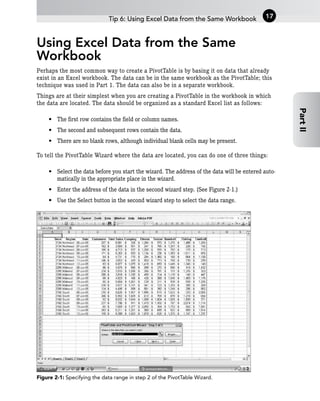
  • 180.
    Figure 7-7: TheSales table after the field layout is changed. Next you need the Salesman_Customer table. This table will have three fields: • Salesman_Customer_ID — The table’s primary key, which will be used by the Sales table to link to salesman/customer combinations. • Salesman_ID — This table will link to the primary Salesmen table. • Customer_ID — This table will link to the primary Customers table. Finally, the database needs some new relationships, as follows: • A link between the Salesman_Customer_ID field in the Sales table to the Salesman_Customer_ID field in the Salesman_Customer table. • A link between the Customer_ID field in the Salesman_Customer table to the Customer_ID field in the Customers table. • A link between the Salesman_ID field in the Salesman_Customer table to the Salesman_ID field in the Salesmen table. Figure 7-8 shows the new Salesman_Customer table after it has been populated with data. It contains one record for every possible combination of the four salesmen with the four customers, for a total of 16 records. Tip 57: Understanding Multidimensional Data Part VII 167
  • 181.
    Figure 7-8: TheSalesman_Customer table contains one record for every possible combination of salesman and customer. Figure 7-9 shows the new relationships for the database. The added dimension, namely the Salesman_Customer table, sits between the dependent Sales table and the primary Customers and Salesmen tables. Figure 7-9: The relationships in the database now have an extra level, or dimension, represented by the Salesman_Customer table. Finally, Figure 7-10 shows the Sales table after the Sales_Customer_ID field has been pop- ulated with data. To reiterate, here’s how this works, taking the third record in Sales for an example. The Salesman_Customer_ID value for this record is 11. Because this field is linked to the Salesman_Customer table, you look at the record in that table in which the Part VII: Using PivotTables with Multidimensional Data 168
  • 182.
    Salesman_Customer_ID is also11. This record has a Customer_ID field with a value of 3 and a Salesman_ID also with a value of 3. Following the links from these two fields to the Customers and Salesmen tables, you find the actual data values East End Inc. and Gomez. Therefore you know that for the sale whose data is in the specified record of the Sales table, the customer was East End Inc. and the salesman was Gomez. Figure 7-10: The Sales table after the Salesman_Customer_ID information has been filled in. At this point you have created a new dimension that condenses the salesman and customer data into a single table. There’s more you can do, however. Take a look at the date data. They contain three pieces of information: the month of the sale, the year, and the day of the week. Can these data be condensed into a new dimension? You bet they can. By doing so you simplify and speed analyses that look at questions such as “Are more sales made on certain days of the week in January as opposed to June?” The procedures are essentially the same as for the customer and salesman data, so I will not go into details. Briefly, the result is a new table called DayMonthYear that contains one record for each possible combination of day of the week, month, and year. The Sales table links to this new table through a field named DayMonthYear_ID, and the new table in turn links to the three primary tables DayofWeek, Months, and Years. The new DayMonthYear table — or part of it, because it contains 300 records — is shown in Figure 7-11, and the final relationship structure of the database is shown in Figure 7-12. Tip 57: Understanding Multidimensional Data Part VII 169
  • 183.
    Figure 7-11: TheDayMonthYear table adds another dimension to the database’s date data. Figure 7-12: The final relationship structure in the multidimensional database. Where Are Multidimensional Data Stored? The term multidimensional describes the way the data are organized and says nothing specifically about where and how they are stored. As you have seen in the previous exam- ple, multidimensional data can be kept in an Access database. But a multidimensional data structure is often used to enable efficient queries and analysis in huge databases that are beyond the capabilities of Access, databases with tens of millions of records. Such huge databases are usually managed with specialized data-warehouse applications such as Microsoft SQL Server Analysis Server or Oracle OLAP Server. These applications are main- tained by IT specialists and if you need to work with their data, these specialists will give you information about accessing them. Part VII: Using PivotTables with Multidimensional Data 170
  • 184.
    Multidimensional Data Terminology Whenworking with multidimensional data and PivotTables you will find that several terms are used in a specialized manner. You need to understand this terminology to work effec- tively with these tools. A dimension is the highest level grouping. Dimensions are used to group data into hierar- chical (parent/child) relationships. Dimensions commonly used in data analysis include people, location, time, products, and similar categories. Within each dimension are two or more levels. A level represents a data element that is part of the specified dimension. For example, in the sample multidimensional database created earlier in this part you could define a dimension called People with two levels, Customers and Salesmen. This is illustrated in Figure 7-13. Figure 7-13: A dimension such as People contains two or more levels. Each level contains one or more items called members. The Customers level contains the members Acme Metal Works, S&Q Manufacturing, and so on. Likewise, the Salesmen level contains the members Jackson, Anderson, and so on. This is shown schematically in Figure 7-14. Figure 7-14: Each level within a dimension contains its own members (some members are omitted in the figure). People Customers Levels Dimension Salesmen Members Anderson Jackson Acme Metal Works S&Q manufacturing People Customers Levels Dimension Salesmen Tip 58: Multidimensional Data Terminology Part VII 171
  • 185.
    The example databaseyou have been working with has another potential dimension: time. This dimension would have three levels, DayOfWeek, Month, and Year. Each of these levels would have its own members, for example Mon, Tues, Wed, Thu, and Fri for DayOfWeek. A measure is a summary of a data value. You have actually worked with measures previously, although they were not called that. A sum, average, or count in a PivotTable cell, for example, is a measure. In the current example, the measure would probably be the sum of the Amount values. A cube file can have one or more measures. The term cube is applied to the files used to store dimensions, levels, members, and mea- sures. The term comes from the fact that the structure of multidimensional data is some- times pictured as a three-dimensional cube, with each physical dimension of the cube representing a conceptual dimension in the data. This works only for data with three dimensions, of course, but the image and the name have stuck. The important thing about cube files is that they contain already-summarized data rather than raw data. This relates to something mentioned earlier in this part: the ability to ana- lyze huge datasets without overloading your system or experiencing long waits. There’s nothing magic about this; the fact is that much of the analysis had already been made when the cube file was created. Your program, in this case Excel, needs only to retrieve the sum- marized data from the cube file to populate the PivotTable. Another important thing to be aware of is that you can define multiple cube files for a given data source. When you or someone else creates a cube file, you specify what it will contain — what the dimensions will be as well as the levels and members. A large and complex database is likely to need several cube files, and you must use the one that con- tains the summary you need. Creating a Cube File You may never need to create a cube file. Often your IT department takes care of all database- related tasks at this level and the cube files are ready for you to use. In this case you can skip ahead to the tip “Creating a PivotTable from a Cube File.” This tip contains a section that shows you how you can create a cube file from data in an Access database. Even if you never need to do this yourself, an understanding of the process can help you work with OLAP data efficiently and productively. In Part II you saw how Excel enables you to import data from an Access database. One of the options available to you when you are importing Access data is to create an OLAP cube file from the data. For this tip I will use the multidimensional database that you looked at earlier in this part; if you want to work along, this database is available as SalesData_Multidimensional Data.mdb. This file has the same multidimensional struc- ture described earlier but with a lot more records in the Sales table. The first part of the process is the same as for any import from an Access database: 1. Start Excel. 2. Select Import External Data from the Data menu, then select New Database Query to display the Choose Data Source dialog box (Figure 7-15). Part VII: Using PivotTables with Multidimensional Data 172
  • 186.
    Figure 7-15: Selectingthe type of data source in the Choose Data Source dialog box. 3. On the Databases tab, select the MS Access Database entry. Make sure the Use the Query Wizard to create/edit queries option is checked. 4. Click OK to display the Select Database dialog box. Navigate to the file SalesData_Multidimensional Data.mdb, select it, and click OK. 5. The next Query Wizard dialog box lets you choose the tables and columns you want in your query. (See Figure 7-16.) Use the right-arrow button to move all the tables to the Columns in your query list. Figure 7-16: Selecting the tables and columns that will be in your query. 6. Click Next three times. (These wizard dialog boxes let you filter and sort the data, which you do not need to do). 7. In the final wizard dialog box, shown in Figure 7-17, select the Create an OLAP Cube from this query option. 8. Click Finish to close the Query Wizard and start the OLAP Cube Wizard. Tip 59: Creating a Cube File Part VII 173
  • 187.
    Figure 7-17: Specifyingthat the query be generated as an OLAP cube. At this point you have defined the query, which determines the data that will be retrieved from the database. Because you specified the creation of an OLAP cube, the OLAP Cube Wizard will start. The next steps define the cube structure — its dimensions, levels, and so on. If the OLAP Wizard Welcome page is displayed after you complete the Query Wizard, click Next to display Step 1 of the OLAP Cube Wizard, shown in Figure 7-18. All fields (columns) from the database are listed here. In this step of the OLAP Cube Wizard you select one or more fields to be measures — in other words, data summaries, as described earlier in this part. You also select the kind of summary — sum, average, count, and so on — to be used. Figure 7-18: In the first step of the OLAP Cube Wizard you specify the fields and summary functions to be used for the cube’s measures. Part VII: Using PivotTables with Multidimensional Data 174
  • 188.
    For your purposesthere will be one measure: the sum of the Amount field. To specify this, uncheck all the fields in the wizard except Amount, and leave Sum selected as the Summarize by value in that row. Then click Next to advance to the next step of the wizard, which is shown in Figure 7-19. Figure 7-19: In the second step of the OLAP Cube Wizard you define the dimensions and levels for the OLAP cube. Selecting dimensions and levels is perhaps the most important part of creating a cube file. The dimensions and levels you define determine the data available in the cube file and the ways in which users can view those data. It is somewhat simplified but accurate to say that a dimension will be available as a field in the PivotTable and that a level within that dimension will be available as detail for that field. Without experience, it can be difficult to envision the final result while you are designing the cube file. The key is to experiment by creating several cube files with different dimensions and levels and seeing what you can and cannot do with them in a PivotTable. Tip 59: Creating a Cube File Part VII 175 You may be puzzling over some of the field names shown in Figure 7-18. The name Day_ID makes sense because there is such a field in the database. But what about Day_ID1? Here’s what happened. The database actually contains two fields named Day_ID, one in the DayMonthYear table and another in the DayOfWeek table. Because duplicate field names can cause confusion, the wizard automatically added a 1 to one of the fields to distinguish it from the other. Duplicate Field Names
  • 189.
    The basic procedurein Step 2 of the OLAP Cube Wizard is to drag fields that you want as dimensions to the Drop fields here to create a dimension area, and then to drag fields that you want as levels to the parent dimension. Continuing from Figure 7-19, here’s what to do: 1. Drag the field Salesman_Name from the Source fields list and drop it in the Dimensions list. The OLAP Cube Wizard will add this field as a dimension and as a level, as shown in Figure 7-20. This is automatic — a field that is a dimension is always also a level under that dimension. Figure 7-20: After the field Salesman_Name has been added as a dimension to the OLAP cube. 2. Right-click the Salesman_Name dimension (not the level) and select Rename from the pop-up menu. 3. Type Person and press Enter. The wizard now looks like the one shown in Figure 7-21. You have renamed the dimension while leaving the level with its original name. Figure 7-21: After the Salesman_Name dimension has been renamed Person. 4. Drag the Customer_Name field and drop it on the Person dimension. It becomes a level under that dimension, as shown in Figure 7-22. Part VII: Using PivotTables with Multidimensional Data 176 Each source field can be used only once in the cube file, either as a dimension or as a level. You cannot, for example, use the same field both as a dimension and as a level under another dimension. You can, however, achieve the same effect by modifying the query or data source to include two instances of the field — in other words, two fields with different names that contain the same data. Each Field Only Once
  • 190.
    Figure 7-22: AfterCustomer_Name has been added as a level under the Person dimension. 5. Drag the Year field and drop it where it says “Drop fields here to create a dimension.” 6. Right-click the Year dimension and rename it Date. 7. Drag the Month field and drop it on the Year level. It becomes a level that is part of the Date dimension and subsidiary to the Year level. 8. Drag the Day field and drop it on the Month level. It becomes a level that is part of the Date dimension and subsidiary to the Month level. The wizard should now look like Figure 7-23. Figure 7-23: After the Year, Month, and Day fields have been added to the Date dimension. 9. Click Next to go to the final stage of the wizard (which I will discuss in a moment). There’s a subtle but important distinction to be made when dragging fields to become levels in the OLAP cube. • If you drop the field directly on a dimension, the field becomes the top level for that dimension, displacing other existing levels downward in the hierarchy. You saw this in Step 4. • If you drop the field on an existing level, it is placed one level lower in the hierarchy. You saw this in Steps 7 and 8. The hierarchy of levels is important when you create the PivotTable report because it con- trols how the fields are arranged. The highest level becomes the outer row or column field while lower levels become the inner rows. Tip 59: Creating a Cube File Part VII 177
  • 191.
    The final stepof the OLAP Cube Wizard, shown in Figure 7-24, enables you to specify when the cube is updated and the name and location for the cube file. The three options are: Figure 7-24: The final step of the OLAP Cube Wizard lets you specify cube update options. • Retrieving data on demand — Saves the instructions for creating the cube file. The data are retrieved, and the cube file created, only when the report is created. If the report is changed, new data are retrieved only when needed. Use this option when the PivotTable report will be viewed but seldom changed. • Retrieving data all at once — Similar to the first option except that when the report is created, all the data, not just the needed data, are retrieved. This setting enables users to make changes to the report quickly without having to wait for data retrieval. Use for PivotTable reports that will be changed frequently. • Saving a cube file — Creates a cube file that contains all the data as well as the instructions. It takes more time to create initially, but enables use of the cube file when the connection to the data source is not available. The first two options result in the creation of a file with the .oqy extension, using the name and location you specify in the dialog box. The third option saves both an OQY file containing the instructions for the cube and a CUB file containing the actual data. After selecting the desired option click the Finish button. The OLAP Cube Wizard com- pletes its work and returns you to Excel. Excel assumes that you are creating a PivotTable report and displays a dialog box asking where the report should be placed. (This is actually Step 3 of the PivotTable Wizard.) After entering the required information, click Finish to create the blank PivotTable report. Working with the report is the topic of the next tip. Part VII: Using PivotTables with Multidimensional Data 178
  • 192.
    Creating a PivotTablefrom a Cube File To be honest, creating a PivotTable from a cube file is not all that different from creating a PivotTable from other kinds of data, as covered in previous parts. There are, however, a few differences of which you need to be aware. This walkthough continues from the previous tip, which ended with the blank PivotTable created and ready for fields to be dragged and dropped. However, you can also create a PivotTable report from an existing cube file, as follows: 1. Select PivotTable and PivotChart Report from the Data menu to start the PivotTable Wizard. 2. In the first step of the Wizard select the External Data Source option. 3. Click Next to proceed to Step 2 of the wizard. 4. Click the Get Data button to display the Choose Data Source dialog box, then click the OLAP Cubes tab, shown in Figure 7-25. Figure 7-25: Selecting an existing OLAP cube as the data source in the PivotTable Wizard. 5. Select the desired cube file and click OK. If the cube file is not stored in the standard location, use the Browse button to find it. 6. Complete the PivotTable Wizard steps as usual. After a PivotTable report is created based on an OLAP cube file, the blank PivotTable is displayed in Excel as usual. Figure 7-26 demonstrates this for the cube file created in the previous tip. Tip 60: Creating a PivotTable from a Cube File Part VII 179
  • 193.
    Figure 7-26: Theblank PivotTable report created from the OLAP cube file. For the most part, this looks like a regular PivotTable. The two dimensions, Date and Person, are listed in the PivotTable Field List. In fact, they are fields, and can be dragged to the PivotTable to define its structure. Note also that the levels are listed under each dimension — Year, Month, and Day for the Date dimension, for example. These are not fields, and you can’t drag them to the PivotTable. They are listed to show you what each dimension contains. When you add a dimension to the PivotTable, its levels go along auto- matically. You’ll see how this works in a minute. The Sum Of Amount field is present too. This is what you specified as the summary data item in the cube. If you had specified other summary data items, they would be listed as well. To complete the PivotTable follow these steps: 1. Drag the Date field (dimension) and drop it in the Column area of the PivotTable. In the table the field is given the name of its top level, Year, rather than the name of the dimension. 2. Drag the Person field and drop it in the Row area. 3. Drag the Sum Of Amount field and drop it in the Data area. Part VII: Using PivotTables with Multidimensional Data 180 In the PivotTable Field List, items from an OLAP cube are displayed with one of two icons. This icon marks a dimension; a dimension can be dropped only on a Row, Column, or Page area of a PivotTable. This icon marks a measure, or data summary, which can be dropped only on the Data area of the PivotTable. OLAP Icons
  • 194.
    4. Right-click theSum Of Amount field button and select Format Cells from the pop-up menu. 5. Specify Currency format with no decimal places, then click OK. At this point the PivotTable looks like Figure 7-27. So far it looks like any other PivotTable report; what happened to all the levels? Only the top level in each dimension is repre- sented, and the Month, Day, and Salesman levels are nowhere to be seen. What’s going on? Figure 7-27: The initial PivotTable report after dimensions are added. In fact those levels are present in the table but currently hidden. To see what I mean, right-click the Customer_Name field, select Group and Show Detail from the pop-up menu, and then select Show Detail from the next menu. The next level in the hierarchy, Salesman_Name, is now displayed, as shown in Figure 7-28. Figure 7-28: Showing detail for the Customer_Name field makes the Salesman_Name level visible in the PivotTable report. It works the same way for the Year field. Show its detail and the next level in the hierarchy, Month, becomes visible. Show detail for the Month field and the final level, Day, becomes visible. The PivotTable with all the detail visible is shown in Figure 7-29. This figure actually shows only a small part of the table because it is quite large. Tip 60: Creating a PivotTable from a Cube File Part VII 181
  • 195.
    Figure 7-29: Withall detail shown, all the hierarchical levels in the OLAP cube are displayed in the PivotTable. Working with OLAP PivotTables In most respects, a PivotTable created from OLAP data is the same as any other PivotTable. There are some differences, however, and you need to be aware of them. You cannot drill down in the data of an OLAP-based PivotTable by double-clicking a data cell. This makes sense, of course: the data have already been summarized in the OLAP cube, and the raw data are located in the data source, to which Excel is not connected. Also, you can’t change the measure used, such as by changing a Sum to an Average. Again, the summary calculation is done when the cube is created — remember, you specified the summary measure when defining the cube — and you can’t change it from within Excel. On the PivotTable menu, the Formulas commands are not available because a PivotTable based on multidimensional data does not permit the use of formulas. Likewise, the Show Pages command is not available. Part VII: Using PivotTables with Multidimensional Data 182
  • 196.
    183 Getting Hard Data froma PivotTable After you have created your PivotTable report, then what? Of course, many reports are simply viewed and/or printed, but in other situations you will want to make use of the report data in the worksheet. For example, you may want to use Excel’s various tools, such as formulas and functions, to perform additional analyses of the PivotTable data including the creation of charts (standard Excel charts as opposed to PivotCharts). How do you make those data available in other parts of the workbook? That’s the topic of this chapter. VIII Part
  • 197.
    Tips and Whereto Find Them Tip 61 Understanding the GETPIVOTDATA Function 185 Tip 62 Referencing PivotTable Cells by Address 187 Tip 63 Using GETPIVOTDATA to Analyze PivotTable Data 191 Tip 64 Copying and Pasting PivotTables 194 184
  • 198.
    Understanding the GETPIVOTDATA Function Supposeyou want to write a formula that references a number in a PivotTable, and that number happens to be in cell G15. Well, you can simply use the cell reference G15 (or per- haps $G$15), right? Unfortunately, things aren’t that simple. Just think of some of the things you can do with a PivotTable: pivoting it, of course, as well as showing or hiding detail and changing the sort order. These and other manipulations can cause a particular number to change its position. The summary data that were in cell G15 may now be in cell H22! Obviously you can’t reliably retrieve data from a PivotTable using the standard Excel cell references. What to do? Enter the GETPIVOTDATA function. GETPIVOTDATA Function Basics The GETPIVOTDATA function is designed specifically to retrieve data from a PivotTable based not on the data’s cell address but rather on its logical position in the table. Let’s look at the syntax for this function: GETPIVOTDATA(data_field,pivot_table,field1,item1,field2,item2,...) • data_field is the name of the data field that you want to retrieve — in other words, the name of the field that you dropped on the Data area of the PivotTable. • pivot_table is a reference to any cell or range of cells in the PivotTable. • field1 and item1 are respectively the name of the first field and the first data value associated with the data you want to retrieve. • field2 and item2 are respectively the name of the second field and the second data value associated with the data you want to retrieve. You can have as many as 14 field and item pairs. All arguments to GETPIVOTDATA except for the cell reference must be enclosed in quotes. An example will help to clarify how these arguments are used. I will use the PivotTable report shown in Figure 8-1. Figure 8-1: The sample PivotTable report. Tip 61: Understanding the GETPIVOTDATA Function 185 Part VIII
  • 199.
    Suppose you wantto retrieve the sum of sales in the Accessories category for the month of Jan. The proper function would be =GETPIVOTDATA(“Sales”,$A$3,”Month”,”Jan”,”Category”,”Accessories”) Let’s dissect these arguments. • The “Sales” argument is used because the name of the data field in this PivotTable is Sales. That is, when the PivotTable was created, the Sales field was dragged from the Field List to the Data area of the PivotTable. • The $A$3 argument identifies a cell in the PivotTable. • The “Month” and “Jan” arguments go together. They specify that you want to retrieve a value where the Month field contains the value Jan. • The “Category” and “Accessories” arguments also go together. They specify that you want to retrieve a value where the Category field contains the value Accessories. Looking at the PivotTable in Figure 8-1 you can see that the desired value, where Category=Accessories and Month=Jan, is in cell B5, so the function will return the value 1845. If you include only a single field/item pair in the argument list, the function returns the corresponding total. For example, the function =GETPIVOTDATA(“Sales”,$A$3,”Month”,”Jan”) returns the total for all data where Month=Jan, in this case the value 10981. Likewise the function =GETPIVOTDATA(“Sales”,$A$3,”Category”,”Pants”) returns the sum for all data where Category=Pants, 12156. If you omit any mention of field and item, the GETPIVOTDATA function returns the overall total for the specified data item. =GETPIVOTDATA(“Sales”,$A$3) returns the value 68548, the overall total of Sales items. Part VIII: Getting Hard Data from a PivotTable 186 A restriction on using the GETPIVOTDATA function is that the PivotTable cell it references must be visible. If you change the PivotTable, for example by hiding detail or filtering detail, and the cell is no longer visible, the GETPIVOTDATA function will return #REF. The Dreaded #REF
  • 200.
    When using theGETPIVOTDATA function, you need to keep the following factors in mind: • If the pivot_table argument refers to a range that contains two or more PivotTable reports, data are returned from whichever PivotTable was most recently created. • Calculated fields, calculated items, and custom calculations can all be returned by GETPIVOTDATA. • If the pivot_table argument refers to a cell or range where no PivotTable is located, the function returns #REF. • If the field and item arguments refer to data that do not exist in the PivotTable, the function returns #REF. A GETPIVOTDATA Shortcut Excel makes entering the GETPIVOTDATA function really easy for most situations. All you need to do is to enter the equals sign in a cell, either at the beginning or as part of a formula, and then click the cell in the PivotTable whose data you want. This cell can be an individual data cell or a total cell. Excel will then automatically enter the correct GETPIVOTDATA function in the formula. Referencing PivotTable Cells by Address There may be times when you want to reference a cell in a PivotTable report by its cell address rather than by generating a GETPIVOTDATA function. For example, if you are writing some formulas outside of the PivotTable to perform calculations on its data, you may want relative cell addresses to adjust automatically when you copy the formula to other cells. You can set this up simply by typing the address into your formula rather than by clicking the cell. You can also turn off the PivotTable feature that automatically generates Tip 62: Referencing PivotTable Cells by Address 187 Part VIII You can copy a formula that contains the GETPIVOTDATA function, just as you can any other Excel formula. However, the concept of relative cell addresses does not apply. In other words, the PivotTable cell that the GETPIVOTDATA function refers to will not be adjusted according to where you copy the formula. This make sense, of course, because the concept of a relative address is meaningless in terms of PivotTable data. Copying Formulas that Contain GETPIVOTDATA
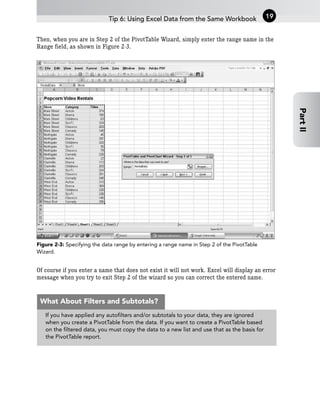
  • 201.
    GETPIVOTDATA functions whena cell is clicked. To do so, you must add a button to one of your toolbars as follows: 1. Select Customize from the Tools menu to display the Customize dialog box. (See Figure 8-2.) 2. Select Data in the categories list. 3. Select Generate GetPivotData from the Commands list. 4. Drag the button from the Commands list to one of your toolbars and drop it at the desired location. 5. Click Close to close the Customize dialog box. The Generate GetPivotData button looks like this: Click it to toggle the feature on and off. When it is off, if you click a PivotTable cell while entering a formula, a cell reference is generated instead of a GETPIVOTDATA function. Figure 8-2: Adding the Generate GetPivotData button to a toolbar. Page Fields and the GETPIVOTDATA Function The GETPIVOTDATA function does not use any reference to the page fields in a PivotTable report. For example, look at the PivotTable in Figure 8-3, which has three page fields. Part VIII: Getting Hard Data from a PivotTable 188
  • 202.
    Figure 8-3: APivotTable report with three page fields. Suppose you create a GETPIVOTDATA function to retrieve the data in cell D11, the total for March. The function will look like this: =GETPIVOTDATA(“Amount”,$A$5,”Month”,”Mar”) The function contains no reference to the settings for the three page fields: For example, there is no information relating to the fact that the Size field is filtered on the value Large. This is correct. The page fields control which data are summarized in the PivotTable, while the GETPIVOTDATA function returns a specific piece of those data. Changing the page field filtering may change the value returned by the GETPIVOTDATA function, of course. GETPIVOTDATA and OLAP Data You can use the GETPIVOTDATA function on PivotTable reports based on OLAP data. One dif- ference is that in the function arguments, the item can specify the source name of the dimension as well as the item name itself. Also, arguments are enclosed in brackets. For example, look at the PivotTable that you created from OLAP data in the walkthrough in Part VII, as shown in Figure 8-4. Figure 8-4: A PivotTable report created from OLAP data. Tip 62: Referencing PivotTable Cells by Address 189 Part VIII
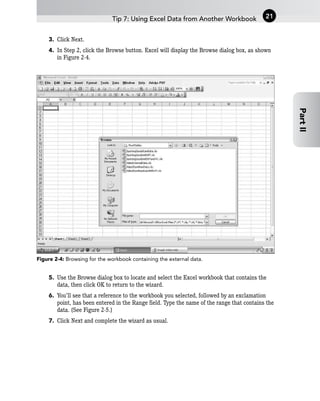
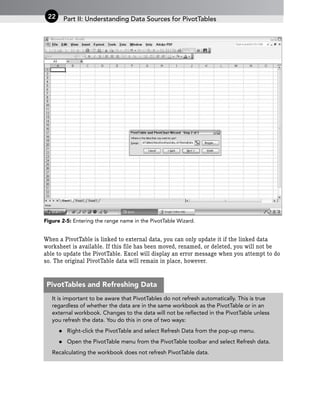
  • 203.
    Suppose you wantto use the GETPIVOTDATA function to retrieve the total sales made by Anderson to Acme Metal Works in the year 2003. The function will look like this: =GETPIVOTDATA(“[Measures].[Sum Of Amount]”, $A$3,”[Date]”,”[Date].[All].[2003]”,”[Person]”, “[Person].[All].[Acme Metal Works].[Anderson]”) If you refer to Part VII, you will recall that the year is actually represented in a level named Year, and also that when you designed the cube file, you placed that level in a dimension named Date. The same is true for the Customer_Name and Salesman_name fields (levels), which were placed in a dimension named Person. And you can see that the dimension names Date and Person are used in the GETPIVOTDATA function rather than the level names. Because the syntax of GETPIVOTDATA can be rather complex when working with OLAP data, I recommend that you always use the shortcut and let Excel generate the function argu- ments for you. GETPIVOTDATA and Show/Hide Detail One of the nice aspects of the GETPIVOTDATA function is that the result it returns does not change when you show additional levels of detail. For example, look at the PivotTable report in Figure 8-4. This is the PivotTable that you created from OLAP data in Part VII. You can see that no detail is shown under the Year dimension; the Month and DayOfWeek levels are hidden. This means that each result cell is the sum across all days and months. For example, cell 5 shows the sum of all sales that Anderson made to Acme Metal Works in 2001. If you used the GETPIVOTDATA function to reference this cell, it would return the value in the cell — $524,386. Suppose that now you use the Show Detail command to display additional detail for the Year field. The result, shown in Figure 8-5, is that the Month detail is displayed in the PivotTable report. There is no cell in the report that sums all sales that Anderson made to Acme Metal Works in 2001 because this total is now broken down by months. Yet the GET- PIVOTDATA function that you created still shows the same total. This is a very useful fea- ture of this function. Of course the opposite is not true. If you create a GETPIVOTDATA function that refers to a cell in a PivotTable report and hide that cell with the Hide Detail command, the function will return #REF. Part VIII: Getting Hard Data from a PivotTable 190
  • 204.
    Figure 8-5: Increasingthe level of detail shown in a PivotTable does not change the result of the GETPIVOTDATA function. Using GETPIVOTDATA to Analyze PivotTable Data For this walkthrough, you continue with the PivotTable you created from OLAP data. It is shown again in Figure 8-6 with all the detail under the Year dimension hidden. Your goal is to create a chart — a standard Excel chart, not a PivotChart — that compares the sales each salesman made to each customer in the year 2005. The strategy you will follow has two parts. The first is to use the GETPIVOTDATA function to pull the required numbers out of the PivotTable and place them in a regular Excel table. The second and easier part is to create a chart from this new table. 1. Open the workbook containing the PivotTable that you created from OLAP data in Part VII. 2. Decide on a location for the new table. It can be in a new worksheet or the one that con- tains the PivotTable. 3. Enter a title for the table, Sales for 2005, in a cell. 4. In the row below the title, enter the four customer names in four columns. Adjust the column widths, if needed, to show the full names. 5. In the column to the left, enter the four salesman names in four rows. 6. Format all the text you entered as bold. At this point the table will look like Figure 8-7. Tip 63: Using GETPIVOTDATA to Analyze PivotTable Data 191 Part VIII
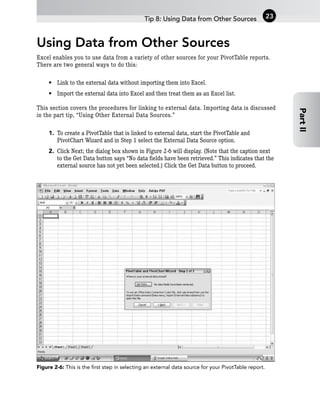
  • 205.
    Figure 8-6: ThePivotTable for this walkthrough. Figure 8-7: The new data table after the row and column headings are entered. The next step is to enter a GETPIVOTDATA function in the table cells to refer to the proper cells in the PivotTable report. For example, consider the cell in the new table at the inter- section of the Anderson row and the Acme Metal Works column. Obviously this cell should display the total sales in 2005 for Anderson to Acme Metal Works. In the PivotTable this is cell G5, although it might be different in your PivotTable, depending on where you put it. Thus, the next steps are: 1. Place the cell pointer in the new table at the intersection of the Anderson column and the Acme Metal Works row. 2. Type = (an equals sign). Part VIII: Getting Hard Data from a PivotTable 192
  • 206.
    3. Click theAnderson/Acme Metal Works/2005 cell in the PivotTable. (In Figure 8-6 this is cell G5.) 4. Press Enter to complete entry of the GETPIVOTDATA function. 5. Move the cell pointer to the cell in the new table at the intersection of the Chang column and the Acme Metal Works row. 6. Type = (an equals sign). 7. Click the Chang/Acme Metal Works/2005 cell in the PivotTable. In Figure 8-6 this is cell G6. 8. Continue in this manner until all 16 data cells in the new table have the appropriate GETPIVOTDATA function in them. 9. Format all the number cells in the new table as Currency with no decimal places. At this point the data table is complete and should look like Figure 8-8. Figure 8-8: The new data table after GETPIVOTDATA functions are entered in each cell. The final steps of this tip are quite simple, and require only that you use the PivotChart Wizard to make a chart from the new data table you just created. 1. Select the entire data table, excluding the cell with the title in it. 2. Click the Chart Wizard button on the toolbar. 3. In the first Chart Wizard dialog box, leave the default Column type selected, then click Next. 4. Accept the default chart settings in the next two wizard dialog boxes, clicking Next until you reach Step 4. 5. Specify that the chart be created as a new sheet. 6. Click Finish. The final chart is shown in Figure 8-9. As with any Excel chart, you can customize it as desired, adding titles and other elements. Tip 63: Using GETPIVOTDATA to Analyze PivotTable Data 193 Part VIII
  • 207.
    Figure 8-9: Thefinal chart based on the data extracted with the GETPIVOTDATA function. Copying and Pasting PivotTables You can copy a PivotTable and paste it in a new location, even in a new workbook, and the copy will continue to function just like the original. You’ll be able to refresh data, pivot the table, and so on. If you copy the PivotTable to a new workbook, and the original data are in another Excel workbook, the data reference in the copied PivotTable will still reference the original data location. You can use this ability to copy a PivotTable and retain full function- ality to create a master PivotTable workbook that contains multiple PivotTable reports copied from multiple workbooks. PivotTables based on external data, including OLAP cubes, can be copied in the same way. Another reason to create a copy of a PivotTable is that it enables you to pivot or filter the copy differently from the original and display both versions at the same time. To copy a PivotTable, do the following: 1. Click any cell in the PivotTable. 2. From the PivotTable menu choose Select, then choose Entire Table. 3. Press Ctrl+C or select Copy from the Edit menu. 4. Click the cell in which you want to place the top left of the PivotTable. The cell can be in the same worksheet, in another worksheet in the same workbook, or in another workbook. 5. Press Ctrl+V or select Paste from the Edit menu. Part VIII: Getting Hard Data from a PivotTable 194
  • 208.
    If the PivotTableis in its final form, you can use Paste Special to copy the displayed data only. The result is plain data, not a PivotTable, just as if you had typed the data in. You cannot refresh or pivot the table. To copy a PivotTable as data, follow these steps: 1. Click any cell in the PivotTable. 2. From the PivotTable menu choose Select, then choose Entire Table. 3. Press Ctrl+C or select Copy from the Edit menu. 4. Click the cell in which you want to place the top left of the data. 5. Select Paste Special from the Edit menu to display the Paste Special dialog box. 6. Select the Values option. 7. Click OK. Of course you can use Paste Special to copy any part of a PivotTable, such as a single cell or an entire column or row. Tip 64: Copying and Pasting PivotTables 195 Part VIII
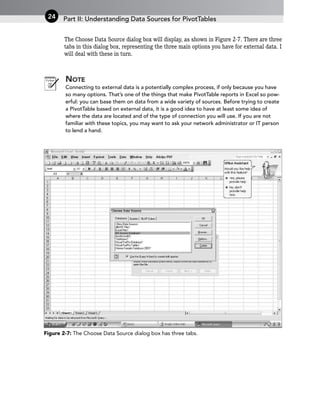
  • 210.
    197 PivotTable Alternatives Excel offers awide range of data-analysis tools in addition to PivotTables. It’s a good idea to know about these techniques so that when you are faced with a data-analysis task, you can choose the best technique. As powerful as PivotTables are, they are not always the best choice — in fact, sometimes they are too powerful and something simpler will serve you better. This chapter provides an overview of some of the other data-analysis techniques that perform analysis tasks similar to PivotTables. IX Part
  • 211.
    Tips and Whereto Find Them Tip 65 Working with Subtotals 199 Tip 66 Nesting Subtotals 202 Tip 67 Hiding and Showing Subtotal Detail 205 Tip 68 Working with Database Functions 206 Tip 69 Defining Criteria 207 Tip 70 Working with Crosstabs 209 Tip 71 Working with Filters 209 198
  • 212.
    Working with Subtotals Excel’ssubtotal tool makes it easy to generate subtotals based on values in the data. For example, look at the Excel database in Figure 9-1. This database contains data for a video rental chain, specifically the number of titles in stock for each genre at each store. This is typical of the kind of data you might analyze with a PivotTable. Figure 9-1: Video store stock data. Suppose you want titles in stock for each genre totaled across all stores. Sure, you can create a PivotTable report for this purpose, as shown in Figure 9-2. But you can also use subtotals. Figure 9-2: Using a PivotTable to total the number of titles in each genre across all stores. If you want to use subtotals, the data must be sorted on the field on which you want to subtotal — in this case, Genre. Then, do the following: 1. Place the cell pointer on any cell in the data table. 2. Select Subtotals from the Data menu to display the Subtotal dialog box, shown in Figure 9-3. Tip 65: Working with Subtotals 199 Part IX
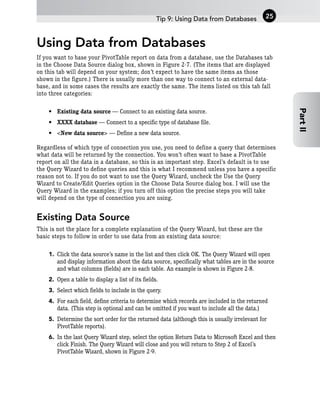
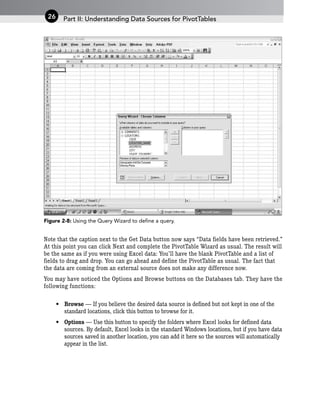
  • 213.
    Figure 9-3: Youuse the Subtotal dialog box to define subtotals. 3. In the At each change in list, select the field on which the subtotals will be based; in this example, this field is Genre. 4. In the Use function list, select the subtotal function. You can choose between Sum (appropriate for this example) and several other measures (explained in the list follow- ing Step 6). 5. In the Add subtotal to list, place a checkmark next to the field or fields you want subto- taled. For this example you will place a check next to Titles in Stock. 6. Select the following as desired: • Replace Current Subtotals — If this option is selected, any subtotals already in the data table will be replaced with the new ones. If it is not selected, the new subtotals will be included in the data table along with any existing ones. • Page Break Between Groups — Excel inserts a page break after each group. (This is relevant for printing.) • Summary Below Data — If this option is selected, each subtotal will be displayed below the group of records it is subtotaling, and the grand total will be displayed in the last row. If this option is not selected, each subtotal will be displayed above the group of records it is subtotaling, and the grand total will be displayed in the first row. 7. Click OK. Figure 9-4 shows the data subtotaled by Genre. You can see that the same subtotals are calculated as in the PivotTable report shown in Figure 9-2. The arrangement is different, of course, with the analysis results interspersed in the data table rather than in their own separate table. Part IX: PivotTable Alternatives 200
  • 214.
    Figure 9-4: Totalsby Genre calculated with Excel’s subtotal tool. When defining subtotals, you can choose from a number of summary calculations. You have the following at your disposal: • Average — The average of the values (sum divided by number of values). • Count — The number of values, including blank cells. • CountA — The number of values, excluding blank cells. • Max — The largest value. • Min — The smallest value. • Product — The product of the values. • StDev — The standard deviation of the values, estimated for the sample. • StDevP — The standard deviation of the values, estimated for the population. • Sum — The sum of the values. • Var — The variance of the values, estimated for the sample. • VarP — The variance of the values, estimated for the population. Tip 65: Working with Subtotals 201 Part IX To remove all subtotals from a data range, click the Remove All button in the Subtotal dialog box. Removing Subtotals
  • 215.
    Nesting Subtotals You arenot limited to creating one level of subtotals for your data. You can nest them, subtotaling by one field and then, within those groupings, by another. Look, for example, at Figure 9-5. This is an expansion of the video store data from Figure 9-1, with an additional field that breaks down the titles by rating — G, PG, or R. These data are in the file VideoDataWithRatings.xls. Figure 9-5: The video-store data with an additional field for rating. Here are the steps required to create nested subtotals for these data. First, you sort the data, and then you create the subtotals: 1. Open the file VideoDataWithRatings.xls in Excel. 2. Place the cell pointer anywhere in the data table. 3. Select Sort from the Data menu to display the Sort dialog box. (See Figure 9-6.) 4. Under Sort by, select Genre and Ascending. 5. Under Then by, select Rating and Ascending. 6. Make sure that the Header row option is selected. 7. Click OK to perform the sort. 8. Select Subtotal from the Data menu to display the Subtotal dialog box (shown earlier in Figure 9-3). 9. Select Genre in the At each change in list. 10. Select Sum in the Use function list. 11. In the Add subtotal to list, place a check next to Titles in Stock and remove any other checks. Part IX: PivotTable Alternatives 202
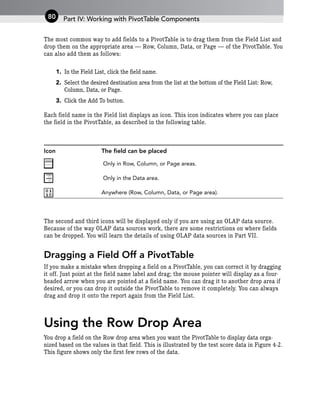
  • 216.
    12. Make surethe Page break between groups option is off and the Summary below data option is on. 13. Click OK. Figure 9-6: Sorting the data before applying subtotals. At this point the data look like Figure 9-7. You can see that it includes subtotals for Genre. The next step is to add the nested subtotals for Rating. Figure 9-7: Subtotaling the data by Genre. Tip 66: Nesting Subtotals 203 Part IX
  • 217.
    1. Select Subtotalfrom the Data menu to display the Subtotal dialog box. 2. Select Rating in the At each change in list. 3. Select Sum in the Use function list. 4. In the Add subtotal to list, place a check next to Titles in Stock and remove any other checks. 5. Make sure the Page break between groups options is off and the Summary below data option is on. Most important, make sure the Replace current subtotals option is off. 6. Click OK. The new subtotal is added, as shown in Figure 9-8. Now you can see that within each Genre group, the data for each rating are broken out and subtotaled separately. Figure 9-8: The data are subtotaled at two levels, Genre and Rating. Part IX: PivotTable Alternatives 204
  • 218.
    Hiding and ShowingSubtotal Detail When you add subtotals to a data list in Excel, you see a vertical area immediately to the left of the row numbers at the left edge of the worksheet. This is called the outline section, and the controls in this area enable you to hide and display different levels of detail. Look at Figure 9-9, which is again the data from the previous tip. Figure 9-9: You can use the outline area to control the level of detail displayed. Three controls are available in the outline area: • The Hide Detail button is displayed when the rows in a group are visible. Clicking the Hide Detail button hides the rows. • The Show Detail button is displayed when the rows in a group are hidden. Clicking the Show Detail button displays the rows. • The Level buttons each represent a level of organization in the list. Click a Level button to show all the detail for the level of the button and hide all detail below. Outline area Tip 67: Hiding and Showing Subtotal Detail 205 Part IX Subtotals are easy to use and the fact that the subtotals are displayed along with the data may be an advantage in some situations. However, the use of subtotals is dependent on the data being organized in a certain way, and restricts the ways in which they can be sorted. Also, there is no reliable way to get data out of a data table that includes subtotals — in other words, there is no equivalent of the GETPIVOTDATA function. Subtotals certainly have their uses but are not capable of performing most of the robust types of analysis for which PivotTables are designed. Subtotals Versus PivotTables
  • 219.
    Working With DatabaseFunctions Excel has a special category of functions intended specifically for working with databases. In this context, a database is any table of data with column headings identifying the fields, just the kind of data that is commonly analyzed with PivotTables. The database functions perform the same calculations as other Excel functions, such as sum, average, and standard devia- tion. What sets them apart is that they include only values that meet one or more criteria. To illustrate, look at the video store data presented in Figure 9-5. You have already seen how you can use a PivotTable or subtotals to extract summary data that will answer ques- tions such as “What’s the total number of videos in the Drama genre?” Database functions can perform much the same task. The database function names all start with D. The remainder of the name describes the function and is the same as the name of the equivalent non-database function. The follow- ing list describes the database functions: • DAVERAGE returns the average of selected database entries. • DCOUNT counts the cells that contain numbers in a database. • DCOUNTA counts nonblank cells in a database. • DMAX returns the maximum value from selected database entries. • DMIN returns the minimum value from selected database entries. • DPRODUCT multiplies the values in a particular field of records that match the criteria in a database. • DSTDEV estimates the standard deviation based on a sample of selected database entries. • DSTDEVP calculates the standard deviation based on the entire population of selected database entries. • DSUM adds the numbers in the field column of records in the database that match the criteria. • DVAR estimates variance based on a sample from selected database entries. • DVARP calculates variance based on the entire population of selected database entries. The functions all take the same arguments, as follows: DXXXXX(Database, Field, Criteria) • Database is the worksheet range containing the data, including the first row of column or field names. It can be a range address such as A1:J150 or an assigned range name. • Field is the name of the field or column whose values will be summarized by the function. • Criteria is the worksheet range where the criteria for the database function is located. Part IX: PivotTable Alternatives 206
  • 220.
    Defining Criteria The criteriais the only tricky part of using database functions. They tell the function which rows, or records, to include in its calculation. For example, to calculate the total number of titles for the Drama genre, the criteria would in effect tell the DSUM function to include only those records where the Genre field contains the value Drama. At a minimum, the criteria range contains two cells in one column. The top cell contains the name of the field the criterion applies to, and the lower cell contains the criterion itself. For example, the criterion in Figure 9-10 specifies that only those records which contain Adventure in the Genre column will be included in the calculation. Figure 9-10: A simple criterion for a database function. To see a real example, return to the video store data and calculate the sum of titles in stock for the Adventure genre. Assuming that you placed the criterion in cells G2:G3, the database function will be =DSUM(A1:D46, “Titles in Stock”, G2:G3) The three arguments are as follows: • A1:D46 is the range of cells containing the data, including the row of field names at the top. • “Titles in Stock” is the name of the column whose values we want to sum. • G2:G3 is the range containing the criterion. For text criteria, such as in the previous example, simply type in the text you want to match. For numbers, if you want an exact match simply enter the number. For example, the criterion range in Figure 9-11 matches records in which the Age field is equal to 23. Tip 69: Defining Criteria 207 Part IX You can put your criteria essentially anywhere in the workbook. The only place you should avoid is below the data table. It’s a good idea to leave this area blank in case you need to add data to the table Where to Put Your Criteria
  • 221.
    Figure 9-11: Anumeric criterion for a database function. Numeric criteria that are not exact matches are specified with the symbols in the following table: Symbol Meaning Example Matches > Greater than >15 Values greater than 15 < Less than <0 Values less than 0 >= Greater than or equal to >=15 Values of 15 or greater <= Less than or equal to <=0 Values of 0 or less You can also define a criteria range for more complex criteria. To match more than one value in a field, place the values in two or more cells below the field name. For example, the criterion range shown in Figure 9-12 will match records in which the Genre field con- tains either Adventure or Drama. Of course, the range passed as the criterion argument to the database function must specify all the cells in the criterion range. Figure 9-12: A criterion that matches two values in the Genre field. To define criteria that include two or more fields, create a criterion range with two or more columns. Place a field name at the top of each column and the criteria in the cells below. The example shown in Figure 9-13 will match only those records in which the Genre field contains Adventure and the Rating field contains PG. As before, the criterion range passed to the database function must include all the rows and columns of the range. Figure 9-13: A criterion that specifies matches for two database fields. Part IX: PivotTable Alternatives 208
  • 222.
    Working with Crosstabs Youmay have heard of crosstabs, short for cross tabulations, as an Excel data-analysis tool. A crosstab is a table of sums, averages, or other summary calculations arranged in row- and-column format. Sounds sort of like a PivotTable, doesn’t it? In fact, PivotTables were developed as a much more powerful replacement for crosstabs, and crosstabs are not even supported in recent versions of Excel. (Although you can create your own, it’s a tedious process.) If you happen across an old workbook that contains a crosstab, you can convert it to a PivotTable report as follows: 1. Open the workbook that contains the crosstab table. 2. Click any cell in the crosstab table. 3. Select PivotTable and PivotChart Report from the Data menu. 4. Click Finish and then click OK in response to any prompts. 5. Save the workbook in the current Excel version. Working with Filters Filters are very useful Excel database tools that enable you to filter your data, showing only those records that meet certain criteria. Other non-matching records are still present in the database, but they are hidden while the filter is applied. To create a filter, first place the cell pointer anywhere in the database table, select Filter from the Data menu, and then select AutoFilter from the next menu. Excel will place a drop-down list at the top of each column in the table, as shown for the video store data in Figure 9-14. Tip 70: Working with Crosstabs; Tip 71: Working with Filters 209 Part IX Database functions are very powerful, although they can be a little tricky to use. They are at their best when you need to pull specific summary information out of a database without necessarily summarizing all the information. They are also more appropriate when you know in advance the type of analysis you will be performing and know that it will not change down the road. A PivotTable report is a better choice for summarizing an entire database or significant parts of it, or if you want to be able to vary the type of analysis you perform. Database Functions Versus PivotTables
  • 223.
    Figure 9-14: Whenyou add filters to a database, each column heading becomes a drop-down list. Next, use these drop-down lists to define your filter. You can also sort the database on the field. The drop-down list for the Genre field is shown in Figure 9-15. The choices on the list are: Figure 9-15: A drop-down filter list enables you to define your filter and/or sort the database. • Sort Ascending — Sorts the database on this field in ascending order (A–Z, 1–10). • Sort Descending — Sorts the database on this field in descending order (Z–A, 10–1). • (All) — Remonves any filter for this field. • (Top 10) — Displays only the top 10 records. (That is, the 10 records with the highest values in the field. Appropriate for number fields only.) • (Custom) — Lets you define a custom filter (which is beyond the scope of this chapter). • [Individual data values] — Displays only those records with the selected value. You can filter a database table on one or more fields as needed. To remove all filters from the database, select Filter from the Data menu and then select Show All from the next menu. To remove the filter drop-down lists, select Filter from the Data menu and then select AutoFilter from the next menu. Part IX: PivotTable Alternatives 210 Filters are not really an alternative to PivotTables. They can be very useful tools for some data-presentation and -analysis tasks, but they do not provide the kind of summary analyses that PivotTables, subtotals, and database functions do. Filters Versus PivotTables
  • 224.
    211 Programming PivotTables with VBA Excel includesa powerful programming language called Visual Basic for Applications, or VBA. With VBA you can automate essentially any task in Excel, including the creation and manipulation of PivotTable reports. This part provides you with the information you need to create VBA programs to work with PivotTables and contains numerous working examples. This part does not, however, teach the fundamentals of VBA programming. After all, that is a topic that can fill an entire book! For the purposes of this part I assume you have at least intermediate-level experience working with VBA and the VBA editor. X Part
  • 225.
    Tips and Whereto Find Them Tip 72 Understanding the PivotTable Object Model 213 Tip 73 Referencing and Creating PivotTables 215 Tip 74 Creating a New PivotTable in Code 216 Tip 75 Working with the PivotTable Object 221 Tip 76 Adding and Removing Row, Column, and Page Fields 223 Tip 77 Adding and Removing Data Fields 224 Tip 78 Creating a PivotTable Using VBA Code 225 Tip 79 Working with PivotTable Fields 227 Tip 80 Using AutoShow and AutoSort 231 Tip 81 Changing a Field’s Calculation 232 Tip 82 Changing the Display Format of a Field 233 Tip 83 Creating a PivotChart in Code 235 212
  • 226.
    Understanding the PivotTable ObjectModel In VBA, PivotTables and all their various parts and components are represented by object models. This means that everything is represented by a specific kind of object. For example, the PivotTable itself is represented by a PivotTable object, an individual cell in a PivotTable is represented by a PivotCell object, and so on. Programming PivotTables essen- tially means manipulating the underlying objects. The PivotTable object model has two basic features: • It is hierarchical, meaning that every object has a parent object and most objects also have child objects. • It uses collections, a special kind of object designed to hold other objects. By convention, a collection object has a name that is the plural of the name of the type of objects it con- tains. For example, the PivotTables collection contains each PivotTable in a given workbook. There are exceptions to this naming rule, however. To manipulate an object in code you must first get a reference to it, a variable name that you use in code to refer to the object. If the object already exists, such as a PivotTable already pre- sent in a workbook, you retrieve the reference from the appropriate collection. The most important objects and collections in the PivotTable object model are described in the following table. The relationships among these objects and collections are diagrammed in Figure 10-1. Object/collection Description PivotTable The PivotTable object represents a single PivotTable. The PivotTables PivotTables collection contains all the PivotTables on a single worksheet. PivotField The PivotField object represents a field in a PivotTable. The PivotFields PivotFields collection contains all the fields in a single PivotTable. PivotItem The PivotItem object represents a single item (an individual data PivotItems entry) in a field. The PivotItems collection contains all the items for a single field. CalculatedFields The CalculatedFields collection contains all the calculated fields in the PivotTable. Each calculated field is represented by a PivotField object. continued Tip: 72 Understanding the PivotTable Object Model 213 Part X
  • 227.
    Object/collection Description CalculatedMembers TheCalculatedMembers collection contains all the calculated CalculatedMember measures in the PivotTable. Each calculated measure is represented by a CalculatedMember object. PivotFormula Each formula used to calculate results (sum, average, and so on) in a PivotFormulas PivotTable is represented by a PivotFormula object. The PivotFormulas collection contains all the formulas for a single PivotTable. Figure 10-1: The hierarchy of the most important objects and collections in the PivotTable object model. Worksheet PivotTables PivotFields PivotField PivotTable PivotItems CalculatedFields PivotField CalculatedMembers CalculatedMember PivotFormulas PivotFormula PivotItem Collection Object Part X: Programming PivotTables with VBA 214
  • 228.
    Referencing and CreatingPivotTables The first step in manipulating a PivotTable is to obtain a reference to it. How you do this depends on whether the PivotTable already exists. If it does, you obtain a reference to the existing PivotTable. If it doesn’t, you create the PivotTable and, in the process, obtain the reference. The following sections explain both techniques. Referencing an Existing PivotTable A PivotTable that already exists will be present in the PivotTables collection for the work- sheet in which it is located. Assuming that the variable is a reference to that worksheet, the syntax is as follows. First, declare a variable of the proper type to hold the reference: Dim pt As PivotTable Then retrieve the reference and store it in the variable: Set pt = ws.PivotTables(index) The index argument identifies the PivotTable. It can be either of the following: • A number that identifies the position of the PivotTable on the worksheet. The first PivotTable created on a worksheet has index=1, the next one created has index-2, and so on. • A string specifying the name of the PivotTable. By default PivotTables on a given work- sheet are assigned the names PivotTable1, PivotTable2, and so on. You can change the name in the Table Options dialog box. To display this dialog box, right-click the PivotTable and select Table options from the pop-up menu. If you specify a PivotTable that does not exist, a run-time error occurs. The code in Listing 10-1 illustrates this technique for obtaining a reference to an existing PivotTable. It opens a workbook and gets a reference to the first PivotTable on Sheet4. Tip 73: Referencing and Creating PivotTables 215 Part X You might think that all the PivotTables in a workbook would be organized together in a PivotTables collection that belongs to the workbook itself, but that’s not the way Excel does things. Instead, each worksheet has its own PivotTables collection. The PivotTables Collection
  • 229.
    Listing 10-1: AVBA procedure that opens a workbook and gets a reference to a PivotTable. Sub GetPivotTableReference() Dim wb As Workbook Dim pt As PivotTable On Error GoTo ErrorHandler ‘ Open the workbook. Set wb = Workbooks.Open(“c:PivotDataSurveyResults.xls”) ‘ Get the PivotTable reference. Set pt = wb.Worksheets(“Sheet4”).PivotTables(1) ‘ Code here can use the variable pt to work with the PivotTable EndOfSub: Exit Sub ErrorHandler: If Err.Number = 5 Or Err.Number = 9 then MsgBox “The workbook file could not be found” ElseIf Err.Number = 1004 Then MsgBox “The PivotTable could not be found” Else MsgBox “Error “ & Err & “ - “ & Err.Description End If Resume EndOfSub End Sub Creating a New PivotTable in Code You can create a new PivotTable using VBA code in two ways. The easiest, and the one you should use whenever possible, involves the PivotTableWizard method. Despite its name, this method doesn’t display the PivotTable Wizard, but rather uses it behind the scenes to create a PivotTable based on options that you specify in code. The limitation of this method is that it cannot be used with OLE DB data sources. When you are using such a data source, you must use the second method, which does not involve the PivotTableWizard method. These two techniques are explained in the following sections. Part X: Programming PivotTables with VBA 216
  • 230.
    Using the PivotTableWizardMethod To create a new PivotTable in a worksheet, call the PivotTableWizard method on the Worksheet object where you want the PivotTable located. The syntax of this method is quite complex, with numerous optional arguments that are infrequently used. For your pre- sent purposes, it will be most helpful to look at some examples. (You can also get the full details from the VBA online Help.) At its simplest, the PivotTableWizard method requires that you specify the type of the source data and their location. For data in an Excel list, you use the constant xlDatabase to specify the type. For example, this line of code creates a PivotTable based on the data in the range A4:E250 on Sheet1. The PivotTable is placed on Sheet2, by default in the active cell. Worksheets(“Sheet2”).PivotTableWizard SourceType:=xlDatabase, _ SourceData:=Range(“Sheet1!A4:E250”) You can specify a location other than the active cell for the PivotTable, and you can also assign a name to the report when it is created: Worksheets(“Sheet2”).PivotTableWizard SourceType:=xlDatabase, _ SourceData:=Range(“Sheet1!A4:E250”), _ TableDestination:=Range(“D4”), _ TableName:=”My Pivot Table” Finally, you can specify that the PivotTable include grand totals for the rows and/or the columns: Worksheets(“Sheet2”).PivotTableWizard SourceType:=xlDatabase, _ SourceData:=Range(“Sheet1!A4:E250”), _ TableDestination:=Range(“D4”), _ TableName:=”My Pivot Table”, _ RowGrand:=True, ColumnGrand:=True Figure 10-2 shows a data table in Excel on which the example PivotTable report used here will be based. You can create a PivotTable report based on these data with the following VBA code: Worksheets(“Sheet2”).PivotTableWizard SourceType:=xlDatabase, _ SourceData:=Range(“Sheet1!A4:C28”), _ TableDestination:=Range(“B2”) Tip 74: Creating a New PivotTable in Code 217 Part X
  • 231.
    Figure 10-2: Thedata for the PivotTable report. The resulting PivotTable is shown in Figure 10-3. But wait, something is missing! The report doesn’t contain the areas with labels such as “Drop Row Fields Here” that you are used to seeing when you create a PivotTable manually using the PivotTable Wizard. Nothing is wrong; that’s the way it works when you create a PivotTable in code. You can still drag fields from the Field List and drop them to define the report, but when creating a PivotTable in code, you usually also define the layout in code rather than letting the user do it. Adding fields and other parts of defining a PivotTable in code are covered later in the part. Figure 10-3: The PivotTable report created by the VBA code. Part X: Programming PivotTables with VBA 218
  • 232.
    After you havecreated the PivotTable, you can get a reference to it using the techniques I explained earlier in this part in the section “Referencing an Existing PivotTable.” You can also get the reference at the same time that the PivotTable is created because the PivotTableWizard method returns a reference to the newly created PivotTable. For example: Dim pt As PivotTable Set pt = Worksheets(“Sheet3”).PivotTableWizard _ (SourceType:=xlDatabase, _ SourceData:=Range(“Sheet1!A4:C28”), _ TableDestination:=Range(“B2”)) Note that when you use the return value of the method, its arguments must be enclosed in parentheses. This is required by VBA syntax rules. Creating a New PivotTable Without the PivotTableWizard Method Creating a new PivotTable using VBA code but without the PivotTableWizard method is a bit more complicated that you might think at first glance. This is because an object called PivotCache is involved. When you create a PivotTable manually in a worksheet or in code using the PivotTableWizard, the PivotCache object is created automatically. It exists behind the scenes and the user never has to be concerned with it. When you are working in VBA, however, you must attend to these details. The memory dedicated to a PivotTable report is represented by a PivotCache object, and each PivotTable has its own PivotCache (although in certain situations you can have two or more PivotTables based on a single PivotCache). All the PivotCache objects in a workbook are represented in the PivotCaches collection. Thus, there are two steps in creating a new PivotTable: 1. Create a new PivotCache object by calling the Add method of the PivotCaches collection. At this time you specify the data source for the PivotTable. 2. Create the new PivotTable by calling the CreatePivotTable method of the PivotCache object you created in Step 1. In this step you specify the location for the new PivotTable and, optionally, assign a name to it. The VBA example in Listing 10-2 shows you how to create a PivotTable from data in a list in an Excel workbook. You can also create a PivotTable from external data (including OLE DB data), from another PivotTable report, and from multiple consolidation ranges. (You can find detailed descriptions of these techniques in the VBA online documentation.) This example uses the video store data we used in Part IX, and which you saw earlier in Figure 10-2. It’s important to note the location of the source data — cells A4:C28 on Sheet1 — because you need this information when creating the PivotCache object. Tip 74: Creating a New PivotTable in Code 219 Part X
  • 233.
    Listing 10-2: AVBA procedure that creates a new PivotTable based on data in an Excel list. Public Sub CreatePivotTable() Dim wb As Workbook Dim pt As PivotTable Dim pc As PivotCache On Error GoTo ErrorHandler ‘ Open the workbook. Set wb = Workbooks.Open(“c:PivotDataVideoStoreRawData.xls”) ‘ Create the PivotCache. Set pc = wb.PivotCaches.Add(SourceType:=xlDatabase, _ SourceData:=”[VideoStoreRawData.xls]Sheet1!A4:C28”) ‘ Create the PivotTable on Sheet 2 of the same workbook. Set pt = pc.CreatePivotTable _ TableDestination:=”[VideoStoreRawData.xls]Sheet2! “, _ TableName:=”Video Data” ‘ At this point the variable pt refers to the new PivotTable and ‘ can be used to manipulate it. ‘ Activate the worksheet containing the PivotTable. wb.Worksheets(“Sheet2”).Activate EndOfSub: Exit Sub ErrorHandler: If Err.Number = 5 Or Err.Number = 9 Then MsgBox “The file could not be found” ElseIf Err.Number = 1004 Then MsgBox “There is already a PivotTable at that location” Else MsgBox “Error “ & Err & “ - “ & Err.Description End If Resume EndOfSub End Sub Part X: Programming PivotTables with VBA 220
  • 234.
    When you runthis VBA procedure it creates a new blank PivotTable, similar to what you see at the completion of the PivotTable Wizard when you are creating a PivotTable manually. As when you use the PivotTable Wizard, the new PivotTable doesn’t have the “Drop Here” labels. Users can still drop fields on the PivotTable, but as I mentioned before, you will most often be completing the PivotTable layout in code rather than letting the user do it manually. Working with the PivotTable Object Manipulating the PivotTable object is, as you might expect, at the heart of working with PivotTables in code. Given the power and flexibility of PivotTables, it is not too surprising that the PivotTable object is quite complex. It has over a dozen methods and several dozen properties with which you can work. Some of these are essential and are used almost every time you need to manipulate a PivotTable in VBA code. Others are relatively obscure and are rarely used. Tables 10-1 and 10-2 list the more important properties and methods of this object with a brief description of each. Then, the following sections show you how to perform real-world tasks with PivotTables using VBA code. Properties marked Read Only can be read but not set in code. Properties marked Read/Write can be read and set. TABLE 10-1 IMPORTANT PROPERTIES OF THE PIVOTTABLE OBJECT Read Only (R) or Property Read/Write (R/W) Description CalculatedMembers R Returns a CalculatedMembers collection representing all the calculated members and measures for an OLAP-based PivotTable. ColumnFields R If the PivotTable has only one column field, returns a PivotField object representing the field. If the PivotTable has more than one column field, returns a PivotFields collection containing one PivotField object for each column field. ColumnGrand R/W True if the PivotTable displays column grand totals, false if not. DataFields R If the PivotTable has only one data field, returns a PivotField object representing the field. If the PivotTable has more than one data field, returns a PivotFields collection that contains one PivotField object for each data field. continued Tip 75: Working with the PivotTable Object 221 Part X
  • 235.
    TABLE 10-1 IMPORTANTPROPERTIES OF THE PIVOTTABLE OBJECT (continued) Read Only (R) or Property Read/Write (R/W) Description EnableDrillDown R/W Returns true (the default) if drill-down is enabled, false if not. GrandTotalName R/W Specifies the heading label for grand total rows and columns. The default is “Grand Total.” Name R/W The name of the PivotTable. PageFields R If the PivotTable has only one visible page field, returns a PivotField object representing the field. If the PivotTable has more than one visible page field, returns a PivotFields collection that contains one PivotField object for each page field. PivotFormulas R Returns a PivotFormulas object that represents the collection of formulas for the PivotTable. PreserveFormatting R/W Returns true if the table’s formatting is preserved when refreshed or recalculated, false if it is not. RowFields R If the PivotTable has only one row field, returns a PivotField object representing the field. If the PivotTable has more than one row field, returns a PivotFields collection containing one PivotField object for each row field. RowGrand R/W Returns true if the PivotTable displays row grand totals, false if it does not. TABLE 10-2 IMPORTANT METHODS OF THE PIVOTTABLE OBJECT Method Description Return value AddDataField Adds a data field to the PivotTable A reference to the PivotField report. object for the added field. AddFields Adds row, column, and/or page fields N/A to the PivotTable report. (Not available with OLAP data sources.) Part X: Programming PivotTables with VBA 222
  • 236.
    Method Description Returnvalue Format Applies one of several predefined N/A formats to the PivotTable. GetData Returns data from a specified cell in The returned data as a the PivotTable report. string. GetPivotData Returns a range object representing A range object. specified data in the PivotTable report. ListFormulas Creates a new worksheet containing N/A a list of all calculated PivotTable items and fields. PivotFields Returns visible and hidden PivotTable A PivotField object fields (all in the Field List). representing a single PivotTable field or a PivotFields collection of multiple visible and hidden fields. PivotSelect Selects part of a PivotTable report. N/A RefreshTable Refreshes the PivotTable report. True if successful, false if not. ShowPages Creates a new PivotTable report, on N/A a new worksheet, for each item in the page field. Adding and Removing Row, Column, and Page Fields A PivotTable report is largely defined by its row, column, a page fields. When you first cre- ate a PivotTable report using the methods described earlier in this part, it has no fields at all and you must add them. After a report has been defined, you may want to remove cer- tain fields and add others, or move a field from the Row area to the Column area. You can do all these things with the AddFields method. AddFields(RowFields, ColumnFields, PageFields, _ AddToTable) Tip 76: Adding and Removing Row, Column, and Page Fields 223 Part X
  • 237.
    The first threearguments specify the fields to be added to the Row, Column, and/or Page areas respectively. You must specify at least one of these arguments, and you can also specify two or three of them in a single call. The argument takes one of two forms: • If you are adding a single field, it is the field name. • If you are adding more then one field, it is an array containing the names. The AddToTable argument determines whether existing fields are replaced. If this argu- ment is True, the specified fields are added to the report without any existing fields being deleted. If this argument is False or is omitted, existing fields are deleted and replaced with the new ones. The following code adds the field named Region to the Column area of the first PivotTable on Sheet1, adding it to any existing column fields: Worksheets(“Sheet1”).PivotTables(1).AddFields _ (ColumnFields:=”Region”, AddToTable:=True) This code adds the fields named Status and DueDate to the Row area of the PivotTable ref- erenced by the variable myPivotTable, replacing any existing row fields: myPivotTable.AddFields(RowFields:=Array(“Status”, “DueDate”)) This final example adds two page fields, one row field, and one column field to a PivotTable report, replacing any existing fields: myPivotTable.AddFields(RowFields:=”Region”, _ ColumnFields:=”Quarter”, _ PageFields:=Array(“Status”, “DueDate”)) After you learn how to add data fields to a PivotTable I will put everything together in a real-world example. Adding and Removing Data Fields In addition to row, column, and page fields, a PivotTable report needs one or more data fields. You add a data field to a PivotTable report with the AddDataField method. It has the following syntax: AddDataField(Field, Caption, Function) • The Field argument specifies the field to add. You might think you could just specify the field name, but you cannot; you must pass a reference to the field. I’ll show you how later in this tip. Part X: Programming PivotTables with VBA 224
  • 238.
    • The Captionargument specifies the caption that will be used for the field — in other words the label displayed in the PivotTable report. • The Function argument specifies the function that the added field uses. The default is Sum. The function returns a reference to the added field. The first argument specifies the field to add, but it must be a reference to a PivotField object for that field and not just the field name. This seems like an unnecessary complica- tion, but that’s the way it works. You can get this reference from the PivotTable’s PivotFields method as follows, where Name is the name of the field: PivotFields(Name) Here’s an example of adding a data field. This code first gets a reference to the PivotTable named PivotTable1 on Sheet1. Then it adds the field named Sales with the caption Total Sales. The field will use the default Sum function: Dim pt As PivotTable Set pt = Worksheets(“Sheet1”).PivotTables(“PivotTable1”) pt.AddDataField pt.PivotFields(“Sales”), “Total Sales” Creating a PivotTable Using VBA Code The code presented in this tip builds on the code examples presented earlier that showed you how to create a PivotTable using the PivotTableWizard. Listing 10-3 contains a com- plete VBA procedure that creates a PivotTable and populates it with row, column, and data fields. The code creates a PivotTable from the data shown in Figure 10-2. The code per- forms the following steps: 1. Opens the worksheet c:PivotDataVideoStoreRawData.xls. (You’ll need to change this if you have placed the file in a different location.) 2. Creates the PivotTable report at cell B2 in Sheet 2. 3. Adds Store as a row field and Category as a column field. 4. Adds Titles as the data field with the caption Total Titles. The resulting PivotTable report is shown in Figure 10-4. You can see that this is a com- plete PivotTable, with all required fields in place. With code such as this you can automate the procedure of creating a PivotTable, letting users create a PivotTable with the least effort. Of course, you need to know something about the data, specifically their location and the field names. Tip 78: Creating a PivotTable Using VBA Code 225 Part X
  • 239.
    Listing 10-3: AVBA procedure that creates a PivotTable and adds all required fields to it. Public Sub CreateCompletePivotTable() Dim wb As Workbook Dim pt As PivotTable On Error GoTo ErrorHandler ‘ Open the workbook. Set wb = Workbooks.Open(“c:PivotDataVideoStoreRawData.xls”) ‘ Create the PivotTable and get a reference to it. Set pt = Worksheets(“Sheet2”).PivotTableWizard _ (SourceType:=xlDatabase, _ SourceData:=Range(“Sheet1!A4:C28”), _ TableDestination:=Range(“Sheet2!B2”)) ‘ Add row and column fields. pt.AddFields RowFields:=”Store”, ColumnFields:=”Category” ‘ Add data field. pt.AddDataField pt.PivotFields(“Titles”), “Total Titles” EndOfSub: Exit Sub ErrorHandler: If Err.Number = 5 Or Err.Number = 9 Then MsgBox “The file could not be found” Part X: Programming PivotTables with VBA 226 Suppose you know where the data are located but not the precise number of rows they contain. Can you still create a PivotTable in code? You bet, using the CurrentRegion property. All you need to know is the address of any single cell in the data range: then this property returns the range of surrounding cells that contain data. Specifically, it returns the range of data bounded by empty rows, empty columns, and/or the edges of the worksheet. For example, the expression Range(“Sheet1!A4”).CurrentRegion, returns the range of data surrounding cell A4 on Sheet1 — in this case A4:C28. Let Excel Find the Data Range
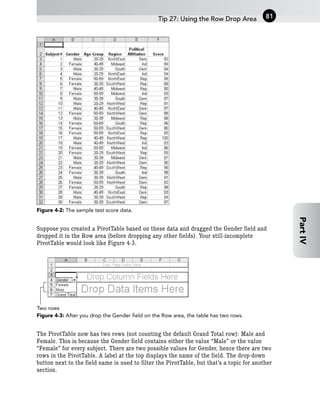
  • 240.
    ElseIf Err.Number =1004 Then MsgBox “There is already a PivotTable at that location” Else MsgBox “Error “ & Err & “ - “ & Err.Description End If Resume EndOfSub End Sub Figure 10-4: The PivotTable report created by the VBA procedure in Listing 10-3. Working with PivotTable Fields All of the fields in a PivotTable report, both visible and not visible, are represented by the PivotField object. If you want to write code to manipulate fields, performing actions such as changing the display format and changing position, you will need to use the PivotField object in code. Tables 10-3 and 10-4describe the more important properties and methods of this object; then the following sections provide code examples for specific field-related tasks. TABLE 10-3 IMPORTANT PROPERTIES OF THE PIVOTFIELD OBJECT Read Only or Property Read/Write Description AutoShowCount R/W When AutoShow is enabled for a field, specifies the number of items shown (for example, top 10 or top 5). Orientation R/W Specifies the orientation, or position, of a field. Can be one of the following: xlHidden, xlRowField, xlColumnField, xlPageField, xlDataField. Tip 79: Working with PivotTable Fields 227 Part X
  • 241.
    TABLE 10-4 IMPORTANTMETHODS OF THE PIVOTFIELD OBJECT Method Description Return value AddDataField Adds a data field to the PivotTable A reference to the PivotField report. object for the added field. Creating and Changing Filters As you learned in Parts III and IV, a filter lets you specify that only some of a field’s items are to be displayed in the PivotTable report. To review briefly, an item is an individual data value in a field. For example, the Month field would contain the items Jan, Feb, and so on. To create a filter you are actually hiding or showing individual items by setting the Visible property to False or True. The procedure involves the following steps: 1. Get a reference to the PivotField object that represents the field of interest. 2. Use a For Each statement to loop through all of the items in the field’s PivotItems collection. 3. Set each PivotItem object’s Visible property to True or False as needed. The following code example gets a reference to the field named Month in the specified PivotTable report. It then creates a filter that displays data only for the month Jan. Dim pf As PivotField Dim pi As PivotItem Set pf = ActiveSheet.PivotTables(1).PivotFields(Index:=”Month”) For Each pi In pf.PivotItems If pi.Name = “Jan” Then pi.Visible = True Else pi.Visible = False End If Next Removing a filter requires only that you set the Visible property to True for all items: For Each pi In pf.PivotItems pi.Visible = True Next Part X: Programming PivotTables with VBA 228
  • 242.
    Changing a Field’sPosition A field’s position — whether it is a row, column, page, or data field — is controlled by the PivotField object’s Orientation property. A field can also be hidden, meaning that it is not part of the PivotTable report but is available to be added to the report. These settings are represented by the defined constants xlHidden, xlRowField, xlColumnField, xlPageField, and xlDataField. To change a field’s position you need to get a reference to the field and then set its Orientation property as desired. The following code assumes that the variable pt has been set to refer to the PivotTable report of interest. It then sets the field named Color to be a row field: Dim pf As PivotField Set pf =pt.PivotFields(“Color”) pf.Orientation=xlRowField When a PivotTable report has more than one field in the Row or Column area, the fields have hierarchy beginning with the outermost. In the Row area, for example, the outer field is dis- played at the far left and provides the top level of organization of the PivotTable’s rows, while the inner field is displayed at the right and provides the lowest level of organization. To change a field’s inner/outer position, you set its Position property. A value of 1 specifies the outer field, 2 is the next level, and so on. This addition to the following example sets the Color field to be the outer row field: Dim pf As PivotField Set pf =pt.PivotFields(“Color”) pf.Orientation=xlRowField pf.Position=1 Creating Calculated Fields and Items A PivotTable report can contain calculated fields and calculated items. To review briefly, a calculated field is a data field whose value is based upon a calculation performed on one or more other fields in the PivotTable report. A calculated item is similar to a calculated field in that it is based on a calculation using an existing data field, but it is not a field; rather, it is an independent item in the report. Calculated fields are maintained in the PivotTable object’s CalculatedFields collection. To create a new calculated field, you call the collection’s Add method and pass it the name of the new field as well as the calculation formula. The calculation formula consists of the following parts: Tip 79: Working with PivotTable Fields 229 Part X
  • 243.
    • A leadingequals sign. • The name(s) of one or more existing fields, including other calculated fields. • The mathematical operators + (addition), - (subtraction), / (division), * (multiplication), and ^ (exponentiation). • Numerical values. For example, the formula =Amount*0.07 creates a calculated field that displays 7 percent of the value in the Amount field. Likewise the formula =Commission*Sale creates a calcu- lated field that displays the product of the Commission and Sale fields. Here is a code snippet that creates a calculated field named Sales Tax that is equal to 5% of the Amount field. Assume that pt is a reference to the PivotTable report of interest: Dim pf As PivotField Set pf = pt.CalculatedFields.Add(Name:=”=Sales Tax”, _ Formula:=”Amount*0.05”) pf.Orientation=xlDataField Note the last line of this code, which sets the field to be a data field. This is required if you want the calculated field to be displayed. If you do not do this, the field will be created and will be available for use in the PivotTable report, but it will remain hidden. A calculated item is associated with an existing field, and you create it by adding to the field’s CalculatedItems collection. The syntax for the calculation formula is the same as described for calculated fields. You also specify a caption for the calculated item when you create it. This code adds a calculated item named Next Quarter to the Quarter field, dis- playing the calculation of 0.9 times the value of the Qtr1 item. Assume that the variable pt is a reference to the PivotTable report: Dim pf As PivotField Set pf = pt.PivotFields(Index:=”Quarter”) pf.CalculatedItems.Add Name:=”Next Quarter”, Formula:=”=Qtr1*0.9” Hide and Show Field Items Hiding and showing fields is actually a matter of changing their positions. A field is “hidden” when it is not a row, column, data, or page field. You saw how to do this in the section “Changing a Field’s Position” earlier in this part. To hide a field, set its position to xlHidden. To show a field, set its position to xlPageField, xlRowField, xlColumnField, or xlDataField. Part X: Programming PivotTables with VBA 230
  • 244.
    Using AutoShow andAutoSort You learned in Part IV how to use the AutoSort feature to sort data in a PivotTable report, and also how to use AutoShow to display only certain values such as the 10 highest. You can also use these features from VBA code. To enable AutoSort you use the PivotField object’s AutoSort method. This method has the following syntax: AutoSort(Order, Field) • Order determines the sort order, either xlAscending, xlDescending, or xlManual. • Field is the name of the field on which to sort. This must be the unique field name (as returned from the SourceName property) and not the displayed name, which may be dif- ferent. The following code sets the field Salesman to sort in ascending order based on the data in the Sales Total field: ActiveSheet.PivotTables(1).PivotField(“Salesman”) _ .AutoSort xlAscending, “Sales Total” To enable AutoShow you call the field’s AutoShow method. The syntax is as follows: AutoShow(Type, Range, Count, Field) • Type is either xlAutomatic to enable AutoShow for the field or xlManual to disable it. • Range specifies whether top or bottom items are shown using the constants xlTop and xlBottom. • Count specifies how many items to show. • Field is the name of the field to use for determinations. It must be the unique field name (as returned from the SourceName property) and not the displayed name, which may be different. This example enables AutoShow for the Salesperson field, displaying the top four records based on the value in the Total Sales field. ActiveSheet.PivotTables(“Pivot1”).PivotFields(“Salesperson”).AutoShow xlAutomatic, xlTop, 4, “Total Sales” Tip 80: Using AutoShow and AutoSort 231 Part X
  • 245.
    Changing a Field’sCalculation PivotTable reports enable you to specify various calculations to be performed by a data field, such as sum and average. You can change a field’s calculation using VBA code by set- ting the field’s Calculation property and sometimes the BaseField and BaseItem properties as well. The Calculation field is set to a defined constant that specifies the calculation. The permit- ted values are: • xlDifferenceFrom • xlIndex • xlNoAdditionalCalculation • xlPercentDifferenceFrom • xlPercentOf • xlPercentOfColumn • xlPercentOfRow • xlPercentOfTotal • xlRunningTotal The BaseField property specifies the field that will be used as the base for the calculation. The BaseItem property specifies the item in the BaseField that will be used for the calculation. The following code sets the calculation for the field referenced by the variable pf to be the difference from the Jun item in the Month field. With pf .Calculation = xlDifferenceFrom .BaseField = “Month” .BaseItem = “Jun” End With Part X: Programming PivotTables with VBA 232 Because field calculations for OLAP-based PivotTable reports are defined in the OLAP cube and not in the PivotTable itself, you cannot change the calculation displayed by data fields, either manually or in VBA code. You must modify the OLAP cube itself in order to change a field calculation. What About OLAP Data?
  • 246.
    Changing the DisplayFormat of a Field The display format used for numbers in a field is controlled by the field’s NumberFormat property. To change the format you must generate a format string that defines the format. These strings use specific characters, as explained in the following table. (You can find complete details in the Excel online Help.) Character Function # Defines a character-display position; insignificant zeros are not displayed. 0 (zero) Defines a character-display position; insignificant zeros are displayed. . (period) Indicates the position of the decimal point. , (comma) Indicates a thousands separator. $ Includes a leading dollar sign. % Displays number as a percent (for example, 0.08 as 8%). [xxx] where xxx is Black, Specifies the text color. Green, White, Blue, Magenta, Yellow, Cyan, or Red ; (semicolon) Separates sections of the format string. The format specified before the separator is used for values 0 and greater; the format specified after the separator is used for values less than 0. Other characters As themselves. such as ( and ). Some examples of format strings and the resulting displays are given in the following table. Tip 82: Changing the Display Format of a Field 233 Part X
  • 247.
    Value Format stringDisplayed 123.4 0.00 123.40 123.4 0 123 123456 #,##0 123,456 123456 #,##0.00 123,456.00 123456 $#,### $123,456 0.095 #.0% 9.5% 0.095 #.000% 9.500% 100000 $#,###.00; $100,000.00 -100000 $(#,###.00) $(100,000.00) You can also control the display format of dates that are part of a PivotTable report. Certain characters in the format string determine how days, months, and years are displayed. These are described in the following table: To display Use this code Months as 1–12 m Months as 01–12 mm Months as Jan–Dec mmm Months as January–December mmmm Months as J–D mmmmm Days as 1–31 d Days as 01–31 dd Days as Sun–Sat ddd Days as Sunday–Saturday dddd Years as 00–99 yy Years as 1900–1999 yyyy Part X: Programming PivotTables with VBA 234
  • 248.
    Creating a PivotChartin Code Creating a PivotChart in VBA code is surprisingly simple. Because a PivotChart is always based on a PivotTable report, all that is required is to create a new chart and then specify the PivotTable as its data source. More specifically, you need to specify the section of the PivotTable report that excludes the page fields, if there are any. The PivotTable object has the TableRange1 property that returns this range. (The TableRange2 property returns the range of the entire PivotTable report, including page fields). The procedure is as follows: 1. Call the Charts collection’s Add method to create a new chart. 2. Call the chart’s Location method to specify where the chart will be placed (see below for details). 3. Call the chart’s SetSourceData method, passing the TableRange1 property of the PivotTable report as an argument. The Location method has the following syntax: Location(Where, Name) • Where is the constant xlLocationAsNewSheet, to put the chart on a new worksheet, or xlLocationAsObject, to embed the chart as an object on an existing worksheet. • Name is required only if you are placing the chart as an embedded object and specifies the name of the worksheet where you want the chart placed. Here’s an example. Assume that the variable pt is a reference to the PivotTable report on which you want the chart based. This code creates a PivotChart and places it on a new worksheet: Charts.Add With ActiveChart .Location Where:=xlLocationAsNewSheet .SetSourceData Source:=pt.TableRange1 End With Tip 83: Creating a PivotChart in Code 235 Part X
  • 250.
    237 Appendix Troubleshooting PivotTables and PivotCharts PivotTables area powerful tools and with that power comes some unavoidable complexity. This section covers the more common problems that users encounter when creating and using PivotTables and suggests solutions. Problems When Using External Data This section covers problems that you may encounter when a PivotTable is based on external data. Slow Responses and/or Error Messages When you are creating a PivotTable based on external data, you may run into problems such as slow response and error messages. Some of these problems cannot be avoided because they are caused by problems with the external data- base itself or with your network connection to the data. There are, however, some things you can do to avoid or minimize these difficulties. When your PivotTable report is based on a large amount of external data, lay- ing the report out in the worksheet after completing the PivotTable Wizard can be slow and can sometimes cause error messages to display. Specifically, when A
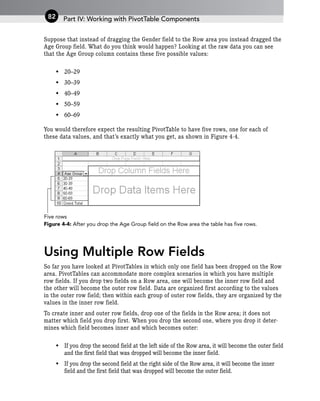
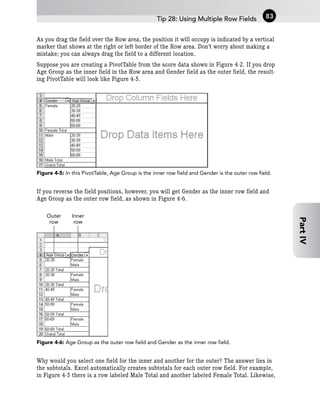
  • 251.
    you drag afield onto the PivotTable report there may be a delay before the data are retrieved and displayed. Here are some suggestions: • If you suspect that table layout in the worksheet will be slow, click the Layout button in Step 3 of the PivotTable Wizard and use the Layout dialog box to define the report layout. (Using this dialog box is covered in Part III.) • If you have started layout in the worksheet and it is slow, click the Always Display Items button on the PivotTable toolbar to turn off data display. When layout is complete, click the button again to turn data display back on. • If you are still having problems, select PivotTable and PivotChart Report from the Data menu to redisplay Step 3 of the wizard. Then click the Layout button to complete the table layout in the Layout dialog box. The suggestion in the next section can also help when data retrieval is slow. Running Out of Resources and/or Memory When your PivotTable is based on a large amount of external data, Excel may run out of resources or memory. This is simply the result of there being too much data for Excel to handle all at once. It may be possible to get around this problem by defining a page field in your report so that only part of the data is retrieved at one time. (You cannot do this if you are using OLAP source data, however.) When laying out the report in the Layout dialog box, drag a field to the Page area. Then dou- ble-click the Page field to display the PivotTable Field dialog box. Click the Advanced button and select the option Query external data source as you select each page field item. Even if you are not receiving error messages, this technique can sometimes speed things up when you are accessing large amounts of external data. You can sometimes avoid running out of memory by opening the Options dialog box for the PivotTable and selecting the Optimize Memory option. Problems Creating PivotTable Reports This section covers common problems that you may encounter when creating a PivotTable report. The Desired Source Report Is Not Listed in the Wizard When you are creating a PivotTable report from an existing PivotTable report, the desired source PivotTable report may not be listed in Step 2 of the PivotTable and PivotChart Wizard. This is usually because the report is in a different workbook; the wizard lists only the PivotTable reports in the workbook that was active when the wizard was started. You Appendix A: Troubleshooting PivotTables and PivotCharts 238
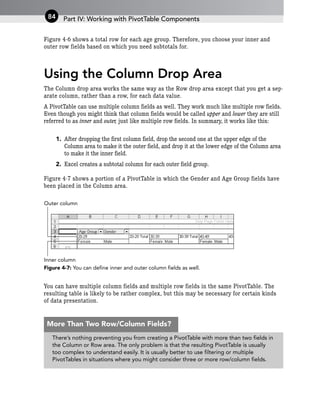
  • 252.
    can get aroundthis problem by copying the desired source PivotTable report into the cur- rent workbook. Problems with PivotTable Report Layout and Formatting This section covers frequently encountered problems with PivotTable formatting and layout. My Formatting Disappears Some Excel users are dismayed to see their carefully applied formatting disappear when they refresh the table or change its layout. This can be avoided — usually, at least — as follows: • For autoformats, make sure the AutoFormat Table option is turned on in the PivotTable options dialog box. (You display the PivotTable Options dialog box by selecting Table Options from the PivotTable menu.) • For other formats, such as font and color changes, make sure the Preserve Formatting option is turned on (in the same dialog box as above). The fact is, however, that certain formats cannot be preserved through refreshes and lay- out changes such as cell borders and conditional formatting. I Cannot Pivot the Report If you cannot drag certain fields (or any fields at all) to pivot the report, there are several possible causes. • If a page field’s options are set to Query for external data only when each item is selected, you will not be able to drag that field to the Row or Column areas. To solve this problem, double-click the field, click Advanced, and clear the Disable Pivoting of this Field check box under Page Field Options. • If the PivotTable is based on OLAP data, certain fields, identified in the Field List by this icon, can be used only as page fields and cannot be dragged to the Data area. • Other fields, identified by this icon, can be used only as data fields and cannot be dragged to the Page, Row, or Column areas. • The workbook may contain a VBA macro that disables the ability to drag fields. If this is the case, a cancel symbol displays at the mouse pointer when you try to drag a field. • If the worksheet has protection turned on, and the Use PivotTable Reports option was not selected when the protection was enabled, you will not be able to modify the report layout. Appendix A: Troubleshooting PivotTables and PivotCharts 239
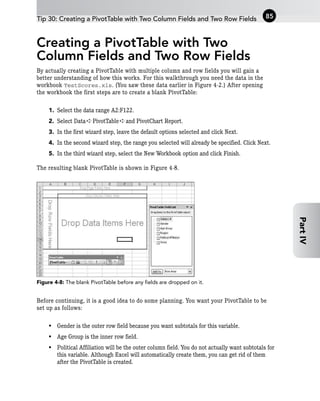
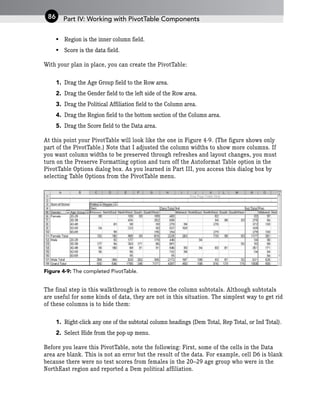
  • 253.
    Problems When UsingOLAP Data This section deals with problems frequently encountered with OLAP data. The Summary Function I Want Is Not Available A PivotTable report based on OLAP data is limited to the summary functions defined in the cube file. The OLAP Cube Wizard has a limited number of summary functions, namely Sum, Count, Min, and Max. It does not support the other summary functions such as StdDev and Product. There are two possible solutions: • If the amount of data is such that your system can handle a standard query (that is, non- OLAP), then create the PivotTable report directly from the external data source rather than from an OLAP cube. You will then have the full range of summary functions avail- able. • Set up an OLAP server using Microsoft SQL Server OLAP Services. This product offers a much wider range of summary functions than the OLAP Cube Wizard that is part of Office. Data Present in the Data Source Are Not Available for My PivotTable Report An OLAP cube does not necessarily contain all of the data in the data source, and a PivotTable based on an OLAP cube is limited to the data in the cube. Depending on how the cube was created, you may be able to modify it to contain the needed data. If, however, the cube was created with the OLAP Cube Wizard in Microsoft Query, you will not be able to add data but will have to redefine a new cube that contains the data. Appendix A: Troubleshooting PivotTables and PivotCharts 240
  • 254.
    241 Appendix Excel Version Differences forPivotTables The PivotTable capabilities of Excel have been evolving over the years as new versions of Office have been introduced. PivotTables in Excel 2000 had essen- tially all the major features that are present in the latest version of Excel, but there have been some changes in the details since then. The two most recent versions, Excel 2002 (also called Excel XP) and Excel 2003, are essentially identical with regard to PivotTables. This appendix looks at the differences between these versions of Excel and the previous version, Excel 2000. User Changes User changes are those that affect the user who is creating and manipulating PivotTables in Excel. The changes in Excel 2002/2003 include the following: • Dropping a field in the Row or Column area displays the field’s items imme- diately. In the old version you had to drop a field in the Data area before these items were displayed. • Items in a Row or Column field can be grouped to provide better display of analysis results. • The PivotTable menu has been reorganized to combine all related com- mands on one menu. The pop-up menu, accessed by right-clicking, makes the most frequently used commands easily available. • In a PivotTable that is based on multidimensional data, the page fields enable you to filter on multiple items at once rather than on a single item or on (All). B
  • 255.
    • Member propertiesfor a multidimensional data source can be viewed (if they exist). • The GETPIVOTDATA function was improved so that its reference to PivotTable data is maintained despite any changes to PivotTable layout. Object Model Changes This section details additions to the PivotTable object model. These changes are relevant if you are writing VBA code to work with PivotTables. There are several new objects and collections: • The PivotCell object represents a single cell in a PivotTable. • The PivotItems collection represents all of the items for a single field. • The CalculatedMember object represents a calculated field or item for a PivotTable based on an OLAP data source. • The CalculatedMembers collection contains all the CalculatedItem objects for a PivotTable. In addition, several existing objects and collections have new properties and/or methods. These are detailed in the following table. Some of these methods and properties are dis- cussed in Part X; for others you can find information in the VBA online documentation. Object/Collection New Properties New Methods Application object GenerateGETPIVOTDATA CalculatedMember object IsValid SolveOrder CubeField object EnableMultiplePageItems AddMemberPropertyField HasMemberProperties ShowInFieldList CubeFields collection AddSet PivotCache object ADOConnection MakeConnection IsConnected SaveAsODC MissingItemsLimit OLAP RobustConnect SourceConnectionFile SourceDataFile Appendix B: Excel Version Differences for PivotTables 242
  • 256.
    Object/Collection New PropertiesNew Methods PivotCell object ColumnItems CustomSubtotalFunction DataField PivotCellType RowItems PivotField object CurrentPageList AddPageItem DatabaseSort EnableItemSelection HiddenItemList IsMemberProperty PropertyOrder PropertyParentField StandardFormula PivotFormula object StandardFormula PivotItem object SourceNameStandard StandardFormula PivotTable object CalculatedMembers AddDataField DataPivotField CreateCubeFile DisplayEmptyColumn GETPIVOTDATA DisplayEmptyRow DisplayImmediateItems EnableDataValueEditing EnableFieldList MDX PivotSelectionStandard ShowCellBackgroundFromOLAP ShowPageMultipleItemLabel ViewCalculatedMembers VisualTotals Appendix B: Excel Version Differences for PivotTables 243
  • 257.
    In addition thereare some new events. The Workbook object has the new PivotTableOpenConnection and PivotTableCloseConnection events, and the Worksheet object has the new PivotTable update event. Appendix B: Excel Version Differences for PivotTables 244
  • 258.
    245 Appendix An Excel ChartPrimer Excel’s charting abilities are extensive and powerful. When you combine Excel charts with PivotTables, you get PivotCharts, a means by which you can graphi- cally display the data in a PivotTable report. You learned about the PivotChart- specific aspects in Part VI, which assumed that you had some basic knowledge of Excel charts in general. This appendix is provided for those readers whose experience with Excel charts is limited or who want to brush up on the basics. With this information, you will be able to format and customize your PivotCharts exactly as desired. This appendix does not cover the steps required to create a chart but assumes that you have already created your PivotChart. Nor does it cover changing chart type, which was covered in Part VI. Formatting Data Series A data series in a chart represents a related set of values. Usually the values that make up a data set are in a column in the underlying table, although it is possible to have rows of values as data sets as well. In a column or bar chart, a data series is represented by a set of columns (or parts of columns) with the same color and/or pattern. In a line chart it is represented by a line with the same color and symbols. These two types of chart are illustrated in Figures C-1 and C-2. C
  • 259.
    Figure C-1: Adata series in a column chart. Figure C-2: Data series in a line chart. Data Series One Data Series Appendix C: An Excel Chart Primer 246
  • 260.
    You can changethe format of a data series in a chart by right-clicking the data series and selecting Format Data Series from the pop-up menu. In the Format Data Series dialog box, the options available to you depend on whether you are working with a column chart or a line chart. For a column chart, the format options are available on the patterns tab in the dialog box, as shown in Figure C-3. You use them as follows. Figure C-3: Formatting options for a data series in a column chart. In the Border section you specify how the border of each column or bar in the data series will appear: • Automatic — Excel will select the format. • None — No border will be displayed. • Custom — The border will be displayed with the style, color, and weight you select. Click the Shadow option to display a drop shadow. In the Area section you specify the appearance of the inner part of the column or bar: • Automatic — Excel will select the format. • None — The bar will display no area fill. • Color — Click a color in the palette to select that color. • Fill Effects — Click this button to set advanced area options, including gradient fills and patterns. Appendix C: An Excel Chart Primer 247
  • 261.
    If you areworking with a line chart, the formatting options for the data series are found on the Patterns tab of the Format Data Series dialog box, shown in Figure C-4. Figure C-4: Formatting options for a data series in a line chart. In the Line section of this dialog box you specify how the data series line is to appear: • Automatic — Excel will select the format. • None — No line will be displayed between symbols. • Custom — The line will be displayed with the style, color, and weight you select. • Smoothed Line — The line will curve smoothly rather than being straight between symbols. Appendix C: An Excel Chart Primer 248 If you will be printing your PivotChart on a monochrome printer, it may be a good idea to format a column chart using patterns rather than colors to distinguish data series. You do this with the Fill Effects button as described above. Printing in Black and White?
  • 262.
    In the Markersection of the dialog box you select the marker, or symbol, displayed at each data point: • Automatic — Excel will select the format. • None — No symbol will be displayed at data points. • Custom — The symbol will be displayed with the style, foreground, background, and size you select. • Shadow — Each symbol will be displayed with a drop shadow. Formatting Chart Axes Most Excel charts have two axes. The vertical axis is called the value axis while the hori- zontal axis is called the category axis. Three-dimensional charts have three axes, the series axis as well as the other two. These axes are illustrated in Figures C-5 and C-6. Figure C-5: Most line and column charts have two axes. To change the format of an axis, right-click it and select Format Axis from the pop-up menu. The Format Axis dialog box has five tabs that give you great flexibility in changing the appearance of an axis. Value Axis Category Axis Appendix C: An Excel Chart Primer 249
  • 263.
    Figure C-6: Three-dimensionalcharts have three axes. Scale The Scale tab offers different options depending on whether you are formatting the value axis or the category axis. For the value axis the Scale tab looks like Figure C-7. Figure C-7: The Scale tab in the Format Axis dialog box for the value axis. Value Axis Category Axis Series Axis Appendix C: An Excel Chart Primer 250
  • 264.
    The axis scaleis normally set by Excel to values based on the nature of the data. You can set these values manually by unchecking the Auto box next to a setting and then entering the desired value manually. The available settings are: • Minimum — The lowest value on the value axis. • Maximum — The highest value on the value axis. • Major unit — The distance between major tick marks and labels. • Minor unit — The distance between minor tick marks. • Category (X) axis Crosses at — The axis value at which the category axis crosses the value axis. The Display units option lets you change the axis display unit to Hundreds, Thousands, Millions, Billions, or Trillions. For example, if you select Thousands, an axis value of 3,000 will display as 3. If you also select the Show display units label on chart option, Excel will display a label — for example, Thousands — next to the axis. Figure C-8 shows the same chart that was shown earlier in Figure C-5, with the value axis display unit set to Thousands. Figure C-8: Using a display unit of Thousands. Appendix C: An Excel Chart Primer 251
  • 265.
    • Logarithmic Scale— Scales the axis using logarithms. Useful when the data include both very small and very large values. • Values in reverse order — Inverts the value axis so the lowest value is at the top and the largest is at the bottom. • Category (X) axis crosses at maximum value — Places the category axis at the maxi- mum value on the value axis. For the category axis, the Scale tab looks like what you see in Figure C-9. Because no values are being plotted, fewer axis options are available. These options are mostly self- explanatory and control the crossing of the value axis and the relationship between the categories and tick marks and labels. You can experiment with them to see precisely what effects they have. Figure C-9: The Scale tab in the Format Axis dialog box for the category axis. Patterns The Patterns tab, shown in Figure C-10, controls the axis line and its tick marks. In the Line section you control how the axis line itself displays: • Automatic — Excel will set the display of the axis line. • None — No axis line will be displayed. • Custom — The axis line will be displayed with the style, color, and pattern you select. Appendix C: An Excel Chart Primer 252
  • 266.
    Figure C-10: ThePattern tab in the Format Axis dialog box controls the display of the axis line and tick marks. On the right side of the Patterns dialog box you control the display of tick marks and tick- mark labels. For both major and minor tick marks you can determine if they are displayed and, if so, where. Note that for a value axis, the distance between major and minor tick marks is determined by the Major unit and Minor unit settings, respectively, on the Scale tab. Font The Font tab in the Format Axis dialog box, shown in Figure C-11, controls the font used to display the axis labels (but not the axis title, which will be covered later in this appendix). It is essentially the same as the Font dialog box that you use to format cells in a work- sheet, enabling you to set the font, style, size, color, and other aspects of the text display. Figure C-11: The Font tab in the Format Axis dialog box controls the font used for the axis labels. Appendix C: An Excel Chart Primer 253
  • 267.
    Number The Number tabis available when you are formatting the value axis. It is shown in Figure C-12. The number formats are the same as those for formatted numerical values in a worksheet — Currency, Percent, General, and so on. Figure C-12: The Number tab in the Format Axis dialog box controls the display format of numbers on the value axis. Alignment The Alignment tab, shown in Figure C-13, controls the angle at which axis labels are dis- played. By default the angle is usually horizontal. In the Orientation section you can drag the text icon to the desired angle or enter the desired value in the Degrees box. The Offset option controls how far from the axis the labels are placed. For example, look at the category axis in the top part of Figure C-14. There is not enough room in the horizontal orientation to display all 12 month names, so Excel defaults to dis- playing every other one. By changing the label alignment, as shown in the lower part of the figure, you can display all 12 labels. Appendix C: An Excel Chart Primer 254
  • 268.
    Figure C-13: TheAlignment tab in the Format Axis dialog box controls the display angle for axis labels. Figure C-14: Using the Alignment setting to display more category axis labels. Appendix C: An Excel Chart Primer 255
  • 269.
    Changing Chart andAxis Titles With a chart you have the option of displaying a title for the chart itself and for each axis in the chart. An axis title is distinct from the axis label, as shown in Figure C-15. Figure C-15: A chart can display chart and/or axis titles. To work with titles, right-click the chart and select Chart Options from the pop-up menu. (If this command does not appear on the pop-up menu, try right-clicking in a slightly different position.) The Chart Options dialog box is shown in Figure C-16 with the Titles tab displayed. On the left, this tab displays a box for the chart title and for each axis in the chart. Enter the desired titles and then click OK. Once a title is displayed on the chart, you can format it by right-clicking the title and selecting Format Title from the pop-up menu. The resulting dialog box lets you specify the font, color, background, and box for the title, among other things. Setting these title options is identical to setting them for an axis, as covered earlier in this appendix. Chart Title Axis Titles Appendix C: An Excel Chart Primer 256
  • 270.
    Figure C-16: TheTitles tab of the Chart Options dialog box. The Chart Legend Excel creates a legend automatically for most charts. The legend, illustrated in Figure C-17, identifies the data series in the chart by color and/or symbol, depending on the chart type. Figure C-17: The chart legend identifies the data series in the chart. Some charts, such as those with only one data series, may not need a legend. You can remove it by right-clicking the legend and selecting Clear from the pop-up menu. You can also change the format and location of the legend by selecting Format Legend from the pop-up menu. The Format Legend dialog box has three tabs: • Font — Specifies the font used in the legend. • Patterns — Specifies the color of the legend background and the format of the box sur- rounding it. • Placement — Controls where on the chart the legend is displayed. Appendix C: An Excel Chart Primer 257
  • 271.
    Using Data Labels Datalabels provide a way for you to display text information directly on the chart. Figure C-18 shows an example in which the numerical value of each data series is displayed as a data label. You can also use data labels to display the series and category names. Figure C-18: Data labels let you display text information directly on the chart. You can set data labels as an option for individual data series. To display them, right-click the data series and select At Data Series from the pop-up menu. Next, select the Data Labels tab in the Format Data Series dialog box. This tab is shown in Figure C-19. Make selections in this dialog box as follows: • In the Label Contains section, select one or more items to include in the data label: the value, the category name, and/or the series name. The Percentage and Bubble size options are available only for pie and bubble charts and are not relevant to PivotCharts. • If you selected more than one item to include in the data label, pull down the Separator list and select the character that will be used to separate the items. • Select the Legend Key option to include the legend key (symbol or color) in the data label. Data Labels Appendix C: An Excel Chart Primer 258
  • 272.
    Figure C-19: TheData Labels tab in the Format Data Series dialog box. You can also set data labels for all data series at once by right-clicking the chart and selecting Chart Options from the pop-up menu to display the Chart Options dialog box. On the Data Labels tab you have the options shown in Figure C-19, but your settings apply to all of the data series. After you have added your data labels you can format them by right-clicking a label and selecting Format Data Labels from the pop-up menu. The dialog box that appears lets you select font, background, number format, and alignment for the labels. Note that a format applies only to labels for a single data series. Other Chart Options In this final section I will mention briefly some other chart options that you may find useful. Gridlines A chart can display vertical and/or horizontal gridlines in the background of the chart to provide visual organization and a scale for interpreting the chart data. You can display gridlines at major tick intervals, minor tick intervals, or both. Figure C-20 shows a chart with horizontal (value axis) gridlines at both the major and minor tick intervals. Appendix C: An Excel Chart Primer 259
  • 273.
    Figure C-20: Achart displaying horizontal gridlines. To display gridlines, open the Chart Options dialog box, click the Gridlines tab, and then select the gridline options you want. Once gridlines are displayed, you can change their format by right-clicking a gridline and selecting Format Gridlines. The dialog box that appears lets you select the line style and color for the gridlines. It also provides access to the Scale settings for the value axis, which you can use to change the spacing between tick marks (and hence gridlines). Displaying a Data Table A data table displays a table of the chart’s numerical data under the chart itself, as shown in Figure C-21. You can use a data table when you want to display precise number values as well as the overall trend. Data labels, covered earlier in this appendix, are another way to do this. Appendix C: An Excel Chart Primer 260
  • 274.
    Figure C-21: Achart with a data table displayed. To display a data table, display the Chart Options dialog box and click the Data Table tab. Select the Show Data Table option to display the data table. Select the Show Legend Key option to include the legend keys (colors, symbols) in the table (as in Figure C-21). Appendix C: An Excel Chart Primer 261
  • 276.
    Symbols and Numerics *(asterisk) multiplication operator, 113 total, marking with, 67 ^ (caret) exponentiation operator, 113 , (comma) field format string character, 233 $ (dollar sign) field format string character, 233 = (equals sign) formula prefix, 113 GETPIVOTDATA function shortcut character, 187, 192–193 >= (greater than sign, equals sign) greater than or equal to operator, 208 > (greater than sign) greater than operator, 208 <= (less than sign, equals sign) less than or equal to operator, 208 < (less than sign) less than operator, 208 - (minus sign) subtraction operator, 113 # (number sign) field format string character, 233 % (percent sign) field format string character, 233 . (period) field format string character, 233 + (plus sign) addition operator, 113 “ ” (quotation marks) function argument delimiters, 185 ; (semicolon) field format string character, 233 / (slash) division operator, 113 3-D PivotChart, 147, 153–157, 161 A active status PivotChart, 13 PivotTable, 8, 79 Add VBA method, 219 AddDataField VBA method, 222, 224–225, 228 AddFields VBA method, 222, 223–224 addition. See total Application object, 242 asterisk (*) multiplication operator, 113 total, marking with, 67 AutoFilter feature, 19, 209 autoformatting, 66, 70–72, 74–76, 86 AutoShow feature, 105–107, 227, 231 AutoSort feature, 104, 107, 231 average, returning, 95, 97–98, 100, 201, 206 B background color, 73 Browse dialog box, 21 C calculated field creating, 113–115, 229–230 deleting, 114 duration of PivotTable, existence limited to, 113 editing, 114 GETPIVOTDATA function, returned by, 187 metric conversion using, 116–118 OLAP support, 113, 232 PivotChart, 145 total, returning using, 113, 114, 120–122 calculated item, 119–123, 145, 187, 229–230, 242 CalculatedFields collection, 213 CalculatedItem object, 242 CalculatedMember object, 214, 242 CalculatedMembers collection, 214, 221, 242 caret (^) exponentiation operator, 113 category field, 123, 140, 143 grouping category data, 132–135 cell border, 67, 101 calculated item display in, 123 database cells, counting, 206 empty cell display, customizing, 68 field-linked, 73 formatting, 67, 72, 73 GETPIVOTDATA function generating when cell clicked, 187–188 referencing cell in, 186, 187–190 PivotCell object, 242 referencing, 185, 186, 187–190 VBA, returning cell value using, 223 Chart Options dialog box, 256–257, 259, 260, 261 Index
  • 277.
    chart, static. Seealso PivotChart GETPIVOTDATA function, creating from data returned by, 191–194 PivotChart, changing to, 144 Chart Type dialog box, 146–147, 155 Chart Wizard, 193 Choose Columns dialog box, 33 Choose Data Source dialog box accessing, 24 Databases tab, 25, 26, 32, 173 OLAP Cubes tab, 30, 179 Queries tab, 30 Classic format, 66, 70 Clothing Stock.xls file, 55 collection, 213. See also specific collection color background, 73 PivotChart, 144, 149, 247–248 column drop area, 84 field base item, 110 counting data items in, 100 creating PivotTable based on multiple column fields, 85–87 deviation, returning, 100 hierarchy, 229 inner/outer, 54, 84, 87, 125, 177 maximum/minimum value, returning, 100 multiplying value in, 100 number displayed, specifying, 67 PivotChart, 149, 151, 152–153, 156, 247 PivotField object for, returning using VBA, 221 report, adding to using VBA, 222 subtotal, returning, 100 variance, returning, 100 hiding, 86 layout, adding to, 62 percent calculation, 109 query, adding to, 173 report database query, specifying column for, 33 multi-column report, creating, 9–12 width of report column, changing, 7 comma (,) field format string character, 233 consolidation range, 39–41, 43, 44, 47–54 context menu display, 65 copying formula, 187 PivotTable, 194–195 report to current workbook, 238–239 counting cells, 206 data items, 95, 96, 100 subtotal, values involved in, 201 CourseData.xls file, 50 Create New Data Source dialog box, 28–29 CreateCompletePivotTable VBA procedure, 226–227 CreatePivotTable VBA method, 219, 220 crosstab, 4, 209 CUB files, 178 cube file creating, 172–178 creating PivotTable from, 179–182 data source, 172–173, 179, 240 dimension, 175–177 icon, 180 introduced, 30 level, 175–176, 177 measure, 172 multiple cube files, working with, 172 query, defining for, 173 retrieving data, 178 saving, 178 summary function support, 240 summary nature of, 172, 174, 180 updating, 178 CubeField object, 242 CubeFields collection, 242 currency formatting, 7, 38 CurrentRegion VBA property, 226 Customize dialog box, 188 D Data ➪ Import External Data ➪ Import Data, 39 Data ➪ Import External Data ➪ New Web Query, 39 Data menu, 4, 142, 172 Data ➪ PivotTable and PivotChart Report, 32 Index 264
  • 278.
    data series field, 140,143, 145, 152 number of, maximum, 161 PivotChart axis, 144, 145 border, 247 color, 247–248 field, 140, 143, 145, 152 formatting, 245–249 label, 144, 258–259 legend, 144 line display, 248 marker display, 249 pattern, 257 data source database connecting to, 25, 27–28 page field, querying external data source when selecting, 104 type of database, specifying, 27–28, 29 external cube file, 172–173, 179, 240 display of raw data, 27 importing data, 39 linking to, 23–24 page field external data, working with, 103–104 password, 38 response time, 237–238 troubleshooting, 237–238 VBA, working with using, 219 Web page, 39 workbook, 20–22 XML, 39 location, specifying, 17–18, 26 multidimensional data, 30, 172–173, 179, 240 OLAP, 30, 104, 172–173, 179, 240 Windows, 30 workbook, 17–22 database cells, counting, 206 comparing numeric values in, 208 data source connecting to, 25, 27–28 page field, querying external data source when selecting, 104 type of database, specifying, 27–28, 29 driver, 29, 104 filtering, 209–210 function, 206–208, 209 maximum/minimum value, returning, 206 multiplying value in, 206 query background, 69 defining, 25–26, 30, 31–38, 173 page field, querying external data source when selecting, 104 relational Excel support, 163 key, 162, 164 storage of multidimensional data in, 166, 170, 171 table relationship, 164–165, 166–168 report, creating from query, 31–38 sorting returned data, 25, 210 standard deviation of value in, returning, 206 table dependent, 164–165, 166 primary, 164–165 query, adding to, 173 relationship, 164–165, 166–168 totaling values meeting specified criterion, 206, 207–208, 217 variance of data sample, returning, 206 VBA, working with using, 217 date formatting using VBA, 234 GETPIVOTDATA function, referencing in, 186 grouping date values, 130–132 DAVERAGE function, 206 DCOUNT function, 206 DCOUNTA function, 206 decimal places displayed, specifying, 98 Define Name dialog box, 18 deviation, standard, 100, 201, 206 Dim VBA statement, 215 dimension, data, 171, 176–177. See also multidimensional data division, 113, 120 DMAX function, 206 DMIN function, 206 dollar sign ($) field format string character, 233 DPRODUCT function, 206 drilling down, 69, 107, 124, 182, 222 Index 265
  • 279.
    drop area column, 84 Data,87–88 page, 90–91 row, 80–84 DSTDEV function, 206 DSTDEVP function, 206 DSUM function, 206 DVAR function, 206 DVARP function, 206 E EmployeeData.xls file, 47 equals sign (=) formula prefix, 113 GETPIVOTDATA function shortcut character, 187, 192–193 error message, customizing, 67 exponentiation, 113, 120 Extensible Markup Language (XML) data source, 39 F field adding column field to report using VBA, 222 database query, to, 25, 26, 34, 37 dimension area, to, 176–177 page field to layout, 62 page field using VBA, 222 PivotChart, to, 11–12, 140 PivotTable, to, 7, 11, 80 report, to, 7, 11, 222, 223–225, 228 subtotal list, to, 200 base value, returning difference between raw value and, 110 calculated field creating, 113–115, 229–230 deleting, 114 duration of PivotTable, existence limited to, 113 editing, 114 GETPIVOTDATA function, returned by, 187 metric conversion using, 116–118 OLAP support, 113, 232 PivotChart, 145 total, returning using, 113, 114, 120–122 caption, adding using VBA, 225 category field, 123, 140, 143 cell, field-linked, 73 column field base item, 110 counting data items in, 100 creating PivotTable based on multiple column fields, 85–87 deviation, returning, 100 hierarchy, 229 inner/outer, 54, 84, 87, 125, 177 maximum/minimum value, returning, 100 multiplying value in, 100 number displayed, specifying, 67 PivotChart, 149, 151, 152–153, 156, 247 PivotField object for, returning using VBA, 221 report, adding to using VBA, 222 subtotal, returning, 100 variance, returning, 100 data series field, 140, 143, 145, 152 detail display, 124–127 formatting, 73, 95, 233–234 hiding, 95, 102–103, 127, 145–146, 230 icon, 80 inner/outer, 54–58, 82–84, 87, 125–126, 177 layout, 62, 87, 100–102 maximum/minimum value in, returning, 95, 97, 98, 100 name assigning, 95, 102, 113 duplicate, 175 number of fields, maximum, 161 orientation, 227, 229 page field adding to layout, 62 adding using VBA, 222 data source, working with external, 103–104 disabling pivoting in, 104 empty page field display, 102 filtering based on, 41, 44, 46, 49, 93–94 GETPIVOTDATA function, using with, 188–189 hiding, 102, 103 inner/outer, 54 naming, 102 number of page fields, maximum, 161 Index 266
  • 280.
    PivotField object for,returning using VBA, 222 report, basing on each page field item using VBA, 223 report, basing on multiple page fields, 40–41, 44–47, 50–54, 67, 91–94 report, basing on single, 40, 42–43, 45, 47–50 subtotal, returning, 102 PivotChart adding field to, 11–12, 140, 143 calculated field, 145 category field, 123, 140, 143 changing field setting, 145 column, 149, 151, 152–153, 156, 247 data series field, 140, 143, 145, 152 hiding, 145–146 list display, 13, 140 row field, 140, 148, 149–152, 156 PivotField object AddDataField method, 228 AutoShowCount property, 227 AutoSort method, 231 column field, returning PivotField object for, 221 CurrentPageList property, 243 data field, returning PivotField object for, 221 DatabaseSort property, 243 described, 213 EnableItemSelection property, 243 HiddenItemList property, 243 IsMemberProperty property, 243 Orientation property, 227, 229 page field, returning PivotField object for, 222 PropertyOrder property, 243 PropertyParentField property, 243 row field, returning PivotField object for, 222 StandardFormula property, 243 pivoting, role in, 57 positioning, 87, 229 property field, 127–128 removing from PivotTable, 80 report adding field using VBA, 222, 223–225, 228 adding field via dragging from Field List, 7, 11 page field, basing on each item in using VBA, 223 page field, basing on single, 40, 42–43, 45, 47–50 page fields, basing on multiple, 40–41, 44–47, 50–54, 67, 91–94 row field counting data items in, 100 creating PivotTable based on multiple row fields, 85–87 deviation, returning, 100 drop area, using multiple row fields in, 82–84 hierarchy, 229 inner/outer, 54–58, 82–84, 87, 125–126, 177 layout, 100–102 maximum/minimum value, returning, 100 multiplying value in, 100 PivotChart, 140, 148, 149–152, 156 report, adding to using VBA, 222 subtotal, returning, 83–84, 100 variance, returning, 100 size limitation, 161 sorting, 104–105, 106–107 source field, 95, 176 summarizing, 88–89, 95–99, 107 total adding field to subtotal list, 200 column field subtotal, 100 cube field data, 174–175, 180–181 formula in calculated field/item, using, 113, 114, 120–122 page field subtotal, 102 row field subtotal, 83–84, 100 VBA calculated field, working with, 229–230, 232 caption, adding, 225 column field, returning PivotField object for, 221 data field, returning PivotField object for, 221 dragging field disabled by, 239 formatting, 233–234 continued Index 267
  • 281.
    VBA continued hiding field,230 page field, returning PivotField object for, 222 positioning field, 229 referencing field, 225 report field, adding, 222, 223–225, 228 row field, returning PivotField object for, 222 Field List accessing, 8, 79 dragging field from, 7, 11, 80 PivotChart, 13, 140 Field Settings dialog box, 73, 97, 107, 145 filtering alternative to PivotTable, as, 194, 210 AutoFilter, 19, 209 copied PivotTable, 194 database, 209–210 page field, based on, 41, 44, 46, 49, 93–94 PivotChart, 144 report, basing on filtered data, 19, 41, 44, 46, 49 VBA, working with in, 228 flat data, 162 font, 73, 253 Format Axis dialog box accessing, 249 Alignment tab, 254–255 Font tab, 253 Number tab, 254 Patterns tab, 252–253 Scale tab, 250 Format Cells dialog box, 72–73 Format Data Series dialog box, 247, 248, 259 Format VBA method, 223 formatting autoformatting, 66, 70–72, 74–76, 86 cell, 67, 72, 73 Classic, 66, 70 conditional, 67 currency, 7, 38 field, 73, 95, 233–234 font, 73, 253 indentation, 70–72 number, 72–73, 95, 98, 233–234, 254 PivotChart axis, 249–255 changing default format, 147 changing underlying PivotTable, considerations when, 158 data series, 245–249 resetting to default format, 147 Preserve Formatting option, 67, 73, 86, 222, 239 removing all, 66 report, 74–76, 239 troubleshooting, 239 VBA, applying using, 223, 233–234 Formatting toolbar, 7 formula copying, 187 item, calculated, 119–123, 145, 187, 229–230 OLAP support, 113 PivotChart, displaying in, 145 PivotFormula object, 214, 222, 243 PivotFormulas collection, 214 VBA, working with using, 222, 223 function, database, 206–208, 209. See also specific function G GetData VBA method, 223 GETPIVOTDATA function calculated field/item returned by, 187 cell generating GETPIVOTDATA function when clicked, 187–188 referencing, 186, 187–190 chart, creating from data returned by, 191–194 date, referencing, 186 detail display, effect on, 190–191 = (equals sign) shortcut for entering, 187, 192–193 formula containing, copying, 187 OLAP, using with, 189–190, 191 page field, using with, 188–189 range, referencing, 187 #REF message returned by, 186 syntax, 185 total, returning using, 186 GetPivotData VBA method, 223 GetPivotTableReference procedure, 216 greater than sign, equals sign (>=) greater than or equal to operator, 208 Index 268
  • 282.
    greater than sign(>) greater than operator, 208 grouping category data, 132–135 dates, 130–132 numeric items, 128–132 subtotal, calculating for group, 132–135 time values, 130 ungrouping, 119 H hiding button, 63–64 column, 86 field, 95, 102–103, 127, 145–146, 230 PivotTable toolbar, 63 row, 8, 98–99 hierarchical data. See multidimensional data I icon, field, 80 importing data, 39 indentation, 70–72 Insert Calculated Field dialog box, 113, 114, 116 Insert Calculated Item dialog box, 119–120 Insert ➪ Name ➪ Define, 18 item calculated, 119–123, 145, 187, 229–230, 242 counting data items, 95, 96, 100 field base item, 110 grouping numeric items, 128–132 PivotItem object, 213, 243 PivotItems collection, 213, 242 L label field caption, adding using VBA, 225 merging, 66 page, repeating on each, 67 layout element, adding/removing, 62 field, 62, 87, 100–102 line, inserting blank, 102 outline, 101 page, 62, 67, 68 response time, improving using, 238 saving data with, 69 subtotal, adding to, 101 tabular, 101 troubleshooting, 239 VBA, defining using, 218 Layout dialog box, 61–62 less than sign, equals sign (<=) less than or equal to operator, 208 less than sign (<) less than operator, 208 level, multidimensional data, 171, 175–176, 177 line, inserting blank, 102 linking data cell, field-linked, 73 copied PivotTable, 194 data source, external, 23–24 database, relational, 162–163 key field, 162, 164 PivotChart, report linkage to, 11, 139, 144 refreshing linked PivotTable, 22 list, creating PivotTable based on using VBA, 219–221 ListFormulas VBA method, 223 Location VBA method, 235 M math average, returning, 95, 97–98, 100, 201, 206 database values, comparing, 208 decimal places displayed, specifying, 98 division, 113, 120 exponentiation, 113, 120 field base value, returning difference between raw value and, 110 grouping numeric items, 128–132 item, calculated, 119–123, 145, 187, 229–230 maximum/minimum value, returning database, 206 field, 95, 97, 98, 100 subtotal calculation, value involved in, 201 metric conversion, 116–118 multiplication, 95, 100, 114, 201, 206 percentage, 108–109, 110, 113, 135, 230 standard deviation, 100, 201, 206 subtraction, 110, 113, 120 total alternative to PivotTable, subtotal as, 205 * (asterisk), marking with, 67 averaging subtotals, 201 continued Index 269
  • 283.
    math continued column fieldsubtotal, returning, 100 counting values involved in subtotal, 201 cube field data, 174–175, 180–181 database values meeting specified criterion, returning for, 206, 207–208, 217 detail display, subtotal, 205 field, adding to subtotal list, 200 formula in calculated field/item, returning using, 113, 114, 120–122 GETPIVOTDATA function, returning using, 186 grand total, 66, 217, 221, 222 group item subtotal, 132–135 hidden items, including in subtotal, 66 layout, adding subtotal to, 101 maximum/minimum value involved in subtotal, returning, 201 nesting subtotal, 202–204 page break, placing between subtotal groups, 200 page field subtotal, returning, 102 product of values involved in subtotal, returning, 201 range, removing subtotal from, 201 replacing existing subtotal, 200 report, displaying subtotal when creating, 19 row field subtotal, returning, 83–84, 100 running total, 109–110 sorting before subtotal calculation, 199, 202, 203 standard deviation of values involved in subtotal, returning, 201 summary display, subtotal, 200, 203 variance of values involved in subtotal, returning, 201 variance, returning, 100, 201, 206 maximum/minimum value, returning database, 206 field, 95, 97, 98, 100 subtotal calculation, value involved in, 201 measure, multidimensional data, 172 member, multidimensional data, 171 memory optimizing, 69, 238 PivotCache object, 219, 242 PivotCaches collection, 219 Merge Labels feature, 66 metric conversion, 116–118 minus sign (-) subtraction operator, 113 multidimensional data. See also OLAP (Online Analytical Processing) data source, 30, 172–173, 179, 240 database, storage in, 166, 170, 171 described, 164 field, adding to dimension area, 176–177 flat data compared, 162 hierarchy, data, 171, 177 level, 171, 175–176, 177 measure, 172 member, 171 relational data compared, 162–163 multiplication, 95, 100, 114, 201, 206 N naming field name assigning, 95, 102, 113 duplicate, 175 PivotTable, 62 range, 18 non-relational data, 162 Northwind.mdb file, 31 number formatting, 72–73, 95, 98, 233–234, 254 grouping numeric items, 128–132 number sign (#) field format string character, 233 O object model, 213–214, 252–253 OLAP (Online Analytical Processing). See also multidimensional data analysis done by, 161 calculated field/item support, 113, 232 cube file creating, 172–178 creating PivotTable from, 179–182 data source, 172–173, 179, 240 dimension, 175–177 icon, 180 introduced, 30 level, 175–176, 177 measure, 172 multiple cube files, working with, 172 Index 270
  • 284.
    query, defining for,173 retrieving data, 178 saving, 178 summary function support, 240 summary nature of, 172, 174, 180 updating, 178 data source, 30, 104, 172–173, 179, 240 detail, displaying, 126–128, 182 dimension, 175–177 drilling down, 182 formula support, 113 GETPIVOTDATA function, using with, 189–190, 191 hierarchy, data, 161, 177 level, 175–176, 177 property field display, 127–128 server, 170 summary used, specifying, 174 troubleshooting, 239, 240 Online Analytical Processing. See OLAP Options dialog box accessing, 62, 65 Autoformat Table option, 66, 72, 74, 86 Background Query option, 69 Data Options area, 68–69 Enable Drill To Details option, 69, 124 Fields Per Column option, 67 For Empty Cells Show option, 68 For Error Values Show option, 67 Format Options area, 66–68 Grand Totals option, 66 Mark Totals With * option, 67 Merge Labels option, 66 Name area, 65 Optimize Memory option, 69, 238 Page Layout option, 67 PivotChart options, 145 Preserve Formatting option, 67, 73, 86, 239 Refresh Every ... Minutes option, 69 Refresh On Open option, 69 Repeat Item Labels On Each Printed Page option, 67 Save Data With Table Layout option, 69 Save Password option, 69 Set Print Titles option, 68 Subtotal Hidden Page Items option, 66 .oqy files, 178 outline layout, 101 section, 205 P page break, 102, 200 drop area, 90–91 field adding to layout, 62 adding using VBA, 222 data source, working with external, 103–104 disabling pivoting in, 104 empty page field display, 102 filtering based on, 41, 44, 46, 49, 93–94 GETPIVOTDATA function, using with, 188–189 hiding, 102, 103 inner/outer, 54 naming, 102 number of page fields, maximum, 161 PivotField object for, returning using VBA, 222 report, basing on each page field item using VBA, 223 report, basing on multiple page fields, 40–41, 44–47, 50–54, 67, 91–94 report, basing on single page field, 40, 42–43, 45, 47–50 subtotal, returning, 102 label, repeating on each, 67 layout, 62, 67, 68 printing, 67, 68 password data source, external, 38 workbook, saving with, 69 Paste Special dialog box, 195 percent sign (%) field format string character, 233 percentage, calculating, 108–109, 110, 113, 135, 230 period (.) field format string character, 233 PivotCache object, 219, 242 PivotCaches collection, 219 PivotCell object, 242, 243 Index 271
  • 285.
    PivotChart active status, 13 axis alignment,254–255 category axis, 145, 249, 252 color, 252 data series, 144, 145 display unit, 251 font, 253 formatting, 249–255 inverting value display order, 252 number display, customizing, 254 pattern, applying to, 252–253 scale, 250–252 title, 145, 256–257 value axis, 249, 252 color, 144, 149, 247–248 data item adding, 140, 143 calculated item, 145 data label, 258–259 data series axis, 144, 145 border, 247 color, 247–248 field, 140, 143, 145, 152 formatting, 245–249 label, 144, 258–259 legend, 144 line display, 248 marker display, 249 pattern, 257 data table display, 260–261 described, 12, 139 drop shadow, 247, 249 field adding, 11–12, 140, 143 calculated field, 145 category field, 123, 140, 143 changing field setting, 145 column, 149, 151, 152–153, 156, 247 data series field, 140, 143, 145, 152 hiding, 145–146 list display, 13, 140 row field, 140, 148, 149–152, 156 filtering, 144 formatting axis, 249–255 changing default, 147 changing underlying PivotTable, considerations when, 158 data series, 245–249 resetting to default, 147 formula in, displaying, 145 gridline display, 259–260 introduced, 3 legend, 144, 145, 257 Options dialog box options, 145 pattern, 247, 248, 252–253 placement, 141 plot area, 144 previewing, 147 printing, 248 refreshing, 145, 151 report creating PivotChart based on, 11, 13, 139–144 linkage to PivotChart, 11, 139, 144 relation to PivotChart, 13, 139, 140 size limitation, 161 static chart, changing PivotChart to, 144 3-D, 147, 153–157, 161 title, 144, 145, 256–257 type, changing, 146–147, 155 VBA, creating using, 235 PivotChart menu, 140, 145–146 PivotChart toolbar, 140 PivotField object AddDataField method, 228 AutoShowCount property, 227 AutoSort method, 231 column field, returning PivotField object for, 221 CurrentPageList property, 243 data field, returning PivotField object for, 221 DatabaseSort property, 243 described, 213 EnableItemSelection property, 243 HiddenItemList property, 243 IsMemberProperty property, 243 Orientation property, 227, 229 page field, returning PivotField object for, 222 PropertyOrder property, 243 Index 272
  • 286.
    PropertyParentField property, 243 rowfield, returning PivotField object for, 222 StandardFormula property, 243 PivotFields VBA method, 223 PivotFormula object, 214, 222, 243 PivotFormulas collection, 214 pivoting described, 3 field role in, 57 PivotItem object, 213, 243 PivotItems collection, 213, 242 PivotSelect VBA method, 223 PivotTable and PivotChart Wizard accessing, 5 Another PivotTable or PivotChart Report option, 54 Browse button, 21 Create a Single-Page Field option, 48 Database option, 20, 91 External Data Source option, 23, 179 Get Data button, 23 I Will Create the Page Fields option, 51 Layout button, 61 Microsoft Excel List option, 20 multi-column PivotTable, creating using, 9–12 Multiple Consolidation Ranges option, 47, 51 New Worksheet option, 48, 91 Next button, 6 Options button, 61, 62 PivotChart report option, 139–140 Range box, 6, 10, 19 report, creating using, 5–7 Select button, 6, 17 PivotTable Field Advanced Options dialog box, 103–107 PivotTable Field dialog box accessing, 94 Advanced button, 99, 100, 103, 107–108 Field button, 94 Hide button, 95, 99, 102 Hide items area, 103 Layout button, 100 Name area, 95, 99, 102 Number button, 95 Options button, 95, 107 Show items with no data option, 100, 102 Source field area, 95 Subtotals area, 100, 102 Summarize by area, 95 PivotTable Field Layout dialog box, 100–101 PivotTable menu, 64–65, 144 PivotTable object, 213, 221–223, 243 PivotTable toolbar, 7, 11, 22, 63–64 PivotTableCloseConnection event, 244 PivotTableOpenConnection event, 244 PivotTables collection, 213, 215 PivotTableWizard VBA method, 217 plus sign (+) addition operator, 113 population variance, 100, 206 pop-up menu display, 65 positioning field, 87, 229 PivotTable, 7 PivotTable toolbar, 63 printing page, 67, 68 PivotChart, 248 Property Fields dialog box, 127 Q query database query background, 69 defining, 25–26, 30, 31–38, 173 page field, querying external data source when selecting, 104 Web query, 39 Query Wizard, 25–26, 33–35, 173 quotation marks (“ ”) function argument delimiters, 185 R range consolidation range, 39–41, 43, 44, 47–54 GETPIVOTDATA function, referencing in, 187 naming, 18 page field, consolidating in multiple page fields, 40–41, 44–47, 50–54, 67, 91–94 single page field, 40, 42–43, 45, 47–50 report, 6, 39, 41–43, 223, 226 specifying, 6, 10, 17–18, 19, 20 subtotal, removing, 201 Index 273
  • 287.
    #REF message, 186 referencing cell,185, 186, 187–190 field using VBA, 225 GETPIVOTDATA function, in, 186, 187–190 PivotTable using VBA, 215–216, 219 refreshing copied PivotTable, 194 interval, specifying, 69 linked PivotTable, 22 PivotChart, 145, 151 report using VBA, 223 workbook opening, upon, 69 RefreshTable VBA method, 223 relational data, 162–163 report column multi-column report, creating, 9–12 width, changing, 7 creating based on another report, 54 crosstab table, converting to, 4 database query, creating from, 31–38 field adding, 7, 11, 222, 223–225, 228 page field, basing report on each item in using VBA, 223 page field, basing report on single, 40, 42–43, 45, 47–50 page fields, basing report on multiple, 40–41, 44–47, 50–54, 67, 91–94 filtering, basing on, 19, 41, 44, 46, 49 formatting, 74–76, 239 PivotChart creating based on report, 11, 13, 139–144 linkage to report, 11, 139, 144 relation to report, 13, 139, 140 PivotTable and PivotChart Wizard, creating using, 5–7 range, 6, 39, 41–43, 223, 226 removing unneeded element, 43 row, displaying/hiding, 8, 98–99 subtotal, displaying when creating, 19 summary report, 54 troubleshooting, 238–239 VBA, working with using field, adding, 222, 223–225, 228 range, returning, 223, 226 refreshing report, 223 selecting portion of report, 223 workbook, copying to current, 238–239 RiverHeights.xls file, 114 row calculated item display in, 123 data display in, 17 drop area, 80–84 field counting data items in, 100 creating PivotTable based on multiple row fields, 85–87 deviation, returning, 100 drop area, using multiple row fields in, 82–84 hierarchy, 229 inner/outer, 54–58, 82–84, 87, 125–126, 177 layout, 100–102 maximum/minimum value, returning, 100 multiplying value in, 100 PivotChart, 140, 148, 149–152, 156 report, adding to using VBA, 222 subtotal, returning, 83–84, 100 variance, returning, 100 hiding, 8, 98–99 layout, adding to, 62 percent calculation, 109 S SalesBySalesRep.xls file, 105, 124 SalesData_Multidimensional Data.mdb file, 173 SalesProjections.xls file, 120 sample variance, 100, 206 saving cube file, 178 layout, data with, 69 password with workbook, 69 Select Database dialog box, 32 selecting entire PivotTable, 144 semicolon (;) field format string character, 233 series, data. See data series Index 274
  • 288.
    Set VBA statement,215 SetSourceData VBA method, 235 ShowPages VBA method, 223 size limitation, 161 slash (/) division operator, 113 Sort dialog box, 202, 203 sorting AutoSort feature, 104, 107, 231 database, data returned from, 25, 210 field, 104–105, 106–107 subtotal calculation, sorting before, 199, 202, 203 SportingGoodsRawData.xls file, 5, 141 standard deviation, 100, 201, 206 subtotal. See total, subtotal Subtotal dialog box, 199–200 subtraction, 110, 113, 120 Sum VBA function, 225 SurveyResults3.xls file, 153 SurveyResults2.xls file, 132 T Table Options dialog box, 215 tabular layout, 101 TestScores2.xls file, 96 TestScores.xls, 85 TestScores.xls file, 125 3-D PivotChart, 147, 153–157, 161 ThreePageFields.xls file, 91 time grouping time values, 130 response time, improving using layout, 238 total * (asterisk), marking with, 67 cube field data, 174–175, 180–181 database values meeting specified criterion, returning for, 206, 207–208, 217 formula in calculated field/item, returning using, 113, 114, 120–122 GETPIVOTDATA function, returning using, 186 grand total, 66, 217, 221, 222 running total, 109–110 subtotal alternative to PivotTable, as, 205 averaging subtotals, 201 column field subtotal, returning, 100 counting values involved, 201 detail display, 205 field, adding to subtotal list, 200 group item subtotal, 132–135 hidden items, including, 66 layout, adding to, 101 maximum/minimum value involved, returning, 201 nesting, 202–204 page break, placing between subtotal groups, 200 page field subtotal, returning, 102 product of values involved, returning, 201 removing from range, 201 replacing existing, 200 report, displaying when creating, 19 row field subtotal, returning, 83–84, 100 sorting before calculation, 199, 202, 203 standard deviation of values involved, returning, 201 summary display, 200, 203 variance of values involved, returning, 201 U update event, 244 updating. See refreshing V variance, returning, 100, 201, 206 VBA (Visual Basic for Applications) Add method, 219 AddDataField method, 222, 224–225, 228 AddFields method, 222, 223–224 AutoShow method, 231 AutoSort method, 231 calculated field/item, working with, 229–230, 232 cell value, returning, 223 CreateCompletePivotTable procedure, 226–227 CreatePivotTable method, 219, 220 creating PivotTable, 216–221, 225–227 CurrentRegion property, 226 data source, external, 219 database, working with, 217 date, formatting, 234 Dim statement, 215 drill-down, enabling, 222 continued Index 275
  • 289.
    VBA (Visual Basicfor Applications) continued field calculated field, working with, 229–230, 232 caption, adding, 225 column field, returning PivotField object for, 221 data field, returning PivotField object for, 221 dragging disabled, 239 formatting, 233–234 hiding, 230 page field, returning PivotField object for, 222 positioning, 229 referencing, 225 report field, adding, 222, 223–225, 228 row field, returning PivotField object for, 222 filter, working with, 228 format, applying, 223, 233–234 formula, working with, 222, 223 GetData method, 223 GetPivotData method, 223 heading label for grand total, specifying using, 222 layout, defining, 218 list, creating PivotTable based on, 219–221 ListFormulas method, 223 Location method, 235 object model, 213–214 PivotCache object, working with, 219 PivotChart, creating, 235 PivotFields method, 223 PivotSelect method, 223 PivotTable object, 213, 221–223, 243 PivotTableWizard method, 217 Preserve Formatting status, testing, 222 referencing PivotTable, 215–216, 219 RefreshTable method, 223 report field, adding, 222, 223–225, 228 range, returning, 223, 226 refreshing, 223 selecting portion of, 223 Set statement, 215 SetSourceData method, 235 ShowPages method, 223 Sum function, 225 variable, 213, 215 workbook, opening, 216 version difference overview, 241–244 VideoDataWithRatings.xls file, 202 VideoStoreRawData.xls file, 9, 225 View ➪ Toolbars, 63 Visual Basic for Applications. See VBA W Web query, 39 workbook copying PivotTable to another, 194–195 data source, as, 17–22 opening refreshing PivotTable upon, 69 VBA, using, 216 overhead, 20 password, saving with, 69 report, copying to current, 238–239 summary workbook, 20 X XML (Extensible Markup Language) data source, 39 Index 276