Module 13
Recovering Network Data
and Servers
Module Overview
• Recovering Network Data with Shadow Copies
• Recovering Network Data and Servers with Windows
Server Backup
Lesson 1: Recovering Network Data with
Shadow Copies
• What Are Shadow Copies?
• Considerations for Scheduling Shadow Copies
• Demonstration: How to Configure Shadow Copies
• Ways to Restore Data from a Volume Shadow Copy
• Demonstration: How to Restore Data from a Shadow Copy
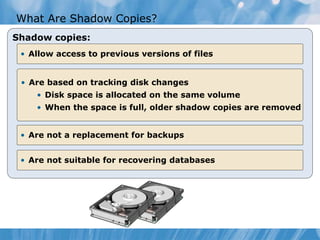
What Are Shadow Copies?
Shadow copies:
• Allow access to previous versions of files
• Are based on tracking disk changes
• Disk space is allocated on the same volume
• When the space is full, older shadow copies are removed
• Are not a replacement for backups
• Are not suitable for recovering databases
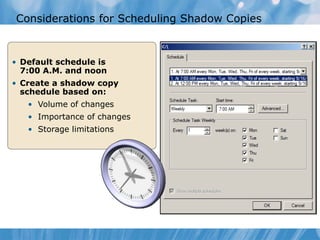
Considerations for Scheduling Shadow Copies
• Default schedule is
7:00 A.M. and noon
• Create a shadow copy
schedule based on:
• Volume of changes
• Importance of changes
• Storage limitations
Demonstration: How to Configure Shadow Copies
This demonstration shows how to:
• Enable shadow copies on C:
• View settings for shadow copies
Ways to Restore Data from a Shadow Copy
• Previous versions are accessed in the properties
of a file or folder
• Administrators can restore previous versions
directly on the server
• Users can restore previous versions over the network
• Windows XP requires the Previous Versions client
• All users can:
• Restore a file or folder
• Copy a file or folder to an alternate location
• Browse previous versions to select the correct version
Demonstration: How to Restore Data from a
Shadow Copy
This demonstration shows how to:
• Create a new file
• Create a shadow copy
• Modify the file
• Restore a previous version
Lesson: Recovering Network Data and Servers
with Windows Server Backup
• What Is Windows Server Backup?
• Types of Backup
• Differences between versions of Windows Server Backup
• Who Can Back up Data?
• What Is System State Data?
• Recovery Options
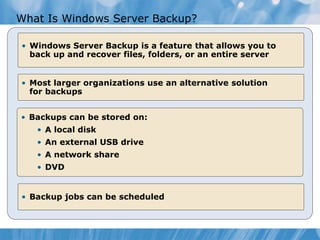
What Is Windows Server Backup?
• Windows Server Backup is a feature that allows you to
back up and recover files, folders, or an entire server
• Most larger organizations use an alternative solution
for backups
• Backups can be stored on:
• A local disk
• An external USB drive
• A network share
• DVD
• Backup jobs can be scheduled
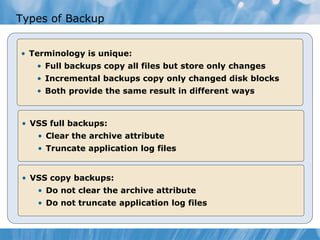
Types of Backup
• Terminology is unique:
• Full backups copy all files but store only changes
• Incremental backups copy only changed disk blocks
• Both provide the same result in different ways
• VSS full backups:
• Clear the archive attribute
• Truncate application log files
• VSS copy backups:
• Do not clear the archive attribute
• Do not truncate application log files
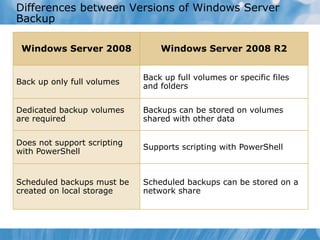
Differences between Versions of Windows Server
Backup
Windows Server 2008 Windows Server 2008 R2
Back up only full volumes
Back up full volumes or specific files
and folders
Dedicated backup volumes
are required
Backups can be stored on volumes
shared with other data
Does not support scripting
with PowerShell
Supports scripting with PowerShell
Scheduled backups must be
created on local storage
Scheduled backups can be stored on a
network share
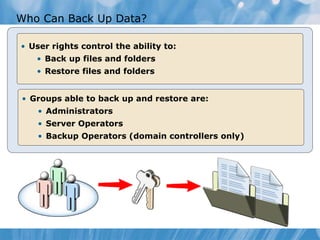
Who Can Back Up Data?
• User rights control the ability to:
• Back up files and folders
• Restore files and folders
• Groups able to back up and restore are:
• Administrators
• Server Operators
• Backup Operators (domain controllers only)
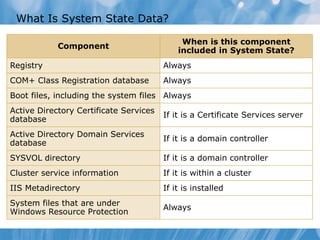
What Is System State Data?
Component
When is this component
included in System State?
Registry Always
COM+ Class Registration database Always
Boot files, including the system files Always
Active Directory Certificate Services
database
If it is a Certificate Services server
Active Directory Domain Services
database
If it is a domain controller
SYSVOL directory If it is a domain controller
Cluster service information If it is within a cluster
IIS Metadirectory If it is installed
System files that are under
Windows Resource Protection
Always
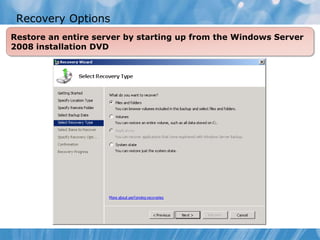
Recovery Options
Restore an entire server by starting up from the Windows Server
2008 installation DVD
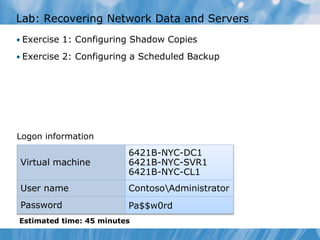
Lab: Recovering Network Data and Servers
• Exercise 1: Configuring Shadow Copies
• Exercise 2: Configuring a Scheduled Backup
Logon information
Virtual machine
6421B-NYC-DC1
6421B-NYC-SVR1
6421B-NYC-CL1
User name ContosoAdministrator
Password Pa$$w0rd
Estimated time: 45 minutes
Lab Scenario
• Recently, a new file server was implemented for the
marketing department. Somehow in the planning process,
no one considered how data on the server would be
protected. You need to configure volume shadow copies on
the server to simplify recovery of files. You also need to
configure a scheduled backup for disaster recovery.
Lab Review
• Why did you need to go to the properties of the share to
restore a deleted file from a shadow copy?
• When you performed the second backup, why did the disk
space in use not increase on the destination drive?
Module Review and Takeaways
• Review Questions
• Windows Server 2008 R2 Features Introduced in this
Module
• Tools

6421 b Module-13

  • 1.
  • 2.
    Module Overview • RecoveringNetwork Data with Shadow Copies • Recovering Network Data and Servers with Windows Server Backup
  • 3.
    Lesson 1: RecoveringNetwork Data with Shadow Copies • What Are Shadow Copies? • Considerations for Scheduling Shadow Copies • Demonstration: How to Configure Shadow Copies • Ways to Restore Data from a Volume Shadow Copy • Demonstration: How to Restore Data from a Shadow Copy
  • 4.
    What Are ShadowCopies? Shadow copies: • Allow access to previous versions of files • Are based on tracking disk changes • Disk space is allocated on the same volume • When the space is full, older shadow copies are removed • Are not a replacement for backups • Are not suitable for recovering databases
  • 5.
    Considerations for SchedulingShadow Copies • Default schedule is 7:00 A.M. and noon • Create a shadow copy schedule based on: • Volume of changes • Importance of changes • Storage limitations
  • 6.
    Demonstration: How toConfigure Shadow Copies This demonstration shows how to: • Enable shadow copies on C: • View settings for shadow copies
  • 7.
    Ways to RestoreData from a Shadow Copy • Previous versions are accessed in the properties of a file or folder • Administrators can restore previous versions directly on the server • Users can restore previous versions over the network • Windows XP requires the Previous Versions client • All users can: • Restore a file or folder • Copy a file or folder to an alternate location • Browse previous versions to select the correct version
  • 8.
    Demonstration: How toRestore Data from a Shadow Copy This demonstration shows how to: • Create a new file • Create a shadow copy • Modify the file • Restore a previous version
  • 9.
    Lesson: Recovering NetworkData and Servers with Windows Server Backup • What Is Windows Server Backup? • Types of Backup • Differences between versions of Windows Server Backup • Who Can Back up Data? • What Is System State Data? • Recovery Options
  • 10.
    What Is WindowsServer Backup? • Windows Server Backup is a feature that allows you to back up and recover files, folders, or an entire server • Most larger organizations use an alternative solution for backups • Backups can be stored on: • A local disk • An external USB drive • A network share • DVD • Backup jobs can be scheduled
  • 11.
    Types of Backup •Terminology is unique: • Full backups copy all files but store only changes • Incremental backups copy only changed disk blocks • Both provide the same result in different ways • VSS full backups: • Clear the archive attribute • Truncate application log files • VSS copy backups: • Do not clear the archive attribute • Do not truncate application log files
  • 12.
    Differences between Versionsof Windows Server Backup Windows Server 2008 Windows Server 2008 R2 Back up only full volumes Back up full volumes or specific files and folders Dedicated backup volumes are required Backups can be stored on volumes shared with other data Does not support scripting with PowerShell Supports scripting with PowerShell Scheduled backups must be created on local storage Scheduled backups can be stored on a network share
  • 13.
    Who Can BackUp Data? • User rights control the ability to: • Back up files and folders • Restore files and folders • Groups able to back up and restore are: • Administrators • Server Operators • Backup Operators (domain controllers only)
  • 14.
    What Is SystemState Data? Component When is this component included in System State? Registry Always COM+ Class Registration database Always Boot files, including the system files Always Active Directory Certificate Services database If it is a Certificate Services server Active Directory Domain Services database If it is a domain controller SYSVOL directory If it is a domain controller Cluster service information If it is within a cluster IIS Metadirectory If it is installed System files that are under Windows Resource Protection Always
  • 15.
    Recovery Options Restore anentire server by starting up from the Windows Server 2008 installation DVD
  • 16.
    Lab: Recovering NetworkData and Servers • Exercise 1: Configuring Shadow Copies • Exercise 2: Configuring a Scheduled Backup Logon information Virtual machine 6421B-NYC-DC1 6421B-NYC-SVR1 6421B-NYC-CL1 User name ContosoAdministrator Password Pa$$w0rd Estimated time: 45 minutes
  • 17.
    Lab Scenario • Recently,a new file server was implemented for the marketing department. Somehow in the planning process, no one considered how data on the server would be protected. You need to configure volume shadow copies on the server to simplify recovery of files. You also need to configure a scheduled backup for disaster recovery.
  • 18.
    Lab Review • Whydid you need to go to the properties of the share to restore a deleted file from a shadow copy? • When you performed the second backup, why did the disk space in use not increase on the destination drive?
  • 19.
    Module Review andTakeaways • Review Questions • Windows Server 2008 R2 Features Introduced in this Module • Tools