MMIICCRROOSSOOFFTT 
PPOOWWEERRPPOOIINNTT 
““ 22001133 ””
SLIDE 
LAYOU 
T
What is SLIDE LAYOUT ? 
Each slide layout contains 
placeholders for text, 
videos, pictures, charts, 
shapes, clip art, a 
background, and more, and 
they also contain the 
formatting, such as theme 
colors, fonts, and effects, 
for those objects.
Every theme (palette of 
colors, fonts, and special 
effects) you use in your 
presentation includes one 
slide master and a set of 
related layouts. If you use 
more than one theme in 
your presentation, you’ll 
have more than one slide 
master and multiple sets of 
layouts.
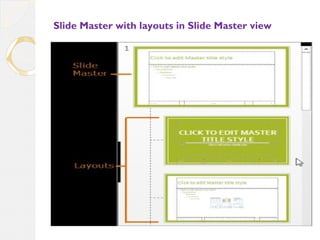
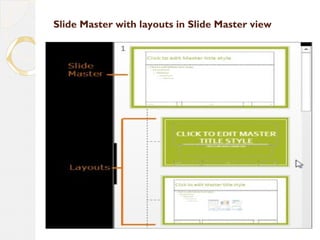
You change the slide 
layouts that are built 
in to PowerPoint in 
Slide Master View. The 
picture below shows 
the slide master and 
two of the ten layouts 
for the Basis theme in 
Slide Master View.
Slide Master with layouts in Slide Master view
And then when you 
are laying out the 
content in your 
slides, you can pick 
the slide layouts 
that best suit your 
content, as shown 
here in Normal 
View.
SLIDE LAYOUTS
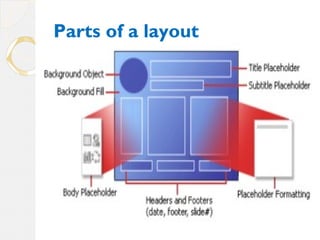
The following 
diagram shows 
the various ‘parts’ 
of a layout that 
you can include on 
a PowerPoint 
slide.
Parts of a layout
Where can I find slide layouts? 
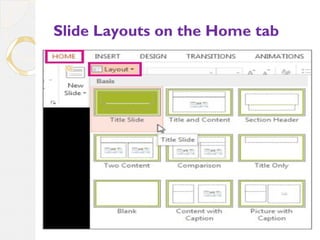
To pick a different layout 
for a slide: 
1.In Normal view, on the 
Home tab, click Layout. 
2.Pick a layout that best 
suits the content in your 
slide.
Slide Layouts on the Home tab
To customize or make changes 
to the placeholders and other 
objects that make up a layout: 
1.On the View tab, click Slide 
Master. 
2.The slide layouts appear as 
thumbnails in the left pane 
below the slide master, as 
shown below.
Slide Master with layouts in Slide Master view
CCrreeaattiinngg nneeww sslliiddee llaayyoouuttss 
One of the most powerful 
features of Slide Master view 
is the option to create new 
slide layouts. This is an easy 
way to add interesting and 
unique slide layouts to an 
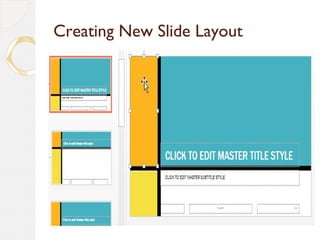
existing theme. You could even 
use this feature to design an 
entirely new theme, as in the 
example below.
Creating New Slide Layout

MICROSOFT POWERPOINT 2013 " SLIDE LAYOUT "

  • 1.
  • 2.
  • 3.
    What is SLIDELAYOUT ? Each slide layout contains placeholders for text, videos, pictures, charts, shapes, clip art, a background, and more, and they also contain the formatting, such as theme colors, fonts, and effects, for those objects.
  • 4.
    Every theme (paletteof colors, fonts, and special effects) you use in your presentation includes one slide master and a set of related layouts. If you use more than one theme in your presentation, you’ll have more than one slide master and multiple sets of layouts.
  • 5.
    You change theslide layouts that are built in to PowerPoint in Slide Master View. The picture below shows the slide master and two of the ten layouts for the Basis theme in Slide Master View.
  • 6.
    Slide Master withlayouts in Slide Master view
  • 7.
    And then whenyou are laying out the content in your slides, you can pick the slide layouts that best suit your content, as shown here in Normal View.
  • 8.
  • 9.
    The following diagramshows the various ‘parts’ of a layout that you can include on a PowerPoint slide.
  • 10.
    Parts of alayout
  • 11.
    Where can Ifind slide layouts? To pick a different layout for a slide: 1.In Normal view, on the Home tab, click Layout. 2.Pick a layout that best suits the content in your slide.
  • 12.
    Slide Layouts onthe Home tab
  • 13.
    To customize ormake changes to the placeholders and other objects that make up a layout: 1.On the View tab, click Slide Master. 2.The slide layouts appear as thumbnails in the left pane below the slide master, as shown below.
  • 14.
    Slide Master withlayouts in Slide Master view
  • 15.
    CCrreeaattiinngg nneeww sslliiddeellaayyoouuttss One of the most powerful features of Slide Master view is the option to create new slide layouts. This is an easy way to add interesting and unique slide layouts to an existing theme. You could even use this feature to design an entirely new theme, as in the example below.
  • 16.