Introduction to MDT 2012
        Rhonda Layfield
   Sr. Deployment Architect
Rhonda Layfield
•   I live in Washing DC in the US
•   I’ve been in IT for over 30 years
•   US Navy for 7 years
•   5 Time Setup and Deployment MVP
•   Desktop Deployment Product Specialist (DDPS)
•   I am self employed
    – My company is Deployment Done Right
• My Twitter handle is @DeploymentDr
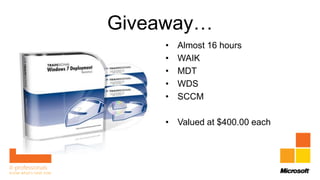
Giveaway…
    •   Almost 16 hours
    •   WAIK
    •   MDT
    •   WDS
    •   SCCM

    • Valued at $400.00 each
What We Will Cover
•   MDT Basics
•   Images
•   Network Deployments
•   Automation
•   Customization
•   What’s new to MDT 2012
Windows Image Formats
• There are two
  – Windows Image
     • .Wim
  – Virtual hard disk
     • .Vhd
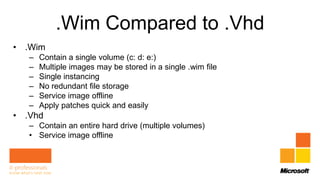
.Wim Compared to .Vhd
• .Wim
   –   Contain a single volume (c: d: e:)
   –   Multiple images may be stored in a single .wim file
   –   Single instancing
   –   No redundant file storage
   –   Service image offline
   –   Apply patches quick and easily
• .Vhd
   – Contain an entire hard drive (multiple volumes)
   • Service image offline
Three Types of Images:
• Thick images contain an OS and all applications
   – More difficult to make changes to later
• Thin images usually contain only the OS
   – Applications are deployed after the OS
       • Group Policy deployment
       • MDT 2010 U1
       • Manually
• Hybrid images contain OS and corporate approved applications
   – Like line of business (LOB) applications created in-house
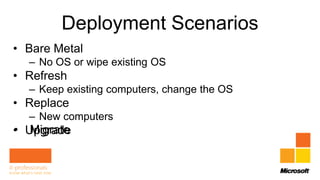
Deployment Scenarios
• Bare Metal
  – No OS or wipe existing OS
• Refresh
  – Keep existing computers, change the OS
• Replace
  – New computers
• Upgrade
   Migrate
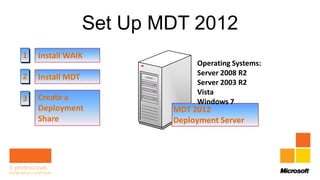
Set Up MDT 2012
1   Install WAIK
                               Operating Systems:
2                              Server 2008 R2
    Install MDT
                               Server 2003 R2
                               Vista
3   Create a                   Windows 7
    Deployment            MDT 2012
    Share                 Deployment Server
Upgrade Existing MDT
•   You have already been using MDT
•   Everything is set up just the way you want it
•   No need to recreate the deployment share
•   Upgrade your existing deployment shares
Deployment Share
IMAGES
Reference Image vs master image
2
                 1     Add
                                   MDT 2012
                                   Deployment       Deploy OS
                                                                    SYSPREP

    Win 7 DVD
       W7 DVD
                  OS, apps, driv
                     ers and
                                   Server
                                                                3
Windows Server 2003 patches
                     R2                         Store Image
                                                                Create Image
Windows Server 2008 & R2
XP SP3
Vista SP1
Windows 7 & SP1
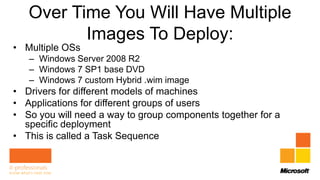
Over Time You Will Have Multiple
          Images To Deploy:
• Multiple OSs
   – Windows Server 2008 R2
   – Windows 7 SP1 base DVD
   – Windows 7 custom Hybrid .wim image
• Drivers for different models of machines
• Applications for different groups of users
• So you will need a way to group components together for a
  specific deployment
• This is called a Task Sequence
Task Sequences
• Single image for deployment
• Each task can deploy the same hybrid
  image
• With different applications
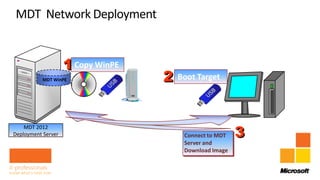
1 Copy WinPE
           MDT WinPE               2   Boot Target


                                                         3
    MDT 2012
Deployment Server                       Connect to MDT
                                        Server and
                                        Download Image
Network Deployment & Monitoring
The Master Image
• Deploy the Reference image and create a .wim image
• This .wim image is the “Master” image
• No need to answer all those questions
   – Automate the build process
   – Choose the pages of the deployment wizard you want to see
   – Help on variables to add to these files:
       • Help
       • Microsoft Deployment Toolkit Reference
            – Properties
            – Property Definitions
Real Deployment Share
Task sequence of ref image and master image
Automation
Customization
Notes From The Field
   • Why not deploy the reference image to your
     clients
   • Time
   • 3+ hours to deploy the reference image and
     create a master image
   • 20 – 25 minutes to deploy the master image

(c) 2011 Microsoft. All rights
Update Master Image
   • Why
        – New versions of applications
             • Flash
             • Adobe reader
        – Updated drivers
        – Patches
   • How often
        – 3 or 4 times a year
        – When needed


(c) 2011 Microsoft. All rights
Real Deployment Share
show comparison between task sequence of ref
image and master image enable disable tasks,
add new tasks on the fly
NEW TO MDT 2012
SCCM & MDT 2012
• Aligned more closely with Config Manager 2012
   – New Terminology
      • Advertise = Deploy
      • Packages can either be optional or mandatory
          – Optional = available
          – Mandatory = required
• When to expect the new products
   – Beta 2 – available now
   – RTM after Config Manager 2012 ships
New Features
• New Deployment Wizard
• Deploy .vhd images
• Supports deploying ThinPC and POSReady
   – ThinPC – basic Win7
      • Citrix or Terminal Services client
   – POSReady
      • Point of Sales – cash registers
• Cross platform deployment
   – 32 bit WinPE can deploy 32 or 64 bit OSs
More New Features
• Diagnosis and Recovery Toolset (DART)
   – Allows remote control of target machines in WinPE phase
• Monitor deployments
• Properties of the deployment share are streamlined
• Image factory – create .wim or .vhd
   – Vhd can be deployed via Virtual Machine Manager as
     templates to create new virtual machines
Unified Extensible Firmware
              Interface (UEFI)
• Full support of UEFI
   – Intels replacement for PC BIOS
   – Offers support for GUID partition tables (GPT)
       • MBR partition tables restricted disk partition sizes to a maximum of 2.19 TB
       • MBR supports only 4 partitions
           – 4 primary
           – 3 primary and 1 extended (break it up into logicals)
       • GPT allows a maximum disk and partition size of 9.4 ZB
           – 1 zettabyte = 1 billion terabytes
           – Supports upto 128 volumes
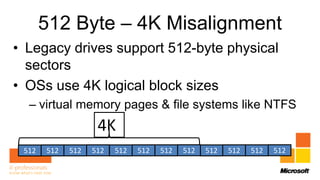
512 Byte – 4K Misalignment
• Legacy drives support 512-byte physical
  sectors
• OSs use 4K logical block sizes
  – virtual memory pages & file systems like NTFS
                    4K
 512   512   512   512   512   512   512   512   512   512   512   512
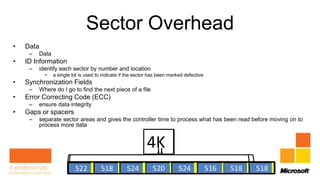
Sector Overhead
•   Data
     –   Data
•   ID Information
     –   identify each sector by number and location
           •    a single bit is used to indicate if the sector has been marked defective
•   Synchronization Fields
     –   Where do I go to find the next piece of a file
•   Error Correcting Code (ECC)
     –   ensure data integrity
•   Gaps or spacers
     –   separate sector areas and gives the controller time to process what has been read before moving on to
         process more data


                                                            4K
                         512
                          522       512 512 512520512 524
                                     518  524           512 516
                                                             512                            512
                                                                                           518    518
What’s The Problem? The Fix
• The result is performance is degraded
  – 10% – 30%
• The fix is for hardware and OSs to both read at
  a 4K sector size
• 4K sector sizes are not supported for XP
• But they are in WinPE 3.0
What We Covered
•   Image Types
•   Installation and setup of MDT
•   Network Deployments
•   Automation
•   Customization
•   What’s new to MDT 2012
What’s Coming Up
• MDT 2012 Advanced features including
  migrating XP to Windows 7
• Windows Deployment Service (WDS)
• Zero Touch Installs via ConfigMgr (SCCM)
• Troubleshooting SCCM

Deployment Day Session 1: Introduction to MDT 2012

  • 2.
    Introduction to MDT2012 Rhonda Layfield Sr. Deployment Architect
  • 3.
    Rhonda Layfield • I live in Washing DC in the US • I’ve been in IT for over 30 years • US Navy for 7 years • 5 Time Setup and Deployment MVP • Desktop Deployment Product Specialist (DDPS) • I am self employed – My company is Deployment Done Right • My Twitter handle is @DeploymentDr
  • 4.
    Giveaway… • Almost 16 hours • WAIK • MDT • WDS • SCCM • Valued at $400.00 each
  • 5.
    What We WillCover • MDT Basics • Images • Network Deployments • Automation • Customization • What’s new to MDT 2012
  • 6.
    Windows Image Formats •There are two – Windows Image • .Wim – Virtual hard disk • .Vhd
  • 7.
    .Wim Compared to.Vhd • .Wim – Contain a single volume (c: d: e:) – Multiple images may be stored in a single .wim file – Single instancing – No redundant file storage – Service image offline – Apply patches quick and easily • .Vhd – Contain an entire hard drive (multiple volumes) • Service image offline
  • 8.
    Three Types ofImages: • Thick images contain an OS and all applications – More difficult to make changes to later • Thin images usually contain only the OS – Applications are deployed after the OS • Group Policy deployment • MDT 2010 U1 • Manually • Hybrid images contain OS and corporate approved applications – Like line of business (LOB) applications created in-house
  • 9.
    Deployment Scenarios • BareMetal – No OS or wipe existing OS • Refresh – Keep existing computers, change the OS • Replace – New computers • Upgrade Migrate
  • 10.
    Set Up MDT2012 1 Install WAIK Operating Systems: 2 Server 2008 R2 Install MDT Server 2003 R2 Vista 3 Create a Windows 7 Deployment MDT 2012 Share Deployment Server
  • 11.
    Upgrade Existing MDT • You have already been using MDT • Everything is set up just the way you want it • No need to recreate the deployment share • Upgrade your existing deployment shares
  • 12.
  • 13.
  • 14.
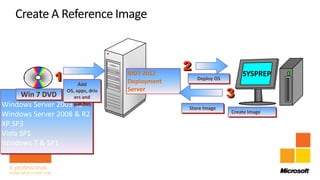
    2 1 Add MDT 2012 Deployment Deploy OS SYSPREP Win 7 DVD W7 DVD OS, apps, driv ers and Server 3 Windows Server 2003 patches R2 Store Image Create Image Windows Server 2008 & R2 XP SP3 Vista SP1 Windows 7 & SP1
  • 15.
    Over Time YouWill Have Multiple Images To Deploy: • Multiple OSs – Windows Server 2008 R2 – Windows 7 SP1 base DVD – Windows 7 custom Hybrid .wim image • Drivers for different models of machines • Applications for different groups of users • So you will need a way to group components together for a specific deployment • This is called a Task Sequence
  • 16.
    Task Sequences • Singleimage for deployment • Each task can deploy the same hybrid image • With different applications
  • 17.
    1 Copy WinPE MDT WinPE 2 Boot Target 3 MDT 2012 Deployment Server Connect to MDT Server and Download Image
  • 18.
  • 19.
    The Master Image •Deploy the Reference image and create a .wim image • This .wim image is the “Master” image • No need to answer all those questions – Automate the build process – Choose the pages of the deployment wizard you want to see – Help on variables to add to these files: • Help • Microsoft Deployment Toolkit Reference – Properties – Property Definitions
  • 20.
    Real Deployment Share Tasksequence of ref image and master image Automation Customization
  • 21.
    Notes From TheField • Why not deploy the reference image to your clients • Time • 3+ hours to deploy the reference image and create a master image • 20 – 25 minutes to deploy the master image (c) 2011 Microsoft. All rights
  • 22.
    Update Master Image • Why – New versions of applications • Flash • Adobe reader – Updated drivers – Patches • How often – 3 or 4 times a year – When needed (c) 2011 Microsoft. All rights
  • 23.
    Real Deployment Share showcomparison between task sequence of ref image and master image enable disable tasks, add new tasks on the fly
  • 24.
  • 25.
    SCCM & MDT2012 • Aligned more closely with Config Manager 2012 – New Terminology • Advertise = Deploy • Packages can either be optional or mandatory – Optional = available – Mandatory = required • When to expect the new products – Beta 2 – available now – RTM after Config Manager 2012 ships
  • 26.
    New Features • NewDeployment Wizard • Deploy .vhd images • Supports deploying ThinPC and POSReady – ThinPC – basic Win7 • Citrix or Terminal Services client – POSReady • Point of Sales – cash registers • Cross platform deployment – 32 bit WinPE can deploy 32 or 64 bit OSs
  • 27.
    More New Features •Diagnosis and Recovery Toolset (DART) – Allows remote control of target machines in WinPE phase • Monitor deployments • Properties of the deployment share are streamlined • Image factory – create .wim or .vhd – Vhd can be deployed via Virtual Machine Manager as templates to create new virtual machines
  • 28.
    Unified Extensible Firmware Interface (UEFI) • Full support of UEFI – Intels replacement for PC BIOS – Offers support for GUID partition tables (GPT) • MBR partition tables restricted disk partition sizes to a maximum of 2.19 TB • MBR supports only 4 partitions – 4 primary – 3 primary and 1 extended (break it up into logicals) • GPT allows a maximum disk and partition size of 9.4 ZB – 1 zettabyte = 1 billion terabytes – Supports upto 128 volumes
  • 29.
    512 Byte –4K Misalignment • Legacy drives support 512-byte physical sectors • OSs use 4K logical block sizes – virtual memory pages & file systems like NTFS 4K 512 512 512 512 512 512 512 512 512 512 512 512
  • 30.
    Sector Overhead • Data – Data • ID Information – identify each sector by number and location • a single bit is used to indicate if the sector has been marked defective • Synchronization Fields – Where do I go to find the next piece of a file • Error Correcting Code (ECC) – ensure data integrity • Gaps or spacers – separate sector areas and gives the controller time to process what has been read before moving on to process more data 4K 512 522 512 512 512520512 524 518 524 512 516 512 512 518 518
  • 31.
    What’s The Problem?The Fix • The result is performance is degraded – 10% – 30% • The fix is for hardware and OSs to both read at a 4K sector size • 4K sector sizes are not supported for XP • But they are in WinPE 3.0
  • 32.
    What We Covered • Image Types • Installation and setup of MDT • Network Deployments • Automation • Customization • What’s new to MDT 2012
  • 33.
    What’s Coming Up •MDT 2012 Advanced features including migrating XP to Windows 7 • Windows Deployment Service (WDS) • Zero Touch Installs via ConfigMgr (SCCM) • Troubleshooting SCCM

Editor's Notes

  • #29 A zettabyte (symbol ZB, derived from the SI prefixzetta-) is a unit of information or computer storage equal to one sextillion (one long scaletrilliard) bytes.[1][2][3][4]As of 2011, no storage system has achieved one zettabyte of information. The combined space of all computer hard drives in the world was estimated at approximately 160 exabytes in 2006.[5] This has increased rapidly however, as during the 2011 Fiscal Year, Seagate reported selling a combined total of 330 exabytes of hard drives. This does not include shipments from any other manufacturer, and only includes those sold during 2011. [6] As of 2009, the entire Internet was estimated to contain close to 500 exabytes.[7]1,000,000,000,000,000,000,000 bytes = 10007 bytes = 1021 bytesThe term "zebibyte" (ZiB), using a binary prefix, is used for the corresponding power of 1024.[edit] Comparisons for scaleA zettabyte is equal to 1 billion terabytes.The world’s technological capacity to receive information through one-way broadcast networks was 0.432 zettabytes of (optimally compressed) information in 1986, 0.715 in 1993, 1.2 in 2000, and 1.9 (optimally compressed) zettabytes in 2007 (this is the informational equivalent to every person on earth receiving 174 newspapers per day). [8]According to the annual survey of the global digital output by International Data Corporation, the total amount of global data was expected to pass 1.2 zettabytes sometime during 2010. This is equivalent to the amount of data that would be generated by everyone in the world posting messages on the microblogging site Twitter continuously for a century.[9]Mark Liberman calculated the storage requirements for all human speech ever spoken at 42 zettabytes if digitized as 16 kHz 16-bit audio. This was done in response to a popular expression that states "all words ever spoken by human beings" could be stored in approximately 5 exabytes of data (see exabyte for details). Liberman did "freely confess that maybe the authors [of the exabyte estimate] were thinking about text."[10]Research from the University of Southern California reports that in 2007, humankind successfully sent 1.9 zettabytes of information through broadcast technology such as televisions and GPS. [11]Research from the University of California, San Diego reports that in 2008, Americans consumed 3.6 zettabytes of information.[12]