Migrating to a Virtual
VAX: An Introduction
Stanley F. Quayle, P.E.
President, Quayle Consulting Inc.
Session Goals
•   Understand virtualization
•   Learn about issues raised by virtualization
•   Experience migration with:
    − Magnetic tape
    − Disk
    − DECnet
    − OpenVMS Cluster
    − CD-ROM
    − FTP
Required Experience
•   Working knowledge of HP OpenVMS system
    administration
•   If you brought your application, experience in your
    application
Can It Be Ported?
•   Do you have the design documentation?
•   Do you have all the source code?
    − What about DECmigrate (OMSVA)?
    − VAX SCAN, Dibol, LISP, OPS5, RPG
•   Operating system dependency?
•   Hardware dependency?
•   Target platform
    − Can your code really be reused?
    − What about stability?
•   Can you validate the result?
Why Virtualize?
•   Smaller boxes
•   Use modern hardware
•   Use corporate SAN
•   Reduce power consumption
•   Reduce hardware maintenance costs
•   “Encapsulate” applications
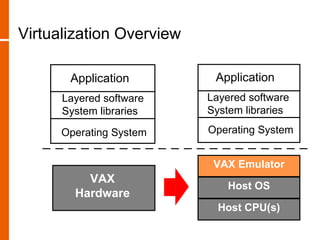
Virtualization Overview

       Application         Application
      Layered software    Layered software
      System libraries    System libraries

      Operating System    Operating System


                           VAX Emulator
                          CHARN-VAX
          VAX
                              Host OS
                              Host OS
        Hardware
                            Host CPU(s)
                              CPU(s)
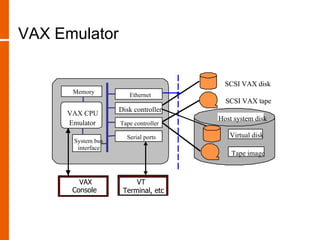
VAX Emulator

                                       SCSI VAX disk
      Memory
                      Ethernet
                                       SCSI VAX tape
                   Disk controller
     VAX CPU
                                     Host system disk
     Emulator      Tape controller

                     Serial ports       Virtual disk
      System bus
       interface
                                         Tape image


        VAX            VTxxx
                        VT
      Console       Terminal, etc
Virtualize to What?
•   SIMH
    − Open source (“free”)
    − Support mailing list
    − Runs on almost any platform
•   CHARON-VAX
    − Commercial product
    − Support available from VARs
    − Current platforms: Alpha OpenVMS, Windows
    − QNX for Q-bus embedded solutions
    − Future platforms include Linux
OpenVMS Licensing
•   HP will transfer existing licenses to CHARON-VAX
    http://h71000.www7.hp.com/openvms/sri-charon-vax-emulator.html
    − $ 2,000 total for Intel platform
    − $ 1,000 total for Alpha platform
•   New licenses must be purchased for other virtual
    solutions
Oracle Licensing
•   Oracle will transfer existing Rdb and CODASYL
    licenses to CHARON-VAX
    www.oracle.com/technology/products/rdb/htdocs/rdb7/charon_vax.html
     − “In most cases, Oracle license and service agreements
       are transferred to the same number of CHARON-VAX
       processors at no charge.”
•   New licenses must be purchased for other virtual
    solutions
MultiNet & TCPware Licensing
•   Process Software will transfer existing MultiNet
    and TCPware licenses to virtual solutions
•   Fee depends on emulated system
    − $ 350 for workgroup-size systems
    − More for enterprise-size systems
Missing In Action
•   Some software vendors no longer exist
•   VAX systems do not have a hardware serial
    number
•   Licensing methods:
    − LMF license PAK
    − MAC address of Ethernet card
    − Hardware values of VAX
      •   CPU
      •   HW_MODEL
      •   SID
      •   XCPU
Software Support
•   HP software support (OpenVMS, layered products)
    is available for CHARON-VAX
     http://h71000.www7.hp.com/openvms/sri-charon-vax-emulator.html
•   Oracle Rdb and CODASYL software support
    available for CHARON-VAX
    www.oracle.com/technology/products/rdb/htdocs/rdb7/charon_vax.html
•   Other ISV’s support virtual systems less formally
Security Concerns
•   How to secure your host
    − Keep host patch-current
    − Shut down unnecessary services
    − Remove unnecessary software
    − Don’t connect to the network
•   How to secure your virtual VAX
    − All the old VAX tools and tricks still apply
    − HP OpenVMS Guide to System Security
http://h71000.www7.hp.com/doc/732FINAL/aa-q2hlg-te/aa-q2hlg
Let’s Get Started!
•   You have the following items:
    − PC
    − USB dongle
    − Install CD
    − A “bootstrap” VMS system image

•   Do not insert the dongle into the USB port yet!
Software Installation
•   Insert CD
•   Run hldrv32.exe from directory Hardlock
•   Now insert the dongle
•   Run setup.exe
•   From Start -> Settings -> Network, install a new
    protocol on one interface. Select “Have Disk”, and
    browse to sripacket.inf in directory:
    C:Program FilesCHARON-VAXDriversNetworkNdis5
•   Disable all other protocols on this adapter
•   Disable the protocol on all other adapters
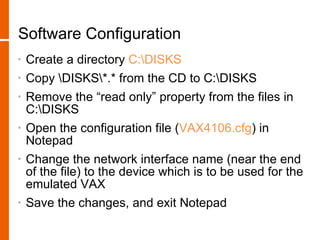
Software Configuration
•   Create a directory C:DISKS
•   Copy DISKS*.* from the CD to C:DISKS
•   Remove the “read only” property from the files in
    C:DISKS
•   Open the configuration file (VAX4106.cfg) in
    Notepad
•   Change the network interface name (near the end
    of the file) to the device which is to be used for the
    emulated VAX
•   Save the changes, and exit Notepad
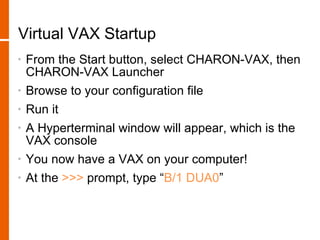
Virtual VAX Startup
•   From the Start button, select CHARON-VAX, then
    CHARON-VAX Launcher
•   Browse to your configuration file
•   Run it
•   A Hyperterminal window will appear, which is the
    VAX console
•   You now have a VAX on your computer!
•   At the >>> prompt, type “B/1 DUA0”
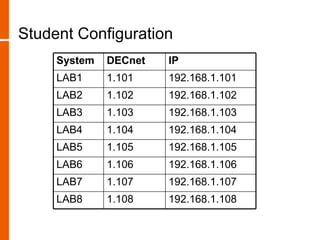
Student Configuration
     System   DECnet   IP
     LAB1     1.101    192.168.1.101
     LAB2     1.102    192.168.1.102
     LAB3     1.103    192.168.1.103
     LAB4     1.104    192.168.1.104
     LAB5     1.105    192.168.1.105
     LAB6     1.106    192.168.1.106
     LAB7     1.107    192.168.1.107
     LAB8     1.108    192.168.1.108
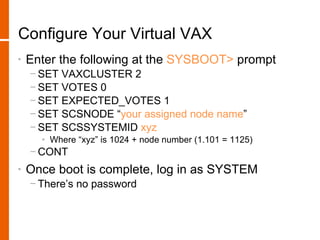
Configure Your Virtual VAX
•   Enter the following at the SYSBOOT> prompt
    − SET VAXCLUSTER 2
    − SET VOTES 0
    − SET EXPECTED_VOTES 1
    − SET SCSNODE “your assigned node name”
    − SET SCSSYSTEMID xyz
      • Where “xyz” is 1024 + node number (1.101 = 1125)
    − CONT
•   Once boot is complete, log in as SYSTEM
    − There’s no password
Configure Networking
•   DECnet
    − @NETCONFIG
•   TCP/IP
    − @UCX$CONFIG
•   Start both networks after configuration is done
Pre-Migration Tasks on the VAX
•   Do an ANALYZE/DISK on each VAX drive, if
    possible
    − Starting with “clean” disks might help prevent problems
•   Minimize changes during data movement
    − Be sure all applications are shut down
    − Be sure any databases are closed
    − Shut down queue manager
    − Make sure users can’t access the system
       • SET LOGIN/INTERACTIVE=0 doesn’t stop privileged users
    − Use standalone backup, if possible
       • BACKUP/IGNORE=INTER requires caution
•   Locate cluster password, if cluster migration is to
    be used
Pre-Migration Tasks on the Virtual VAX
•   Create empty container files for each disk to be
    migrated
    − Some migration methods require an extra “scratch”
      container file
    − Should virtual disks be bigger than originals?
•   Update the configuration file
    − For each container file
    − If physical tape or disk drives are being added
•   Get compatible VMS version for “bootstrap” image
    − BACKUP changed in V7.2
Pre-Migration Tasks for Infrastructure
•   Get new DECnet address and TCP/IP address
    allocated for virtual VAX
•   Make sure VAX and virtual VAX are in same LAN
    for network migrations
•   Secure sufficient downtime window(s) for migration
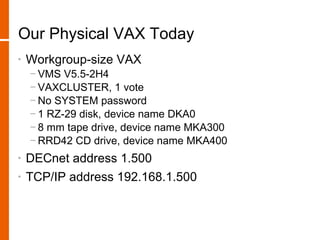
Our Physical VAX Today
•   Workgroup-size VAX
    − VMS V5.5-2H4
    − VAXCLUSTER, 1 vote
    − No SYSTEM password
    − 1 RZ-29 disk, device name DKA0
    − 8 mm tape drive, device name MKA300
    − RRD42 CD drive, device name MKA400
•   DECnet address 1.500
•   TCP/IP address 192.168.1.500
Tape Migration
•   Tape has the following advantages
    − Tried-and-true technology
    − Most VAX systems have tape backup
    − Doesn’t require a network adapter on the VAX
    − Very familiar system management tasks
•   There are disadvantages
    − Tape is slow
    − Reliable tapes for older formats (9-track, TK-50, etc.) are
      hard to find
    − Reading the tape on the virtual system requires a SCSI
      tape drive
Tape Migration – Procedure
•   On the VAX, do backups of all disks
    − The system disk requires /IMAGE
•   Once the backups are done, move the tape drive
    to the virtual system
    − The configuration file has to change to use the tape drive
•   Do an image restore to new container files on the
    virtual VAX
Disk Migration
•   Disk has the following advantages
    − Very fast
    − Doesn’t require a network adapter on the VAX
•   There are disadvantages
    − Only SCSI disks can be migrated this way
       • DSSI, CI, MFM disks have no equivalent hardware today
    − Handling a disk, especially a very old one, can cause it
      to fail
•   If there’s an external disk array, it could be
    connected to the virtual VAX permanently
    − Not highest-performance solution, but migration is
      almost zero time and low risk
Disk Migration – Procedure
•   Shut down the VAX cleanly
•   Connect the disk drives to the virtual system
    − The configuration file has to change to use the drives
•   Do a /IMAGE backup from the physical disks to the
    container files
DECnet Migration
•   DECnet migration has the following advantages
    − Pretty fast (faster than tape)
    − Almost every VAX has DECnet installed
      • Was required up to V6.x
    − BACKUP can write savesets to DECnet nodes
•   There are disadvantages
    − Some VAX systems don’t have a network adapter
DECnet Migration – Procedure
•   For each physical disk
    − BAC/IMG <p>: <vn>”system”::<vd>:[000000]A.BCK/save
      • <p> is physical disk name
      • <vn> is virtual system DECnet address
      • <vd> is virtual system “scratch” container file
•   Then, on virtual system
    − MOUNT/FOREIGN <vt>:
    − BAC/IMG <vd>:[000000]A.BCK/save <vt>:
      • <vt> is the virtual disk to which to restore
•   For multiple disks, these steps can be overlapped
    if the “<vd>” container file is big enough
Cluster Migration
•   Cluster migration has the following advantages
    − Pretty fast (faster than tape)
    − All disks to be migrated appear to be local
    − Migration can be incremental, with mixed physical and
      virtual cluster members
•   There are disadvantages
    − Virtual system must be able to join cluster as NI member
    − The cluster must MSCP-serve all needed disks
    − Frequently, no one remembers the cluster password
Cluster Migration – Procedure
•   On the virtual system, for each physical disk
    − MOUNT/FOREIGN <vt>:
    − BACKUP/IMAGE <p>: <vt>:
      • <p> is physical disk name
      • <vt> is the virtual disk to which to restore
CD Migration
•   CD has the following advantages
    − Usually faster than tape
    − CD drives on virtual VAX are lots faster than RRD-series
      VAX drives
•   There are disadvantages
    − Creating ODS-2 CD-ROM’s on VMS was not generally
      possible until V7.x
    − CD’s have a limited size (700 MB max)
•   It’s possible to install VMS from scratch using
    CONDIST disks
CD Migration – Procedure
•   If the CD is not in ODS-2 format, follow FTP
    procedure
•   Change virtual VAX configuration file to use PC’s
    CD drive as a VMS CD drive
    − Note: Windows must be rebooted if any Windows-format
      CD was inserted in drive before starting virtual VAX
•   Use COPY or BACKUP to copy files as necessary
FTP Migration
•   FTP migration has the following advantages
    − No use of “DEC proprietary” protocols
    − Pretty fast
    − You can FTP files from the host system, which is always
      present
•   There are disadvantages
    − Many VAX systems do not have a TCP/IP stack
    − Some VAX systems don’t have a network adapter
    − FTP doesn’t preserve VMS file characteristics or boot
      blocks
FTP Migration – Procedure
•   Configure and start FTP Server on virtual VAX
•   Using FTP, transfer files to appropriate locations
    on virtual VAX
•   Be sure to use binary transfers for all but text files
•   BACKUP savesets require a fix before restore:
    − http://www.stanq.com/reset-backup.txt
•   Use Info-ZIP with the “-V” option
    − http://vms.process.com/ftp/vms-freeware/
Post-Migration Tasks
•   Before booting the virtual VAX
    − Make copies of disks as migrated, just in case
    − Disconnect from network to prevent conflicts with
      physical VAX
•   Analyze boot messages
    − Complex cases may need a minimum boot first to sort
      out problems
    − Logical names in SYLOGICALS.COM might be needed
      for some hard-coded disk references
    − Mount commands may be incorrect in startup files
•   Re-configure DECnet and TCP/IP
More Post-Migration Tasks
•   Regression-test application(s) completely!
•   Re-evaluate backup strategy – tape might not be
    necessary anymore
•   Is there a tape archive to be converted?
•   License transfers
•   Update service contracts
•   Shut down VAX and sell on eBay

1184 Quayle

  • 1.
    Migrating to aVirtual VAX: An Introduction Stanley F. Quayle, P.E. President, Quayle Consulting Inc.
  • 2.
    Session Goals • Understand virtualization • Learn about issues raised by virtualization • Experience migration with: − Magnetic tape − Disk − DECnet − OpenVMS Cluster − CD-ROM − FTP
  • 3.
    Required Experience • Working knowledge of HP OpenVMS system administration • If you brought your application, experience in your application
  • 4.
    Can It BePorted? • Do you have the design documentation? • Do you have all the source code? − What about DECmigrate (OMSVA)? − VAX SCAN, Dibol, LISP, OPS5, RPG • Operating system dependency? • Hardware dependency? • Target platform − Can your code really be reused? − What about stability? • Can you validate the result?
  • 5.
    Why Virtualize? • Smaller boxes • Use modern hardware • Use corporate SAN • Reduce power consumption • Reduce hardware maintenance costs • “Encapsulate” applications
  • 6.
    Virtualization Overview Application Application Layered software Layered software System libraries System libraries Operating System Operating System VAX Emulator CHARN-VAX VAX Host OS Host OS Hardware Host CPU(s) CPU(s)
  • 7.
    VAX Emulator SCSI VAX disk Memory Ethernet SCSI VAX tape Disk controller VAX CPU Host system disk Emulator Tape controller Serial ports Virtual disk System bus interface Tape image VAX VTxxx VT Console Terminal, etc
  • 8.
    Virtualize to What? • SIMH − Open source (“free”) − Support mailing list − Runs on almost any platform • CHARON-VAX − Commercial product − Support available from VARs − Current platforms: Alpha OpenVMS, Windows − QNX for Q-bus embedded solutions − Future platforms include Linux
  • 9.
    OpenVMS Licensing • HP will transfer existing licenses to CHARON-VAX http://h71000.www7.hp.com/openvms/sri-charon-vax-emulator.html − $ 2,000 total for Intel platform − $ 1,000 total for Alpha platform • New licenses must be purchased for other virtual solutions
  • 10.
    Oracle Licensing • Oracle will transfer existing Rdb and CODASYL licenses to CHARON-VAX www.oracle.com/technology/products/rdb/htdocs/rdb7/charon_vax.html − “In most cases, Oracle license and service agreements are transferred to the same number of CHARON-VAX processors at no charge.” • New licenses must be purchased for other virtual solutions
  • 11.
    MultiNet & TCPwareLicensing • Process Software will transfer existing MultiNet and TCPware licenses to virtual solutions • Fee depends on emulated system − $ 350 for workgroup-size systems − More for enterprise-size systems
  • 12.
    Missing In Action • Some software vendors no longer exist • VAX systems do not have a hardware serial number • Licensing methods: − LMF license PAK − MAC address of Ethernet card − Hardware values of VAX • CPU • HW_MODEL • SID • XCPU
  • 13.
    Software Support • HP software support (OpenVMS, layered products) is available for CHARON-VAX http://h71000.www7.hp.com/openvms/sri-charon-vax-emulator.html • Oracle Rdb and CODASYL software support available for CHARON-VAX www.oracle.com/technology/products/rdb/htdocs/rdb7/charon_vax.html • Other ISV’s support virtual systems less formally
  • 14.
    Security Concerns • How to secure your host − Keep host patch-current − Shut down unnecessary services − Remove unnecessary software − Don’t connect to the network • How to secure your virtual VAX − All the old VAX tools and tricks still apply − HP OpenVMS Guide to System Security http://h71000.www7.hp.com/doc/732FINAL/aa-q2hlg-te/aa-q2hlg
  • 15.
    Let’s Get Started! • You have the following items: − PC − USB dongle − Install CD − A “bootstrap” VMS system image • Do not insert the dongle into the USB port yet!
  • 16.
    Software Installation • Insert CD • Run hldrv32.exe from directory Hardlock • Now insert the dongle • Run setup.exe • From Start -> Settings -> Network, install a new protocol on one interface. Select “Have Disk”, and browse to sripacket.inf in directory: C:Program FilesCHARON-VAXDriversNetworkNdis5 • Disable all other protocols on this adapter • Disable the protocol on all other adapters
  • 17.
    Software Configuration • Create a directory C:DISKS • Copy DISKS*.* from the CD to C:DISKS • Remove the “read only” property from the files in C:DISKS • Open the configuration file (VAX4106.cfg) in Notepad • Change the network interface name (near the end of the file) to the device which is to be used for the emulated VAX • Save the changes, and exit Notepad
  • 18.
    Virtual VAX Startup • From the Start button, select CHARON-VAX, then CHARON-VAX Launcher • Browse to your configuration file • Run it • A Hyperterminal window will appear, which is the VAX console • You now have a VAX on your computer! • At the >>> prompt, type “B/1 DUA0”
  • 19.
    Student Configuration System DECnet IP LAB1 1.101 192.168.1.101 LAB2 1.102 192.168.1.102 LAB3 1.103 192.168.1.103 LAB4 1.104 192.168.1.104 LAB5 1.105 192.168.1.105 LAB6 1.106 192.168.1.106 LAB7 1.107 192.168.1.107 LAB8 1.108 192.168.1.108
  • 20.
    Configure Your VirtualVAX • Enter the following at the SYSBOOT> prompt − SET VAXCLUSTER 2 − SET VOTES 0 − SET EXPECTED_VOTES 1 − SET SCSNODE “your assigned node name” − SET SCSSYSTEMID xyz • Where “xyz” is 1024 + node number (1.101 = 1125) − CONT • Once boot is complete, log in as SYSTEM − There’s no password
  • 21.
    Configure Networking • DECnet − @NETCONFIG • TCP/IP − @UCX$CONFIG • Start both networks after configuration is done
  • 22.
    Pre-Migration Tasks onthe VAX • Do an ANALYZE/DISK on each VAX drive, if possible − Starting with “clean” disks might help prevent problems • Minimize changes during data movement − Be sure all applications are shut down − Be sure any databases are closed − Shut down queue manager − Make sure users can’t access the system • SET LOGIN/INTERACTIVE=0 doesn’t stop privileged users − Use standalone backup, if possible • BACKUP/IGNORE=INTER requires caution • Locate cluster password, if cluster migration is to be used
  • 23.
    Pre-Migration Tasks onthe Virtual VAX • Create empty container files for each disk to be migrated − Some migration methods require an extra “scratch” container file − Should virtual disks be bigger than originals? • Update the configuration file − For each container file − If physical tape or disk drives are being added • Get compatible VMS version for “bootstrap” image − BACKUP changed in V7.2
  • 24.
    Pre-Migration Tasks forInfrastructure • Get new DECnet address and TCP/IP address allocated for virtual VAX • Make sure VAX and virtual VAX are in same LAN for network migrations • Secure sufficient downtime window(s) for migration
  • 25.
    Our Physical VAXToday • Workgroup-size VAX − VMS V5.5-2H4 − VAXCLUSTER, 1 vote − No SYSTEM password − 1 RZ-29 disk, device name DKA0 − 8 mm tape drive, device name MKA300 − RRD42 CD drive, device name MKA400 • DECnet address 1.500 • TCP/IP address 192.168.1.500
  • 26.
    Tape Migration • Tape has the following advantages − Tried-and-true technology − Most VAX systems have tape backup − Doesn’t require a network adapter on the VAX − Very familiar system management tasks • There are disadvantages − Tape is slow − Reliable tapes for older formats (9-track, TK-50, etc.) are hard to find − Reading the tape on the virtual system requires a SCSI tape drive
  • 27.
    Tape Migration –Procedure • On the VAX, do backups of all disks − The system disk requires /IMAGE • Once the backups are done, move the tape drive to the virtual system − The configuration file has to change to use the tape drive • Do an image restore to new container files on the virtual VAX
  • 28.
    Disk Migration • Disk has the following advantages − Very fast − Doesn’t require a network adapter on the VAX • There are disadvantages − Only SCSI disks can be migrated this way • DSSI, CI, MFM disks have no equivalent hardware today − Handling a disk, especially a very old one, can cause it to fail • If there’s an external disk array, it could be connected to the virtual VAX permanently − Not highest-performance solution, but migration is almost zero time and low risk
  • 29.
    Disk Migration –Procedure • Shut down the VAX cleanly • Connect the disk drives to the virtual system − The configuration file has to change to use the drives • Do a /IMAGE backup from the physical disks to the container files
  • 30.
    DECnet Migration • DECnet migration has the following advantages − Pretty fast (faster than tape) − Almost every VAX has DECnet installed • Was required up to V6.x − BACKUP can write savesets to DECnet nodes • There are disadvantages − Some VAX systems don’t have a network adapter
  • 31.
    DECnet Migration –Procedure • For each physical disk − BAC/IMG <p>: <vn>”system”::<vd>:[000000]A.BCK/save • <p> is physical disk name • <vn> is virtual system DECnet address • <vd> is virtual system “scratch” container file • Then, on virtual system − MOUNT/FOREIGN <vt>: − BAC/IMG <vd>:[000000]A.BCK/save <vt>: • <vt> is the virtual disk to which to restore • For multiple disks, these steps can be overlapped if the “<vd>” container file is big enough
  • 32.
    Cluster Migration • Cluster migration has the following advantages − Pretty fast (faster than tape) − All disks to be migrated appear to be local − Migration can be incremental, with mixed physical and virtual cluster members • There are disadvantages − Virtual system must be able to join cluster as NI member − The cluster must MSCP-serve all needed disks − Frequently, no one remembers the cluster password
  • 33.
    Cluster Migration –Procedure • On the virtual system, for each physical disk − MOUNT/FOREIGN <vt>: − BACKUP/IMAGE <p>: <vt>: • <p> is physical disk name • <vt> is the virtual disk to which to restore
  • 34.
    CD Migration • CD has the following advantages − Usually faster than tape − CD drives on virtual VAX are lots faster than RRD-series VAX drives • There are disadvantages − Creating ODS-2 CD-ROM’s on VMS was not generally possible until V7.x − CD’s have a limited size (700 MB max) • It’s possible to install VMS from scratch using CONDIST disks
  • 35.
    CD Migration –Procedure • If the CD is not in ODS-2 format, follow FTP procedure • Change virtual VAX configuration file to use PC’s CD drive as a VMS CD drive − Note: Windows must be rebooted if any Windows-format CD was inserted in drive before starting virtual VAX • Use COPY or BACKUP to copy files as necessary
  • 36.
    FTP Migration • FTP migration has the following advantages − No use of “DEC proprietary” protocols − Pretty fast − You can FTP files from the host system, which is always present • There are disadvantages − Many VAX systems do not have a TCP/IP stack − Some VAX systems don’t have a network adapter − FTP doesn’t preserve VMS file characteristics or boot blocks
  • 37.
    FTP Migration –Procedure • Configure and start FTP Server on virtual VAX • Using FTP, transfer files to appropriate locations on virtual VAX • Be sure to use binary transfers for all but text files • BACKUP savesets require a fix before restore: − http://www.stanq.com/reset-backup.txt • Use Info-ZIP with the “-V” option − http://vms.process.com/ftp/vms-freeware/
  • 38.
    Post-Migration Tasks • Before booting the virtual VAX − Make copies of disks as migrated, just in case − Disconnect from network to prevent conflicts with physical VAX • Analyze boot messages − Complex cases may need a minimum boot first to sort out problems − Logical names in SYLOGICALS.COM might be needed for some hard-coded disk references − Mount commands may be incorrect in startup files • Re-configure DECnet and TCP/IP
  • 39.
    More Post-Migration Tasks • Regression-test application(s) completely! • Re-evaluate backup strategy – tape might not be necessary anymore • Is there a tape archive to be converted? • License transfers • Update service contracts • Shut down VAX and sell on eBay