Long Business Systems, Inc. (LBSi)

          Management Software Solutions

         We help businesses manage for success
       Cleveland – Columbus – Cincinnati - Pittsburgh
Using Payment Wizard
Presented by: Vicki Smith


  What does Payment Wizard do?
  Prerequisites prior to running
  Authorizations and licenses
  Selection and General parameters
  Running the Payment Wizard
  Payment Run document and report printing
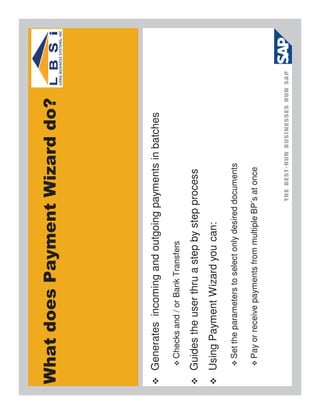
What does Payment Wizard do?


 Generates incoming and outgoing payments in batches
   Checks and / or Bank Transfers

 Guides the user thru a step by step process
 Using Payment Wizard you can:
   Set the parameters to select only desired documents

   Pay or receive payments from multiple BP’s at once
Prerequisites prior to running


 The following must be set-up to run Payment Wizard:
 1)    Banks
 2)    House banks
 3)    Payment Methods
 You may also want to set-up the following:

  1)   Business Partner Priorities
Authorizations & licenses
 Review user authorizations
 Go to: Administration > Initial Settings > Authorizations> General Authorizations > Banking


 Payment Wizard can be performed by:
 Professional Users

 Limited Financials Users
Step 1 of 8: Payment Run Selection
  Select to run a new or saved payment run:
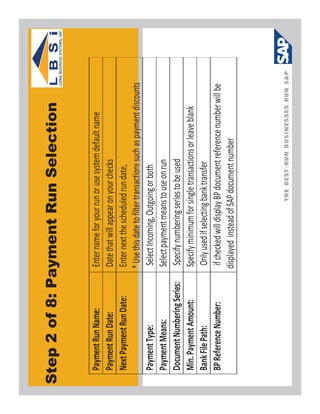
Step 2 of 8: Payment Run Selection

 Payment Run Name:            Enter name for your run or use system default name
 Payment Run Date:            Date that will appear on your checks
 Next Payment Run Date:       Enter next the scheduled run date,
                              * Use this date to filter transactions such as payment discounts
 Payment Type:                 Select Incoming, Outgoing or both
 Payment Means:               Select payment means to use on run
 Document Numbering Series:    Specify numbering series to be used
 Min. Payment Amount:         Specify minimum for single transactions or leave blank
 Bank File Path:               Only used if selecting bank transfer
 BP Reference Number:          if checked will display BP document reference number will be
                              displayed instead of SAP document number
Step 3 of 8: Payment Run Selection List
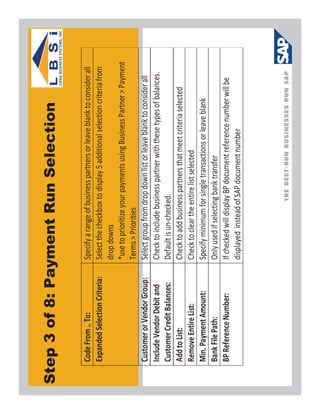
Step 3 of 8: Payment Run Selection

  Code From .. To:               Specify a range of business partners or leave blank to consider all
  Expanded Selection Criteria:   Select the checkbox to display 5 additional selection criteria from
                                 drop downs
                                 *use to prioritize your payments using Business Partner > Payment
                                 Terms > Priorities
  Customer or Vendor Group:      Select group from drop down list or leave blank to consider all
  Include Vendor Debit and       Check to include business partner with these types of balances.
  Customer Credit Balances:      Default is un-checked.
  Add to List:                   Check to add business partners that meet criteria selected
  Remove Entire List:            Check to clear the entire list selected
  Min. Payment Amount:           Specify minimum for single transactions or leave blank
  Bank File Path:                Only used if selecting bank transfer
  BP Reference Number:           If checked will display BP document reference number will be
                                 displayed instead of SAP document number
Step 4 of 8: Payment Run Selection
   Selection Priority:             Select from drop down list priority to sort transaction in run
                                   Note: Does not filter any transactions, only sorts
   Posting Date From.. To:         Specify a posting date range to include transactions or manual journal
                                   entries within that range.
   Due Date From.. To:             Specify a due date range to include transactions or manual journal
                                   entries due within that range.
                                   * If tolerance days are used they will be subtracted from the due “to
                                   date” entered.

   Apply to Cash Discount:         Select checkbox to apply due date range to all transactions. Checkbox
                                   is unchecked by default.
                                   * When this box is selected the due date range would not apply to AP
                                   transactions with cash discounts. It would consider AP transactions
                                   with cash discounts outside of the due date range.
   Tolerance Days:                 Specify the number of tolerance days subtract from the original due
                                   date entered.
   Min. Cash Discount:             Specify minimum cash discount % to include or leave blank for all
   Document Date From.. To:        Specify a document date range to include transactions or manual
                                   journal entries within that range.
   Balance Due From.. To:          Specify a balance due range to include transactions or manual journal
                                   entries within that range.
   Document No. From.. To:         Specify a document number range to include transactions or manual
                                   journal entries within that range.
   Include Manual Journal          Select to include manual journal entries. Box is checked by default.
   Entries:
   Include Negative Transactions   Select to include negative transactions for business partners with an
   with Cumulative Positive        overall positive balance. Box is checked by default.
   Balance
Step 5 of 8: Payment Method Selection
                Criteria
  Check box next to type of payment being created
  Make sure that Max. Outgoing Amount is enough to cover selected transactions
    Note: Amount displayed will be balance of associated G/L account. If
    needed change amount in Max. Outgoing Amount to cover the payment run
Step 6 of 8: Recommendation Report
 Click Expand All to review detailed transactions recommended
 Click on checkbox to select or deselect transactions to pay
   Make partial payments by changing amount in Document Amount
   Make changes to discounts by changing amounts in Discount % and Discount Amount

 Click Non-Included Trans. to review any transactions excluded
 Double click on columns to sort your view
Step 7 of 8: Save Options

   Save Selection Criteria Only:    Saves selection criteria without the recommendation report.
                                   *You can not make any changes to payment runs saved this way.
   Save Recommendations:           Saves both the selection criteria and the recommendations report.
                                   Open transactions saved this way cannot be cleared in another
                                   payment run. They are “tagged” in this saved run.
                                   * You can select and deselect transactions in the Recommendations
                                   window when loading the “Saved” run
   Execute Payment Order Run:      Used to generate outbound bank files without creating outgoing
                                   payments. N/A
   Execute Payment Run:            Create payments and outgoing payment documents.
   To Delete a Saved Payment       In Step 1: Payment Run Selection,
   Run:                                 1. Click on Load Saved Payment Run,
                                        2. Right click on the row of the run to remove,
                                        3. Then right click and Cancel to remove
Step 8 of 8: Payment Run Summary
              and Printing
 Run any desired reports prior to printing checks
 Click on box for Checks and then Print to print checks
Document Printing Selection Criteria
 Select Checks for Payments
 Select To Be Printed
 Choose bank account
Print your checks
 Confirm checks selected are to be printed
 Validate that next check number displayed is correct to checks on hand
 Confirm check stock loaded into printer and then print
Confirm your checks
 Confirmed: checks printed correctly
 Damaged: checks damaged in printing and are automatically voided
 Unprinted: checks did not print, these check numbers can be reused
   Note: If checks were printed out of number order, they can be reassigned in the Check
   No. column
Thank you for taking time to participate in the SAP
Business One User Group Meeting.

Please take a few minutes to respond to our survey
and provide us with feedback and suggestions going
forward.


  o   We are always looking for new clients to work with. And we would like
      to find more clients and partners like you – companies that are
      engaged, smart, and focused on their future.
  o   Can you help us out by referring LBSi to someone who could benefit
      from our services?
Next Meetings:


 o   Tuesday, June 12, 2012
      o Using   Outlook Integration
 o   Tuesday, July 17, 2012
      o Forecasting
Long Business Systems, Inc. (LBSi)
                Cleveland – Columbus – Cincinnati –Pittsburgh


  Contact Information:
  Vicki Smith
  Senior Consultant
  email: vicki@lbsi.com
  Phone: 440-846-8500 ext 22
  www.lbsi.com

How to-use-the-payment-wizard-in-sap-business-one

  • 1.
    Long Business Systems,Inc. (LBSi) Management Software Solutions We help businesses manage for success Cleveland – Columbus – Cincinnati - Pittsburgh
  • 2.
    Using Payment Wizard Presentedby: Vicki Smith What does Payment Wizard do? Prerequisites prior to running Authorizations and licenses Selection and General parameters Running the Payment Wizard Payment Run document and report printing
  • 3.
    What does PaymentWizard do? Generates incoming and outgoing payments in batches Checks and / or Bank Transfers Guides the user thru a step by step process Using Payment Wizard you can: Set the parameters to select only desired documents Pay or receive payments from multiple BP’s at once
  • 4.
    Prerequisites prior torunning The following must be set-up to run Payment Wizard: 1) Banks 2) House banks 3) Payment Methods You may also want to set-up the following: 1) Business Partner Priorities
  • 5.
    Authorizations & licenses Review user authorizations Go to: Administration > Initial Settings > Authorizations> General Authorizations > Banking Payment Wizard can be performed by: Professional Users Limited Financials Users
  • 6.
    Step 1 of8: Payment Run Selection Select to run a new or saved payment run:
  • 7.
    Step 2 of8: Payment Run Selection
  • 8.
    Step 2 of8: Payment Run Selection Payment Run Name: Enter name for your run or use system default name Payment Run Date: Date that will appear on your checks Next Payment Run Date: Enter next the scheduled run date, * Use this date to filter transactions such as payment discounts Payment Type: Select Incoming, Outgoing or both Payment Means: Select payment means to use on run Document Numbering Series: Specify numbering series to be used Min. Payment Amount: Specify minimum for single transactions or leave blank Bank File Path: Only used if selecting bank transfer BP Reference Number: if checked will display BP document reference number will be displayed instead of SAP document number
  • 9.
    Step 3 of8: Payment Run Selection List
  • 10.
    Step 3 of8: Payment Run Selection Code From .. To: Specify a range of business partners or leave blank to consider all Expanded Selection Criteria: Select the checkbox to display 5 additional selection criteria from drop downs *use to prioritize your payments using Business Partner > Payment Terms > Priorities Customer or Vendor Group: Select group from drop down list or leave blank to consider all Include Vendor Debit and Check to include business partner with these types of balances. Customer Credit Balances: Default is un-checked. Add to List: Check to add business partners that meet criteria selected Remove Entire List: Check to clear the entire list selected Min. Payment Amount: Specify minimum for single transactions or leave blank Bank File Path: Only used if selecting bank transfer BP Reference Number: If checked will display BP document reference number will be displayed instead of SAP document number
  • 11.
    Step 4 of8: Payment Run Selection
  • 12.
    Step 4 of8: Payment Run Selection Selection Priority: Select from drop down list priority to sort transaction in run Note: Does not filter any transactions, only sorts Posting Date From.. To: Specify a posting date range to include transactions or manual journal entries within that range. Due Date From.. To: Specify a due date range to include transactions or manual journal entries due within that range. * If tolerance days are used they will be subtracted from the due “to date” entered. Apply to Cash Discount: Select checkbox to apply due date range to all transactions. Checkbox is unchecked by default. * When this box is selected the due date range would not apply to AP transactions with cash discounts. It would consider AP transactions with cash discounts outside of the due date range. Tolerance Days: Specify the number of tolerance days subtract from the original due date entered. Min. Cash Discount: Specify minimum cash discount % to include or leave blank for all Document Date From.. To: Specify a document date range to include transactions or manual journal entries within that range. Balance Due From.. To: Specify a balance due range to include transactions or manual journal entries within that range. Document No. From.. To: Specify a document number range to include transactions or manual journal entries within that range. Include Manual Journal Select to include manual journal entries. Box is checked by default. Entries: Include Negative Transactions Select to include negative transactions for business partners with an with Cumulative Positive overall positive balance. Box is checked by default. Balance
  • 13.
    Step 5 of8: Payment Method Selection Criteria Check box next to type of payment being created Make sure that Max. Outgoing Amount is enough to cover selected transactions Note: Amount displayed will be balance of associated G/L account. If needed change amount in Max. Outgoing Amount to cover the payment run
  • 14.
    Step 6 of8: Recommendation Report Click Expand All to review detailed transactions recommended Click on checkbox to select or deselect transactions to pay Make partial payments by changing amount in Document Amount Make changes to discounts by changing amounts in Discount % and Discount Amount Click Non-Included Trans. to review any transactions excluded Double click on columns to sort your view
  • 15.
    Step 7 of8: Save Options
  • 16.
    Step 7 of8: Save Options Save Selection Criteria Only: Saves selection criteria without the recommendation report. *You can not make any changes to payment runs saved this way. Save Recommendations: Saves both the selection criteria and the recommendations report. Open transactions saved this way cannot be cleared in another payment run. They are “tagged” in this saved run. * You can select and deselect transactions in the Recommendations window when loading the “Saved” run Execute Payment Order Run: Used to generate outbound bank files without creating outgoing payments. N/A Execute Payment Run: Create payments and outgoing payment documents. To Delete a Saved Payment In Step 1: Payment Run Selection, Run: 1. Click on Load Saved Payment Run, 2. Right click on the row of the run to remove, 3. Then right click and Cancel to remove
  • 17.
    Step 8 of8: Payment Run Summary and Printing Run any desired reports prior to printing checks Click on box for Checks and then Print to print checks
  • 18.
    Document Printing SelectionCriteria Select Checks for Payments Select To Be Printed Choose bank account
  • 19.
    Print your checks Confirm checks selected are to be printed Validate that next check number displayed is correct to checks on hand Confirm check stock loaded into printer and then print
  • 20.
    Confirm your checks Confirmed: checks printed correctly Damaged: checks damaged in printing and are automatically voided Unprinted: checks did not print, these check numbers can be reused Note: If checks were printed out of number order, they can be reassigned in the Check No. column
  • 21.
    Thank you fortaking time to participate in the SAP Business One User Group Meeting. Please take a few minutes to respond to our survey and provide us with feedback and suggestions going forward. o We are always looking for new clients to work with. And we would like to find more clients and partners like you – companies that are engaged, smart, and focused on their future. o Can you help us out by referring LBSi to someone who could benefit from our services?
  • 22.
    Next Meetings: o Tuesday, June 12, 2012 o Using Outlook Integration o Tuesday, July 17, 2012 o Forecasting
  • 23.
    Long Business Systems,Inc. (LBSi) Cleveland – Columbus – Cincinnati –Pittsburgh Contact Information: Vicki Smith Senior Consultant email: vicki@lbsi.com Phone: 440-846-8500 ext 22 www.lbsi.com