Downloaded 1,690 times
![Entering Invoice Invoice from Supplier Check Request Approved & Coded Sent for Approval yes no Approved Validate File to Pay later Received invoice from supplier or check request Check for coding and approval Sort by Company Create a New Batch Invoice Batch (Work bench) Batch Name: (e.g. JP-XYX18/NOV/05-AP ) Control Count: est. # of inv. Control Amt.: est. amt of inv. Payment term: Immediate GL Date: Last day of Month Liab. Acct.: 05-00-00-26101-00000 Press [ Invoices ] Input each invoice separate Supplier; Site; Inv. Date; Inv. #; Inv. $; GL Date; description Press [ Distribution ] Amount; Acct.; Cost Center Update est. with actual #s. [ Safe ] (Icon Yllw. Disk) [ Close ] Run < Report after closing batch > Stamp w/ enter date XYX-Company 05 Sample Input into AP Coded & Input into AP](https://image.slidesharecdn.com/htrainingmaterialsoracleaccountpayablescycle-091016142914-phpapp01/85/Oracle-AP-Cycle-3-320.jpg)
![Approving Invoices Once invoices are approved after entered they needs to be approved manually, to issue payment on the next payment batch. Invoice Bench (Invoices) Name: Name of supplier Amount: Amount of Invoice Select the Invoice that need validation (approval) Click [ Actions ]; Approve Save & Close after validating all the invoices. Tip : Flash Light Icon will go back to find invoice bench.](https://image.slidesharecdn.com/htrainingmaterialsoracleaccountpayablescycle-091016142914-phpapp01/85/Oracle-AP-Cycle-4-320.jpg)
![Entering Expense Report Expense Report Approved & Coded Sent for Code/ Approval yes no Approved & Coded File to Pay later Received Expense report from employee Check for coding and approval Sort by Company Enter Employee: Last Name, Name GL Acct.: 05-00-00-73101-Employee Cctr. Date: Date entering Exp. (dd-mo-yy) Invoice Num.: same as date ( Tip: press Tap ) If invoice exist, check for duplicate; if not a duplicate add a (*) to differentiate. Amount: Total amt of all expenses. Template: Standard ( Tip: St and [Tap] ) Item: (miles, air fare, meal, car, hotel, etc). Sub-menu will appear check acct. Amount: Item amount ( Tip: add all item in same account ) [ Save ] Stamp with enter date File to pay later ( Tip: to add another employee expenses, go to employee field and arrow down ) After all employees report are enter [ close ] Run Report after Expense Report are Entered. Stamp w/ enter date XYX-Company 05 Sample Input into AP](https://image.slidesharecdn.com/htrainingmaterialsoracleaccountpayablescycle-091016142914-phpapp01/85/Oracle-AP-Cycle-6-320.jpg)
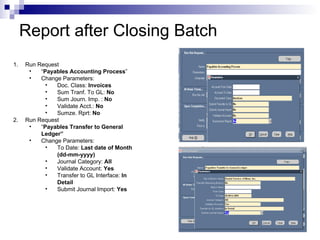
![Report after Expense Report Input Run Request “ Payables Invoice Import ” Change Parameters: Batch Name: Same as Invoices Summarize Rprt: No GL Date : Last Day of Month Click [ OK ] Click [ Submit ] View Request Run Request “ Payables Approval” Change Parameters: Options: New Invoice Batch: Same as input Click [ OK ] Click [ Submit ] Should say “ AP_APPRVL_NO_HOLDS_RELEASES”](https://image.slidesharecdn.com/htrainingmaterialsoracleaccountpayablescycle-091016142914-phpapp01/85/Oracle-AP-Cycle-7-320.jpg)
![Entering Manuals Input to AP as a normal batch Issue Payment (Manual Payments) Payments Type: Manual Bank Account: XYX AP Document: Manual Check Click [ Ok ] Document Num.: Edited with specified in check request. Payment Date: Date check was issue Payment Amt.: Amount of check Supplier: Payee Site: Pick site before continue Click [ Enter/adjust invoices ] Invoice num click Click [Find] Verify invoice amt. click [ OK ] [ Save ] [ Close ] Arrow down for next wire & cont. as above After finishing [ close all ] Manuals (Margaret) Set up in Oracle Set them up In Oracle By app. person yes no Set up in Oracle Approve/ Print Reg. Issue PMT Stamp w/ enter date XYX-Company 05 Sample Input into AP](https://image.slidesharecdn.com/htrainingmaterialsoracleaccountpayablescycle-091016142914-phpapp01/85/Oracle-AP-Cycle-8-320.jpg)
![Entering Wires Input to AP as a normal batch Issue Payment (Manual Payments) Payments Type: Manual Bank Account: XYX AP Document: Wire/Manual Click [ Ok ] Document Num.: Auto (write on inv. in red) Payment Date: Date wire was issue Payment Amt.: Amount of check Supplier: Payee Site: Pick site before continue Click [ Enter/adjust invoices ] Invoice num click Click [Find] Verify invoice amt. click [ OK ] [ Save ] [ Close ] Arrow down for next wire & cont. as above After finishing [ close all ] Manuals (Margaret) Set up in Oracle Set them up In Oracle By app. person yes no Set up in Oracle Approve/ Print Reg. Issue PMT Stamp w/ enter date XYX-Company 05 Sample Input into AP](https://image.slidesharecdn.com/htrainingmaterialsoracleaccountpayablescycle-091016142914-phpapp01/85/Oracle-AP-Cycle-9-320.jpg)
![Paying Invoices/ Check Run XYX-Company 05 Sample Issue Payment (Payments) Payments Batches Batch Name: JPXYX-11/21/05-AP (start with user initials-company today’s date) Payment Date: Change it to working date if open month is November and working in October change to Oct. Bank Account: XYX AP Checking Payment Method: Check Check First Document with check log Click [ Actions ] select Print Preliminary Register (1 st 3 should be selected: Select Invoices, Build Payments & Print Preliminary Register) Click [ Ok ] twice. View/Request/[ Find ]/[ Refresh Data ] Check Preliminary Register for accuracy & fill the check log with amount & check #’s Query Batch [ F11 ] in the Payment Batch; status should say BUILT Click [ Actions ] Select Print Now; ( Format Payment & Print Now should be selected ). Click [ Enter ] twice Query Batch [ F11 ] in the Payment Batch; status should say FORMAT Click [ Actions ] Select Confirmed payment. Click [ Enter ]. In status type p for printed Input last check # in last doc. Number Click [ Confirm ]; [ Ok ]; save & close View Req. , Refresh to print confirmation Once checks print, a supervisor will verify & sign log. Canceling a Batch to void or edit Query Batch [ F11 ] in the Payment Batch Click [ Actions ] Remove [ ] off Select enter batch Save & close](https://image.slidesharecdn.com/htrainingmaterialsoracleaccountpayablescycle-091016142914-phpapp01/85/Oracle-AP-Cycle-10-320.jpg)
![Holding Payments XYX-Company 05 Sample Holding Payments (Payments) Payments Batches Query Batch [ F11 ] in the Payment Batch Select Payment one desire to hold Click [ Actions ] Click [ Initiate Stop ] Accounting Period Open Accounting Period Close Hold Checks Manually Close Accounting Period yes no After period close all the invoices will be release for payment, all the un approved invoices will be put in hold until approval is received.](https://image.slidesharecdn.com/htrainingmaterialsoracleaccountpayablescycle-091016142914-phpapp01/85/Oracle-AP-Cycle-11-320.jpg)
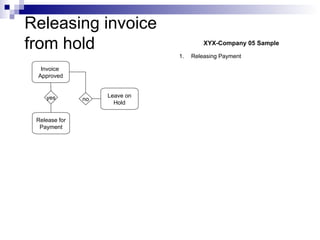

The document describes the accounts payable cycle in Oracle applications, including inputting invoices, approving invoices, entering expense reports, entering manual payments and wires, paying invoices by running checks, holding payments, and editing entered invoices.


![Oracle Fusion applications 101 [2010 OAUG Collaborate]](https://cdn.slidesharecdn.com/ss_thumbnails/fusionapplications101-100423004647-phpapp01-thumbnail.jpg?width=640&height=640&fit=bounds)


