Long Business Systems, Inc. (LBSi)

LBSI is a technology services firm that understands technology is a tool
that enables you to grow profitably, outpace the competition and provide
                   better service to your customers.


             Cleveland – Columbus – Cincinnati - Pittsburgh
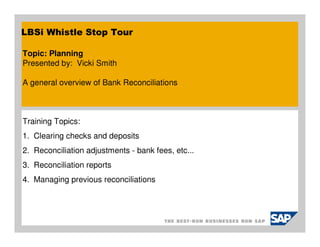
LBSi Whistle Stop Tour

Topic: Planning
Presented by: Vicki Smith

A general overview of Bank Reconciliations


Training Topics:
1. Clearing checks and deposits
2. Reconciliation adjustments - bank fees, etc...
3. Reconciliation reports
4. Managing previous reconciliations
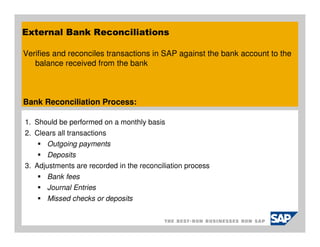
External Bank Reconciliations

Verifies and reconciles transactions in SAP against the bank account to the
   balance received from the bank


Bank Reconciliation Process:

1. Should be performed on a monthly basis
2. Clears all transactions
      Outgoing payments
       Deposits
3. Adjustments are recorded in the reconciliation process
      Bank fees
      Journal Entries
      Missed checks or deposits
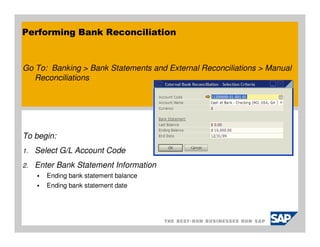
Performing Bank Reconciliation


Go To: Banking > Bank Statements and External Reconciliations > Manual
   Reconciliations


To begin:
1.   Select G/L Account Code
2.   Enter Bank Statement Information
        Ending bank statement balance
        Ending bank statement date
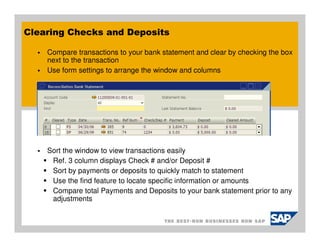
Clearing Checks and Deposits

    Compare transactions to your bank statement and clear by checking the box
    next to the transaction
    Use form settings to arrange the window and columns


    Sort the window to view transactions easily
     Ref. 3 column displays Check # and/or Deposit #
     Sort by payments or deposits to quickly match to statement
     Use the find feature to locate specific information or amounts
     Compare total Payments and Deposits to your bank statement prior to any
     adjustments
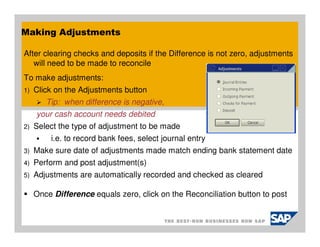
Making Adjustments

After clearing checks and deposits if the Difference is not zero, adjustments
   will need to be made to reconcile
To make adjustments:
1)   Click on the Adjustments button
        Tip: when difference is negative,
     your cash account needs debited
2)   Select the type of adjustment to be made
         i.e. to record bank fees, select journal entry
3)   Make sure date of adjustments made match ending bank statement date
4)   Perform and post adjustment(s)
5)   Adjustments are automatically recorded and checked as cleared

     Once Difference equals zero, click on the Reconciliation button to post
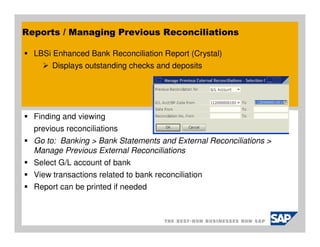
Reports / Managing Previous Reconciliations

  LBSi Enhanced Bank Reconciliation Report (Crystal)
       Displays outstanding checks and deposits


  Finding and viewing
  previous reconciliations
  Go to: Banking > Bank Statements and External Reconciliations >
  Manage Previous External Reconciliations
  Select G/L account of bank
  View transactions related to bank reconciliation
  Report can be printed if needed
Summary

Thank you for taking time to participate in the SAP Business One User
  Group meeting.
Please take a few minutes to give us feedback of the meeting and any
   suggestions for going forward.


We are always looking for new clients to work with. And we'd like to find
  more like you - companies that are engaged, smart, and focused on their
  future.
Can you help us out?
Tour Wrap Up

Questions & Answers


Schedule for next Stops:
Tues., June 22, 2010 - Navigating the SAP Website
Tues., Aug. 10, 2010 – TBD

Sap business-one-bank-reconciliation

  • 1.
    Long Business Systems,Inc. (LBSi) LBSI is a technology services firm that understands technology is a tool that enables you to grow profitably, outpace the competition and provide better service to your customers. Cleveland – Columbus – Cincinnati - Pittsburgh
  • 2.
    LBSi Whistle StopTour Topic: Planning Presented by: Vicki Smith A general overview of Bank Reconciliations Training Topics: 1. Clearing checks and deposits 2. Reconciliation adjustments - bank fees, etc... 3. Reconciliation reports 4. Managing previous reconciliations
  • 3.
    External Bank Reconciliations Verifiesand reconciles transactions in SAP against the bank account to the balance received from the bank Bank Reconciliation Process: 1. Should be performed on a monthly basis 2. Clears all transactions Outgoing payments Deposits 3. Adjustments are recorded in the reconciliation process Bank fees Journal Entries Missed checks or deposits
  • 4.
    Performing Bank Reconciliation GoTo: Banking > Bank Statements and External Reconciliations > Manual Reconciliations To begin: 1. Select G/L Account Code 2. Enter Bank Statement Information Ending bank statement balance Ending bank statement date
  • 5.
    Clearing Checks andDeposits Compare transactions to your bank statement and clear by checking the box next to the transaction Use form settings to arrange the window and columns Sort the window to view transactions easily Ref. 3 column displays Check # and/or Deposit # Sort by payments or deposits to quickly match to statement Use the find feature to locate specific information or amounts Compare total Payments and Deposits to your bank statement prior to any adjustments
  • 6.
    Making Adjustments After clearingchecks and deposits if the Difference is not zero, adjustments will need to be made to reconcile To make adjustments: 1) Click on the Adjustments button Tip: when difference is negative, your cash account needs debited 2) Select the type of adjustment to be made i.e. to record bank fees, select journal entry 3) Make sure date of adjustments made match ending bank statement date 4) Perform and post adjustment(s) 5) Adjustments are automatically recorded and checked as cleared Once Difference equals zero, click on the Reconciliation button to post
  • 7.
    Reports / ManagingPrevious Reconciliations LBSi Enhanced Bank Reconciliation Report (Crystal) Displays outstanding checks and deposits Finding and viewing previous reconciliations Go to: Banking > Bank Statements and External Reconciliations > Manage Previous External Reconciliations Select G/L account of bank View transactions related to bank reconciliation Report can be printed if needed
  • 8.
    Summary Thank you fortaking time to participate in the SAP Business One User Group meeting. Please take a few minutes to give us feedback of the meeting and any suggestions for going forward. We are always looking for new clients to work with. And we'd like to find more like you - companies that are engaged, smart, and focused on their future. Can you help us out?
  • 9.
    Tour Wrap Up Questions& Answers Schedule for next Stops: Tues., June 22, 2010 - Navigating the SAP Website Tues., Aug. 10, 2010 – TBD