Tips and Tricks:
Change Item Description on Marketing Document


                     10749 Pearl Rd., Suite 2A Strongsville, Ohio 44136
        Ph: 440-846-8500 * Fx: 440-846-8505 * www.lbsi.com * email sap@lbsi.com
   Pittsburgh Office: One Oxford Centre, 301 Grant Street, Suite 4300, Pittsburgh, PA 15219 Ph:412-577-4084
            Columbus Office: 545 Metro Place South, Suite 100, Dublin, OH 43017 Ph: 614-766-3622
LBSi Tips and Tricks: Change Item Description on
                  Marketing Document
Did you know that you can change the description of an item on any marketing
document (Purchase quotation, Purchase order, Goods Receipt, Goods Return, AP
invoice, Sales Quotation, Sales Order, Delivery, Customer Return, AR invoice, AR
Credit memo, etc)?

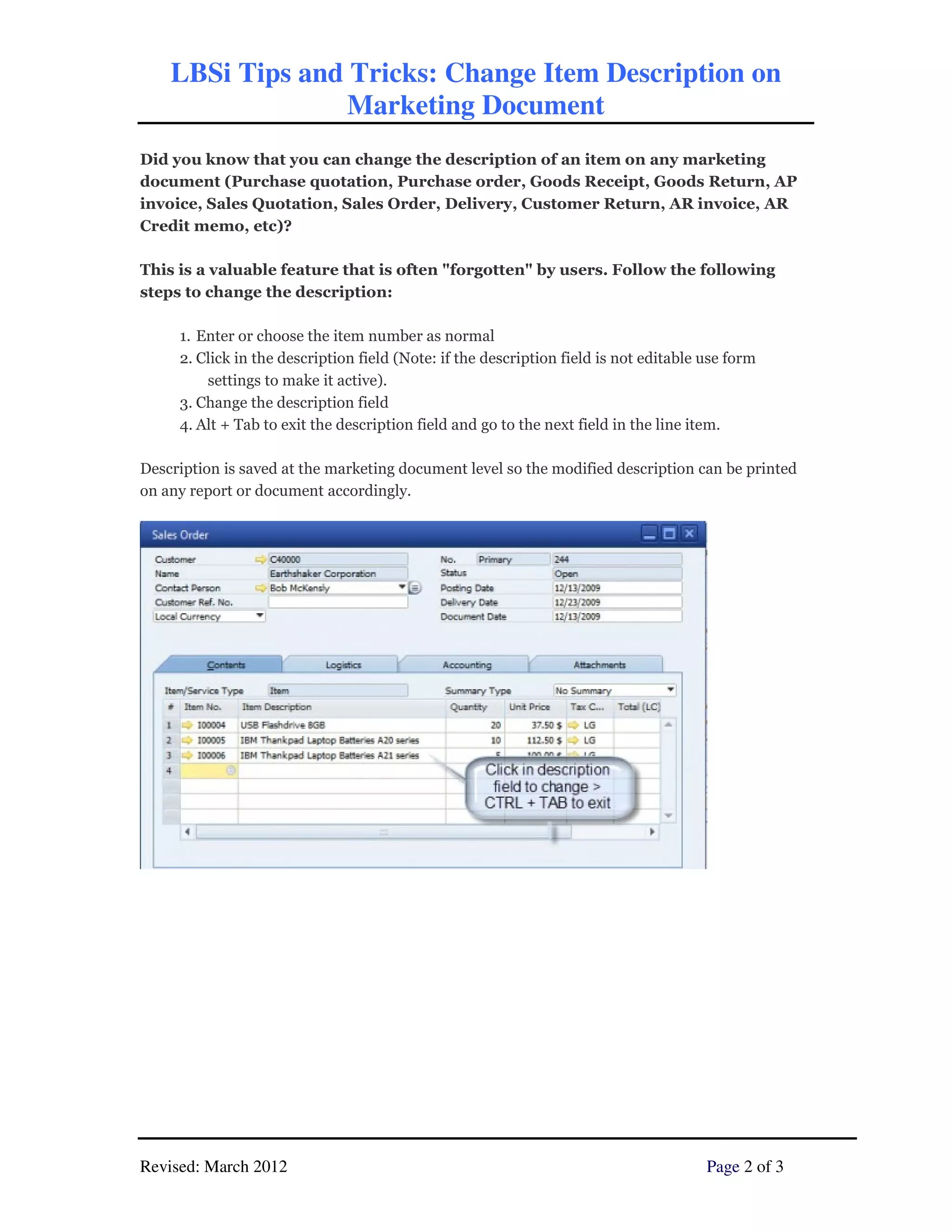
This is a valuable feature that is often "forgotten" by users. Follow the following
steps to change the description:

     1. Enter or choose the item number as normal
     2. Click in the description field (Note: if the description field is not editable use form
         settings to make it active).
     3. Change the description field
     4. Alt + Tab to exit the description field and go to the next field in the line item.

Description is saved at the marketing document level so the modified description can be printed
on any report or document accordingly.


Revised: March 2012                                                                    Page 2 of 3
LBSi Tips and Tricks: Change Item Description on
              Marketing Document


                   10749 Pearl Rd., Suite 2A Strongsville, Ohio 44136
      Ph: 440-846-8500 * Fx: 440-846-8505 * www.lbsi.com * email keith@lbsi.com
 Pittsburgh Office: One Oxford Centre, 301 Grant Street, Suite 4300, Pittsburgh, PA 15219 Ph:412-577-4084
          Columbus Office: 545 Metro Place South, Suite 100, Dublin, OH 43017 Ph: 614-766-3622

SAP Business One Tips and tricks: change item description on a marketing document

  • 1.
    Tips and Tricks: ChangeItem Description on Marketing Document 10749 Pearl Rd., Suite 2A Strongsville, Ohio 44136 Ph: 440-846-8500 * Fx: 440-846-8505 * www.lbsi.com * email sap@lbsi.com Pittsburgh Office: One Oxford Centre, 301 Grant Street, Suite 4300, Pittsburgh, PA 15219 Ph:412-577-4084 Columbus Office: 545 Metro Place South, Suite 100, Dublin, OH 43017 Ph: 614-766-3622
  • 2.
    LBSi Tips andTricks: Change Item Description on Marketing Document Did you know that you can change the description of an item on any marketing document (Purchase quotation, Purchase order, Goods Receipt, Goods Return, AP invoice, Sales Quotation, Sales Order, Delivery, Customer Return, AR invoice, AR Credit memo, etc)? This is a valuable feature that is often "forgotten" by users. Follow the following steps to change the description: 1. Enter or choose the item number as normal 2. Click in the description field (Note: if the description field is not editable use form settings to make it active). 3. Change the description field 4. Alt + Tab to exit the description field and go to the next field in the line item. Description is saved at the marketing document level so the modified description can be printed on any report or document accordingly. Revised: March 2012 Page 2 of 3
  • 3.
    LBSi Tips andTricks: Change Item Description on Marketing Document 10749 Pearl Rd., Suite 2A Strongsville, Ohio 44136 Ph: 440-846-8500 * Fx: 440-846-8505 * www.lbsi.com * email keith@lbsi.com Pittsburgh Office: One Oxford Centre, 301 Grant Street, Suite 4300, Pittsburgh, PA 15219 Ph:412-577-4084 Columbus Office: 545 Metro Place South, Suite 100, Dublin, OH 43017 Ph: 614-766-3622