PRODUCT COST CONTROLLING
END USER TRAINING DOCUMENTS
COST CENTER ACCOUNTING
CK40N -
Functionality
Costing run is basically a single transaction code which covers both CK11N (Create cost
estimate) and CK24 (Mark and release cost estimate).
Further it has the benefit that you can do a mass costing (more than one material) at the
same time and more than one plant at the same time.
Thus you should always use costing run even to cost a single material code, because when
you mark and release it marks and release even for all the lower level material codes which
have BOM and recipe.
Scenario
We want to do a mass costing run for all the finished and semi finished products that are
valued at standard price.
Requirements
Bill of Materials must be maintained. Activity prices must exist as planned prices on the
cost centers. Routings and activity types must be maintained.
Menu Path Accounting → Controlling → Product Cost Controlling →
Product Cost Planning → Material Costing → CK40N - Edit
Costing Run
Transaction Code CK40N
1. Double click on CK40N - Edit Costing Run.
Page 1 of 37
PRODUCT COST CONTROLLING
END USER TRAINING DOCUMENTS
COST CENTER ACCOUNTING
Edit Costing Run
2. Click the Create button.
Page 2 of 37
PRODUCT COST CONTROLLING
END USER TRAINING DOCUMENTS
COST CENTER ACCOUNTING
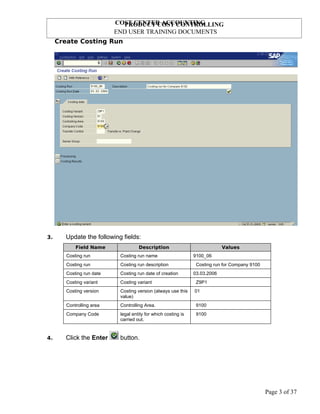
Create Costing Run
3. Update the following fields:
Field Name Description Values
Costing run Costing run name 9100_06
Costing run Costing run description Costing run for Company 9100
Costing run date Costing run date of creation 03.03.2006
Costing variant Costing variant Z9P1
Costing version Costing version (always use this
value)
01
Controlling area Controlling Area. 9100
Company Code legal entity for which costing is
carried out.
9100
4. Click the Enter button.
Page 3 of 37
PRODUCT COST CONTROLLING
END USER TRAINING DOCUMENTS
COST CENTER ACCOUNTING
Create Costing Run
Note: Check posting period specified in the field 'Posting period'. Stock will be
revaluated for this period.
5. Update the following fields:
Field Name Description Values
Costing date from Description of the Costing date
from.
03.03.2006
Qty structure date Description of the Qty structure
date.
03.03.2006
Valuation date Description of the Valuation
date.
03.03.2006
6. Click the Enter button.
7. Click the Save button.
Page 4 of 37
PRODUCT COST CONTROLLING
END USER TRAINING DOCUMENTS
COST CENTER ACCOUNTING
Edit Costing Run
8. Click the Selection Parameter button.
Page 5 of 37
PRODUCT COST CONTROLLING
END USER TRAINING DOCUMENTS
COST CENTER ACCOUNTING
Costing Run: Selection - Change Parameters
9. Update the following fields:
Field Name Description Values
Material Type Code identifying the material
type Eg Semi-finished &
Finished goods.
HALB click & update FERT
Plant Code identifying the operational
unit of the company where the
material is manufactured and
stored
9100
10. Click the Background processing to deselect.
11. Click the Save button.
12. Click the Back button.
Page 6 of 37
PRODUCT COST CONTROLLING
END USER TRAINING DOCUMENTS
COST CENTER ACCOUNTING
Edit Costing Run
13. Click the Selection Execute button.
Page 7 of 37
PRODUCT COST CONTROLLING
END USER TRAINING DOCUMENTS
COST CENTER ACCOUNTING
Edit Costing Run
14. Click the Costing results Collapse button
15. Click the Materials Overview button and scroll down
Page 8 of 37
PRODUCT COST CONTROLLING
END USER TRAINING DOCUMENTS
COST CENTER ACCOUNTING
16. Click the Struct. explosion Parameter button.
Page 9 of 37
PRODUCT COST CONTROLLING
END USER TRAINING DOCUMENTS
COST CENTER ACCOUNTING
Costing Run: BOM Explosion - Change Parameters
17. Click the Background processing to deselect.
18. Click the Save button.
19. Click the Back button.
Page 10 of 37
PRODUCT COST CONTROLLING
END USER TRAINING DOCUMENTS
COST CENTER ACCOUNTING
Edit Costing Run
20. Click the Struct. explosion Execute button.
21. Click the Materials Overview button.
Page 11 of 37
PRODUCT COST CONTROLLING
END USER TRAINING DOCUMENTS
COST CENTER ACCOUNTING
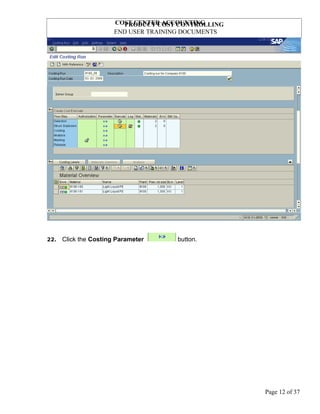
22. Click the Costing Parameter button.
Page 12 of 37
PRODUCT COST CONTROLLING
END USER TRAINING DOCUMENTS
COST CENTER ACCOUNTING
Costing Run: Cost Estimate - Change Parameters
23. Click the Background processing to deselect.
24. Click the All selections button.
25. Click the Save button.
26. Click the Back button.
Page 13 of 37
PRODUCT COST CONTROLLING
END USER TRAINING DOCUMENTS
COST CENTER ACCOUNTING
Edit Costing Run
27. Click the Costing Execute button.
28. Click if the Costing Log button appears
Page 14 of 37
PRODUCT COST CONTROLLING
END USER TRAINING DOCUMENTS
COST CENTER ACCOUNTING
29. Click the Back button.
Page 15 of 37
PRODUCT COST CONTROLLING
END USER TRAINING DOCUMENTS
COST CENTER ACCOUNTING
Edit Costing Run
30. Click the Materials Overview button.
31. Click the Analysis Parameter button.
Page 16 of 37
PRODUCT COST CONTROLLING
END USER TRAINING DOCUMENTS
COST CENTER ACCOUNTING
Choose reference for selection parameter
32. Select the SAP&11 - Results of Costing Run in list
box.
Page 17 of 37
PRODUCT COST CONTROLLING
END USER TRAINING DOCUMENTS
COST CENTER ACCOUNTING
Costing Run: Analysis - Change Parameters
33. Click the All selections button.
34. Click the Save button.
35. Click the Back button.
Page 18 of 37
PRODUCT COST CONTROLLING
END USER TRAINING DOCUMENTS
COST CENTER ACCOUNTING
Edit Costing Run
36. Click the Analysis Execute button.
Page 19 of 37
PRODUCT COST CONTROLLING
END USER TRAINING DOCUMENTS
COST CENTER ACCOUNTING
Analyze/Compare Material Cost Estimates
Note: To display detailed report with cost estimate of particular material click on
the Detail report: cost estimate button.
37. Click the Back button.
Exit list
38. Click the Yes button.
Page 20 of 37
PRODUCT COST CONTROLLING
END USER TRAINING DOCUMENTS
COST CENTER ACCOUNTING
Edit Costing Run
39. Click the Marking Padlock button to allow marking.
Page 21 of 37
PRODUCT COST CONTROLLING
END USER TRAINING DOCUMENTS
COST CENTER ACCOUNTING
Price Update: Organizational Measure
40. Select the 9100 Legal valuation line and click the Issue marking allowance
button.
Note: To allow marking for Group valuation and Profit center valuation you should
follow the step described above.
Page 22 of 37
PRODUCT COST CONTROLLING
END USER TRAINING DOCUMENTS
COST CENTER ACCOUNTING
Permitted std. cost est. variant
41. Click the Costing variant Drop-down list button to select an entry.
Permitted std. cost est. variant
42. Click the Save button.
43. Click the Back button.
Page 23 of 37
PRODUCT COST CONTROLLING
END USER TRAINING DOCUMENTS
COST CENTER ACCOUNTING
Edit Costing Run
44. Click the Marking Parameter button.
Page 24 of 37
PRODUCT COST CONTROLLING
END USER TRAINING DOCUMENTS
COST CENTER ACCOUNTING
Price Update: Mark Standard Price
45. Click the Test run button to deselect.
46. Click the Background processing to deselect.
47. Click the Save button.
48. Click the Back button.
Page 25 of 37
PRODUCT COST CONTROLLING
END USER TRAINING DOCUMENTS
COST CENTER ACCOUNTING
Edit Costing Run
49. Click the Marking Execute button.
Page 26 of 37
PRODUCT COST CONTROLLING
END USER TRAINING DOCUMENTS
COST CENTER ACCOUNTING
Price Update: Mark Standard Price
50. Click the Back button.
Page 27 of 37
PRODUCT COST CONTROLLING
END USER TRAINING DOCUMENTS
COST CENTER ACCOUNTING
Edit Costing Run
51. Click the Marking Log button.
Page 28 of 37
PRODUCT COST CONTROLLING
END USER TRAINING DOCUMENTS
COST CENTER ACCOUNTING
Costing Run: Marking - Log
52. Click the Back button.
Page 29 of 37
PRODUCT COST CONTROLLING
END USER TRAINING DOCUMENTS
COST CENTER ACCOUNTING
Edit Costing Run
53. Click the Release Parameter button.
Page 30 of 37
PRODUCT COST CONTROLLING
END USER TRAINING DOCUMENTS
COST CENTER ACCOUNTING
Price Update: Release Standard Price
54. Click the Test run button to deselect.
55. Click the Background processing to deselect.
.
56. Click the Save button.
57. Click the Back button.
Page 31 of 37
PRODUCT COST CONTROLLING
END USER TRAINING DOCUMENTS
COST CENTER ACCOUNTING
Edit Costing Run
58. Click the Release Execute button.
Page 32 of 37
PRODUCT COST CONTROLLING
END USER TRAINING DOCUMENTS
COST CENTER ACCOUNTING
Price Update: Release Standard Price
59. Click the Back button.
Page 33 of 37
PRODUCT COST CONTROLLING
END USER TRAINING DOCUMENTS
COST CENTER ACCOUNTING
Edit Costing Run
60. Click the Materials Overview button.
Page 34 of 37
PRODUCT COST CONTROLLING
END USER TRAINING DOCUMENTS
COST CENTER ACCOUNTING
Edit Costing Run
61. Click the Analysis button.
Page 35 of 37
PRODUCT COST CONTROLLING
END USER TRAINING DOCUMENTS
COST CENTER ACCOUNTING
Edit Costing Run
Note: To display detailed reports for costed materials, i.e. itemization, cost
components, etc. select the particular material and click the Goto button.
62. Click the Back button.
63. Click the Back button to go back to SAP Easy Access screen.
Page 36 of 37
PRODUCT COST CONTROLLING
END USER TRAINING DOCUMENTS
COST CENTER ACCOUNTING
Page 37 of 37

ck40 n-edit-costing-run-instruction

  • 1.
    PRODUCT COST CONTROLLING ENDUSER TRAINING DOCUMENTS COST CENTER ACCOUNTING CK40N - Functionality Costing run is basically a single transaction code which covers both CK11N (Create cost estimate) and CK24 (Mark and release cost estimate). Further it has the benefit that you can do a mass costing (more than one material) at the same time and more than one plant at the same time. Thus you should always use costing run even to cost a single material code, because when you mark and release it marks and release even for all the lower level material codes which have BOM and recipe. Scenario We want to do a mass costing run for all the finished and semi finished products that are valued at standard price. Requirements Bill of Materials must be maintained. Activity prices must exist as planned prices on the cost centers. Routings and activity types must be maintained. Menu Path Accounting → Controlling → Product Cost Controlling → Product Cost Planning → Material Costing → CK40N - Edit Costing Run Transaction Code CK40N 1. Double click on CK40N - Edit Costing Run. Page 1 of 37
  • 2.
    PRODUCT COST CONTROLLING ENDUSER TRAINING DOCUMENTS COST CENTER ACCOUNTING Edit Costing Run 2. Click the Create button. Page 2 of 37
  • 3.
    PRODUCT COST CONTROLLING ENDUSER TRAINING DOCUMENTS COST CENTER ACCOUNTING Create Costing Run 3. Update the following fields: Field Name Description Values Costing run Costing run name 9100_06 Costing run Costing run description Costing run for Company 9100 Costing run date Costing run date of creation 03.03.2006 Costing variant Costing variant Z9P1 Costing version Costing version (always use this value) 01 Controlling area Controlling Area. 9100 Company Code legal entity for which costing is carried out. 9100 4. Click the Enter button. Page 3 of 37
  • 4.
    PRODUCT COST CONTROLLING ENDUSER TRAINING DOCUMENTS COST CENTER ACCOUNTING Create Costing Run Note: Check posting period specified in the field 'Posting period'. Stock will be revaluated for this period. 5. Update the following fields: Field Name Description Values Costing date from Description of the Costing date from. 03.03.2006 Qty structure date Description of the Qty structure date. 03.03.2006 Valuation date Description of the Valuation date. 03.03.2006 6. Click the Enter button. 7. Click the Save button. Page 4 of 37
  • 5.
    PRODUCT COST CONTROLLING ENDUSER TRAINING DOCUMENTS COST CENTER ACCOUNTING Edit Costing Run 8. Click the Selection Parameter button. Page 5 of 37
  • 6.
    PRODUCT COST CONTROLLING ENDUSER TRAINING DOCUMENTS COST CENTER ACCOUNTING Costing Run: Selection - Change Parameters 9. Update the following fields: Field Name Description Values Material Type Code identifying the material type Eg Semi-finished & Finished goods. HALB click & update FERT Plant Code identifying the operational unit of the company where the material is manufactured and stored 9100 10. Click the Background processing to deselect. 11. Click the Save button. 12. Click the Back button. Page 6 of 37
  • 7.
    PRODUCT COST CONTROLLING ENDUSER TRAINING DOCUMENTS COST CENTER ACCOUNTING Edit Costing Run 13. Click the Selection Execute button. Page 7 of 37
  • 8.
    PRODUCT COST CONTROLLING ENDUSER TRAINING DOCUMENTS COST CENTER ACCOUNTING Edit Costing Run 14. Click the Costing results Collapse button 15. Click the Materials Overview button and scroll down Page 8 of 37
  • 9.
    PRODUCT COST CONTROLLING ENDUSER TRAINING DOCUMENTS COST CENTER ACCOUNTING 16. Click the Struct. explosion Parameter button. Page 9 of 37
  • 10.
    PRODUCT COST CONTROLLING ENDUSER TRAINING DOCUMENTS COST CENTER ACCOUNTING Costing Run: BOM Explosion - Change Parameters 17. Click the Background processing to deselect. 18. Click the Save button. 19. Click the Back button. Page 10 of 37
  • 11.
    PRODUCT COST CONTROLLING ENDUSER TRAINING DOCUMENTS COST CENTER ACCOUNTING Edit Costing Run 20. Click the Struct. explosion Execute button. 21. Click the Materials Overview button. Page 11 of 37
  • 12.
    PRODUCT COST CONTROLLING ENDUSER TRAINING DOCUMENTS COST CENTER ACCOUNTING 22. Click the Costing Parameter button. Page 12 of 37
  • 13.
    PRODUCT COST CONTROLLING ENDUSER TRAINING DOCUMENTS COST CENTER ACCOUNTING Costing Run: Cost Estimate - Change Parameters 23. Click the Background processing to deselect. 24. Click the All selections button. 25. Click the Save button. 26. Click the Back button. Page 13 of 37
  • 14.
    PRODUCT COST CONTROLLING ENDUSER TRAINING DOCUMENTS COST CENTER ACCOUNTING Edit Costing Run 27. Click the Costing Execute button. 28. Click if the Costing Log button appears Page 14 of 37
  • 15.
    PRODUCT COST CONTROLLING ENDUSER TRAINING DOCUMENTS COST CENTER ACCOUNTING 29. Click the Back button. Page 15 of 37
  • 16.
    PRODUCT COST CONTROLLING ENDUSER TRAINING DOCUMENTS COST CENTER ACCOUNTING Edit Costing Run 30. Click the Materials Overview button. 31. Click the Analysis Parameter button. Page 16 of 37
  • 17.
    PRODUCT COST CONTROLLING ENDUSER TRAINING DOCUMENTS COST CENTER ACCOUNTING Choose reference for selection parameter 32. Select the SAP&11 - Results of Costing Run in list box. Page 17 of 37
  • 18.
    PRODUCT COST CONTROLLING ENDUSER TRAINING DOCUMENTS COST CENTER ACCOUNTING Costing Run: Analysis - Change Parameters 33. Click the All selections button. 34. Click the Save button. 35. Click the Back button. Page 18 of 37
  • 19.
    PRODUCT COST CONTROLLING ENDUSER TRAINING DOCUMENTS COST CENTER ACCOUNTING Edit Costing Run 36. Click the Analysis Execute button. Page 19 of 37
  • 20.
    PRODUCT COST CONTROLLING ENDUSER TRAINING DOCUMENTS COST CENTER ACCOUNTING Analyze/Compare Material Cost Estimates Note: To display detailed report with cost estimate of particular material click on the Detail report: cost estimate button. 37. Click the Back button. Exit list 38. Click the Yes button. Page 20 of 37
  • 21.
    PRODUCT COST CONTROLLING ENDUSER TRAINING DOCUMENTS COST CENTER ACCOUNTING Edit Costing Run 39. Click the Marking Padlock button to allow marking. Page 21 of 37
  • 22.
    PRODUCT COST CONTROLLING ENDUSER TRAINING DOCUMENTS COST CENTER ACCOUNTING Price Update: Organizational Measure 40. Select the 9100 Legal valuation line and click the Issue marking allowance button. Note: To allow marking for Group valuation and Profit center valuation you should follow the step described above. Page 22 of 37
  • 23.
    PRODUCT COST CONTROLLING ENDUSER TRAINING DOCUMENTS COST CENTER ACCOUNTING Permitted std. cost est. variant 41. Click the Costing variant Drop-down list button to select an entry. Permitted std. cost est. variant 42. Click the Save button. 43. Click the Back button. Page 23 of 37
  • 24.
    PRODUCT COST CONTROLLING ENDUSER TRAINING DOCUMENTS COST CENTER ACCOUNTING Edit Costing Run 44. Click the Marking Parameter button. Page 24 of 37
  • 25.
    PRODUCT COST CONTROLLING ENDUSER TRAINING DOCUMENTS COST CENTER ACCOUNTING Price Update: Mark Standard Price 45. Click the Test run button to deselect. 46. Click the Background processing to deselect. 47. Click the Save button. 48. Click the Back button. Page 25 of 37
  • 26.
    PRODUCT COST CONTROLLING ENDUSER TRAINING DOCUMENTS COST CENTER ACCOUNTING Edit Costing Run 49. Click the Marking Execute button. Page 26 of 37
  • 27.
    PRODUCT COST CONTROLLING ENDUSER TRAINING DOCUMENTS COST CENTER ACCOUNTING Price Update: Mark Standard Price 50. Click the Back button. Page 27 of 37
  • 28.
    PRODUCT COST CONTROLLING ENDUSER TRAINING DOCUMENTS COST CENTER ACCOUNTING Edit Costing Run 51. Click the Marking Log button. Page 28 of 37
  • 29.
    PRODUCT COST CONTROLLING ENDUSER TRAINING DOCUMENTS COST CENTER ACCOUNTING Costing Run: Marking - Log 52. Click the Back button. Page 29 of 37
  • 30.
    PRODUCT COST CONTROLLING ENDUSER TRAINING DOCUMENTS COST CENTER ACCOUNTING Edit Costing Run 53. Click the Release Parameter button. Page 30 of 37
  • 31.
    PRODUCT COST CONTROLLING ENDUSER TRAINING DOCUMENTS COST CENTER ACCOUNTING Price Update: Release Standard Price 54. Click the Test run button to deselect. 55. Click the Background processing to deselect. . 56. Click the Save button. 57. Click the Back button. Page 31 of 37
  • 32.
    PRODUCT COST CONTROLLING ENDUSER TRAINING DOCUMENTS COST CENTER ACCOUNTING Edit Costing Run 58. Click the Release Execute button. Page 32 of 37
  • 33.
    PRODUCT COST CONTROLLING ENDUSER TRAINING DOCUMENTS COST CENTER ACCOUNTING Price Update: Release Standard Price 59. Click the Back button. Page 33 of 37
  • 34.
    PRODUCT COST CONTROLLING ENDUSER TRAINING DOCUMENTS COST CENTER ACCOUNTING Edit Costing Run 60. Click the Materials Overview button. Page 34 of 37
  • 35.
    PRODUCT COST CONTROLLING ENDUSER TRAINING DOCUMENTS COST CENTER ACCOUNTING Edit Costing Run 61. Click the Analysis button. Page 35 of 37
  • 36.
    PRODUCT COST CONTROLLING ENDUSER TRAINING DOCUMENTS COST CENTER ACCOUNTING Edit Costing Run Note: To display detailed reports for costed materials, i.e. itemization, cost components, etc. select the particular material and click the Goto button. 62. Click the Back button. 63. Click the Back button to go back to SAP Easy Access screen. Page 36 of 37
  • 37.
    PRODUCT COST CONTROLLING ENDUSER TRAINING DOCUMENTS COST CENTER ACCOUNTING Page 37 of 37