RELEASE 12 : PAYABLES
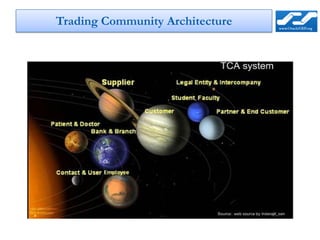
Trading Community Architecture
Agenda


   Suppliers
   Bank’s
   Retainage
   Recoupment
   Payments Manager
   AP/AR Netting
Supplier’s

In 11i
 Suppliers defined in AP.
 Supplier contacts replicated for each supplier site.


In R12
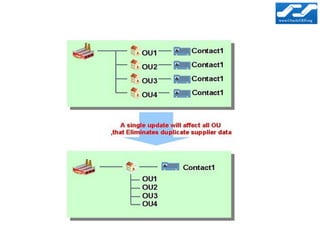
 Supplier becomes as TCA Party.
 Suppliers Sites as TCA Party Site for each distinct address.
 Contacts for each supplier/address , it means Single supplier address
  and contact can be leveraged by multiple sites, for each OU
   – A single change to an address can be seen instantly by all OUs
   – No longer need to manually ‘push’ updates across OUs.This can be
     best understood by the figure below.
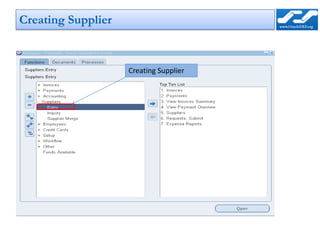
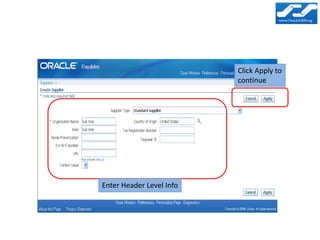
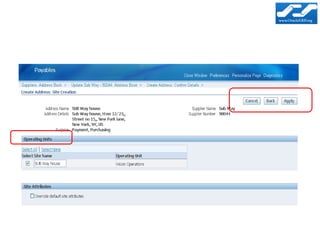
Creating Supplier


                    Creating Supplier
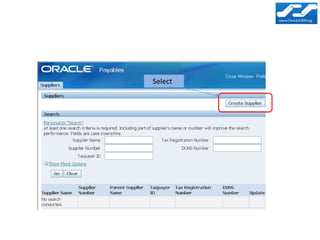
Select
Click Apply to
                          continue


Enter Header Level Info
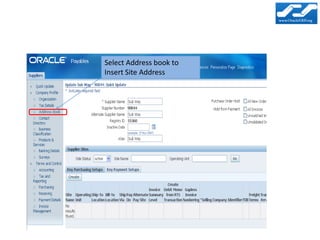
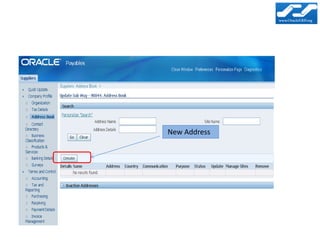
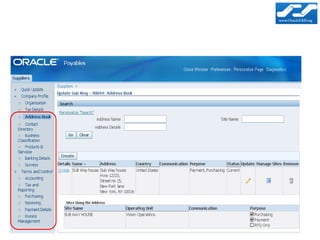
Select Address book to
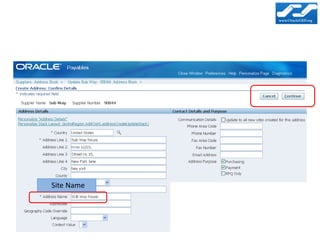
Insert Site Address
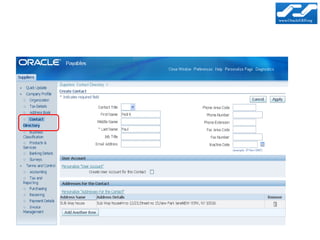
New Address
Site Name
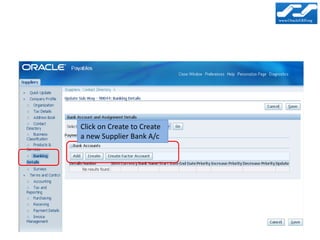
Click on Create to Create
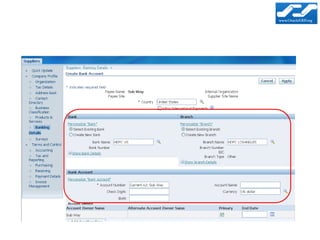
a new Supplier Bank A/c
Banks and Bank Details


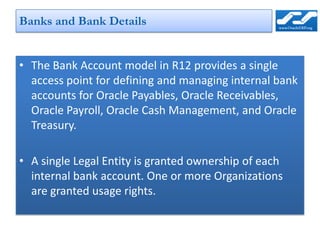
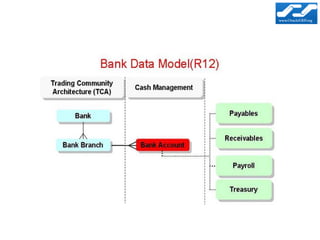
• The Bank Account model in R12 provides a single
  access point for defining and managing internal bank
  accounts for Oracle Payables, Oracle Receivables,
  Oracle Payroll, Oracle Cash Management, and Oracle
  Treasury.

• A single Legal Entity is granted ownership of each
  internal bank account. One or more Organizations
  are granted usage rights.
Ownership of internal bank account


• Each Legal Entity is granted ownership for each
  internal bank account.
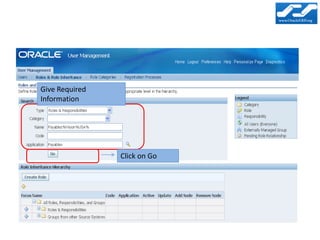
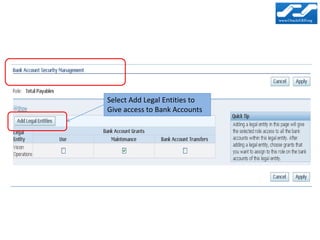
• For Granting Access to the Legal Entities log In to Sys
  Admin
• Go to “User Management” Responsibility
• Click on “Roles & Role Inheritance”
Give Required
Information


                Click on Go
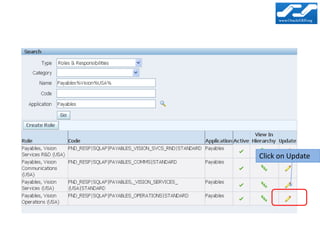
Click on Update
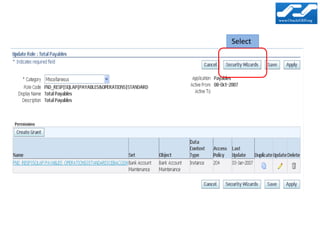
Select
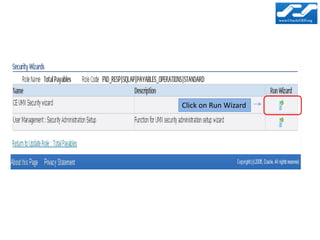
Click on Run Wizard
Select Add Legal Entities to
Give access to Bank Accounts
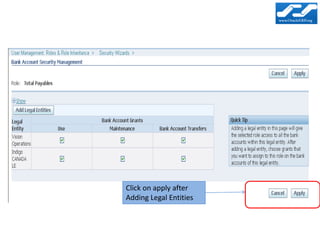
Click on apply after
Adding Legal Entities
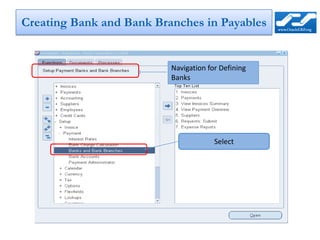
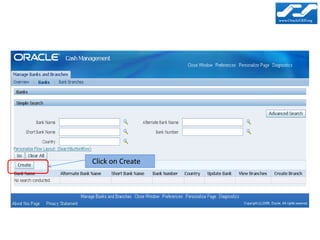
Creating Bank and Bank Branches in Payables


                          Navigation for Defining
                          Banks


                                       Select
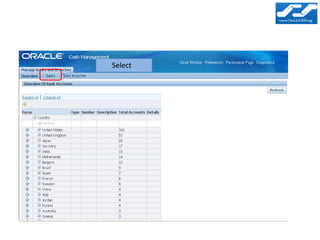
Select
Click on Create
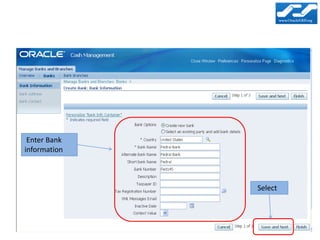
Enter Bank
information


              Select
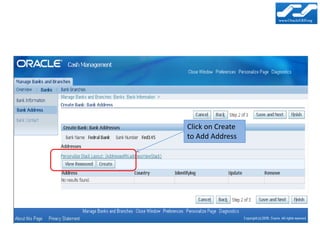
Click on Create
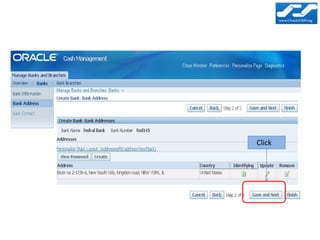
to Add Address
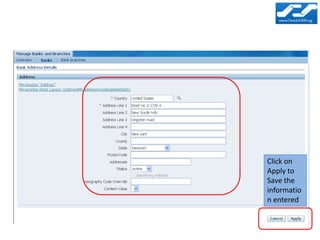
Click on
Apply to
Save the
informatio
n entered
Click
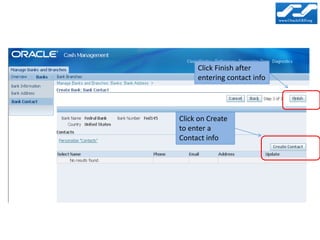
Click Finish after
     entering contact info


Click on Create
to enter a
Contact info
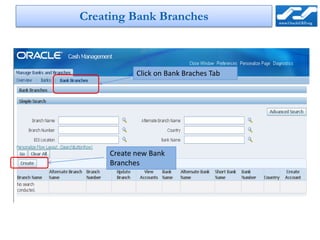
Creating Bank Branches


            Click on Bank Braches Tab


     Create new Bank
     Branches
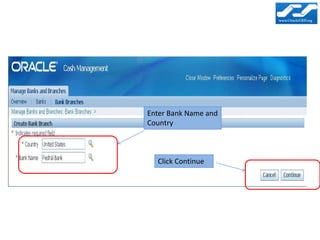
Enter Bank Name and
Country


  Click Continue
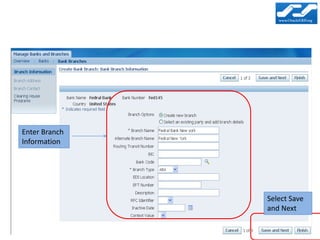
Enter Branch
Information


               Select Save
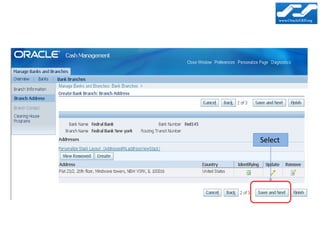
               and Next
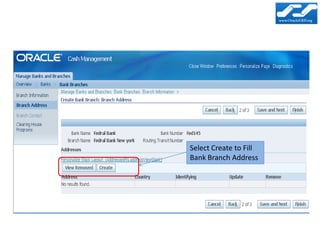
Select Create to Fill
Bank Branch Address
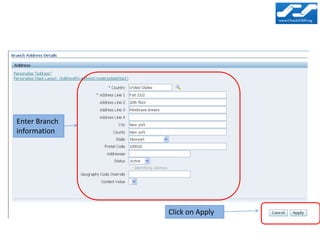
Enter Branch
information


               Click on Apply
Select
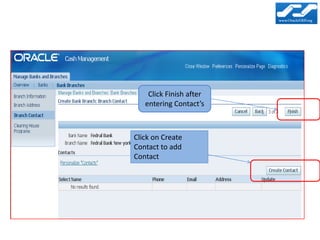
Click Finish after
   entering Contact’s


Click on Create
Contact to add
Contact
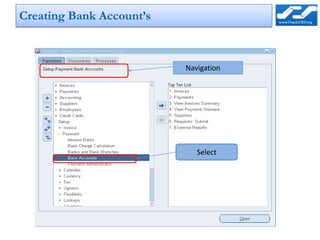
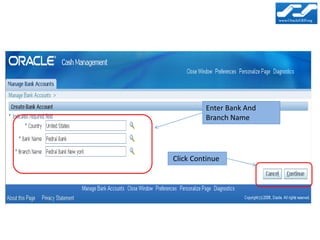
Creating Bank Account’s


                          Navigation


                             Select
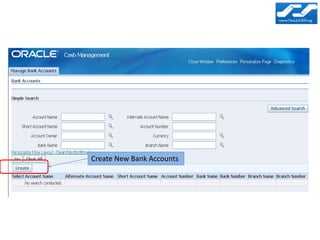
Create New Bank Accounts
Enter Bank And
         Branch Name


Click Continue
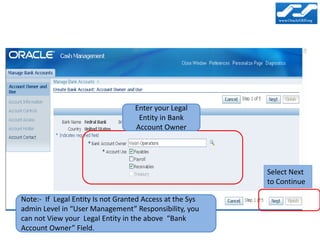
Enter your Legal
                                    Entity in Bank
                                   Account Owner


                                                          Select Next
                                                          to Continue

Note:- If Legal Entity Is not Granted Access at the Sys
admin Level in “User Management” Responsibility, you
can not View your Legal Entity in the above “Bank
Account Owner” Field.
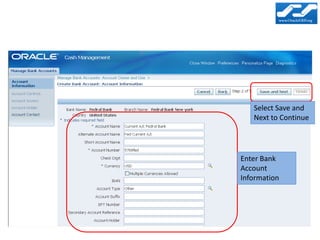
Select Save and
   Next to Continue


Enter Bank
Account
Information
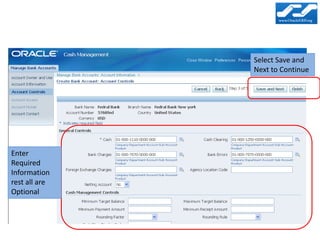
Select Save and
               Next to Continue


Enter
Required
Information
rest all are
Optional
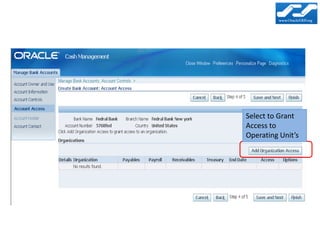
Select to Grant
Access to
Operating Unit’s
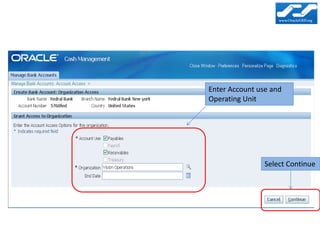
Enter Account use and
Operating Unit


                Select Continue
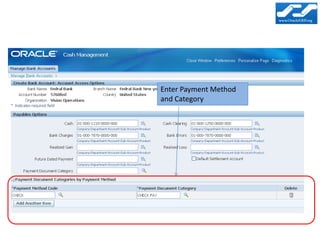
Enter Payment Method
and Category
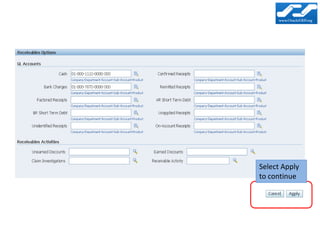
Select Apply
to continue
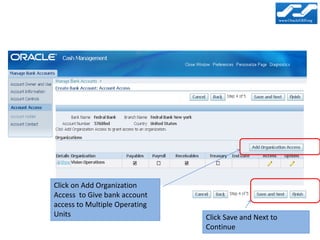
Click on Add Organization
Access to Give bank account
access to Multiple Operating
Units                          Click Save and Next to
                               Continue
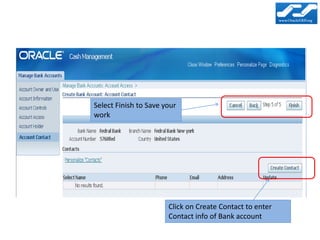
Select Finish to Save your
work


                       Click on Create Contact to enter
                       Contact info of Bank account
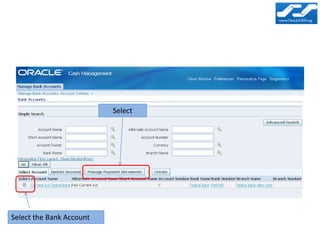
Select


Select the Bank Account
Select
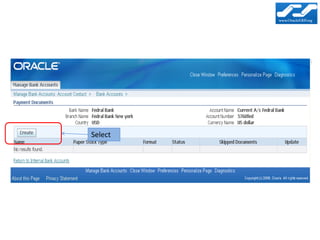
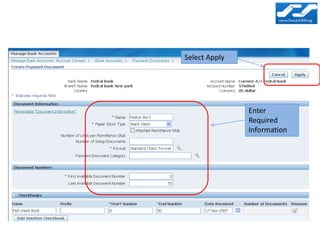
Select Apply


               Enter
               Required
               Information
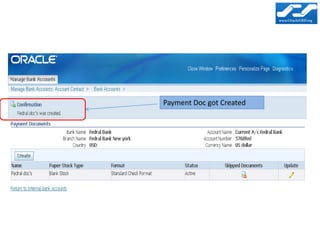
Payment Doc got Created
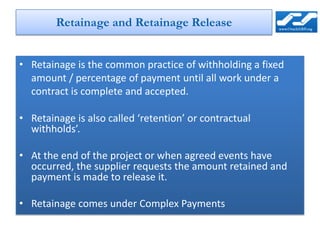
Retainage and Retainage Release


• Retainage is the common practice of withholding a fixed
  amount / percentage of payment until all work under a
  contract is complete and accepted.

• Retainage is also called ‘retention’ or contractual
  withholds’.

• At the end of the project or when agreed events have
  occurred, the supplier requests the amount retained and
  payment is made to release it.

• Retainage comes under Complex Payments
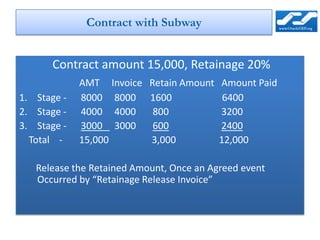
Contract with Subway


       Contract amount 15,000, Retainage 20%
             AMT Invoice   Retain Amount   Amount Paid
1. Stage -   8000 8000     1600             6400
2. Stage -   4000 4000      800            3200
3. Stage -   3000 3000      600            2400
  Total -    15,000        3,000           12,000

   Release the Retained Amount, Once an Agreed event
   Occurred by “Retainage Release Invoice”
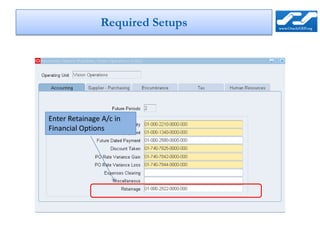
Required Setups


Enter Retainage A/c in
Financial Options
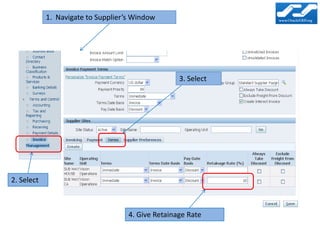
1. Navigate to Supplier’s Window


                                                   3. Select


2. Select


                                    4. Give Retainage Rate
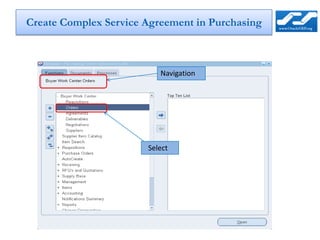
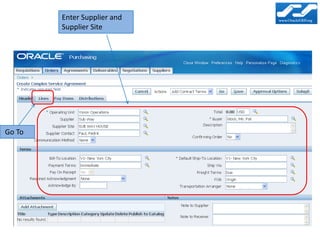
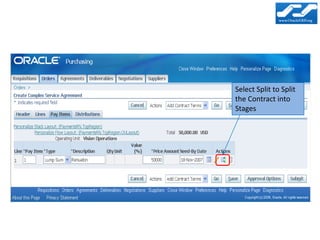
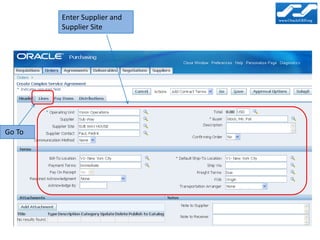
Create Complex Service Agreement in Purchasing


                          Navigation


                       Select
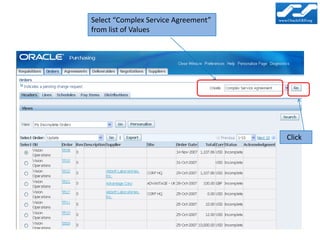
Select “Complex Service Agreement”
from list of Values


                                     Click
Enter Supplier and
        Supplier Site


Go To
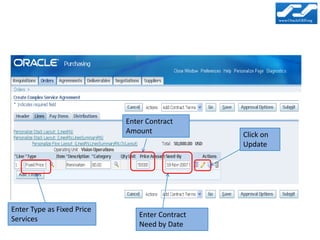
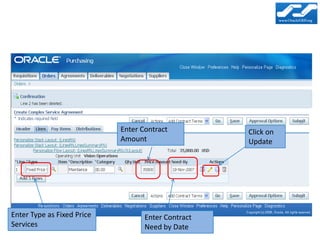
Enter Contract
                            Amount              Click on
                                                Update


Enter Type as Fixed Price
                               Enter Contract
Services
                               Need by Date
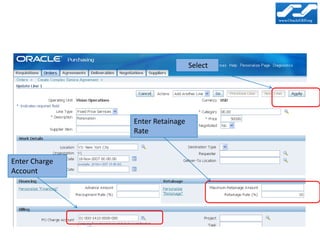
Select


               Enter Retainage
               Rate


Enter Charge
Account
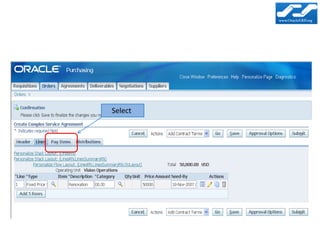
Select
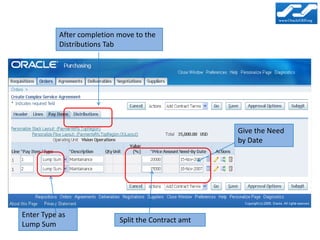
Select Split to Split
the Contract into
Stages
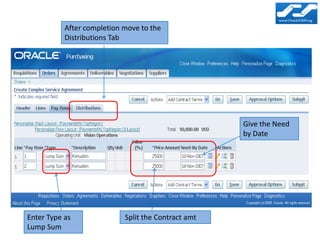
After completion move to the
           Distributions Tab


                                                     Give the Need
                                                     by Date


Enter Type as               Split the Contract amt
Lump Sum
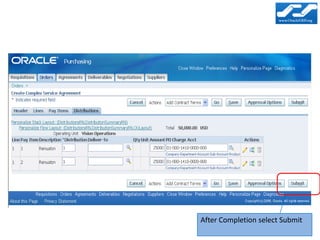
After Completion select Submit
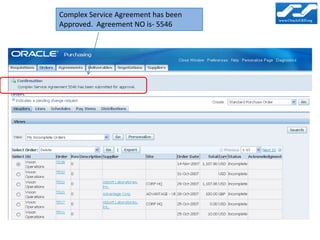
Complex Service Agreement has been
Approved. Agreement NO is- 5546
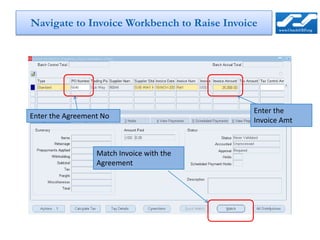
Navigate to Invoice Workbench to Raise Invoice


                                             Enter the
Enter the Agreement No
                                             Invoice Amt


                  Match Invoice with the
                  Agreement
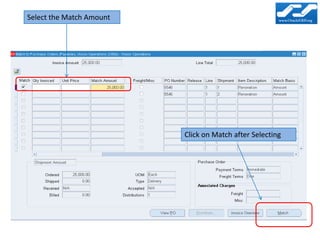
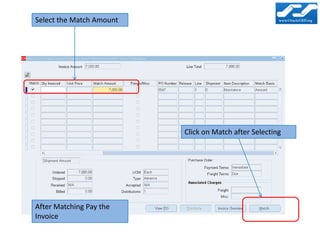
Select the Match Amount


                          Click on Match after Selecting
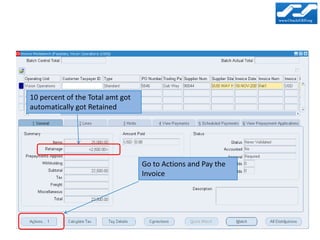
10 percent of the Total amt got
automatically got Retained


                                  Go to Actions and Pay the
                                  Invoice
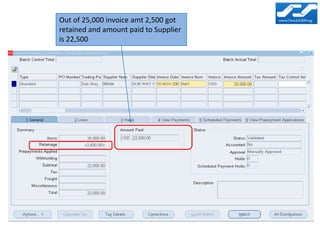
Out of 25,000 invoice amt 2,500 got
retained and amount paid to Supplier
is 22,500
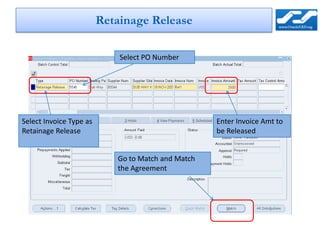
Retainage Release

                             Select PO Number


Select Invoice Type as                              Enter Invoice Amt to
Retainage Release                                   be Released


                            Go to Match and Match
                            the Agreement
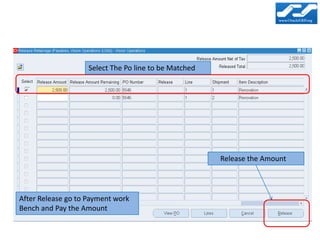
Select The Po line to be Matched


                                                       Release the Amount


After Release go to Payment work
Bench and Pay the Amount
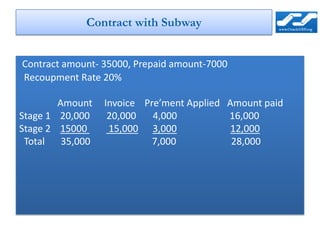
Contract with Subway


Contract amount- 35000, Prepaid amount-7000
Recoupment Rate 20%

        Amount   Invoice Pre’ment Applied Amount paid
Stage 1 20,000    20,000   4,000          16,000
Stage 2 15000     15,000 3,000             12,000
 Total 35,000              7,000           28,000
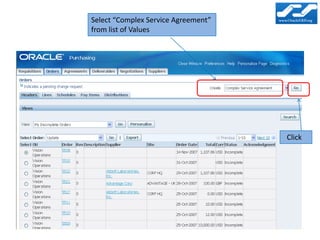
Select “Complex Service Agreement”
from list of Values


                                     Click
Enter Supplier and
        Supplier Site


Go To
Enter Contract          Click on
                            Amount                  Update


Enter Type as Fixed Price          Enter Contract
Services                           Need by Date
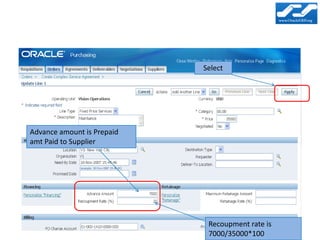
Select


Advance amount is Prepaid
amt Paid to Supplier


                             Recoupment rate is
                             7000/35000*100
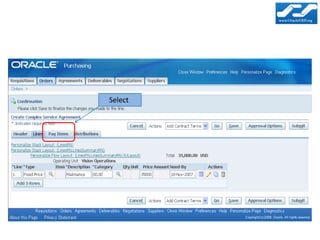
Select
After completion move to the
           Distributions Tab


                                                     Give the Need
                                                     by Date


Enter Type as
                            Split the Contract amt
Lump Sum
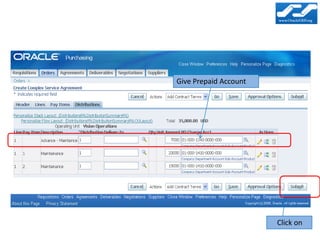
Give Prepaid Account


                       Click on
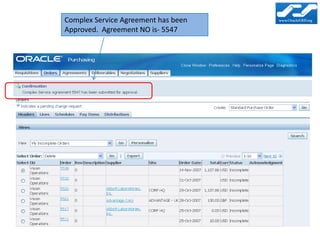
Complex Service Agreement has been
Approved. Agreement NO is- 5547
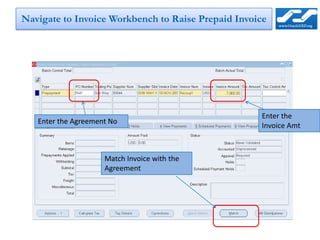
Navigate to Invoice Workbench to Raise Prepaid Invoice


                                                    Enter the
   Enter the Agreement No
                                                    Invoice Amt


                     Match Invoice with the
                     Agreement
Select the Match Amount


                          Click on Match after Selecting


After Matching Pay the
Invoice
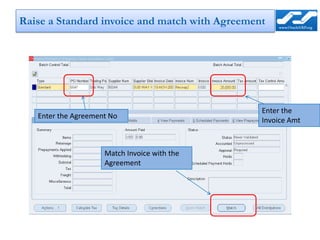
Raise a Standard invoice and match with Agreement


                                                Enter the
   Enter the Agreement No
                                                Invoice Amt


                     Match Invoice with the
                     Agreement
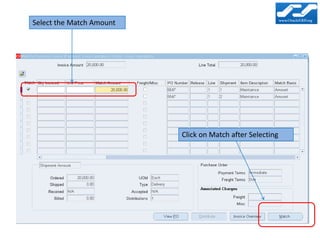
Select the Match Amount


                          Click on Match after Selecting
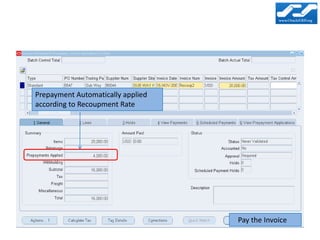
Prepayment Automatically applied
according to Recoupment Rate


                                   Pay the Invoice
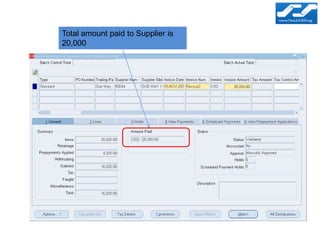
Total amount paid to Supplier is
20,000
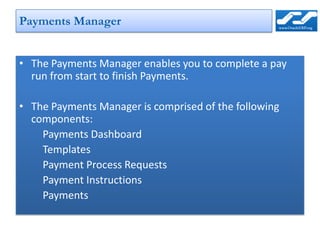
Payments Manager


• The Payments Manager enables you to complete a pay
  run from start to finish Payments.

• The Payments Manager is comprised of the following
  components:
    Payments Dashboard
    Templates
    Payment Process Requests
    Payment Instructions
    Payments
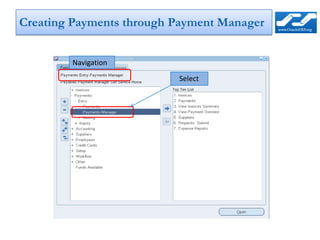
Creating Payments through Payment Manager


        Navigation

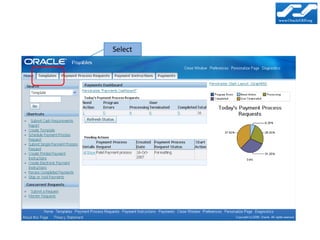
                          Select
Select
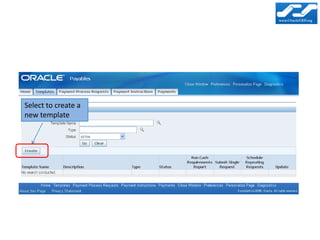
Select to create a
new template
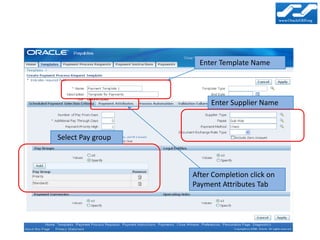
Enter Template Name


                        Enter Supplier Name


Select Pay group


                   After Completion click on
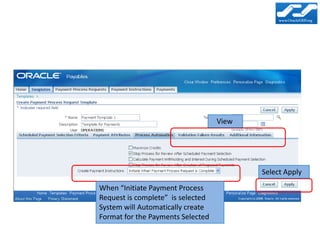
                   Payment Attributes Tab
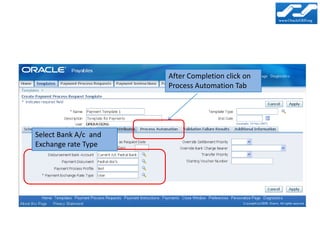
After Completion click on
                      Process Automation Tab


Select Bank A/c and
Exchange rate Type
View


                                          Select Apply

When “Initiate Payment Process
Request is complete” is selected
System will Automatically create
Format for the Payments Selected
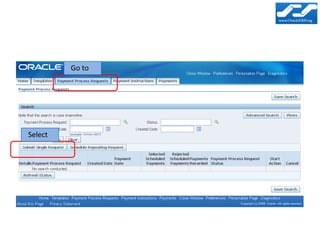
Go to


Select
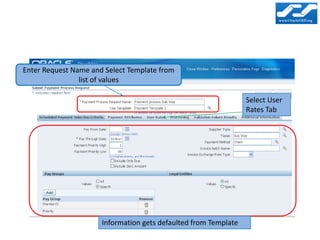
Enter Request Name and Select Template from
                list of values

                                                                 Select User
                                                                 Rates Tab


                      Information gets defaulted from Template
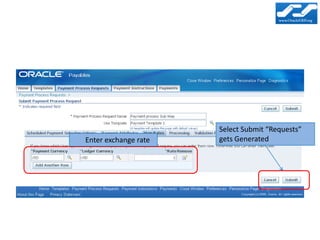
Select Submit “Requests”
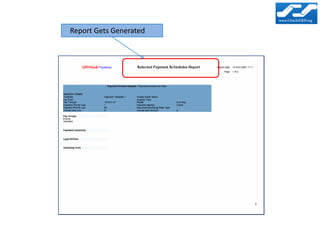
Enter exchange rate   gets Generated
Report Gets Generated
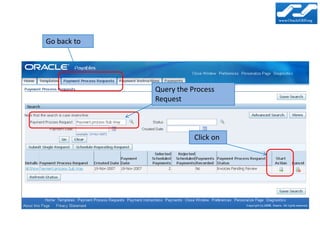
Go back to


             Query the Process
             Request


                        Click on
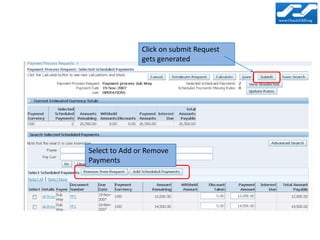
Click on submit Request
               gets generated


Select to Add or Remove
Payments
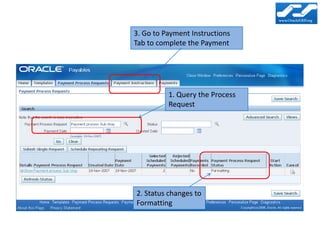
3. Go to Payment Instructions
Tab to complete the Payment


          1. Query the Process
          Request


2. Status changes to
Formatting
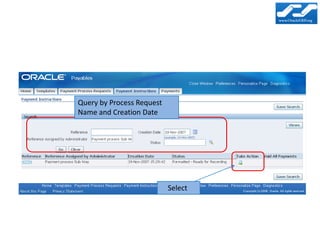
Query by Process Request
Name and Creation Date


                           Select
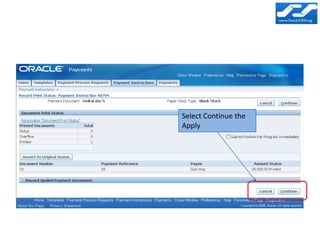
Select Continue the
Apply
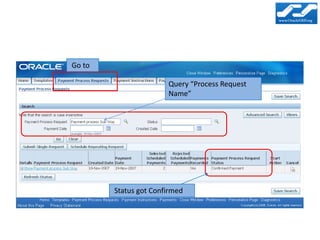
Go to

                       Query “Process Request
                       Name”


        Status got Confirmed
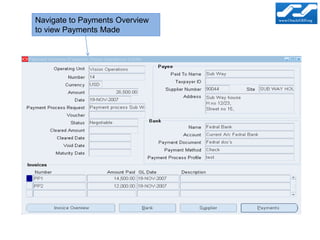
Navigate to Payments Overview
to view Payments Made
AP/AR Netting


• The Payables and Receivables Netting feature enables the
  automatic netting of Payable and Receivable transactions
  within a business enterprise.

• You can predefine a netting agreement that incorporates the
  netting business rules and transaction criteria needed to run
  your tailored netting process.

• The netting process automatically creates the Payables
  payments and Receivables receipts required to clear a
  selected number of Payables and Receivables transactions.
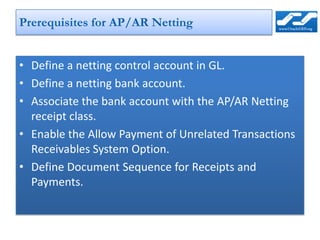
Prerequisites for AP/AR Netting


• Define a netting control account in GL.
• Define a netting bank account.
• Associate the bank account with the AP/AR Netting
  receipt class.
• Enable the Allow Payment of Unrelated Transactions
  Receivables System Option.
• Define Document Sequence for Receipts and
  Payments.
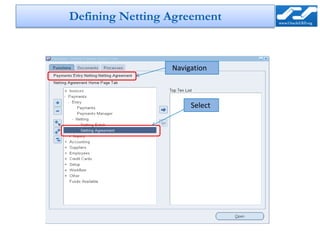
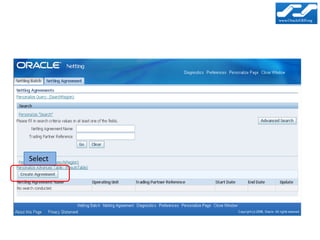
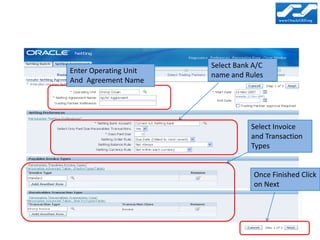
Defining Netting Agreement


                 Navigation


                      Select
Select
Select Bank A/C
Enter Operating Unit
                       name and Rules
And Agreement Name


                                  Select Invoice
                                  and Transaction
                                  Types


                                   Once Finished Click
                                   on Next
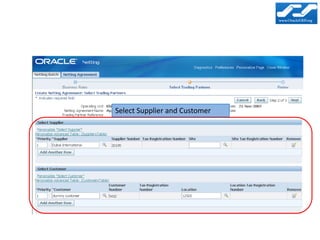
Select Supplier and Customer
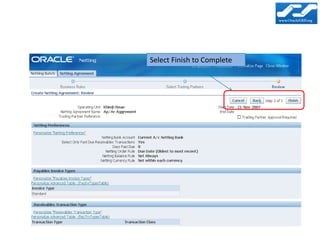
Select Finish to Complete
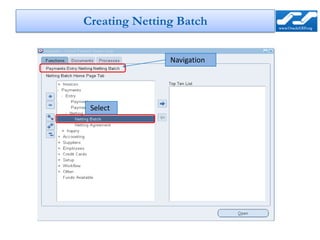
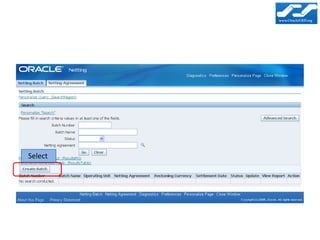
Creating Netting Batch


               Navigation


 Select
Select
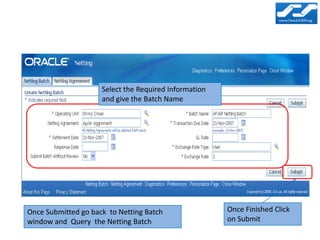
Select the Required Information
                     and give the Batch Name


Once Submitted go back to Netting Batch                Once Finished Click
window and Query the Netting Batch                     on Submit
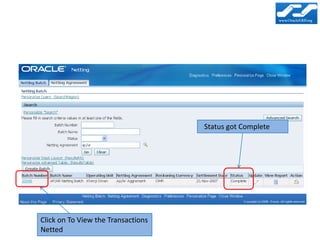
Status got Complete


Click on To View the Transactions
Netted

R12 AP New Features