POWERPOINT: ANIMATING
TEXT AND OBJECTS
GRADE 4 COMPUTER
INTRODUCTION
In PowerPoint, you can animate text and objects
such as clip art, shapes, and pictures. Animation—
or movement—on the slide can be used
to draw the audience's attention to specific
content or to make the slide easier to read.
Optional: Download our practice presentation.
Watch the video in E-learning to learn more about
animating text and objects in PowerPoint.
THE FOURTYPES OF ANIMATIONS
There are several animation effects you can choose from, and
they are organized into four types.
Entrance
Emphasis
Exit
Motion Paths
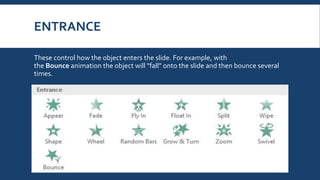
ENTRANCE
These control how the object enters the slide. For example, with
the Bounce animation the object will "fall" onto the slide and then bounce several
times.
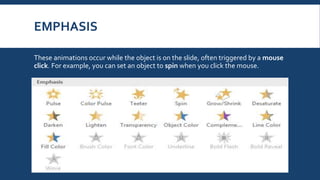
EMPHASIS
These animations occur while the object is on the slide, often triggered by a mouse
click. For example, you can set an object to spin when you click the mouse.
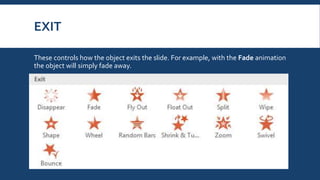
EXIT
These controls how the object exits the slide. For example, with the Fade animation
the object will simply fade away.
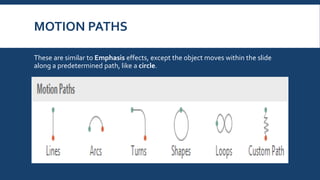
MOTION PATHS
These are similar to Emphasis effects, except the object moves within the slide
along a predetermined path, like a circle.
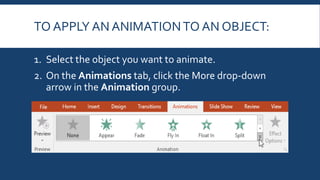
TO APPLY AN ANIMATIONTO AN OBJECT:
1. Select the object you want to animate.
2. On the Animations tab, click the More drop-down
arrow in the Animation group.
TO APPLY AN ANIMATIONTO AN OBJECT:
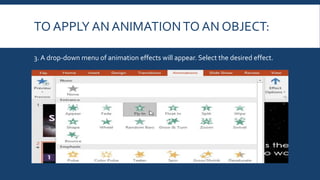
3. A drop-down menu of animation effects will appear. Select the desired effect.
TO APPLY AN ANIMATIONTO AN OBJECT:
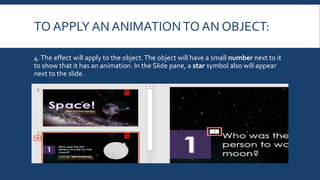
4.The effect will apply to the object.The object will have a small number next to it
to show that it has an animation. In the Slide pane, a star symbol also will appear
next to the slide.
TO APPLY AN ANIMATIONTO AN OBJECT:
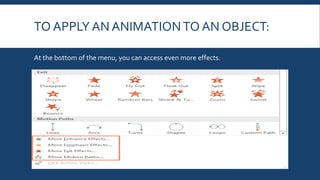
At the bottom of the menu, you can access even more effects.
EFFECT OPTIONS
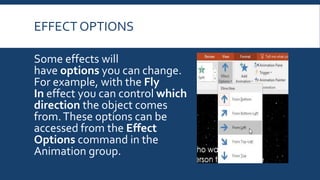
Some effects will
have options you can change.
For example, with the Fly
In effect you can control which
direction the object comes
from.These options can be
accessed from the Effect
Options command in the
Animation group.
TO REMOVE AN ANIMATION:
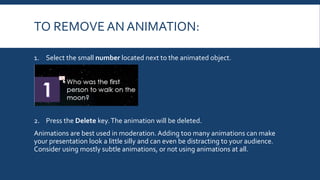
1. Select the small number located next to the animated object.
2. Press the Delete key.The animation will be deleted.
Animations are best used in moderation. Adding too many animations can make
your presentation look a little silly and can even be distracting to your audience.
Consider using mostly subtle animations, or not using animations at all.
WORKING WITH ANIMATIONS
To add multiple animations to an object:
If you select a new animation from the menu in the
Animation group, it will replace the object's
current animation. However, you'll sometimes
want to place more than one animation on an
object, like an Entrance and an Exit effect
TO ADD MULTIPLE ANIMATIONSTO AN
OBJECT:
To do this, you'll need to use the Add Animation command,
which will allow you to keep your current animations while adding
new ones.
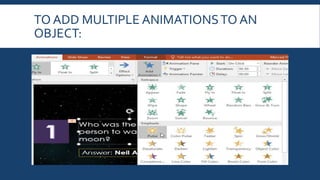
1. Select an object.
2. Click the Animations tab.
3. In the Advanced Animation group, click the Add
Animation command to view the available animations.
4. Select the desired animation effect.
TO ADD MULTIPLE ANIMATIONSTO AN
OBJECT:
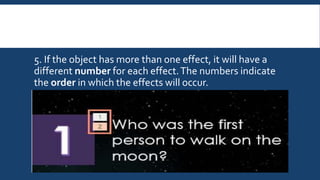
5. If the object has more than one effect, it will have a
different number for each effect.The numbers indicate
the order in which the effects will occur.
TO REORDERTHE ANIMATIONS:
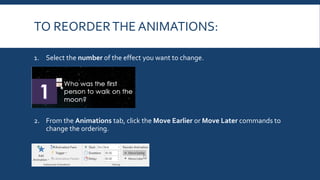
1. Select the number of the effect you want to change.
2. From the Animations tab, click the Move Earlier or Move Later commands to
change the ordering.
TO COPY ANIMATIONS WITHTHE
ANIMATION PAINTER:
In some cases, you may want to apply the same
effects to more than one object.You can do this
by copying the effects from one object to another
using the Animation Painter. In our example, we
want to copy an animation from one slide to
another because they have similar layouts.
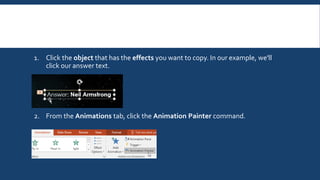
1. Click the object that has the effects you want to copy. In our example, we'll
click our answer text.
2. From the Animations tab, click the Animation Painter command.
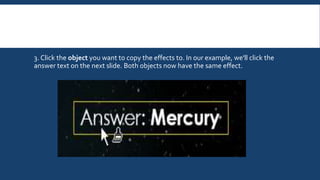
3. Click the object you want to copy the effects to. In our example, we'll click the
answer text on the next slide. Both objects now have the same effect.
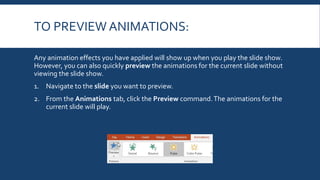
TO PREVIEW ANIMATIONS:
Any animation effects you have applied will show up when you play the slide show.
However, you can also quickly preview the animations for the current slide without
viewing the slide show.
1. Navigate to the slide you want to preview.
2. From the Animations tab, click the Preview command.The animations for the
current slide will play.
THE ANIMATION PANE
The Animation Pane allows you to view
and manage all of the effects that are on
the current slide.You
can modify and reorder effects directly
from the Animation Pane, which is
especially useful when you have several
effects.
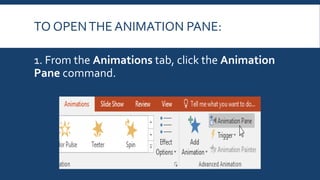
TO OPENTHE ANIMATION PANE:
1. From the Animations tab, click the Animation
Pane command.
TO OPENTHE ANIMATION PANE:
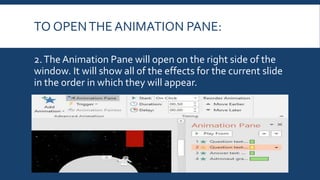
2.TheAnimation Pane will open on the right side of the
window. It will show all of the effects for the current slide
in the order in which they will appear.
TO OPENTHE ANIMATION PANE:
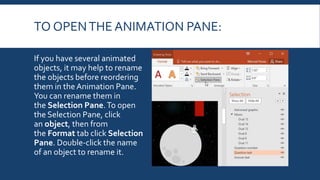
If you have several animated
objects, it may help to rename
the objects before reordering
them in the Animation Pane.
You can rename them in
the Selection Pane.To open
the Selection Pane, click
an object, then from
the Format tab click Selection
Pane. Double-click the name
of an object to rename it.
TO REORDER EFFECTS FROMTHE
ANIMATION PANE:
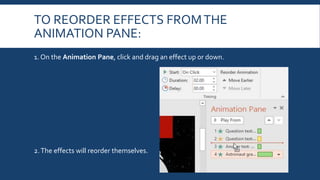
1. On the Animation Pane, click and drag an effect up or down.
2.The effects will reorder themselves.
TO PREVIEW EFFECTS FROMTHE
ANIMATION PANE:
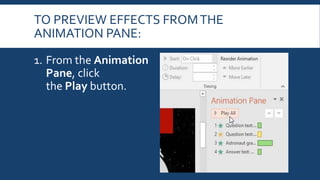
1. From the Animation
Pane, click
the Play button.
TO PREVIEW EFFECTS FROMTHE
ANIMATION PANE:
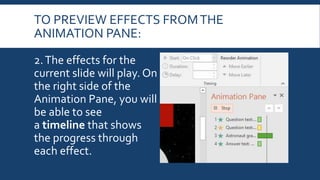
2.The effects for the
current slide will play. On
the right side of the
Animation Pane, you will
be able to see
a timeline that shows
the progress through
each effect.
TO PREVIEW EFFECTS FROMTHE
ANIMATION PANE:
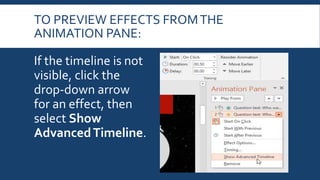
If the timeline is not
visible, click the
drop-down arrow
for an effect, then
select Show
AdvancedTimeline.
TO CHANGE AN EFFECT'S START OPTION:
By default, an effect starts playing when you
click the mouse during a slide show. If you
have multiple effects, you will need to click
multiple times to start each effect
individually. However, by changing the start
option for each effect, you can have effects
that automatically play at the same
time or one after the other.
TO CHANGE AN EFFECT'S START OPTION:
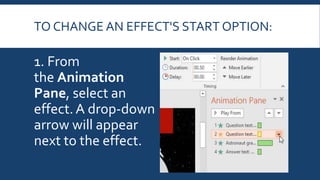
1. From
the Animation
Pane, select an
effect.A drop-down
arrow will appear
next to the effect.
TO CHANGE AN EFFECT'S START OPTION:
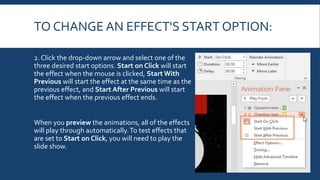
2. Click the drop-down arrow and select one of the
three desired start options. Start on Click will start
the effect when the mouse is clicked, Start With
Previous will start the effect at the same time as the
previous effect, and Start After Previous will start
the effect when the previous effect ends.
When you preview the animations, all of the effects
will play through automatically.To test effects that
are set to Start on Click, you will need to play the
slide show.
THE EFFECT OPTIONS DIALOG BOX
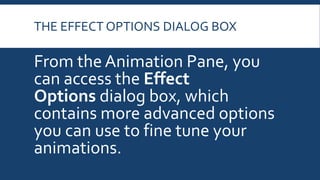
From the Animation Pane, you
can access the Effect
Options dialog box, which
contains more advanced options
you can use to fine tune your
animations.
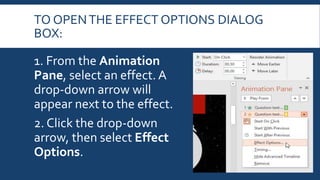
TO OPENTHE EFFECT OPTIONS DIALOG
BOX:
1. From the Animation
Pane, select an effect. A
drop-down arrow will
appear next to the effect.
2. Click the drop-down
arrow, then select Effect
Options.
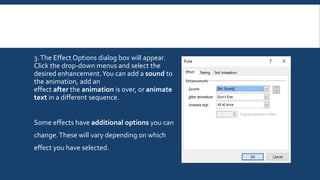
3.The Effect Options dialog box will appear.
Click the drop-down menus and select the
desired enhancement.You can add a sound to
the animation, add an
effect after the animation is over, or animate
text in a different sequence.
Some effects have additional options you can
change.These will vary depending on which
effect you have selected.
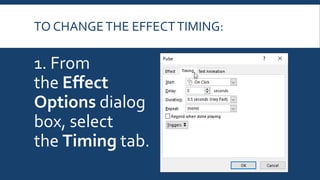
TO CHANGETHE EFFECTTIMING:
1. From
the Effect
Options dialog
box, select
the Timing tab.
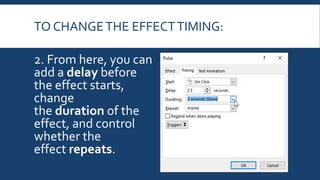
TO CHANGETHE EFFECTTIMING:
2. From here, you can
add a delay before
the effect starts,
change
the duration of the
effect, and control
whether the
effect repeats.
CHALLENGE!
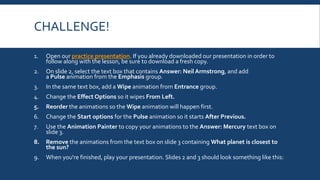
1. Open our practice presentation. If you already downloaded our presentation in order to
follow along with the lesson, be sure to download a fresh copy.
2. On slide 2, select the text box that contains Answer: Neil Armstrong, and add
a Pulse animation from the Emphasis group.
3. In the same text box, add a Wipe animation from Entrance group.
4. Change the Effect Options so it wipes From Left.
5. Reorder the animations so the Wipe animation will happen first.
6. Change the Start options for the Pulse animation so it starts After Previous.
7. Use the Animation Painter to copy your animations to the Answer: Mercury text box on
slide 3.
8. Remove the animations from the text box on slide 3 containing What planet is closest to
the sun?
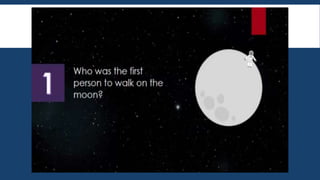
9. When you're finished, play your presentation. Slides 2 and 3 should look something like this:
Grade 4 Computer

Grade 4 Computer

  • 1.
    POWERPOINT: ANIMATING TEXT ANDOBJECTS GRADE 4 COMPUTER
  • 2.
    INTRODUCTION In PowerPoint, youcan animate text and objects such as clip art, shapes, and pictures. Animation— or movement—on the slide can be used to draw the audience's attention to specific content or to make the slide easier to read. Optional: Download our practice presentation. Watch the video in E-learning to learn more about animating text and objects in PowerPoint.
  • 3.
    THE FOURTYPES OFANIMATIONS There are several animation effects you can choose from, and they are organized into four types. Entrance Emphasis Exit Motion Paths
  • 4.
    ENTRANCE These control howthe object enters the slide. For example, with the Bounce animation the object will "fall" onto the slide and then bounce several times.
  • 5.
    EMPHASIS These animations occurwhile the object is on the slide, often triggered by a mouse click. For example, you can set an object to spin when you click the mouse.
  • 6.
    EXIT These controls howthe object exits the slide. For example, with the Fade animation the object will simply fade away.
  • 7.
    MOTION PATHS These aresimilar to Emphasis effects, except the object moves within the slide along a predetermined path, like a circle.
  • 8.
    TO APPLY ANANIMATIONTO AN OBJECT: 1. Select the object you want to animate. 2. On the Animations tab, click the More drop-down arrow in the Animation group.
  • 9.
    TO APPLY ANANIMATIONTO AN OBJECT: 3. A drop-down menu of animation effects will appear. Select the desired effect.
  • 10.
    TO APPLY ANANIMATIONTO AN OBJECT: 4.The effect will apply to the object.The object will have a small number next to it to show that it has an animation. In the Slide pane, a star symbol also will appear next to the slide.
  • 11.
    TO APPLY ANANIMATIONTO AN OBJECT: At the bottom of the menu, you can access even more effects.
  • 12.
    EFFECT OPTIONS Some effectswill have options you can change. For example, with the Fly In effect you can control which direction the object comes from.These options can be accessed from the Effect Options command in the Animation group.
  • 13.
    TO REMOVE ANANIMATION: 1. Select the small number located next to the animated object. 2. Press the Delete key.The animation will be deleted. Animations are best used in moderation. Adding too many animations can make your presentation look a little silly and can even be distracting to your audience. Consider using mostly subtle animations, or not using animations at all.
  • 14.
    WORKING WITH ANIMATIONS Toadd multiple animations to an object: If you select a new animation from the menu in the Animation group, it will replace the object's current animation. However, you'll sometimes want to place more than one animation on an object, like an Entrance and an Exit effect
  • 15.
    TO ADD MULTIPLEANIMATIONSTO AN OBJECT: To do this, you'll need to use the Add Animation command, which will allow you to keep your current animations while adding new ones. 1. Select an object. 2. Click the Animations tab. 3. In the Advanced Animation group, click the Add Animation command to view the available animations. 4. Select the desired animation effect.
  • 16.
    TO ADD MULTIPLEANIMATIONSTO AN OBJECT:
  • 17.
    5. If theobject has more than one effect, it will have a different number for each effect.The numbers indicate the order in which the effects will occur.
  • 18.
    TO REORDERTHE ANIMATIONS: 1.Select the number of the effect you want to change. 2. From the Animations tab, click the Move Earlier or Move Later commands to change the ordering.
  • 19.
    TO COPY ANIMATIONSWITHTHE ANIMATION PAINTER: In some cases, you may want to apply the same effects to more than one object.You can do this by copying the effects from one object to another using the Animation Painter. In our example, we want to copy an animation from one slide to another because they have similar layouts.
  • 20.
    1. Click theobject that has the effects you want to copy. In our example, we'll click our answer text. 2. From the Animations tab, click the Animation Painter command.
  • 21.
    3. Click theobject you want to copy the effects to. In our example, we'll click the answer text on the next slide. Both objects now have the same effect.
  • 22.
    TO PREVIEW ANIMATIONS: Anyanimation effects you have applied will show up when you play the slide show. However, you can also quickly preview the animations for the current slide without viewing the slide show. 1. Navigate to the slide you want to preview. 2. From the Animations tab, click the Preview command.The animations for the current slide will play.
  • 23.
    THE ANIMATION PANE TheAnimation Pane allows you to view and manage all of the effects that are on the current slide.You can modify and reorder effects directly from the Animation Pane, which is especially useful when you have several effects.
  • 24.
    TO OPENTHE ANIMATIONPANE: 1. From the Animations tab, click the Animation Pane command.
  • 25.
    TO OPENTHE ANIMATIONPANE: 2.TheAnimation Pane will open on the right side of the window. It will show all of the effects for the current slide in the order in which they will appear.
  • 26.
    TO OPENTHE ANIMATIONPANE: If you have several animated objects, it may help to rename the objects before reordering them in the Animation Pane. You can rename them in the Selection Pane.To open the Selection Pane, click an object, then from the Format tab click Selection Pane. Double-click the name of an object to rename it.
  • 27.
    TO REORDER EFFECTSFROMTHE ANIMATION PANE: 1. On the Animation Pane, click and drag an effect up or down. 2.The effects will reorder themselves.
  • 28.
    TO PREVIEW EFFECTSFROMTHE ANIMATION PANE: 1. From the Animation Pane, click the Play button.
  • 29.
    TO PREVIEW EFFECTSFROMTHE ANIMATION PANE: 2.The effects for the current slide will play. On the right side of the Animation Pane, you will be able to see a timeline that shows the progress through each effect.
  • 30.
    TO PREVIEW EFFECTSFROMTHE ANIMATION PANE: If the timeline is not visible, click the drop-down arrow for an effect, then select Show AdvancedTimeline.
  • 31.
    TO CHANGE ANEFFECT'S START OPTION: By default, an effect starts playing when you click the mouse during a slide show. If you have multiple effects, you will need to click multiple times to start each effect individually. However, by changing the start option for each effect, you can have effects that automatically play at the same time or one after the other.
  • 32.
    TO CHANGE ANEFFECT'S START OPTION: 1. From the Animation Pane, select an effect.A drop-down arrow will appear next to the effect.
  • 33.
    TO CHANGE ANEFFECT'S START OPTION: 2. Click the drop-down arrow and select one of the three desired start options. Start on Click will start the effect when the mouse is clicked, Start With Previous will start the effect at the same time as the previous effect, and Start After Previous will start the effect when the previous effect ends. When you preview the animations, all of the effects will play through automatically.To test effects that are set to Start on Click, you will need to play the slide show.
  • 34.
    THE EFFECT OPTIONSDIALOG BOX From the Animation Pane, you can access the Effect Options dialog box, which contains more advanced options you can use to fine tune your animations.
  • 35.
    TO OPENTHE EFFECTOPTIONS DIALOG BOX: 1. From the Animation Pane, select an effect. A drop-down arrow will appear next to the effect. 2. Click the drop-down arrow, then select Effect Options.
  • 36.
    3.The Effect Optionsdialog box will appear. Click the drop-down menus and select the desired enhancement.You can add a sound to the animation, add an effect after the animation is over, or animate text in a different sequence. Some effects have additional options you can change.These will vary depending on which effect you have selected.
  • 37.
    TO CHANGETHE EFFECTTIMING: 1.From the Effect Options dialog box, select the Timing tab.
  • 38.
    TO CHANGETHE EFFECTTIMING: 2.From here, you can add a delay before the effect starts, change the duration of the effect, and control whether the effect repeats.
  • 39.
    CHALLENGE! 1. Open ourpractice presentation. If you already downloaded our presentation in order to follow along with the lesson, be sure to download a fresh copy. 2. On slide 2, select the text box that contains Answer: Neil Armstrong, and add a Pulse animation from the Emphasis group. 3. In the same text box, add a Wipe animation from Entrance group. 4. Change the Effect Options so it wipes From Left. 5. Reorder the animations so the Wipe animation will happen first. 6. Change the Start options for the Pulse animation so it starts After Previous. 7. Use the Animation Painter to copy your animations to the Answer: Mercury text box on slide 3. 8. Remove the animations from the text box on slide 3 containing What planet is closest to the sun? 9. When you're finished, play your presentation. Slides 2 and 3 should look something like this: