Adding
Animation to
        Your
  Powerpoint
        2007
Presentation:
    A Simple
     Tutorial
As you create your Powerpoint
consider the ways in which you
might want to animate elements of
it. You can use animation on one
element (such as an individual
picture or text element), on a single
slide, or on the whole slideshow.
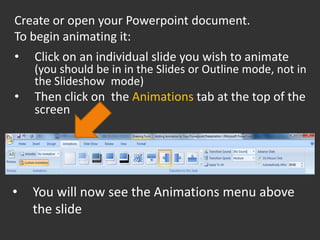
Create or open your Powerpoint document.
To begin animating it:
•   Click on an individual slide you wish to animate
    (you should be in in the Slides or Outline mode, not in
    the Slideshow mode)
•   Then click on the Animations tab at the top of the
    screen


•   You will now see the Animations menu above
    the slide
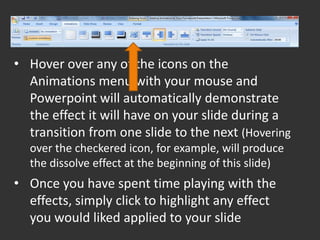
• Hover over any of the icons on the
  Animations menu with your mouse and
  Powerpoint will automatically demonstrate
  the effect it will have on your slide during a
  transition from one slide to the next (Hovering
  over the checkered icon, for example, will produce
  the dissolve effect at the beginning of this slide)
• Once you have spent time playing with the
  effects, simply click to highlight any effect
  you would liked applied to your slide
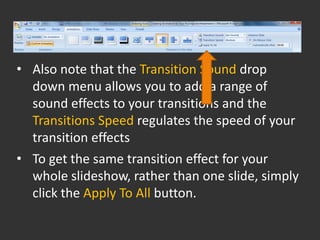
• Also note that the Transition Sound drop
  down menu allows you to add a range of
  sound effects to your transitions and the
  Transitions Speed regulates the speed of your
  transition effects
• To get the same transition effect for your
  whole slideshow, rather than one slide, simply
  click the Apply To All button.
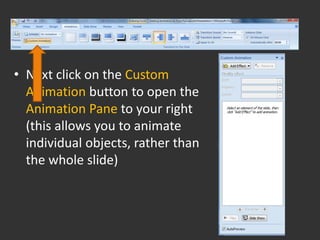
• Next click on the Custom
  Animation button to open the
  Animation Pane to your right
  (this allows you to animate
  individual objects, rather than
  the whole slide)
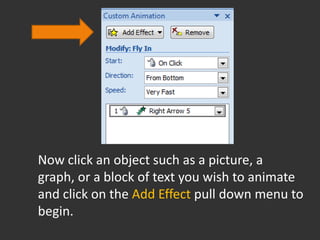
Now click an object such as a picture, a
graph, or a block of text you wish to animate
and click on the Add Effect pull down menu to
begin.
There are four types of custom animation to
consider:
• Entrance (an animation effect that appears to be
  entering your slide)
• Exit (an animation effect that appears to be
  exiting your slide)
• Emphasis (an effect created to emphasis an
  element of your slide by changing a font
  style, font size, an object’s color or by
  growing/shrinking an object)
• Motion Path (an effect in which your object is
  moved along a desired path across the slide)
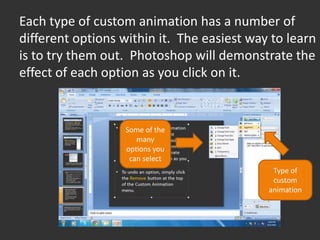
Each type of custom animation has a number of
different options within it. The easiest way to learn
is to try them out. Photoshop will demonstrate the
effect of each option as you click on it.


                   Some of the
                      many
                   options you
                    can select
                                             Type of
                                             custom
                                            animation
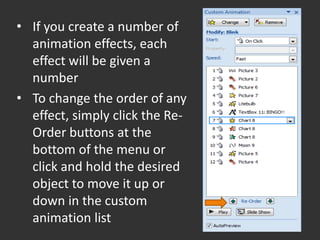
• If you create a number of
  animation effects, each
  effect will be given a
  number
• To change the order of any
  effect, simply click the Re-
  Order buttons at the
  bottom of the menu or
  click and hold the desired
  object to move it up or
  down in the custom
  animation list
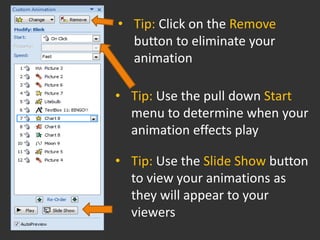
• Tip: Click on the Remove
  button to eliminate your
  animation

• Tip: Use the pull down Start
  menu to determine when your
  animation effects play

• Tip: Use the Slide Show button
  to view your animations as
  they will appear to your
  viewers
Now have a ball! But remember
animation can easily go overboard. . .
            Chart Title
        5                 Series
                          1
        0
                          Series
                          2


                                   BINGO!!
Thank you.


                       Tutorial created by Edith Serkownek
If you have any questions or concerns please contact me at
                                       eserkown@kent.edu

Adding Animation to your Powerpoint Presentation

  • 1.
    Adding Animation to Your Powerpoint 2007 Presentation: A Simple Tutorial
  • 2.
    As you createyour Powerpoint consider the ways in which you might want to animate elements of it. You can use animation on one element (such as an individual picture or text element), on a single slide, or on the whole slideshow.
  • 3.
    Create or openyour Powerpoint document. To begin animating it: • Click on an individual slide you wish to animate (you should be in in the Slides or Outline mode, not in the Slideshow mode) • Then click on the Animations tab at the top of the screen • You will now see the Animations menu above the slide
  • 4.
    • Hover overany of the icons on the Animations menu with your mouse and Powerpoint will automatically demonstrate the effect it will have on your slide during a transition from one slide to the next (Hovering over the checkered icon, for example, will produce the dissolve effect at the beginning of this slide) • Once you have spent time playing with the effects, simply click to highlight any effect you would liked applied to your slide
  • 5.
    • Also notethat the Transition Sound drop down menu allows you to add a range of sound effects to your transitions and the Transitions Speed regulates the speed of your transition effects • To get the same transition effect for your whole slideshow, rather than one slide, simply click the Apply To All button.
  • 6.
    • Next clickon the Custom Animation button to open the Animation Pane to your right (this allows you to animate individual objects, rather than the whole slide)
  • 7.
    Now click anobject such as a picture, a graph, or a block of text you wish to animate and click on the Add Effect pull down menu to begin.
  • 8.
    There are fourtypes of custom animation to consider: • Entrance (an animation effect that appears to be entering your slide) • Exit (an animation effect that appears to be exiting your slide) • Emphasis (an effect created to emphasis an element of your slide by changing a font style, font size, an object’s color or by growing/shrinking an object) • Motion Path (an effect in which your object is moved along a desired path across the slide)
  • 9.
    Each type ofcustom animation has a number of different options within it. The easiest way to learn is to try them out. Photoshop will demonstrate the effect of each option as you click on it. Some of the many options you can select Type of custom animation
  • 10.
    • If youcreate a number of animation effects, each effect will be given a number • To change the order of any effect, simply click the Re- Order buttons at the bottom of the menu or click and hold the desired object to move it up or down in the custom animation list
  • 11.
    • Tip: Clickon the Remove button to eliminate your animation • Tip: Use the pull down Start menu to determine when your animation effects play • Tip: Use the Slide Show button to view your animations as they will appear to your viewers
  • 12.
    Now have aball! But remember animation can easily go overboard. . . Chart Title 5 Series 1 0 Series 2 BINGO!!
  • 13.
    Thank you. Tutorial created by Edith Serkownek If you have any questions or concerns please contact me at eserkown@kent.edu