





Inserting an
Image in MS
Word
© 2016 Laura Hedgecock, http://TreasureChestOfMemories.com
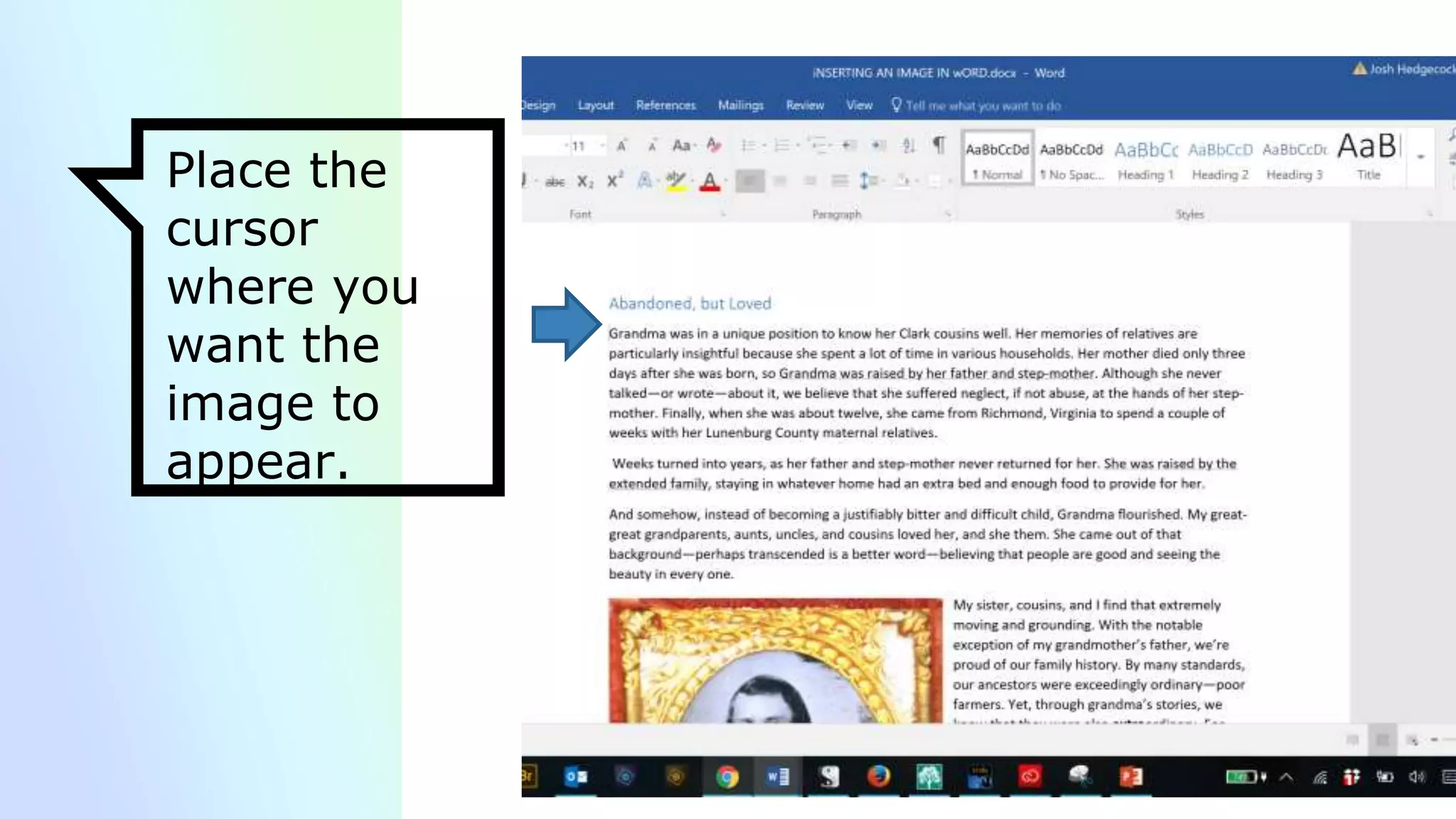
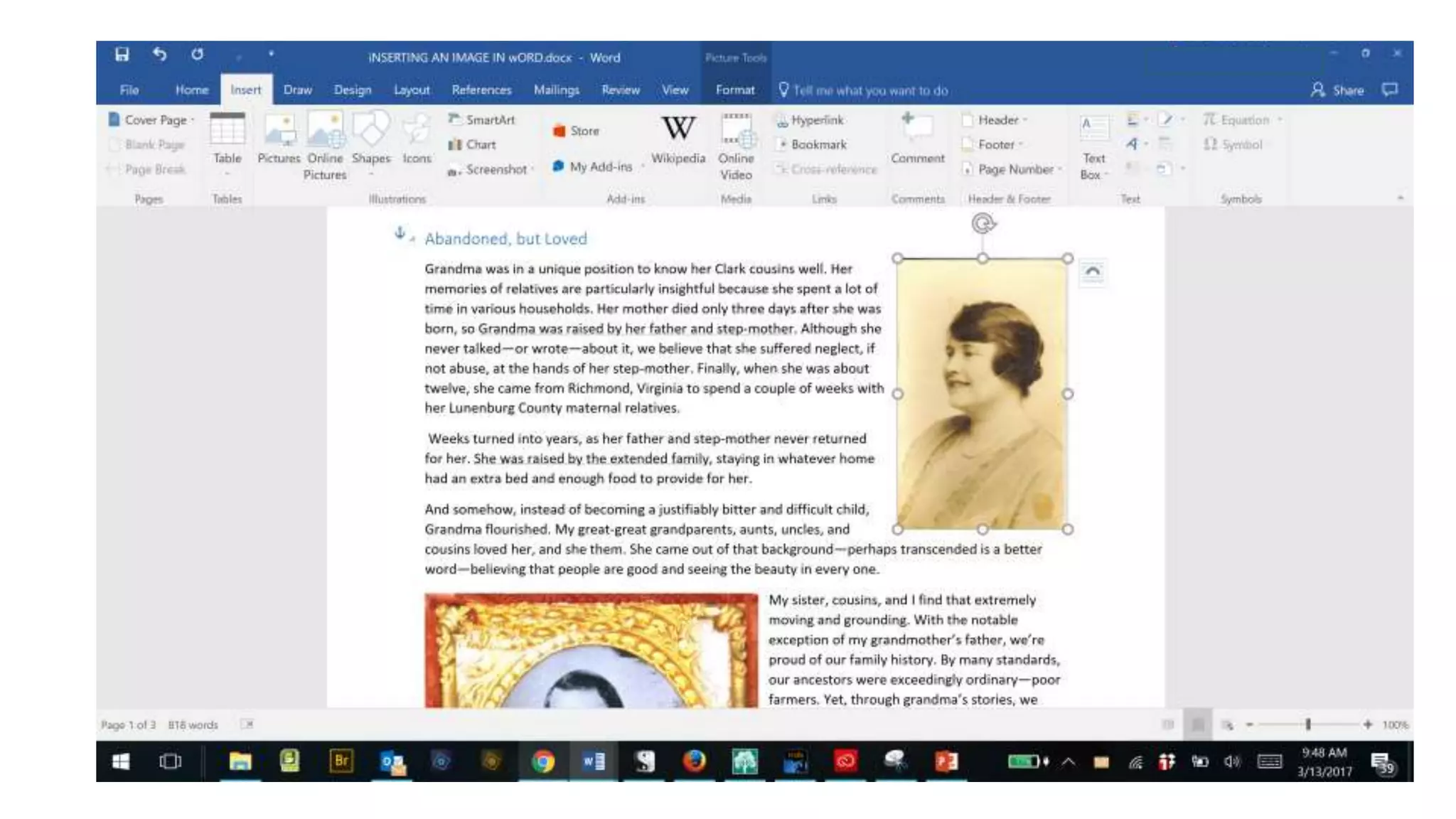
Place the
cursor
where you
want the
image to
appear.
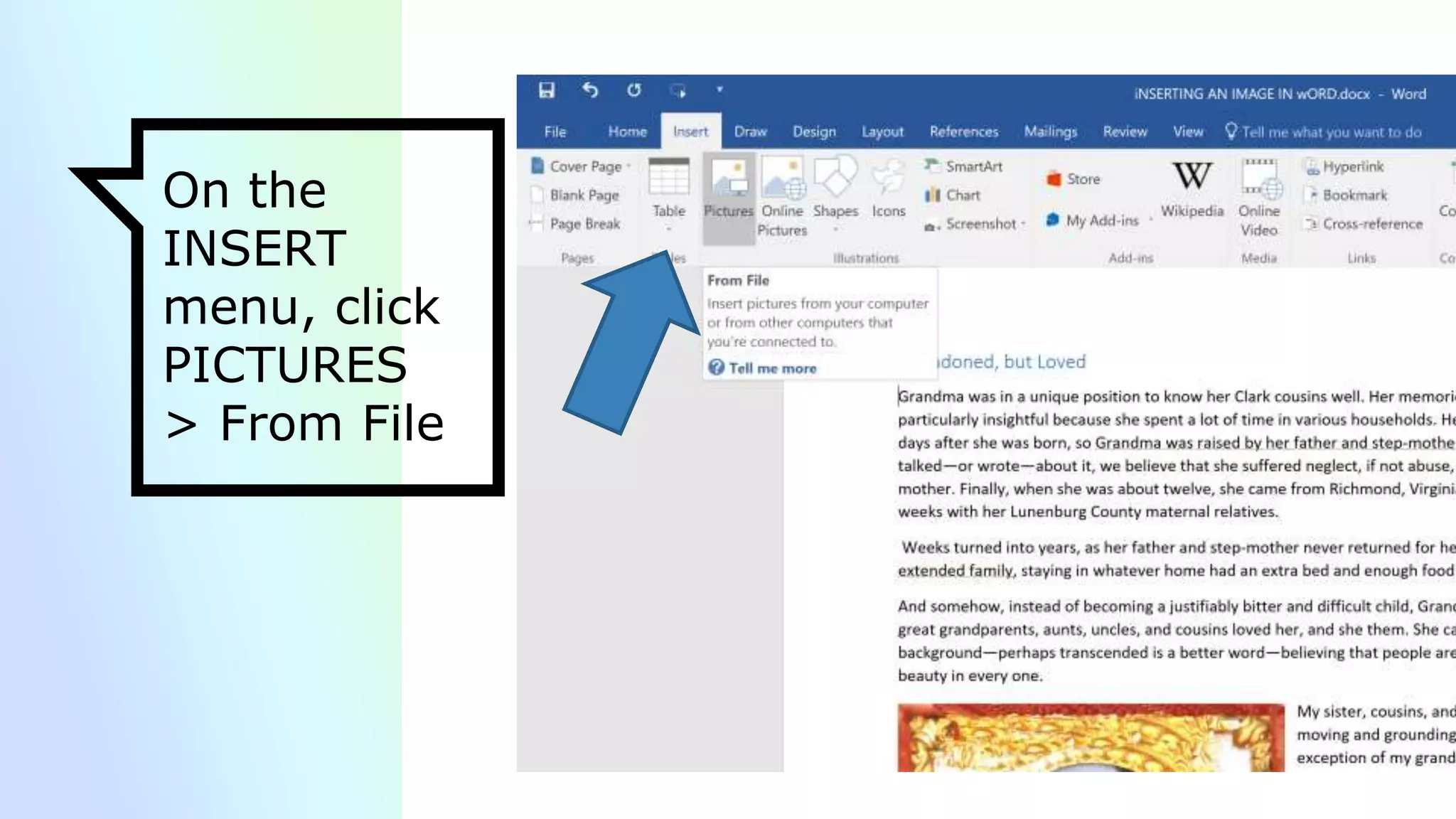
On the
INSERT
menu, click
PICTURES
> From File
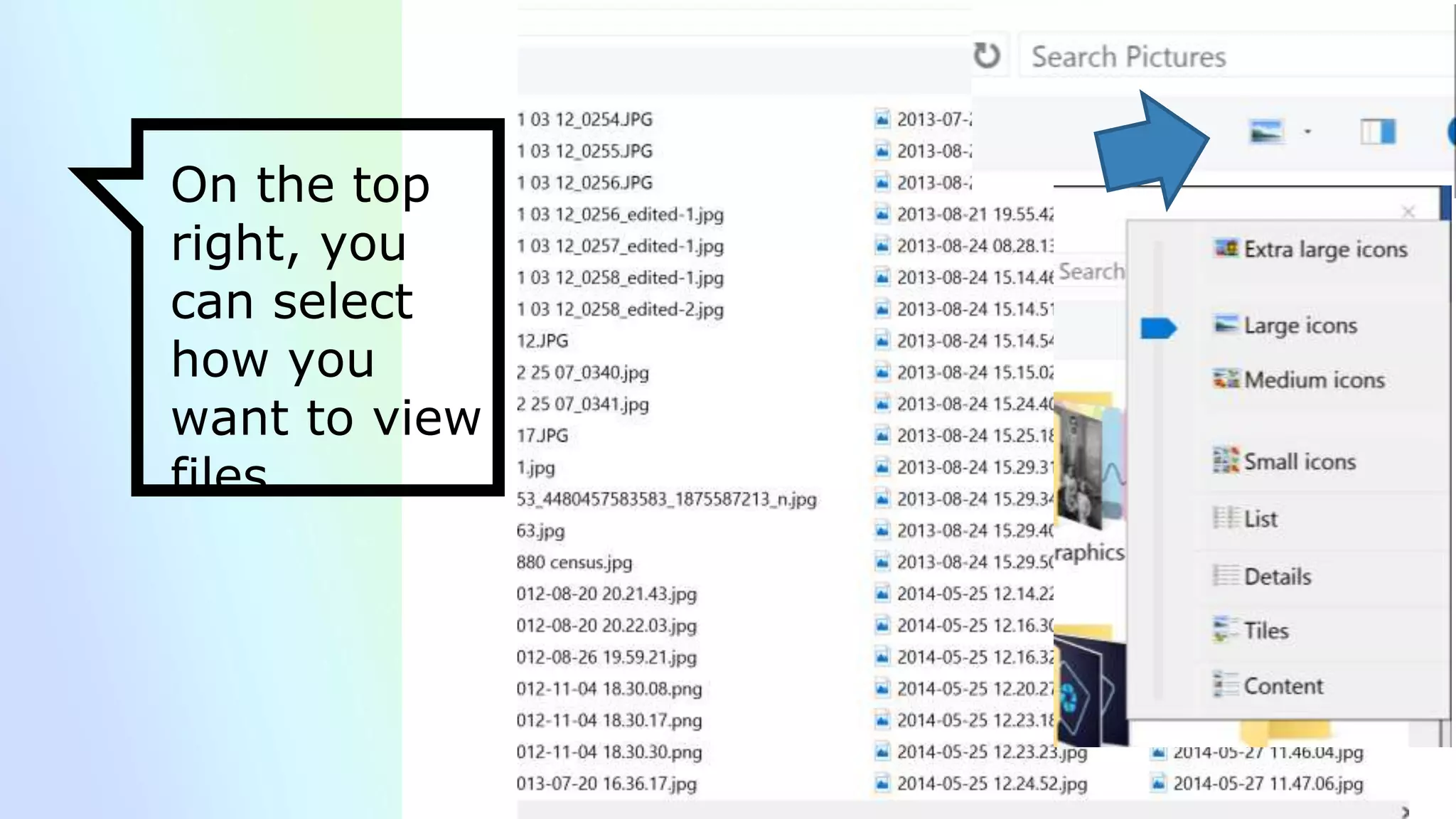
On the top
right, you can
select how
you want to
view files
Word sends
you to your
Pictures
folder.
On the top
right, you can
select how
you want to
view files
Make it
easier to find
your image…
On the top
right, you
can select
how you
want to view
files
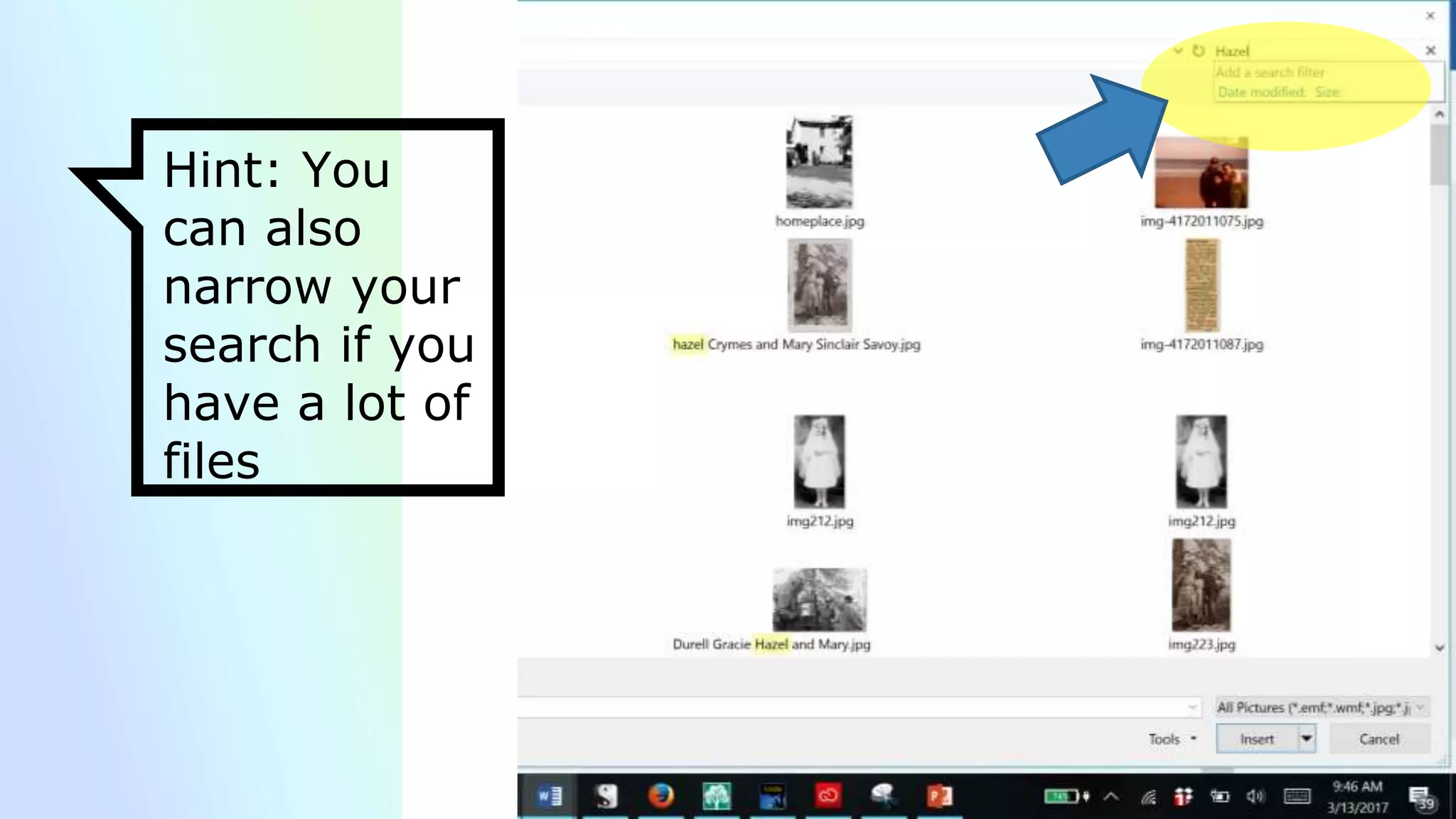
Hint: You
can also
narrow your
search if you
have a lot of
files
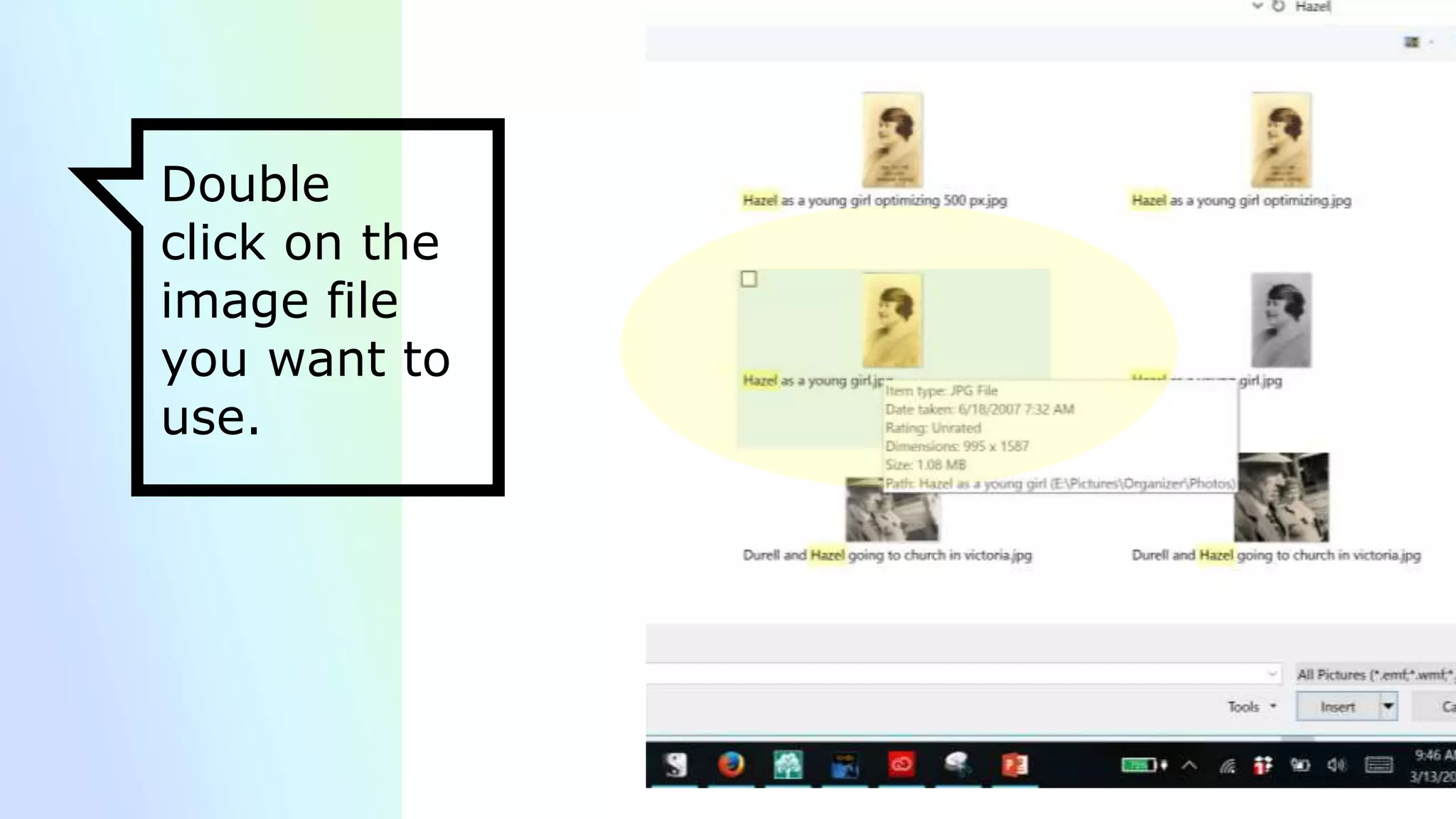
Double
click on the
image file
you want to
use.
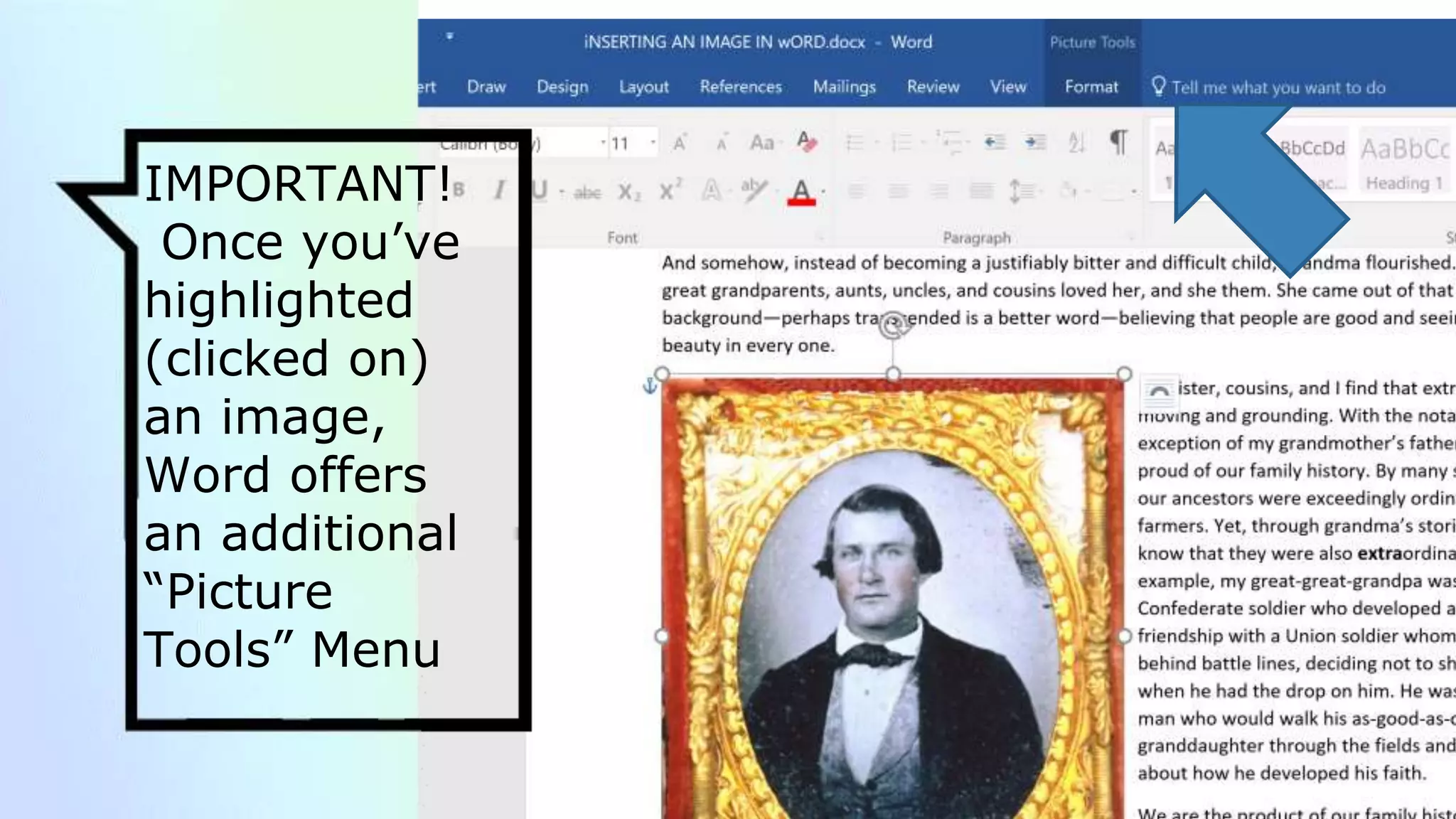
IMPORTANT!
Once you’ve
highlighted
(clicked on)
an image,
Word offers
an additional
“Picture
Tools” Menu
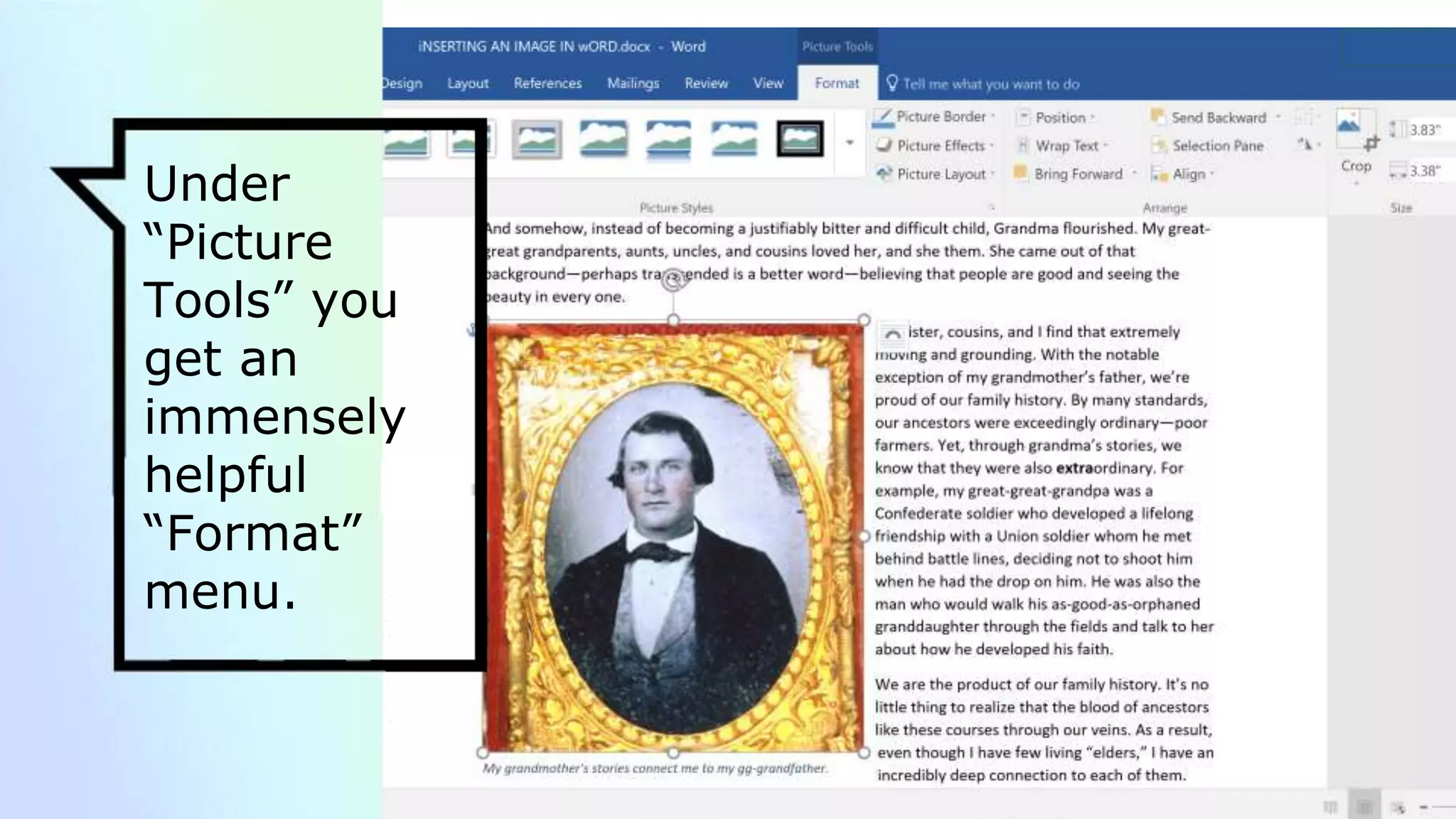
Under
“Picture
Tools” you
get an
immensely
helpful
“Format”
menu.
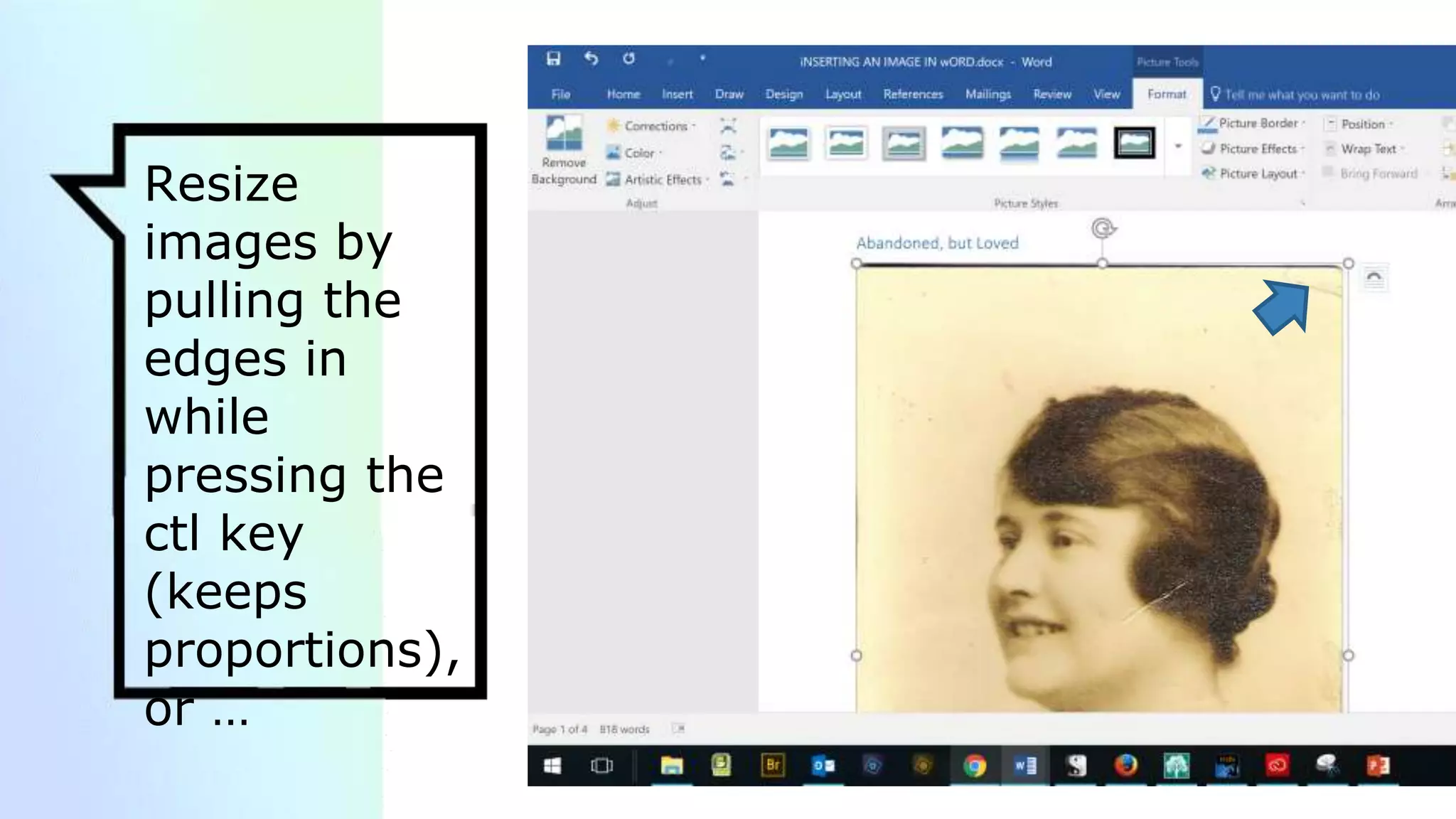
Resize
images by
pulling the
edges in
while
pressing the
ctl key
(keeps
proportions),
or …
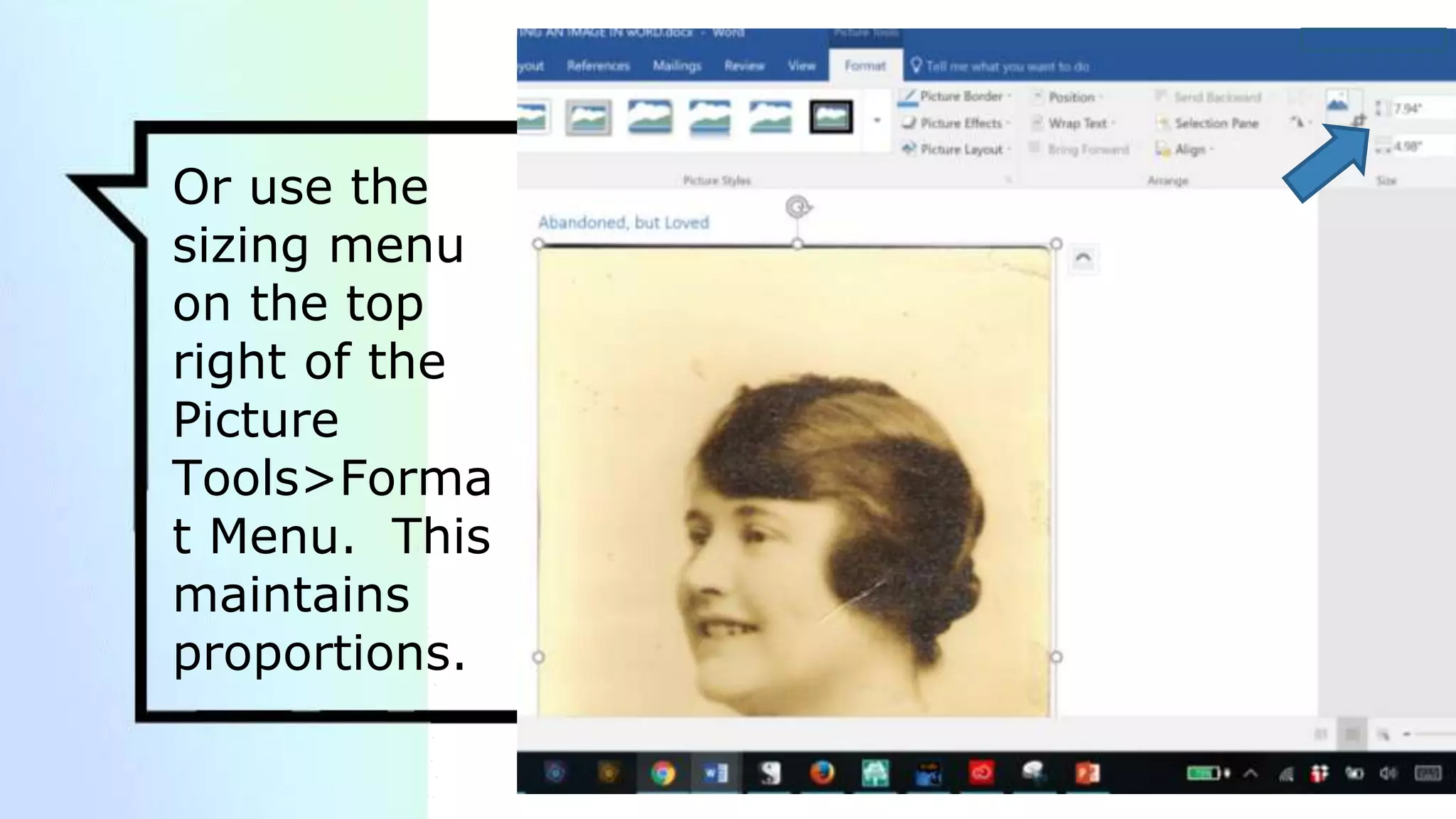
Or use the
sizing menu
on the top
right of the
Picture
Tools>Forma
t Menu. This
maintains
proportions.
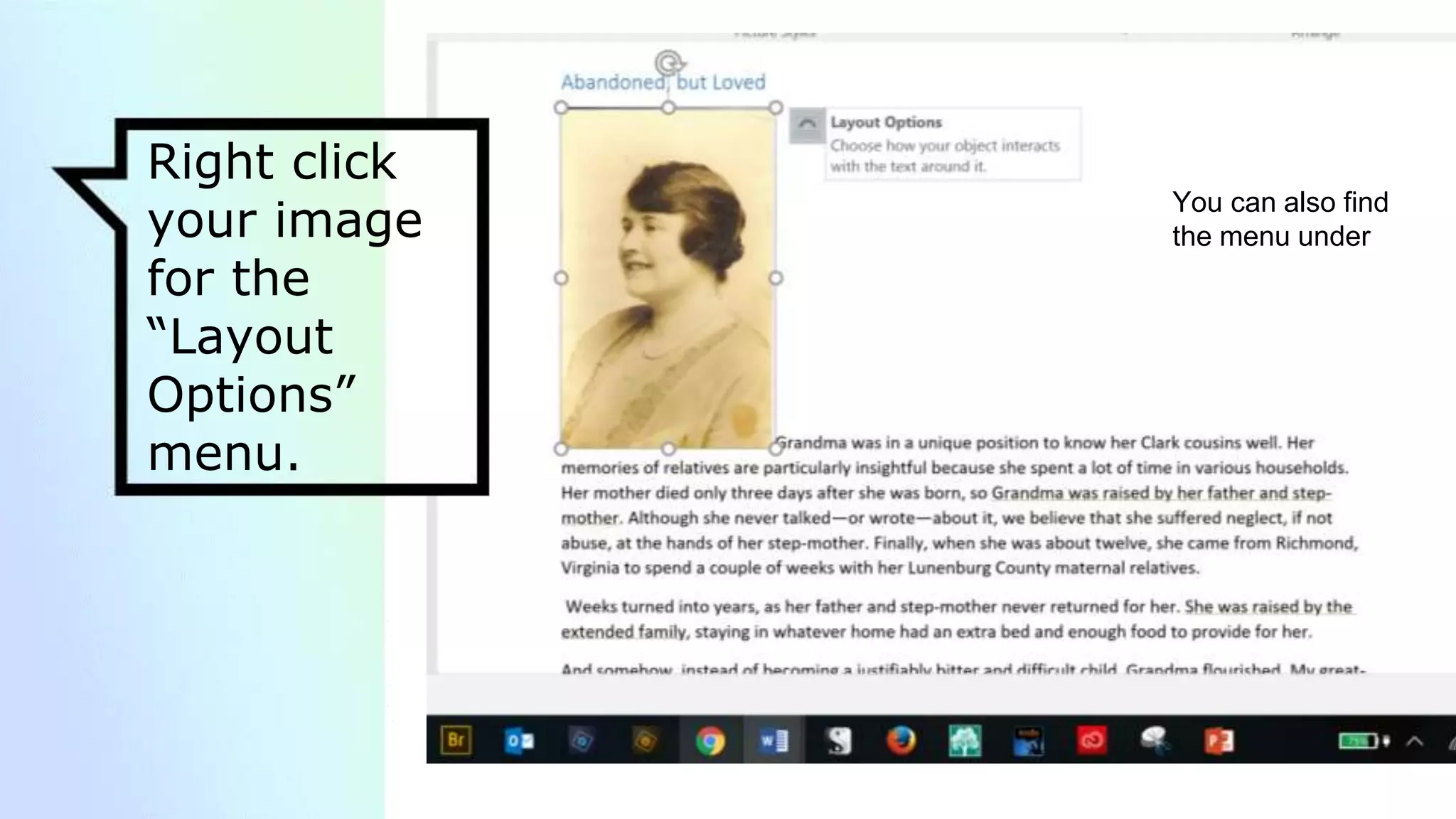
Right click
your image
for the
“Layout
Options”
menu.
You can also find
the menu under
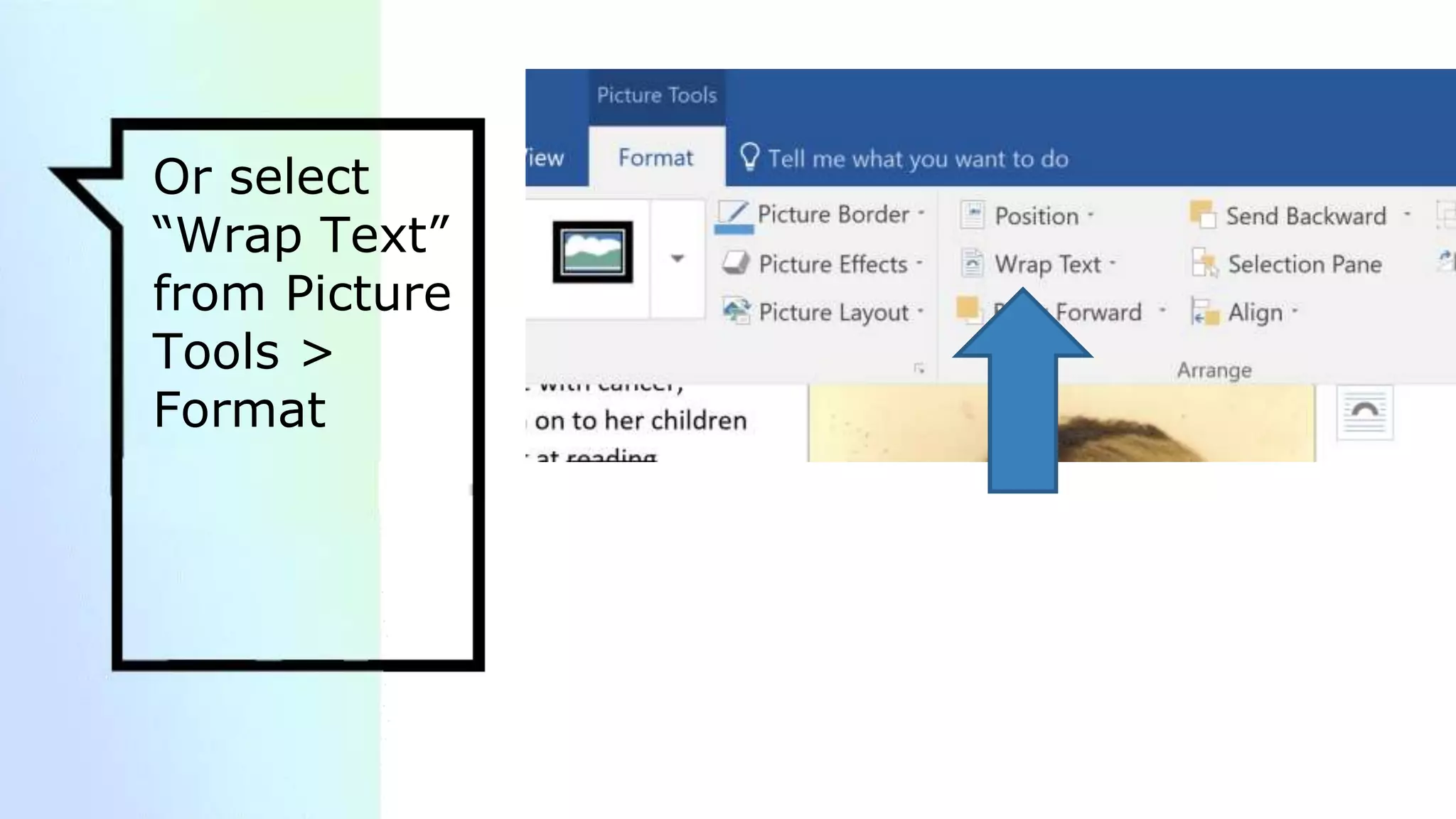
Or select
“Wrap Text”
from Picture
Tools >
Format
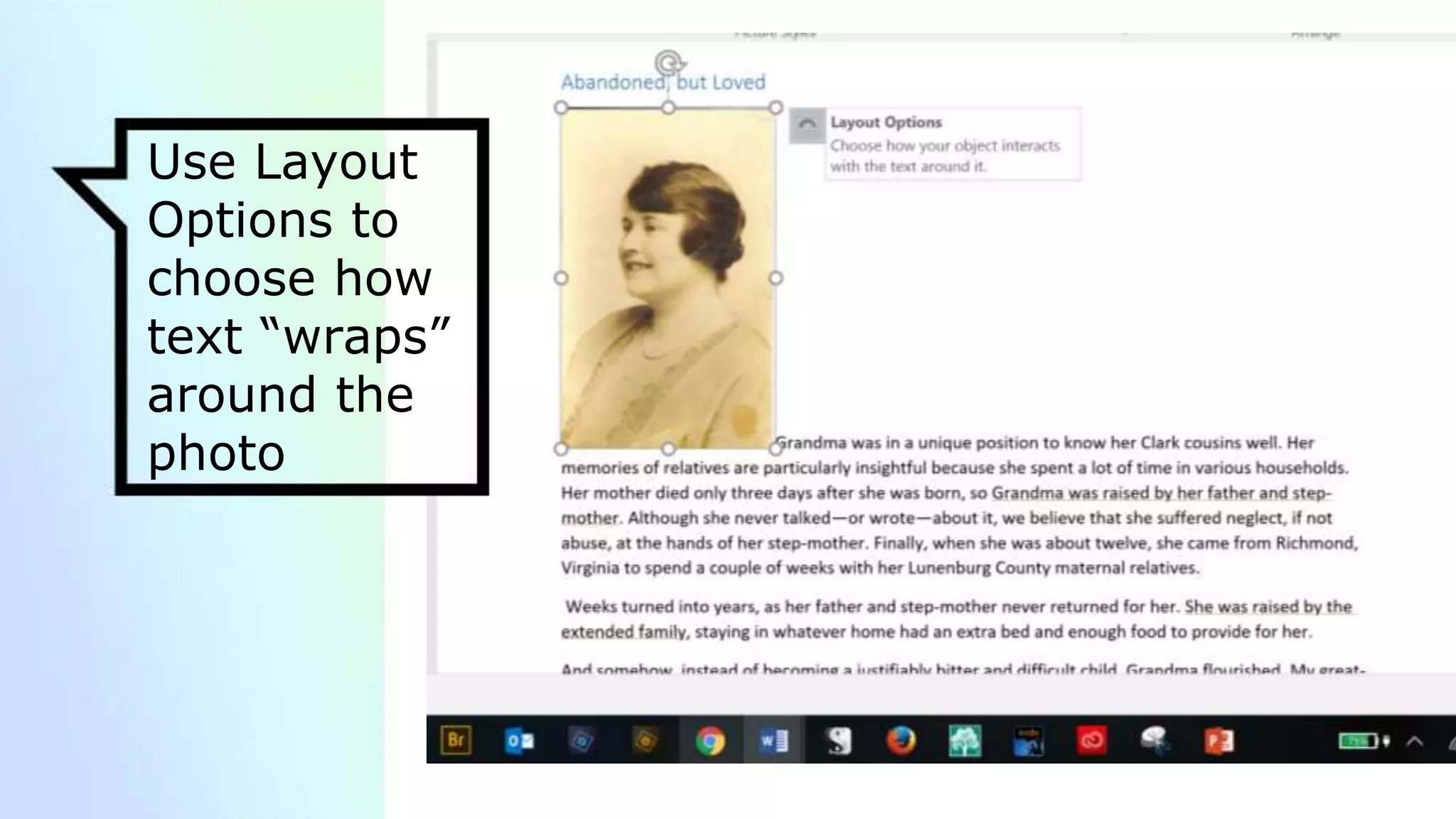
Use Layout
Options to
choose how
text “wraps”
around the
photo
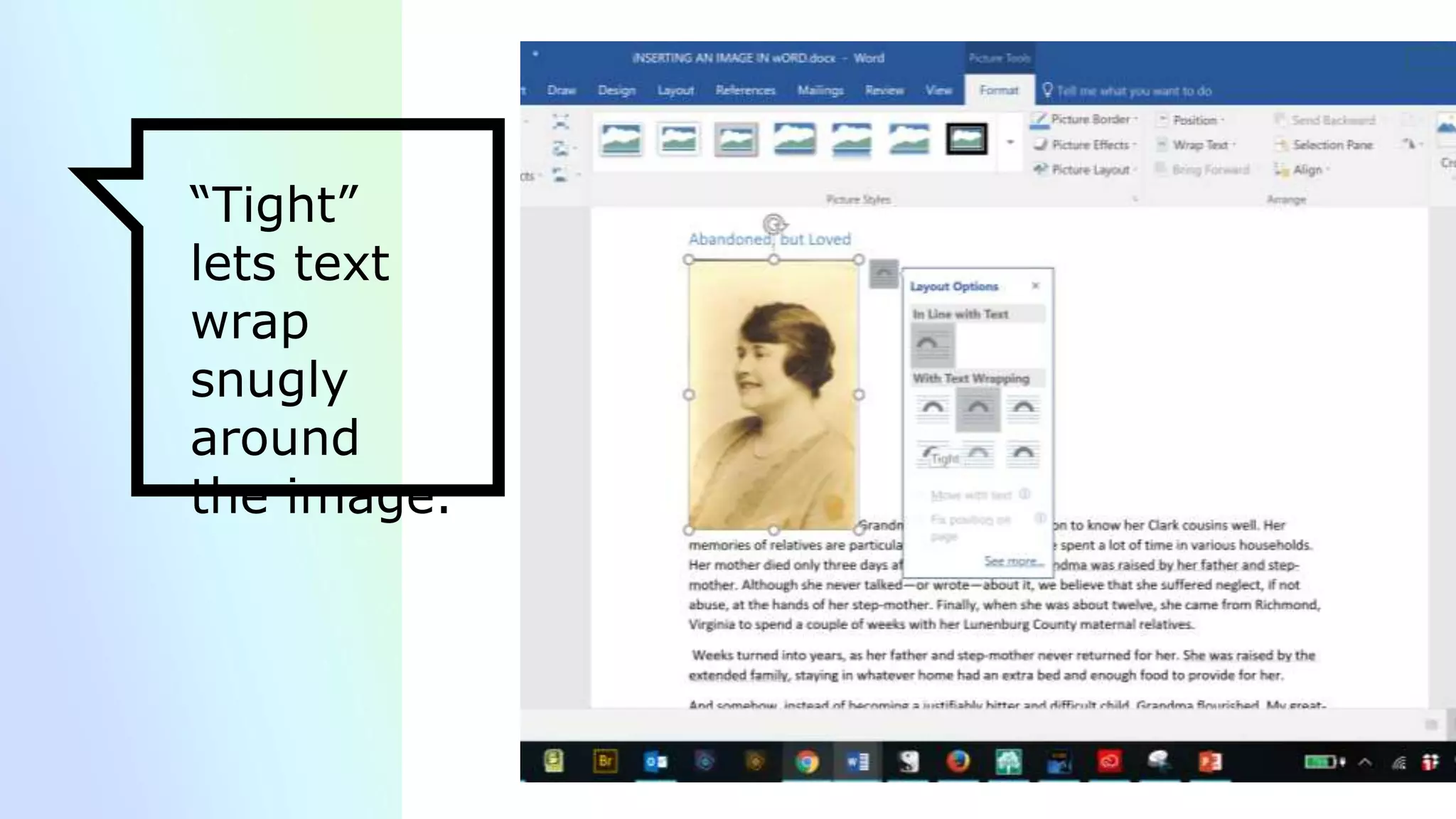
“Tight”
lets text
wrap
snugly
around
the image.
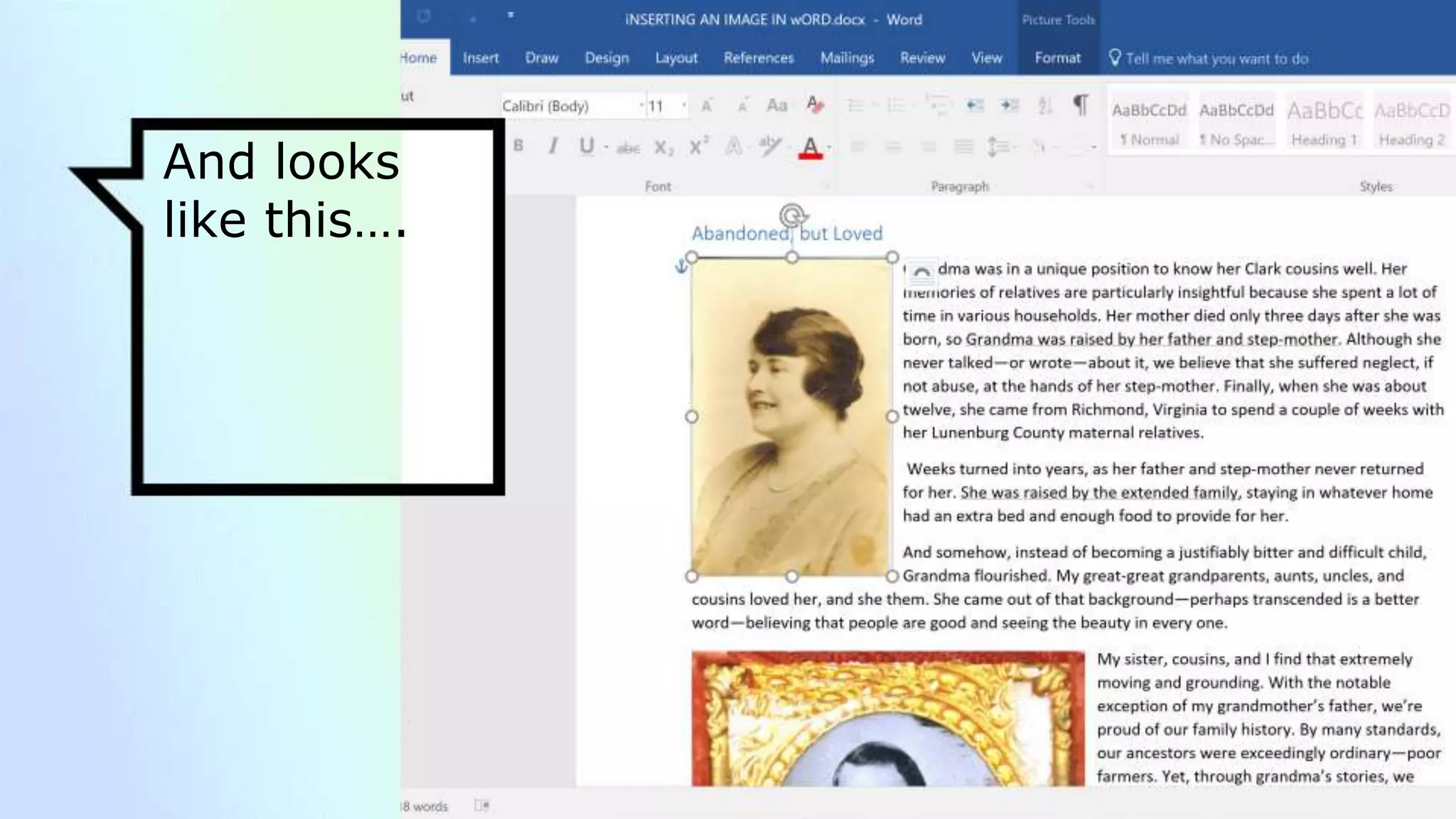
And looks
like this….
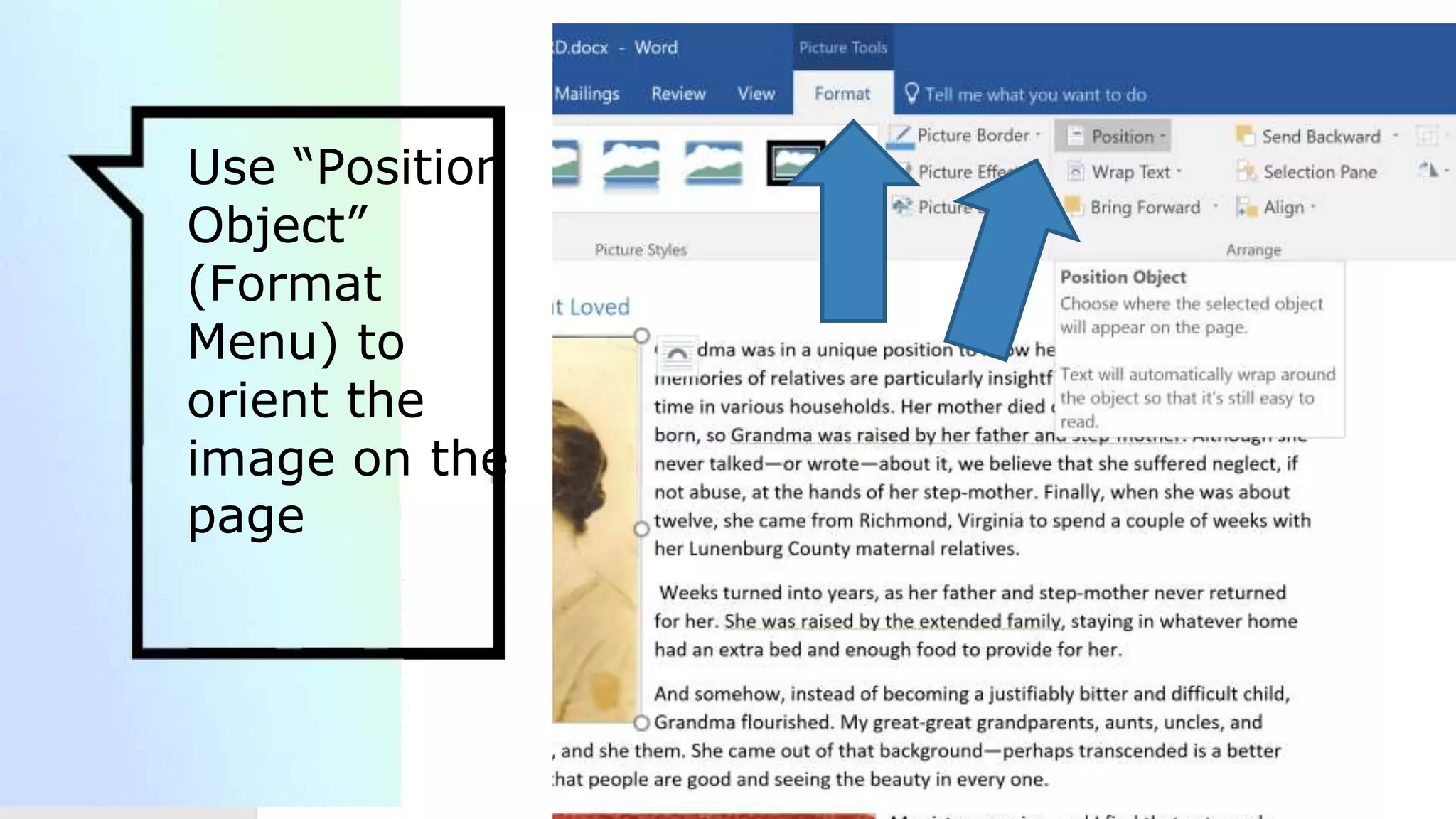
Use “Position
Object”
(Format
Menu) to
orient the
image on the
page
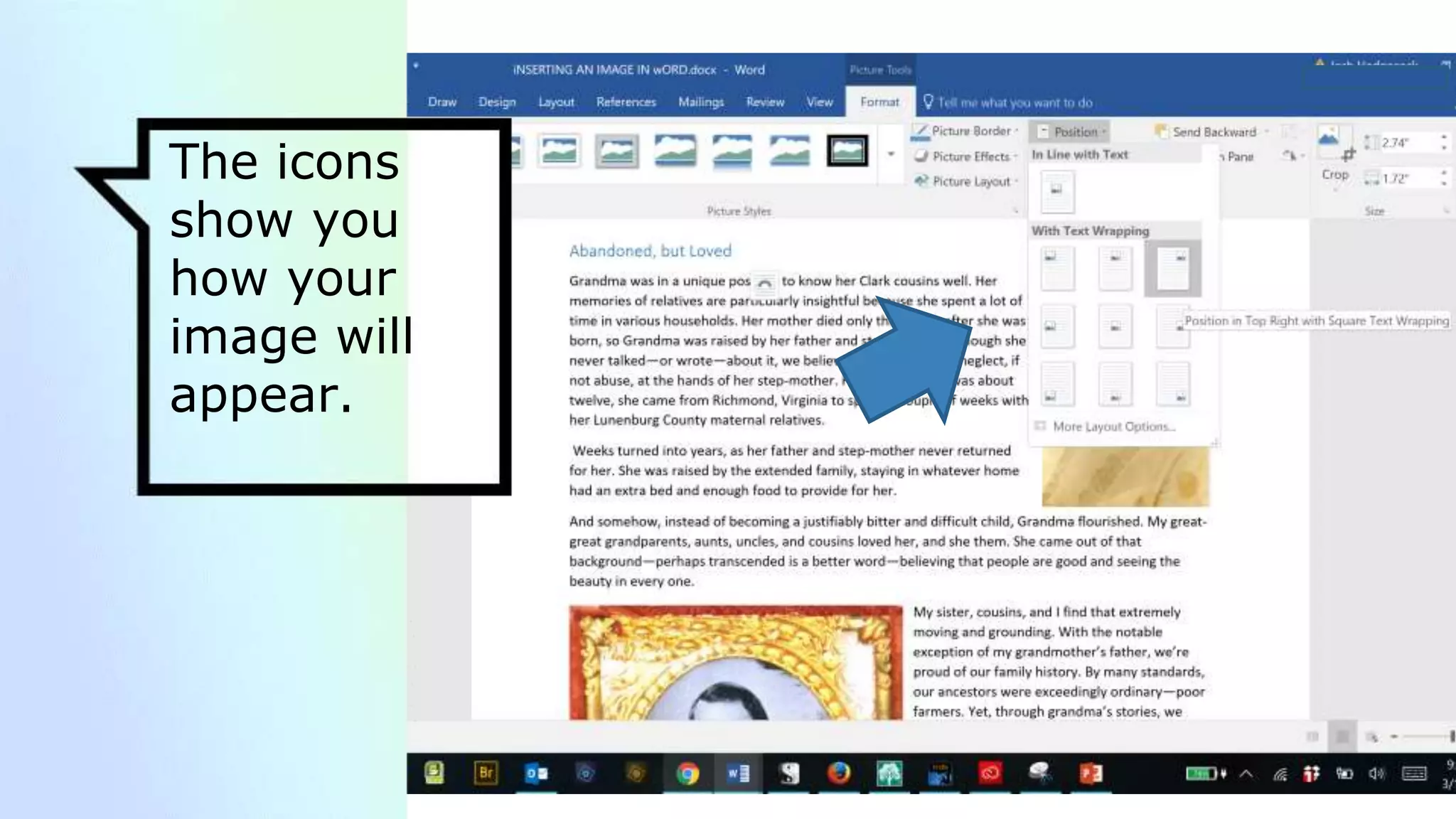
The icons
show you
how your
image will
appear.
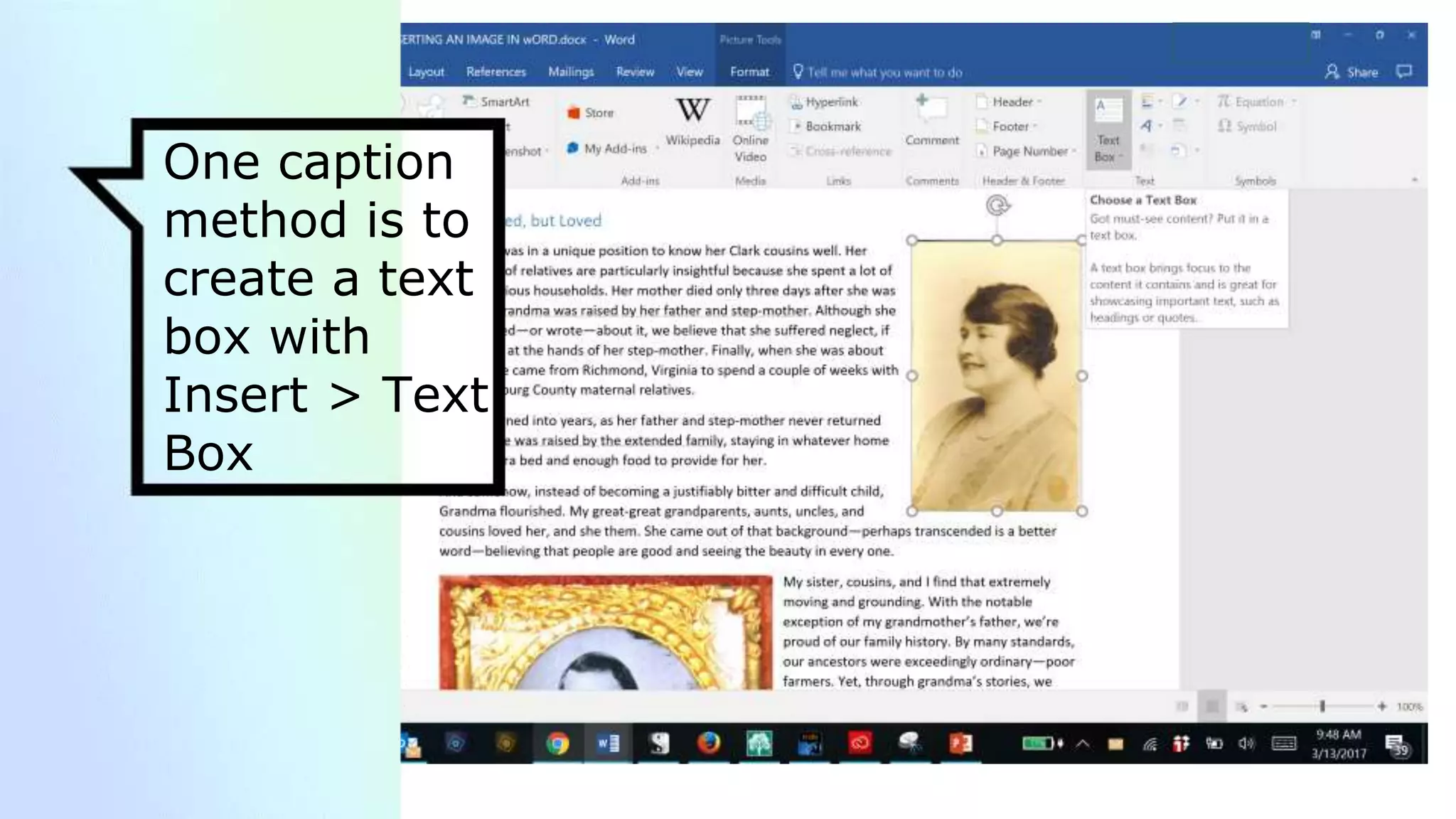
“▫Inserting Captions
One caption
method is to
create a text
box with
Insert > Text
Box
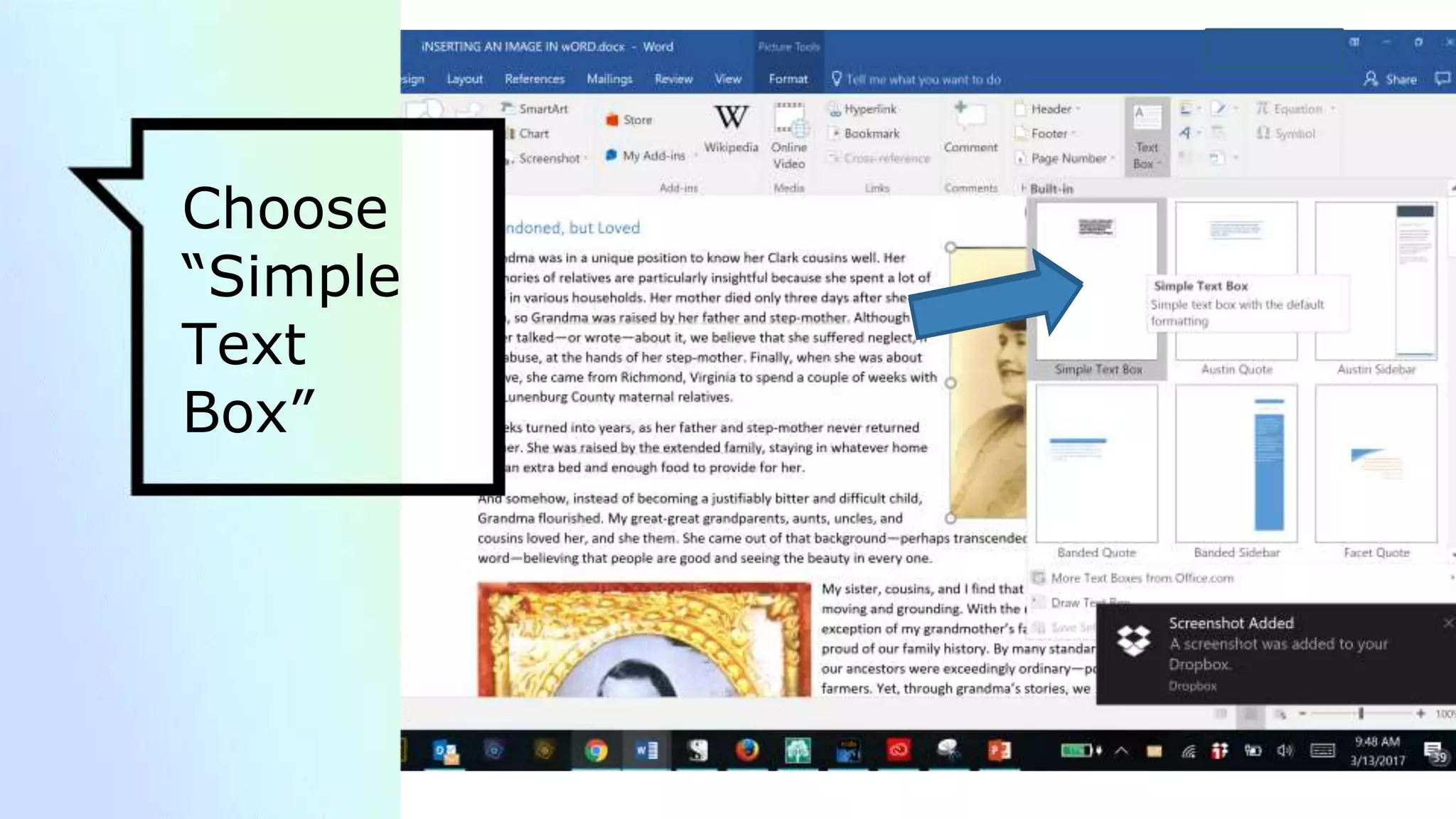
Choose
“Simple
Text
Box”
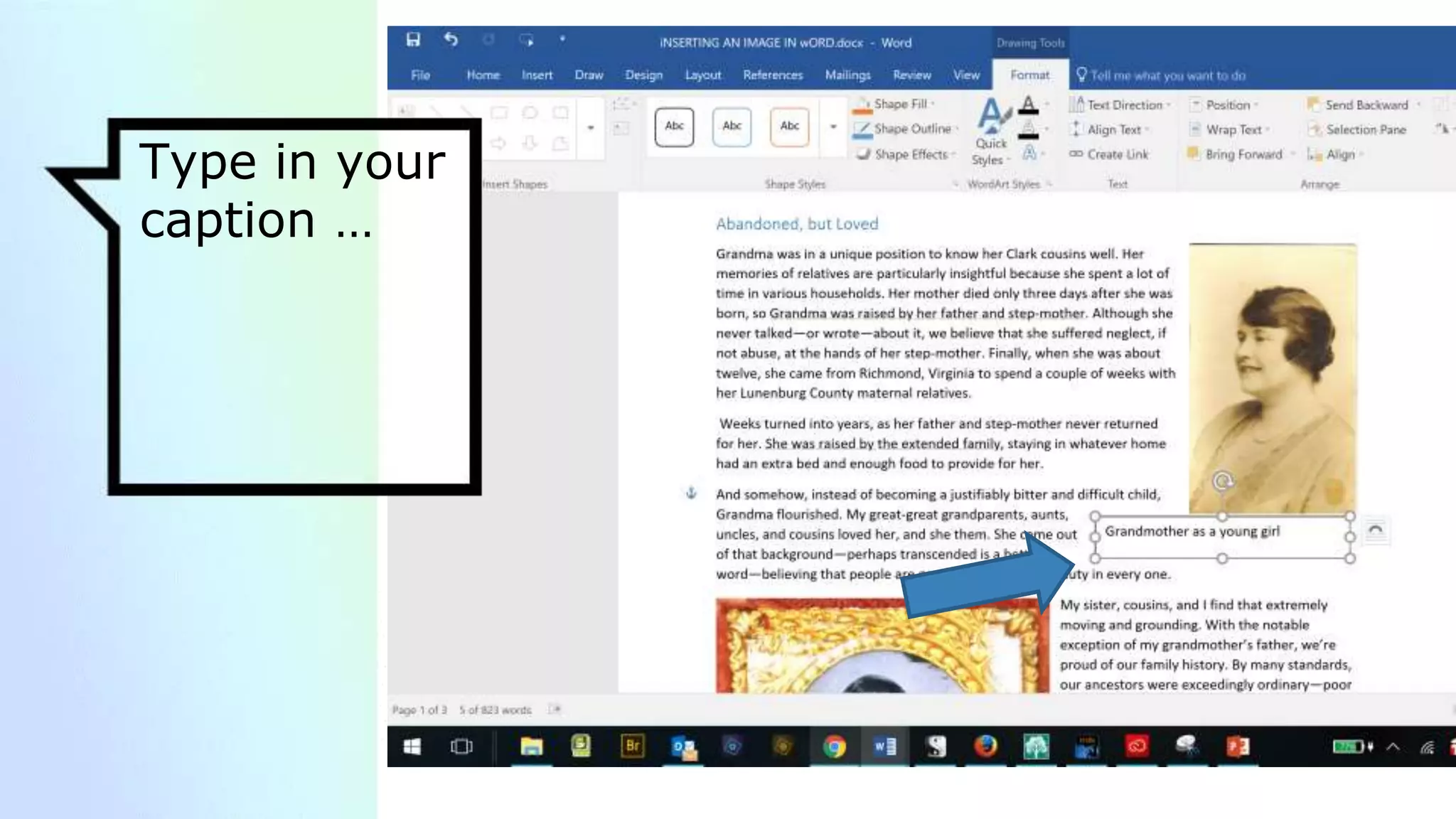
Type in your
caption …
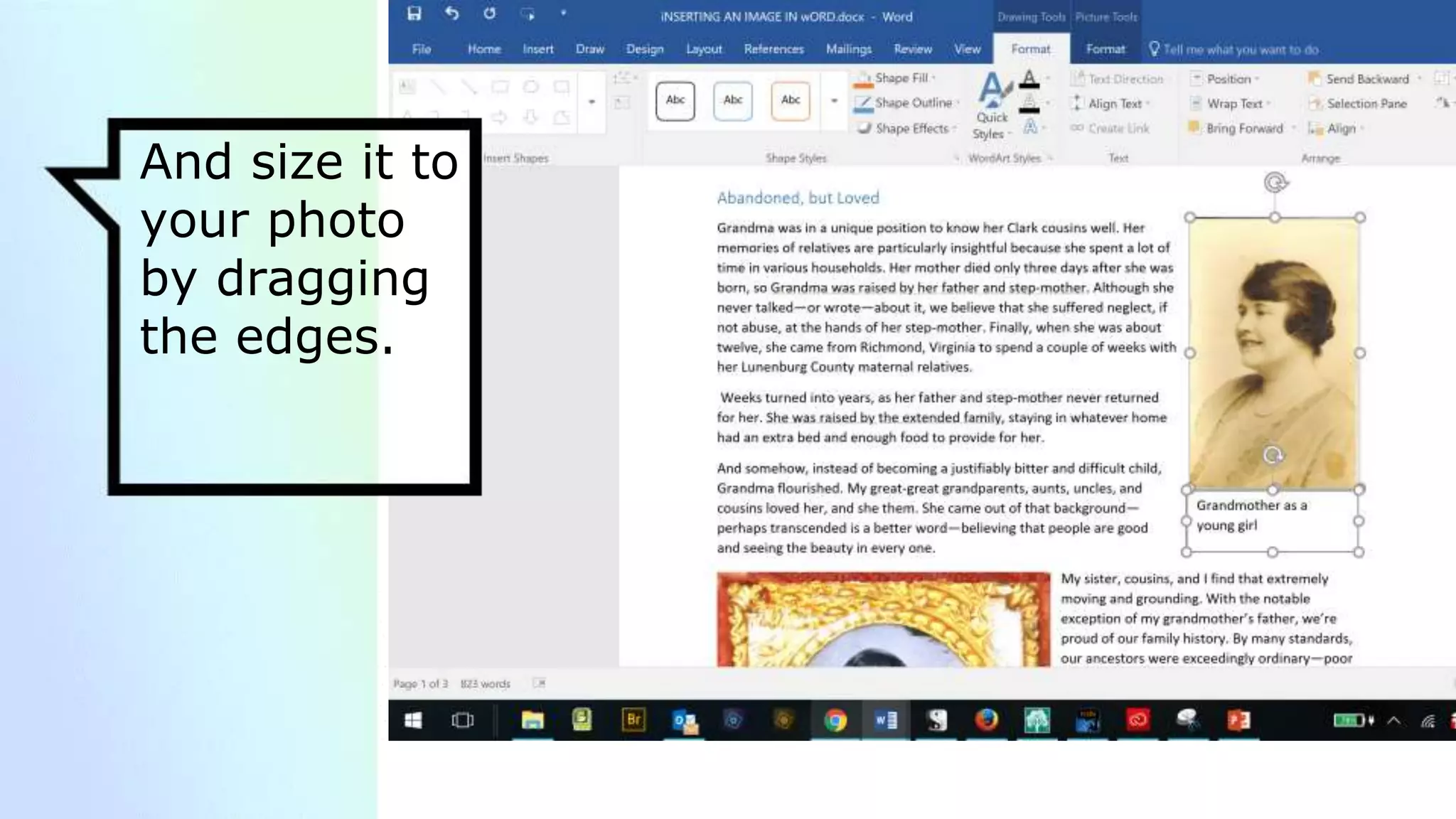
And size it to
your photo
by dragging
the edges.
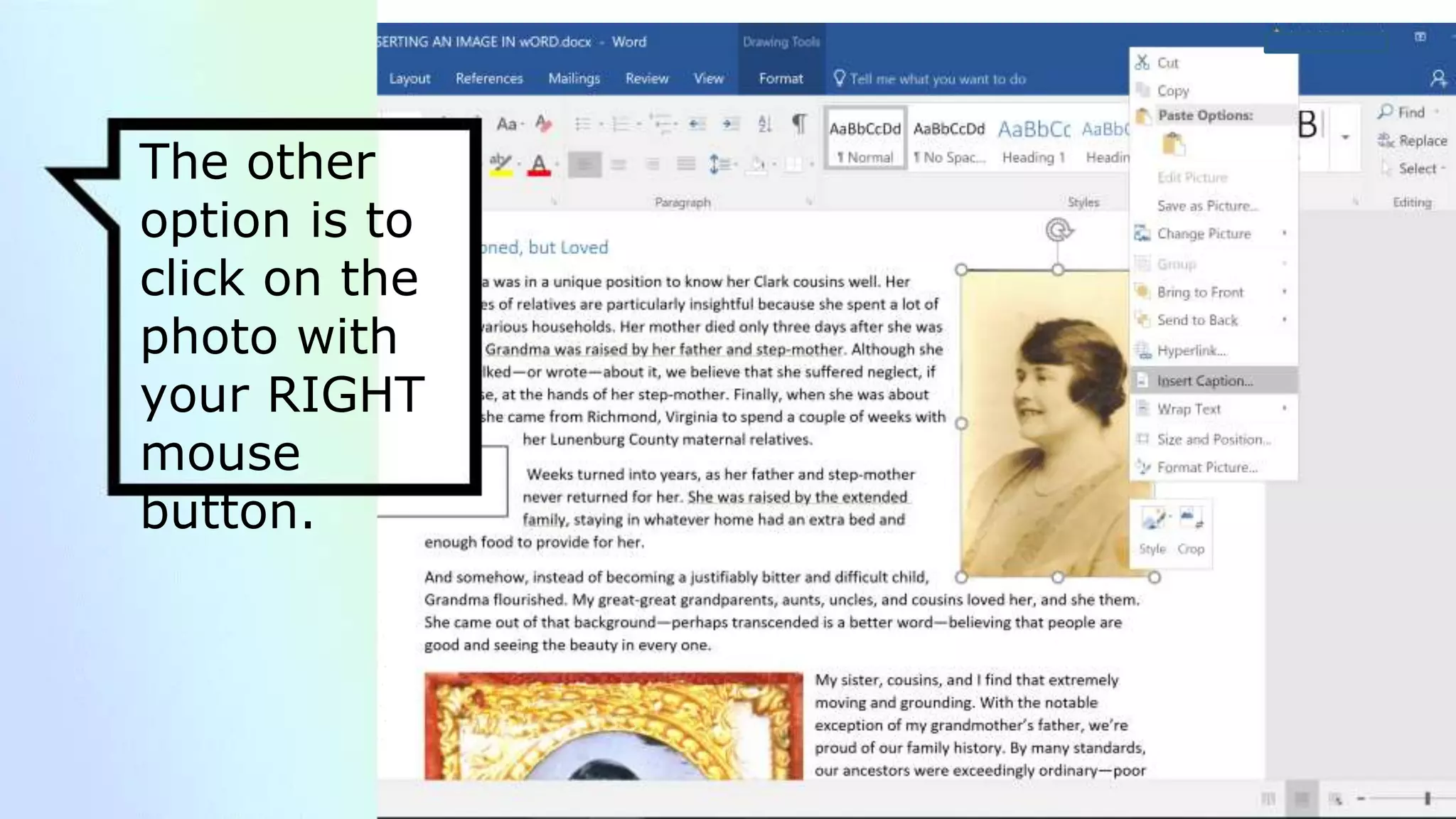
The other
option is to
click on the
photo with
your RIGHT
mouse
button.
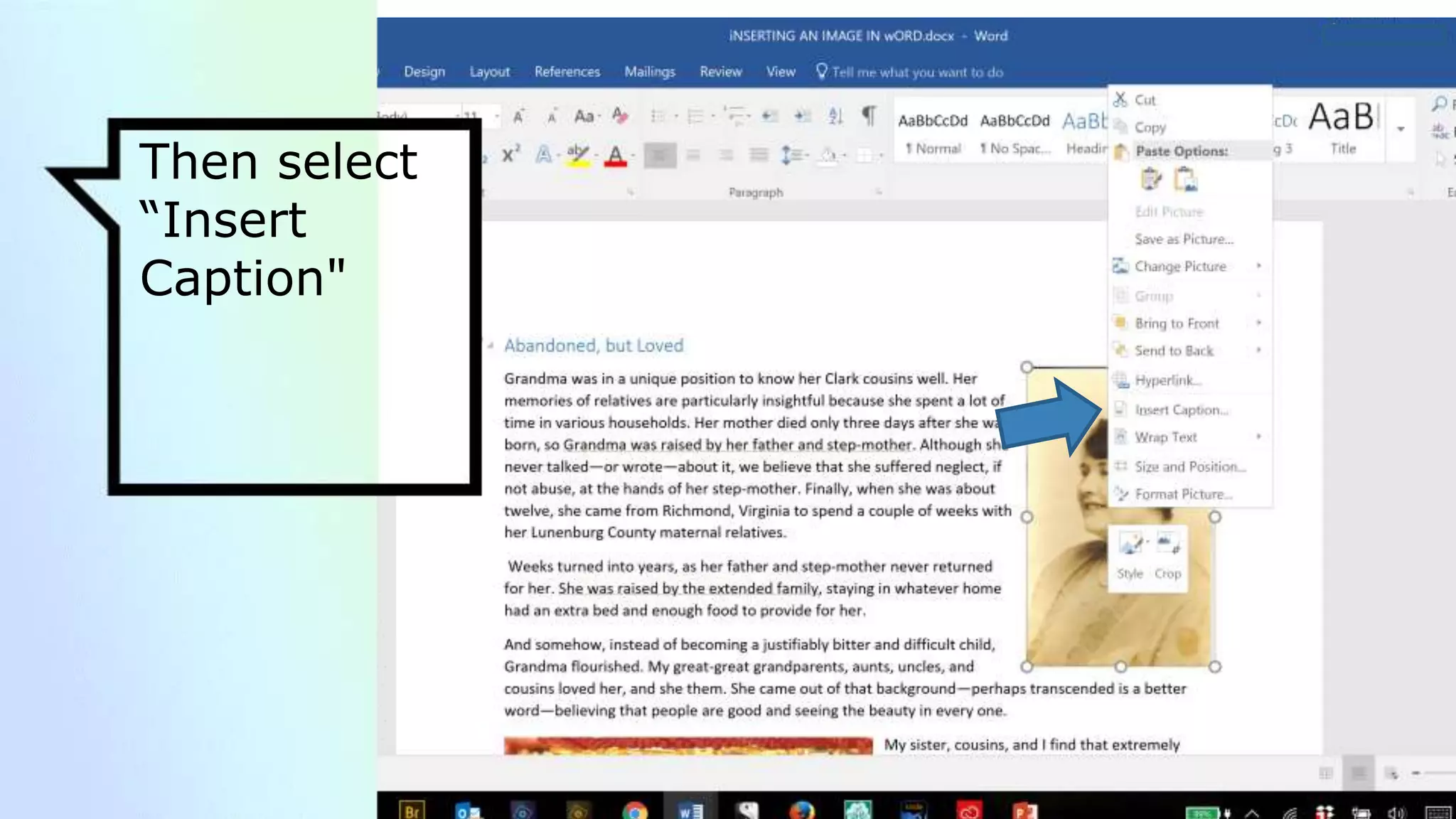
Then select
“Insert
Caption"
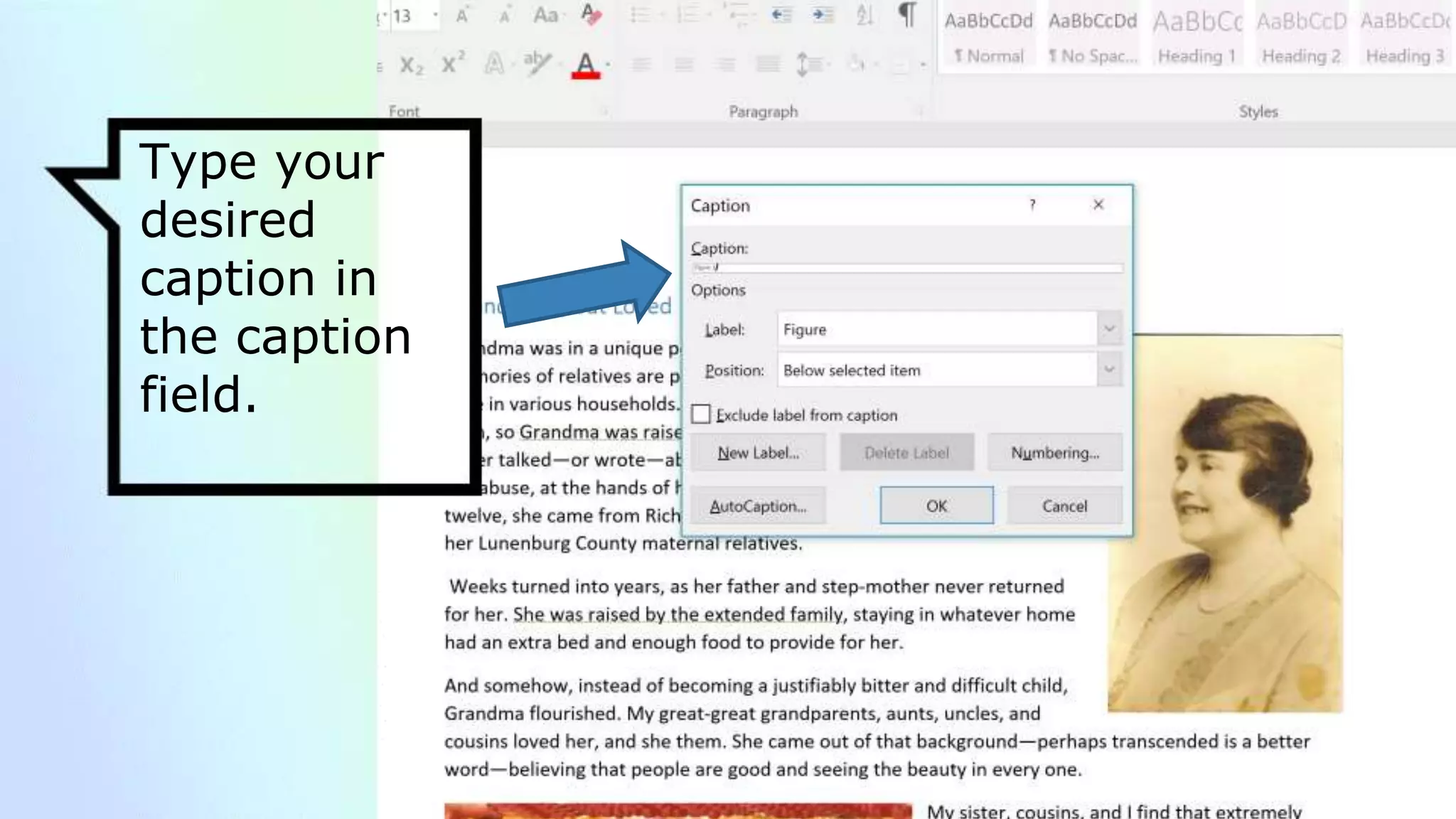
Type your
desired
caption in
the caption
field.
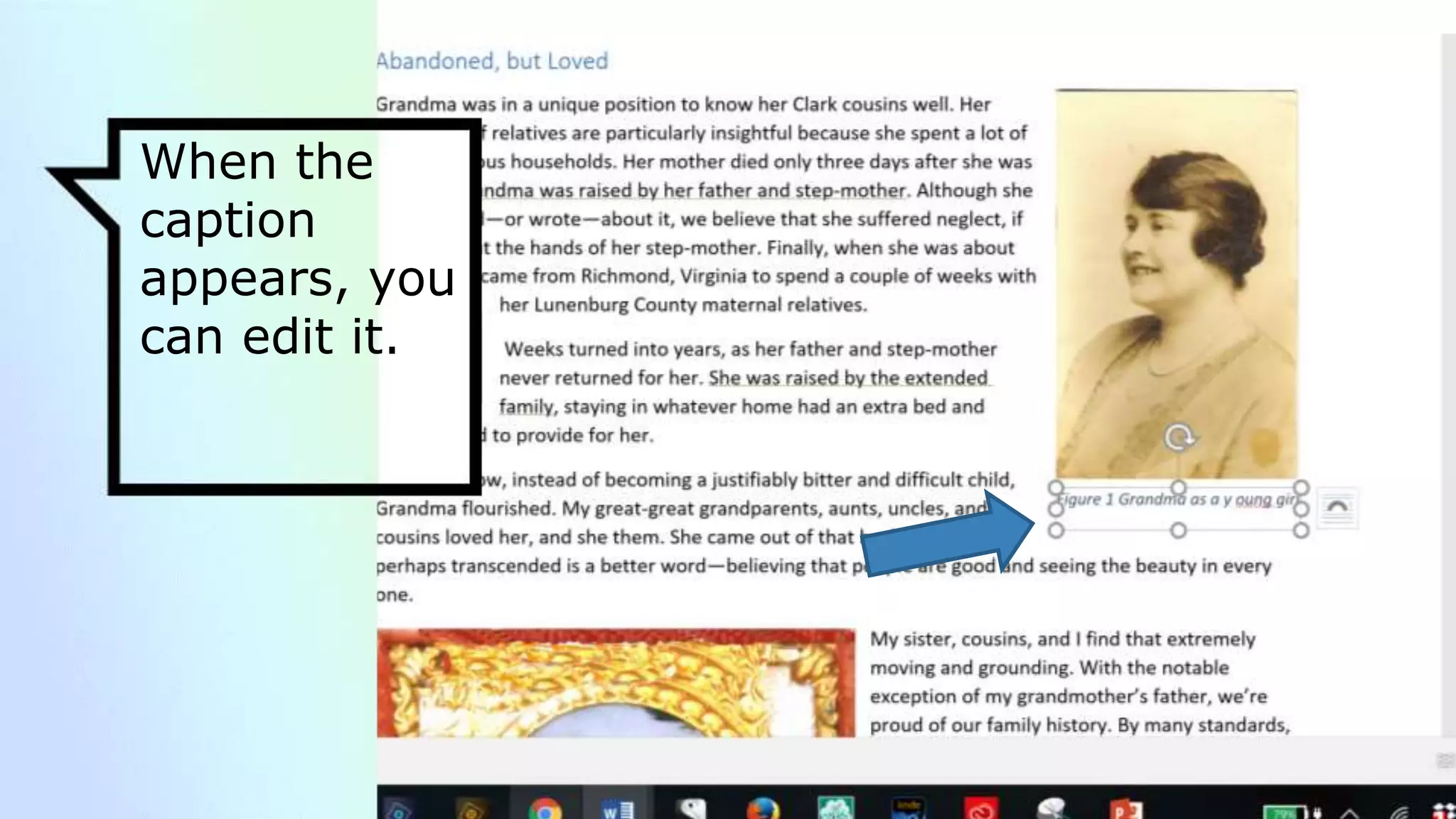
When the
caption
appears, you
can edit it.
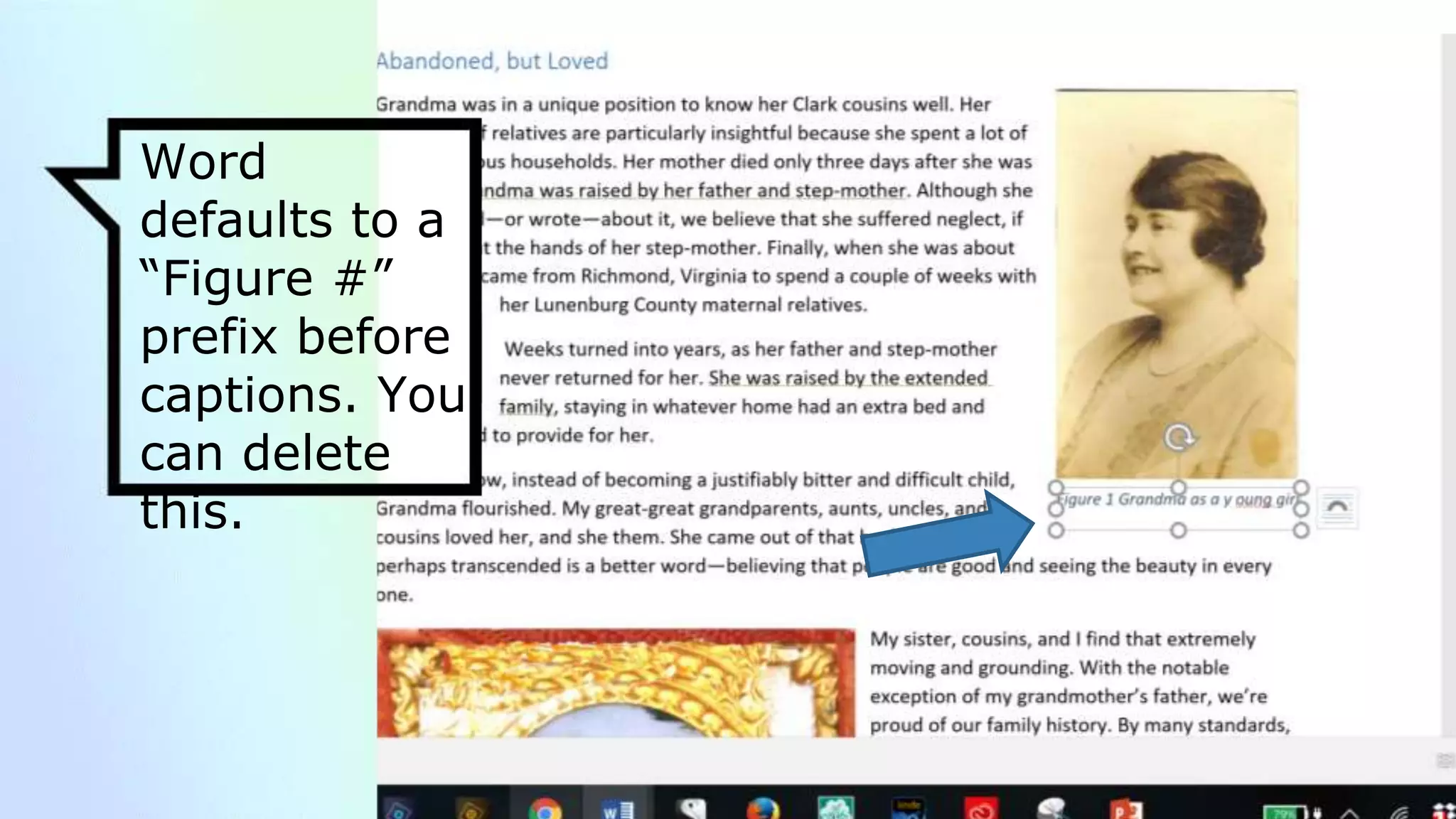
Word
defaults to a
“Figure #”
prefix before
captions. You
can delete
this.
Final result
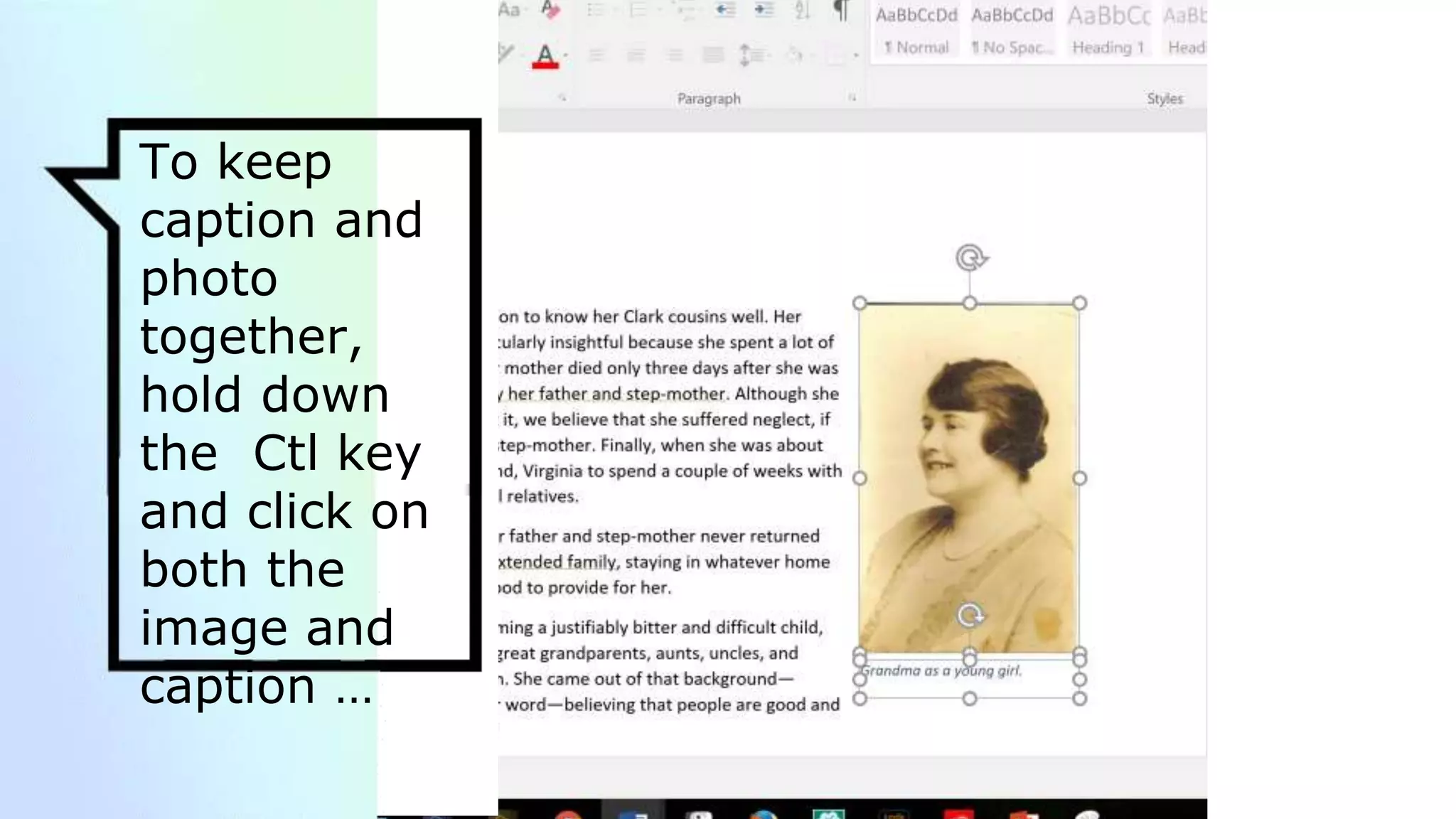
To keep
caption and
photo
together,
hold down
the Ctl key
and click on
both the
image and
caption …
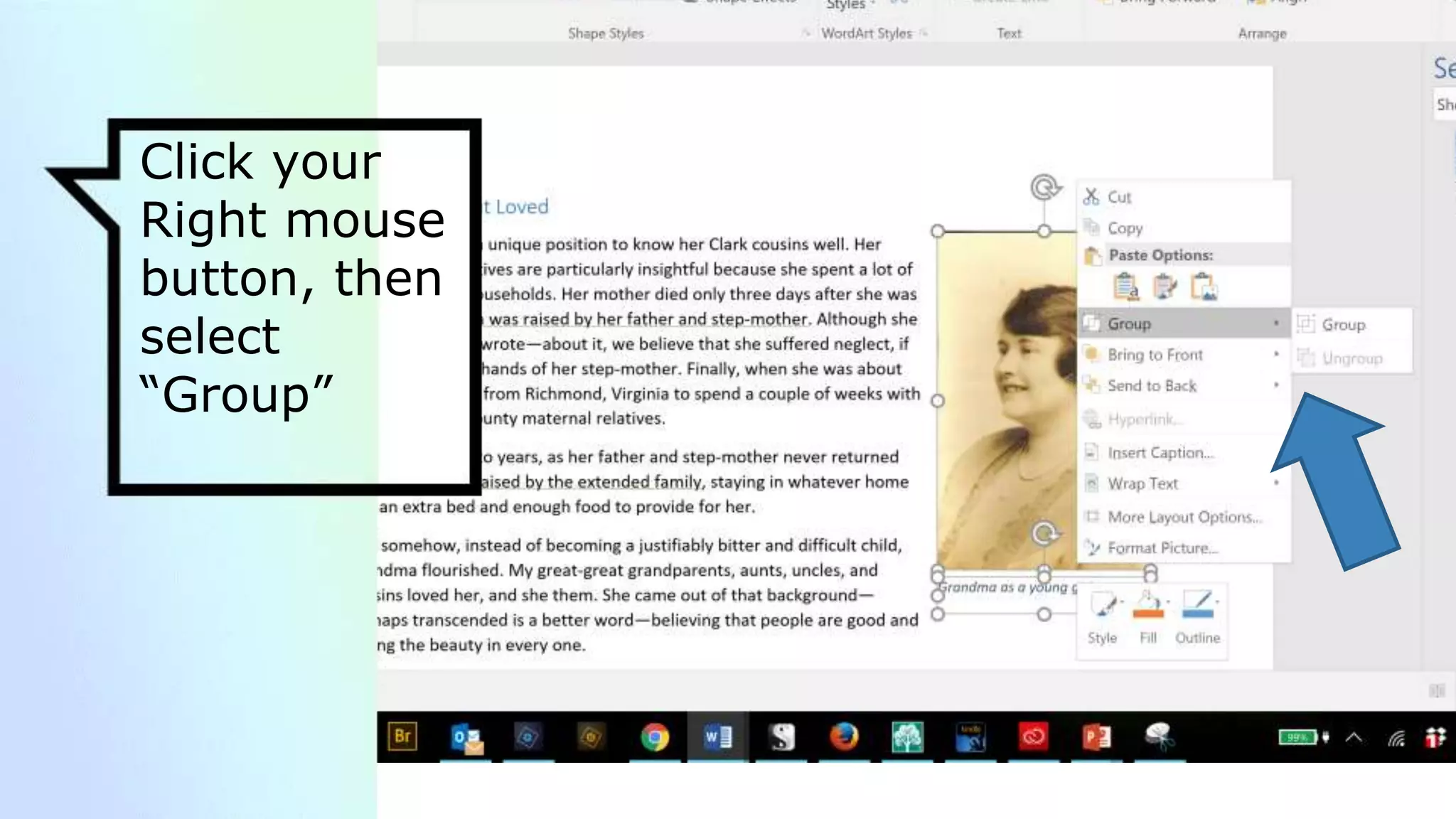
Click your
Right mouse
button, then
select
“Group”
Thanks!
Find more resources for writing and
sharing your stories at
TreasureChestofMemories.com
This presentation uses Florizel presentation
template from SlidesCarnival.

Inserting an image in word