E-
LearningSubject: Computer
Chapter . 3
The desktop interface is divided into various elements like
Desktop Area :- This consist of background or
Wallpaper and different Icons of file , folders and
programs. The background image that covers the entire
desktop is known as wallpaper.
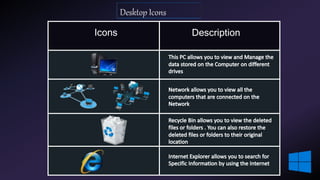
Icons :- are small Graphical representation of a file ,
folder or application. Most commonly used icons on the
desktop is Recycle bin , Network and Internet Explorer
Icons Description
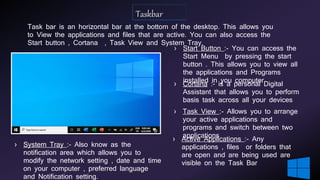
Task bar is an horizontal bar at the bottom of the desktop. This allows you
to View the applications and files that are active. You can also access the
Start button , Cortana , Task View and System Tray.
› Start Button :- You can access the
Start Menu by pressing the start
button . This allows you to view all
the applications and Programs
installed in you computer
› Cortana :- is a personal Digital
Assistant that allows you to perform
basis task across all your devices
› Task View :- Allows you to arrange
your active applications and
programs and switch between two
applications
› Active Applications :- Any
applications , files or folders that
are open and are being used are
visible on the Task Bar
› System Tray :- Also know as the
notification area which allows you to
modify the network setting , date and time
on your computer , preferred language
and Notification setting.
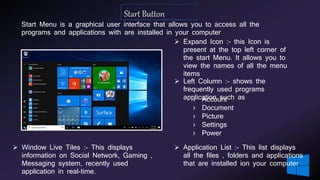
Start Menu is a graphical user interface that allows you to access all the
programs and applications with are installed in your computer
 Expand Icon :- this Icon is
present at the top left corner of
the start Menu. It allows you to
view the names of all the menu
items
 Left Column :- shows the
frequently used programs
application such as› Account
› Document
› Picture
› Settings
› Power
 Application List :- This list displays
all the files , folders and applications
that are installed ion your computer
 Window Live Tiles :- This displays
information on Social Network, Gaming ,
Messaging system, recently used
application in real-time.
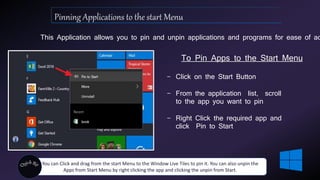
This Application allows you to pin and unpin applications and programs for ease of ac
To Pin Apps to the Start Menu
− Click on the Start Button
− From the application list, scroll
to the app you want to pin
− Right Click the required app and
click Pin to Start
You can Click and drag from the start Menu to the Window Live Tiles to pin it. You can also unpin the
Apps from Start Menu by right clicking the app and clicking the unpin from Start.
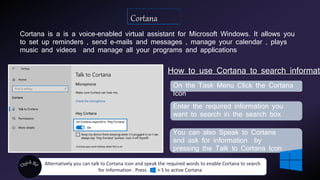
Cortana is a is a voice-enabled virtual assistant for Microsoft Windows. It allows you
to set up reminders , send e-mails and messages , manage your calendar , plays
music and videos and manage all your programs and applications
How to use Cortana to search informati
On the Task Menu Click the Cortana
Icon
You can also Speak to Cortana
and ask for information by
pressing the Talk to Cortana Icon
Alternatively you can talk to Cortana Icon and speak the required words to enable Cortana to search
for Information . Press + S to active Cortana
Enter the required information you
want to search in the search box
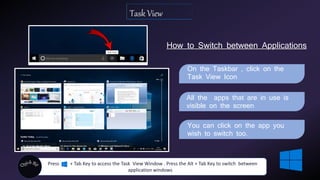
How to Switch between Applications
Press + Tab Key to access the Task View Window . Press the Alt + Tab Key to switch between
application windows
On the Taskbar , click on the
Task View Icon
All the apps that are in use is
visible on the screen
You can click on the app you
wish to switch too.
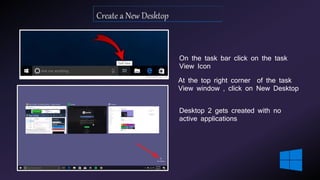
On the task bar click on the task
View Icon
At the top right corner of the task
View window , click on New Desktop
Desktop 2 gets created with no
active applications
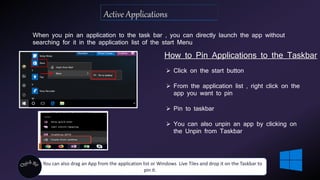
When you pin an application to the task bar , you can directly launch the app without
searching for it in the application list of the start Menu
How to Pin Applications to the Taskbar
 Click on the start button
 From the application list , right click on the
app you want to pin
 Pin to taskbar
 You can also unpin an app by clicking on
the Unpin from Taskbar
You can also drag an App from the application list or Windows Live Tiles and drop it on the Taskbar to
pin it.
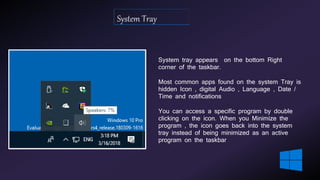
System tray appears on the bottom Right
corner of the taskbar.
Most common apps found on the system Tray is
hidden Icon , digital Audio , Language , Date /
Time and notifications
You can access a specific program by double
clicking on the icon. When you Minimize the
program , the icon goes back into the system
tray instead of being minimized as an active
program on the taskbar
Task bar and start menu in window 10 - Class IV

Task bar and start menu in window 10 - Class IV

  • 1.
  • 2.
  • 3.
    The desktop interfaceis divided into various elements like Desktop Area :- This consist of background or Wallpaper and different Icons of file , folders and programs. The background image that covers the entire desktop is known as wallpaper. Icons :- are small Graphical representation of a file , folder or application. Most commonly used icons on the desktop is Recycle bin , Network and Internet Explorer
  • 4.
  • 5.
    Task bar isan horizontal bar at the bottom of the desktop. This allows you to View the applications and files that are active. You can also access the Start button , Cortana , Task View and System Tray. › Start Button :- You can access the Start Menu by pressing the start button . This allows you to view all the applications and Programs installed in you computer › Cortana :- is a personal Digital Assistant that allows you to perform basis task across all your devices › Task View :- Allows you to arrange your active applications and programs and switch between two applications › Active Applications :- Any applications , files or folders that are open and are being used are visible on the Task Bar › System Tray :- Also know as the notification area which allows you to modify the network setting , date and time on your computer , preferred language and Notification setting.
  • 6.
    Start Menu isa graphical user interface that allows you to access all the programs and applications with are installed in your computer  Expand Icon :- this Icon is present at the top left corner of the start Menu. It allows you to view the names of all the menu items  Left Column :- shows the frequently used programs application such as› Account › Document › Picture › Settings › Power  Application List :- This list displays all the files , folders and applications that are installed ion your computer  Window Live Tiles :- This displays information on Social Network, Gaming , Messaging system, recently used application in real-time.
  • 7.
    This Application allowsyou to pin and unpin applications and programs for ease of ac To Pin Apps to the Start Menu − Click on the Start Button − From the application list, scroll to the app you want to pin − Right Click the required app and click Pin to Start You can Click and drag from the start Menu to the Window Live Tiles to pin it. You can also unpin the Apps from Start Menu by right clicking the app and clicking the unpin from Start.
  • 8.
    Cortana is ais a voice-enabled virtual assistant for Microsoft Windows. It allows you to set up reminders , send e-mails and messages , manage your calendar , plays music and videos and manage all your programs and applications How to use Cortana to search informati On the Task Menu Click the Cortana Icon You can also Speak to Cortana and ask for information by pressing the Talk to Cortana Icon Alternatively you can talk to Cortana Icon and speak the required words to enable Cortana to search for Information . Press + S to active Cortana Enter the required information you want to search in the search box
  • 9.
    How to Switchbetween Applications Press + Tab Key to access the Task View Window . Press the Alt + Tab Key to switch between application windows On the Taskbar , click on the Task View Icon All the apps that are in use is visible on the screen You can click on the app you wish to switch too.
  • 10.
    On the taskbar click on the task View Icon At the top right corner of the task View window , click on New Desktop Desktop 2 gets created with no active applications
  • 11.
    When you pinan application to the task bar , you can directly launch the app without searching for it in the application list of the start Menu How to Pin Applications to the Taskbar  Click on the start button  From the application list , right click on the app you want to pin  Pin to taskbar  You can also unpin an app by clicking on the Unpin from Taskbar You can also drag an App from the application list or Windows Live Tiles and drop it on the Taskbar to pin it.
  • 12.
    System tray appearson the bottom Right corner of the taskbar. Most common apps found on the system Tray is hidden Icon , digital Audio , Language , Date / Time and notifications You can access a specific program by double clicking on the icon. When you Minimize the program , the icon goes back into the system tray instead of being minimized as an active program on the taskbar