The only limits are your imagination.
Responding To
Literature.
Recounting a
Historical Event.
Explaining
Problem
Solving
Techniques.
Advertising a
Geographic
Location.
Sharing Research.
Glogster is good for…
Click on “I’m a student.”
• Fill in the following
information.
• Your teacher will see
the nickname you
create.
• Be sure to enter our
school code. (You
should get a school code
from your teacher or Ms.
Covintree.)
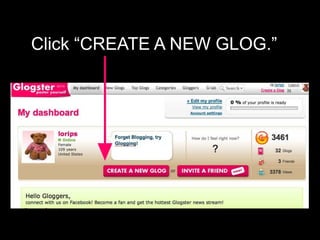
Click “CREATE A NEW GLOG.”
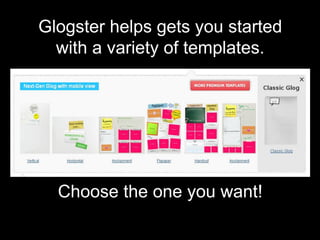
Glogster helps gets you started
with a variety of templates.
Choose the one you want!
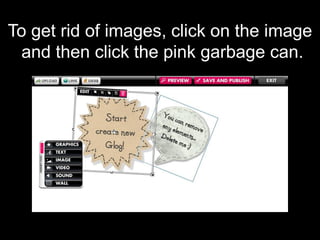
To get rid of images, click on the image
and then click the pink garbage can.
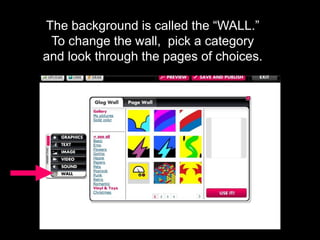
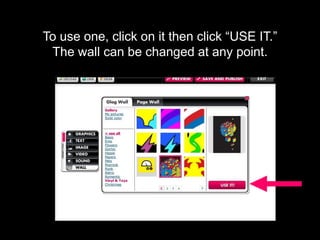
The background is called the “WALL.”
To change the wall, pick a category
and look through the pages of choices.
To use one, click on it then click “USE IT.”
The wall can be changed at any point.
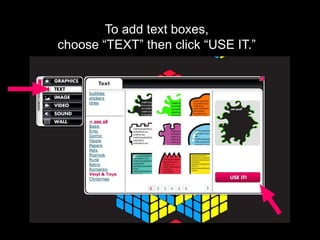
To add text boxes,
choose “TEXT” then click “USE IT.”
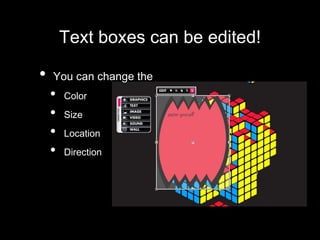
Text boxes can be edited!
• You can change the
• Color
• Size
• Location
• Direction
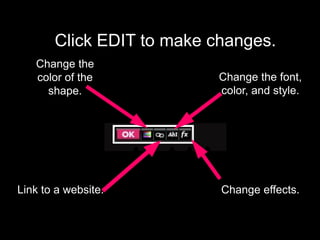
Click EDIT to make changes.
Change the
color of the
shape.
Link to a website.
Change the font,
color, and style.
Change effects.
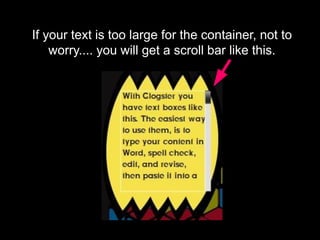
If your text is too large for the container, not to
worry.... you will get a scroll bar like this.
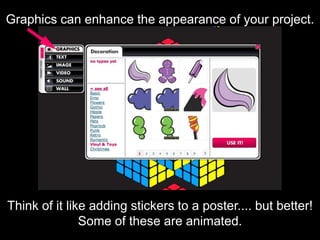
Graphics can enhance the appearance of your project.
Think of it like adding stickers to a poster.... but better!
Some of these are animated.
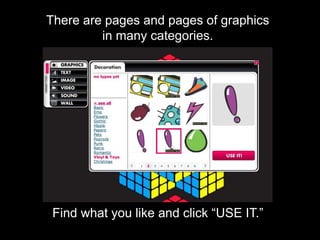
There are pages and pages of graphics
in many categories.
Find what you like and click “USE IT.”
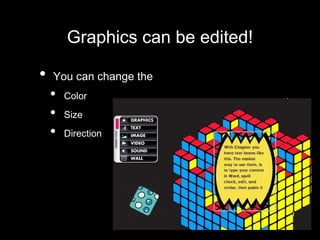
Graphics can be edited!
• You can change the
• Color
• Size
• Direction
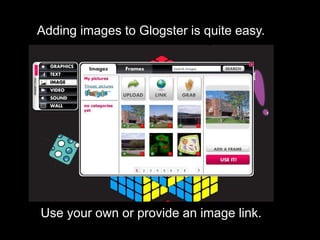
Adding images to Glogster is quite easy.
Use your own or provide an image link.
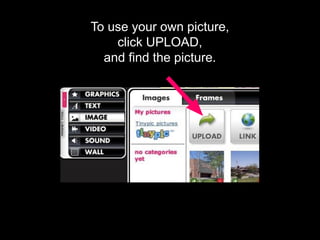
To use your own picture,
click UPLOAD,
and find the picture.
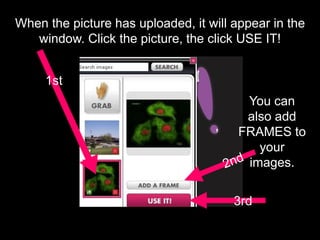
When the picture has uploaded, it will appear in the
window. Click the picture, the click USE IT!
1st
3rd
You can
also add
FRAMES to
your
images.
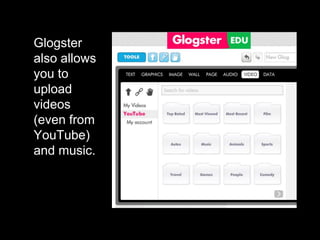
Glogster
also allows
you to
upload
videos
(even from
YouTube)
and music.
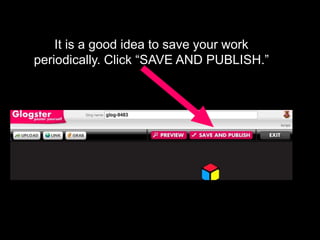
It is a good idea to save your work
periodically. Click “SAVE AND PUBLISH.”
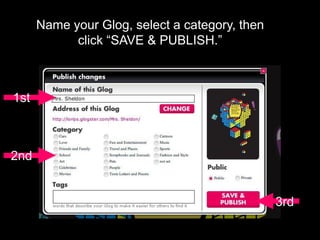
Name your Glog, select a category, then
click “SAVE & PUBLISH.”
1st
2nd
3rd
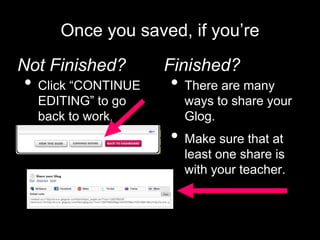
Once you saved, if you’re
Not Finished?
• Click “CONTINUE
EDITING” to go
back to work.
Finished?
• There are many
ways to share your
Glog.
• Make sure that at
least one share is
with your teacher.
• Glogster does not always work well
on table devices.
• Credit images that aren’t yours by
linking back to the original source.
• Glog pages CAN BE PRINTED.
Final thoughts…
Ask for help if you need it & Have Fun!
• K. Covintree, created 9/30/2013.
• This presentation is a revision of one
created by Lori. P. Sheldon
(http://www.keystonemoments.com)
and shortened by slideshare.net user
kilkenny.

Glogster for students

  • 4.
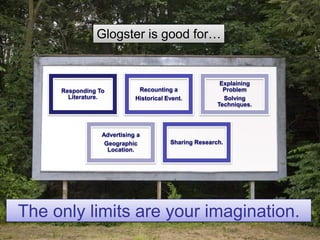
    The only limitsare your imagination. Responding To Literature. Recounting a Historical Event. Explaining Problem Solving Techniques. Advertising a Geographic Location. Sharing Research. Glogster is good for…
  • 6.
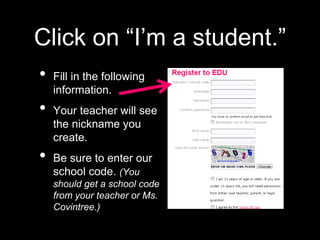
    Click on “I’ma student.” • Fill in the following information. • Your teacher will see the nickname you create. • Be sure to enter our school code. (You should get a school code from your teacher or Ms. Covintree.)
  • 7.
    Click “CREATE ANEW GLOG.”
  • 8.
    Glogster helps getsyou started with a variety of templates. Choose the one you want!
  • 9.
    To get ridof images, click on the image and then click the pink garbage can.
  • 10.
    The background iscalled the “WALL.” To change the wall, pick a category and look through the pages of choices.
  • 11.
    To use one,click on it then click “USE IT.” The wall can be changed at any point.
  • 12.
    To add textboxes, choose “TEXT” then click “USE IT.”
  • 13.
    Text boxes canbe edited! • You can change the • Color • Size • Location • Direction
  • 14.
    Click EDIT tomake changes. Change the color of the shape. Link to a website. Change the font, color, and style. Change effects.
  • 15.
    If your textis too large for the container, not to worry.... you will get a scroll bar like this.
  • 16.
    Graphics can enhancethe appearance of your project. Think of it like adding stickers to a poster.... but better! Some of these are animated.
  • 17.
    There are pagesand pages of graphics in many categories. Find what you like and click “USE IT.”
  • 18.
    Graphics can beedited! • You can change the • Color • Size • Direction
  • 19.
    Adding images toGlogster is quite easy. Use your own or provide an image link.
  • 20.
    To use yourown picture, click UPLOAD, and find the picture.
  • 21.
    When the picturehas uploaded, it will appear in the window. Click the picture, the click USE IT! 1st 3rd You can also add FRAMES to your images.
  • 22.
  • 23.
    It is agood idea to save your work periodically. Click “SAVE AND PUBLISH.”
  • 24.
    Name your Glog,select a category, then click “SAVE & PUBLISH.” 1st 2nd 3rd
  • 25.
    Once you saved,if you’re Not Finished? • Click “CONTINUE EDITING” to go back to work. Finished? • There are many ways to share your Glog. • Make sure that at least one share is with your teacher.
  • 26.
    • Glogster doesnot always work well on table devices. • Credit images that aren’t yours by linking back to the original source. • Glog pages CAN BE PRINTED. Final thoughts… Ask for help if you need it & Have Fun!
  • 27.
    • K. Covintree,created 9/30/2013. • This presentation is a revision of one created by Lori. P. Sheldon (http://www.keystonemoments.com) and shortened by slideshare.net user kilkenny.