How to
use
Animoto
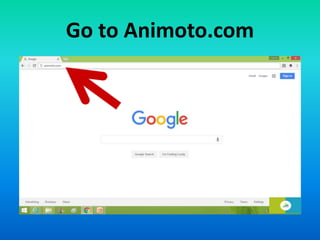
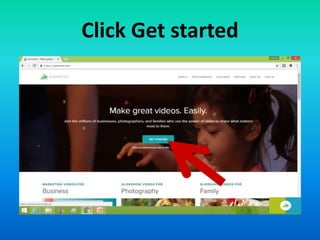
Go to Animoto.com
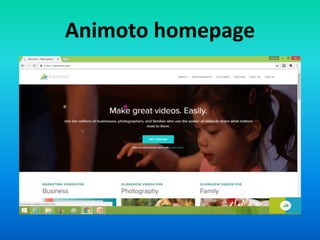
Animoto homepage
Click Get started
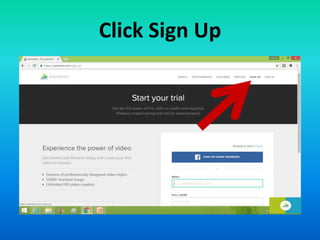
Click Sign Up
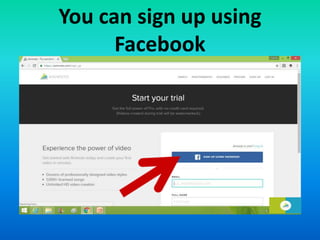
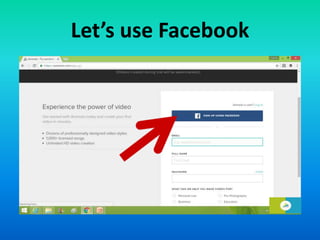
You can sign up using
Facebook
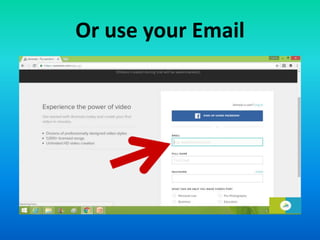
Or use your Email
Let’s use Facebook
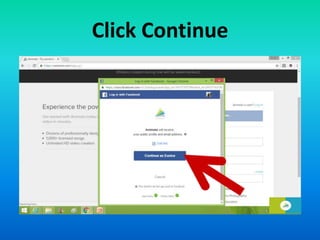
Click Continue
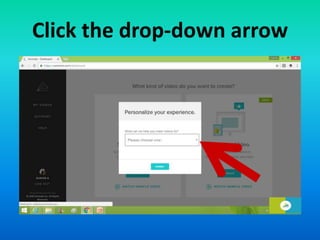
Click the drop-down arrow
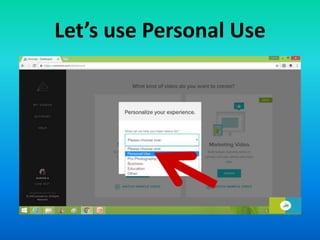
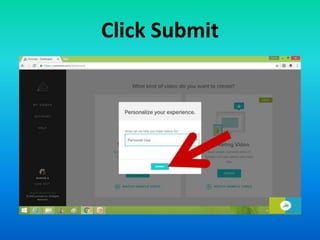
Let’s use Personal Use
Click Submit
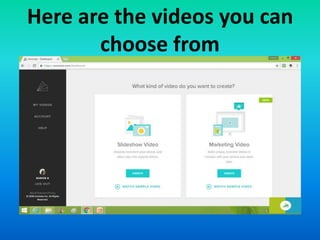
Choose the kind of video
you want to create
Here are the videos you can
choose from
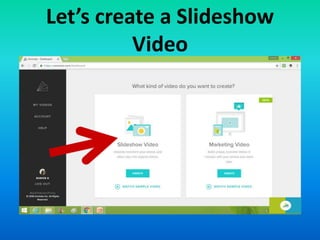
Let’s create a Slideshow
Video
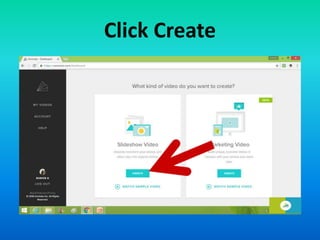
Click Create
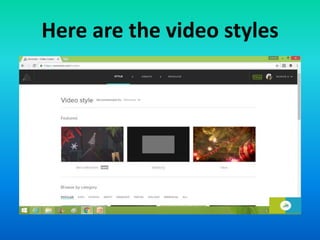
Let’s choose a video style
Here are the video styles
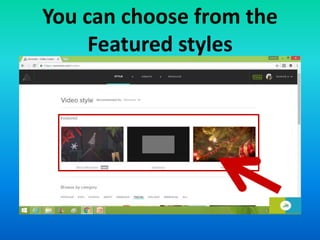
You can choose from the
Featured styles
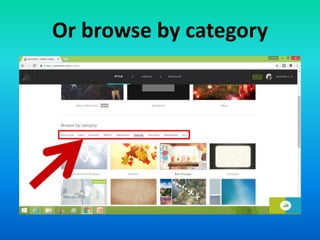
Or browse by category
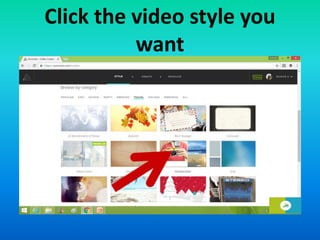
Click the video style you
want
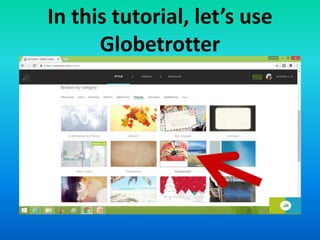
In this tutorial, let’s use
Globetrotter
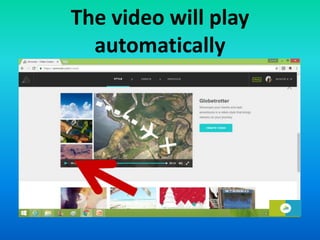
The video will play
automatically
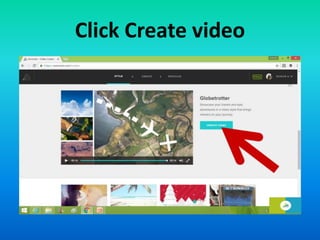
Click Create video
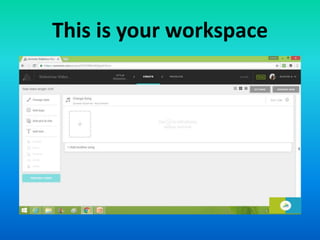
This is your workspace
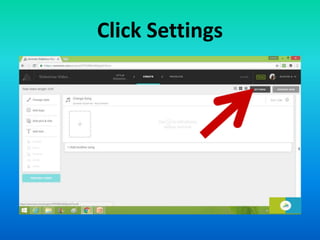
Click Settings
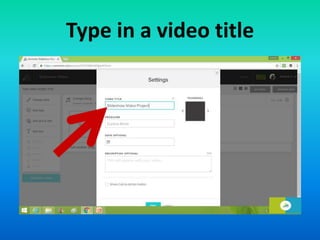
Type in a video title
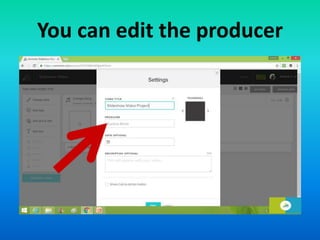
You can edit the producer
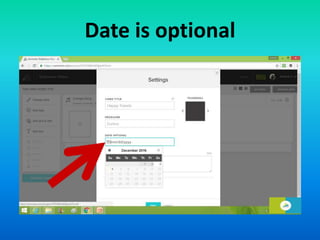
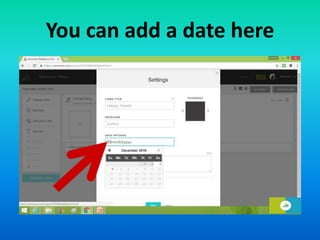
Date is optional
You can add a date here
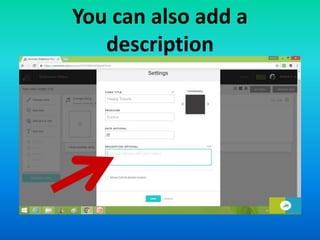
You can also add a
description
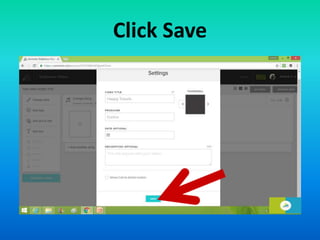
Click Save
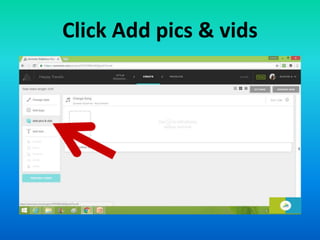
To add pictures and videos
Click Add pics & vids
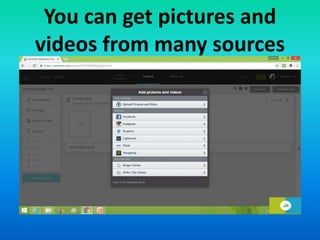
You can get pictures and
videos from many sources
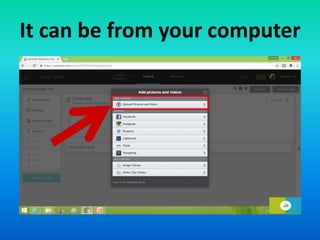
It can be from your computer
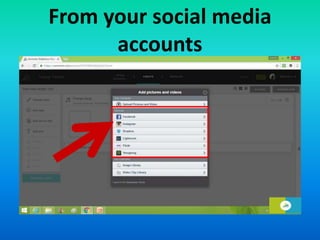
From your social media
accounts
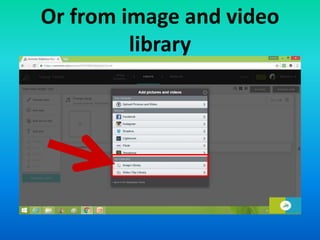
Or from image and video
library
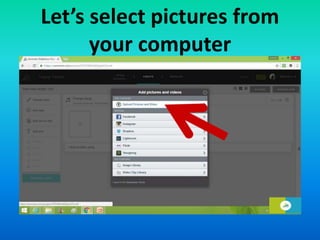
Let’s select pictures from
your computer
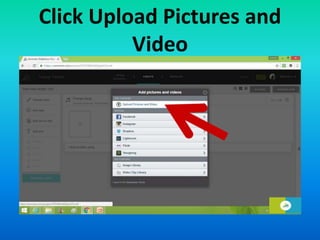
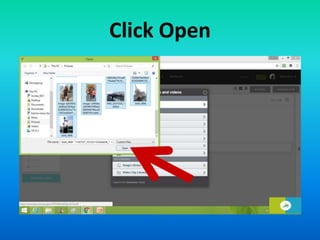
Click Upload Pictures and
Video
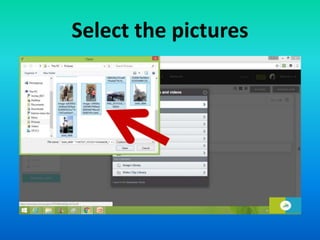
Select the pictures
Click Open
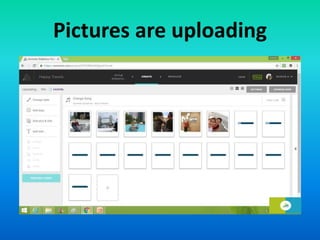
Pictures are uploading
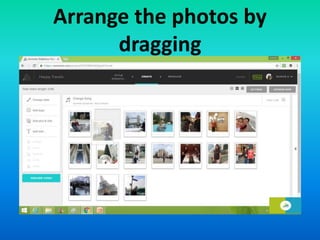
Arrange the photos by
dragging
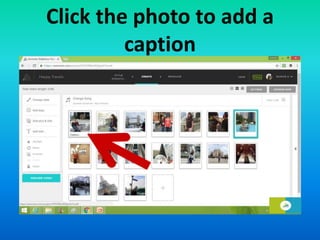
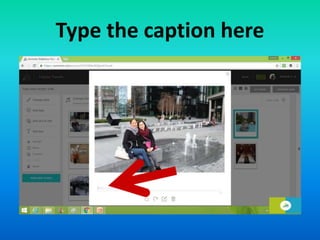
Click the photo to add a
caption
Type the caption here
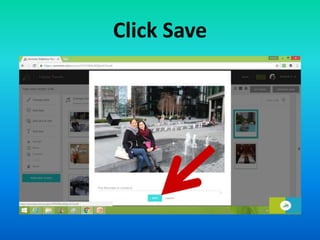
Click Save
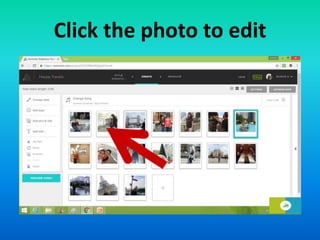
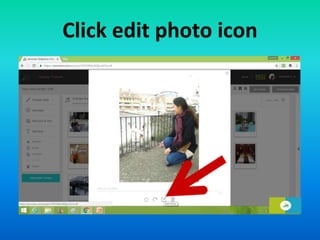
You can also edit the photo
Click the photo to edit
Click edit photo icon
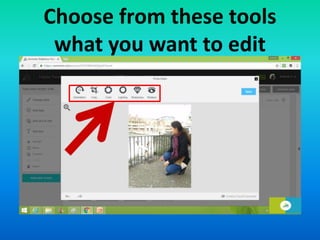
Choose from these tools
what you want to edit
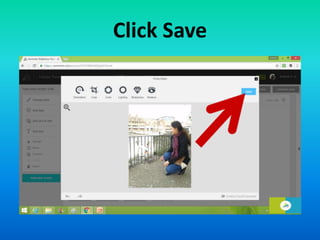
Click Save
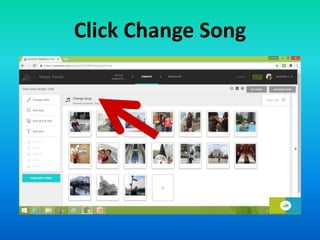
To change the song of your
video
Click Change Song
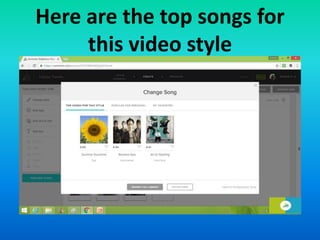
Here are the top songs for
this video style
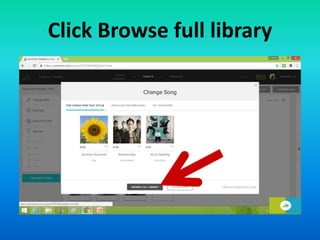
To see other songs for this
video
Click Browse full library
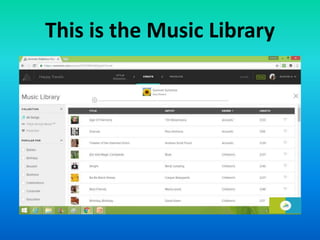
This is the Music Library
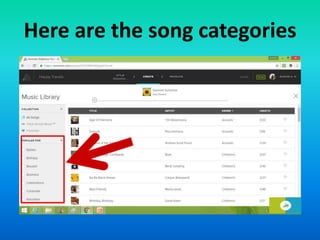
Here are the song categories
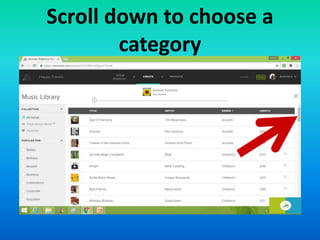
Scroll down to choose a
category
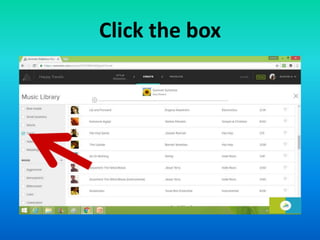
Click the box
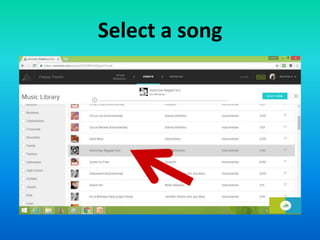
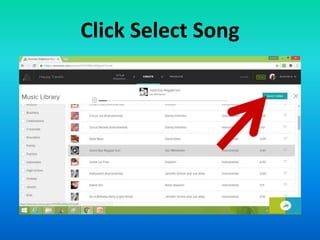
Select a song
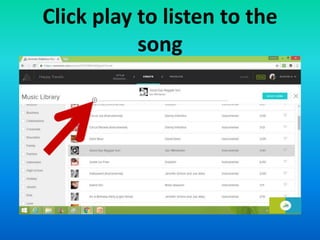
Click play to listen to the
song
Click Select Song
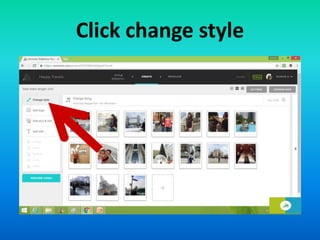
To change the video style
Click change style
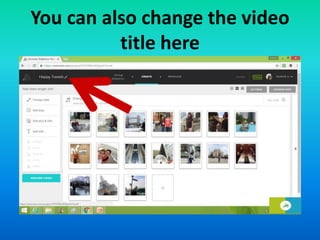
You can also change the video
title here
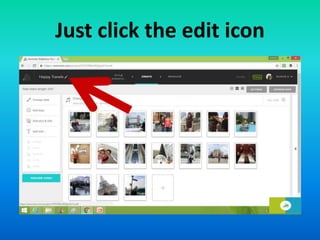
Just click the edit icon
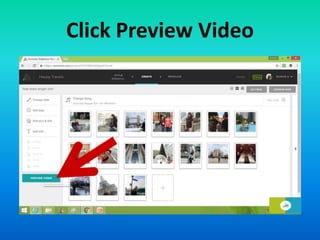
To view the video
Click Preview Video
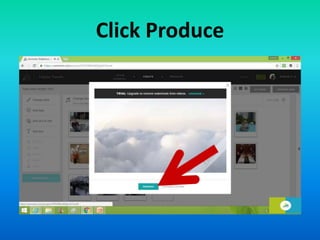
Click Produce
Or if you still want to edit
the video
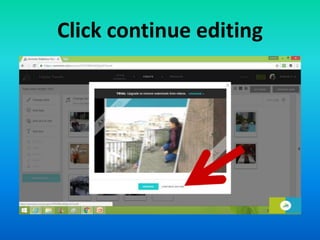
Click continue editing
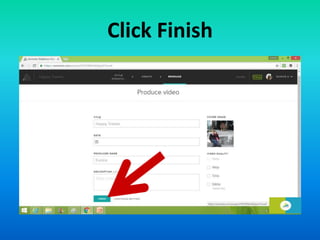
Click Finish
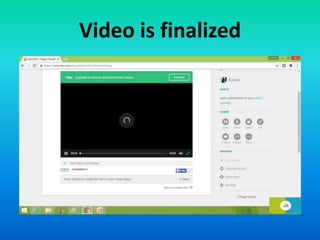
Video is finalized
To share your video
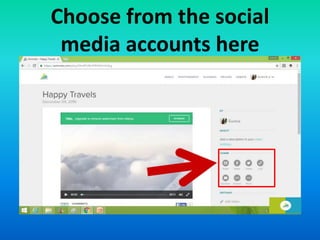
Choose from the social
media accounts here
To edit the video
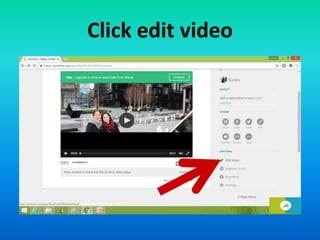
Click edit video
To change the cover image
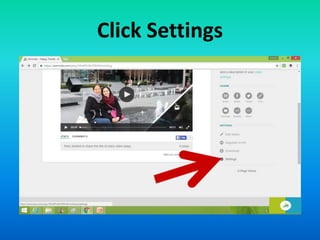
Click Settings
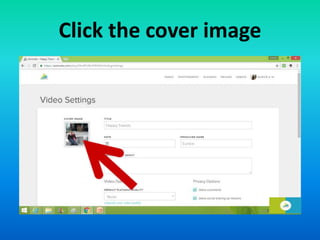
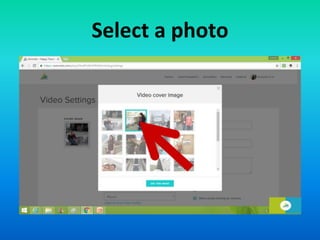
Click the cover image
Select a photo
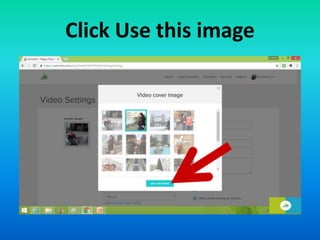
Click Use this image
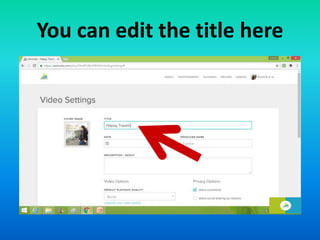
You can edit the title here
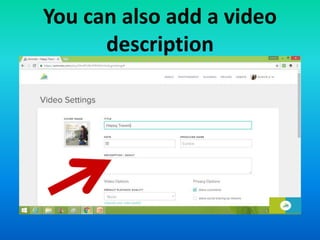
You can also add a video
description
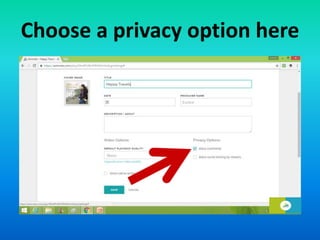
Choose a privacy option here
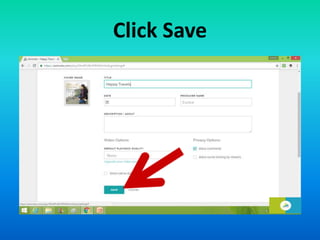
Click Save
To share the video on
Facebook
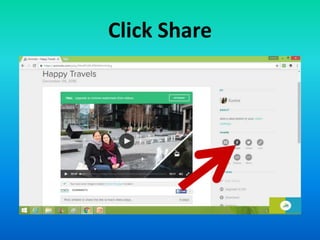
Click Share
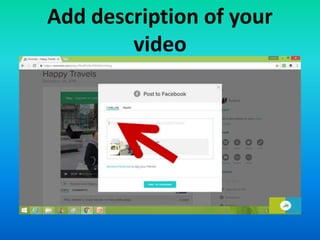
Add description of your
video
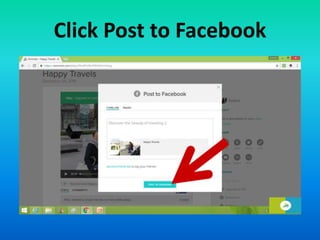
Click Post to Facebook
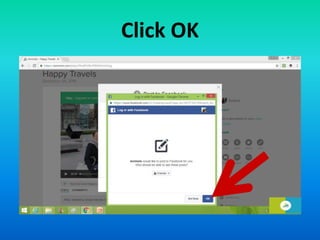
Click OK
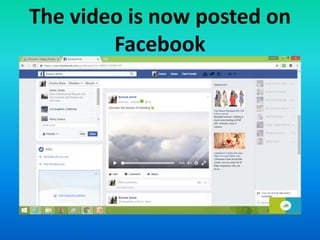
The video is now posted on
Facebook
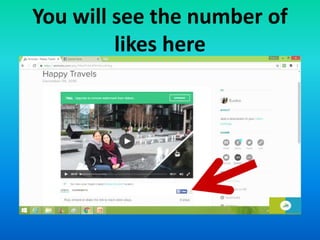
You will see the number of
likes here
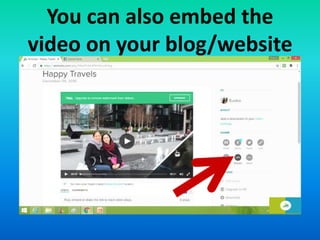
You can also embed the
video on your blog/website
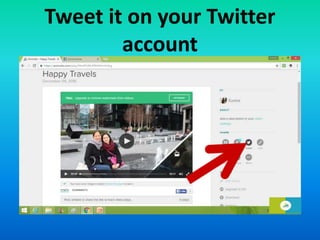
Tweet it on your Twitter
account
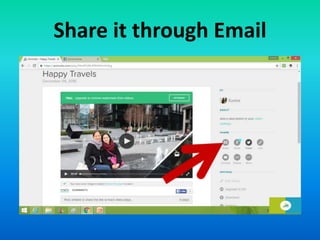
Share it through Email
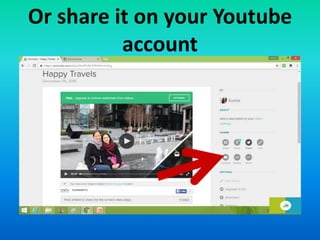
Or share it on your Youtube
account
Now it’s your turn to apply
what you’ve learned!
“To be is to do.”
- Immanuel Kant

How to use Animoto