Glogster WorkshopPresented By:  Teresa Wu
Welcome!!Please log into http://edu.glogster.comGo ahead and register if you don’t have an account.
What is Glogster?Interactive PosterStudents can showcase their learning through different methodsText, Picture, Sound, Video, etc.
DashboardMessages – Place to check the student accounts you’ve createdStudent Management – Where you can monitor all your students’ activities on GlogsterYour Glog & Favorite Glogs
Student ManagementAdd/Delete StudentsChange students’ passwordEdit students’ accounts/profiles
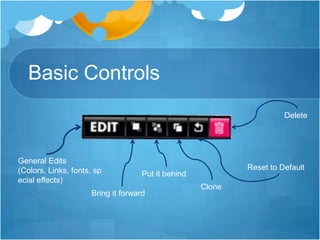
Basic ControlsDeleteGeneral Edits (Colors, Links, fonts, special effects)Reset to DefaultPut it behindCloneBring it forward
“Edit” ControlsSpecial Effects(Shadow,Alpha [visibility])Sticker ColorsAdd a LinkText Options(Colors, font, Size, align)
Regular Tools“Regular Tools” = Tools that you can use without uploading anything to Glogster.Include:  Graphics, Text, Wall
GraphicsUsed like stickers.Can change color and size.No input available.
TextText is automatically wrapped with scrollbar.Fonts include: Latin, Chinese, Japanese, GreekEdit Option:  Font type, alignment, bold/italic, size, color.
WallGlog Wall = Background for the glog.Page Wall = Background for the page that’s behind the glog.  Not visible if you embed your glog to another medium (such as a website)
Uploadable Tools“Uploadable Tools” = Tools that require you to upload material to the Glogster.Include:  Image, Video, Sound
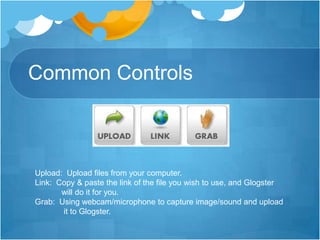
Common ControlsUpload:  Upload files from your computer.Link:  Copy & paste the link of the file you wish to use, and Glogster            will do it for you.Grab:  Using webcam/microphone to capture image/sound and upload              it to Glogster.
ImageFrames = Picture frames that surround the image.When using “Link”, make sure you copy and paste the entire URL of the picture.Common file type:  .jpg, .jpeg, .gif, .png
VideoPlayer Include:  Start/Pause, Stop, Full Screen.Options:  Autoplay, volume.Schooltube search included.Youtube:  Grab the URL of the Youtube.Supported Formats: .mpeg, .mp4, .flv, .mov, .m4v (and more)Link:  .flv (only)
SoundPlayers:  Some has pause/stop button, some doesn’t.Options:  Autoplay, volume.Supported Formats:  .mp3, .wav, .wma, .ogg, .m4a (and more)Link: .mp3 (only)
Premium (paid) OnlyUnless you have paid account, you will not be able to use these functions.Include:  Attachments, drawings.Other premium features:  student portfolios, teacher presentations, full student/class/school management, student sharing.
Data & DrawData = Attachment.  No edit options available.Draw = Draw your own graphics.  Limited editing options.
Publish & ShareUnfinished = Save, but not searchable or viewable by anyone other than the Glog maker.Finished = Saved glog but private, viewable only to the people who has its address.  Cannot be searched on Glogster.comPublic = Any user can view, print or embed it in another webpage.Share:  Facebook, Twitter, Websites, etc.
Known IssuesStudent account cannot log inSluggish at times Grab files are slow to appear
Tutorial Videos & SiteWebsite:  https://sites.google.com/a/archer.org/glogster-tutorial/(searchable under Archer Sites -> Technology)Include:  PowerPoint Presentations, Video Tutorial, FAQ
Feedback
Thank You for Coming!Love, Teresa Wu

Glogster Tutorial

  • 1.
  • 2.
    Welcome!!Please log intohttp://edu.glogster.comGo ahead and register if you don’t have an account.
  • 3.
    What is Glogster?InteractivePosterStudents can showcase their learning through different methodsText, Picture, Sound, Video, etc.
  • 4.
    DashboardMessages – Placeto check the student accounts you’ve createdStudent Management – Where you can monitor all your students’ activities on GlogsterYour Glog & Favorite Glogs
  • 5.
    Student ManagementAdd/Delete StudentsChangestudents’ passwordEdit students’ accounts/profiles
  • 6.
    Basic ControlsDeleteGeneral Edits(Colors, Links, fonts, special effects)Reset to DefaultPut it behindCloneBring it forward
  • 7.
    “Edit” ControlsSpecial Effects(Shadow,Alpha[visibility])Sticker ColorsAdd a LinkText Options(Colors, font, Size, align)
  • 8.
    Regular Tools“Regular Tools”= Tools that you can use without uploading anything to Glogster.Include: Graphics, Text, Wall
  • 9.
    GraphicsUsed like stickers.Canchange color and size.No input available.
  • 10.
    TextText is automaticallywrapped with scrollbar.Fonts include: Latin, Chinese, Japanese, GreekEdit Option: Font type, alignment, bold/italic, size, color.
  • 11.
    WallGlog Wall =Background for the glog.Page Wall = Background for the page that’s behind the glog. Not visible if you embed your glog to another medium (such as a website)
  • 12.
    Uploadable Tools“Uploadable Tools”= Tools that require you to upload material to the Glogster.Include: Image, Video, Sound
  • 13.
    Common ControlsUpload: Upload files from your computer.Link: Copy & paste the link of the file you wish to use, and Glogster will do it for you.Grab: Using webcam/microphone to capture image/sound and upload it to Glogster.
  • 14.
    ImageFrames = Pictureframes that surround the image.When using “Link”, make sure you copy and paste the entire URL of the picture.Common file type: .jpg, .jpeg, .gif, .png
  • 15.
    VideoPlayer Include: Start/Pause, Stop, Full Screen.Options: Autoplay, volume.Schooltube search included.Youtube: Grab the URL of the Youtube.Supported Formats: .mpeg, .mp4, .flv, .mov, .m4v (and more)Link: .flv (only)
  • 16.
    SoundPlayers: Somehas pause/stop button, some doesn’t.Options: Autoplay, volume.Supported Formats: .mp3, .wav, .wma, .ogg, .m4a (and more)Link: .mp3 (only)
  • 17.
    Premium (paid) OnlyUnlessyou have paid account, you will not be able to use these functions.Include: Attachments, drawings.Other premium features: student portfolios, teacher presentations, full student/class/school management, student sharing.
  • 18.
    Data & DrawData= Attachment. No edit options available.Draw = Draw your own graphics. Limited editing options.
  • 19.
    Publish & ShareUnfinished= Save, but not searchable or viewable by anyone other than the Glog maker.Finished = Saved glog but private, viewable only to the people who has its address. Cannot be searched on Glogster.comPublic = Any user can view, print or embed it in another webpage.Share: Facebook, Twitter, Websites, etc.
  • 20.
    Known IssuesStudent accountcannot log inSluggish at times Grab files are slow to appear
  • 21.
    Tutorial Videos &SiteWebsite: https://sites.google.com/a/archer.org/glogster-tutorial/(searchable under Archer Sites -> Technology)Include: PowerPoint Presentations, Video Tutorial, FAQ
  • 22.
  • 23.
    Thank You forComing!Love, Teresa Wu

Editor's Notes

  • #2 Prep: Loginto Glogster Ahead of Time
  • #6 Premium: Edit student nickname, access student accounts
  • #9 Explain these are MY terms
  • #14 Explain on top of the glog there’s the common controls that can be used ahead of time
  • #18 Teacher presentation = book
  • #22 Ask teachers to go on the site right away. Go to Digital Hub -> Site -> Browse -> Technology -> Glogster WebsiteQuick walk through of the site. Point out FAQ & e-mail me
  • #23 Ask teachers to input feedback. Give about 5 minutes