How to Use
What is Haiku Deck?
Is a free app that makes
presentations,
Simple, beautiful and
fun.
Let’s Get Started
Pull up your browser
In this tutorial we are
using Google Chrome
Choose Chrome
Browser
Google Homepage
Type in
Haikudeck.com
Hit Enter Key
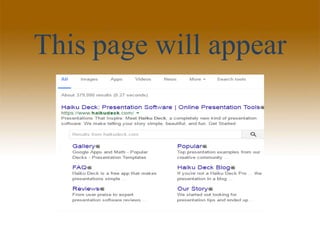
This page will appear
Click Here
You will redirected to
Haiku Deck Website
Click on Start Free Trial
Enter your email &
password to sign in
Or sign in Facebook or Twitter
Or click Get new
account
A welcome message
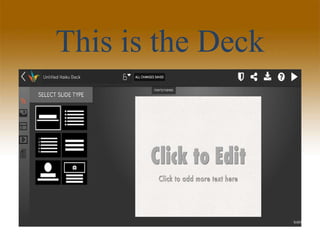
This is the Deck
Let’s first navigate the
interface
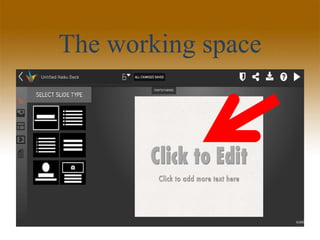
The working space
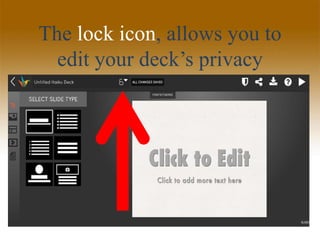
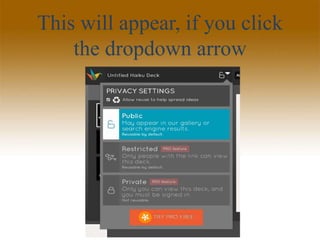
The lock icon, allows you to
edit your deck’s privacy
This will appear, if you click
the dropdown arrow
Let’s create a text
Type your text here
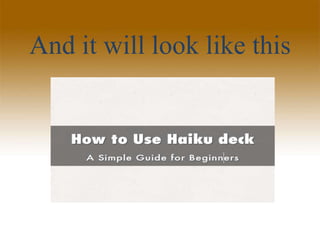
And it will look like this
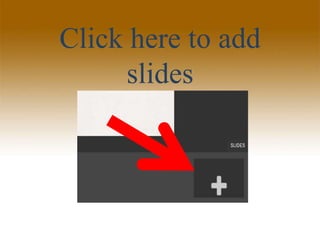
Click here to add
slides
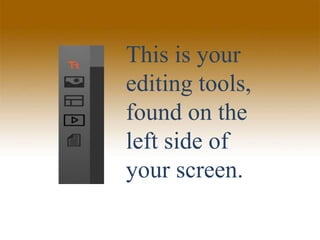
This is your
editing tools,
found on the
left side of
your screen.
Click here to select a
text format
This text form is for
Header/Sub header
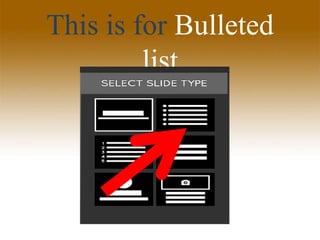
This is for Bulleted
list
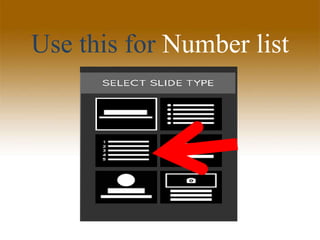
Use this for Number list
This for Multiple lines
For Logo & Text
And this for Photo &
Text
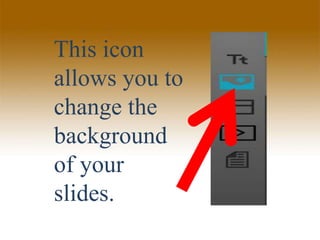
This icon
allows you to
change the
background
of your
slides.
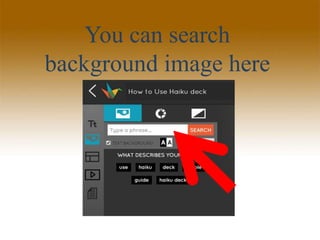
You can search
background image here
Select Your Image
here
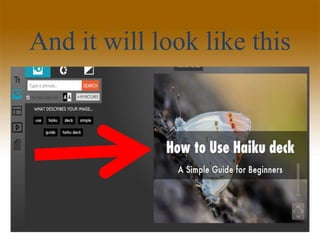
And it will look like this
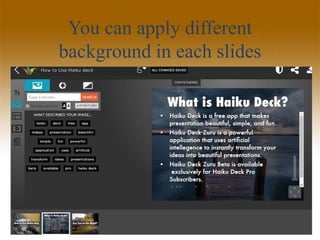
You can apply different
background in each slides
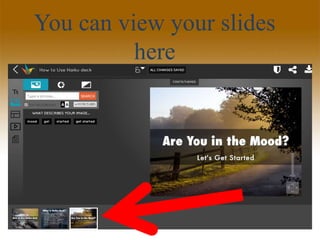
You can view your slides
here
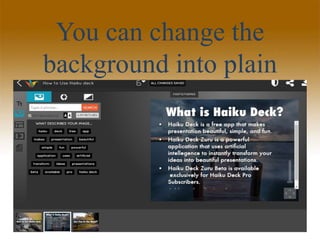
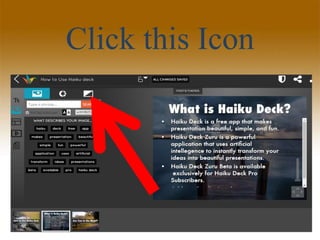
You can change the
background into plain
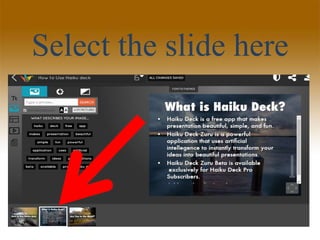
Select the slide here
Click this Icon
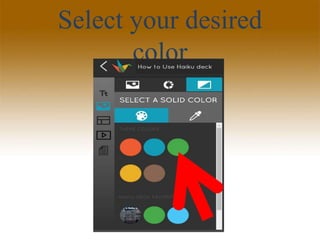
Select your desired
color
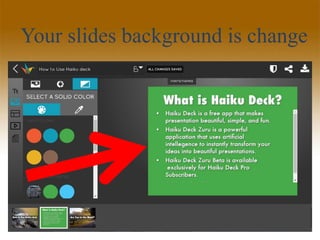
Your slides background is change
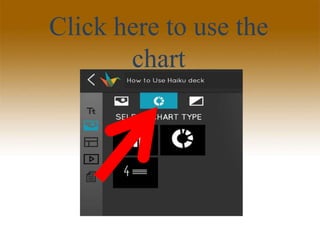
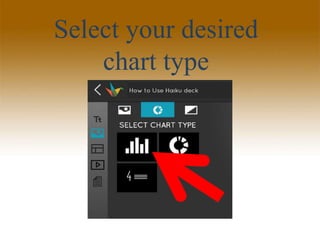
Click here to use the
chart
Select your desired
chart type
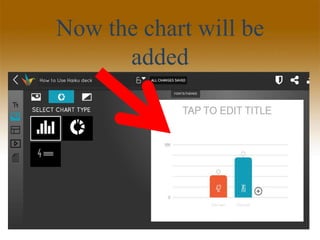
Now the chart will be
added
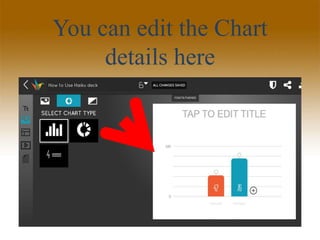
You can edit the Chart
details here
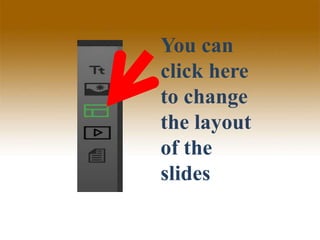
You can
click here
to change
the layout
of the
slides
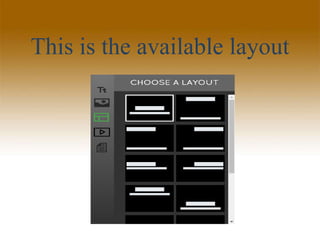
This is the available layout
You can select a
layout
depending on your
desired layout
You can try it all
and select which
one is best
This is
the
notes
Click
on
Notes
You can text more
notes here
Let’s Try One
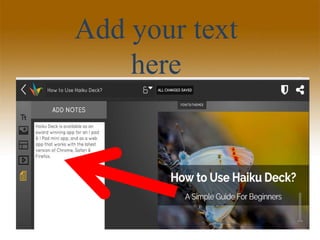
Add your text
here
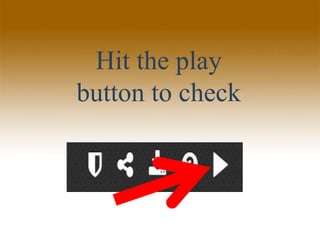
Hit the play
button to check
It is how it look like in live
Now, let’s edit the
Font/Theme of a slide
Click Fonts/
Themes
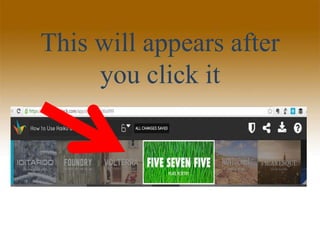
This will appears after
you click it
You can select the
Theme you like
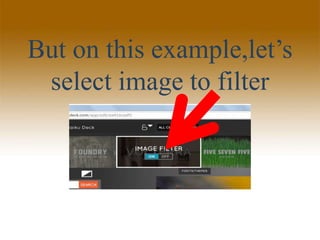
You can filter the
image or not
But on this example,let’s
select image to filter
You can preview,
your slides
after creating it.
To preview
Click on Play icon
You will be redirected to
the preview mode
Click here to change
the slides
Or click it here if you want
to bring back the slide
To exit from Preview
mode, you can
To share or unlock
your deck
Click this button to
share
To share your deck, will
automatically share in
public
This pop-up window will
appear, after click on share
You can share your
deck, on your desired
social media channel
But on this tutorial,
Let’s try to share it on
your Twitter
Click on Twitter Icon
Click on Tweet button
Now your link will now
show on your Twitter’s
feed
Click on Help icon to
see pointers for using
Haiku Deck
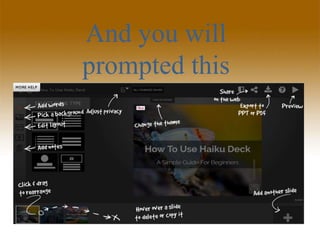
And you will
prompted this
Those are the basic in
Haiku Deck
Try to explore for you
to know more about
Haiku Deck
And that’s the end
of my tutorial
Thank You for
reading!
But before I end
up
Let me drop to
you a gift
Success is no accident,
it is hard work,
perseverance, learning,
studying.sacrifice, and
most of all love of what
you are doing
-Pele

How to use haiku deck