How to Create aHow to Create a
Glogster PosterGlogster Poster
By:By:
Ms IrvingMs Irving
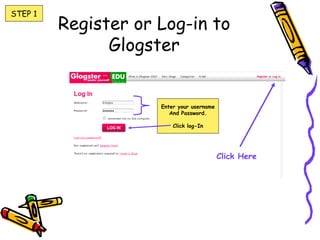
Register or Log-in to
Glogster
Click Here
STEP 1
Enter your username
And Password.
Click log-In
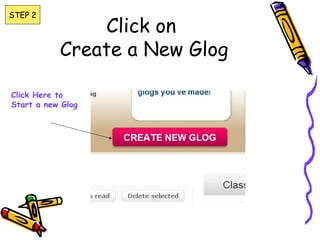
Click on
Create a New Glog
Click Here to
Start a new Glog
STEP 2
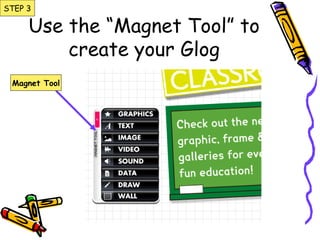
Use the “Magnet Tool” to
create your Glog
Magnet Tool
STEP 3
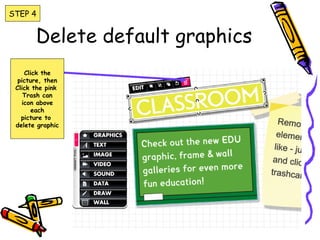
Delete default graphics
Click the
picture, then
Click the pink
Trash can
icon above
each
picture to
delete graphic
STEP 4
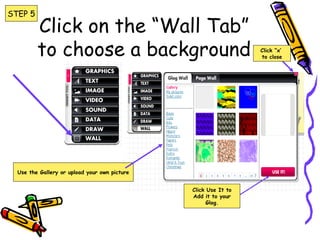
Click on the “Wall Tab”
to choose a background
Use the Gallery or upload your own picture
Click Use It to
Add it to your
Glog.
Click “x’
to close
STEP 5
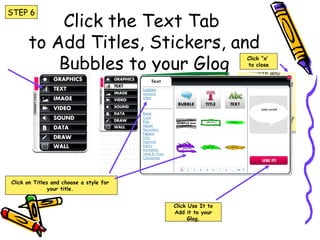
Click the Text Tab
to Add Titles, Stickers, and
Bubbles to your Glog
Click Use It to
Add it to your
Glog.
Click “x’
to close
Click on Titles and choose a style for
your title.
STEP 6
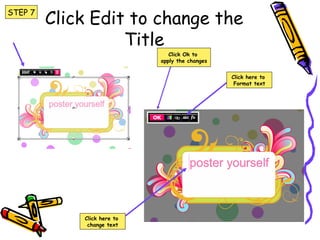
Click Edit to change the
Title
Click here to
change text
Click here to
Format text
Click Ok to
apply the changes
STEP 7
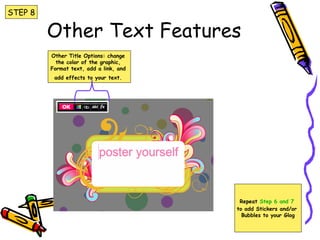
Other Text Features
Other Title Options: change
the color of the graphic,
Format text, add a link, and
add effects to your text.
Repeat Step 6 and 7
to add Stickers and/or
Bubbles to your Glog
STEP 8
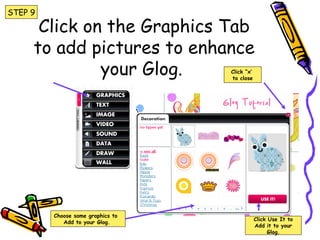
Click on the Graphics Tab
to add pictures to enhance
your Glog.
STEP 9
Choose some graphics to
Add to your Glog.
Click Use It to
Add it to your
Glog.
Click “x’
to close
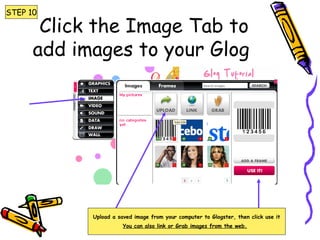
Click the Image Tab to
add images to your Glog
Upload a saved image from your computer to Glogster, then click use it
You can also link or Grab images from the web.
STEP 10
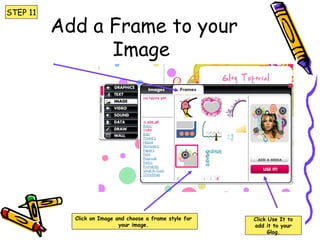
Add a Frame to your
Image
Click Use It to
add it to your
Glog.
Click on Image and choose a frame style for
your image.
STEP 11
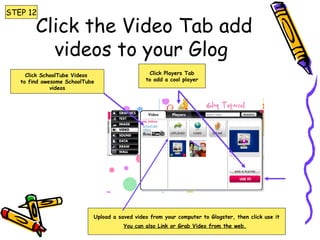
Click the Video Tab add
videos to your Glog
Upload a saved video from your computer to Glogster, then click use it
You can also Link or Grab Video from the web.
Click SchoolTube Videos
to find awesome SchoolTube
videos
Click Players Tab
to add a cool player
STEP 12
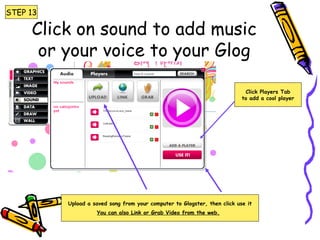
Click on sound to add music
or your voice to your Glog
Upload a saved song from your computer to Glogster, then click use it
You can also Link or Grab Video from the web.
Click Players Tab
to add a cool player
STEP 13
Save or Publish Your Glog
Name It
Tag It
STEP 14
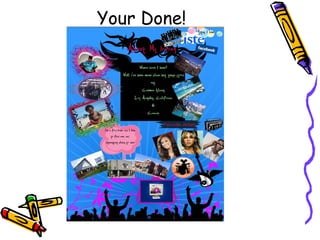
Your Done!

Glogster poster tutorial

  • 1.
    How to CreateaHow to Create a Glogster PosterGlogster Poster By:By: Ms IrvingMs Irving
  • 2.
    Register or Log-into Glogster Click Here STEP 1 Enter your username And Password. Click log-In
  • 3.
    Click on Create aNew Glog Click Here to Start a new Glog STEP 2
  • 4.
    Use the “MagnetTool” to create your Glog Magnet Tool STEP 3
  • 5.
    Delete default graphics Clickthe picture, then Click the pink Trash can icon above each picture to delete graphic STEP 4
  • 6.
    Click on the“Wall Tab” to choose a background Use the Gallery or upload your own picture Click Use It to Add it to your Glog. Click “x’ to close STEP 5
  • 7.
    Click the TextTab to Add Titles, Stickers, and Bubbles to your Glog Click Use It to Add it to your Glog. Click “x’ to close Click on Titles and choose a style for your title. STEP 6
  • 8.
    Click Edit tochange the Title Click here to change text Click here to Format text Click Ok to apply the changes STEP 7
  • 9.
    Other Text Features OtherTitle Options: change the color of the graphic, Format text, add a link, and add effects to your text. Repeat Step 6 and 7 to add Stickers and/or Bubbles to your Glog STEP 8
  • 10.
    Click on theGraphics Tab to add pictures to enhance your Glog. STEP 9 Choose some graphics to Add to your Glog. Click Use It to Add it to your Glog. Click “x’ to close
  • 11.
    Click the ImageTab to add images to your Glog Upload a saved image from your computer to Glogster, then click use it You can also link or Grab images from the web. STEP 10
  • 12.
    Add a Frameto your Image Click Use It to add it to your Glog. Click on Image and choose a frame style for your image. STEP 11
  • 13.
    Click the VideoTab add videos to your Glog Upload a saved video from your computer to Glogster, then click use it You can also Link or Grab Video from the web. Click SchoolTube Videos to find awesome SchoolTube videos Click Players Tab to add a cool player STEP 12
  • 14.
    Click on soundto add music or your voice to your Glog Upload a saved song from your computer to Glogster, then click use it You can also Link or Grab Video from the web. Click Players Tab to add a cool player STEP 13
  • 15.
    Save or PublishYour Glog Name It Tag It STEP 14
  • 16.