How to use
Picmonkey to
create quick and
interesting
Facebook photos
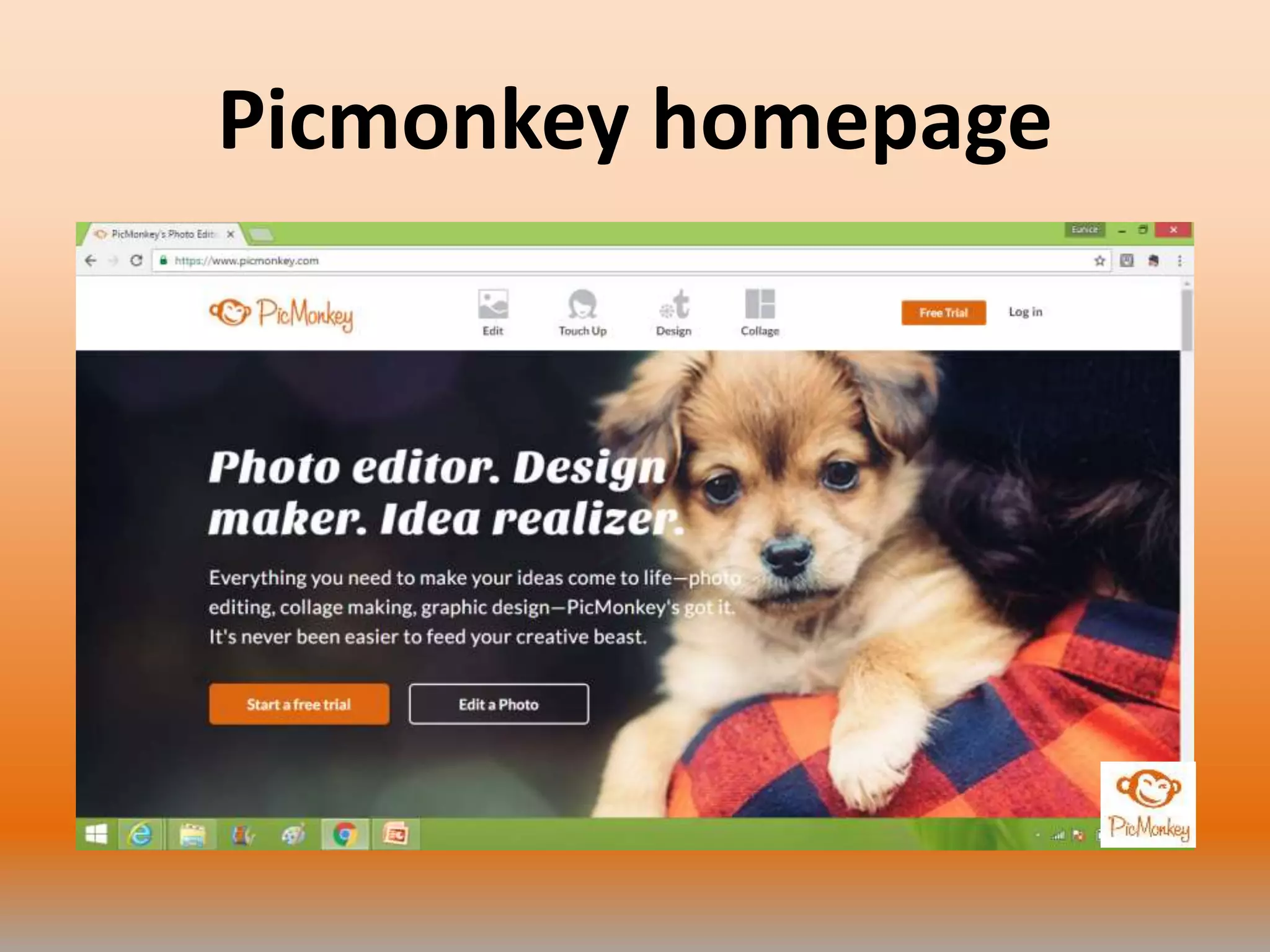
Go to picmonkey.com
Picmonkey homepage
To create an image
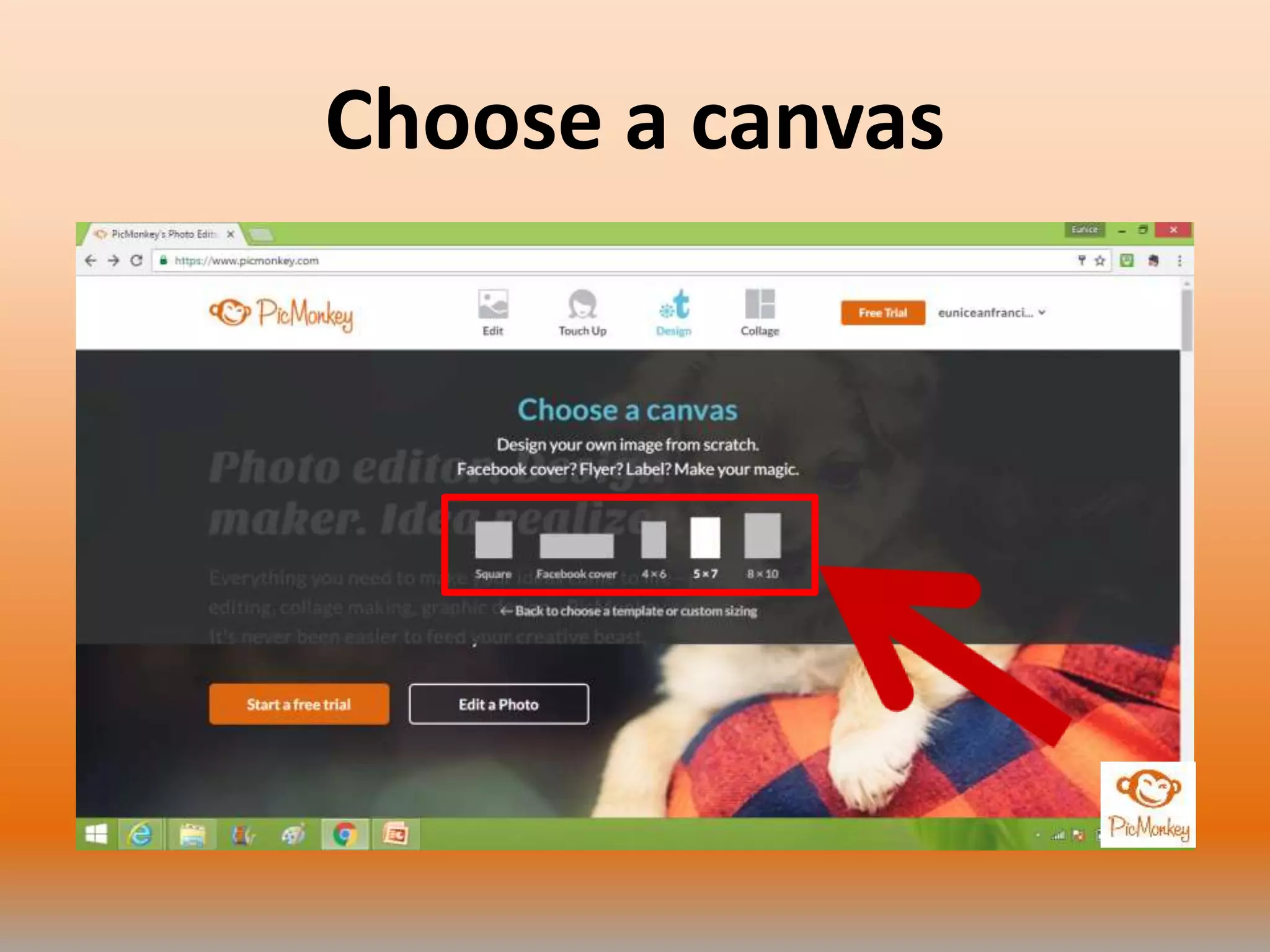
Click Design
Click blank canvas
Choose a canvas
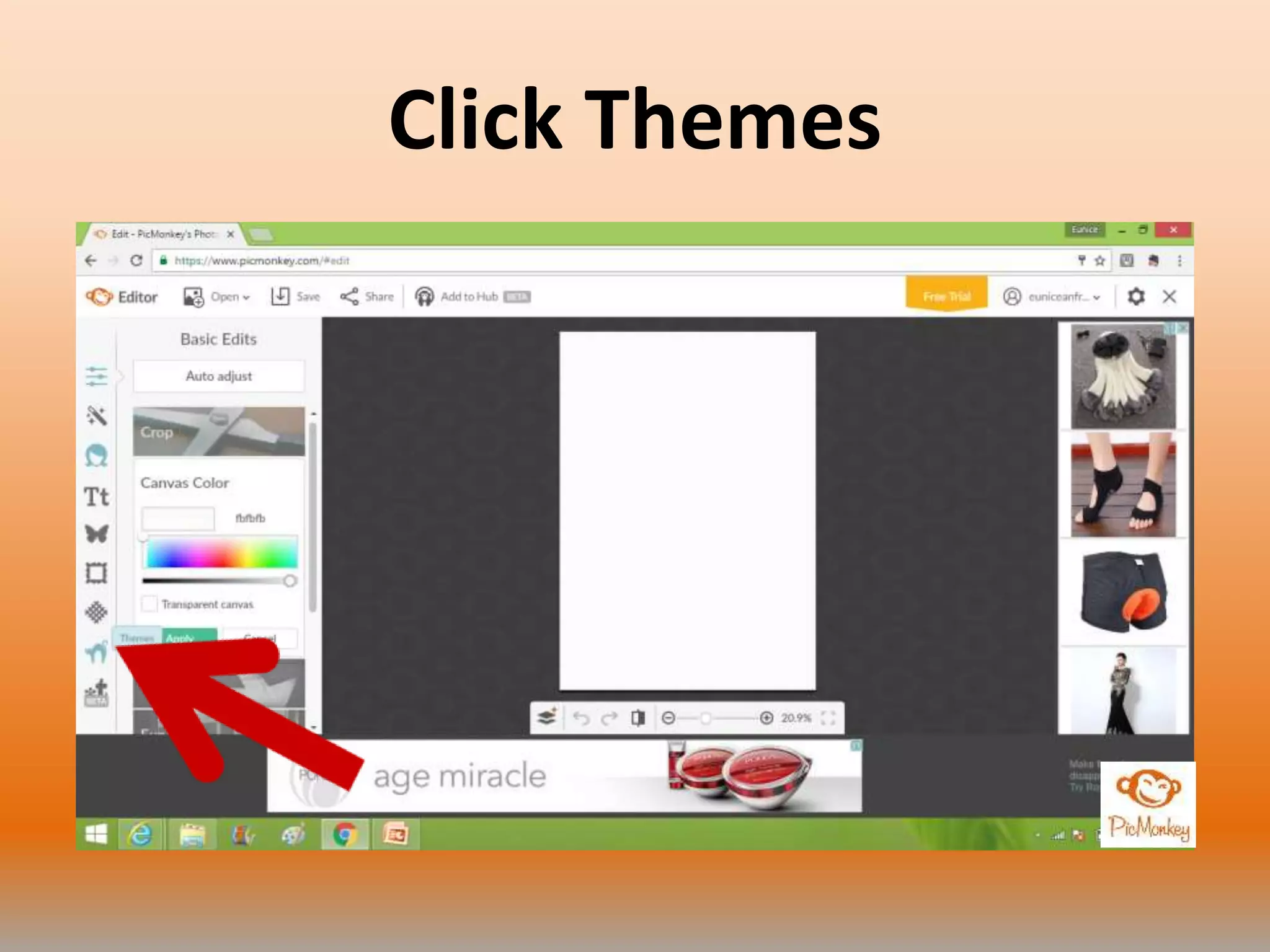
Click Themes
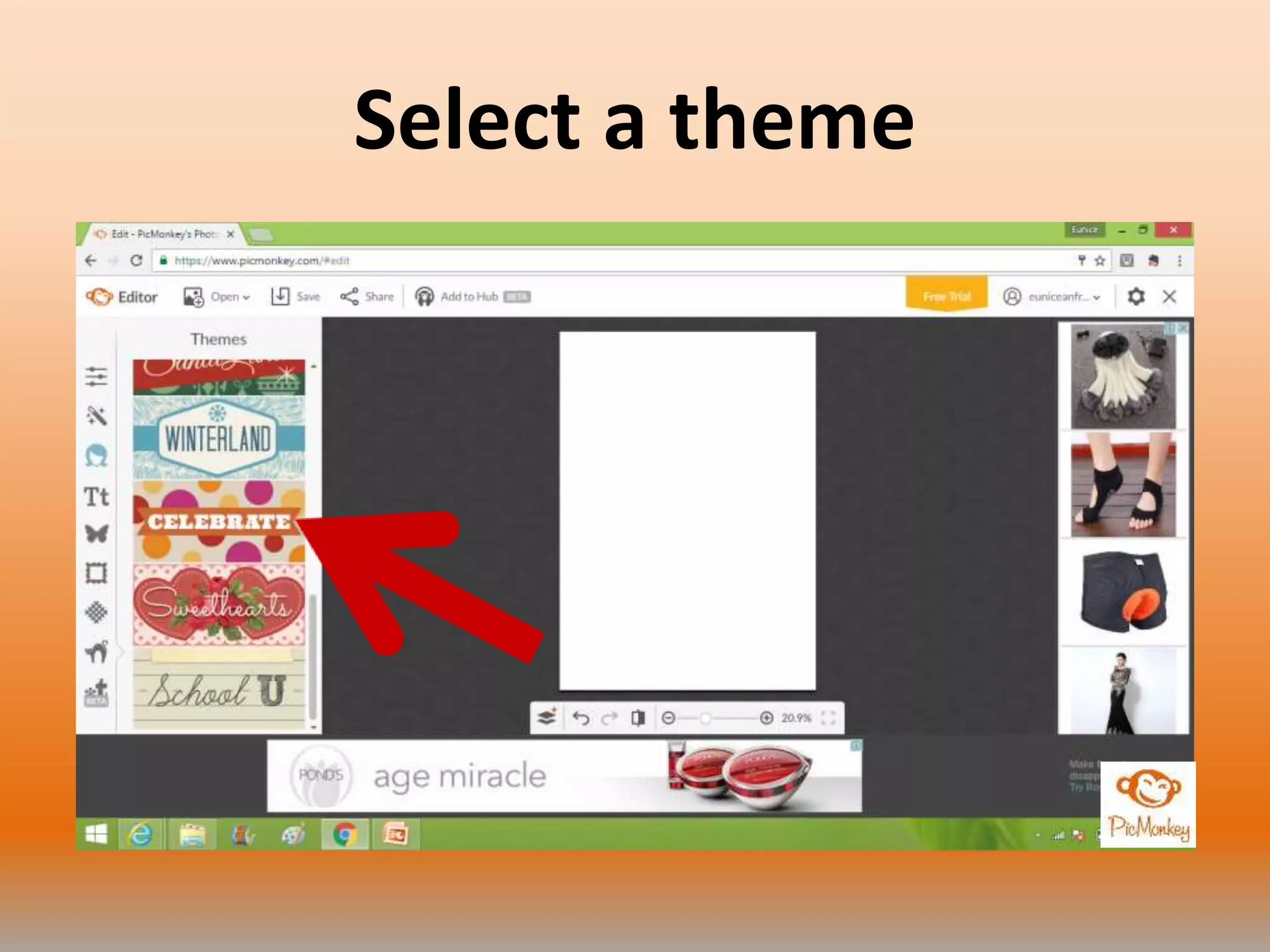
Select a theme
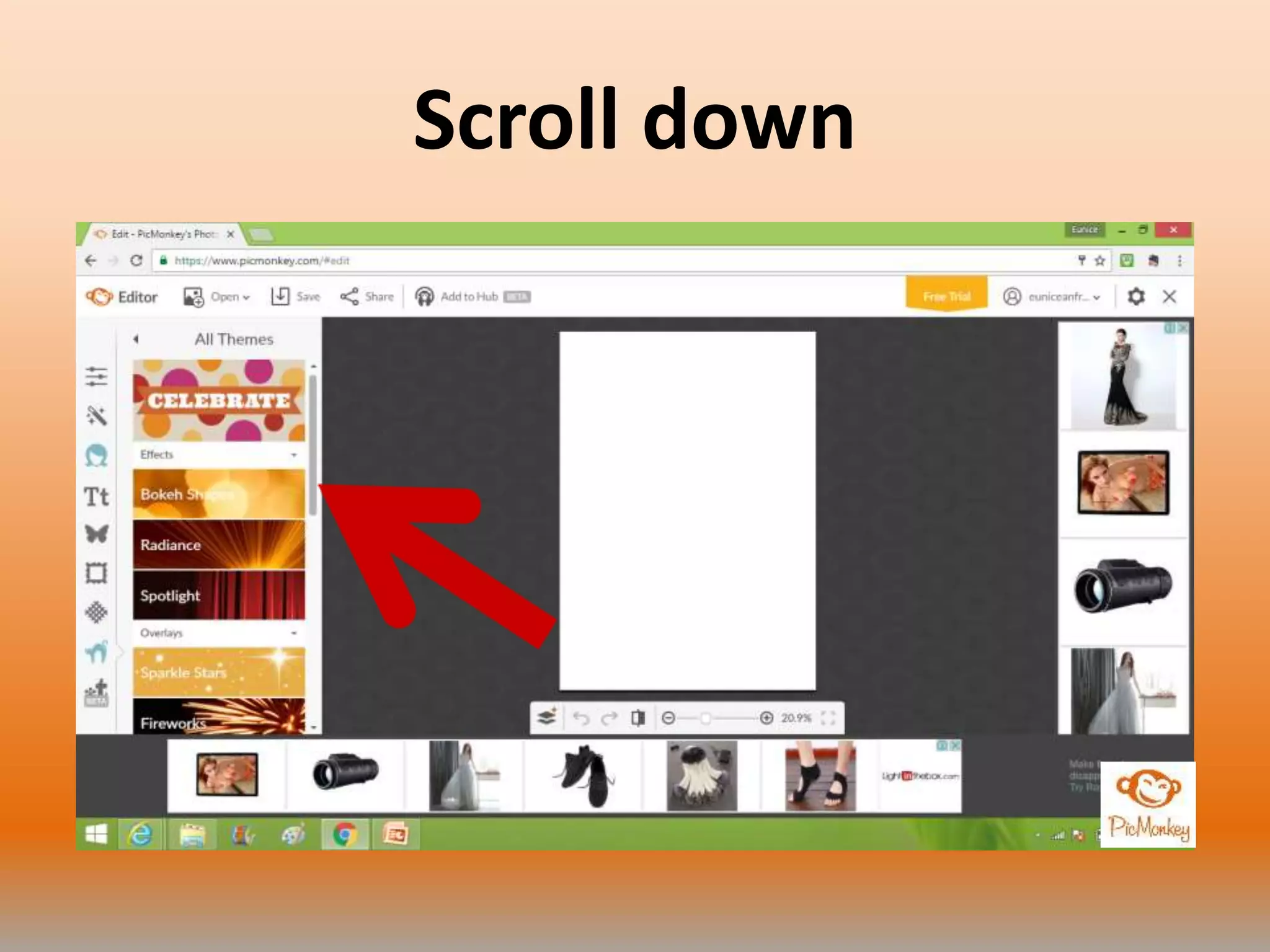
Scroll down
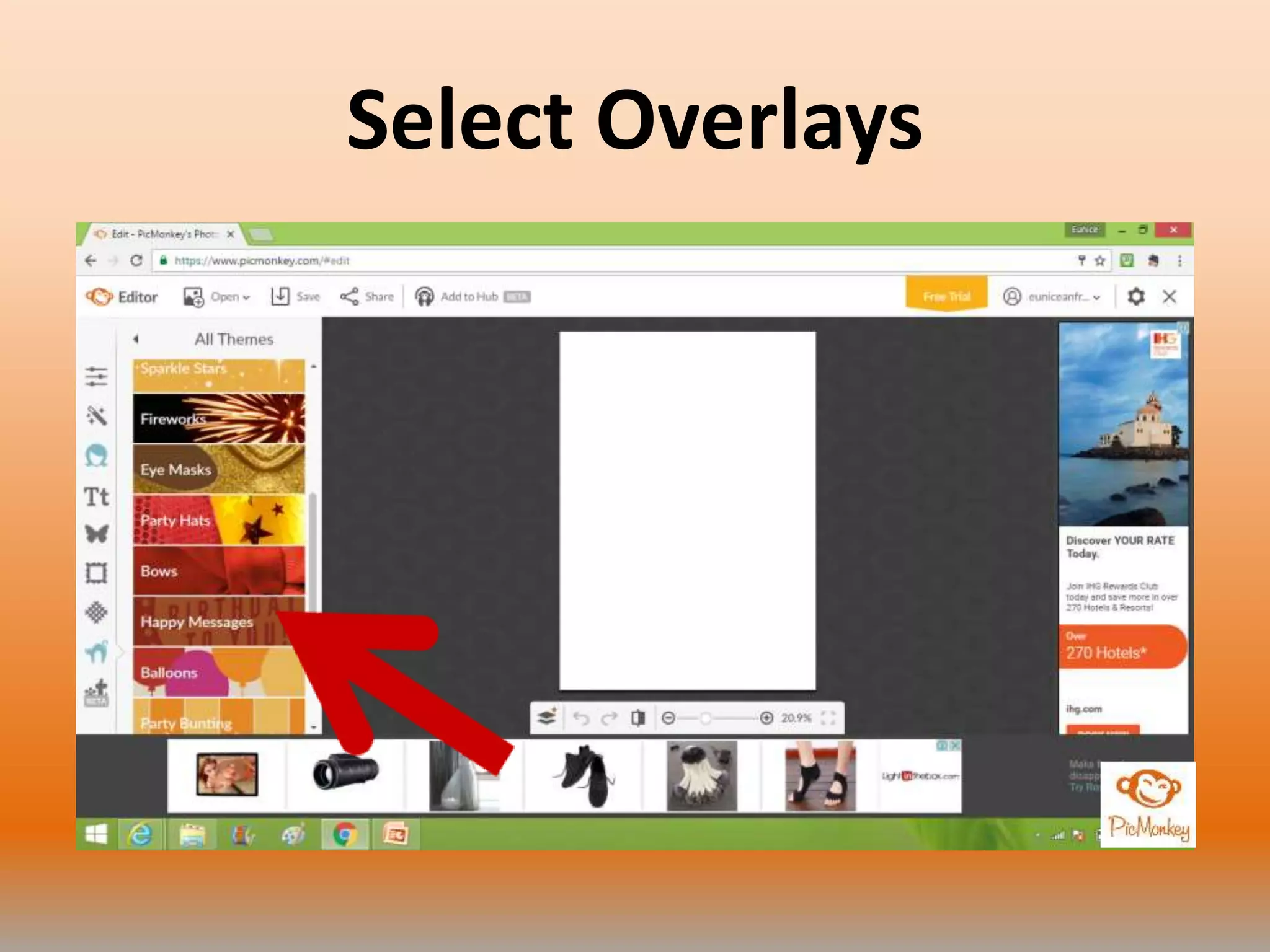
Select Overlays
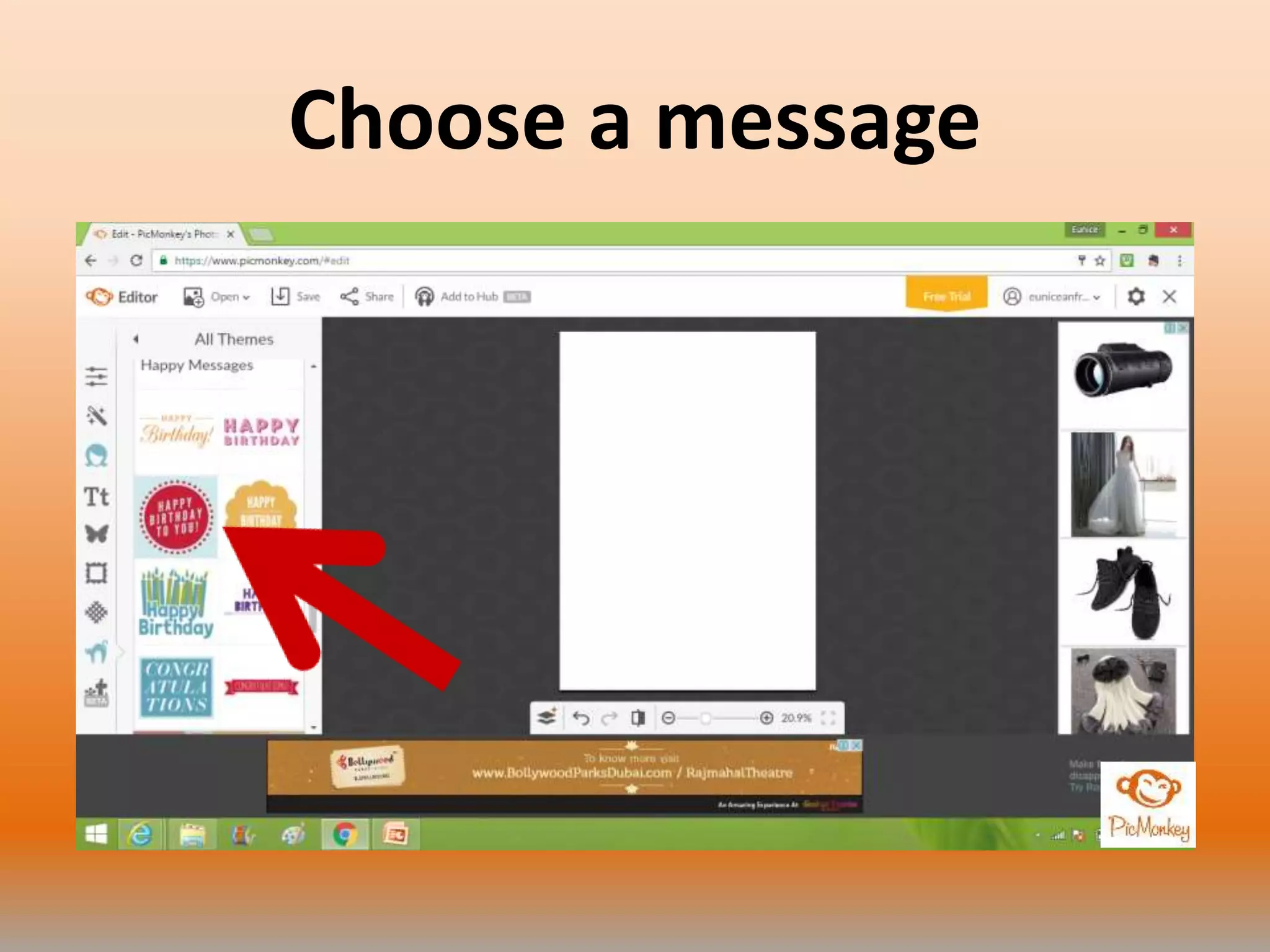
Choose a message
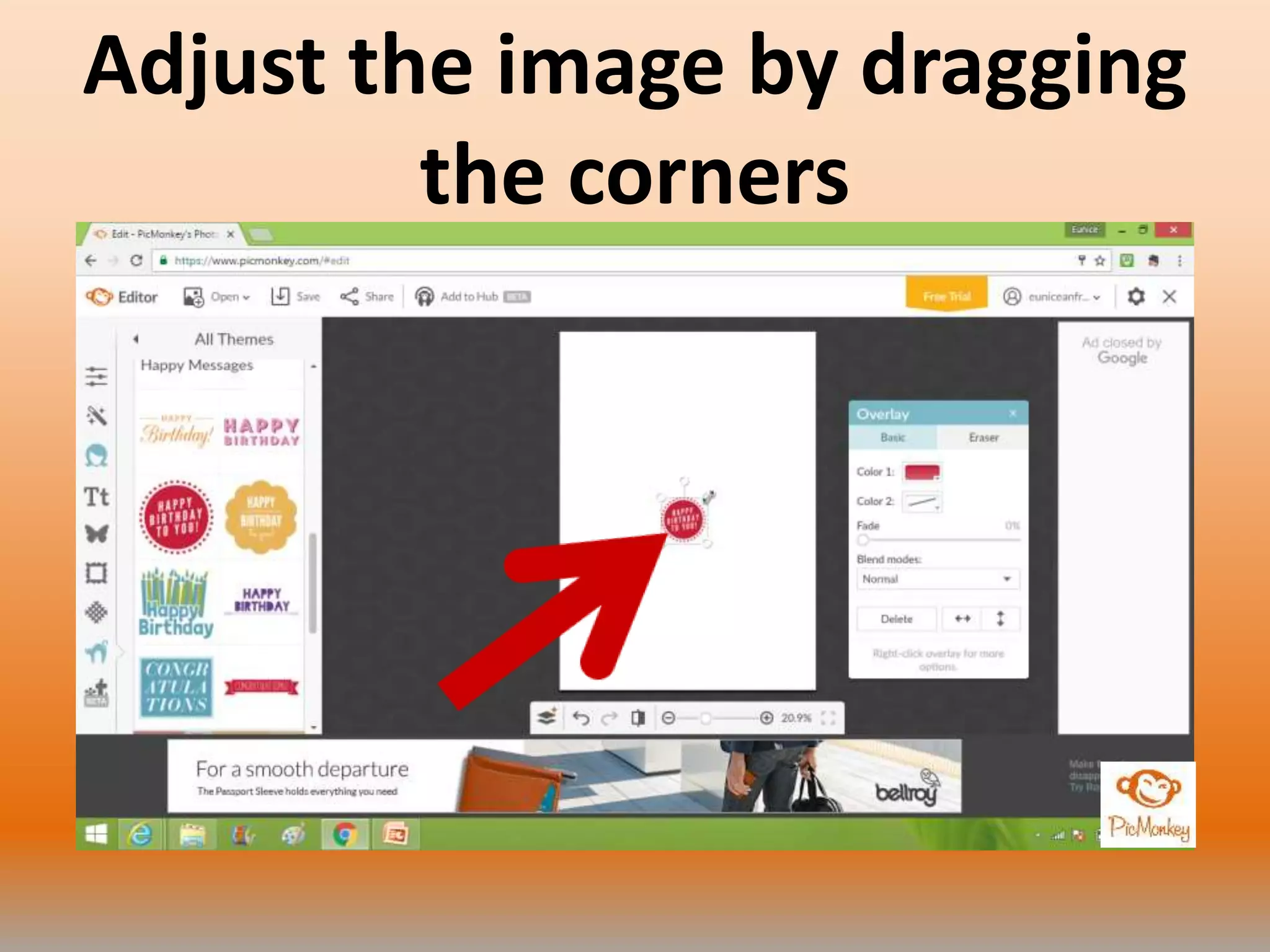
Adjust the image by dragging
the corners
You can also edit by using
this box
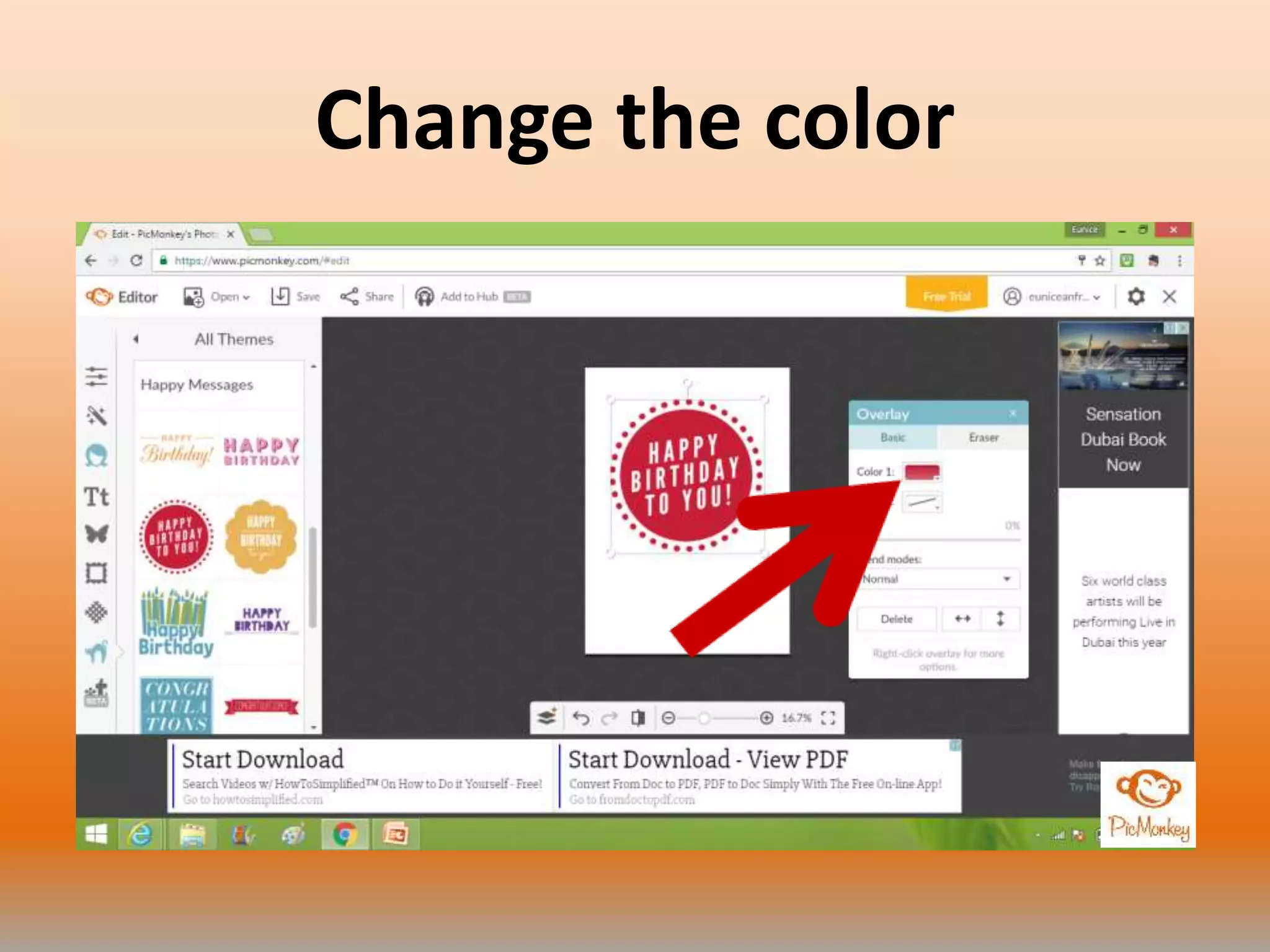
Change the color
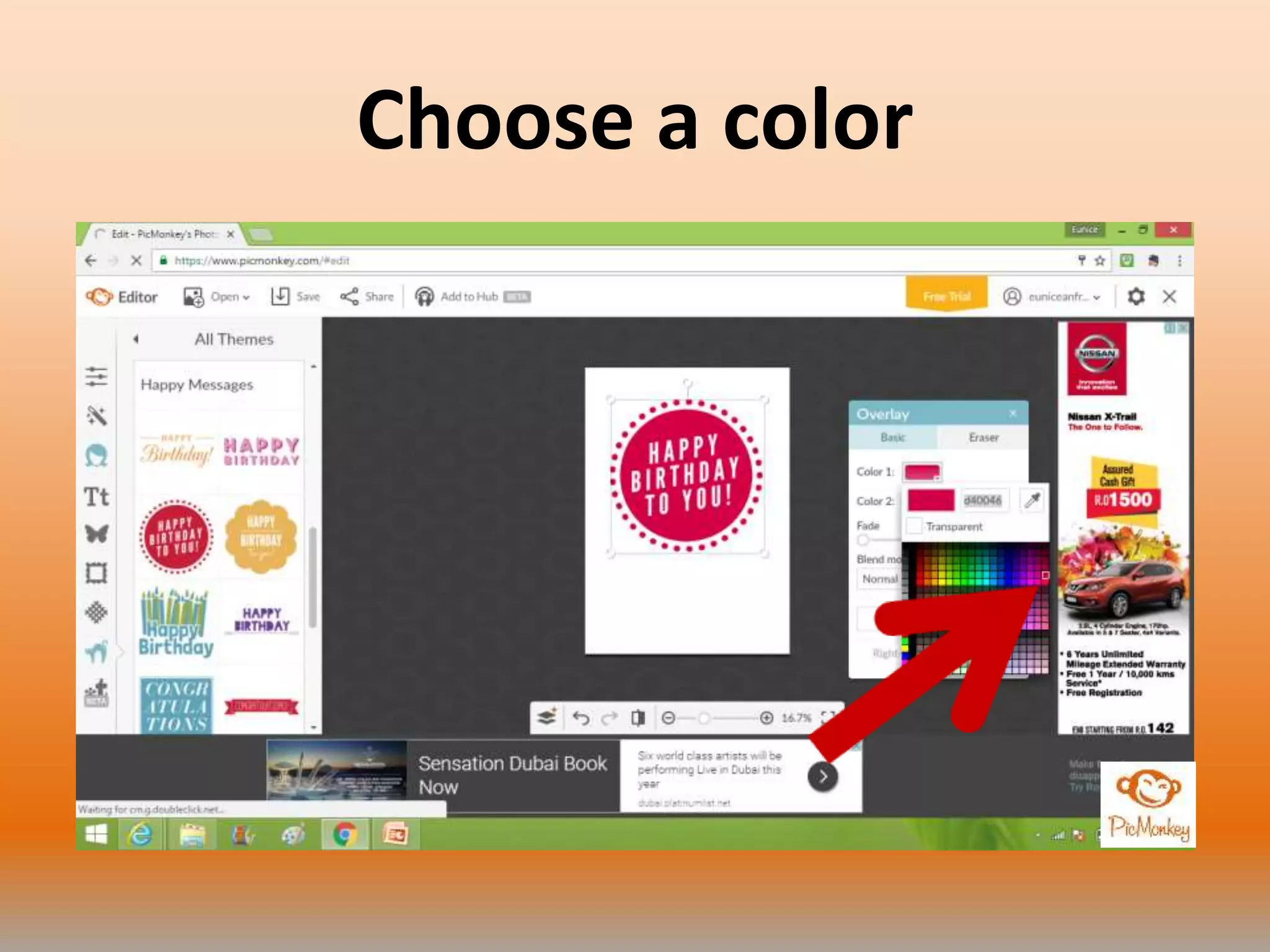
Choose a color
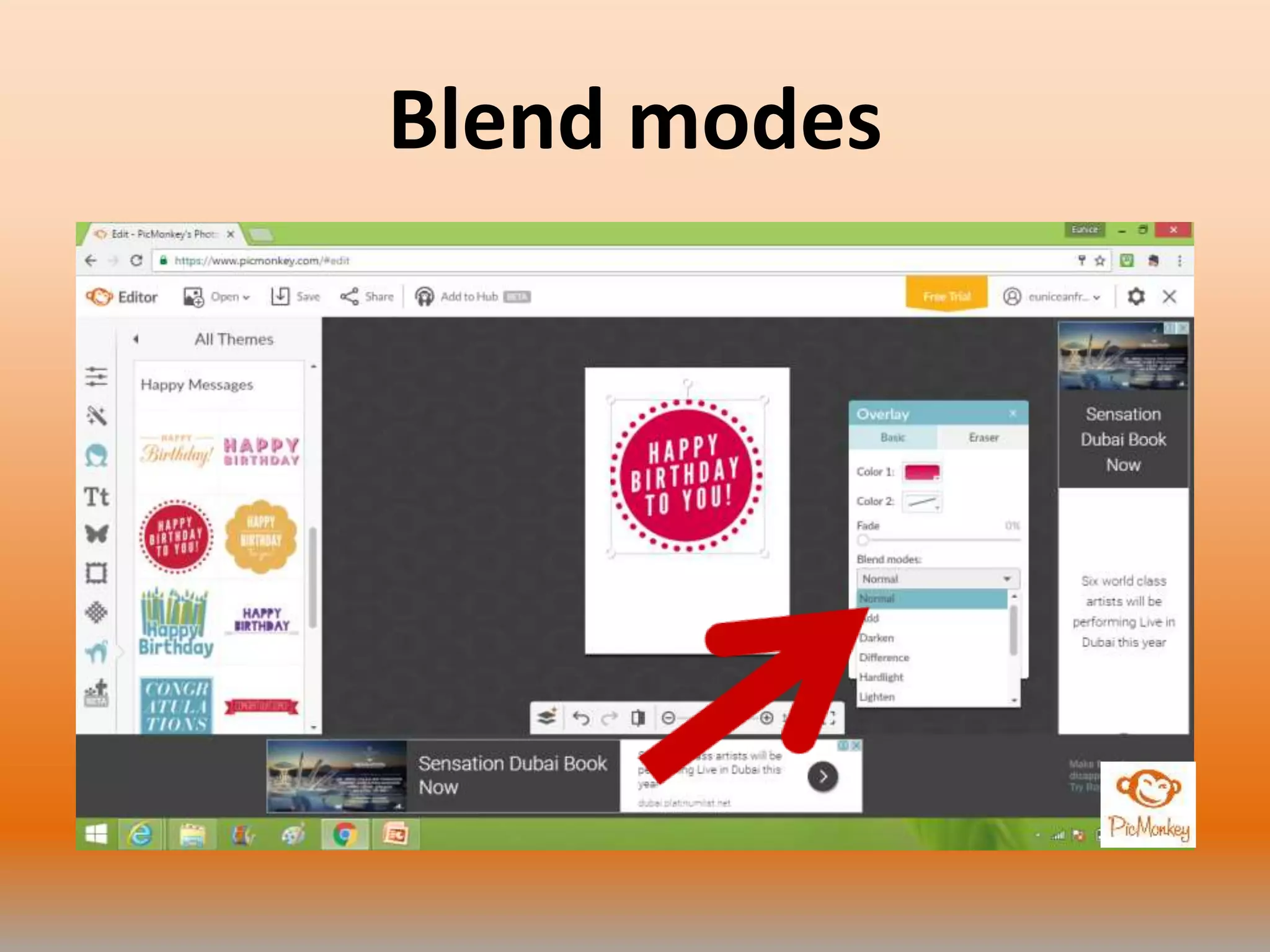
Blend modes
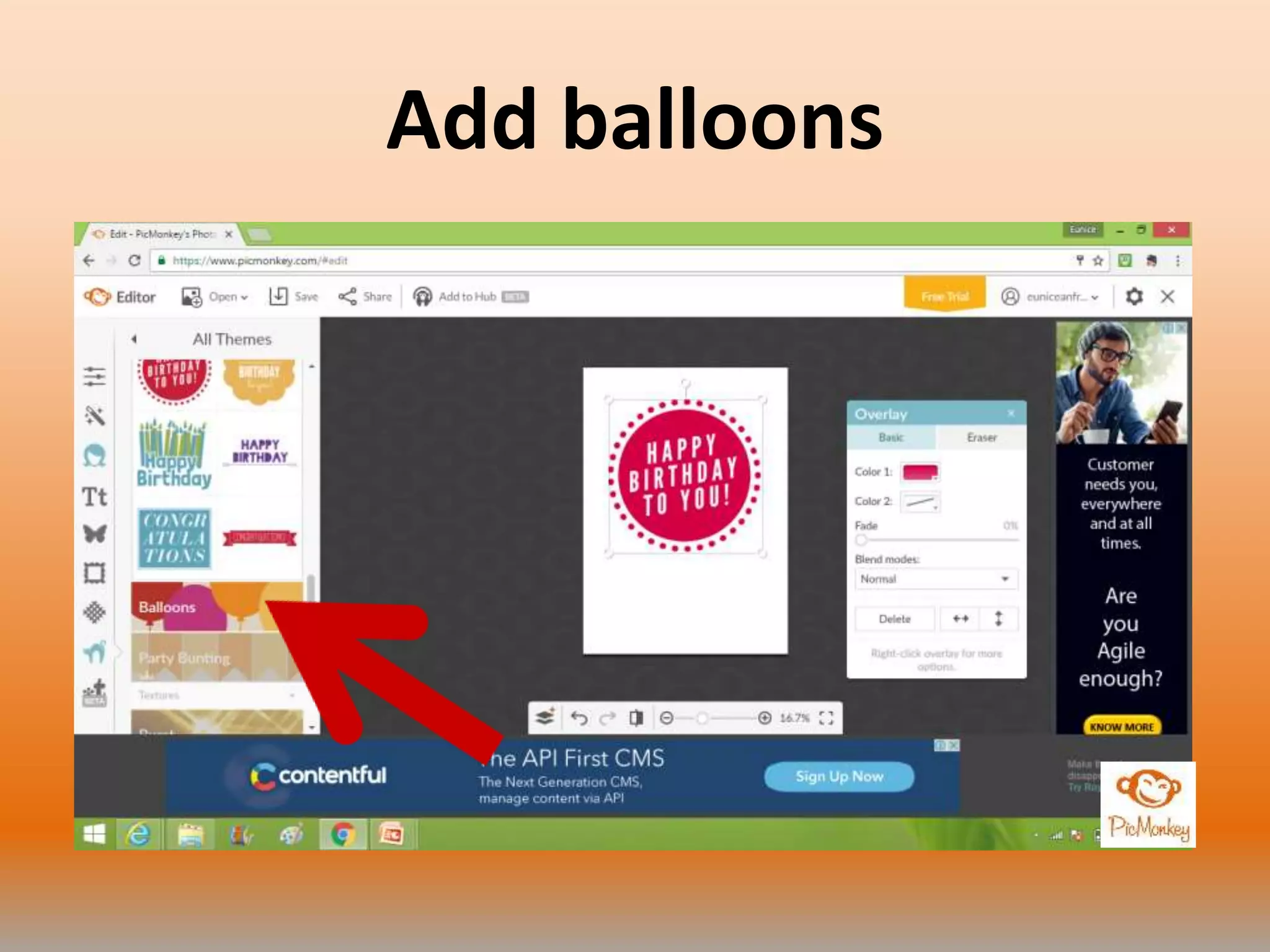
Add balloons
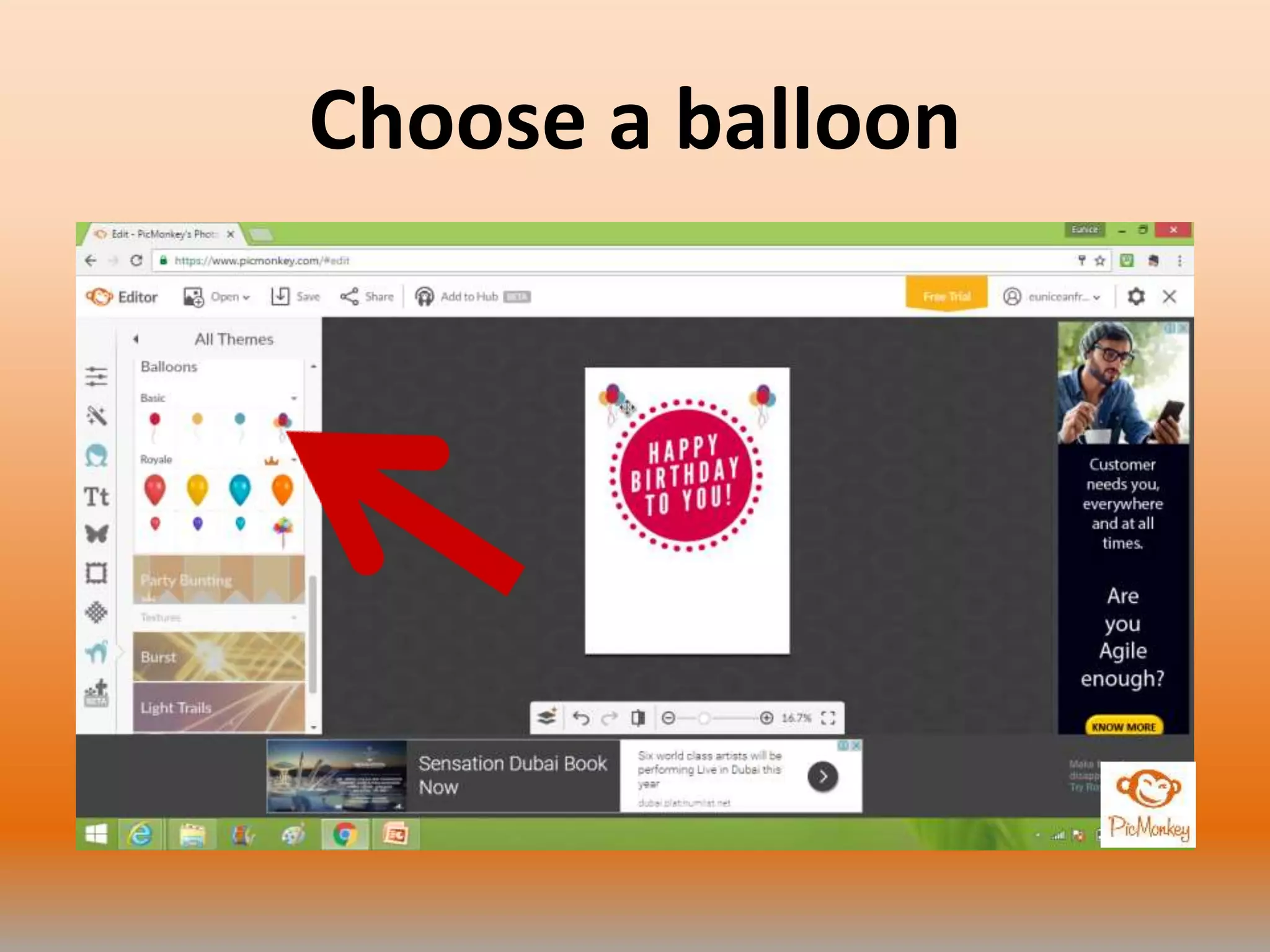
Choose a balloon
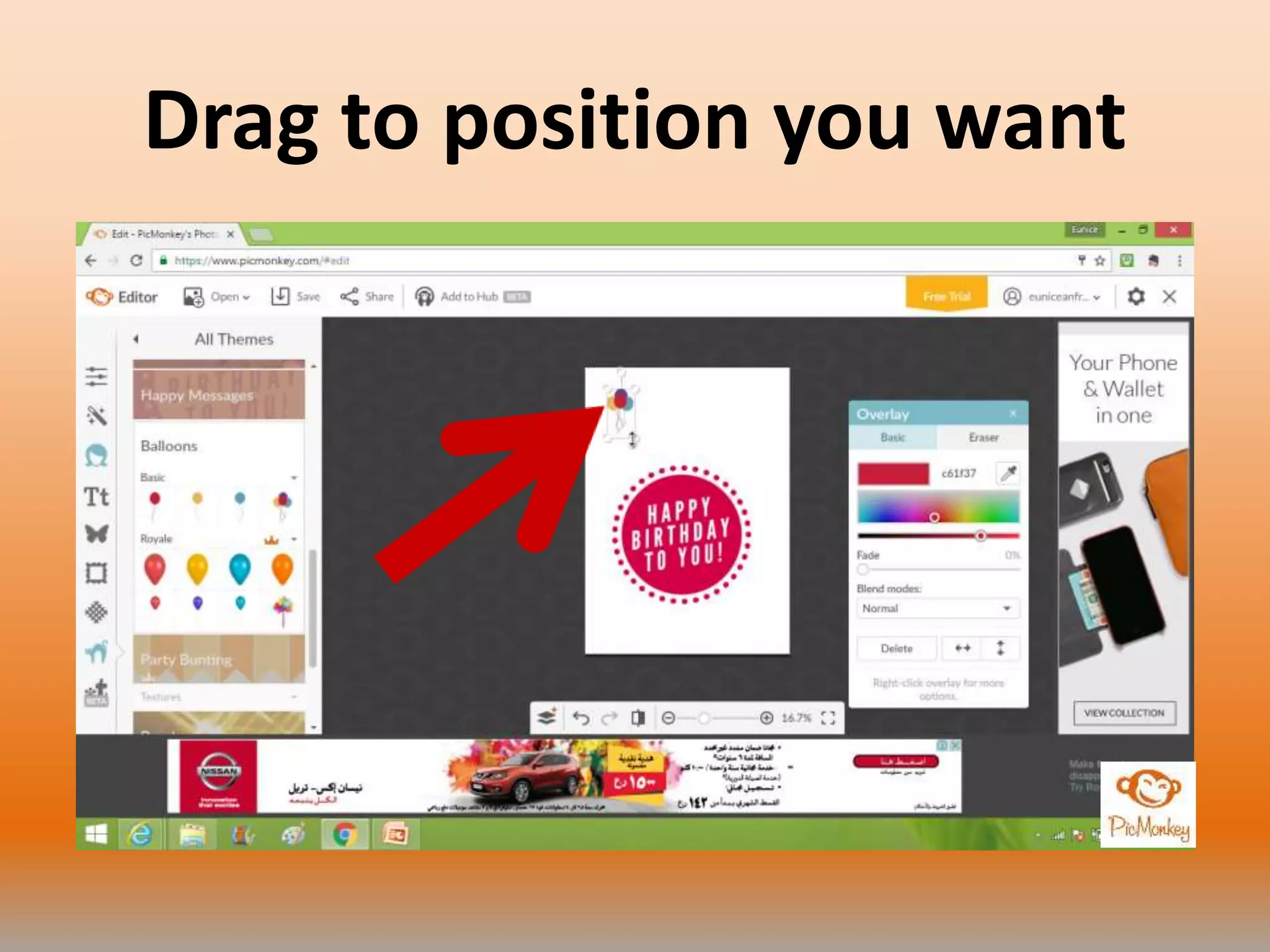
Drag to position you want
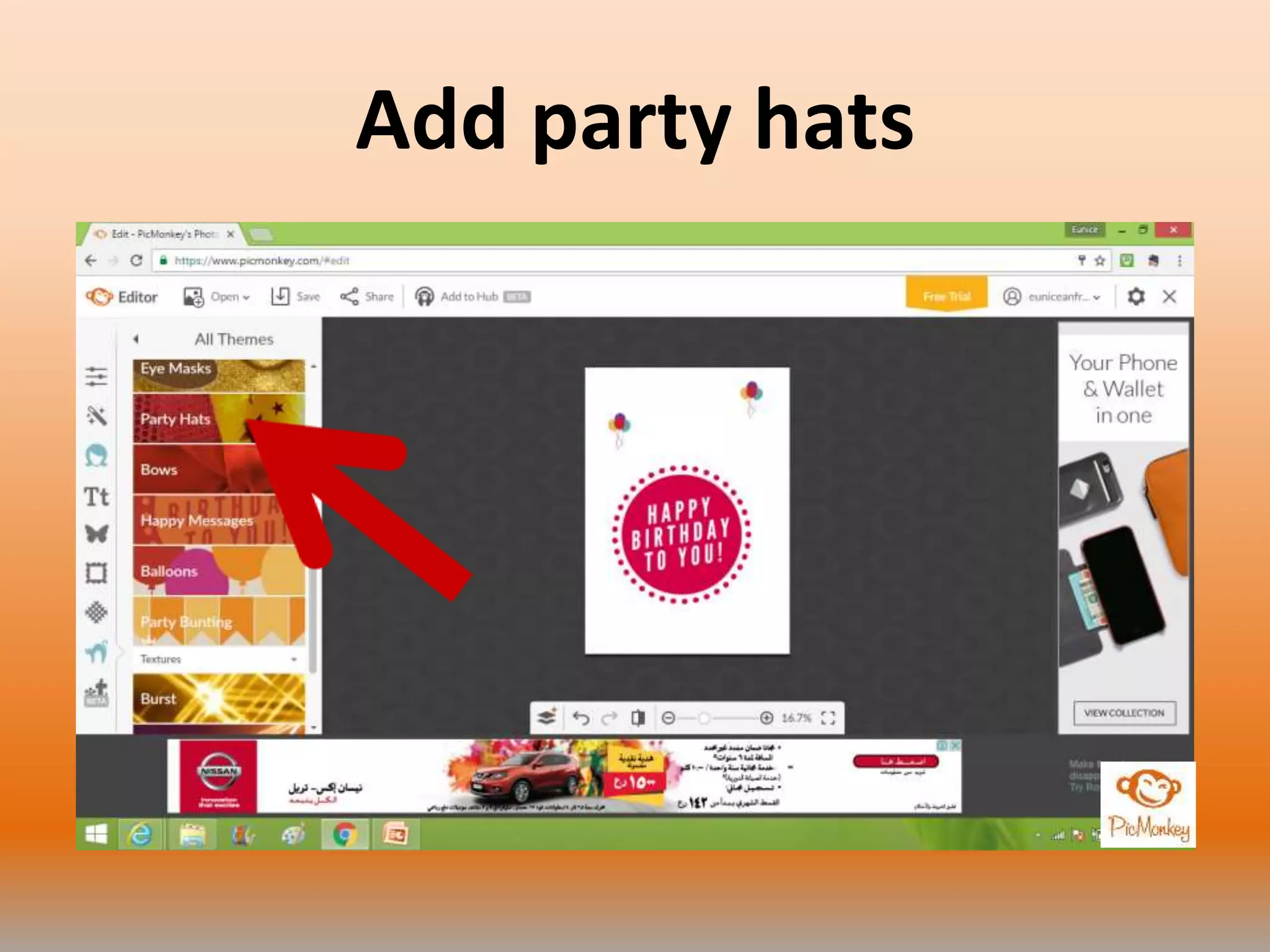
Add party hats
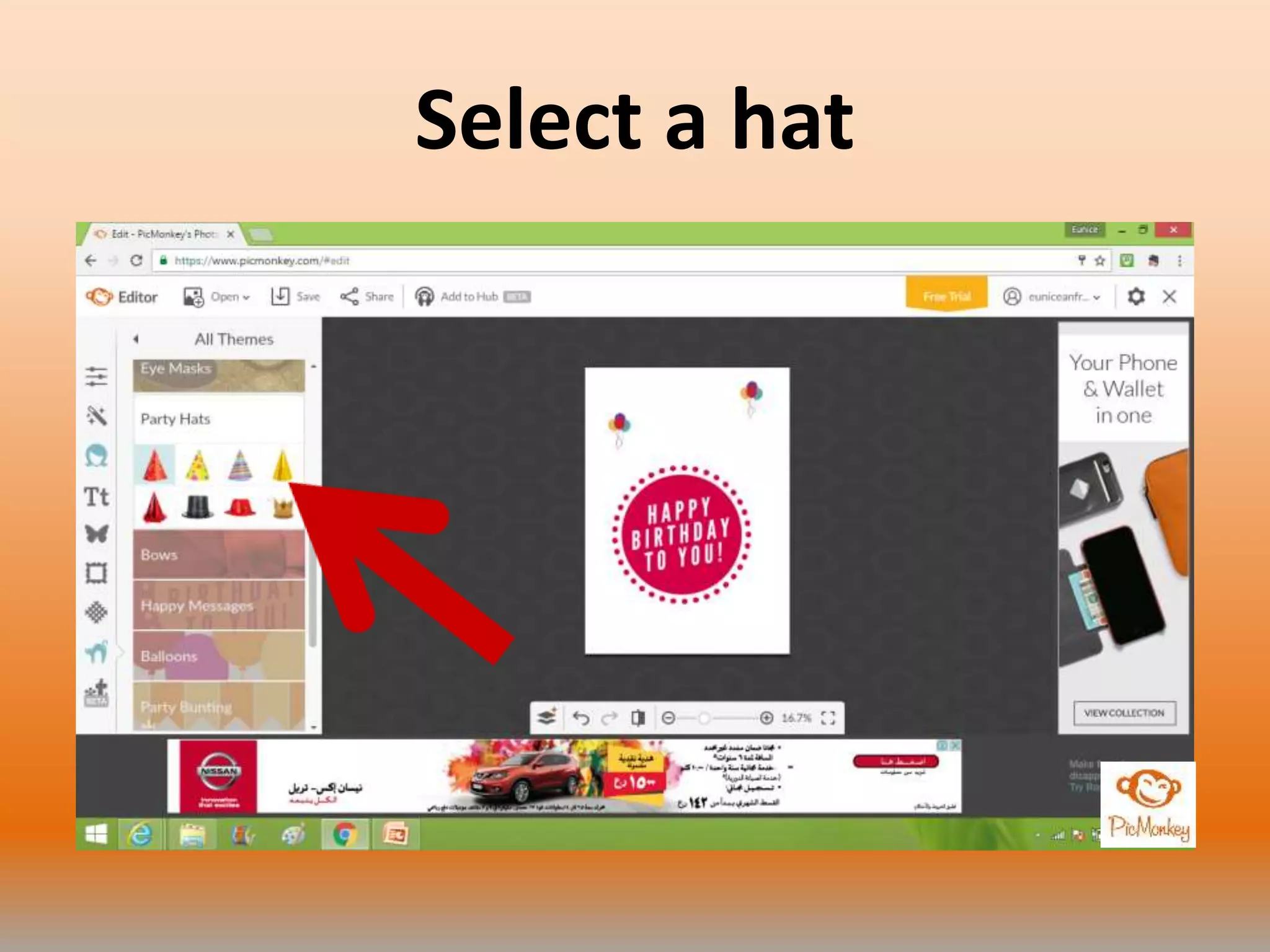
Select a hat
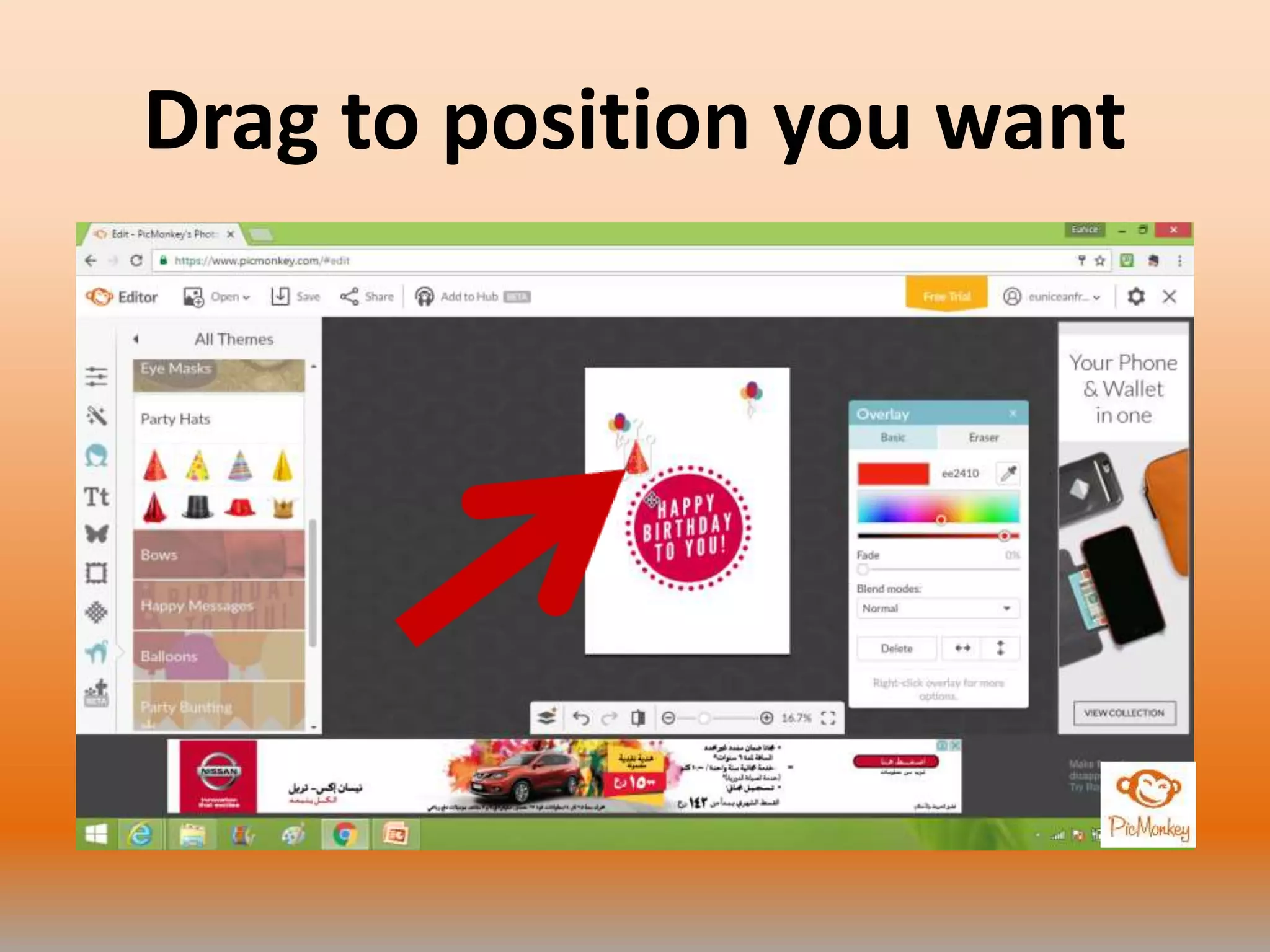
Drag to position you want
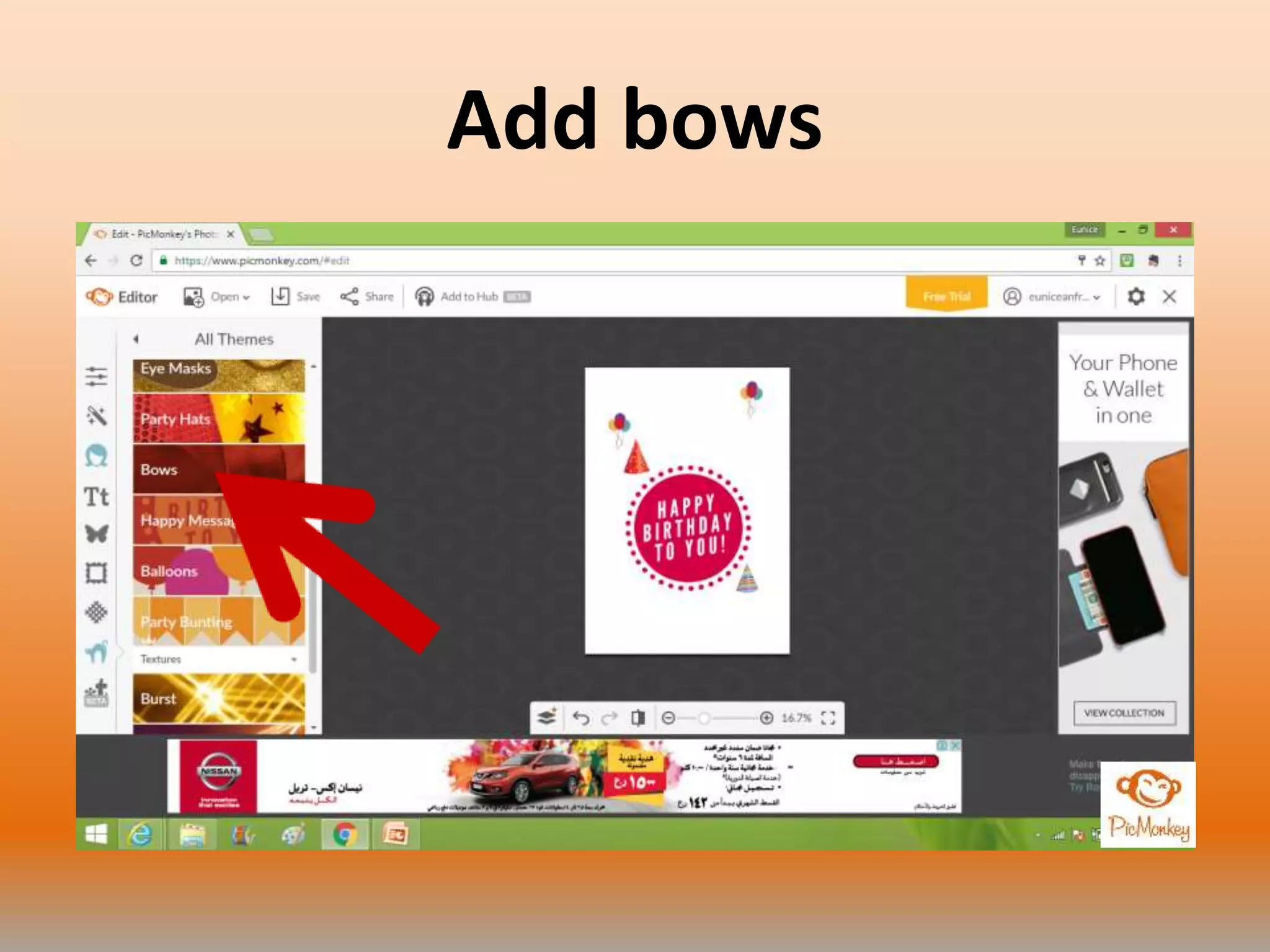
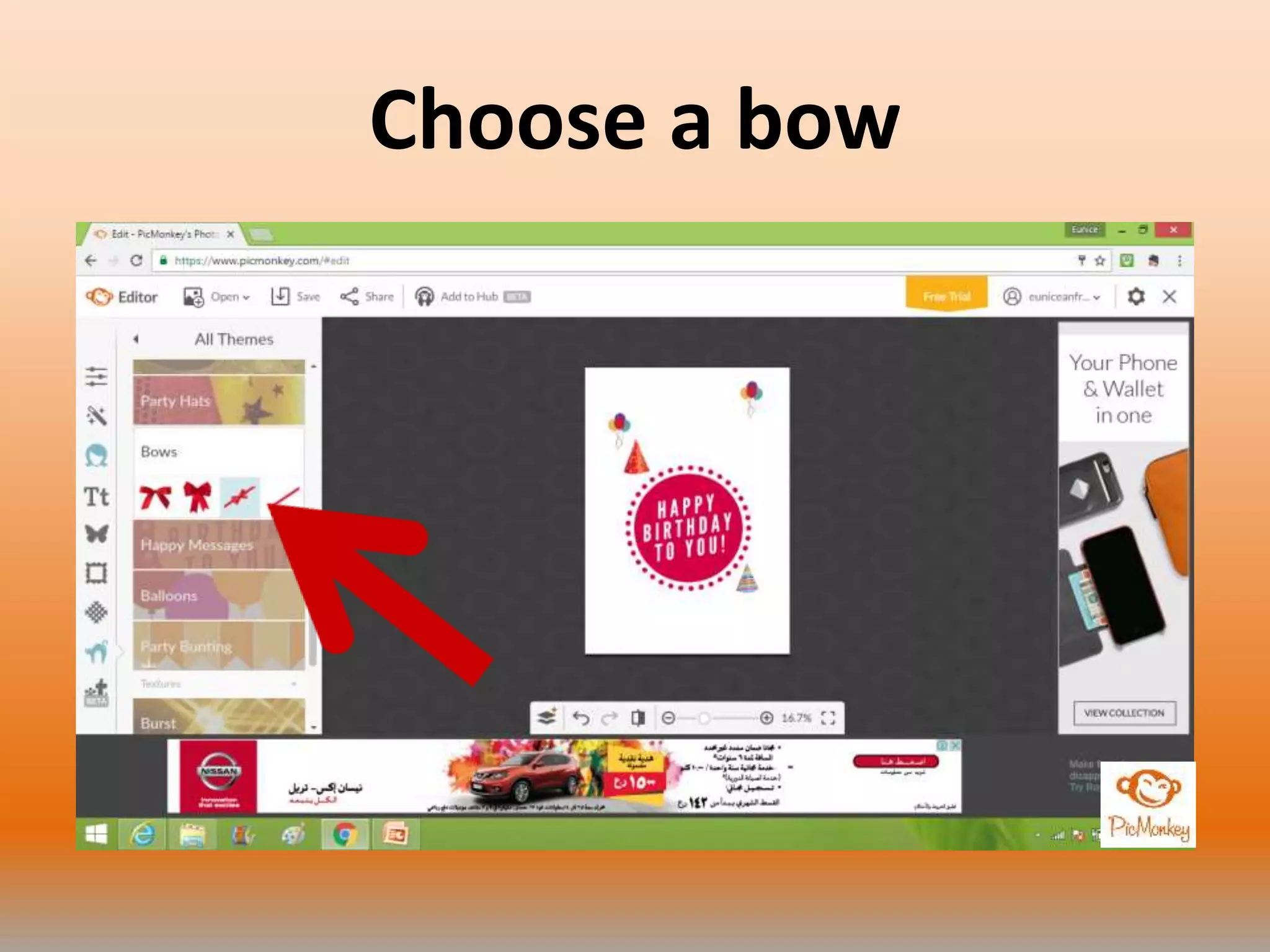
Add bows
Choose a bow
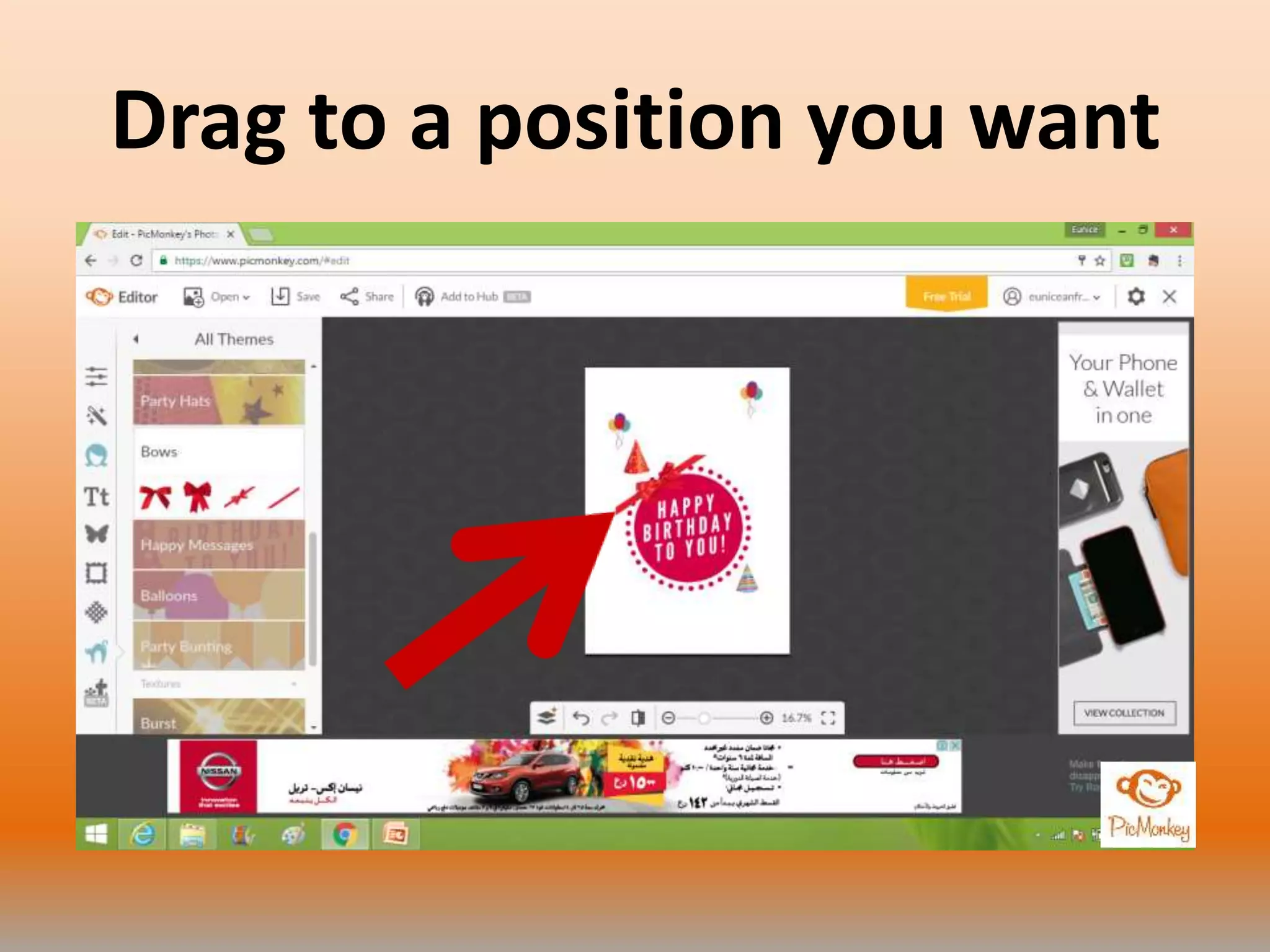
Drag to a position you want
To add a texture
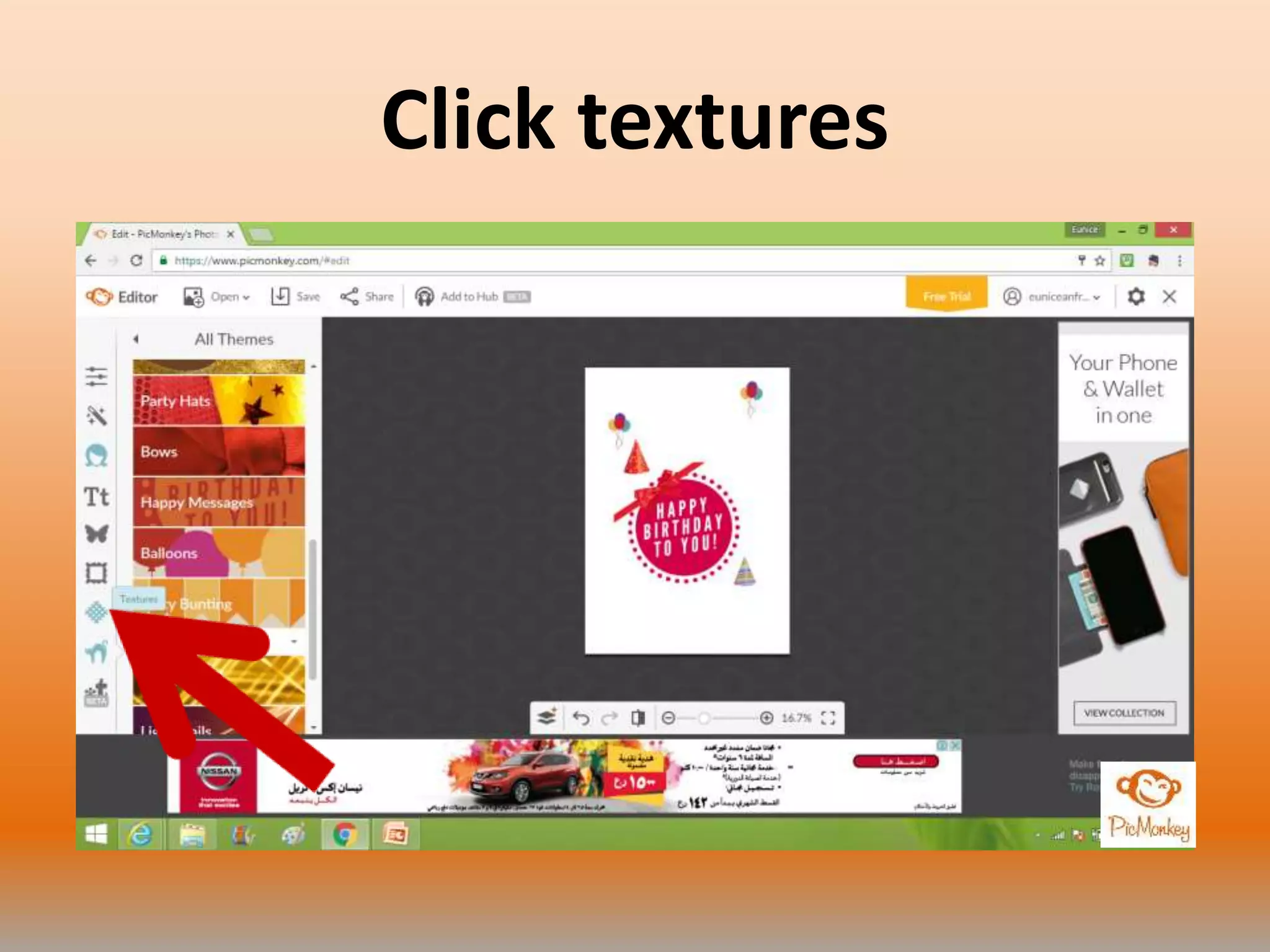
Click textures
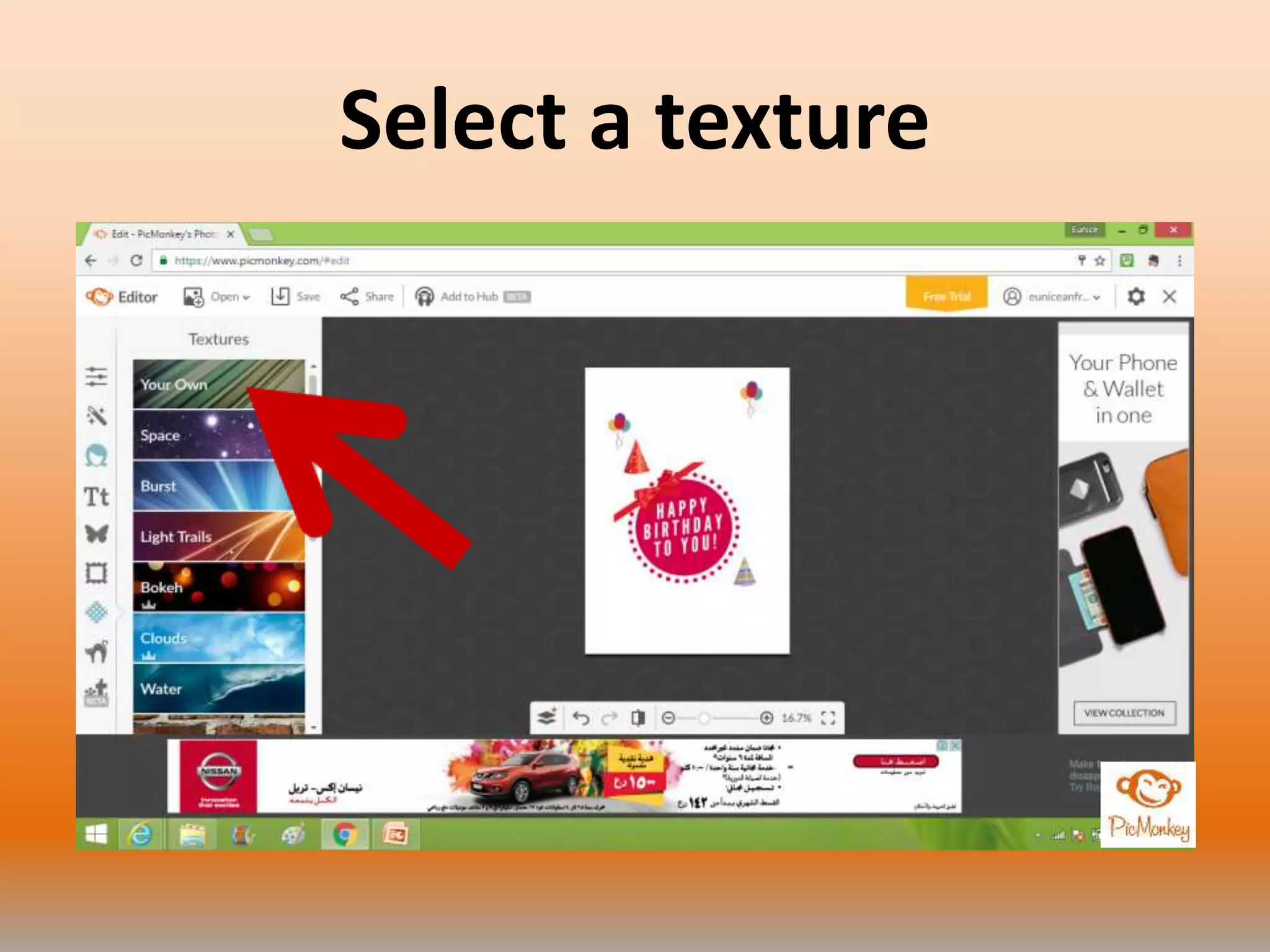
Select a texture
You can put your own
photo as a texture
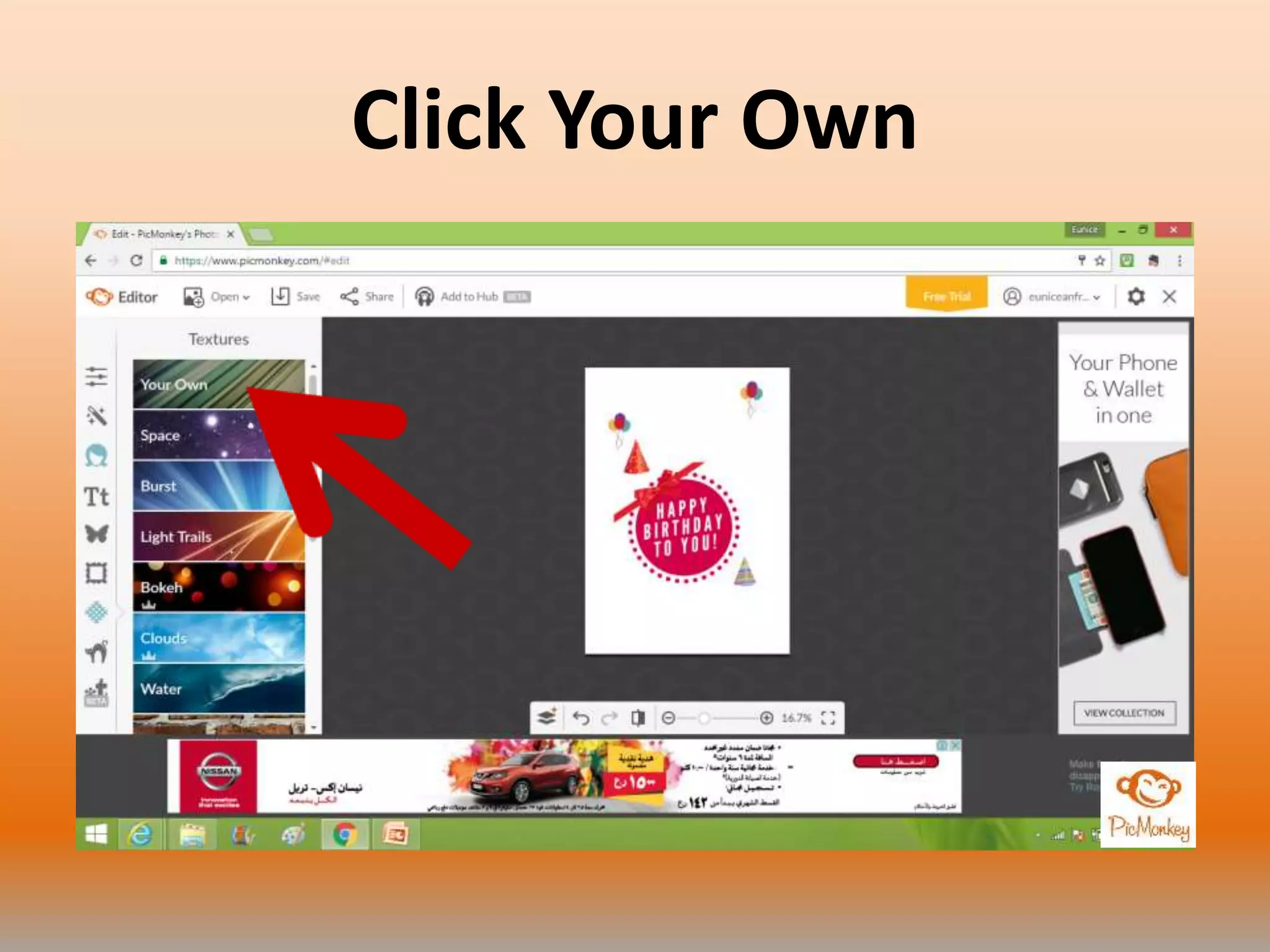
Click Your Own
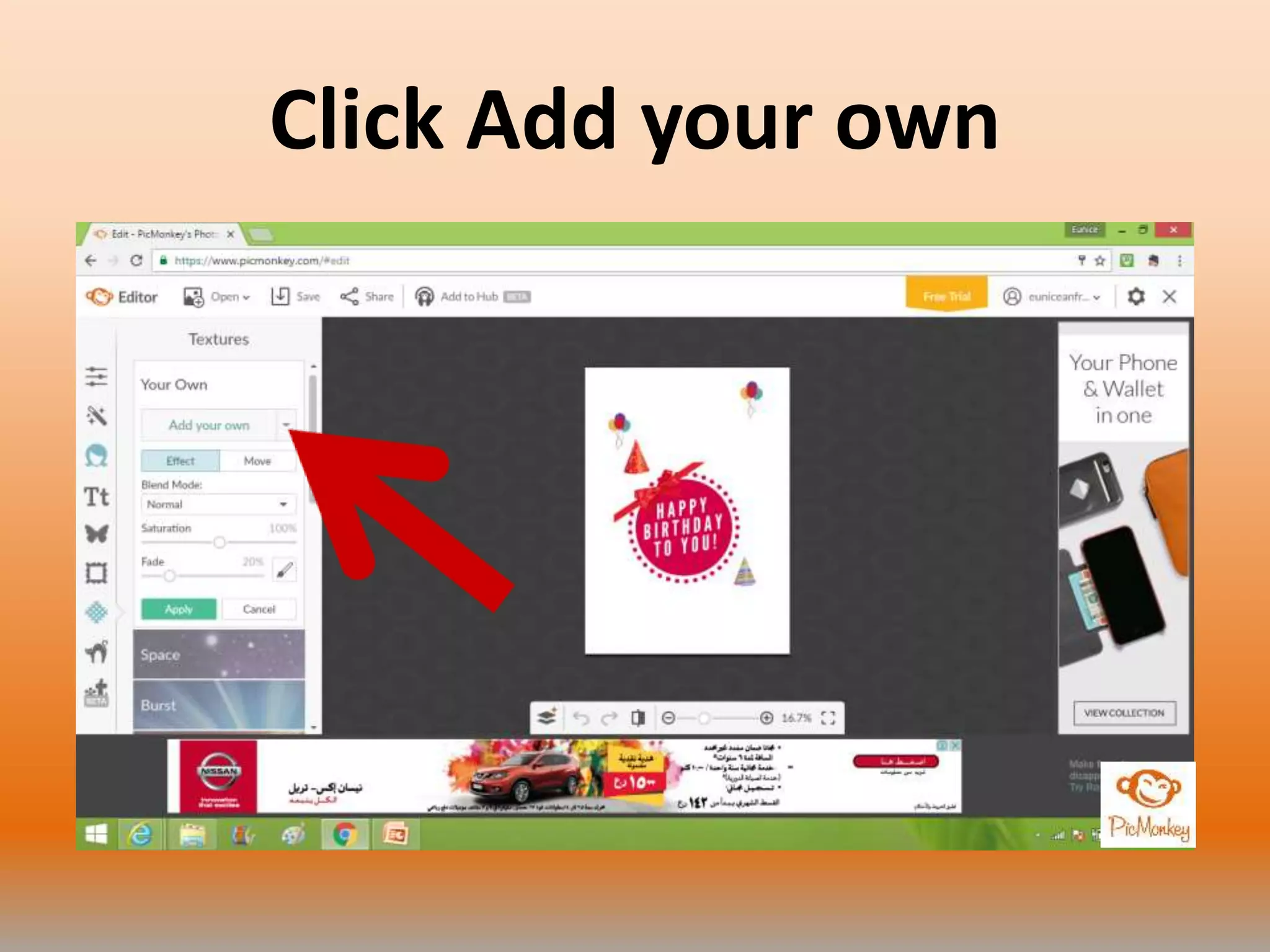
Click Add your own
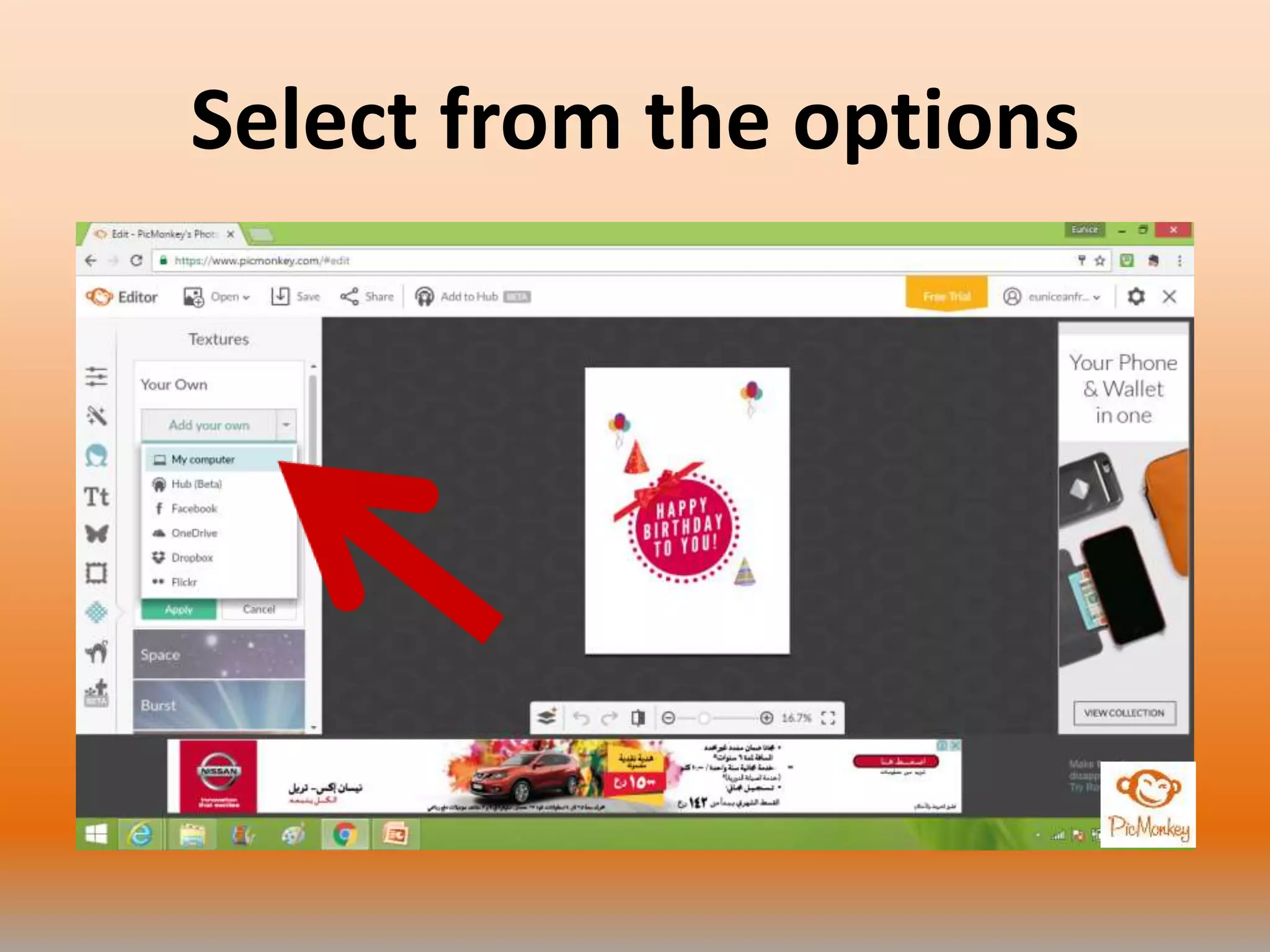
Select from the options
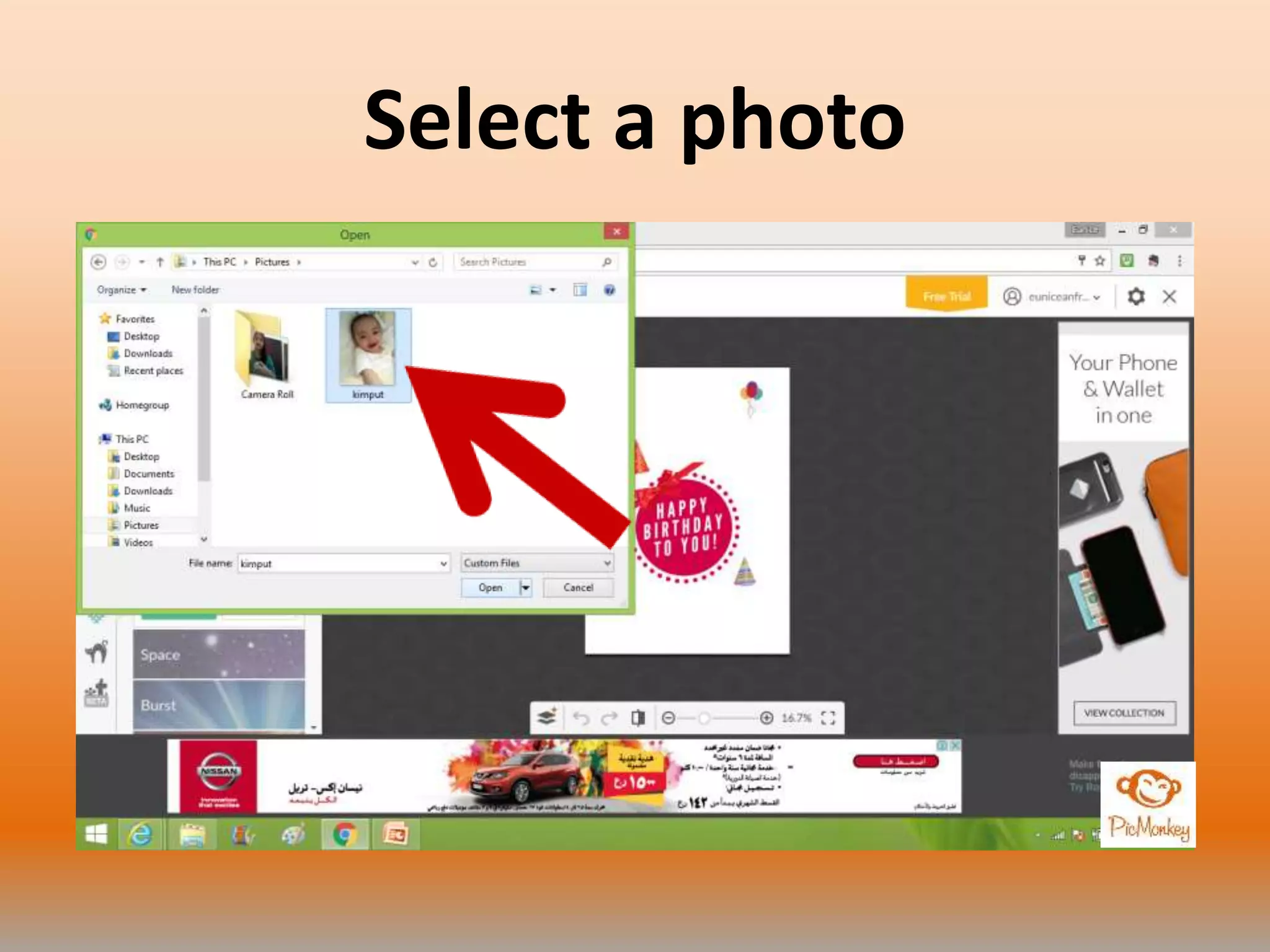
Select a photo
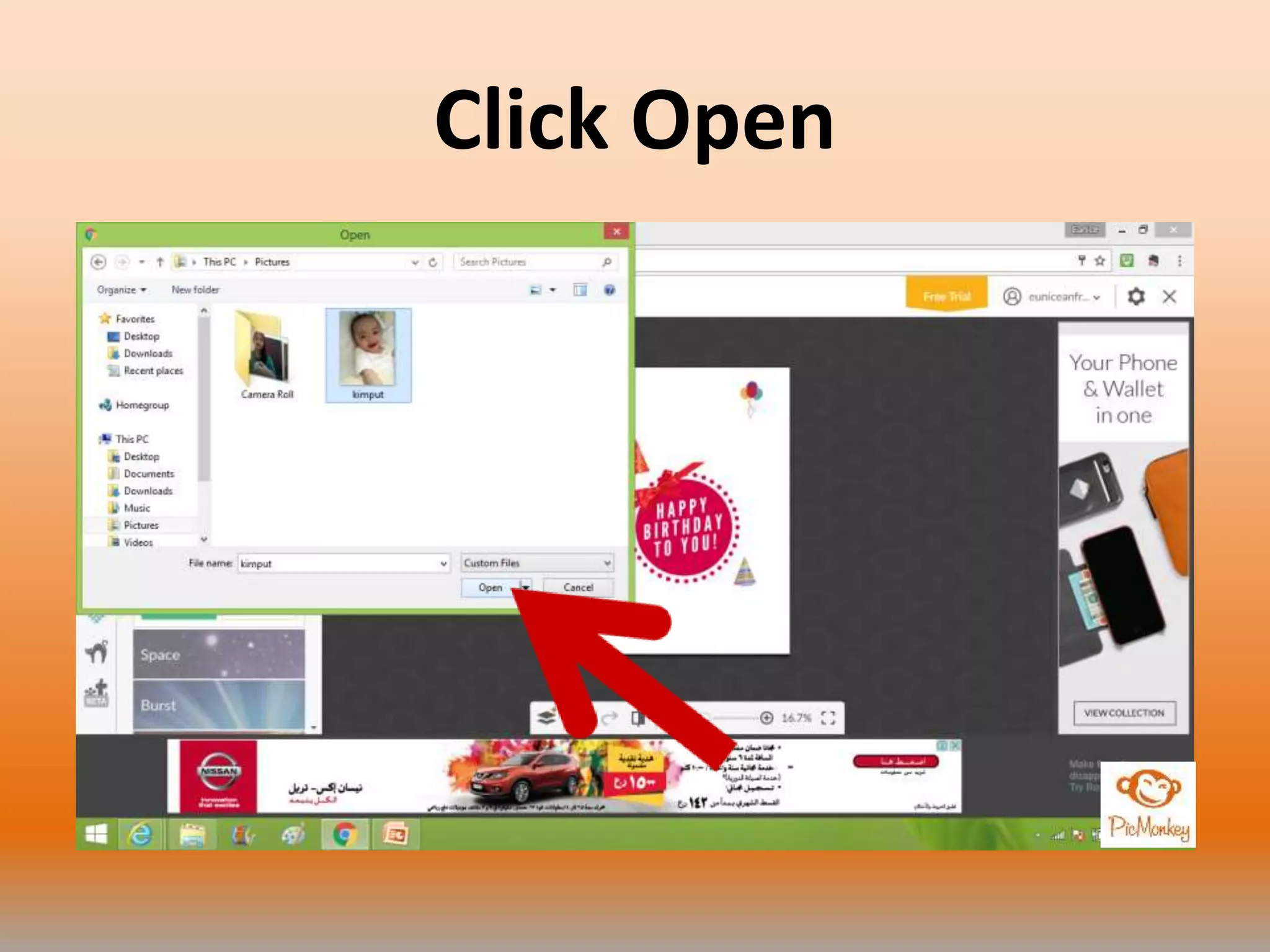
Click Open
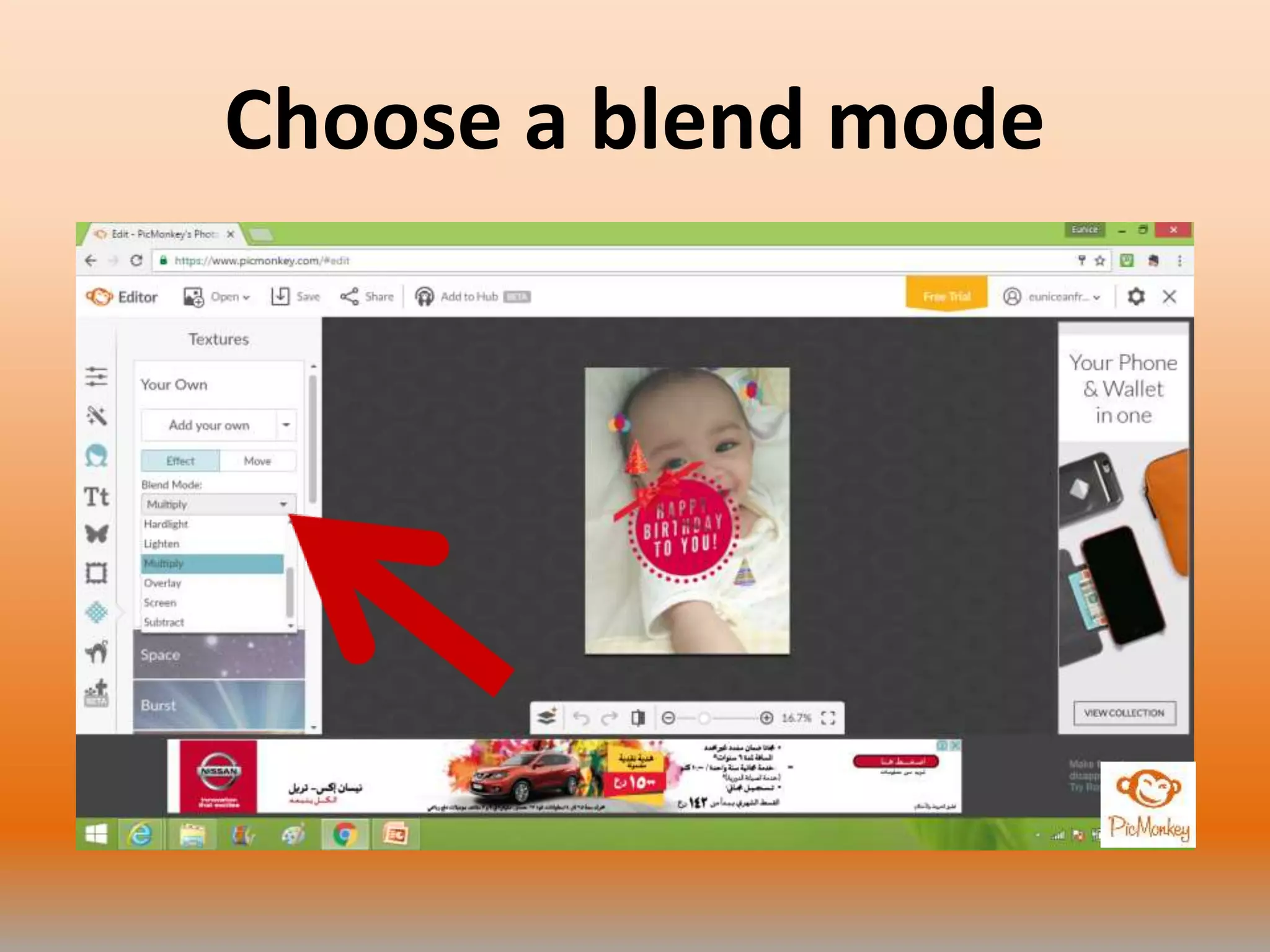
Choose a blend mode
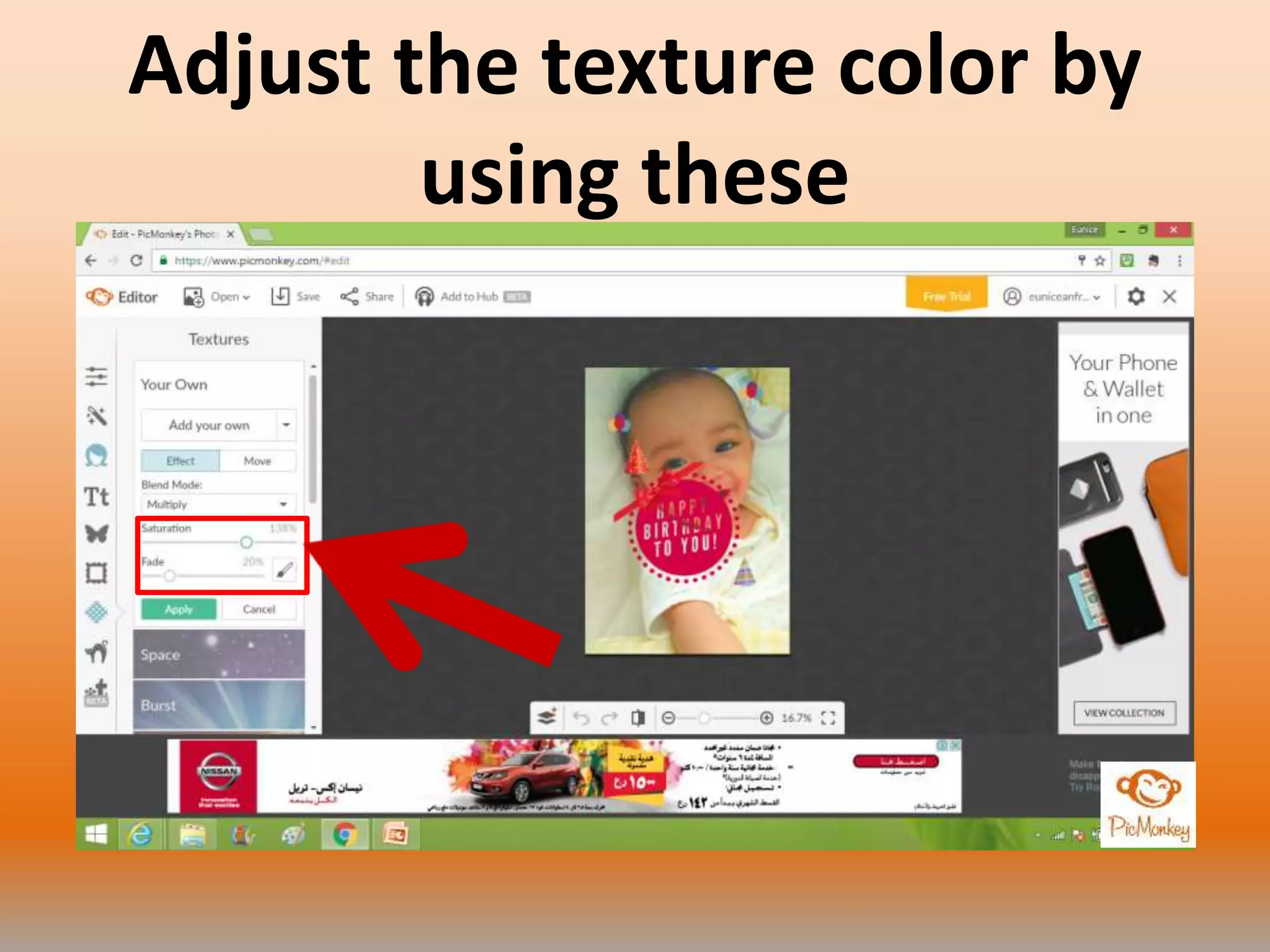
Adjust the texture color by
using these
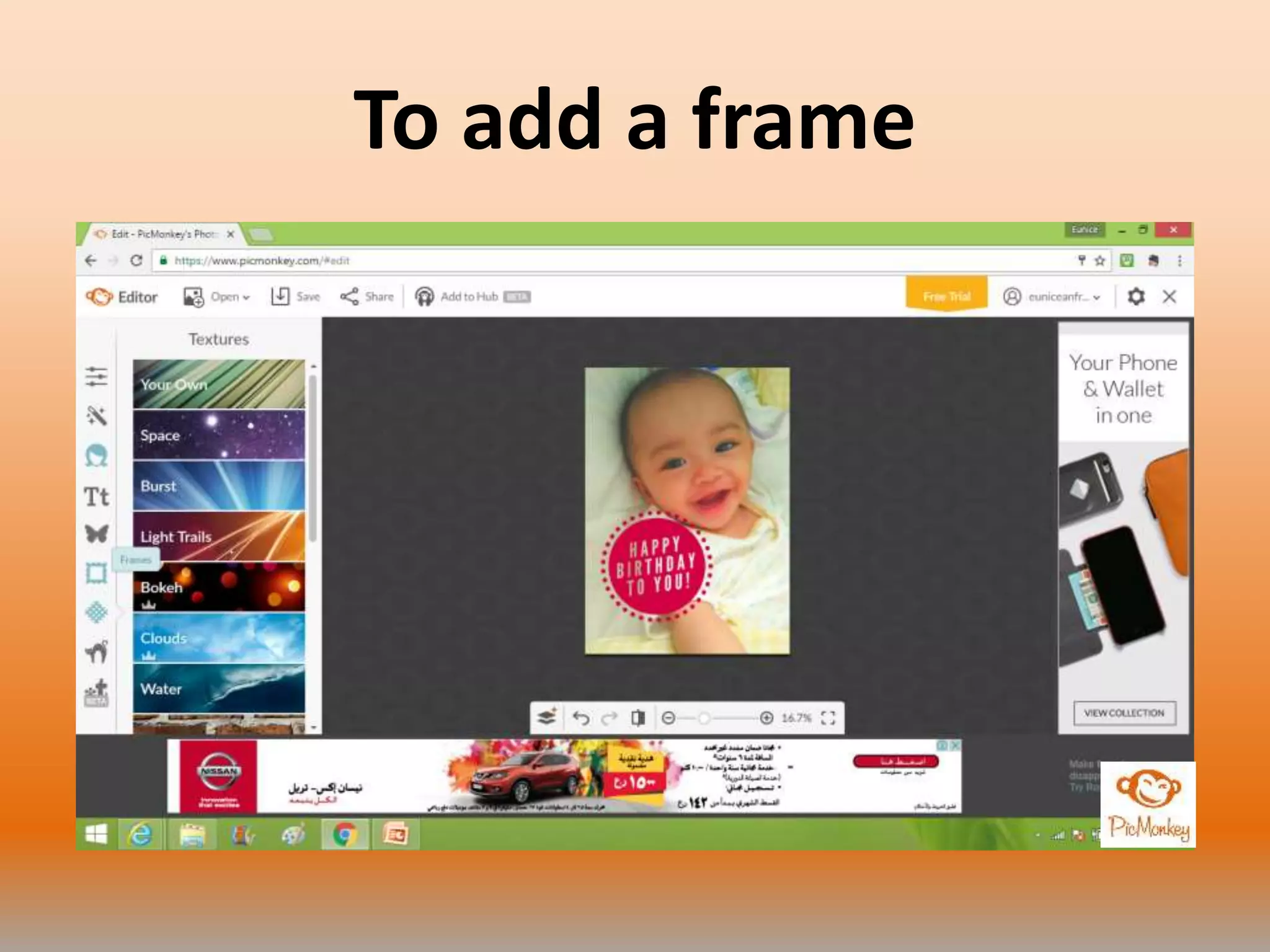
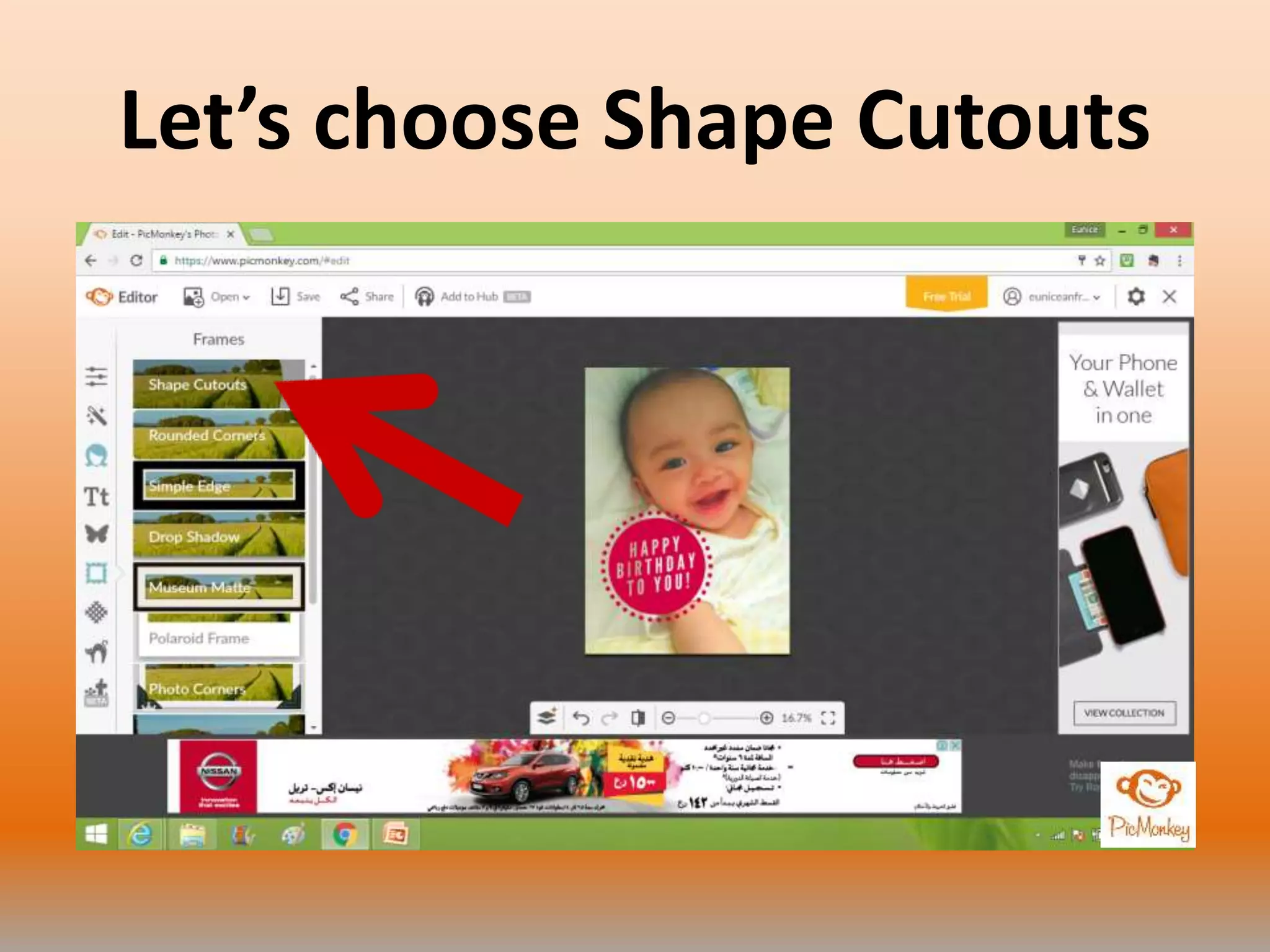
To add a frame
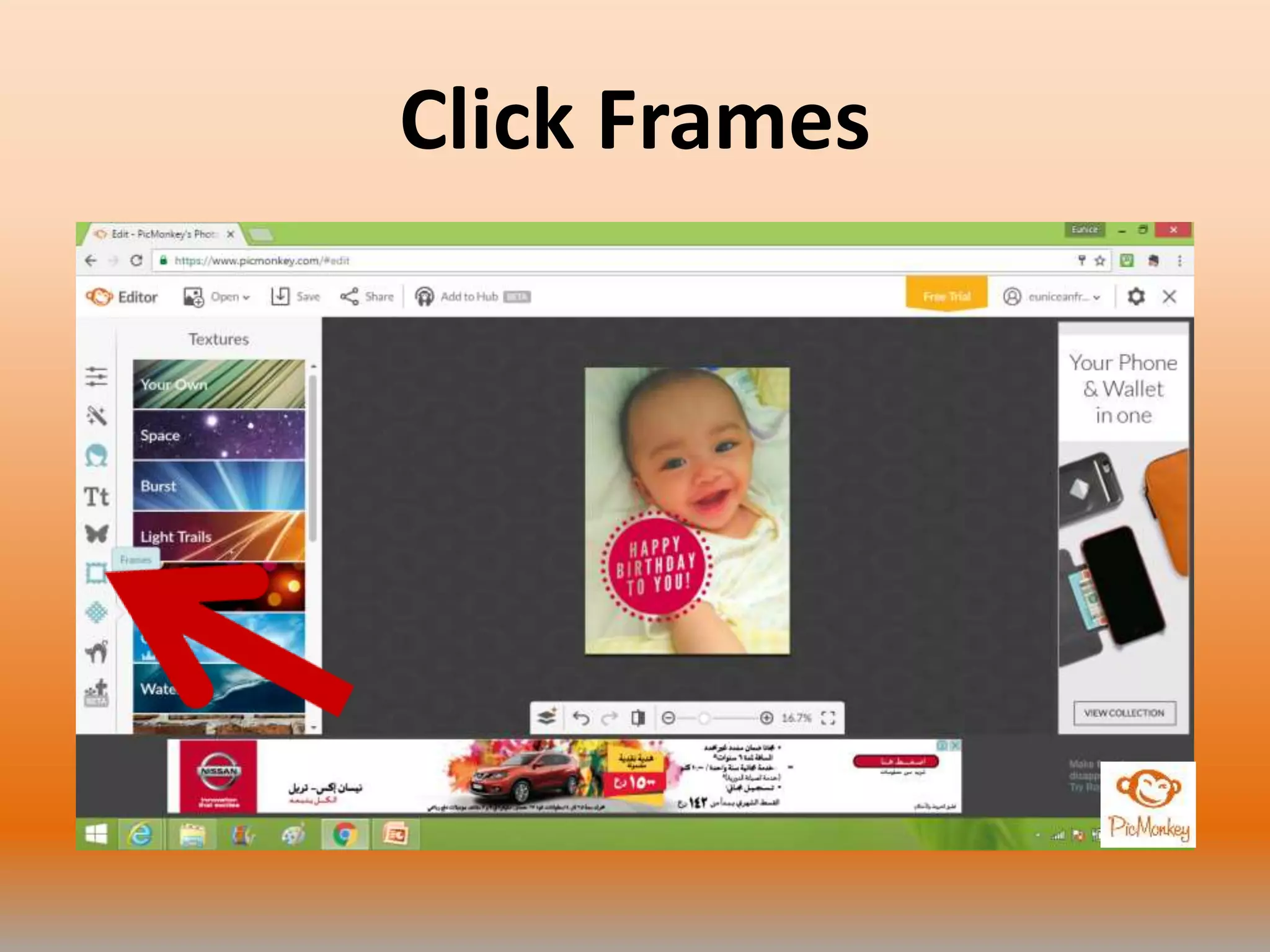
Click Frames
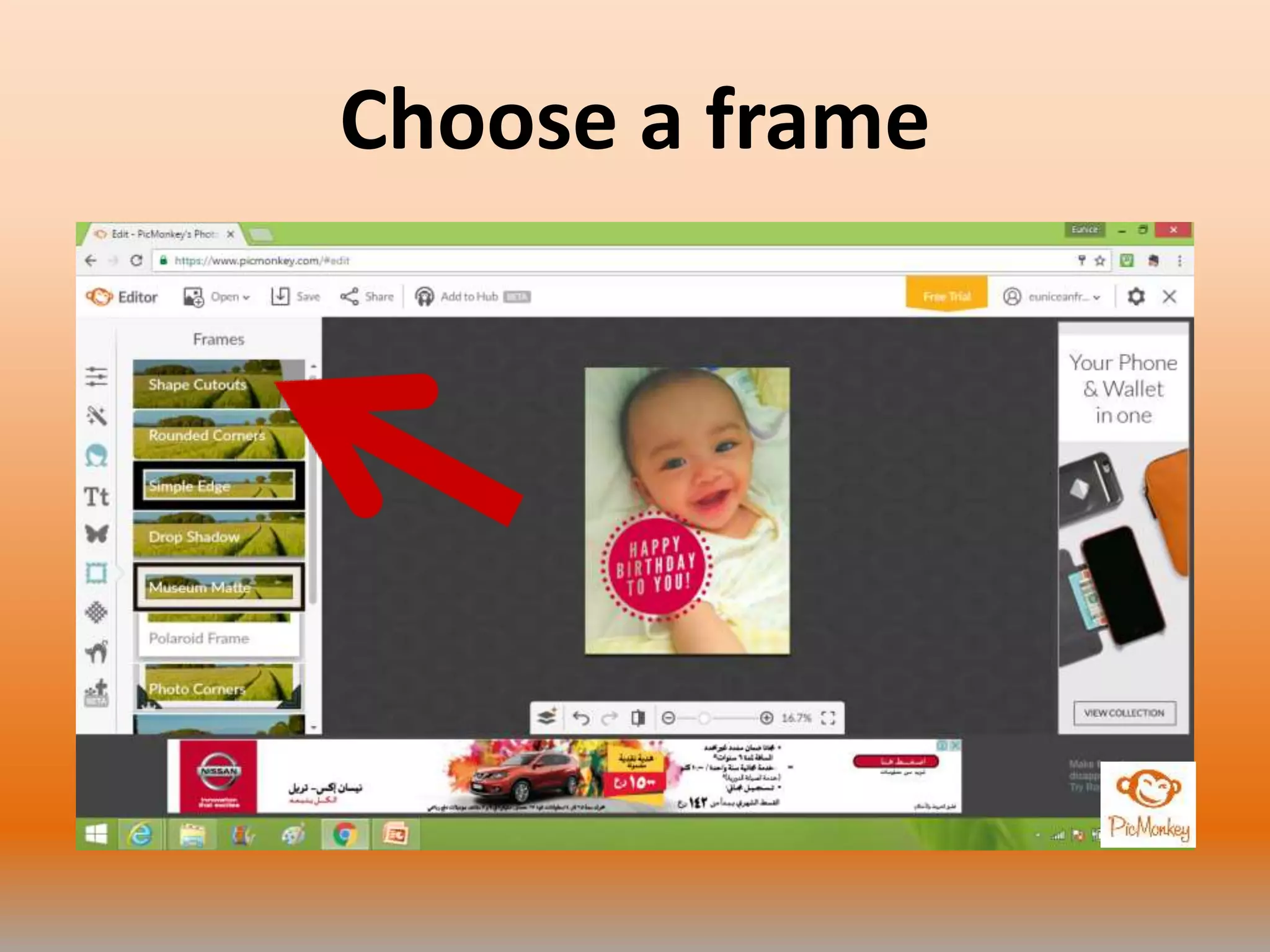
Choose a frame
Let’s choose Shape Cutouts
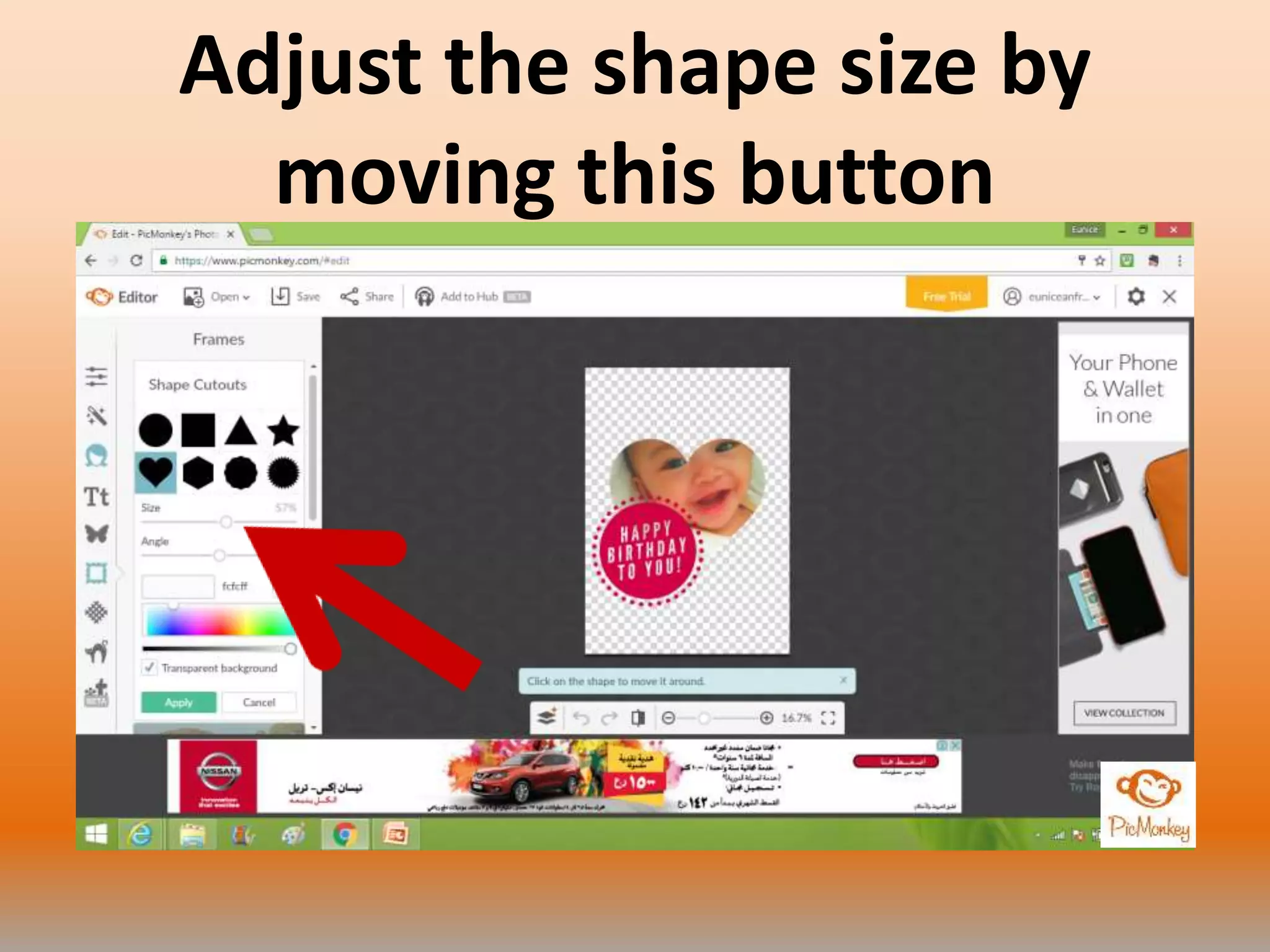
Choose a shape
Adjust the shape size by
moving this button
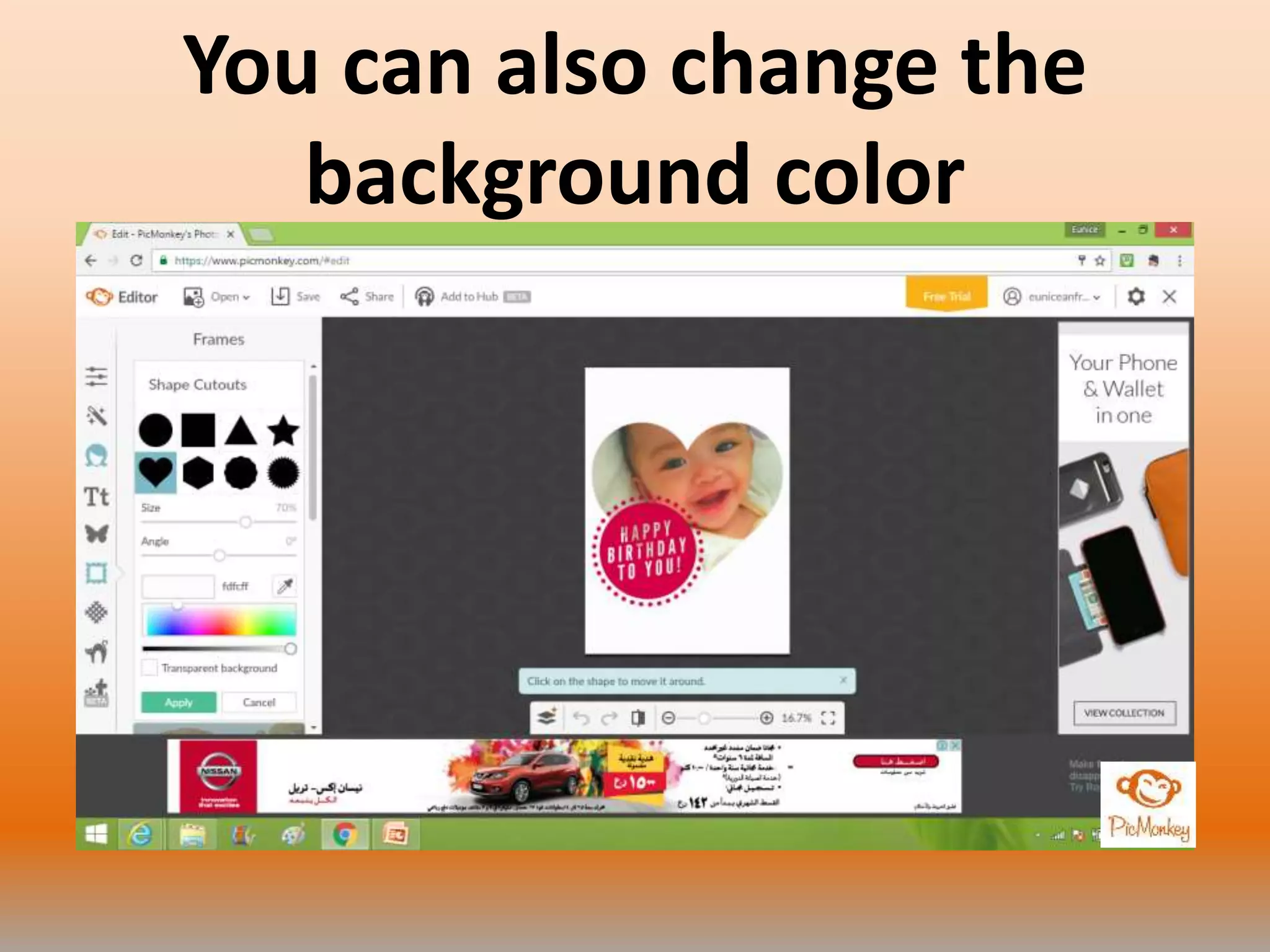
You can also change the
background color
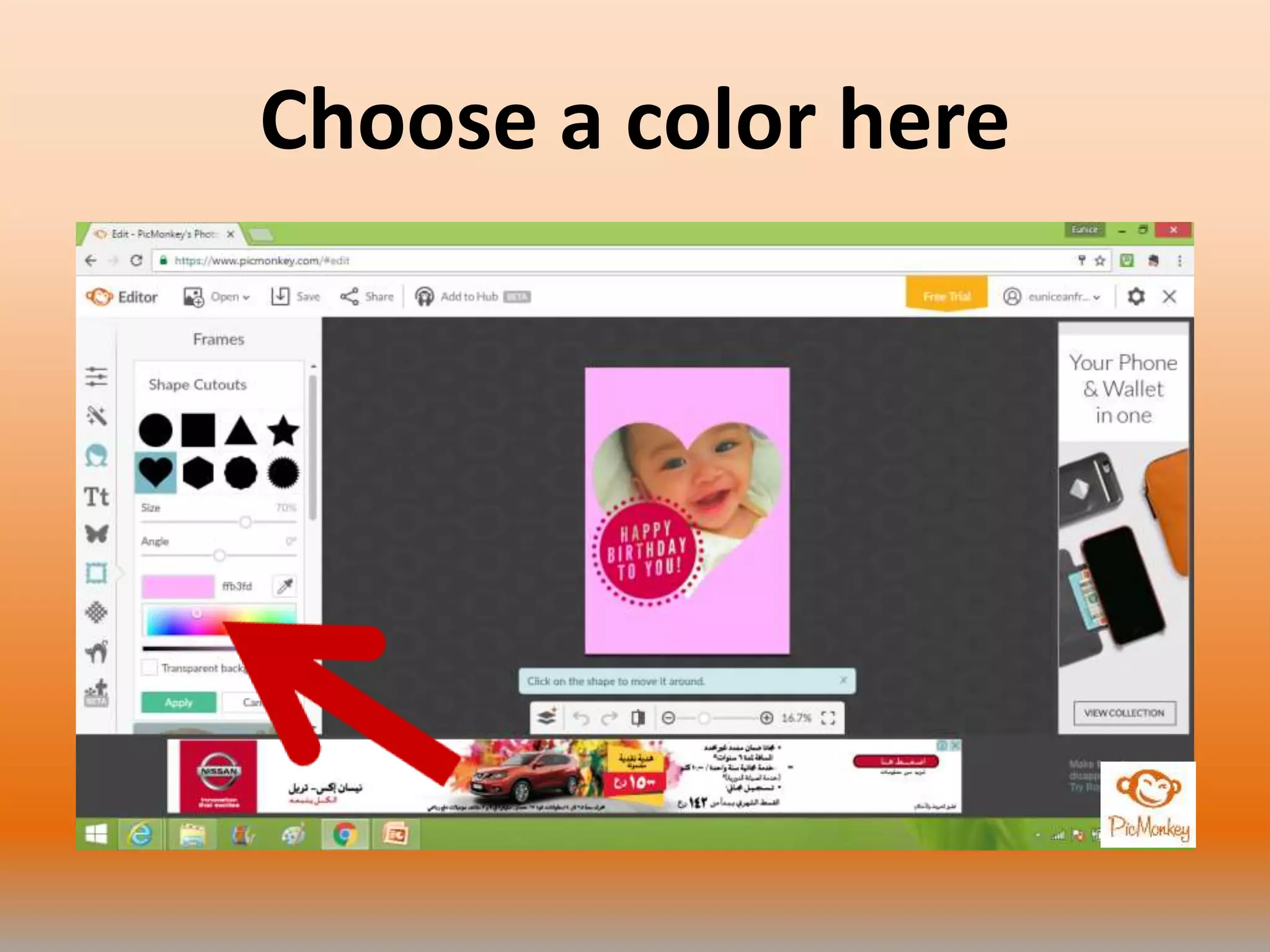
Choose a color here
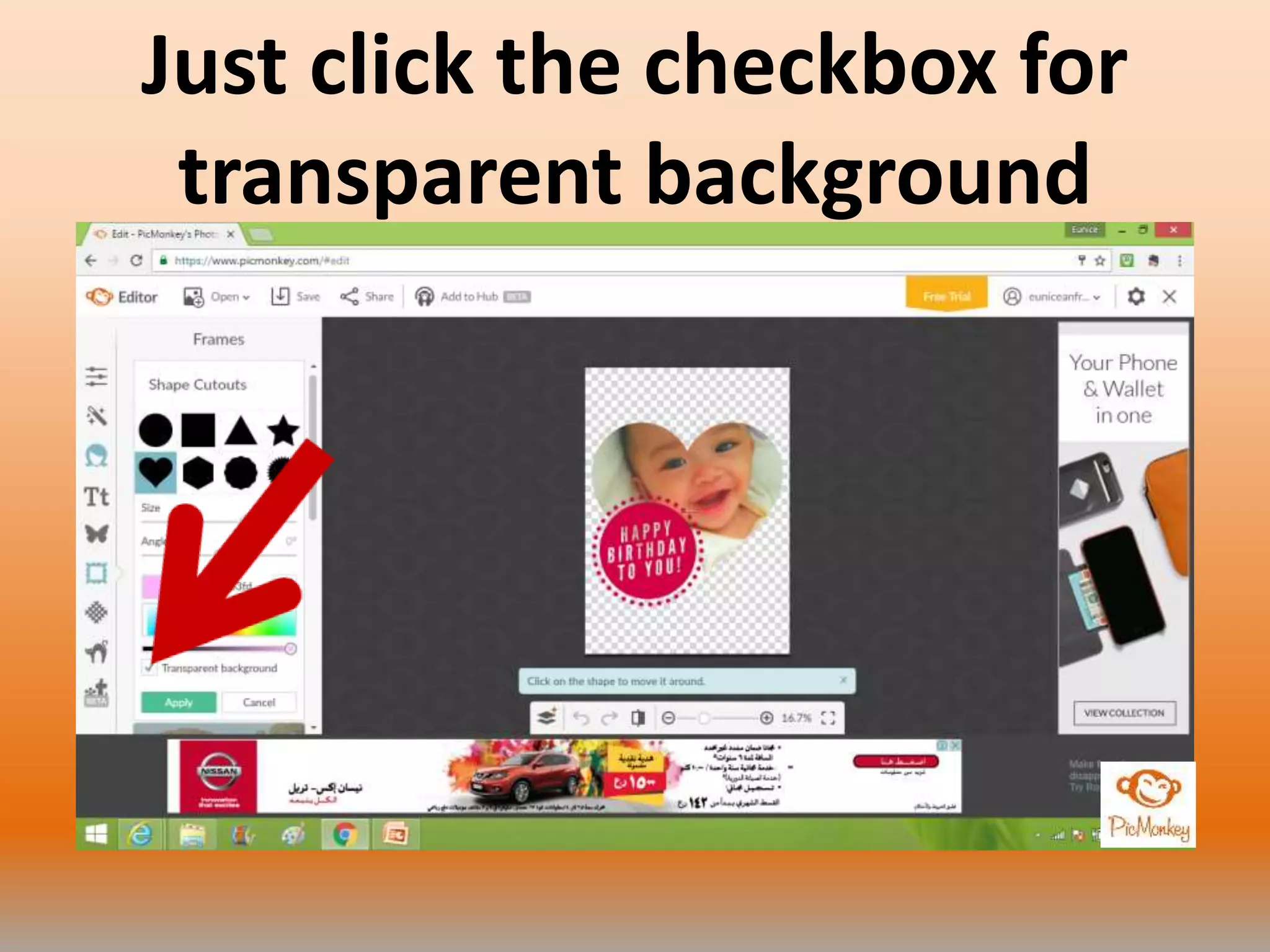
Just click the checkbox for
transparent background
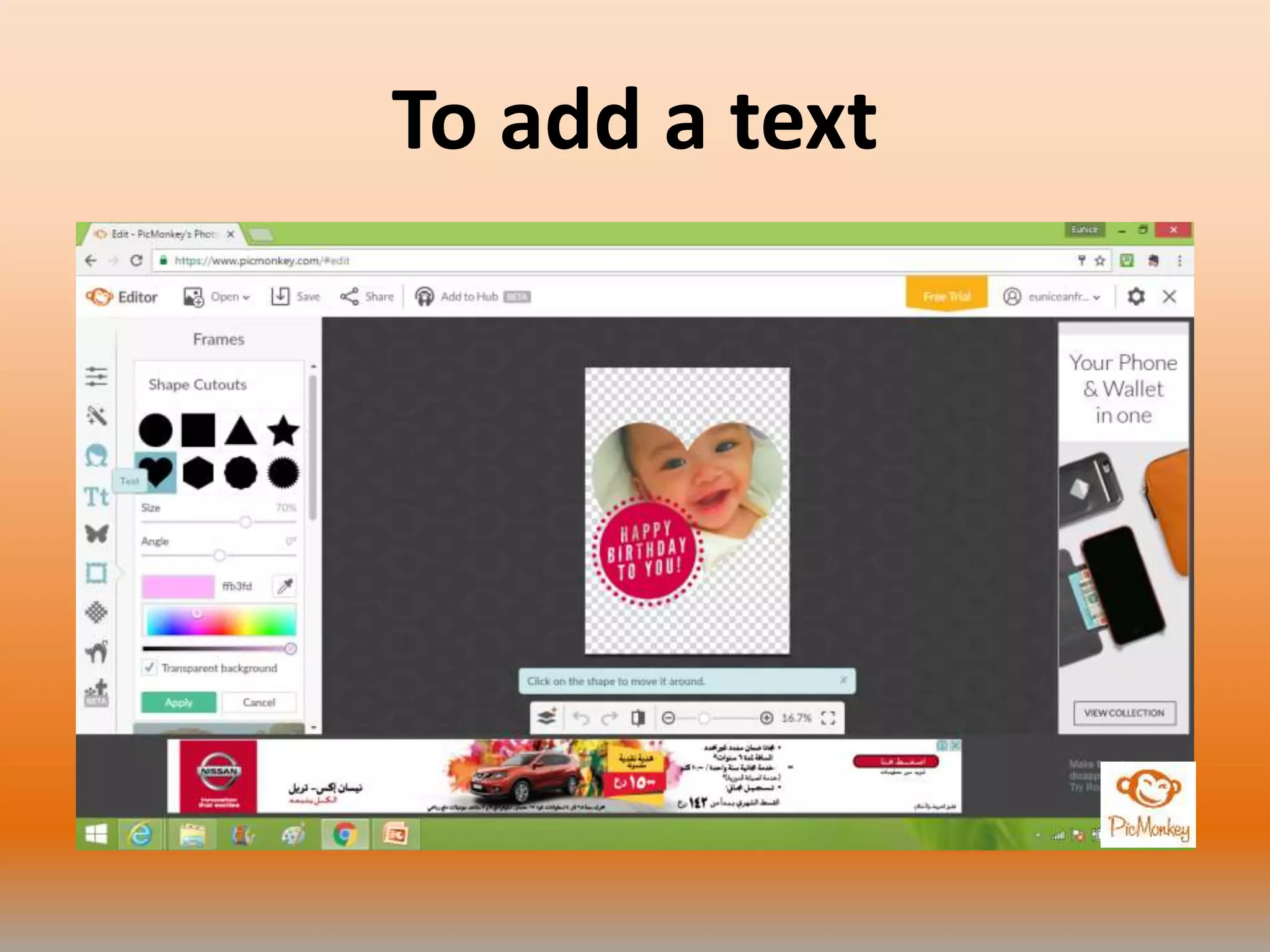
To add a text
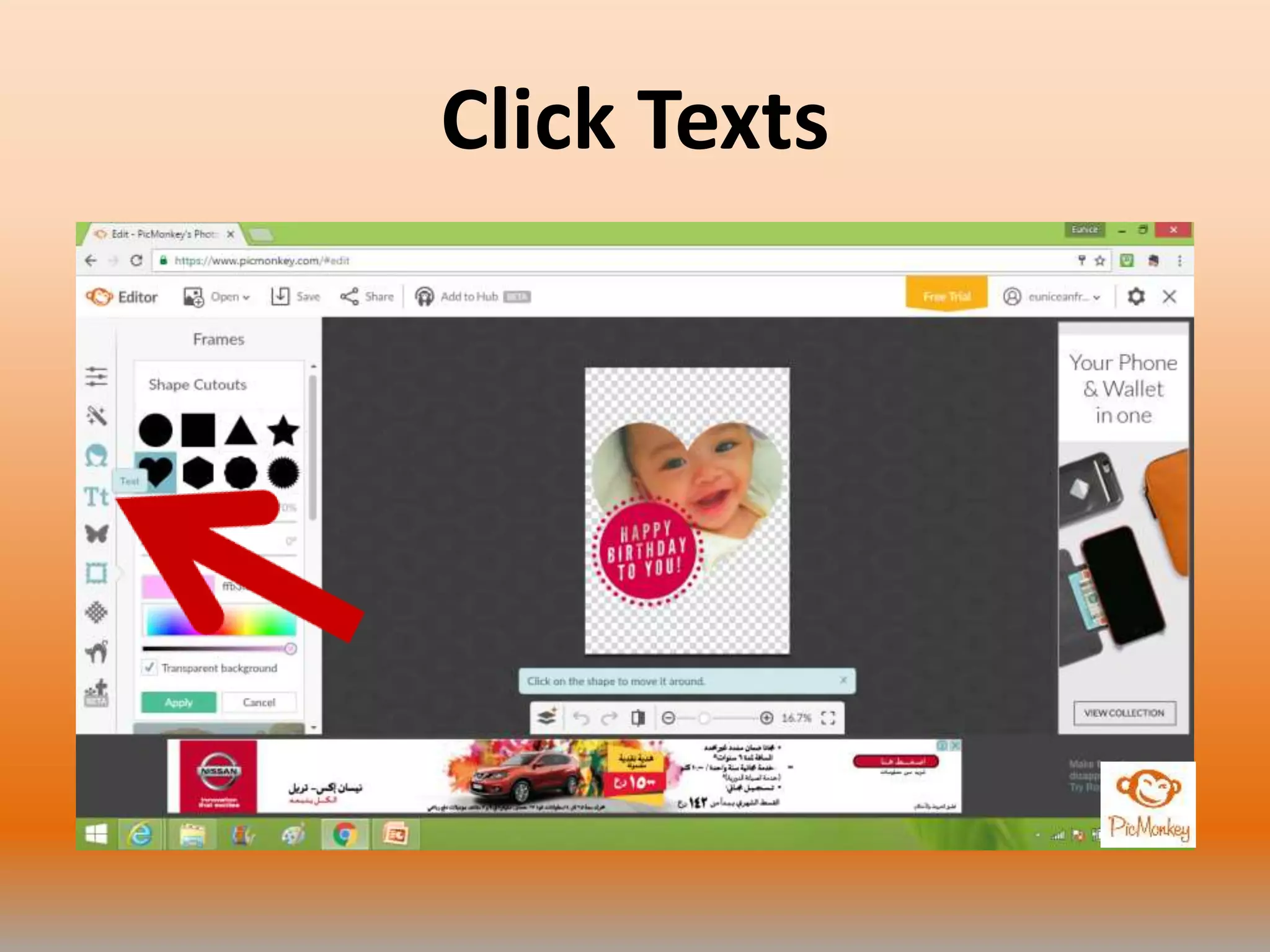
Click Texts
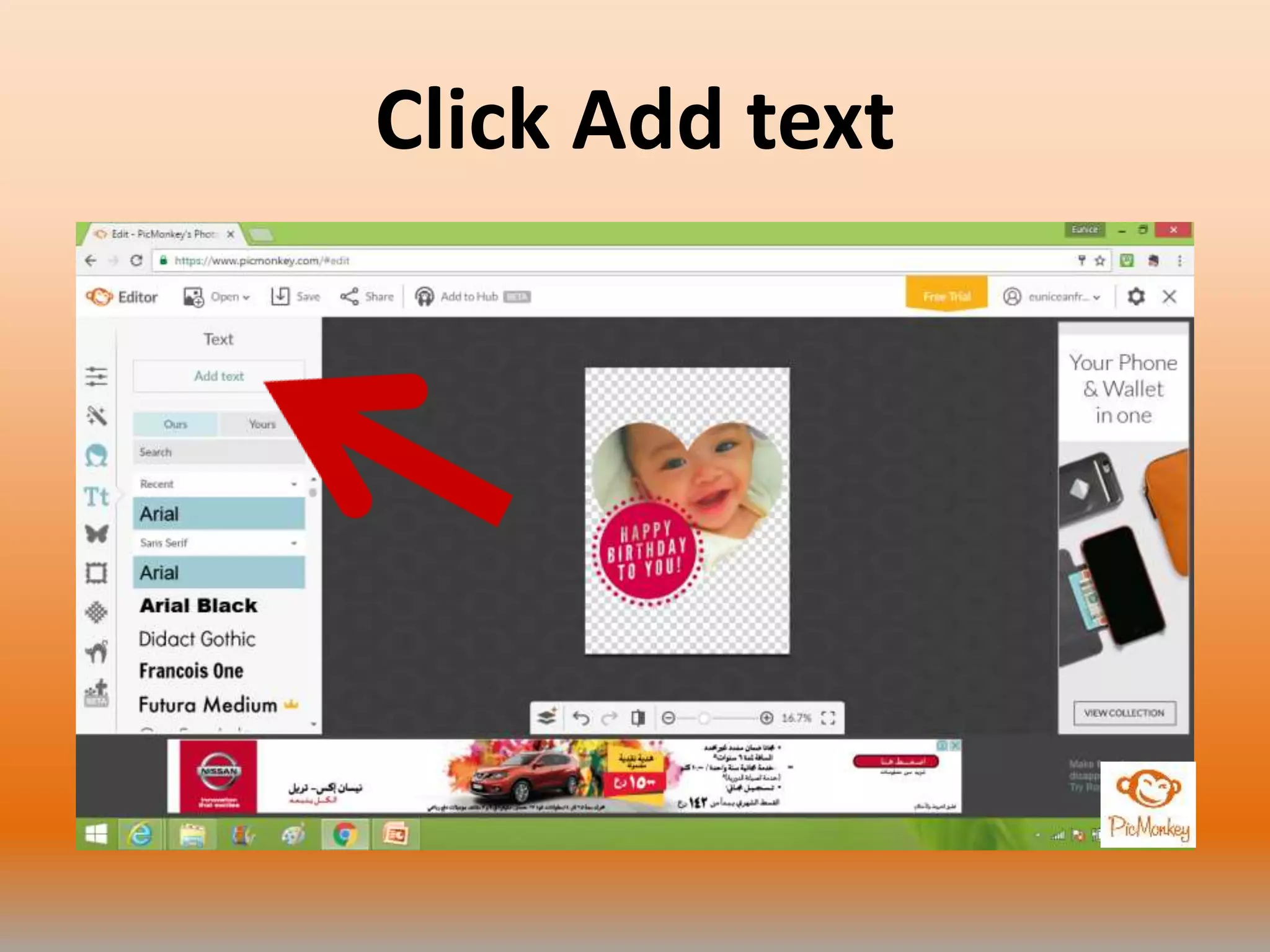
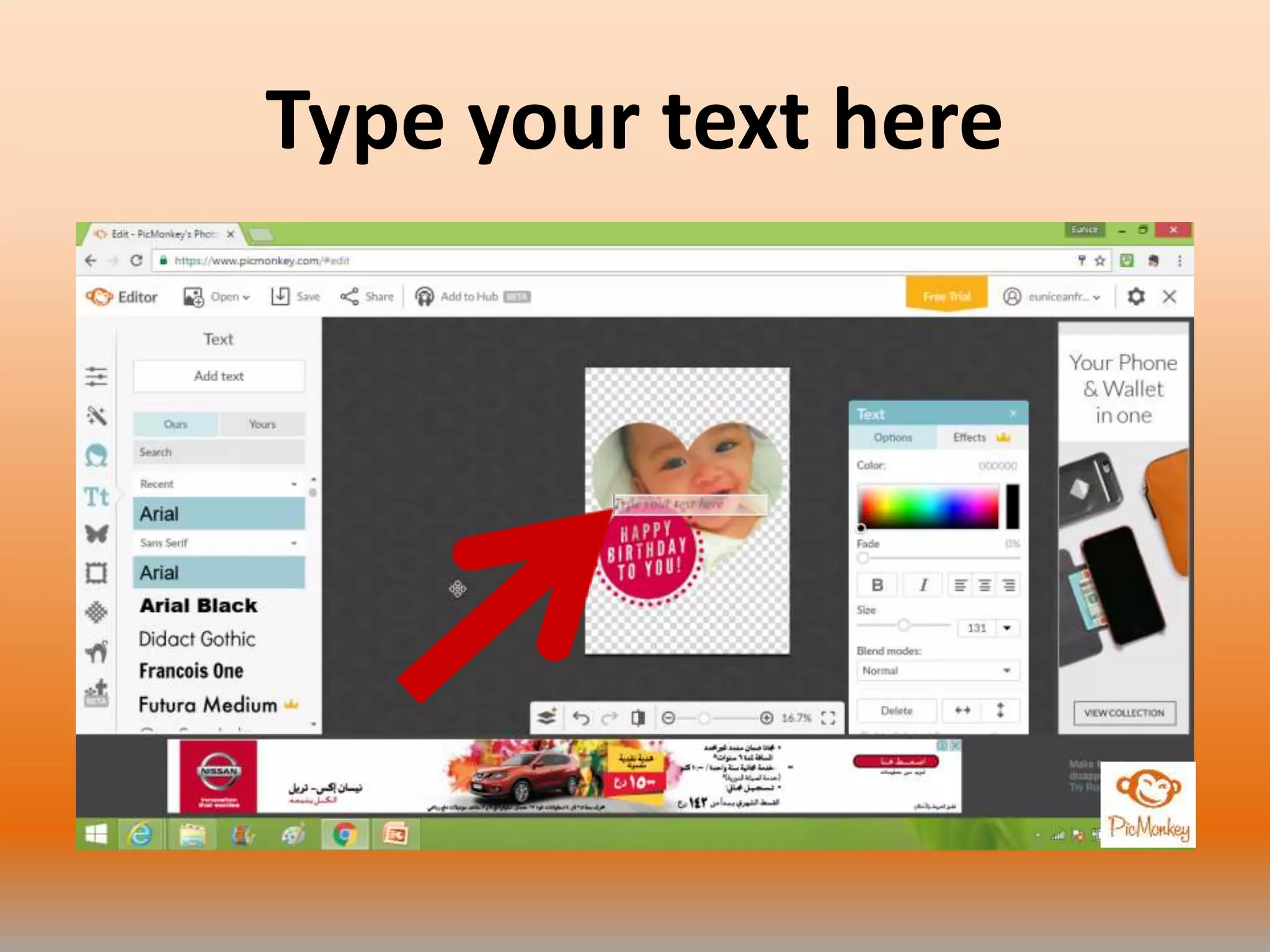
Click Add text
Type your text here
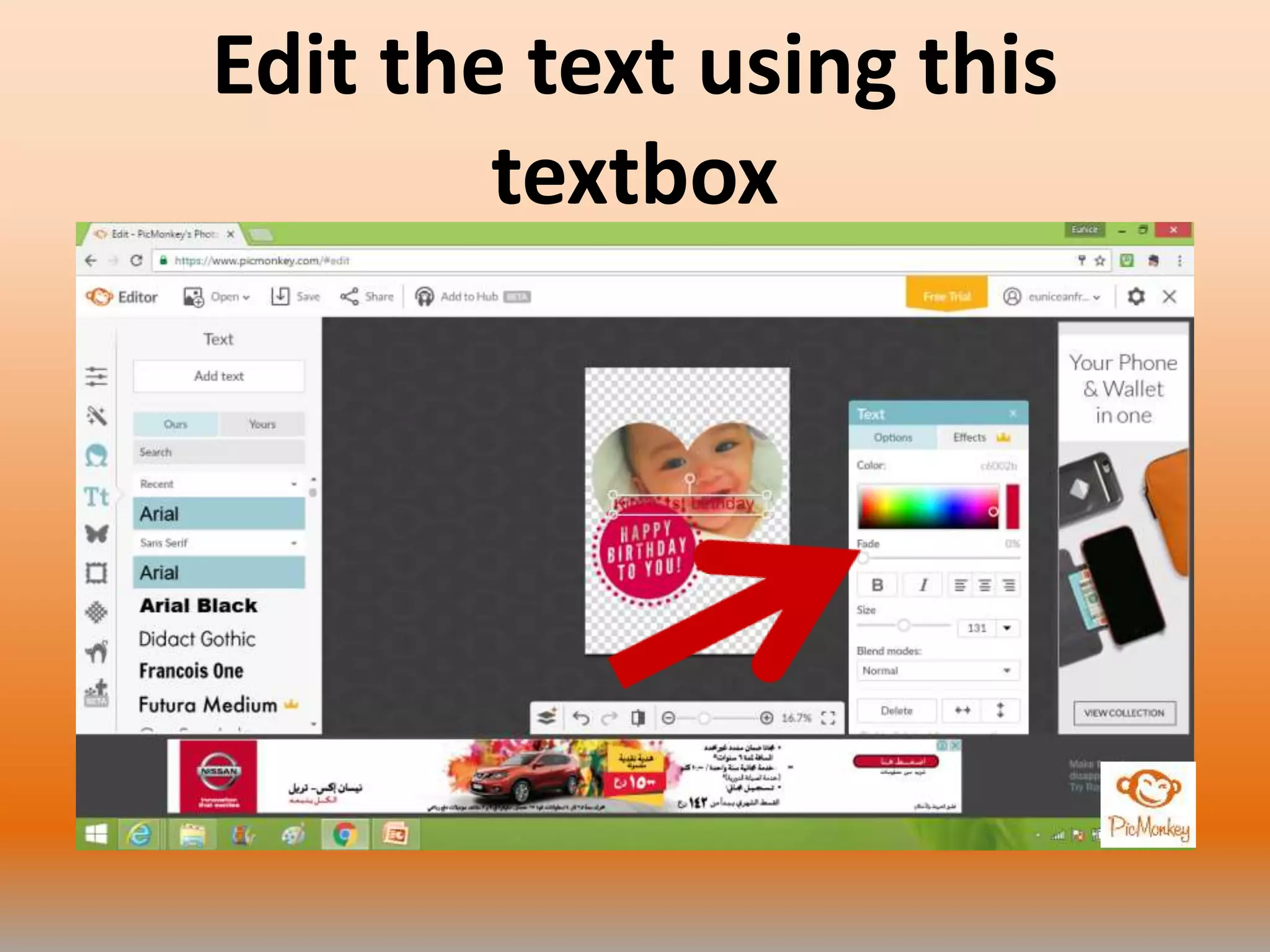
Edit the text using this
textbox
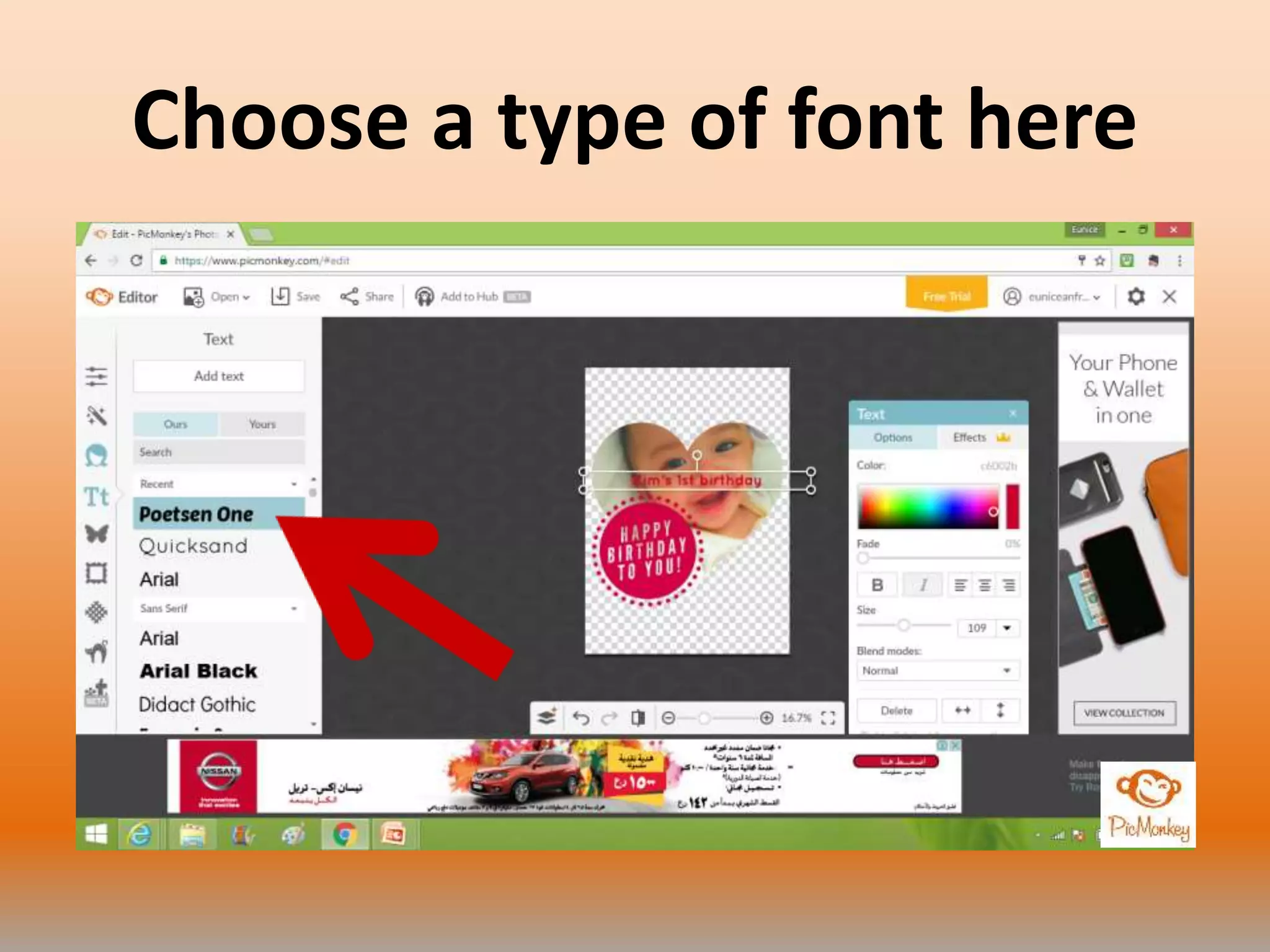
Choose a type of font here
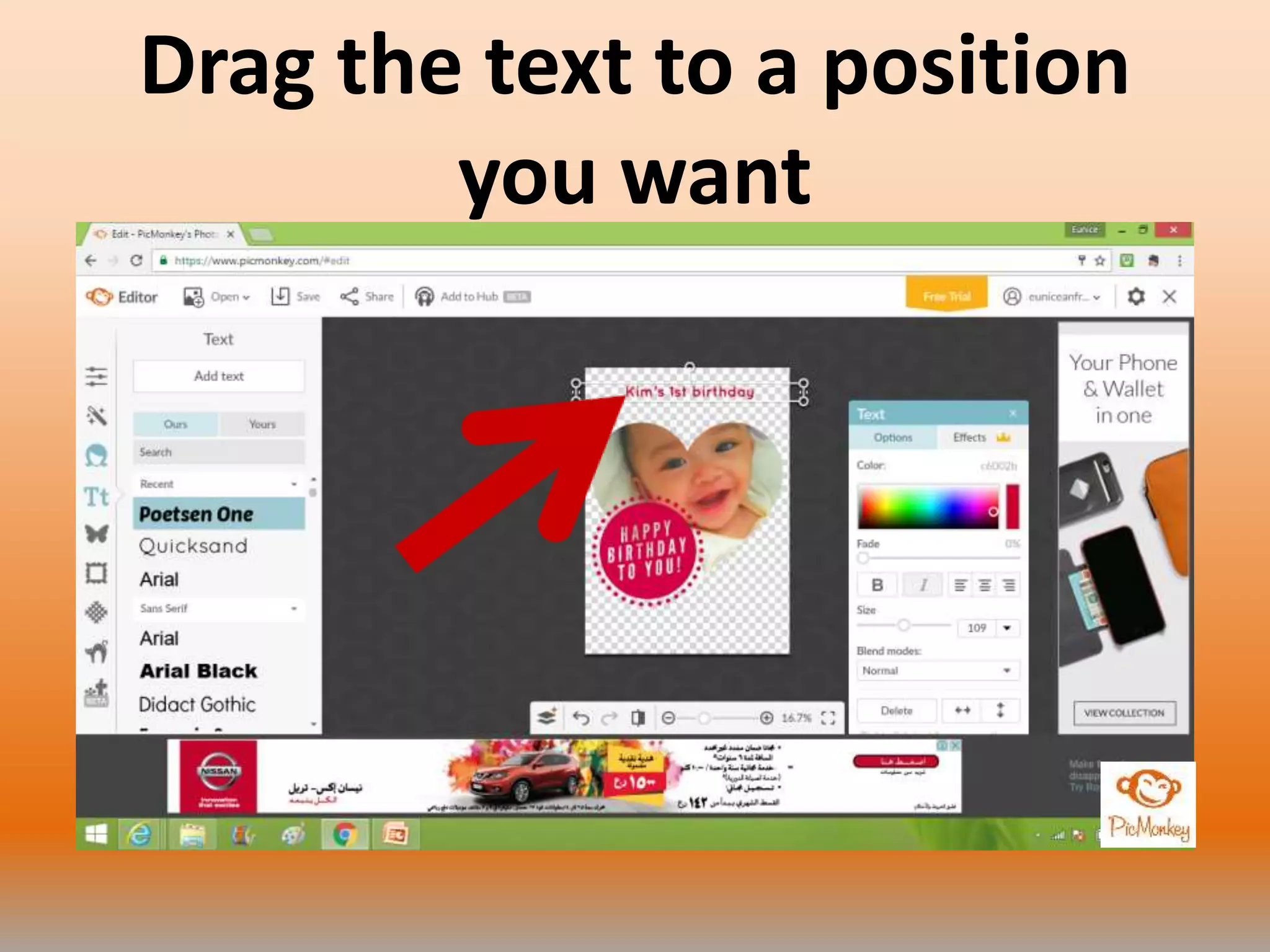
Drag the text to a position
you want
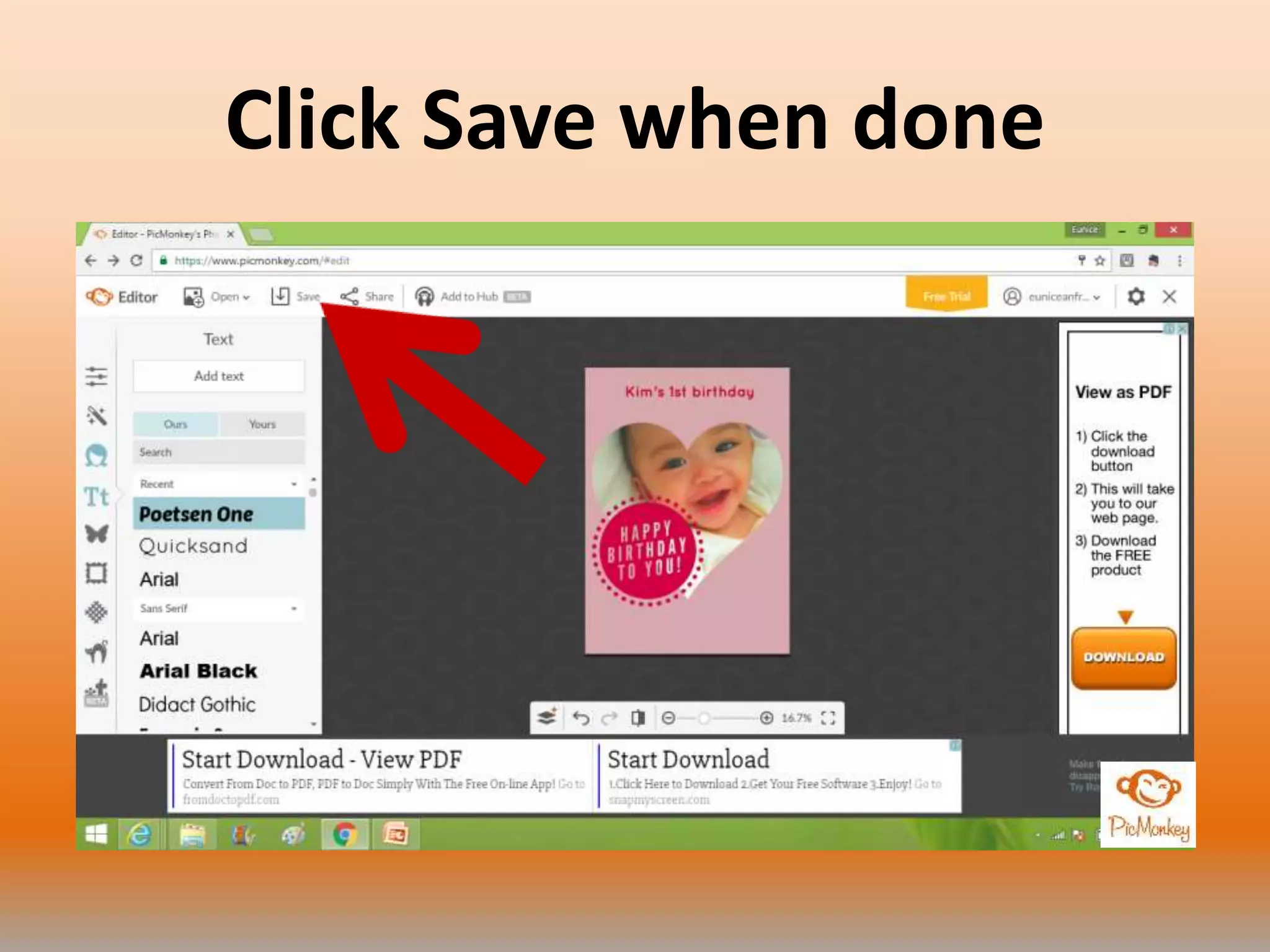
Click Save when done
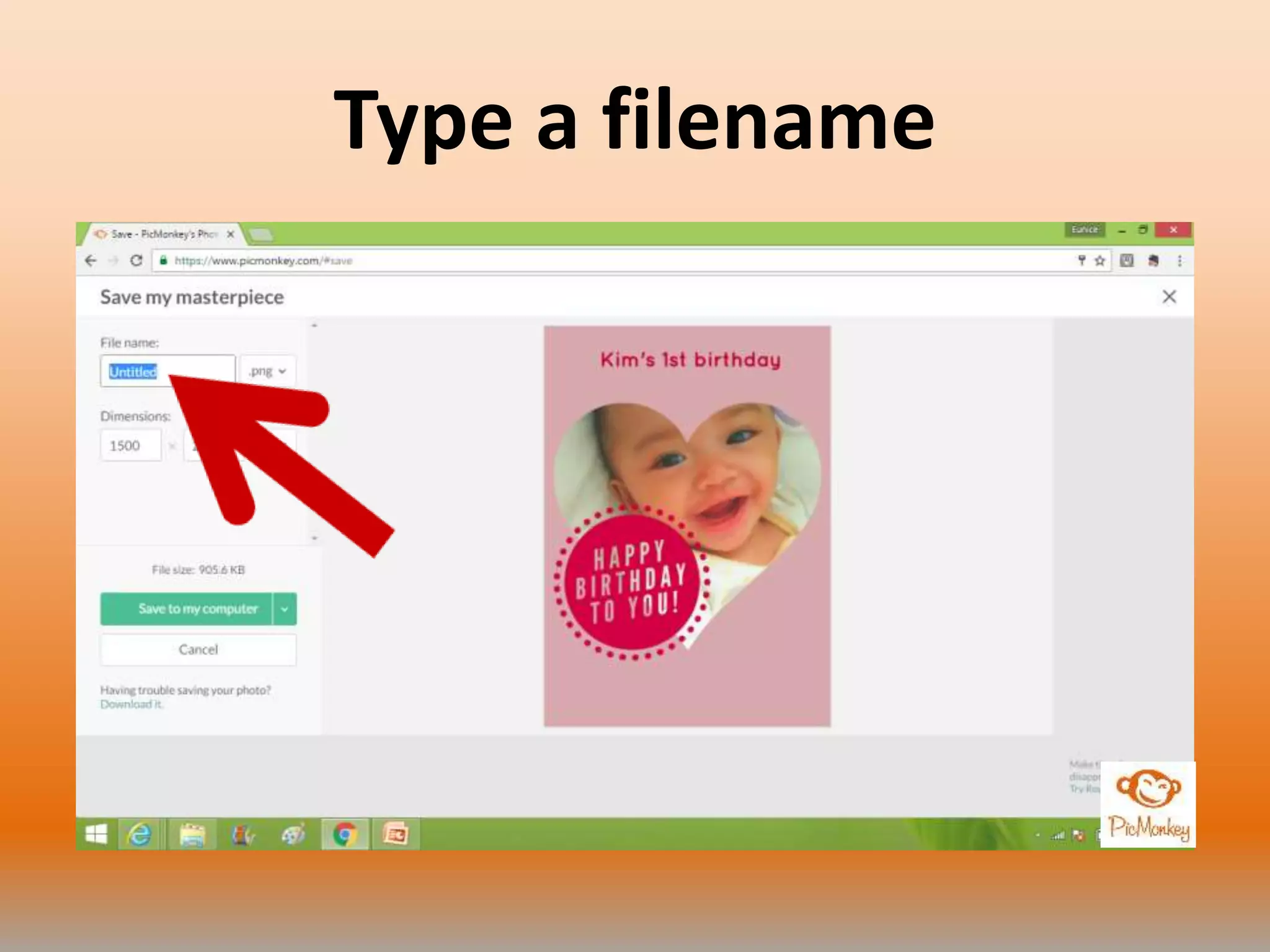
Type a filename
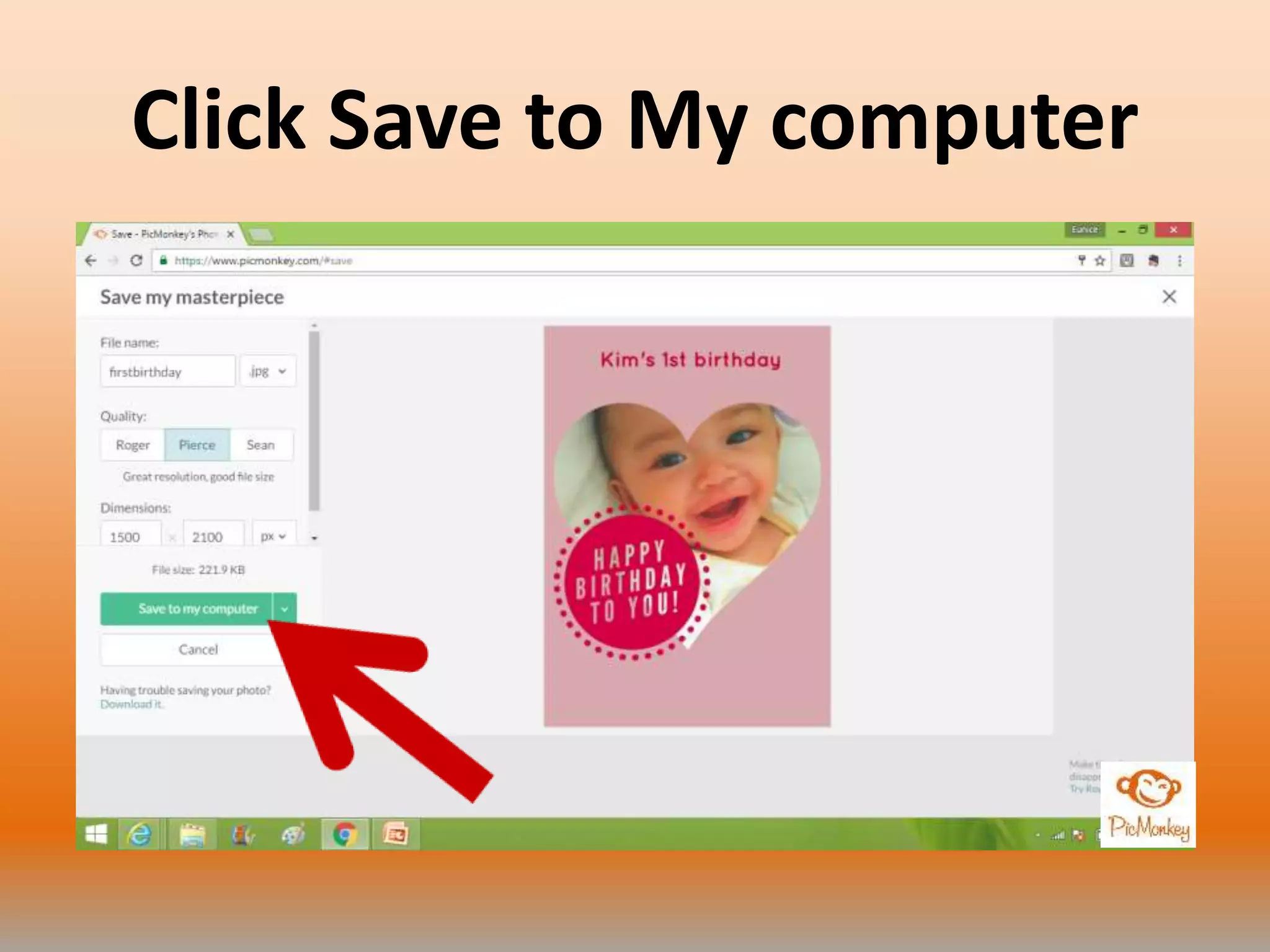
Click Save to My computer
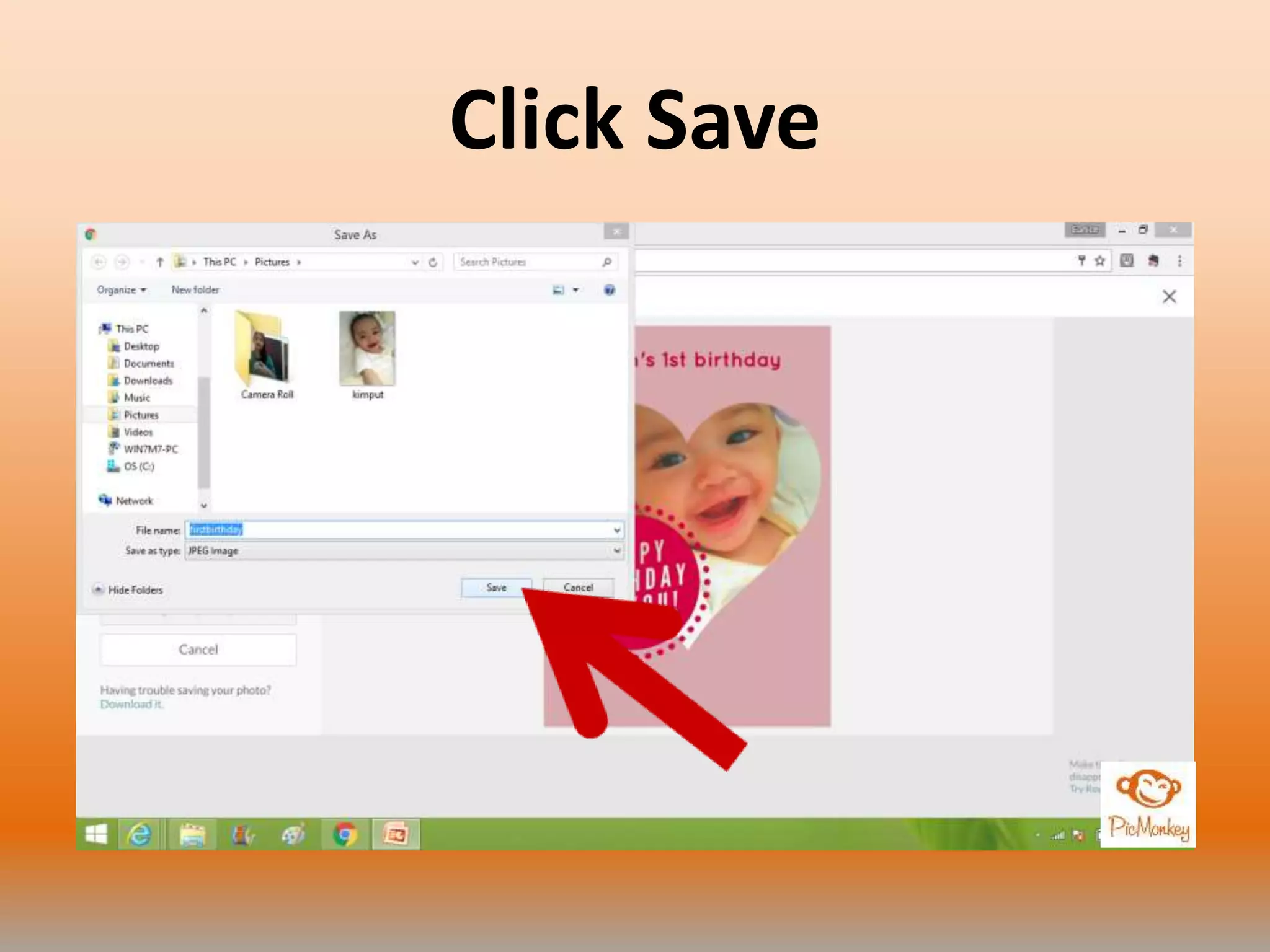
Click Save
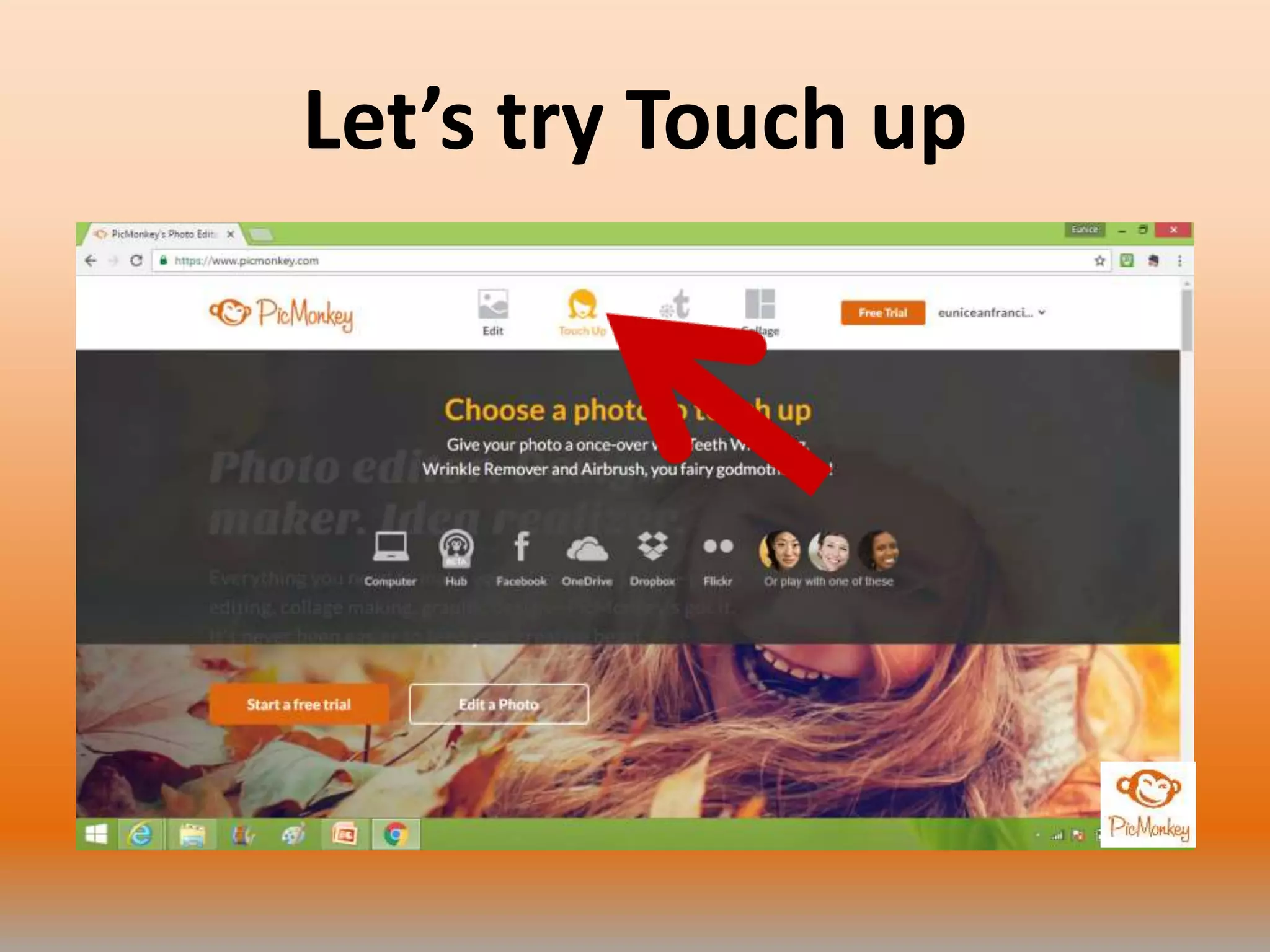
Let’s try Touch up
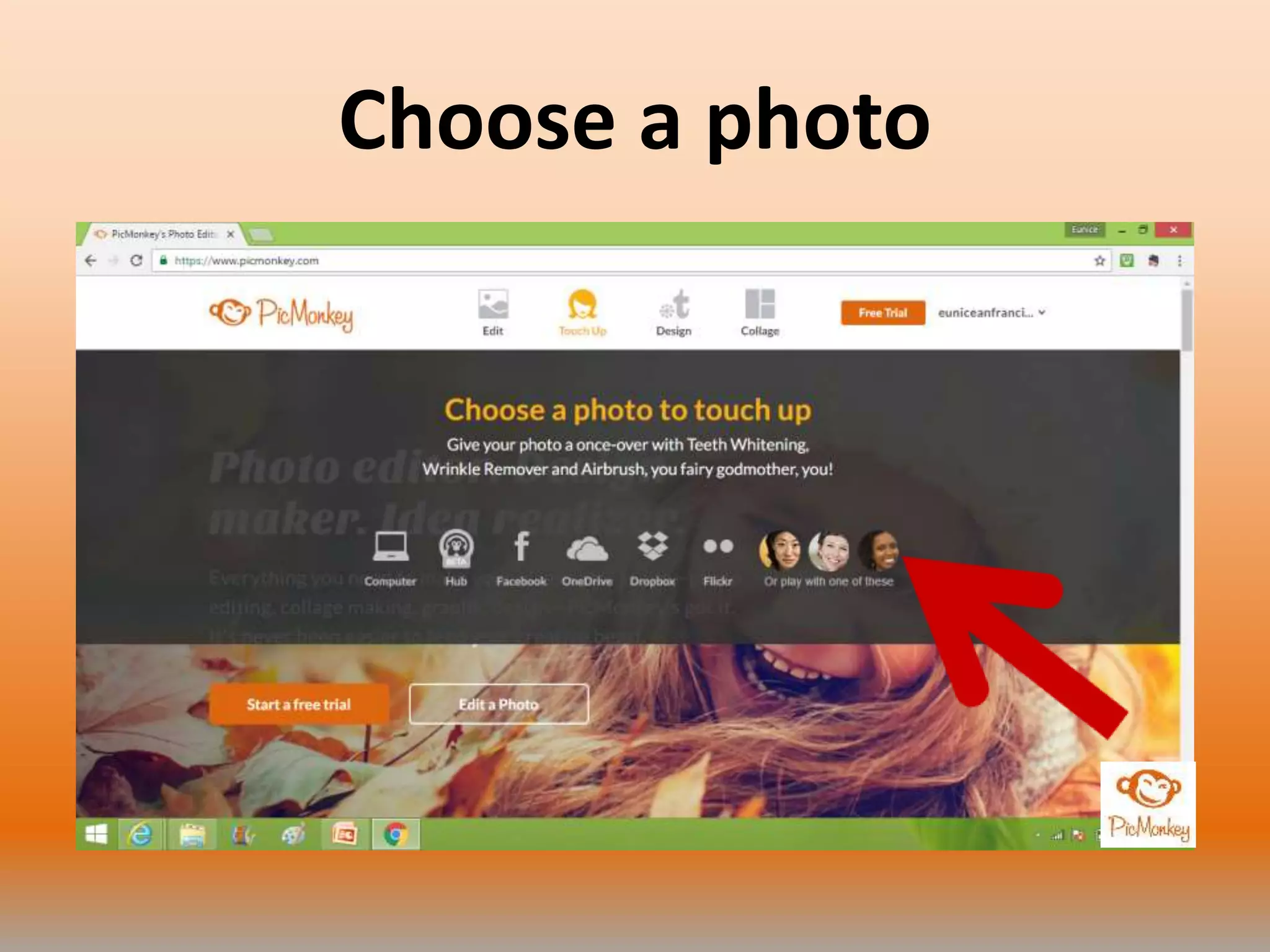
Choose a photo
Click blemish fix
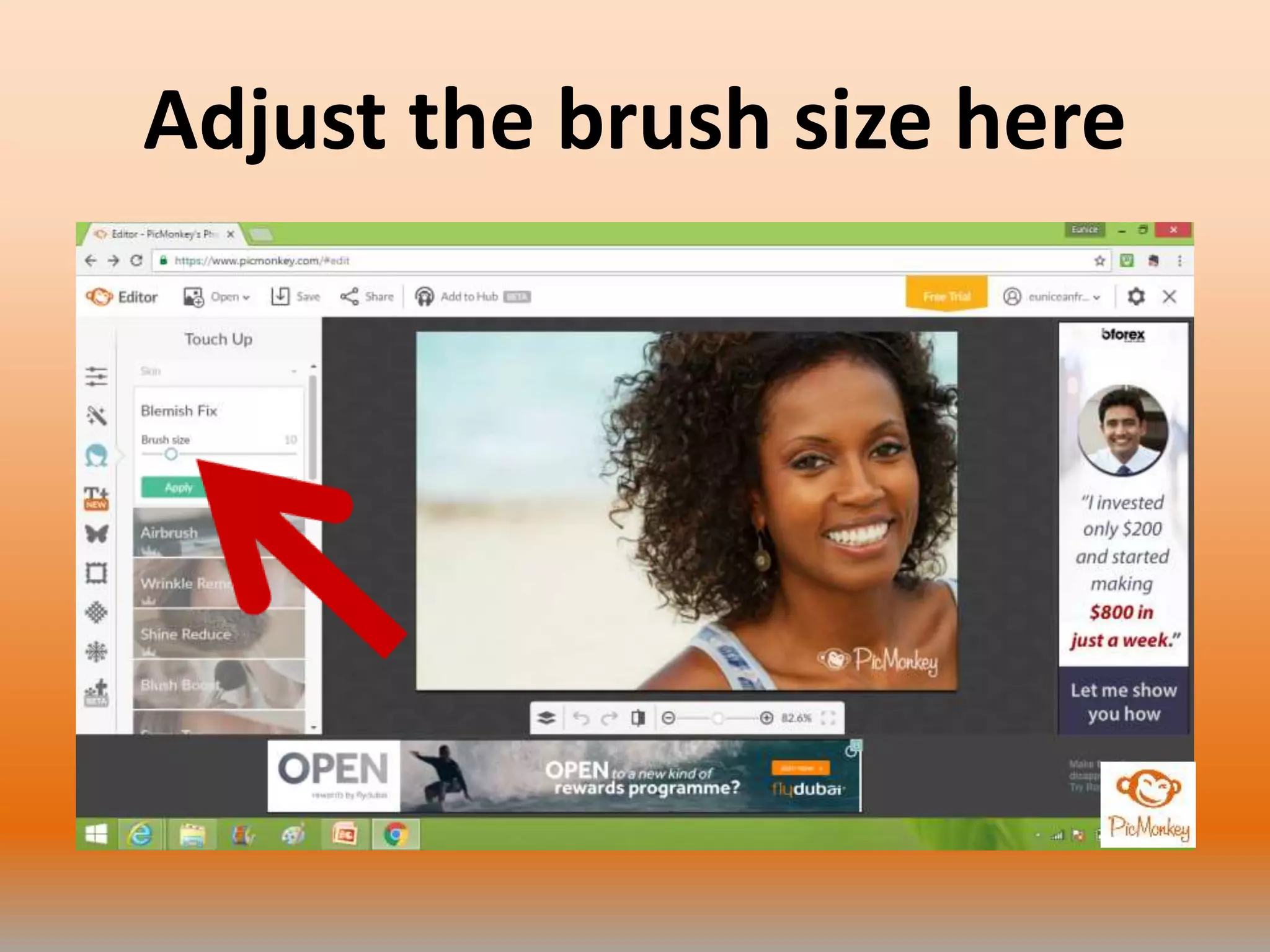
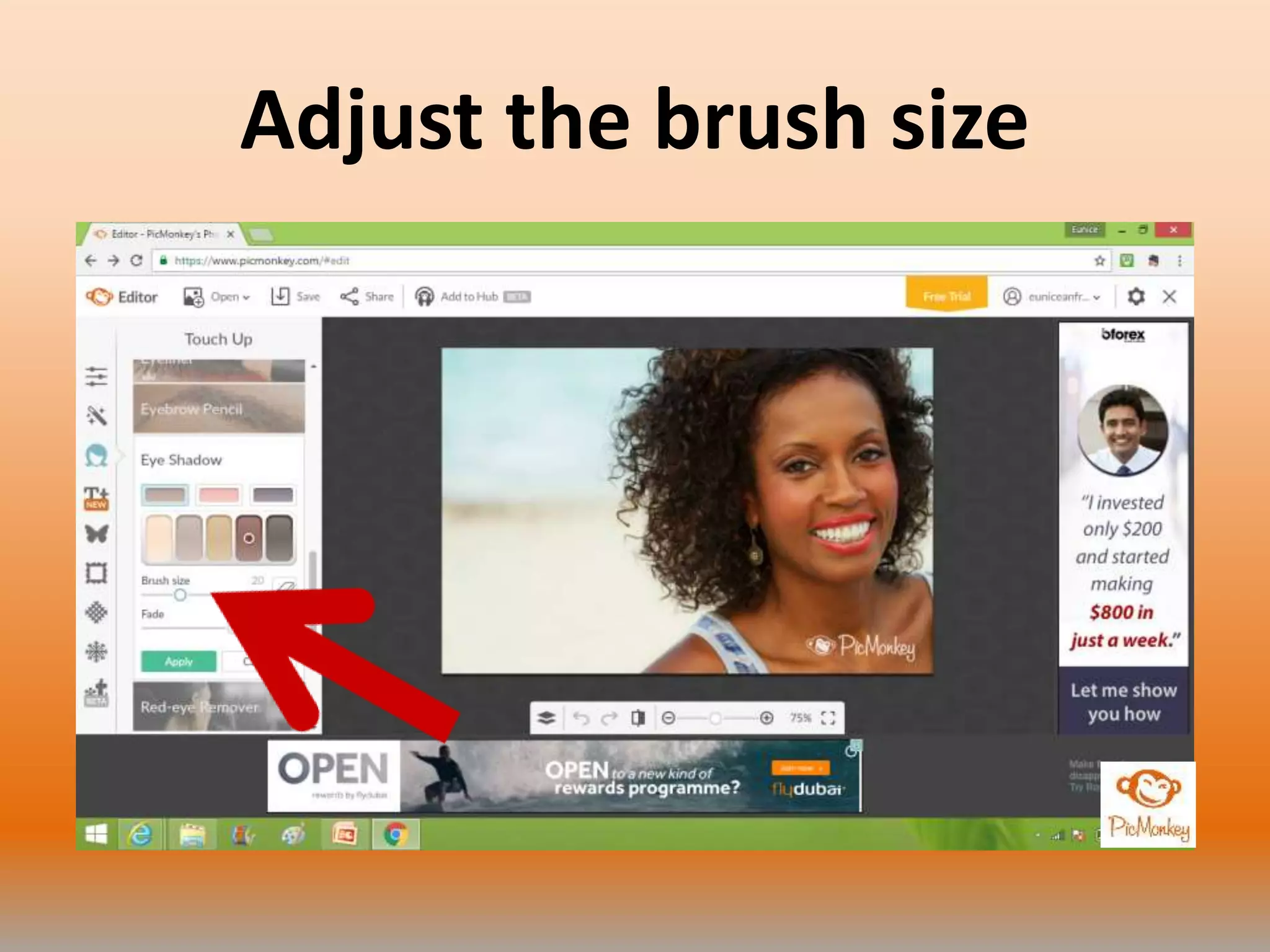
Adjust the brush size here
Click where you want to
touch up
Click Apply
Click Airbrush
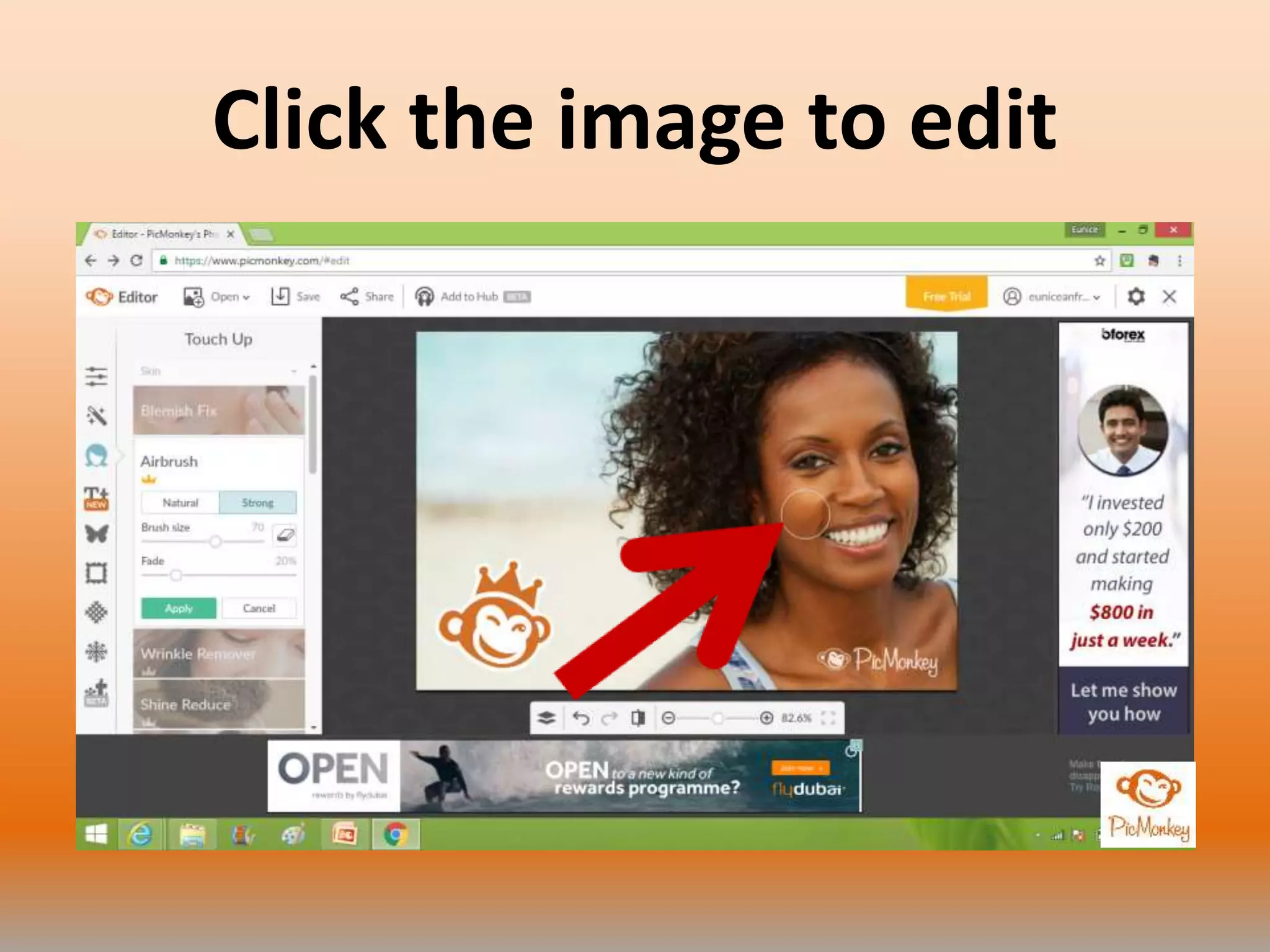
Click the image to edit
Click Apply
Click Wrinkle Remover
Click where you want to edit
Click Apply
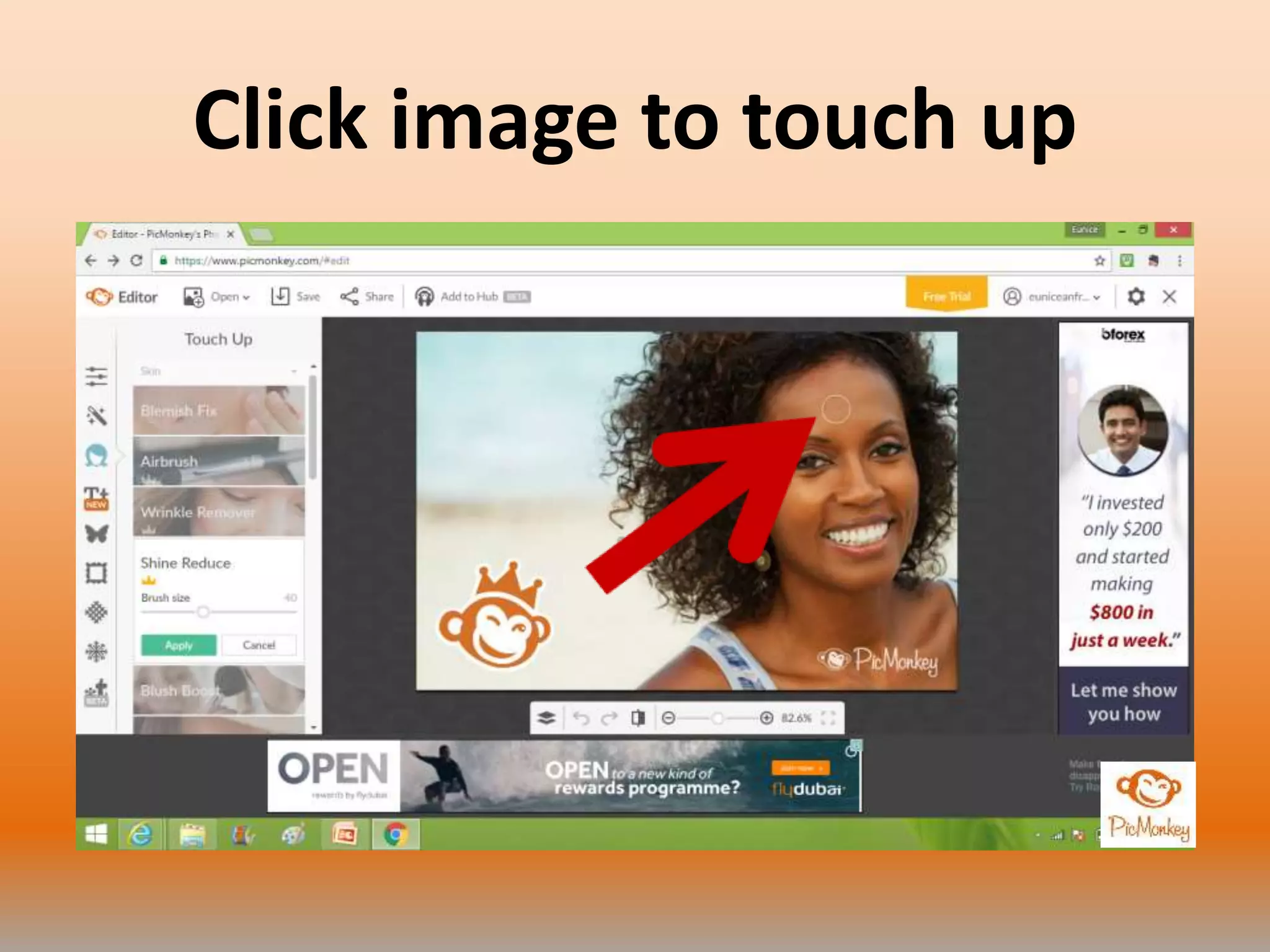
Click Shine Reduce
Click image to touch up
Click Apply
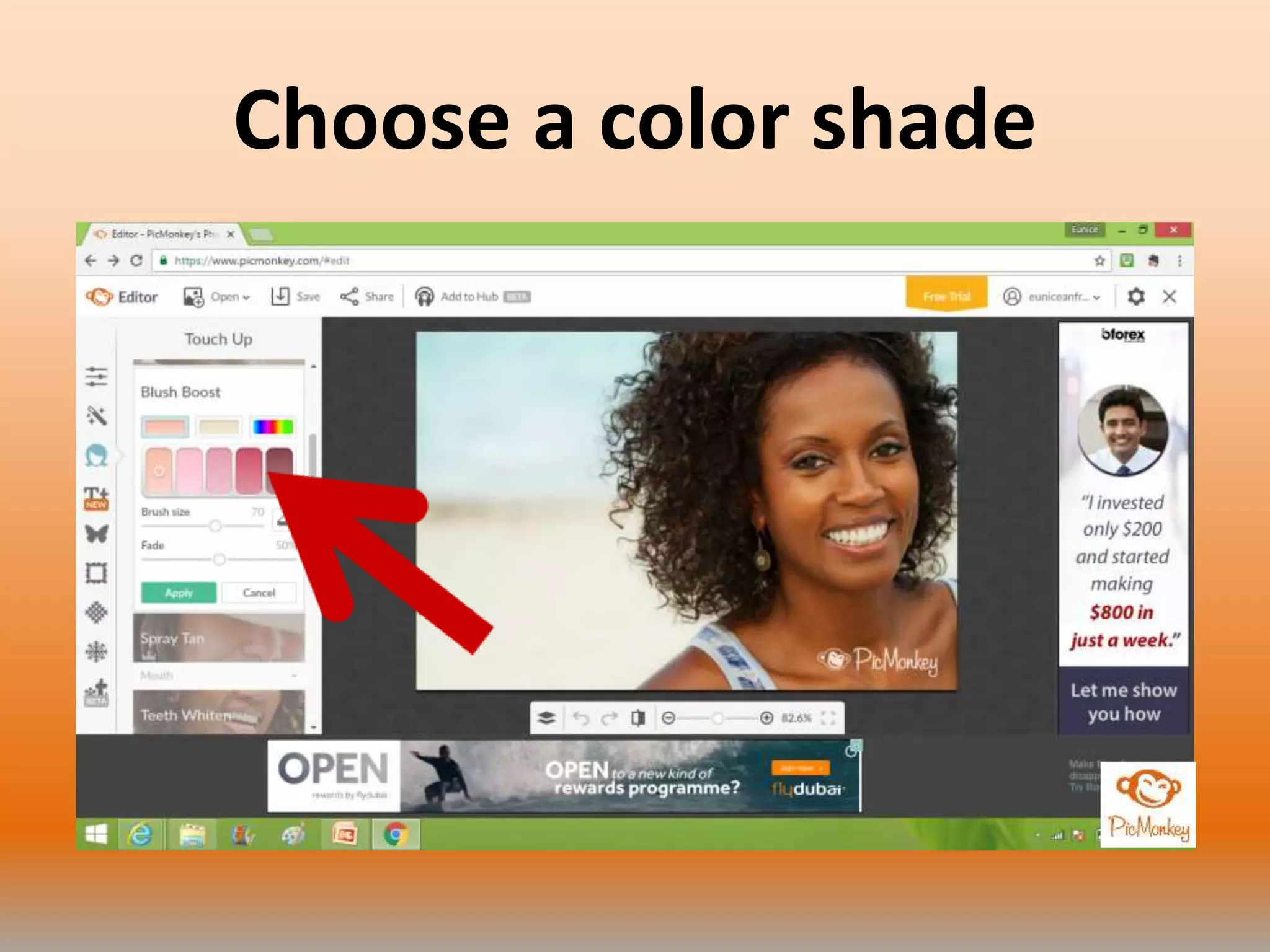
Click Blush Boost
Choose a color shade
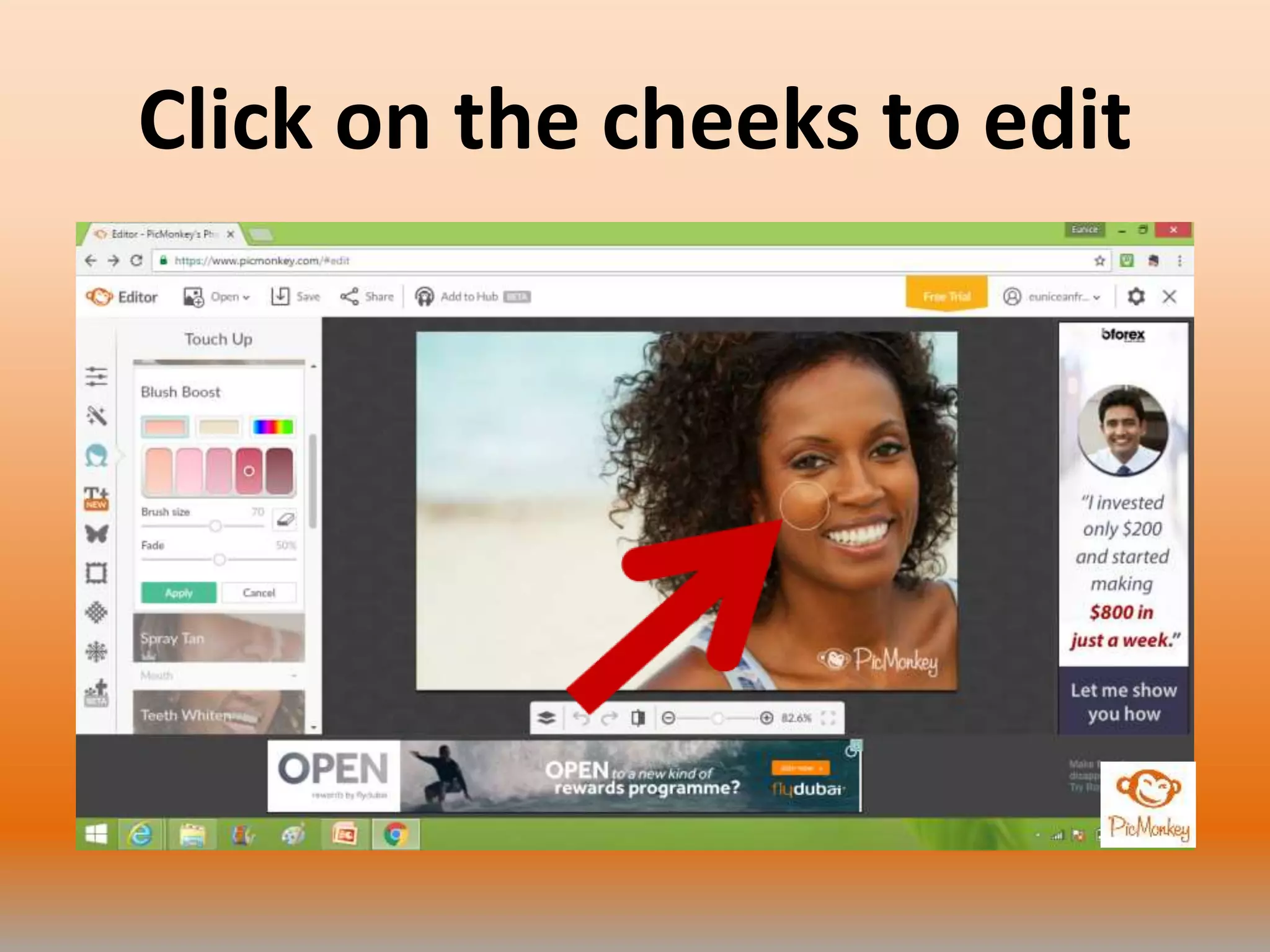
Click on the cheeks to edit
Click Apply
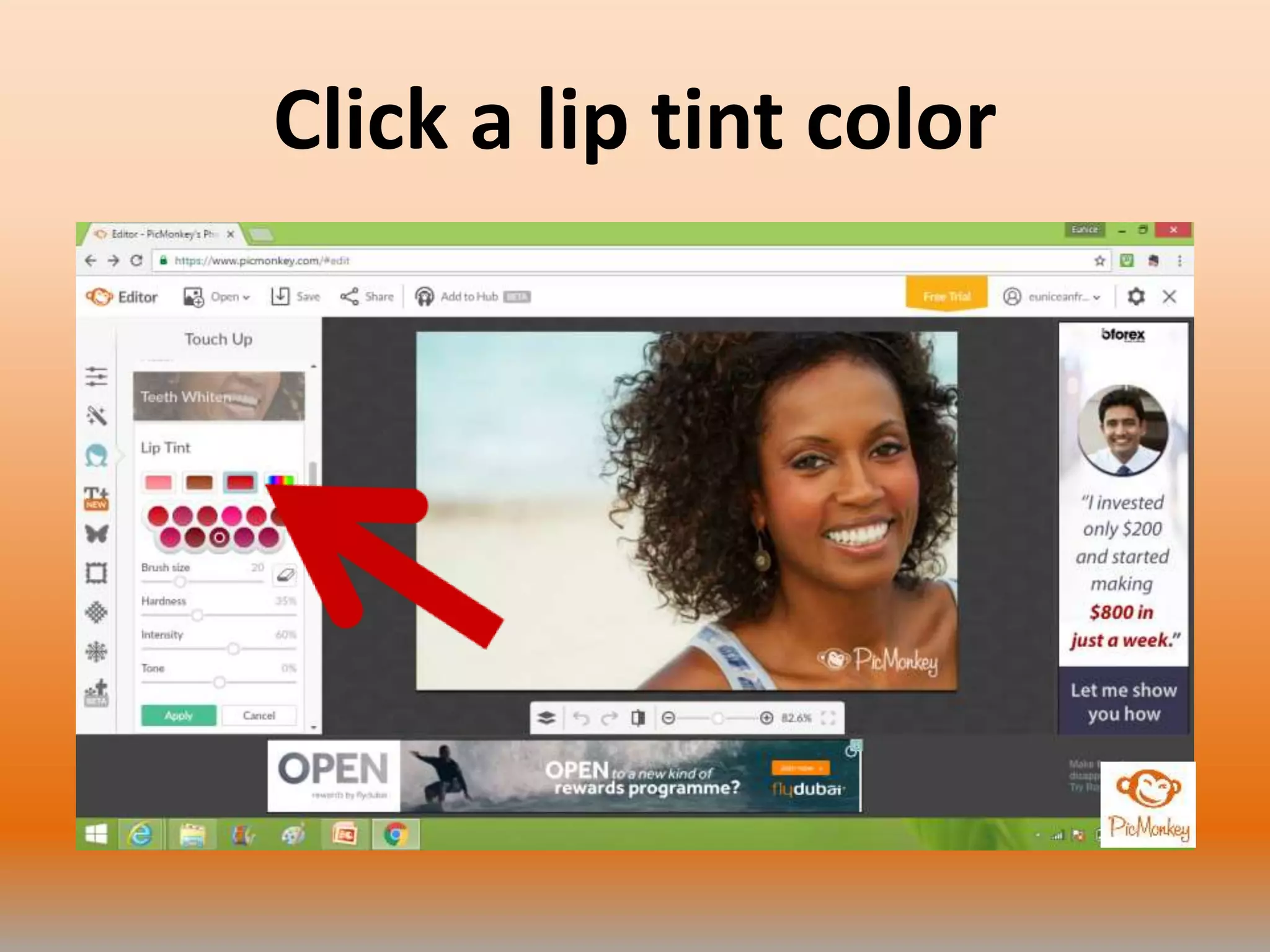
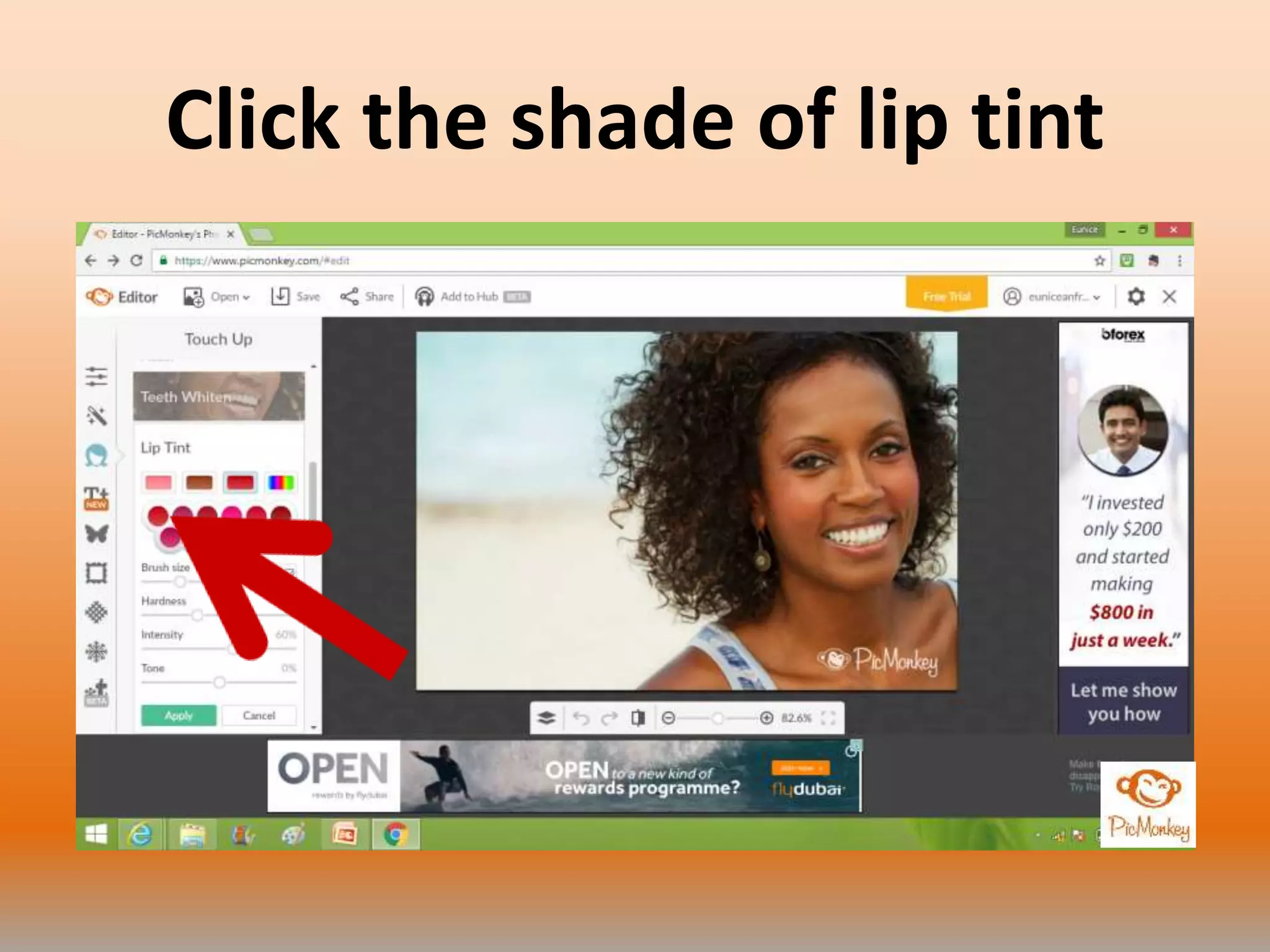
Click Lip Tint
Click a lip tint color
Click the shade of lip tint
Adjust the brush size here
Click on the lips touch up
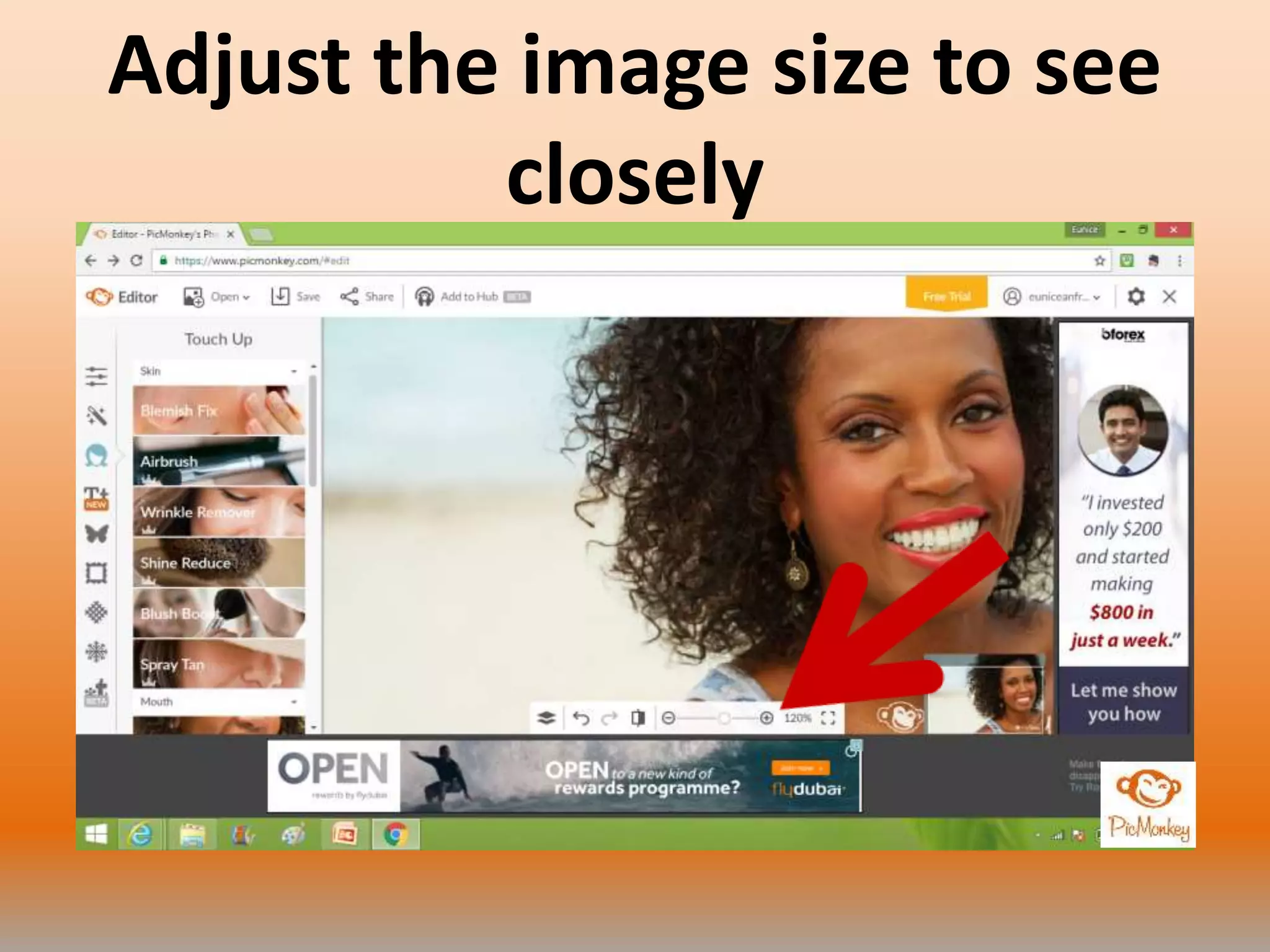
Adjust the image size to see
closely
Click Apply
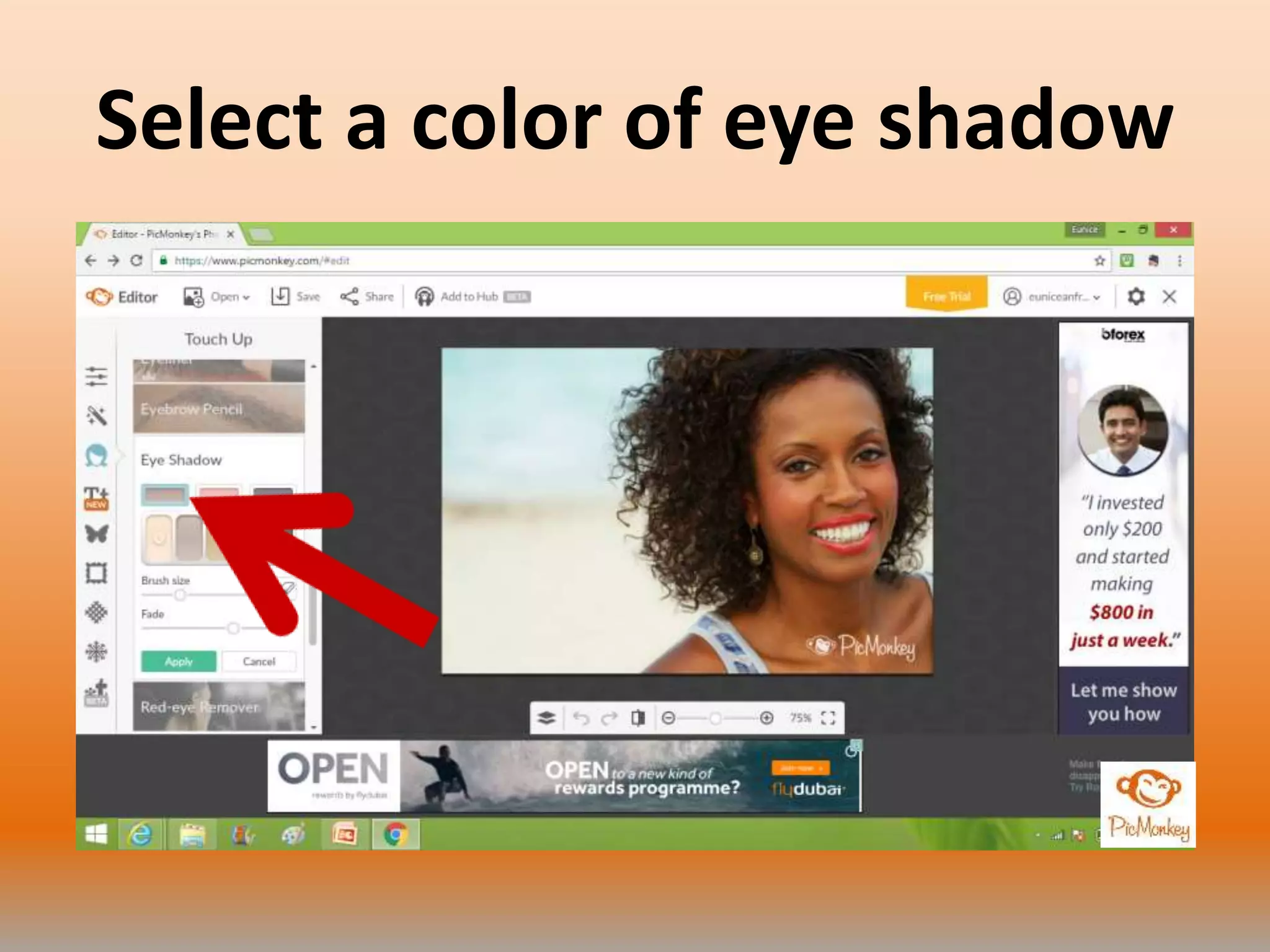
Click Eye Shadow
Select a color of eye shadow
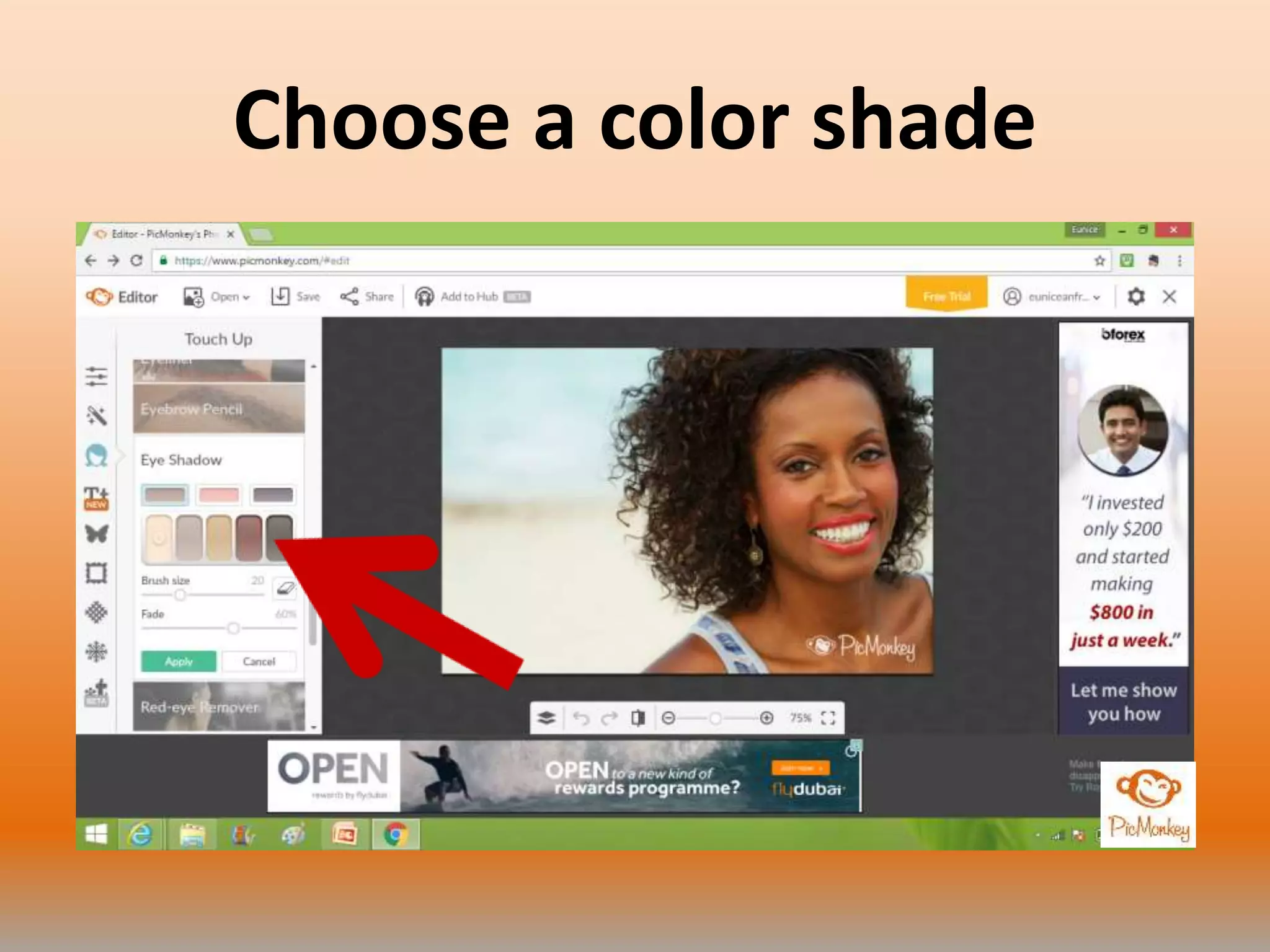
Choose a color shade
Adjust the brush size
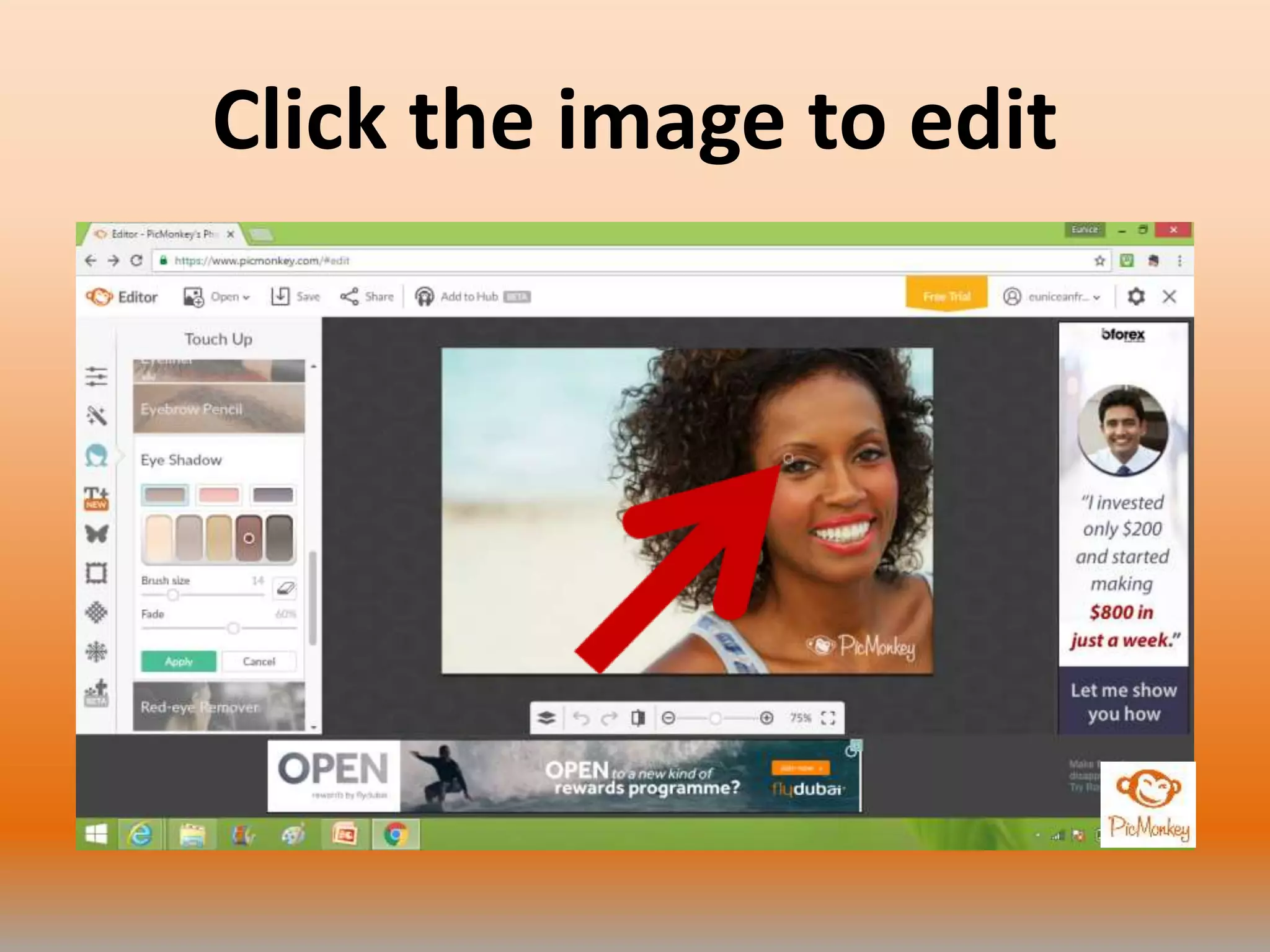
Click the image to edit
Click Apply
Click Save when you’re done
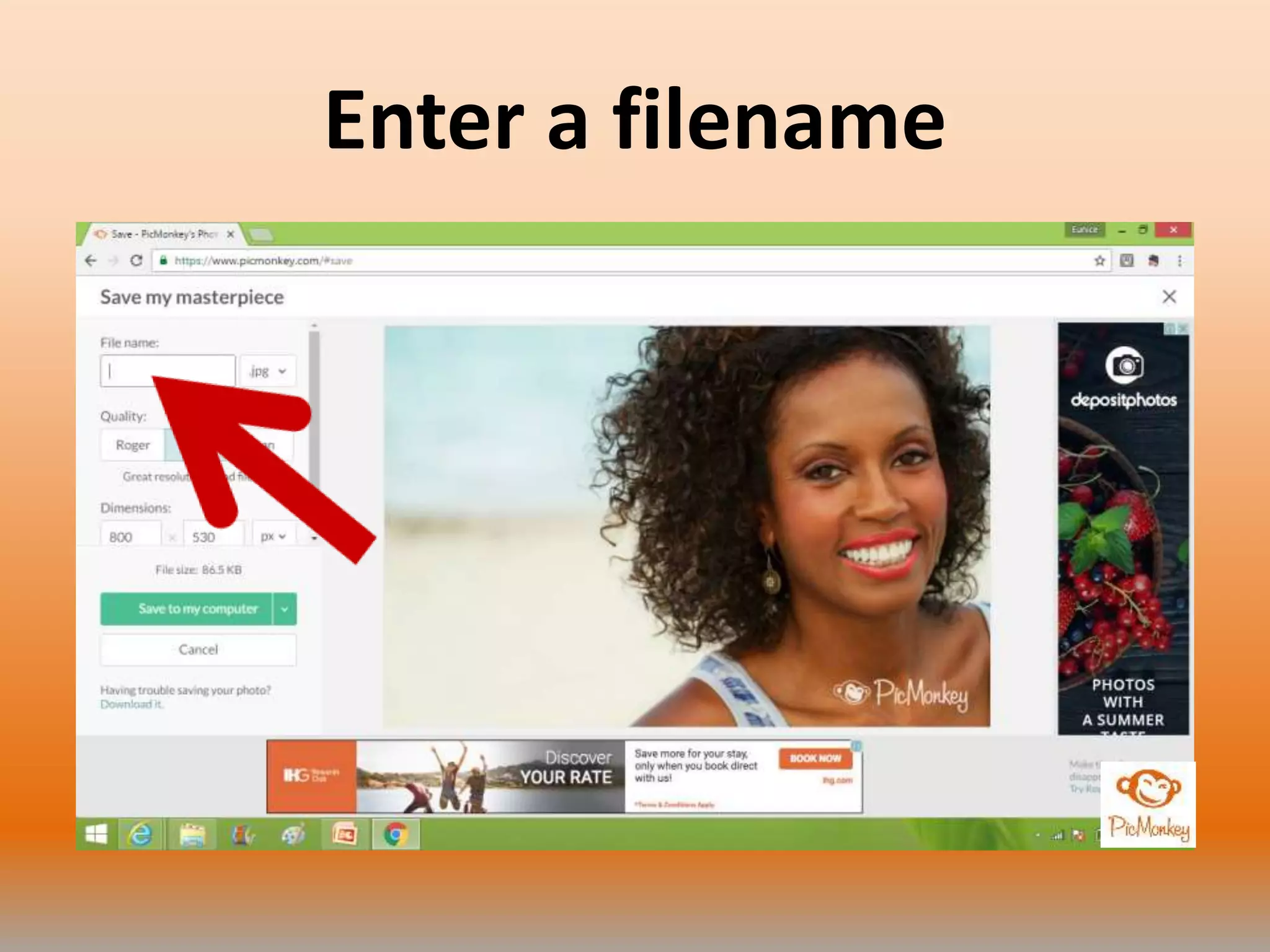
Enter a filename
Click Save to my computer
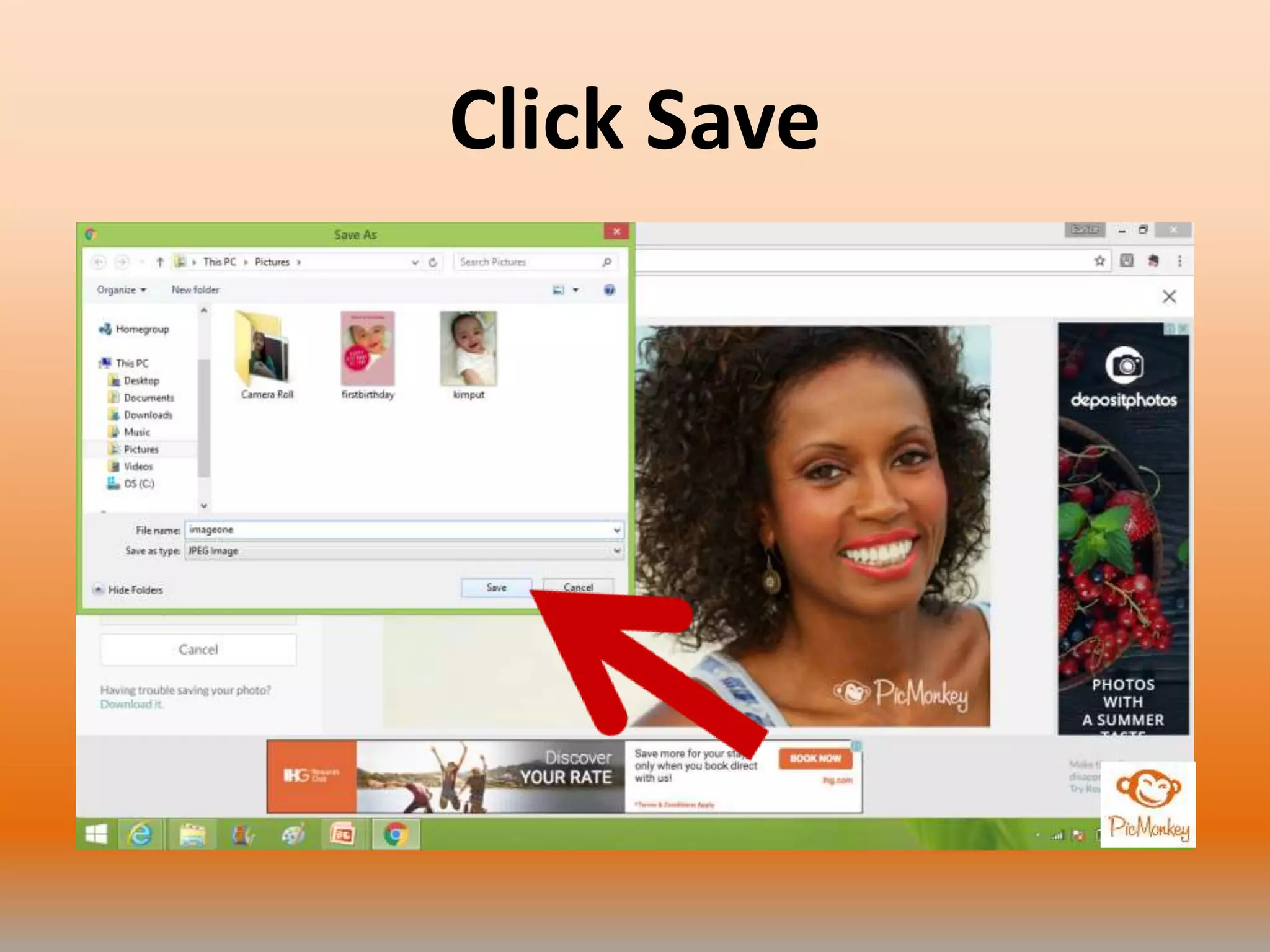
Click Save
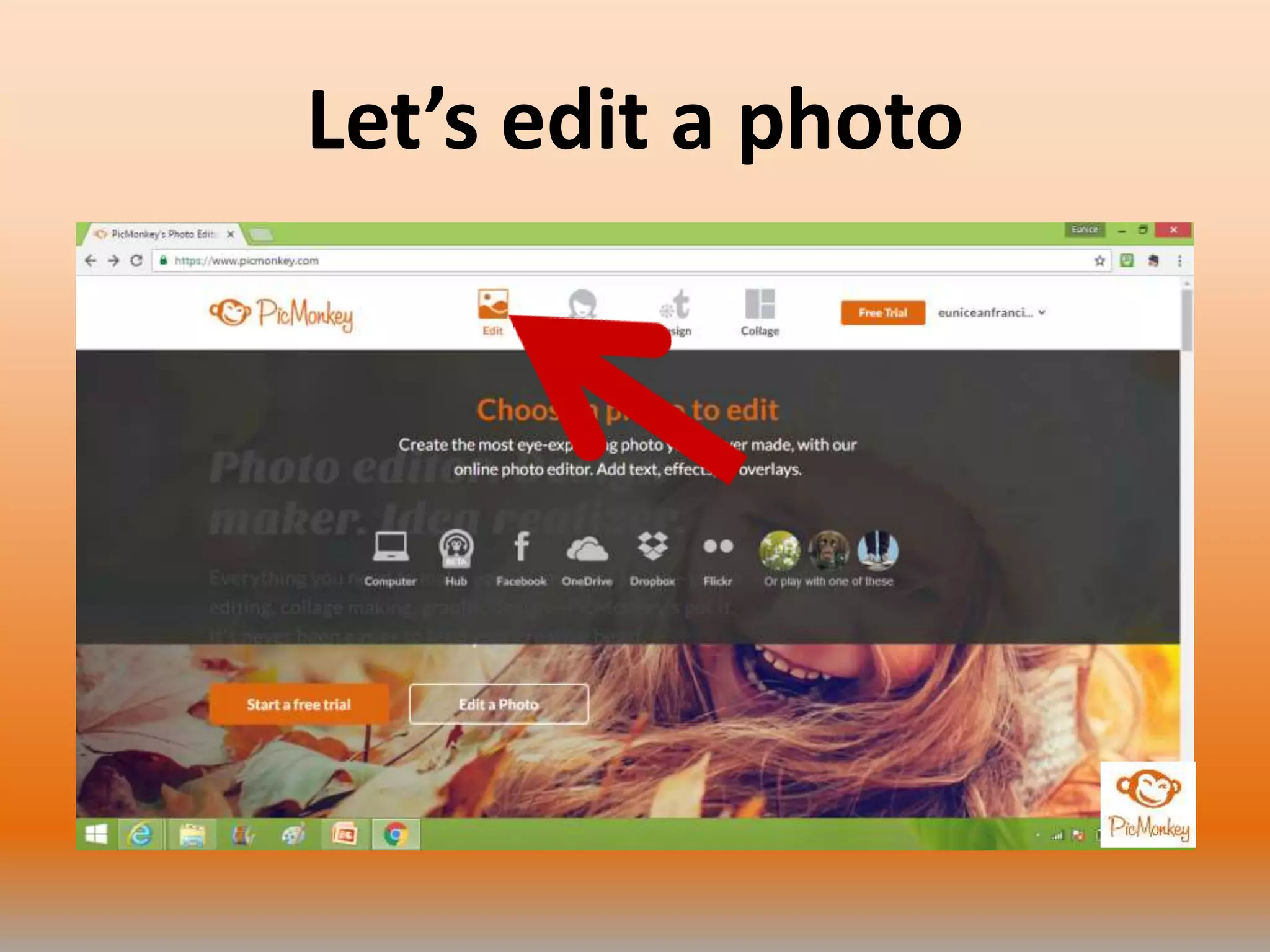
Let’s edit a photo
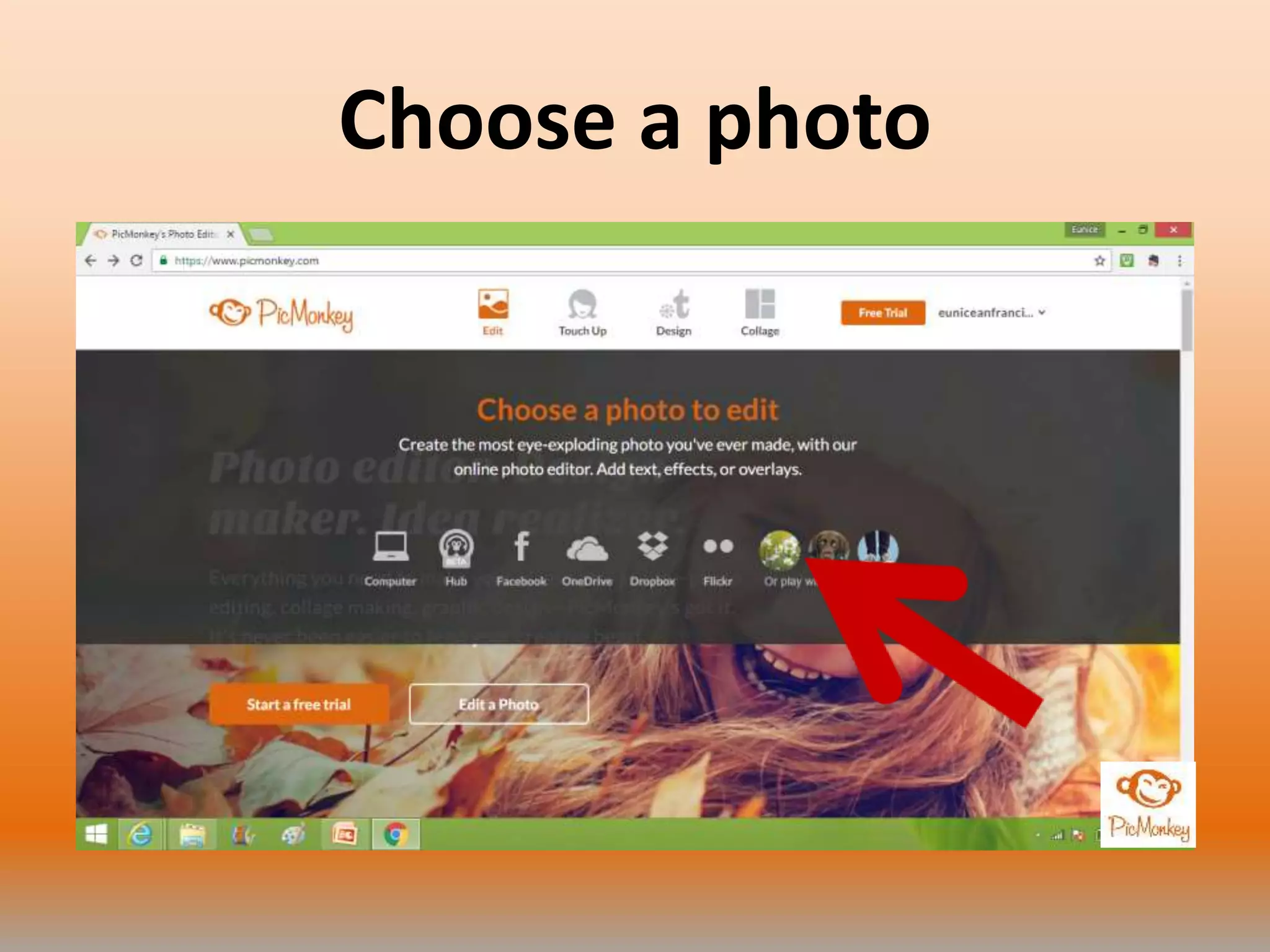
Choose a photo
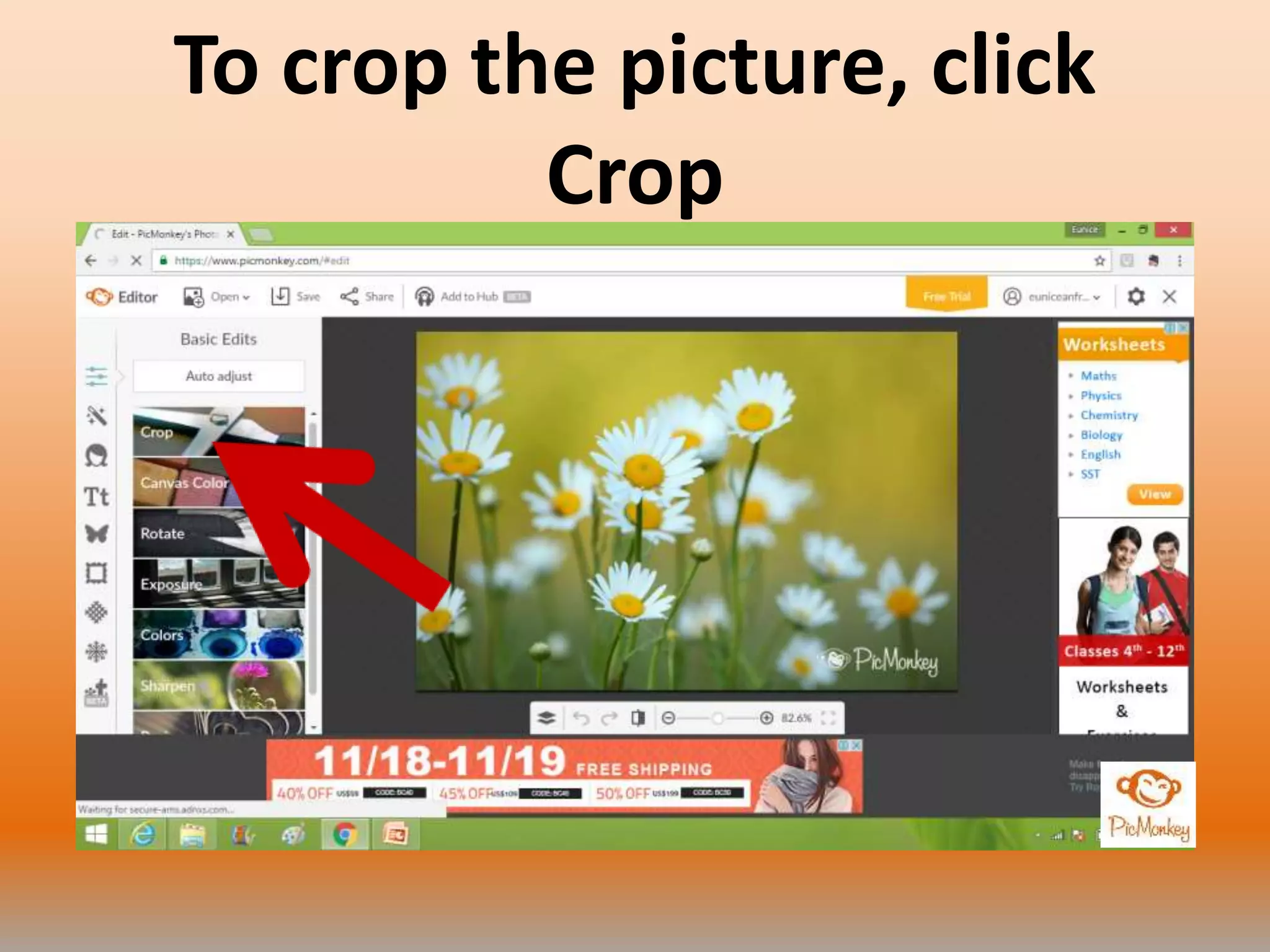
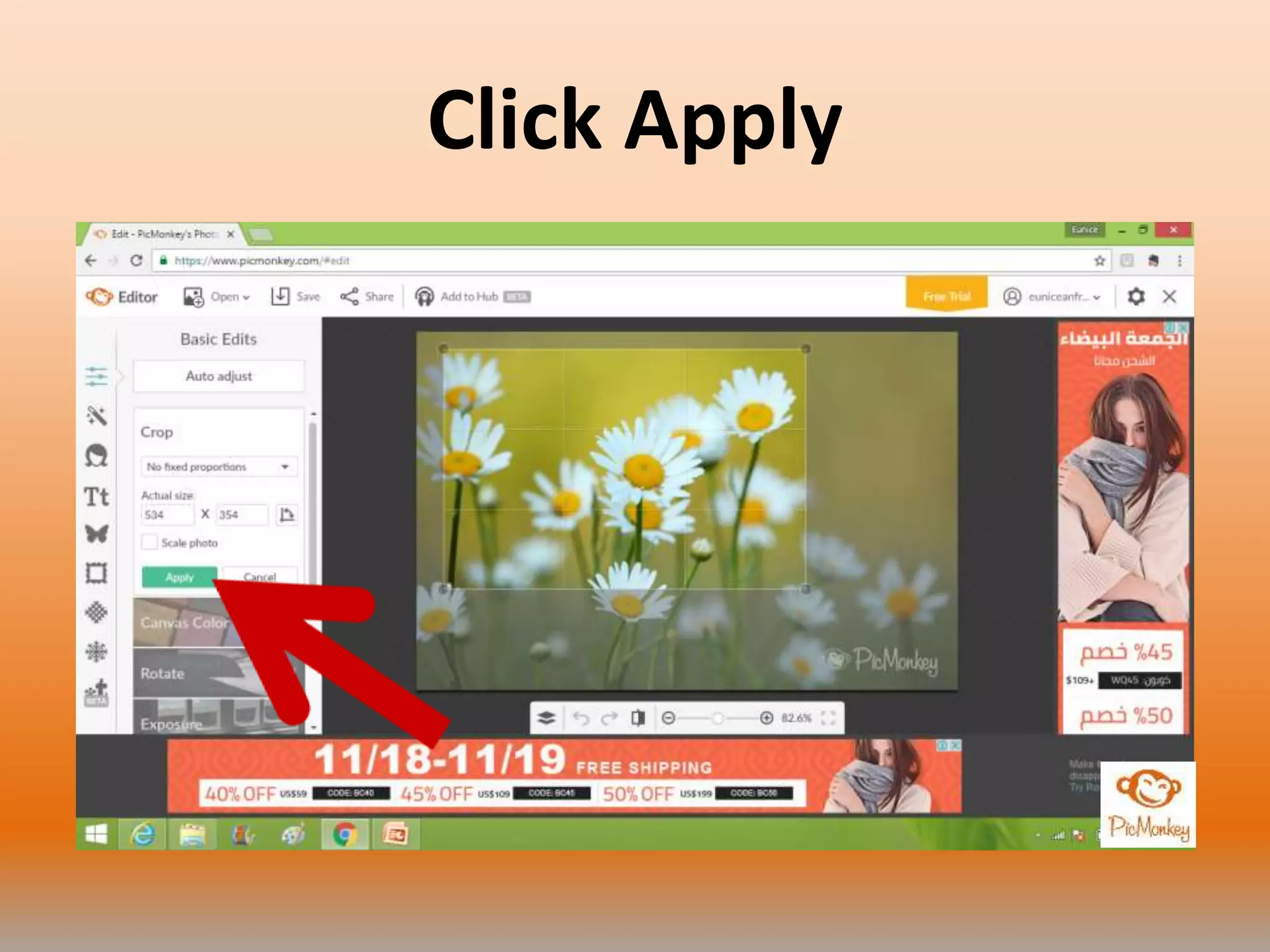
To crop the picture, click
Crop
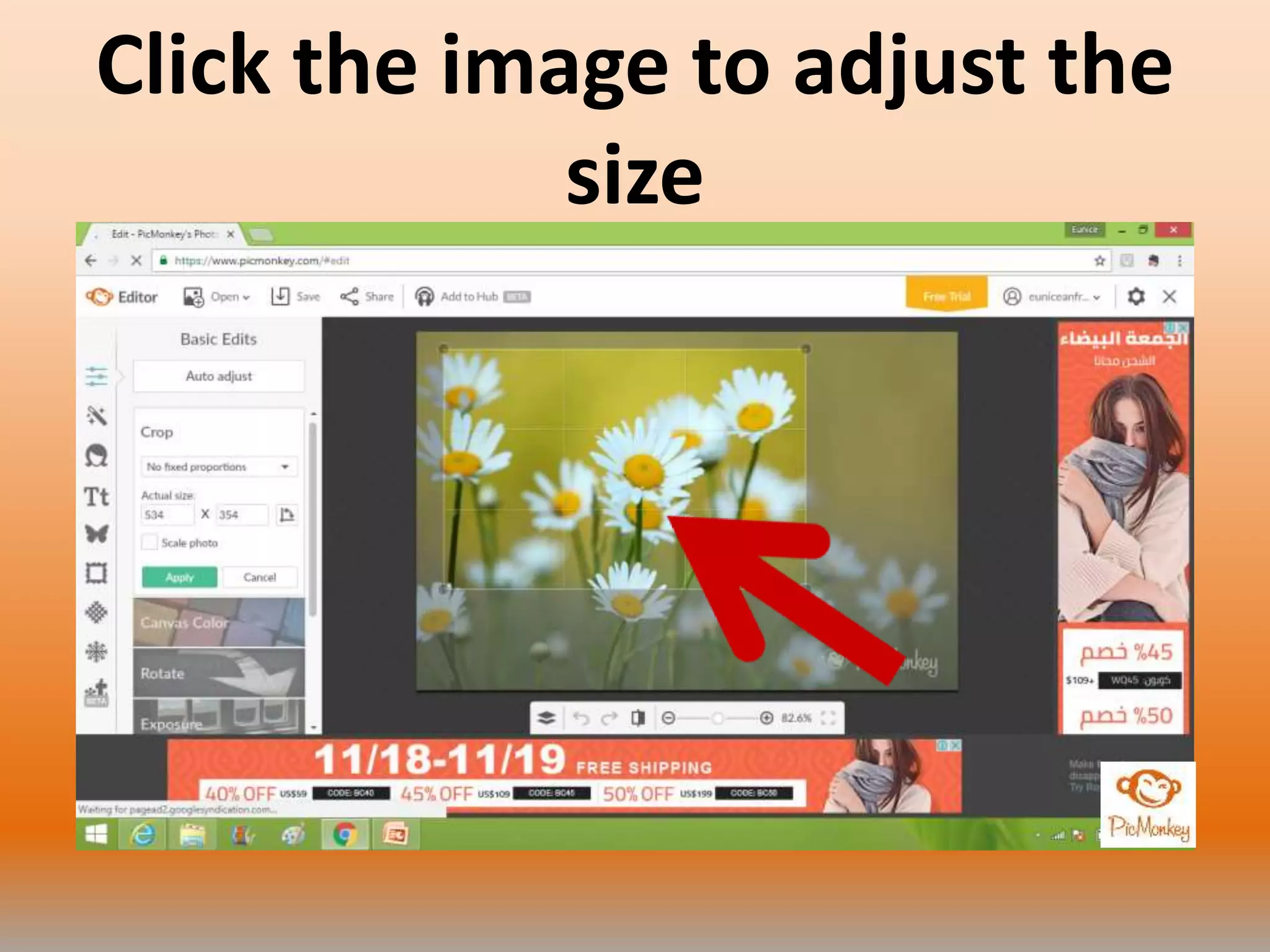
Click the image to adjust the
size
Click Apply
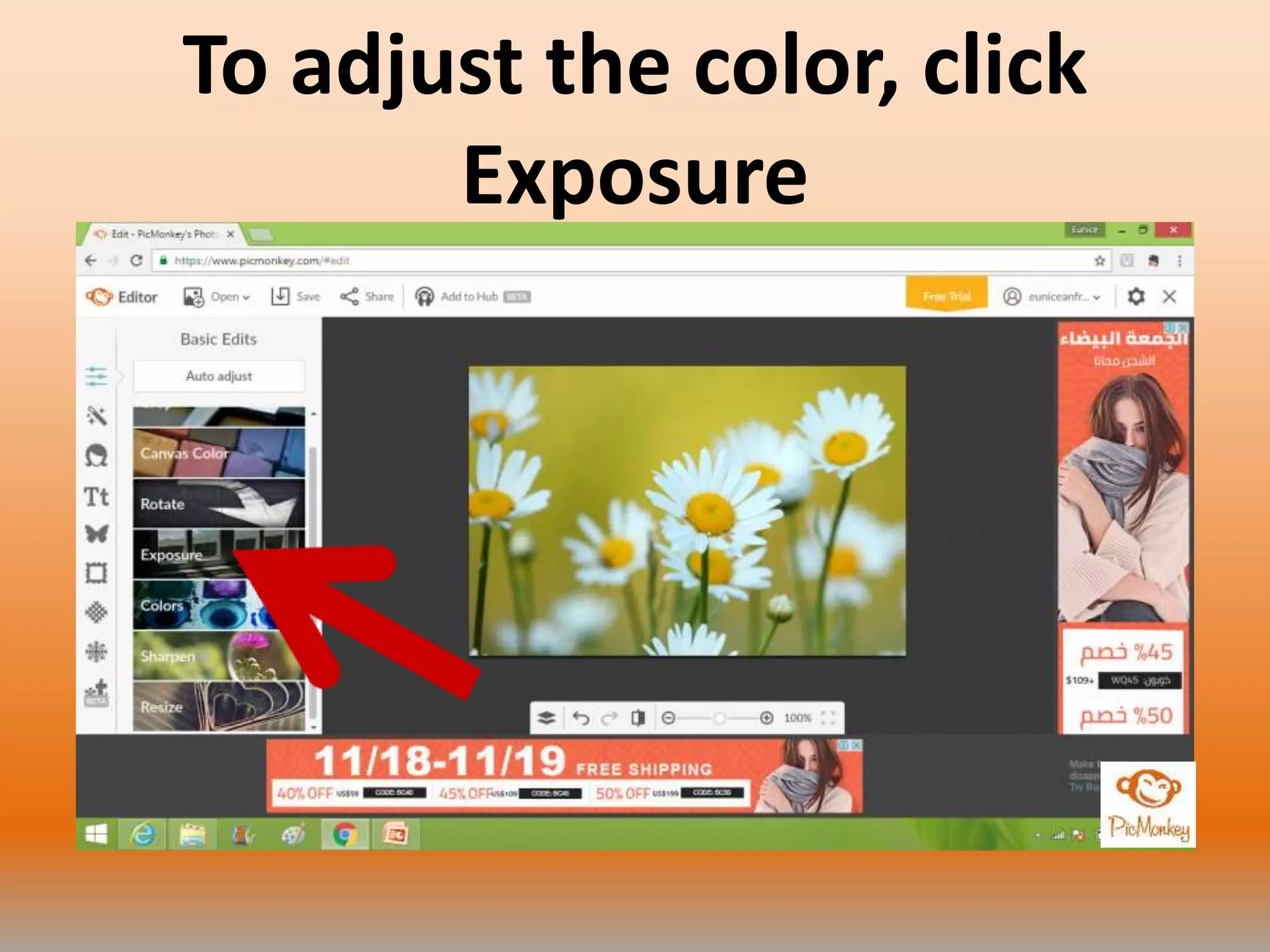
To adjust the color, click
Exposure
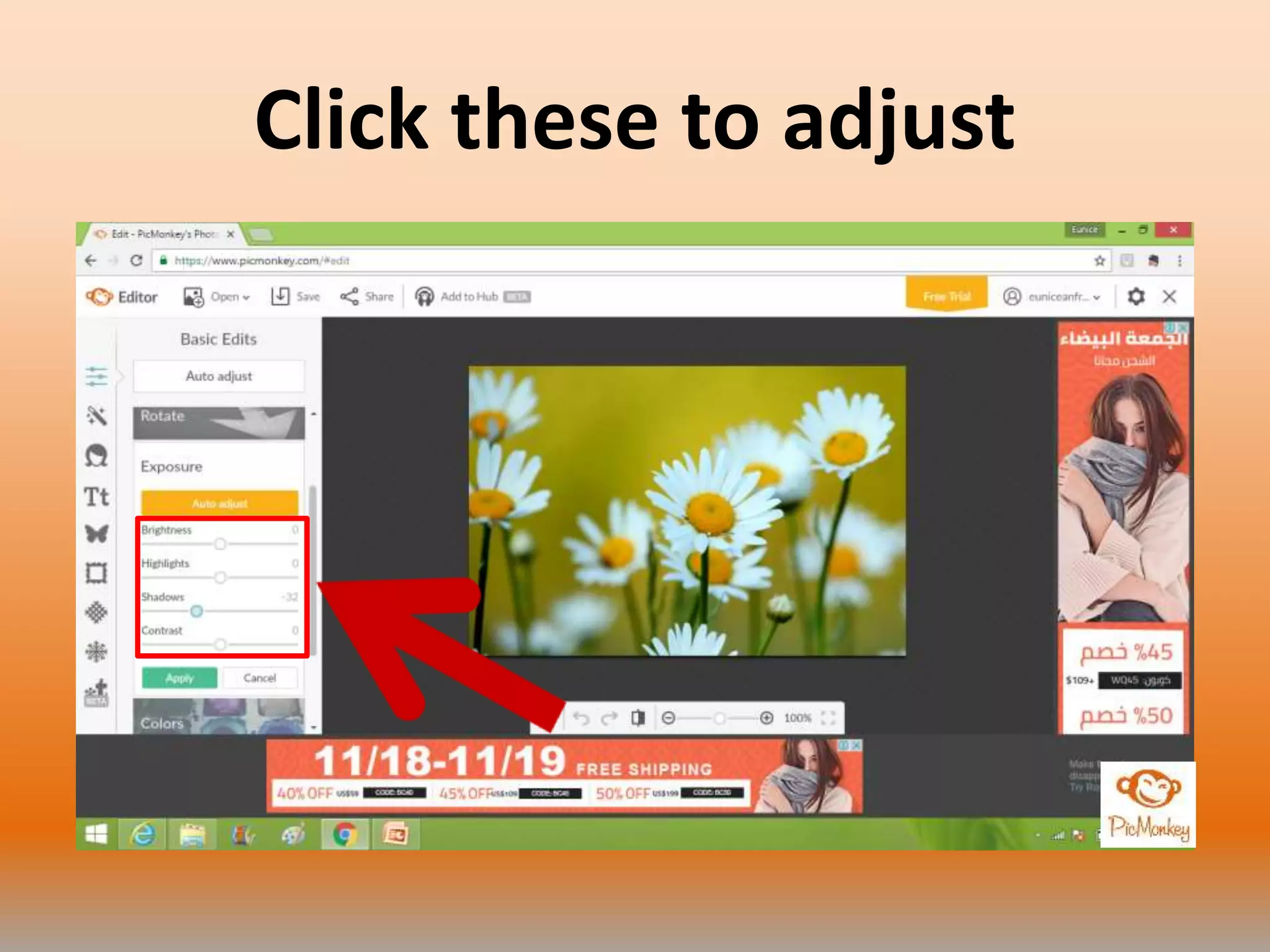
Click these to adjust
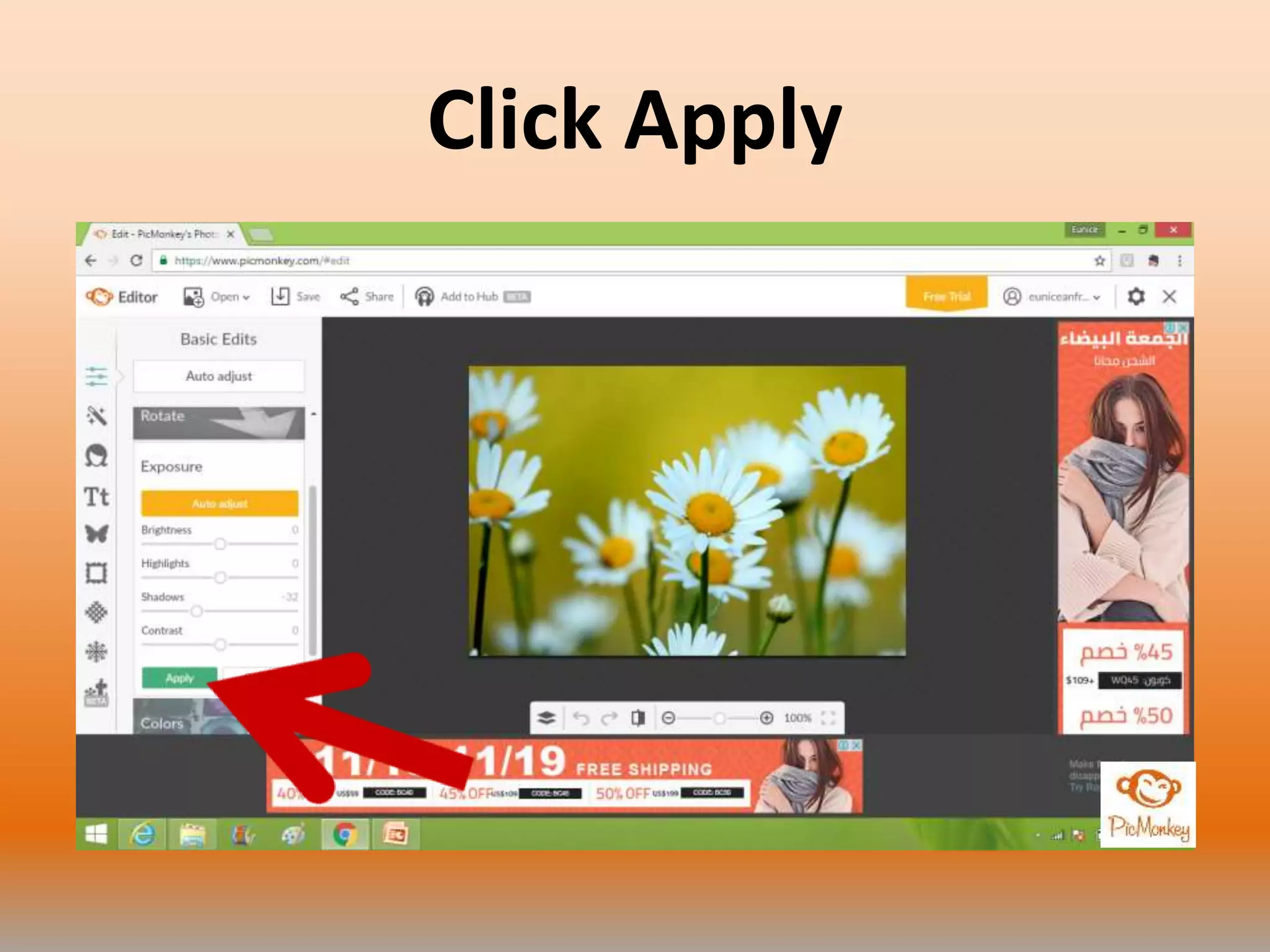
Click Apply
Fabulous! Now you know
how Picmonkey works
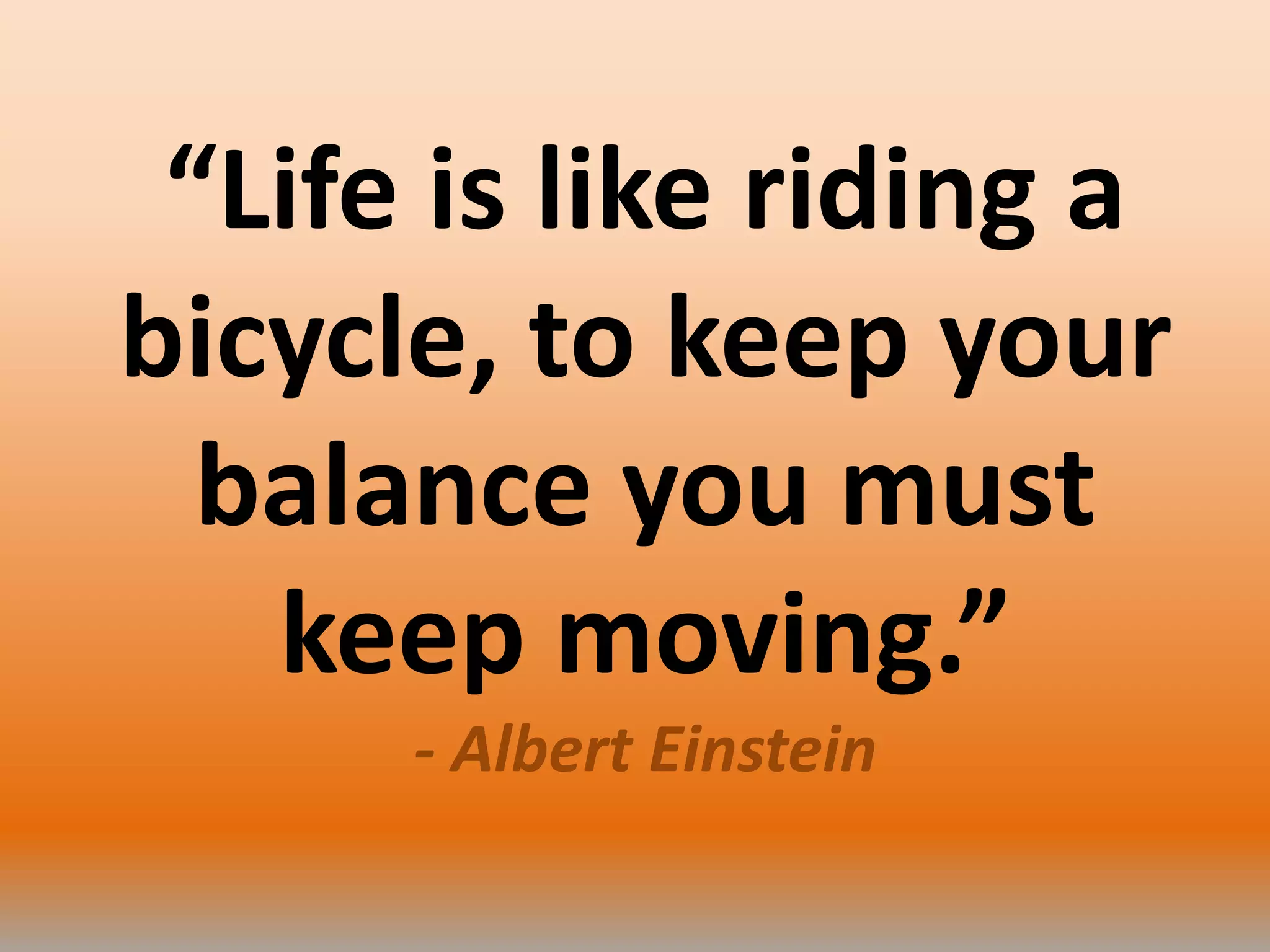
“Life is like riding a
bicycle, to keep your
balance you must
keep moving.”
- Albert Einstein

How to use Picmonkey