1 of 3 
 
How to access NoodleTools through Google Apps  
Our school has enabled access to NoodleTools through Google Apps! Now, you can register as a new 
user or access an existing NoodleTools folder without the need to authenticate into the subscription 
or to remember a separate personal username and password.  
 
Accessing the installed app  
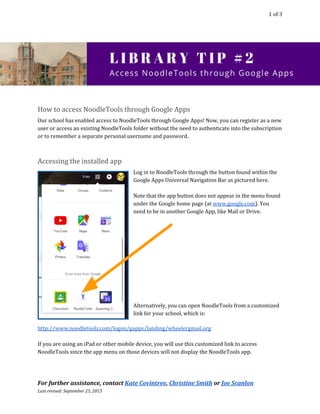
Log in to NoodleTools through the button found within the 
Google Apps Universal Navigation Bar as pictured here.  
 
Note that the app button does not appear in the menu found 
under the Google home page (at ​www.google.com​). You 
need to be in another Google App, like Mail or Drive.  


Alternatively, you can open NoodleTools from a customized 
link for your school, which is:  
http://www.noodletools.com/logon/gapps/landing/wheelergmail.org  
 
If you are using an iPad or other mobile device, you will use this customized link to access 
NoodleTools since the app menu on those devices will not display the NoodleTools app.  
For further assistance, contact ​Kate Covintree​, ​Christine Smith​ or ​Joe Scanlon 
Last revised: September 25, 2015  
 
 
2 of 3 
Logging in to NoodleTools  
Clicking on the NoodleTools app in the Universal Navigation Bar or navigating to the customized 
login page URL in a browser initiates the login process. You will be prompted to select your Google 
Apps account. If this is not your first time logging in this way, you will be automatically logged in 
and see your Projects screen.  
 
If this is the first time you have logged in through Google Apps, an intermediate screen gives you an 
opportunity to either create a new account or to link an existing account to this Google Apps login.  
 
Linking to a previously‐created account  
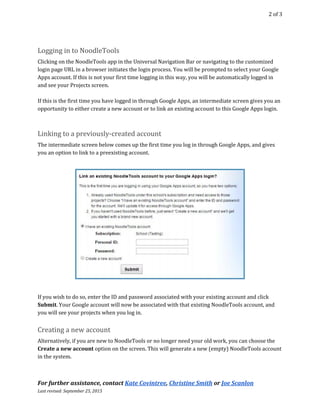
The intermediate screen below comes up the first time you log in through Google Apps, and gives 
you an option to link to a pre​existing account.  


If you wish to do so, enter the ID and password associated with your existing account and click 
Submit​​. Your Google account will now be associated with that existing NoodleTools account, and 
you will see your projects when you log in. 
Creating a new account  
Alternatively, if you are new to NoodleTools or no longer need your old work, you can choose the 
Create a new account​ ​option on the screen. This will generate a new (empty) NoodleTools account 
in the system.  
 
For further assistance, contact ​Kate Covintree​, ​Christine Smith​ or ​Joe Scanlon 
Last revised: September 25, 2015  
 
 
3 of 3 
Unlinking a NoodleTools account from a Google ID  
If you go through the screen to link an existing account or create a new account, and then realize 
you’ve made an error, you can unlink the account from your Google ID to start over. For example, 
you might have linked to the wrong ID/password (sometimes students have made multiple 
accounts), or you may have created a new account when you meant to link to an existing one.  
 
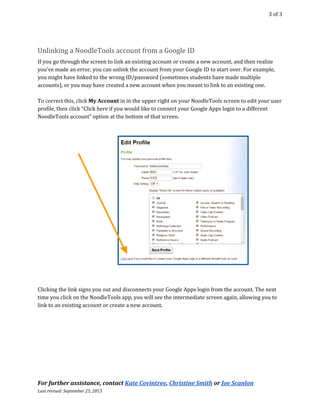
To correct this, click ​My Account​​ in in the upper right on your NoodleTools screen to edit your user 
profile, then click “Click here if you would like to connect your Google Apps login to a different 
NoodleTools account” option at the bottom of that screen.  


Clicking the link signs you out and disconnects your Google Apps login from the account. The next 
time you click on the NoodleTools app, you will see the intermediate screen again, allowing you to 
link to an existing account or create a new account. 
For further assistance, contact ​Kate Covintree​, ​Christine Smith​ or ​Joe Scanlon 
Last revised: September 25, 2015  
 

Access NoodleTools through Google apps