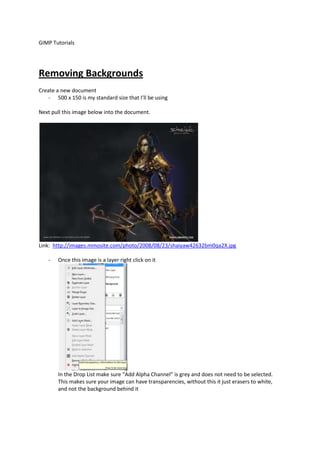
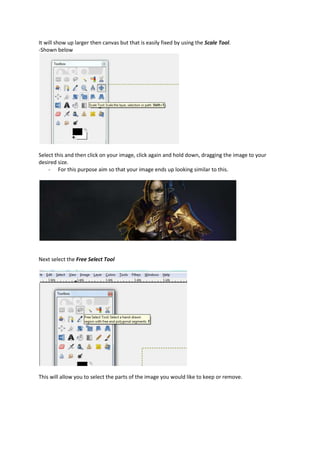
GIMP Tutorials<br />Removing Backgrounds<br />Create a new document<br />500 x 150 is my standard size that I’ll be usingNext pull this image below into the document.<br />Link:  http://images.mmosite.com/photo/2008/08/23/shaiyaw42632bm0qa2X.jpg<br />Once this image is a layer right click on it
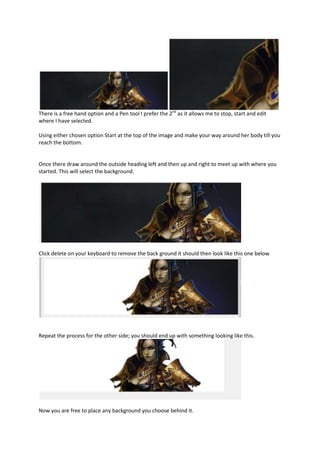
In the Drop List make sure “Add Alpha Channel” is grey and does not need to be selected. This makes sure your image can have transparencies, without this it just erasers to white, and not the background behind itIt will show up larger then canvas but that is easily fixed by using the Scale Tool.<br />-Shown below<br />Select this and then click on your image, click again and hold down, dragging the image to your desired size.<br />For this purpose aim so that your image ends up looking similar to this.Next select the Free Select Tool <br />This will allow you to select the parts of the image you would like to keep or remove. <br />There is a free hand option and a Pen tool I prefer the 2nd as it allows me to stop, start and edit where I have selected.<br />Using either chosen option Start at the top of the image and make your way around her body till you reach the bottom.<br />Once there draw around the outside heading left and then up and right to meet up with where you started. This will select the background. <br />Click delete on your keyboard to remove the back ground it should then look like this one below<br />Repeat the process for the other side; you should end up with something looking like this. <br />Now you are free to place any background you choose behind it.<br />
Removing Background

Removing Background

  • 1.
    GIMP Tutorials<br />RemovingBackgrounds<br />Create a new document<br />500 x 150 is my standard size that I’ll be usingNext pull this image below into the document.<br />Link: http://images.mmosite.com/photo/2008/08/23/shaiyaw42632bm0qa2X.jpg<br />Once this image is a layer right click on it
  • 2.
    In the DropList make sure “Add Alpha Channel” is grey and does not need to be selected. This makes sure your image can have transparencies, without this it just erasers to white, and not the background behind itIt will show up larger then canvas but that is easily fixed by using the Scale Tool.<br />-Shown below<br />Select this and then click on your image, click again and hold down, dragging the image to your desired size.<br />For this purpose aim so that your image ends up looking similar to this.Next select the Free Select Tool <br />This will allow you to select the parts of the image you would like to keep or remove. <br />There is a free hand option and a Pen tool I prefer the 2nd as it allows me to stop, start and edit where I have selected.<br />Using either chosen option Start at the top of the image and make your way around her body till you reach the bottom.<br />Once there draw around the outside heading left and then up and right to meet up with where you started. This will select the background. <br />Click delete on your keyboard to remove the back ground it should then look like this one below<br />Repeat the process for the other side; you should end up with something looking like this. <br />Now you are free to place any background you choose behind it.<br />