Tutorial in GIMP
BY: OSCAR B. CONTRERAS JR.
GOOD DAY! TODAY, I’,M GONNA SHOW YOU
HOW TO:
How to blend images using GIMP
Removing image background using GIMP (using Fuzzy
select tool)
And lastly, changing the clothes color.
Blending images in
GIMP
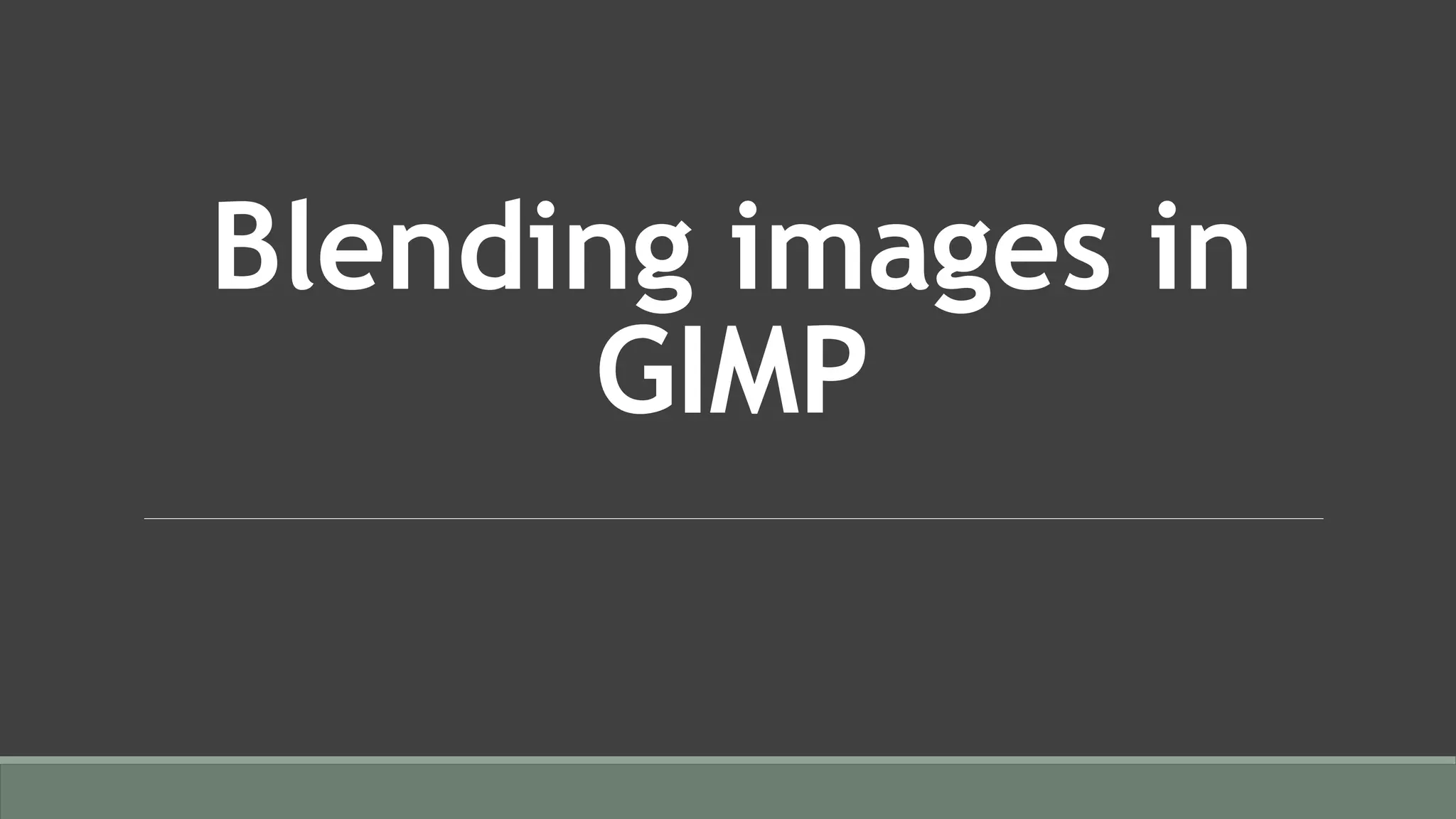
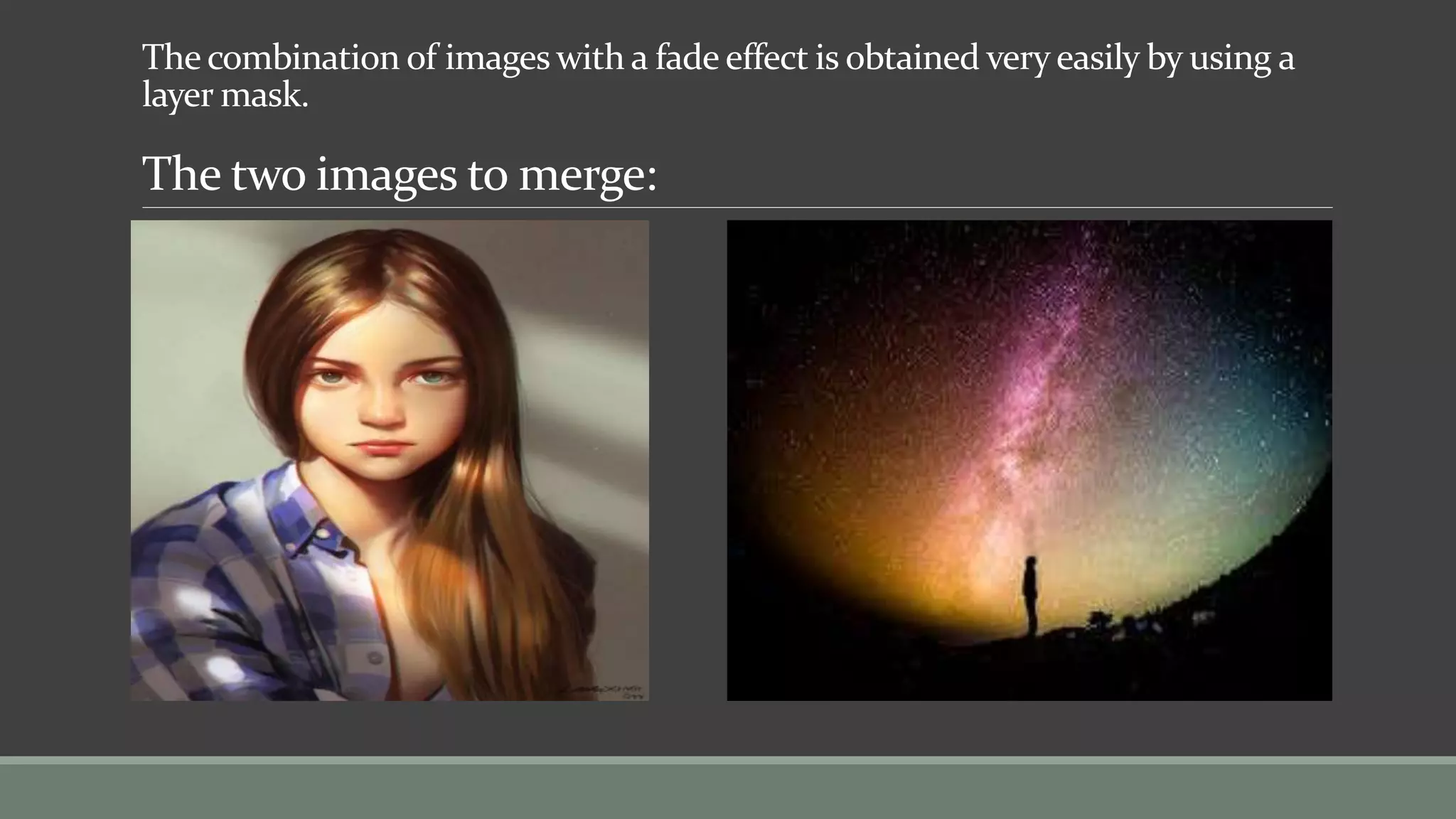
The combination of images with a fade effect is obtained very easily by using a
layer mask.
The two images to merge:
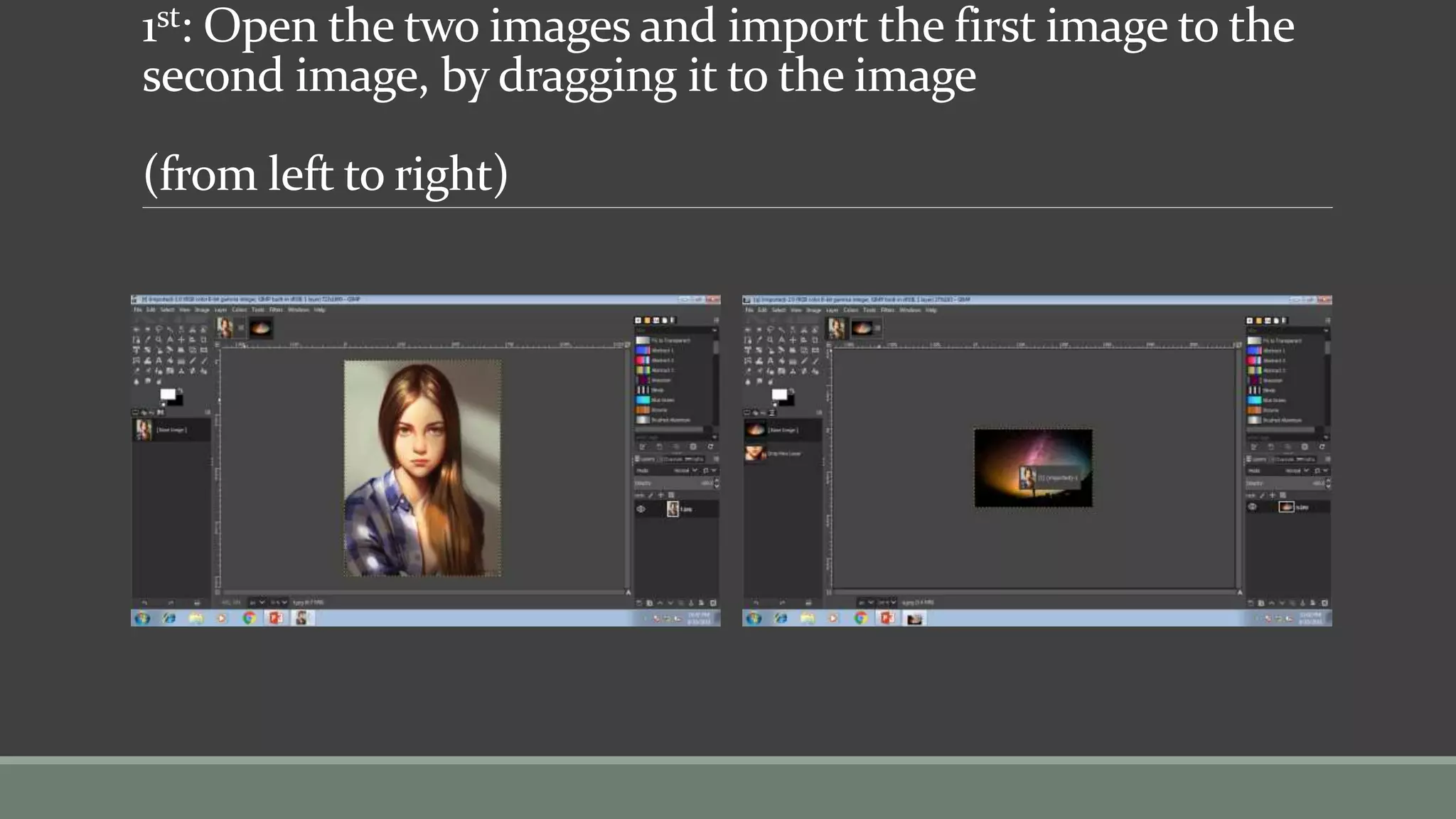
1st: Open the two images and import the first image to the
second image, by dragging it to the image
(from left to right)
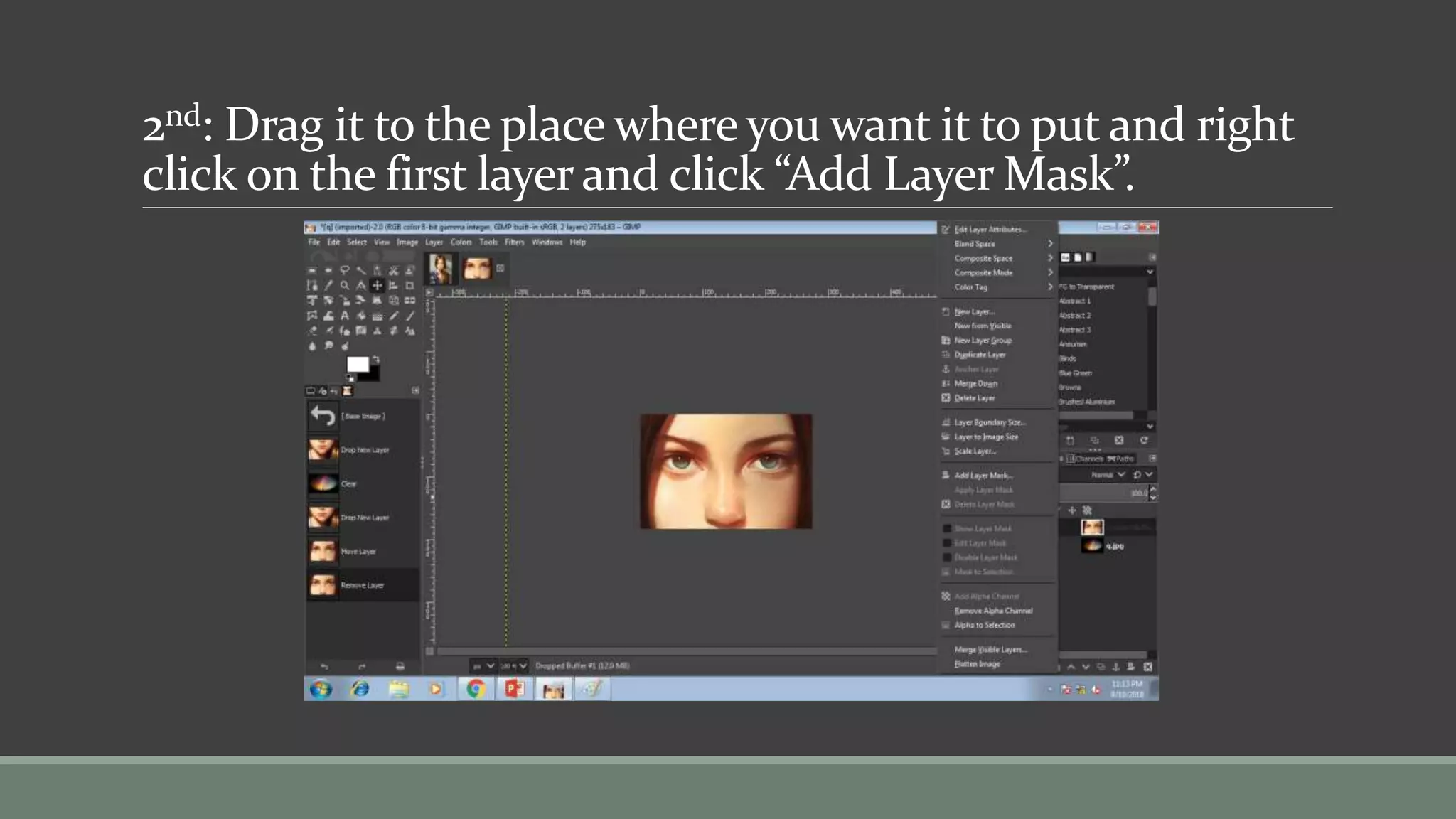
2nd: Drag it to the place where you want it to put and right
click on the first layer and click “Add Layer Mask”.
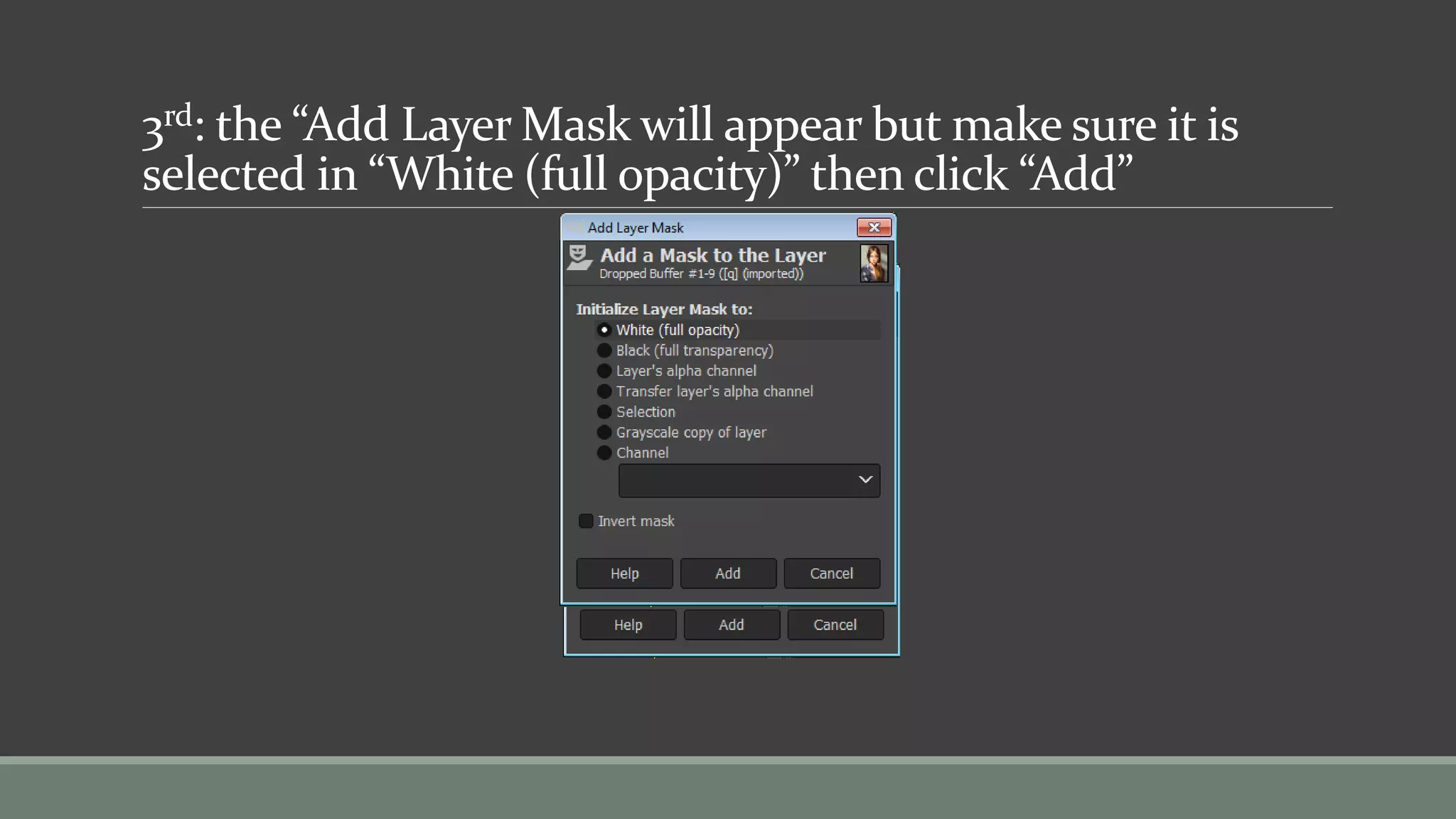
3rd: the “Add Layer Mask will appear but make sure it is
selected in “White (full opacity)” then click “Add”
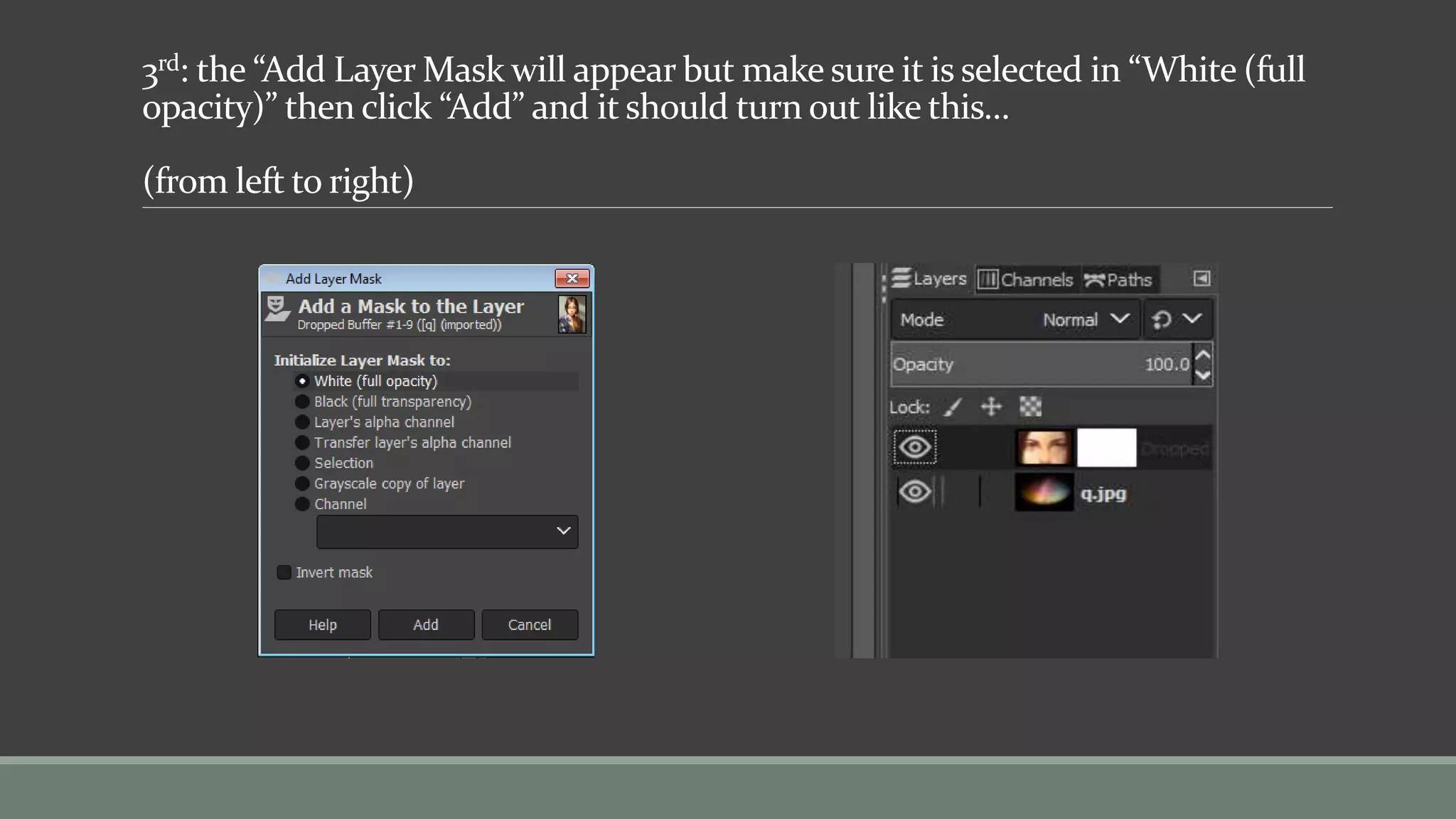
3rd: the “Add Layer Mask will appear but make sure it is selected in “White (full
opacity)” then click “Add” and it should turn out like this…
(from left to right)
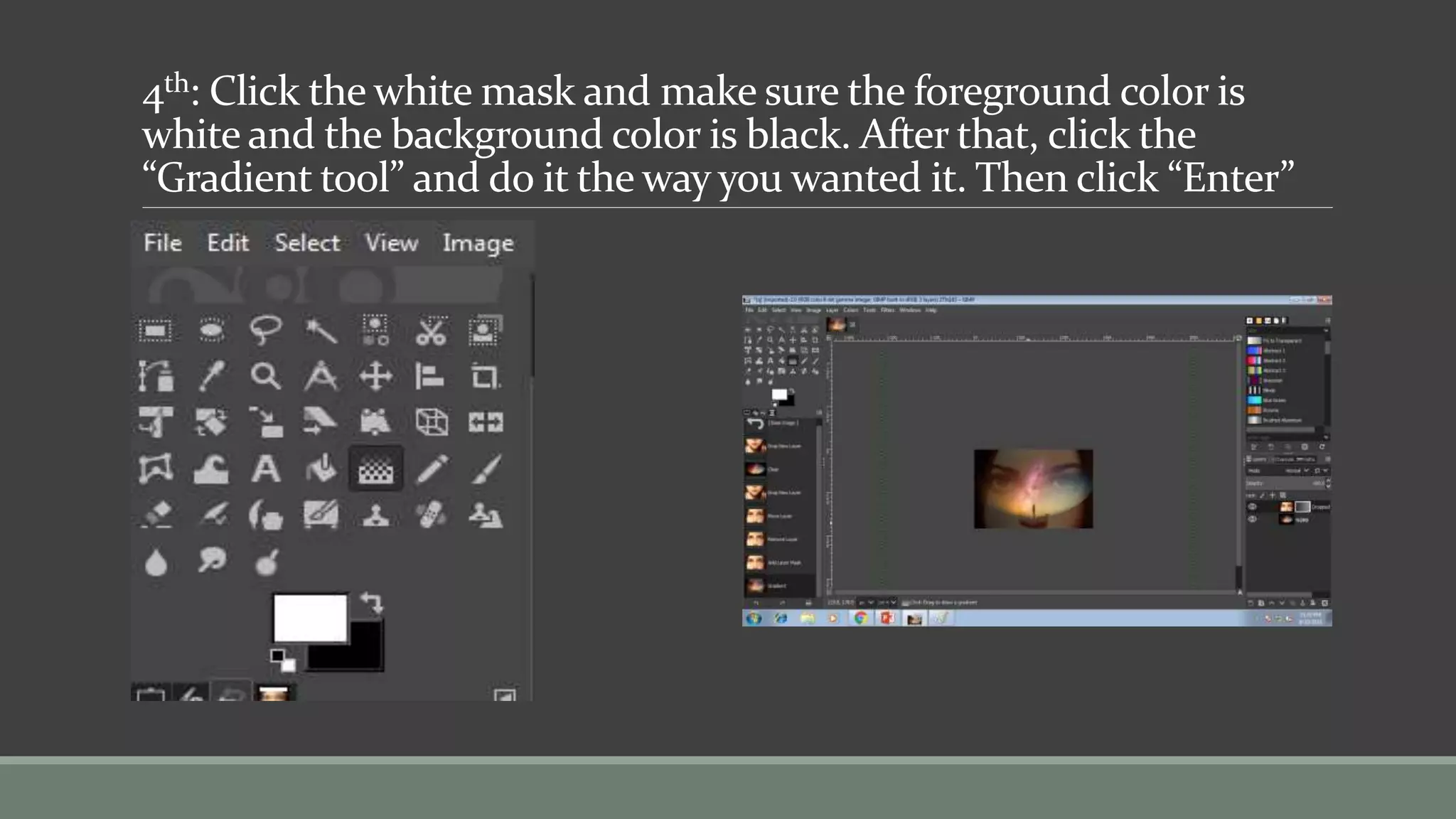
4th: Click the white mask and make sure the foreground color is
white and the background color is black. After that, click the
“Gradient tool” and do it the way you wanted it. Then click “Enter”
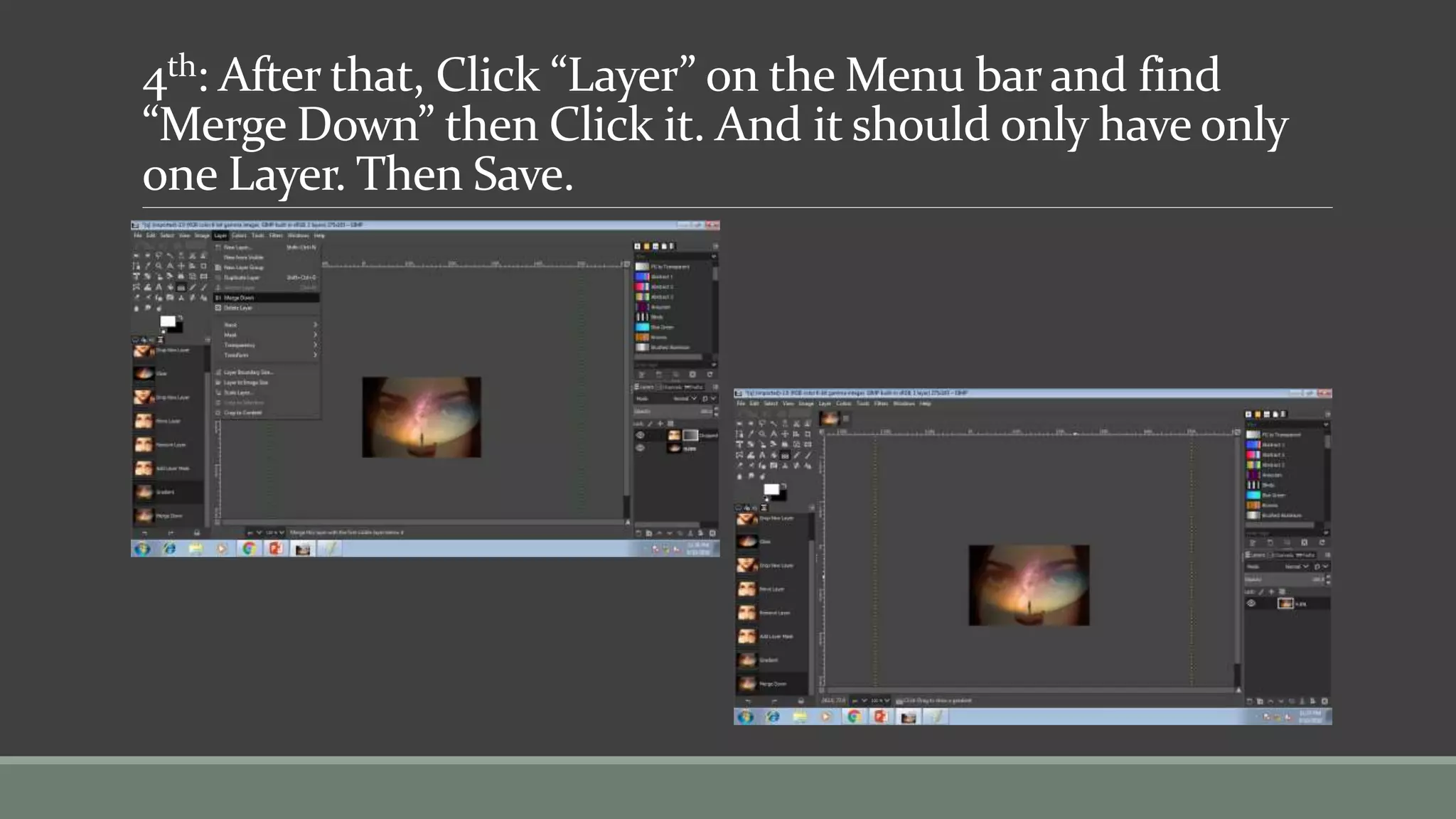
4th: After that, Click “Layer” on the Menu bar and find
“Merge Down” then Click it. And it should only have only
one Layer. Then Save.
Removing image
background using GIMP
(using Fuzzy select tool)
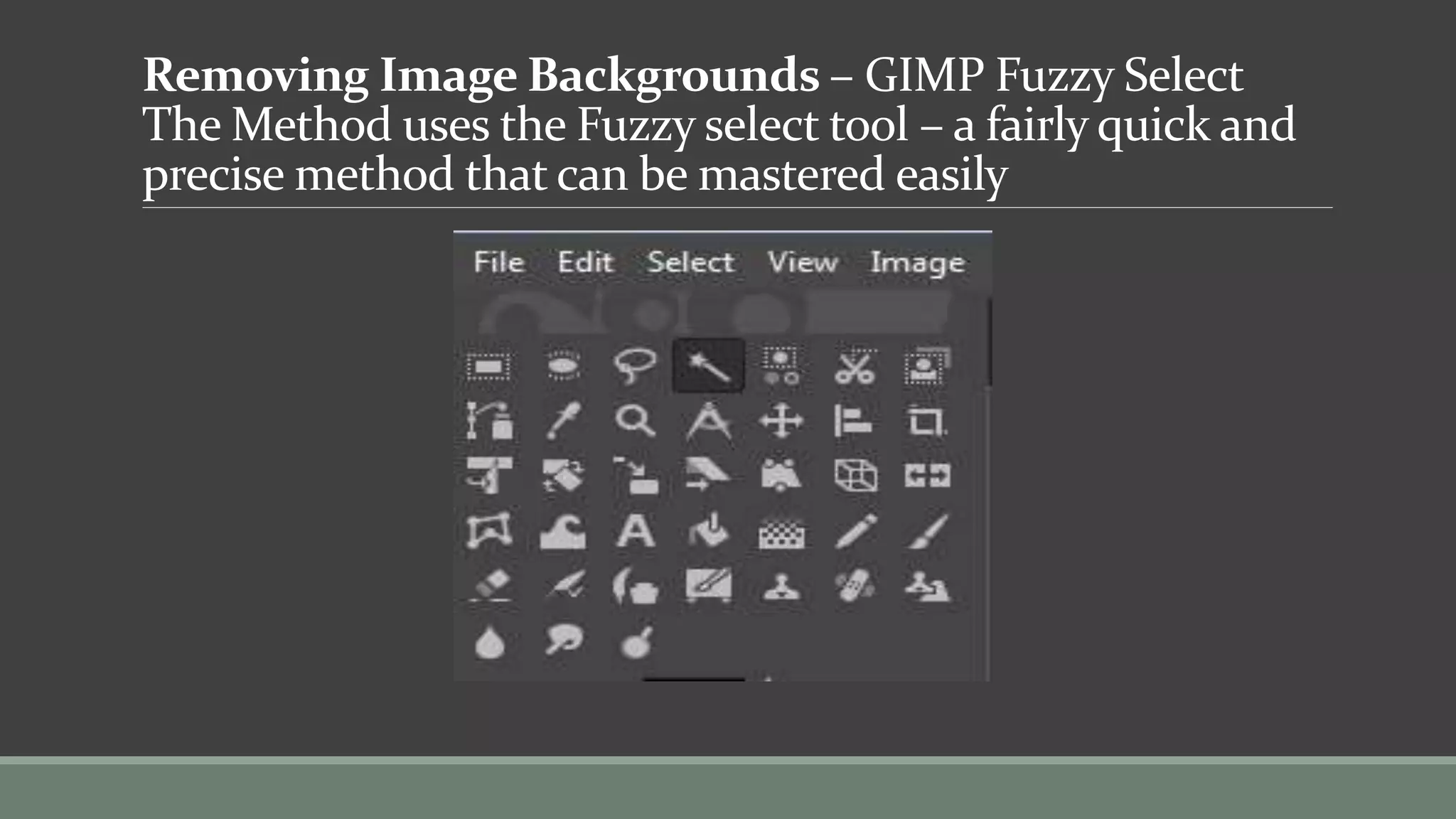
Removing Image Backgrounds – GIMP Fuzzy Select
The Method uses the Fuzzy select tool – a fairly quick and
precise method that can be mastered easily
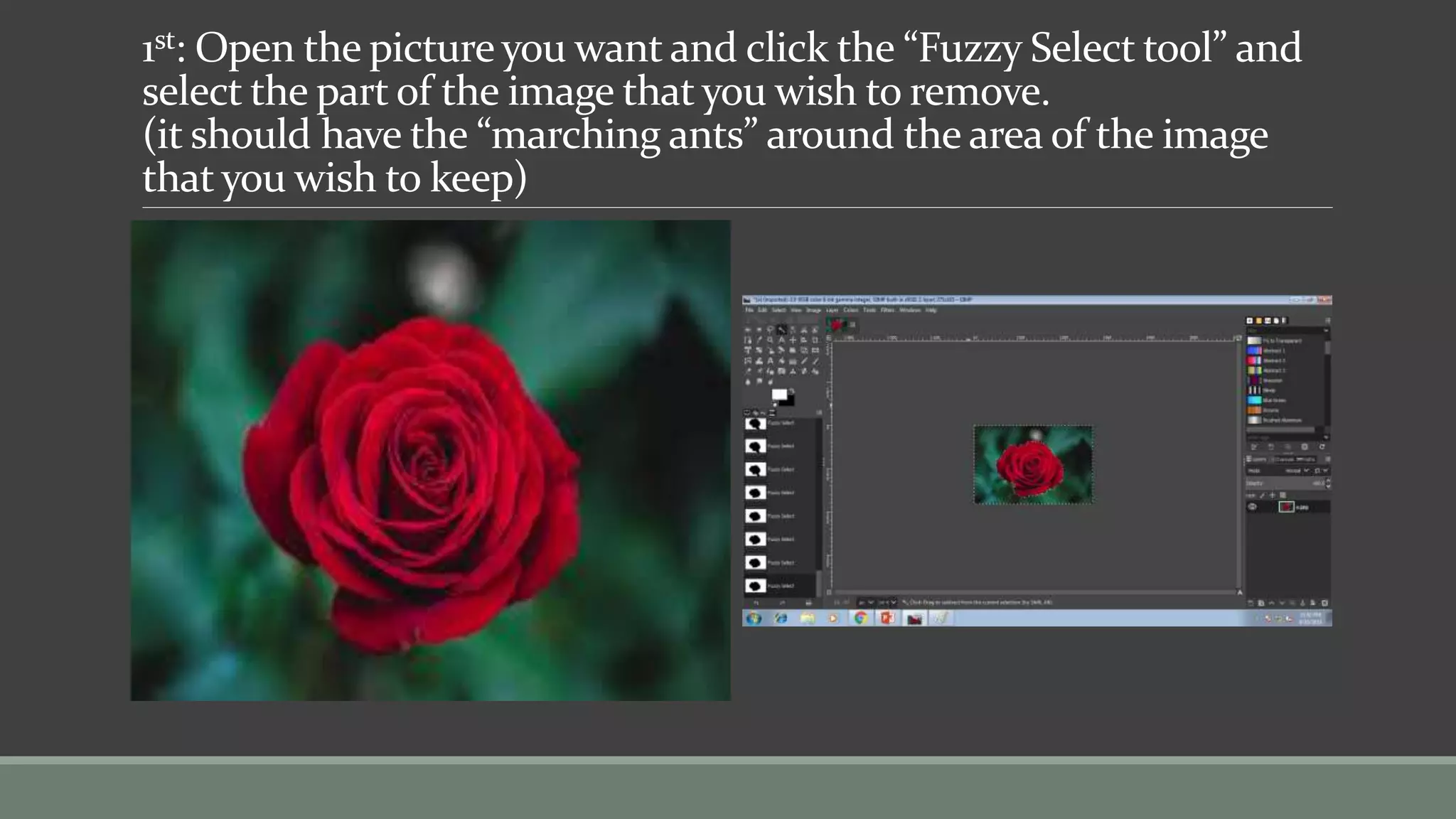
1st: Open the picture you want and click the “Fuzzy Select tool” and
select the part of the image that you wish to remove.
(it should have the “marching ants” around the area of the image
that you wish to keep)
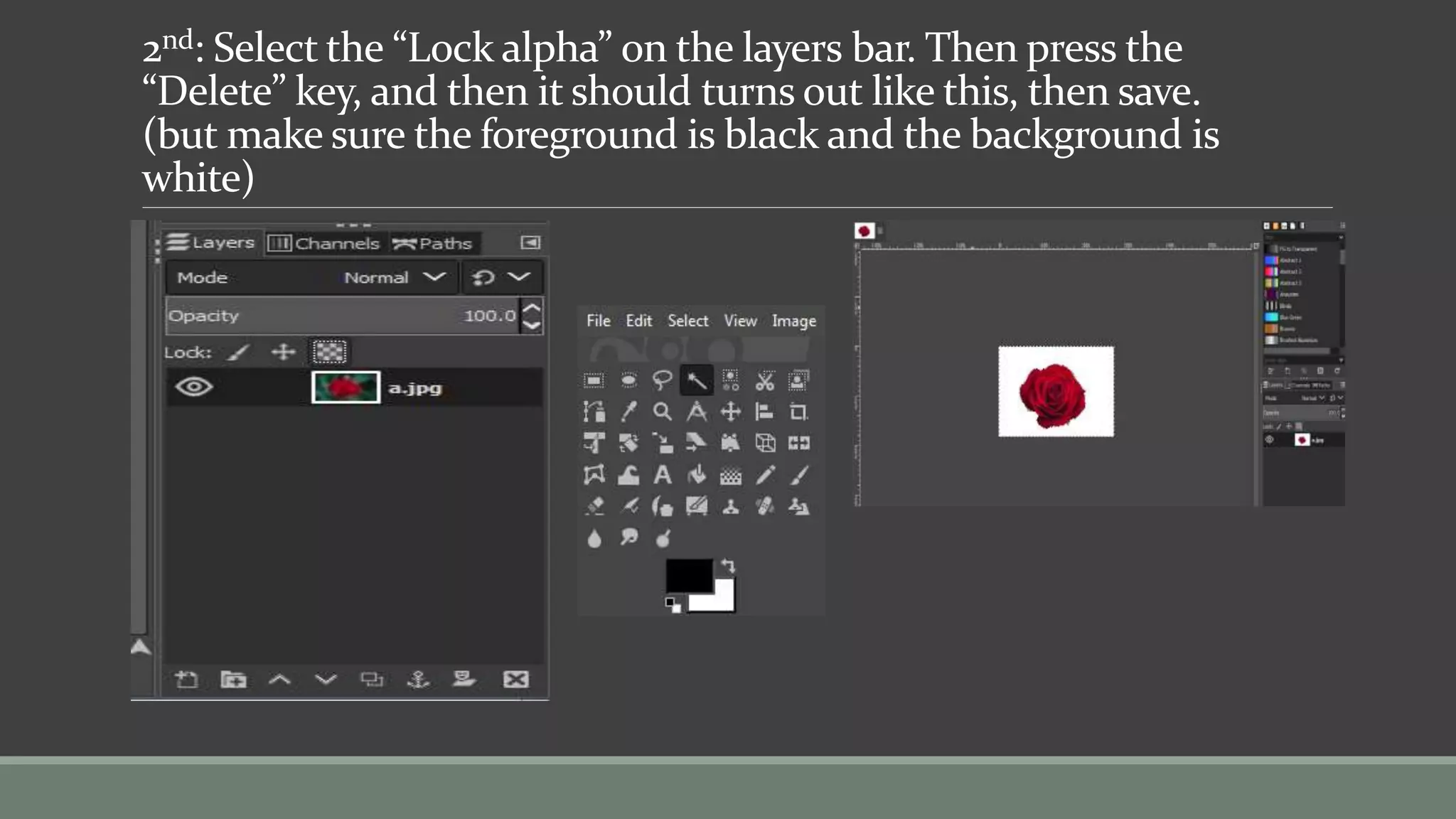
2nd: Select the “Lock alpha” on the layers bar. Then press the
“Delete” key, and then it should turns out like this, then save.
(but make sure the foreground is black and the background is
white)
Changing the
clothes color
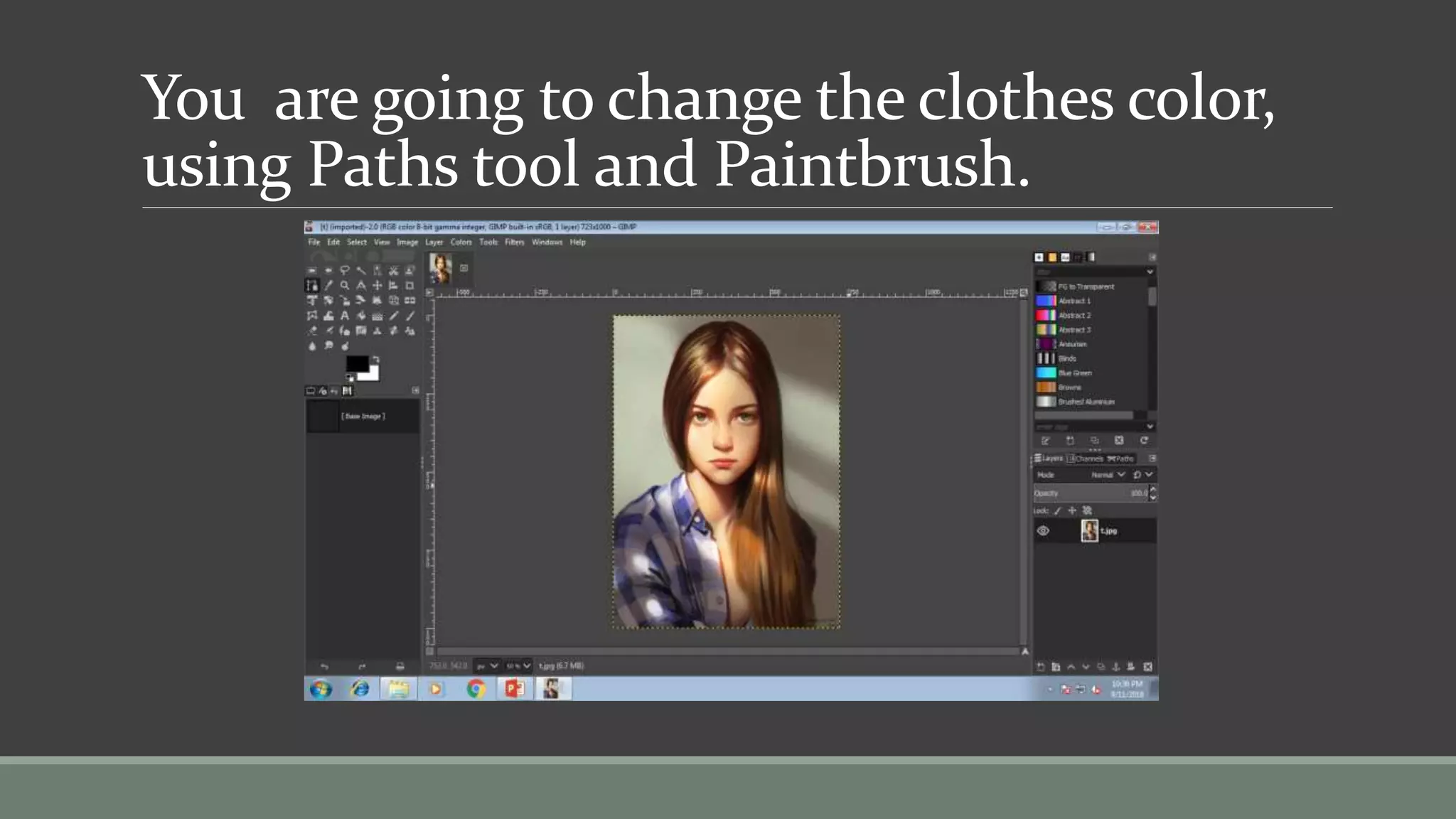
You are going to change the clothes color,
using Paths tool and Paintbrush.
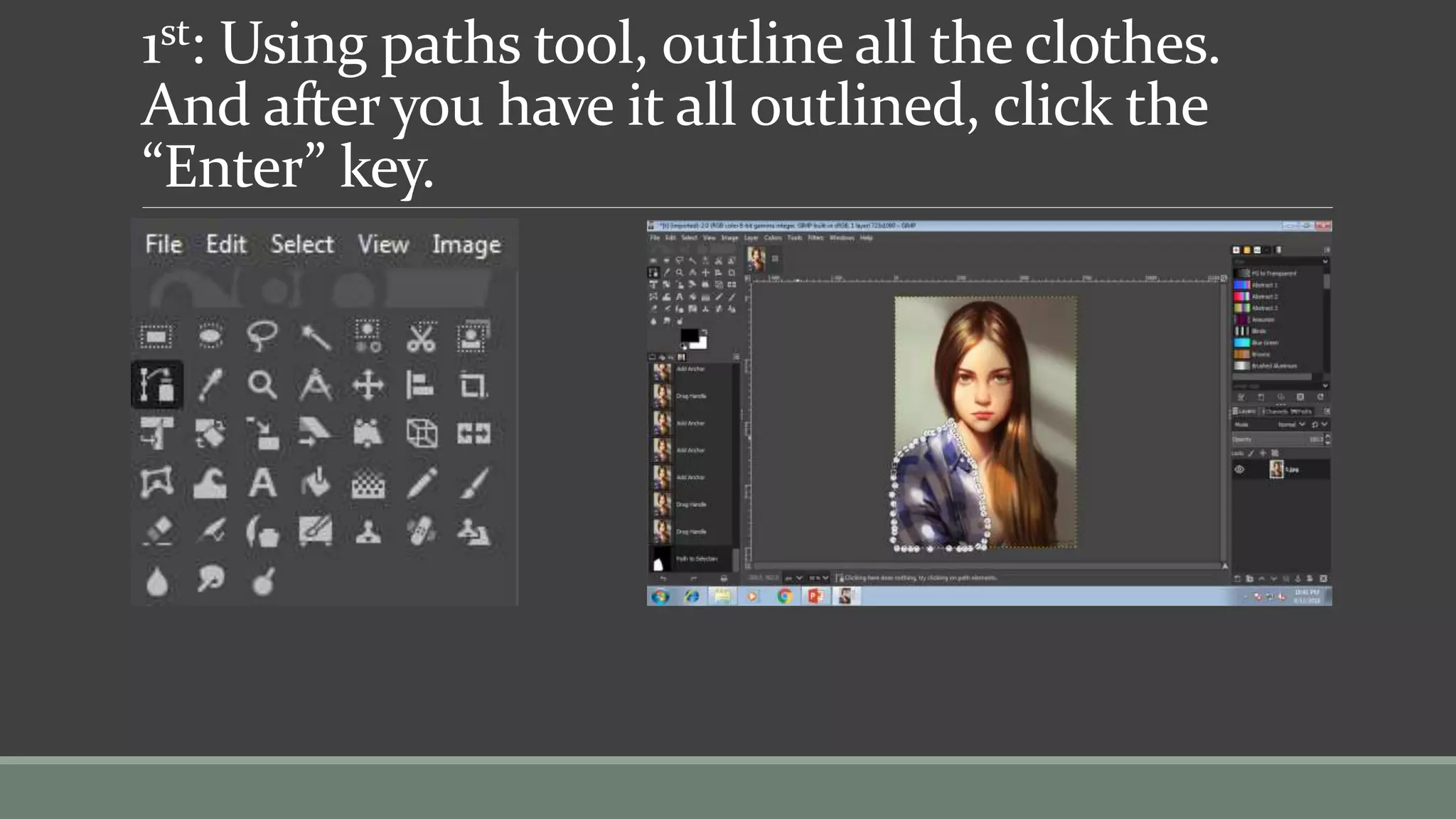
1st: Using paths tool, outline all the clothes.
And after you have it all outlined, click the
“Enter” key.
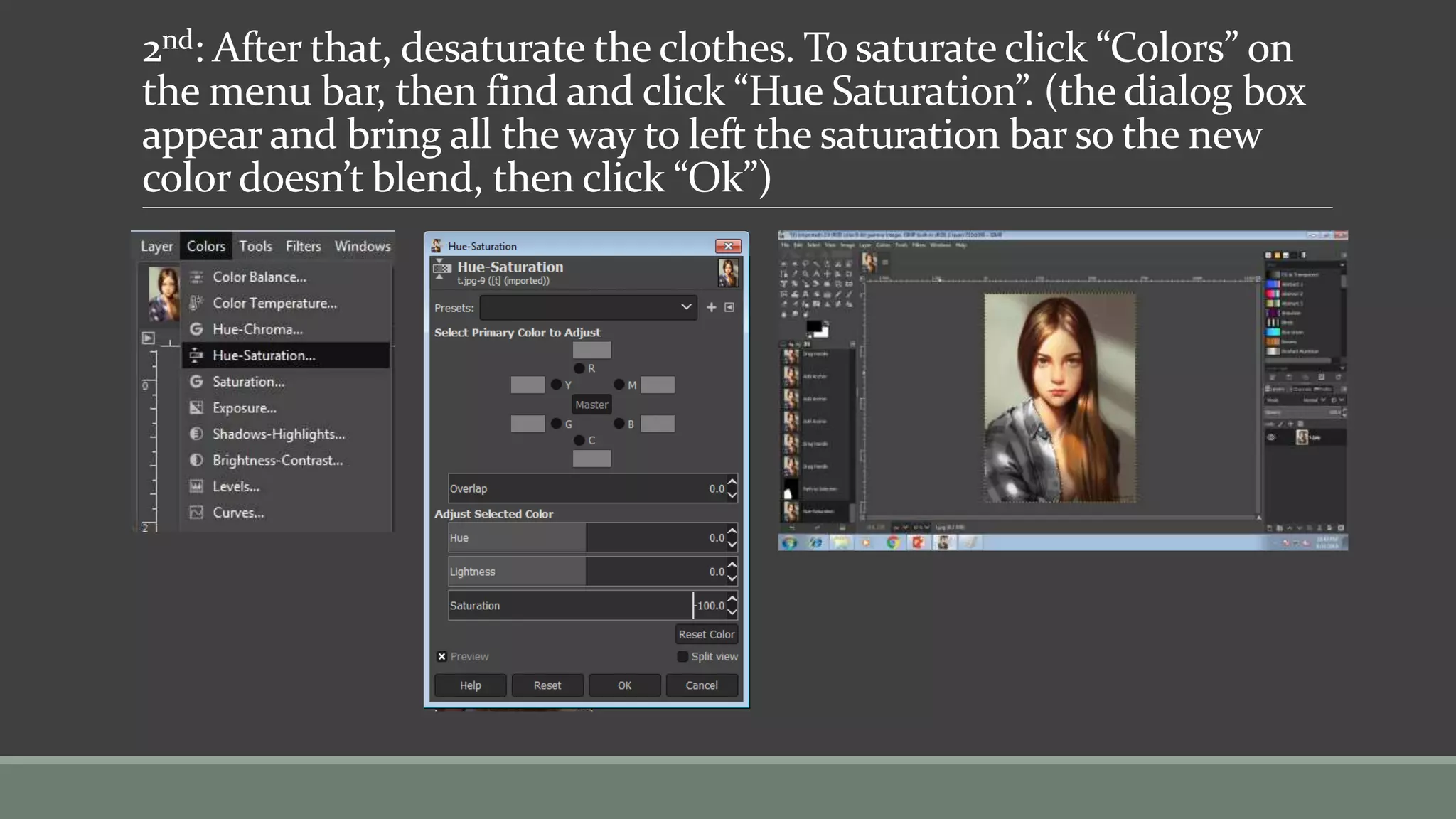
2nd: After that, desaturate the clothes. To saturate click “Colors” on
the menu bar, then find and click “Hue Saturation”. (the dialog box
appear and bring all the way to left the saturation bar so the new
color doesn’t blend, then click “Ok”)
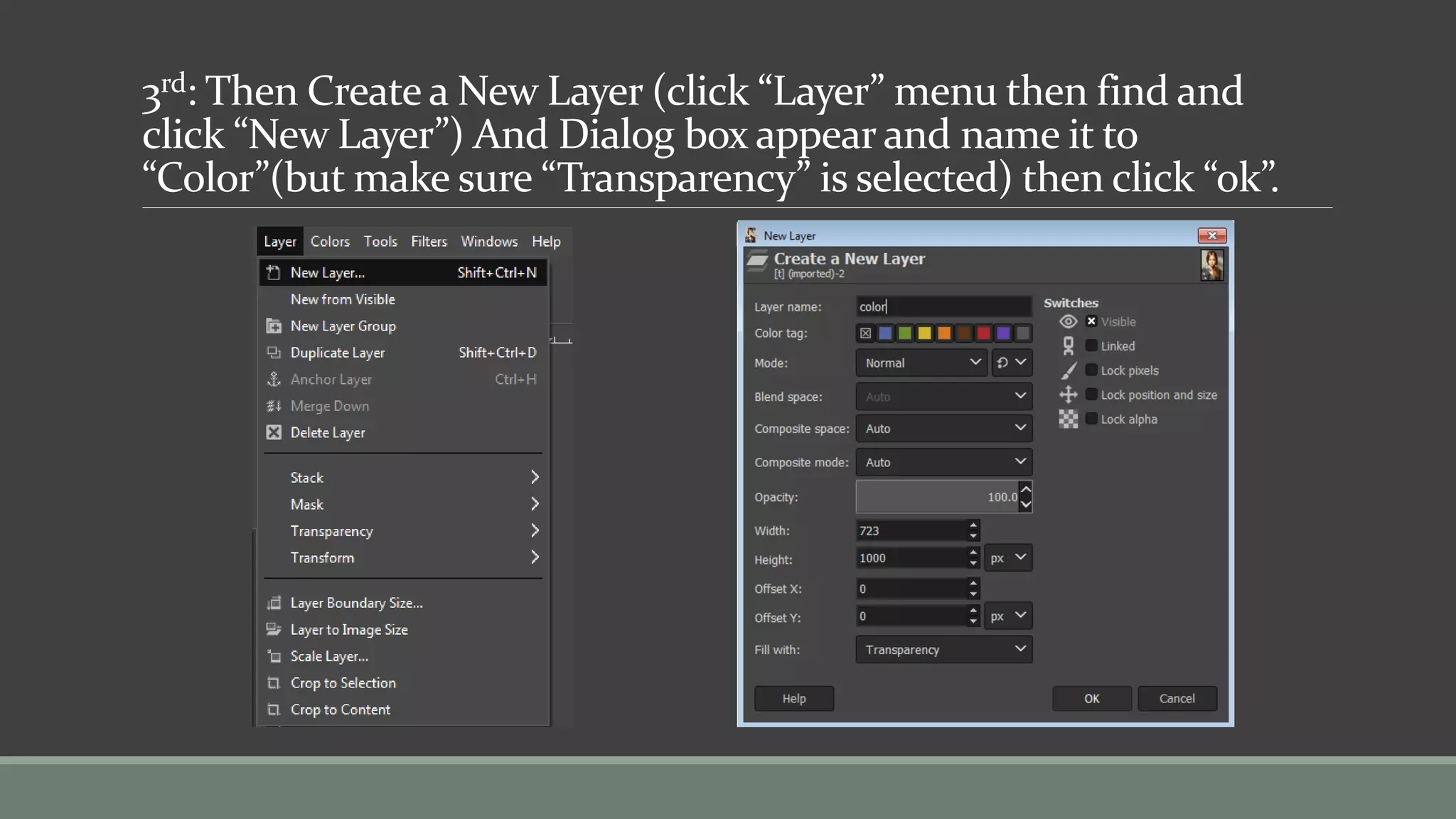
3rd: Then Create a New Layer (click “Layer” menu then find and
click “New Layer”) And Dialog box appear and name it to
“Color”(but make sure “Transparency” is selected) then click “ok”.
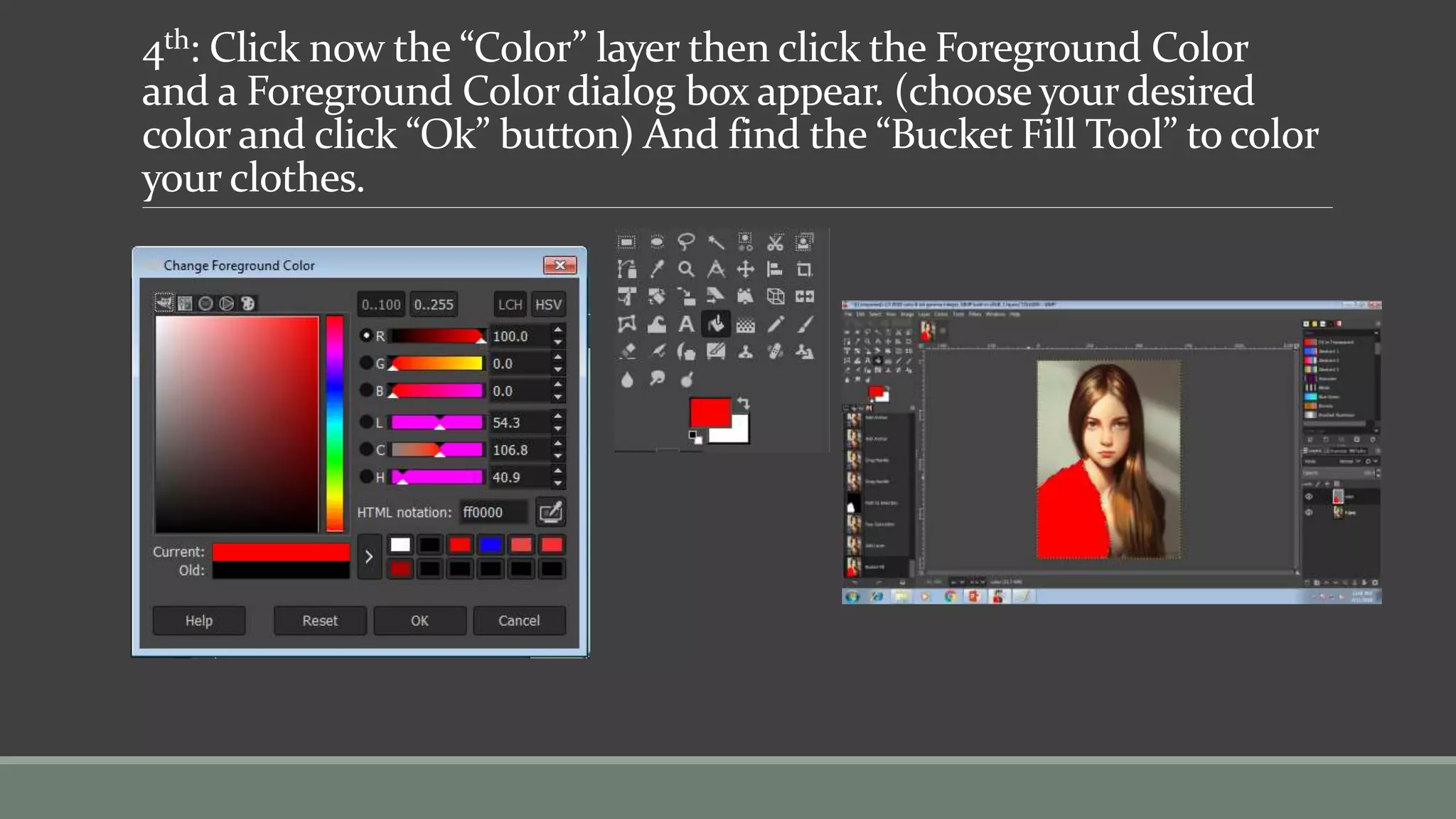
4th: Click now the “Color” layer then click the Foreground Color
and a Foreground Color dialog box appear. (choose your desired
color and click “Ok” button) And find the “Bucket Fill Tool” to color
your clothes.
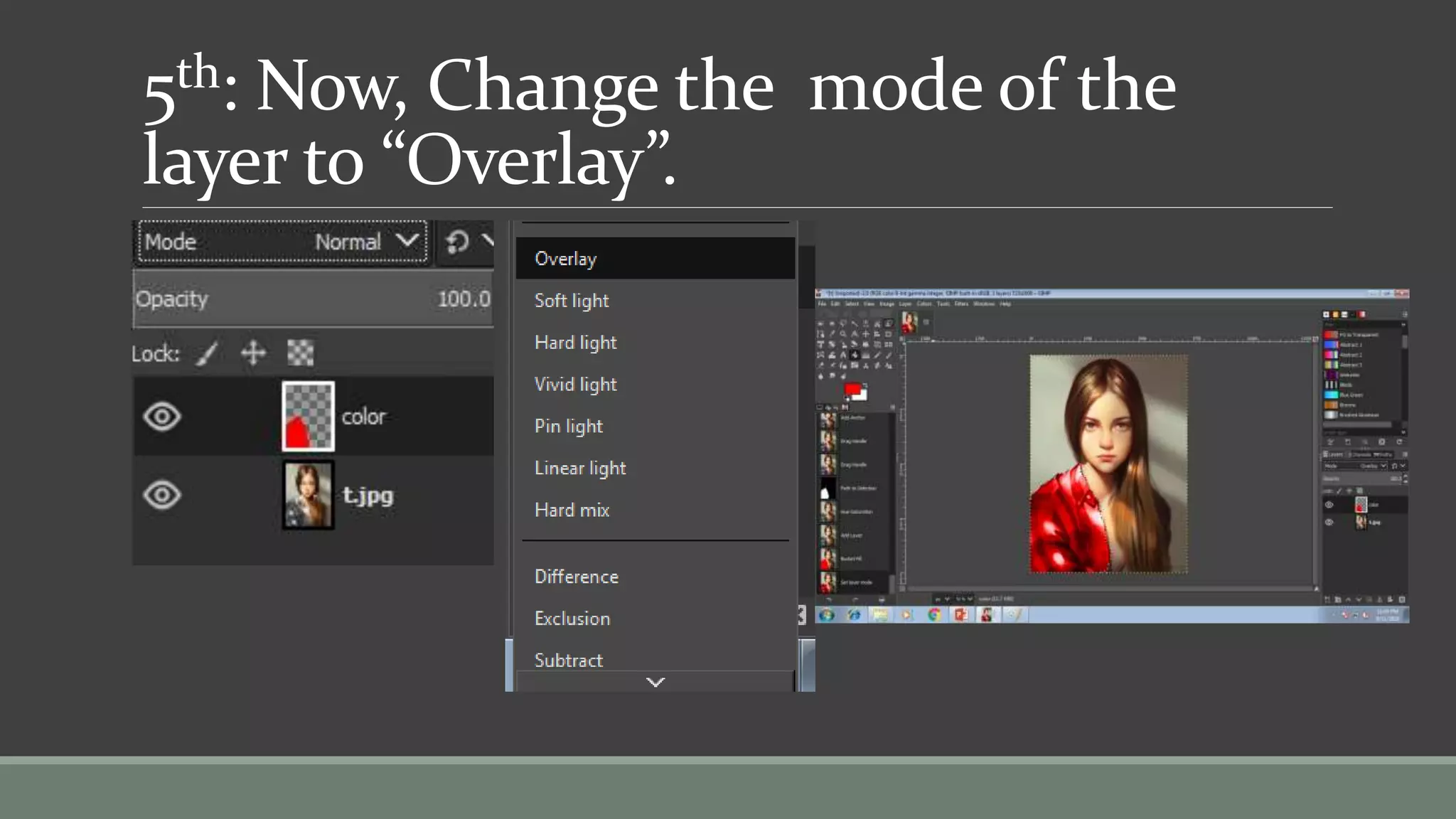
5th: Now, Change the mode of the
layer to “Overlay”.
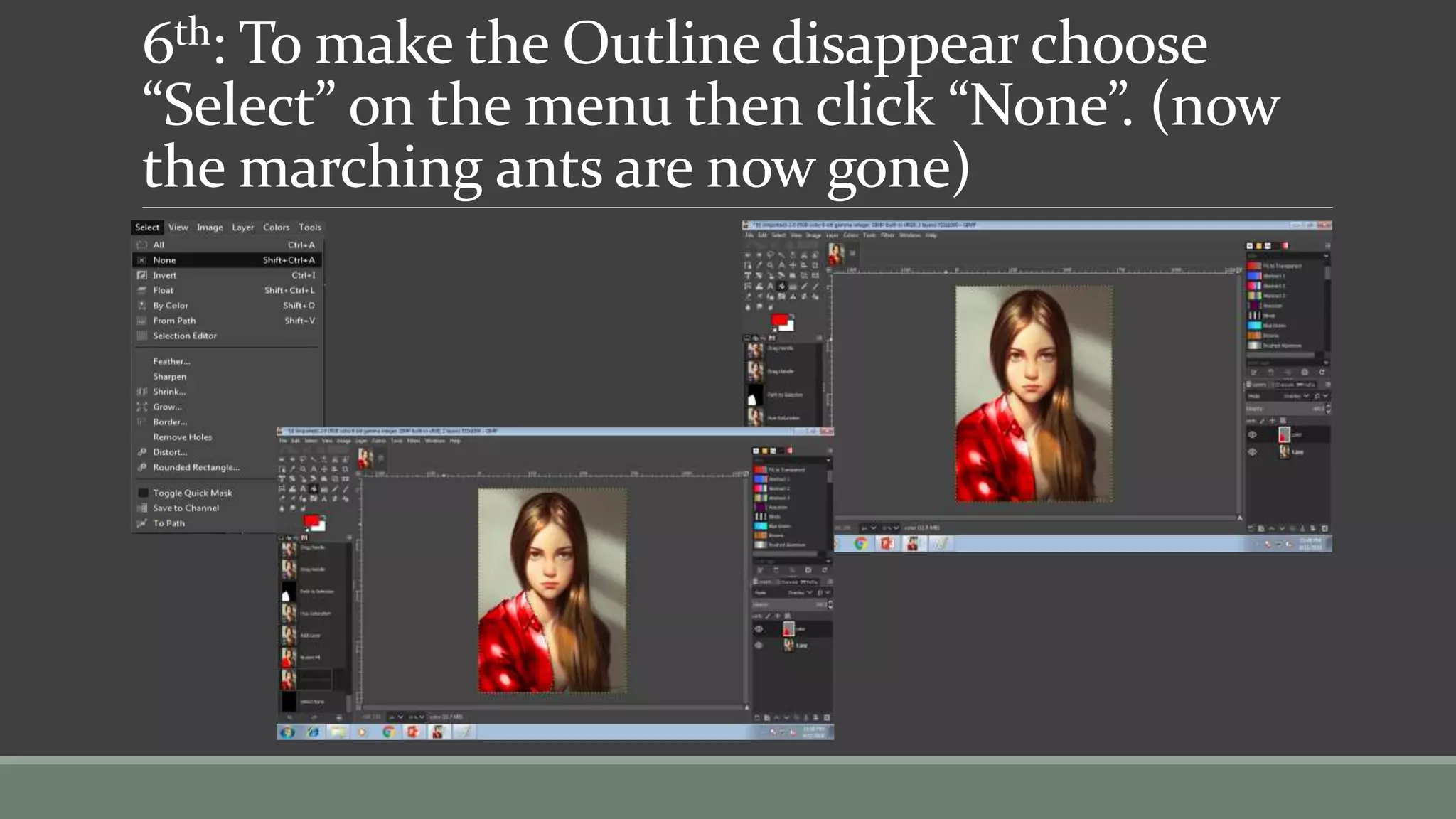
6th: To make the Outline disappear choose
“Select” on the menu then click “None”. (now
the marching ants are now gone)
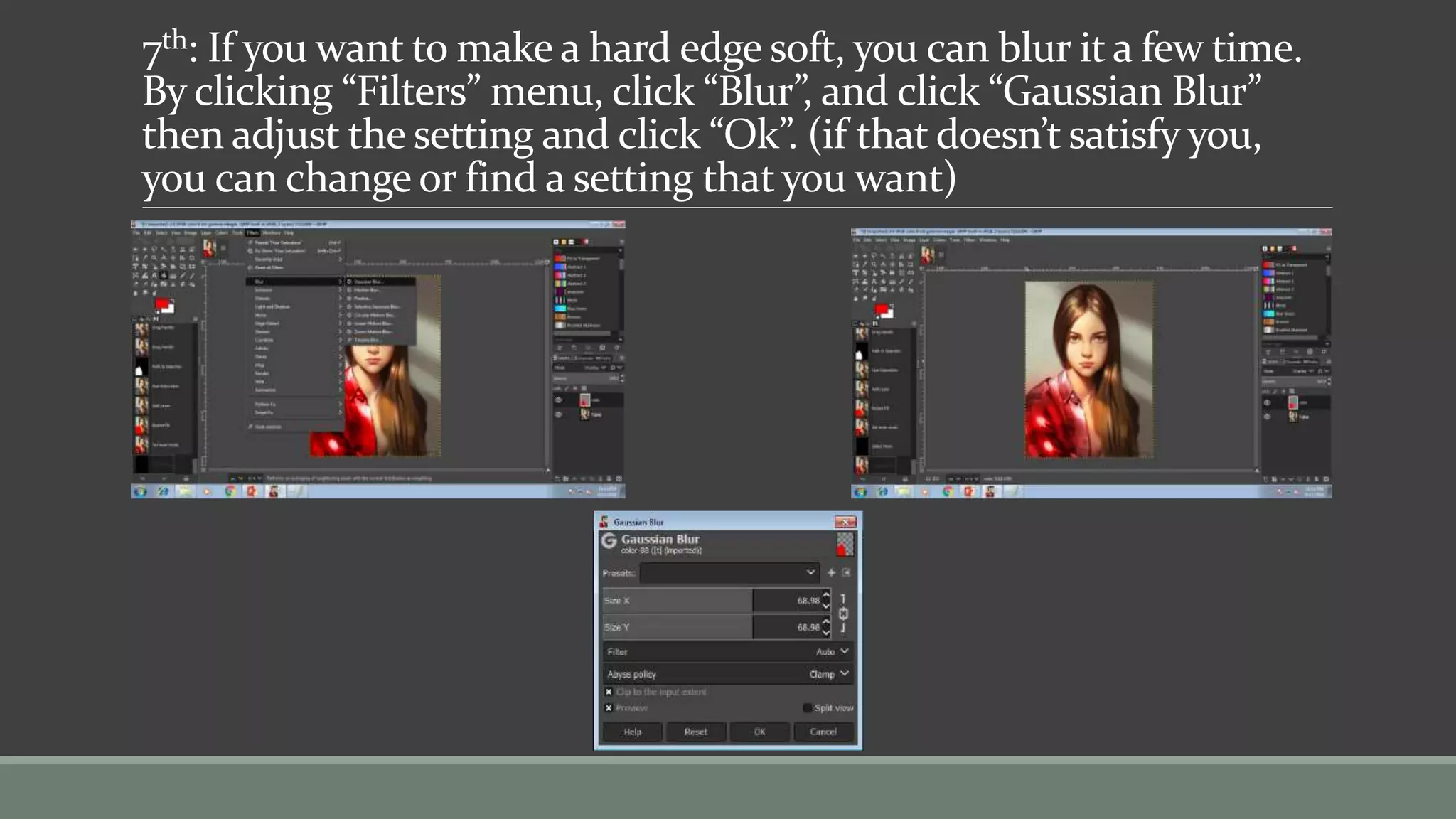
7th: If you want to make a hard edge soft, you can blur it a few time.
By clicking “Filters” menu, click “Blur”, and click “Gaussian Blur”
then adjust the setting and click “Ok”. (if that doesn’t satisfy you,
you can change or find a setting that you want)
And that’s it for today! 
Hope you like it!
Thank You!

Tutorial in gimp

  • 1.
    Tutorial in GIMP BY:OSCAR B. CONTRERAS JR.
  • 2.
    GOOD DAY! TODAY,I’,M GONNA SHOW YOU HOW TO: How to blend images using GIMP Removing image background using GIMP (using Fuzzy select tool) And lastly, changing the clothes color.
  • 3.
  • 4.
    The combination ofimages with a fade effect is obtained very easily by using a layer mask. The two images to merge:
  • 5.
    1st: Open thetwo images and import the first image to the second image, by dragging it to the image (from left to right)
  • 6.
    2nd: Drag itto the place where you want it to put and right click on the first layer and click “Add Layer Mask”.
  • 7.
    3rd: the “AddLayer Mask will appear but make sure it is selected in “White (full opacity)” then click “Add”
  • 8.
    3rd: the “AddLayer Mask will appear but make sure it is selected in “White (full opacity)” then click “Add” and it should turn out like this… (from left to right)
  • 9.
    4th: Click thewhite mask and make sure the foreground color is white and the background color is black. After that, click the “Gradient tool” and do it the way you wanted it. Then click “Enter”
  • 10.
    4th: After that,Click “Layer” on the Menu bar and find “Merge Down” then Click it. And it should only have only one Layer. Then Save.
  • 11.
    Removing image background usingGIMP (using Fuzzy select tool)
  • 12.
    Removing Image Backgrounds– GIMP Fuzzy Select The Method uses the Fuzzy select tool – a fairly quick and precise method that can be mastered easily
  • 13.
    1st: Open thepicture you want and click the “Fuzzy Select tool” and select the part of the image that you wish to remove. (it should have the “marching ants” around the area of the image that you wish to keep)
  • 14.
    2nd: Select the“Lock alpha” on the layers bar. Then press the “Delete” key, and then it should turns out like this, then save. (but make sure the foreground is black and the background is white)
  • 15.
  • 16.
    You are goingto change the clothes color, using Paths tool and Paintbrush.
  • 17.
    1st: Using pathstool, outline all the clothes. And after you have it all outlined, click the “Enter” key.
  • 18.
    2nd: After that,desaturate the clothes. To saturate click “Colors” on the menu bar, then find and click “Hue Saturation”. (the dialog box appear and bring all the way to left the saturation bar so the new color doesn’t blend, then click “Ok”)
  • 19.
    3rd: Then Createa New Layer (click “Layer” menu then find and click “New Layer”) And Dialog box appear and name it to “Color”(but make sure “Transparency” is selected) then click “ok”.
  • 20.
    4th: Click nowthe “Color” layer then click the Foreground Color and a Foreground Color dialog box appear. (choose your desired color and click “Ok” button) And find the “Bucket Fill Tool” to color your clothes.
  • 21.
    5th: Now, Changethe mode of the layer to “Overlay”.
  • 22.
    6th: To makethe Outline disappear choose “Select” on the menu then click “None”. (now the marching ants are now gone)
  • 23.
    7th: If youwant to make a hard edge soft, you can blur it a few time. By clicking “Filters” menu, click “Blur”, and click “Gaussian Blur” then adjust the setting and click “Ok”. (if that doesn’t satisfy you, you can change or find a setting that you want)
  • 24.
    And that’s itfor today!  Hope you like it! Thank You!