Photoshop Tutorials: Getting Started and Removing
         Background using Magic Wand

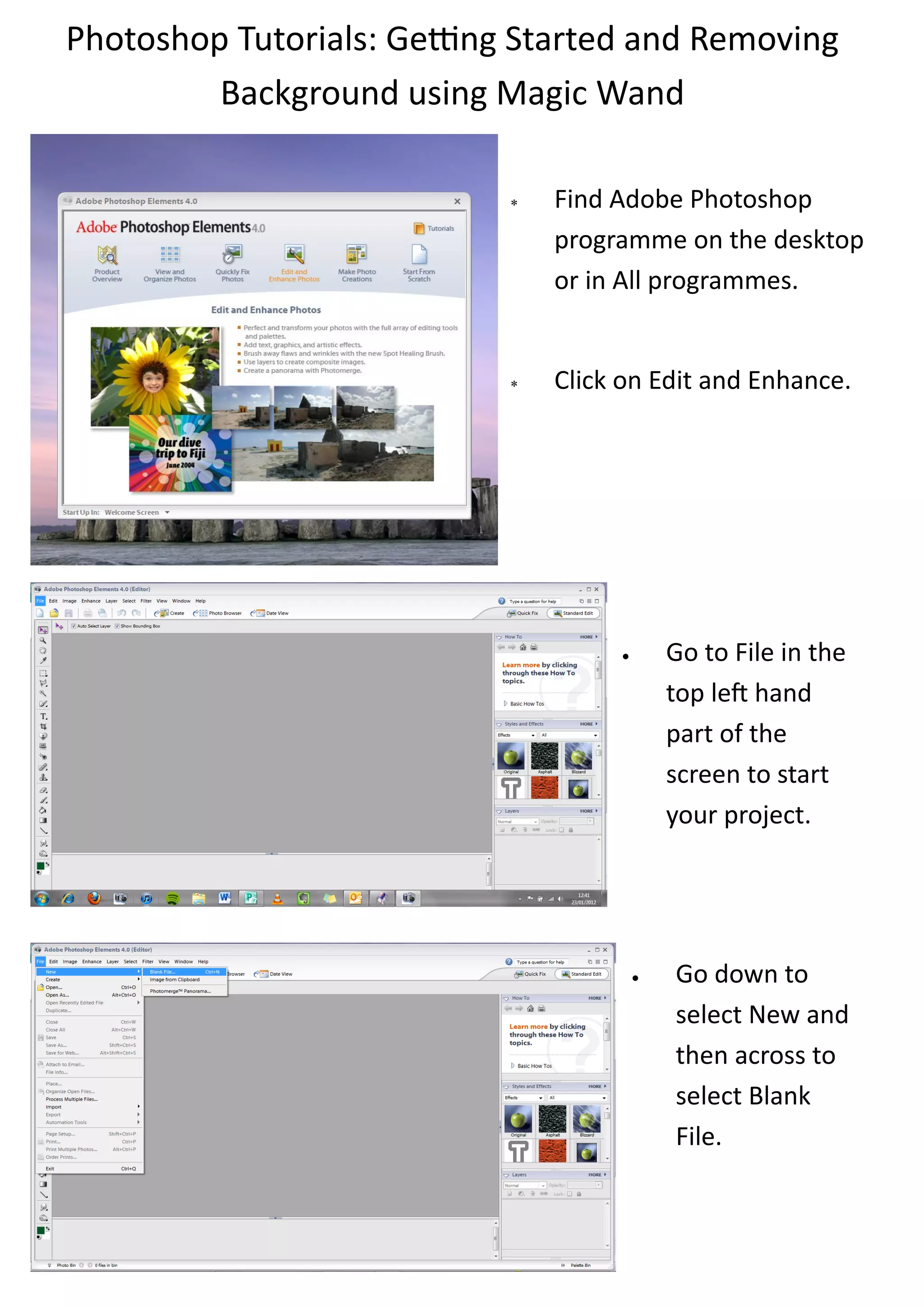
                               Find Adobe Photoshop
                                programme on the desktop
                                or in All programmes.


                               Click on Edit and Enhance.


                                            Go to File in the
                                             top left hand
                                             part of the
                                             screen to start
                                             your project.


                                            Go down to
                                             select New and
                                             then across to
                                             select Blank
                                             File.
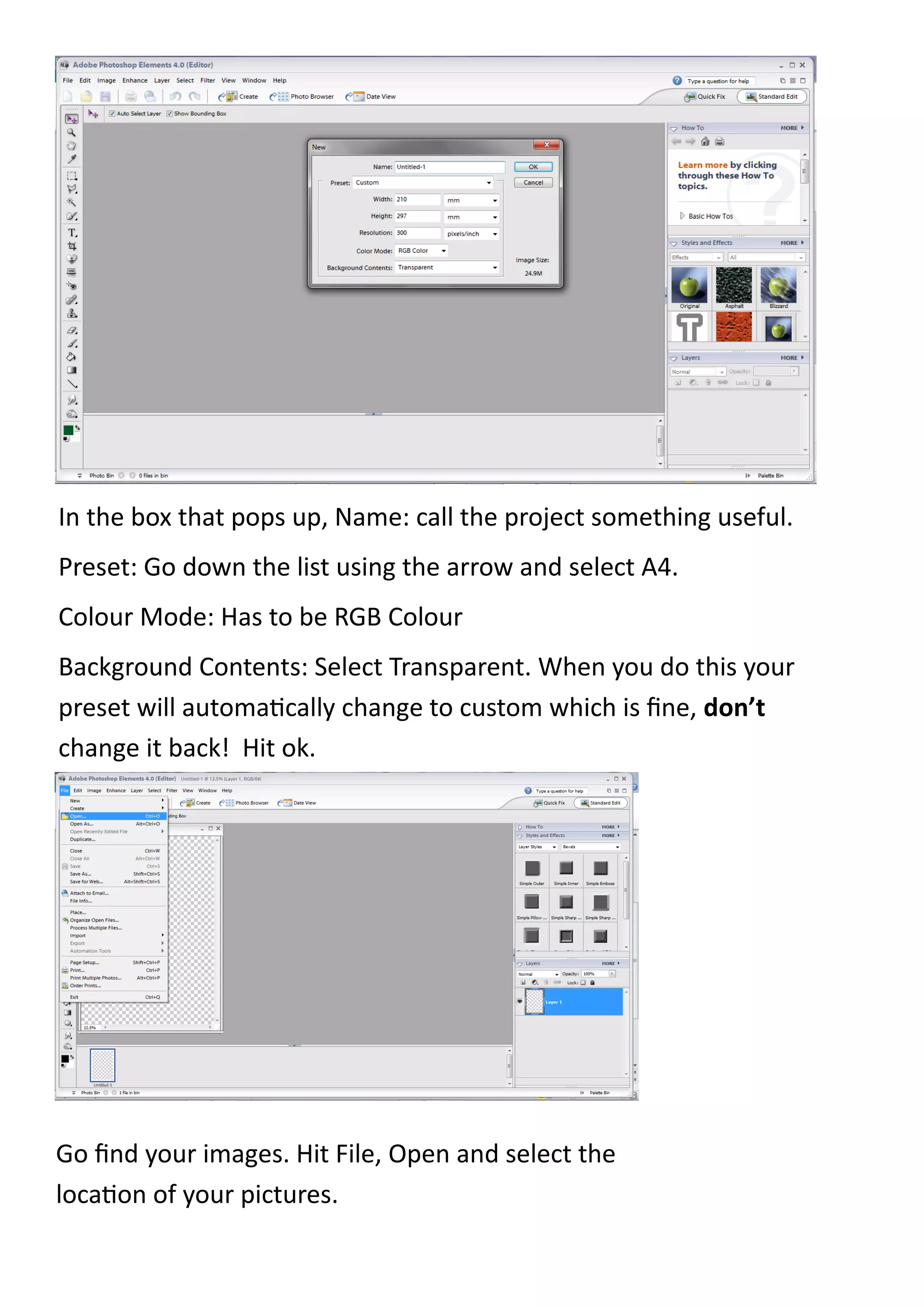
In the box that pops up, Name: call the project something useful.
Preset: Go down the list using the arrow and select A4.
Colour Mode: Has to be RGB Colour
Background Contents: Select Transparent. When you do this your
preset will automatically change to custom which is fine, don’t
change it back! Hit ok.


Go find your images. Hit File, Open and select the
location of your pictures.
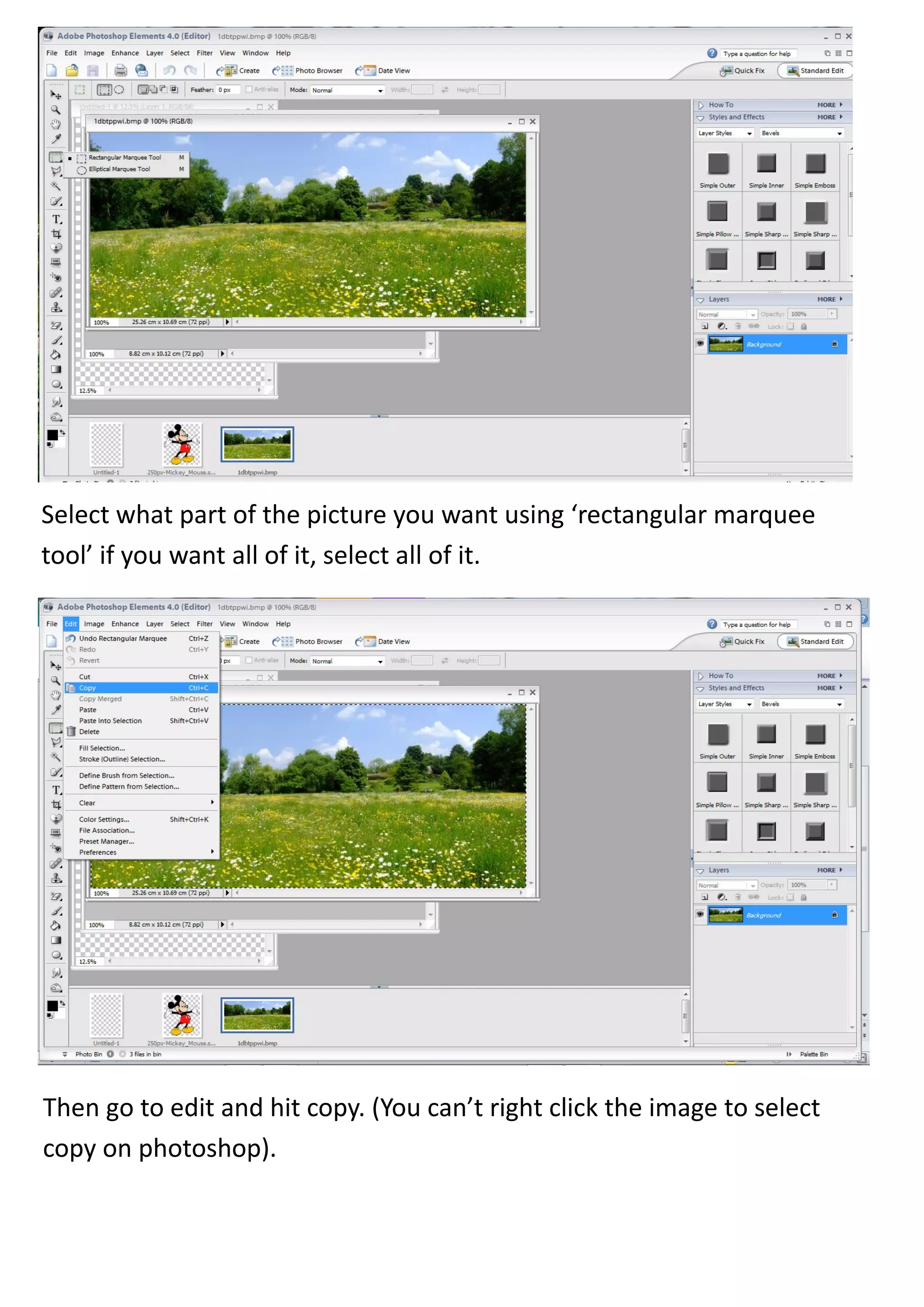
Select what part of the picture you want using ‘rectangular marquee
tool’ if you want all of it, select all of it.


Then go to edit and hit copy. (You can’t right click the image to select
copy on photoshop).
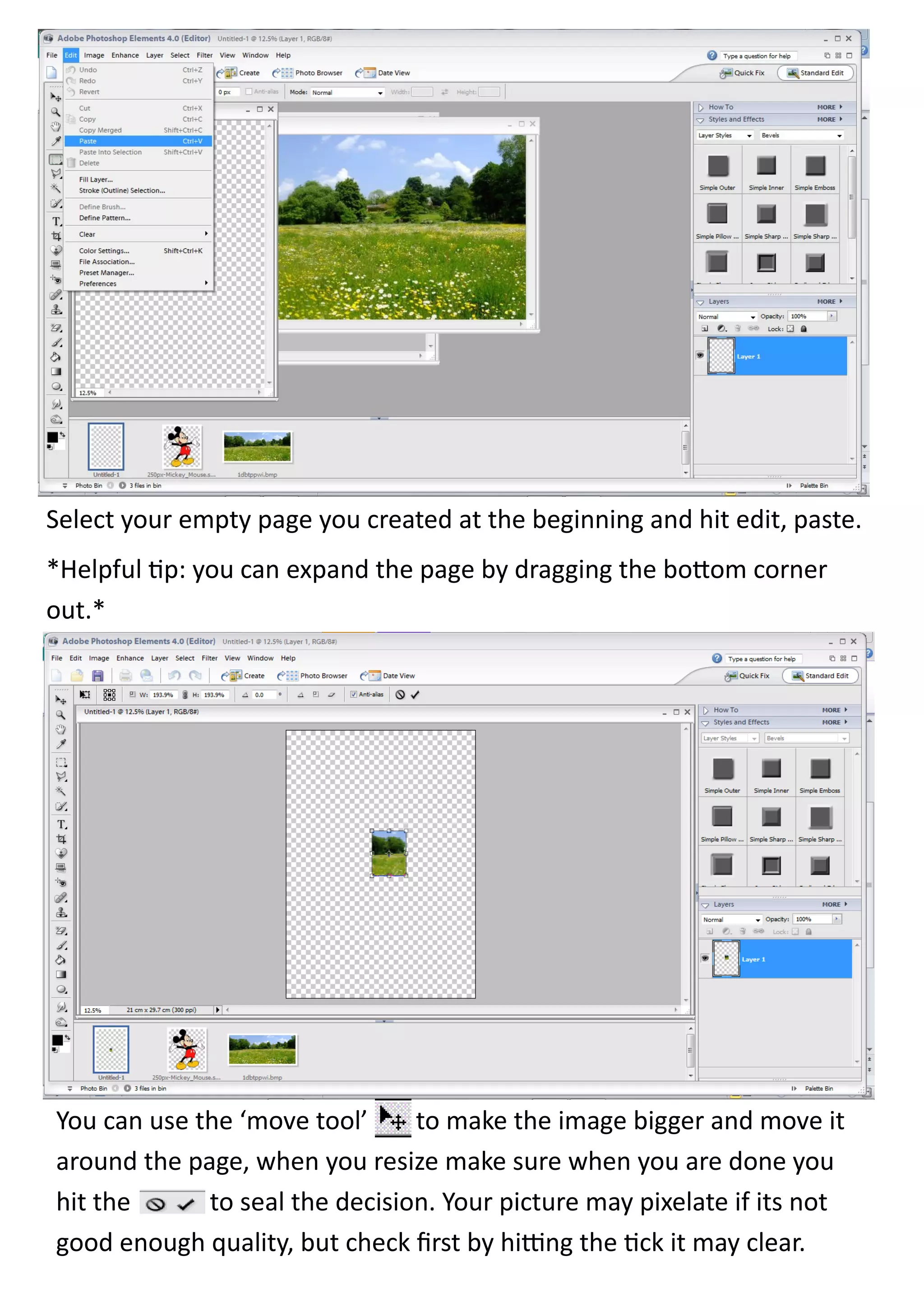
Select your empty page you created at the beginning and hit edit, paste.
*Helpful tip: you can expand the page by dragging the bottom corner
out.*


You can use the ‘move tool’     to make the image bigger and move it
around the page, when you resize make sure when you are done you
hit the      to seal the decision. Your picture may pixelate if its not
good enough quality, but check first by hitting the tick it may clear.
*Helpful tip: If you hold down the shift key on your keyboard you can
 keep the picture in proportion so it doesn’t end up being skewed. Works
 well especially with faces.


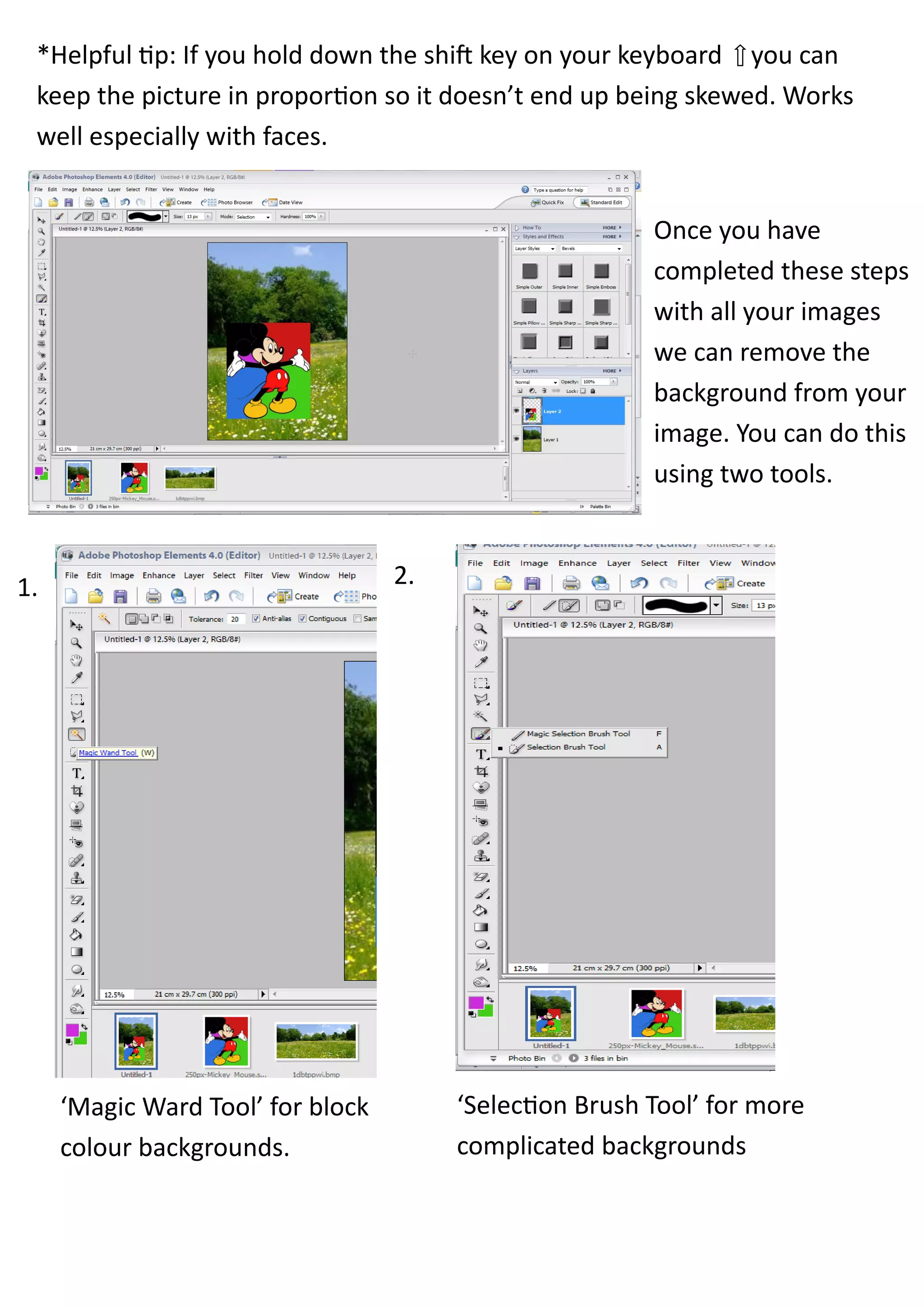
                                                         Once you have
                                                         completed these steps
                                                         with all your images
                                                         we can remove the
                                                         background from your
                                                         image. You can do this
                                                         using two tools.


1.                                 2.


     ‘Magic Ward Tool’ for block        ‘Selection Brush Tool’ for more
     colour backgrounds.                complicated backgrounds
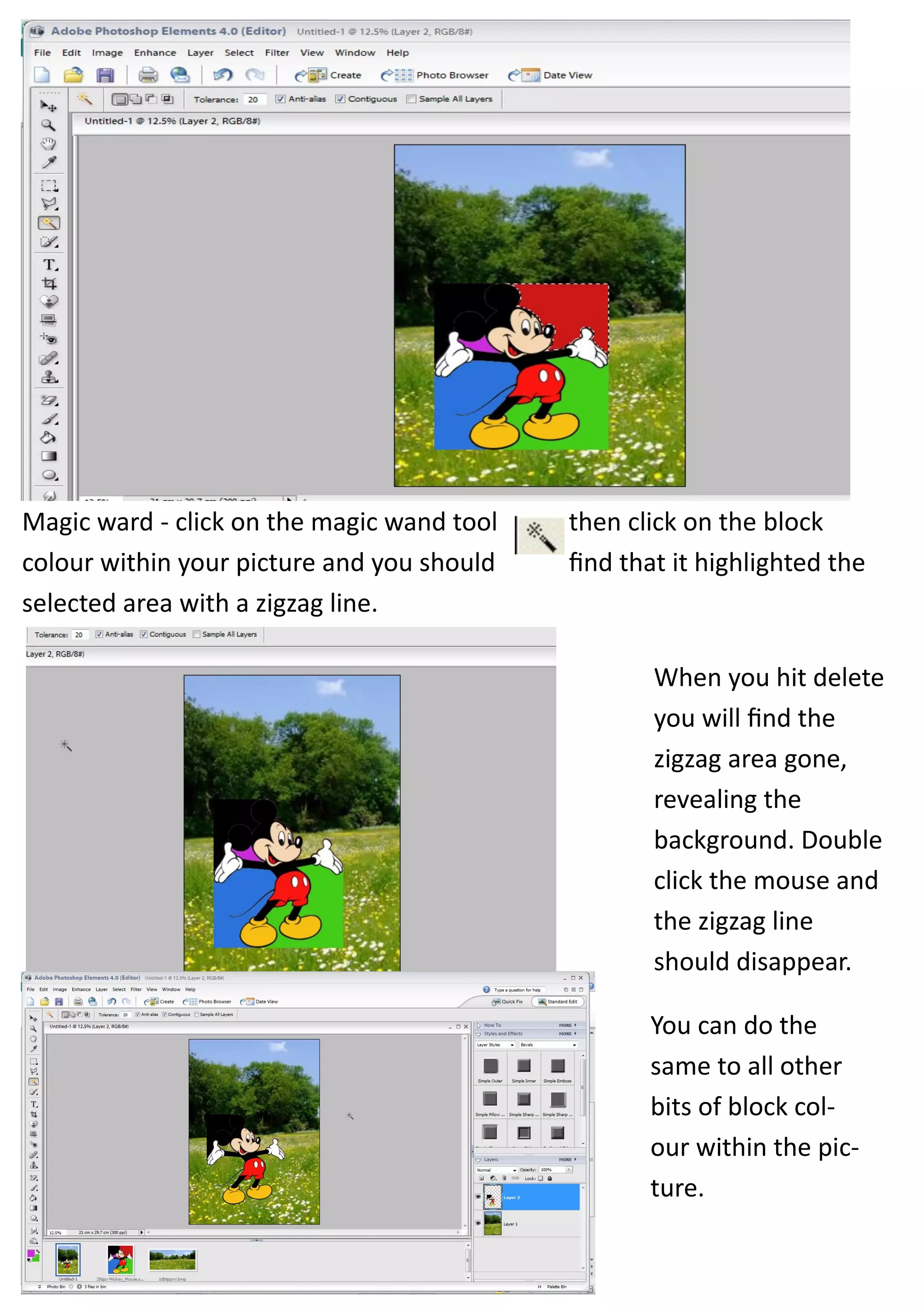
Magic ward - click on the magic wand tool   then click on the block
colour within your picture and you should   find that it highlighted the
selected area with a zigzag line.

                                                    When you hit delete
                                                    you will find the
                                                    zigzag area gone,
                                                    revealing the
                                                    background. Double
                                                    click the mouse and
                                                    the zigzag line
                                                    should disappear.

                                                   You can do the
                                                   same to all other
                                                   bits of block col-
                                                   our within the pic-
                                                   ture.
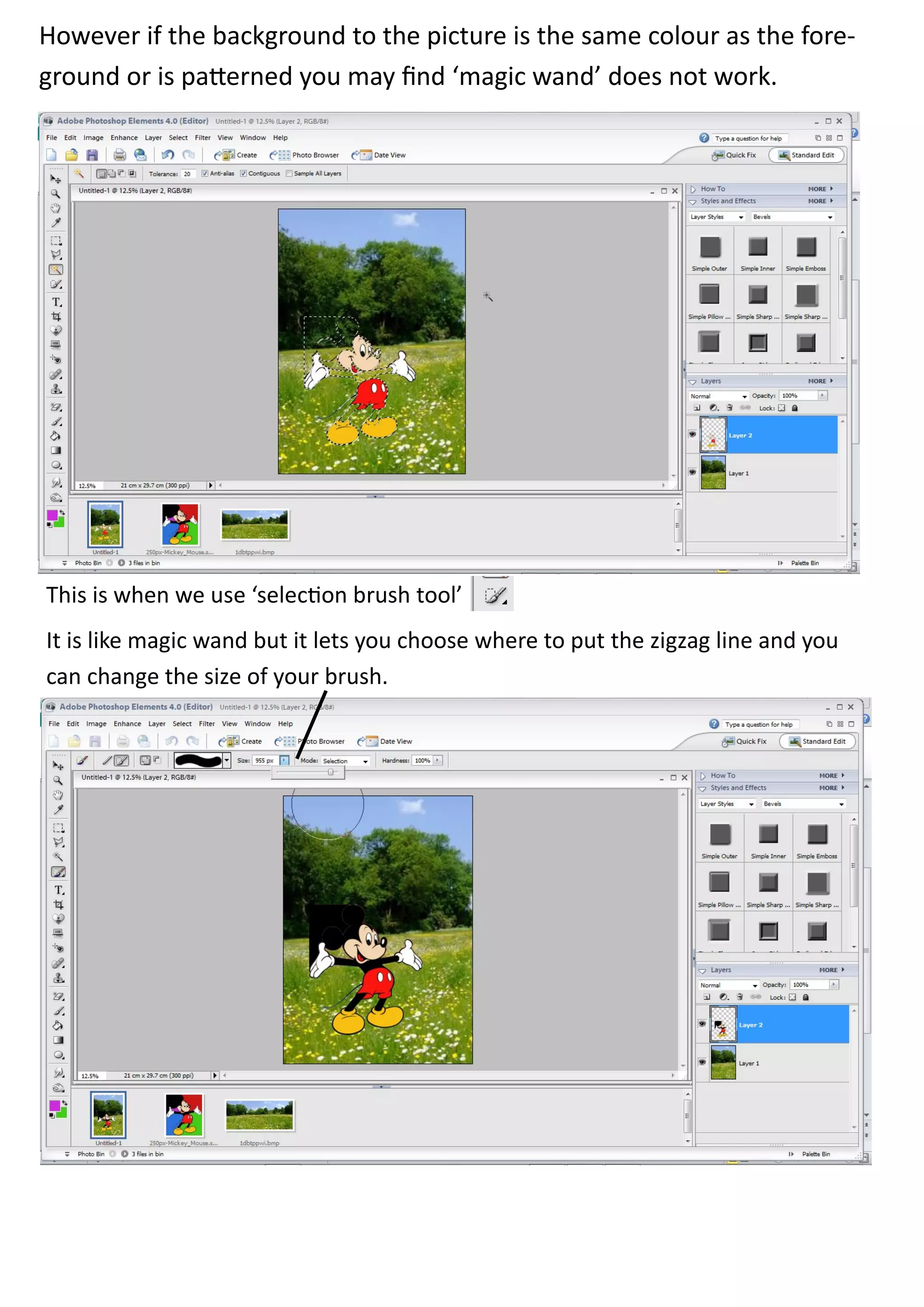
However if the background to the picture is the same colour as the fore-
ground or is patterned you may find ‘magic wand’ does not work.


This is when we use ‘selection brush tool’
It is like magic wand but it lets you choose where to put the zigzag line and you
can change the size of your brush.
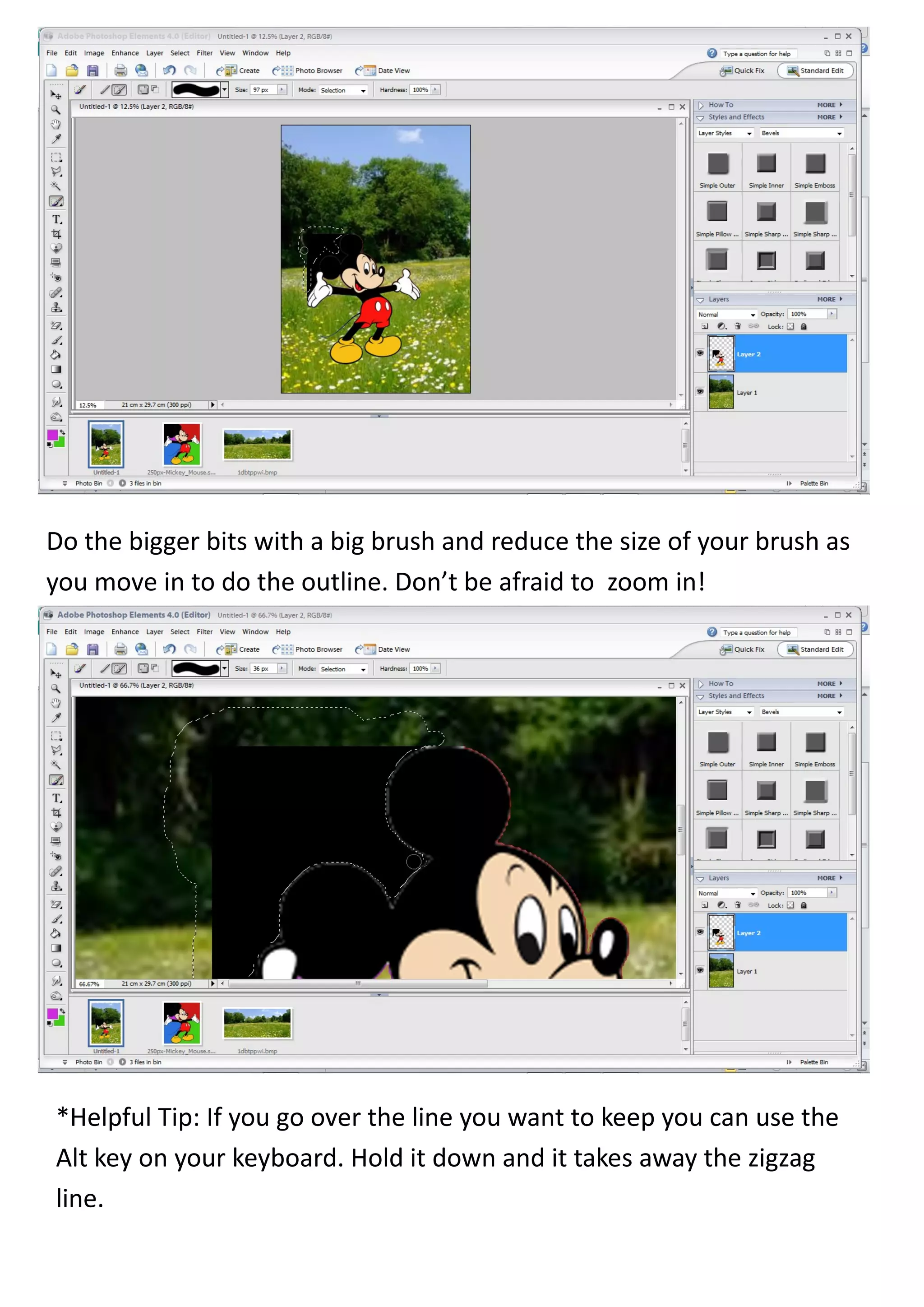
Do the bigger bits with a big brush and reduce the size of your brush as
you move in to do the outline. Don’t be afraid to zoom in!


*Helpful Tip: If you go over the line you want to keep you can use the
Alt key on your keyboard. Hold it down and it takes away the zigzag
line.
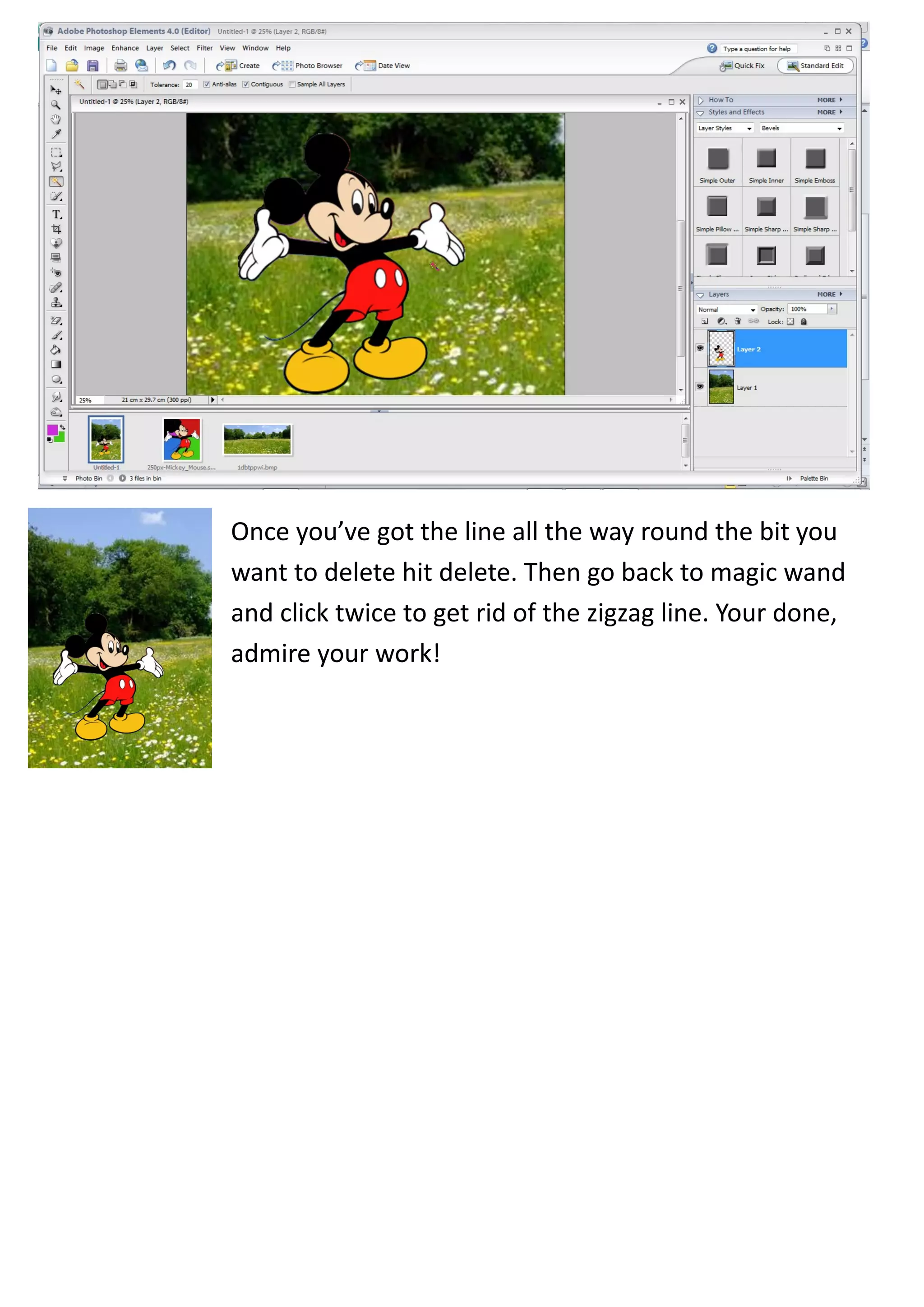
Once you’ve got the line all the way round the bit you
want to delete hit delete. Then go back to magic wand
and click twice to get rid of the zigzag line. Your done,
admire your work!

Photoshop tutorial - Getting Started and Magic Wand

  • 1.
    Photoshop Tutorials: GettingStarted and Removing Background using Magic Wand  Find Adobe Photoshop programme on the desktop or in All programmes.  Click on Edit and Enhance.  Go to File in the top left hand part of the screen to start your project.  Go down to select New and then across to select Blank File.
  • 2.
    In the boxthat pops up, Name: call the project something useful. Preset: Go down the list using the arrow and select A4. Colour Mode: Has to be RGB Colour Background Contents: Select Transparent. When you do this your preset will automatically change to custom which is fine, don’t change it back! Hit ok. Go find your images. Hit File, Open and select the location of your pictures.
  • 3.
    Select what partof the picture you want using ‘rectangular marquee tool’ if you want all of it, select all of it. Then go to edit and hit copy. (You can’t right click the image to select copy on photoshop).
  • 4.
    Select your emptypage you created at the beginning and hit edit, paste. *Helpful tip: you can expand the page by dragging the bottom corner out.* You can use the ‘move tool’ to make the image bigger and move it around the page, when you resize make sure when you are done you hit the to seal the decision. Your picture may pixelate if its not good enough quality, but check first by hitting the tick it may clear.
  • 5.
    *Helpful tip: Ifyou hold down the shift key on your keyboard you can keep the picture in proportion so it doesn’t end up being skewed. Works well especially with faces. Once you have completed these steps with all your images we can remove the background from your image. You can do this using two tools. 1. 2. ‘Magic Ward Tool’ for block ‘Selection Brush Tool’ for more colour backgrounds. complicated backgrounds
  • 6.
    Magic ward -click on the magic wand tool then click on the block colour within your picture and you should find that it highlighted the selected area with a zigzag line. When you hit delete you will find the zigzag area gone, revealing the background. Double click the mouse and the zigzag line should disappear. You can do the same to all other bits of block col- our within the pic- ture.
  • 7.
    However if thebackground to the picture is the same colour as the fore- ground or is patterned you may find ‘magic wand’ does not work. This is when we use ‘selection brush tool’ It is like magic wand but it lets you choose where to put the zigzag line and you can change the size of your brush.
  • 8.
    Do the biggerbits with a big brush and reduce the size of your brush as you move in to do the outline. Don’t be afraid to zoom in! *Helpful Tip: If you go over the line you want to keep you can use the Alt key on your keyboard. Hold it down and it takes away the zigzag line.
  • 9.
    Once you’ve gotthe line all the way round the bit you want to delete hit delete. Then go back to magic wand and click twice to get rid of the zigzag line. Your done, admire your work!