Using Photoshop.


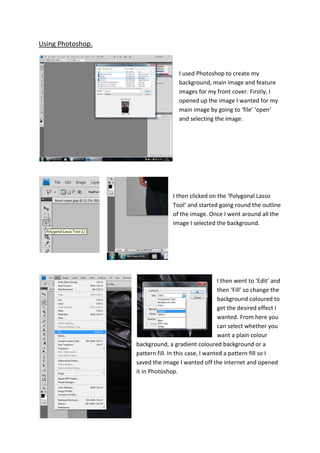
                                    I used Photoshop to create my
                                    background, main image and feature
                                    images for my front cover. Firstly, I
                                    opened up the image I wanted for my
                                    main image by going to ‘file’ ‘open’
                                    and selecting the image.


                                  I then clicked on the ‘Polygonal Lasso
                                  Tool’ and started going round the outline
                                  of the image. Once I went around all the
                                  image I selected the background.


                                                      I then went to ‘Edit’ and
                                                      then ‘Fill’ so change the
                                                      background coloured to
                                                      get the desired effect I
                                                      wanted. From here you
                                                      can select whether you
                                                      want a plain colour
                   background, a gradient coloured background or a
                   pattern fill. In this case, I wanted a pattern fill so I
                   saved the image I wanted off the internet and opened
                   it in Photoshop.
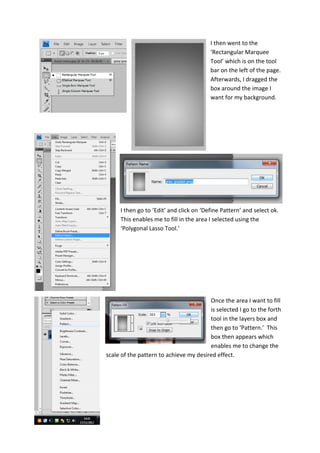
I then went to the
                                         ‘Rectangular Marquee
                                         Tool’ which is on the tool
                                         bar on the left of the page.
                                         Afterwards, I dragged the
                                         box around the image I
                                         want for my background.


     I then go to ‘Edit’ and click on ‘Define Pattern’ and select ok.
     This enables me to fill in the area I selected using the
     ‘Polygonal Lasso Tool.’


                                        Once the area I want to fill
                                        is selected I go to the forth
                                        tool in the layers box and
                                        then go to ‘Pattern.’ This
                                        box then appears which
                                        enables me to change the
scale of the pattern to achieve my desired effect.
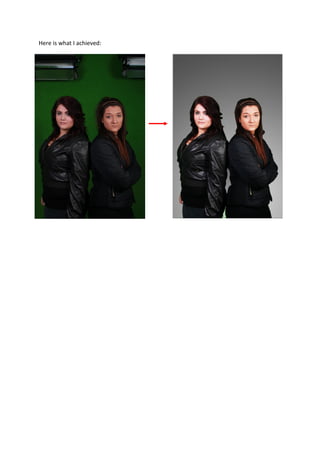
Here is what I achieved:

Using photoshop

  • 1.
    Using Photoshop. I used Photoshop to create my background, main image and feature images for my front cover. Firstly, I opened up the image I wanted for my main image by going to ‘file’ ‘open’ and selecting the image. I then clicked on the ‘Polygonal Lasso Tool’ and started going round the outline of the image. Once I went around all the image I selected the background. I then went to ‘Edit’ and then ‘Fill’ so change the background coloured to get the desired effect I wanted. From here you can select whether you want a plain colour background, a gradient coloured background or a pattern fill. In this case, I wanted a pattern fill so I saved the image I wanted off the internet and opened it in Photoshop.
  • 2.
    I then wentto the ‘Rectangular Marquee Tool’ which is on the tool bar on the left of the page. Afterwards, I dragged the box around the image I want for my background. I then go to ‘Edit’ and click on ‘Define Pattern’ and select ok. This enables me to fill in the area I selected using the ‘Polygonal Lasso Tool.’ Once the area I want to fill is selected I go to the forth tool in the layers box and then go to ‘Pattern.’ This box then appears which enables me to change the scale of the pattern to achieve my desired effect.
  • 3.
    Here is whatI achieved: