Files & folders


                  http://improvec.blogspot.in/   1
Prerequisite
File

 File is set of logically related data
 Each file must have a name
 The name has two parts –file name and extension
 name
 The name can be up to 256 characters long and
  extension can be up to 3 characters long


                 http://improvec.blogspot.in/   2
Files & folders
File

 The name and extension are must be

separated by a dot
 The file extension indicates what type of a
file is and what application it is associated with


                     http://improvec.blogspot.in/    3
Files & Folders (contd..)
File
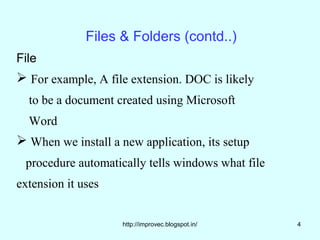
 For example, A file extension. DOC is likely
  to be a document created using Microsoft
  Word
 When we install a new application, its setup
 procedure automatically tells windows what file
extension it uses


                    http://improvec.blogspot.in/   4
Files & Folders

File (contd..)
Locating a File
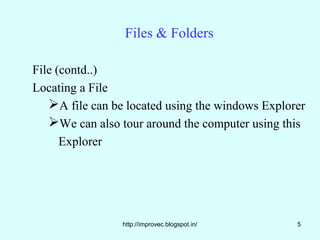
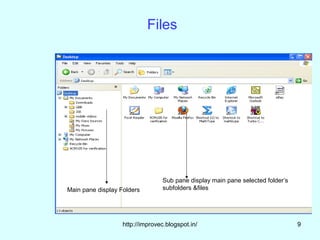
   A file can be located using the windows Explorer
   We can also tour around the computer using this
      Explorer


                 http://improvec.blogspot.in/     5
Files & folders

File (contd..)

Locating a File (contd..)

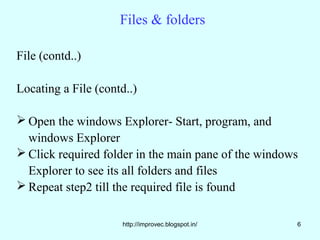
 Open the windows Explorer- Start, program, and
  windows Explorer
 Click required folder in the main pane of the windows
  Explorer to see its all folders and files
 Repeat step2 till the required file is found

                      http://improvec.blogspot.in/    6
Files & folders

File (contd..)

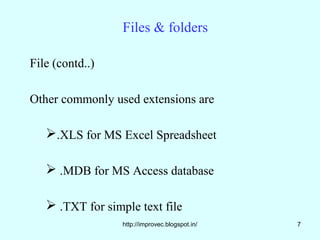
Other commonly used extensions are

   .XLS for MS Excel Spreadsheet

    .MDB for MS Access database

    .TXT for simple text file
                  http://improvec.blogspot.in/   7
Files & folders


File (contd..)

   .EXE for program executable files

   .DLL for program files

    .COM for program files


                   http://improvec.blogspot.in/   8
Files


                                 Sub pane display main pane selected folder’s
Main pane display Folders        subfolders &files


                   http://improvec.blogspot.in/                                 9
Files & Folders

Folder

All related files can be put into a folder

Folders are named areas on drives

Folders can have within different sub folders

and files. Folders contain sub folders and there

on documents
                   http://improvec.blogspot.in/    10
Files & folders


Folder (contd..)

A document may be
•a word processing document containing text
•a spreadsheet with numerical data file


                   http://improvec.blogspot.in/   11
Files & folders

Folder (contd..)

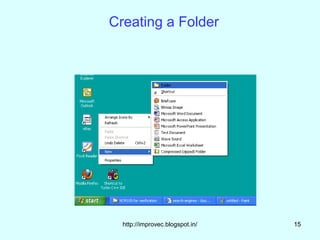
      There are several ways to create a new
folder
 Right click on an unused part of the Desktop,
            select New from the pop-up menu,
and select Folder

 Double click on MY Computer. Open the
   folder in which we want


                   http://improvec.blogspot.in/   12
Files & Folders
Folder (contd...)
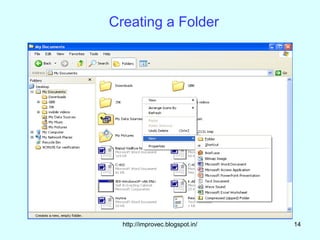
 Open Windows Explorer
 Open the folder in which we want to create
    a new folder
 Right click in the right hand pane of the
    Explorer window
 From the pop-up menu select New, and
    then select Folder


                  http://improvec.blogspot.in/   13
Creating a Folder


  http://improvec.blogspot.in/   14
Creating a Folder


  http://improvec.blogspot.in/   15
Summary


In this lecture we have learned about

 Meaning of files & folders

 Creation of Files & Folders


            http://improvec.blogspot.in/   16
Frequently Asked questions

1. What are the steps required to create a new folder

2. Write the procedure to locate a file using my
  computers


                   http://improvec.blogspot.in/   17
Quiz


1.             is a set of logically related data


Answer: file


                     http://improvec.blogspot.in/   18
Quiz
2.All related files can be put into a _____


Answer: folder


                   http://improvec.blogspot.in/   19

Files & folders.38

  • 1.
    Files & folders http://improvec.blogspot.in/ 1
  • 2.
    Prerequisite File  File isset of logically related data  Each file must have a name  The name has two parts –file name and extension name  The name can be up to 256 characters long and extension can be up to 3 characters long http://improvec.blogspot.in/ 2
  • 3.
    Files & folders File The name and extension are must be separated by a dot  The file extension indicates what type of a file is and what application it is associated with http://improvec.blogspot.in/ 3
  • 4.
    Files & Folders(contd..) File  For example, A file extension. DOC is likely to be a document created using Microsoft Word  When we install a new application, its setup procedure automatically tells windows what file extension it uses http://improvec.blogspot.in/ 4
  • 5.
    Files & Folders File(contd..) Locating a File A file can be located using the windows Explorer We can also tour around the computer using this Explorer http://improvec.blogspot.in/ 5
  • 6.
    Files & folders File(contd..) Locating a File (contd..)  Open the windows Explorer- Start, program, and windows Explorer  Click required folder in the main pane of the windows Explorer to see its all folders and files  Repeat step2 till the required file is found http://improvec.blogspot.in/ 6
  • 7.
    Files & folders File(contd..) Other commonly used extensions are .XLS for MS Excel Spreadsheet  .MDB for MS Access database  .TXT for simple text file http://improvec.blogspot.in/ 7
  • 8.
    Files & folders File(contd..) .EXE for program executable files .DLL for program files  .COM for program files http://improvec.blogspot.in/ 8
  • 9.
    Files Sub pane display main pane selected folder’s Main pane display Folders subfolders &files http://improvec.blogspot.in/ 9
  • 10.
    Files & Folders Folder Allrelated files can be put into a folder Folders are named areas on drives Folders can have within different sub folders and files. Folders contain sub folders and there on documents http://improvec.blogspot.in/ 10
  • 11.
    Files & folders Folder(contd..) A document may be •a word processing document containing text •a spreadsheet with numerical data file http://improvec.blogspot.in/ 11
  • 12.
    Files & folders Folder(contd..) There are several ways to create a new folder  Right click on an unused part of the Desktop, select New from the pop-up menu, and select Folder  Double click on MY Computer. Open the folder in which we want http://improvec.blogspot.in/ 12
  • 13.
    Files & Folders Folder(contd...)  Open Windows Explorer  Open the folder in which we want to create a new folder  Right click in the right hand pane of the Explorer window  From the pop-up menu select New, and then select Folder http://improvec.blogspot.in/ 13
  • 14.
    Creating a Folder http://improvec.blogspot.in/ 14
  • 15.
    Creating a Folder http://improvec.blogspot.in/ 15
  • 16.
    Summary In this lecturewe have learned about  Meaning of files & folders  Creation of Files & Folders http://improvec.blogspot.in/ 16
  • 17.
    Frequently Asked questions 1.What are the steps required to create a new folder 2. Write the procedure to locate a file using my computers http://improvec.blogspot.in/ 17
  • 18.
    Quiz 1. is a set of logically related data Answer: file http://improvec.blogspot.in/ 18
  • 19.
    Quiz 2.All related filescan be put into a _____ Answer: folder http://improvec.blogspot.in/ 19