Table of Contents What is File Management: Slide 3  The Shared Drive of the school computers: Slide 5 Creating A New Folder: Slide 7 Renaming Folders: Slide 8 Deleting Files From Folders:  Slide 9 Renaming Files: Slide 10 Dragging & Dropping Files between Folders: Slide 11  www.mtps.com/dmc File Management
File Management What is it : a way of  organizing file s into folders and subfolders if needed. (A file is a document, video segment, PowerPoint presentation etc.) Files go in folders www.mtps.com/dmc
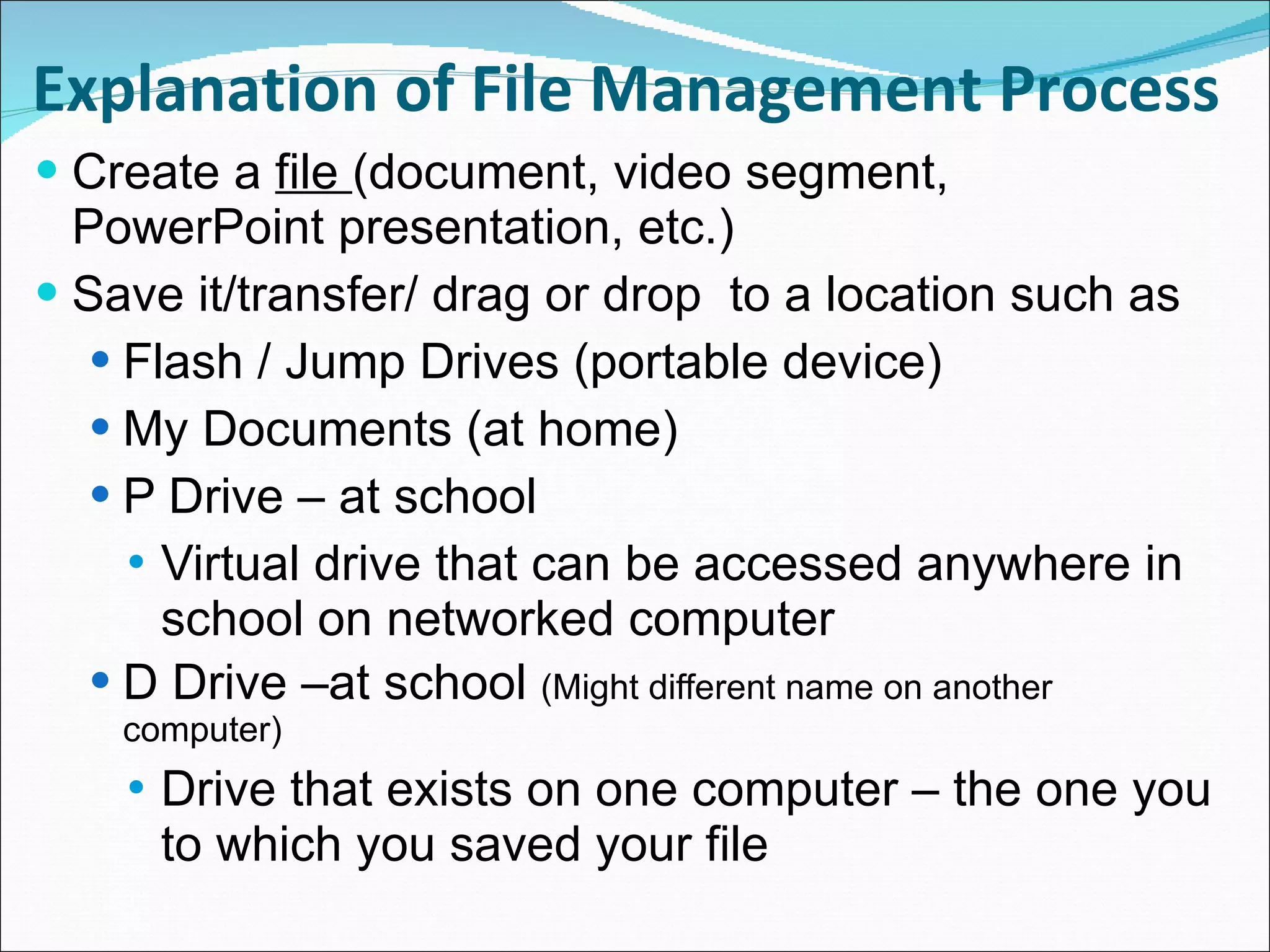
Explanation of File Management Process Create a  file  (document, video segment, PowerPoint presentation, etc.) Save it/transfer/ drag or drop  to a location such as Flash / Jump Drives (portable device) My Documents (at home) P Drive – at school Virtual drive that can be accessed anywhere in school on networked computer D Drive –at school  (Might different name on another computer) Drive that exists on one computer – the one you to which you saved your file
What is it? The  Shared Drive is a drive anyone logged onto that computer can access and use Notes About It Anyone can  Save to it Delete files and folder from it Move files and folers =  Be Careful when using D Drive – Be Responsible You must sit at the same computer each time Be careful not to delete other people’s work Be careful not to move other people’s folders  Using The D Drive www.mtps.com/dmc
D Drive (Shared Drive) When to use it? If you want students to be able to open, share and save work.  Why use it? It can hold large files It allows students to work with a partner www.mtps.com/dmc
Creating A New Folder There is usually more than one way to complete the same task. To Create New Folder Open  P Drive Click on  File  (upper left corner) Click  New Folder   Or – Right click in the empty space and click “new folder” This is the same process you would use to create a new folder in D Drive or in an existing folder
Rename New Folder Right click on folder name Click  rename Rename the folder  No spaces in file names No symbols in file names Names should not be too long (no longer than 10 characters if possible) Some software programs have difficulty with symbols and spaces www.mtps.com/dmc
Deleting Files  from the folder Right click – delete or use the File delete method Delete the Notes To Self in the D drive Be careful with the Shared Drive.  It is easy it is to delete someone else’s stuff. Deleting Files from folders www.mtps.com/dmc
Rename Files  Right click and rename your new file No spaces in file name Keep it short (less than 9 characters) NEVER take off the file extension name  Example -  movie.avi Don’t delete the .avi It won’t work if you do www.mtps.com/dmc
Dragging & Dropping Files folder to folder Click on your P drive  and 0pen a folder Click on your P drive and open another folder Right click and hold the mouse down on any of the files in your P drive (Word documents, PowerPoints, etc.) Drag a file from one folder to the other. www.mtps.com/dmc

File Management

  • 1.
    Table of ContentsWhat is File Management: Slide 3 The Shared Drive of the school computers: Slide 5 Creating A New Folder: Slide 7 Renaming Folders: Slide 8 Deleting Files From Folders: Slide 9 Renaming Files: Slide 10 Dragging & Dropping Files between Folders: Slide 11 www.mtps.com/dmc File Management
  • 2.
    File Management Whatis it : a way of organizing file s into folders and subfolders if needed. (A file is a document, video segment, PowerPoint presentation etc.) Files go in folders www.mtps.com/dmc
  • 3.
    Explanation of FileManagement Process Create a file (document, video segment, PowerPoint presentation, etc.) Save it/transfer/ drag or drop to a location such as Flash / Jump Drives (portable device) My Documents (at home) P Drive – at school Virtual drive that can be accessed anywhere in school on networked computer D Drive –at school (Might different name on another computer) Drive that exists on one computer – the one you to which you saved your file
  • 4.
    What is it?The Shared Drive is a drive anyone logged onto that computer can access and use Notes About It Anyone can Save to it Delete files and folder from it Move files and folers = Be Careful when using D Drive – Be Responsible You must sit at the same computer each time Be careful not to delete other people’s work Be careful not to move other people’s folders Using The D Drive www.mtps.com/dmc
  • 5.
    D Drive (SharedDrive) When to use it? If you want students to be able to open, share and save work. Why use it? It can hold large files It allows students to work with a partner www.mtps.com/dmc
  • 6.
    Creating A NewFolder There is usually more than one way to complete the same task. To Create New Folder Open P Drive Click on File (upper left corner) Click New Folder Or – Right click in the empty space and click “new folder” This is the same process you would use to create a new folder in D Drive or in an existing folder
  • 7.
    Rename New FolderRight click on folder name Click rename Rename the folder No spaces in file names No symbols in file names Names should not be too long (no longer than 10 characters if possible) Some software programs have difficulty with symbols and spaces www.mtps.com/dmc
  • 8.
    Deleting Files from the folder Right click – delete or use the File delete method Delete the Notes To Self in the D drive Be careful with the Shared Drive. It is easy it is to delete someone else’s stuff. Deleting Files from folders www.mtps.com/dmc
  • 9.
    Rename Files Right click and rename your new file No spaces in file name Keep it short (less than 9 characters) NEVER take off the file extension name Example - movie.avi Don’t delete the .avi It won’t work if you do www.mtps.com/dmc
  • 10.
    Dragging & DroppingFiles folder to folder Click on your P drive and 0pen a folder Click on your P drive and open another folder Right click and hold the mouse down on any of the files in your P drive (Word documents, PowerPoints, etc.) Drag a file from one folder to the other. www.mtps.com/dmc

Editor's Notes

  • #4 The students are not creating the file – just an example of what the process is.