1
Command Line Interface
2
Lecture Objectives
 Explain the operation of the command line
interface
 Execute fundamental commands from the
command line interface
 Manipulate files and folders from the
command line
3
How does the Command Line Work?
 Similar to Instant Message conversation with
computer
 The prompt indicates that the computer is
ready to receive a command
 Command is typed and ENTER is pressed
 PC executes command
 Prompt is displayed, indicating that the
computer is waiting for the next command
3/9/2020
4
Accessing the Command Line
 Run dialog box
 Start menu under Programs | Accessories
– Win 9x/Me link is named MS-DOS prompt
– Win NT, 2000, XP link is called Command Prompt
 To close command line interface
– Type Exit at command line and press enter
– Close the window
3/9/2020
5
Command Prompt
 VERY IMPORTANT:
The command prompt is always focused on a specific
folder.
Any commands executed are performed on the files in the
folder on which the prompt is focused.
Examples: C:> root directory of C: drive
C:DiplomaAPLUS>
You must focus the prompt on the drive and folder where
you want to work
3/9/2020
6
Filenames and File Formats
 In Windows, each program and piece of
data is stored as an individual file
 Each file has a name, stored with the file
on the drive
 Names have 2 parts: filename and
extension
3/9/2020
7
Eight-dot-Three naming system
 File name cannot be more that 8 chrs
 Extension can be up to 3 chrs, OPTIONAL
 Following chrs cannot be used in
filename or extension:
– /  [ ] | = + ; , * ? And division symbol
3/9/2020
8
Windows naming rules
 All versions starting with Win 9x are not
limited be 8.3
 Filenames up to 255 chrs
 Win 9x has backward compatibility with
DOS by creating 2 names for every file,
8.3 name and a long file name if
necessary
3/9/2020
9
File extensions
 Describes the type or function of the file
 COM = command, EXE = executable
 Anything that is not a program is a data file used
by a program
 Extension of a data file indicates which program
uses that data file
 .DOC = MSWord, .PPT = PowerPoint
 Graphic file extensions represent the graphic
standard used to create the image
 .JPEG =Joint Photographic Experts Group
3/9/2020
10
File Formats
 All files stored on hard drive in binary format
 Every program is unique in the way it reads and
writes this binary data
 Each unique way of binary organization is known
as a file format
 One program cannot read another programs files
unless it can convert the other programs format
3/9/2020
11
Drives and Folders
 To execute commands from the command
line, must focus the prompt at the specific
drive and folder that contains the files or
program with which you want to work
 At boot, Win assigns letters to drives and
drive partitions
3/9/2020
12
Hierarchical Directory Tree
 All files are put in groups called folders
 Any file not in a folder within the tree is
said to be in the root directory
 A folder inside another folder is called a
subfolder
 Any folder can have multiple subfolders
3/9/2020
13
Hierarchical Directory Tree
 Hard drive is represented by C:
 Root directory is indicated by , C:
 Subdirectories/Subfolders are indicated
by adding  and the directory name
 Exact location of a file is known as its
PATH
3/9/2020
14
Fundamental Commands
 ALL commands use similar structure and
execute in the same way
 Name of command , target of command
followed by any switches (extra numbers
or letters at the end)
 Typing the command followed /? Displays
help menu describing syntax and
possible switches
3/9/2020
15
CD Command (Directories)
 Change focus of command prompt to a
different directory
 CD followed by directory name
 If directory does not exist, error message
– Invalid Directory
– The system cannot find the path specified
3/9/2020
16
Create Folder
 To make a directory or Create new folder
 To make a directory called folder name
under root directory: C:>MD folder name
, press ENTER
 If command is successfully executed, the
command prompt will be displayed
 Use DIR to verify that directory was
created
3/9/2020
Create Files
 Create file using this command just type
copy con and file name. extension for eg
copy con kamran.txt
 type text you want to insert in a file for eg
 Welcome to gdec
 after you write your desire text then press
Ctrl +Z
17 3/9/2020
18
Delete Files
 Use DEL command
 Careful! No recycle bin.
 Erased file can only be recovered using
Norton Unerase
 DEL kamran.txt
3/9/2020
Rename File
 ren command is used to rename of file
 For eg type ren filename . extension and
then type name that you want. Extension
 ren kamran.txt sohaib.txt
19 3/9/2020
Delete Folder/ Directories
 rmdir command use to delete Folder/
 If you want to remove all file in folder then
you type rmdir folder name s
 S stand for sub directories
 rmdir lahore
 If all file remove from folder then type
 rmdir lahores
20 3/9/2020
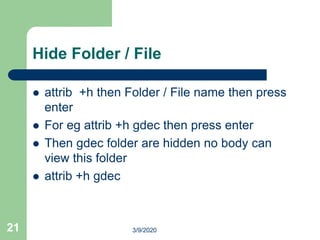
Hide Folder / File
 attrib +h then Folder / File name then press
enter
 For eg attrib +h gdec then press enter
 Then gdec folder are hidden no body can
view this folder
 attrib +h gdec
21 3/9/2020
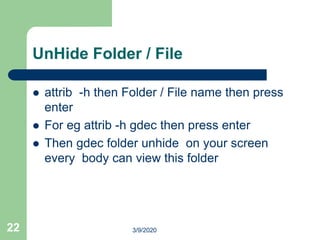
UnHide Folder / File
 attrib -h then Folder / File name then press
enter
 For eg attrib -h gdec then press enter
 Then gdec folder unhide on your screen
every body can view this folder
22 3/9/2020
Clear Screen
 cls is used to clear screen
23 3/9/2020
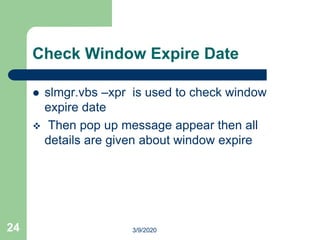
Check Window Expire Date
 slmgr.vbs –xpr is used to check window
expire date
 Then pop up message appear then all
details are given about window expire
24 3/9/2020
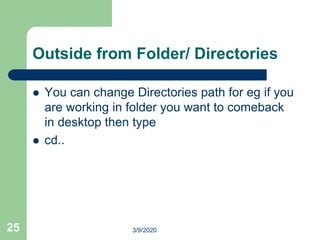
Outside from Folder/ Directories
 You can change Directories path for eg if you
are working in folder you want to comeback
in desktop then type
 cd..
25 3/9/2020
Change Color of Cmd Text
 You can change the text color of cmd just
type color L and then press enter
 Then list of all color numbering is display you
just pick the desire color number
 Color 2 then all text in green color
26 3/9/2020
3/9/202027

Command line interface

  • 1.
  • 2.
    2 Lecture Objectives  Explainthe operation of the command line interface  Execute fundamental commands from the command line interface  Manipulate files and folders from the command line
  • 3.
    3 How does theCommand Line Work?  Similar to Instant Message conversation with computer  The prompt indicates that the computer is ready to receive a command  Command is typed and ENTER is pressed  PC executes command  Prompt is displayed, indicating that the computer is waiting for the next command 3/9/2020
  • 4.
    4 Accessing the CommandLine  Run dialog box  Start menu under Programs | Accessories – Win 9x/Me link is named MS-DOS prompt – Win NT, 2000, XP link is called Command Prompt  To close command line interface – Type Exit at command line and press enter – Close the window 3/9/2020
  • 5.
    5 Command Prompt  VERYIMPORTANT: The command prompt is always focused on a specific folder. Any commands executed are performed on the files in the folder on which the prompt is focused. Examples: C:> root directory of C: drive C:DiplomaAPLUS> You must focus the prompt on the drive and folder where you want to work 3/9/2020
  • 6.
    6 Filenames and FileFormats  In Windows, each program and piece of data is stored as an individual file  Each file has a name, stored with the file on the drive  Names have 2 parts: filename and extension 3/9/2020
  • 7.
    7 Eight-dot-Three naming system File name cannot be more that 8 chrs  Extension can be up to 3 chrs, OPTIONAL  Following chrs cannot be used in filename or extension: – / [ ] | = + ; , * ? And division symbol 3/9/2020
  • 8.
    8 Windows naming rules All versions starting with Win 9x are not limited be 8.3  Filenames up to 255 chrs  Win 9x has backward compatibility with DOS by creating 2 names for every file, 8.3 name and a long file name if necessary 3/9/2020
  • 9.
    9 File extensions  Describesthe type or function of the file  COM = command, EXE = executable  Anything that is not a program is a data file used by a program  Extension of a data file indicates which program uses that data file  .DOC = MSWord, .PPT = PowerPoint  Graphic file extensions represent the graphic standard used to create the image  .JPEG =Joint Photographic Experts Group 3/9/2020
  • 10.
    10 File Formats  Allfiles stored on hard drive in binary format  Every program is unique in the way it reads and writes this binary data  Each unique way of binary organization is known as a file format  One program cannot read another programs files unless it can convert the other programs format 3/9/2020
  • 11.
    11 Drives and Folders To execute commands from the command line, must focus the prompt at the specific drive and folder that contains the files or program with which you want to work  At boot, Win assigns letters to drives and drive partitions 3/9/2020
  • 12.
    12 Hierarchical Directory Tree All files are put in groups called folders  Any file not in a folder within the tree is said to be in the root directory  A folder inside another folder is called a subfolder  Any folder can have multiple subfolders 3/9/2020
  • 13.
    13 Hierarchical Directory Tree Hard drive is represented by C:  Root directory is indicated by , C:  Subdirectories/Subfolders are indicated by adding and the directory name  Exact location of a file is known as its PATH 3/9/2020
  • 14.
    14 Fundamental Commands  ALLcommands use similar structure and execute in the same way  Name of command , target of command followed by any switches (extra numbers or letters at the end)  Typing the command followed /? Displays help menu describing syntax and possible switches 3/9/2020
  • 15.
    15 CD Command (Directories) Change focus of command prompt to a different directory  CD followed by directory name  If directory does not exist, error message – Invalid Directory – The system cannot find the path specified 3/9/2020
  • 16.
    16 Create Folder  Tomake a directory or Create new folder  To make a directory called folder name under root directory: C:>MD folder name , press ENTER  If command is successfully executed, the command prompt will be displayed  Use DIR to verify that directory was created 3/9/2020
  • 17.
    Create Files  Createfile using this command just type copy con and file name. extension for eg copy con kamran.txt  type text you want to insert in a file for eg  Welcome to gdec  after you write your desire text then press Ctrl +Z 17 3/9/2020
  • 18.
    18 Delete Files  UseDEL command  Careful! No recycle bin.  Erased file can only be recovered using Norton Unerase  DEL kamran.txt 3/9/2020
  • 19.
    Rename File  rencommand is used to rename of file  For eg type ren filename . extension and then type name that you want. Extension  ren kamran.txt sohaib.txt 19 3/9/2020
  • 20.
    Delete Folder/ Directories rmdir command use to delete Folder/  If you want to remove all file in folder then you type rmdir folder name s  S stand for sub directories  rmdir lahore  If all file remove from folder then type  rmdir lahores 20 3/9/2020
  • 21.
    Hide Folder /File  attrib +h then Folder / File name then press enter  For eg attrib +h gdec then press enter  Then gdec folder are hidden no body can view this folder  attrib +h gdec 21 3/9/2020
  • 22.
    UnHide Folder /File  attrib -h then Folder / File name then press enter  For eg attrib -h gdec then press enter  Then gdec folder unhide on your screen every body can view this folder 22 3/9/2020
  • 23.
    Clear Screen  clsis used to clear screen 23 3/9/2020
  • 24.
    Check Window ExpireDate  slmgr.vbs –xpr is used to check window expire date  Then pop up message appear then all details are given about window expire 24 3/9/2020
  • 25.
    Outside from Folder/Directories  You can change Directories path for eg if you are working in folder you want to comeback in desktop then type  cd.. 25 3/9/2020
  • 26.
    Change Color ofCmd Text  You can change the text color of cmd just type color L and then press enter  Then list of all color numbering is display you just pick the desire color number  Color 2 then all text in green color 26 3/9/2020
  • 27.