Today
• CSS
• 4/10 Monday (#322)
– Tutorial 7: Case 1 (4th edition)
– Read the book and handouts carefully
– Due by 4/12 (Wed.)

• A project planning document by 4/12
The Breakdown
• All web pages can be broken down into
bucketized content areas
• These areas can updated by changing
the code on every page,
- or • By using cascading style sheets!
Advantages of Style Sheets
•
•
•
•
•
•

Saves time
Easy to change
Keep consistency
Give you more control over layout
Use styles with JavaScript => DHTML
Make it easy to create a common format for all
the Web pages
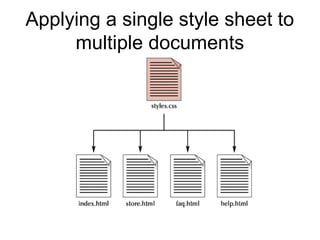
Applying a single style sheet to
multiple documents
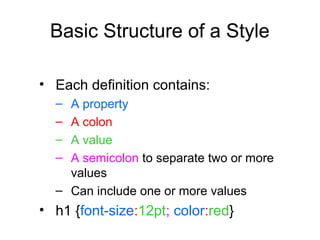
Basic Structure of a Style
• Each definition contains:
–
–
–
–

A property
A colon
A value
A semicolon to separate two or more
values
– Can include one or more values

• h1 {font-size:12pt; color:red}
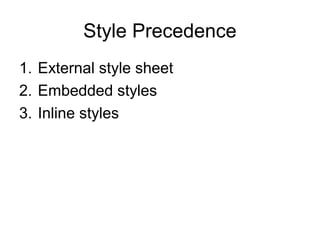
Style Precedence
1. External style sheet
2. Embedded styles
3. Inline styles
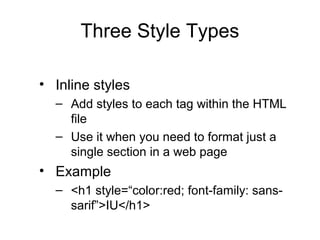
Three Style Types
• Inline styles
– Add styles to each tag within the HTML
file
– Use it when you need to format just a
single section in a web page

• Example
– <h1 style=“color:red; font-family: sanssarif”>IU</h1>
Three Style Types
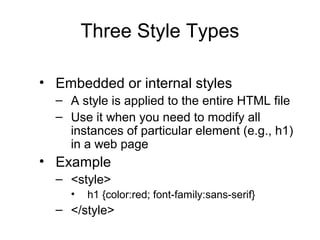
• Embedded or internal styles
– A style is applied to the entire HTML file
– Use it when you need to modify all
instances of particular element (e.g., h1)
in a web page

• Example
– <style>
•

h1 {color:red; font-family:sans-serif}

– </style>
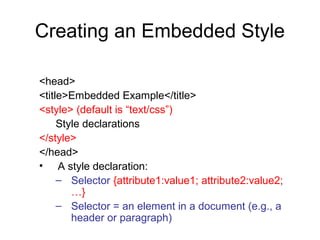
Creating an Embedded Style
<head>
<title>Embedded Example</title>
<style> (default is “text/css”)
Style declarations
</style>
</head>
• A style declaration:
– Selector {attribute1:value1; attribute2:value2;
…}
– Selector = an element in a document (e.g., a
header or paragraph)
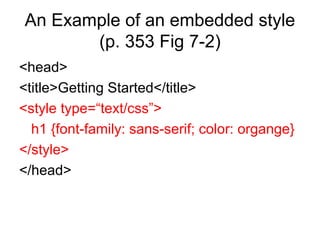
An Example of an embedded style
(p. 353 Fig 7-2)
<head>
<title>Getting Started</title>
<style type=“text/css”>
h1 {font-family: sans-serif; color: organge}
</style>
</head>
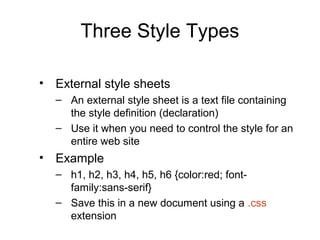
Three Style Types
• External style sheets
– An external style sheet is a text file containing
the style definition (declaration)
– Use it when you need to control the style for an
entire web site

• Example
– h1, h2, h3, h4, h5, h6 {color:red; fontfamily:sans-serif}
– Save this in a new document using a .css
extension
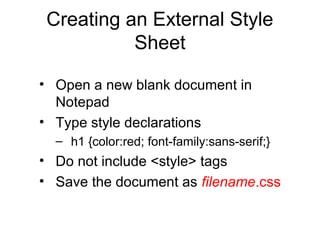
Creating an External Style
Sheet
• Open a new blank document in
Notepad
• Type style declarations
– h1 {color:red; font-family:sans-serif;}

• Do not include <style> tags
• Save the document as filename.css
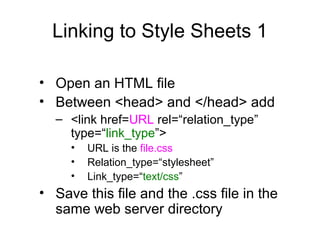
Linking to Style Sheets 1
• Open an HTML file
• Between <head> and </head> add
– <link href=URL rel=“relation_type”
type=“link_type”>
•
•
•

URL is the file.css
Relation_type=“stylesheet”
Link_type=“text/css”

• Save this file and the .css file in the
same web server directory
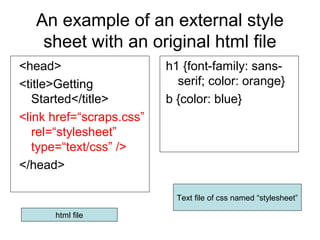
An example of an external style
sheet with an original html file
<head>
<title>Getting
Started</title>
<link href=“scraps.css”
rel=“stylesheet”
type=“text/css” />
</head>

h1 {font-family: sansserif; color: orange}
b {color: blue}

Text file of css named “stylesheet”
html file
Style Sheet Strategies
• Wherever possible, place your styles
in external style sheets
• Take advantage of the power of CSS
to have control over an entire Web
site
Style Sheet Strategies
• At the top level of your web site:
define a default global.css style sheet
• Refine styles at sublevels with a
section.css style sheet
• Try to avoid using styles in tags
Attribute Selectors
• Create an attribute selector to select
an element based on the element’s
attributes.
– See figure 7-13 in your text for a list of
attribute selectors
Using IDs and Classes
• Use an id to distinguish something,
like a paragraph, from the others in a
document.
– For example, to identify a paragraph as
“head”, use the code:
<p id=“head”>… </p>
Working With Ids
• To create an ID for a specific tag, use the
property:
– <tag ID=id_name>

• To apply a style to a specific ID, use:
– #id_name {style attributes and values}
Classes
• HTML and XHTML require each id
be unique– therefore an id value can
only be used once in a document.
• You can mark a group of elements
with a common identifier using the
class attribute.
<element class=“class”> … </element>
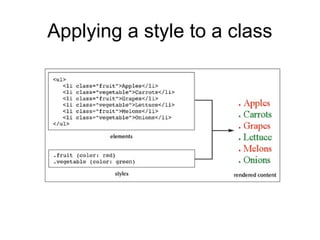
Applying a style to a class
Working With Classes
• To create a class, enter the following in the
HTML tag:
– <tag CLASS=class_name>
– <h1 CLASS=FirstHeader>IU</h1>
– class_name is a name to identify this class of
tags

• To apply a style to a class of tags, use:
– tag.class_name {style attributes} or
– .class_name {style attributes}
Working With Classes and Ids
• The difference between the Class
property and the ID property is that the
value of the ID property must be unique:
– you can’t have more than one tag with the
same ID value
– You can apply the same Class value to
multiple document tags
Working With DIV
• <DIV> tag is used for blocks of text, e.g.,
paragraphs, block quotes, headers, or lists
• To create a container for block-level elements,
use:
– <DIV CLASS=class_name>
•

Block-level elements

– </DIV>
– Class_name is the name of the class
– You can substitute the ID proper for the Class
property (with ID, the syntax for CSS style,

#id_name {style attributes and values}
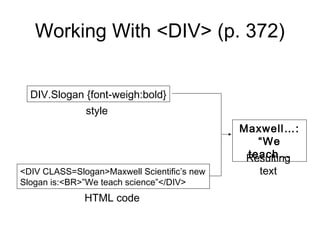
Working With <DIV> (p. 372)
DIV.Slogan {font-weigh:bold}
style
Maxwell…:
“We
teach…
Resulting
<DIV CLASS=Slogan>Maxwell Scientific’s new
Slogan is:<BR>”We teach science”</DIV>

HTML code

text
Working With <span>
• With the <span> tag, you can use
inline elements, e.g., <B>, <I>
• To create a container for inline
elements, use:
– <span CLASS=class_name>
•

inline elements

– </span>
CSS for Page Layout
• CSS manipulates the size and location of blocklevel elements
• Block-level elements in HTML:
–
–
–
–
–
–
–
–

Heading tags, e.g., <H1>, <H2>
<p>
<blockquote> and <address> tags
List tags, e.g., <ul>, <ol>, <dl>
<div>
<body>
<hr>
<img>
CSS for Page Layout
• Parts of the block-level elements:
– Margin
– Border
– Padding
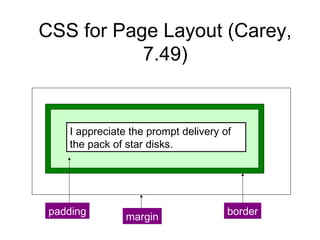
CSS for Page Layout (Carey,
7.49)

I appreciate the prompt delivery of
the pack of star disks.

padding

margin

border
Controlling the Margins
• To define the margins of an element, use:
– margin:value
– where value = a length value (“em” is often
used), a percentage (a margin proportional
to the element’s width, or auto
Controlling the Margins
• To set margins on a side, use:
–
–
–
–

margin-top
margin-right
margin-bottom
margin-left

• E.g., LI {margin-left:2em; margin-right:2em;
margin-top:1em; margin-bottom:1em}
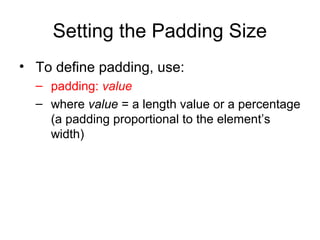
Setting the Padding Size
• To define padding, use:
– padding: value
– where value = a length value or a percentage
(a padding proportional to the element’s
width)
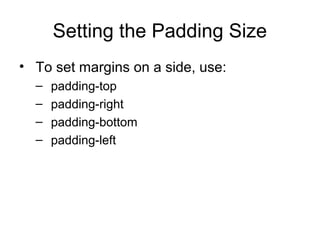
Setting the Padding Size
• To set margins on a side, use:
–
–
–
–

padding-top
padding-right
padding-bottom
padding-left
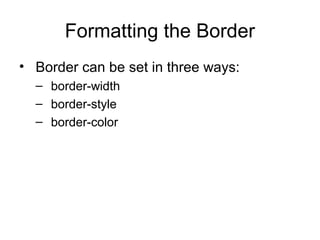
Formatting the Border
• Border can be set in three ways:
– border-width
– border-style
– border-color
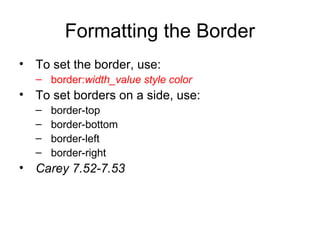
Formatting the Border
• To set the border, use:
– border:width_value style color

• To set borders on a side, use:
–
–
–
–

border-top
border-bottom
border-left
border-right

• Carey 7.52-7.53
Formatting Width & Height of
Block-Level Boxes
• To set the width of a block-level element, use:
– width:value
– height:value
– where value can be a length value, a percentage, or
auto

• E.g., textarea {width:225px; height:100px}
Using the Float Attribute
(p. 371-372)
• To float (wrap) a block-level element, use:
– float:margin
– Where margin = right, left, none

• To prevent an element from wrapping, use:
– Clear:margin
– Where margin=right, left, both, none
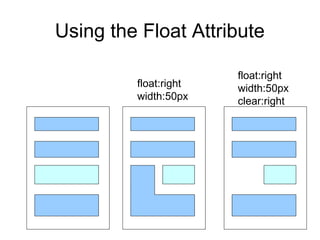
Using the Float Attribute
float:right
width:50px

float:right
width:50px
clear:right
Formatting Hypertext Links
• To remove the style of underlining hypertext,
use:
– A {text-decoration:none}

• 4 types of hyperlinks can be modified:
– A:visited {styles for previously visited links}
– A:link {styles for links that have never visited}
– A:active {styles for links that are currently being
clicked}
– A:hover {styles when the mouse cursor is hovering
over the link}

Css

  • 1.
    Today • CSS • 4/10Monday (#322) – Tutorial 7: Case 1 (4th edition) – Read the book and handouts carefully – Due by 4/12 (Wed.) • A project planning document by 4/12
  • 2.
    The Breakdown • Allweb pages can be broken down into bucketized content areas • These areas can updated by changing the code on every page, - or • By using cascading style sheets!
  • 3.
    Advantages of StyleSheets • • • • • • Saves time Easy to change Keep consistency Give you more control over layout Use styles with JavaScript => DHTML Make it easy to create a common format for all the Web pages
  • 4.
    Applying a singlestyle sheet to multiple documents
  • 5.
    Basic Structure ofa Style • Each definition contains: – – – – A property A colon A value A semicolon to separate two or more values – Can include one or more values • h1 {font-size:12pt; color:red}
  • 6.
    Style Precedence 1. Externalstyle sheet 2. Embedded styles 3. Inline styles
  • 7.
    Three Style Types •Inline styles – Add styles to each tag within the HTML file – Use it when you need to format just a single section in a web page • Example – <h1 style=“color:red; font-family: sanssarif”>IU</h1>
  • 8.
    Three Style Types •Embedded or internal styles – A style is applied to the entire HTML file – Use it when you need to modify all instances of particular element (e.g., h1) in a web page • Example – <style> • h1 {color:red; font-family:sans-serif} – </style>
  • 9.
    Creating an EmbeddedStyle <head> <title>Embedded Example</title> <style> (default is “text/css”) Style declarations </style> </head> • A style declaration: – Selector {attribute1:value1; attribute2:value2; …} – Selector = an element in a document (e.g., a header or paragraph)
  • 10.
    An Example ofan embedded style (p. 353 Fig 7-2) <head> <title>Getting Started</title> <style type=“text/css”> h1 {font-family: sans-serif; color: organge} </style> </head>
  • 11.
    Three Style Types •External style sheets – An external style sheet is a text file containing the style definition (declaration) – Use it when you need to control the style for an entire web site • Example – h1, h2, h3, h4, h5, h6 {color:red; fontfamily:sans-serif} – Save this in a new document using a .css extension
  • 12.
    Creating an ExternalStyle Sheet • Open a new blank document in Notepad • Type style declarations – h1 {color:red; font-family:sans-serif;} • Do not include <style> tags • Save the document as filename.css
  • 13.
    Linking to StyleSheets 1 • Open an HTML file • Between <head> and </head> add – <link href=URL rel=“relation_type” type=“link_type”> • • • URL is the file.css Relation_type=“stylesheet” Link_type=“text/css” • Save this file and the .css file in the same web server directory
  • 14.
    An example ofan external style sheet with an original html file <head> <title>Getting Started</title> <link href=“scraps.css” rel=“stylesheet” type=“text/css” /> </head> h1 {font-family: sansserif; color: orange} b {color: blue} Text file of css named “stylesheet” html file
  • 15.
    Style Sheet Strategies •Wherever possible, place your styles in external style sheets • Take advantage of the power of CSS to have control over an entire Web site
  • 16.
    Style Sheet Strategies •At the top level of your web site: define a default global.css style sheet • Refine styles at sublevels with a section.css style sheet • Try to avoid using styles in tags
  • 17.
    Attribute Selectors • Createan attribute selector to select an element based on the element’s attributes. – See figure 7-13 in your text for a list of attribute selectors
  • 18.
    Using IDs andClasses • Use an id to distinguish something, like a paragraph, from the others in a document. – For example, to identify a paragraph as “head”, use the code: <p id=“head”>… </p>
  • 19.
    Working With Ids •To create an ID for a specific tag, use the property: – <tag ID=id_name> • To apply a style to a specific ID, use: – #id_name {style attributes and values}
  • 20.
    Classes • HTML andXHTML require each id be unique– therefore an id value can only be used once in a document. • You can mark a group of elements with a common identifier using the class attribute. <element class=“class”> … </element>
  • 21.
    Applying a styleto a class
  • 22.
    Working With Classes •To create a class, enter the following in the HTML tag: – <tag CLASS=class_name> – <h1 CLASS=FirstHeader>IU</h1> – class_name is a name to identify this class of tags • To apply a style to a class of tags, use: – tag.class_name {style attributes} or – .class_name {style attributes}
  • 23.
    Working With Classesand Ids • The difference between the Class property and the ID property is that the value of the ID property must be unique: – you can’t have more than one tag with the same ID value – You can apply the same Class value to multiple document tags
  • 24.
    Working With DIV •<DIV> tag is used for blocks of text, e.g., paragraphs, block quotes, headers, or lists • To create a container for block-level elements, use: – <DIV CLASS=class_name> • Block-level elements – </DIV> – Class_name is the name of the class – You can substitute the ID proper for the Class property (with ID, the syntax for CSS style, #id_name {style attributes and values}
  • 25.
    Working With <DIV>(p. 372) DIV.Slogan {font-weigh:bold} style Maxwell…: “We teach… Resulting <DIV CLASS=Slogan>Maxwell Scientific’s new Slogan is:<BR>”We teach science”</DIV> HTML code text
  • 26.
    Working With <span> •With the <span> tag, you can use inline elements, e.g., <B>, <I> • To create a container for inline elements, use: – <span CLASS=class_name> • inline elements – </span>
  • 27.
    CSS for PageLayout • CSS manipulates the size and location of blocklevel elements • Block-level elements in HTML: – – – – – – – – Heading tags, e.g., <H1>, <H2> <p> <blockquote> and <address> tags List tags, e.g., <ul>, <ol>, <dl> <div> <body> <hr> <img>
  • 28.
    CSS for PageLayout • Parts of the block-level elements: – Margin – Border – Padding
  • 29.
    CSS for PageLayout (Carey, 7.49) I appreciate the prompt delivery of the pack of star disks. padding margin border
  • 30.
    Controlling the Margins •To define the margins of an element, use: – margin:value – where value = a length value (“em” is often used), a percentage (a margin proportional to the element’s width, or auto
  • 31.
    Controlling the Margins •To set margins on a side, use: – – – – margin-top margin-right margin-bottom margin-left • E.g., LI {margin-left:2em; margin-right:2em; margin-top:1em; margin-bottom:1em}
  • 32.
    Setting the PaddingSize • To define padding, use: – padding: value – where value = a length value or a percentage (a padding proportional to the element’s width)
  • 33.
    Setting the PaddingSize • To set margins on a side, use: – – – – padding-top padding-right padding-bottom padding-left
  • 34.
    Formatting the Border •Border can be set in three ways: – border-width – border-style – border-color
  • 35.
    Formatting the Border •To set the border, use: – border:width_value style color • To set borders on a side, use: – – – – border-top border-bottom border-left border-right • Carey 7.52-7.53
  • 36.
    Formatting Width &Height of Block-Level Boxes • To set the width of a block-level element, use: – width:value – height:value – where value can be a length value, a percentage, or auto • E.g., textarea {width:225px; height:100px}
  • 37.
    Using the FloatAttribute (p. 371-372) • To float (wrap) a block-level element, use: – float:margin – Where margin = right, left, none • To prevent an element from wrapping, use: – Clear:margin – Where margin=right, left, both, none
  • 38.
    Using the FloatAttribute float:right width:50px float:right width:50px clear:right
  • 39.
    Formatting Hypertext Links •To remove the style of underlining hypertext, use: – A {text-decoration:none} • 4 types of hyperlinks can be modified: – A:visited {styles for previously visited links} – A:link {styles for links that have never visited} – A:active {styles for links that are currently being clicked} – A:hover {styles when the mouse cursor is hovering over the link}