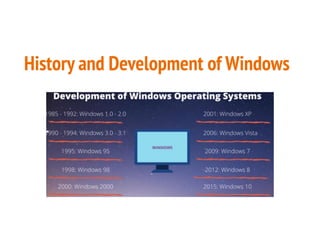
History and Development of Windows
System Requirements
⚫ The main requirements are −
⚫ A processor (CPU) with a clock rate of at least 1GHz.
⚫ At least 1 to 2GB of memory (RAM), but Microsoft recommends 4GB.
⚫ At least 16GB space in your hard disk.
After Installation
•This screen lets you choose which user you want to log in to from the
lower-left corner.
• After choosing the right user, and entering a password if necessary, you will
see the Windows Desktop.
What is a file
⚫ File Explorer is the file management application used by Windows
operating systems to browse folders and files.
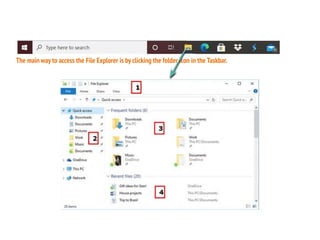
The main way to access the File Explorer is by clicking the folder icon in the Taskbar.
The initial File Explorer window is
comprised of the following sections −
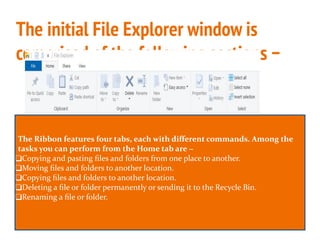
The Ribbon features four tabs, each with different commands. Among the
tasks you can perform from the Home tab are −
❑Copying and pasting files and folders from one place to another.
❑Moving files and folders to another location.
❑Copying files and folders to another location.
❑Deleting a file or folder permanently or sending it to the Recycle Bin.
❑Renaming a file or folder.
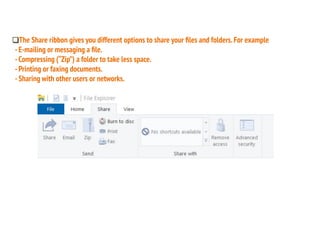
❑The Share ribbon gives you different options to share your files and folders.For example
-E-mailing or messaging a file.
-Compressing (“Zip”) a folder to take less space.
-Printing or faxing documents.
-Sharing with other users or networks.
The View ribbon allows you to change the way Windows
displays your files and folders. Some of the changes you
can make here are −
❑ Adding additional panes to show a preview or details of
your files.
❑ Changing the layout of the files and folders from icons to
list, and others.
❑ Sorting and arranging the contents of your folder.
❑ Hiding selected folders or files.
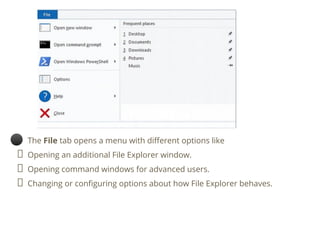
⚫ The File tab opens a menu with different options like
Opening an additional File Explorer window.
Opening command windows for advanced users.
Changing or configuring options about how File Explorer behaves.
CREATING NEW FOLDER
⚫ Using the Home Menu
⚫ Fire up File Explorer by pressing Windows+E, and navigate to a directory
with either a file or folder to rename.
⚫ Click on a file or folder to select it, and click “Rename” from the Home
menu at the top of File Explorer.
Create and Rename Files and Folders Using File Explorer
⚫ How to create a new
folder?
1) Click on file explorer
2) In home tab click on
new folder icon
3) Give appropriate
name to your folder
4) Press enter key
RENAME THE FOLDER
⚫ Click on a folder to
select it, and click
“Rename” from the
Home menu at the top
of File Explorer.
Fire up File Explorer by pressing Windows+E,and navigate to a directory with either a file
or folder to rename.
Click on a file to select it,and click“Rename”from the Home menu at the top of File
Explorer.
THERE ARE TWO DIFFERENT WAYS TO RENAME THE FILE.
⚫ Once the name is selected—if
you’re renaming a file, not the
file extension.
⚫ When you’re done typing,
press Enter—or just click
somewhere else—to save the
new name.
❑ Using Two Single Clicks
⚫ Select the file with a single
click, pause for a second, and
then click one more time.
⚫ After the name is highlighted,
type out a new name, and press
Enter to save the changes.
Using a Keyboard Shortcut to rename the file.
⚫ Select a file or folder with the
arrow keys, or start typing the
name.
⚫ Once the file is selected, press
F2 to highlight the name of
the file.
⚫ After you type in a new name,
press the Enter key to save
the new name.
File naming conventions
Why you want a file naming convention
⚫ A file naming convention is a systematic method for naming
files.
⚫ Your file naming convention will always be your most
powerful and easy method for organising and retrieving
your documents.
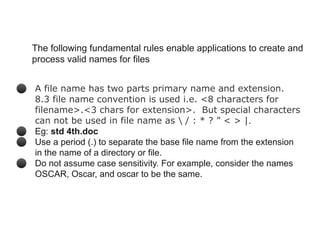
The following fundamental rules enable applications to create and
process valid names for files
⚫ A file name has two parts primary name and extension.
8.3 file name convention is used i.e. <8 characters for
filename>.<3 chars for extension>. But special characters
can not be used in file name as  / : * ? ” < > |.
⚫ Eg: std 4th.doc
⚫ Use a period (.) to separate the base file name from the extension
in the name of a directory or file.
⚫ Do not assume case sensitivity. For example, consider the names
OSCAR, Oscar, and oscar to be the same.
UNITS OF MEASURE
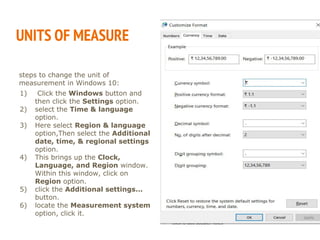
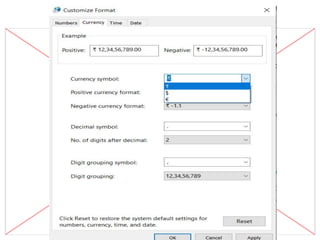
steps to change the unit of
measurement in Windows 10:
1) Click the Windows button and
then click the Settings option.
2) select the Time & language
option.
3) Here select Region & language
option,Then select the Additional
date, time, & regional settings
option.
4) This brings up the Clock,
Language, and Region window.
Within this window, click on
Region option.
5) click the Additional settings...
button.
6) locate the Measurement system
option, click it.
PARTS OF DESKTOP
WINDOWS 7
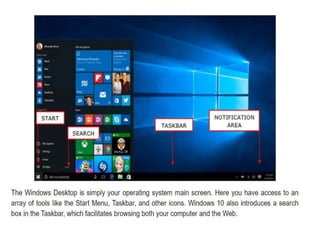
WINDOWS 10 DESKTOP
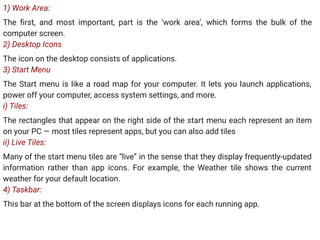
1) Work Area:
The first, and most important, part is the ‘work area’, which forms the bulk of the
computer screen.
2) Desktop Icons
The icon on the desktop consists of applications.
3) Start Menu
The Start menu is like a road map for your computer. It lets you launch applications,
power off your computer, access system settings, and more.
i) Tiles:
The rectangles that appear on the right side of the start menu each represent an item
on your PC — most tiles represent apps, but you can also add tiles
ii) Live Tiles:
Many of the start menu tiles are “live” in the sense that they display frequently-updated
information rather than app icons. For example, the Weather tile shows the current
weather for your default location.
4) Taskbar:
This bar at the bottom of the screen displays icons for each running app.
Toolbars / Customisation
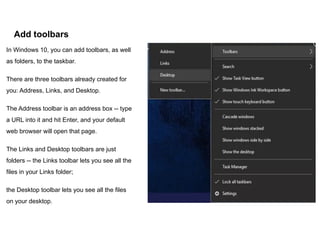
Add toolbars
In Windows 10, you can add toolbars, as well
as folders, to the taskbar.
There are three toolbars already created for
you: Address, Links, and Desktop.
The Address toolbar is an address box -- type
a URL into it and hit Enter, and your default
web browser will open that page.
The Links and Desktop toolbars are just
folders -- the Links toolbar lets you see all the
files in your Links folder;
the Desktop toolbar lets you see all the files
on your desktop.
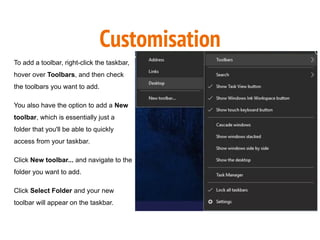
Customisation
To add a toolbar, right-click the taskbar,
hover over Toolbars, and then check
the toolbars you want to add.
You also have the option to add a New
toolbar, which is essentially just a
folder that you'll be able to quickly
access from your taskbar.
Click New toolbar... and navigate to the
folder you want to add.
Click Select Folder and your new
toolbar will appear on the taskbar.
THANK YOU
BY
TR. AGNES
STD: 4TH

WINDOWS 10

  • 3.
  • 4.
    System Requirements ⚫ Themain requirements are − ⚫ A processor (CPU) with a clock rate of at least 1GHz. ⚫ At least 1 to 2GB of memory (RAM), but Microsoft recommends 4GB. ⚫ At least 16GB space in your hard disk.
  • 5.
    After Installation •This screenlets you choose which user you want to log in to from the lower-left corner. • After choosing the right user, and entering a password if necessary, you will see the Windows Desktop.
  • 7.
    What is afile ⚫ File Explorer is the file management application used by Windows operating systems to browse folders and files.
  • 8.
    The main wayto access the File Explorer is by clicking the folder icon in the Taskbar.
  • 9.
    The initial FileExplorer window is comprised of the following sections − The Ribbon features four tabs, each with different commands. Among the tasks you can perform from the Home tab are − ❑Copying and pasting files and folders from one place to another. ❑Moving files and folders to another location. ❑Copying files and folders to another location. ❑Deleting a file or folder permanently or sending it to the Recycle Bin. ❑Renaming a file or folder.
  • 10.
    ❑The Share ribbon gives youdifferent options to share your files and folders.For example -E-mailing or messaging a file. -Compressing (“Zip”) a folder to take less space. -Printing or faxing documents. -Sharing with other users or networks.
  • 11.
    The View ribbon allows youto change the way Windows displays your files and folders. Some of the changes you can make here are − ❑ Adding additional panes to show a preview or details of your files. ❑ Changing the layout of the files and folders from icons to list, and others. ❑ Sorting and arranging the contents of your folder. ❑ Hiding selected folders or files.
  • 12.
    ⚫ The File tab opensa menu with different options like Opening an additional File Explorer window. Opening command windows for advanced users. Changing or configuring options about how File Explorer behaves.
  • 13.
    CREATING NEW FOLDER ⚫Using the Home Menu ⚫ Fire up File Explorer by pressing Windows+E, and navigate to a directory with either a file or folder to rename. ⚫ Click on a file or folder to select it, and click “Rename” from the Home menu at the top of File Explorer.
  • 14.
    Create and RenameFiles and Folders Using File Explorer ⚫ How to create a new folder? 1) Click on file explorer 2) In home tab click on new folder icon 3) Give appropriate name to your folder 4) Press enter key
  • 15.
    RENAME THE FOLDER ⚫Click on a folder to select it, and click “Rename” from the Home menu at the top of File Explorer.
  • 16.
    Fire up FileExplorer by pressing Windows+E,and navigate to a directory with either a file or folder to rename. Click on a file to select it,and click“Rename”from the Home menu at the top of File Explorer.
  • 17.
    THERE ARE TWODIFFERENT WAYS TO RENAME THE FILE. ⚫ Once the name is selected—if you’re renaming a file, not the file extension. ⚫ When you’re done typing, press Enter—or just click somewhere else—to save the new name. ❑ Using Two Single Clicks ⚫ Select the file with a single click, pause for a second, and then click one more time. ⚫ After the name is highlighted, type out a new name, and press Enter to save the changes.
  • 18.
    Using a KeyboardShortcut to rename the file. ⚫ Select a file or folder with the arrow keys, or start typing the name. ⚫ Once the file is selected, press F2 to highlight the name of the file. ⚫ After you type in a new name, press the Enter key to save the new name.
  • 19.
  • 20.
    Why you wanta file naming convention ⚫ A file naming convention is a systematic method for naming files. ⚫ Your file naming convention will always be your most powerful and easy method for organising and retrieving your documents.
  • 21.
    The following fundamentalrules enable applications to create and process valid names for files ⚫ A file name has two parts primary name and extension. 8.3 file name convention is used i.e. <8 characters for filename>.<3 chars for extension>. But special characters can not be used in file name as / : * ? ” < > |. ⚫ Eg: std 4th.doc ⚫ Use a period (.) to separate the base file name from the extension in the name of a directory or file. ⚫ Do not assume case sensitivity. For example, consider the names OSCAR, Oscar, and oscar to be the same.
  • 22.
    UNITS OF MEASURE stepsto change the unit of measurement in Windows 10: 1) Click the Windows button and then click the Settings option. 2) select the Time & language option. 3) Here select Region & language option,Then select the Additional date, time, & regional settings option. 4) This brings up the Clock, Language, and Region window. Within this window, click on Region option. 5) click the Additional settings... button. 6) locate the Measurement system option, click it.
  • 24.
  • 25.
  • 26.
  • 27.
    1) Work Area: Thefirst, and most important, part is the ‘work area’, which forms the bulk of the computer screen. 2) Desktop Icons The icon on the desktop consists of applications. 3) Start Menu The Start menu is like a road map for your computer. It lets you launch applications, power off your computer, access system settings, and more. i) Tiles: The rectangles that appear on the right side of the start menu each represent an item on your PC — most tiles represent apps, but you can also add tiles ii) Live Tiles: Many of the start menu tiles are “live” in the sense that they display frequently-updated information rather than app icons. For example, the Weather tile shows the current weather for your default location. 4) Taskbar: This bar at the bottom of the screen displays icons for each running app.
  • 28.
  • 29.
    Add toolbars In Windows10, you can add toolbars, as well as folders, to the taskbar. There are three toolbars already created for you: Address, Links, and Desktop. The Address toolbar is an address box -- type a URL into it and hit Enter, and your default web browser will open that page. The Links and Desktop toolbars are just folders -- the Links toolbar lets you see all the files in your Links folder; the Desktop toolbar lets you see all the files on your desktop.
  • 30.
    Customisation To add atoolbar, right-click the taskbar, hover over Toolbars, and then check the toolbars you want to add. You also have the option to add a New toolbar, which is essentially just a folder that you'll be able to quickly access from your taskbar. Click New toolbar... and navigate to the folder you want to add. Click Select Folder and your new toolbar will appear on the taskbar.
  • 31.