Microsoft Windows 7 - Illustrated Understanding File Management
Objectives Understand folders and files Create and save a file Explore the files and folders on your computer Change file and folder views Open, edit, and save files Microsoft Windows 7 - Illustrated
Objectives Copy files Move and rename files Search for files, folders, and programs Delete and restore files Microsoft Windows 7 - Illustrated
Understanding Folders and Files File management  refers to the strategy and tasks that you use to organize and maintain the folders and files on a disk You need to develop a strategy that enables you to quickly find the files  you need Windows provides a variety of file management tools to assist you  in these tasks Microsoft Windows 7 - Illustrated
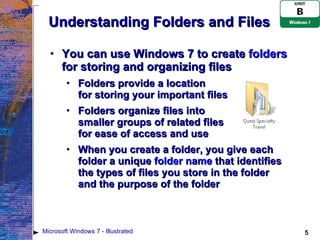
Understanding Folders and Files You can use Windows 7 to create  folders  for storing and organizing files Folders provide a location  for storing your important files Folders organize files into  smaller groups of related files  for ease of access and use When you create a folder, you give each folder a unique  folder name  that identifies  the types of files you store in the folder  and the purpose of the folder Microsoft Windows 7 - Illustrated
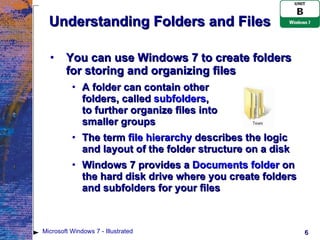
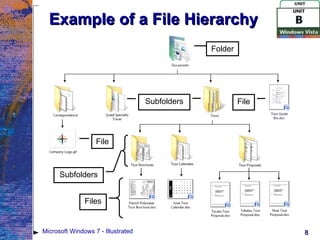
Understanding Folders and Files You can use Windows 7 to create folders for storing and organizing files A folder can contain other  folders, called  subfolders ,  to further organize files into  smaller groups The term  file hierarchy  describes the logic and layout of the folder structure on a disk Windows 7 provides a  Documents folder  on the hard disk drive where you create folders and subfolders for your files Microsoft Windows 7 - Illustrated
Understanding Folders and Files You can use Windows 7 to create folders for storing and organizing files Most programs automatically assume  you want to save and open files in the Documents folder Windows 7 provides other folders  for other types of files, such as: Music Pictures Videos Microsoft Windows 7 - Illustrated
Example of a File Hierarchy Microsoft Windows 7 - Illustrated Folder File File Subfolders Subfolders Files
Creating and Saving a File Any document you create with a program is temporarily stored in RAM If the power fails, then everything in RAM is lost You must  save  your document to a disk, either before you exit the program or periodically while you use the program When you save a document,  it is recorded in a file on a disk Microsoft Windows 7 - Illustrated
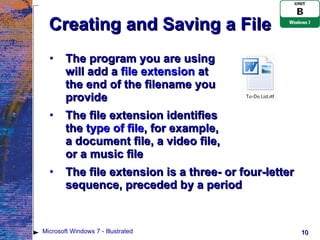
Creating and Saving a File The program you are using  will add a  file extension  at  the end of the filename you  provide The file extension identifies  the  type of file , for example,  a document file, a video file,  or a music file The file extension is a three- or four-letter sequence, preceded by a period Microsoft Windows 7 - Illustrated
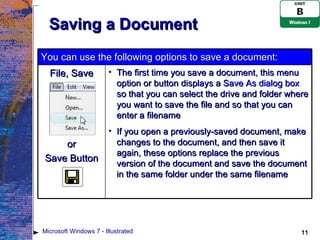
Saving a Document Microsoft Windows 7 - Illustrated You can use the following options to save a document: File, Save or Save Button The first time you save a document, this menu option or button displays a  Save As dialog box  so that you can select the drive and folder where you want to save the file and so that you can enter a filename If you open a previously-saved document, make changes to the document, and then save it again, these options replace the previous version of the document and save the document in the same folder under the same filename
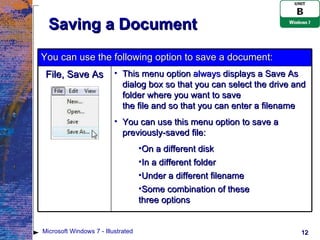
Saving a Document Microsoft Windows 7 - Illustrated You can use the following option to save a document: File, Save As This menu option  always  displays a Save As dialog box so that you can select the drive and folder where you want to save  the file and so that you can enter a filename You can use this menu option to save a previously-saved file: On a different disk  In a different folder  Under a different filename Some combination of these  three options
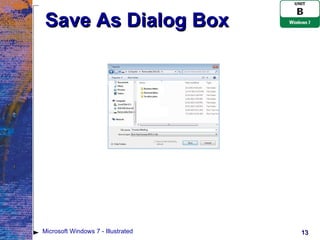
Save As Dialog Box Microsoft Windows 7 - Illustrated
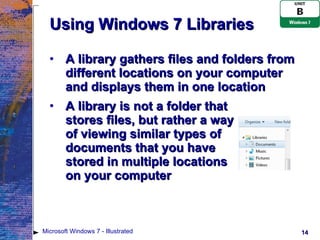
Using Windows 7 Libraries A library gathers files and folders from different locations on your computer and displays them in one location A library is not a folder that  stores files, but rather a way  of viewing similar types of  documents that you have  stored in multiple locations  on your computer Microsoft Windows 7 - Illustrated
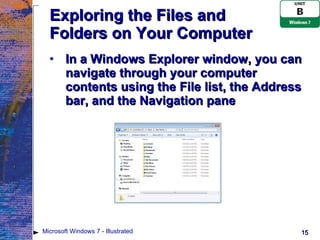
Exploring the Files and Folders on Your Computer In a Windows Explorer window, you can navigate through your computer contents using the File list, the Address bar, and the Navigation pane Microsoft Windows 7 - Illustrated
Drive Names and Drive Icons Microsoft Windows 7 - Illustrated Drive Type Drive Icon Friendly Name Drive Name Called Hard Disk Drive Local Disk C: Drive C CD Drive CD-RW Drive, CD-R Drive, or CD-ROM Drive Next available drive letter,  for example, D: Drive D DVD Drive DVD-RW Drive, DVD-R Drive, or DVD-ROM Drive Next available drive letter,  for example, E: Drive E USB Flash Drive [varies] Next available drive letter,  for example, F: Drive F
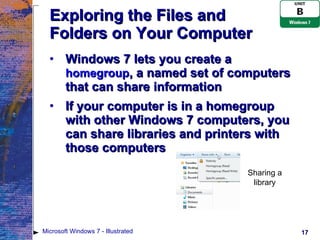
Exploring the Files and Folders on Your Computer Windows 7 lets you create a  homegroup , a named set of computers that can share information If your computer is in a homegroup with other Windows 7 computers, you can share libraries and printers with those computers Microsoft Windows 7 - Illustrated Sharing a library
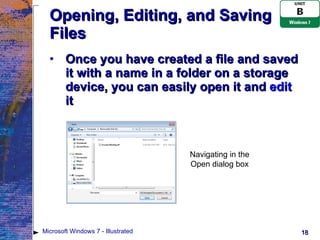
Opening, Editing, and Saving Files Once you have created a file and saved it with a name in a folder on a storage device, you can easily open it and  edit  it Microsoft Windows 7 - Illustrated Navigating in the Open dialog box
Copying Files The ability to copy folders and files allows you to create  backups  of important folders and files in case you lose the original folders and files  If you lose your original folder or file,  you can copy it from your backup Microsoft Windows 7 - Illustrated
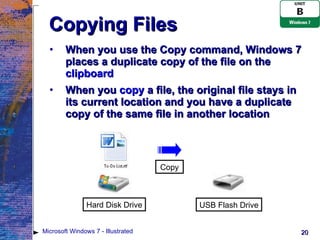
Copying Files When you use the Copy command, Windows 7 places a duplicate copy of the file on the  clipboard When you  copy  a file, the original file stays in its current location and you have a duplicate copy of the same file in another location Microsoft Windows 7 - Illustrated Hard Disk Drive USB Flash Drive Copy
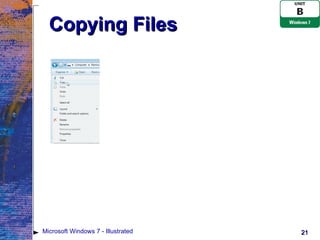
Copying Files Microsoft Windows 7 - Illustrated
Copying Files You can use the  Send To  command to quickly copy a file, a group of files, a folder, or a group of files from one disk drive to another Microsoft Windows 7 - Illustrated
Moving and Renaming Files You can move one of more files or folders When you move a file, the file is transferred to the new location and no longer exists in its original location You can move a file using the Cut and Paste commands You can rename files to make the names more descriptive or accurate Microsoft Windows 7 - Illustrated
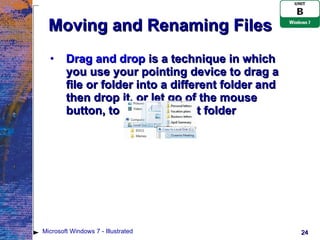
Moving and Renaming Files Drag and drop  is a technique in which you use your pointing device to drag a file or folder into a different folder and then drop it, or let go of the mouse button, to place it in that folder Microsoft Windows 7 - Illustrated
Searching for Files, Folders, and Programs Windows Search  helps you quickly find any file, folder, or program The search text you type is called the  search criteria Search criteria can be a filename, part of a filename, or any other characters you choose Microsoft Windows 7 - Illustrated
Searching for Files, Folders, and Programs To search your entire computer, including its attached drives, you can use the Search box on the Start menu To search within a particular folder, you can use the Search box in a Windows Explorer window Microsoft Windows 7 - Illustrated
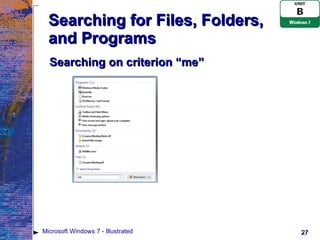
Searching for Files, Folders, and Programs Searching on criterion “me” Microsoft Windows 7 - Illustrated
Searching for Files, Folders, and Programs You can perform advanced searches by using different search criteria such as: File extension First, last, or first and last name of the file creator Date of file creation Document title Person’s name to find his or her e-mail address Microsoft Windows 7 - Illustrated
Deleting and Restoring Files If you no longer need a folder or file, you can delete it from the storage device By regularly deleting files and folders you no longer need and emptying the Recycle Bin, you free up valuable storage space on your computer Windows 7 places files and folders you delete in the Recycle Bin If you delete a folder, Windows 7 removes the folder as well as all files and subfolders stored in it Microsoft Windows 7 - Illustrated
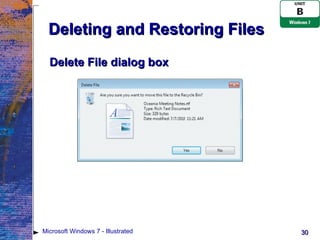
Deleting and Restoring Files Delete File dialog box Microsoft Windows 7 - Illustrated
Deleting and Restoring Files If you later discover that you need a deleted file or folder, you can restore it to its original location, but only if you have not yet emptied the Recycle Bin Emptying the Recycle Bin permanently removes the deleted folders and files from your computer Files and folders you delete from a removable storage drive do not go to the Recycle Bin; they are immediately and permanently deleted and cannot be restored Microsoft Windows 7 - Illustrated
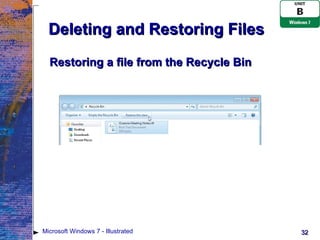
Deleting and Restoring Files Restoring a file from the Recycle Bin Microsoft Windows 7 - Illustrated

Unit B Windows 7

  • 1.
    Microsoft Windows 7- Illustrated Understanding File Management
  • 2.
    Objectives Understand foldersand files Create and save a file Explore the files and folders on your computer Change file and folder views Open, edit, and save files Microsoft Windows 7 - Illustrated
  • 3.
    Objectives Copy filesMove and rename files Search for files, folders, and programs Delete and restore files Microsoft Windows 7 - Illustrated
  • 4.
    Understanding Folders andFiles File management refers to the strategy and tasks that you use to organize and maintain the folders and files on a disk You need to develop a strategy that enables you to quickly find the files you need Windows provides a variety of file management tools to assist you in these tasks Microsoft Windows 7 - Illustrated
  • 5.
    Understanding Folders andFiles You can use Windows 7 to create folders for storing and organizing files Folders provide a location for storing your important files Folders organize files into smaller groups of related files for ease of access and use When you create a folder, you give each folder a unique folder name that identifies the types of files you store in the folder and the purpose of the folder Microsoft Windows 7 - Illustrated
  • 6.
    Understanding Folders andFiles You can use Windows 7 to create folders for storing and organizing files A folder can contain other folders, called subfolders , to further organize files into smaller groups The term file hierarchy describes the logic and layout of the folder structure on a disk Windows 7 provides a Documents folder on the hard disk drive where you create folders and subfolders for your files Microsoft Windows 7 - Illustrated
  • 7.
    Understanding Folders andFiles You can use Windows 7 to create folders for storing and organizing files Most programs automatically assume you want to save and open files in the Documents folder Windows 7 provides other folders for other types of files, such as: Music Pictures Videos Microsoft Windows 7 - Illustrated
  • 8.
    Example of aFile Hierarchy Microsoft Windows 7 - Illustrated Folder File File Subfolders Subfolders Files
  • 9.
    Creating and Savinga File Any document you create with a program is temporarily stored in RAM If the power fails, then everything in RAM is lost You must save your document to a disk, either before you exit the program or periodically while you use the program When you save a document, it is recorded in a file on a disk Microsoft Windows 7 - Illustrated
  • 10.
    Creating and Savinga File The program you are using will add a file extension at the end of the filename you provide The file extension identifies the type of file , for example, a document file, a video file, or a music file The file extension is a three- or four-letter sequence, preceded by a period Microsoft Windows 7 - Illustrated
  • 11.
    Saving a DocumentMicrosoft Windows 7 - Illustrated You can use the following options to save a document: File, Save or Save Button The first time you save a document, this menu option or button displays a Save As dialog box so that you can select the drive and folder where you want to save the file and so that you can enter a filename If you open a previously-saved document, make changes to the document, and then save it again, these options replace the previous version of the document and save the document in the same folder under the same filename
  • 12.
    Saving a DocumentMicrosoft Windows 7 - Illustrated You can use the following option to save a document: File, Save As This menu option always displays a Save As dialog box so that you can select the drive and folder where you want to save the file and so that you can enter a filename You can use this menu option to save a previously-saved file: On a different disk In a different folder Under a different filename Some combination of these three options
  • 13.
    Save As DialogBox Microsoft Windows 7 - Illustrated
  • 14.
    Using Windows 7Libraries A library gathers files and folders from different locations on your computer and displays them in one location A library is not a folder that stores files, but rather a way of viewing similar types of documents that you have stored in multiple locations on your computer Microsoft Windows 7 - Illustrated
  • 15.
    Exploring the Filesand Folders on Your Computer In a Windows Explorer window, you can navigate through your computer contents using the File list, the Address bar, and the Navigation pane Microsoft Windows 7 - Illustrated
  • 16.
    Drive Names andDrive Icons Microsoft Windows 7 - Illustrated Drive Type Drive Icon Friendly Name Drive Name Called Hard Disk Drive Local Disk C: Drive C CD Drive CD-RW Drive, CD-R Drive, or CD-ROM Drive Next available drive letter, for example, D: Drive D DVD Drive DVD-RW Drive, DVD-R Drive, or DVD-ROM Drive Next available drive letter, for example, E: Drive E USB Flash Drive [varies] Next available drive letter, for example, F: Drive F
  • 17.
    Exploring the Filesand Folders on Your Computer Windows 7 lets you create a homegroup , a named set of computers that can share information If your computer is in a homegroup with other Windows 7 computers, you can share libraries and printers with those computers Microsoft Windows 7 - Illustrated Sharing a library
  • 18.
    Opening, Editing, andSaving Files Once you have created a file and saved it with a name in a folder on a storage device, you can easily open it and edit it Microsoft Windows 7 - Illustrated Navigating in the Open dialog box
  • 19.
    Copying Files Theability to copy folders and files allows you to create backups of important folders and files in case you lose the original folders and files If you lose your original folder or file, you can copy it from your backup Microsoft Windows 7 - Illustrated
  • 20.
    Copying Files Whenyou use the Copy command, Windows 7 places a duplicate copy of the file on the clipboard When you copy a file, the original file stays in its current location and you have a duplicate copy of the same file in another location Microsoft Windows 7 - Illustrated Hard Disk Drive USB Flash Drive Copy
  • 21.
    Copying Files MicrosoftWindows 7 - Illustrated
  • 22.
    Copying Files Youcan use the Send To command to quickly copy a file, a group of files, a folder, or a group of files from one disk drive to another Microsoft Windows 7 - Illustrated
  • 23.
    Moving and RenamingFiles You can move one of more files or folders When you move a file, the file is transferred to the new location and no longer exists in its original location You can move a file using the Cut and Paste commands You can rename files to make the names more descriptive or accurate Microsoft Windows 7 - Illustrated
  • 24.
    Moving and RenamingFiles Drag and drop is a technique in which you use your pointing device to drag a file or folder into a different folder and then drop it, or let go of the mouse button, to place it in that folder Microsoft Windows 7 - Illustrated
  • 25.
    Searching for Files,Folders, and Programs Windows Search helps you quickly find any file, folder, or program The search text you type is called the search criteria Search criteria can be a filename, part of a filename, or any other characters you choose Microsoft Windows 7 - Illustrated
  • 26.
    Searching for Files,Folders, and Programs To search your entire computer, including its attached drives, you can use the Search box on the Start menu To search within a particular folder, you can use the Search box in a Windows Explorer window Microsoft Windows 7 - Illustrated
  • 27.
    Searching for Files,Folders, and Programs Searching on criterion “me” Microsoft Windows 7 - Illustrated
  • 28.
    Searching for Files,Folders, and Programs You can perform advanced searches by using different search criteria such as: File extension First, last, or first and last name of the file creator Date of file creation Document title Person’s name to find his or her e-mail address Microsoft Windows 7 - Illustrated
  • 29.
    Deleting and RestoringFiles If you no longer need a folder or file, you can delete it from the storage device By regularly deleting files and folders you no longer need and emptying the Recycle Bin, you free up valuable storage space on your computer Windows 7 places files and folders you delete in the Recycle Bin If you delete a folder, Windows 7 removes the folder as well as all files and subfolders stored in it Microsoft Windows 7 - Illustrated
  • 30.
    Deleting and RestoringFiles Delete File dialog box Microsoft Windows 7 - Illustrated
  • 31.
    Deleting and RestoringFiles If you later discover that you need a deleted file or folder, you can restore it to its original location, but only if you have not yet emptied the Recycle Bin Emptying the Recycle Bin permanently removes the deleted folders and files from your computer Files and folders you delete from a removable storage drive do not go to the Recycle Bin; they are immediately and permanently deleted and cannot be restored Microsoft Windows 7 - Illustrated
  • 32.
    Deleting and RestoringFiles Restoring a file from the Recycle Bin Microsoft Windows 7 - Illustrated