EPI DATA SOFTWARE
7/7/2022 1
EpiData
• EpiData is a Windows program for creating
data entry forms and entering data.
• It can be downloaded free of charge from
http://www.epidata.dk/ .
7/7/2022 2
Epi data software : installation and
other preparation steps
Are data entry error is common?
What proportion of error is acceptable?
Remember GIGO
7/7/2022 3
How to install
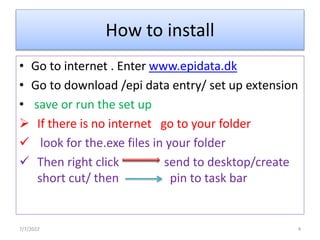
• Go to internet . Enter www.epidata.dk
• Go to download /epi data entry/ set up extension
• save or run the set up
 If there is no internet go to your folder
 look for the.exe files in your folder
 Then right click send to desktop/create
short cut/ then pin to task bar
7/7/2022 4
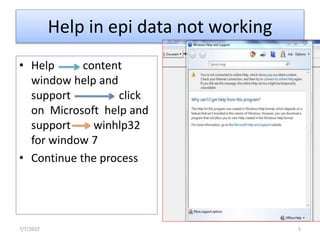
Help in epi data not working
• Help content
window help and
support click
on Microsoft help and
support winhlp32
for window 7
• Continue the process
7/7/2022 5
Why we use epi data
• Not many tools are available for data entry
Epi info, epi data and CSPro(for large data eg
data census)
• Compatible to any window
• Small (epi info 6 =3.89 MB,epi info 7=64.4 MB,epi
data=2.84
• Speedy installation
• Sufficient – for data quality assurance through
the CHK file and double entry validation
7/7/2022 6
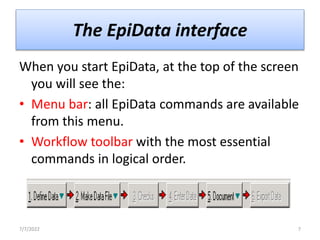
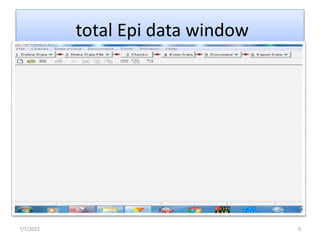
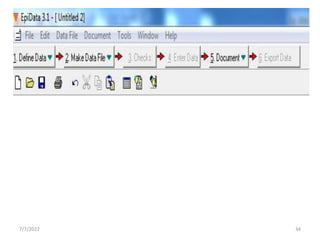
The EpiData interface
When you start EpiData, at the top of the screen
you will see the:
• Menu bar: all EpiData commands are available
from this menu.
• Workflow toolbar with the most essential
commands in logical order.
7/7/2022 7
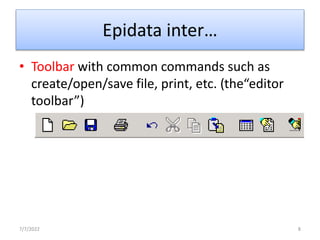
Epidata inter…
• Toolbar with common commands such as
create/open/save file, print, etc. (the“editor
toolbar”)
7/7/2022 8
total Epi data window
7/7/2022 9
How to set EpiData options before
starting a questionnaire
• File option
7/7/2022 10
7/7/2022 11
7/7/2022 12
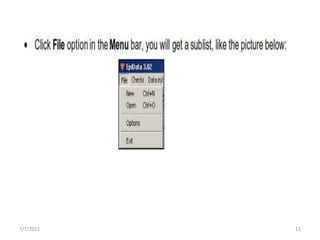
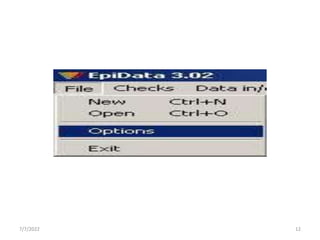
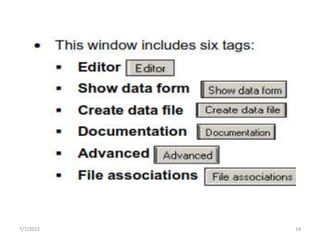
• Click the Options selection, you will get
Options window
7/7/2022 13
7/7/2022 14
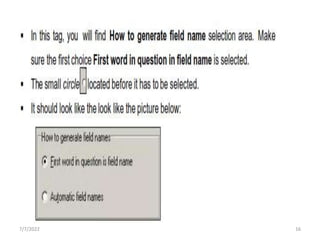
• Lets see create data file and advanced
File ----option------Create data file-------
7/7/2022 15
7/7/2022 16
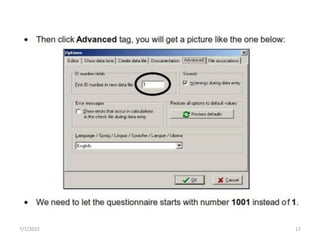
7/7/2022 17
• Then you click the OK button. So you will be
back to EpiData main screen.
• EpiData will save the new options
automatically, so you do not need to save your
changes.
7/7/2022 18
Over view of epidata entry
1. Data documentation sheet
2. QUES file
3. REC file
4. CHK file
7/7/2022 19
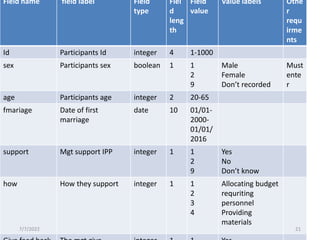
1. Data documentation sheet
7/7/2022 20
Field name field label Field
type
Fiel
d
leng
th
Field
value
Value labels Othe
r
requ
irme
nts
Id Participants Id integer 4 1-1000
sex Participants sex boolean 1 1
2
9
Male
Female
Don’t recorded
Must
ente
r
age Participants age integer 2 20-65
fmariage Date of first
marriage
date 10 01/01-
2000-
01/01/
2016
support Mgt support IPP integer 1 1
2
9
Yes
No
Don’t know
how How they support integer 1 1
2
3
4
Allocating budget
requriting
personnel
Providing
materials
7/7/2022 21
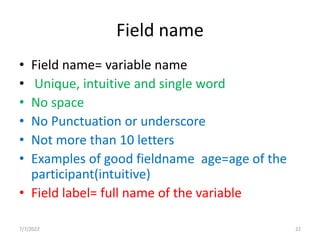
Field name
• Field name= variable name
• Unique, intuitive and single word
• No space
• No Punctuation or underscore
• Not more than 10 letters
• Examples of good fieldname age=age of the
participant(intuitive)
• Field label= full name of the variable
7/7/2022 22
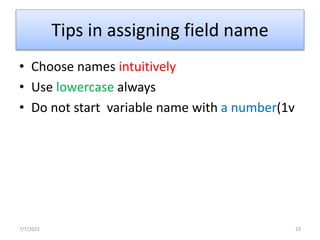
Tips in assigning field name
• Choose names intuitively
• Use lowercase always
• Do not start variable name with a number(1v
7/7/2022 23
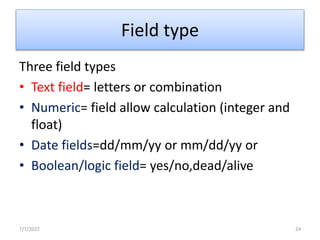
Field type
Three field types
• Text field= letters or combination
• Numeric= field allow calculation (integer and
float)
• Date fields=dd/mm/yy or mm/dd/yy or
• Boolean/logic field= yes/no,dead/alive
7/7/2022 24
Field length
• It is the number of the characters that the
value of the field take
• Maximum of 80 characters
7/7/2022 25
Field value
The possible values that the variable can
take
eg age =20-60…..
date =22/09/2016-22/06/2017
Sex= 1,2,9
7/7/2022 26
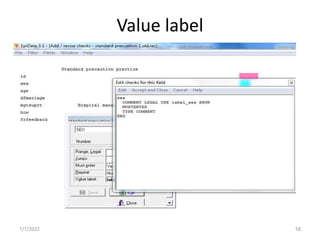
value labels
• Applicable only for categorical variables
• Actual names of the value=0 no and 1 yes
7/7/2022 27
Key unique
• The most important variable
• Every data base should have unique identifier
• The unique identifier is usually a number
assigned by the researcher
• Eg. Patient card number
• In EpiData, this can be done using check files
7/7/2022 28
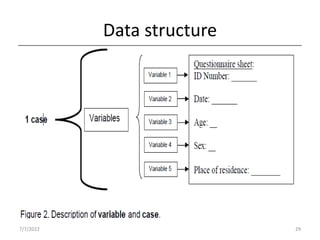
Data structure
7/7/2022 29
Structure of data base
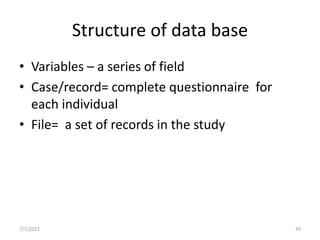
• Variables – a series of field
• Case/record= complete questionnaire for
each individual
• File= a set of records in the study
7/7/2022 30
2. Components of data base
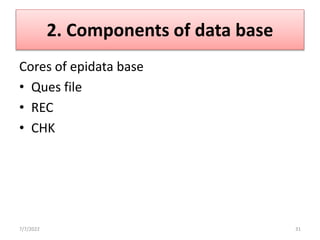
Cores of epidata base
• Ques file
• REC
• CHK
7/7/2022 31
QUES file
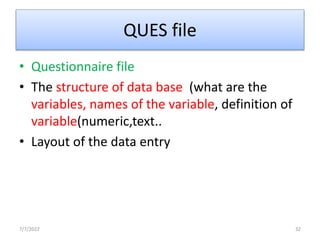
• Questionnaire file
• The structure of data base (what are the
variables, names of the variable, definition of
variable(numeric,text..
• Layout of the data entry
7/7/2022 32
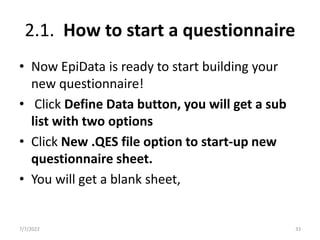
2.1. How to start a questionnaire
• Now EpiData is ready to start building your
new questionnaire!
• Click Define Data button, you will get a sub
list with two options
• Click New .QES file option to start-up new
questionnaire sheet.
• You will get a blank sheet,
7/7/2022 33
7/7/2022 34
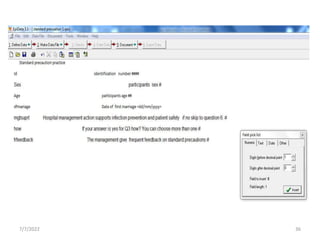
• Write the tex or copy from the other
• then use edit field pick list
• Use align --- first click on the longest text then
edit align field
• You can repeat twice or more
7/7/2022 35
7/7/2022 36
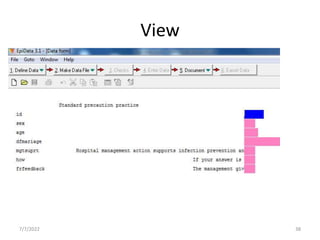
View
• Click preview data form from edit bar
• To close it ctr + f4
7/7/2022 37
View
7/7/2022 38
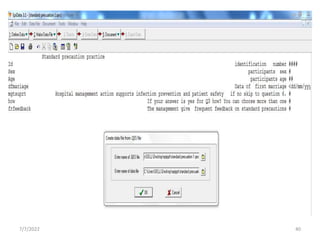
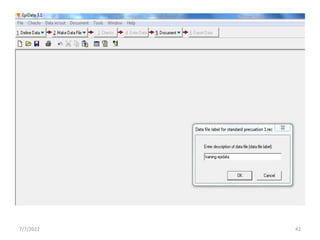
Creat data file (REC file)
• Create a data (.REC) file by:
• selecting New File from the Data menu in the
main screen, or by
• clicking the Make Data File button in the
work process toolbar, or by
• selecting Make Data File in the Data File
menu in the editor
7/7/2022 39
7/7/2022 40
REC
• The data (.REC) file will, by default, have the
same name as the questionnaire (.QES) file by
default
• but with the extension .REC instead of .QES.
7/7/2022 41
7/7/2022 42
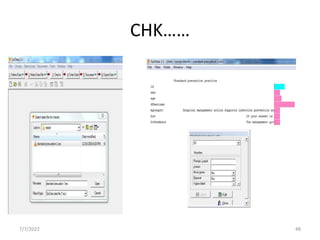
CHK files
• Check file
• It is the brain of epidata
• The smartest thing of epidata
• Steps CHKS select REC file
7/7/2022 43
CHK…
• The simplest way of using EpiData is:
• create a questionnaire (.QES) file to describe the layout of
the questionnaire
• create a data (.REC) file from the questionnaire (.QES file)
and
• enter data in the data (.REC) file.
• This will work perfectly well.
• Rather than checking the data after all data has been
entered,
• it may be useful to check the validity of the data during the
data entry process.
• Using a check file makes this possible.
7/7/2022 44
CHK
• A check file describes ways of checking the
validity of the entered data for one, several, or all
of the entry fields.
• The check file can also contain commands to
control the flow of data entry (e.g. automatic
jumps from one entry field to another field based
on the data entered).
• A check file must have the same name as the
data file but with the extension .CHK instead of
.REC.
7/7/2022 45
CHK..
A check file is usually created after creating a
data file. The check file may be created in
two ways:
1) By using Add / Revise found on the Checks
menu, or
2) by clicking the third button on the work
process toolbar. This method can be used to
specify or change checks for the fields, but
blocks
7/7/2022 46
CHK
 The most basic check commands can easily be
programmed using the Checks / Add / Revise function.
 This includes
• range checking
specification of legal values
• making a field required, making
conditional jumps between fields
• making a field the value of the previous record and
using value labels.
7/7/2022 47
CHK……
7/7/2022 48
Two ways of manipulating cheek
commands
• Menu base manipulation
• Go to Edit
7/7/2022 49
Types of check available in EpiData
1. Unique
2. Must enter
3. Range/legal
4. Jumps
5. Value Labels
7/7/2022 50
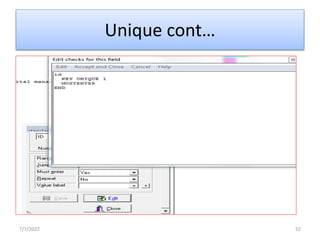
unique
 Each record must have a unique value for this
field. This check is often used for
identification fields
 No data base is available without unique
identifiers
 No two records can have the same serial
number
7/7/2022 51
Unique cont…
7/7/2022 52
CHK conti…
 If the data form has the focus the following key-
combinations will give the focus to one of the
validation rules:
 Press [Ctrl] + [L] to change the current field's range
and/or legal values
 Press [Ctrl] + [J] to change Jumps
 Press [Ctrl] + [E] to toggle the current field's Must
Enter status
 Press [Ctrl] + [R] to toggle the current field's Repeat
status
 Press [Ctrl] + [A] to change the current field's value
labels
7/7/2022 53
Range / Legal
• A range is defined by typing the minimum value and the
maximum value separated by a hyphen.
• Typing 2-5 defines that only the numbers 2,3,4 or 5 can be
entered in the current field.
• If only a maximum value is wanted then use -INF (minus
infinity) as the minimum value.
• If only a minimum value is wanted then use INF (infinity) as
the maximum value. Typing -INF-5 defines all numbers less
than or equal to 5 as legal entries in the current field.
• Typing 0-INF defines all positive numbers as legal values
7/7/2022 54
Range / Legal
• Legal values are defined by typing all the accepted
values separated by spaces or commas.
• Typing 4,6,8,10 defines that only the numbers 4,6,8
or 10 can be entered in the current field.
• If both a range and legal values are defined then
the range must be entered before the legal values.
• Two range is imposible
7/7/2022 55
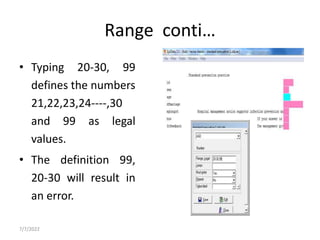
Range conti…
• Typing 20-30, 99
defines the numbers
21,22,23,24----,30
and 99 as legal
values.
• The definition 99,
20-30 will result in
an error.
7/7/2022 56
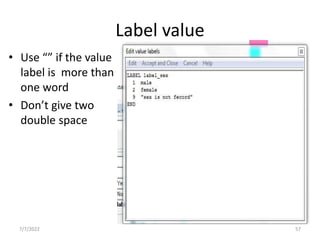
Label value
• Use “” if the value
label is more than
one word
• Don’t give two
double space
7/7/2022 57
Value label
7/7/2022 58
JUMP
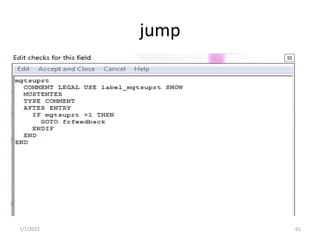
 Jumps are used to move to different fields.
We can use two command methods
1. After entry command- is a block command
which basically tells you after a value is enter
in this particular field
2. If then and if command
7/7/2022 59
jump
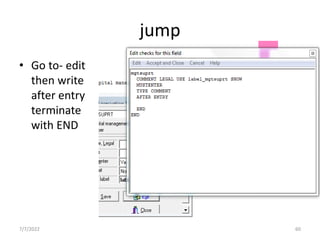
• Go to- edit
then write
after entry
terminate
with END
7/7/2022 60
jump
7/7/2022 61
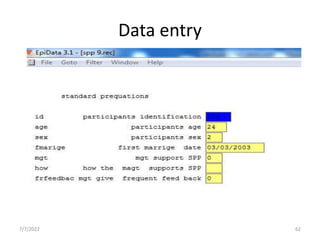
Data entry
7/7/2022 62
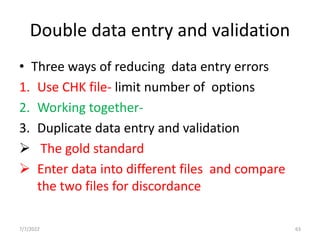
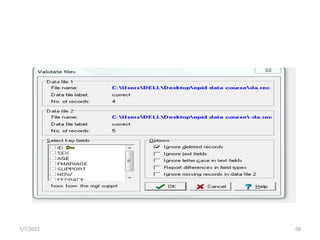
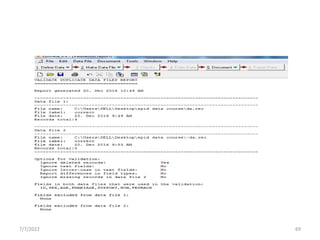
Double data entry and validation
• Three ways of reducing data entry errors
1. Use CHK file- limit number of options
2. Working together-
3. Duplicate data entry and validation
 The gold standard
 Enter data into different files and compare
the two files for discordance
7/7/2022 63
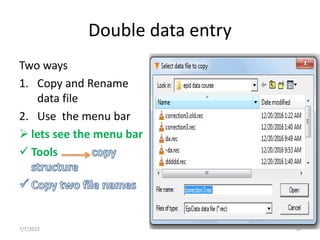
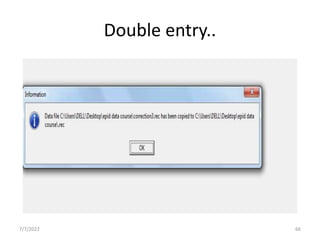
Double data entry
Two ways
1. Copy and Rename
data file
2. Use the menu bar
 lets see the menu bar
 Tools
7/7/2022 64
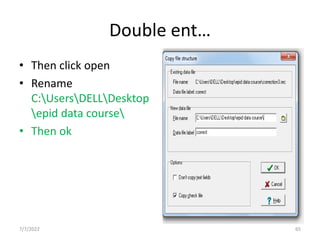
Double ent…
• Then click open
• Rename
C:UsersDELLDesktop
epid data course
• Then ok
7/7/2022 65
Double entry..
7/7/2022 66
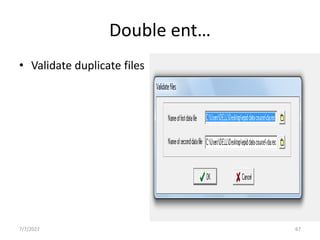
Double ent…
• Validate duplicate files
7/7/2022 67
7/7/2022 68
7/7/2022 69
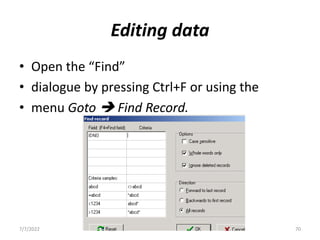
Editing data
• Open the “Find”
• dialogue by pressing Ctrl+F or using the
• menu Goto  Find Record.
7/7/2022 70
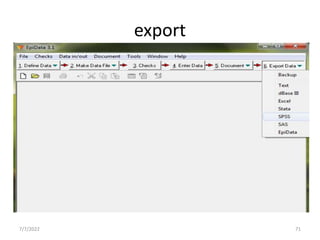
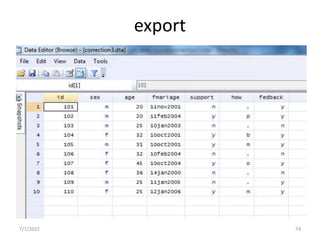
export
7/7/2022 71
7/7/2022 72
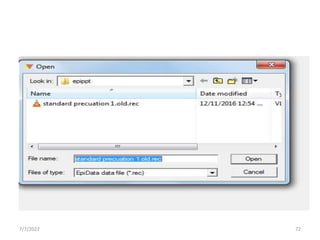
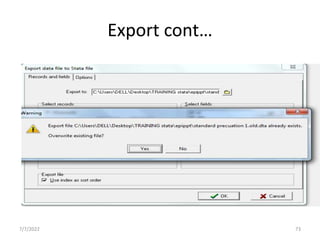
Export cont…
7/7/2022 73
export
7/7/2022 74
7/7/2022 75

epi data manual.pptx

  • 1.
  • 2.
    EpiData • EpiData isa Windows program for creating data entry forms and entering data. • It can be downloaded free of charge from http://www.epidata.dk/ . 7/7/2022 2
  • 3.
    Epi data software: installation and other preparation steps Are data entry error is common? What proportion of error is acceptable? Remember GIGO 7/7/2022 3
  • 4.
    How to install •Go to internet . Enter www.epidata.dk • Go to download /epi data entry/ set up extension • save or run the set up  If there is no internet go to your folder  look for the.exe files in your folder  Then right click send to desktop/create short cut/ then pin to task bar 7/7/2022 4
  • 5.
    Help in epidata not working • Help content window help and support click on Microsoft help and support winhlp32 for window 7 • Continue the process 7/7/2022 5
  • 6.
    Why we useepi data • Not many tools are available for data entry Epi info, epi data and CSPro(for large data eg data census) • Compatible to any window • Small (epi info 6 =3.89 MB,epi info 7=64.4 MB,epi data=2.84 • Speedy installation • Sufficient – for data quality assurance through the CHK file and double entry validation 7/7/2022 6
  • 7.
    The EpiData interface Whenyou start EpiData, at the top of the screen you will see the: • Menu bar: all EpiData commands are available from this menu. • Workflow toolbar with the most essential commands in logical order. 7/7/2022 7
  • 8.
    Epidata inter… • Toolbarwith common commands such as create/open/save file, print, etc. (the“editor toolbar”) 7/7/2022 8
  • 9.
    total Epi datawindow 7/7/2022 9
  • 10.
    How to setEpiData options before starting a questionnaire • File option 7/7/2022 10
  • 11.
  • 12.
  • 13.
    • Click theOptions selection, you will get Options window 7/7/2022 13
  • 14.
  • 15.
    • Lets seecreate data file and advanced File ----option------Create data file------- 7/7/2022 15
  • 16.
  • 17.
  • 18.
    • Then youclick the OK button. So you will be back to EpiData main screen. • EpiData will save the new options automatically, so you do not need to save your changes. 7/7/2022 18
  • 19.
    Over view ofepidata entry 1. Data documentation sheet 2. QUES file 3. REC file 4. CHK file 7/7/2022 19
  • 20.
    1. Data documentationsheet 7/7/2022 20
  • 21.
    Field name fieldlabel Field type Fiel d leng th Field value Value labels Othe r requ irme nts Id Participants Id integer 4 1-1000 sex Participants sex boolean 1 1 2 9 Male Female Don’t recorded Must ente r age Participants age integer 2 20-65 fmariage Date of first marriage date 10 01/01- 2000- 01/01/ 2016 support Mgt support IPP integer 1 1 2 9 Yes No Don’t know how How they support integer 1 1 2 3 4 Allocating budget requriting personnel Providing materials 7/7/2022 21
  • 22.
    Field name • Fieldname= variable name • Unique, intuitive and single word • No space • No Punctuation or underscore • Not more than 10 letters • Examples of good fieldname age=age of the participant(intuitive) • Field label= full name of the variable 7/7/2022 22
  • 23.
    Tips in assigningfield name • Choose names intuitively • Use lowercase always • Do not start variable name with a number(1v 7/7/2022 23
  • 24.
    Field type Three fieldtypes • Text field= letters or combination • Numeric= field allow calculation (integer and float) • Date fields=dd/mm/yy or mm/dd/yy or • Boolean/logic field= yes/no,dead/alive 7/7/2022 24
  • 25.
    Field length • Itis the number of the characters that the value of the field take • Maximum of 80 characters 7/7/2022 25
  • 26.
    Field value The possiblevalues that the variable can take eg age =20-60….. date =22/09/2016-22/06/2017 Sex= 1,2,9 7/7/2022 26
  • 27.
    value labels • Applicableonly for categorical variables • Actual names of the value=0 no and 1 yes 7/7/2022 27
  • 28.
    Key unique • Themost important variable • Every data base should have unique identifier • The unique identifier is usually a number assigned by the researcher • Eg. Patient card number • In EpiData, this can be done using check files 7/7/2022 28
  • 29.
  • 30.
    Structure of database • Variables – a series of field • Case/record= complete questionnaire for each individual • File= a set of records in the study 7/7/2022 30
  • 31.
    2. Components ofdata base Cores of epidata base • Ques file • REC • CHK 7/7/2022 31
  • 32.
    QUES file • Questionnairefile • The structure of data base (what are the variables, names of the variable, definition of variable(numeric,text.. • Layout of the data entry 7/7/2022 32
  • 33.
    2.1. How tostart a questionnaire • Now EpiData is ready to start building your new questionnaire! • Click Define Data button, you will get a sub list with two options • Click New .QES file option to start-up new questionnaire sheet. • You will get a blank sheet, 7/7/2022 33
  • 34.
  • 35.
    • Write thetex or copy from the other • then use edit field pick list • Use align --- first click on the longest text then edit align field • You can repeat twice or more 7/7/2022 35
  • 36.
  • 37.
    View • Click previewdata form from edit bar • To close it ctr + f4 7/7/2022 37
  • 38.
  • 39.
    Creat data file(REC file) • Create a data (.REC) file by: • selecting New File from the Data menu in the main screen, or by • clicking the Make Data File button in the work process toolbar, or by • selecting Make Data File in the Data File menu in the editor 7/7/2022 39
  • 40.
  • 41.
    REC • The data(.REC) file will, by default, have the same name as the questionnaire (.QES) file by default • but with the extension .REC instead of .QES. 7/7/2022 41
  • 42.
  • 43.
    CHK files • Checkfile • It is the brain of epidata • The smartest thing of epidata • Steps CHKS select REC file 7/7/2022 43
  • 44.
    CHK… • The simplestway of using EpiData is: • create a questionnaire (.QES) file to describe the layout of the questionnaire • create a data (.REC) file from the questionnaire (.QES file) and • enter data in the data (.REC) file. • This will work perfectly well. • Rather than checking the data after all data has been entered, • it may be useful to check the validity of the data during the data entry process. • Using a check file makes this possible. 7/7/2022 44
  • 45.
    CHK • A checkfile describes ways of checking the validity of the entered data for one, several, or all of the entry fields. • The check file can also contain commands to control the flow of data entry (e.g. automatic jumps from one entry field to another field based on the data entered). • A check file must have the same name as the data file but with the extension .CHK instead of .REC. 7/7/2022 45
  • 46.
    CHK.. A check fileis usually created after creating a data file. The check file may be created in two ways: 1) By using Add / Revise found on the Checks menu, or 2) by clicking the third button on the work process toolbar. This method can be used to specify or change checks for the fields, but blocks 7/7/2022 46
  • 47.
    CHK  The mostbasic check commands can easily be programmed using the Checks / Add / Revise function.  This includes • range checking specification of legal values • making a field required, making conditional jumps between fields • making a field the value of the previous record and using value labels. 7/7/2022 47
  • 48.
  • 49.
    Two ways ofmanipulating cheek commands • Menu base manipulation • Go to Edit 7/7/2022 49
  • 50.
    Types of checkavailable in EpiData 1. Unique 2. Must enter 3. Range/legal 4. Jumps 5. Value Labels 7/7/2022 50
  • 51.
    unique  Each recordmust have a unique value for this field. This check is often used for identification fields  No data base is available without unique identifiers  No two records can have the same serial number 7/7/2022 51
  • 52.
  • 53.
    CHK conti…  Ifthe data form has the focus the following key- combinations will give the focus to one of the validation rules:  Press [Ctrl] + [L] to change the current field's range and/or legal values  Press [Ctrl] + [J] to change Jumps  Press [Ctrl] + [E] to toggle the current field's Must Enter status  Press [Ctrl] + [R] to toggle the current field's Repeat status  Press [Ctrl] + [A] to change the current field's value labels 7/7/2022 53
  • 54.
    Range / Legal •A range is defined by typing the minimum value and the maximum value separated by a hyphen. • Typing 2-5 defines that only the numbers 2,3,4 or 5 can be entered in the current field. • If only a maximum value is wanted then use -INF (minus infinity) as the minimum value. • If only a minimum value is wanted then use INF (infinity) as the maximum value. Typing -INF-5 defines all numbers less than or equal to 5 as legal entries in the current field. • Typing 0-INF defines all positive numbers as legal values 7/7/2022 54
  • 55.
    Range / Legal •Legal values are defined by typing all the accepted values separated by spaces or commas. • Typing 4,6,8,10 defines that only the numbers 4,6,8 or 10 can be entered in the current field. • If both a range and legal values are defined then the range must be entered before the legal values. • Two range is imposible 7/7/2022 55
  • 56.
    Range conti… • Typing20-30, 99 defines the numbers 21,22,23,24----,30 and 99 as legal values. • The definition 99, 20-30 will result in an error. 7/7/2022 56
  • 57.
    Label value • Use“” if the value label is more than one word • Don’t give two double space 7/7/2022 57
  • 58.
  • 59.
    JUMP  Jumps areused to move to different fields. We can use two command methods 1. After entry command- is a block command which basically tells you after a value is enter in this particular field 2. If then and if command 7/7/2022 59
  • 60.
    jump • Go to-edit then write after entry terminate with END 7/7/2022 60
  • 61.
  • 62.
  • 63.
    Double data entryand validation • Three ways of reducing data entry errors 1. Use CHK file- limit number of options 2. Working together- 3. Duplicate data entry and validation  The gold standard  Enter data into different files and compare the two files for discordance 7/7/2022 63
  • 64.
    Double data entry Twoways 1. Copy and Rename data file 2. Use the menu bar  lets see the menu bar  Tools 7/7/2022 64
  • 65.
    Double ent… • Thenclick open • Rename C:UsersDELLDesktop epid data course • Then ok 7/7/2022 65
  • 66.
  • 67.
    Double ent… • Validateduplicate files 7/7/2022 67
  • 68.
  • 69.
  • 70.
    Editing data • Openthe “Find” • dialogue by pressing Ctrl+F or using the • menu Goto  Find Record. 7/7/2022 70
  • 71.
  • 72.
  • 73.
  • 74.
  • 75.