Household Health & Population (HHP) Survey Data Entry WorkshopP.PrabhuIIPS, Mumbai
What is CSPro?Comprehensive data processing program developed in coordination with the U.S. Census Bureau, Macro Int’l, and Serpro Int’l (CSPro is widely adopted for data entry for Sophisticated Survey.)Features allow forData entry and VerificationConsistency checking and editingMenu creationTabulation
Primary CSPro ComponentsDictionaries (.dcf)Forms (.fmf)Data Files (.dat)Applications (.ent and .bch)All CSPro files are stored in ASCII format
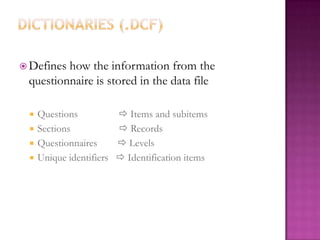
Dictionaries (.dcf)Defines how the information from the questionnaire is stored in the data fileQuestions                 Items and subitemsSections                    Records Questionnaires         LevelsUnique identifiers    Identification items
Forms (.fmf)Forms are linked to dictionariesThey are displayed during data entryThey define which dictionary items are entered the order in which the items are entered
We will discussHow to Add New Software to Your ComputerMain Characteristics of Data Entry SoftwareHow to Use Data Entry SoftwareTypes of Checks Used in Data Entry System
Basic requirements of machineMachine should be fully devoted to HHPS project till its completionP4 processor with 256 RAM and windows XP operating systemBetter to format Hard disk before start of projectFully virus protected
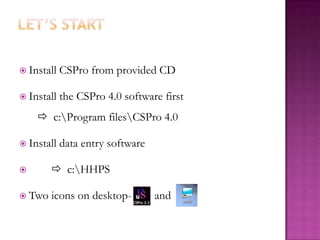
Let’s StartInstall CSPro from provided CD Install the CSPro 4.0 software first  c:\Program files\CSPro 4.0 Install data entry software   c:\HHPSTwo icons on desktop-        and
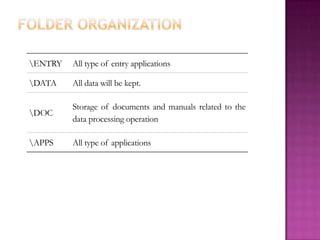
Folder Organization
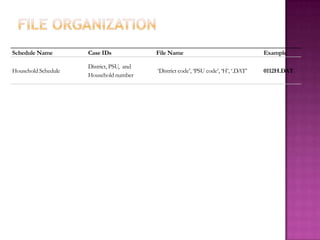
File Organization
Navigation rule for cursor movementWhenever length of item matches with digits keyed and information is consistent for that item, cursor automatically moves to next item.If actual number of digits (in questionnaire) is less than specified length, cursor goes to next place after pressing the enter keyNext form will be opened automatically after the last item of form is keyed.
Navigation rule for cursor movementCommonly for every variable we provide missing should be depends of length of the variable 9,99,999,9999…If information keyed in any item has any inconsistency with previous information, an error message will be displayed. If the entered value is out of the specified range, then error message “Out of range” will appear on the screen.Some items  defined as Protected or Mirror items, may contain previously-keyed data (such as identification on each page)can not be entered/changed by the data entry operator. Such items appear as gray boxes on the screen.
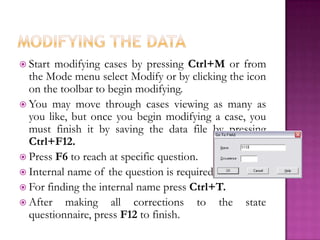
Modifying the dataStart modifying cases by pressing Ctrl+Mor from the Mode menu select Modify or by clicking the icon on the toolbar to begin modifying.  You may move through cases viewing as many as you like, but once you begin modifying a case, you must finish it by saving the data file by pressing Ctrl+F12. Press F6 to reach at specific question.  Internal name of the question is requiredFor finding the internal name press Ctrl+T. After making all corrections to the state questionnaire, press F12 to finish.
Path of Data Entry White: The item has not been entered yet. You have never moved this far forward during data entry of this case.Green: The items that are entered with values show green. Yellow: The item has been entered but you have then gone backward. Gray: The item cannot be entered. The application designer has defined it as either “protected” or “mirror”.
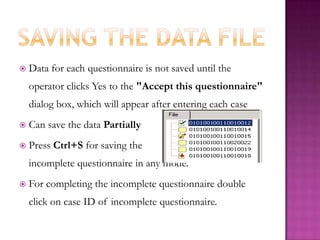
Saving the data fileData for each questionnaire is not saved until the operator clicks Yes to the "Accept this questionnaire" dialog box, which will appear after entering each caseCan save the data PartiallyPress Ctrl+Sforsaving the                                       incomplete questionnaire in any mode. For completing the incomplete questionnaire double click on case ID of incomplete questionnaire.
Types of Checks Used in Data EntryRange check
Valid value Check

Data Entry in CSpro

  • 1.
    Household Health &Population (HHP) Survey Data Entry WorkshopP.PrabhuIIPS, Mumbai
  • 2.
    What is CSPro?Comprehensivedata processing program developed in coordination with the U.S. Census Bureau, Macro Int’l, and Serpro Int’l (CSPro is widely adopted for data entry for Sophisticated Survey.)Features allow forData entry and VerificationConsistency checking and editingMenu creationTabulation
  • 3.
    Primary CSPro ComponentsDictionaries(.dcf)Forms (.fmf)Data Files (.dat)Applications (.ent and .bch)All CSPro files are stored in ASCII format
  • 4.
    Dictionaries (.dcf)Defines howthe information from the questionnaire is stored in the data fileQuestions  Items and subitemsSections  Records Questionnaires  LevelsUnique identifiers  Identification items
  • 5.
    Forms (.fmf)Forms arelinked to dictionariesThey are displayed during data entryThey define which dictionary items are entered the order in which the items are entered
  • 6.
    We will discussHowto Add New Software to Your ComputerMain Characteristics of Data Entry SoftwareHow to Use Data Entry SoftwareTypes of Checks Used in Data Entry System
  • 7.
    Basic requirements ofmachineMachine should be fully devoted to HHPS project till its completionP4 processor with 256 RAM and windows XP operating systemBetter to format Hard disk before start of projectFully virus protected
  • 8.
    Let’s StartInstall CSProfrom provided CD Install the CSPro 4.0 software first c:\Program files\CSPro 4.0 Install data entry software  c:\HHPSTwo icons on desktop- and
  • 9.
  • 10.
  • 11.
    Navigation rule forcursor movementWhenever length of item matches with digits keyed and information is consistent for that item, cursor automatically moves to next item.If actual number of digits (in questionnaire) is less than specified length, cursor goes to next place after pressing the enter keyNext form will be opened automatically after the last item of form is keyed.
  • 12.
    Navigation rule forcursor movementCommonly for every variable we provide missing should be depends of length of the variable 9,99,999,9999…If information keyed in any item has any inconsistency with previous information, an error message will be displayed. If the entered value is out of the specified range, then error message “Out of range” will appear on the screen.Some items defined as Protected or Mirror items, may contain previously-keyed data (such as identification on each page)can not be entered/changed by the data entry operator. Such items appear as gray boxes on the screen.
  • 13.
    Modifying the dataStartmodifying cases by pressing Ctrl+Mor from the Mode menu select Modify or by clicking the icon on the toolbar to begin modifying. You may move through cases viewing as many as you like, but once you begin modifying a case, you must finish it by saving the data file by pressing Ctrl+F12. Press F6 to reach at specific question. Internal name of the question is requiredFor finding the internal name press Ctrl+T. After making all corrections to the state questionnaire, press F12 to finish.
  • 14.
    Path of DataEntry White: The item has not been entered yet. You have never moved this far forward during data entry of this case.Green: The items that are entered with values show green. Yellow: The item has been entered but you have then gone backward. Gray: The item cannot be entered. The application designer has defined it as either “protected” or “mirror”.
  • 15.
    Saving the datafileData for each questionnaire is not saved until the operator clicks Yes to the "Accept this questionnaire" dialog box, which will appear after entering each caseCan save the data PartiallyPress Ctrl+Sforsaving the incomplete questionnaire in any mode. For completing the incomplete questionnaire double click on case ID of incomplete questionnaire.
  • 16.
    Types of ChecksUsed in Data EntryRange check
  • 17.