DATA MANAGEMENT
Using EpiData and SPSS
References
Public domain (pdf) book on data management:
Bennett, et al. (2001). Data Management for
Surveys and Trials. A Practical Primer Using
EpiData. The EpiData Documentation Project. :
http://www.epidata.dk/downloads/dmepidata.pdf
EpiData Association Website: http://www.epidata.dk/
Importing raw data into SPSS:
http://www.ats.ucla.edu/stat/spss/modules/input.ht
m
Data Management
• Planning data needs
• Data collection
• Data entry and control
• Validation and checking
• Data cleaning and variable transformation
• Data backup and storage
• System documentation
• Other
Types of Data Base
Management Systems (DBMSs)
• Spreadsheets (e.g., Excel, SPSS Data Editor)
• Prone to error, data corruption, & mismanagement
• Lack data controls, limited programmability
• Suitable only for small and didactic projects
• Also good for last step data cleaning
• Commercial DBMS programs (e.g., Oracle, Access)
• Limited data control, good programmability
• Slow & expensive
• Powerful and widely available
• Public domain programs (e.g., EpiData, Epi Info)
• Controlled data entry, good programmability
• Suitable for research and field use
We will use two
platforms:
• EpiData
• controlled data entry
• data documentation
• export (“write”) data
• SPSS
• import (“read”) data
• analysis
• reporting
What is EpiData ?
• EpiData is computer program (small in size 1.2Mb)
for simple or programmed data entry and data
documentation
• It is highly reliable
• It runs on Windows computers
• Runs on Macs and Linus with emulator software (only)
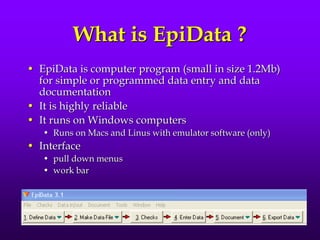
• Interface
• pull down menus
• work bar
History of EpiInfo & EpiData
• 1976–1995: EpiInfo (DOS program) created by CDC
(in wake of swine flu epidemic)
• Small, fast, reliable, 100,000+ users worldwide
• 1995–2000: DOS dies slow painful death
• 2000: CDC releases EpiInfo2000
• Based on Microsoft Jet (Access) data engine
• Large, slow, unreliable (resembled EpiInfo in name only)
• 2001: Loyal EpiInfo user group decides it needs real
“EpiInfo for Windows”
• Creates open source public domain program
• Calls program “EpiData”
Goal: Create & Maintain Error-
Free Datasets
• Two types of data errors
• Measurement error (i.e., information bias) –
discussed last couple of weeks
• Processing errors = errors that occur during data
handling – discussed this week
• Examples of data processing errors
• Transpositions (91 instead of 19)
• Copying errors (O instead of 0)
• Additional processing errors described on p. 18.2
Avoiding Data Processing Errors
• Manual checks (e.g., handwriting legibility)
• Range and consistency checks* (e.g., do not
allow hysterectomy dates for men)
• Double entry and validation*
• Operator 1 enters data
• Operator 2 enters data in separate file
• Check files for inconsistencies
• Screening during analysis (e.g., look for
outliers)
* covered in lab
Controlled Data Entry
• Criteria for accepting & rejecting data
• Types of data controls
• Range checks (e.g., restrict AGE to reasonable
range)
• Value labels (e.g., SEX: 1 = male, 2 = female)
• Jumps (e.g., if “male,” jump to Q8)
• Consistency checks (e.g., if “sex = male,” do not
allow “hysterectomy = yes”)
• Must enters
• etc.
Data Processing Steps
1. File naming conventions
2. Variables types and names
3. QES (questionnaire) development
4. Convert .QES file to .REC (record) file
5. Add .CHK file
6. Enter data in REC file
7. Validate data (double entry procedure)
8. Documentation data (code book)
9. Export data to SPSS
10. Import data into SPSS
Filenaming and File Management
• c:pathfilename.ext
• A web address is a good example of a filename, e.g.,
http://www2.sjsu.edu/faculty/gerstman/StatPrimer/data.ppt
• Some systems are case sensitive (Unix)
• Others are not (Windows)
• Always be aware of
• Physical location (local, removable, network)
• Path (folders and subfolders)
• Filename (proper)
• Extension
• Demo Windows Network Explorer: right-click Start
Bar > Explore
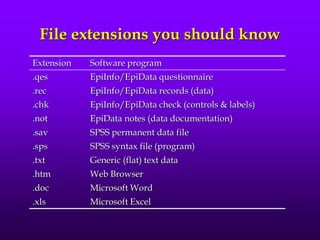
File extensions you should know
Extension Software program
.qes EpiInfo/EpiData questionnaire
.rec EpiInfo/EpiData records (data)
.chk EpiInfo/EpiData check (controls & labels)
.not EpiData notes (data documentation)
.sav SPSS permanent data file
.sps SPSS syntax file (program)
.txt Generic (flat) text data
.htm Web Browser
.doc Microsoft Word
.xls Microsoft Excel
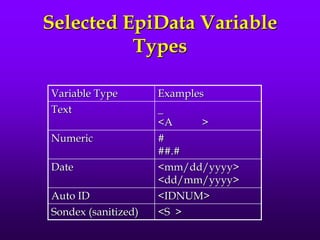
Selected EpiData Variable
Types
Variable Type Examples
Text _
<A >
Numeric #
##.#
Date <mm/dd/yyyy>
<dd/mm/yyyy>
Auto ID <IDNUM>
Sondex (sanitized) <S >
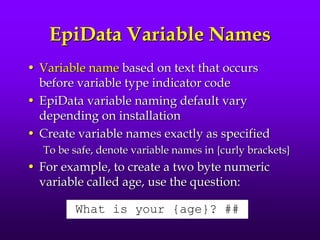
EpiData Variable Names
• Variable name based on text that occurs
before variable type indicator code
• EpiData variable naming default vary
depending on installation
• Create variable names exactly as specified
To be safe, denote variable names in {curly brackets}
• For example, to create a two byte numeric
variable called age, use the question:
What is your {age}? ##
Demo / Work Along
• Create QES file [demo.qes]
• Convert QES to REC [demo.rec]
• Create CHK file [demo.chk]
• Create double entry file [demo2.rec]
• Enter data
• Validate data
Fname Lname DOB SEX DEATHAGE
John Snow 3/15/1813 1 45
George Orwell 6/25/1903 1 46
We will stop here and pick
up the second part of the
lecture next week
“Stay tuned”
Codebooks
• Contain info that helps users decipher data
file content and structure
• Includes:
• Filename(s)
• File location(s)
• Variable names
• Coding schemes
• Units
• Anything else you think might be useful
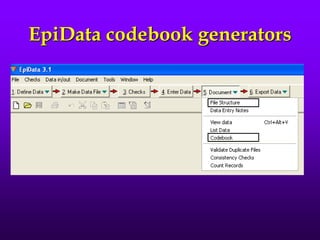
EpiData codebook generators
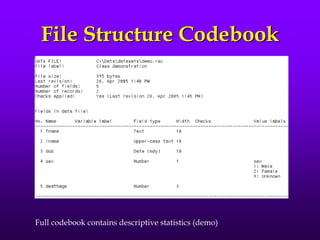
File Structure Codebook
Full codebook contains descriptive statistics (demo)
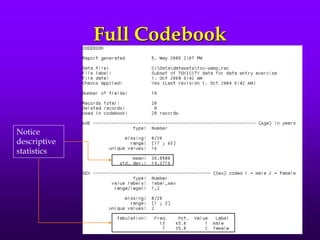
Full Codebook
Notice
descriptive
statistics
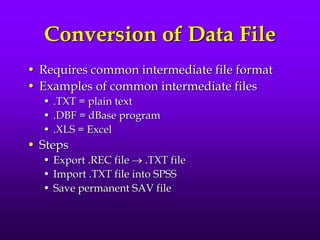
Conversion of Data File
• Requires common intermediate file format
• Examples of common intermediate files
• .TXT = plain text
• .DBF = dBase program
• .XLS = Excel
• Steps
• Export .REC file  .TXT file
• Import .TXT file into SPSS
• Save permanent SAV file
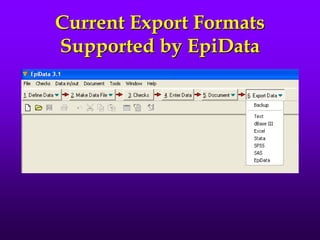
Current Export Formats
Supported by EpiData
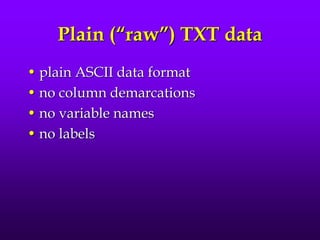
Plain (“raw”) TXT data
• plain ASCII data format
• no column demarcations
• no variable names
• no labels
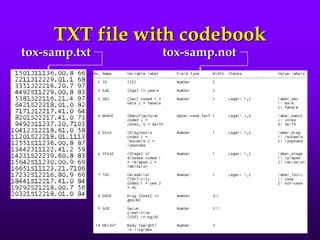
TXT file with codebook
tox-samp.txt tox-samp.not
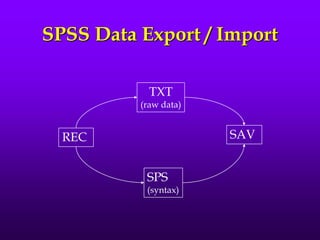
SPSS Data Export / Import
TXT
(raw data)
REC
SPS
(syntax)
SAV
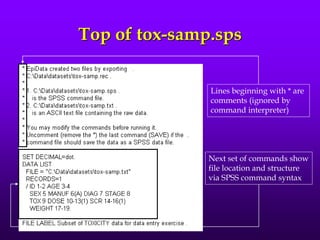
Top of tox-samp.sps
Lines beginning with * are
comments (ignored by
command interpreter)
Next set of commands show
file location and structure
via SPSS command syntax
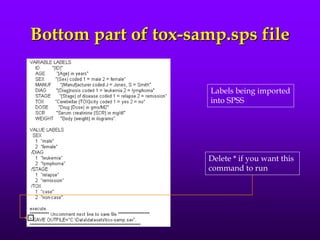
Bottom part of tox-samp.sps file
Labels being imported
into SPSS
Delete * if you want this
command to run
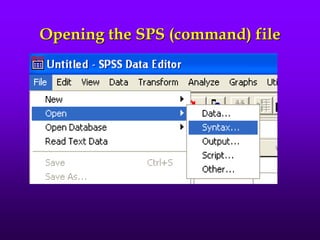
Opening the SPS (command) file
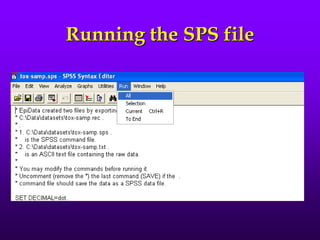
Running the SPS file
Ethics of Data Keeping
• Confidentiality (sanitized files – free of
identifiers)
• Beneficence
• Equipoise
• Informed consent (To what extent?)
• Oversight (IRB)

data.ppt

  • 1.
  • 2.
    References Public domain (pdf)book on data management: Bennett, et al. (2001). Data Management for Surveys and Trials. A Practical Primer Using EpiData. The EpiData Documentation Project. : http://www.epidata.dk/downloads/dmepidata.pdf EpiData Association Website: http://www.epidata.dk/ Importing raw data into SPSS: http://www.ats.ucla.edu/stat/spss/modules/input.ht m
  • 3.
    Data Management • Planningdata needs • Data collection • Data entry and control • Validation and checking • Data cleaning and variable transformation • Data backup and storage • System documentation • Other
  • 4.
    Types of DataBase Management Systems (DBMSs) • Spreadsheets (e.g., Excel, SPSS Data Editor) • Prone to error, data corruption, & mismanagement • Lack data controls, limited programmability • Suitable only for small and didactic projects • Also good for last step data cleaning • Commercial DBMS programs (e.g., Oracle, Access) • Limited data control, good programmability • Slow & expensive • Powerful and widely available • Public domain programs (e.g., EpiData, Epi Info) • Controlled data entry, good programmability • Suitable for research and field use
  • 5.
    We will usetwo platforms: • EpiData • controlled data entry • data documentation • export (“write”) data • SPSS • import (“read”) data • analysis • reporting
  • 6.
    What is EpiData? • EpiData is computer program (small in size 1.2Mb) for simple or programmed data entry and data documentation • It is highly reliable • It runs on Windows computers • Runs on Macs and Linus with emulator software (only) • Interface • pull down menus • work bar
  • 7.
    History of EpiInfo& EpiData • 1976–1995: EpiInfo (DOS program) created by CDC (in wake of swine flu epidemic) • Small, fast, reliable, 100,000+ users worldwide • 1995–2000: DOS dies slow painful death • 2000: CDC releases EpiInfo2000 • Based on Microsoft Jet (Access) data engine • Large, slow, unreliable (resembled EpiInfo in name only) • 2001: Loyal EpiInfo user group decides it needs real “EpiInfo for Windows” • Creates open source public domain program • Calls program “EpiData”
  • 8.
    Goal: Create &Maintain Error- Free Datasets • Two types of data errors • Measurement error (i.e., information bias) – discussed last couple of weeks • Processing errors = errors that occur during data handling – discussed this week • Examples of data processing errors • Transpositions (91 instead of 19) • Copying errors (O instead of 0) • Additional processing errors described on p. 18.2
  • 9.
    Avoiding Data ProcessingErrors • Manual checks (e.g., handwriting legibility) • Range and consistency checks* (e.g., do not allow hysterectomy dates for men) • Double entry and validation* • Operator 1 enters data • Operator 2 enters data in separate file • Check files for inconsistencies • Screening during analysis (e.g., look for outliers) * covered in lab
  • 10.
    Controlled Data Entry •Criteria for accepting & rejecting data • Types of data controls • Range checks (e.g., restrict AGE to reasonable range) • Value labels (e.g., SEX: 1 = male, 2 = female) • Jumps (e.g., if “male,” jump to Q8) • Consistency checks (e.g., if “sex = male,” do not allow “hysterectomy = yes”) • Must enters • etc.
  • 11.
    Data Processing Steps 1.File naming conventions 2. Variables types and names 3. QES (questionnaire) development 4. Convert .QES file to .REC (record) file 5. Add .CHK file 6. Enter data in REC file 7. Validate data (double entry procedure) 8. Documentation data (code book) 9. Export data to SPSS 10. Import data into SPSS
  • 12.
    Filenaming and FileManagement • c:pathfilename.ext • A web address is a good example of a filename, e.g., http://www2.sjsu.edu/faculty/gerstman/StatPrimer/data.ppt • Some systems are case sensitive (Unix) • Others are not (Windows) • Always be aware of • Physical location (local, removable, network) • Path (folders and subfolders) • Filename (proper) • Extension • Demo Windows Network Explorer: right-click Start Bar > Explore
  • 13.
    File extensions youshould know Extension Software program .qes EpiInfo/EpiData questionnaire .rec EpiInfo/EpiData records (data) .chk EpiInfo/EpiData check (controls & labels) .not EpiData notes (data documentation) .sav SPSS permanent data file .sps SPSS syntax file (program) .txt Generic (flat) text data .htm Web Browser .doc Microsoft Word .xls Microsoft Excel
  • 14.
    Selected EpiData Variable Types VariableType Examples Text _ <A > Numeric # ##.# Date <mm/dd/yyyy> <dd/mm/yyyy> Auto ID <IDNUM> Sondex (sanitized) <S >
  • 15.
    EpiData Variable Names •Variable name based on text that occurs before variable type indicator code • EpiData variable naming default vary depending on installation • Create variable names exactly as specified To be safe, denote variable names in {curly brackets} • For example, to create a two byte numeric variable called age, use the question: What is your {age}? ##
  • 16.
    Demo / WorkAlong • Create QES file [demo.qes] • Convert QES to REC [demo.rec] • Create CHK file [demo.chk] • Create double entry file [demo2.rec] • Enter data • Validate data Fname Lname DOB SEX DEATHAGE John Snow 3/15/1813 1 45 George Orwell 6/25/1903 1 46
  • 17.
    We will stophere and pick up the second part of the lecture next week “Stay tuned”
  • 18.
    Codebooks • Contain infothat helps users decipher data file content and structure • Includes: • Filename(s) • File location(s) • Variable names • Coding schemes • Units • Anything else you think might be useful
  • 19.
  • 20.
    File Structure Codebook Fullcodebook contains descriptive statistics (demo)
  • 21.
  • 22.
    Conversion of DataFile • Requires common intermediate file format • Examples of common intermediate files • .TXT = plain text • .DBF = dBase program • .XLS = Excel • Steps • Export .REC file  .TXT file • Import .TXT file into SPSS • Save permanent SAV file
  • 23.
  • 24.
    Plain (“raw”) TXTdata • plain ASCII data format • no column demarcations • no variable names • no labels
  • 25.
    TXT file withcodebook tox-samp.txt tox-samp.not
  • 26.
    SPSS Data Export/ Import TXT (raw data) REC SPS (syntax) SAV
  • 27.
    Top of tox-samp.sps Linesbeginning with * are comments (ignored by command interpreter) Next set of commands show file location and structure via SPSS command syntax
  • 28.
    Bottom part oftox-samp.sps file Labels being imported into SPSS Delete * if you want this command to run
  • 29.
    Opening the SPS(command) file
  • 30.
  • 31.
    Ethics of DataKeeping • Confidentiality (sanitized files – free of identifiers) • Beneficence • Equipoise • Informed consent (To what extent?) • Oversight (IRB)